I work as a video editor and software tester, and over the years, I’ve tried almost every TS to MP4 converter available. I use them both for work projects and in urgent situations outside of work. Most of the time, I stick with Adobe Media Encoder because it works perfectly with Premiere Pro and fits easily into my editing workflow.
Nonetheless, I wanted to explore other options. I spoke with my team, asked coworkers what tools they prefer, read many Reddit discussions, watched YouTube reviews, and then got the entire FixThePhoto team involved. Together, we tested 40+ tools to convert TS to MP4.
My goal was not just speed or design. I wanted to find out if there was a better option for different types of users: beginners, people who edit on the move, professionals, and editors like me who process large amounts of footage every day.
The results surprised me. Some TS to MP4 converting programs I had ignored for years turned out to be useful thanks to new AI-based features. Others, which I expected to work well, had problems with batch conversion or could not handle damaged TS files.
This is the checklist my team and I used to judge each tool:
I’ll also appreciate it if the tool offers other conversion options, like:
TS files, also known as Transport Stream files, are commonly used in TV broadcasting, screen recordings from TV cards, and some older cameras. This format is built to keep the video playing even if the signal has problems. To do this, the video is split into many small pieces. That works well for broadcasts, but it makes editing harder.
MP4 is much easier to use. It works on almost every device, opens in all editing programs, uploads well to social media, and keeps good quality with smaller file sizes. After working with TS files for a long time, I can say that converting them to MP4 makes everything simpler.
| TS | MP4 | |
|---|---|---|
|
Pros: |
✔️Great for broadcast recordings |
✔️Universal compatibility |
|
Cons: |
❌Not ideal for editing |
❌Less error-resistant |
At FixThePhoto, the main reason we convert TS to MP4 is flexibility. Once the video is in MP4 format, it can be edited in Premiere, color corrected, sent to the audio team, or cut into short clips for social media.
TS files are still used, but MP4 has become the standard. Almost every creator, editor, YouTuber, filmmaker, or content manager ends up changing their videos to MP4 at some point. It has become the common format everyone relies on.
With AI features starting to appear in video converters, we are close to a time when software can fix and improve footage automatically during conversion. Some tools are already moving in this direction, including Adobe, CloudConvert, and early versions of FFmpeg.
Compatibility: Windows, macOS
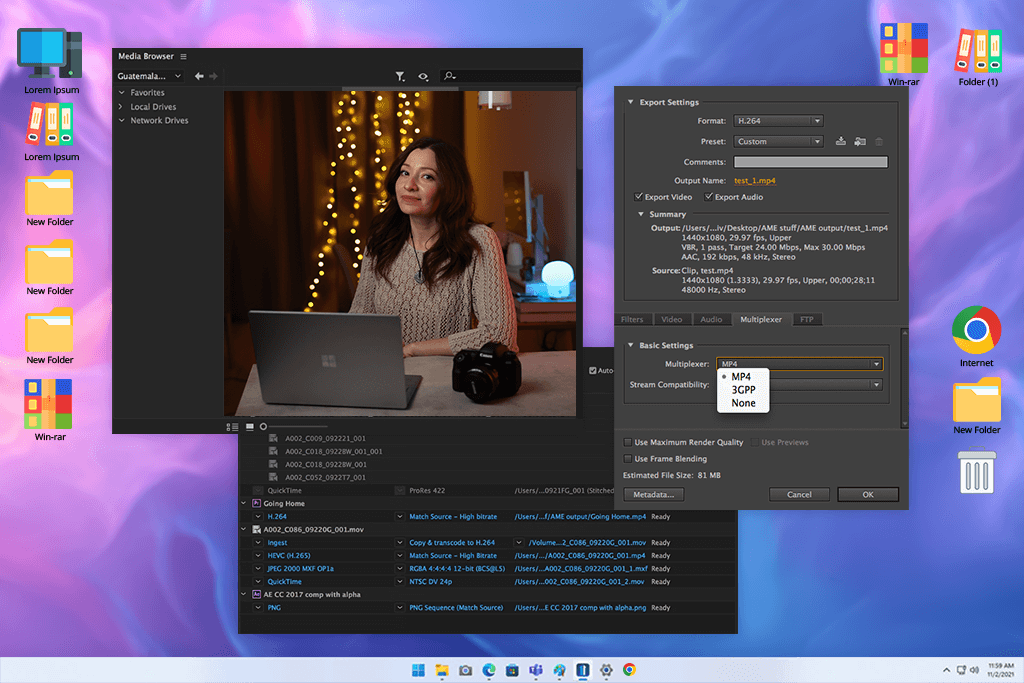
I have worked with Adobe tools for many years, so Adobe Media Encoder has always been part of my daily routine. Still, to keep the guide fair, I decided to test it again as if it were only a TS to MP4 converter, not part of a bigger Adobe setup.
The first thing I noticed was how smoothly it handled messy TS footage. Files that caused problems in other converters loaded into Media Encoder without errors or delays.
What sets Media Encoder apart is how it mixes automation with presets made for creative work. I can create a watch folder, drop in multiple TS files from a hard drive or memory card, and the program converts them to MP4 on its own while I work on color correction or photo retouching. You don’t fully notice how helpful this is until you stop using it.
“One thing I like a lot is how accurate the control over bitrate and video formats is. If you want your MP4 file to keep its detail for later editing, Media Encoder does a great job.”

There are downsides, though. It is not straightforward for beginners, and it is not the fastest tool unless you manually set up hardware acceleration.
My advice is to always turn on hardware encoding if your graphics card supports it. For TS files recorded from TV broadcasts, I got the best results using the High Profile preset with VBR 2-pass.
Pricing: Adobe Media Encoder free trial, from $22.99/mo (Creative Cloud)
Compatibility: Windows, macOS, Linux
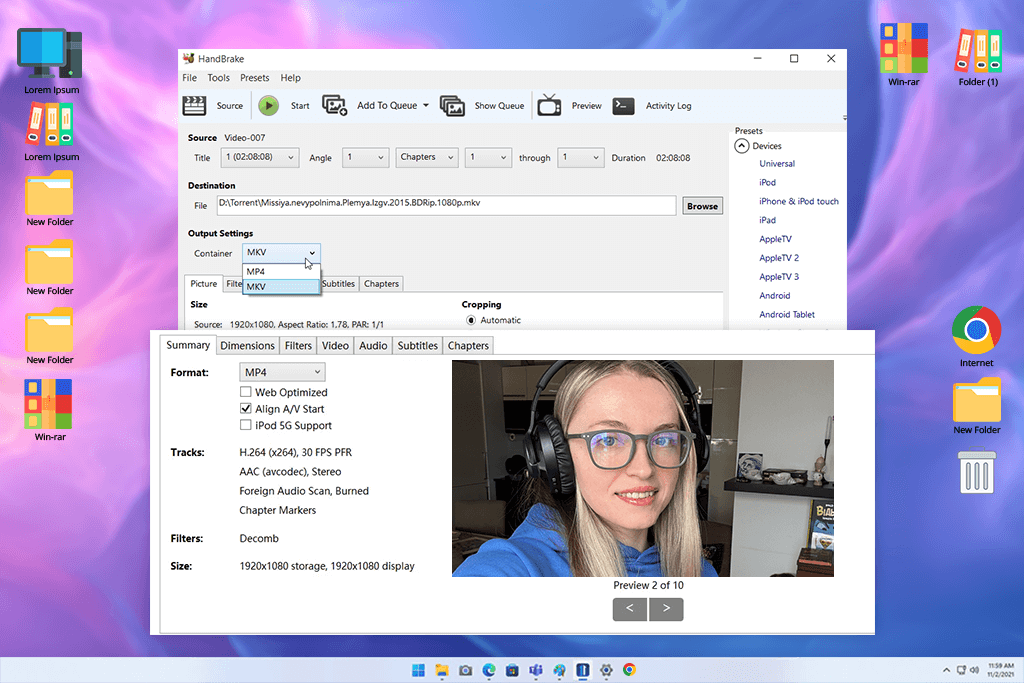
HandBrake is a program most video editors learn about early on in their careers. I first used it years ago for quick H.264 exports. Testing it now as a TS to MP4 converter showed me why so many people still trust it. It is free, open-source, light on system resources, and it can deal with complex TS files better than many paid tools.
One thing that stood out during testing was how well HandBrake cleaned up broadcast artifacts. When I used older TS recordings, it automatically applied deinterlacing and noise reduction, which improved the final MP4 files.
“When comparing Adobe Media Encoder vs HandBrake, the latter is easier to use. Presets, filters, audio settings, and the conversion queue are clearly visible in one place.”

HandBrake does have limits. It cannot handle badly damaged TS files very well, and it slows down when you choose settings that preserve quality. Still, for a free program, its performance is very reliable. The batch conversion feature made it a great secondary tool in my workflow.
My tip is to start with the “Fast 1080p30” preset and then change the RF quality slider based on how clean your TS file is. In most cases, RF values between 20 and 22 work well.
Pricing: Free, no limitations
Compatibility: Windows
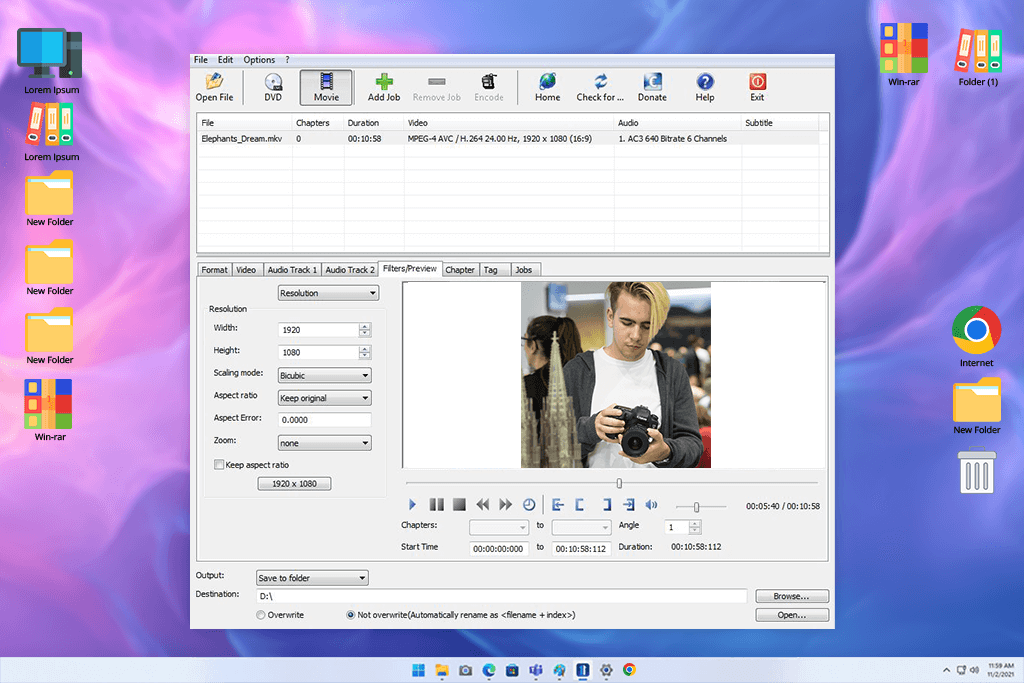
XMedia Recode was not a tool I paid much attention to before this large test. Many Reddit users mentioned it, so I decided to try it, and I was pleasantly surprised. The interface is easy to understand. It gives you control without being confusing like FFmpeg or too basic like many online converters.
While testing this free video converter for Windows, I noticed how stable it was with long videos. Some TS files were close to half an hour long, and the program converted them without audio sync issues or visual glitches.
“For TS files with shaky or uneven motion, the built-in motion compensation filter helped make the final MP4 smoother.”

The biggest strength of XMedia Recode is the mix of advanced codec settings and live preview, making it easier to adjust the output without lowering the video quality too much.
Its weaknesses are that it only works on Windows, and the interface design looks old. Nevertheless, the performance impressed me. After testing it, I added it to my list of backup tools for quick and dependable TS to MP4 conversions.
Pricing: Free
Compatibility: Win/macOS/Linux
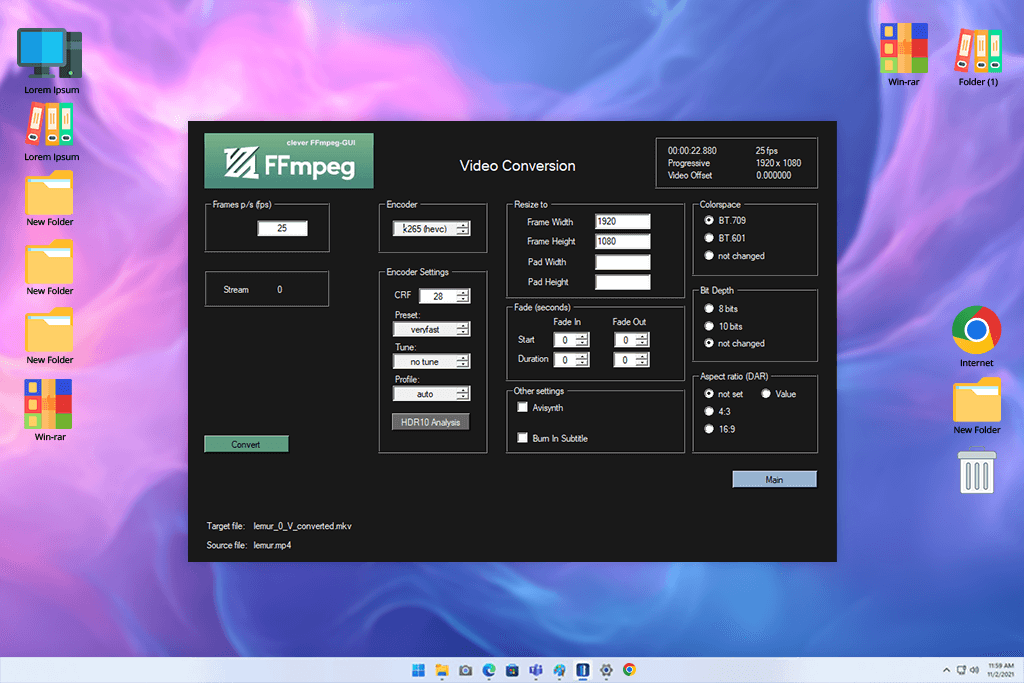
FFmpeg was a tool I had known about for a long time, but I stayed away from it because everything is done through text commands, which seemed confusing to me. During this testing project, I finally decided to give it a serious test. FFmpeg stands out because it does more than convert TS files to MP4: it lets you control almost every setting in the process.
While testing this video encoding software, I used it on several messy TS recordings that had sound going out of sync and missing data. FFmpeg handled these problems better than any other tool I tested. I was able to remove extra streams, fix timing issues, change the container without re-encoding, or fully re-encode the video when quality was important.
“One huge advantage was the ability to run batch conversions using scripts. This saved me a lot of time when I had to convert many small TS clips from a camera system.”

The main downside is clear: it takes time to learn. But once you save a set of useful commands, FFmpeg becomes extremely powerful. My advice is to use the -c copy option when the TS file is stable. This creates an MP4 file almost instantly without losing quality.
Pricing: Free, open-source
Compatibility: Win/macOS/Linux
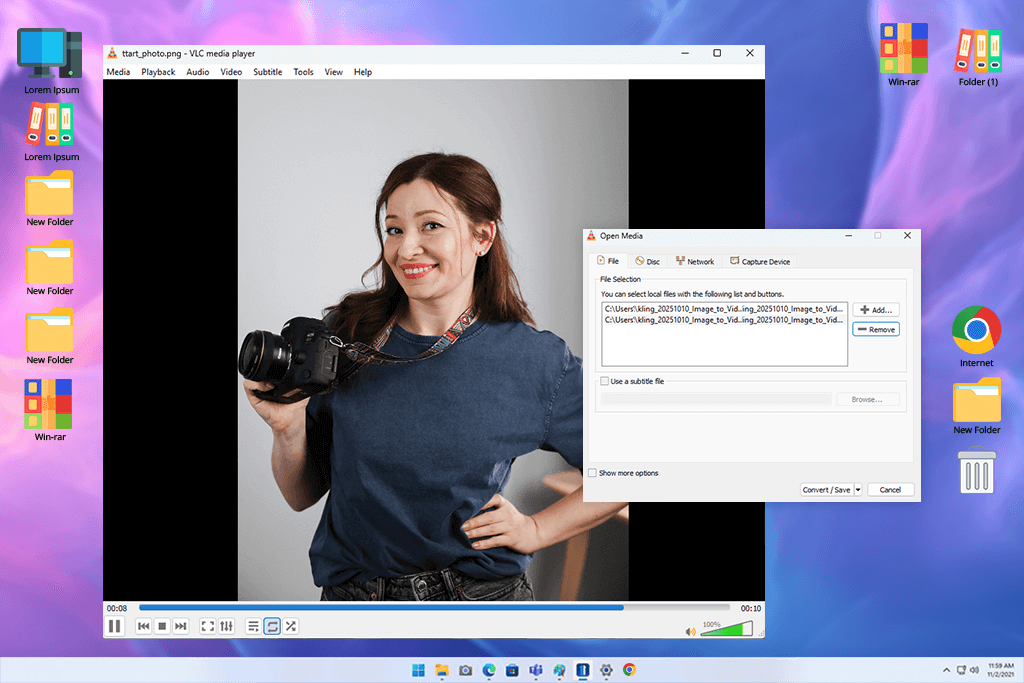
Like most people, I have always used VLC as a general open source video player for unusual file formats. After finishing this large test, I realized it can do much more than just play videos. VLC is free, open-source, and already installed on many computers, yet many editors don’t know how well it converts TS files.
During testing, I tried converting both clean and damaged TS recordings. VLC processed most of them without serious problems. One helpful feature is previewing a file before converting it, which is useful when you are unsure if the TS file can be saved.
“My tip is to set the video and audio settings manually instead of using the default presets. If you rely on presets, VLC may over- or under-compress the video.”

Compared to FFmpeg’s text-based workflow, VLC’s “Convert/Save” option is much easier to use. It is not the fastest converter, and its preset options are limited for advanced users, but when I needed a quick MP4 file without opening large editing software, VLC was often my first choice, especially when I work on my older laptop.
Pricing: Free
Compatibility: Browser-based
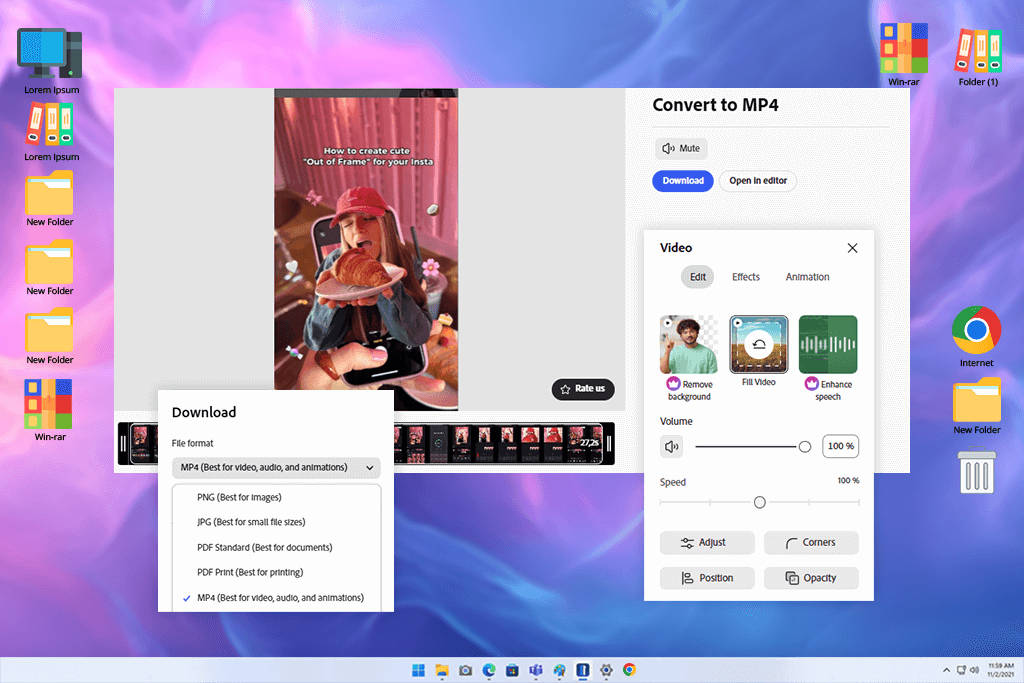
I usually use Adobe Express for quick edits in a web browser when I am on the go. Before this TS-to-MP4 project, I had never tested its video converter seriously, and I did not expect much from an online tool. It turned out to be smoother and more useful than I expected.
“As a quick and simple way to convert TS files into MP4, it works well when you just need a file to watch or share.”

The biggest benefit of Adobe Express is ease of use. You can upload a TS file from your computer, phone, or cloud storage and convert it without installing software, and since I work a lot remotely, this became very convenient. The layout is clean, easy for beginners, and does not overload you with technical settings.
During testing, I noticed how fast Adobe Express handled conversions. Even large TS files finished quickly compared to some desktop programs. However, the tool uses strong compression, so it is not meant for professional editing or color work. It is undoubtedly made for social media users who want fast results.
The main limitation is the lack of advanced controls. You cannot adjust the bitrate or choose specific codecs. My advice is to upload TS files under 2GB for smoother uploads, since larger files can take a while and make the process slower depending on your internet connection.
Pricing: Adobe Express free tier; Premium from $9.99/mo
Compatibility: Web
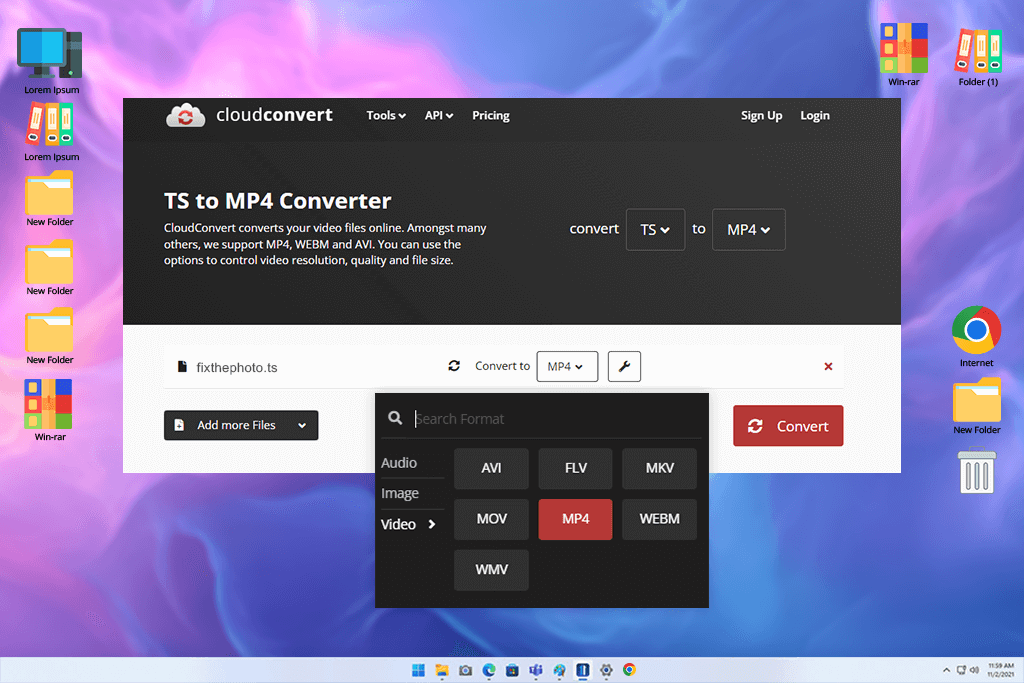
My team often use CloudConvert as a quick, free video converter when Premiere Pro or Media Encoder have trouble opening unusual files. When I tested it, the first thing I noticed was how technical and well-thought-out it feels. It’s more than a simple upload-and-convert service: you can adjust bitrate, cut clips, change audio settings, set frame rate, and choose custom codecs.
I find CloudConvert most useful when I’m working on tight deadlines and need professional results without watching the process closely. One test involved a large TS file from a live event recording, and CloudConvert processed it without issues.
“One detail I appreciate is that it keeps metadata. That might seem small, but it helps a lot when organizing footage for motion or retouching projects.”

Another standout feature is its API. I don’t use it often, but it helped me once when I needed to automate batch conversions for a tutorial project. My advice for using this TS to MP4 converter is to set the bitrate manually instead of using automatic settings: TS files can vary a lot, and a fixed bitrate keeps MP4 files consistent.
Pricing: free with 25 conversions/day; from $9/mo; from $108/year
Compatibility: Web
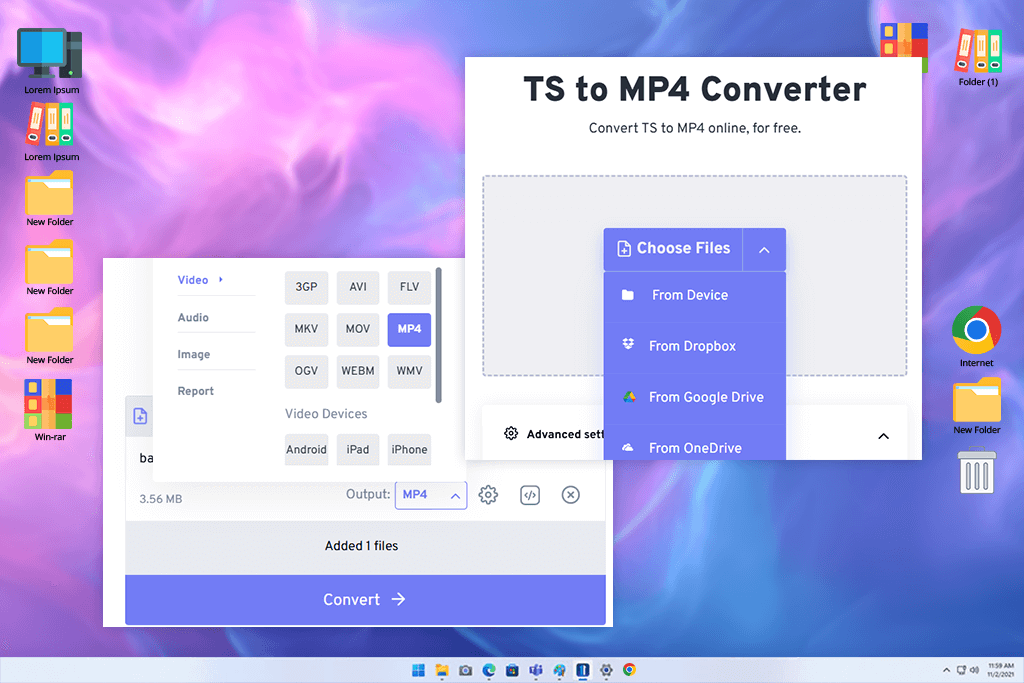
At first glance, this TS to MP4 converting tool may look too simply, but it is designed around ease of use. During testing, I was surprised by how fast it converted medium-sized files, especially for a free online service.
Its biggest strength is the preset system. You can pick a device type, quality level, or compression strength without changing advanced settings yourself. This is useful when I’m editing on a laptop while traveling and don’t want to deal with technical details.
“It includes optional filters like audio volume balancing and basic video stabilization. These features are simple, but for fast conversions, they can be helpful.”

To test FreeConvert, I converted several TS clips recorded at an event where I was moving between locations, and the stabilization feature helped smooth the footage. I wouldn’t use it for final client work, but for previews, it definitely saved time.
My main tip is to turn on “Auto Rotate” for TS files recorded on phones. Some converters miss rotation data, but this tool handles it correctly.
Pricing: free up to 1GB; from $9.99/mo; from $99/year
Compatibility: Web + Windows
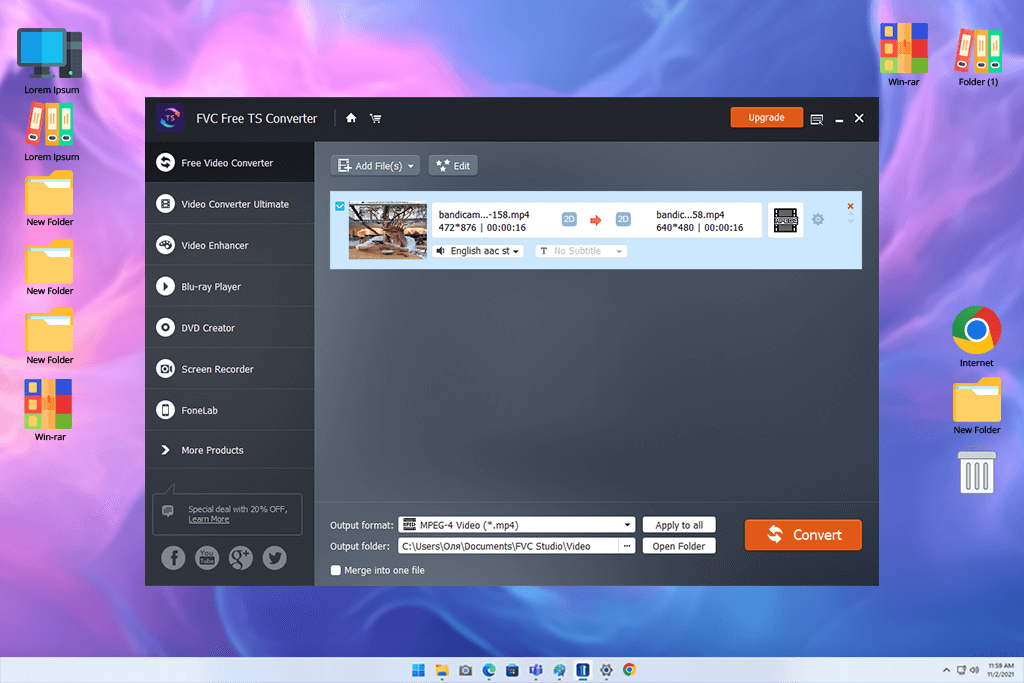
I found FVC’s file converter software a few years ago while searching for lightweight desktop programs to suggest to FixThePhoto readers who don’t want professional-level tools yet. Unlike CloudConvert or FreeConvert, FVC follows a more classic style with a simple layout, fewer distractions, and a clear conversion process.
What I like most is how stable it is with older TS files. I tested some archive footage from an outdoor festival recorded on an old camera, and FVC converted it without errors. Many online converters struggle with files like these.
The conversion speed is solid, but the feature that stands out the most is the built-in “Enhance” option. It won’t magically transform the video, but it can improve contrast and reduce light noise in the MP4 output. This is helpful for fast social media posts or client previews.
“FVC allows batch conversions even in its free version. I often convert multiple TS clips at once and let them process in the background while I work on some photo edits in Lightroom.”

My advice: don’t overuse the Enhance mode. It works best on low-contrast TS clips but can over-sharpen footage that already looks fine.
Pricing: free (watermark on some features); from $15/mo; from $89/year
I work with video file formats every day, so I decided to join forces with my colleagues at FixThePhoto to run a large and detailed comparison of different TS to MP4 converters. Our goal was to find out which programs can be trusted to give clean and steady results when working with different types of footage.
I began by selecting more than 60 possible tools and then reducing the list to 40 that looked worth testing. Several popular options did not make it into the final selection. Tools like Convertio, MiroConvert, AnyMP4, Vidmore, Zamzar, etc. were removed because they used heavy compression, failed with long TS files, lacked basic codec controls, or had poor free versions.
My team and I used the same clear testing process we follow for all internal reviews. First, we focused on setup and ease of use. We checked if the tool forced users to sign up and whether the UI was simple enough to use when working under time pressure. I prefer software that feels familiar and easy, similar to the media apps I use every day.
After that, we tested how well each converter handled difficult files. I uploaded TS videos from live events, phone recordings, older cameras, and even damaged clips that my team saves for testing. Some TS to MP4 converters kept the motion smooth and the colors accurate, while others created shaky video, faded colors, or audio that did not match the picture.
To check quality and consistency, I placed the converted MP4 files side by side in Premiere Pro. I looked closely at bitrate stability, sharpness, color changes, and visual glitches. Frame rate behavior was also important, since TS files can behave unpredictably, and some converters changed the frame rate without telling the user.
Speed was another major factor, especially when converting many files at once. My team recorded how often tools timed out, how their queues worked, and how well they handled batch processing.
In the final step, we reviewed safety, usage limits, and pricing transparency. Any converter that did not clearly explain how long uploaded files were stored, or locked basic MP4 exports behind a paid plan, was removed immediately. Only the tools that proved to be stable, clean, fast, and safe were included in my final list.





![13 Best AI YouTube Shorts Generators [+BONUS]](http://fixthephoto.com/blog/images/gallery/news_main__preview_28463.jpg)

![7 Best Websites for Painters in {{%year}} [Portfolios & Sales]](http://fixthephoto.com/blog/images/gallery/news_main__preview_28423.jpg)


















