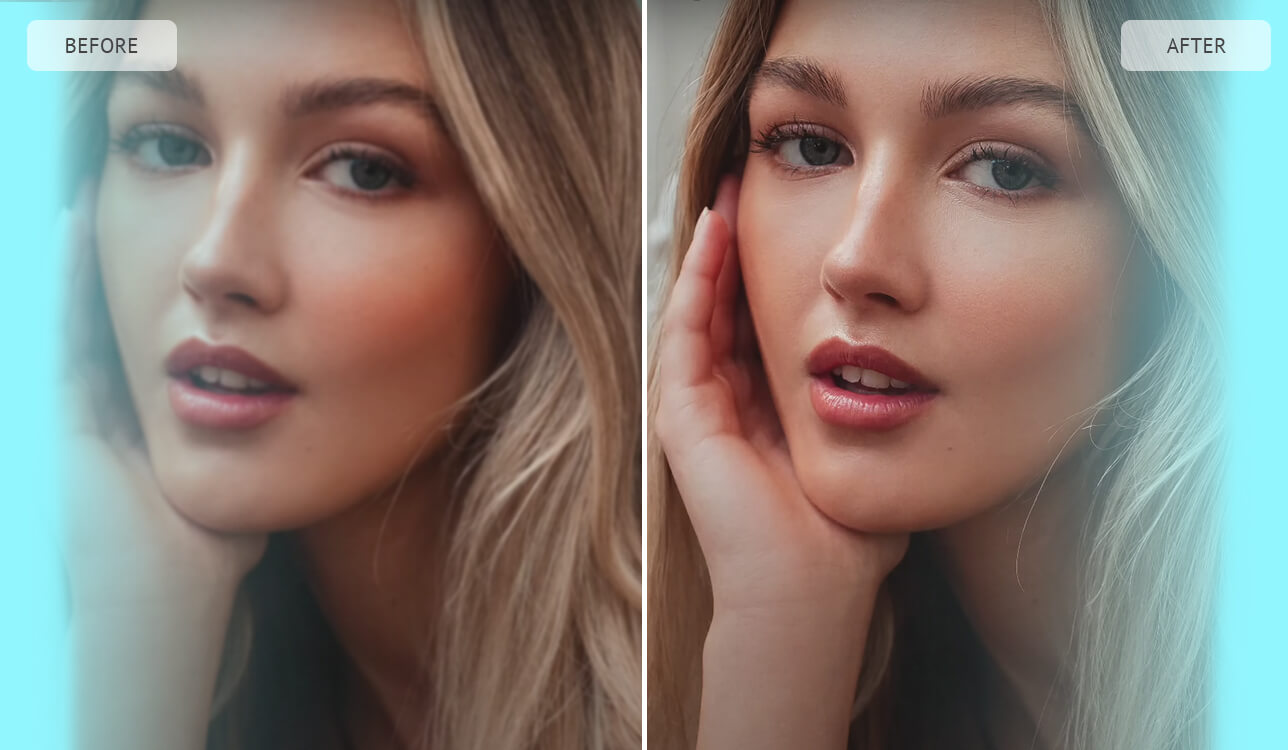
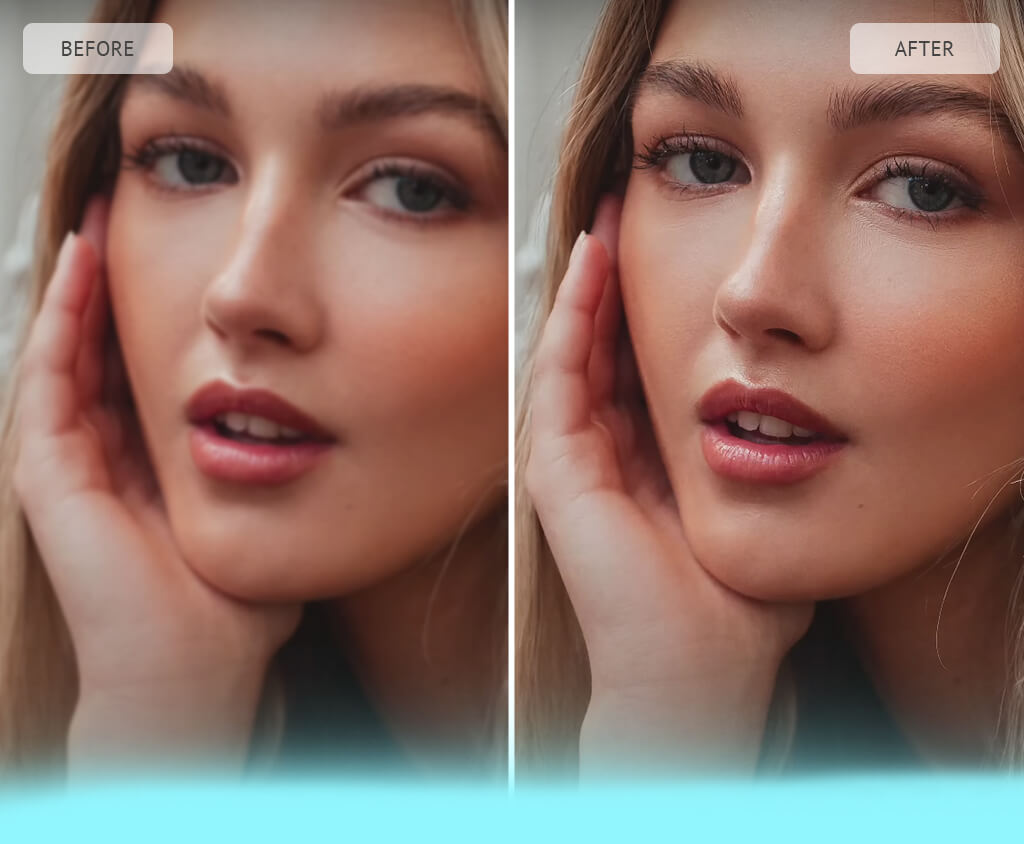
I tend to edit RAW images and rely on premium software like Photoshop and Lightroom for work, but many people can’t afford them or lack the technical skills to use professional tools. Having been asked by my followers and clients how to increase the quality of lower-resolution images, I made it my goal to try out a wide selection of HD photo converters.
I was interested in finding fully functional tools, particularly aimed at users who simply want to upscale an older photo, increase sharpness, or prepare a low-resolution picture for print.
The majority of HD photo converters were developed for upscaling resolution, minimizing noise, and emphasizing details in just one click. Several tools can also enhance color accuracy, deal with compression artifacts, or apply AI-powered edits to recover lost details.
Even though the quality of the results largely depends on the software, I found multiple solutions that pleasantly surprised our FixThePhoto team. They’re user-friendly, offer quick processing, and can transform low-resolution photos into high-quality ones without requiring you to pay for premium software.
I was initially skeptical about finding a truly impressive HD photo converter. As I dedicate hours of my life to enhancing skin tones, textures, and detail by hand, I didn’t think a single-click solution, particularly an AI-powered one, could provide professional quality. However, several options are nearly at that level, at least when it comes to everyday projects.
AI-powered upscaling solutions recognize patterns and add missing details based on the context. It doesn’t recover actual data, but is often smart enough to add what should be there, particularly if used on a portrait or properly lit photo. The result isn’t perfect, but for casual users, it should be more than satisfying.
That said, many AI solutions are severely disappointing. They can over-sharpen, create new artifacts, or just enlarge the photo without actually enhancing it. That’s why I tried each converter hands-on, trying to find a balance between quality, performance, and user-friendliness. My goal was to determine which HD photo converters are worthy of your attention.
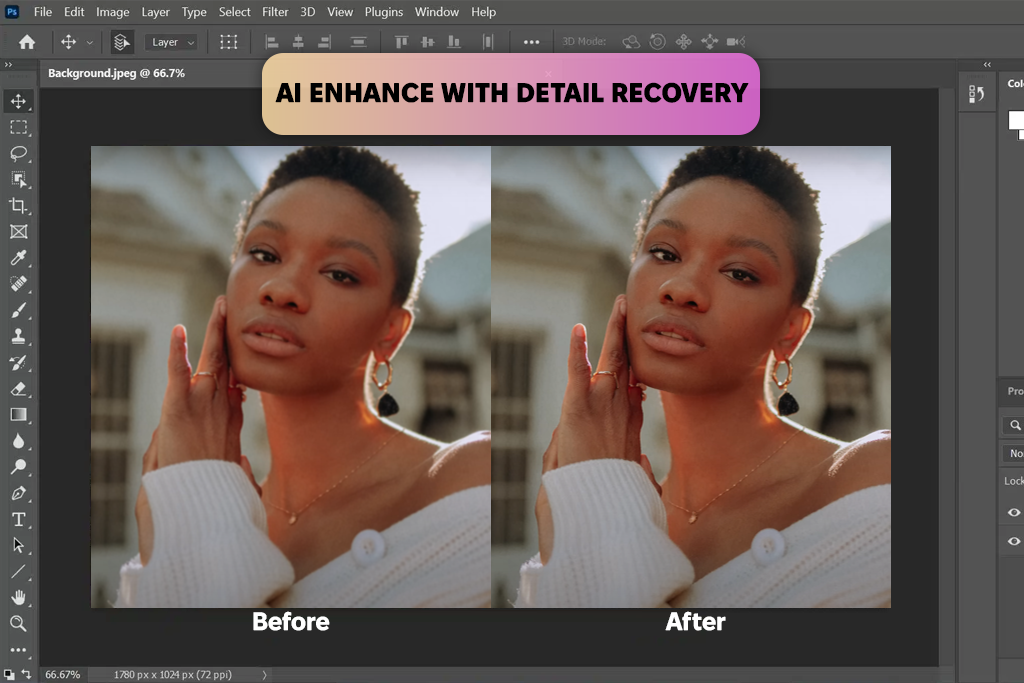
While I always knew how good Adobe software is, I was still a bit surprised to conclude that Photoshop is the best HD photo converter available. The relatively recent inclusion of Firefly in Photoshop ensured that HD image upscaling can be done even by complete beginners with no technical skills.
I used Photoshop to enhance a blurry scan of a printed portrait and clicked on the Image Size option with AI resampling turned on. Then, I adjusted the dimensions and picked Preserve Details 2.0. The improvement was immediately obvious – the edges are sharper, the skin is smoother while still looking natural, and the clarity increased across the entire shot. The higher quality was preserved even when I printed the photo on matte paper, which isn’t always the case with upscaled images.
Obviously, you have to know what to choose. Photoshop isn’t a single-click solution like most online tools. However, once you get acquainted with all the main features, you’ll enjoy a lot more creative freedom than any basic HD photo converter can provide.
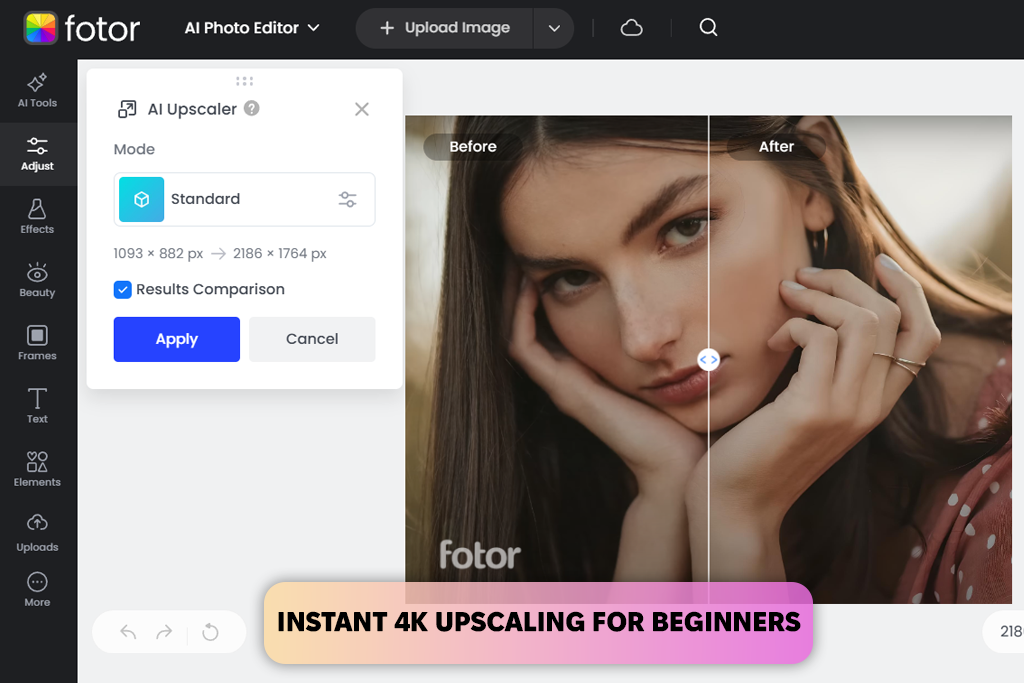
If you’re inexperienced and want a straightforward way to improve picture quality without dealing with advanced software, you can't go wrong with Fotor. I used it as a beginner would, and it won me over with its combination of AI-based single-click features and standard editing tools, filters, etc.
Fotor allows you to import files in JPEG, PNG, WebP, and other formats, and then automatically upscales them to HD or 4K resolution in a matter of seconds. I used it for several blurry photos and was impressed with the results. The AI brings out the detail, improves clarity, and increases the resolution with zero effort required on your part.
I also tried its image restoration tool on an old family portrait, and it emphasized the facial features and contrast to make the picture look more detailed. The free plan has regular ads and the range of editing tools is limited, but if speed and efficiency are your goal, Fotor is the best HD photo converter for the job.
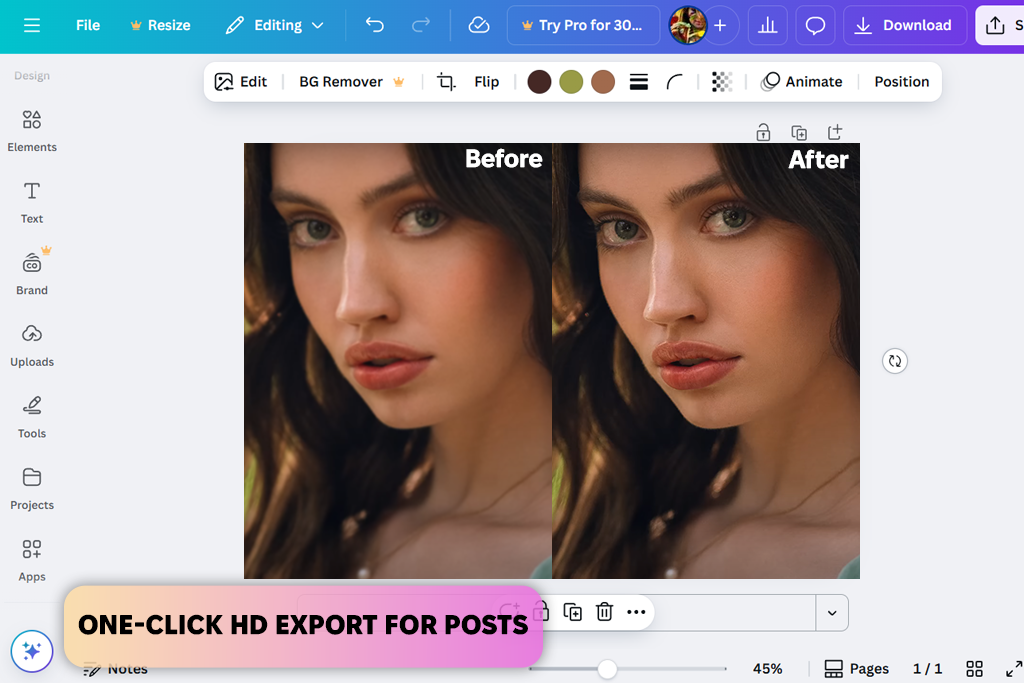
Canva is one of my favorite platforms for creating designs when I’m on a tight deadline. I use it to design Instagram stories, blog graphics, and basic collages. However, as a Canva Pro user, I didn’t have to create an account – simply imported the necessary low-resolution photos and tried the available features.
After importing an old selfie and a low-res landscape, I opened the “Image Upscaler” app inside Canva. The process was quick and intuitive – a single click and the resolution was already increased.
The AI performed well, improving edge clarity and making the images sharper as a whole. I then posted the pictures on Instagram and added them to a client's moodboard. This isn’t a tool for dealing with very blurry or pixelated photos since the results can look too unnatural. However, for casual projects and web images, Canva is more than enough.
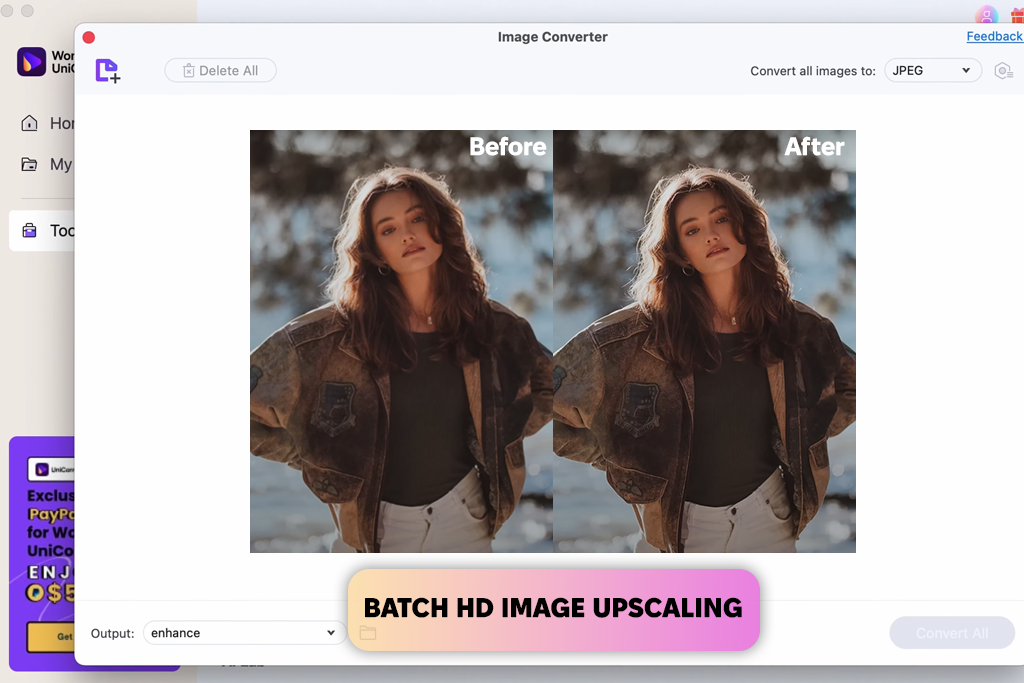
I frequently rely on Wondershare UniConverter, both as an image converter and AI-powered Enhancer. This tool can upscale the resolution, increase sharpness, and improve contrast in a couple of clicks. It also supports batch processing, which is extremely time-efficient when dealing with a large number of photos.
I just had to import the photos, pick the desired upscaling setting, and wait. Even the scanned old photos looked more detailed and sharper. I also like the preview window that helps me ensure I’m happy with the results before downloading them.
This HD photo converter is compatible with a broad selection of formats and can be used for both simple personal needs and professional projects. Remember that you have to get a paid subscription to access all features, while AI functionality requires internet connectivity.
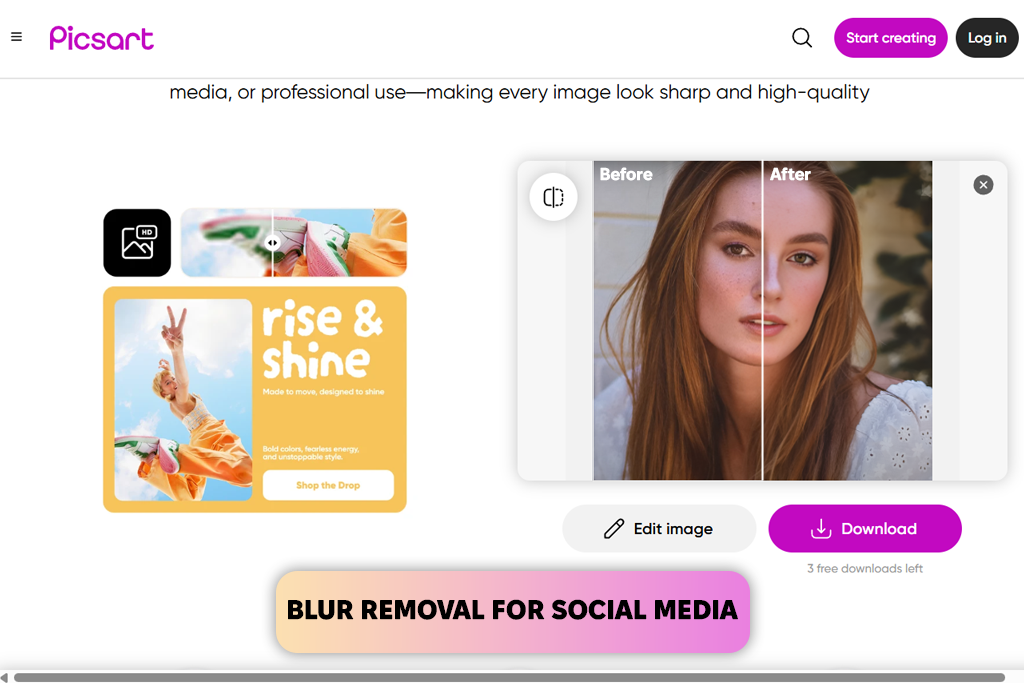
Picsart is among the best HD photo converter options for content creators. It’s super quick, fully automated, and pleasantly efficient at transforming blurry, low-resolution photos into sharper, high-definition ones.
You can apply the conversion in just one click. I imported several grainy images with insufficient lighting, and Piscart increased the sharpness, contrast, and clarity without ruining the natural look of the photos. All the upscaled images look detailed with no effort required on my part.
Picsart increases the resolution while ensuring they’re still web-optimized, which is important when posting images online. That said, it’s not advanced enough to satisfy professional users, providing limited control and being prone to occasional over-sharpening.
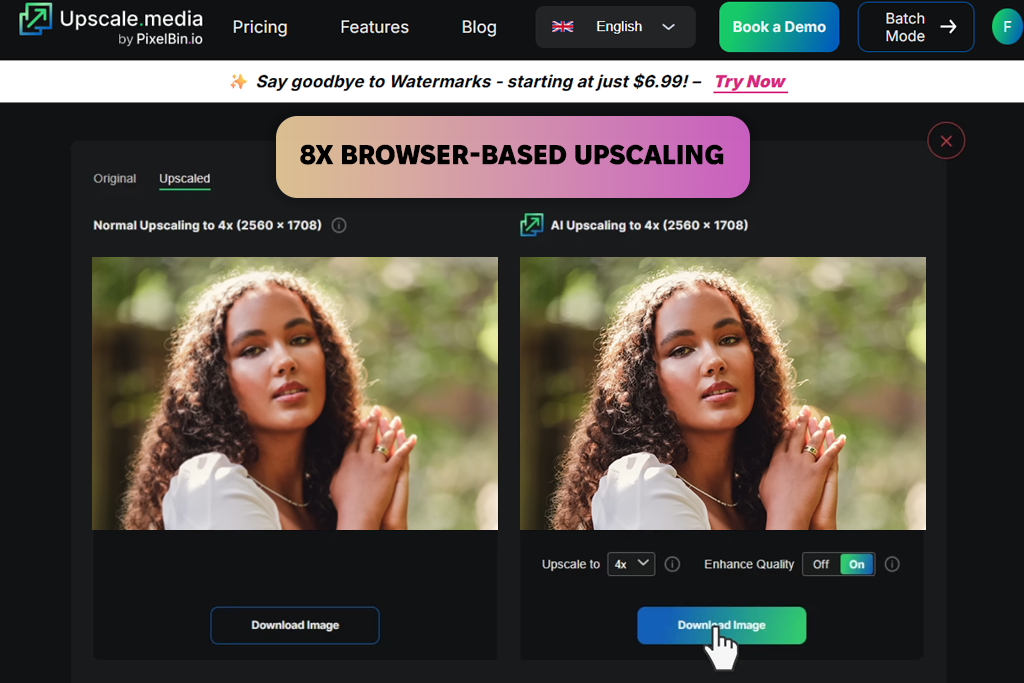
Upscale Media was recommended to me by a coworker who claims it’s the best HD photo converter app they’ve tried. I used it to transform several client photos to HD when I was traveling, and I was happy with the provided speed and quality.
You can use this solution entirely in your browser while being compatible with JPEG and PNG formats. Simply import the photo, pick the desired scale, and the artificial intelligence will do everything else. I used Upscale Media to enhance low-resolution portraits and landscape photos – and I was happy with the increased sharpness and absence of added artifacts.
This option is not suitable for in-depth retouching or professional editing, but it wasn’t meant to be. This AI image upscaler is free for basic tasks and is more than capable of handling any “emergency upscale” needs you have.
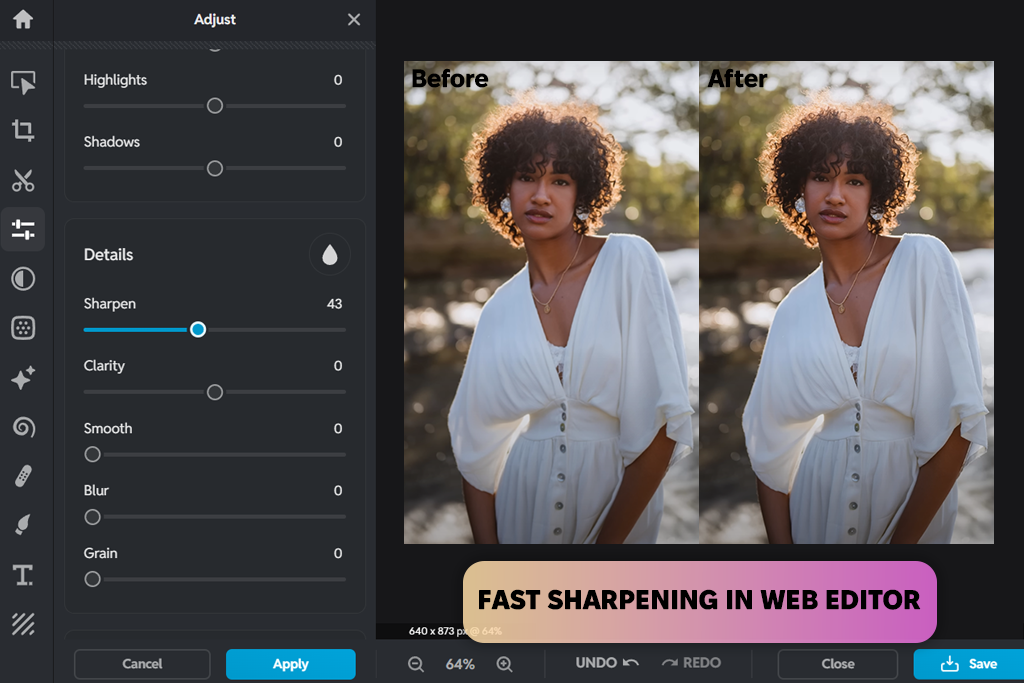
I found Pixlr when going through Reddit and seeing people recommend their go-to lightweight image editors. Multiple users said they rely on it to make fast HD conversions without having to install any software, and my experience has proven that this is indeed a dependable browser-based solution.
Pixlr is contained in your browser and comes with basic editing tools for boosting resolution and clarity. I imported several low-quality photos to increase their sharpness and contrast while also leveraging the available AI functionality. It lacks the depth of premium software, but it is great for tackling HD conversions on the fly.
I like how lightweight and quick Pixlr is, even on older platforms. It lets you import an image, make the necessary adjustments, and save an HD upscaled version in a couple of minutes. The main drawbacks are that the free plan comes with ads and the lack of pro-grade tools.
To test and rate all HD photo converters properly, I used the same collection of images for all of them, including vintage scanned family portraits, blurry selfies, screenshots, and noisy pictures. This helped me check how every option tackled various image types to draw a more objective conclusion.
My priority was learning how user-friendly each tool is for people without any image editing skills. Next, I evaluated the processing speed and how quickly I could save the result.
I also checked the picture quality – does the photo look significantly sharper, or was it simply resized? I also kept an eye out for problems like artificial skin textures or added artifacts that lowered the overall image quality.
I tested upscaling images by 2x, 4x, and 8x, looked for the inclusion of a live preview feature, and examined the results under a 100% zoom.
I noted down if the platform provides batch processing, its list of supported formats, and whether account creation was necessary. All of these factors allowed me to pick the best HD photo converter apps to recommend to you.




![9 Best Ghibli AI Generators in {{%year}} [100% FREE]](http://fixthephoto.com/blog/images/gallery/news_main__preview_28431.jpg)


![Fat Maker for Photos Online [FREE]](http://fixthephoto.com/blog/images/gallery/news_main__preview_27731.jpg)



















