
Canva made a big splash by adding Affinity to its free plan, and it's got the entire design community talking. The conversation has quickly turned into an Adobe vs Affinity debate. Many designers are now wondering: could this free option really stand in for Adobe’s tools?
It’s a timely question. Affinity has never been more accessible, while Adobe continues to push forward with AI innovations and frequent updates to Creative Cloud Pro. Now, creators must decide between a strong free contender and an industry powerhouse that’s evolving faster than ever.
I'm not here to talk down Affinity - it's a great tool. But I do want to make clear what sets Adobe Creative Cloud Pro apart, especially now. Many professionals rely on seamless workflows, advanced AI, and tools built for team collaboration, and that's where Adobe really shines. With Adobe currently offering unlimited AI-generated images and videos until January 2026, now is a good time to look closely at what each platform truly offers.
When Canva added Affinity to its free plan, it made me (like countless other designers) seriously reconsider my tools. Could this finally be a true alternative to Adobe? This question became very real when I began a full branding project for an eco-conscious boutique hotel. The work included a complete logo set, marketing artwork, a print brochure, promotional videos, and a digital style guide. It was the perfect project to put both platforms to the test.
I decided to use this project as a hands-on test. I split the work in half, creating some early ideas in Affinity (using Designer, Photo, and Publisher) and the rest in Adobe Creative Cloud Pro. My goal was to compare how Adobe vs Affinity handled everything from logo design and AI brainstorming to final asset production. Almost immediately, this real-world test revealed clear differences between the two platforms.
I started by testing Affinity Designer and Affinity Photo. For vector-based design, Affinity Designer stood out. It felt quick and responsive, and I could sketch out my first logo ideas without any hiccups. The pen tool works really well, and the whole interface is clean and easy to focus on.
Affinity Photo managed the hotel images nicely, especially for basic color adjustments. Light editing, masking, and combining elements were easy to pull off. Once I brought everything into Affinity Publisher, the brochure layout came together smoothly.
For basic work, Affinity program feels great to use. The trouble started only when my project needed more than the usual, everyday tasks.
I needed to use AI to create mood boards and explore different visual styles for my client. I also had to make video ads for Instagram and work seamlessly with my team using shared cloud assets. This is where Affinity, even though it's a well-made tool, fell short. It simply couldn't support the full range of tasks that a modern, professional project requires.
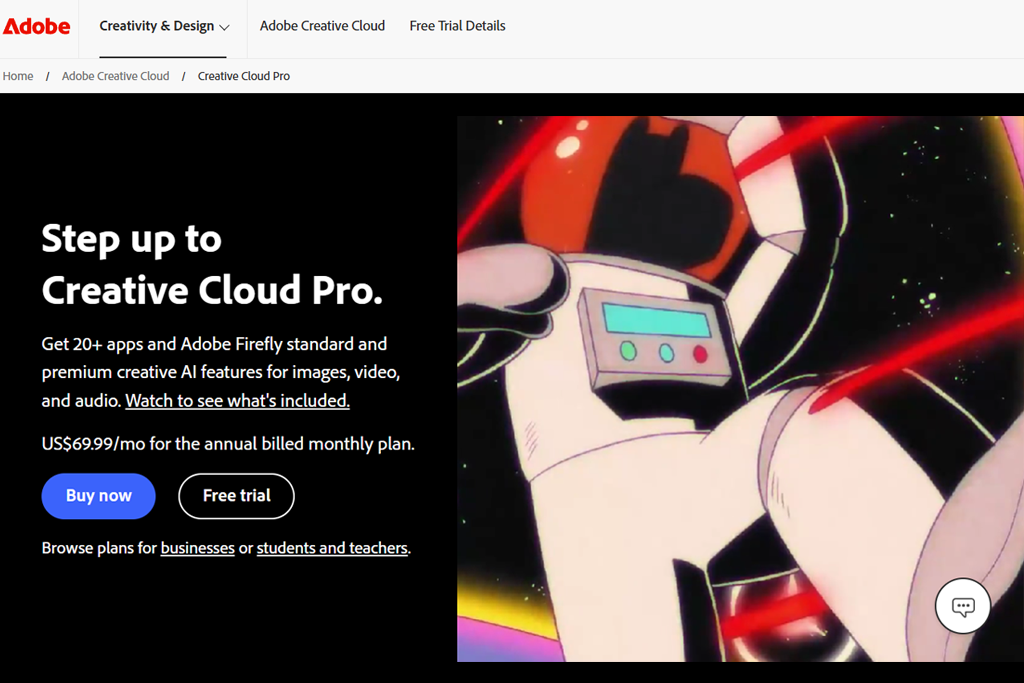
As soon as I switched to Adobe Creative Cloud Pro, I could instantly feel how much more advanced the workflow was.
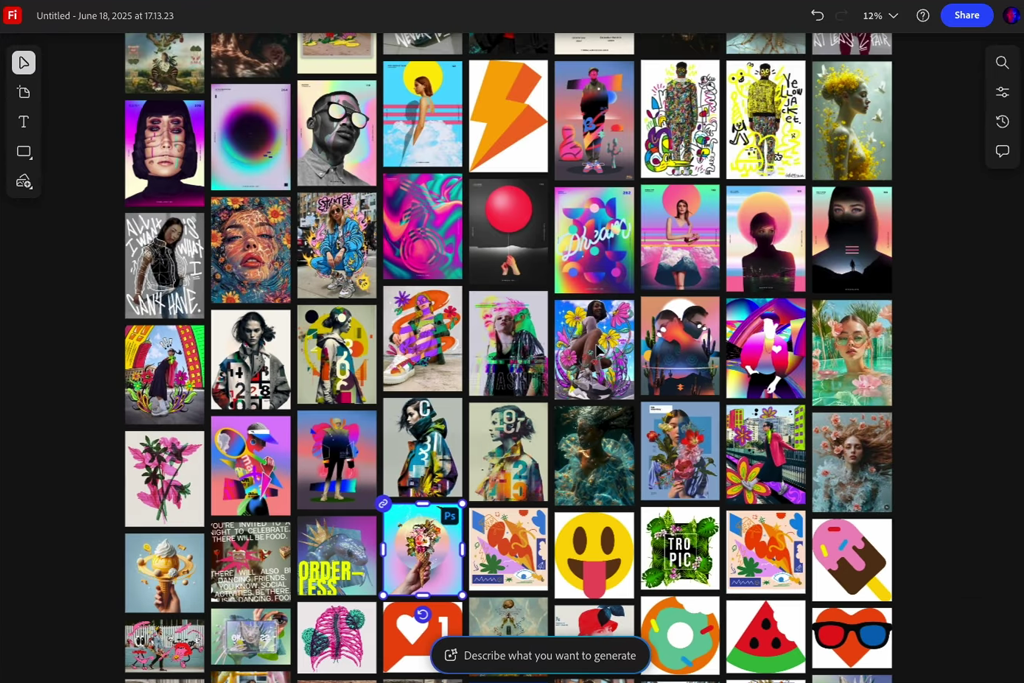
For this project, I used Adobe’s AI brainstorming tool called Firefly Boards. Right now, there’s a special offer that lets you create unlimited AI images for free until January 14, 2026. I began by uploading some sample photos - things like close-ups of tree bark, photos of simple Japanese buildings, and colors found in nature. Right away, the AI created several stylish mood boards and concept visuals for me. My client and I could work side-by-side in a shared space to tweak, evaluate, comment on, and polish ideas.
Alternatives to Adobe Illustrator like Affinity software doesn't have a similar feature or tool.
Next, I brought my designs into Photoshop. There, new AI Assistants (in beta) recognized the style and goal of my project. They smartly suggested ways to extend backgrounds, adjust colors for better harmony, and create quick layout previews. I had the final say on every change, but these suggestions helped me skip a lot of the repetitive manual work.
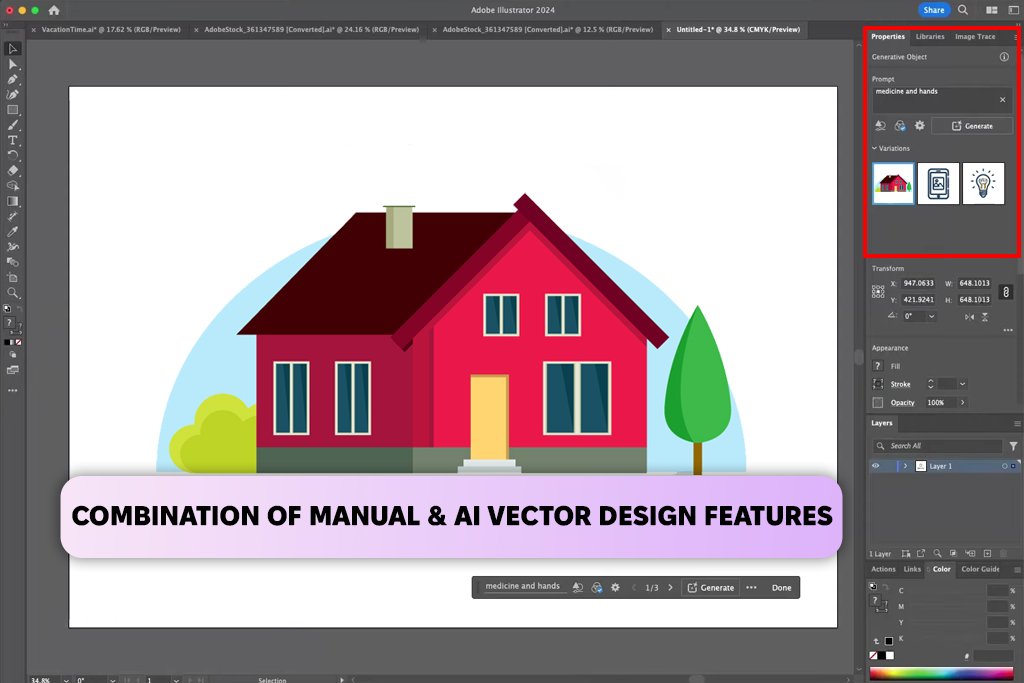
I then used Illustrator to polish my logo ideas with its AI-powered vector tools and smart shape editing. After that, I switched to InDesign, where I designed the final brochure using the same shared assets from my Creative Cloud cloud library.
Putting together the hotel's promotional video was fast and easy with Premiere Pro and Adobe's AI video features. This really showed a key gap: since Affinity doesn't include video editing, this entire task can't be done there at all.

Also, Creative Cloud Pro includes several AI models built right into the apps, like Google’s Gemini 2.5 Nano Banana, Veo, Flux, Runway, Ray, and others. Because of that, I was able to try out different styles for generating images directly in Photoshop and Express. Having access to so many models ended up being a big benefit.
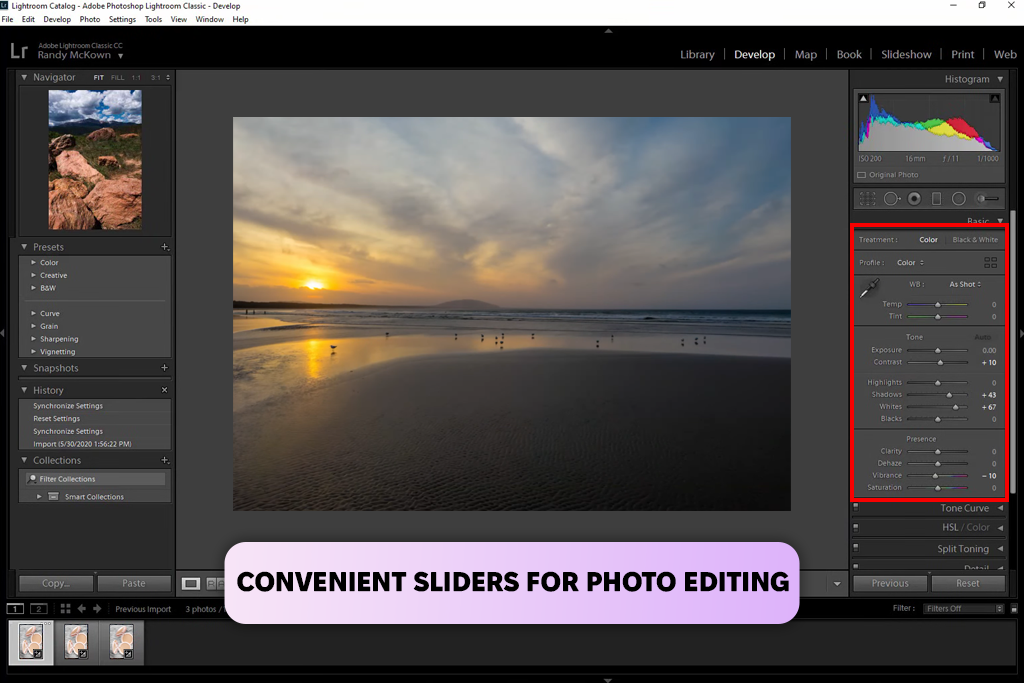
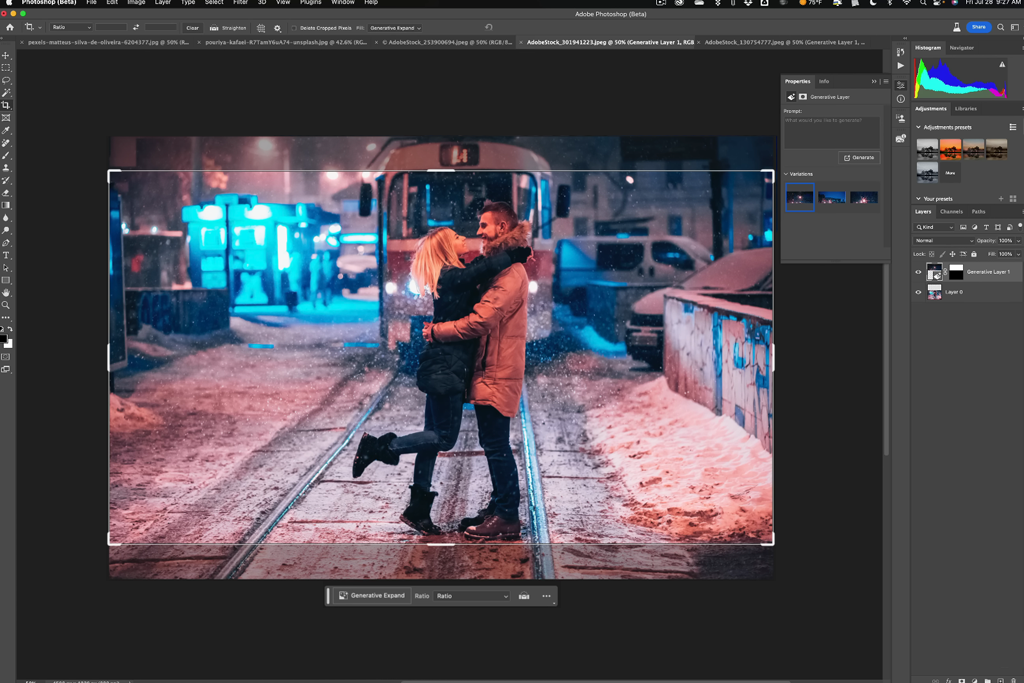
Adobe’s AI features, including Generative Expand, Remove Tool, Recolor, and Firefly-based enhancements, helped me quickly refine product photos, eliminate backgrounds, and build detailed composite images in just a few minutes. In addition, Lightroom’s color-processing capabilities provided clean, consistent tones that supported the brand palette I was developing.
For a project that required consistent visuals across web, print, and advertising, Adobe is worth it, as its workflow proved to be quicker, more accurate, and more dependable.
“Adobe's photo editing tools transformed a basic product photo session into professional, ready-to-sell images in just a few hours. By automatically removing backgrounds, correcting lighting, and editing many photos at once with Lightroom and Photoshop, I saved myself days of manual work.”

Strengths:
Limitations:


Affinity Photo worked well for basic editing. It processed RAW files without issues, and light retouching was easy and responsive. For people who only need standard photo fixes, it’s a surprisingly strong option - especially now that it offers a free version.
However, when I tried to do more complicated edits, like combining multiple images or using AI features, the limits of Affinity Photo were noticeable. It doesn't have the smart, automatic tools that Adobe offers. Tasks like removing objects or isolating parts of an image took more hands-on effort, and the final results weren't always as clean or reliable.
Strengths:
Limitations:
“Affinity Photo is quick and dependable for basic edits like color fixes, light retouching, and cropping - perfect for simple or social media work at no cost.”

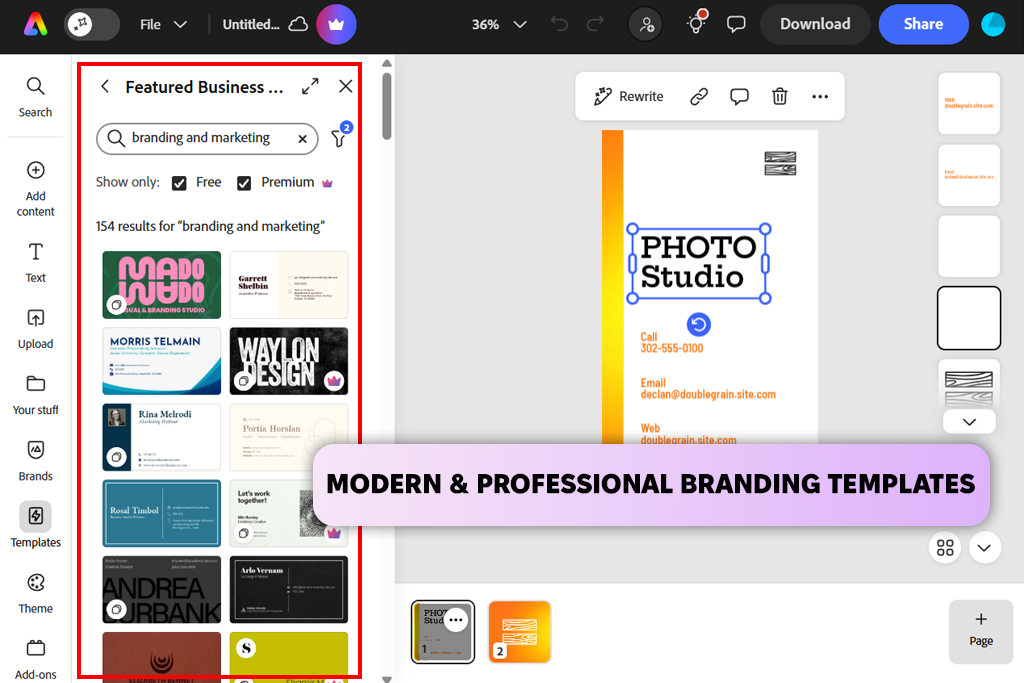
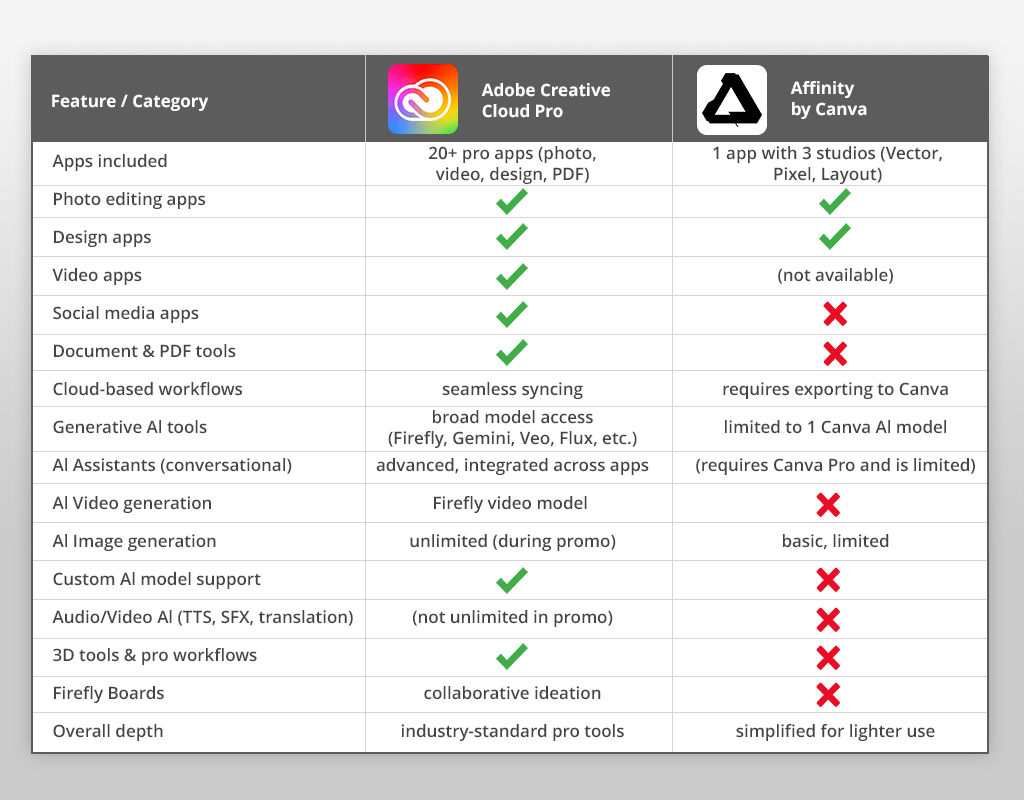
For the branding and graphics work, Adobe offered something Affinity couldn't: everything worked together seamlessly. I used Illustrator to create clean logos and vector graphics. Photoshop handled complex images and textures. Then, Adobe Express let me quickly mock up ads and resize designs for different formats - all within one connected system.
Most importantly, all the AI tools worked together in one place. I could start a design in Affinity Illustrator, use Adobe's Firefly to create different versions, test styles from other AI models, and bring everything right back into my project. This connected workflow saved me hours of manual testing.
I used free Adobe software to create high-quality launch materials like logos, icons, packaging, ads, and flyers. It gave me a complete, professional workflow from start to finish.
Strengths:
Limitations:
“With Illustrator, InDesign, and Express, I was able to create everything - branding, brochures, and social media banners - in one smooth workflow. Sharp vector graphics, accurate typography, and easy print/web export tools really made the process efficient.”

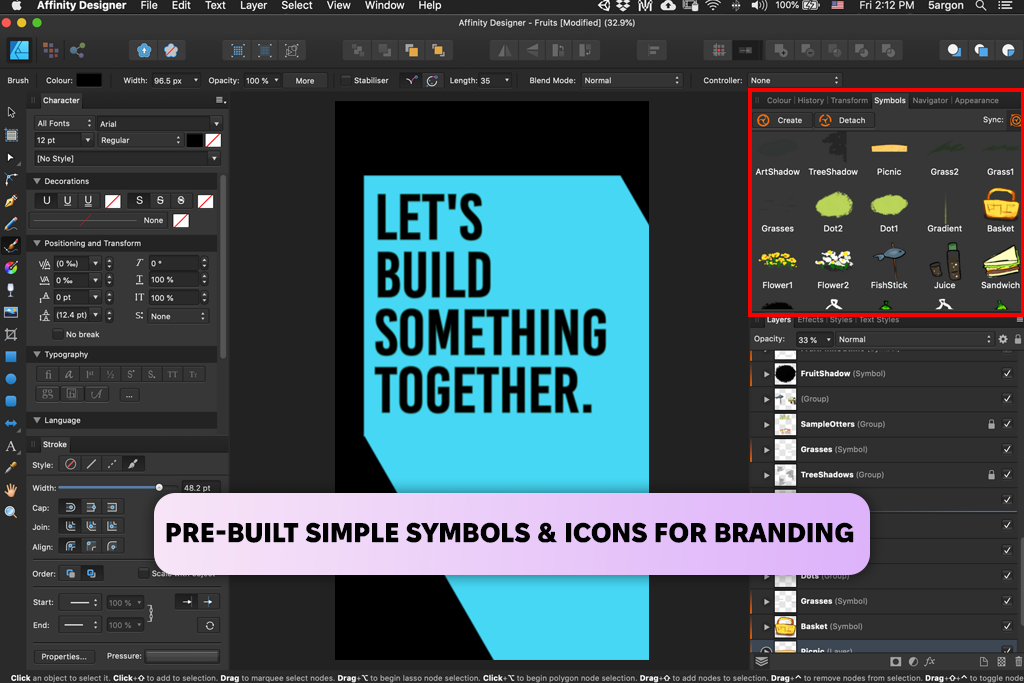
I also tried using Affinity Designer for the branding portion of the project to see if it could handle the work just as well. For simple, minimal graphic design, Affinity Designer performed really well - it was quick, smooth, and enjoyable to use.
Affinity Designer excels at creating clean, standalone graphics. However, for more complex workflows, like incorporating AI-generated elements or moving assets between multiple applications, the suite feels limited. It doesn’t have the same extensive plugin support, sophisticated text tools, or seamless integration with other apps that Adobe provides.
In short, comparing Affinity vs Adobe, I can assert that the first option is a better choice for focused, smaller projects, but it becomes challenging when you need to manage version control, export across many formats, or collaborate with a team.
Strengths:
Limitations:
“For basic logos, posters, and social media visuals, Affinity Designer and Publisher work well enough. They’re easy to use and not heavy on resources, making them a good choice for small tasks or one-time projects when advanced tools aren’t necessary.”

When I started the branding and launch campaign, it was clear that AI tools would be key to working quickly from the initial idea to the finished work. The project covered a lot: designing a new visual identity, editing product photos, creating social media content, and putting together a short promo video.
To see which would work better, I tested, Affinity Designer vs Illustrator side-by-side. I wanted AI help at every step - from brainstorming ideas to final edits.
The core difference was clear from the start: Adobe has AI powering every part of its toolkit, while Affinity is a superb tool for hands-on design but doesn’t include AI features. This gap influenced my entire creative process.
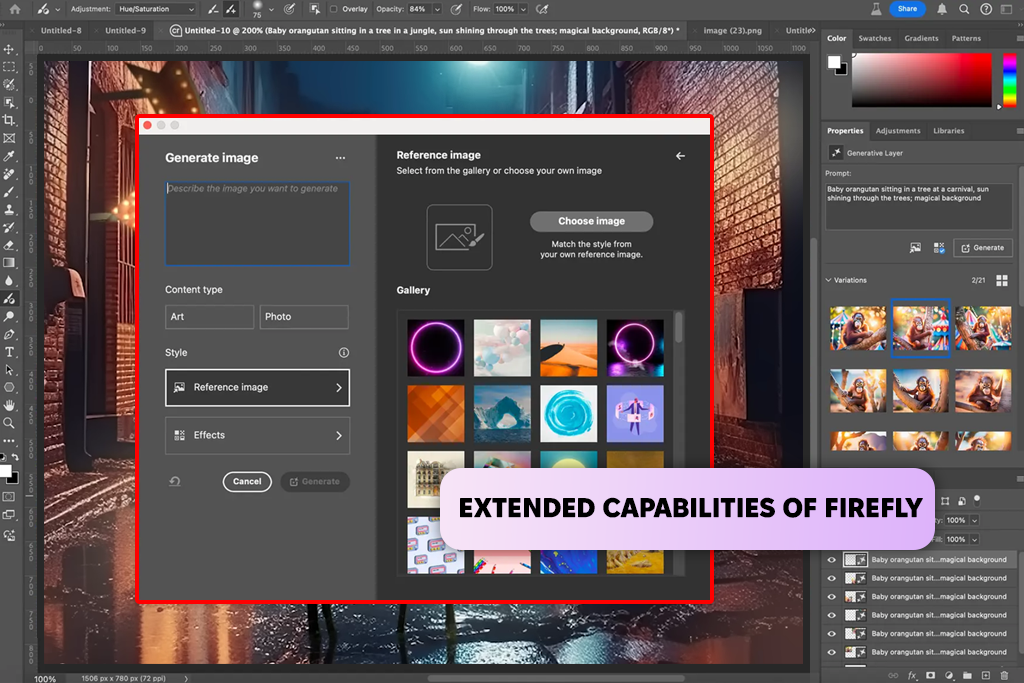
I used Adobe Firefly's AI heavily to brainstorm the project's look and feel. Having unlimited attempts let me freely try out many ideas. I created mood boards, photos of the product in different settings, and various artistic styles to set the campaign's overall mood. A great advantage of Firefly was being able to choose between different AI styles, like Adobe's own, or ones from partners like Google, depending on the exact artistic effect I preferred.
Affinity, on the other hand, does not have built-in AI image generation. While it's a very stable and fast program, I couldn’t create concepts, variations, or custom backgrounds directly within it. I had to make them in separate artificial intelligence software first, then import them, which added extra steps and broke my creative flow.
Small complement list:
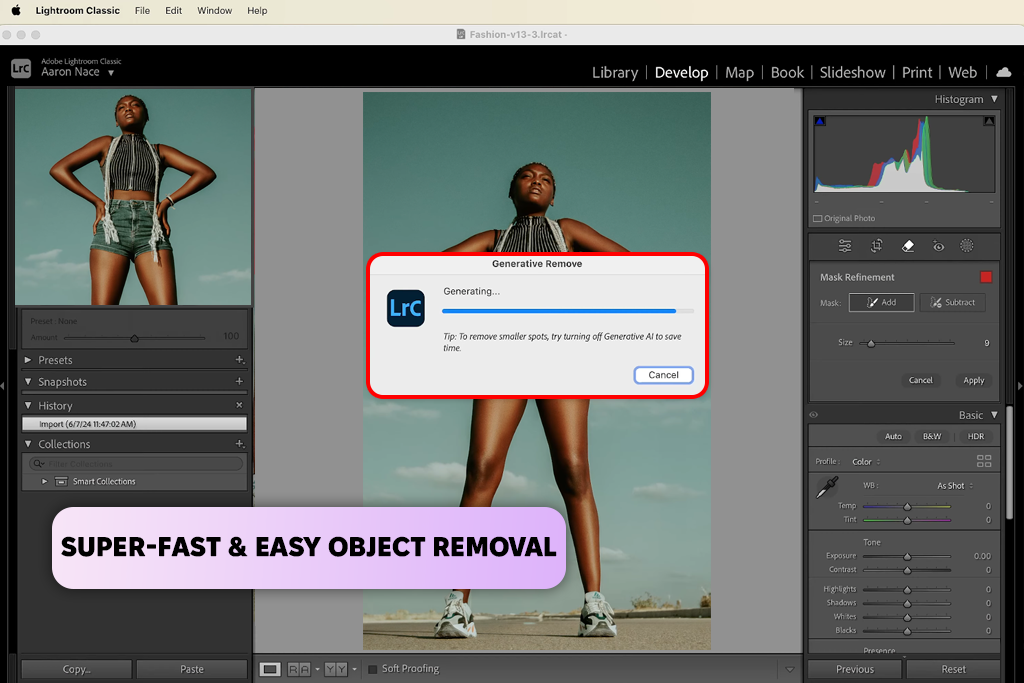
During the project, I needed neat, professional-looking product images for websites and social media. Adobe’s AI tools in Photoshop and Lightroom made editing very easy. The Remove Tool and Generative Remove quickly deleted unwanted objects. Automatic scene detection adjusted lighting and colors, and AI-based face and surface corrections helped keep everything looking consistent.
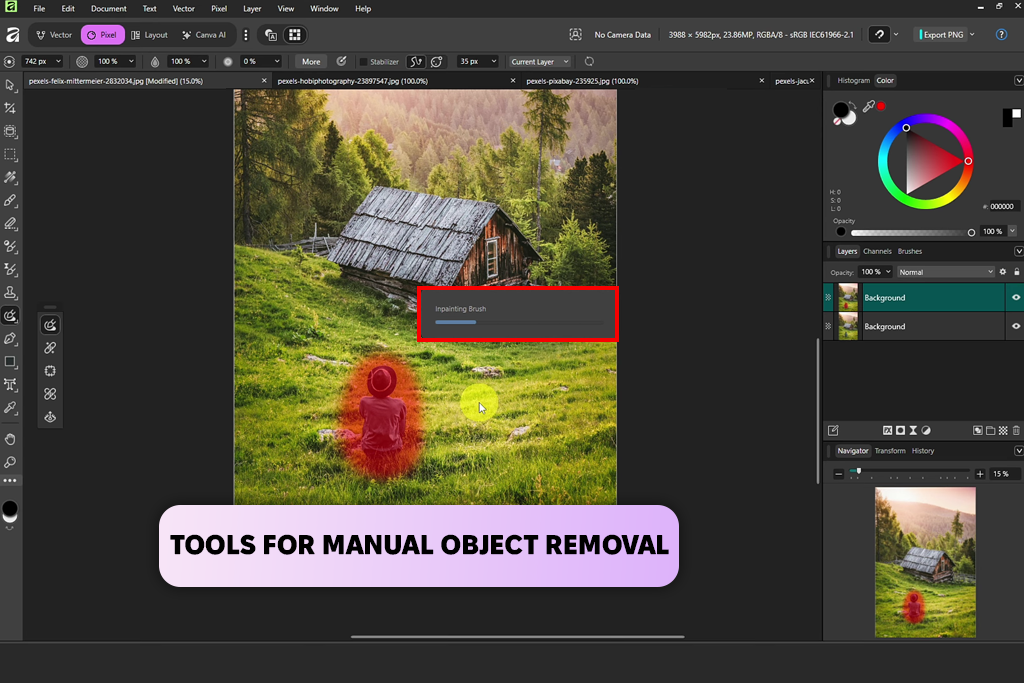
While Affinity Photo was fast and responsive for manual edits, it didn't have the AI smarts that made Adobe feel so streamlined. I could produce high-quality work, but it took longer and required a lot more manual effort.
Where Adobe AI helped most:

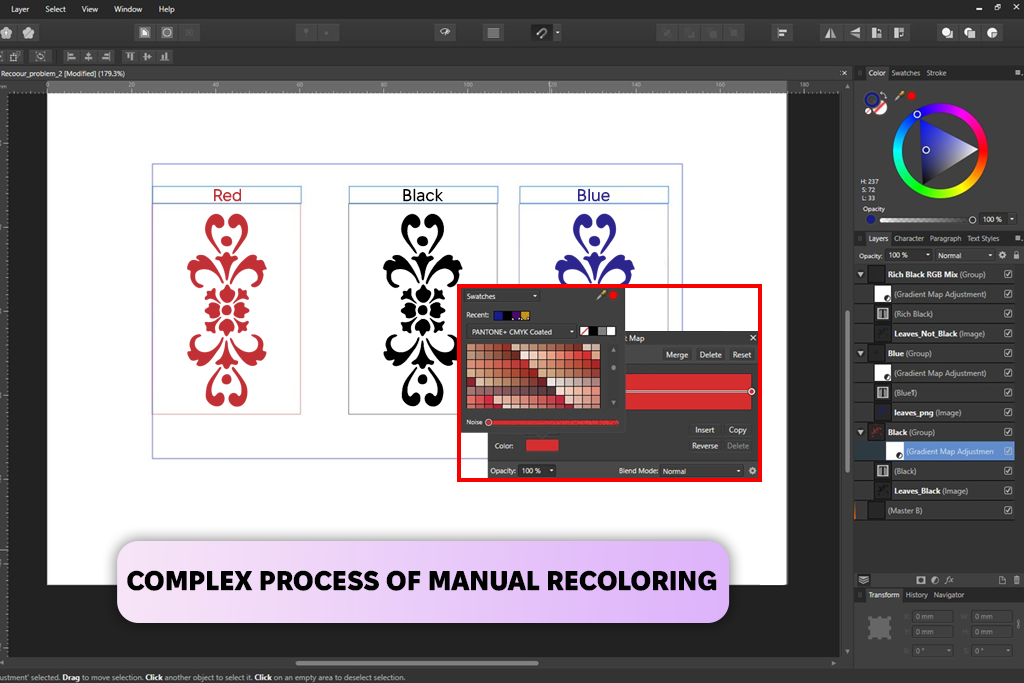
Affinity Designer is very fast and precise for vector work, but I had to create every version by hand. There were no automatic suggestions, color changes, or generated options. That’s fine for small custom designs, but it became a limitation when working on a brand across many formats.
Examples from my project:
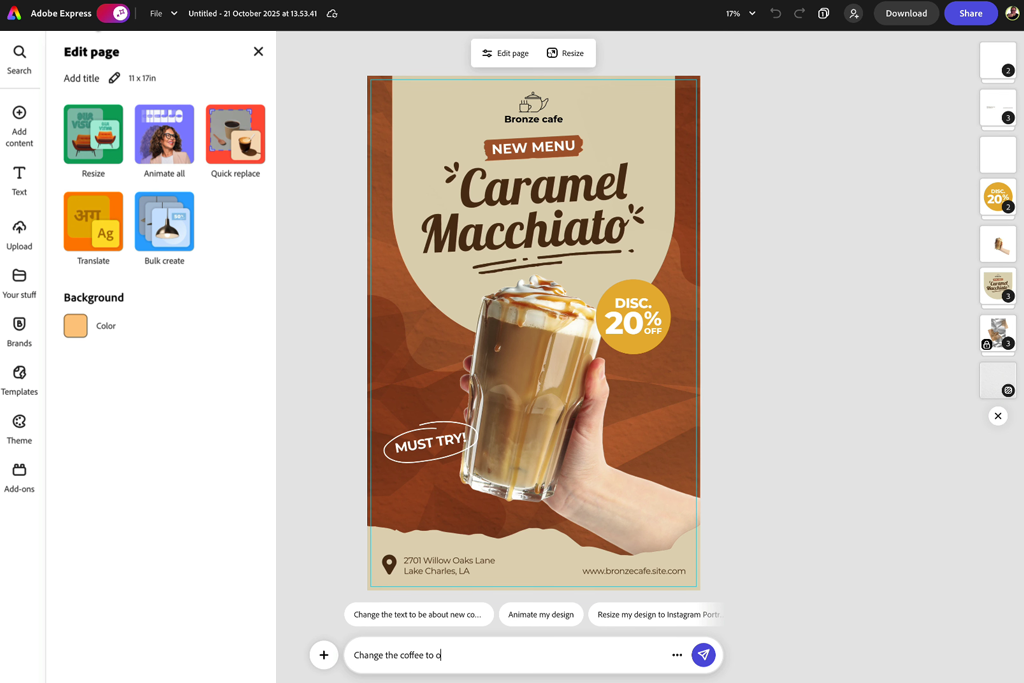
The new AI helpers in Photoshop and Adobe Express clearly sped up my work on more complex tasks. They understood my prompts, set up layers, organized edits, and suggested changes I could adjust myself. I still controlled everything, but the AI removed many small, repetitive steps.
Since Affinity lacks automated tools and AI assistance, you have to do everything yourself. This allows for excellent precision, but it becomes very slow when working on projects with many assets.
Adobe AI tasks I relied on:
“Firefly and its AI tools are game-changers. They let my team create mood boards, concepts, and video drafts entirely within Creative Cloud, saving hours and sparking ideas without ever leaving the app.”

Firefly Boards became our essential creative hub within Adobe. It was a shared space where I could upload inspiration, generate images, experiment with styles, and share drafts. It evolved in real-time with direct input from my FixThePhoto team, working like a living, collaborative mood board.
Affinity runs smoothly and is easy to use, but it doesn't have built-in ways to work together or AI tools for brainstorming. While that may be fine for a solo designer, for a team project like mine, Adobe was the better choice.

For my campaign's video trailer, Adobe Firefly Video made the process straightforward. It allowed me to create motion variations, enhance scenes, and produce short clips that matched my brand's look and feel, making video creation smooth and simple, even as someone who doesn't specialize in it.
Affinity has no video features, so this part of the work could only be done in Adobe.
“If your work depends on AI features, automation, or smart tools, Adobe has a clear advantage. Affinity is built around manual work, where every step must be done by hand. That approach works well for small or hobby projects, but it becomes a limitation when working on larger or more complex tasks.”

From the beginning of the project, I picked Adobe Creative Cloud Pro because it works across many platforms. I could use it on desktop computers (Windows and macOS), mobile devices (iPad and iPhone), and through cloud syncing with companion apps on Android. For example, I started sketching ideas on my iPad and later continued improving them on the desktop free Photoshop - everything stayed automatically synced without any extra steps.
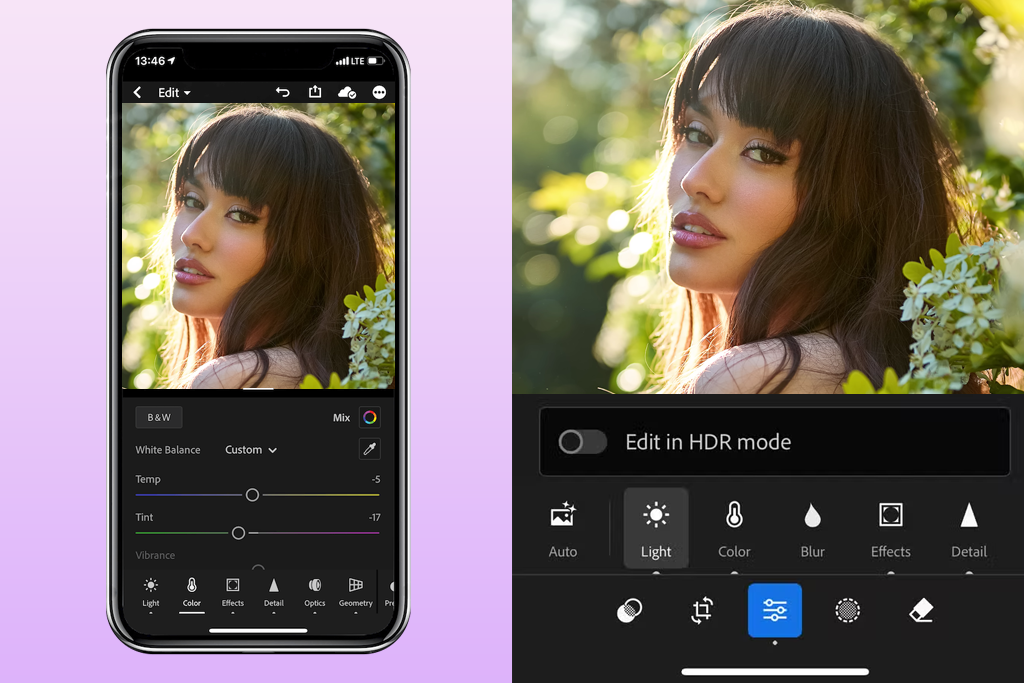
Lightroom Mobile let me view and edit photos while I was away from my desk, then finish them later in full quality on my computer. Sharing work was just as easy - Adobe Express and cloud libraries allowed me to send drafts to collaborators at any time. This setup made it simple to stay productive whether I was in a café, on a train, or at the office, which suited a flexible freelance workflow.
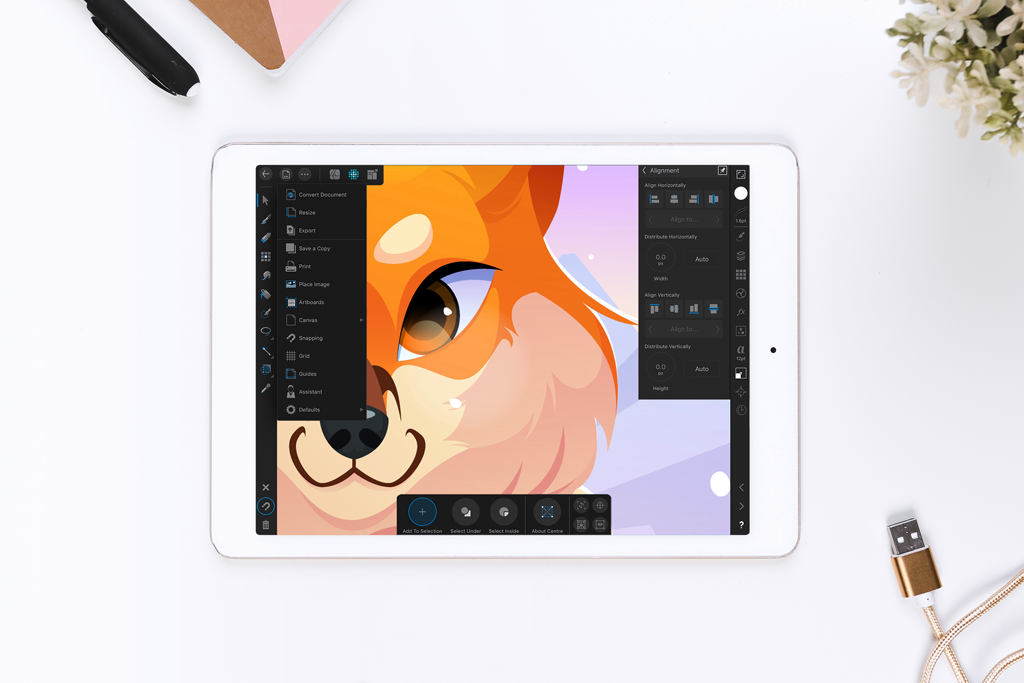
You can use Affinity on a computer or an iPad. The iPad app is quick and responsive, but there's no live sync across devices. So, when I worked on the branding project, any edits made on my iPad had to be manually moved to my computer to continue, which was a frustrating extra step.
Since key features like photo retouching, AI tools, and vector editing were available only on desktops, the mobile versions felt restricted in practical, everyday work.
Adobe's desktop software is packed with features and can be complex, but I found it to be very reliable and fast, even with demanding tasks. On my computer, large PSD files, heavy textures, 4K video timelines, and multi-page InDesign free layouts ran smoothly. Most importantly, I experienced no crashes, even during the most important parts of my project.
Creative Cloud’s file sync and asset management worked well, even when I was moving a lot of files back and forth between different apps. Performance stayed solid, and I only noticed things slow down a bit when working with extremely large 3D or video files, which is understandable considering their size.
Affinity’s apps felt very fast and lightweight. Basic vector work, photo edits, and even medium-complex designs loaded and rendered quickly. For single tasks like logo drafts or brochure mockups, it was often more responsive than Adobe. In the Adobe vs Affinity comparison, the latter clearly performs better on lower-spec machines for simple, focused work.
However, once I started working on larger tasks, using many high-resolution images, lots of layers, and frequent exports, the limits became clear. There was no built-in asset syncing, so I had to duplicate files and copy things manually, which slowed everything down. Affinity stayed fast for small projects, but for bigger and more complex campaigns, the extra manual work reduced its performance advantage.
A huge advantage of Adobe Creative Cloud Pro was having help available whenever I needed it. Whenever I ran into a problem, like a video not exporting correctly or confusion over a Firefly setting, I could quickly find a solution. Adobe offers official customer support, detailed help articles and guides, active user forums, and regular software updates.
Because this tool is so popular, you can find lots of help for it. There are video tutorials, extra plugins, and courses you can take. This is really helpful when clients want work that looks professional and polished.
Support of Affinity by Canva is fairly restricted. Affinity provides an online help center and community forums, and the documentation covers the main tools well. For basic needs like vector work, layouts, or simple photo edits, guidance is usually easy to find. However, for more advanced situations, such as complex layouts, color management, or preparing files for print, useful information is harder to find.
When I needed help with specific tasks like color matching or preparing high-quality print files, I often had to guess and test on my own, since there wasn't enough clear guidance. While a hobbyist might manage, this lack of reliable support makes it difficult for professional, client-facing work.
After several weeks of testing both Adobe Creative Cloud Pro and Affinity app on my actual project, I moved on to compare their prices. My project combined photography, vector graphics, multi-format layouts, and a lot of AI-assisted brainstorming, so I needed to consider not just how well the tools worked, but also their long-term cost.
I based my comparison on U.S. pricing, as it's the most common reference for users.
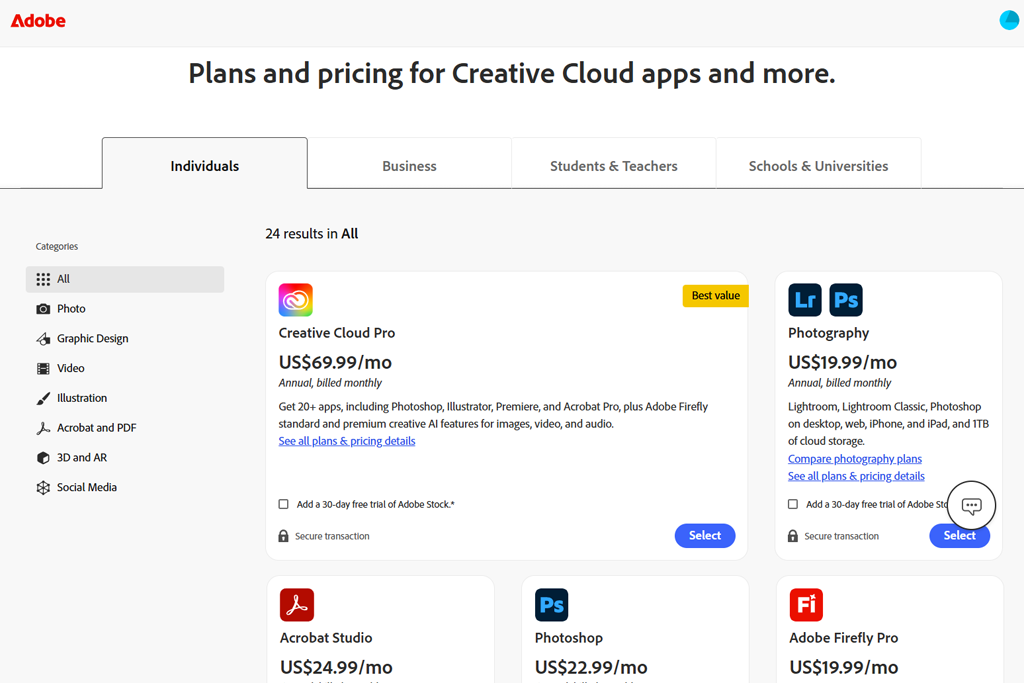
Adobe's subscription cost is often seen as high, but using it for my project helped me understand the value behind the price. Their pricing structure is straightforward. The main annual plan, billed each month, costs $69.99. If you prefer not to be locked into a contract, the flexible month-to-month option is $104.99. For those who like to pay everything upfront, the yearly cost is $779.99, which works out to roughly the same monthly cost as the annual plan.
What ultimately shaped my choice were Adobe’s frequent discounts. During major sales -especially Black Friday deals and other seasonal promotions - Adobe often cuts the price heavily, sometimes by up to 50% for the first year. This can lower the cost to around $34.99 per month, making the subscription much more affordable.
Even when there weren’t big sales happening, I still found partner deals offering the plan for about $41.99 per month. For a project that combines photo work, illustration, layout design, and video editing, this Adobe discount turned the suite from a high-end option into a practical, all-in-one creative subscription.
The Firefly promotion, which runs until January 2026, completely changed my view of Adobe’s pricing. Once I saw that my subscription gave me unlimited AI image and video creation - not just with Firefly, but also with models like GPT-4, Runway, and Veo - it made the cost feel much more reasonable.
This meant I didn't have to buy separate credits or subscribe to other services. My entire creative process, from idea to prototype, stayed inside Adobe without any added cost.
You begin to see why Adobe is worth it. You're not just paying for separate apps like Photoshop or Illustrator. You're paying for a complete, connected workflow, from your first idea to the final exported files, all in one place. This single subscription ended up replacing several other paid tools I was using, which actually saved me money.
| Plan / Billing Type | Monthly Cost | Annual Prepaid | Notes / Conditions |
|---|---|---|---|
|
Individual (annual contract, month-to-month billing)
|
US $69.99 / mo
|
≈ US $779.99 / year
|
Complete access to all apps, AI tools, cloud storage, updates
|
|
Month-to-month (no contract)
|
US $104.99 / mo
|
—
|
Flexible plan; more expensive in long run
|
|
Student / Teacher (introductory promo)
|
US $24.99 / mo (first year)
|
≈ US $299.88 / first 12 mo
|
Discounted rate for valid students/teachers
|
|
Student / Teacher (renewal after first year)
|
US $39.99 / mo
|
≈ US $479.88 / year
|
Discounted rate continues (less than standard)
|
|
Promotional / Discounted Offer
|
~ US $34.99–41.99 / mo
|
~ US $420–504 / first year
|
Often available during Black Friday or seasonal salesOften available during Black Friday or seasonal sales
|
Note! This special price is usually for new customers only and doesn't last forever. The exact offer and final cost can change based on your country, the store, or when you sign up.
The subscription includes:
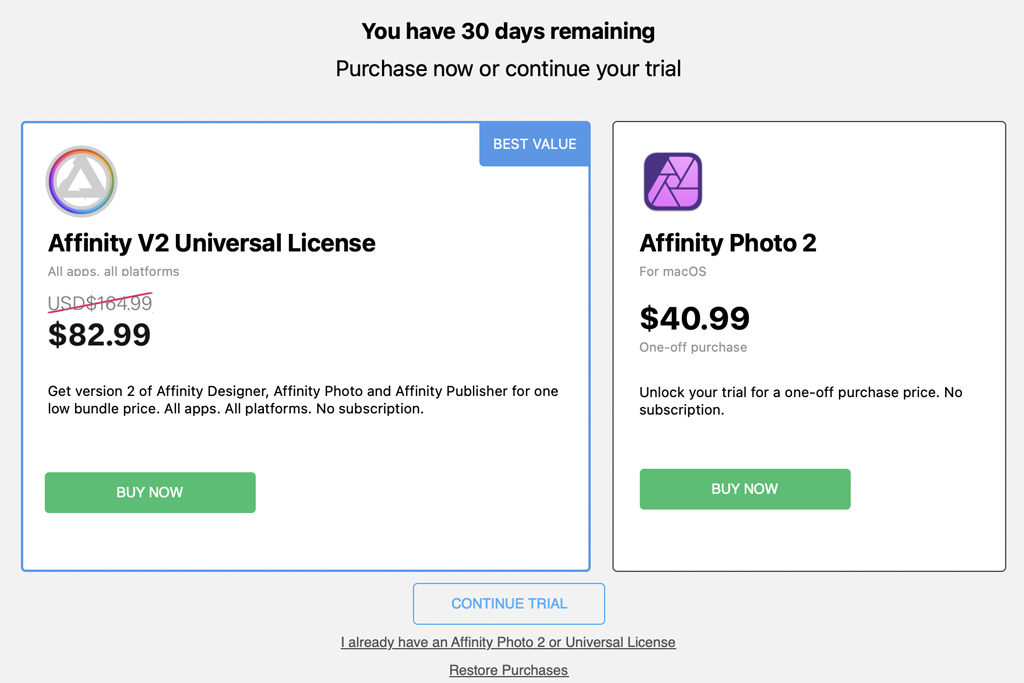
On the other side of the Adobe vs Affinity comparison is the redesigned app that changed significantly after Canva acquired Serif in 2025. Unlike Adobe, it no longer offers traditional one-time licenses. Instead, Photo, Designer, and Publisher features are combined into a single free application available on Windows and macOS.
This makes Affinity a very attractive choice right away. When I tested it, I was impressed by how much you could do for free. I could edit photos, draw graphics, and design multi-page documents without any cost. For students, hobbyists, or professionals on a tight budget, it's hard to argue with free.
As I got further into my branding project, I hit the limits of the free Affinity app. Many of the more advanced, AI-powered features, like smart background removal, object detection, turning sketches into vectors, and design suggestions, are not included. To access them, you need to upgrade to Canva Pro, which costs $14.99 per month or about $9.99 per month if you pay annually ($119.99/year).
When I looked at the actual prices, the difference was clear. At first glance, Affinity seems much more affordable. But once I paid to unlock the AI features my project required, I was spending about a third of Adobe’s price for a tool that could do much less, especially for professional tasks like color grading, video editing, advanced photo retouching, and typography.
For simpler work, Affinity's free version is excellent. Designers who don't rely heavily on AI or connected app workflows will find it incredibly useful. The fact that you now get three powerful apps, which used to cost over $150-$200, completely free, is remarkable. It’s rare to see software become this much more accessible.
| Plan / Offering | Cost (Standard) | Notes / What’s Included |
|---|---|---|
|
Free Tier (base app)
|
Free
|
Essential tools like vector work, photo editing, layouts, and standard exports are available without a subscription
|
|
Canva Pro (for premium features / AI)
|
US $14.99 / mo or US $119.99 / year (≈ US $9.99/mo effective)
|
AI generation, premium templates, and advanced brand or export features require a paid plan
|
|
Legacy Single-App License (legacy version, pre-2026)
|
~ US $50–70 per app
|
The old sales model has been discontinued and replaced with a free core version plus optional Canva Pro access
|
Note! For key professional features like AI tools, advanced export options, and brand management, you'll need a Canva Pro subscription. This means the free version of Affinity often isn't enough for serious, client-ready work.
What’s included in the free version:
Limitations (unless Canva Pro is purchased):
The choice between Adobe Creative Cloud Pro and Affinity comes down to your project size, the tools you really need, and whether you prioritize professional workflow or low cost. After testing both for my project, the distinction is clear.
Adobe Creative Cloud Pro stands out as the most complete and forward-looking choice for professionals, creative teams, and anyone who needs accuracy, stability, and AI-enhanced workflows. Its ecosystem works as one connected system: Firefly, Photoshop, Illustrator, Premiere Pro, After Effects free, Lightroom, and XD integrate smoothly from start to finish. No other platform currently provides such a fully connected, end-to-end creative workflow.
Adobe is the better choice when you need:
Affinity is the better choice when you need:



![15 HitPaw Alternatives [Better & Cheaper]](http://fixthephoto.com/blog/images/gallery/news_main__preview_27898.png)


![7 Best Fotor Alternatives in {{%year}} [Free & Cheap]](http://fixthephoto.com/blog/images/gallery/news_main__preview_27745.png)

![7 Best AI Tattoo Generator Tools [+Good Prompts]](http://fixthephoto.com/blog/images/gallery/news_main__preview_28202.jpg)


















