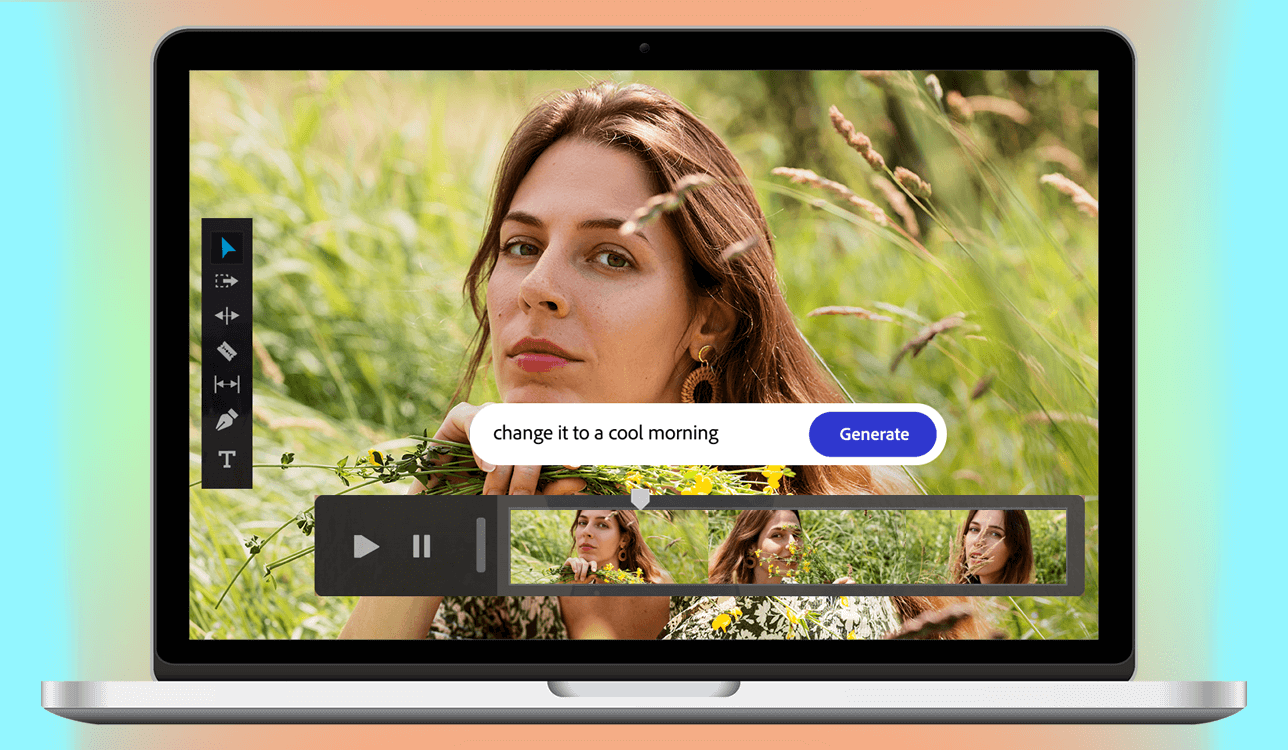
Working as a content creator, I have been using AI-driven creative tools for a couple of years. I have tested a variety of solutions, from simple text-to-image generators to pro-level video editors. I often need to test new technologies to understand whether they could be used for streamlining workflows. As I often use Adobe software, including Photoshop, Lightroom, and Premiere Pro, I keep track of the Firefly updates released by Adobe.
When the recent Adobe Firefly Video AI update was released, the company announced that it integrated with Google Gemini 3 Nano “Banana Pro.” I became naturally curious. Knowing that this solution supports unlimited generations and advanced scene rendering, I decided to test it to create an unbiased assessment. I asked other members of our FixThePhoto team to assist me. They helped me test Firefly when working on real projects.
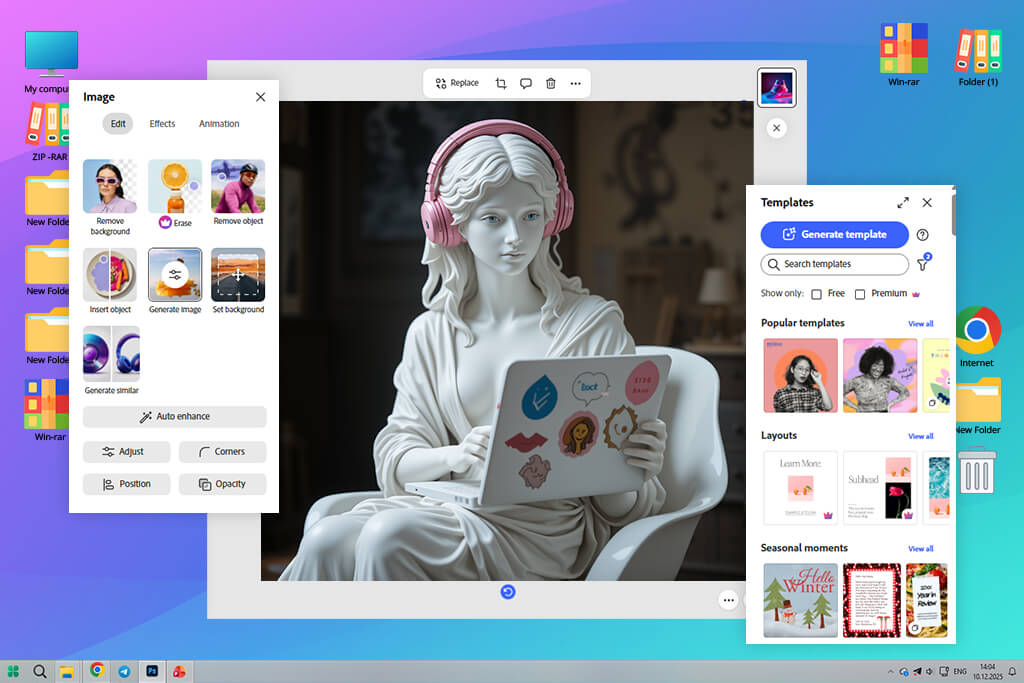
Based on the same principle as the earlier Firefly image models, this solution further develops the idea of producing content based on prompts. You can type any prompt, for instance, “a slow-motion shot of a surfer at sunset”, and Firefly will automatically create a video that meets your requirements and has the desired lighting and visual style. You can also specify the type of camera movement.
Firefly stands out among other AI video generators because it’s integrated into Adobe’s Creative Cloud ecosystem. It allows users to produce, enhance, and refine videos within apps like Premiere Pro and After Effects without disrupting their workflow.

Adobe Firefly generative video model supports text-to-video generation, motion diffusion modeling, and AI-driven style transfer. Instead of animating stills, it analyzes prompts, interprets them within a certain context, and chooses the right perspective and type of camera movement. Adobe also emphasizes that Firefly was trained on licensed, ethically sourced data and follows Content Credentials, which allows everyone to see that they are watching AI-generated content.
As I often need to use Premiere Pro and After Effects, I liked the fact that Firefly improves the functionality of the tools that have already become a part of my workflow. I can access it from my Adobe account and send AI-generated clips to Premiere to enhance them even further. This integration facilitates working on professional projects and meeting tight deadlines.
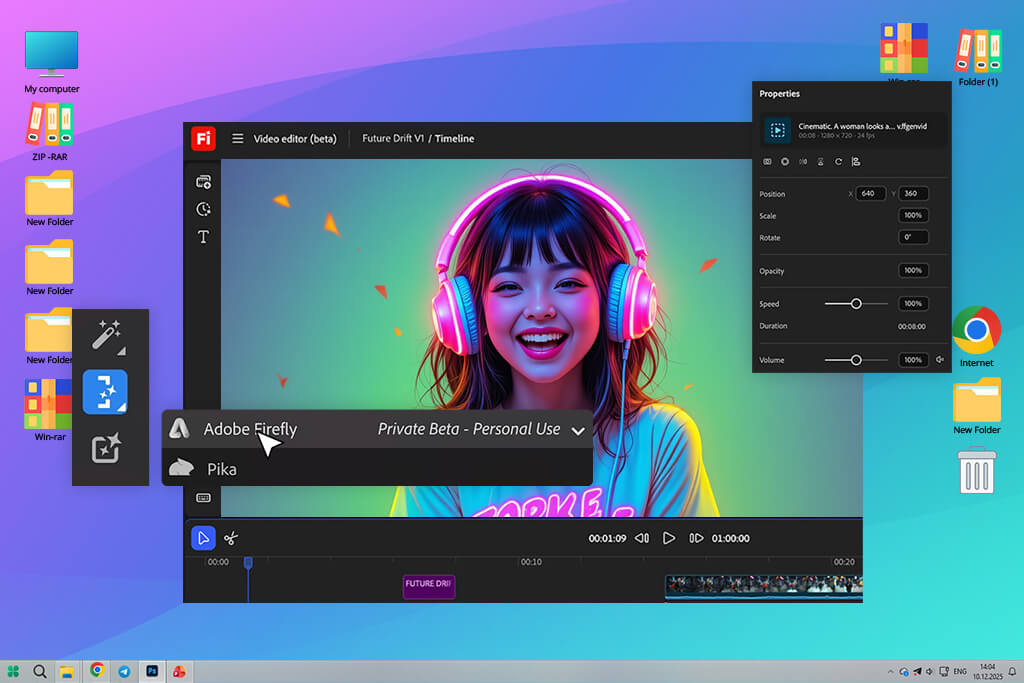
Firefly produces videos that can be further enhanced with the help of timeline tools available in other Adobe software. After creating a video, I can quickly export it to Premiere Pro, choose the right speed, perform color grading using Lumetri, and use layers to add existing footage. When editing it in After Effects, I can perform motion tracking and add text overlays and effects to my AI-generated video.
I was pleased by the efficiency of handling metadata and linking projects in Firefly. Generated content has Adobe’s Content Credentials, which clearly show that it was created with the help of AI and allows creators to maintain transparency. Besides, it allows one to save the generation data to reuse and change it later. If I want to make subtle adjustments, for instance, change the lighting or the camera angle, I can open Firefly, change my prompt a bit, and edit my clip without disrupting my editing workflow.
I was able to open Firefly via my Adobe account. The new video model was available alongside other Firefly tools. Even though it’s still in a rollout phase, it is available online and synchronizes with other Adobe solutions. After signing in, I was pleased with an intuitive interface. There is a convenient prompt box at the center, a preview window on the right, and handy controls for adjusting video length, aspect ratio, and motion style.
“Firefly Video has intuitive settings and allows you to maintain complete control over your project. I especially liked the responsiveness of this service. It generated videos based on prompts quickly. It was easy to download the outputs or export them into Premiere. ”

After testing this solution, I realized that Adobe created Firefly to ensure that AI video generation tools will be accessible to anyone. Using this service, even a novice can generate professional outputs with the help of AI tools.
After testing Adobe Firefly AI Video Model for several days, I discovered that it’s a powerful creative engine built to streamline and expedite video production while maintaining high quality. It has many handy tools that are easy to integrate into a workflow, whether you need to quickly generate a clip for social media or work on cinematic storytelling projects.
This is the main feature that makes Adobe Firefly Video Model stand out among the rest. It allows one to generate context-aware clips based on text prompts. When testing it, I was pleased with Firefly’s capacity to interpret detailed prompts that specified camera angles and emotions. For example, I used the prompt “a cinematic drone shot over snowy mountains at sunrise” to create a realistic aerial footage with natural lighting.
Firefly stands out among other AI clip makers for its semantic understanding capabilities. It interprets prompts with high accuracy, creates a suitable atmosphere, and maintains the right pacing of a scene. One can use it to create 4-10-second-long clips. It maintains coherent motion transitions and perspective shifts.
After creating the base clip, I was able to quickly choose its style in a drop-down menu. Besides, it’s possible to specify it in a prompt. There are plenty of options available, from cinematic realism to anime-inspired motion or digital art. Adobe Firefly produced consistent outputs even when I used extreme stylistic prompts. Even though I was using the Adobe Firefly video model beta version, motion and lighting still remained realistic.
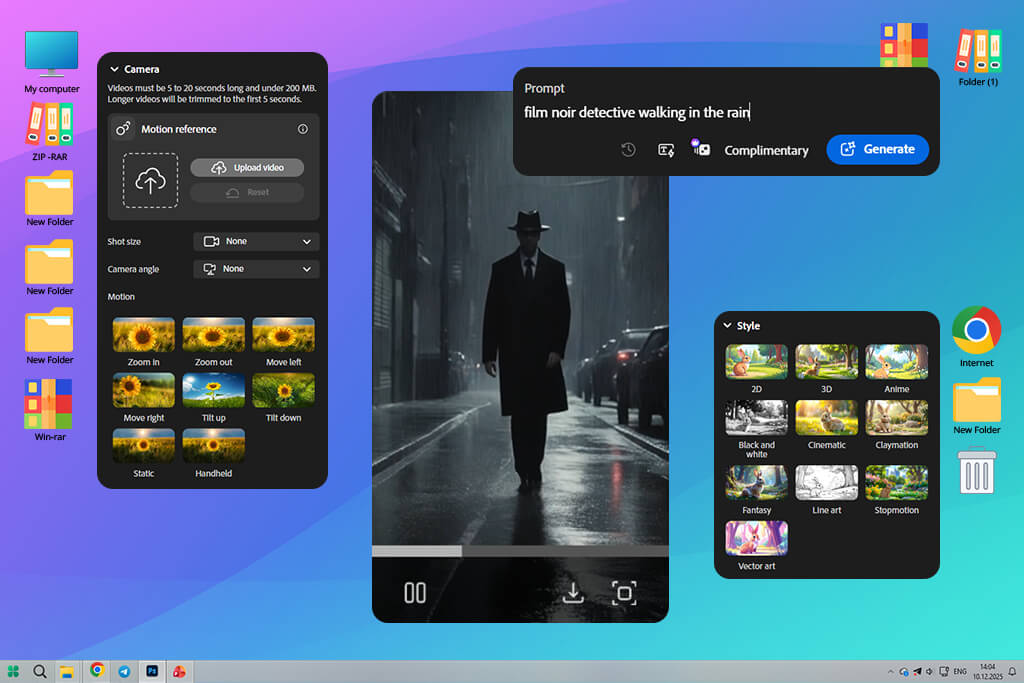
I experimented with different prompts like“film noir detective walking in the rain” and “futuristic city in Pixar style.” Regardless of the prompt, I was able to achieve consistent, professional outputs. Unlike other AI video editors I’ve used, Firefly supports non-destructive editing.
It allows me to adjust style without impacting motion data. It facilitates choosing the right tone and branding elements, making it perfect for creators who want to maintain a consistent visual identity when working on their projects.
Many AI tools have issues with this feature, so I decided to focus on it when testing Firefly. You need to describe camera movements in detail when writing your prompt to achieve more professional results. Be sure to indicate whether you want to create a pan, zoom, dolly shot, or slow tracking movement. Adobe Firefly video generation model can also accurately interpret spatial depth and subject focus. Due to this, you can ensure that there will be no “floating camera” effect that often makes AI videos unrealistic.
“You will need to create a detailed prompt to create videos with complex or fast-paced movements. When working on one project, I decided to generate a video with aggressive camera spins and rapid transitions, but the outputs were inconsistent. In some cases, the motion looked softer to maintain visual stability.”

Even though Firefly’s functionality may seem limiting, I liked the fact that this software focuses on seamless, cinematic motion over eye-catching effects.
Adobe Firefly is designed to interpret text prompts and automatically produce context-aware lighting. In most situations, the output is based on real cinematography principles. When writing my prompt, I mentioned that I wanted to generate a video that would look as if it were shot during golden hour. I wanted to get a clip with soft studio lighting or dramatic low-key lighting.
This text to video model automatically improved shadows, highlights, and contrast to achieve the best possible result. Lighting looked intentional and the light direction was realistic, which helped me generate natural-looking outputs.

Firefly can also be used as a color grading software. It produces outputs with well-balanced tones and does not add unnatural hues. Colors look realistic, the dynamic range is perfect, so the final clip does not look as if it were over-processed. Even though you won’t get access to manual color wheels or LUT controls here, you can continue grading your footage in Premiere Pro or After Effects.
At the moment, Adobe Firefly Video Model prioritizes visuals. Due to this, it does not produce or synchronize audio. I used it to generate silent videos. While many consider it a limitation, Adobe designed the program this way intentionally. The company created Firefly as a visual generation layer. After generating outputs, creators can export them to other software designed for working with sound.
I decided to use Firefly videos as blocks for building a visual narrative. After importing them into Premiere Pro, I was able to add ambient sound, music, and sound effects with the help of Adobe’s AI audio tools and libraries. Firefly allows one to create videos with smooth motion, so it’s easy to synchronize sound to movement in a natural way.
Instead of applying basic filters, users can access a more advanced feature in Adobe Firefly. It allows them to transform a scene while keeping motion consistent. When I tried describing the desired style in prompts, Firefly generated videos with the right interpretation of lighting, color, and surface detail.
I used prompts like “oil painting texture”, “cyberpunk neon glow”, or “vintage film look” to achieve a better effect. The key advantage of this solution is that it maintains style consistency across the clip, making it more efficient than many AI tools.

The AI image style transfer feature allows one to achieve the right degree of realism. While a high degree of stylization looks intentional, subtle edits allow one to achieve a natural cinematic contrast, add realistic film grain, or create the atmospheric haze effect. This tool helped me improve basic scenes and make them more engaging.
It was easy to export videos from Adobe Firefly Video Model. After this service generates a clip, one can download it a supported video format or send it into Premiere Pro or After Effects for further processing. The exported videos have consistent resolution, frame rate, and clean edges. I did not notice any artifacts or problems with compression when testing Firefly.
After I exported Firefly videos to Premiere Pro, I was able to process them like any footage shot in a traditional way. It was possible to trim them, adjust timing, perform color correction, and use layers to add real video clips and motion graphics. When using After Effects, it was even easier to apply masks, add effects, or perform compositing.
Based on my experience, it does not take Firefly long to generate short AI videos. Most clips are rendered within a minute, depending on their complexity and the type of motion. Even during long testing sessions, the system delivered a reliable performance. I did not notice any failed renders or incomplete outputs, even when I tried improving prompts several times in a row.
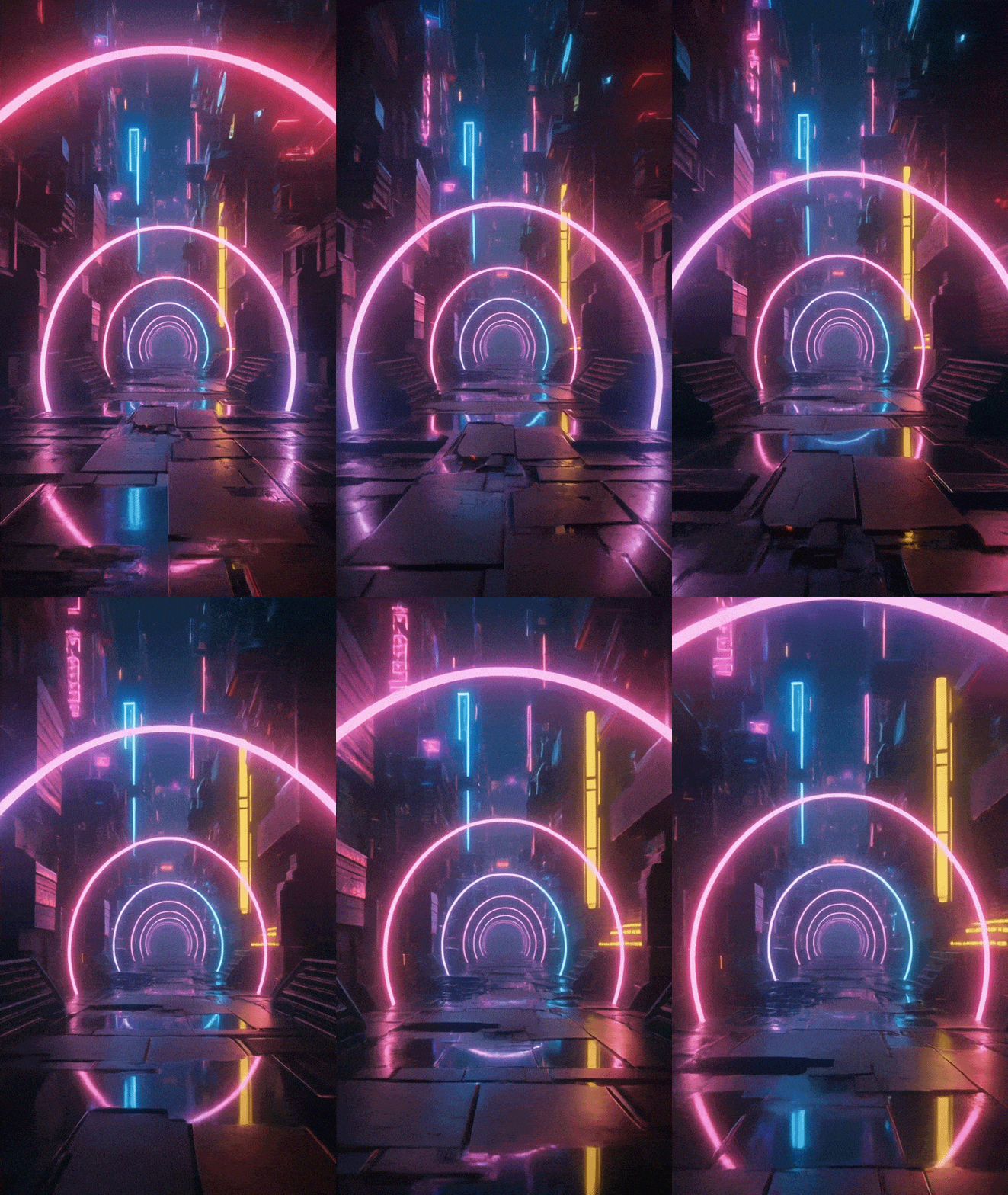
Firefly delivers consistent output quality. It produces outputs with smooth motion, natural lighting, and consistent scene elements across multiple frames. Even though this model is hardly suitable for producing highly realistic videos, the output footage looks well-structured and natural. It makes it easier to use the generated clips as final assets or foundations that can be enhanced during post-production.
The key advantage of Firefly is that it allows one to achieve controlled realism. Human and camera movements feel intentional, while the environment looks natural. While the outputs created with the help of Firefly won’t replace the footage filmed in a traditional way that can be used for high-end productions, this tool allows one to visualize concepts, produce marketing content, and work on creative projects.
| Firefly Standard | Firefly Pro | Firefly Premium | Creative Cloud Pro | |
|---|---|---|---|---|
|
Monthly cost
|
$9.99/month
|
$19.99/month
|
$199.99/month
|
$69.99/month
|
|
Generative credits
|
2,000
|
4,000
|
50,000
|
2,000
|
|
Free trial
|
✔️
|
✔️
|
❌
|
✔️
|
|
Generate 5-second videos
|
Up to 20
|
Up to 40
|
Unlimited access to the Firefly Video Model in Generate Video
|
Up to 40
|
|
Translate audio and video
|
Up to 6 minutes
|
Up to 13 minutes
|
Up to 166 minutes
|
Up to 13 minutes
|
|
Generate sound effects
|
Up to 200
|
Up to 400
|
Up to 5,000
|
Up to 400
|
I discovered that I was able to achieve better outputs by specifying camera direction, mood, and lighting. For instance, instead of using the prompt “a city at night,” I would write something like “a cinematic wide shot of a city after nightfall, slow camera pan, soft neon lighting, shallow depth of field.” This approach helped me achieve better realism and create a well-balanced composition. Besides, it might help if you specify movement speed or time of day. This way, Firefly will be able to understand what result you want to achieve.
“When working on professional projects for my clients, I use the videos produced with the help of Firefly as supporting assets. They can be used as establishing shots, background visuals, or atmospheric sequences that can be improved with the help of Premiere Pro or After Effects.”
Videos produced with the help of Firefly are perfectly color graded. There are plenty of Adobe Firefly video model features that will streamline your workflow. You can use layers to add typography elements or real footage. The output is suitable for producing professional marketing videos, presentations, and social media content that won’t even look AI-generated.
Firefly delivers better results when the scene has easy-to-understand logic. I discovered that it’s better to use prompts that specify one subject, environment, and type of motion instead of trying to describe complex scenes. Avoid stacking several actions into a single prompt. It’s better to produce short clips and combine them later. It will allow you to reduce the number of imperfections and maintain consistent motion.
Many professionals use Firefly as a virtual cinematographer instead of relying on it for creating complete stories. Be sure to focus on your prompts and describe each shot in detail. For instance, it’s better to specify whether you want to produce wide shots, close-ups, and tracking shots instead of trying to describe long narratives. If you know how to edit videos in Premiere Pro or After Effects, it will be easier for you to produce Firefly clips that integrate into well-structured timelines perfectly.
Firefly stands out among other services for the way it responds to iterative improvements. If a generated output is nearly perfect, a user can fix lighting, adjust camera speed, or make other minor edits with ease. Such adjustments often allow users to achieve better outputs than when they rewrite the whole prompt. It allows one to save credits and achieve better visual continuity, making this solution perfect for those who need to create several clips for the same project or achieve a consistent brand style.
| Feature | Adobe Firefly | Runway (Gen-3) | Pika Labs | Luma AI |
|---|---|---|---|---|
|
Text-to-Video Quality
|
High, production-safe
|
Very high, cinematic
|
Medium–high, creative
|
High
|
|
Camera Motion Control
|
Controlled, realistic
|
Advanced, dynamic
|
Limited
|
Strong spatial movement
|
|
Style Consistency
|
Very stable across frames
|
Stable but resource-heavy
|
Can flicker
|
Stable for short clips
|
|
Audio Generation
|
❌ No
|
❌ No
|
❌ No
|
❌ No
|
|
Clip Length
|
Short (ideal for shots)
|
Short–medium
|
Short
|
Short
|
|
Editing Workflow
|
✔️ Native integration
|
❌ External export
|
❌ External export
|
❌ External export
|
|
Commercial Use
|
✔️ Yes (paid)
|
✔️ Yes (paid)
|
✔️ Yes (paid)
|
✔️ Yes (paid)
|
|
Ethical AI / Transparency
|
✔️ Content Credentials, licensed data
|
✔️ Limited transparency
|
✔️ Limited transparency
|
✔️ Limited transparency
|
Yes, if you need to produce short videos or create supporting video assets, it could be the perfect choice. Firefly generates visuals that can be used in other free Adobe software. It’s an excellent option for those who want to produce videos for marketing purposes or want to use them in presentations or branded content and further enhance them with the help of traditional editing tools.
Firefly produces videos that can be used commercially if you have a premium Adobe plan. Adobe trains Firefly using licensed datasets that were sourced in an ethical way. Due to this, the risk of copyright infringement is lower compared to many other AI-powered solutions.
Even though Firefly doesn’t support manual keyframe control, you can use detailed prompts to achieve better results. Be sure to describe the desired camera movement, lighting, and mood to generate outputs with better precision. You can also further enhance the results during post-processing.
Based on my experience, Firefly is perfectly suitable for both tasks. However, one should use it in different ways to produce the desired results. When working on realistic scenes, it’s better to focus on stable motion and logical lighting. Stylized AI videos require style consistency across frames.
Firefly is best suited for content creators, marketers, designers, and agencies using Adobe Creative Cloud software. It’s perfect for those who want to expedite ideation and production while maintaining high standards.
When we decided to thoroughly test Adobe Firefly Video Model, we followed the testing approach we typically use when assessing professional software. We wanted to see how it would handle real tasks. I wanted to use it when working on the projects that content creators and marketing teams are often tasked with. I was mostly interested in creating short cinematic videos, producing visual assets for branded content, and testing out various styles that can be later improved during the post-production stage.
The first thing I did was to test text-to-video generation with the help of all sorts of prompts, from basic scene descriptions to comprehensive instructions regarding camera movement, lighting, and mood. I wanted to examine whether Firefly would be able to interpret intent with high accuracy, maintain consistent motion across frames, and produce visually coherent scenes.
Then, Tata examined visual quality and realism. She was mostly focused on lighting, depth, and motion stability. During testing, she wanted to discover typical issues associated with AI, including flickering, warped edges, and unusual camera movement. Besides, Tata evaluated stylized outputs to understand whether Firefly could maintain a consistent style throughout the clip.
During this stage, we also wanted to assess the ease of workflow integration. Ann imported the outputs into Premiere Pro and After Effects to examine format compatibility, analyze potential timeline issues, and check whether it was easy to color grade the footage, apply effects, and perform compositing. This approach allowed us to understand whether the videos produced with the help of Firefly can become usable assets instead of being basic concept demos.
Finally, I decided to create multiple variations of the same prompt to examine consistency and repeatability. When testing the Adobe Firefly video model release, I regenerated my prompts several times to assess the results and understand whether Firefly would be capable of maintaining the same visual style across multiple clips. In addition, I checked the reliability of a model during longer sessions. I wanted to see whether there would be any failed renders, quality drops, and sudden changes in output.