Lately, I noticed that video editing was taking up more time than the actual filming. I was creating content for a small fashion and photography brand, including Reels, TikTok videos, product promotions, and behind-the-scenes footage from shoots. Since we needed fresh content on a regular basis, the usual editing process started becoming a bottleneck.
That’s when I began searching for the best AI video editor that could speed up production while still delivering good-quality results.
When I started testing 70+ AI video editors, many of them felt too aggressive with automation. Some inserted effects didn’t fit the footage, others changed the colors too much, and a few produced captions with noticeable mistakes.
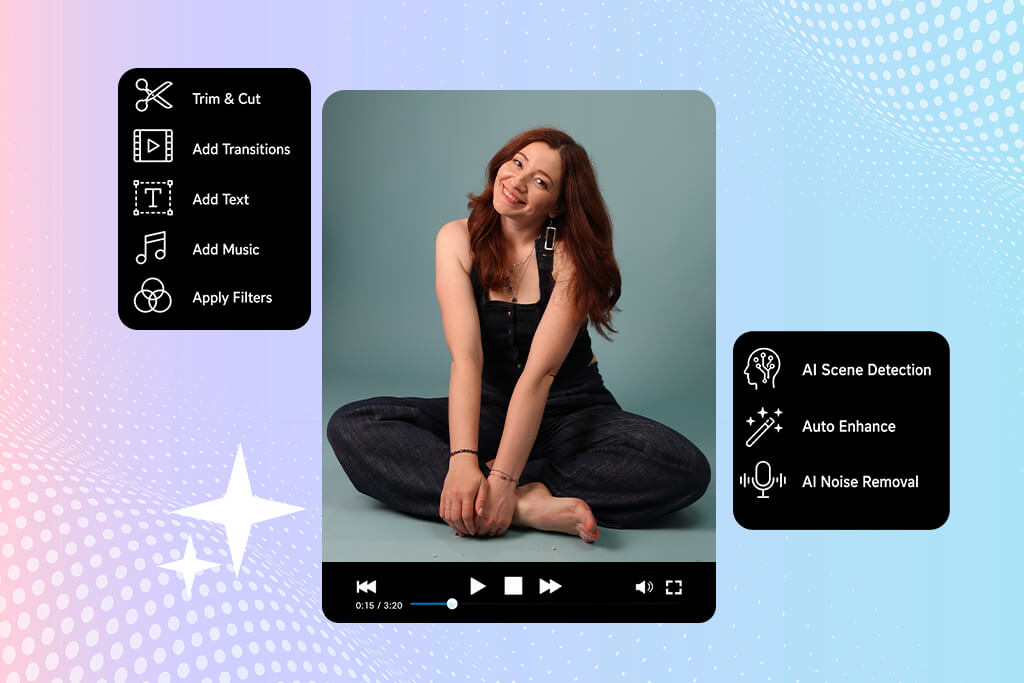
A good AI video editing app isn’t about flashy effects or promises of instant results. What matters is how much time it saves while still allowing full creative control.
Smart automation of repetitive tasks. A useful AI video editor should reduce the amount of manual work involved in editing. Features like removing unnecessary gaps, selecting the best parts of a video, adding captions, matching footage with audio, and adapting content for different social platforms can make the process much faster.
Natural-looking editing output. This is where many editors fall short. A good tool should keep colors natural, maintain realistic movement, and preserve the overall look of the footage rather than relying on excessive effects. In my experience, the strongest options improve the editing process without making the final video look overly processed or artificial.
Accurate and usable captions + audio processing. The best tools do more than just turn speech into text - they keep subtitles properly synced, handle different accents well, reduce background noise, and make conversations easier to follow.
During testing, I tried several free YouTube video editors that offered automatic captions, but many of them were too inaccurate or poorly timed to be useful for real client work.
Format flexibility and export control. A good AI video editor should make it easy to adapt videos for different platforms without affecting the overall look of the footage. Support for multiple formats, high-quality exports, and ready-made settings for social media and advertising can save a lot of time during production.
Creative control with AI assistance, not replacement. One thing I noticed during testing was that the best tools allowed me to fine-tune automated edits rather than forcing me to accept them as they were. The combination of time-saving automation and the ability to make manual adjustments is what makes a video editor feel professional instead of overly automated.
| Name | Best for | AI features | Pricing |
|---|---|---|---|

Adobe Firefly |
Text-based generative video extension and effects production
|
Generative Extend, text-to-video
|
Included in Adobe Creative Cloud package; free generative credits
|

Filmora
|
AI Copilot, Smart Cutout, text-to-video
|
AI Copilot, Smart Cutout, text-to-video
|
Free version (with watermark); from $49.99/year
|

InVideo
|
Social media video creation from text prompts
|
Text-to-video, AI voiceover, script generation
|
Free plan; from $20/month
|

Adobe Premiere Pro
|
Professional video editing with smart automation
|
Text-Based Editing, Enhance Speech, Generative Extend
|
From $22.99/month
|

Movavi
|
Simple, basic editing for beginners
|
Automated cleanup and tracking tools
|
Free trial; from $49.95/year
|

Steve AI
|
Fast content-to-video creation
|
Text-to-animation, blog-to-video
|
Free plan; from $15/month
|

Quso AI
|
Creative video generation from text or images
|
Text-to-video, image-to-video, style conversion
|
Free daily credits; from $10/month
|

Async
|
Editing videos through chat
|
Chat-based editing, AI captions, audio cleanup, AI B-roll
|
Free plan with limited credits; paid plans available
|

Vidio AI (Vidu)
|
Creating high-quality, realistic videos from prompts
|
Advanced text-to-video and image-to-video generation
|
Free basic credits; from $9.99/month
|

|
Personalized video creation and character animation
|
Social media video creation and character animation
|
Free access (beta/mobile app); paid tier limits
|

VEED
|
Online video editing and marketing content
|
AI Subtitles, eye contact correction, AI avatars
|
Free plan (with watermark); from $18/month
|
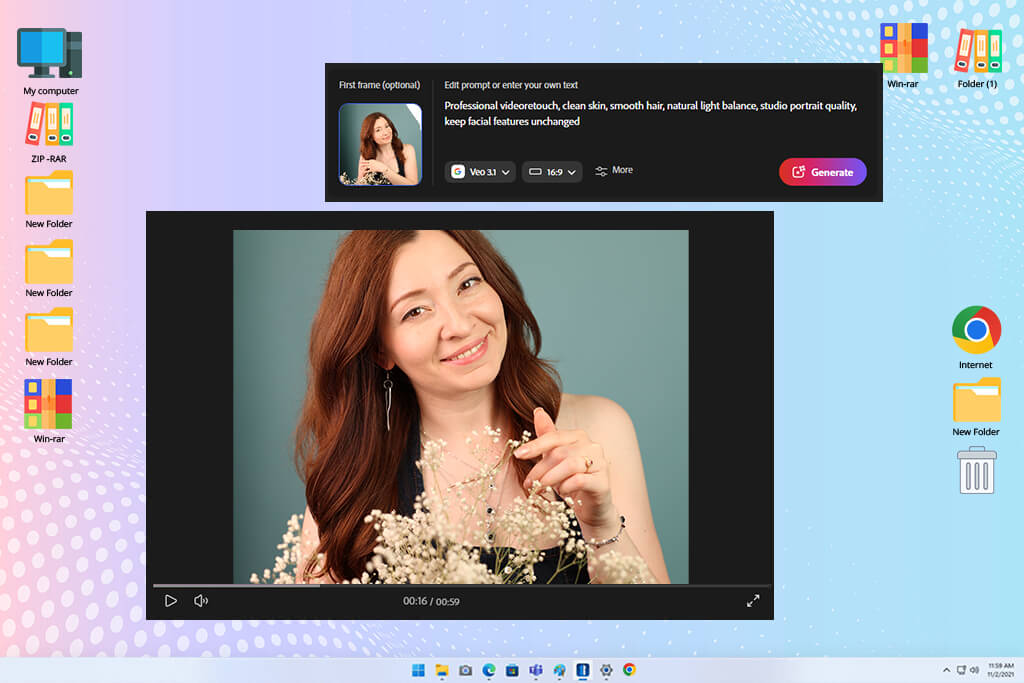
I began to test Adobe Firefly when the amount of short-form content we were creating for a fashion and photography brand kept growing.
To put Firefly to the test, I used footage from real projects that included unstable camera movement, difficult lighting conditions, and unwanted background sounds. After trying several similar tools, this one immediately felt more dependable and better prepared for real production work.
One of the first things I noticed was that the visual enhancements felt balanced rather than excessive. Instead of adding unnecessary effects or dramatic transitions, it made improvements that blended naturally with the footage.
I mainly used it to clean up clips, make scenes look more consistent, and adjust or expand backgrounds in vertical videos. The final results still looked true to the original footage while appearing cleaner and more professionally finished.
“The text-to-video feature was one of the highlights for me. The results look very polished and cinematic, although it often took a few prompt tweaks to get the outcome I wanted.”

I also tested this AI video editing tool on fast-paced fashion videos, behind-the-scenes clips, and product content where pacing is important. It helped turn rough footage into usable edits much faster than doing everything manually.
For me, the biggest advantage of this free Adobe software was that it handled many of the repetitive editing tasks that usually take up a lot of time. I still had full control over the final video, but the workflow felt much faster and easier.
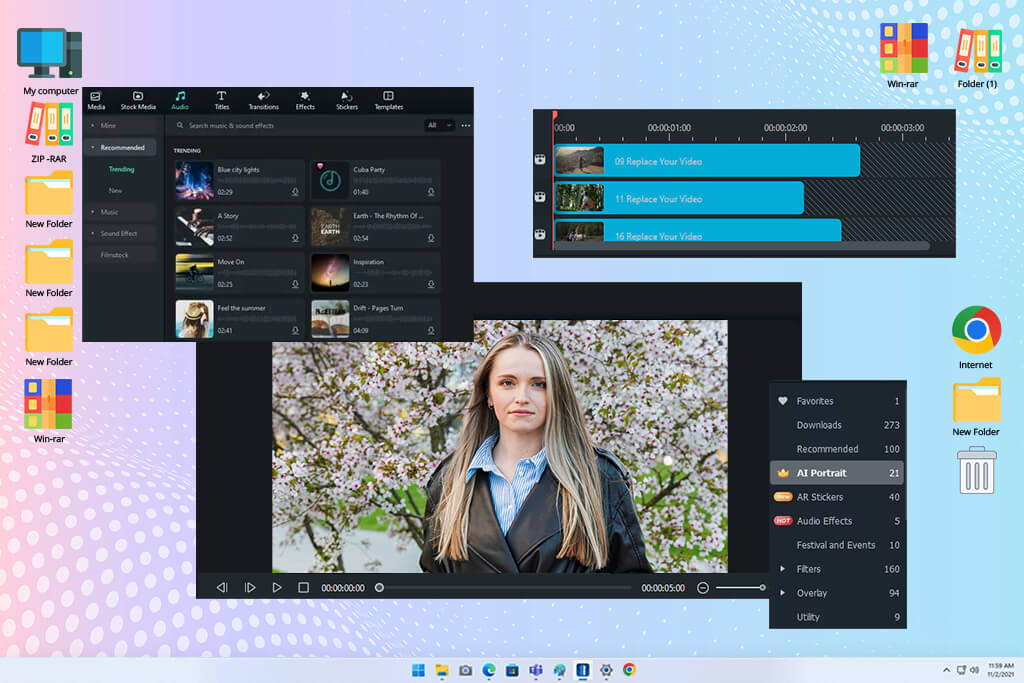
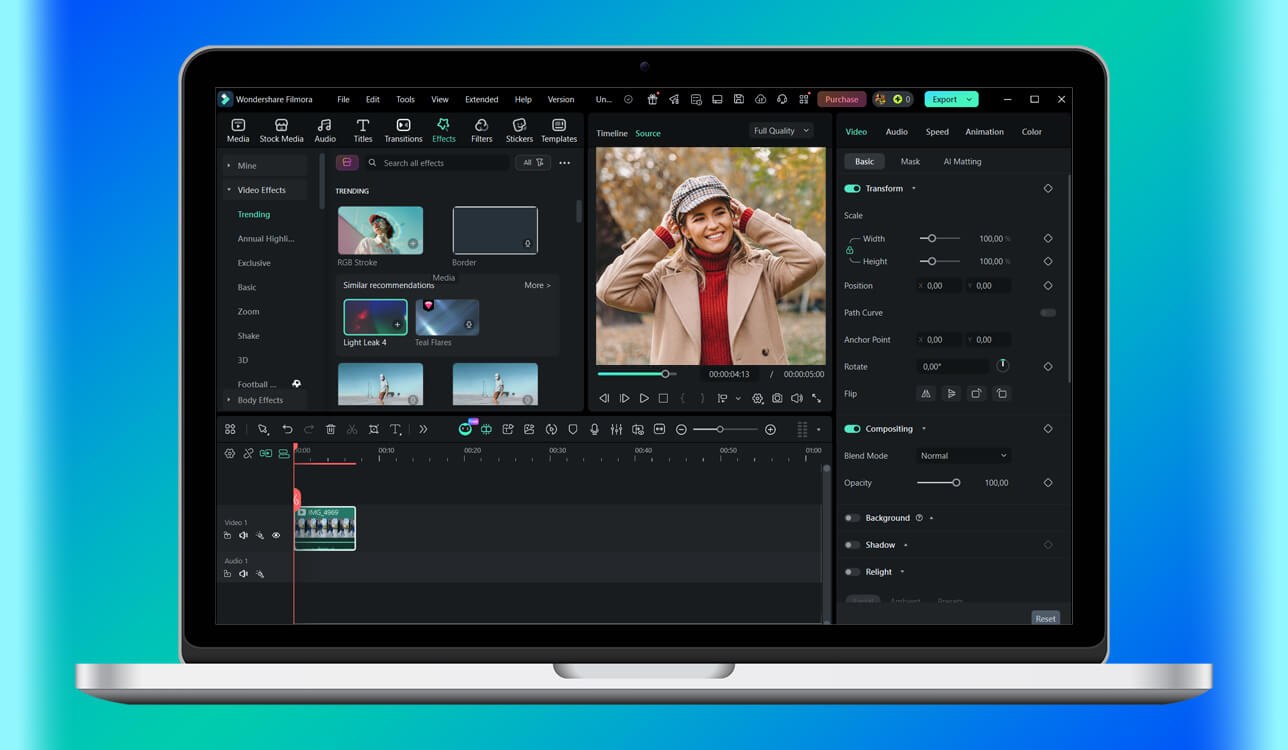
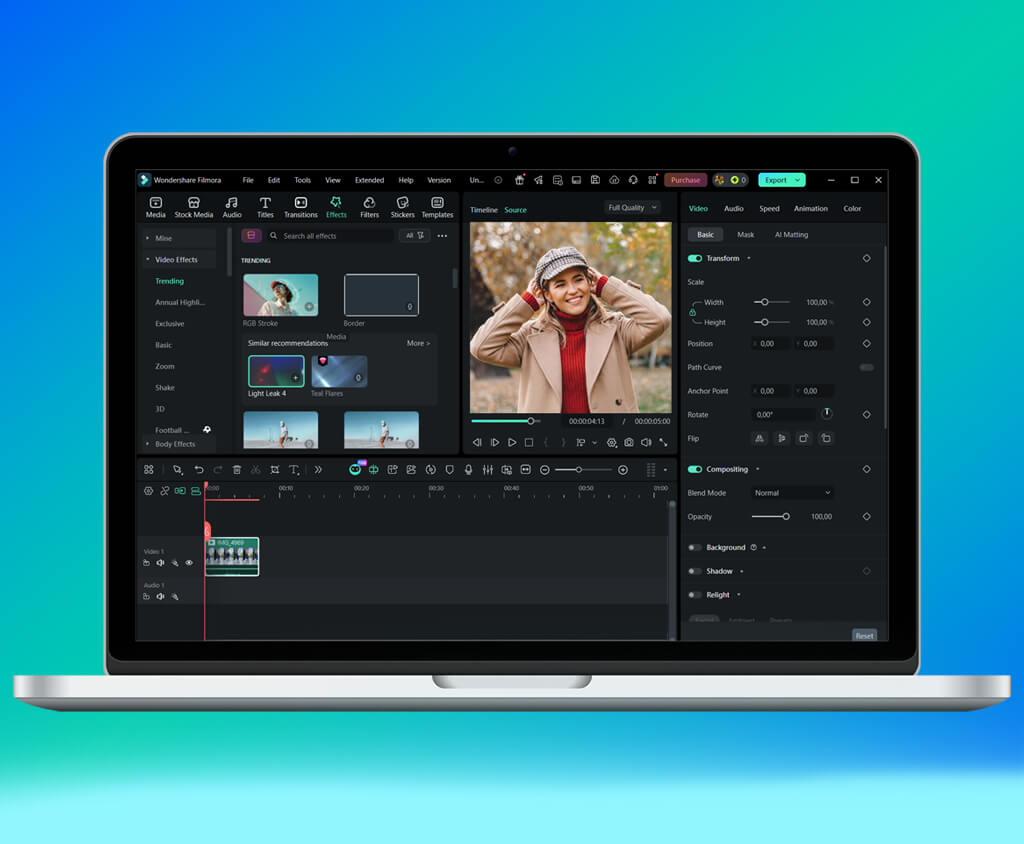
I decided to try Filmora after seeing it recommended by many content creators for social media videos. One thing I noticed right away was how easy it was to navigate. Compared to more advanced editing programs, it felt more straightforward, and I was able to start working without spending a lot of time learning the interface.
Most of the AI features were designed to make everyday editing faster. Tools like automatic captions, pause removal, music matching, and transitions helped speed up the workflow. I also tested it on a few interview videos with background noise and uneven audio, and the cleanup tools performed better than I expected.
What I liked most was that it was easy to use without taking away creative control. I could still adjust transitions, effects, and pacing to match the style I wanted. Some of the AI effects felt a bit too flashy for my projects, though, so I occasionally toned them down to keep the videos looking more natural.
Filmora was especially useful when I needed to edit and export videos quickly without using more complex software. It may not offer the most advanced visual results, but it does a great job handling routine editing tasks. For anyone creating short-form content on a regular basis, it can save a noticeable amount of time.
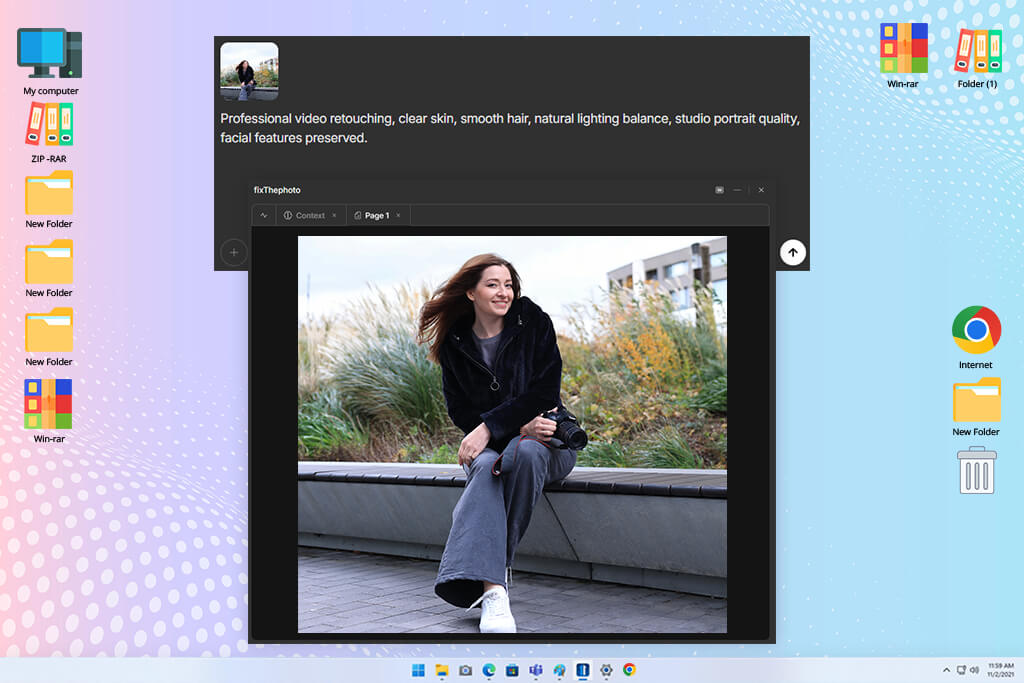
I started testing InVideo when I needed to create several promotional videos each week for social media campaigns. I used product footage, behind-the-scenes clips, and voice recordings to try different types of projects. From the start, the online AI video editor felt focused on marketing and content creation for social media.
What I liked most was how quickly I could turn a simple idea into a video draft. Instead of spending time putting everything together, this AI video editing software for Windows and Mac handled much of the initial work, including transitions, text animations, and basic scene structure. The suggestions were often useful, and for promotional content, they helped speed up the process quite a bit.
“It was great for quickly turning text into marketing videos, and the templates saved a lot of time. However, after creating multiple videos, the results could start to feel a little repetitive.”

After a while, I noticed that some videos started to have a similar look and feel. Certain layouts and effects were reused quite often, so I usually made a few adjustments to keep each project looking different. The built-in tools saved time, but adding personal edits still made a big difference in the final result.
For social media campaigns and high-volume content creation, InVideo saved me a lot of time. I probably wouldn’t choose it for more cinematic or story-driven projects, but for producing branded content at scale, it made the process much faster and easier.
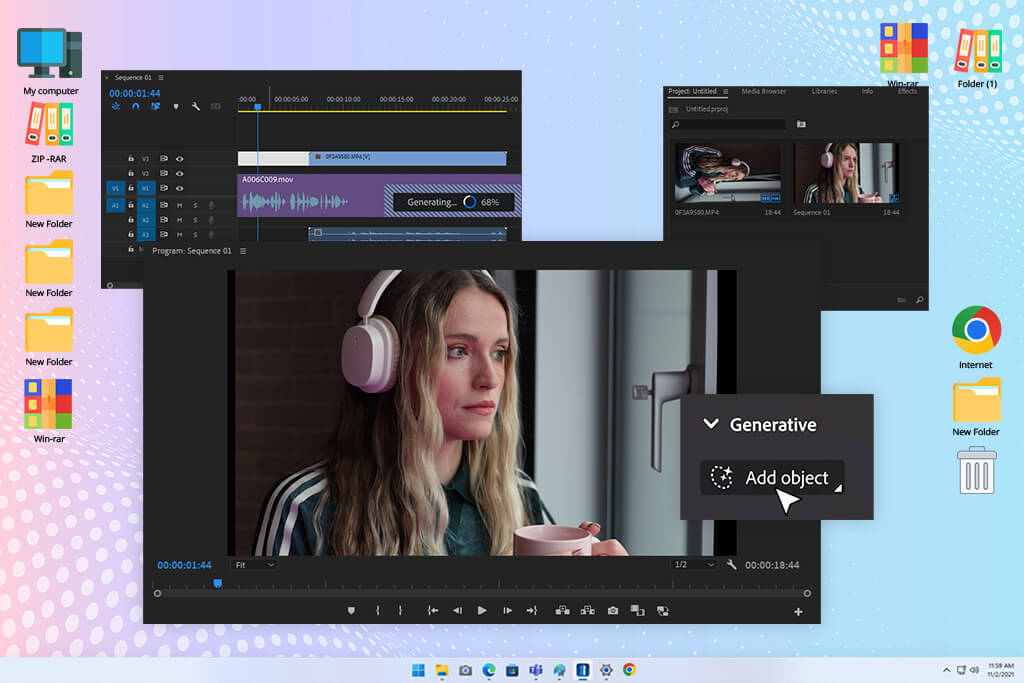
I had already worked with Premiere Pro before trying its newer AI features, so I was curious to see how much they would improve the editing process. I tested them on real campaign footage from fashion shoots, including interviews, behind-the-scenes videos, and promotional content.
Since the files were large and required a lot of organization, I wanted to find out whether the new tools could make professional editing faster and easier. In most cases, they proved to be genuinely helpful.
The AI features were most useful for speeding up routine editing tasks. Auto reframing made it much easier to adapt videos for Reels and TikTok, while the captioning tool did a surprisingly good job even with background noise and fast speech. Because less time was spent on repetitive work, I could focus more on the overall flow and story of the video.
What I liked most was the level of control it offered. The automated tools were there when I needed them, but I could still make all the important decisions myself. It gave me full control over color, audio, and timing, which is especially important when working on client projects that need a polished and professional finish.
Premiere Pro definitely takes longer to learn than simpler AI video editing tools. However, once I started using the automated features as part of my regular workflow, they saved a significant amount of time. It felt like having extra help inside the software rather than doing everything on my own.
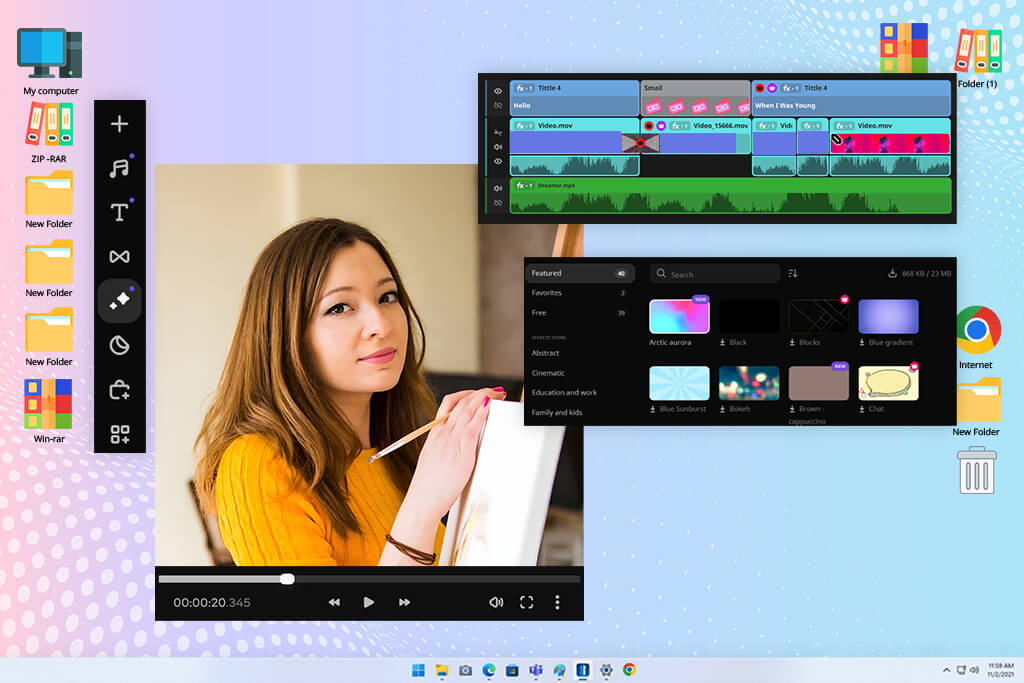
I decided to try Movavi when I wanted a lighter video editor for quick social media projects. I mainly used it for short lifestyle videos, product clips, and behind-the-scenes content. The interface felt clean and easy to navigate, so getting started was quick and hassle-free.
Features like automatic enhancements, background cleanup, and ready-made transitions helped improve videos quickly without much effort. I also liked how easy it was to export content in formats suited for phones and social media. Overall, it felt designed for creators who need to publish content quickly rather than spend hours on detailed editing.
“Great for quick edits and adding effects without much effort. For more advanced video work, though, it can feel a bit limited.”

The simplicity does come with some trade-offs. As my projects became more detailed, Movavi started to feel a bit limiting compared to tools like Premiere Pro or Firefly. It handled quick edits well, but for more customized work, I often wanted more control and flexibility.
For quick content creation, though, this AI video editor worked better than I expected. I often used it when I needed to edit and publish videos quickly and didn't need all the advanced controls of more professional software.
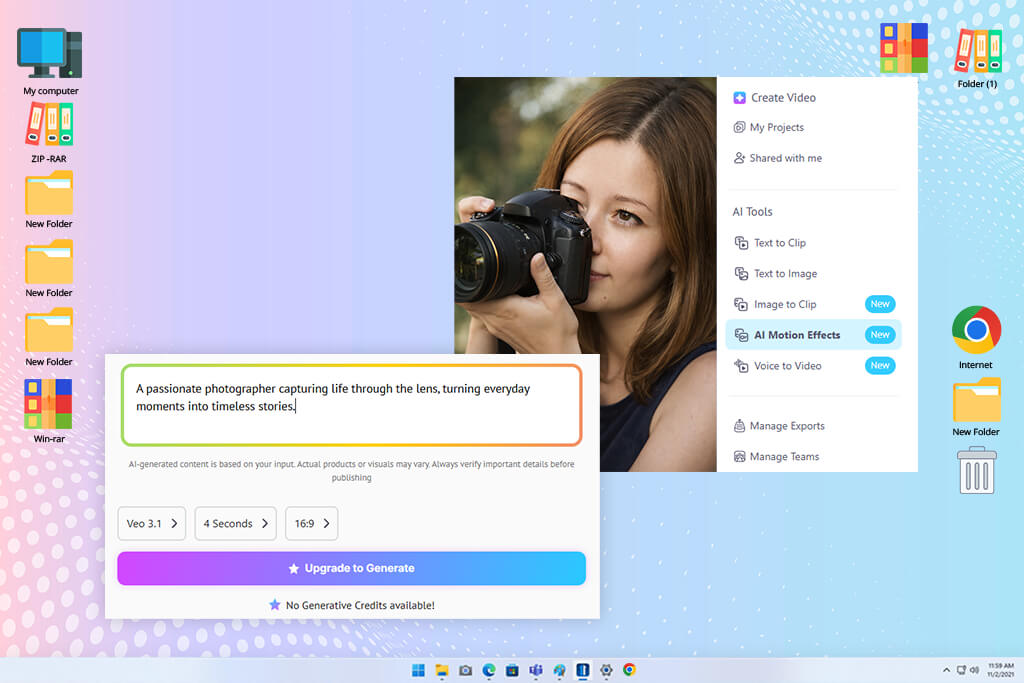
Steve AI focuses on turning written text into videos by itself. I wanted to know if it could help me make educational and promotional videos for photography lessons and brand advertising. Instead of using my own video clips, I gave it scripts and short ideas. It was really interesting to watch the software put together scenes on its own.
The best part was how fast it worked. In just a few minutes, the platform made full video drafts with stock clips, scene changes, subtitles, and music already added. For how-to videos or simple explainers, it worked really well. I could put together rough drafts for social media much quicker than editing by hand.
But sometimes the videos it made felt a bit plain. Because this AI video editor mostly uses templates and stock clips, some projects seemed like everyone else's unless I went back and changed things carefully. The timing of the scenes could also feel too stiff for emotional stories or movie-like content. It's helpful, but more useful than creative.
I see this AI video generator as something useful for getting work done, not for artistic editing. It works well for making informational videos fast, when speed matters more than making something completely original.
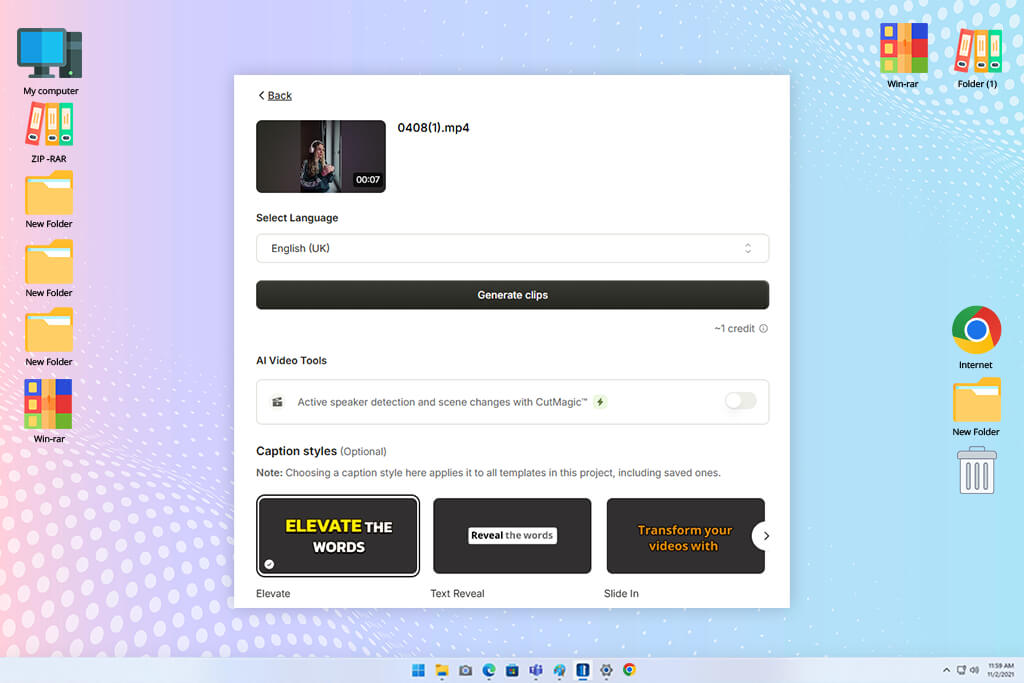
I tested Quso AI while trying to speed up making short videos for social media campaigns. My main goal was to automate boring editing tasks like cutting highlights, adding captions, and changing video sizes for different platforms.
I uploaded podcast clips, behind-the-scenes footage, and promotional videos to see how smart the automation really was. The process felt very well-designed for creators who make a lot of content.
One thing I really liked right away was how much the tool focused on saving time. This AI video maker and editor quickly spotted moments that could work as short highlight clips and automatically made vertical videos with captions. That alone saved a ton of manual cutting and resizing work. For making TikTok and Reels, the speed felt genuinely helpful.
But sometimes the edits weren't very smooth. A few cuts happened too fast, and the tool sometimes chose quick, exciting pacing over natural storytelling. I often had to slow things down by hand to keep the videos feeling real. It's clearly built around current online video trends.
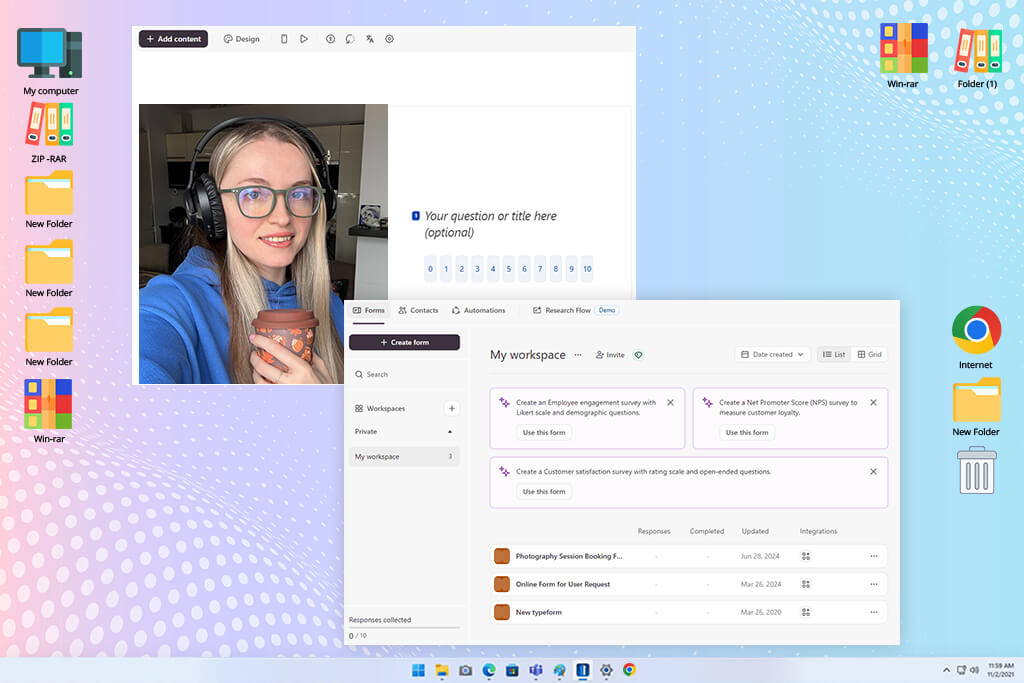
I gave Vidio AI a shot after getting sick of how much manual work goes into editing vertical videos for social media. I threw in some fashion campaign clips, behind-the-scenes stuff, and a few talking-head videos to see if the tool could actually make things easier.
The interface of this AI video editing app felt clean and modern, so I could just jump in and start messing around without getting lost in a bunch of complicated menus.
The best part was automatic formatting. It cropped, reframed, and added subtitles much faster than doing it manually. It also kept faces in the shot during vertical conversion, so no awkward cropping. That helped a lot with interviews and fast-moving photoshoot clips.
“It’s quick and straightforward for everyday content creation. However, it can feel somewhat limited when working on more complex projects.”
That said, this online AI video editor felt more focused on speed than creative flexibility. It made editing faster, but I sometimes wanted more control over how the final video looked and flowed. For more polished projects, I usually need another editor to finish the job. It worked best as a way to speed up the process rather than replace it completely.
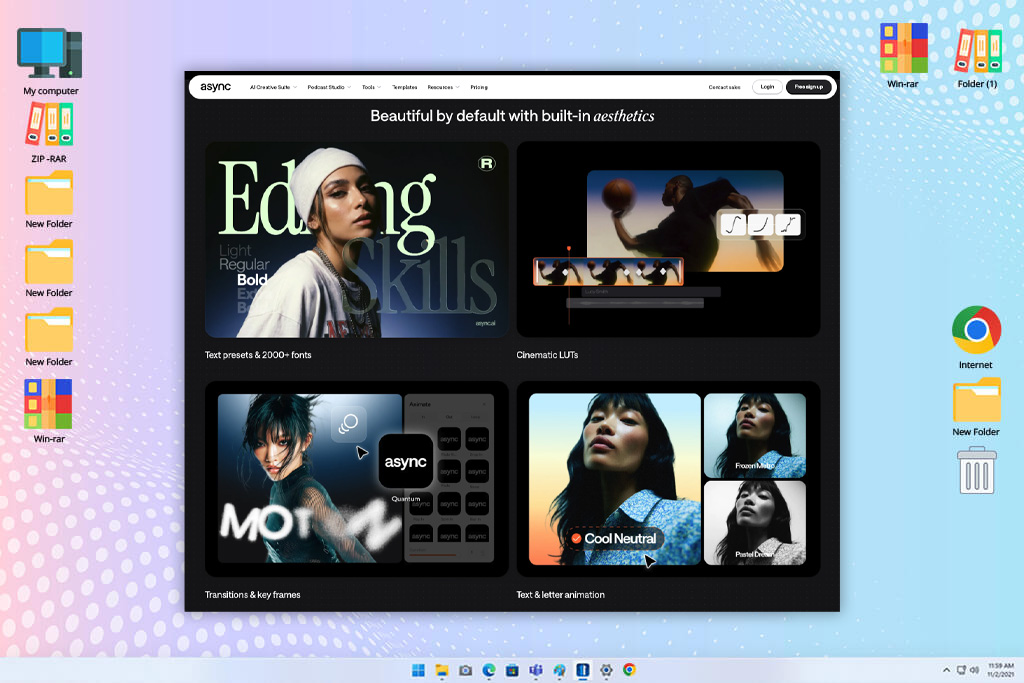
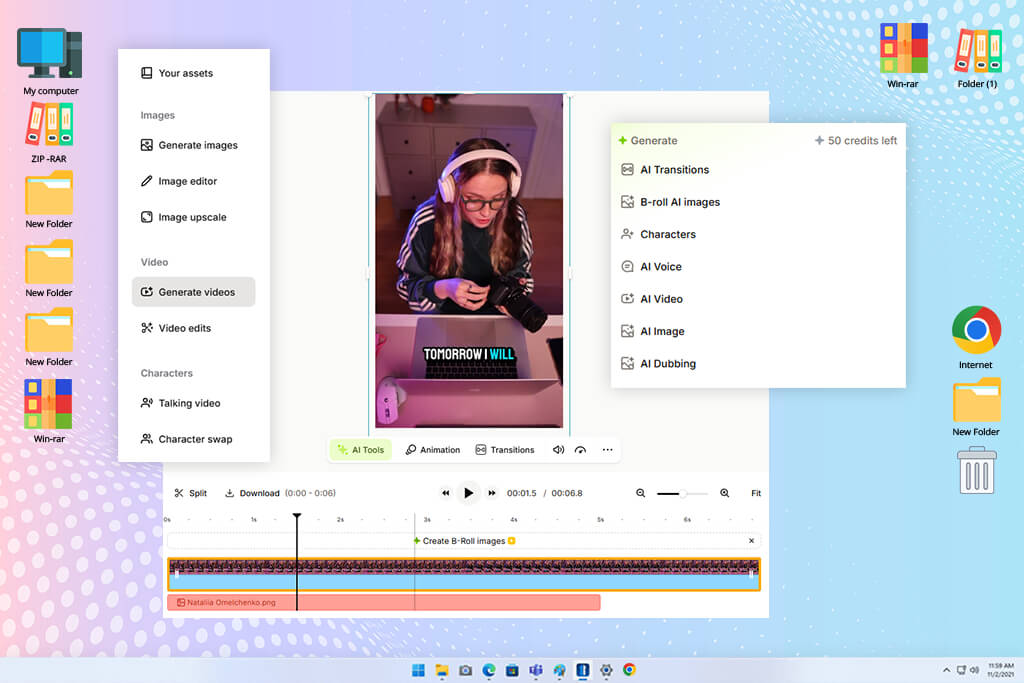
I was drawn to Async because it allows me to edit a video while having a conversation. I can upload video and ask it to split a lengthier recording into shorter chunks, add captions, or eliminate slow parts.
I can access the timeline and make the necessary adjustments if the outcome requires a more precise modification. For social media work, such combination makes the most sense. While the built-in creation tools can help cover a gap with B-roll or music, recording, editing, audio cleanup, and publishing all take place within the same browser workspace.
Even so, I would keep a tight eye on the final product, particularly if a cut alters a sentence's meaning or if a created image needs to correspond with the source material. Async provides an easy way to go from raw footage to a draft for producers who frequently convert recordings into reels or brief promotional videos.
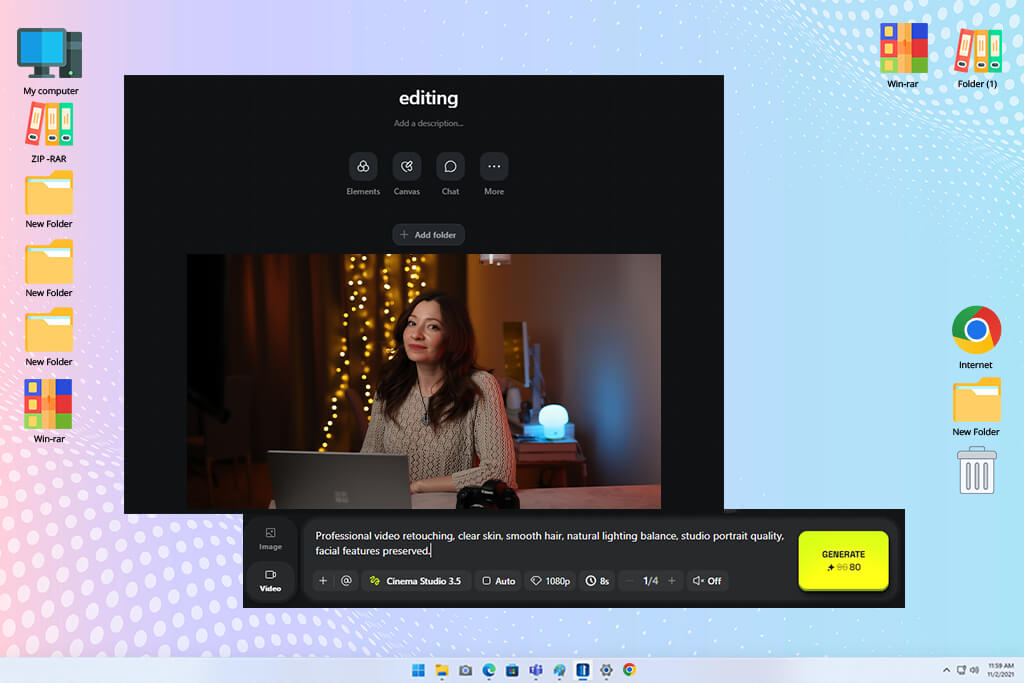
Higgsfield was one of the most unusual AI video tool & intro maker software I tested. Rather than focusing on traditional video editing, it was designed to create stylized scenes and visual concepts from prompts.
What impressed me most was the quality of the visuals, especially the lighting and cinematic composition. It felt less like using a standard AI video editor and more like experimenting with creative visual concepts. I was able to create scenes that would normally require a much larger production setup, which made it especially useful for developing and testing campaign ideas.
The main drawback was consistency. While some generated scenes looked excellent, others didn't always match the style or direction I was aiming for. Keeping a uniform look across multiple scenes could be challenging, so for client projects, it often took extra testing and adjustments to get the desired result.
I started using VEED for social media projects and quick client edits because it promised a simple workflow. The platform was easy to use from the start, and working directly in the browser made the whole process fast and convenient.
One of the things I liked most was the subtitle tool. The captions were usually very accurate, and it was easy to make them look good for social media videos. I also liked how quickly I could adjust videos for TikTok, Instagram, and YouTube Shorts, which made creating content for different platforms much easier.
“It’s very easy to use in the browser, and the subtitle feature works quickly and reliably. However, for more advanced editing projects, the tools can feel a bit limited.”

That said, VEED focuses more on being easy to use than on advanced editing. When I tried to make more cinematic scenes or add layered sound, I started to see its limits. But it’s still one of the simplest AI video editors for beginners I tested when the goal is speed, captions, and videos ready for social media.
At one point, our FixThePhoto team was dealing with so many video projects that we decided it was time to compare different AI video editing tools properly. Instead of relying on first impressions, we tested the tools side by side on real projects, just like we do with photo editing software:
We also tested the tools during busy production periods. In one challenge, we had to turn a long behind-the-scenes recording into several short social media videos within a tight deadline. The differences became obvious very quickly.
Some platforms delivered solid results with minimal effort, while others produced rough edits that needed extensive corrections. Our rule was simple: tools that made the process faster moved forward, and those that slowed us down did not.
We also checked editors while working on fashion campaign videos where the lighting was uneven, and the audio was a mess. Adobe Firefly video and Premiere Pro handled this much better - they offered stabilization, reframing, and cleanup without breaking visual quality.
Kate noticed that some tools overdid the enhancements, making skin tones look fake, which is a big no for commercial photography work. Tati kept saying no to anything that changed the natural feel of the shoot too much.
We looked at AI captions and vertical formatting using the same interview clips across all tools. VEED and Filmora-style editors did surprisingly well with subtitles and quick resizing, while more creative platforms had trouble getting the timing right.
Ann pointed out that caption timing matters more than how they look - even a beautiful video fails if the subtitles feel off. That became one of our main rules for judging the tools.
After all the testing, we came to a fairly simple conclusion: there isn’t one video editor that works best for every situation. Some AI video editing apps are better for social media content, others are stronger for polished commercial projects, and a few are most useful for creative experiments.
One thing our team, including Ann Young, Kate Gross, Tati Tailor, and me, agreed on was that the biggest benefit of these tools is handling repetitive editing tasks. That leaves more time to focus on the creative side of a project, from storytelling to the overall visual result.