To my surprise, an HTML to PDF converter has become one of the tools I use most often. At first, this kind of conversion sounded like something only developers would care about. But in practice, it has become part of my everyday work.
I work at FixThePhoto, so I regularly collaborate with photographers, designers, marketers, and real estate professionals. They often send content in web form, such as portfolio websites, landing pages, and interactive image galleries designed with modern CSS. Sooner or later, most of this content needs to be turned into a PDF for printing, client review, storage, or safe sharing.
For a long time, I used basic online HTML to PDF converters: you enter a website link, click a button, and download the PDF. This seemed fine at first, but free tools began to fail as our layouts became more advanced and our internal systems grew. Fonts disappeared, grids broke, galleries didn’t load properly, CSS wasn’t fully supported, and there was no way to automate the process.
That was the moment I understood that I needed more than a simple free converter. I needed software that could correctly process HTML and CSS, handle many files at once, work on both Windows and Mac, and also include APIs so our team could automatically generate PDFs for clients.
To find the right tools, I searched through Reddit discussions, watched developer reviews on YouTube, read documentation forums, and asked my coworkers to help test 40+ HTML to PDF converters. Before sharing my top choices, here are the main things we focused on during testing:
AI features are not required, but when they are used properly, they can help automatically find page breaks, balance spacing, and improve print layouts, which reduces manual work for me.
| Tool | Best for | CSS accuracy | API (JS / PHP / Python) | Batch conversion | Security level |
|---|---|---|---|---|---|
|
Enterprise, client docs
|
★★★★★ (5/5)
|
✔️/✔️/✔️
|
✔️
|
★★★★★ (5/5)
|
|
|
Developers, automation
|
★★★★☆ (4/5)
|
✔️/✔️/✔️
|
✔️
|
★★★★☆ (4/5)
|
|
|
Print-ready layouts
|
★★★★★ (5/5)
|
✔️/✔️/✔️
|
✔️
|
★★★★☆ (4/5)
|
|
|
Publishing, complex CSS
|
★★★★★ (5/5)
|
✔️/✔️/✔️
|
✔️
|
★★★★☆ (4/5)
|
|
|
Agencies, flexibility
|
★★★★☆ (4/5)
|
✔️/✔️/✔️
|
✔️
|
★★★☆☆ (3/5)
|
|
|
Quick previews
|
★★★☆☆ (3/5)
|
⚠️ / ❌ / ❌
|
❌
|
★★☆☆☆ (2/5)
|
|
|
Simple free tasks
|
★★☆☆☆ (2/5)
|
⚠️ / ❌ / ❌
|
❌
|
★★☆☆☆ (2/5)
|
|
|
Backend systems
|
★★★★☆ (4/5)
|
✔️/✔️/✔️
|
✔️
|
★★★★☆ (4/5)
|
|
|
Secure Internal docs
|
★★★★☆ (4/5)
|
✔️/✔️/✔️
|
✔️
|
★★★★★ (5/5)
|
Many of the tools in this list offer free HTML to PDF conversion and allow saving files in different formats. If you need more advanced features, the options below are worth exploring.
This question is asked all the time, especially by creative people. HTML is made to change. PDF is made to stay the same – and that is why it matters.
HTML content can look different depending on the browser, screen size, operating system, or installed fonts. A PDF locks everything in place. When I send a PDF to a client, I am confident that it will look the same on a Mac, a Windows computer, a tablet, or a phone.
At FixThePhoto, we often create:
Some of these files are made once. Others are created hundreds of times through automation. At that point, HTML to PDF API support with JavaScript, PHP, and Python is no longer optional, but necessary.
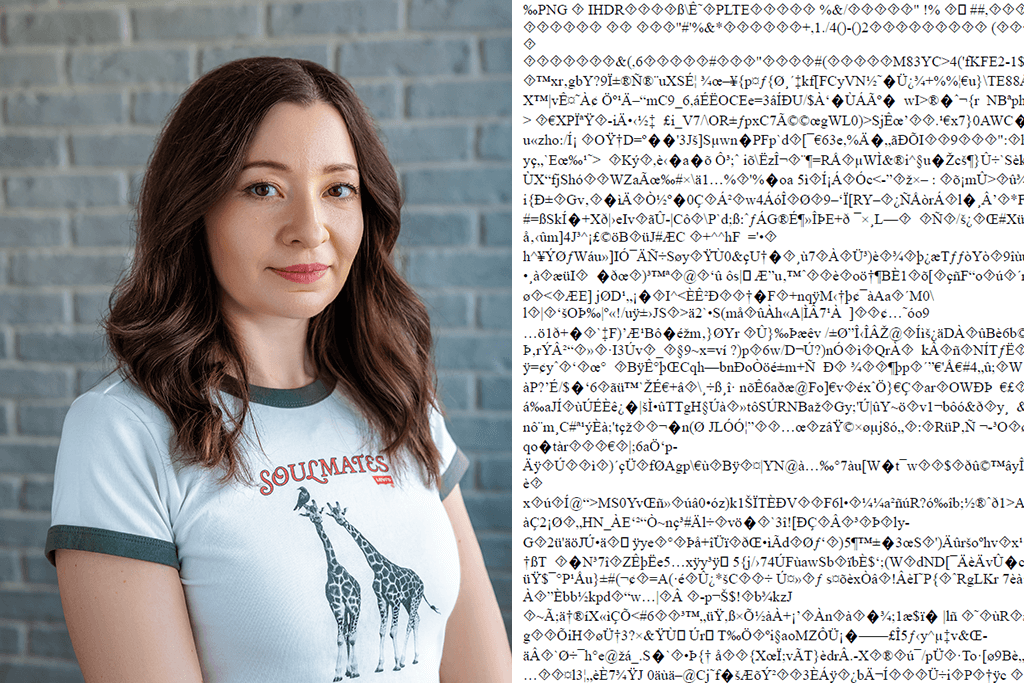
Most problems usually happen when:
These issues are even more noticeable with:
Because of this, strong CSS support was the main thing I focused on while testing HTML to PDF converters.
You can convert HTML to PDF manually using libraries. Common examples are:
| Manual libraries | Ready-made converters & APIs | ||||
|---|---|---|---|---|---|
|
✔️ Full control |
✔️ Stable output |
|
|
|
|
I tested the manual library approach together with our developers. It works, but it is fragile. A single Chromium update can change pagination or spacing. That becomes a problem when clients expect the same output every time.
After all the testing, I believe that APIs are better for real production work, while libraries are fine for testing ideas or small experiments.
One of our real estate clients had an online property report with interactive charts, floor plans, and sections built with heavy CSS. They needed more than 100 PDFs created automatically, each one branded, paginated, and locked. Free tools failed right away. Manual scripts had font issues.
Once we switched to an API-based converter with proper CSS support, everything became automated. The PDFs were generated overnight, matched the layout perfectly, and were ready for MLS uploads by morning. That setup saved us many hours of manual work.
Platform compatibility: Windows, Mac, API
Best for: Teams, agencies, enterprise workflows
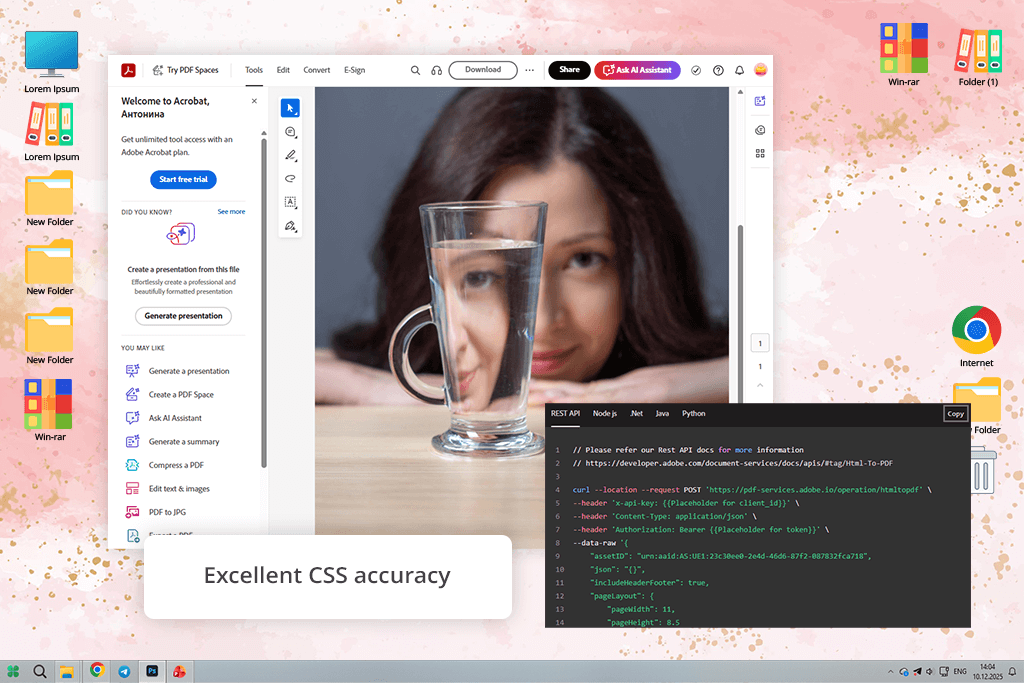
I have used Adobe products for many years, so Adobe Acrobat was already familiar to me. I mainly used it for basic tasks like combining PDFs, exporting files for clients, or converting a single HTML page when nothing complex was needed. During this testing, I finally looked at Acrobat as a serious HTML to PDF converter, specifically using Adobe PDF Services API.
What stood out to me was how well it works once you move past the interface. The API supports JavaScript, PHP, and Python, which helped our team automate PDF creation from HTML templates. Layouts with heavy CSS worked smoothly: fonts, spacing, and responsive sections were converted into clean PDFs with fewer issues than expected.
“The security features were another strong point. If you need a safe HTML to PDF converter, Acrobat offers permissions, encryption, and stable performance suited for large teams.”

I mostly used Acrobat for documents sent to clients, such as branded reports, contracts, and portfolio previews that needed to look identical on both Windows and Mac. It is not the fastest option for quick testing, but it performs best when you want reliable, professional results at scale.
Pro tip: Always set page size and margins in your CSS before converting. Acrobat follows these settings better than many other tools.
Pricing: Free – limited conversions; From $12/mo (Acrobat); API pricing varies by usage
Best for: Developers, batch conversions
Platform compatibility: Windows, Mac, API
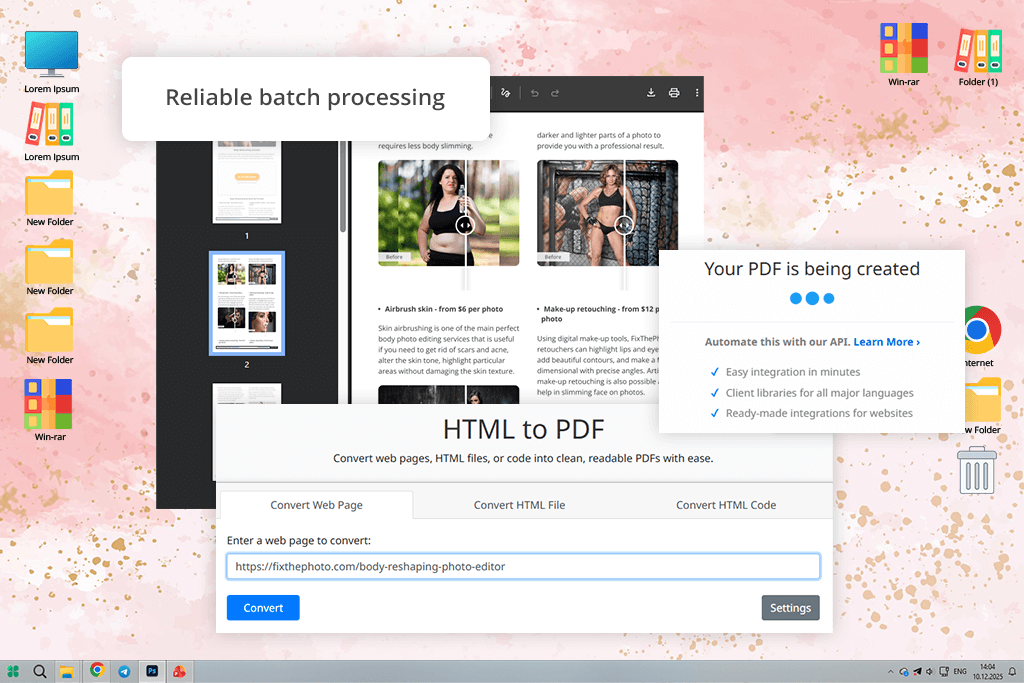
PDFCrowd was one of the first tools I saw when I searched online for an HTML to PDF converter. At first, I did not expect much from it. However, once I started testing, it quickly proved to be one of the most useful tools on the list.
PDFCrowd is designed with developers in mind. It offers built-in support for HTML to PDF API workflows and provides clear examples for JavaScript, PHP, and Python. I tested it using pages with heavy CSS, including image grids, long scrolling designs, and dynamic content.
The results were stable, and the output looked clean. Page breaks and external files worked better than with many larger and more well-known tools.
“When we needed many HTML pages turned into PDFs overnight, the process ran smoothly. PDFCrowd is a batch HTML to PDF converter for teams that need fast and dependable results.”

I personally used this website to PDF converter for bulk exports. There was no extra clutter in the interface and no features that got in the way – just straightforward conversion. The main downside is that the interface looks old, and new users may feel confused by the number of settings. Still, for people who are comfortable working with APIs, PDFCrowd is a strong and reliable option.
Pro tip: Use the advanced page break settings to prevent content from being cut in the wrong places in long PDF files.
Pricing: Free – limited pages, watermarks; From $12/mo; From $99/year
Best for: Reports, print-ready documents
Platform compatibility: Windows, Mac, API
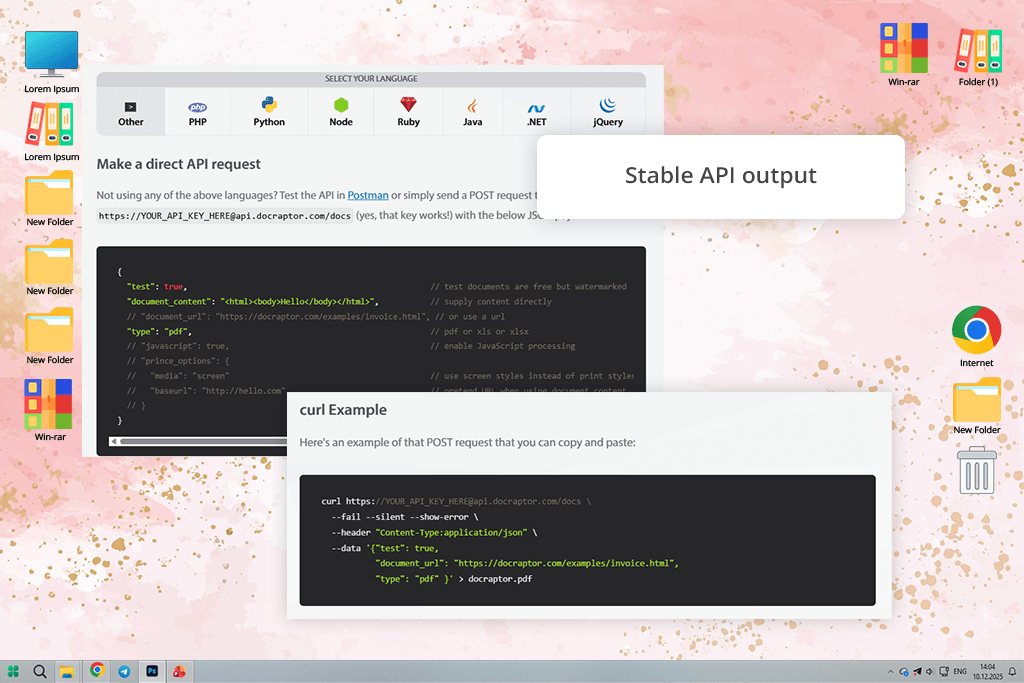
I first learned about DocRaptor from a teammate who often works with automated reports and print-ready documents. He described it as a tool you choose when layout accuracy is important. After testing it myself, I understood his point.
DocRaptor is not made for casual use. It is built for clean and structured PDF output. It uses the Prince rendering engine, which explains how well it handles HTML and CSS, especially print-focused rules like page sizes, headers, footers, and exact page breaks. This was especially useful when converting long HTML reports that included tables, captions, and repeated sections.
“I use DocRaptor for internal manuals, detailed client reports, and files meant for printing. It does not focus on design or style, but it delivers consistent and dependable results.”

From a technical point of view, DocRaptor supports HTML to PDF API use with smooth integrations for JavaScript, PHP, and Python. I tested it by creating multi-page PDFs from HTML templates used in client documentation. The output stayed consistent on both Windows and Mac systems.
Pro tip: Take time to fine-tune your print CSS. DocRaptor gives better results when the layout is carefully prepared.
Pricing: Free – limited API calls, watermarks; From $15/mo; From $180/year
Best for: Publishers, complex layouts
Platform compatibility: Windows, Mac, Linux
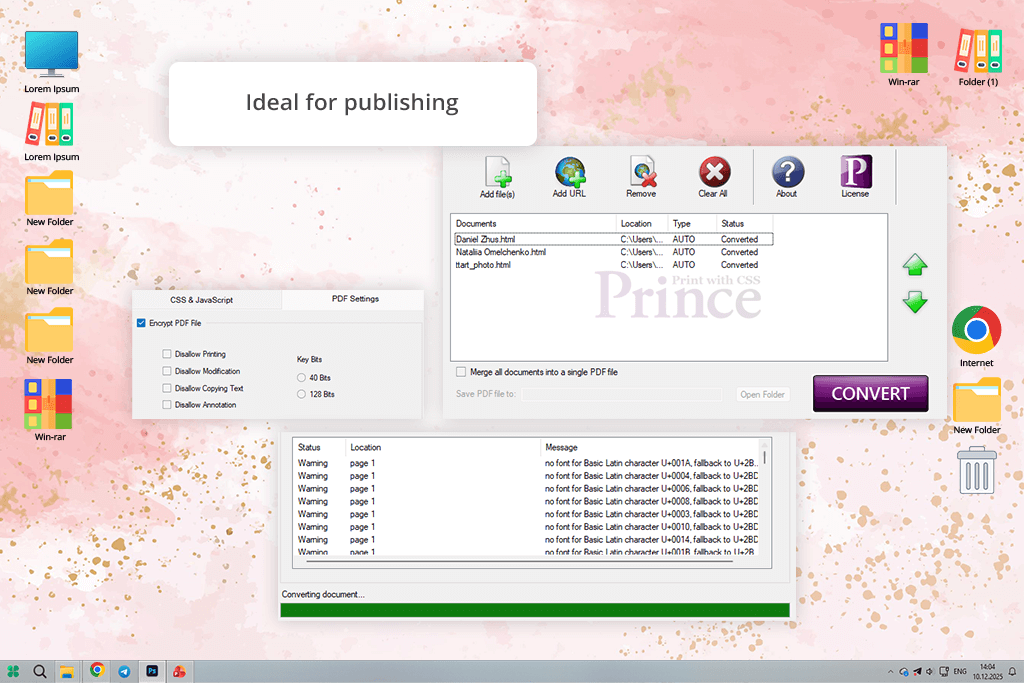
PrinceXML is a complete rendering engine rather than a basic conversion tool. It was the first HTML-to-PDF conversion tool I found when I started looking for professional-level software instead of simple online converters.
PrinceXML feels more like publishing software than a typical file converter software. It supports advanced print CSS, detailed typography, footnotes, floating elements, references, and layouts similar to books or magazines. During testing, I used complex HTML with nested grids, custom fonts, and long text content, and it handled everything with precise and consistent output.
“I use PrinceXML when full control over the final layout is needed, especially for documents where a single broken page break could cause serious problems.”

There is no simple user interface. You work with it through the command line or an API, and it fits well into Python, PHP, and JavaScript workflows. PrinceXML is not the right choice for small or quick tasks, but for important and complex layouts, it stands out.
Pro tip: If you already understand print-focused CSS, PrinceXML will feel natural to use.
Pricing: Free – demo only, watermarks; From $495/year (license-based)
Best for: Agencies, automated documents
Platform compatibility: Windows, Mac, API
My coworker, who focuses more on the technical side of our work, explained it as an HTML to PDF converter that does not get much attention but offers a lot of control and flexibility.
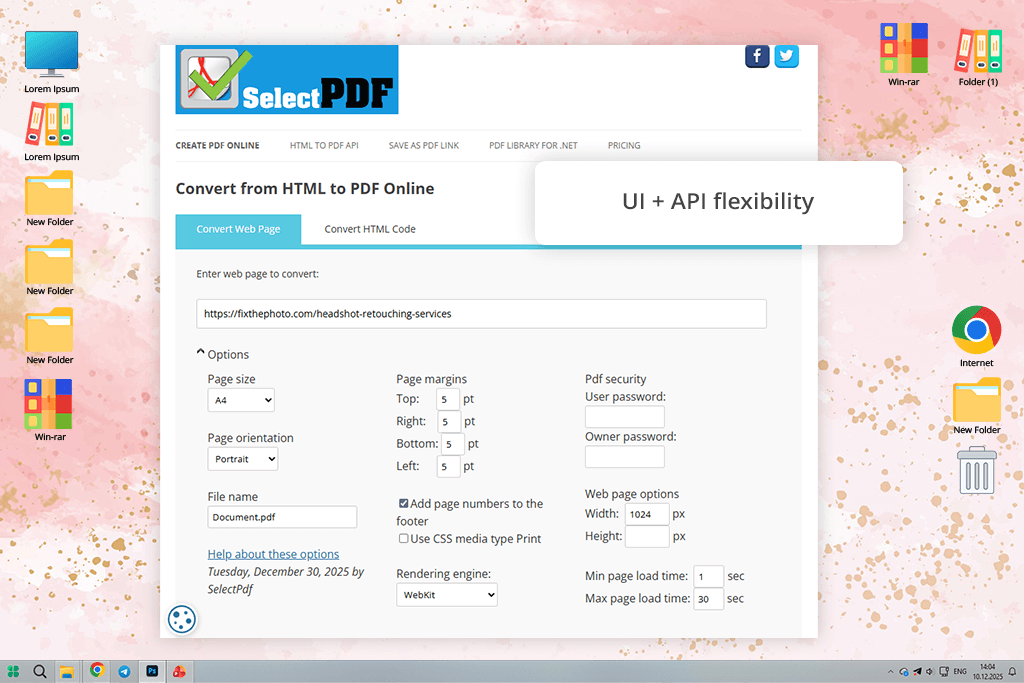
SelectPDF fits between developer tools and business-focused software. It has a simple online interface for quick conversions, but its main strength is the API. It supports JavaScript, PHP, and Python, and the documentation is clear and easy to follow. There were no confusing limits or unclear rules.
“I like the control SelectPDF gives me. I can adjust headers and footers, choose page sizes, set margins, control JavaScript loading, and fine-tune CSS rendering without struggling with the system.”

I mainly used SelectPDF for client files created from HTML templates, such as branded summaries and multi-page reports. These were cases where layout consistency was important but using something as advanced as Prince would have been unnecessary.
It handled layouts with heavy CSS well, especially when using external style files. This makes it a good HTML to PDF software option for teams that want flexibility without complications.
Pro tip: Turn on JavaScript delay options for dynamic pages. This often fixes missing or incomplete content.
Pricing: Free – limited pages, watermarks; From $19/mo; From $199/year
Best for: Quick previews, freelancers
Platform compatibility: Web-based, API
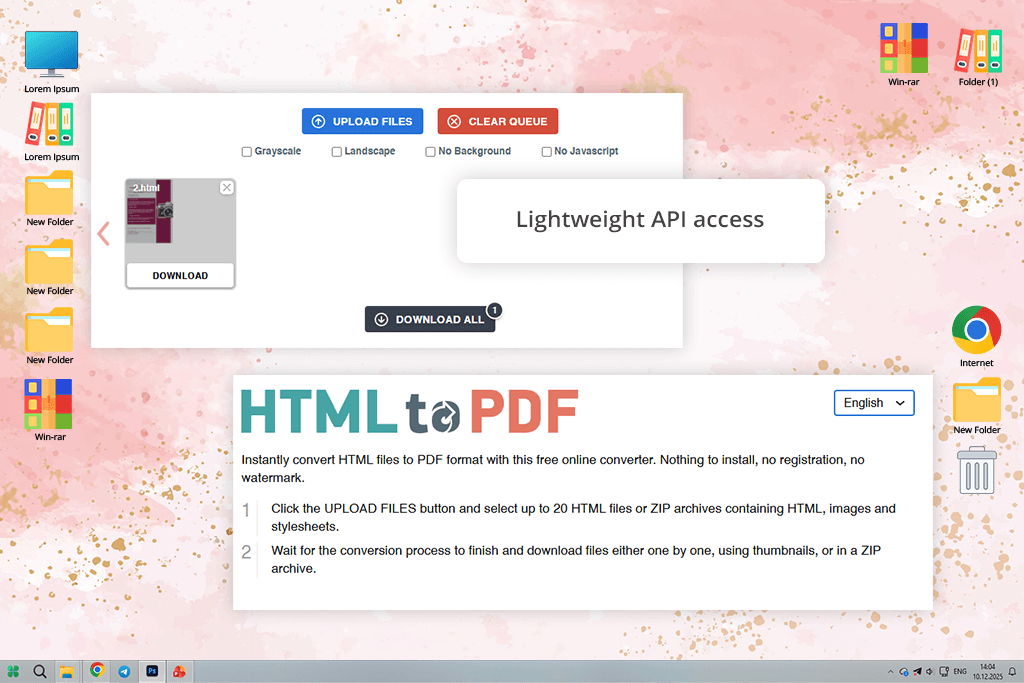
I discovered HTML2PDF while browsing Reddit for simple tools that people use in everyday work. It does not try to do everything, and that simplicity is what makes it useful.
HTML2PDF is an easy online HTML to PDF converter: you paste a website link or HTML code, change a few basic settings, and download the PDF. It also offers an API and supports JavaScript-based rendering, which is impressive considering how basic the UI looks.
“While it does not offer deep Python or PHP automation like larger platforms, it is enough for light automation needs.”

I used this free PDF to HTML converter mainly for quick checks, such as saving portfolio pages, sending fast previews to clients, or capturing a web layout before making changes. It worked fine with modern CSS, especially for single-page designs and responsive layouts.
This is not a tool I would use for large-scale or critical automation. But when speed is more important than perfect results, it is my go-to solution.
Pro tip: Use this tool for layout previews, not final print files.
Pricing: Free – limited conversions; From $9/mo; From $99/year
Best for: Quick tasks, freelancers
Platform compatibility: Web-based
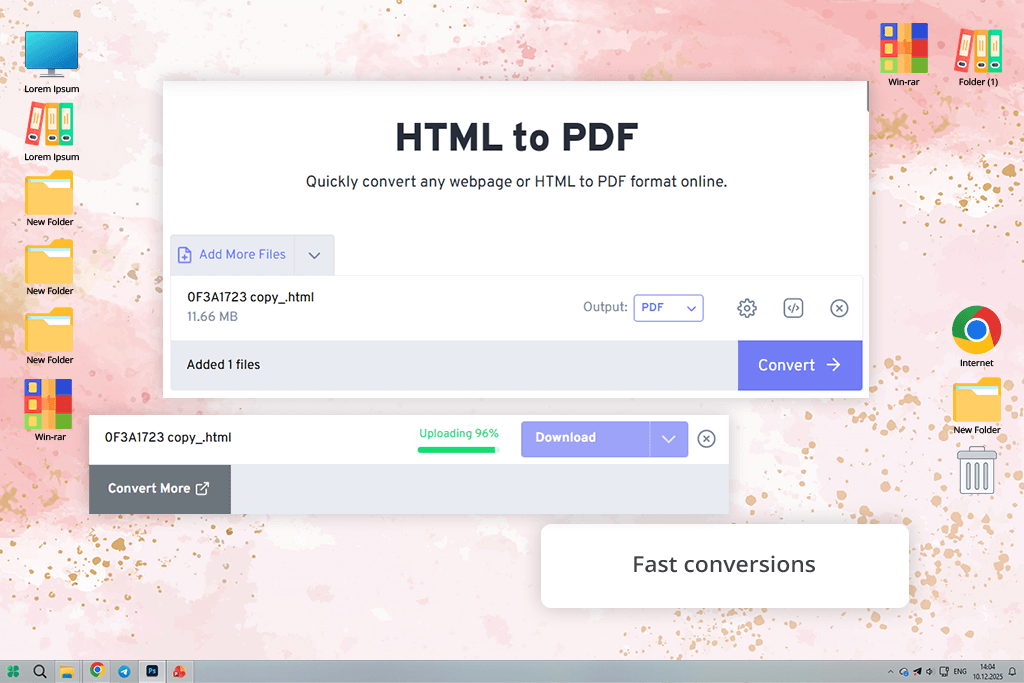
FreeConvert was my default online HTML to PDF converter to save a web page fast or send a simple PDF to clients long before I decided to work on this guide.
During deeper testing, I looked at FreeConvert more carefully. It is still useful for basic tasks like uploading HTML files, pasting URLs, or quickly converting pages into PDFs. It works well for clean and simple layouts. CSS support exists, but it is basic. Complex grids, custom fonts, and advanced styles may need extra fixes afterward.
“FreeConvert does offer API access, but this is not its main strength. Even so, it is convenient for quick previews, draft files, or temporary PDFs used for review and approval.”

You can connect it to light automation or simple JavaScript workflows, but it is not ideal for large Python or PHP systems. Now, I use FreeConvert when speed matters more than accuracy, such as exporting a rough portfolio draft or saving a layout before changes.
Pro tip: Turn off complex CSS animations before converting to get cleaner PDFs.
Pricing: Free – limits & watermarks; From $12/mo; From $99/year
Best for: Automation, backend systems
Platform compatibility: Windows, Mac, API
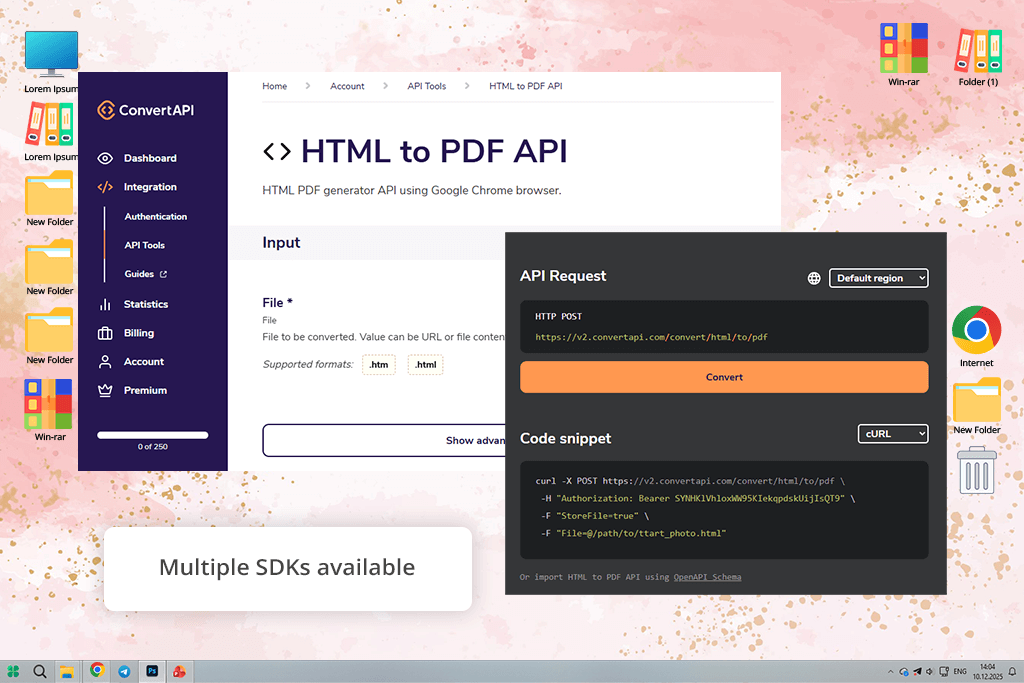
From the start, ConvertAPI felt more like a backend service than a simple converter, and that impression was correct.
ConvertAPI is built around its HTML to PDF API, which is where it performs best. It supports JavaScript, PHP, and Python with well-designed tools and steady results. I tested it by creating PDFs from dynamic HTML templates, such as automatically generated client summaries and internal reports, and the output stayed consistent.
“I like its multi-format pipeline. This is helpful when documents move between formats. CSS support is reliable, especially for server-generated layouts.”

I do not use ConvertAPI for one-time conversions. I use it when I need to convert PDF to URL and make some other document changes quietly in the background, at scale, and without issues.
Pro tip: Use batching and caching together to lower API usage costs.
Pricing: Free – limited credits; From $29/mo; From $299/year
Best for: Sensitive documents, privacy
Platform compatibility: Windows, Mac, API
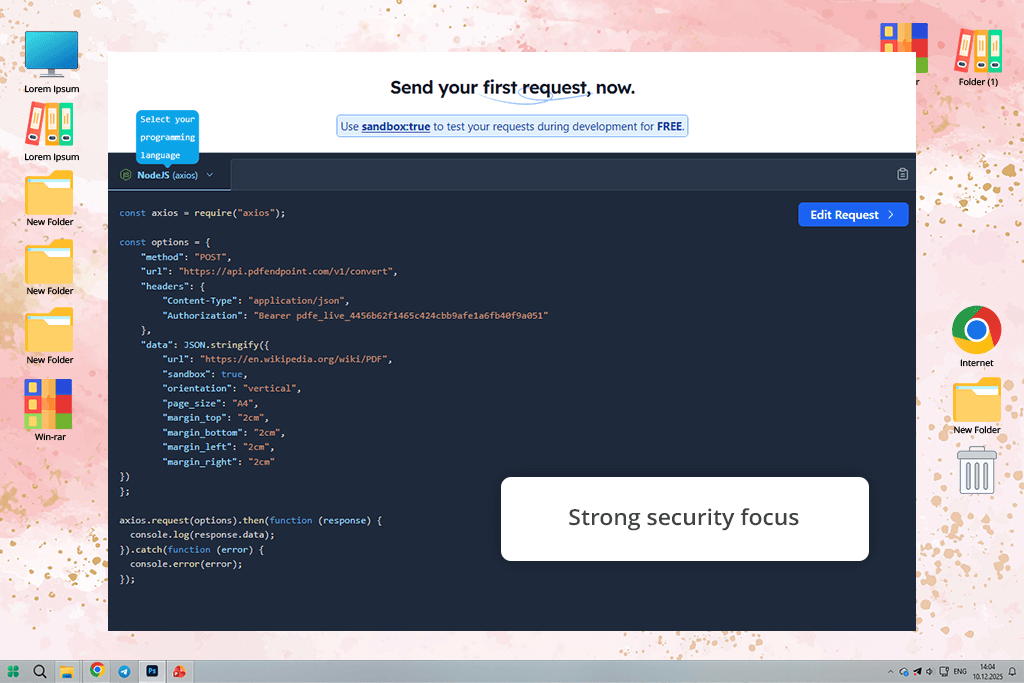
I learned about PDFEndpoint from a coworker who focuses on security and internal systems. From the beginning, it was presented as a secure HTML to PDF converter, and that is exactly where it performs best.
PDFEndpoint is built around API-based HTML to PDF conversion with a strong focus on privacy. It supports JavaScript, Python, and PHP workflows and handles layouts with heavy CSS better than many smaller tools. I tested it using internal dashboards and client documents that should not be uploaded to random online converters, and that extra level of trust was important.
What I liked most was how controlled the whole process feels. You can set clear rendering rules, manage access and authentication, and skip unnecessary user interface layers.
“I always choose PDFEndpoint when working with sensitive client data or internal files that require careful handling.”

It is not the most affordable option, and new users may find it harder to learn, but for workflows where privacy matters, it is a dependable solution.
Pro tip: Use this tool for internal systems and reports, not for fast public exports.
Pricing: Free – limited API calls; From $25/mo; From $250/year
As I mentioned earlier, I work with web layouts, client dashboards, and automated documents on a daily basis. Together with my team at FixThePhoto, I conducted detailed testing of over 400 HTML to PDF converters.
Our aim was not to find tools that simply convert HTML into a PDF. We wanted to see which ones actually work well in real production situations, where CSS accuracy, automation, and reliability are important, and mistakes can waste a lot of time.
I did most of the hands-on testing myself, while my teammates checked the results across different tasks, such as client reports, internal systems, and large batches of documents. We started by gathering suggestions from Reddit, YouTube developer channels, and technical forums, then added tools we had used casually before.
Only converters that supported modern HTML, worked well with CSS, and stayed stable under pressure were included in the tests. We also had to remove several tools during testing, even though they looked good at first.
For example, PDF2Go and Online2PDF worked for simple pages but failed with complex CSS. Soda PDF looked polished but had trouble with dynamic content. Sejda broke when pages relied on JavaScript. Smallpdf was popular but lacked flexible API options and could not handle batch work well.
I tested each tool using the same main scenarios:
Getting started was more important than I expected. Some tools had confusing sign-up steps or unclear API access, while others allowed conversion almost immediately. Clear documentation and predictable behavior scored high, especially when deadlines were tight.
Accuracy was essential. I closely checked fonts, spacing, page breaks, and whether the PDF matched what appeared in the browser. Tools that required manual fixes after every conversion were ranked lower.
Speed and reliability also mattered. We tracked failed conversions, slow processing, and inconsistent results, especially during batch conversions. Anything that caused delays or random errors was marked as a problem.
Security was another key factor. Since we often work with client data, we removed tools that did not clearly explain how files are handled, stored, or deleted.
Pricing was also reviewed honestly. I am willing to pay for tools that save time, but converters that lock basic features behind expensive plans did not make the list.
After testing over 40 tools with the FixThePhoto team, I realized there is no single HTML to PDF converter that fits everyone’s workflow. The best choice depends on how you work, not just on what features are listed online. Here is how I choose tools for real projects:
If I am working with client documents, contracts, or sensitive files, I choose Adobe Acrobat. It is the safest option when consistency, security, and long-term reliability matter more than speed.
When I need automation and batch PDF creation that works well for developers, I use PDFCrowd or ConvertAPI. These tools are built for real production use, not just demos.
For print-quality layouts where CSS rules must be followed exactly, I trust DocRaptor and PrinceXML. These are the tools I rely on for reports that may be printed or stored long-term.
If I only need a quick preview or a one-time export, HTML2PDF and FreeConvert still work well for that purpose.
For internal tools and documents that require extra privacy, PDFEndpoint is my go-to HTML to PDF converter.





![Wes Anderson Photo Filter Online [FREE]](http://fixthephoto.com/blog/images/gallery/news_main__preview_28397.jpg)

![9 Best AI Headshot Generators [{{%year}} FixThePhoto Choice]](http://fixthephoto.com/blog/images/gallery/news_main__preview_28142.jpg)

![9 AI Background Remover Tools [Tested with Examples]](http://fixthephoto.com/blog/images/gallery/news_main__preview_28341.jpg)

![9 Best Ghibli AI Generators in {{%year}} [100% FREE]](http://fixthephoto.com/blog/images/gallery/news_main__preview_28431.jpg)


















