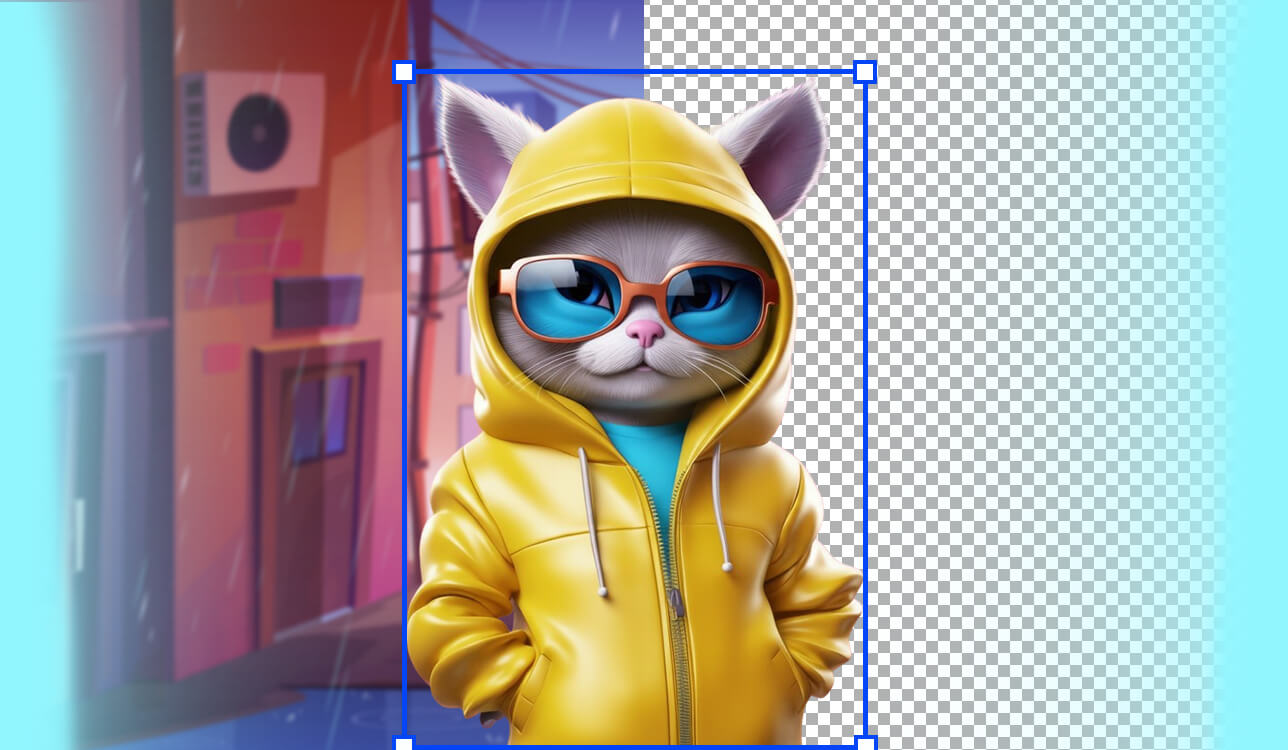
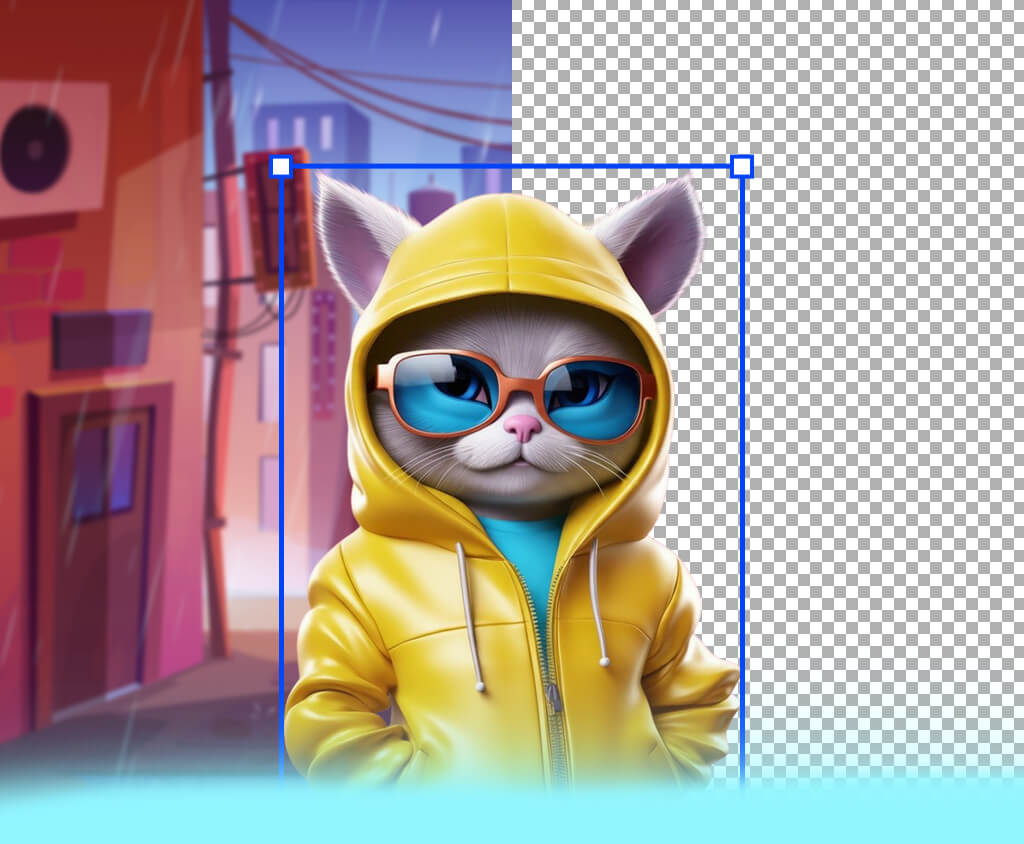
As a freelance content creator, I decided to optimize my regular workflow. The thing is that I have to deal with client product shots, social media content, and ads, but background removal eats up too much of my time. People think it's no big deal, but I can tell you it absolutely is. Tiny hair strands, weird shadows, and reflections in glass materials always cause headaches and slow me down. Though it is tedious work, it shouldn't take so long.
I’ve learned that Photoshop's selection tools aren't the answer. I tried doing manual masks, and it was painfully slow. The quality was disappointing, and many images had strange cutouts or annoying halos around the subject. I needed a different approach. I wanted an AI tool that could handle complicated edges and tricky lighting on its own and keep my photos looking natural and realistic instead of processed.
So, I started looking for the best AI background remover, and I knew exactly what I needed. Speed was my number one priority. I wanted instant results, without fussing around with touch-ups afterward. Accuracy was just as crucial, especially for portrait photography and product images. Batch processing was another demand. There's no way I'm removing backgrounds from 50 images one by one. I needed something that could handle that workload automatically.
I paid special attention to integration. I'm in Photoshop basically every day, so I wanted a background remover that wouldn't force me to jump between different apps. Either a plugin that integrates with Photoshop or a feature that's already built in would make my life easier. Of course, pricing came into play too. I saw different pricing models out there. Some charge per image, while others charge a monthly subscription. I needed something I could actually afford to use regularly without watching my budget disappear.
Together with the FixThePhoto team, we tested several AI background removal tools, and learned that they're not all the same. Some were incredibly fast, but the quality was poor, especially around hair edges. Others did really precise work, but they were so slow that editing a single photo was too time-consuming. Still, there were some good options that worked quickly and produced clean results. Such programs were good at handling tricky lighting and see-through objects.
I have to say, I'm genuinely shocked at how good the remove background AI technology has become. A year ago, perfecting one background removal would take me 10 to 15 minutes of careful work. Today, AI can handle the exact same task in just three seconds, and the results are often actually better than what I would have done by hand.
I used to get bogged down in the tedious work of fixing messy edges and polishing things up. Now, with a good AI background remover at hand, I can focus on the design, the color palette, and the narrative I'm trying to tell. People mistakenly assume that such tools are minor, but they can actually revolutionize how you approach your work.
The accuracy of AI background removers is strongly reliant on the quality of the photo edit DataSets for AI training used to create them. Models trained on professionally edited photos with clean masks and smoothed edges perform considerably better with hair, translucent objects, and complex lighting than AI trained on low-quality or auto-processed data.
AI background removers don't actually "look" at photos the way people do. Instead, they've learned from tons of examples what usually belongs in the front of a picture versus what’s just scenery in the back. Thus, AI essentially “looks” at an image, analyzes all the tiny details and patterns, and makes educated guesses about what should stay and what should go.
Millions of photos are fed into the AI for training. They're not random photos. Each one has already been carefully labeled by humans who marked out what the foreground (a person, product, animal) is and what the background (the sky, a wall, the ground). The AI goes through all these examples and starts picking up on pattern. It learns how to spot the difference between a person's edges and a cloudy sky, or between a product's texture and a smooth floor behind it.
It even learns that lighting behaves differently on different things. In my opinion, that's why it gets so good at this task. It's learned from literally millions of examples.
When you upload a photo, the AI doesn't just immediately remove the background. First, it tries to figure out whether you’ve photographed a person, furniture, or a car. That's the detection part. Then, it zooms in on every tiny piece of your image and classifies it. It tags each one as either "main subject" or "background." The end result is that your regular photo gets transformed into a detailed map where everything has been sorted and labeled.
After the AI identifies your main subject, it works with individual strands of hair, fuzzy fur, delicate fabric edges, or a glass window. The AI handles these using alpha matting. It figures out how transparent each pixel should be. Is it pure foreground or background? Or somewhere in between? This is why you can now upload a photo with messy hair or reflective glasses and actually get decent results. Old technology would just butcher those details and make everything look unrealistic.
Modern background remove AI tools are good at spotting patterns. They pay attention to obvious details:
The AI basically uses these visual shortcuts to make guesses about what it's seeing, even in complicated pictures.
The AI softens harsh edges, wipes away color glitches, and adjusts the light so the subject matches its new background perfectly. It's not just cutting and pasting, but ensuring that everything looks like it actually belongs together.

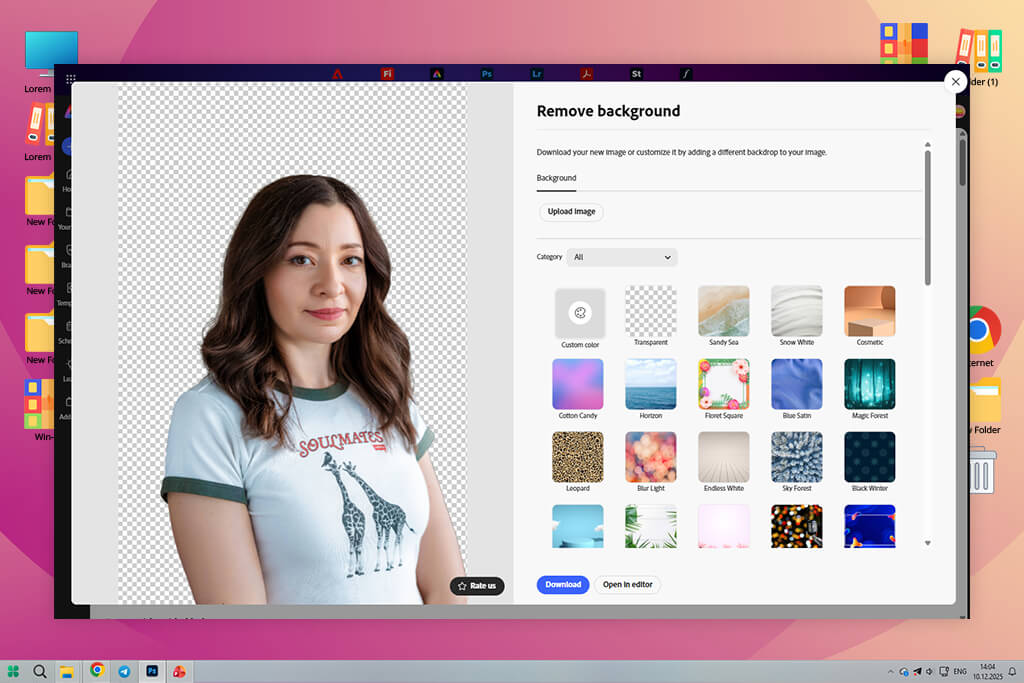
I was honestly surprised by how well Adobe Express handled the edges. Instead of just making a simple border around the person, it actually considered the little things. The hair stayed smooth and feathered (not harsh), and delicate transparent earrings didn't get lost. When I looked up closely, I thought I'd see rough spots or a weird fuzzy effect, but it turned out really neat and polished.
I decided to test it with a challenging photo, namely, a reflective perfume bottle on a textured surface. Most free background removal AI tools fail at this because they can't tell the difference between reflections and the background. I was pleasantly surprised that this free Adobe software actually pulled it off. The glass reflections stayed intact while the table pattern disappeared, making the bottle look crisp and clean. The lighting looked authentic, too.
“Did an excellent job with my portrait, even in the hair area. Big files load a bit longer. Generally, the program is very user-friendly.”

You don't have to download anything or bounce between different programs, as Adobe Express is accessible right in a browser. Once the background was gone, I could swap it out immediately and pick a solid color, use a gradient, or insert a completely new image. Plus, the preview updated instantly as I made changes, so I wasn't sitting around waiting for the software to catch up.
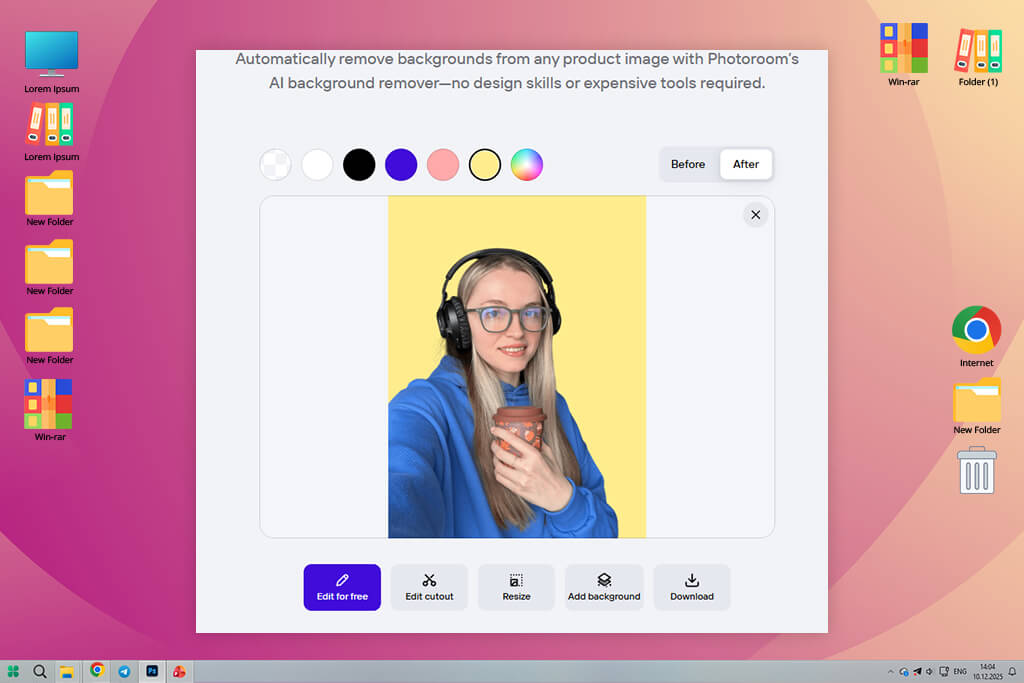
I started using PhotoRoom because I had too many product photos with messy backgrounds. I took pictures of gadgets on my lunch table, on wood floors, in random setups, and they all looked cluttered. I used an integrated bg remove AI tool, and it coped with the task very quickly. Each photo only took 3-5 seconds to process.
I particularly liked that the results were very consistent in this free background removal software. Besides, I could even edit 50 photos simultaneously with the Pro plan. Then I could export them with a clean new background or keep them transparent.
“I use this for my shop's product photos, and I'm pretty happy with it. The backgrounds come off cleanly, but sometimes tiny details get erased.”

I like that the whole background removal AI process is simple. Once the background is gone, you stay in the same environment to add a plain background, upload a custom one, throw in drop shadows, add your logo, or make it bigger or smaller for different platforms.
My raw product photos turned into eye-pleasing store listings easily. Now, if you're dealing with complicated images, like ones with reflections or glass products, you'll still need to fix those by hand. But for regular e-commerce photos or content for social media, this has been a huge helper for me. I stopped using complicated masking software and now just rely on PhotoRoom for quick edits.
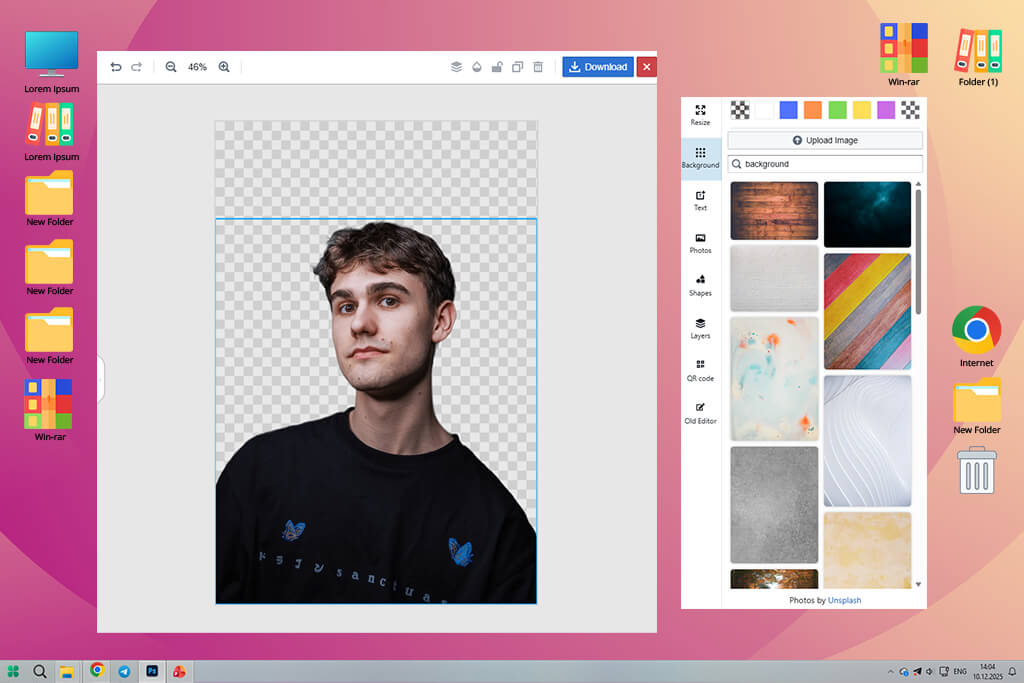
After testing PhotoScissors, I have some thoughts to share. When I started with a photo of a sneaker on a dirty floor, this free background remover worked perfectly. I clicked once and the messy background disappeared, leaving a sharp, clean picture of the shoe. It looked professional without additional tweaking.
When I pushed it harder with a more complex image of a glass bottle surrounded by shadows, things got tricky. This Photoshop AI analog did remove the background, but it left some weird shadow traces and a strange halo effect around the base of the bottle. I wasn't thrilled about that. Luckily, there are tools built in to fix these mistakes, so I was able to get the desired result.
“It is efficient with solid subjects, but struggles with complex items. You need to fine-tune such images manually”

This tool to remove background free is very straightforward. I could jump right in without worrying about layers and channels. However, I have to be honest, it's not quite as sleek as the premium editors I've used. The design is a bit dated, and it's frustrating that certain features only exist in the old version, not the new redesign.

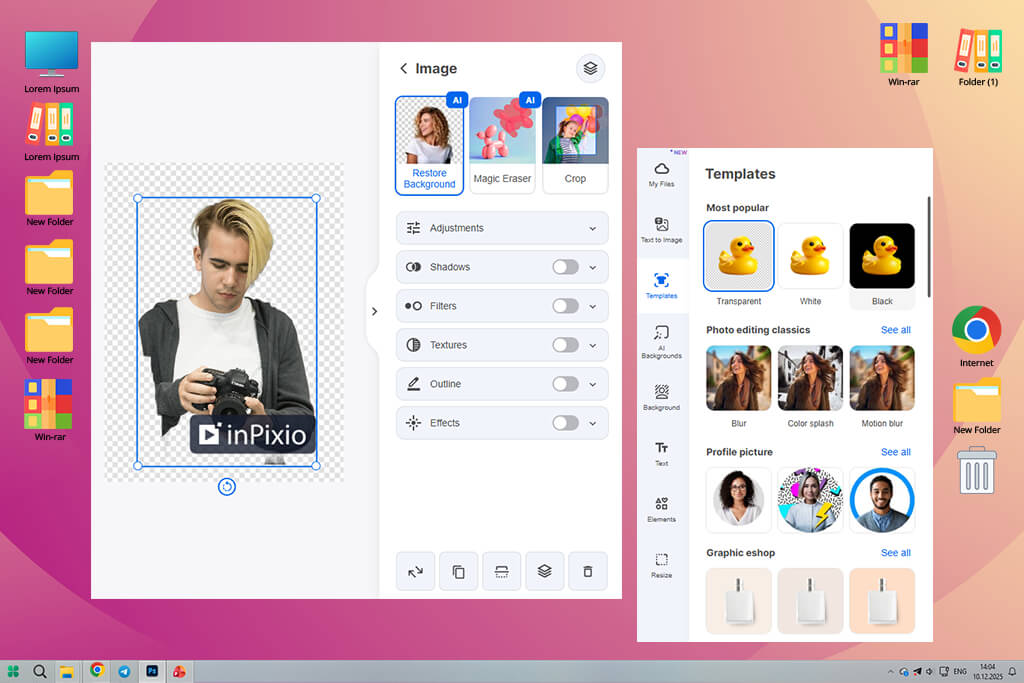
To test InPixio, I used a pretty typical photo. It was a portrait of my friend showing just her head and shoulders, with a gradient wall behind her. I threw it into the "Remove Background" module and thought it would probably give me something acceptable. I wasn't too hopeful, but I wasn't expecting it to fail either.
I was pleasantly surprised by the quality of the results. It got the hair outline mostly right, so I only needed to make a few small touch-ups to the mask. Then I decided to swap the background for a solid color and resize it for social media. I didn't have to jump between different programs, as everything happened in one place.
“Great tool to remove objects and adjust edges. The UI should be updated.”

Next, I evaluated the batch processing mode of this tool to remove background. The web platform lets you upload 30 images together, which seemed great at first. The image processing was reasonably fast, so that's a plus. However, I noticed that the quality wasn't the same for all the images. A few turned out perfectly, but most needed some touch-ups to look right.
So, if you have a lot of photos to process, you'll still need to spend extra time fixing them. I also tried the mobile "Erase BG" app. It did okay with basic photos, but struggled when I used more detailed images or anything in high resolution.
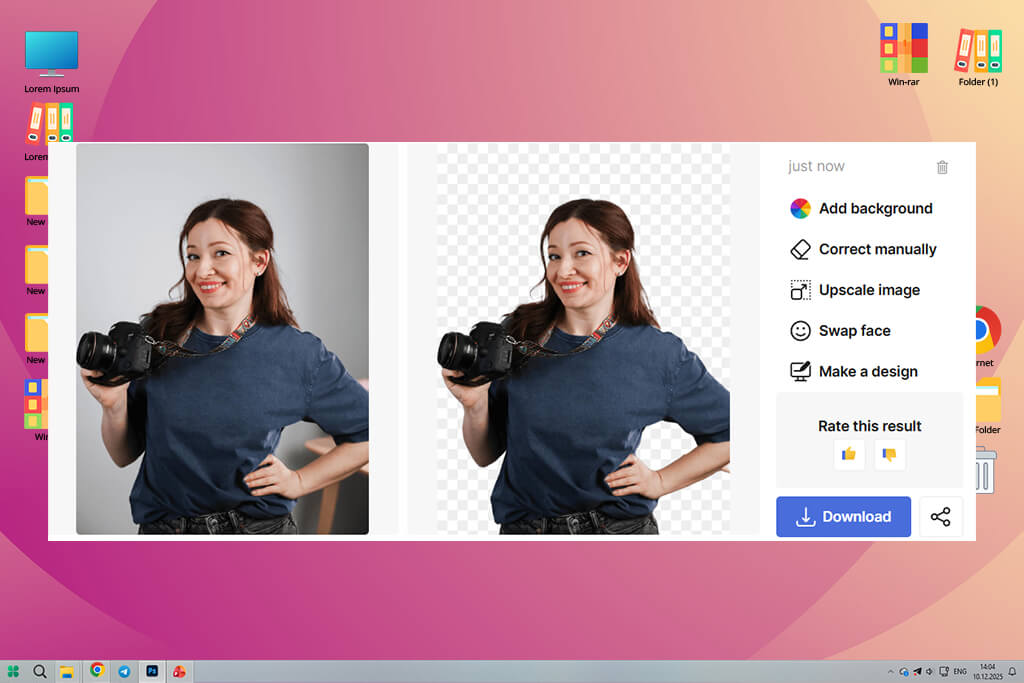
I used Icons8 background remover with an illustration first, and I was impressed. It didn't spoil the edges of my vector art. They stayed crisp and clean. The transparency looked perfect, too. I also tried it on some photos of products I wanted to edit, and the tool handled it beautifully. It removed the backgrounds in basically no time. The edges of the products stayed sharp and professional-looking.
I appreciate that this AI remove background tool works straight from your browser. Just open it up and go. I also love that I can work on multiple images at the same time instead of one by one. But if you want better quality when you export your images or need more advanced batch features, you're going to have to upgrade to a paid plan. The free tier doesn't include those.
“Fast and efficient program that works great with most objects. However, tricky ones make it struggle.”

I think Icons8 is a perfect AI background remover for designers who frequently work with logos, icons, or graphic overlays. The edges stay crisp, and the transparent areas look professional. However, I ran into problems when I tested it on everyday photos, especially ones with hair or transparent objects. The AI struggled to get those right, and the tool didn't give me enough manual controls to clean things up myself. That was frustrating.
Still, there are certain pricing nuances to keep in mind. The program uses a credit system where each image costs you something, so processing hundreds of images means your bill climbs fast. However, if you work with all kinds of different images and need one tool that handles everything decently, Icons8 is a pretty good all-around option despite the cost.
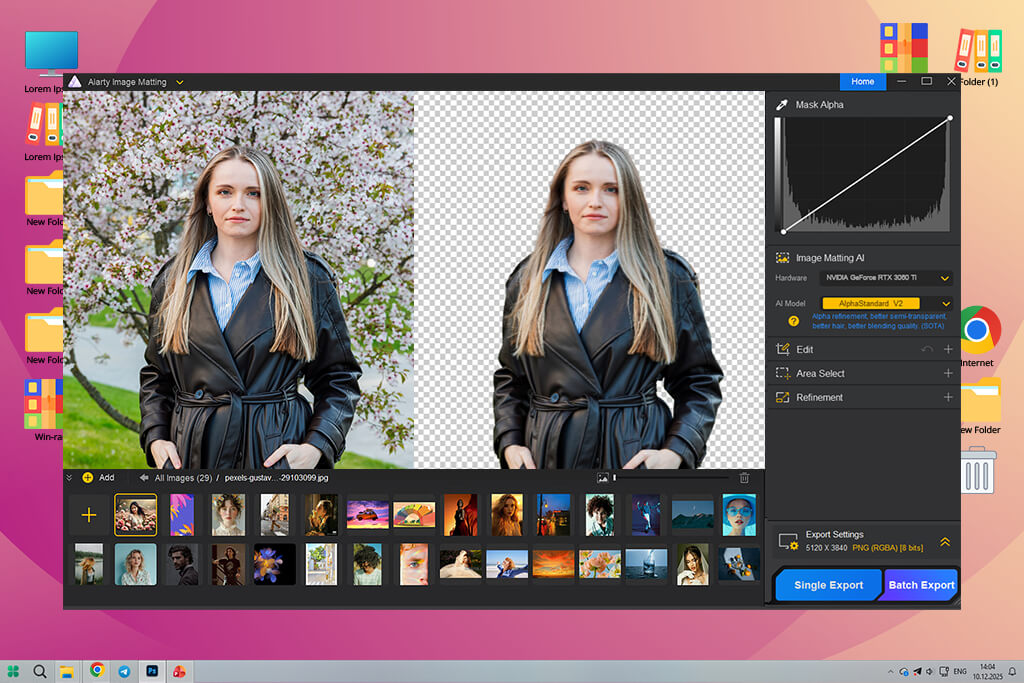
Aiarty came onto my radar when a client ordered stylized portraits. I needed to take the person out of their original background and place them into artistic settings with watercolor vibes and soft, flowing gradients. I wasn't interested in just cutting and pasting, though. I wanted to actually reimagine the whole background to match the artistic feel. Aiarty seemed perfect because it could handle high-res images and supported professional matting capabilities.
I uploaded a portrait with long hair and a cluttered background. I was curious to see what would happen. Aiarty actually did really well with the hair. Most of the tools I typically use would've butchered fine strands, but this background remover free kept them looking natural. Then I got to try their premade backgrounds. There are different templates. The result looked like something a professional designer would create.
“Handled hair very accurately. The range of export settings is very limited.”

Three things impressed me most. First, the way it handled hair and fur was impressive. Second, the resolution output was top-notch. Besides, it supports ridiculously large images, going up to 10k. What made it even better was that the interface didn't lock me in. I could manually brush things in or out and feather edges myself.
Since this photos background app prioritizes precision, it requires a lot of processing power and slows down when handling large files. For basic edits, the workflow is too heavy-handed. If you're doing a simple cutout or want to quickly remove something, it feels like overkill.
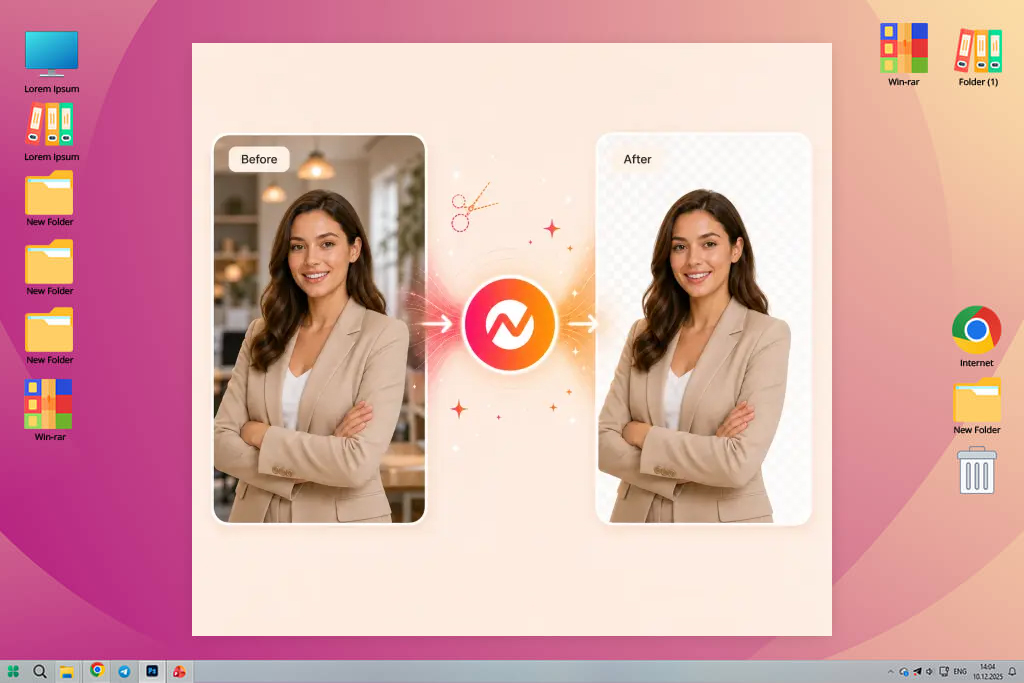
I used a number of product images that I intended to use in promotional videos to test ngram. With a single click, the background vanished, but the objects' edges stayed crisp and organic. I could continue working with the cutout right in Image Lab rather than downloading it and transferring it to another editor.
The way that ngram connects the transparent PNG to the rest of the project was quite appealing to me. Without constantly uploading the file, I used the same product cutout for a social media graphic, incorporated it to a film scenario, and set it on a branded background. This helped me keep a consistent visual design and significantly accelerated the workflow.
“ngram created a clean transparent cutout and let me use it across several campaign assets. Keeping everything in one workspace saved me a lot of unnecessary exporting and uploading.”
The isolated topic is returned as a transparent PNG by the utility, which supports JPG, PNG, and WebP files. I could use ngram's inpainting, outpainting, and prompt-based tools to further modify the cutout, place it on a custom scene, or polish it after deleting the original background.
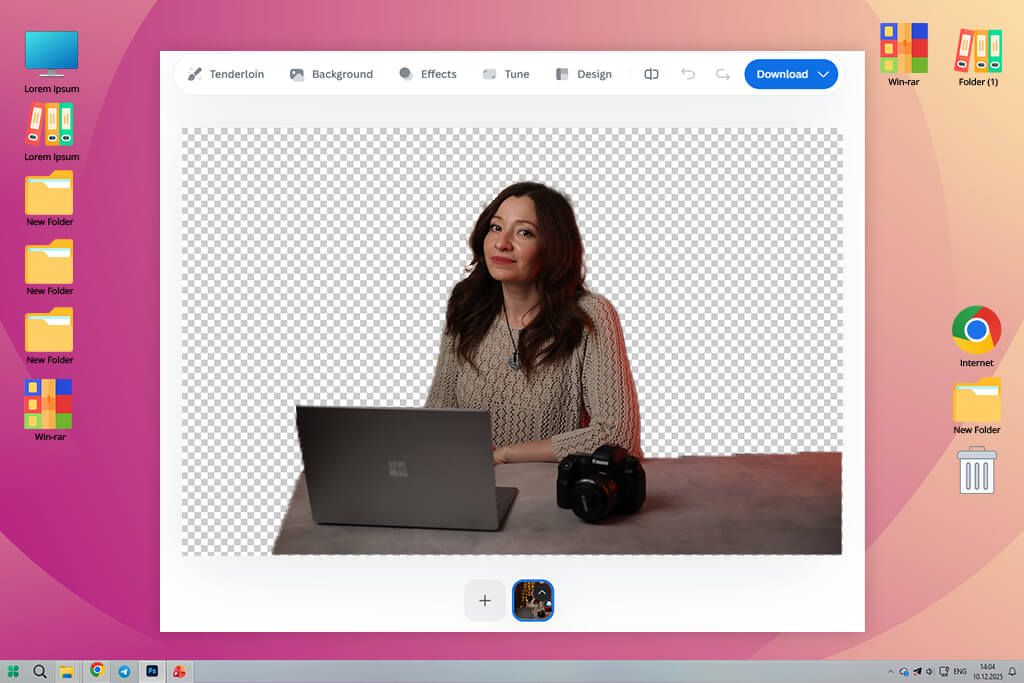
I tested RemoveBG myself and was really impressed. It removed the background from a simple product photo in just a few seconds and saved it as a PNG file. This artificial intelligence software is very fast and easy to use. I've read lots of reviews saying the same thing – people love how quick it works and how simple the interface is.
The problems showed up when I uploaded more complex images with hair, glass, and overlapping objects. RemoveBG messed up and cut off small details while leaving strange marks from reflections. It's a decent bg remover AI overall, but free exports are pretty blurry. To get sharp, high-res images, you have to pay through their credit or subscription plan. Besides, many users said the billing and credit rules confused them.
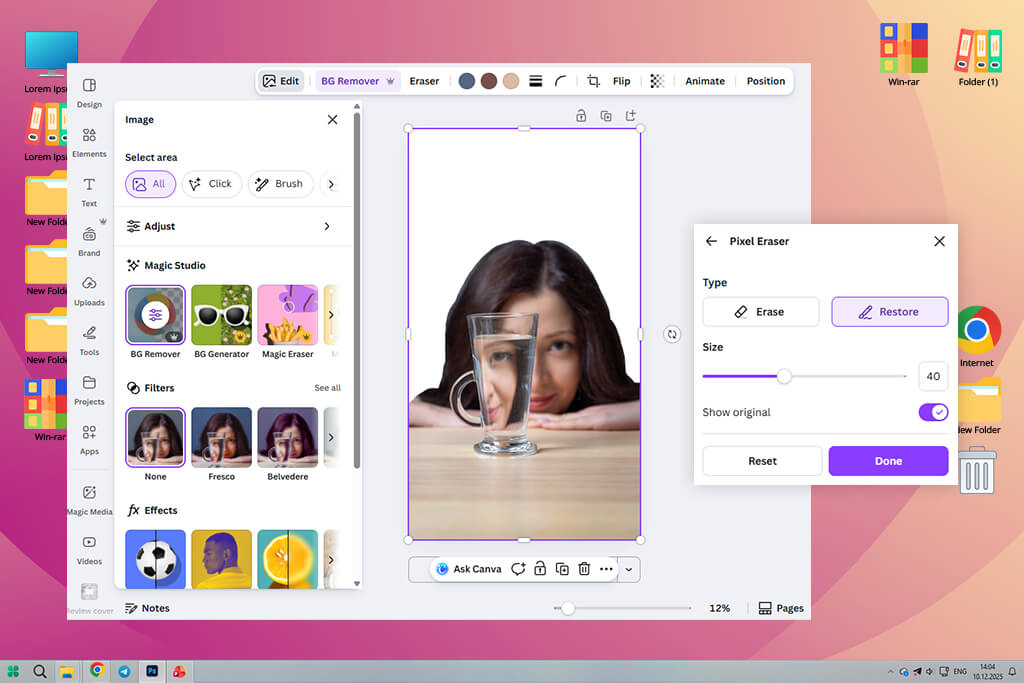
When I was creating social media images for our marketing team, I decided to test Canva’s background remover. We use Canva all the time, so I wanted to see if this feature was efficient enough so that didn’t need to switch to another editor.
I used different photos, including portraits, product images, and lifestyle shots, for the test. One click, and this AI background remover free instantly erased the background. I liked that I didn’t have to leave the working environment. I added a background, some text, applied filters, and saved it for Instagram right in Canva. The platform supports JPG, PNG, and HEIC files, and you can save transparent PNGs too.
“Very speedy background removal. It is great for quick posts and mockups, but struggles with tricky objects.”

Generally, it worked fine for simple photos, but when I uploaded images of people with long hair or light objects on pale backgrounds, the results weren’t perfect. Some edges looked rough, parts of the background stayed, and fixing things with the brush tool was laggy. The free version isn’t very useful either. You have just one free try, plus watermarks and poor export quality. I noticed that other users had similar problems with bugs and missing features.
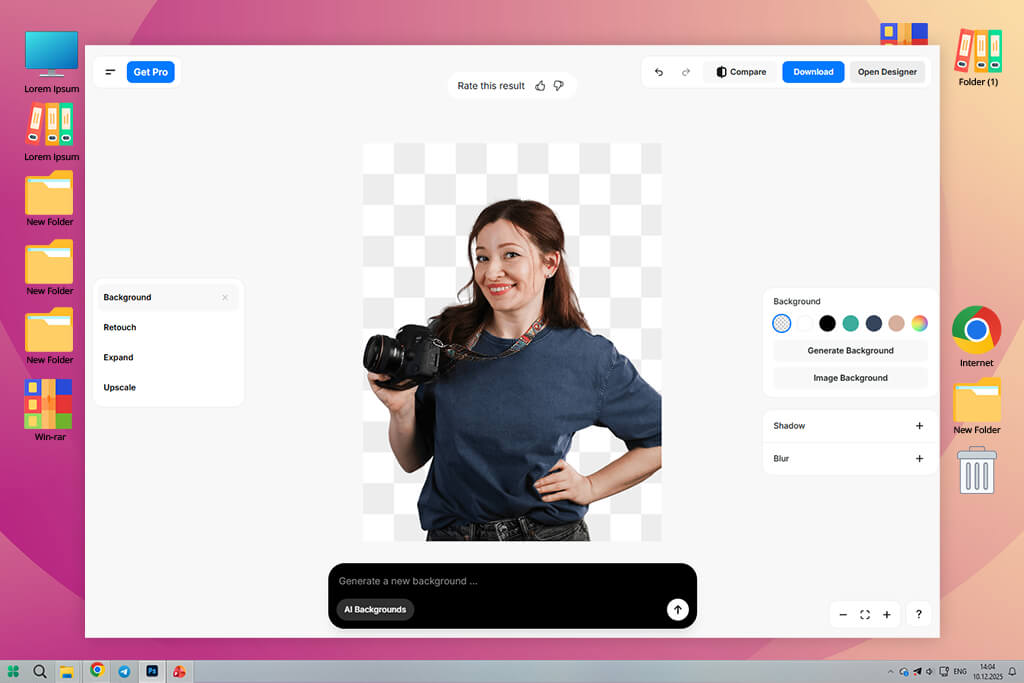
I tested Pixelcut with a photo of a sneaker sitting on a wooden floor and an image of a phone case on white fabric. The lighting wasn’t even, and the background wasn’t ideal. Usually, that means extra editing work. But after I uploaded the first image and pressed “Remove Background,” this remove AI tool cleared everything instantly. The sneaker looked perfectly outlined with no rough edges at all.
The result was very clean. I couldn’t believe it worked so well, especially since I didn’t have to remove the background in the picture in Photoshop manually.
“Very simple, mobile-friendly tool. Struggles with reflections, but it’s fast and delivers high-quality results.”

After the initial background was removed, the program immediately offered tools to add a solid color, an AI-generated scene, or a mockup template. I placed the sneaker on a clean white background, which is a suitable option for an online shop. Then I played around with the “urban studio lighting” option, and the picture looked like something shot by a pro.
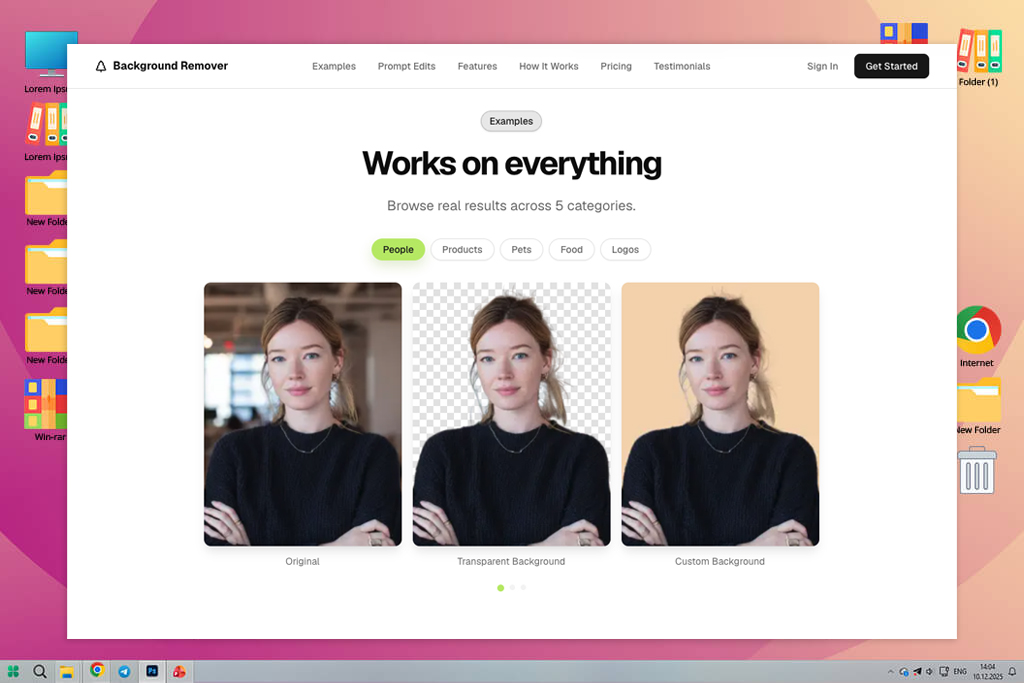
I used a variety of image kinds to test BackgroundRemover, and I was pleased with how easy it was to use. After uploading a picture and waiting a few while, I was able to obtain a clear, transparent image without having to modify masks or work with layers.
When you need a quick cutout for social media, markets, presentations, or website visuals, it's a very practical choice for simple product shots, portraits, logos, food photos, and pet photos.
“For the best results, use clear images with good lighting and avoid busy backgrounds. The cleaner the original photo is, the more accurate the background removal will be.”

The tool's ability to do more than just remove backgrounds is what I found most appealing. I could utilize Background Studio to alter the image with a prompt once the background had been removed. For instance, I may define a new appearance or alter a portion of the image rather than just downloading a transparent PNG.
Our FixThePhoto team decided to check how well the latest AI background removers actually work. Instead of using ideal test photos, we tried real ones with bad lighting, complex shadows, and fine details like hair or fabric.
We had a small but diverse testing team: Vadym Antypenko, Kate Gross, and Julia Newman. Vadym took care of the technical side, testing speed in a batch mode, accuracy, and how well the tools managed detailed edges.
Kate focused on accuracy around tricky spots (fine hair, shiny jewelry, and textured clothes). Julia handled portraits and everyday photos, similar to what’s used in magazines or online campaigns.
To test the tools to remove bg AI, we used different kinds of photos, including studio, product, and lifestyle shots with tricky details like motion blur or glass reflections. We uploaded the same images to every AI remover and rated them for accuracy, speed, and user-friendliness.
Vadym measured speed and performance on both desktop and mobile, comparing big-name programs to small web-based apps. Kate looked closely at details like hair and see-through objects for any blur or color issues. Julia checked how smooth the workflow was.
Most tools offered “one-click removal,” but the top performers combine good AI with simple controls. Some stand out from the crowd in fast batch processing, others in fine details like hair processing. A few also offer AI background swaps.
After testing so many images, we saw what makes an AI background remover effective. Kate put it simply: “It should work cleanly, quickly, and with little fixing needed.”





![7 Best AI Tattoo Generator Tools [+Good Prompts]](http://fixthephoto.com/blog/images/gallery/news_main__preview_28202.jpg)


![15 HitPaw Alternatives [Better & Cheaper]](http://fixthephoto.com/blog/images/gallery/news_main__preview_27898.png)

![Put a Santa Hat on Photo Online [FREE]](http://fixthephoto.com/blog/images/gallery/news_main__preview_27824.png)


















