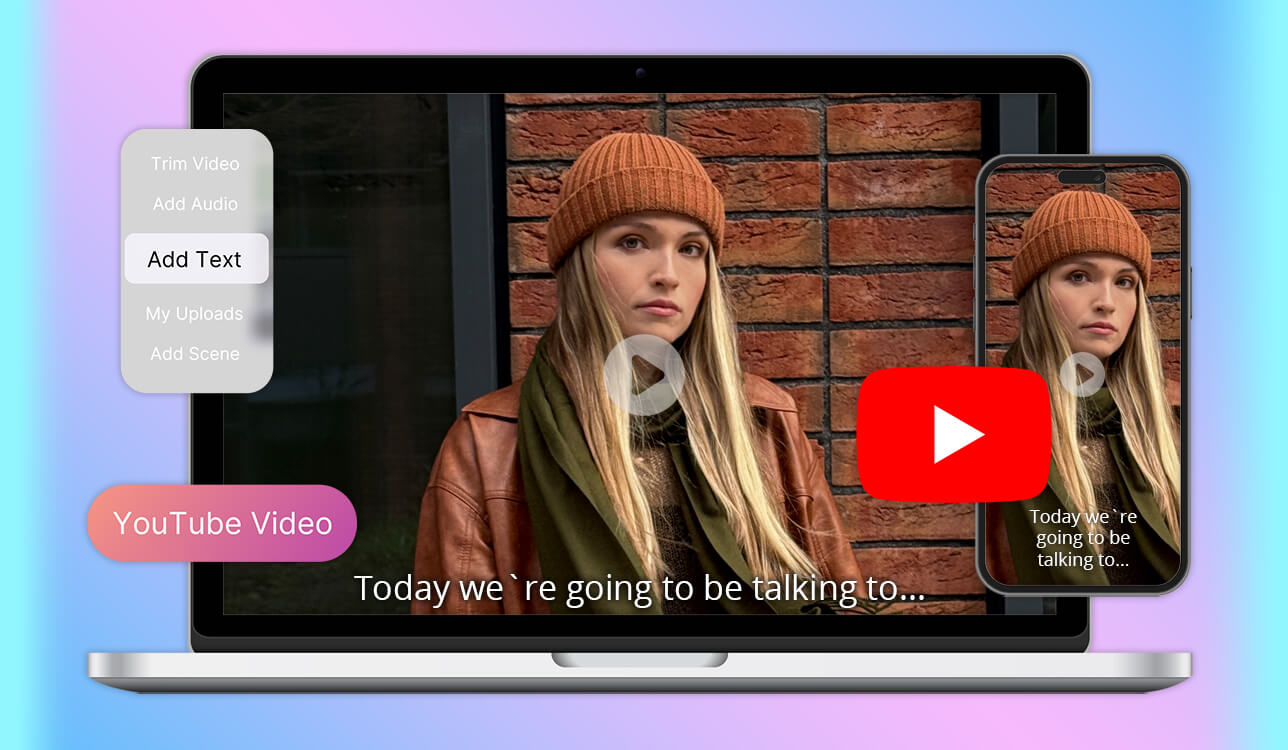
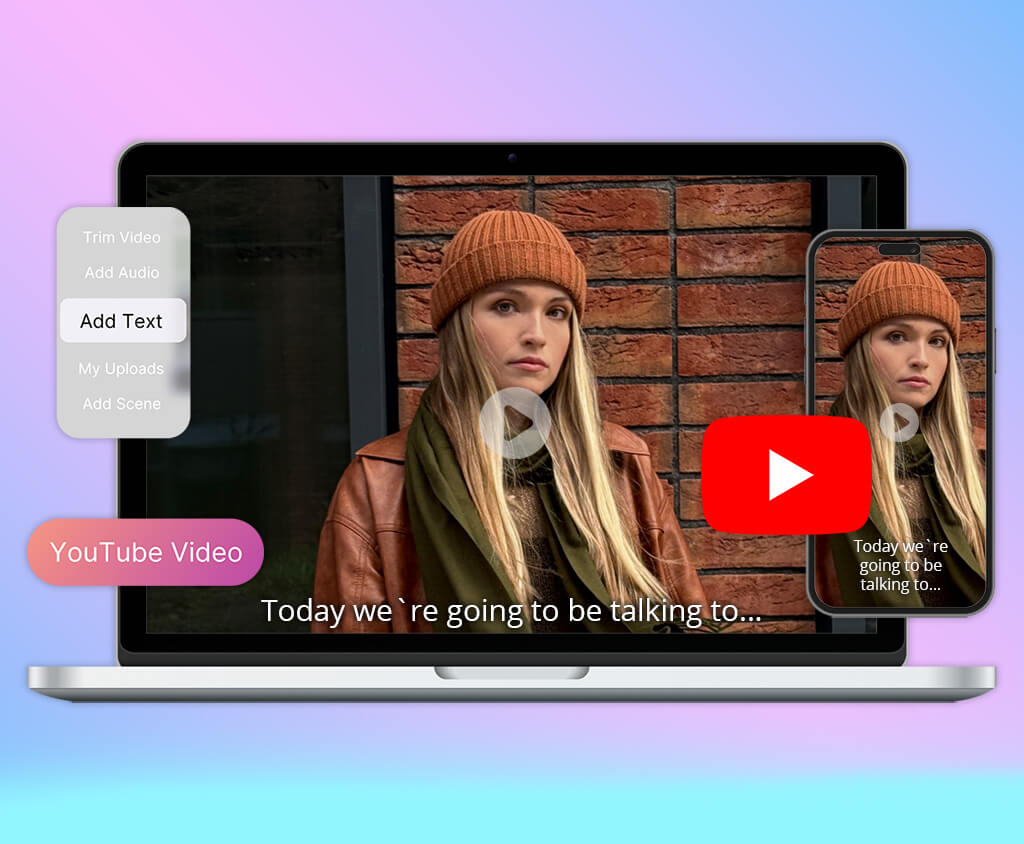
I manage a YouTube channel, and I used to think creating Shorts was just a nice extra. I was wrong. My standard videos take several days to edit, but Shorts need regular uploads, and that’s where I faced problems.
I had lots of quality content saved on my computer, but converting it into upright, snappy clips was draining more hours than I had available. That’s the moment I understood I needed the best AI YouTube Shorts generator.
My biggest challenge was moving quickly while staying in charge. I was looking for something that could automatically spot the strongest segments, trim them down to 15–60 second vertical clips, insert subtitles, and maintain a brisk rhythm that grabs attention.
But I also wanted control over important settings like screen orientation (strictly 9:16), clip duration, subtitle appearance, text size, and positioning so words wouldn’t block people’s faces.
My coworkers at FixThePhoto offered to help with the searching, so we worked together to test 50+ AI YouTube Shorts generators and figure out what features really mattered.
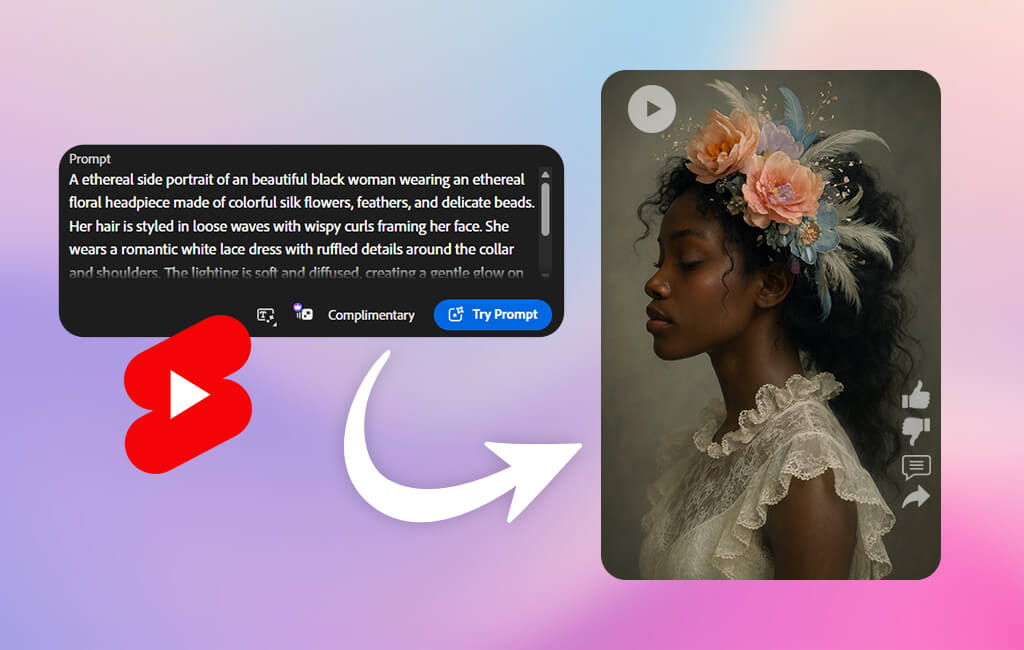
YouTube Shorts do several key things, which is why they’ve become essential if you want to grow your channel. Simply put, they let creators interest new viewers, stay active, and boost their longer video feed.
The main purpose of Shorts is to help people find you. Regular long videos usually get shown to your existing subscribers, but Shorts work differently. YouTube pushes them aggressively in the Shorts feed to people who’ve never heard of you. Even if your channel is brand new or small, one strong Short can be seen by thousands or millions of new viewers.
Shorts also serve as a low-risk testing ground. They allow you to try out different concepts, opening lines, video styles, and subjects without needing to create a full-length video. You’ll quickly learn what grabs attention, what viewers scroll past, and what sparks conversations in the comments.
Staying visible matters, too. YouTube favors channels that post consistently, but not everyone can upload multiple long videos every week. That’s where Shorts come into play. By sharing them frequently, you show the algorithm that your channel is alive and engaging with viewers. This activity can boost your channel’s reach and help keep your audience connected.
Shorts also act as a gateway to your longer content. They are like previews or key highlights that draw viewers toward your full-length videos. A compelling Short can showcase an interesting moment, question, or outcome from one of your main uploads, motivating people to click through to your channel for the complete story.
Shorts are also great for establishing your brand and creating personal connections. Since they’re brief, casual, and often feel more off-the-cuff, they give creators space to express their personality, sense of humor, and genuine self. When viewers enjoy your Shorts, they’re more likely to remember who you are and return for whatever you post next.
Lastly, making Shorts is advisable because YouTube itself is heavily focused on promoting them. The platform keeps pouring resources into short-form content, so creators who skip Shorts are leaving major growth potential on the table. While Shorts may not generate high income directly, they drive the momentum that helps your entire channel expand.
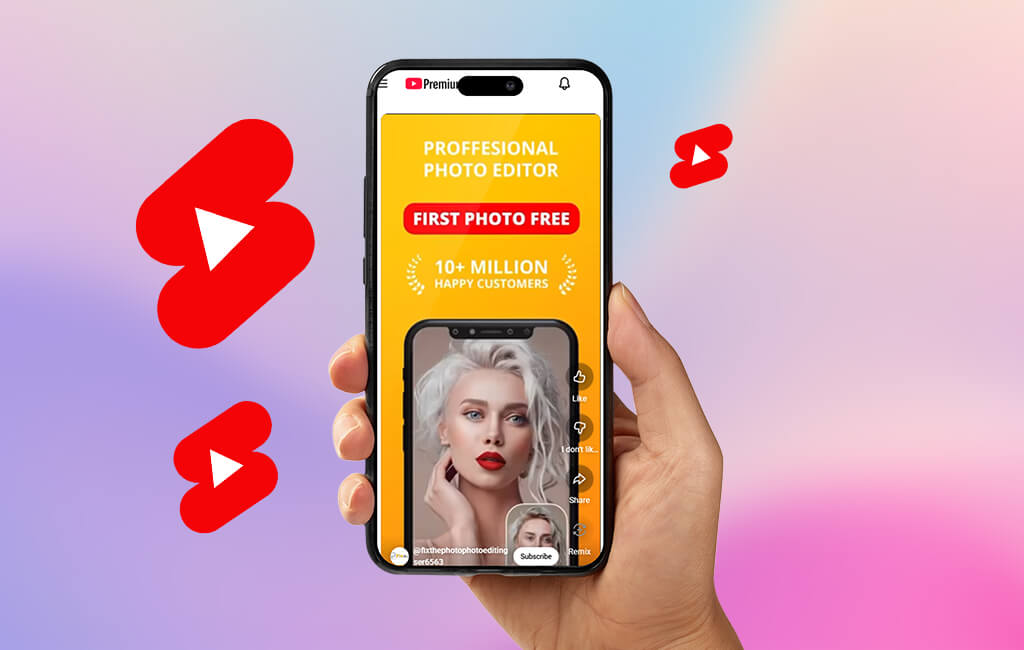
To create effective YouTube Shorts, you don’t need to use expensive generative AI tools or advanced features. First of all, it is important to know how viewers consume quick content. Once you nail the fundamentals, even simple clips can deliver impressive results.
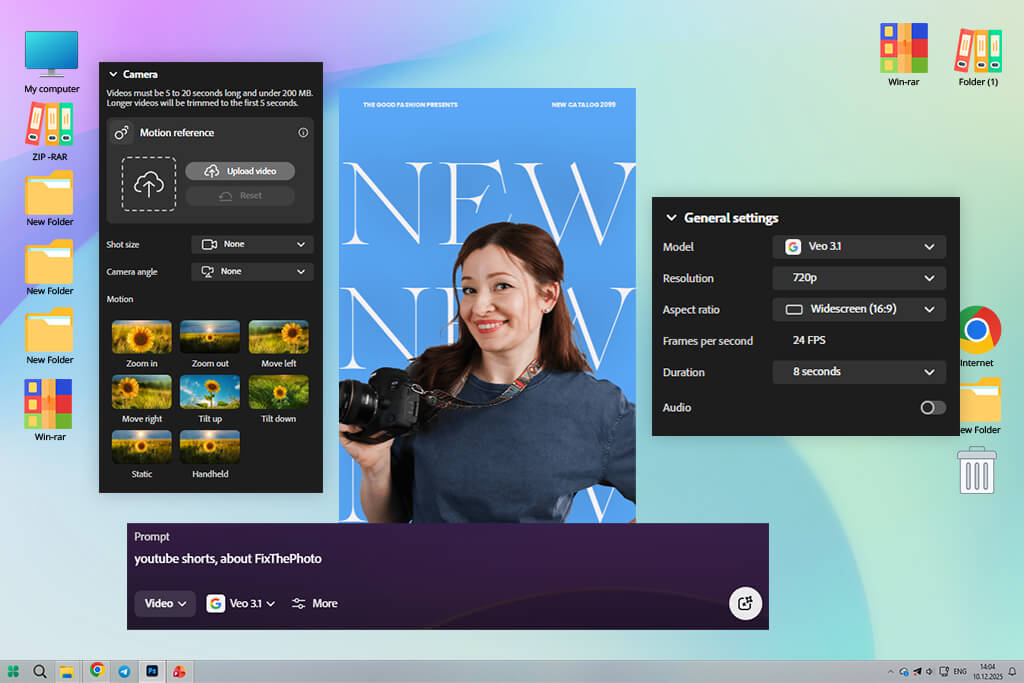
I tried out Adobe Firefly Video because I wanted a dependable tool for converting full-length videos into short-form content while keeping everything sharp and manageable. I brought in my longer recordings and watched how it created portrait-style clips with tight framing and engaging starts.
The initial versions appeared very neat. The AI seemed to grasp timing and flow rather than making random cuts.
I focused on the on-screen text since it’s crucial for keeping viewers watching Shorts. The words appeared in smart spots, stayed easy to read, and never covered people’s faces or key moments. I could tweak the appearance without messing up the arrangement or needing to rebuild everything.
“It handled the boring, repetitive stuff without taking over the thinking part. I never got the sense that the AI was making wild guesses. ”

I evaluated this AI YouTube Shorts generator with different types of content, including how-to guides, direct-to-camera footage, and informal recordings. The output quality remained steady no matter what format I used, so I could maintain a unified look across my channel. It didn’t force a cookie-cutter approach on everything.
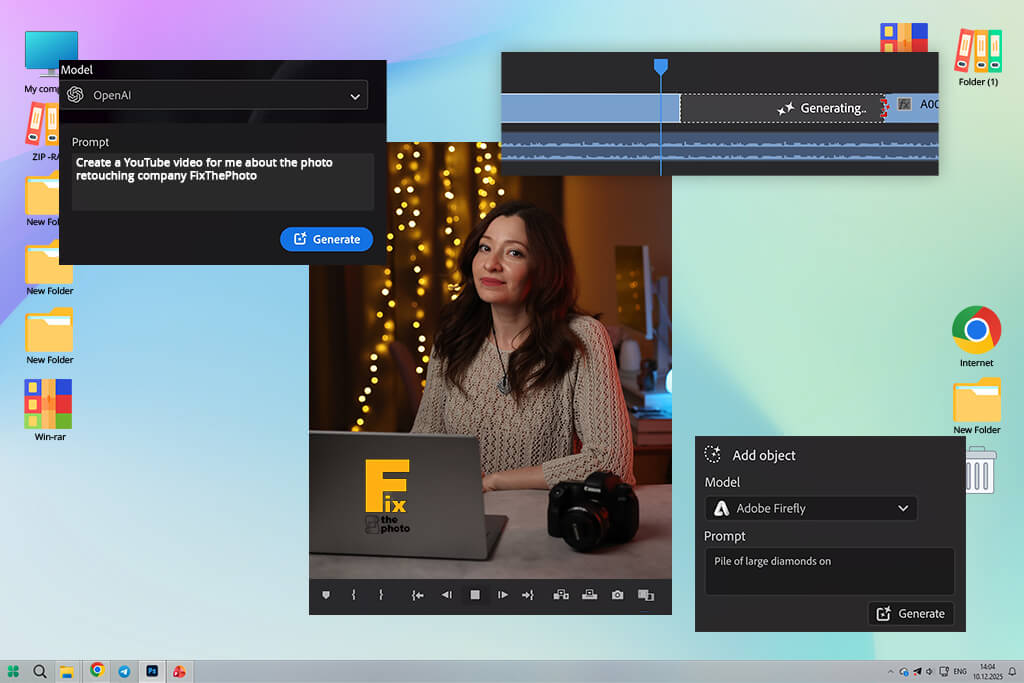

While testing Premiere on iPhone, I wanted to figure out whether it is solely suitable for video editing or can work as a YouTube Shorts maker AI tool as well. I took longer YouTube clips and transformed them into catchy Shorts without having to manually slice up every second.
I brought in interview footage, how-to videos, and clips of people talking directly to the camera, then used automatic resizing, clip detection, subtitles, and smart trimming features. Right away, I could tell this wasn’t some 1-click button that does everything instantly. It is an additional powerful instrument for content creators who take their work seriously.
From the get-go, I tried automatic portrait-mode conversion. The AI did an impressive job keeping people’s faces in the middle of the screen when flipping landscape videos into the tall 9:16 format for Shorts, even as speakers shifted around.
“It delivers very good results. It easily turns long videos into Shorts, preserving the flow. Just make sure to learn all its features.”

My next step was exploring the automated subtitle system and how it manages video tempo. The AI-created captions were remarkably precise and perfectly timed with the audio. This is essential for Shorts since most people browse with their sound off.
I played around with different video lengths. It was very straightforward to try out various opening hooks by chopping off the initial moments and watching the results right away. While this Shorts AI tool doesn’t automatically make compelling intros on its own, it lets you locate and improve them swiftly.
I also wanted to see how efficiently I could churn out numerous Shorts from one lengthy piece of content. By making duplicate copies of my project and allowing the AI to manage the vertical orientation adjustments and caption creation, I transformed a single 20-minute recording into several upload-ready Shorts in under an hour. Everything worked perfectly.
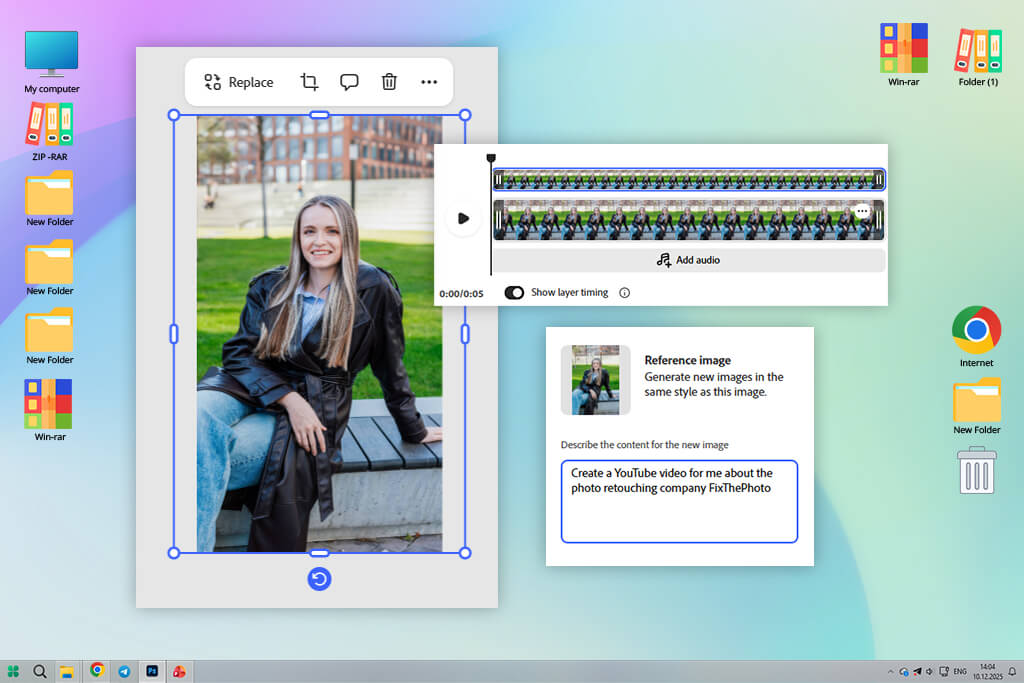
To test Adobe Express, I uploaded some longer videos and turned them into vertical clips. Then I added text on screen, switched between scenes, and put in simple moving effects.
This YouTube Shorts generator AI was really easy to figure out. I didn’t have to spend time learning complicated features. I got good-looking results almost right away. I think it is a wonderful option for people who want their videos to look professional without spending hours on editing.
I could easily put subtitles on my videos and move them around so they didn’t cover up people’s faces or important stuff in the clip. Thanks to the pre-made animation templates, my Shorts looked more interesting without going overboard.
“Use it for making Shorts in seconds. Choose a template, adjust the text, and share what you’ve got. It works remarkably fast.”

I tried out the Adobe Express free version by creating different kinds of videos such as quick tutorials, promotional content for a regular customer, and casual posts for social media. Everything turned out neat and well-presented.
Still, this AI Shorts video generator isn’t designed for elaborate narratives or movie-style production. Several features seemed somewhat limited compared to editors, where you can adjust everything.
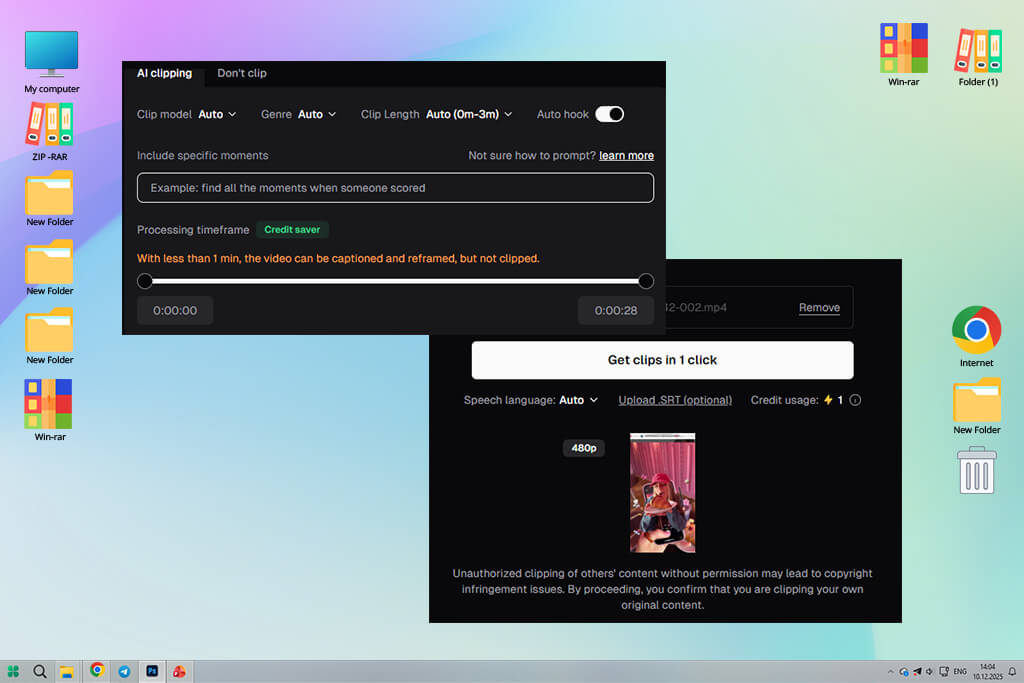
I was curious whether Opus Clip could spot the best moments in videos. I put in my longer videos and let the free AI YouTube Shorts generator choose the highlights on its own. The clips it selected were actually good. I paid attention to whether the clips had good beginnings and endings. Most of them started in ways that grabbed attention and wrapped up smoothly.
“The text captions matched what was said and appeared at the right times. I barely had to make changes before posting them.”

I tested this YouTube Shorts app using interviews, teaching videos, and direct-to-camera content. It excelled when voices were crisp and the content had good structure. Emotional scenes were sometimes overlooked, but replacing footage was straightforward.
The batch upload feature is so helpful. I was able to upload multiple lengthy videos at once and receive an entire collection of short clips from just one processing round. Each one was already edited and subtitled. The platform also lets me customize how long each clip should be, which helps me create Shorts anywhere from 15 to 60 seconds based on where I plan to post them.
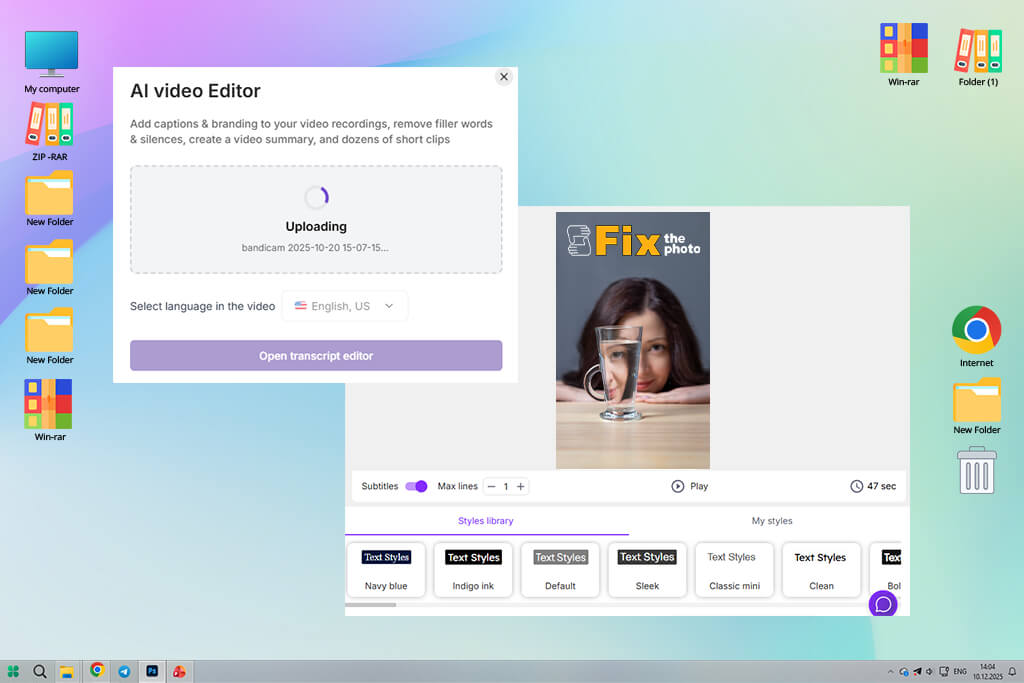
To test Pictory, I dropped in complete webinars and how-to videos, then stepped back while AI handled everything. I was surprised by how accurately this YouTube Shorts maker free AI spotted the crucial parts of my content. It figured out where natural breaks occurred and pinpointed the essential ideas, breaking everything down into bite-sized pieces without me having to lift a finger.
The automatic subtitles impressed me a lot. The tool “listened” to my audio and turned it into text all by itself, then split everything into nice little sections that matched up perfectly with what was happening on screen. I had to fix a couple of small mistakes here and there, but generally, it saved me hours compared to typing out captions manually.
“Very smart tool. It cuts videos with a clear intention. I only need to fix the hook bit and post the result.”
Another cool thing I discovered was how this app for video captions would recommend making certain words stand out, either by making them pop with animation or just making them bold. Thanks to those little touches, my Shorts look way more professional than I expected.
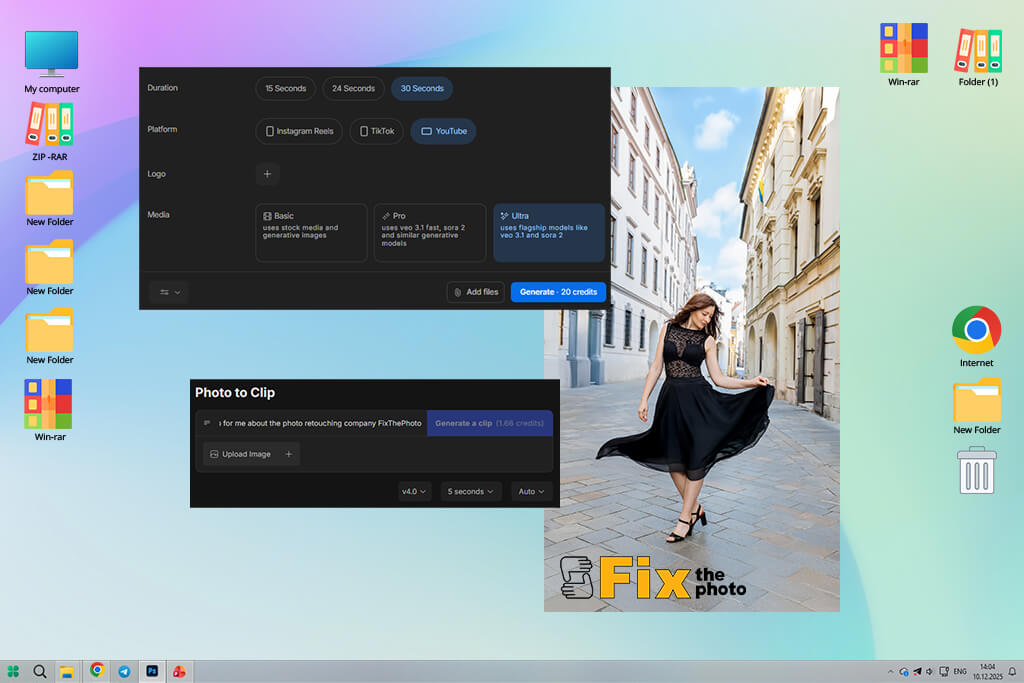
I fed my tutorial clips and interview recordings into InVideo AI, and the platform analyzed everything and recommended which parts to use, handled the cutting on its own, and even pitched different storytelling angles for short-form content.
Text overlays appeared automatically, too. The AI pulled out important words and phrases to highlight on screen. This YouTube Shorts maker AI also recommended how scenes should flow, what transitions to use, and which background music fits the vibe. Sections with quick dialogue became punchy shorts, while detailed explanations got a bit more breathing room.
“I like that I get several variations of the same video. Great for testing what works. Some clips require fixes, but generally the results are good.”

I tested this AI clip maker with two different types of content – educational and chatty ones. I liked how it shifted its approach: for the teaching-style videos, it is recommended to use short, straight-to-the-point clips. But when I used casual footage, it got creative and suggested clips of different lengths with a more fun vibe.
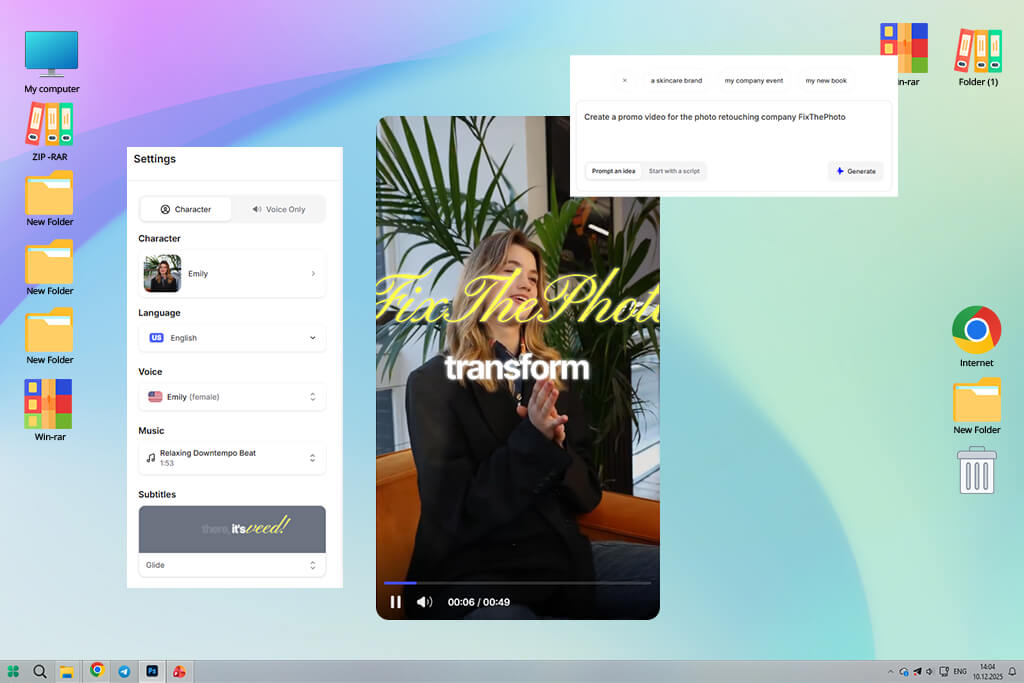
I checked how quickly VEED Editor could turn full-length videos into vertical short clips without much effort on my part. I threw in some tutorial content and commentary videos, and it picked out the best moments by looking at how clear the audio was and what looked visually appealing. It chopped everything down and organized it into bite-sized pieces that viewers would want to watch.
“High-quality results that are easy to understand. All cuts are neat, and captions are smooth. It delivers exactly what I need.”

The captions that this AI Shorts video maker produced came with perfect timing and were broken up so they were easy to understand. It even figured out the smartest spots to put them where people would notice them most. I liked how it studied the video’s flow and tweaked each clip’s duration based on how people were speaking.
It missed some of the more nuanced emotional moments here and there, but most of what it created was basically ready to upload straight away.
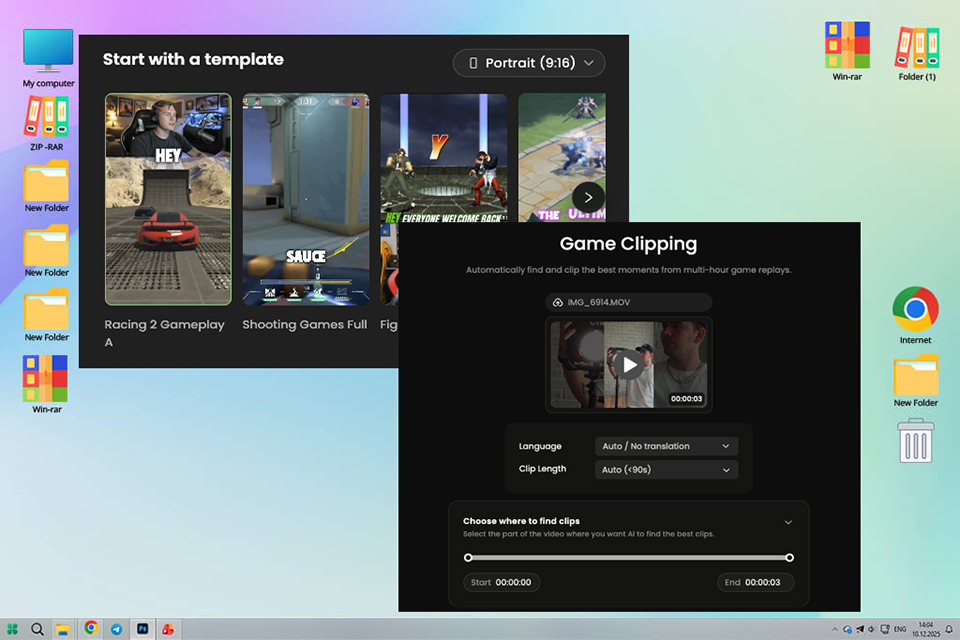
When making YouTube Shorts, I wanted to check if WayinVideo could truly take the place of hours of manual editing. After uploading product reviews, podcasts, tutorials, and interview videos, I allowed the AI to identify the best highlights and create vertical shorts from them. The majority of the time, the video were shockingly captivating and needed just basic editing before they could be published.
My favorite feature was the automatic moment detection. The AI chose captivating parts of lengthy recordings, added animated captions, and converted everything into the 9:16 aspect ratio rather than sifting through lengthy recordings. The integrated virality ranking, which made it easy for me to choose the videos with the best chance of performing well on social media, was another feature I like.
"The automatic highlight detection works surprisingly well. I still review every generated clip, but it eliminates most of the repetitive editing work."
Additionally, I created several Shorts from a single lengthy film to test the bulk editing features. It only took a few minutes to update captions, reframe footage, and prepare content for Instagram Reels, TikTok, and YouTube Shorts. The workflow was accelerated by the automatic subtitle creation and watermark-free exports.
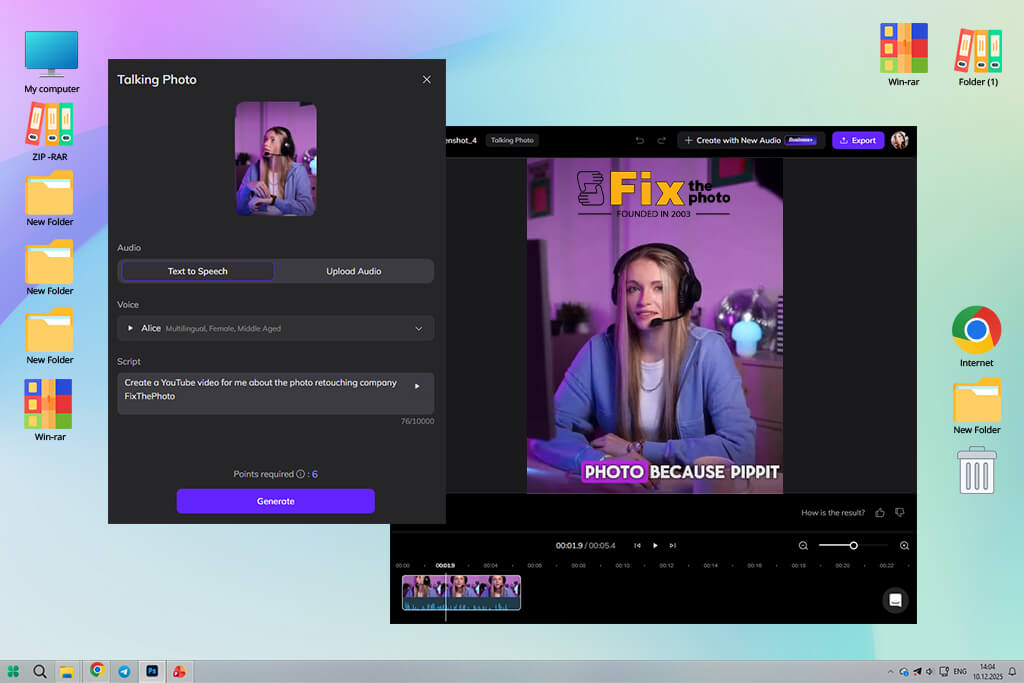
I wanted to see how Vozo handled videos with talking and voice-overs prevailing. The AI listened to the audio and pulled out the most interesting parts to turn into Shorts. It grabbed the important sentences, cut out all the “umms” and rambling bits, and created short vertical videos ready for YouTube Shorts.
I was impressed by how it automatically added captions that matched up perfectly with what was being said. It even figured out which words needed emphasis and threw in some subtle visual touches and backgrounds to make the narration pop. It is clearly built for making voice-based Shorts, offering more than basic free video editors for YouTube.
“It perfectly grasps talking videos, pulling out the best lines and turning them into solid Shorts.”

I rely on this AI tool to make YouTube Shorts for tutorials, commentary tracks, and educational content. The AI performed well when the speaking was organized and easy to follow. But when I threw casual conversations at it, I sometimes had to go back and manually pick better clips.
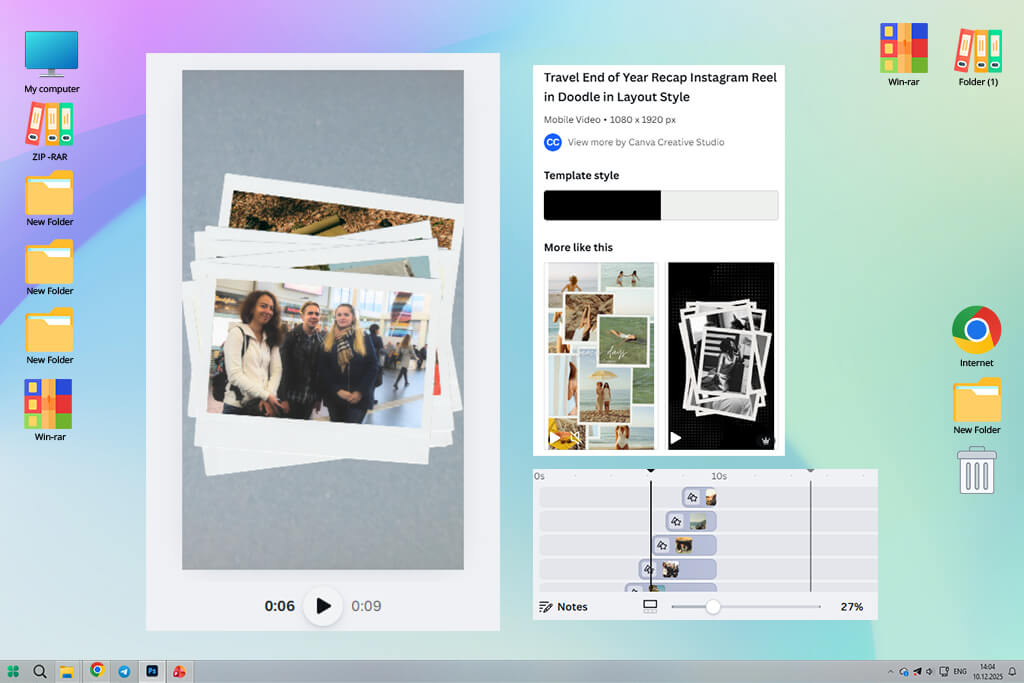
My colleague kept bugging me to try Canva photo editor for making YouTube Shorts, even though it’s not really built specifically for that. So, I tried it with some longer videos. The AI picked out clips, converted everything to vertical format, and slapped on some text overlays.
This AI YouTube Shorts generator was pretty smart about finding the good parts of my videos and telling me where each Short should start and stop. Captions popped up automatically and synced with what was being said. Depending on what kind of content I had, it suggested different template styles and where to put text. It even added some little animations to make things more interesting.
“Very intuitive platform. Generated videos looked clean and ready for sharing. Still, don’t expect to see top-notch AI features here.”
I tried it out with tutorials, announcements, and some short promo clips. Most of the time, the AI handled the important parts. When my content was a bit all over the place, I had to manually fix what the AI picked, but adjusting things was super easy.
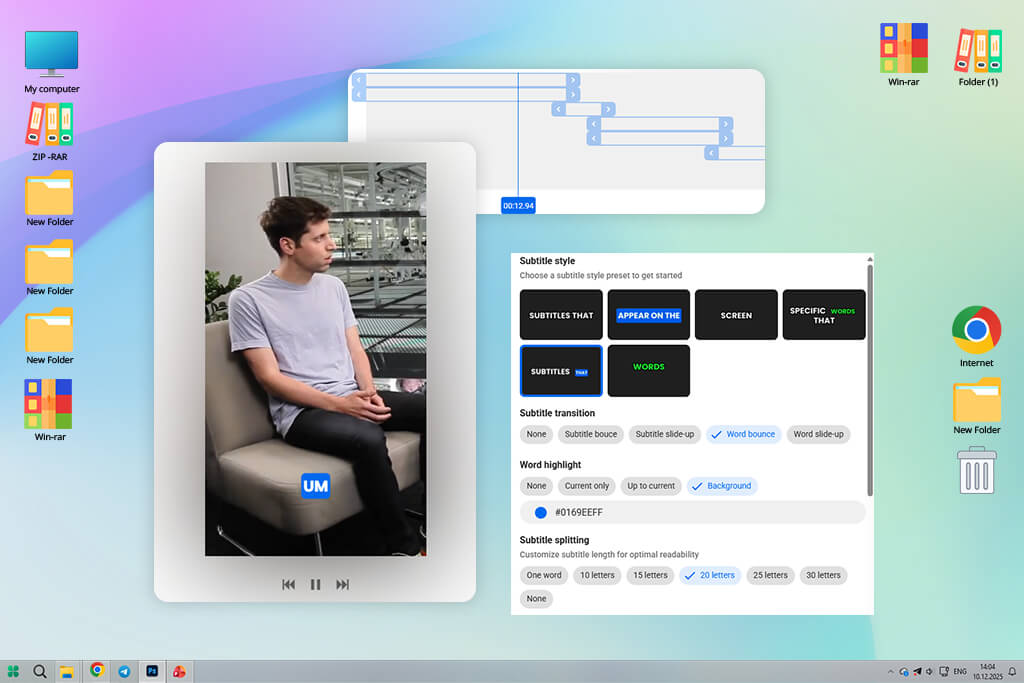
I was in a time crunch and needed to make a bunch of Shorts, so I used 2ShortAI to see if it could handle creating multiple videos at once. I uploaded long videos, and it chopped them up into shorter clips, picking out the key moments and interesting visuals automatically. It was cool that it created different versions with various hooks, so I could choose the one seemed most engaging.
On top of that, it added captions by itself, threw in some simple text effects, and even adjusted how long each clip should be depending on where I planned to post it. This YouTube Shorts clip maker AI analyzed how fast people were talking and the speech energy to figure out if a clip worked better at 15 seconds, 30, or a full minute.
“Handles the tasks so quickly. I uploaded videos and got a bunch of Shorts back. Helps prepare content for daily sharing.”

If I added messier, off-the-cuff stuff, I had to tweak things a bit, but even then, this free video editing app gave me something solid to work with right out of the gate.
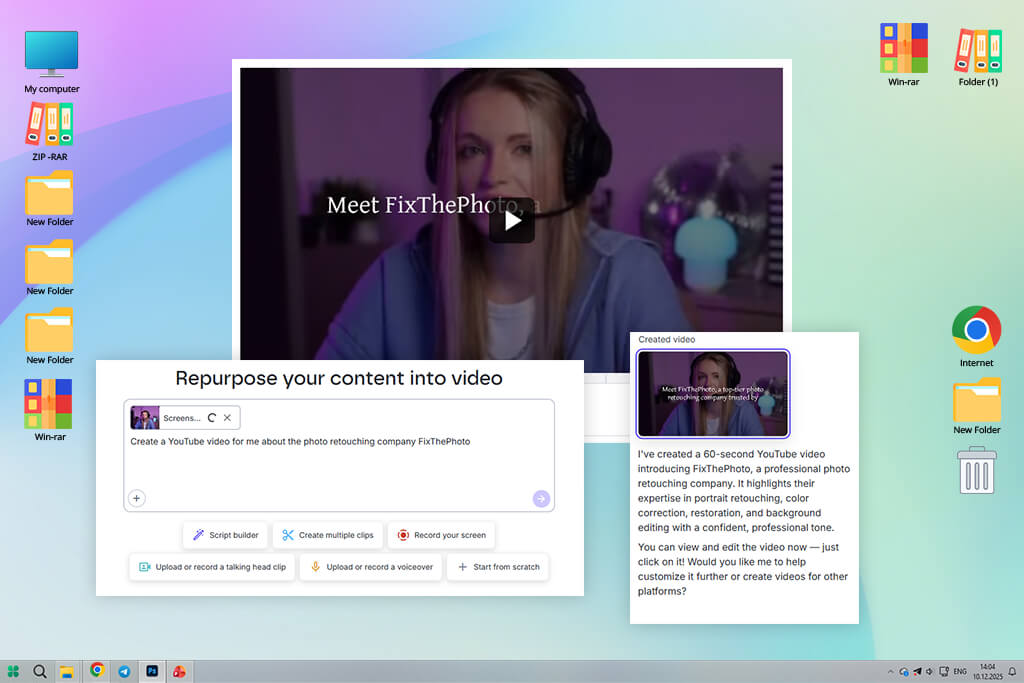
I kept seeing people rave about Lumen5 on the forum, especially for making Shorts from scripts or text instead of chopping up existing videos. So, I dropped in some lengthy video transcripts and scripts to see what would happen. The AI just took over from there. It picked out the important lines, condensed different sections, and threw together visuals and captions without my efforts.
I liked how this AI YouTube Shorts creator handled the rhythm of everything. It knew when to break up those rambling, complex sentences into bite-sized pieces, and when to let a quick one-liner hit hard for impact. Plus, it is recommended to use stock footage and little animations that actually made sense with what I was saying.
“I often use it for turning scripts or ideas into Shorts. Everything works so quickly. I recommend using it for explainer videos that don’t require too fancy visuals.”

This AI video editor stumbled a bit with the emotional or funny moments. It didn’t nail the timing or emphasis on those parts, but a few quick tweaks fixed it up pretty easily.
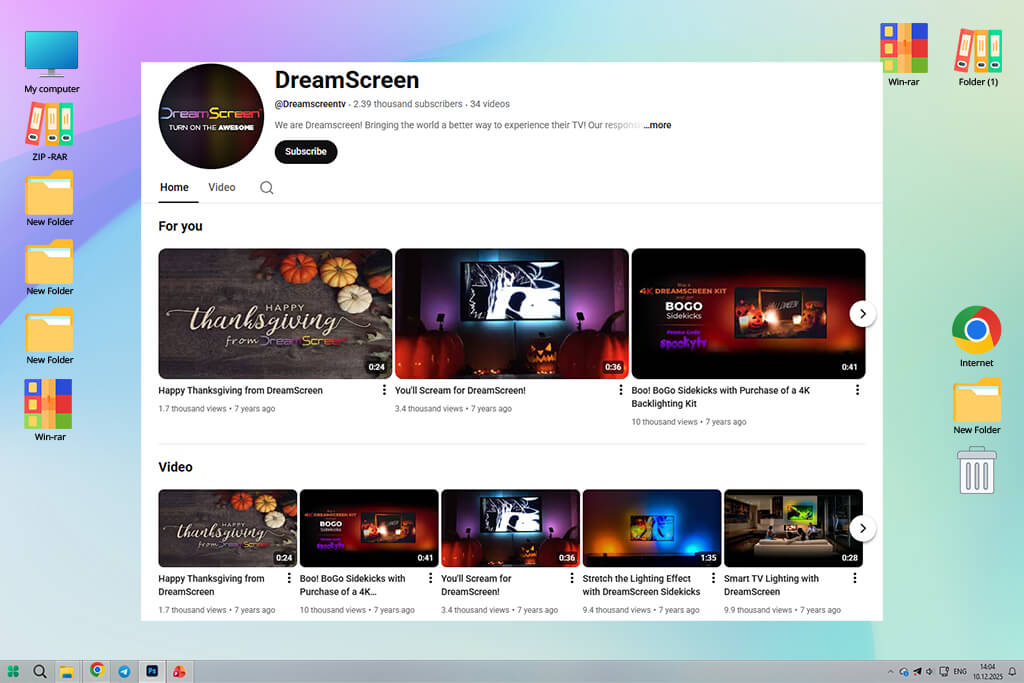
I checked YouTube Dream Screen to see how its built-in AI handles creating Shorts right in the app. Instead of having to manually edit clips, it automatically makes background visuals and adds contextual layers on top. I uploaded my raw footage, and the AI jumped in with suggestions for enhancements, effects, and how to frame everything for Shorts.
It added auto-generated captions and recommended tweaks to the timing, too. This YouTube Shorts maker AI looked at how my video flowed and what was happening visually, then suggested the best clip lengths. For playing around and testing stuff out, it was great.
“Perfect for quick experiments. I use it to test different ideas. It is a user-friendly tool that copes with the task well.”

I used this free video editor for YouTube mostly for casual content and testing ideas promptly. It won’t replace a full-fledged video editor, but it speeds up Shorts creation with automated suggestions. The AI actually worked better than I expected.
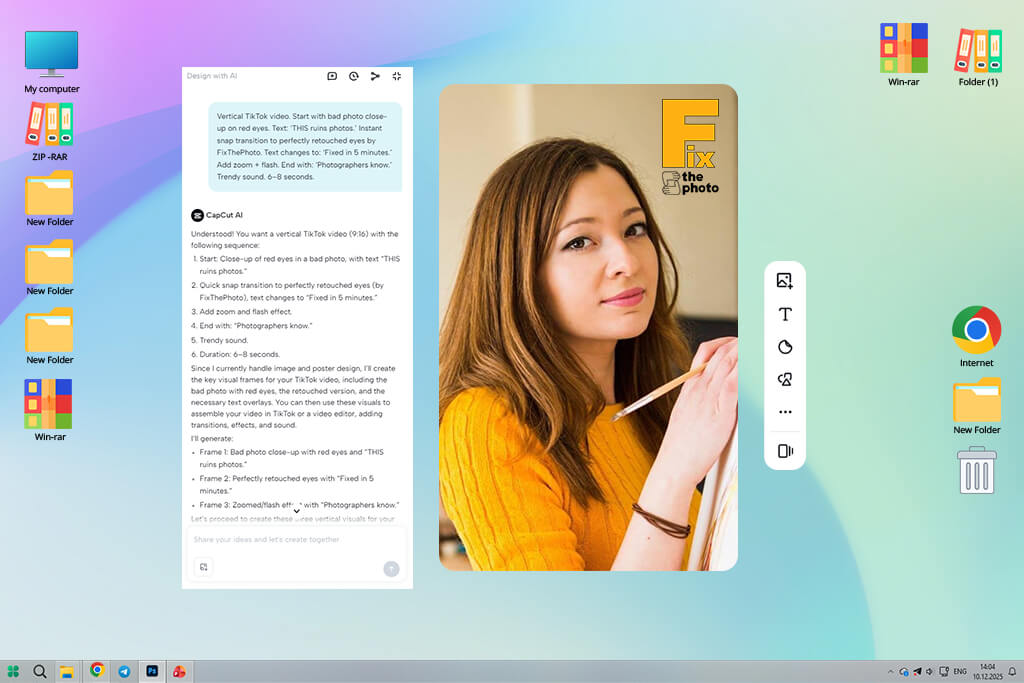
I spent more time testing CapCut because it’s built specifically for creating Shorts with AI. I dropped in my long videos and the AI picked out good clips, found the best hooks, reformatted everything for vertical video, and added captions automatically. It even looked at how I was speaking, visual energy, and transitions to get the pacing right.
This AI Shorts generator stays on top of trends. It suggested edits that matched what’s working on TikTok and Shorts right now, so everything felt native to those platforms. Captions, animations, and effects were added automatically, but I could still jump in and adjust them if I wanted to.
“The pacing is absolutely accurate. Clips look great with pop captions. Besides, it understands trends very well.”
I tested this AI software with tutorials, reaction videos, and regular vlogs. Every time, the AI found great hooks, picked solid cuts, and made clean vertical clips. Even when I threw random, unpolished footage at it, the results were almost good enough to post right away.
My FixThePhoto team and I tested popular AI YouTube Shorts generators to find out which ones actually work. We didn’t just review them, we used them as real creators would.
We tested how they picked highlights, made vertical videos, added captions, and made visual improvements. Basically, we wanted to see if these tools could handle our actual workflow for client projects.
We tested these tools with tutorials, interviews, product demos, and casual content. Each of us uploaded the same footage to different AI generators to see how they handled it.
We watched how fast the AI spotted key moments, created short clips, and built them into Shorts on its own. We checked the captions, timing, visuals, and whether the AI caught those important first-few-seconds hooks that grab attention.
Then we compared results by creating draft Shorts and reviewing them together. We scored each tool on accuracy, pacing, captions, visuals, and time saved versus editing manually. Kate looked at the workflow and ease of use. Tati checked how well the AI chose highlights and built the story. Tetiana focused on captions and timing. I tracked overall performance.
We also checked which tools were able to create multiple clips at once, which programs understood trends better, and which solutions needed the most tweaking.
Thus, we get a clear view of what each YouTube Shorts maker AI does well and where it falls short in real content creation. By the end, we knew which tools actually speed up Shorts production, which need more hand-holding, and which work best for producing lots of content automatically.



![7 Best Websites for Painters in {{%year}} [Portfolios & Sales]](http://fixthephoto.com/blog/images/gallery/news_main__preview_28423.jpg)
![Imagen AI Review from Wedding Photographer [2000+ Edits]](http://fixthephoto.com/blog/images/gallery/news_main__preview_28342.png)
![Thanksgiving Photo Editor [FREE]](http://fixthephoto.com/blog/images/gallery/news_main__preview_27826.png)
![7 Best AI Icon Generators [Not for Designers Only]](http://fixthephoto.com/blog/images/gallery/news_main__preview_27831.jpg)
![11 Designhill Alternative for Graphic Designers [Real Tests]](http://fixthephoto.com/blog/images/gallery/news_main__preview_27909.jpg)



















