Imagen AI
I read many reviews of Imagen AI, mostly about its custom editing style, quick photo selection, and cloud-based process, and decided to try it on my own. After using it, I found that AI-powered culling by itself can cut the time spent choosing the best photos by about 70-80%, while bulk AI editing reduces retouching work by around 60-75%. Tasks like masking, noise reduction, and background changes, which usually take hours, can now be done in just minutes on hundreds of images at once.
For instance, working through 220 wedding photos by hand used to take me about 10 hours. Using Imagen AI, the first round of edits finished in roughly 20 minutes, and I only needed another 1.5 to 2 hours to check everything and make small adjustments.
What stood out to me most was how easily it fits into the way I already work. I can upload an entire wedding collection, choose my own style or a Talent AI profile, scan through the edits fast, and jump right into final tweaks. I don’t have to open different apps or deal with external drives and backups. Because everything runs in the cloud, my files stay safe, organized, and ready to access, without time lost moving them from one device to another.
As for Imagen AI pricing, it is flexible and fair. You can begin with 1,000 free edits to test it out - the trial has no restrictions, so you can explore the entire process and see actual results on your own photos. You only pay if you feel the service is valuable to you.
The basic plan costs 5 cents per photo for standard edits, like color and brightness. Extra edits, such as cropping or object selection, cost just 1 cent each. There is a low monthly minimum of $7, which acts as a prepaid credit that rolls over, so it's never lost. The plan also offers unlimited custom AI profiles, access to all expert AI styles, around-the-clock customer support, and 100GB of free cloud storage for the first three months.
What's really great is that some of Imagen's newest AI tools are free right now while they're still in testing. Features like Portrait Crop, Background Mask, Denoise, and Background Extraction won't add any extra cost, so you can freely try them out.
For photographers who handle large numbers of photos, such as wedding photographers, there’s also a yearly plan that costs $67.5 per month. It offers the same features but lowers the cost per image, making it cheaper in the long run.
Imagen's Culling Studio uses a separate billing system. If you commit to a full year, the monthly cost is $12. If you prefer a short-term plan, you can pay $18 each month and end your subscription whenever you wish. When you use only the culling tool, the standard $7 minimum fee is not charged.
Imagen AI currently offers 1,500 free edits instead of the standard 1,000 when you sign up through a dedicated preview page. This extended trial allows you to test the full editing and culling workflow on real projects, evaluate consistency across large galleries, and clearly understand how the AI performs before deciding to move to a paid plan.
After trying Imagen AI on real wedding galleries, I saw how many tools it has that are made to help photographers work faster. Features like personalized editing, smart masking, and new beta tools made it easier for me to edit large groups of photos quickly without sacrificing quality. Here’s what stood out to me the most.
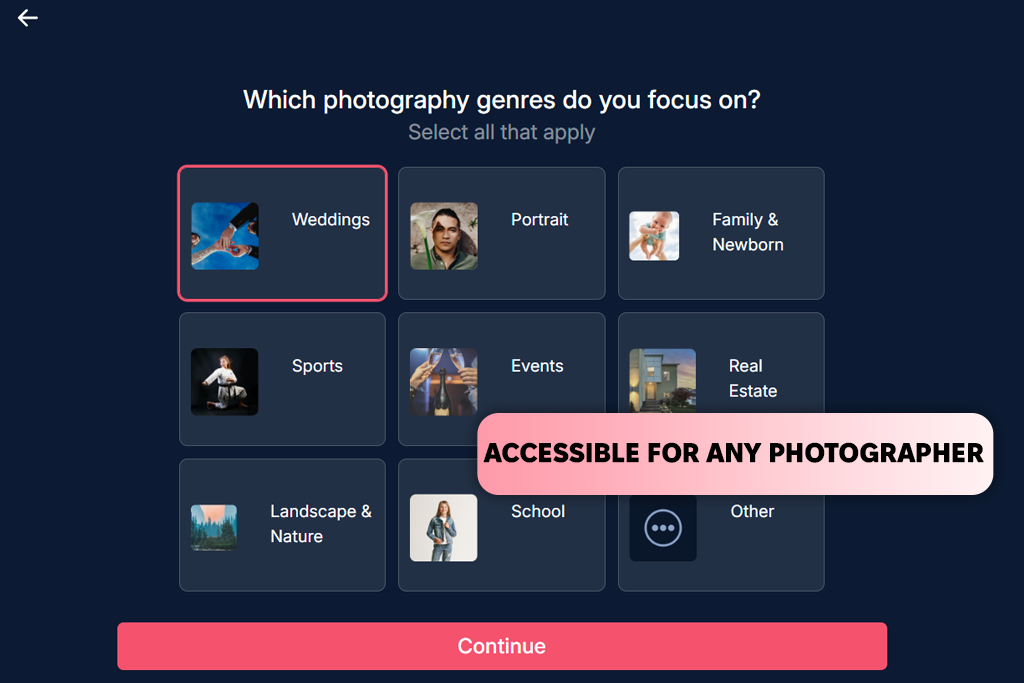
Starting with Imagen editing was fast and easy. I created an account and answered a few setup questions about my photography level, the types of work I do (I chose weddings, portraits, and family), and the photo editing software for PC I use, such as Lightroom Classic, Lightroom CC, Photoshop, or Capture One. Once that was done, I was pleasantly surprised to receive 1,500 free edits, which was more than the 1,000 credits I originally thought I would get.
Once I finished the setup questions, I downloaded and installed the desktop program. Imagen AI runs as a full desktop app, while using cloud technology behind the scenes to stay quick and reliable. The design is simple and modern, making it very easy to use from the start. What I like most is that there’s no need to learn a new workflow - Imagen sends everything directly into my Lightroom catalog, so I can do any final adjustments in the software I already feel comfortable using.
The app includes easy access to help articles and customer support, which is useful when setting up your first job. When I began working with real wedding photos, I was truly surprised by how fast everything moved. Editing an entire wedding now takes about 20 to 30 minutes, with another 10 to 20 minutes for checking the final results. Compared to the long hours I used to spend before, the difference feels incredible.
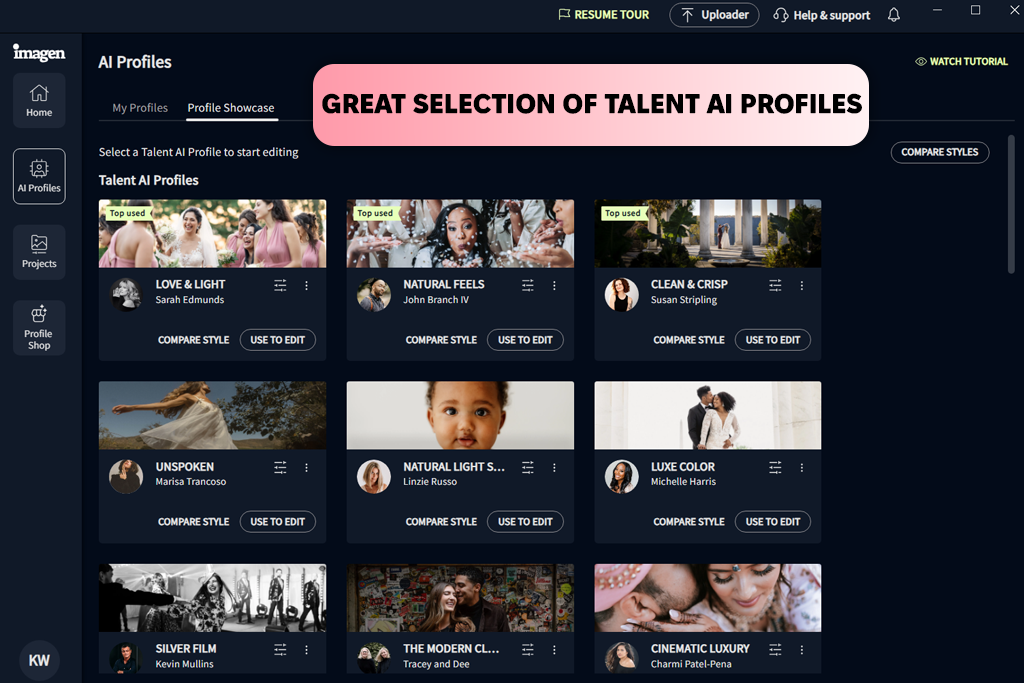
I really enjoy Imagen's Talent AI Profiles. These are ready-made editing styles designed by top famous photographers. You can use them for free and see the effect applied to your photos instantly. If you're looking for ideas or just want to try a new style, you can choose from options like the natural look by John Branch IV, the clean style by Susan Stripling, or the cinematic look by Charmi Patel Peña. Imagen will then apply that complete style to your entire photo gallery.
What makes these profiles effective is the large amount of data used to create them. Imagen tests each profile on thousands of different photos - taken in various lighting conditions, with different cameras, and in many settings. This extensive training gives the AI a solid base to work from, producing results that are more reliable and consistent than those from a basic photo preset.
I personally tried editing styles by Michael Anthony and Rocío Vega, and both produced great-looking, finished photos immediately. The best thing is that these styles work for both RAW and JPEG files, and you can apply them to any photo project within Imagen with just one click.
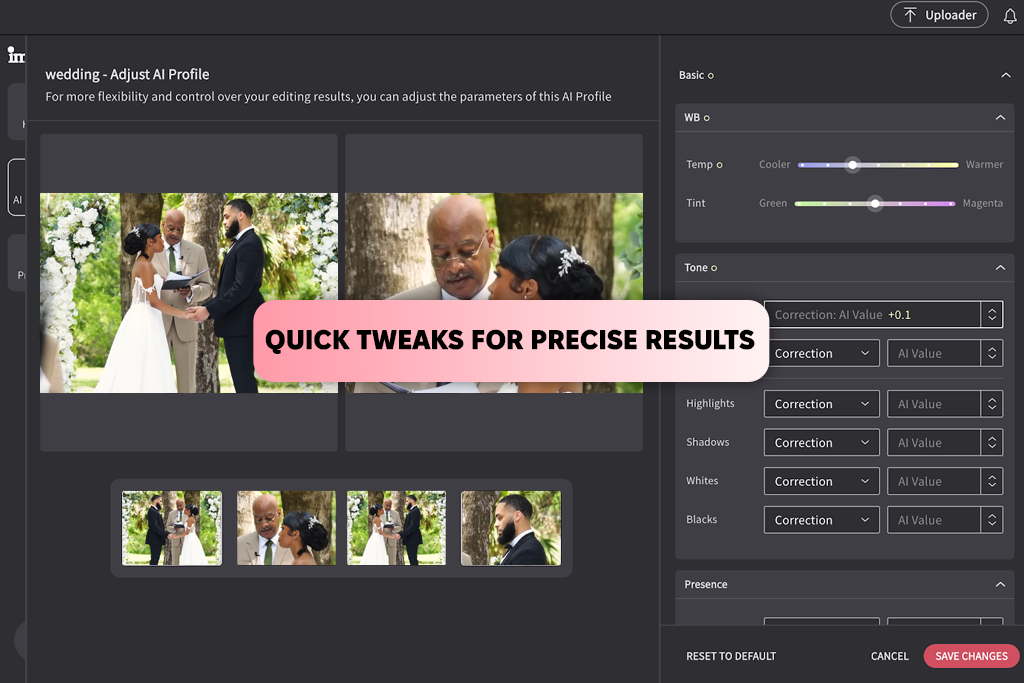
If you choose to use a Talent AI profile, but you prefer your photos to be a little warmer or have more depth in the shadows than the profile shows, you can make adjustments and fine-tune the settings to match your own preferences.
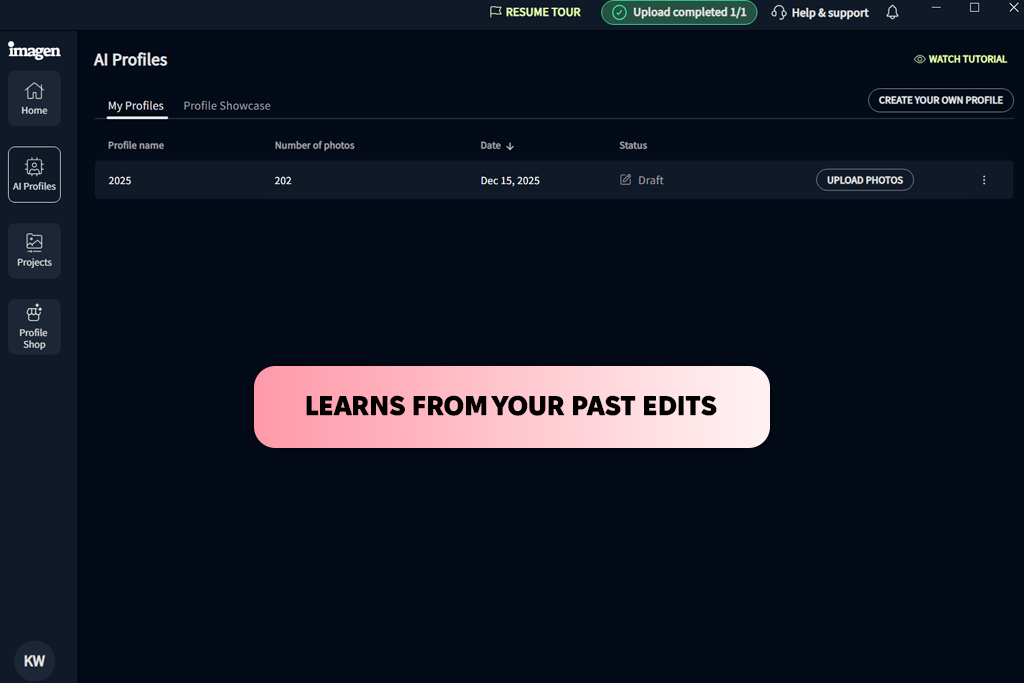
One feature I find especially useful is the ability to create a Personal AI Editing Profile in Imagen. Rather than using generic presets or editing each photo individually, the AI learns how I like my photos to look and then applies my style consistently to entire sets of images.
To build the profile, I uploaded a Lightroom catalog that already had my finished edits. Imagen AI studies how I edit everything, including exposure, colors, tones, skin, contrast, and how I work with different lighting. All the photos need to use the same Adobe profile in Lightroom, but after that, the setup is easy. You can upload multiple catalogs, and the more edited images you include, the better the system learns your style. Imagen suggests about 3,000 photos, and I found that the results improve and become more polished as more images are added.
What I like most is that the AI doesn’t just repeat individual settings. It understands the habits behind how I edit and applies that thinking to different situations, whether it’s bright outdoor photos or difficult indoor wedding scenes. The more I work with it, the more it adjusts and grows with my style, instead of locking it into a single version.
As a wedding photographer and retoucher, this lets me apply my exact style to thousands of photos very quickly. I usually let Imagen AI handle the first edit, then open everything in Lightroom and make small adjustments. After that, the whole gallery is finished. The photos still look like my work - it’s just much faster and more consistent.
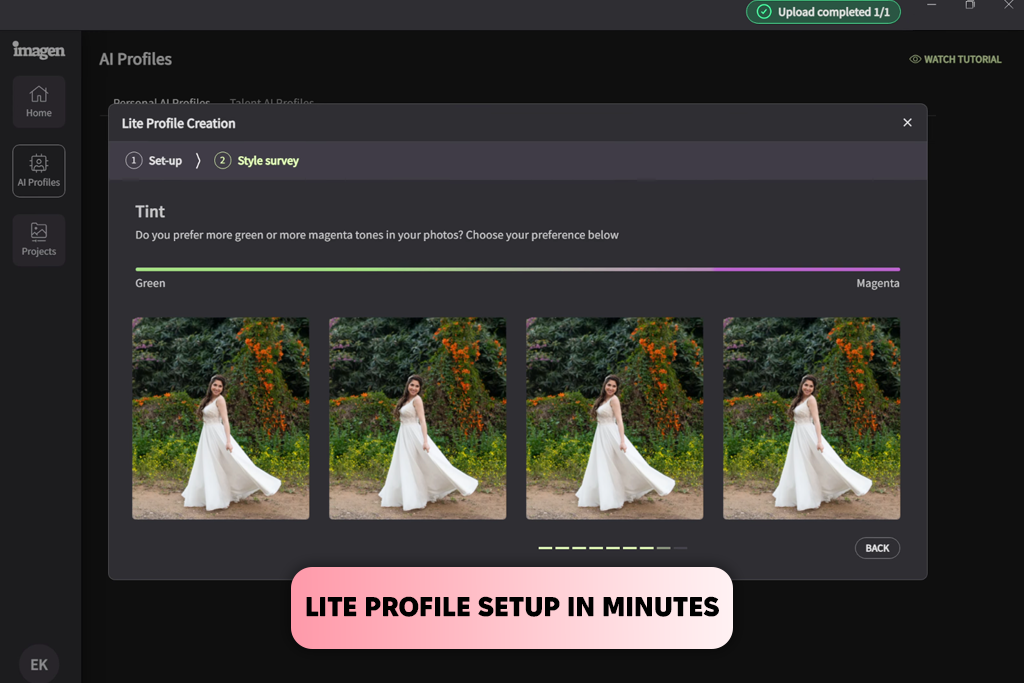
If you want to try Imagen photo editing quickly without uploading large photo collections, the Lite Profile option is the fastest way to get your own editing style working. I've used this AI photo editor myself for a few wedding galleries when I needed fast test edits, and it really only takes a couple of minutes.
All you have to do is upload one of your favorite Lightroom presets and answer a few simple questions about how you typically handle exposure and white balance. Imagen will then create a streamlined version of your editing style that you can start using right away.
From my testing, the Lite Profile delivered results that were quite similar to my usual look, especially for projects that need to be done quickly. I did notice that it made photos a bit warmer and slightly greener than I’m used to, so I’m still adjusting that part. But if you want to get started with Imagen as fast as possible - without having to upload and tag a huge photo library first - Lite Profiles are an easy and practical way to begin.
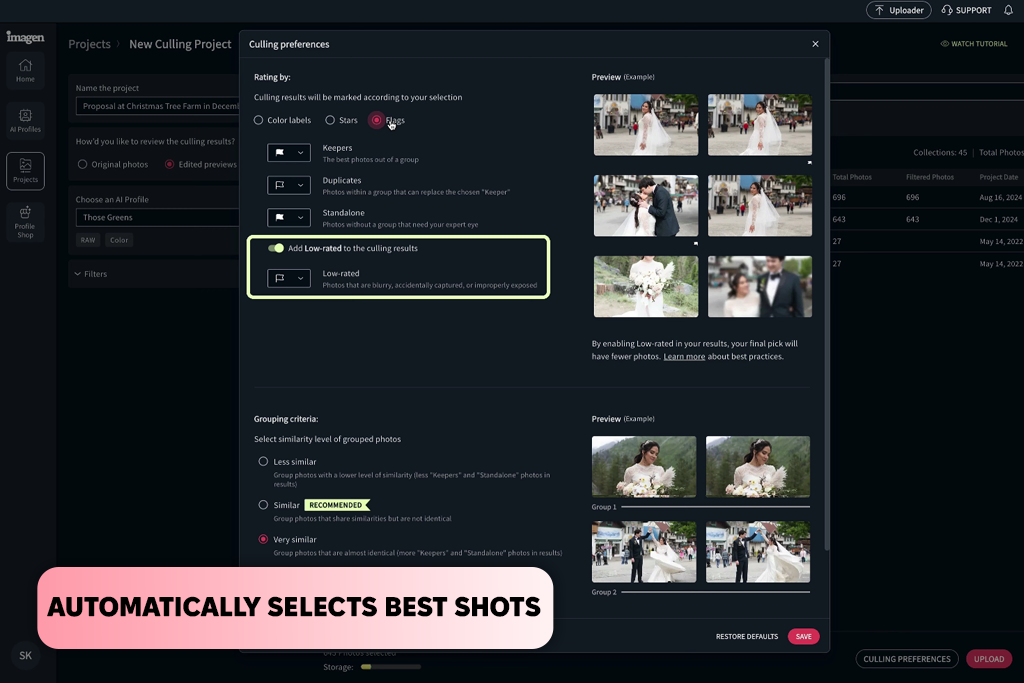
When I first used Imagen AI's photo culling software, for a wedding gallery, I immediately saw how much time it could save me. I just uploaded the photos, selected a few basic preferences, and the AI instantly sorted similar pictures, recognized faces, found duplicates, and marked any blurry shots. I was surprised that its choices felt almost identical to mine, but instead of taking hours, it finished the job in just minutes.
I like that I can choose how strict the culling is and even set an exact photo count when a client needs a specific number. The Cull to Exact Number option is especially helpful for big weddings or shoots with many similar shots. The face detection works really well too - it spots blinks but keeps meaningful closed-eye moments, like kisses, so I don’t have to review every photo again.
Another thing I enjoy is Cull Edited Previews. Seeing the images with my Personal AI Profile applied right inside the culling window makes reviewing so much faster. I can immediately see which shots will fit the final look of the gallery.
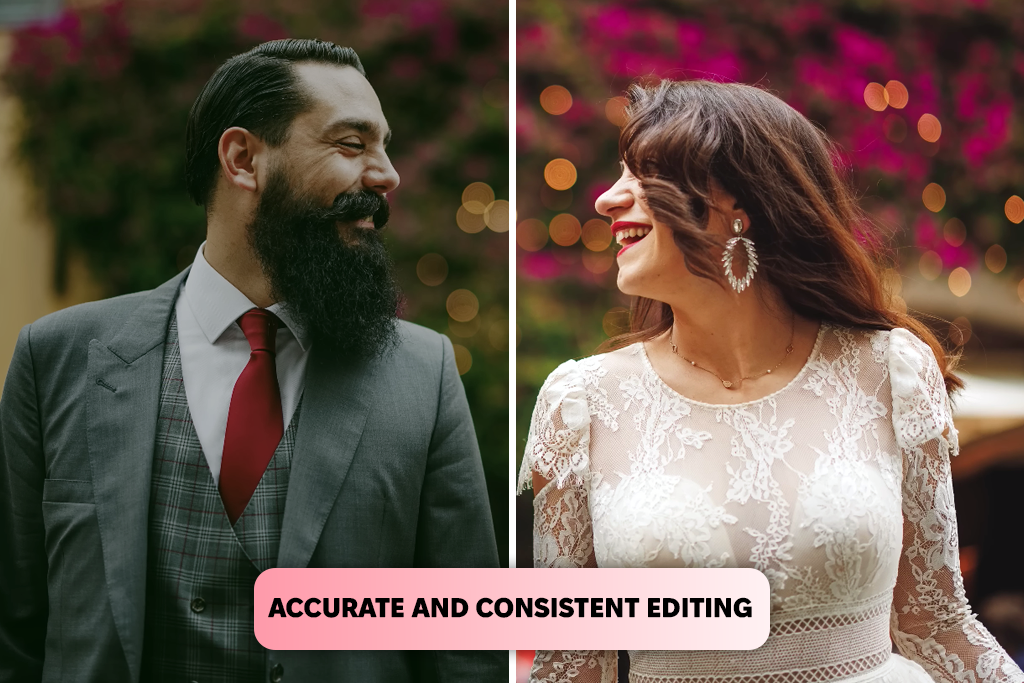
Imagen AI also includes many advanced editing tools. They are built to handle repetitive tasks, freeing me up to focus on the creative choices while still having full control over the results. In this Imagen AI review, I'd like to share how I use them in my own workflow:
Together, these tools feel like having a full-time editing helper. They take care of the repetitive work, so I can focus on the style and details that make my photos special.
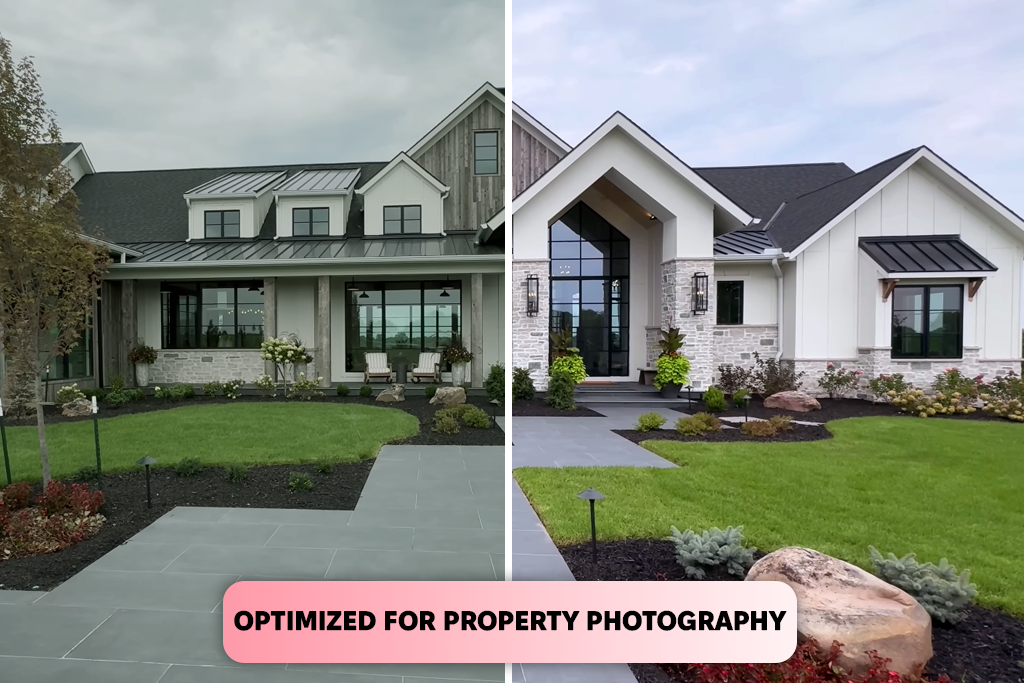
Imagen AI isn’t only for portraits or weddings - it also includes a strong real estate photography software, making property shoots quicker and more accurate.
For me, these tools change real estate editing from a difficult and slow task into a streamlined and effective process. This helps me produce high-quality pictures more quickly than I could before.
I deal with thousands of RAW files, and it’s always been hard to keep them safe while still having easy access. With Imagen AI, all my photos are safely stored in the cloud while I sort and edit them - I don’t need any extra cloud storages for photos.
I really appreciate how seamless it is. All my projects are saved online, so I can access them from any device, at any time, without worrying about hard drives breaking or running out of space. Smart compression shrinks my large RAW files by up to 75% without losing quality, saving both storage and internet data, while keeping all my edits safe.
The system is also easy to use. On the projects page, a cloud icon indicates the backup status: white means no backup, yellow means a low-resolution backup, and green means a high-resolution backup. From here, backups can be easily downloaded or deleted. There are three backup options available: free low-resolution backups for emergencies, optimized high-quality backups that save space, and full-quality original files.
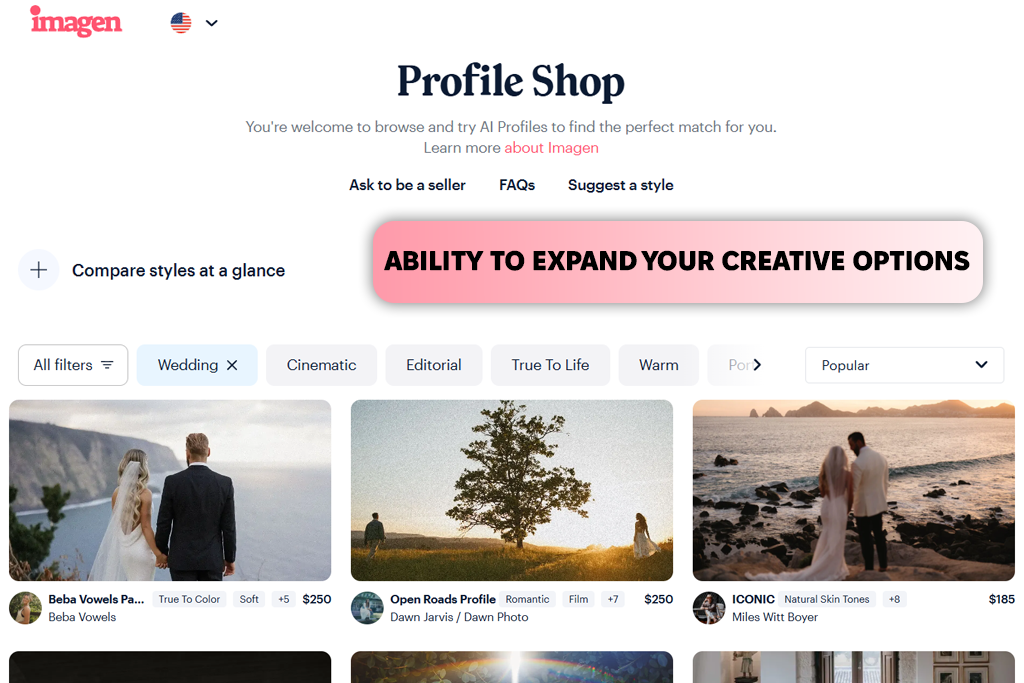
I also really like trying out Imagen's Profile Shop. It's a collection of editing styles created by professional photographers, which is great if you're still finding your own style or just want to experiment with a different look.
I can browse editing styles by type like cinematic, editorial, natural, warm, wedding, or portrait styles and see how my own photos look with each one before buying. This lets me easily try different looks and find the right match for any project or client.
For me, the Profile Shop is more than just convenient - it’s truly inspiring. Seeing how other professionals use color, tone, and mood helps spark ideas I can use in my own work, all within this one tool. It’s a quick and enjoyable way to grow my editing skills and try out new styles.
To try out Imagen AI, I teamed up with my colleague from FixThePhoto, Kate and Vadym. We ran tests on a range of real projects, like wedding galleries, portraits, family sessions, and some real estate shoots. We wanted to see how the AI managed different lighting, subjects, and editing challenges, while also checking out all its features, from AI Culling to Personal and Talent Profiles.
We tested Imagen AI by uploading full Lightroom catalogs, trying out Lite Profiles, and applying both Talent AI and Profile Shop editing styles to check how adaptable and precise the edits were. Also, we tested advanced features like Subject Mask, Smooth Skin, Denoise, and Background Mask, along with workflow tools such as Cull Edited Previews and cloud backups. For real estate photography, we tried the Instant HDR Merge, Perspective Correction, Window Pull, and Sky Replacement tools to see how effectively the software handled architectural images.
During our testing, we focused on how fast, accurate, consistent, and easy to use Imagen AI is, and how well it could copy our personal editing style. By trying it on many different types of photos and editing styles, we got a clear idea of what it does well, where it falls short, and how it could be used in a professional photographer's daily work.






![Remove Logo From Clothes AI App [FREE]](http://fixthephoto.com/blog/images/gallery/news_main__preview_27732.png)


![Fat Maker for Photos Online [FREE]](http://fixthephoto.com/blog/images/gallery/news_main__preview_27731.jpg)


















