I first stumbled upon the problems with JFIF while working on a FixThePhoto project. Our client handed me a bunch of images straight from an old Android phone. They were all in .jfif format. Right away, our internal tools couldn't handle them properly, and previews stopped working. Besides, when I pushed them onto CMS platforms, I had to deal with unexpected errors.
On the surface, JFIF looks just like any other image format, but when you actually start working with it, it tends to cause issues, especially in browsers, messaging apps, and older design tools. Some converters out there just swapped the file extension without doing any actual conversion, and others butchered the image quality. There are also some online tools that are quietly dumping your files onto unknown servers with no real explanation of what they are doing with your data.
So, I decided to test JFIF to JPG converters and find really trustworthy options. I checked online tools, desktop software, and mobile options, picking only quick and reliable options that keep the image quality intact for professional work.
Having worked through hundreds of JFIF image conversions across client work and our own FixThePhoto processes, it became clear that the format itself isn't usually the problem. The real culprit is the way the conversion gets done. People run into trouble when they lean on shortcuts or tools that just aren't up to the job.
Here is what actually matters:

| Converter | Speed | Image Quality | Ease of Use | Extra Features | Free |
|---|---|---|---|---|---|
|
Fast
|
Excellent
|
Very Easy
|
Cloud, presets
|
✔️
|
|
|
Fast
|
Excellent
|
Medium
|
Batch tools
|
✔️
|
|
|
Fast
|
Very Good
|
Medium
|
Batch & filters
|
✔️
|
|
|
Moderate
|
Excellent
|
Advanced
|
Pro editing
|
✔️
|
|
|
Moderate
|
Good
|
Easy
|
Online access
|
✔️
|
|
|
Fast
|
Good
|
Easy
|
Browser editor
|
✔️
|
|
|
Fast
|
Excellent
|
Technical
|
CLI batch
|
✔️
|
Price: Free
Availability: Web, iOS, Android
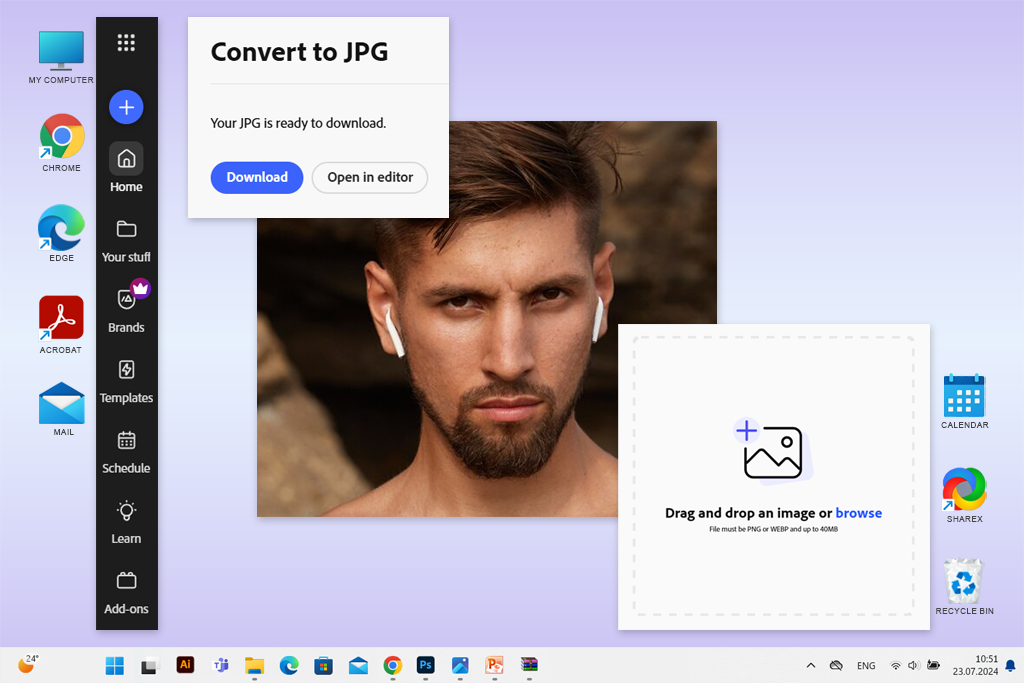
I had to quickly convert a bunch of JFIF images that my clients sent over from their Android phones. I wanted to check whether Adobe Express could handle the task. Some files didn’t even open properly in my editing apps, and others kept getting rejected when I tried uploading them to different sites. So, I wanted to get them flipped over to JPG without spoiling the quality or losing any of the metadata.
Working in this JFIF to JPG converter online was very easy. You just need to drop your JFIF file in the program and wait till it makes a clean, fully compatible JPG. Adobe Express surpasses a lot of the other free converters out there with a proper format conversion. It doesn’t just slap a new name on the file. I ran the results through both Photoshop and Lightroom to double-check, and everything held up. The resolution was untouched, and the colors looked spot-on. Plus, I didn’t notice any compression artifact.
For my FixThePhoto workload, Adobe Express is a solid pick. It ensures a safe and speedy JFIF to JPG conversion right in the browser, no matter what device you're on. It is unmatched when you're dealing with client-submitted files, need to knock out a quick fix, or simply don't have the time to download and set up full desktop software. Now, it does skip manual compression controls or adjustable quality settings, but the default output it gives you is consistently sharp and dependable. It covers what the majority of people are actually looking for.
Price: Free (personal use)
Availability: Windows
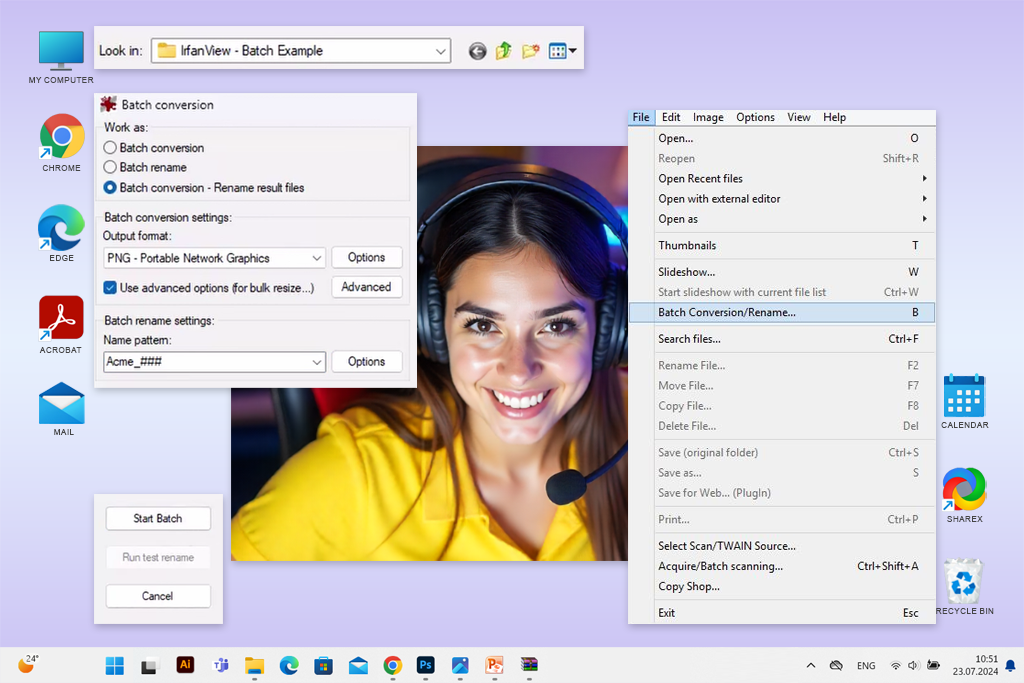
I had a bunch of JFIF images sitting in large folders. They were all dumped from older Android phones, and I needed a quick way to convert them. IrfanView turned out to be the perfect tool for the job. The batch conversion feature came in handy. Chewing through dozens of files in just a few seconds was great. Plus, not a single pixel of quality was lost in the process.
This tool can convert JFIF to JPG files properly instead of just swapping the file extension around. Every single output JPG opened without any issues across different editors and browsers I threw it at. Now, if you're comparing IrfanView vs GIMP for this kind of task, it really boils down to what you need. IrfanView wins hands down on speed and efficiency for bulk conversions, while GIMP is the better pick if you need to tweak or edit images before saving them.
The interface looks a bit old-school and may trip up newcomers at first, but as a straight-up JFIF to JPG Windows converter, it's one of the fastest and most dependable options out there for handling files in bulk.
“If you need to convert multiple JFIF files to JPG on Windows, pick IrfanView. It doesn’t change EXIF, so you get the original image data as it was initially captured.”

Price: Free for personal use
Availability: Windows, macOS, Linux
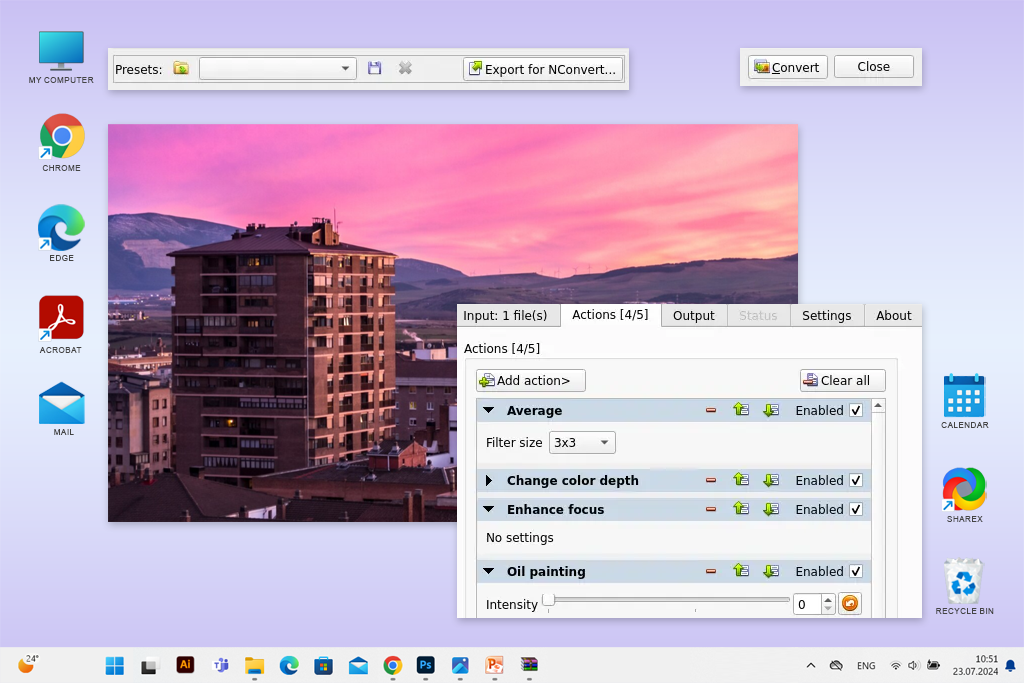
I tried XnConvert when I saw that basic conversion tools just weren't cutting it for my JFIF to JPG online conversion. I particularly like how it bundles everything into one smooth pipeline. It takes care of converting, resizing, renaming, and filtering, without making you jump between different apps. That's a big deal when you're getting images ready for a website or content platform.
While testing the tool, I noticed that every single output file came out sharp with lifelike colors, even when I mixed in images of completely different sizes. I appreciate such reliability greatly, and no wonder it keeps popping up as one of the best free image converters for bulk processing.
At the start, you may need to spend more time mastering the program, but once you wrap your head around the workflow, it practically runs itself. Generally, if you need something beyond what simple drag-and-drop converters offer, XnConvert is definitely worth trying.
Price: Free
Availability: Windows, macOS, Linux
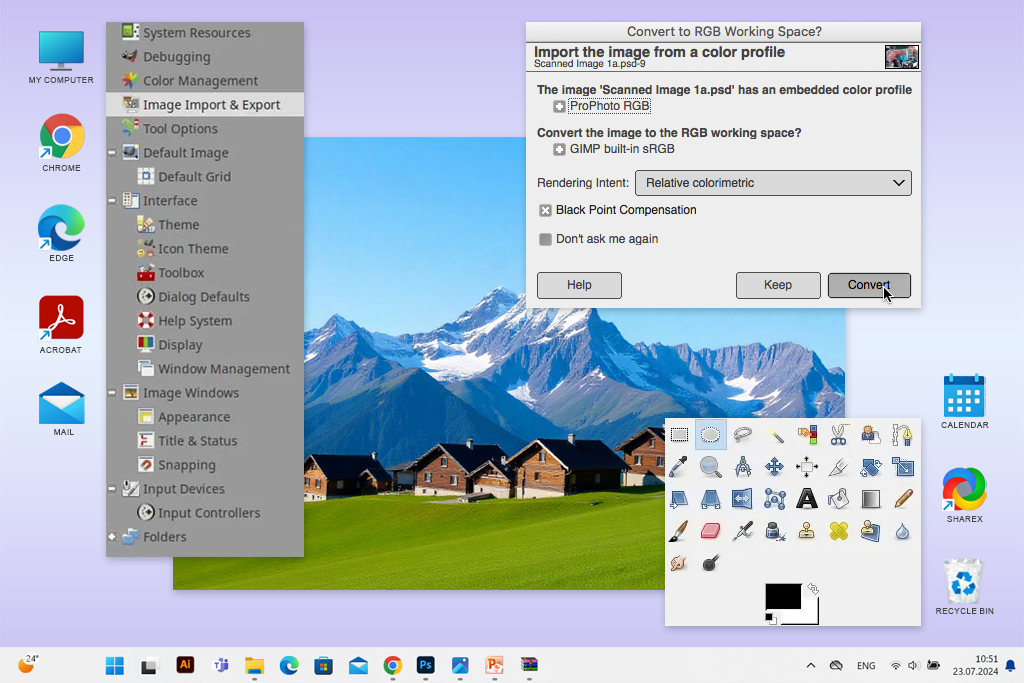
Whenever the JFIF-to-JPG conversion is part of a broader editing task, GIMP is the smarter choice. Client projects usually involved more than just format switching. There was cropping, color correction, and light retouching as well, so handling it all inside one capable tool was very handy.
Opening JFIF files in GIMP was straightforward. Throughout the process, I manually dialed in the export settings, including JPG quality, compression ratio, and color profiles, to keep as much image integrity as possible while making sure the output stayed compatible with browsers and CMS platforms. Once done, the resulting JPG files worked perfectly across Photoshop, Lightroom, and online previews. I didn’t see odd glitches or unexpected color shifts.
Generally, GIMP isn't the quickest free JFIF to JPG converter if you just need a basic conversion. It doesn't support batch exporting out of the box. You need to set up scripts or plugins to speed things up. Realistically, it's worth considering mainly if you're already comfortable working in GIMP or if you need tight, detailed control over how your final images come out.
“GIMP is great for editing JFIF images before converting them. You can control JPG compression and color profiles manually to prevent color shifts.”

Price: Free (with limits)
Availability: Web
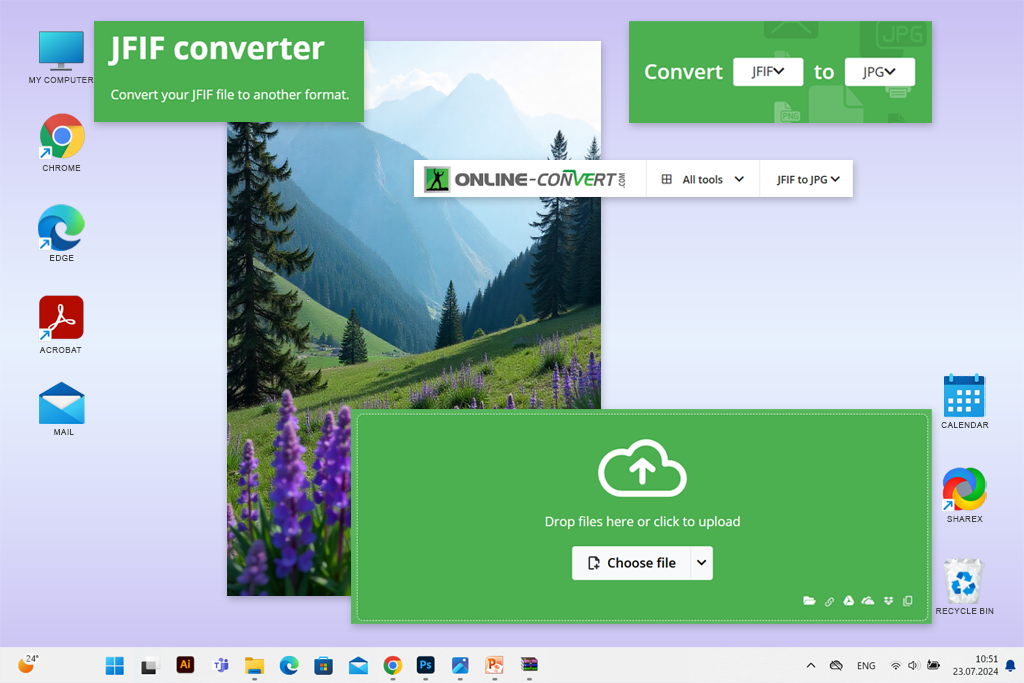
I decided to use Online-Convert when I had to quickly change a JFIF file to JPG for a casual project. This JFIF to JPG tool is very user-friendly. You just need to toss your file up, select JPG from the options, and download what comes out. Speed-wise, it handles single images or small groups without making you wait around.
The JPG files it spit out worked perfectly fine. They opened up in web browsers and standard editing tools with zero problems. The weak point is that you're not getting granular control over compression settings or keeping your metadata intact. So, it is a poor fit for professional projects where you need everything documented properly or you're preparing deliverables for paying clients.
I'd describe it as an emergency option, which is helpful when your regular tools aren't available, or you're on a random computer and just need to convert a JFIF without overthinking it.
Price: Free (with ads)
Availability: Web
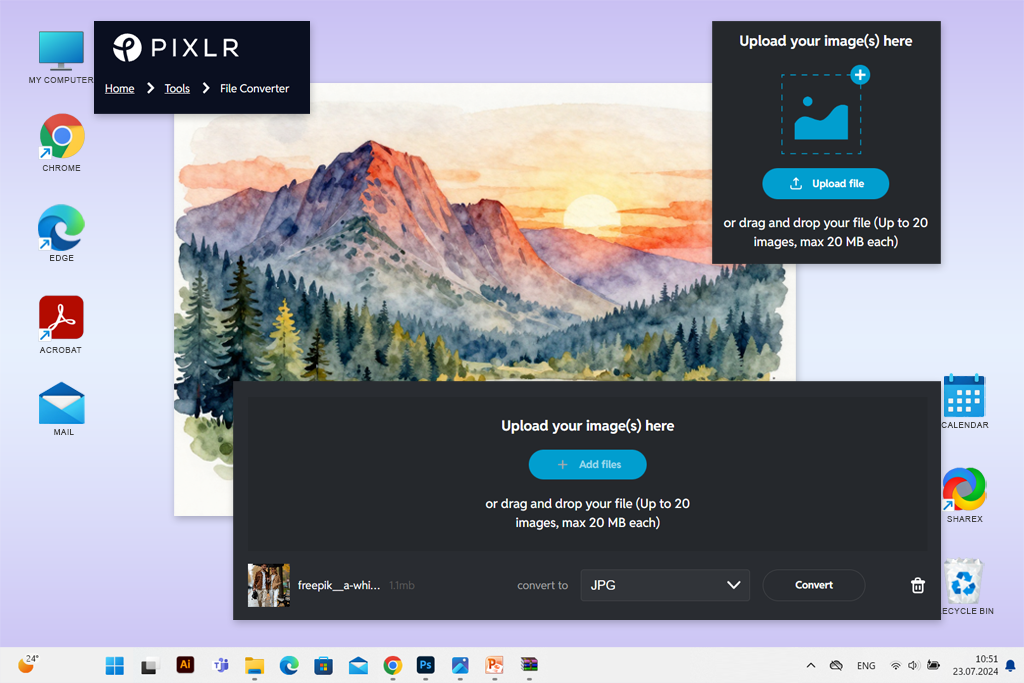
Pixlr is your go-to JFIF to JPG free converter when you're looking to change JFIF files into JPG and do some light editing on the fly. I tested it, using images for social platforms that needed minor adjustments like cropping, resizing, and switching formats. The conversion process is speedy, and the resulting JPG files hold up well for online sharing.
Still, you can’t properly control compression settings or color management, which makes it less suitable for serious professional tasks. I wouldn't use it for maintaining large image libraries at full quality or getting files ready for physical prints.
But if you're after something quick for casual edits, draft versions, or personal projects, Pixlr works nicely. It blends ease of use with simple editing features.
Price: Free
Availability: Windows, macOS, Linux
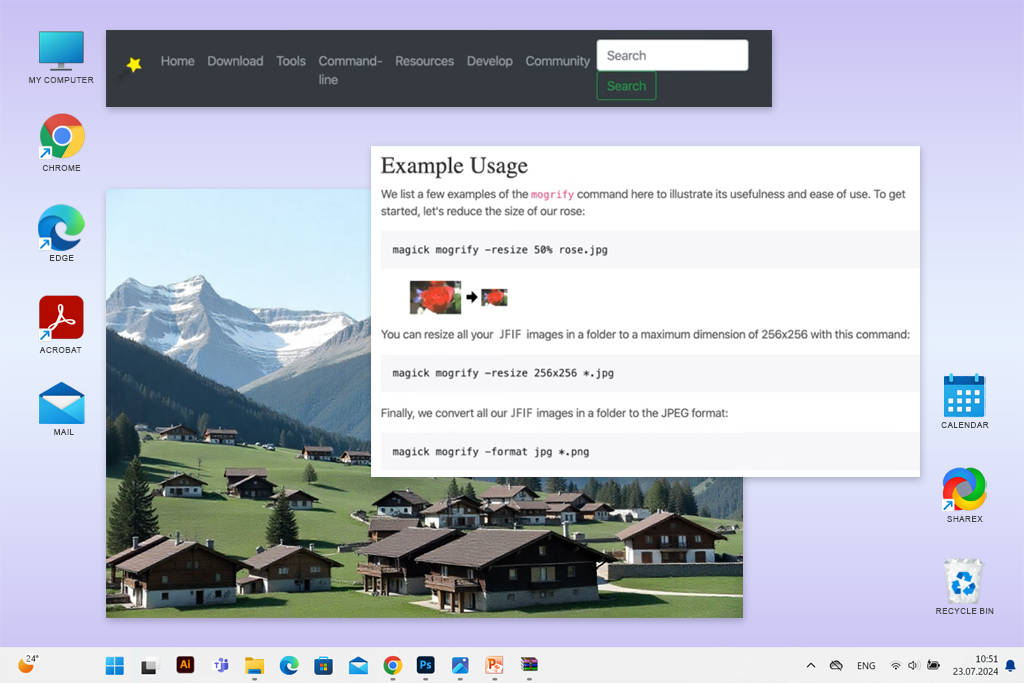
ImageMagick came in handy when I had to automatically process hundreds of JFIF files and turn them into JPGs. I set up some command-line scripts, and entire folders were converted in just seconds, with quality staying rock-solid across every single image.
What I really appreciate about ImageMagick is that it actually converts the format properly, not just changing the file extension. Plus, you can tweak compression levels, adjust resolution, mess with color profiles, whatever you need. That's why people who work with servers, automation systems, or massive image libraries often call it one of the best file converter software tools out there.
Still, this isn't for everyone. If you're not tech-savvy, this batch JFIF to JPG converter can be overwhelming. There's no pretty interface to click around in. It's all text commands. And if you type the wrong thing, you can end up with a mess.
“I like using ImageMagick when I need to convert multiple images at once. It delivers pure JPGs without spoiling quality.”

It really comes down to what you need. If you want something quick and web-based with good security, Adobe Express works great. But if you're handling lots of files at once or prefer working offline, you're better off with IrfanView, GIMP, or ImageMagick.
Yes, there are reliable free options like Adobe Express and Online-Convert that work right in your browser. Just keep in mind that if you're dealing with private files or converting lots of images, desktop software tends to be the smarter, more secure choice.
Not if you're using a decent JFIF image to JPG converter. The quality stays intact during the switch. You only run into problems when a tool sneaks in extra compression you didn't ask for.
JFIF is basically a type of JPEG, but some apps and websites get confused by the JFIF label. When you convert it to JPG, you're just making it more universally recognized. The image itself is still exactly the same.
Yep, absolutely. IrfanView, XnConvert, and ImageMagick let you handle multiple files in one go, which is handy when you have a whole folder to work through.
No problem at all. Whether you're on iPhone or Android, just use a web-based converter like Adobe Express right in your browser. Alternatively, you can take advantage of dedicated JFIF to JPG iPhone and Android apps.
Generally, yes, as long as you stick with well-known services that are upfront about how they handle your data. But if you're working with client files or anything confidential, it is better to use offline software instead. Once you've got your JPG files, they're easy to plug into other tasks too, like turning them into PDFs using any of the best JPG to PDF converters out there.
Looking for JFIF to JPG converters you can trust, the FixThePhoto team and I didn't just read reviews. We actually tested these tools with genuine client images. We used JFIF files from all the usual troublemakers, including Android smartphones, aging cameras, chat apps, and internet downloads. These are the exact formats that normally cause problems when you're just trying to view a simple picture.
Step 1: Gathering Test Images
We rounded up different types of JFIF files with various sizes, colors, and embedded information to mimic what you'd actually encounter in everyday use.
Step 2: Checking the Actual Conversion Process
We made sure each tool genuinely converts the file instead of just changing the name from .jfif to .jpg, which sounds helpful but actually creates a mess when you try opening or uploading those files.
Step 3: Quality Check
We opened every converted image in professional editing programs to examine clarity, accurate colors, weird compression issues, and whether the resolution stayed intact.
Step 4: Data Preservation & Cross-Platform Testing
We confirmed that important photo details (like EXIF data) survived the conversion, then tried opening these JPG files in browsers, website platforms, and editing apps to make sure they worked smoothly across the board.
Step 5: Bulk Processing & Performance Check
For fast JFIF to JPG converters claiming to handle multiple files, we uploaded entire folders to see how fast they worked and whether quality stayed consistent throughout.
Step 6: Ease of Use Review
We assessed how user-friendly each converter was, and whether beginner users can figure it out immediately without hunting for tutorials.
Step 7: Making the Final Decision
We selected only those converters that consistently produced clean JPG files, maintained image quality, and proved dependable for regular use.
So, this review includes top-notch converters that handle both quick one-off conversions and professional workflows equally well. They give you reliable results without sacrificing quality.





![AI Bratz Doll Filter Online [FREE]](http://fixthephoto.com/blog/images/gallery/news_main__preview_28411.png)
![9 AI Background Remover Tools [Tested with Examples]](http://fixthephoto.com/blog/images/gallery/news_main__preview_28341.jpg)
![9 Best Facebook Story Makers [Online, Desktop, iOS & Android]](http://fixthephoto.com/blog/images/gallery/news_main__preview_28495.jpg)
![Imagen AI Review from Wedding Photographer [2000+ Edits]](http://fixthephoto.com/blog/images/gallery/news_main__preview_28342.png)

















