As a project manager for a legal consulting firm, I started to search for an effective PDF to PDF/A converter after a recent audit. I discovered that most of the company’s files were in regular PDF format, which didn’t comply with standards.
I oversee sensitive documents - contracts, financial reports, and compliance records that should be stored in PDF/A. This ISO-certified standard ensures documents remain secure, unaltered, and accessible for decades, regardless of future software changes.
Facing the task of converting hundreds of documents to PDF/A, I tested 20+ PDF to PDF/A converters to streamline the process and ensure accuracy.
Since I required a dependable, intuitive solution for batch conversions without compromising document quality, I reached out to my colleagues at FixThePhoto team for their expertise.
Our investigation revealed several essential capabilities that the optimal software solution should possess:
| Aspect | PDF/A | |
|---|---|---|
|
Primary use
|
Everyday sharing and distribution
|
Long-term file preservation
|
|
Compatibility
|
✔️
|
✔️
|
|
File longevity
|
Formatting may shift over time
|
Fixed layout, guaranteed consistency
|
|
Editable content
|
Supports editing and dynamic features (e.g., links, forms)
|
Locked content to prevent alterations
|
|
Embedded features
|
Allows adding dynamic content like videos, hyperlinks, and JavaScript
|
Only static content (no dynamic features)
|
|
Compliance
|
Not ISO-compliant for archival purposes
|
ISO-compliant (e.g., PDF/A-1b, PDF/A-2b, PDF/A-3b)
|
|
Security features
|
✔️
|
❌
|
|
Use cases
|
E-books, contracts, marketing materials, forms
|
Government records, legal documents, historical archives
|
|
Integration
|
Works with most modern apps
|
Built for archival and preservation systems
|
|
File size
|
Standard PDFs may retain excess data, leading to bulkier files
|
Optimized for smaller file sizes by removing non-essential metadata
|
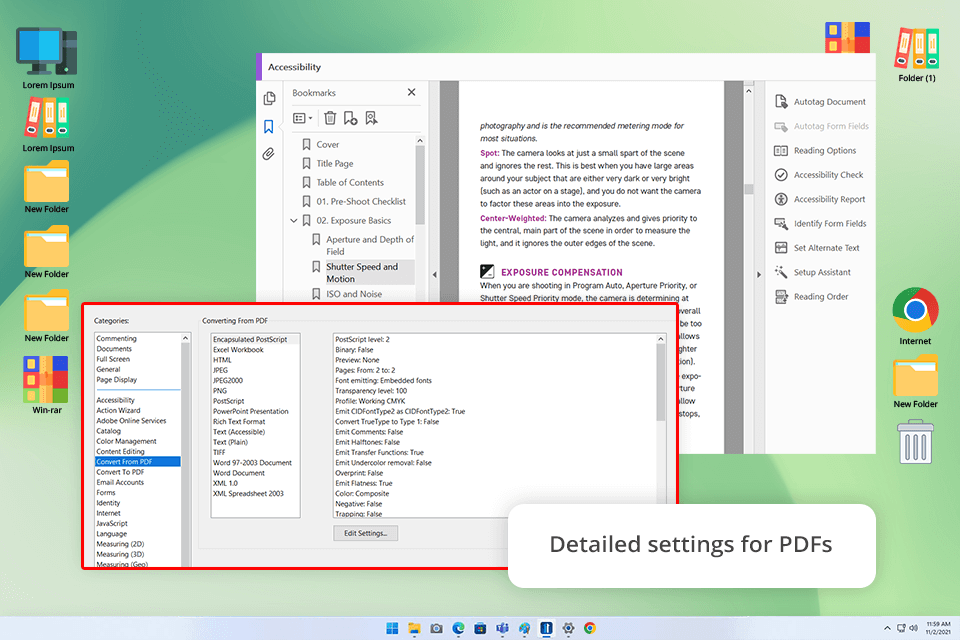
Adobe Acrobat Pro proved to be an excellent choice for converting documents to PDF/A format, thanks to its reliable performance and user-friendly features. The software made it simple to upload files with its drag-and-drop function while supporting various file types, making it easy to work with both older and newer documents alike.
Acrobat comes with a built-in preflight tool to check PDF/A compliance after file processing. It automatically detected problems like missing fonts or incorrect color profiles, making fixes quick and easy. Another feature I found incredibly helpful after downloading Adobe Acrobat was batch processing, which let me convert multiple files at once, saving me a lot of time.
Like other free Adobe products, Acrobat’s new update brings smarter AI features - now you can quickly summarize presentations, create marketing plan snapshots, and find answers in documents faster. Improvements since launch:
“I had a huge 120-page report from a client, full of complicated charts and numbers. Acrobat’s AI summarized the main points in seconds, so I could quickly review it before my meeting.”

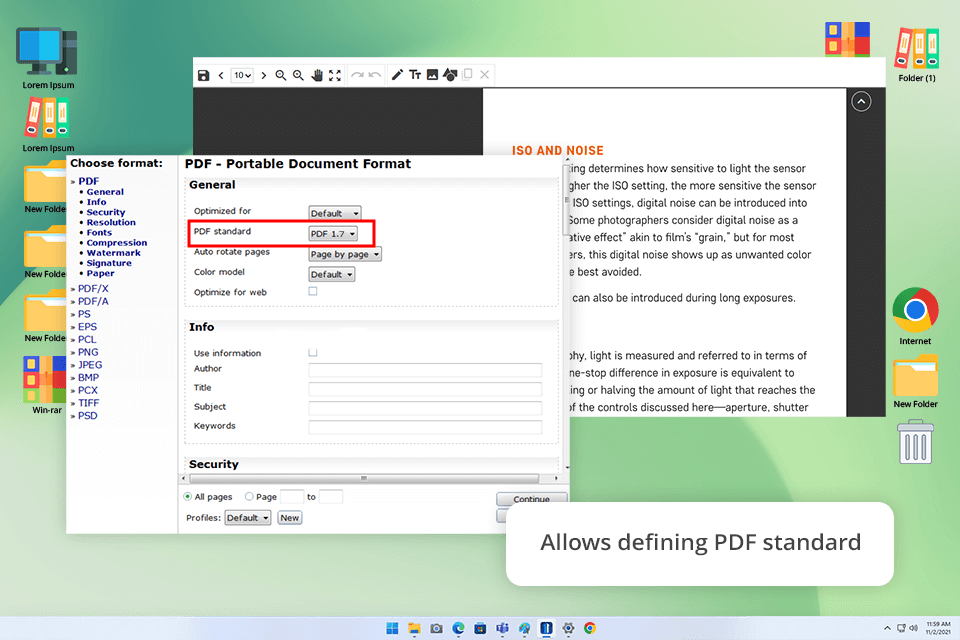
I tested PDF24 with different kinds of PDFs - from plain text files to complicated forms with pictures and interactive elements. It did a good job checking that files met basic PDF/A standards, which is useful for archiving. But it doesn’t have all the advanced checking features that more expensive online PDF to PDF/A converters offer.
This file converter software works smoothly even on older, less powerful computers, which was a real advantage for me when I used it on my outdated office laptop. Though it may not have all the advanced features of premium alternatives, PDF24 still handles basic batch conversions well, letting me process several files at once without serious slowdowns.
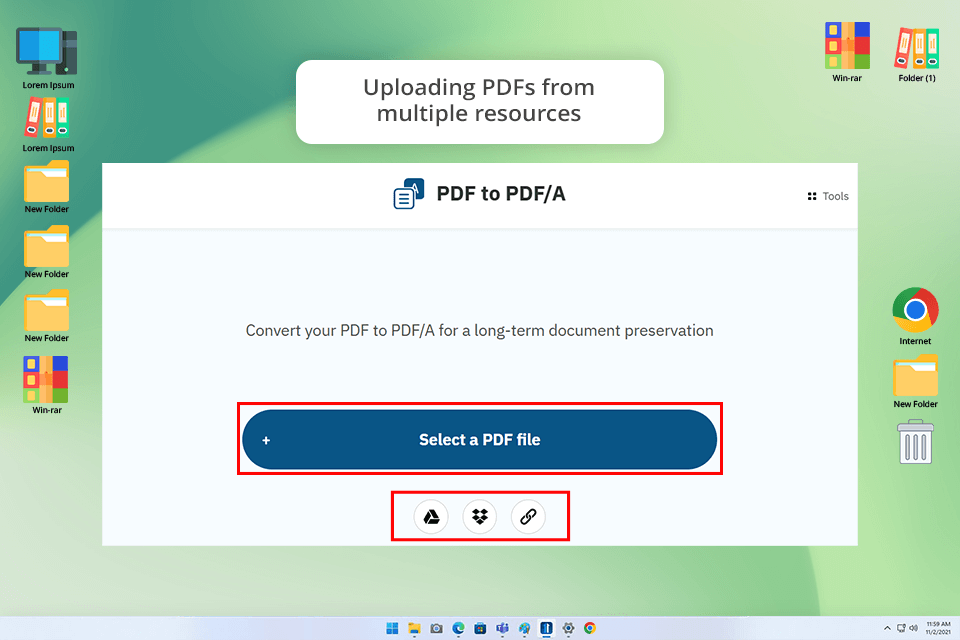
To convert PDF to PDF/A format with FreePDFConvert, I uploaded each file individually and selected the appropriate archival format, like PDF/A-1b for older docs and PDF/A-3b for newer ones.
With just a click of the “Convert” button, the transformation happened almost instantly. The speed of processing really surprised me - in just moments, every file was converted and available to download, perfectly formatted for permanent storage.
I also explored other useful tools, including file compression and password security - essential features for protecting confidential client data, similar to other well-known free PDF editors.
What I really appreciated was its web-based nature, letting me handle documents securely whether I was at my desk working on my laptop or managing files remotely through my phone.
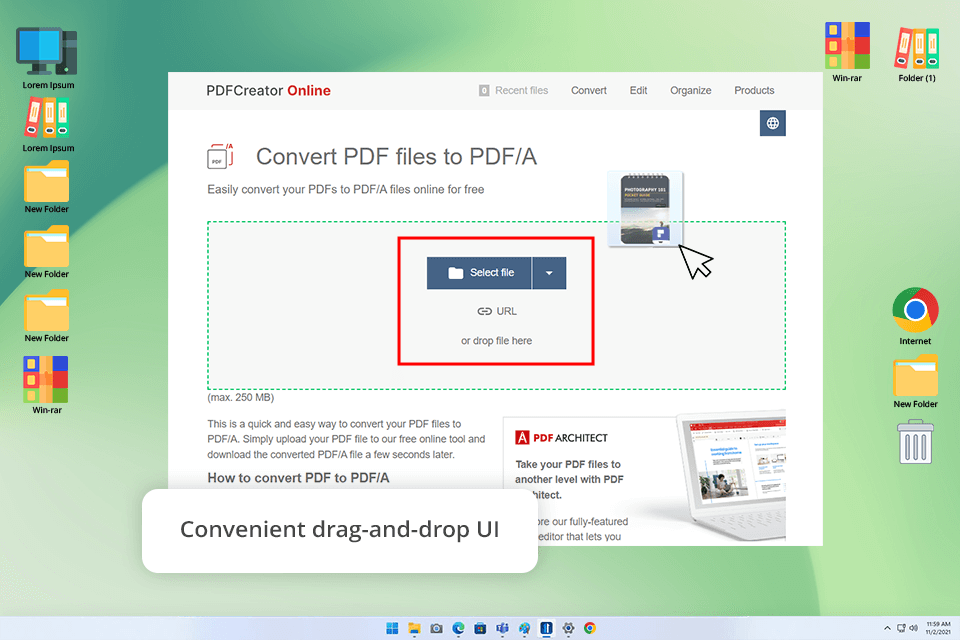
PDF Forge stands out as a fully offline desktop PDF to PDF/A converter, which is a game-changer when internet access isn’t available. Whether you need basic archiving (PDF/A-1b) or advanced features (PDF/A-3b), the tool provides the perfect PDF/A solution for any preservation need or regulation.
PDF Forge is an all-in-one PDF solution that not only converts files but also lets you compress them, embed important details, and fine-tune settings. What makes this document management software really useful is that it combines multiple tools, allowing you to edit pages, merge documents, split files, and add comments without needing separate programs.
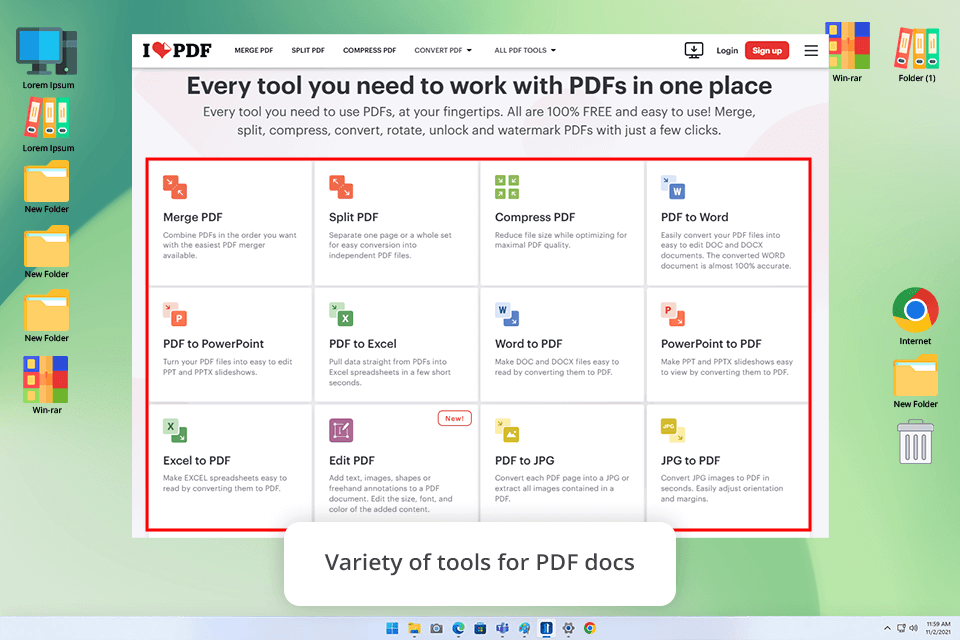
I picked iLovePDF for my test because it’s known for being user-friendly and works right in your web browser - no downloads needed. First, I uploaded some client contracts and presentation files to check how they convert regular PDFs to PDF/A format.
What I really like is how easily it connects to Google Drive and Dropbox, letting me open and save files directly from my cloud storage.
The PDF/A conversion was lightning fast, handling even large files in seconds, noticeably quicker than traditional desktop software. What makes iLovePDF truly useful is that it combines speedy conversions with a full set of additional features like file compression, document merging, PDF splitting, and security protection.
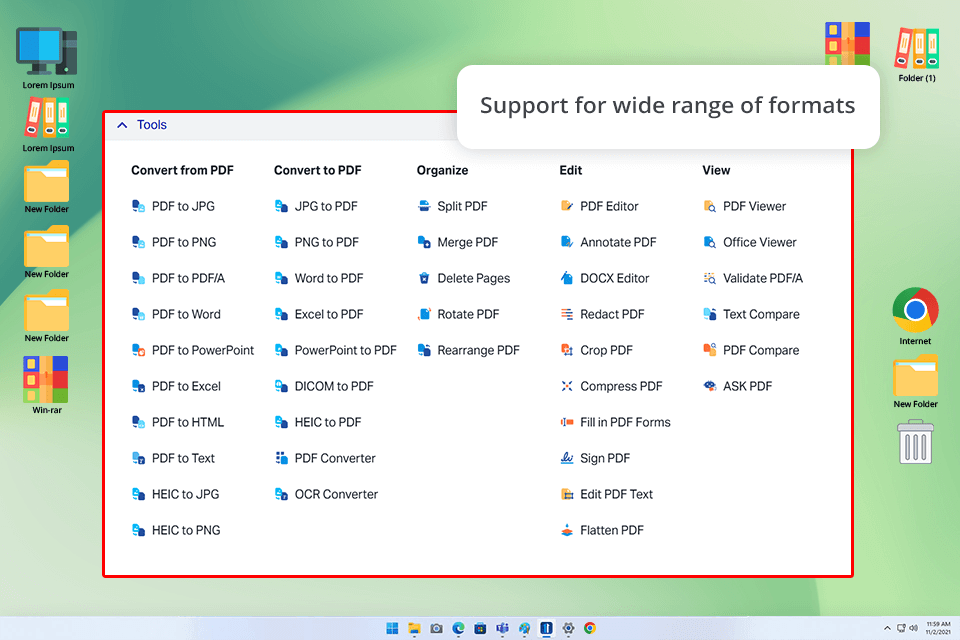
While Xodo isn’t a dedicated PDF to PDF/A converter, its powerful editing features let me easily prepare documents for archiving by correcting file details and embedding fonts. What really surprised me was how effortlessly the app handled annotations and kept everything in sync across devices, even without built-in PDF/A support.
I like how Xodo keeps my work perfectly synced between my laptop and phone, enabling me to switch devices seamlessly with no break in his workflow. The seamless collaboration features meant my team and I could edit and comment on shared documents live, eliminating the need for extra PDF annotation tools for iPad.
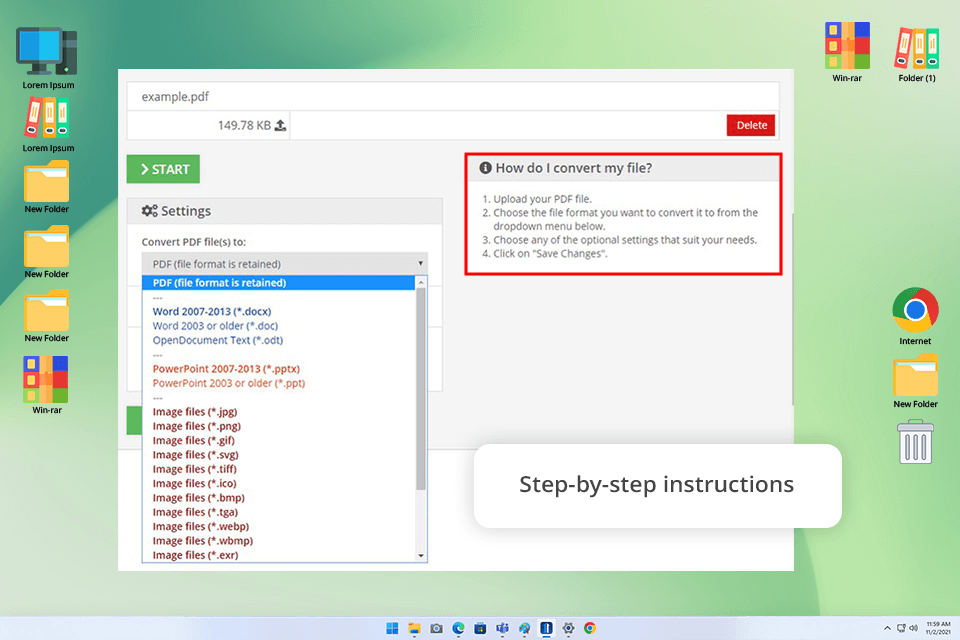
I put PDF2Go to the test by converting complex documents, including multi-page marketing reports with embedded visuals and tables, to assess its full capabilities. With support for PDF/A-1b, PDF/A-2b, and PDF/A-3b conformance levels, I was able to pick the optimal standard for my archiving requirements.
PDF2Go is more than just a PDF to PDF/A converter, as it also includes handy tools for compressing files and adding password protection, making document archiving both secure and efficient.
What’s great is that even the free version covers all the basics, including PDF to PDF/A conversion, which worked perfectly for my needs. After testing it thoroughly, I’d definitely recommend it as a solid Adobe Acrobat alternative.
Before starting the testing process, we identified the key features users care about when choosing a PDF to PDF/A converter. Here’s what we focused on:
To ensure fair and thorough testing, we prepared a variety of sample PDF documents including:
We carefully analyzed each software by comparing their performance in key areas. The most important factor was conversion accuracy – whether fonts, images, and formatting remained intact after processing.
We also paid close attention to how user-friendly each program was. Beyond basic conversion, we examined additional features like file compression, editing tools, and security options.





![Stable Diffusion Alternatives [1 Prompt – 9 Competitors]](http://fixthephoto.com/blog/images/gallery/news_main__preview_28384.jpg)

![AI Bratz Doll Filter Online [FREE]](http://fixthephoto.com/blog/images/gallery/news_main__preview_28411.png)
![9 Best AI Headshot Generators [{{%year}} FixThePhoto Choice]](http://fixthephoto.com/blog/images/gallery/news_main__preview_28142.jpg)
![9 AI Background Remover Tools [Tested with Examples]](http://fixthephoto.com/blog/images/gallery/news_main__preview_28341.jpg)



















