A TXT to PDF converter became very important in my daily work when I realized my notes were getting messy and hard to manage.
As a project manager at FixThePhoto, I’m always jotting things down throughout the day - short call summaries, ideas for app features, or quick thoughts that come up between meetings. I might use my iPhone, an Android tablet, or my laptop, depending on where I am. Most of these notes are saved as simple .txt files because they’re easy to create, load quickly, and work on any device.
Plain TXT files have clear benefits. They open right away, keep their structure across different devices, work without an internet connection, and don’t tie you to one platform. I can access the same file on iOS, Android, Windows, or macOS with no compatibility issues. For fast note-taking, they’re hard to beat.
However, the moment those notes have to be shared with others, TXT files become a problem. They don’t allow proper comments, highlights, or decision notes. Keeping track of changes quickly turns into a mess. The files also look informal when shared, and security is nearly zero - there are no passwords, no access rules, and no real control over what happens to the file afterward.
That’s the main reason I began turning my notes into PDF files. PDF helps me keep the layout intact, add comments and highlights, secure the content, and share documents safely with teammates, clients, and developers without worrying about accidental changes or missing information.
So, I decided to turn this personal issue into a real test. I spoke with my coworkers, looked at recommendations on Reddit, and then induced our team to test 25+ TXT to PDF converters, including online, desktop, and mobile apps. The goal was straightforward: to find options that don’t just work for me, but for anyone who depends on text notes every day.
Before starting the tests, I set clear requirements. For my workflow, a solid converter had to provide:
Many TXT to PDF conversion tools on this list let you convert files for free and also save them in other file formats. If you need converters with more advanced features, check out the options listed below.
At first, changing a TXT file to PDF might seem like an extra step. Plain text files are simple, work everywhere, and are small. But after years of handling projects and documents, I’ve realized that this simplicity starts to get in the way as soon as you need to work with others.
Issues with only using TXT files:
Why PDF files work better:
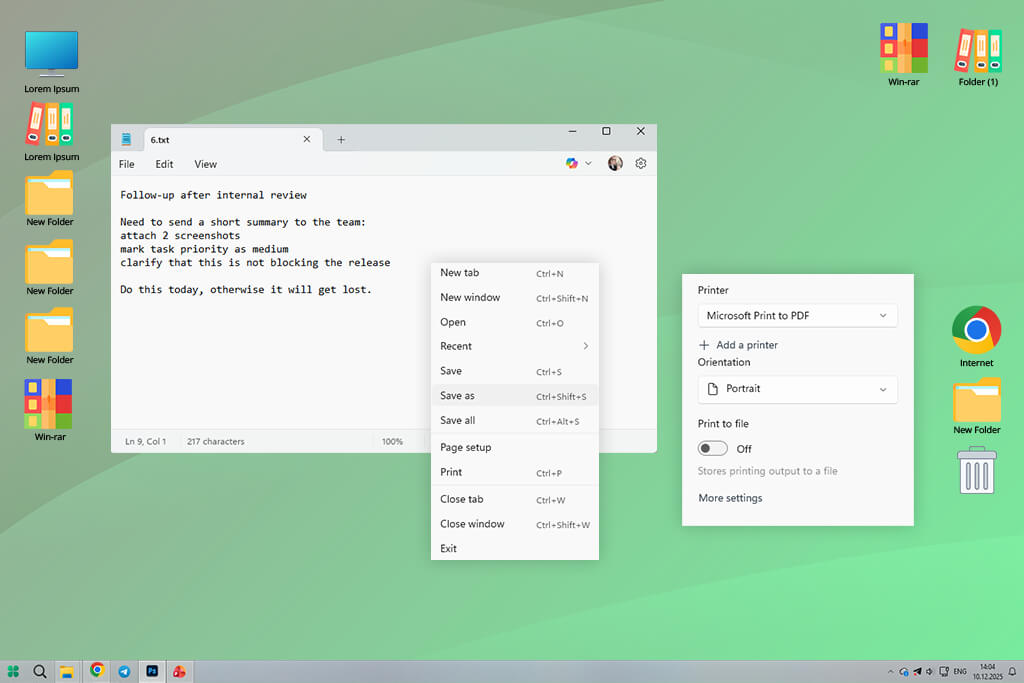
Yes, you can convert a TXT file by hand. One way is to open it in a program like Word or Google Docs and choose “Save as PDF.” I’ve done this many times. It does work, but it’s not the best solution. The main downsides of doing it this way are:
In contrast, a tool made specifically for converting TXT to PDF saves a lot of time - especially when you need to convert many files every week.
I had a folder of simple text notes from various sources - meeting minutes, feedback lists, and quick bug reports. Using the TXT to PDF converter of Adobe Acrobat, I turned them all into PDFs at once. I then added notes for the developers, highlighted the most important problems, and password-protected the files before sending them to an outside testing team.
What surprised me the most was how much neater and more organized those notes seemed after converting them. The information was the same, but people used and shared it in a much better way.
Here’s a simple summary: TXT files are best for writing ideas down. PDFs are better for using those ideas to make things happen.
Platform compatibility: Windows, macOS, Web
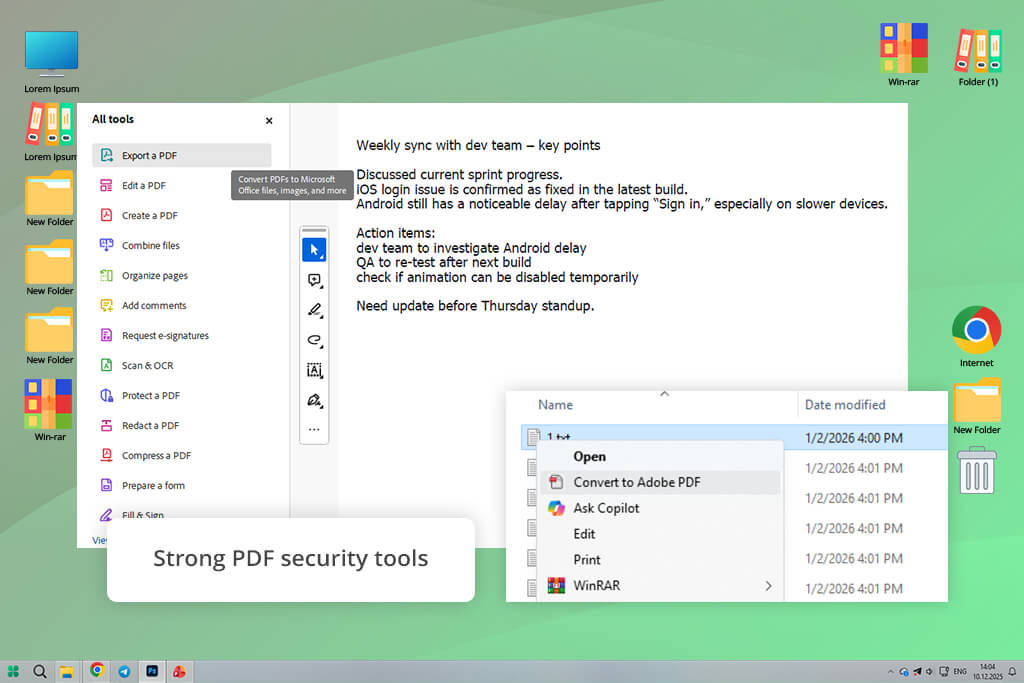
I’ve worked with Adobe tools for many years, so Adobe Acrobat wasn’t unfamiliar to me. I usually used it for PDFs created from Word files, InDesign projects, or scanned papers, and for a long time, I didn’t really think of it as a tool for converting TXT files to PDF.
What I noticed right away was how stable and controlled the conversion process felt. Since TXT files have no formatting, Acrobat doesn’t try to add anything extra. It keeps spacing, line breaks, and text encoding exactly as they are, which is especially important when my notes include timestamps, list-style formatting, or copied logs from tools like Slack and Jira.
“I liked how easily TXT-to-PDF conversion fits into the overall workflow, letting me combine files, reorder pages, and export clean PDFs for clients.”

Batch conversion worked perfectly. I added a full folder of sprint notes and meeting logs, and Acrobat converted everything at once with no errors or formatting issues.
What really makes Acrobat stand out for me is everything that comes after the conversion. I can right away add comments, highlight important decisions, leave notes for teammates, and set passwords or access limits before sending files outside the team. Most online tools just can’t offer this level of professional control.
That said, Acrobat isn’t ideal for fast, one-time conversions. It’s clearly made for users who need more than just a basic “convert and save” solution.
Pricing: Free: limited tools; From $23/mo; From $240/year
Platform compatibility: Windows, macOS
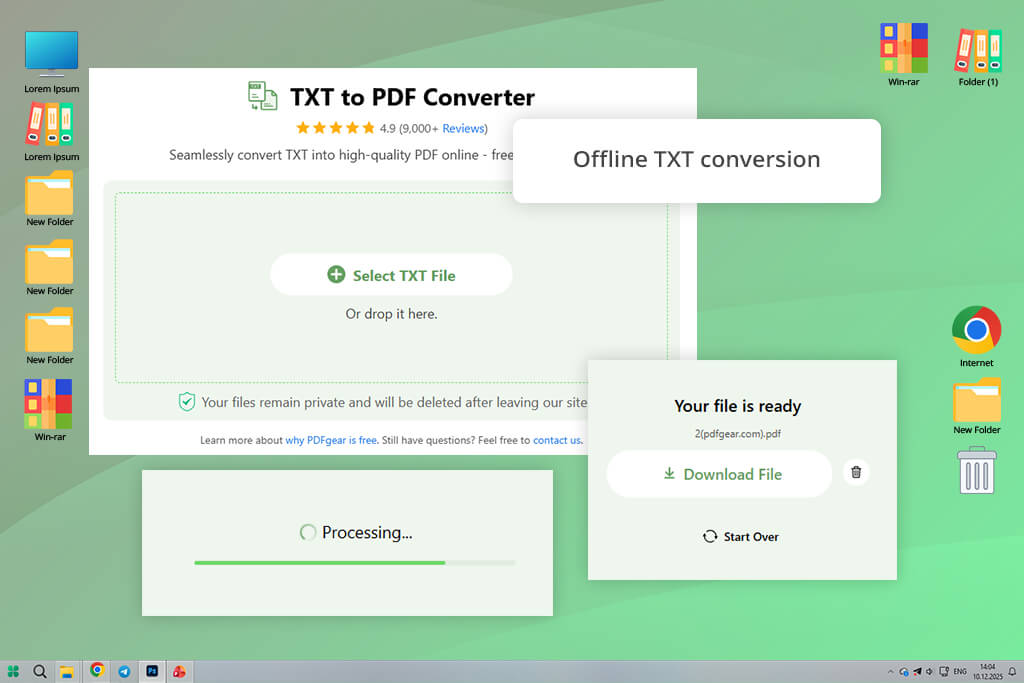
I first came across PDFgear on Reddit while reading discussions about free file converter software that don’t add watermarks or hide features behind heavy paywalls. PDFgear is built to be fast and easy to use.
I tried it with plain TXT files from mobile note apps, code-style text, and long meeting records. The conversion was quick, neat, and reliable. Line breaks stayed exactly where they should, and the resulting PDFs didn’t look low-quality or auto-generated. That’s surprisingly good for a free desktop tool.
“Even though its annotation and security features aren’t as advanced as Acrobat’s, they’re still sufficient for internal sharing and storing files.”

What sets PDFgear apart is how much it can do without an internet connection. I often work while traveling or with unstable internet, and being able to convert TXT files to PDF locally without uploading anything is a big advantage. Batch conversion is also included and works smoothly, even with large folders.
I reached for PDFgear when I needed fast results, especially on my laptop, with no logins or file restrictions. This easy TXT to PDF converter is a solid option for freelancers, students, and teams who don’t need full-scale PDF control but still want clean, reliable output.
Pricing: Free
Platform compatibility: Web (all devices)
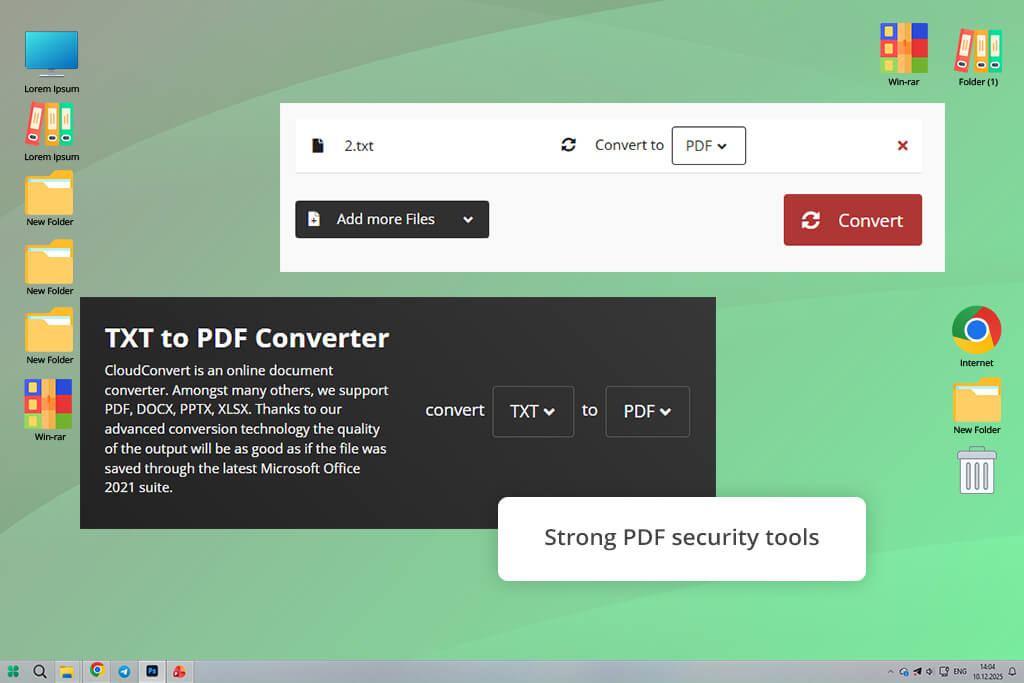
I heard about CloudConvert from a coworker on our FixThePhoto team. She works with many different file types for clients and calls it her go-to tool when switching between computers. Since CloudConvert works entirely in a web browser, I tested it with one main question: how dependable is it when I use it on my laptop, phone, and tablet?
I tested TXT files from different devices - meeting notes, app exports, and long brainstorming drafts - and the consistency really stood out. Spacing, line breaks, and text encoding remained correct, even with files that usually fail in simpler online converters.
“It works well for one-time conversions when security is important. Files are processed and then automatically deleted, which made me feel safer using it.”

CloudConvert stands out because it lets you adjust the conversion settings. You can change the page size, margins, font, and layout before turning the file into a PDF - a level of control you don’t often find in online TXT to PDF converters. This allowed me to turn basic text into pro-looking PDFs that felt ready to share, not just changed from one format to another.
Converting many files at once also worked perfectly. The drawback is that it can be slow with very large sets of files, and you must be connected to the internet. Even so, for a web-based tool, it’s one of the most reliable I’ve tried.
Pricing: Free: limited daily conversions; From $9/mo; From $89/year
Platform compatibility: Web (all platforms)
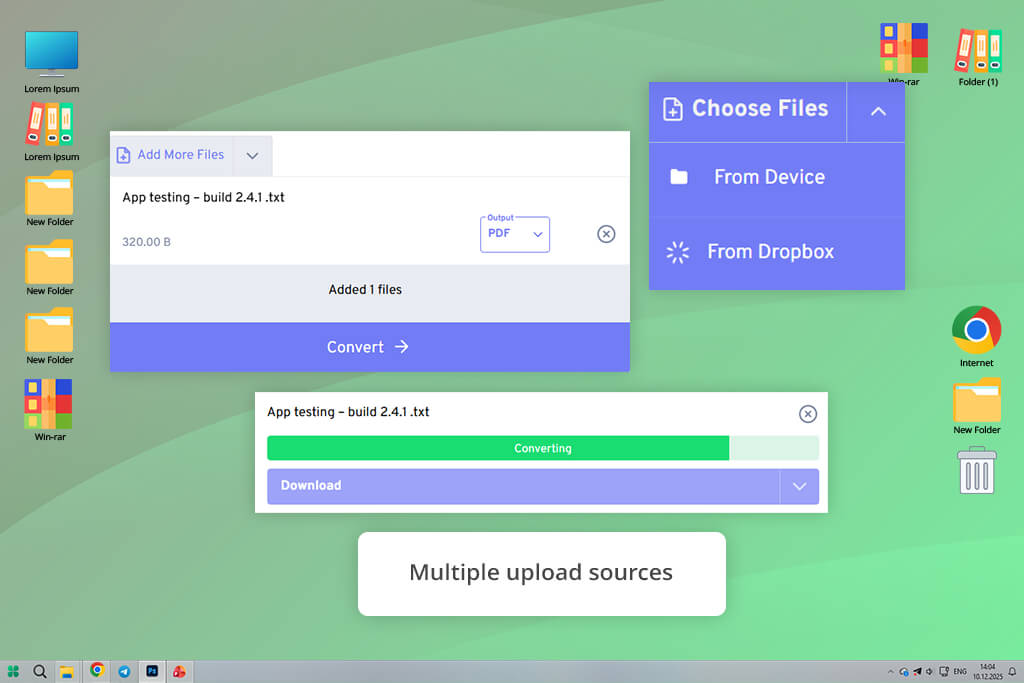
FreeConvert was hard to miss since it regularly appears at the top of Google search results. The biggest advantage of this TXT to PDF software is how smooth and simple the process is. You upload a TXT file, click convert, and download the PDF - no learning or setup required.
For fast conversions, especially when I’m rushed or helping a teammate who needs a file finished immediately, this simplicity really helps. It worked well with my basic text notes, keeping the text clear and the pages tidy.
“For private or internal files, I’d still choose a desktop app. But for quick, simple conversions in a browser, it does exactly what you expect.”

What stood out to me was the variety of input options. I could upload TXT files from my device, cloud storage, or simply paste text into the tool. This is handy when notes are stored in different places. Batch conversion is supported, but the limits are more restrictive than with some alternatives.
That said, FreeConvert is clearly meant for simple tasks. It offers very little control over layout and doesn’t include advanced security options.
Pricing: Free: size & usage limits; From $12/mo; From $99/year
Platform compatibility: Web, Desktop
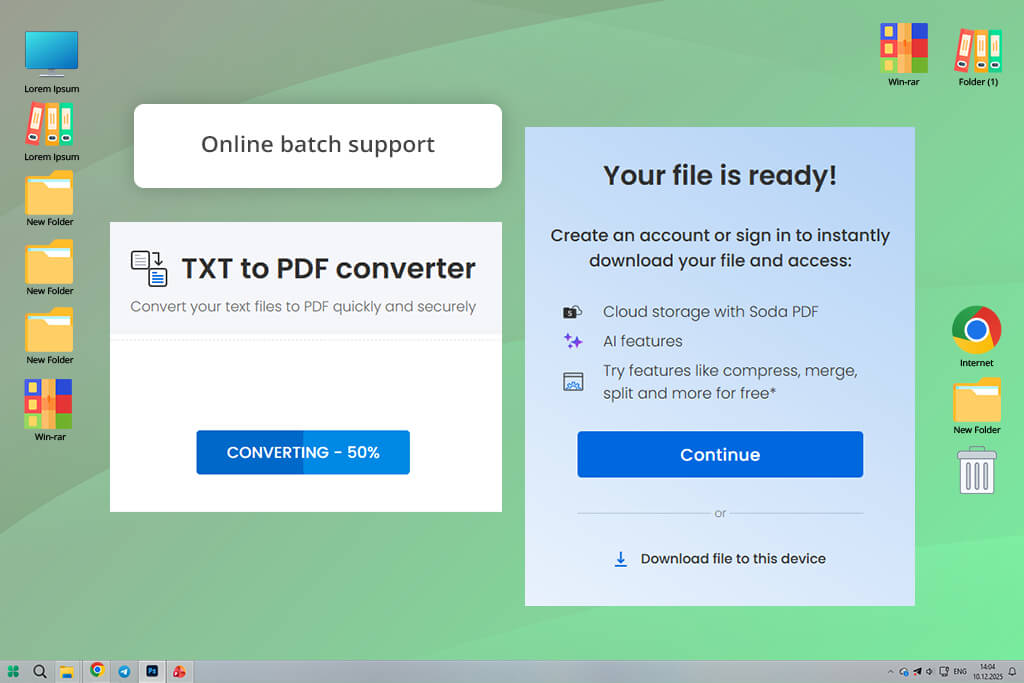
I learned about Soda PDF from a teammate who regularly prepares files for outside partners and needs fast security options. This TXT to PDF converter feels like a balanced choice between full desktop software and simple online tools.
I uploaded plain TXT notes from sprint planning and daily standups, and the resulting PDFs were clear and easy to read. What really stood out was how quickly I could secure the files after conversion - adding passwords and limiting edits right in the browser. This is especially helpful when notes contain internal decisions or timelines.
“I use Soda PDF when I need to turn text into a PDF and share it outside the team right away with basic security. For this kind of task, it’s the most suitable option.”

Batch conversion works online, and the interface is so clear that it’s difficult to make errors. Unlike simpler tools, this free PDF editor maintains consistent spacing, which is especially important for lists and timestamps.
The main drawback is limited customization. You don’t get the same level of layout control as CloudConvert or the advanced editing features of Acrobat. Still, for secure and simple sharing, it works well.
Pricing: Free: ads, limits; From $12/mo; From $120/year
Platform compatibility: Android
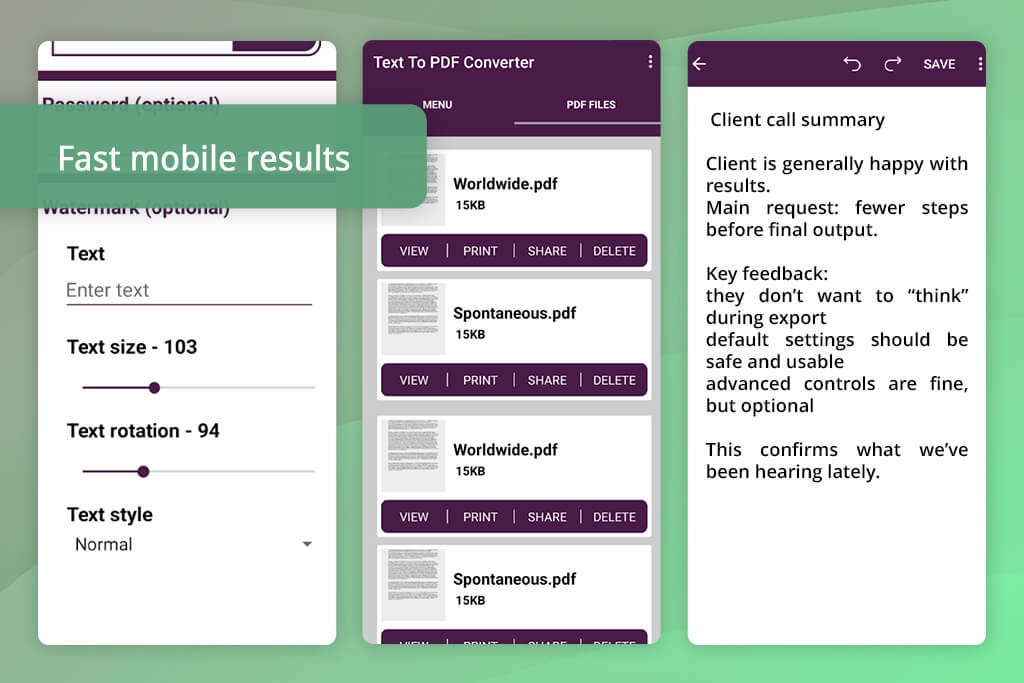
I came across this app while checking highly rated tools on Google Play, specifically searching for a TXT to PDF app that runs entirely on Android. While testing it, I used it as an on-the-go tool -something useful between meetings or while traveling.
“The PDFs are basic but easy to read, which makes them good for quick sharing or storage. There are no advanced annotations or security features, but that isn’t what this app is meant for.”

The app is easy to use: you pick a TXT file, adjust a few simple options, and start the conversion. What stood out was how reliably it handled long notes copied from mobile apps. It didn’t crash or cut off text, which is common with lightweight mobile tools. It also supports batch conversion, which helped me convert multiple daily logs in one go and save time.
Pricing: Free with ads; in-app purchases from $1.99
Platform compatibility: iOS
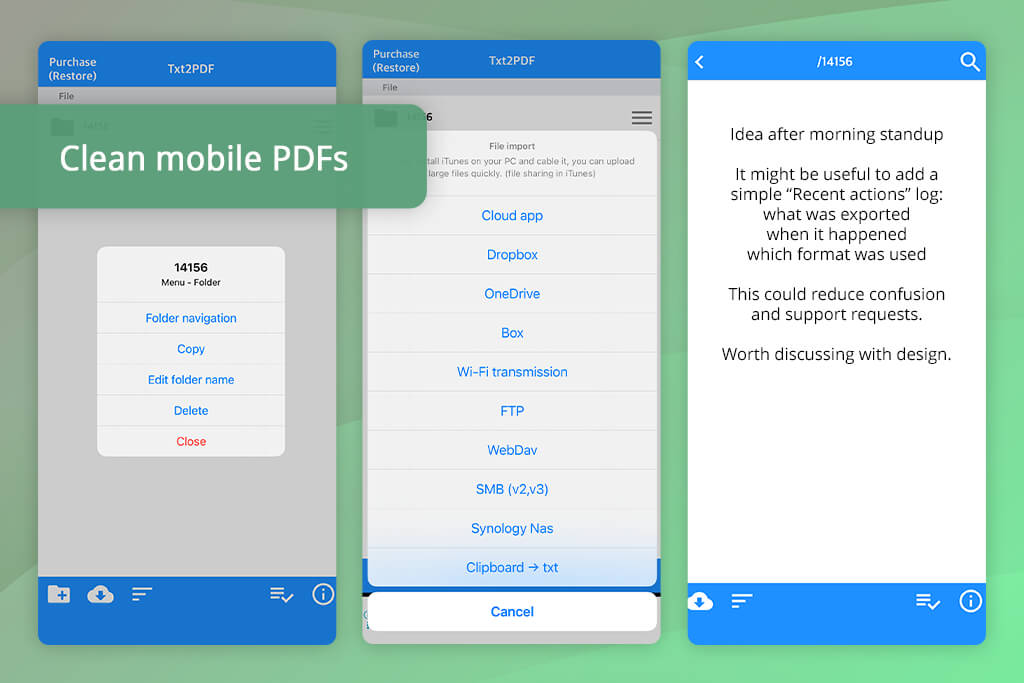
I found Txt2pdf while browsing highly rated tools in the App Store and tested it mainly for converting notes on an iPhone. The app is built to be fast and requires very little effort to turn TXT files into PDFs.
“I use Txt2pdf when I need to quickly send a neat document right after a call. It’s not meant for complex document handling, but for fast and dependable conversion on a phone; it works perfectly.”

Txt2pdf is most useful when your notes are already stored on your phone - such as exports from Notes or Drafts, or downloaded TXT files. This TXT to PDF converter for PC processes files almost immediately, and it keeps paragraphs structured more cleanly than many other mobile apps.
I also liked being able to adjust margins and page orientation, which helped the final PDFs look more polished and less like they were made on a phone.
Pricing: Free; in-app purchases from $1.99
As the project manager at FixThePhoto, I test tools exactly how I use them in real work. For this review, I worked with my colleagues from FixThePhoto team (the designers, editors, and other project managers who also use notes and docs every day). Together, we took my messy everyday text files and turned them into an organized way of testing.
Our goal wasn’t just to find tools that sounded powerful. We wanted the TXT to PDF software to actually work in real situations, like when you’re taking quick notes, handling private info, converting lots of files, or moving between your computer and phone.
The process started with choosing the tools. I collected suggestions from teammates, Reddit discussions, YouTube reviews, and apps I had already tried before. Altogether, we tested more than 25 TXT to PDF converters, including online tools, desktop programs, and mobile apps. Any options that felt outdated, poorly maintained, or filled with ads were removed early on.
I personally tested each shortlisted tool using the same group of TXT files. These included short meeting notes from my iPhone, longer sprint logs from my laptop, exported notes from apps, and messy text files with timestamps and lists.
I carefully checked how each converter handled formatting, line breaks, text encoding, and large files. Batch conversion was essential - any tool that failed at this got lower scores.
Some tools didn’t make the final list. PDF2Go had problems with consistent formatting and strict limits. Online2PDF felt slow and confusing for daily use. FreePDFConvert put batch conversion behind heavy paywalls. Convertio slowed down larger tasks, and Smallpdf felt too expensive for simple conversions. None of these was terrible, but they didn’t fully fit what our team really needs.
In addition to conversion quality, we checked speed, ease of use, security, and clarity. Tools that required signups, didn’t explain what happened to files, or failed during batch jobs were rated lower. We gave extra points to converters that fit well into everyday workflows like editing, sharing, protecting, or saving PDFs.





![9 Best Video Delivery Platforms [Simple & Free]](http://fixthephoto.com/blog/images/gallery/news_main__preview_28433.jpg)


![Wes Anderson Photo Filter Online [FREE]](http://fixthephoto.com/blog/images/gallery/news_main__preview_28397.jpg)
![7 Best AI Wallpaper Generator Tools in {{%year}} [Reviewed & Tested]](http://fixthephoto.com/blog/images/gallery/news_main__preview_28192.jpg)
![9 AI Background Remover Tools [Tested with Examples]](http://fixthephoto.com/blog/images/gallery/news_main__preview_28341.jpg)


















