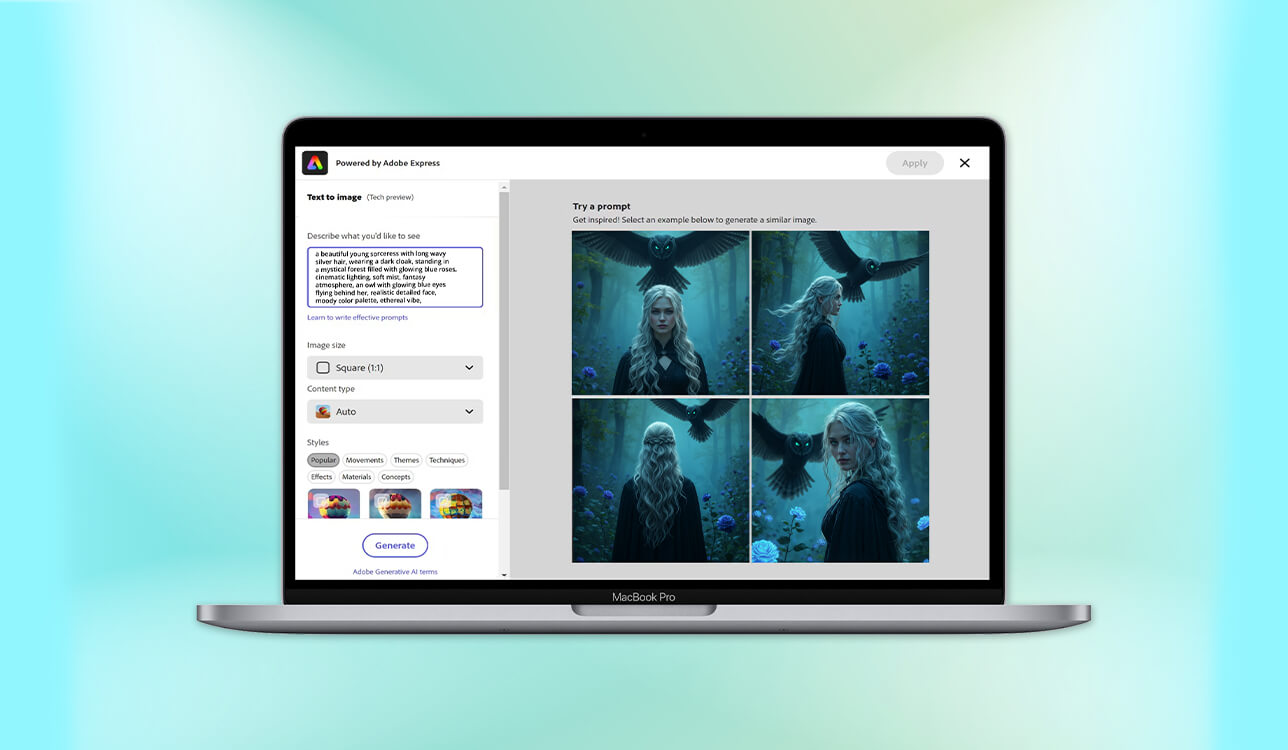
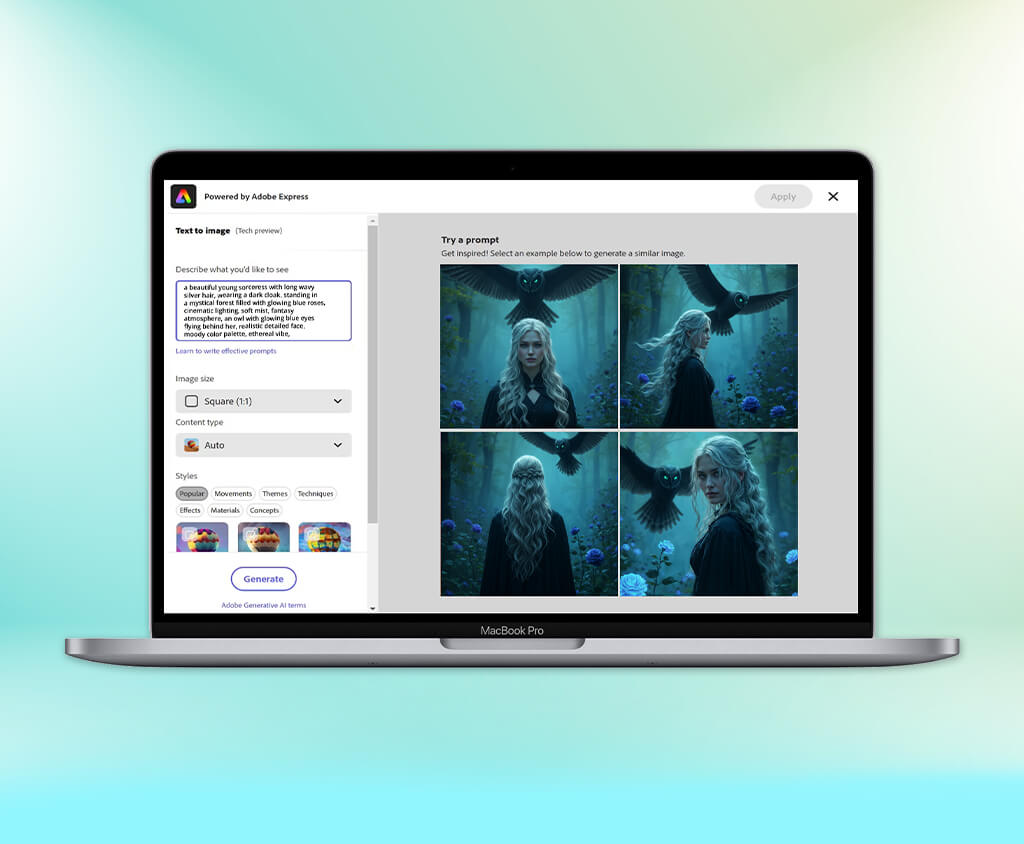
It began as a small thought - I wanted a wallpaper that actually reflected my creative mood. Standard stock images looked too plain, so I decided to try AI wallpaper generator tools to see if they could produce something more personal and inspiring.
At the beginning, it seemed almost unbelievable - you enter a short prompt and within moments the AI generates whole scenes, anything from soft abstract backgrounds to dramatic, movie-like vistas. But after trying more tools, the differences became obvious. Some apps produced stunning clarity and depth, while others resulted in low resolution, warped shapes, or messy color transitions that made the images unusable for serious creative work.
So I took a deep dive. Over several weeks, I tested over 15 AI wallpaper generator tools, closely evaluating image quality, style controls, and creative flexibility. My goal was to figure out which tools could genuinely generate usable results - not only for phone or desktop backgrounds, but also for real design work and photo-based projects.
When I first began making AI wallpapers, I quickly learned that the real secret to great results isn’t only the software - it’s how you describe what you want. If your prompt is too general, the output looks bland. But when the prompt is clear and detailed, even a simple concept can turn into a polished, professional-looking design. As I continued experimenting, I came up with techniques that consistently help me get the best results from any AI wallpaper generator.
Price: Free (5GB storage, limited assets) or $9.99/per month
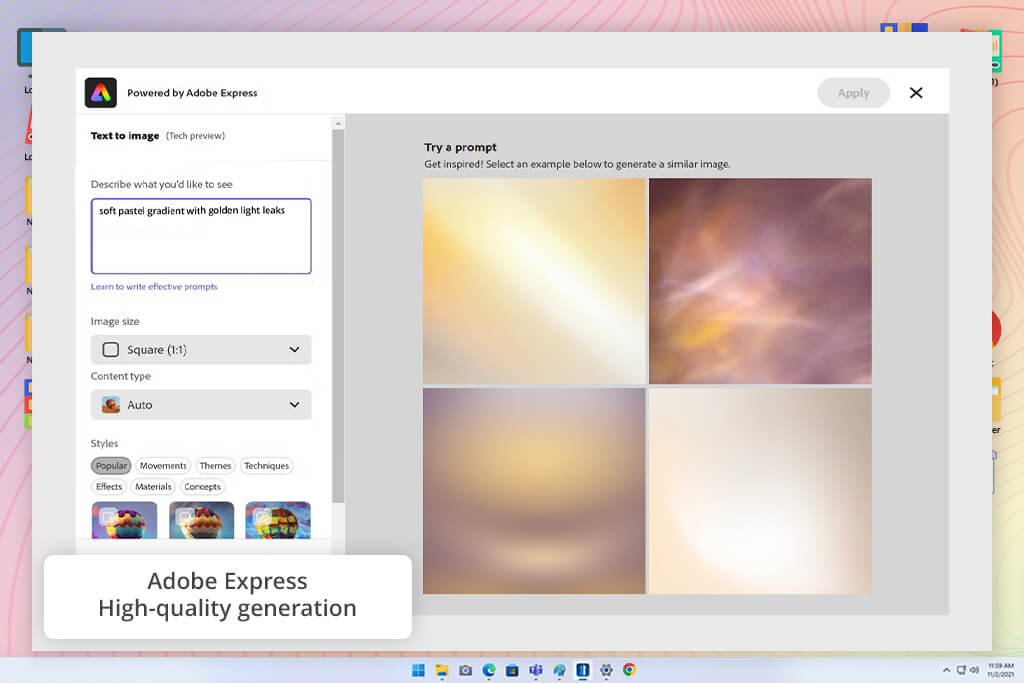
When I launched Adobe Express after the recent update, I didn’t plan on staying in it for long, but I ended up experimenting for hours. The Firefly-based wallpaper generator can take even basic prompt ideas and turn them into clean, detailed images, so I kept pushing it to see what it was capable of.
The workflow was really smooth and easy to understand. I began with a very basic prompt: “soft pastel gradient with warm golden highlights.” In just a few seconds, Adobe Express produced four different versions that looked clean and stylish. I also liked how quickly I could adjust each one to fit either a phone or a desktop screen without losing clarity. And since the app is connected to Adobe’s editing tools, I could fine-tune the brightness, crop the image, or add gentle filters right there - no need to open Photoshop at all.
“Great for creating neat, high-resolution wallpapers quickly, with very little touch-up needed afterward.”

Next, I tried something more advanced. I added a few of my own images to test how well the AI could match colors and layout. The output was unexpectedly accurate - the style stayed consistent, and the details looked sharp. The recent update clearly improved speed and how well the AI understands prompts, especially when creating textured or nature-inspired backgrounds. Overall, it made the whole process easier: I could create, edit, and save finished wallpapers in just a few minutes.
I liked that I could do everything without leaving Adobe Express - no extra apps, no constant exporting. However, ai wallpaper creator not perfect. Sometimes more artistic prompts came out overly detailed or used colors I didn’t expect. Also, adjusting small things like depth or light placement can feel a bit restricted. But these are small issues and can be corrected later during editing.
Price: Free (limited generative credits) or $9.99/per month
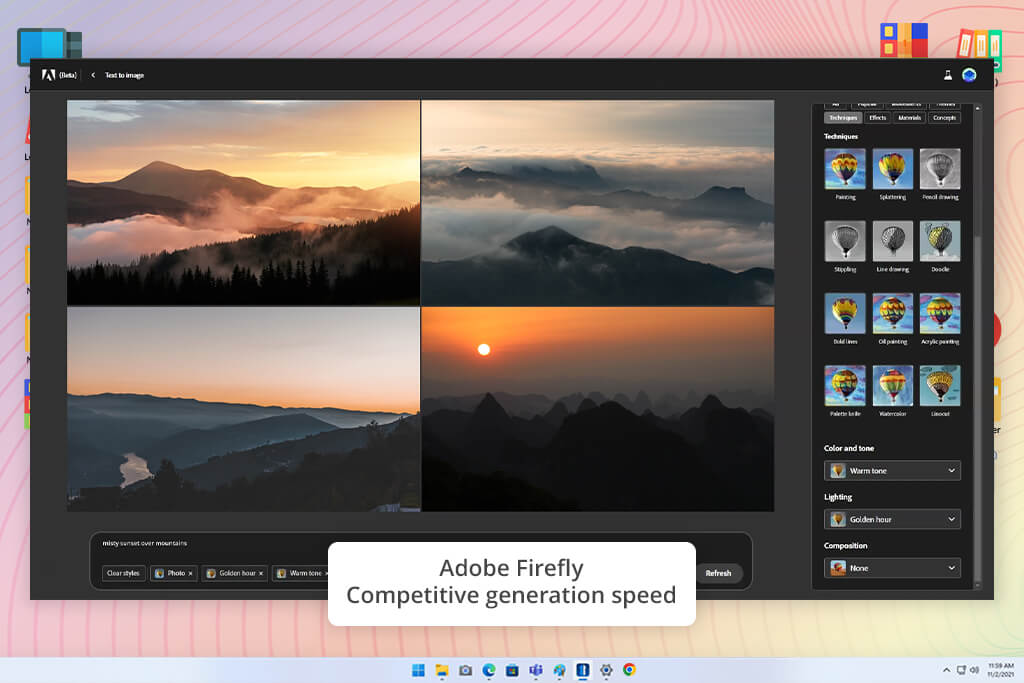
When I tested Adobe Firefly for making wallpapers, I tried both its Text-to-Image and Image-to-Image features, playing around with natural scenes and more abstract designs. Every prompt - whether it was “foggy mountains at sunset” or “simple gold and beige geometric pattern” - produced four different versions.
The “Show Similar” button was especially helpful because it let me explore close variations without having to rewrite the prompt each time. Along with image generation, AI desktop wallpaper generator also provides tools like Generative Fill, Generative Expand, Text Effects, and Template Generation, which make it easy to refine and customize the final result.
I also tried the image-to-image option, where I uploaded one picture for style and another for composition. This is where Firefly really stood out - it managed lighting, colors, and depth very naturally, and the results looked smooth and well-balanced. If something needed fixing, I just used Generative Fill to remove unwanted elements or expand the image, without switching tools. The whole process felt unified: create the wallpaper, adjust it, and finalize it - all in the same place.
What stood out to me most about this AI image generator was how natural the images began to look after the recent update. The textures became cleaner, the lighting looked more believable, and the AI seemed to understand artistic details better, like matching colors and creating depth in the scene. It also got faster, letting me view more variations right away, which made testing different ideas really easy. The only drawback is that you can’t tell the AI what not to include in the image.
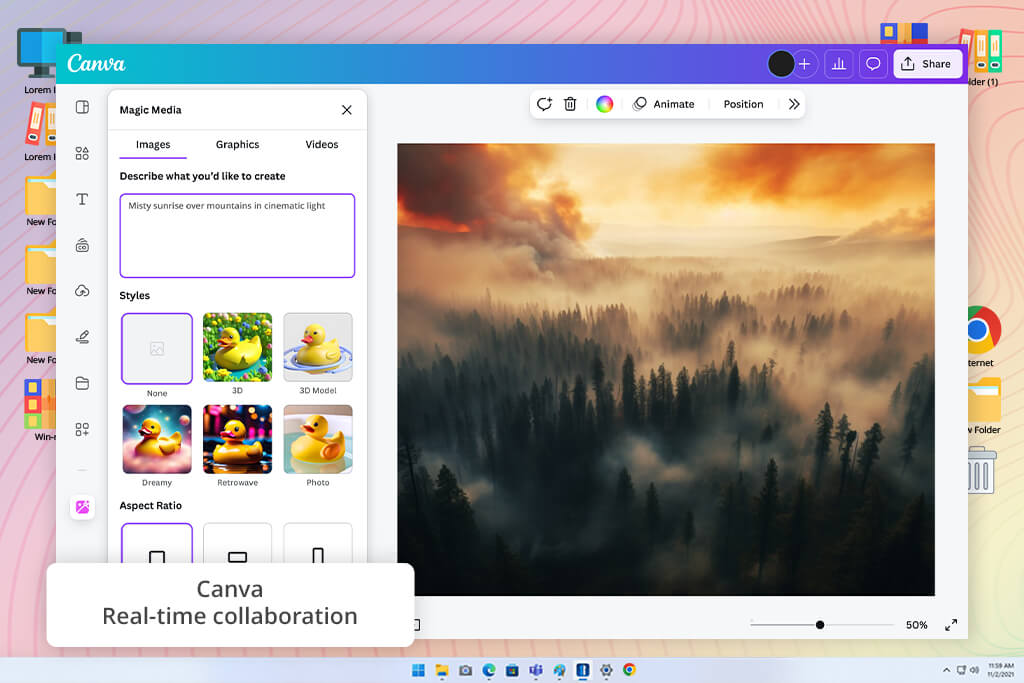
Price: Free or from $15/mo.
When I first experimented with Canva’s AI wallpaper generator, I was curious whether a design-focused tool could create images realistic enough for my work at FixThePhoto. I tried Magic Media™ with prompts like “soft sunrise in the mountains with cinematic lighting” and “neutral minimalist texture for a desk setup.” In just a few seconds, Canva produced four neat and well-balanced versions.
The built-in size presets also helped keep the images from getting stretched or distorted - something that often happens in other AI software.
“Canva’s AI wallpaper creator is easy to use and works well for different styles. However, highly detailed wallpapers may need a bit of extra editing to clean up colors and small elements.”

Then I tested Dream Lab by uploading some reference images from earlier projects. The results came out surprisingly strong - the lighting looked believable, the textures had nice detail, and the depth worked well both as full wallpapers and as background layers in design work. The editing workflow was also really smooth. After generating the images, I could open them right in Canva’s editor to adjust colors, add film grain for a more natural feel, or clean up small flaws using Magic Eraser. As someone who edits photos a lot, I liked that I could do all of this in one place without constantly exporting to Photoshop for small corrections.
It’s not without flaws, though. Some prompts that were meant to look fully realistic still came out with a slight “painted” style, even though Dream Lab handled it better than most tools. It also has a bit of trouble with very soft gradients and delicate bokeh effects. And if you’re working on wallpapers for large, high-resolution screens, Canva’s default output size may feel too small. You can upscale the image afterward, but that adds an extra step.
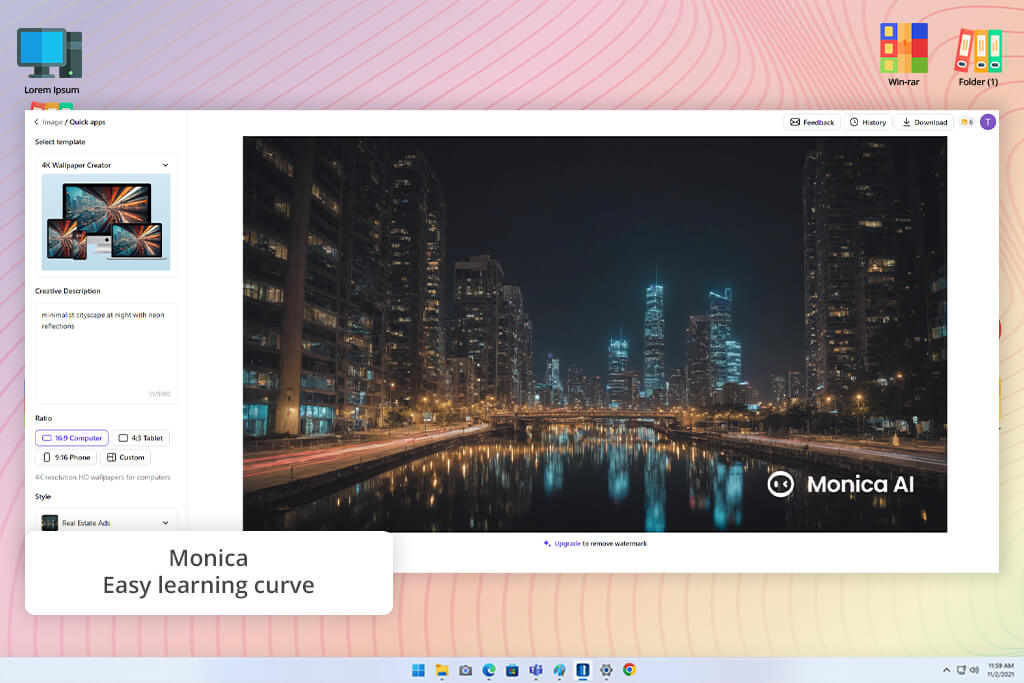
Price: Free (limited credits) or from $8.3/mo.
I didn’t expect much when I first tested Monica, but it quickly showed that it’s a strong free AI wallpaper creator. The main thing that stood out was the choice of 38 different styles and the ability to export in 4K. The process with this generative AI tool was very straightforward: enter a prompt, pick a style, choose the image size, and generate.
I began by using prompts based on real photography, like “soft morning fog above a pine forest lit by warm sunlight” and “simple night skyline with neon reflections.” In just a few seconds, Monica created sharp wallpapers in different formats - 16:9 for computer screens and 9:16 for phones - and they were ready to view and download right away. The large range of styles also let me try looks I normally wouldn’t choose, from cyberpunk visuals to bold pop-art themes.
The workflow was smooth. After wallpaper 4K generation, I could preview the image and download it immediately. The 4K output meant that details held up even on large monitors, which is crucial when testing wallpapers for photography presentations or client projects.
Minor edits like brightness or contrast tweaks were occasionally needed, but overall, the images were ready to use with minimal post-processing. Some complex prompts could get busy, and fine control over lighting or depth is limited, but for speed and creativity, Monica delivers.
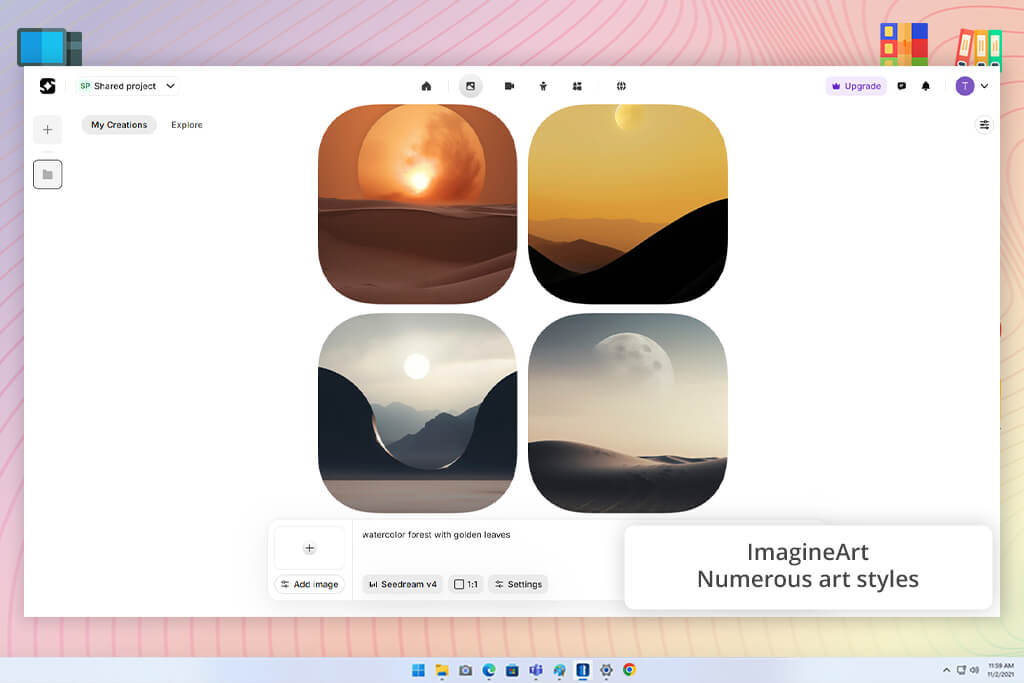
Price: Free or from $15/mo.
To see how ImagineArt performs as an AI wallpaper generator, I started by entering prompts like “sunset behind a neon city skyline,” “watercolor-style forest with gold leaves,” and “simple desert scene at dusk.” The tool produced high-resolution images within a few seconds, and adding reference pictures helped shape the overall look and mood, similar to how reference photos guide color and style during retouching.
While testing its library of over 50 styles, ranging from neon cyberpunk to soft cottagecore aesthetics, I noticed that the results had strong texture and lighting right from the start. The images were ready to use as wallpapers or as backgrounds for visual projects. Making adjustments was easy too: I could change the size, add effects, or create new variations without losing the main idea. The AI also kept fine details intact, whether it was gentle light in nature scenes or shiny surfaces in futuristic designs.
“A good option for striking designs, but detailed prompts may sometimes result in busy-looking images.”
What stood out to me most was how fast and flexible the tool felt. Making wallpapers for different screen sizes was very easy, and the 4K quality made the images suitable for real design work. Saving and sharing them only took a few seconds, so the whole process stayed smooth.
Some of my colleagues from FixThePhoto mentioned that people who are new to tools like this may find a few of the more advanced settings hard to locate or understand. Another thing to keep in mind is cost: although there is a free option, getting all features requires a paid plan, which can be a bit pricey.
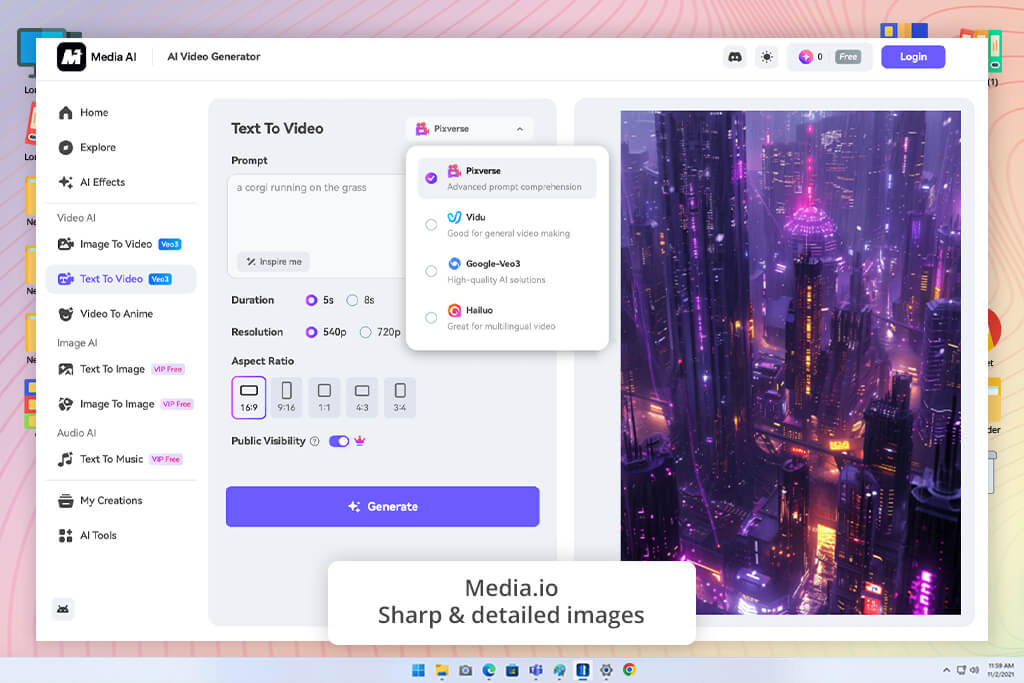
Price: Free (limited credits) or from $8.99/mo. for 100 credits
I first tried Media.io, thinking it was just a basic AI wallpaper maker, but it turned out to offer quite a bit of flexibility. I typed prompts like “cinematic sunset over foggy mountains” and “neon city at night in a cyberpunk style.” The tool created images within seconds, and I could choose from styles like anime, comic, 3D, or abstract. Being able to set the aspect ratio like 16:9 for my computer or 9:16 for my phone made sure the wallpapers fit my screens without stretching or cutting off important details.
What impressed me most was how quick and straightforward the process was. Just entering a prompt, picking a style, choosing the size, and generating was enough to create multiple polished wallpapers in seconds. The 2K quality kept the details clear, and the ability to remix different style presets made it easy to produce several unique versions - helpful for making matching backgrounds for different devices or themed visuals for client work.
I liked how easy the process with this AI wallpaper creator was, but I did notice a few drawbacks. Sometimes the AI pushed the colors or textures too far, making the image look less natural than I wanted. A few of the controls weren’t very obvious either, which might be confusing for people who haven’t used AI tools for designers before. There is a free version, but to unlock all styles and higher-quality outputs, you need a paid plan - and that can get a bit expensive.
Price: Free (5 credits per week) or from $5/mo.
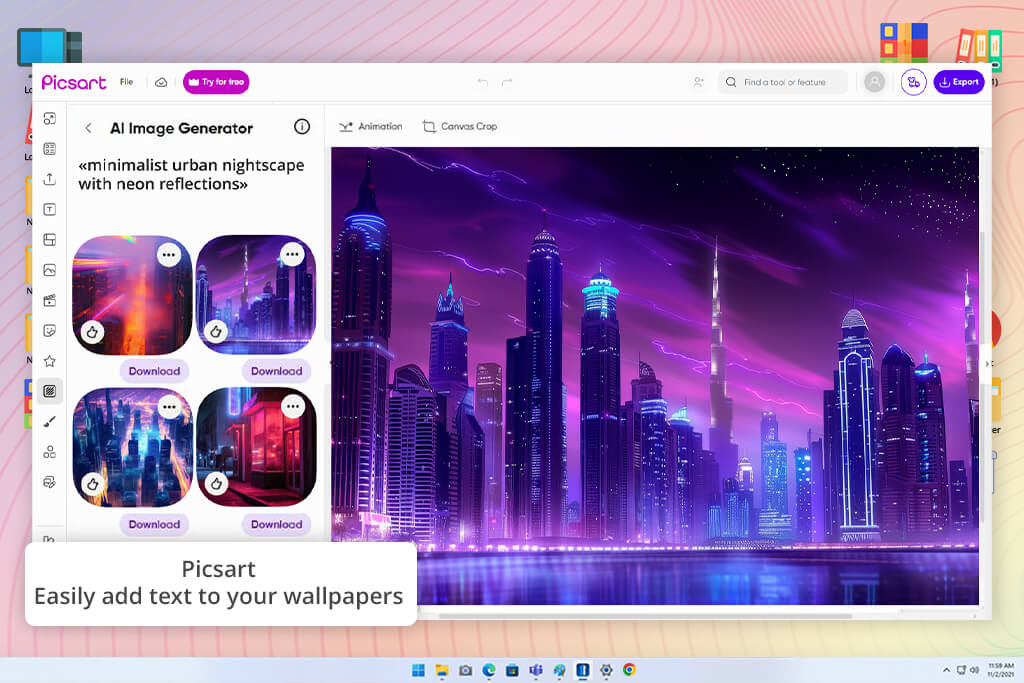
To try out Picsart as an AI wallpaper maker, I began with prompts like “golden sunlight over a foggy forest at sunset” and “simple nighttime city scene with neon highlights.” The wallpapers were generated fast, and I liked that I could use Picsart’s built-in templates and fonts to add text, shapes, or light effects. The online editor made it easy to touch up the image - I could clean up small details, sharpen textures, and adjust the overall look, much like basic photo retouching.
What stood out to me most was how simple and adaptable the process felt. Using AI generation together with templates and editing tools made it easy to create wallpapers for different screen sizes - without needing advanced free graphic design software. The free version was strong enough for most projects, and the final images looked good enough for both personal use and professional work.
“With Picsart, creating unique AI wallpapers is straightforward, and the app offers plenty of visual assets and editing tools. Still, the fixed styles and aspect ratios can make it harder to get the exact look you want.”
However, it does have some limitations. Picsart has trouble handling very detailed or layered prompts, and certain styles or image sizes can’t be changed, which reduces flexibility. The free version of this AI art generator can also feel limited, since many useful tools are locked behind a paid plan. I also found that small color or texture fixes were sometimes necessary after generating the image.
No, design knowledge isn’t required. Most AI wallpaper makers are built for beginners. You simply write a clear prompt, and the AI creates the image for you. Extra editing is available only if you want more control. Tools like Canva, Picsart, Monica, and Adobe Express make it easy to produce wallpapers fast, even if you’ve never worked with design software before.
It depends on the licensing rules of the platform you’re using. Some AI wallpaper generators allow you to use the images in paid or professional work, while others only allow personal use. For instance, Adobe Firefly offers commercial usage under specific terms, but the free tiers of tools like ImagineArt or Media.io may limit how the images can be used.
Yes. Many AI tools can create wallpapers in 2K or 4K resolution, which works well for monitors, mobile screens, presentations, and sometimes even printing. You may want to make small color or clarity adjustments afterwards, but the base quality is usually high. Adobe Express and Picsart are especially good at producing sharp, photo-inspired results.
Yes. You can change the size for various screens, adjust color and contrast, apply filters, add text or graphics, and clean up any unwanted details. Apps like Adobe Express, Canva, and Picsart include built-in editing tools that make these adjustments easy.
The standard desktop wallpaper resolution is 1920×1080 (Full HD). Many modern screens also use 2560×1440 (QHD) or 3840×2160 (4K) for higher clarity.
Yes. Many AI wallpaper generator tools, including Adobe Firefly and Adobe Express, allow you to upload your own images either as a starting point or as style references. This helps you keep your personal look or photography aesthetic while the AI improves, reworks, or creatively transforms the picture.
Altogether, this testing method helped us clearly see what each AI wallpaper generator tool does well and where it falls short, making our review useful for beginners and advanced users alike.




![11 Designhill Alternative for Graphic Designers [Real Tests]](http://fixthephoto.com/blog/images/gallery/news_main__preview_27909.jpg)


![7 Best Design Wizard Alternatives [{{%year}} FixThePhoto Choice]](http://fixthephoto.com/blog/images/gallery/news_main__preview_27934.jpg)
![Fat Maker for Photos Online [FREE]](http://fixthephoto.com/blog/images/gallery/news_main__preview_27731.jpg)

![Remove Logo From Clothes AI App [FREE]](http://fixthephoto.com/blog/images/gallery/news_main__preview_27732.png)

















