I decided to find the best TIFF to PDF format I could trust, since working with high-resolution image files is a routine part of my day at FixThePhoto. TIFF is the format that comes up most often in professional contexts, especially when color fidelity and detail retention are non-negotiable.
But TIFF is a format perfect for editing and archiving. As soon as you need to email a client, create a reference document, or package multiple images for review, TIFF becomes an obstacle. Compatibility is unpredictable and files become too large. Moreover, not every recipient can even open the format without additional software.
Rather than making a decision based on feature lists or star ratings, I used a set of converters for real project files. I also brought in several colleagues from the FixThePhoto team to make the process more objective and cover a wider range of use cases.
We tested 25+ TIFF to PDF converters: desktop programs and browser-based tools with scanned contracts, layered print graphics, and high-resolution photographs in TIFF format.
We tracked image sharpness after conversion, batch processing stability, how well each tool handled page order, upload size limits, OCR accuracy, interface clarity, and how transparently each platform handled uploaded files from a privacy standpoint.
For anyone working with images professionally, TIFF files remain the preferred format for anything where quality cannot be compromised. The lossless nature of TIFF means that fine gradients, precise color values, and sharp edge detail all survive without degradation. This is exactly why it’s standard in print production, retouching, and archival imaging.
Outside those specialized environments, though, TIFF creates problems. That’s the moment when PDF becomes the more sensible choice.
The most immediate practical benefit of converting to PDF is accessibility. How a TIFF file renders depends entirely on what software the recipient has installed. For many people, that means it simply won’t open at all without additional tools. PDF eliminates that problem entirely.
Every modern operating system, browser, and mobile device can open a PDF natively and display it correctly. When I prepare client previews, process guides, or scanned reference documents, I always convert them to PDF to eliminate possible problems down the road.
Document organization is another strong reason to make the switch. Multi-page TIFF projects like scanned agreements, print production files, and photo proof sets, naturally generate a large number of individual files. Sending twenty separate TIFFs to a client is impractical.
Converting them into a single paginated PDF with a consistent structure makes the content easier to review, share, and archive. A properly structured PDF allows the reader to jump to specific sections immediately, something that simply doesn’t exist across a folder of TIFF images.
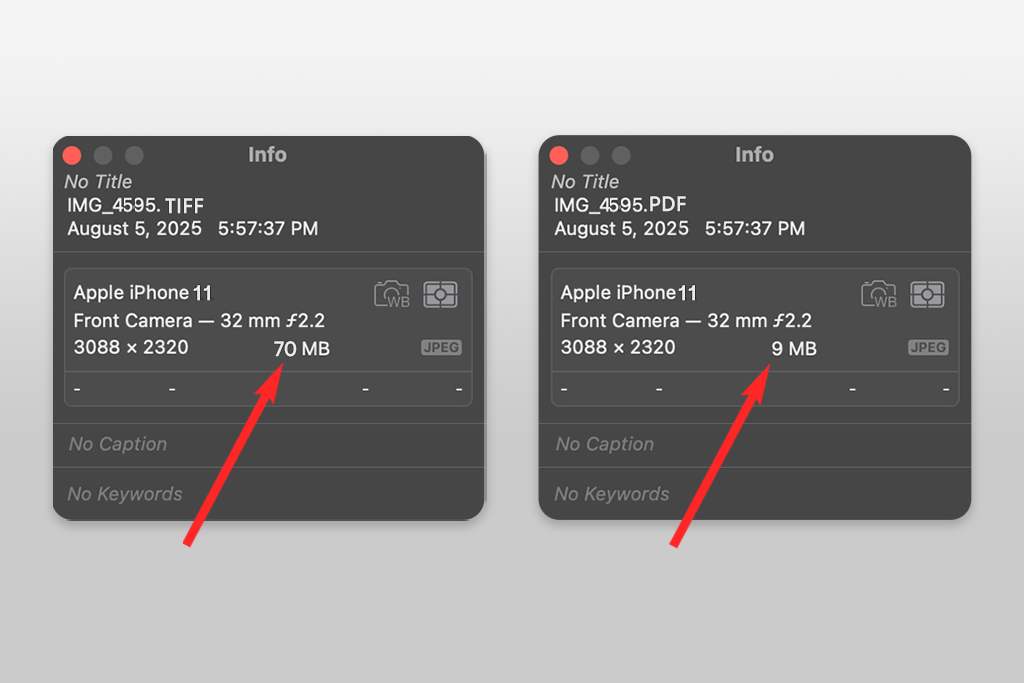
File size is a practical issue that comes up constantly with TIFF. Uncompressed TIFF scans of even a few pages can reach hundreds of megabytes. This is too large for email attachments, cloud storage quotas, or sharing with clients on slower connections.
Good TIFF to PDF conversion software addresses this without sacrificing readability. The best tools find the right balance between compression and quality, producing PDFs that are smaller than the originals without introducing the blurring or color shift that makes a document unpresentable.
PDF also unlocks capabilities that TIFF files simply cannot offer in everyday professional use. Depending on the tool, the resulting PDF can include OCR-indexed text for searchability, password protection for sensitive materials, annotation support for collaborative review, bookmarks for long documents, or fields for digital signatures.
For scanned business documents, technical manuals, or educational content, these capabilities transform a static image into a working document.
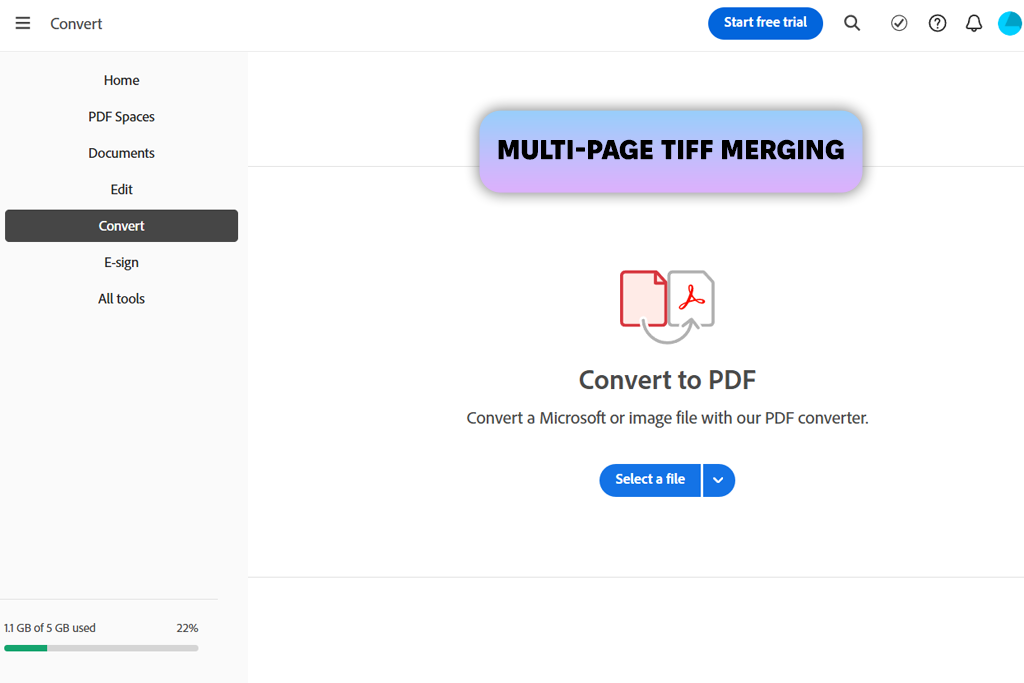
Adobe Acrobat has been in my toolkit for years, so I was curious to evaluate its TIFF conversion capabilities. The TIFF files I uploaded ranged from dense print-ready graphics to multi-page scanned documents.
Most conversions went through the Tools → Create PDF section. Once I selected the source file, Acrobat processed even the largest TIFFs without errors. The conversion finished in seconds, and the resulting PDFs preserved image sharpness remarkably well.
“Being able to compress or restructure pages without leaving the application is something I genuinely miss whenever I use anything else.”

Acrobat surpasses simpler tools I tested with more accurate details, which is crucial for professional work. Aggressive compression that flattens gradients, softens fine text, or loses subtle tonal variation was never an issue. Multi-page TIFF files converted cleanly, and the resulting PDFs looked good even after I applied further compression later on.
The ability to immediately reorganize pages, compress the PDF further, or add comments inside the same application is very convenient. The one genuine trade-off is weight. The full desktop version of this TIFF file to PDF converter takes time to launch, and opening it solely to convert a single small TIFF file can seem like bringing heavy equipment to a simple job.
The online counterpart to the desktop tool is worth mentioning separately because it addresses a different use case. Uploading TIFF files through the browser interface was quick, and the resulting PDFs maintained quality that was closer to the desktop output than I expected from a web tool.
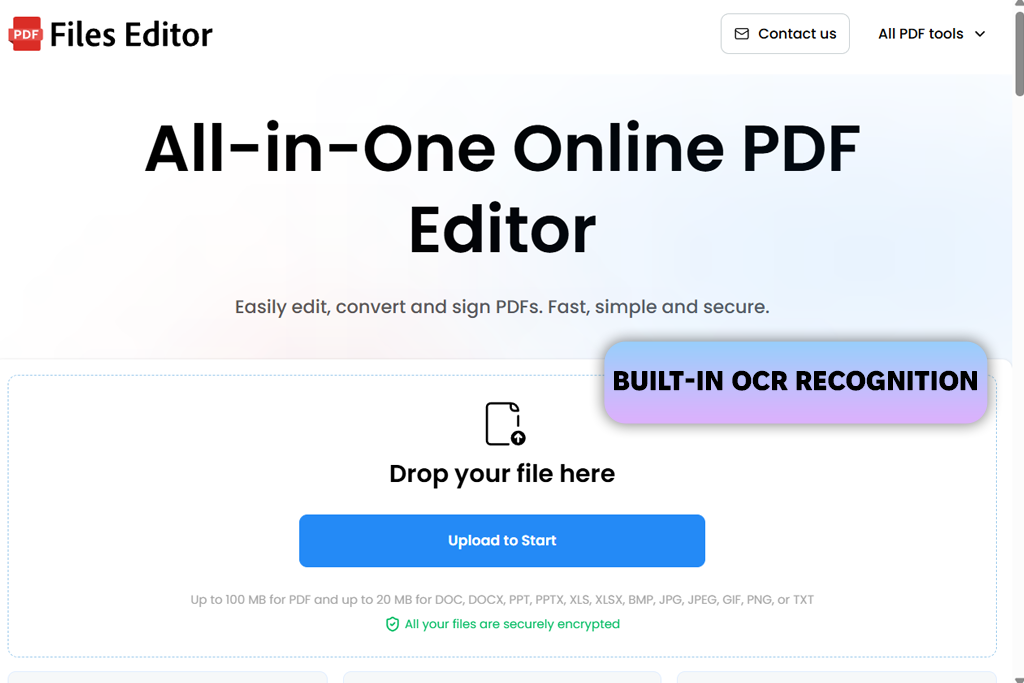
My colleague Kate uses Foxit regularly for organizing scanned documents, so I had a reference point before I opened it myself. I started with the browser-based converter to understand how it performed without any installation.
Quality was on point across the board, particularly with black-and-white document scans and multi-page TIFFs where page order consistency matters. Upload time on very large files occasionally was longer than standard conversion time, which is a browser constraint more than a Foxit limitation.
“Foxit fits right into my routine – I just drag the files in, and they're converted. I use the OCR feature, especially when clients send TIFF scans that should be selectable and searchable.”

The desktop version with its PDF editor is very powerful. In practice, I relied mostly on the drag-and-drop method. I pull TIFF files directly into the active Foxit window to start immediate conversion into editable PDFs.
For batches of scanned paperwork, the process moved at a convenient pace. Having the option to reorder pages, rename sections, or continue editing the converted document without opening another application helps a lot. The entire workflow is contained and efficient.
The OCR feature makes Foxit a more appealing option than simpler TIFF to PDF tools. Most of the TIFF files (contracts, notes, and printed forms) that come through in professional workflows contain scanned text, and converting them to image-only PDFs leaves them unsearchable.
After converting several document scans, I applied Foxit's built-in text recognition and was able to search and select content directly from the resulting PDFs. Recognition accuracy was strong on clean, sharp scans. Slightly degraded or compressed input produced occasional errors in smaller font sizes, but the overall reliability was high enough.
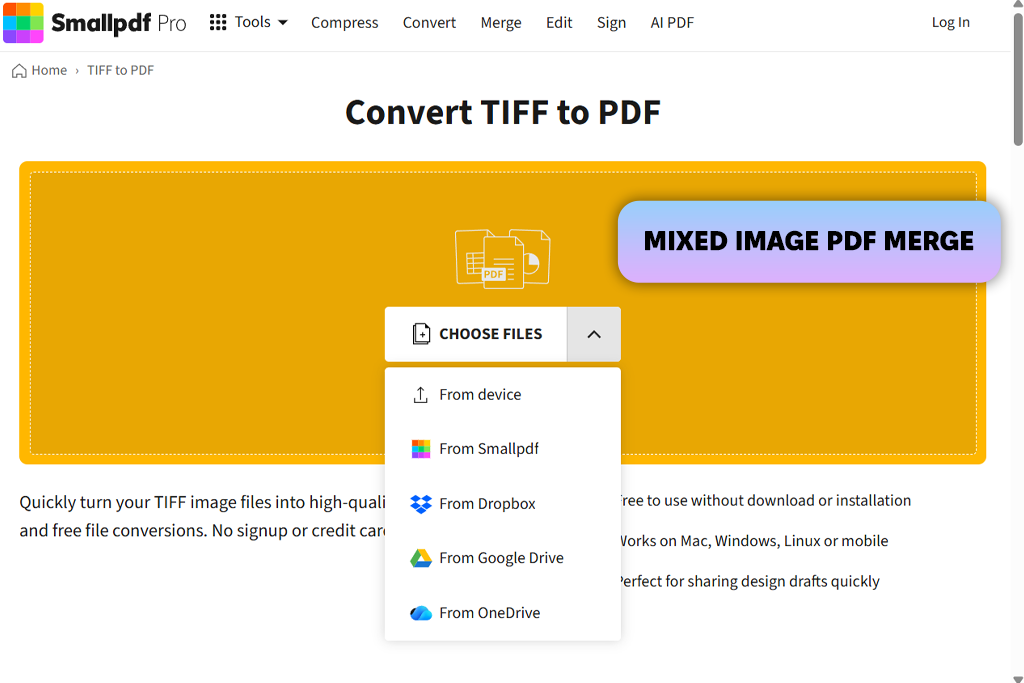
Smallpdf earns a place in my regular browser bookmarks specifically for unplanned conversions when a TIFF arrives unexpectedly and needs to become a shareable PDF in seconds. The process involves nothing more than dragging the file into the browser window, making minor output adjustments if needed, and downloading the result. This tool doesn’t require registration to convert TIFF to PDF.
Combining different image formats into a single PDF was one of the more useful things I tested with Smallpdf. Building a visual reference document from a mix of TIFF, PNG, and BMP files worked without the page reordering or proportion distortion I'd encountered with other browser tools.
Compression handling on multi-image exports was measured. Fine text and detailed graphics stayed legible even after combining several large scans. There are fewer output controls than a desktop program offers. However, due to a minimalistic interface, this tool is so fast to use.
Privacy matters more with browser-based converters than with desktop tools, because files are leaving your system entirely during the process. I checked how Smallpdf approaches this, and found that it uses TLS encryption during transfers. Uploaded files are removed from its servers automatically after processing completes.
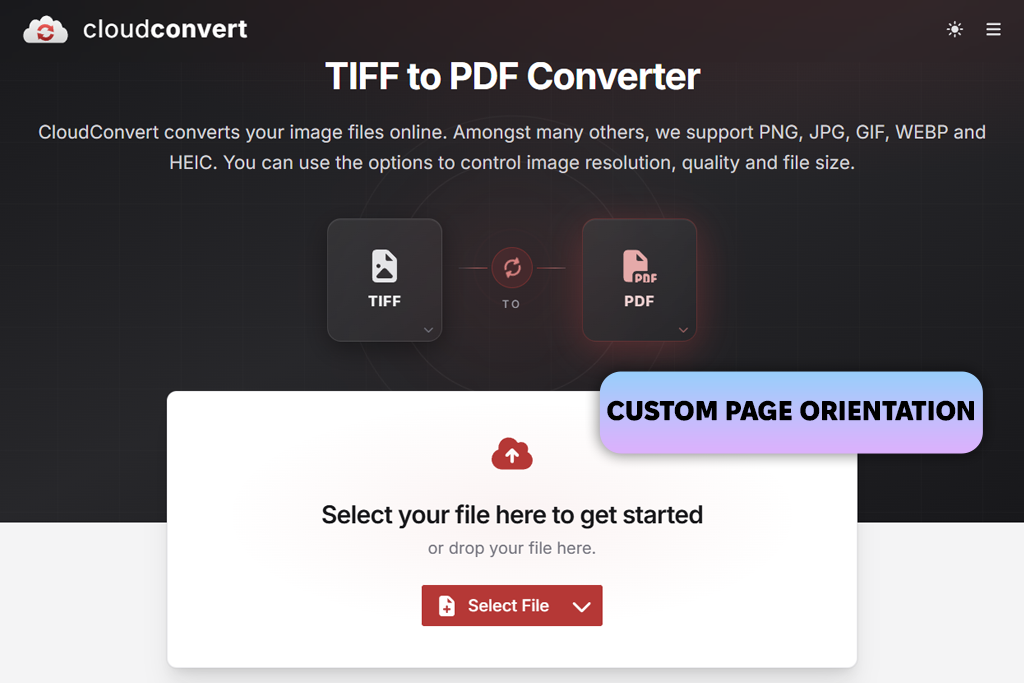
CloudConvert has been in my collection of tools for longer than most of the other programs in this comparison, and not just for TIFF conversions. It is one of the most efficient file converters. When I uploaded several TIFF files recently, I had access to configuration options that most browser TIFF image to PDF converters don't surface at all.
I could adjust page orientation, image dimensions, and output sizing before the conversion starts. For users who just want to hit convert and move on, none of that gets in the way. But for someone who needs the output to match a specific format, it's a meaningful advantage. It remained one of the more capable and flexible tools in the comparison.
“CloudConvert copes well with obscure formats, large files, and specific output requirements. With TIFF conversions, I can control orientation and sizing before the file is processed.”
Despite the depth of its settings, the basic process requires no configuration at all. You upload your files via the Select File button, click Convert, and download when processing is complete. Files close to 100MB moved through without browser freezes or mid-conversion timeouts. Not many cloud converters can offer such stability at that size.
Default compression settings struck a reasonable balance. Output file sizes were manageable without the kind of quality loss that makes fine text or gradient areas look degraded. The one inconsistency I observed was queue slowdowns during high-traffic periods. So, wait time on larger uploads was longer, but the quality of results didn’t degrade.
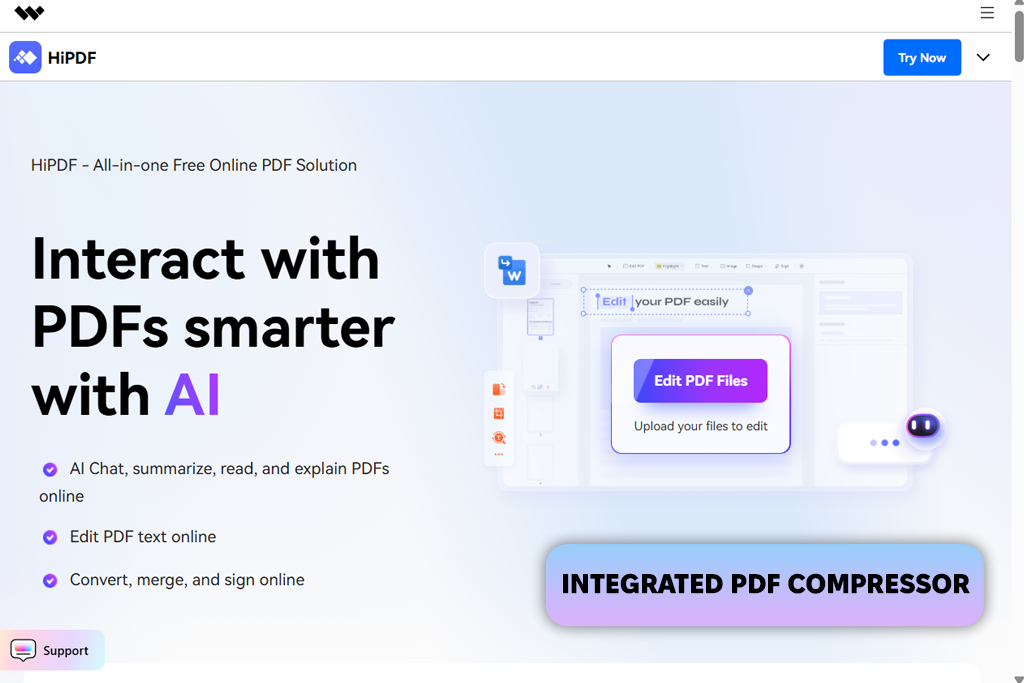
HiPDF distinguishes itself with an unusually minimal path from upload to download. I clicked the Choose File button to import my file > Convert, and received a finished PDF automatically. For quick, single-purpose conversions, such streamlined processing is a big advantage. The whole process is noticeably faster than what other TIFF to PDF software offer.
“The speed in HiPDF is amazing, especially on smaller files. The compression tool sitting right there after conversion, which is handy.”

Multi-format support in HiPDF meant I wasn't limited to TIFF input during sessions where I was working with mixed file types. PNG, BMP, GIF, and JPG files moved through the same interface without requiring a different tool for each format. Combining different assets in a single session is great.
One particularly large TIFF scan produced an oversized PDF, so I had to use the built-in compressor to bring it down to a more practical size. The reduction result looked great without introducing the blurring around thin lines and small text that aggressive compression usually causes. The interface stayed organized throughout. Additional tools were easy to locate without menu hunting.
Besides the image converter, you can take advantage of password protection, PDF unlocking, and other document utilities stored in one platform. I noticed that HiPDF had systematically removed friction from the points in the process where other tools tend to slow things down.
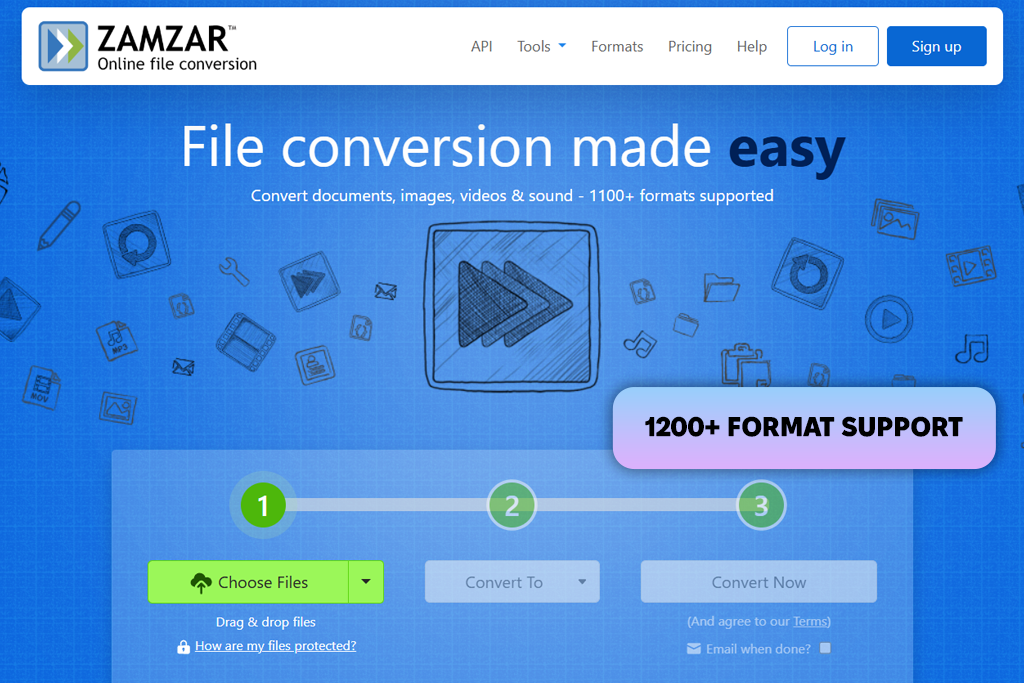
While other platforms load their pages with competing tools and calls to action, Zamzar keeps the TIFF to PDF process clear and uncluttered. You need to select the file, choose the destination format, and start converting. I ran several TIFF files through it alongside a handful of unrelated format conversions, and the experience was consistent across all of them.
Processing speed was steady across the file types I tested. Smaller TIFF images converted nearly immediately, while larger scans finished within a few minutes without the queue delays I experienced on some competing platforms.
Another bragging point is that Zamzar supports far more than just image formats. The broad format coverage means it can serve as a single conversion resource across an entire workday rather than a tool you reach for only when you need to convert TIFF file to PDF. It is possible to handle documents, spreadsheets, presentations, and media files within the same interface.
One limitation becomes apparent after conversion. Once your TIFF is a PDF, Zamzar's involvement largely ends there. Page reorganization, OCR text recognition, and document editing aren't part of the offering. This is a conversion-focused platform, not a document management environment.
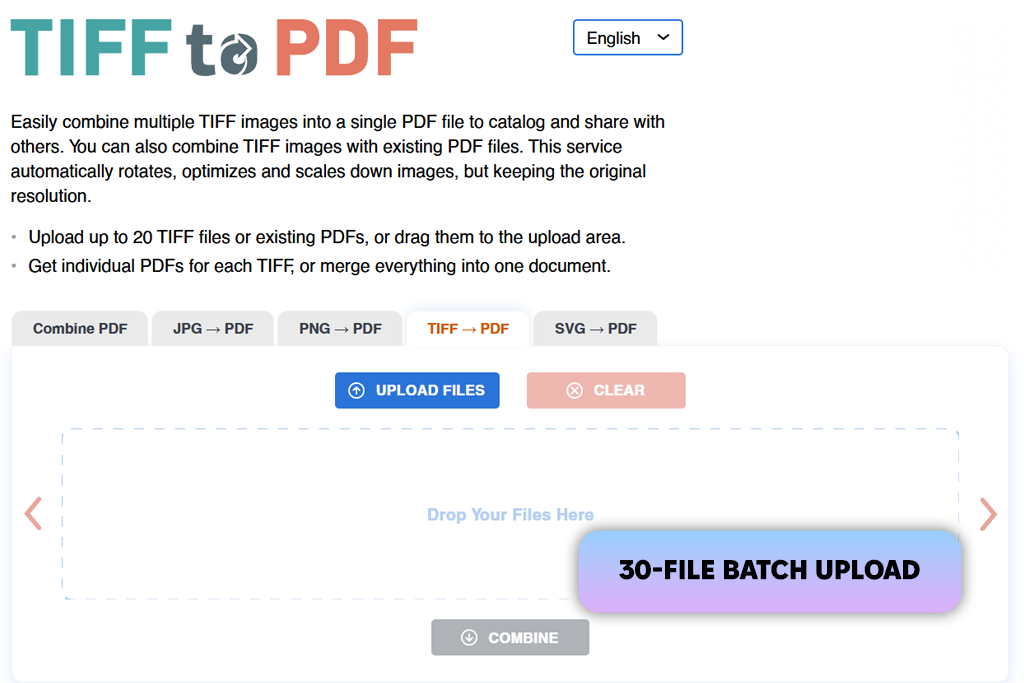
TIFF2PDF occupies a specific, narrow position in this comparison. It is a purpose-made TIFF to PDF app that copes with the job quickly, without requiring anything from the user beyond uploading the files. I tested it with a batch of scanned TIFF images, loading close to the 30-file maximum at once.
The uploads processed without errors, and the conversion finished at a speed that surprised me a lot given the file sizes involved. Users who only need to convert a batch of TIFFs to PDFs with no additional processing will surely appreciate a simple workflow.
This tool is built for speed and function rather than refinement. High-resolution scans moved through the conversion without meaningful delays, and the output quality was clean considering the absence of any configurable output settings.
The ad-supported interface means the page can look visually busy, particularly when moving through steps quickly. That is the clearest cost of using a free TIFF into PDF converter. Uploaded files are automatically removed from the server after a set retention period, so you may not worry about uploading files to an unverified platform.
Our testing approach was focused on the files that usually appear in professional workflows. The test set included high-resolution retouching assets, scanned legal documents, print production graphics, multi-page TIFF packages, and image-heavy layouts where both fine typography and gradient rendering would be easy to damage. That range let us observe each converter under both routine and demanding conditions.
The criterion we at FixThePhoto team weighted most heavily was image fidelity after conversion. The whole reason TIFF exists as a format is to preserve visual information that other formats discard. Once that information is converted to PDF, it should still be there.
I examined output for sharpness, color accuracy, gradient smoothness, legibility of small type, and the presence of compression artifacts. Several TIFF image to PDF converters reduced file size aggressively but left visible softening, particularly in scan-based documents where thin strokes and small text were involved.
Kate focused on how each tool performed when the workload scaled beyond a single file. Batch conversion capacity, multi-page TIFF handling, page sequence consistency, upload size ceilings, and processing speed under load were part of her evaluation. She pushed several platforms with oversized files to see where stability broke down. Some tools handled it without issue, while others timed out or dropped files mid-process.
Ann concentrated on usability. She learned how efficiently a user could move from file upload to finished PDF download, tracking steps between upload and download, whether output settings were easy to locate and adjust, and how cleanly multi-image merges held together. Browser-based tools were also checked across devices and operating systems.
Finally, we paid attention to privacy and file handling practices. I checked for encrypted transfer protocols, automatic post-processing deletion, and whether account creation was required before converting.
Alongside those security considerations, I also documented what each TIFF to PDF tool offered beyond conversion itself, e.g., OCR recognition, built-in compression, password protection, and page editing tools, since these capabilities determine whether a converter is a one-step instrument or a fuller part of a document workflow.







![9 Best Lumen5 Alternatives [{{%year}} FixThePhoto Choice]](http://fixthephoto.com/blog/images/gallery/news_main__preview_28975.jpg)


![7 Best Photo Grid Makers [No Design Skills]](http://fixthephoto.com/blog/images/gallery/news_main__preview_29018.jpg)

















