When working at FixThePhoto, I often have to deal with situations when my clients ask me about why they cannot open their HEIC images. Many people also want to know which format to choose when sending pictures to print shops and how to convert iPhone pictures into a multi-page PDF when working on presentations or when preparing files for storing and approvals.
I use HEIC to PDF converters for my personal and work-related projects when I need to prepare client proofs, share retouched photos in a widely accepted format, or organize pictures on my phone. HEIC is an excellent choice for storing high-quality images. However, this format is less suitable for collaborative work. Besides, many printers and platforms do not support it.
Not all converters deliver a consistent performance. When using some of them, I noticed that some of them degraded image quality, failed to reproduce the original colors, and had size limits. Besides, there were services that did not support batch conversion, added watermarks to outputs, or had tools that were hardly suitable for working with large files. This is why I focused on thorough testing, hoping to find the most reliable options. I tried using over 20 HEIC to PDF converters to understand which options could help me improve my workflow.
A HEIC file is a popular image format supported by Apple devices. It allows users to optimize the size of high-quality photos. I often use HEIC when working on my projects, as many of my clients send their photos to me from their iPhones without converting them first. While HEIC files have excellent quality, it might be challenging to use them on other devices besides iPhone, iPad, or MacBook.
It took me some time to discover that I can quickly convert HEIC photos to PDF format and use them in other OS besides macOS or iOS. Here are the main reasons why I do it:
I often choose HEIC when capturing photos, but PDF format is more suitable for sharing, reviewing, and presenting my projects.
Before deciding whether I need to look for dedicated HEIC to PDF converters for a specific task, I always check whether it’s possible to save my files in the right format using integrated tools.
When I need to send images to my clients quickly, prepare proofs, or share pics across various devices, I do not want to waste my time installing any third-party software or uploading my photos on online platforms. This is the main reason why I often use the built-in features on Mac, iPhone, and Windows to convert my files for free without delays.
I enjoy working on macOS because I do not need to install any software to convert HEIC files quickly. I use the Preview and Finder features to expedite my workflow.
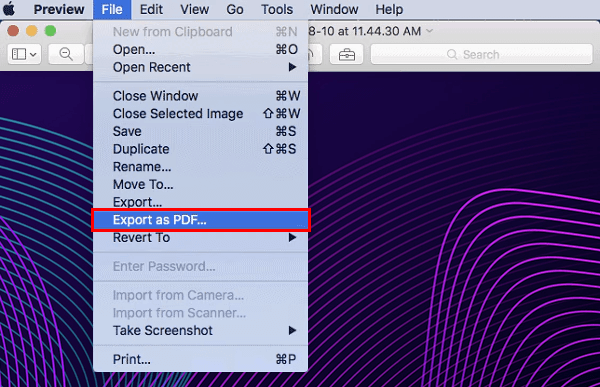
After opening a HEIC image in the Preview window, I go to File → Export as PDF, and choose a folder for saving the output. When I need to convert several images, I select them in Finder, right-click, go to Quick Actions → Create PDF, and the OS creates a multi-page document automatically. This technique is fast and allows me to handle my one-off tasks with ease.
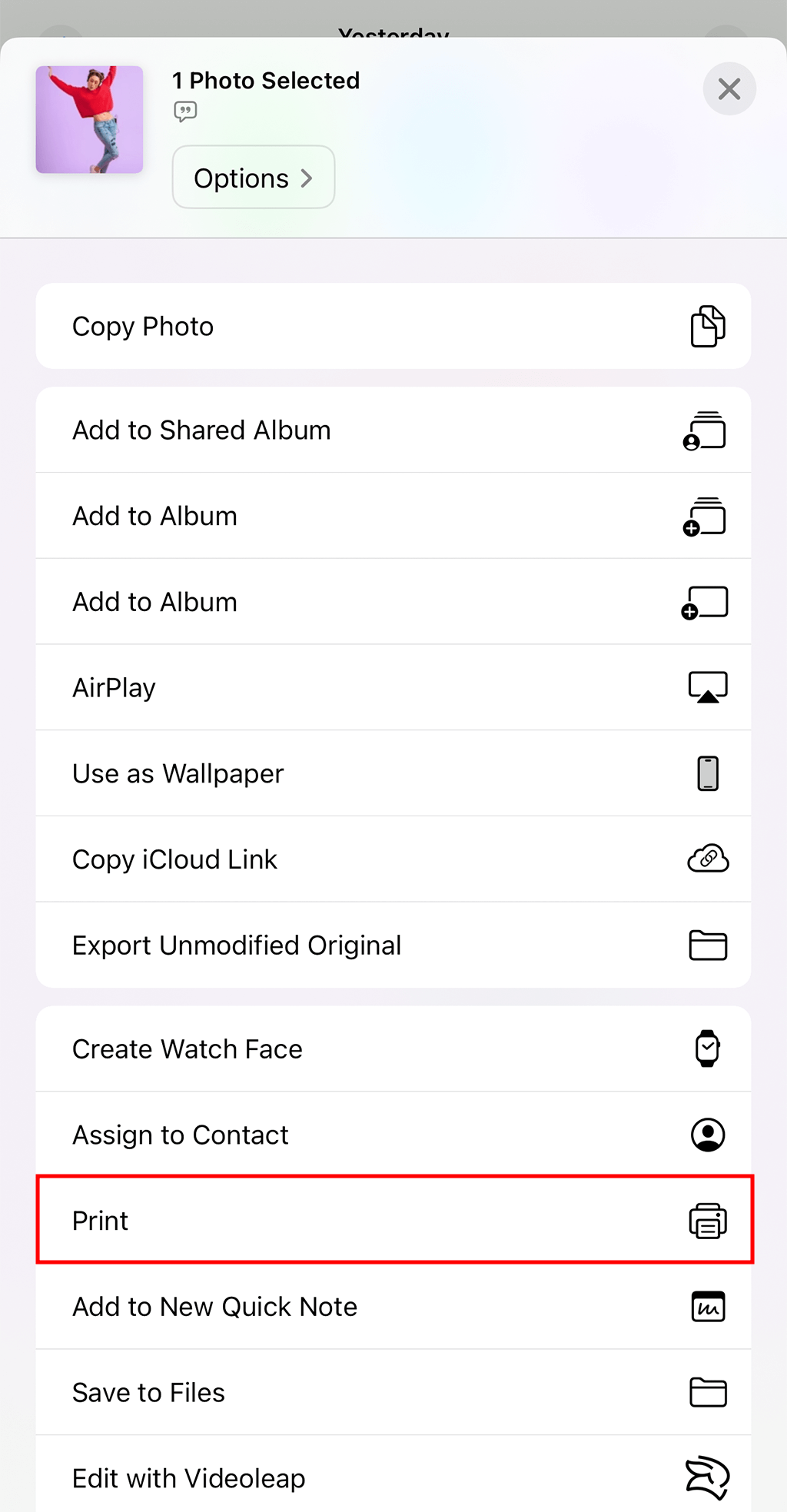
When using my iPhone, I prefer to use a handy feature available in the Photos app. I open the HEIC file, tap Share, and then select Print. The print preview screen allows me to zoom in on the image until I can see it in a full PDF view mode.
Then, I tap Share once again, after which I can save or share my file in PDF format. This approach saves me a lot of time in situations when I need to quickly send documents or photos to my clients from my phone without using any third-party applications.
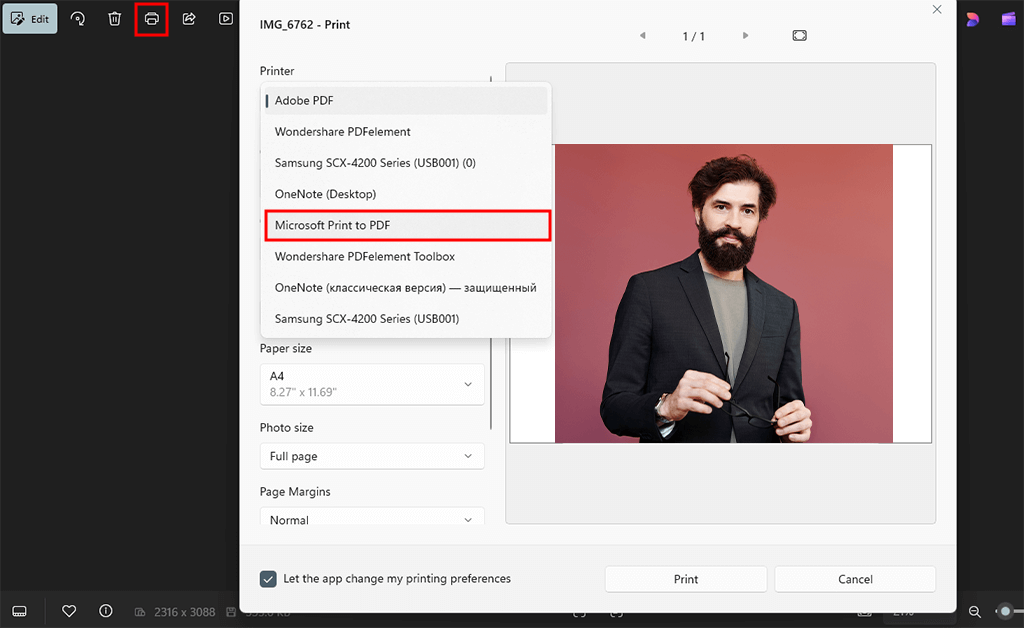
When working in Windows, I prefer to use the Print to PDF feature. Windows 11 supports HEIC files by default, which makes it easier for users to work with this format.
I right-click the HEIC image, open it in the Photos app, then click the Print icon. I select Microsoft Print to PDF in the printer settings. After choosing a suitable orientation or size, I click Print. Then, I need to choose a folder where I want to save my outputs and indicate a file name. It allows me to convert my files into PDF format without installing third-party software.
This approach is perfect for converting single pictures and small batches. It’s suitable for those who are more interested in file compatibility than in advanced settings. However, in situations when I need to customize the outputs, I prefer to use online HEIC to PDF tools. Below, you will find more detailed information about apps and services that support batch processing, allow you to configure output settings, and let you convert your files from all types of devices.
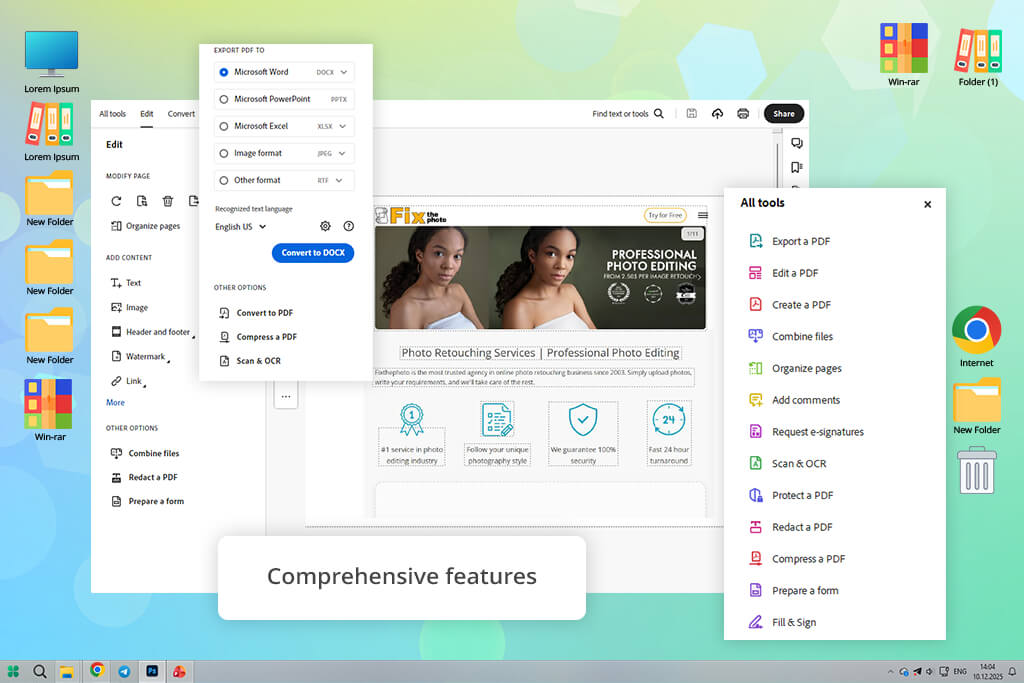
Price: Free or Pro for $9.99/per month
When I decided to find a HEIC to PDF converter, I immediately thought about Adobe Acrobat, knowing that this software delivers a stable performance and allows users to achieve consistent outputs. While it was not built specifically as a HEIC converter, it comes with many handy tools that allow users to save files in compatible formats and control the quality of converted images.
When using this software, I start by saving HEIC files in JPG format. On a Mac, I go to the Preview menu to open a HEIC picture and select File → Export. Then, I choose JPG as the output format. If I need to work on my iPhone, I open the Photos app, copy my pictures, and paste them into a folder with the help of the Files app. It allows me to automatically save them as JPG files. Then, I use Adobe Acrobat to create PDFs.
This HEIC to PDF online tool allows me to upload JPG pics quickly, save them as a multi-page PDF, and download the output without delays. This solution is perfect for situations when I need to combine several pictures into one file to share it online.
Besides converting my files into PDF format, I can use Adobe Acrobat to merge pictures, change the page order, add text or notes, optimize the file size, password-protect my files, and prepare documents for printing or storing. Due to its extensive set of features, Adobe Acrobat Pro DC can be considered the best solution among other HEIC converters.
“Acrobat streamlines the process of converting HEIC files into PDF. It supports batch processing and allows users to get high-quality files with ease.”

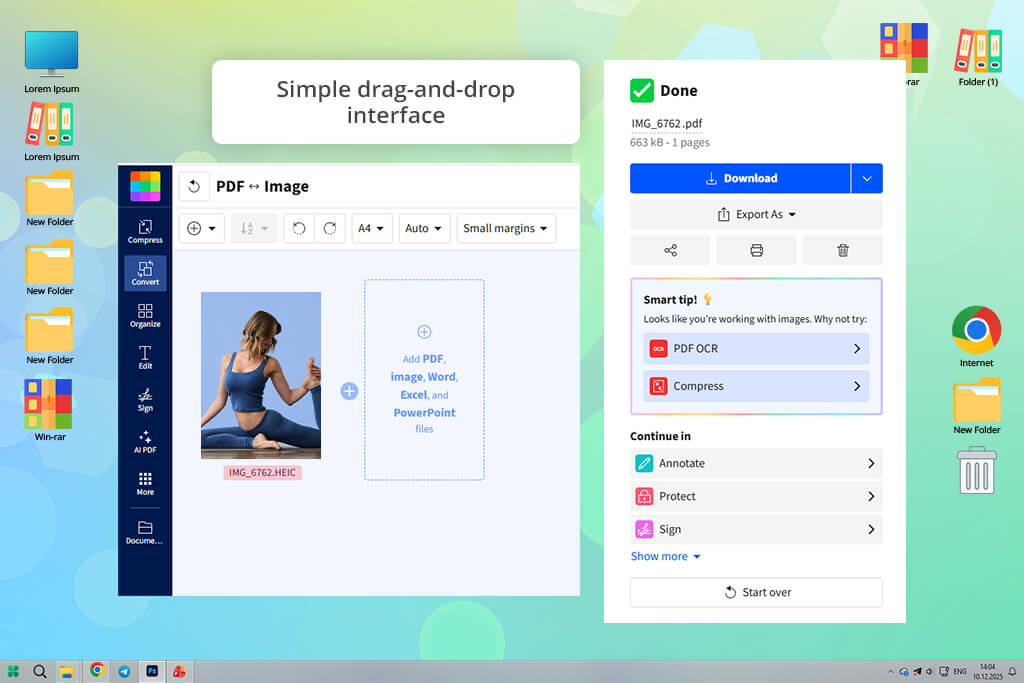
Price: Free (2 files) or from $9/mo.
You can quickly access Smallpdf from a browser. This intuitive HEIC to PDF online converter is accessible from almost any device. After dragging and dropping a file, I choose the desired settings and wait for the service to finalize the conversion. Smallpdf allows me to combine multiple HEIC pics into a multi-page PDF. It’s suitable for situations when I need to share several photos in one file.
I was pleased by the fact that this service is easy to access. It’s available on Mac, Windows, Linux, iOS, and Android devices. There is no need to be a registered user to convert HEIC to PDF. The interface is easy to navigate, even if you are a complete beginner. This platform supports advanced privacy and uses encryption to protect files during upload. User data gets deleted automatically, making this service especially suitable for those who prefer to use it for personal and work-related tasks.
The output PDF files have decent sharpness and are easy to read. Their quality remains almost the same compared to the source files. However, even though Smallpdf is suitable for quick conversions, its free version has limited functionality. It allows users to convert only a few files daily, so I had to upgrade to access advanced export options and remove other limitations.
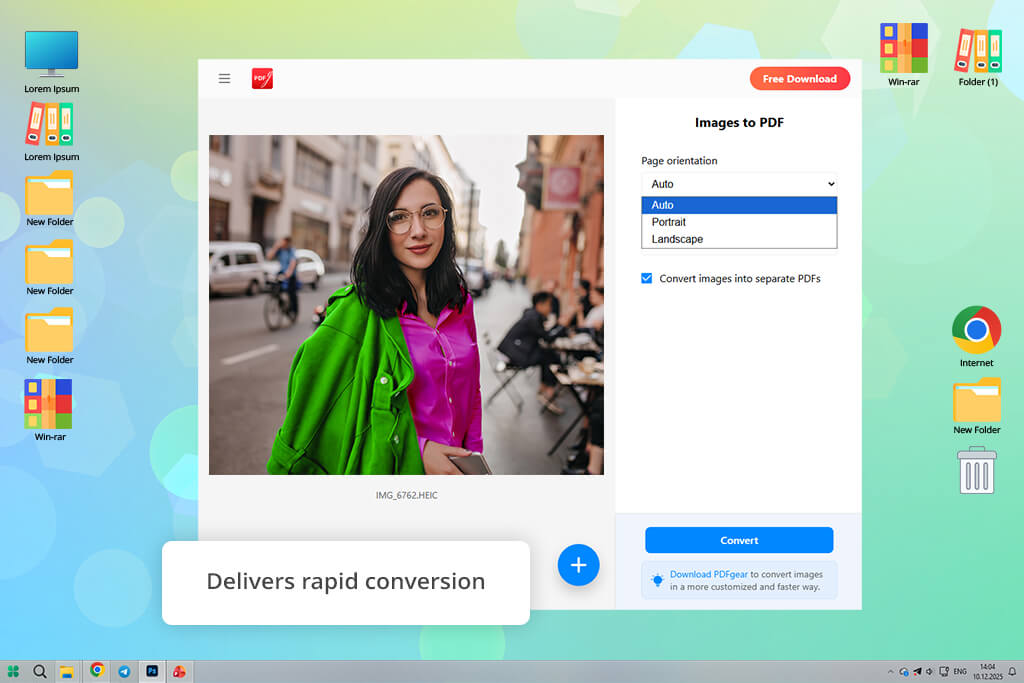
Price: Free
When I decided to find a free HEIC to PDF converter, I was happy to discover that PDFgear has such powerful features. Its online version is accessible from any browser. You can use it without signing up first. I do not need to upload my photos to third-party services, as this HEIC to PDF web converter processes files in the browser.
PDFgear focuses on user privacy and allows me to simplify my workflow. After selecting HEIC images, I need to wait for a few seconds until PDFgear converts them into PDF format and creates a multi-page file. I can change the order of the pages before launching the conversion process. The program converts HEIC to PDF without quality loss and maintains the original hues, sharpness, and details. There are no watermarks or usage limits.
PDFgear has a web-based and a desktop version. The latter can also be used as a free PDF editor, as it allows users to access advanced features for working with PDFs. With it, I can edit text, merge my files, add signatures, and manage pages. The only shortcoming of this service is that it might take it a while to process large bundles of HEIC pics.
“PDFgear allows me to convert HEIC to PDF in a few moments without quality loss. It has tools for merging files into a multi-page document.”

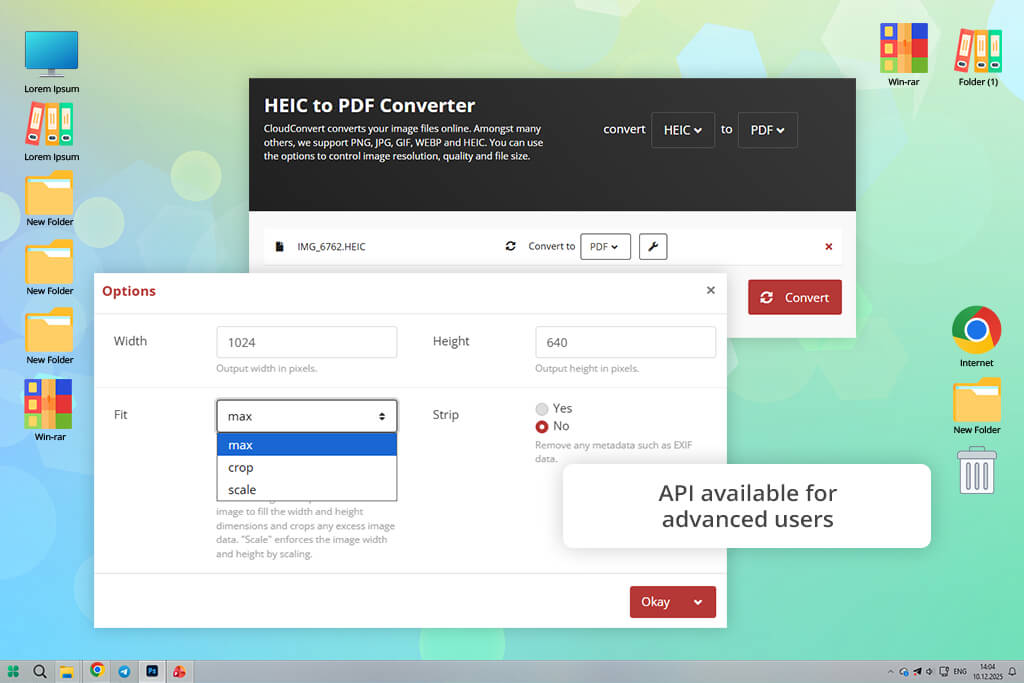
Price: Free (up to 10 conversions per day) or $9/per month
CloudConvert is a useful service for those who need to convert photos to PDF format without delays and customize the output quality. I was pleased to discover that it supports 200+ formats, including HEIC, PNG, JPG, GIF, and WEBP. Such versatility makes it suitable for many uses. I can choose the desired resolution, quality, and file size before converting my files. It’s especially useful for situations when I need to optimize PDFs before printing them or sharing them online.
What I like the most about this free image converter is that it can be accessed online. I do not need to install anything on my laptop. This free HEIC to PDF converter delivers fast performance even when it processes multiple pics. The outputs have the same sharpness and colors as the source files. Another advantage of this service is enhanced security. This platform is ISO 27001 certified, which means that all my files will be securely protected.
Despite the advantages of this solution, I did not like the fact that free usage is limited. If you need to convert your files often or work with heavy documents, be sure to pay for a premium plan. It might be difficult to understand how to adjust some advanced settings. The speed becomes noticeably lower when I try to convert large HEIC files. What makes it different from some desktop programs is that it does not allow me to perform advanced editing after converting my images.
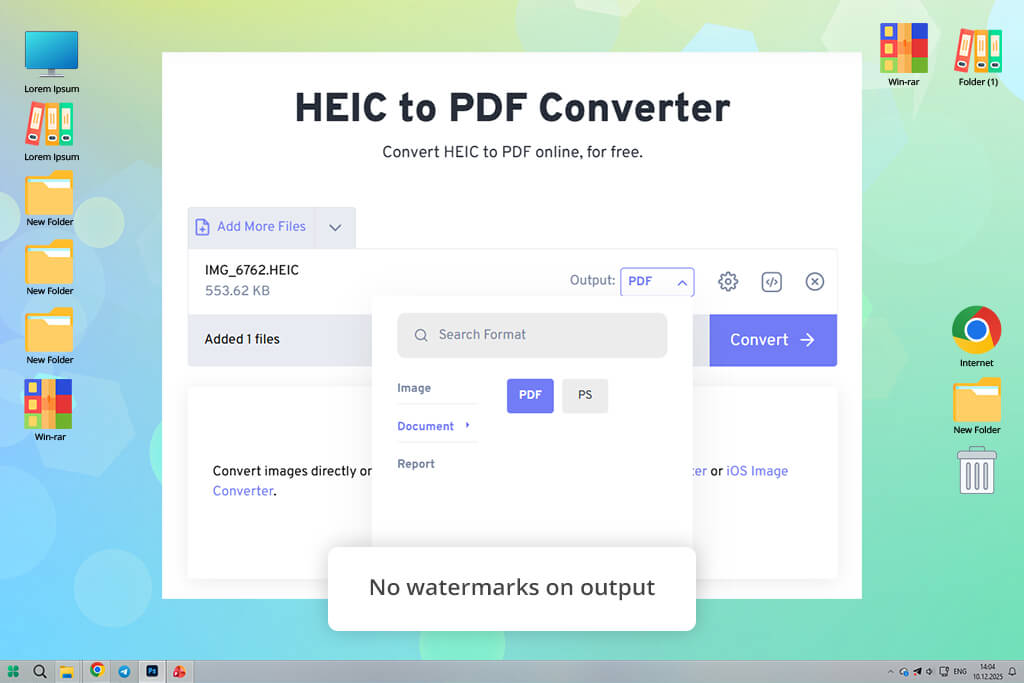
Price: Free (20 files per day) or $12.99/per month
FreeConvert is a reliable and fast HEIC to PDF converter that I prefer to use when I need to access a free web-based service with cross-platform compatibility. I mostly used it as a PDF compressor, and I was highly satisfied with its speed. After choosing HEIC files, I click “Convert to PDF” and save the outputs to my device when everything is ready.
I like the fact that FreeConvert allows me to customize various parameters, including page size, orientation, margins, and image alignment. I can even make smaller images larger to ensure they will fit the page. If I need to optimize file size, I can remove metadata. The output quality remains consistent. PDF files have the same colors and sharpness level as the source file. This batch HEIC to PDF converter helped me expedite my workflow.
FreeConvert relies on 256-bit SSL encryption for enhanced security and automatically deletes files in a few hours. It makes me safer, as I know that my sensitive data is protected. Unfortunately, the free version has a 1GB limit, making it less convenient for those who need to process large batches. Besides, the UI has many distracting ads, making it more difficult to navigate. It was difficult for me to find some advanced settings, as there are too many menus.
“I often use FreeConvert when I need to convert HEIC to PDF quickly. This free service is fully secure and maintains high image quality well.”

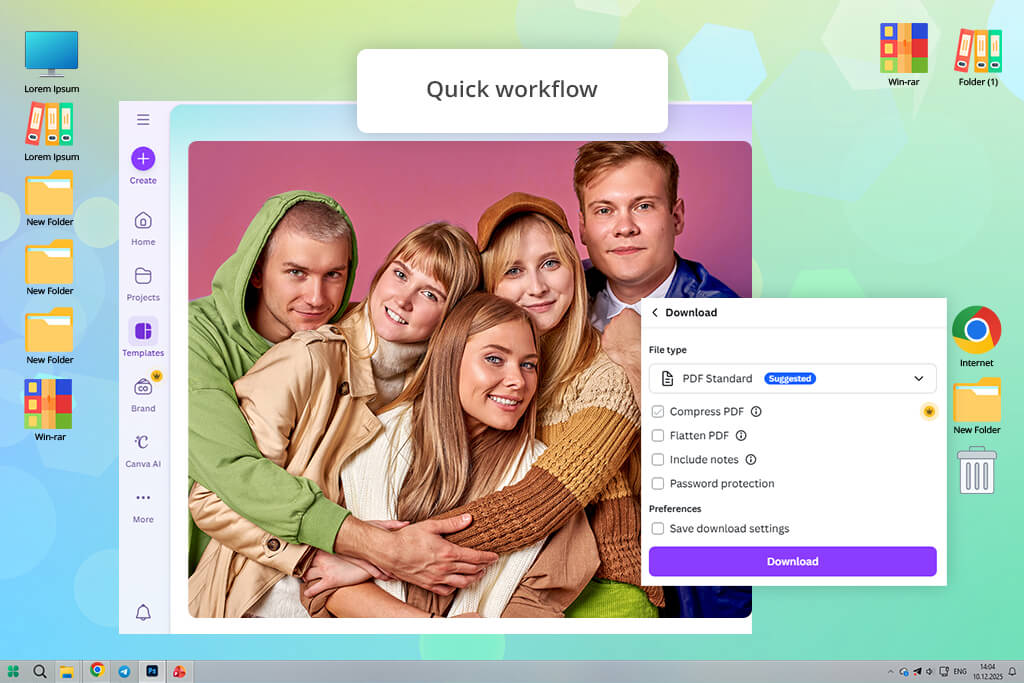
Price: Free or from $12.99/per month
Canva is a popular photo editing service that can also be used for converting HEIC files to PDF format. After uploading HEIC pics, I can quickly edit them and save them as PDFs to my device. Canva is different from other converters on this list, as it has a variety of design tools. I was able to use freehand drawing tools, shapes, and AI features like Magic Eraser, Magic Edit, and Magic Grab to improve my pics before saving them in another format.
I use this secure HEIC to PDF converter online. It is especially suitable for those who need to prepare documents, reports, portfolios, or study materials. It also has convenient collaboration tools, which allow me to quickly share links with my colleagues and clients, invite team members to edit documents, comment on files, or work on tasks collaboratively.
After launching Canva, I was able to quickly upload my HEIC images, edit them, convert them into PDF format, and share them online or download them to my device. This service has quickly become my go-to solution for converting HEIC files.
Nonetheless, I was a bit disappointed by the fact that Canva does not have any pro-level features for working with PDFs, like OCR, PDF/A standards, or advanced batch processing. It’s clearly not the best fit for those who have complex workflows or need to access dedicated tools for working with PDF documents.
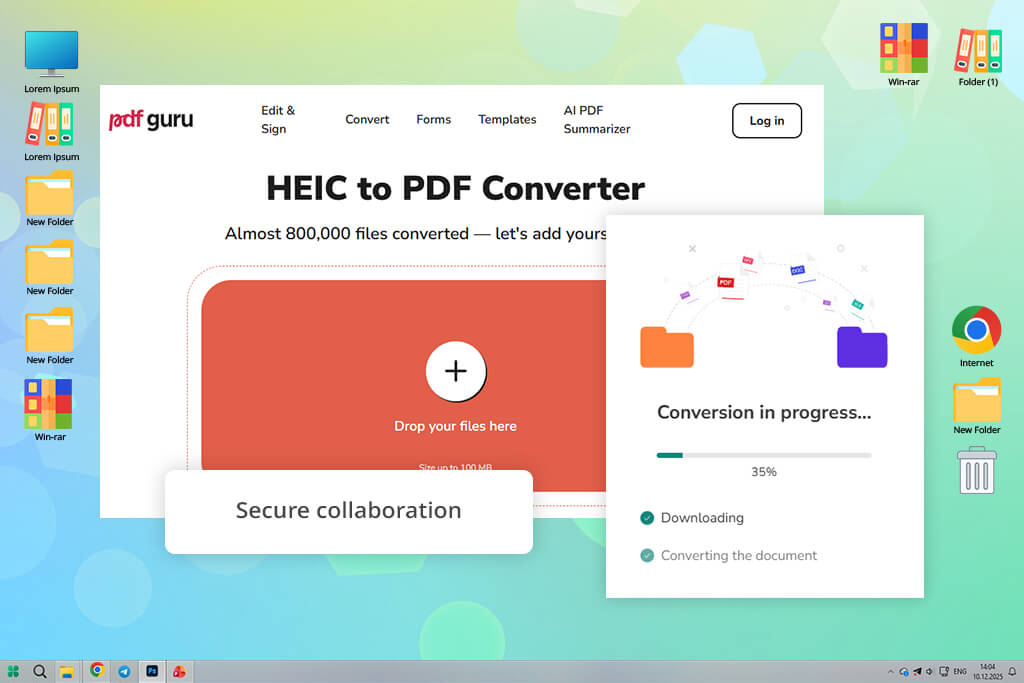
Price: 7-day limited access trial: $0.99 initially, then auto-renews to $49.99/month. Or 7-day full access trial: $1.99 initially, then auto-renews to $49.99/month.
PDF Guru is available online from any browser, so I was able to upload my HEIC images quickly. In a few moments, I was able to download a high-quality PDF file to my device. This HEIC to PDF converter preserves image clarity and details. I was impressed by its streamlined functionality. This file converter software has a well-thought-out interface, which expedites conversions and makes this solution suitable even for novices.
PDF Guru allows users to convert files up to 100 MB. Another advantage of this HEIC to PDF software is that it reduces file size while maintaining original quality. I was able to convert my files on Mac, iPhone, and other devices with ease, as it’s compatible with all OS and just requires a stable connection.
This service also has handy collaboration tools that allow me to protect my files with a password to share them securely. The only significant shortcoming is that I have to pay to download the output files, making it hardly suitable for casual use. This solution also has a limited choice of editing tools. In addition, it took me a while to convert large files, and the size limits felt quite restrictive.
“I enjoyed using PDF Guru, as it supports safe HEIC to PDF conversions and can be accessed online from any device.”

A HEIC file is a popular image format supported by Apple devices. It allows users to save high-quality pictures in an optimized format. Even though HEIC is perfectly suitable for iPhones or Macs, a user may have issues when trying to open such files on Windows and Android devices. By converting HEIC to PDF, you can ensure that your file will be easy to view, share, and store.
Yes. You can find a lot of web-based HEIC to PDF converters like Adobe Acrobat, Smallpdf, and PDFgear. They have drag-and-drop UIs, which allow you to quickly add your pictures, choose the right settings, and download a PDF from your browser.
Yes. Use services like CloudConvert or FreeConvert to convert batches of files. You can even create a multi-page PDF by combining several HEIC files. It will help you create professional portfolios and presentations. Besides, you will be able to send such files to your clients.
Not necessarily if you choose the right converter. Services like Adobe Acrobat, PDFgear, Smallpdf, and PDF Guru were built to convert HEIC to PDF without affecting quality. They will allow you to preserve colors, sharpness, and details.
Some solutions, such as Canva, have a set of basic editing tools. They allow users to add annotations and use AI tools. However, most web-based services are built for a single purpose, so you will need to install image editing software to enhance your pics before converting them into another format.
Together with my colleagues at FixThePhoto, I tested a variety of HEIC to PDF converters, which helped me discover intuitive solutions with high output quality and reliable performance. After testing many popular tools, I decided against including some of them in this list. For instance, when using CopyTrans Studio, Zamzar, iLovePDF, UPDF, Convertio, PDF24, PDF Techno, Xodo, iMazing, and iScanner, I became dissatisfied with the quality of converted images, low conversion speed, limited free versions, and convoluted interfaces.
By focusing on these criteria, we were able to choose the best HEIC to PDF converters with extensive functionality, high speed, and excellent usability.





![7 Best AI Wallpaper Generator Tools in {{%year}} [Reviewed & Tested]](http://fixthephoto.com/blog/images/gallery/news_main__preview_28192.jpg)


![7 Best AI Icon Generators [Not for Designers Only]](http://fixthephoto.com/blog/images/gallery/news_main__preview_27831.jpg)
![9 Best Video Delivery Platforms [Simple & Free]](http://fixthephoto.com/blog/images/gallery/news_main__preview_28433.jpg)
![Remove Logo From Clothes AI App [FREE]](http://fixthephoto.com/blog/images/gallery/news_main__preview_27732.png)


















