Many people start with Lumen5 when they want to turn blog articles or written scripts into short videos. From my experience, it works well for quickly converting text into clips that are ready for social media. Still, I’ve often seen readers ask whether there are better alternatives to Lumen5. The main reason is usually practical - after the AI creates scenes, changing the text position or rearranging the layout often takes extra manual effort.
I also noticed that the AI doesn’t always select relevant visuals, so you end up replacing many clips yourself. Others mention that templates start to feel repetitive after a few projects, and some experience slowdowns when editing captions or timing. Because of these issues, I decided to look deeper and identify several reliable Lumen5 alternatives. To keep the comparison fair, I also involved the FixThePhoto team so we could evaluate each platform from different perspectives.
I also found that the AI does not always choose visuals that match the content, so many clips still need to be replaced manually. Some users say the templates begin to look the same after working on several projects, while others notice the system slowing down when editing captions or adjusting timing. Because these problems kept appearing, I decided to research dependable AI tools like Lumen5. To make the comparison more balanced, I invited the FixThePhoto team to help test each platform from different points of view.
| Tool | Text-to-Video | AI Avatars | Timeline Editing | Team Collaboration | Best For |
|---|---|---|---|---|---|
|
Lumen5
|
✔️
|
❌
|
❌
|
✔️
|
Blog → marketing videos
|
|
❌
|
✔️
|
✔️
|
✔️
|
Creative AI video generation
|
|
|
✔️
|
✔️
|
❌
|
✔️
|
AI presenter videos
|
|
|
❌
|
✔️
|
✔️
|
✔️
|
Design + social videos
|
|
|
✔️
|
❌
|
✔️
|
✔️
|
High-volume social content
|
|
|
✔️
|
❌
|
✔️
|
✔️
|
Short-form video editing
|
|
|
✔️
|
❌
|
✔️
|
✔️
|
Long video → short clips
|
|
|
❌
|
✔️
|
✔️
|
✔️
|
Online editing + dubbing
|
|
|
❌
|
✔️
|
❌
|
✔️
|
AI avatar explainers
|
|
|
❌
|
✔️
|
❌
|
✔️
|
Training & presentation videos
|
To finalize the list, I chose tools that deliver more advanced AI capabilities, wider customization options, and more adaptable workflows than Lumen5. For consistency, I evaluated each platform using the same test prompt: “Produce a 30-45 second social media video promoting a photography retouching service. The video should showcase before-and-after comparisons, emphasize quick delivery and budget-friendly pricing, and follow a modern, minimal style with smooth transitions, brief captions, and an optional voiceover.”
I personally suggest this tool, especially for people who use Adobe programs regularly, as I do. When I compared it with Lumen5, the difference in how they work became clear very quickly. Lumen5 mainly focuses on automation - you paste a script or article, and the AI creates a video for you.
In contrast, the Firefly Video Model feels more like a creative space where you can make and adjust visuals yourself instead of letting the system automatically produce marketing videos.
“What I liked most about this Lumen5 competitor was that I could create visuals and then keep editing them in Premiere or Photoshop without changing the way I usually work. It isn’t as automated as Lumen5, but it offers much more flexibility, especially if you are already familiar with Adobe programs.”

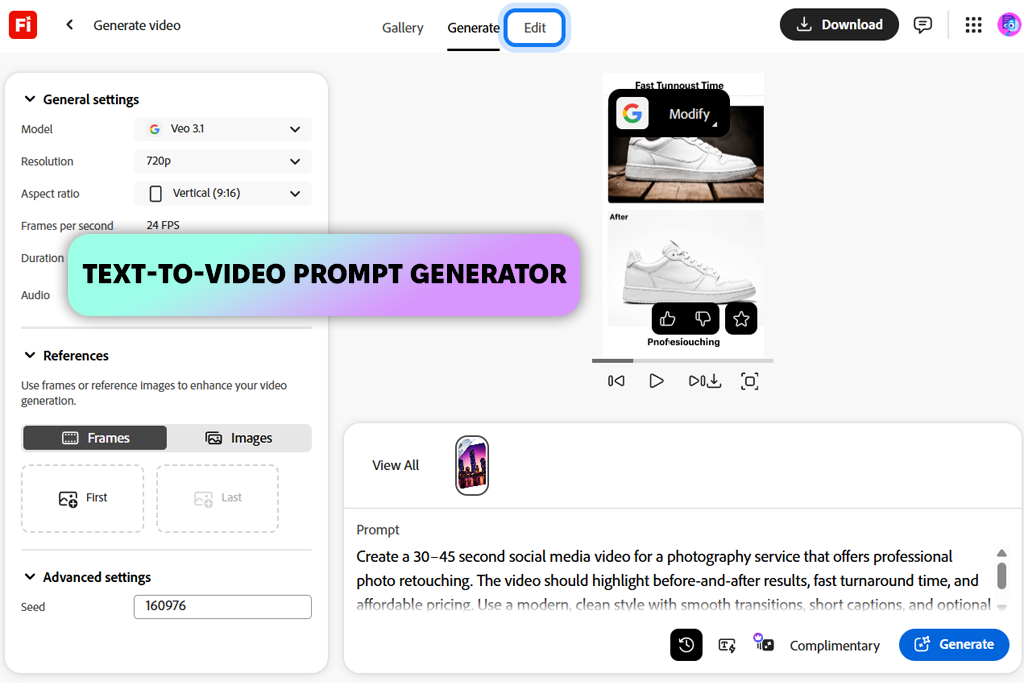
In Firefly, I began in the Generate Video section and typed a short prompt describing a promotional scene. Instead of uploading a full article like I usually do in Lumen5, I tried using short prompts and adjusting the style settings. I also tested the Image-to-Video feature by uploading one of our blog images and selecting animation options. It was impressive to see a still image turn into a short video clip within seconds. In Lumen5, the workflow is quite different - you mainly arrange ready-made scenes and replace stock footage, while Firefly allows you to create completely new visuals.
Another feature I liked during testing was how easily Firefly connects with Creative Cloud tools. After creating several clips, I exported them and opened the project in Adobe Premiere Pro to adjust the transitions and timing. This workflow felt more like a professional editing process compared to what Lumen5 provides. Lumen5 is still quicker when I only need to turn an article into a fast social media video, but Firefly gave me much more creative control.
Since I had already used Synthesia before starting this comparison, I was familiar with this generative AI tool and its features. When I compared it directly with Lumen5, the difference between the two platforms became clear. Lumen5 is mainly designed to convert written articles into marketing videos, while Synthesia focuses on creating videos with AI presenters, making it useful for different types of content. To test a typical workflow, I opened the Create Video dashboard and selected one of the presenter templates.
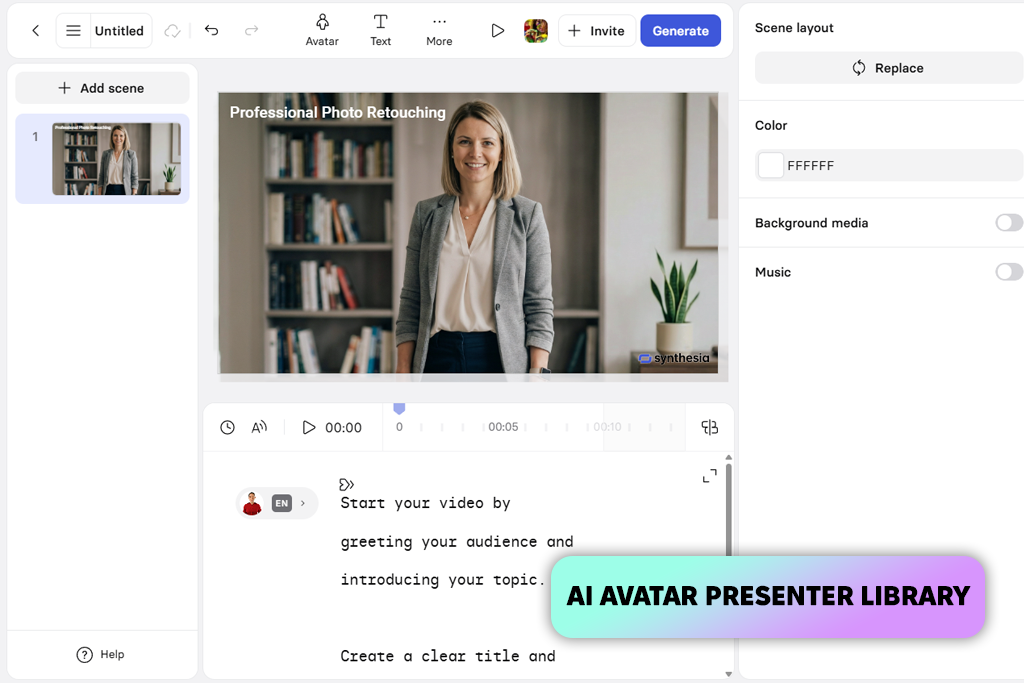
Next, I opened the Avatar panel, selected a presenter, and chose a voice from the available language options. The preview loaded faster than I expected, which impressed me. What I noticed most was how organized the workflow felt. With Lumen5, I usually spend time fixing automatically created scenes - swapping stock videos, moving text, and cutting clips. In Synthesia, however, most of the work focuses on writing the script and arranging the presentation, rather than editing separate scenes.
As I continued testing the AI video maker, I tried changing avatars, adjusting the timing of the script, and placing text next to the presenter. The interface made it simple to edit the script and quickly regenerate the video, which is especially helpful when improving educational material. This type of presenter-centered workflow isn’t something Lumen5 really provides, since it focuses more on visual storytelling. In comparison, Synthesia feels more like creating a clear, structured video presentation.
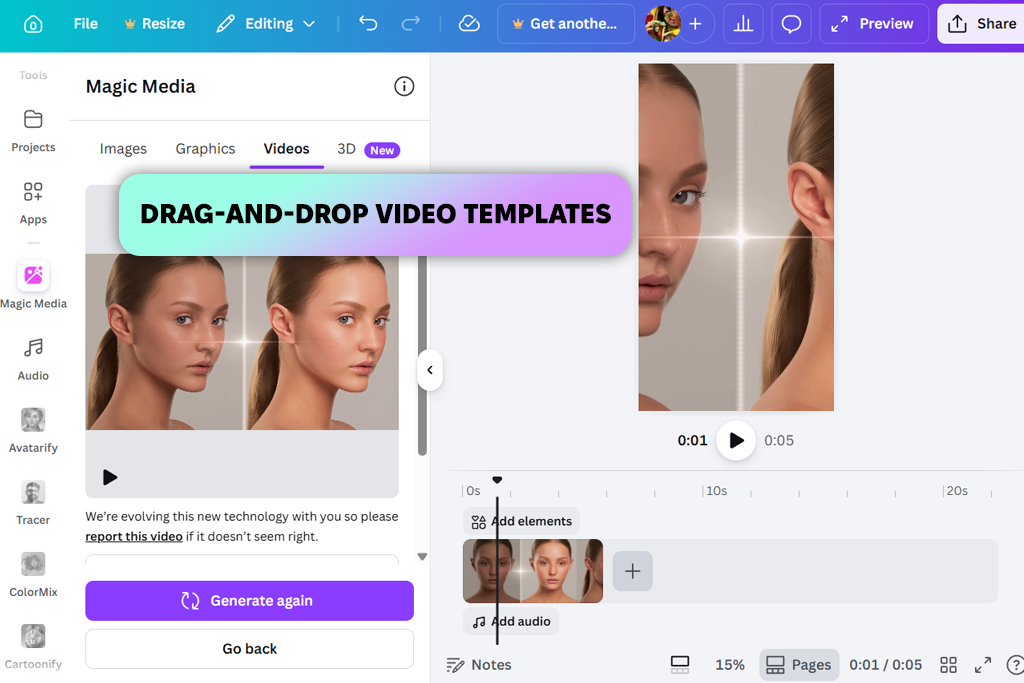
I had to include Canva in this list of Lumen5 alternatives because our team uses it almost every day. It is valuable not only because of AI and video tools but also because of its collaboration features, which make teamwork much easier.
Unlike Lumen5, which mainly focuses on turning text into videos, Canva feels more like a flexible creative platform where video editing is just one of many tools available. To begin testing, I created a new project and chose Video → Social Media Video from the template options.
“One of the main reasons our team relies on Canva is how easy it makes collaboration. Instead of sending files back and forth, I can open a video started by a teammate, make changes to the text or visuals, and leave comments right inside the project.”

As soon as I opened Canva, it showed many ready-to-use drag-and-drop layouts. Instead of uploading a full article like I normally do with Lumen5’s Text to Video feature, I created a short promotional video step by step. I added several scenes, selected stock clips from Canva’s media library, and tested different text animations and transitions using the toolbar at the top. The workflow felt very natural - more like building presentation slides than editing a standard video. Unlike Lumen5, which handles much of the scene creation automatically, Canva offers more frame-level control.
After finishing the first draft, I used the Share button to send the project to Nataly, so she could add comments directly on the timeline. Although Lumen5 also supports teamwork, its collaboration tools seem more focused on managing marketing workflows. Canva, in comparison, works more like a shared creative space where designs, presentations, and videos can all be managed together.
If your main goal is to turn blog posts into marketing videos in large numbers, Lumen5 is still the better choice. However, if you need one platform that combines design, video editing, and teamwork, Canva proves to be a very practical solution.
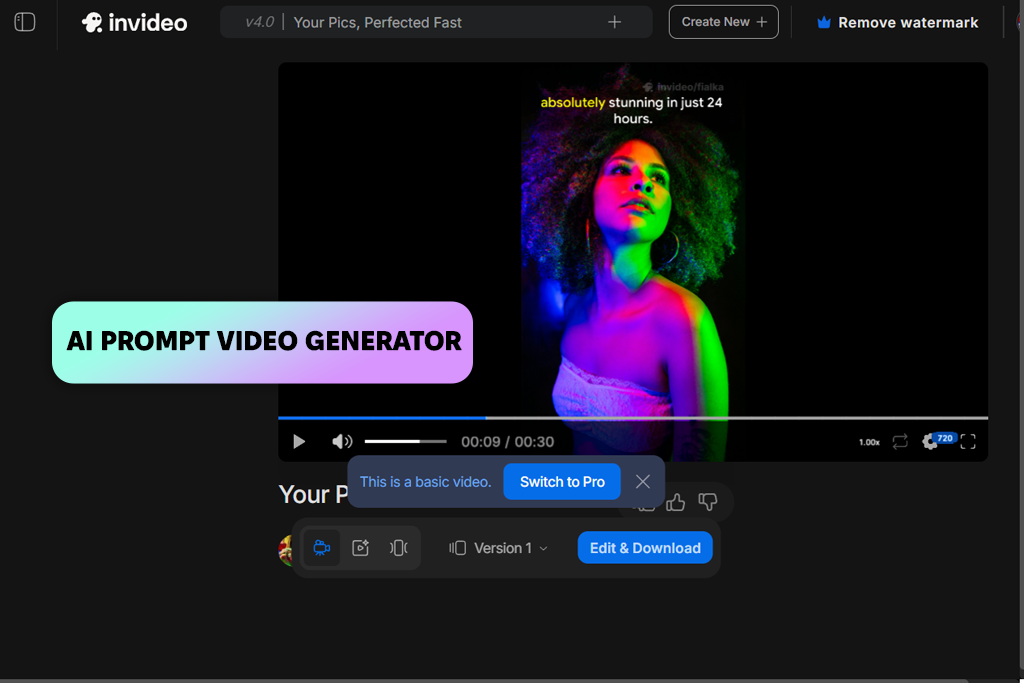
I decided to try InVideo after receiving a recommendation from my coworker Tani. In the beginning, it felt like an app similar to Lumen5, since both systems use automation to make video creation faster. However, after spending more time exploring its features, I noticed that each platform is designed with slightly different goals in mind.
Rather than starting by adding a blog link as I normally would in Lumen5, I launched InVideo’s AI Video generator and typed a brief description for a social media clip.
“I turn to InVideo when I have to produce multiple short videos during one sitting. Its ready-made layouts allow me to copy scenes and replace media very quickly, which helps reduce the time needed to prepare content for several channels.”

The tool automatically created an organized flow of scenes with suggested visuals, short captions, and ready-to-use media. After that, I moved to the timeline to replace footage, edit text, and adjust transition effects. I also explored the preset layouts by browsing the gallery and choosing a vertical video format. Compared to Lumen5, InVideo offered a much wider range of layouts, especially for short vertical content like Instagram Reels or projects created with an AI Tik-Tok video generator.
The interface is designed to help you create many short videos without much effort. You can copy scenes, replace visuals from the built-in media library, and export several versions in just a few minutes. Lumen5 still works better when you need to automatically turn a blog post into a structured marketing video. InVideo, however, feels more suited for creating large amounts of social content, where speed is more important than detailed customization. For social media managers or creators who post daily, this workflow can be very convenient.
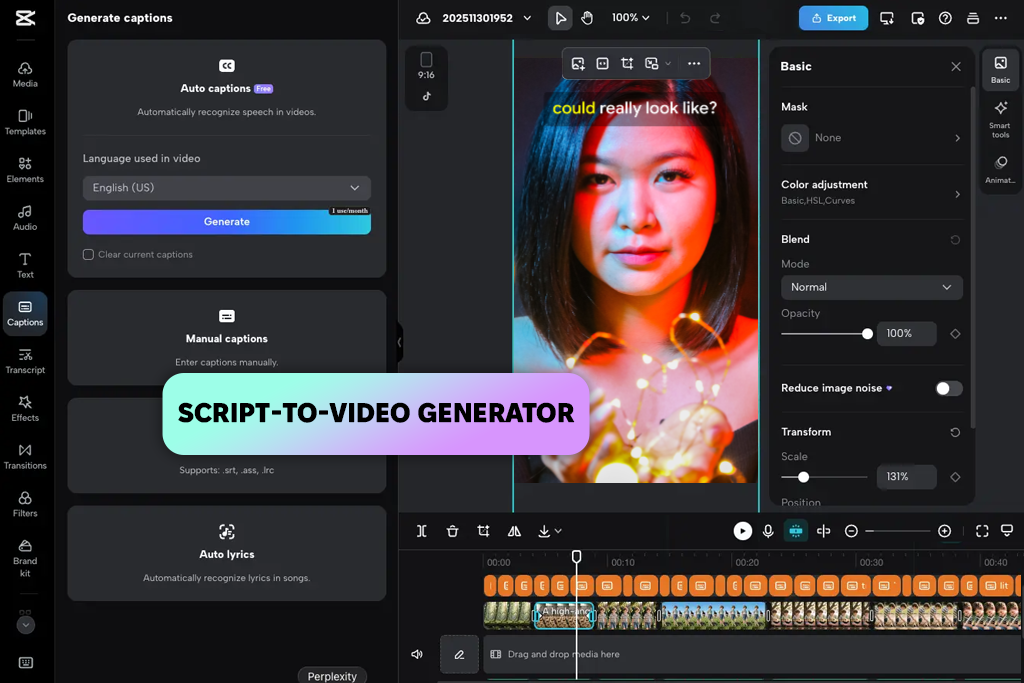
Many people, including me, usually see CapCut as a regular video editing app rather than an AI video generator.
However, while testing it, I noticed that its AI capabilities can match Lumen5 in several situations. I had mostly used CapCut before to edit short clips for social media, so navigating the interface already felt familiar. What really caught my attention during testing was the number of new AI-based features that have been introduced to this online video generator like Lumen5.
“I mainly use CapCut to edit short videos, especially when we need quick content for Reels or Shorts. The features I use the most are automatic captions and simple effects that save time. Compared to tools like Lumen5, CapCut lets you adjust your videos more freely and make changes the way you want.”
To begin, I selected the Script to Video feature from CapCut’s AI menu and added a short advertising script. Within moments, the system created a basic draft that included stock footage, animated text, and automatic scene changes. After reviewing the initial result, I switched to the timeline to refine the details.
This part showed the biggest difference from Lumen5. Instead of only adjusting pre-made scenes, CapCut allowed me to control each element - trimming clips, layering visual effects, and testing different color presets to improve the final look.
Adding subtitles and narration was quick when I tested the Auto Captions and Text-to-Speech tools. With these features, the editing process felt similar to working in a professional production setup. For fast article-to-video conversion with minimal input, Lumen5 still feels more efficient.
However, when detailed adjustments are important, CapCut gives much greater flexibility. It works especially well for creators who regularly produce short videos for platforms like TikTok, Reels, or Shorts and want more creative control.
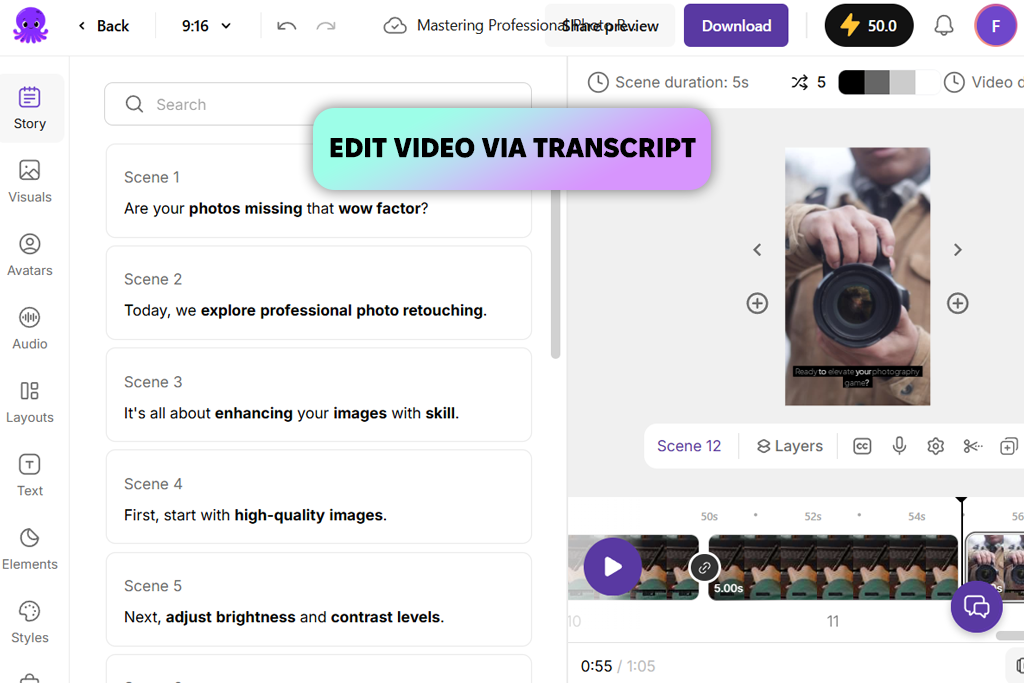
I first discovered Pictory while searching for an AI YouTube Shorts generators, so I had already tested it before this comparison. Back then, I needed a tool that could quickly turn longer videos into shorter clips, and Pictory kept showing up in many recommendations. When I later compared it side by side with Lumen5, it became clear that although both platforms use AI, they are designed to handle slightly different tasks.
I started by testing the Video to Video tool again, since this is where Pictory really shows its strengths. I uploaded a long webinar file and waited a short time while the system created a full-text version of the speech. After that, I removed parts of the text I didn’t need, and the related video sections were cut automatically. My usual workflow in Lumen5 is to add an article link and let the AI create scenes from it. Pictory works the other way around - instead of building videos from text, it allows you to edit a video by making changes directly in the written transcript.
Once I finished cutting the transcript, I created several short videos to mimic the process of making YouTube Shorts or social media highlight clips. I also tried the Script to Video feature to compare it with Lumen5’s text-based video creation. The results were solid, but the layout felt more like a classic editing program, with different sections and panels to move between. Even so, when I need to turn blog posts into branded promotional videos quickly, Lumen5 still feels like the faster option.
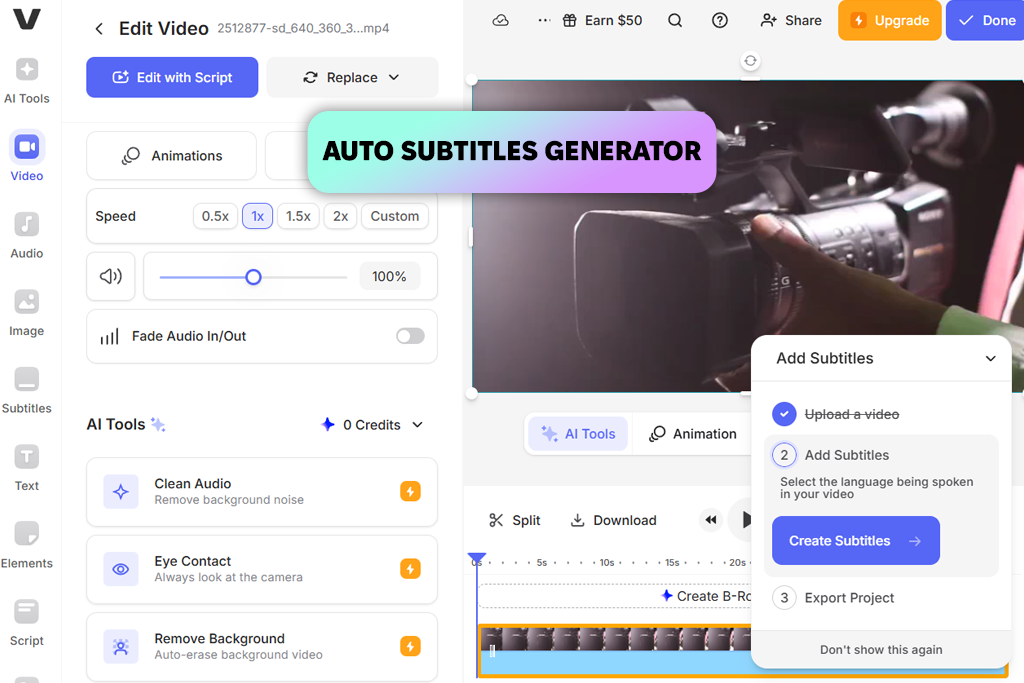
I decided to test VEED against Lumen5 when I needed to make a translated version of an avatar-based video. Lumen5 works very well for quickly turning written content into promotional clips. However, when I started working with voice translation and digital presenters, VEED felt like a better fit for those tasks. To begin testing, I uploaded a short presenter video into VEED and went to the Dubbing section.
I also spent some time experimenting with the timeline editor, trimming clips, and adjusting captions while testing the AI voice features. The interface of this online video generator like Lumen5 reminded me more of a lightweight editing software rather than a template creator. This is where the difference between the platforms becomes clear. Lumen5 is optimized for fast content marketing workflows, especially when repurposing blog posts. VEED gives you much deeper control over the video itself.
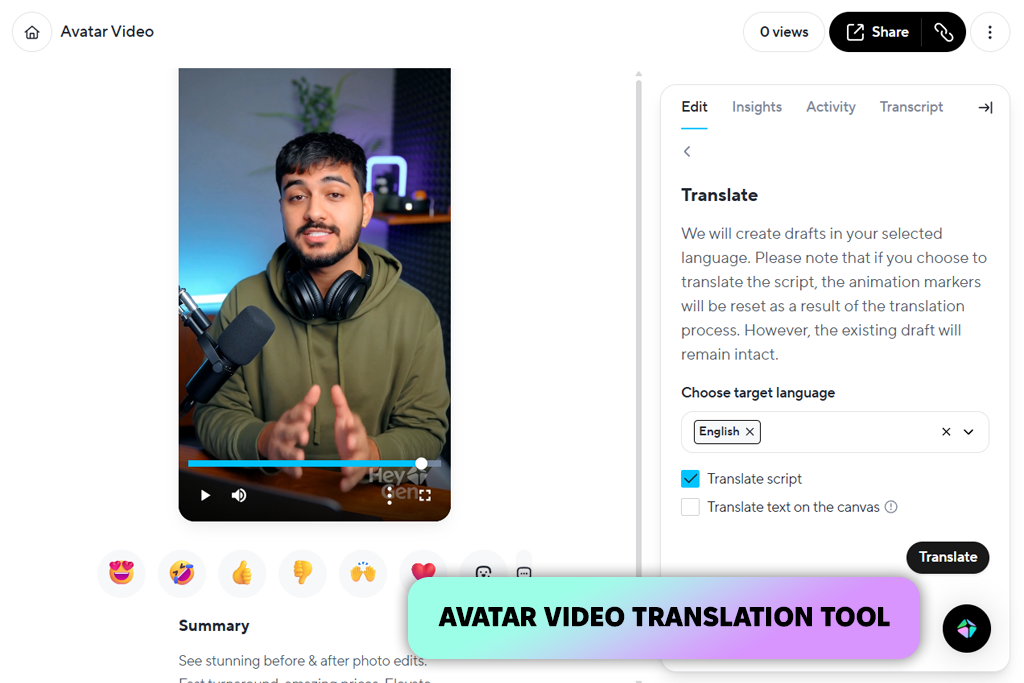
I decided to try HeyGen when I needed to make a presenter-style video without having to record myself. By then, I had already used Lumen5 many times to turn blog posts into videos, so I wanted to see how they compare. The difference became clear almost right away. Lumen5 is mainly used to turn written content into visual stories, while HeyGen focuses on creating AI presenters who read your script on screen.
“The avatar feature works really well when you just need someone to present your script on screen. I wouldn’t use it for every project, but it’s very useful for making simple tutorials.”
To begin testing of this Lumen5 alternative for video creation, I went into the Create Video workspace and picked one of the available AI presenters. Then I added a short tutorial text into the script section and selected an English voice from the library. In less than a minute, the system produced a talking-head style video with lips that matched the speech. This process feels very different from Lumen5. There, I normally add a blog link, let the AI divide the content into scenes, and then change or adjust the suggested visuals.
I also tried creating the same video in a different language, and the system automatically updated the speech and lip movements to match. This type of localization feature isn’t something Lumen5 really provides. In my opinion, Lumen5 is still a better fit for marketers who want to quickly reuse blog content as videos. But if you’re making training content or videos in multiple languages, HeyGen feels much more tailored to that kind of work.
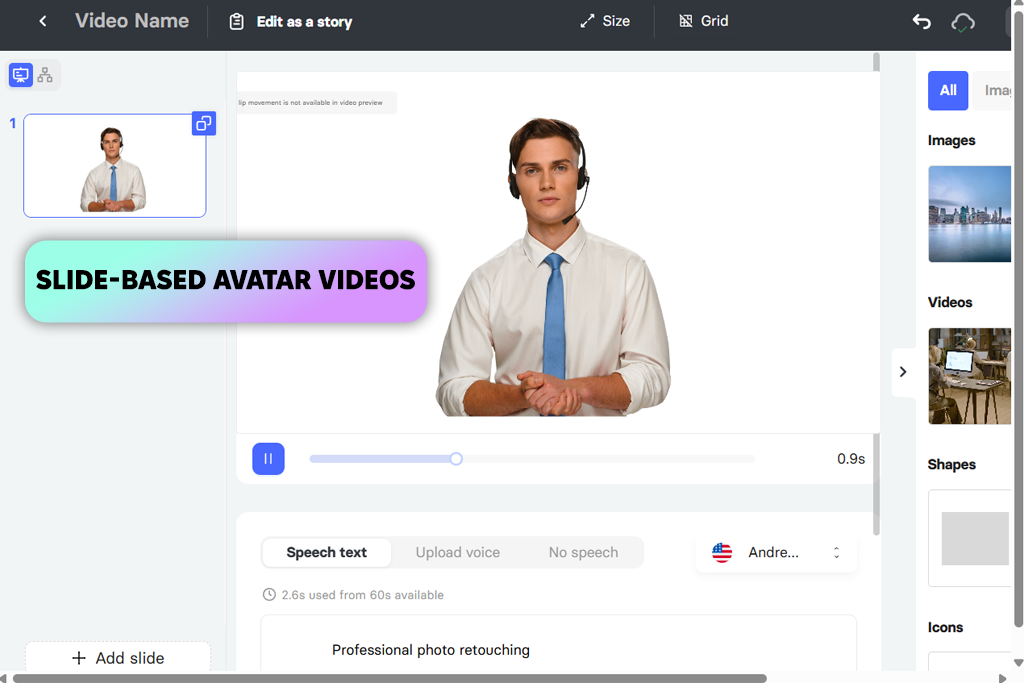
Right away, it becomes clear that these apps have different purposes. Lumen5 takes what you write and adds pictures and clips. Elai puts a computer-generated person on screen to talk for you. Just knowing that changes your whole plan. To begin testing, I opened the Create Video dashboard and chose the Avatar Video feature.
The first step in the editor was adding a script. After entering the text, I looked through the Avatar Library, selected a presenter, and chose an AI voice. The preview loaded quickly, showing the avatar talking with lips that matched the speech. This workflow feels very different from Lumen5.
In Lumen5, the system usually creates a storyboard filled with stock visuals, so most of the time goes into adjusting scenes and captions. With this Lumen5 alternative, the main attention stays on the presenter and the message, while slides, graphics, and backgrounds act as supporting elements.
I kept playing with the editor and tried placing slides behind the avatar. I tossed in a few visuals to act like I was showing off a product. It was simple to drop text boxes and pictures next to the talking head. The whole process reminded me more of building a school presentation than cutting together a promo video.

After testing several text to video tools like Lumen5, I realized that choosing an alternative mostly depends on the type of videos you plan to create. Lots of apps use AI, but they're built for totally different ways of working. Some are made for marketing teams who just want to reuse blog posts. Others focus on fake AI hosts, quick social media clips, or giving you total control over every edit.
If you’re already using Adobe products, Adobe Firefly feels like an obvious option to consider. While testing it, I noticed that it works more like an added feature to programs such as Premiere Pro or Photoshop rather than a separate video tool. It offers greater control over creating visuals and suits designers who prefer to generate and fine-tune video elements instead of depending on ready-made templates.
When teams need to produce training content, product demos, or onboarding videos, AI avatar tools can save a lot of time. Platforms such as Synthesia, HeyGen, and Elai are designed mainly for presenter-style videos instead of visual storytelling. From my experience, they work particularly well when you want a virtual presenter to explain information on screen without having to film yourself for every video.
If your focus is on making videos for social media, platforms like InVideo, CapCut, and Pictory are often a better fit. These Lumen5 alternatives are built to help you create many short videos in a short amount of time. During my testing, I found that InVideo and CapCut work especially well for quick edits and adding visual effects, while Pictory is particularly useful for turning long content - such as podcasts or webinars - into short highlight clips.
If you need a tool that combines design, editing, and teamwork, Canva and VEED are good options to explore. Canva is particularly helpful for small teams that already create graphics, presentations, and social media content in one shared workspace. VEED, in comparison, feels more like a simple editing studio, offering useful tools for subtitles, voice dubbing, and translating videos into different languages.
Choosing the best Lumen5 alternatives is more about matching the tool to your workflow than directly replacing Lumen5. Once you decide whether you need automation, editing flexibility, AI presenters, or fast social media output, the right platform usually becomes clear.
To make the comparison fair, we tested every Lumen5 competitor using the same basic workflow that many marketers and creators follow with Lumen5 - quickly turning written content into video. I started by checking how fast each tool could turn a short script or article into a usable first draft. As I tested, I checked whether the AI could organize scenes, choose suitable visuals, and add captions automatically without needing too much manual editing. This step helped us see how effectively each platform manages the main task of reusing written content as a video.
Another key point we evaluated was how flexible the editing tools were. Automation can save time, but it’s just as important to know how easily users can make changes afterward. During testing, Nataly focused on how quickly scenes, text elements, visuals, and timing could be updated. She also looked at how easy the editor was to understand - whether it used a simple storyboard layout or provided a more detailed timeline interface for advanced editing.
Tani wanted to see if the AI was actually useful. She tested if it got the meaning of her prompts right, if the clips it chose fit the topic, and if the robot voices or captions sounded fake. A lot of people use these features to save time, so she watched carefully to see if it was a true time-saver or just created more work cleaning up mistakes.
I also tested how easy it is to make a bunch of videos at once. A lot of teams use AI tools to create different versions of the same video for Instagram, YouTube, or TikTok. So, I checked how simple it was to change the shape of the video, like making it tall instead of wide, or to copy and save it in different file types for social media. I also looked at whether the app made it easy to crank out several videos from just one starting point.
Lastly, we checked out the teamwork and organization tools. Making videos usually involves more than one person. We looked to see if you could easily share a project, let others make changes, and leave feedback all inside the app. We also checked how simple it was to keep the look the same across many videos - using the same colors, fonts, and logo every time. In daily work, these practical features often matter more than any single fancy AI trick.





![9 RunwayML Alternatives [Better, Faster & Cheaper]](http://fixthephoto.com/blog/images/gallery/news_main__preview_28969.jpg)
![9 Best Play HT Alternatives in {{%year}} [100% FREE]](http://fixthephoto.com/blog/images/gallery/news_main__preview_28920.jpg)
![12 Best AI Flyer Generators [Online & Free]](http://fixthephoto.com/blog/images/gallery/news_main__preview_28910.jpg)

![Golden Hour Filter Online [FREE]](http://fixthephoto.com/blog/images/gallery/news_main__preview_28916.png)

















