

For a long time, Topaz Photo AI was a regular part of my editing process, especially for improving clarity and reducing grain in high ISO photos. It seemed like an ideal tool - quick, intelligent, and generally dependable. However, as I started working on larger projects, minor flaws began to appear more often and I decided to look for Topaz Photo AI alternatives.
At that point, I was working on a commercial project for a small travel brand. The challenge was to keep a consistent look across photos taken in very different situations - early morning landscapes, night city scenes, etc. Some shots had blur from movement, others had strong noise or uneven light. I needed a tool that could handle all of these issues without slowing down my workflow.
So, I redefined what I actually needed: consistent results across a full batch, more control over adjustments instead of relying entirely on AI, and faster processing for high-resolution Sony RAW files. I also wanted a tool that fits naturally into a complete editing workflow, not just a fix-it solution.
My colleagues from the FixThePhoto team joined me in testing 40+ Topaz Photo AI alternatives. We reviewed advice from specialized forums, considered ChatGPT suggestions, and used our own hands-on experience. Then we started testing based on real tasks from my project to see how each tool performs in practice.
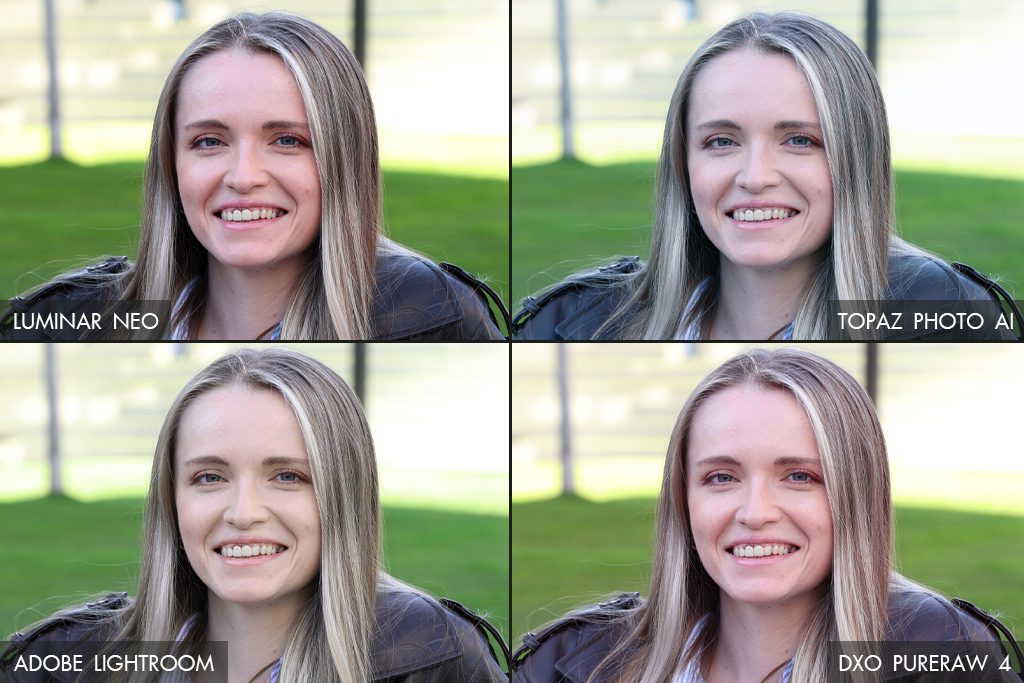
One of the main issues I noticed is performance and hardware demands. Topaz software relies heavily on AI models, so it works best with a powerful GPU. On less powerful machines, processing can slow down or become unstable, particularly when handling large RAW images or multiple files at once.
Inconsistency is another problem users often mention. The AI can improve images well, but it sometimes goes too far - making details too sharp or skin look artificial. This is especially noticeable in portraits and makes it difficult to keep results consistent across a full set of photos.
There’s also the issue of limited control. Topaz is designed as an AI-driven enhancer, not a full editor. That means you don’t get advanced tools like layers, detailed color grading, or precise retouching. For many users, this creates a gap - they still need additional software to finish their work.
Another limitation is the level of control. Topaz is built mainly as an AI enhancement tool, not a full editor. So, you won’t find tools like layers or detailed color adjustments, which often means switching to another program to complete the work.
Workflow limitations are also worth noting. While batch processing is supported, it doesn’t offer the same flexibility as professional editing tools. Keeping settings consistent across multiple images or creating a smooth workflow can feel restrictive, especially for large projects.
Cost is also worth considering. Whether it’s a one-time license or a subscription, many users feel the price is relatively high for a tool focused mainly on enhancement rather than full editing. For casual use or less frequent work, it can be difficult to justify.
Another drawback is that it’s desktop-only, with no mobile or web version, which limits flexibility for on-the-go or cloud-based editing.
There’s also a gap between expectations and real results. Tools like Topaz Photo AI can produce strong improvements, but they don’t always handle difficult cases like heavy blur or compression artifacts well. In those cases, more control or alternative tools are often needed.
In short, people don’t look for alternatives because Topaz Photo AI doesn’t work, but because they want a more balanced solution - with better performance, more control, consistent results, and a smoother workflow.
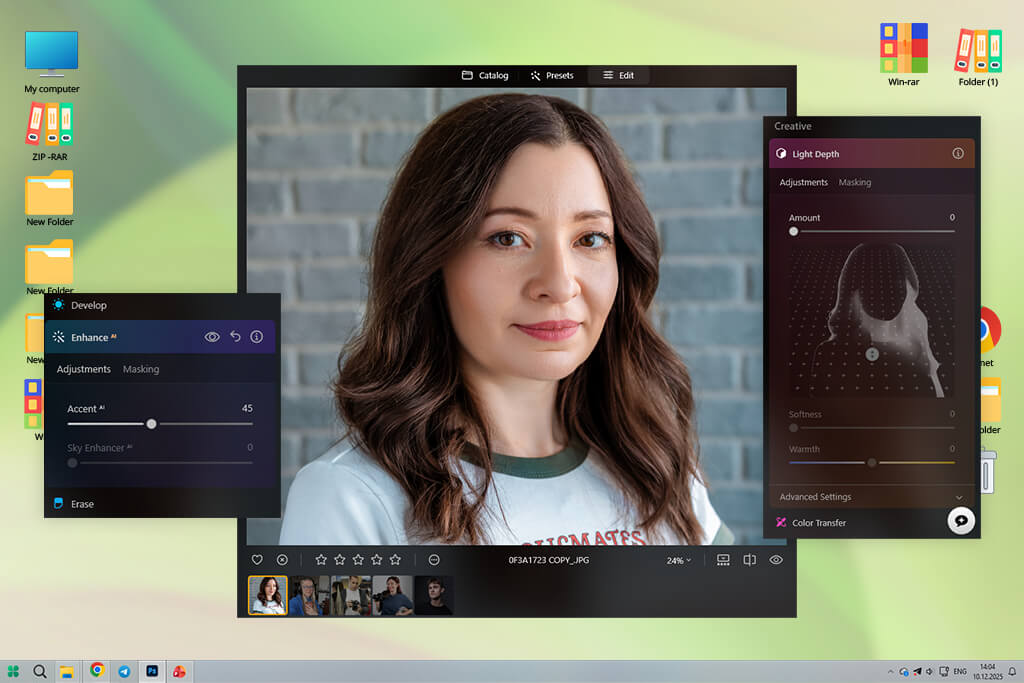
While working on a difficult batch of travel photos, I decided to try Luminar Neo. The images had mixed lighting, noise, and soft focus, so I needed a flexible approach. Instead of relying only on AI, I used Enhance AI first, then refined the result with Relight and manual adjustments. It felt more interactive than expected, and the results were noticeably better.
A portrait taken against a bright sunset convinced me. The subject was too dark, and with Topaz, I would usually fix noise and sharpness, but still struggle to balance the exposure. With Luminar Neo, I used Relight AI to adjust the foreground and background separately. The result looked like the photo had been taken with better lighting, which I couldn’t achieve in Topaz.
“I didn’t expect it to feel like a full editing tool, but it does. After testing this Topaz Photo AI alternative on portraits and travel photos, the results came out clean and natural.”

The noise reduction felt more controlled. Instead of affecting the entire image, I could focus only on the darker areas and keep everything else clean. In Topaz, I often noticed odd textures in already clean regions, but that wasn’t a problem here. It takes a little more time, but the results feel more reliable.
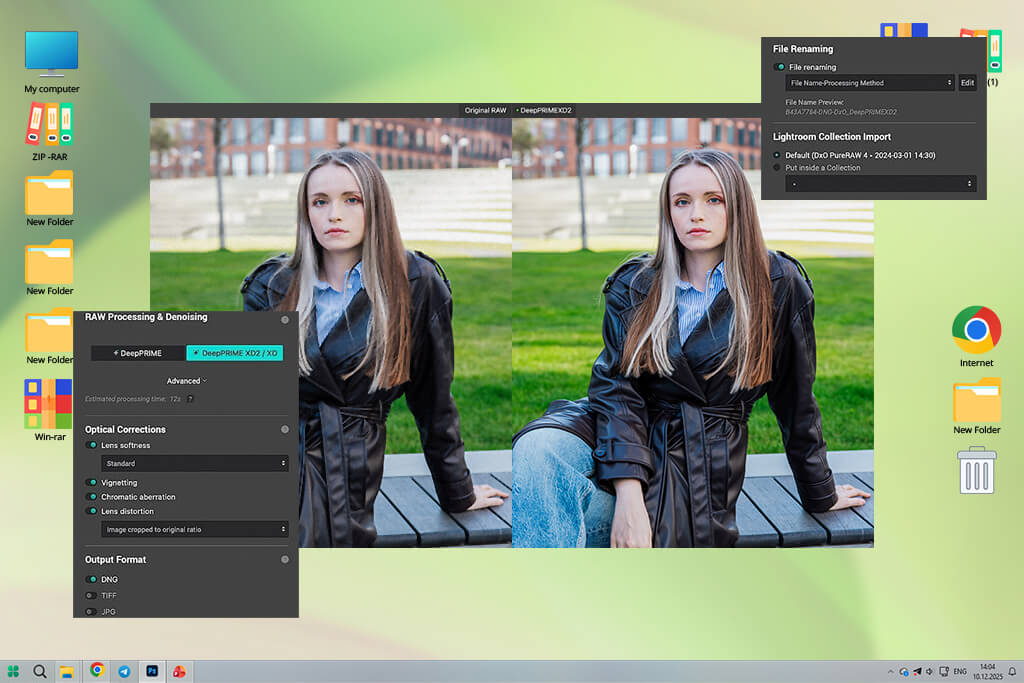
I added DxO PureRAW to my workflow while working on a set of almost unusable night photos - high ISO, deep shadows, and lots of fine detail. This is the kind of situation where Topaz can struggle. At first, I didn’t change any settings and just processed the files as they were. Even then, the results looked cleaner than what I get after manually adjusting Topaz.
What stood out most was how well this Topaz Labs alternative kept fine details. Textures on walls, small text, and subtle color transitions all stayed intact. With Topaz, details sometimes looked slightly artificial, as if they were rebuilt rather than preserved. With DxO PureRAW, the result felt more natural - like the noise had never been there.
The workflow in this noise reduction software is very straightforward, almost minimal. You run your RAW files through it, and that’s it - no additional editing tools. But that’s exactly what makes it work so well: it’s built to do one thing, and it does it right.
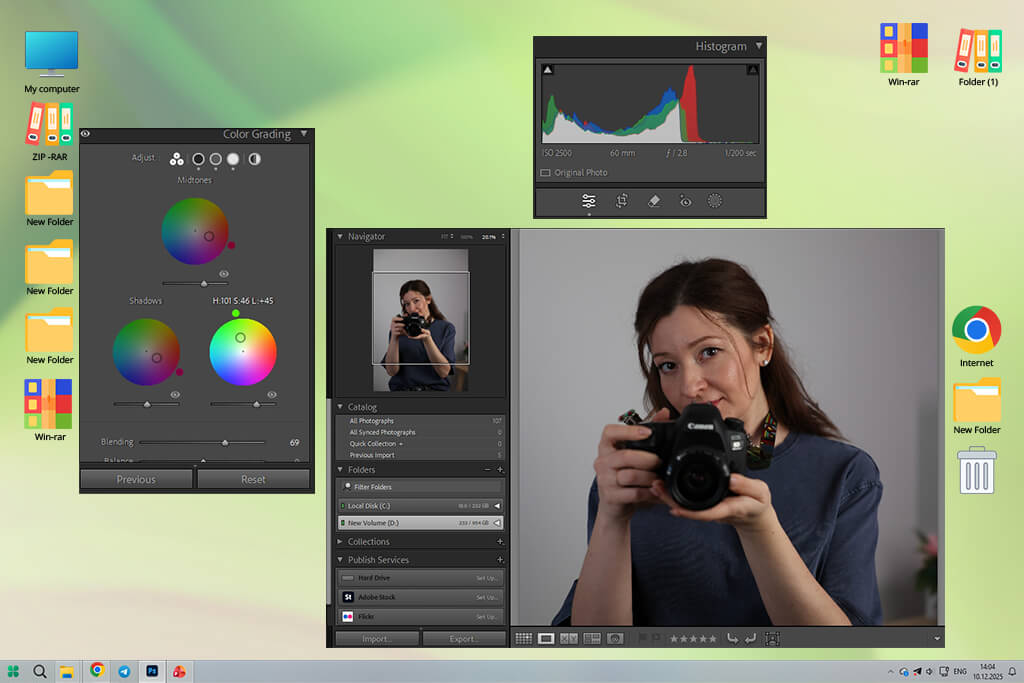
For one project, I decided to rely entirely on Lightroom to see if I could work without Topaz. I imported about 40 RAW files and completed the whole process inside Lightroom. At first, I expected to miss the AI features, but that didn’t really turn out to be an issue.
The AI Denoise tool performed better than I expected. It reduced noise while keeping skin natural and textures smooth. With Topaz, I sometimes saw overly sharp or harsh results, but Adobe Lightroom felt more balanced and consistent.
“It works well for simple denoising and sharpening, but it’s not as strong as dedicated AI tools. That said, the workflow is easy, and having everything in one place is a big plus.”
One thing I really liked about free Adobe software is the workflow. There’s no need to export and re-import files - everything happens in one place. Over time, that actually saves more time than faster Topaz Photo AI alternatives. The whole process just feels easier.
After finishing the project, I realized I didn’t really need Topaz Photo AI anymore. Adobe Lightroom might be less flashy, but it’s more reliable - and that’s what counts when working with clients.
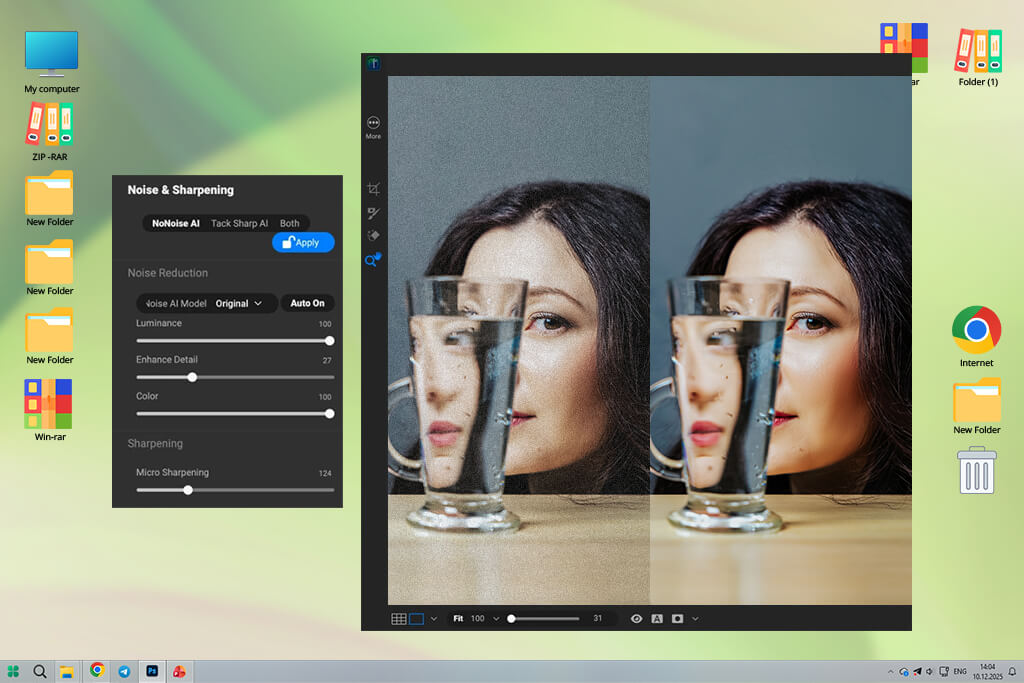
I tried ON1 NoNoise AI on a set of concert shots with strong grain, colored stage lights, and visible motion blur. These conditions make noise reduction especially tricky. Since I normally use Topaz Photo AI for this type of work, I had a clear reference point. I ran the same images through both tools, and from the start, ON1 felt more consistent and easier to trust.
What impressed me most was how well it preserved fine details. Hair, fabric textures, and subtle skin tones all remained intact after processing. With Topaz Photo AI, I often saw these areas become either too sharp or slightly blurred. ON1 NoNoise AI kept everything looking more natural, especially in midtones, without trying to fix too much.
I also ran a batch test with around 20 images. ON1 NoNoise AI handled everything smoothly, with no slowdowns or crashes - something I’ve run into with Topaz Photo AI before. The results stayed consistent across all files, so I didn’t need to go back and fix individual shots. That alone saved a lot of time and made it feel more dependable for real projects.
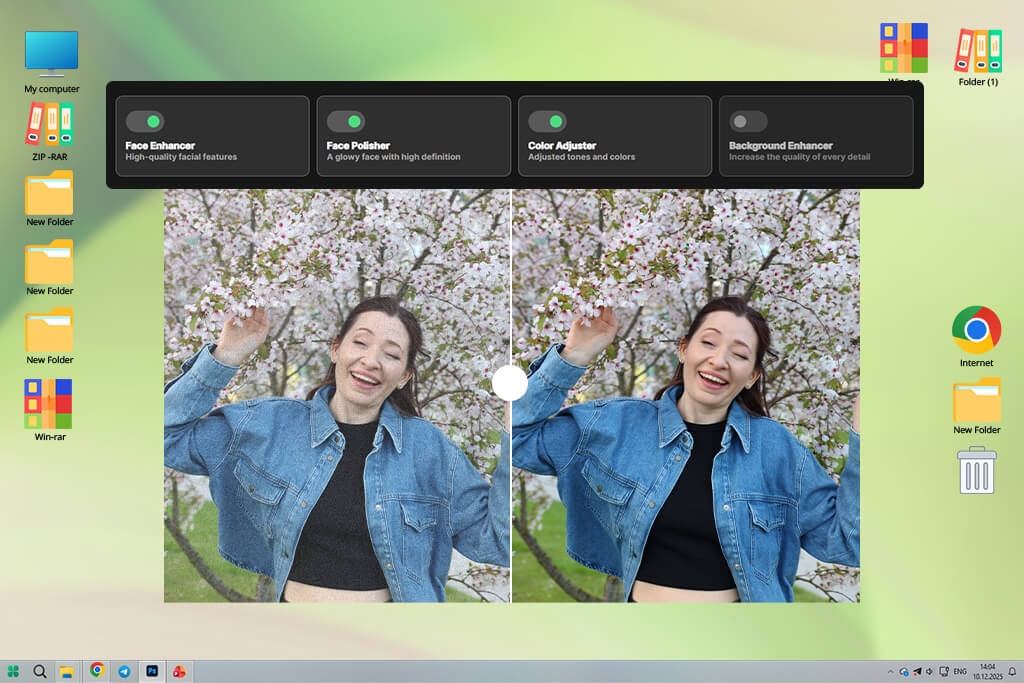
I started testing this automatic photo editor, expecting a basic one-tap tool for quick fixes, but it turned out to be more capable than I expected. I used it on a mix of portrait shots and low-light travel photos to see how well it handles both enhancement and simple edits.
One of the first things I checked about this Topaz Photo AI alternative was noise reduction on a few grainy night photos. The results were clean and processed quickly, while Topaz handled the same task just as fast but with less consistent quality. It didn’t try to aggressively rebuild details like some AI tools do, which made the images look natural, even if they weren’t overly sharp.
“It’s a very easy, mobile-friendly tool that works well for quick travel photo fixes and social posts. However, when you look closer, you can see that fine details don’t hold up very well.”

The biggest advantage was having everything in one place. I didn’t need to jump between different tools - I could handle corrections, enhancements, and small edits in a single workflow. I adjusted lighting, cleaned up distractions, and improved clarity all at once, and it felt surprisingly easy to manage.
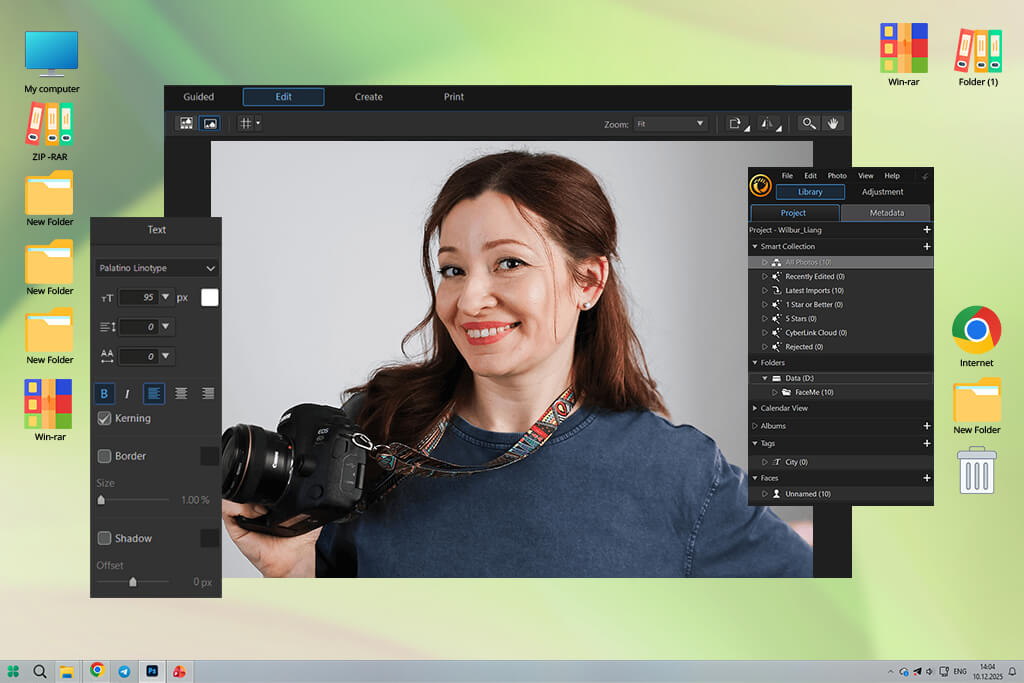
I started testing PhotoDirector expecting a basic, beginner-focused tool, but it turned out to be more capable than I thought. I used it on a mix of travel photos and portraits to see how flexible it really is.
The first thing I tried was removing unwanted objects from a street shot, and it worked surprisingly well. After that, I experimented with sky replacement and lighting tweaks. Having all of this in PhotoDirector felt much easier than switching between Topaz Photo AI and another app.
I tested sharpening and noise reduction on some difficult images to see how it handles quality. The results looked balanced, without going too far in either direction. Compared to Topaz Photo AI, which can sometimes overprocess textures, CyberLink PhotoDirector felt more natural and easier to work with.
In the end, this AI photo editor feels more practical than powerful. It may not match Topaz in every technical aspect, but it’s far easier to use. And in real-world editing, that usability often matters more than having the most advanced AI.
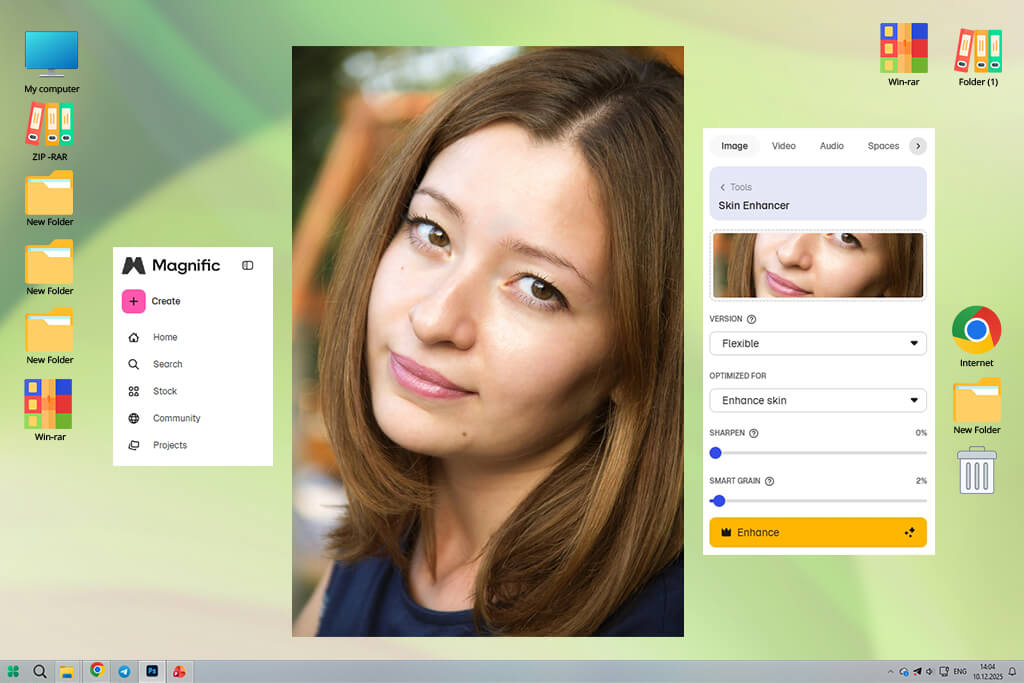
To see how far Magnific AI can push detail, I tested it on a mix of images - low-resolution portraits, AI-generated art, and grainy travel photos. Going in, I expected something similar to Topaz Photo AI, just with a more modern AI approach. The goal was to find out whether it could improve detail without making the images look unnatural.
What stood out is that it goes beyond simple enhancement - it actually rebuilds detail. When I tested it on a soft, low-quality portrait, the result wasn’t just sharper; it looked like the AI had reconstructed missing elements such as skin texture, hair strands, and even lighting.
On stylized images, especially digital art, the effect was impressive and almost cinematic. The final images felt deeper and more refined than the originals.
“When I tested it on low-res photos, the results looked striking, sometimes even unreal. But it can also shift details in faces and textures, so the image doesn’t always stay true to the original.”

When it comes to speed, this cloud-based open source photo editor depends on server performance. Some pics were ready quickly, while others took more time, especially when working with larger files. It’s not an instant result - there’s always a brief delay before the final output appears.
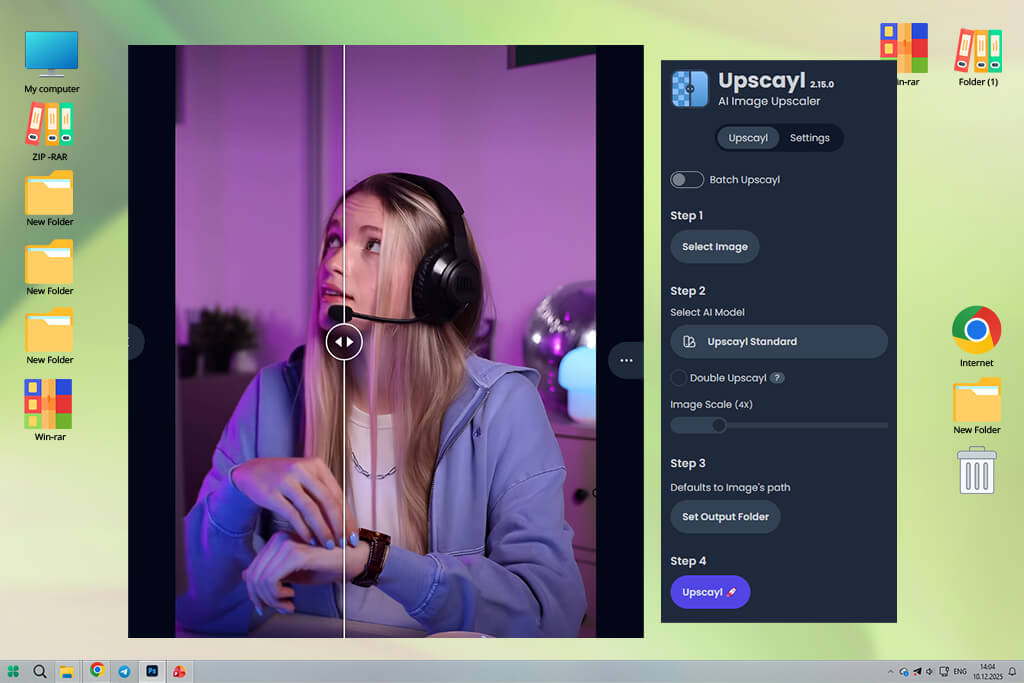
I decided to try Upscayl mostly because it’s free, and I wanted to see how far it can go compared to Topaz. I tested it on older images and low-resolution files that needed upscaling. These weren’t ideal images - compressed JPEGs, some blurry shots, and a few cropped photos. Basically, the kind of files that usually fall apart when you try to enlarge them.
The outcome was better than I expected. Upscayl handled enlargement quite cleanly, without the visual artifacts I’ve seen when using Topaz. It also avoided generating unnatural-looking textures, which some AI tools tend to introduce. While the final images weren’t as polished as Topaz, they were still more than good enough for practical use.
Another thing that stood out was how efficiently this free photo editing app runs. Upscayl worked smoothly on my system and didn’t depend on a high-end GPU. In comparison, Topaz Photo AI can take more time, especially with larger files. Upscayl felt lighter and more responsive overall.
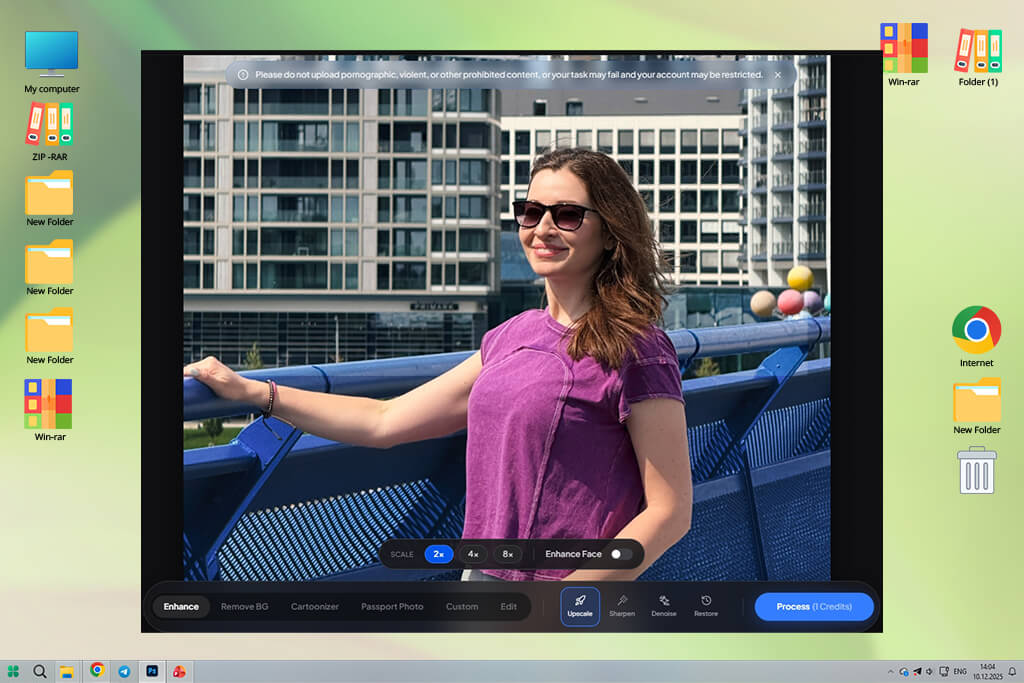
To see how well VanceAI handles low-quality content, I focused on heavily compressed images - mostly downloads and social media photos. These files usually lack real detail, which makes improvement difficult. I processed several images through different modules to compare how much useful information could be recovered.
A key difference with this photo sharpening software is that its tools are divided into separate modules. Instead of one automated workflow, you can choose how to handle things like detail, scaling, and noise individually. This felt more flexible than working in Topaz, where everything is handled together.
“I tested it for batch work. It’s easy to use and doesn’t rely on strong hardware, but you’re limited by internet speed and credits. The output looks decent, but it’s not always consistent.”

Accessibility is another big plus of this Topaz Photo AI alternative. Since it works in the browser, I wasn’t tied to a powerful computer and could run it on almost any device. That made the whole testing process easier. Tools like Topaz Photo AI, on the other hand, can be quite heavy on hardware.
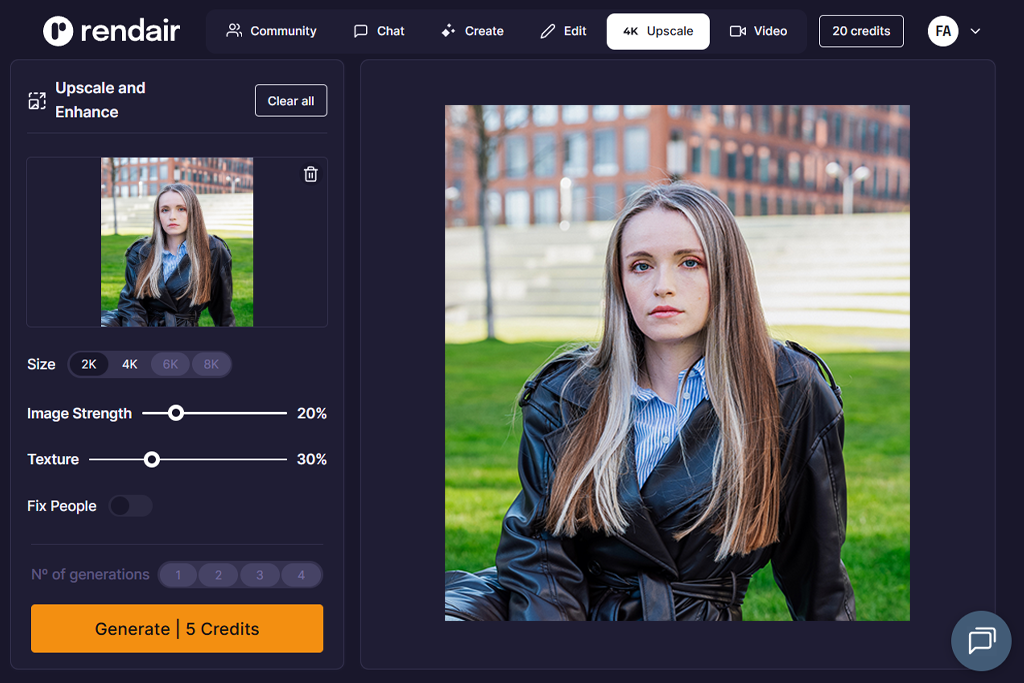
To see how Rendair AI performs in real use, I tested it on architectural visuals, interior renders, and a few low-quality concept images. Going in, I expected a typical cloud-based tool - something that simply sharpens and enlarges images. But I wanted to check how it behaves outside of polished demo examples.
It functions more like a generative rendering tool, especially with architectural or structured scenes. Instead of simply improving clarity, like Topaz Photo AI, it tends to reinterpret the image - introducing new textures, refining lighting, and occasionally altering design elements to create a more polished, complete result.
Another thing I noticed is how much the results depend on the quality of the input. With this AI image upscaler, clean base renders or well-structured architectural inputs lead to noticeably better outcomes.
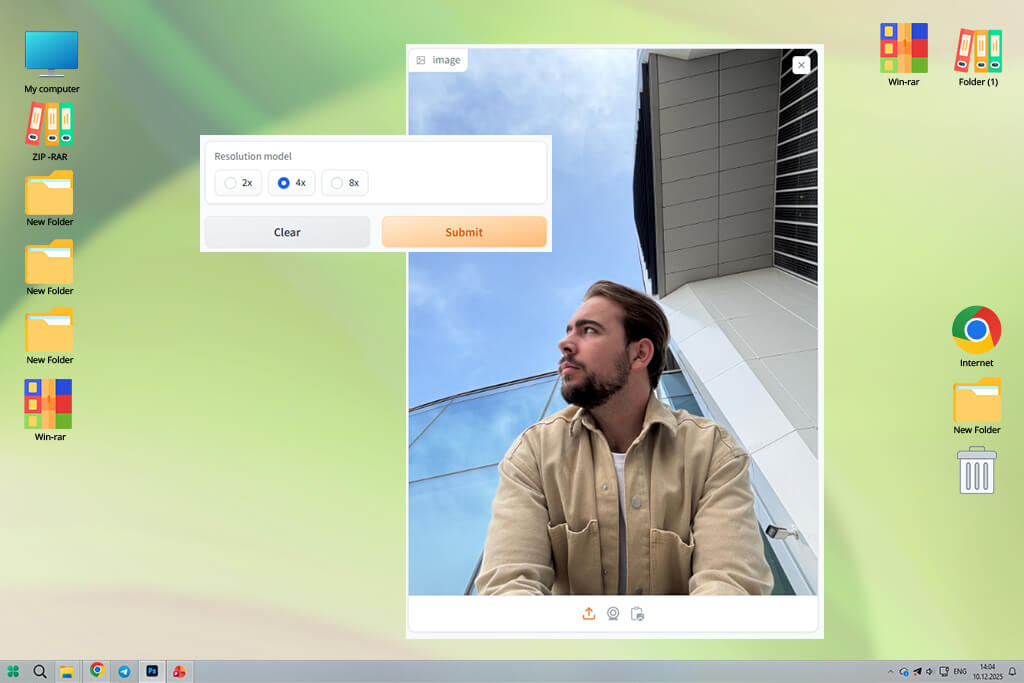
Real-ESRGAN was the strangest Topaz Labs alternative I tried, because it’s not meant for regular people. I had to install and set it up myself, which already makes it unlike something like Topaz. But I wanted to see how good the image quality could be. So, I tried it on very blurry, low-quality images and old photos.
The results looked great in some cases. Instead of only making the edges sharper, it actually rebuilt details that were missing. In comparison to Topaz, the images tended to appear more natural, without artificially sharpening areas where it wasn’t appropriate.
“I tried it on different photos, and it gives very sharp results, but you have to know what you’re doing. There’s no nice-looking interface, so it’s more for tech people.”

How well it works also depends on your computer. On my machine, it wasn’t the fastest choice. Still, the quality was worth it in certain cases. Especially when dealing with very low‑quality images.
Our FixThePhoto team, including Tetiana Kostylieva, Kate Gross, and Tati Tailor, tested the top Topaz Photo AI alternatives to see how they perform in real editing conditions rather than just ideal demo scenarios.
We didn’t stick to just one kind of image. Instead, we put together a varied set with grainy low-light portraits, night street shots taken at high ISO, heavily compressed older files, and some AI-made images with fake detail. The idea was to see how each tool handles different types of difficult images, from common photo issues to more complex fixes.
Tetiana focused on portrait quality and skin detail. She examined how each tool treated facial textures, especially in darker images. Some results looked too smooth or artificial, while others kept natural pores and fine detail more intact. She also checked whether facial features remained true to the original or started to look slightly changed after AI processing.
Kate focused on performance and workflow. She checked how fast each tool handled batches, how stable they were during longer sessions, and how easy it was to apply the same settings across multiple images. Some cloud-based options slowed down with high-resolution files, while desktop tools stayed more consistent but needed more powerful hardware.
Tati focused on visual results and practical use. She reviewed before-and-after images side by side to see if the changes truly improved the photos or simply altered them. For instance, when working with a noisy nighttime street scene, some tools made the image cleaner but stripped away too much atmosphere, while others kept the mood but left some grain visible.
We also looked at how each tool performs when handling multiple images at once. Some AI batch photo editors produced slight variations from one photo to another, making the whole set feel uneven. Others maintained a more consistent style across images but were more conservative when restoring fine details.
Another important part of the testing was checking how much manual tweaking was needed after AI processing. Some tools often require extra edits to fix overly sharp textures or unnatural skin smoothing. Others delivered more balanced results right away, even if they didn’t add as much detail.





![Fish Eye Filter Online [FREE]](http://fixthephoto.com/blog/images/gallery/news_main__preview_28873.png)

















