In the past year, AI design tools have changed the way people make graphics. Apps that offer only templates or require manual work now compete by being automated, using AI to generate images, and focusing on speed. For example, Canva now markets itself as a complete design platform with AI features, and Adobe Firefly shows how Adobe is adding AI directly into its professional creative programs.
Both claim to make design faster, cut down on boring tasks, and make creativity easier for everyone. But actual work needs more than just claims. It needs precise control, dependable results, the ability to handle large projects, and tools you can trust.
To see how these platforms really work, I tested Adobe Firefly and Canva together on a real commercial project. This wasn’t based on demos or single features, but on actual, complete production work.
I began this Adobe Firefly Canva comparison when I was hired to create a digital launch campaign for a wellness startup. The project required Instagram and Facebook ads, website banners, email graphics, and branded images for paid promotions. The client needed all the visuals to look unified, high-quality, and easily adjustable for different formats.
The biggest challenge was balancing speed with high quality. I needed AI to help brainstorm and create visuals fast, but I also required exact control over colors, lighting, layout, and brand details.
To keep the comparison balanced, I intentionally divided the tasks:
Very quickly, a key difference was clear: AI that works within a template versus AI built into a serious editing tool.

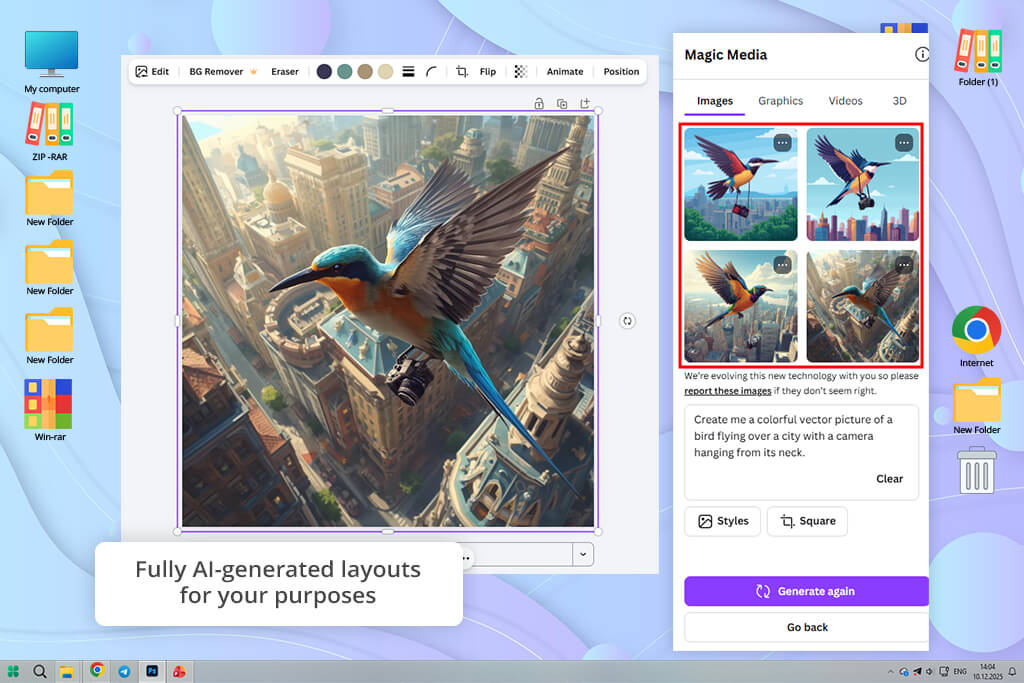
I started with Canva because it’s made for quick results. I used its AI image generator to create abstract backgrounds with a wellness theme - gentle color blends, textures inspired by nature, and simple scenes. The process was simple: type in a description, select a style, and receive four different options.
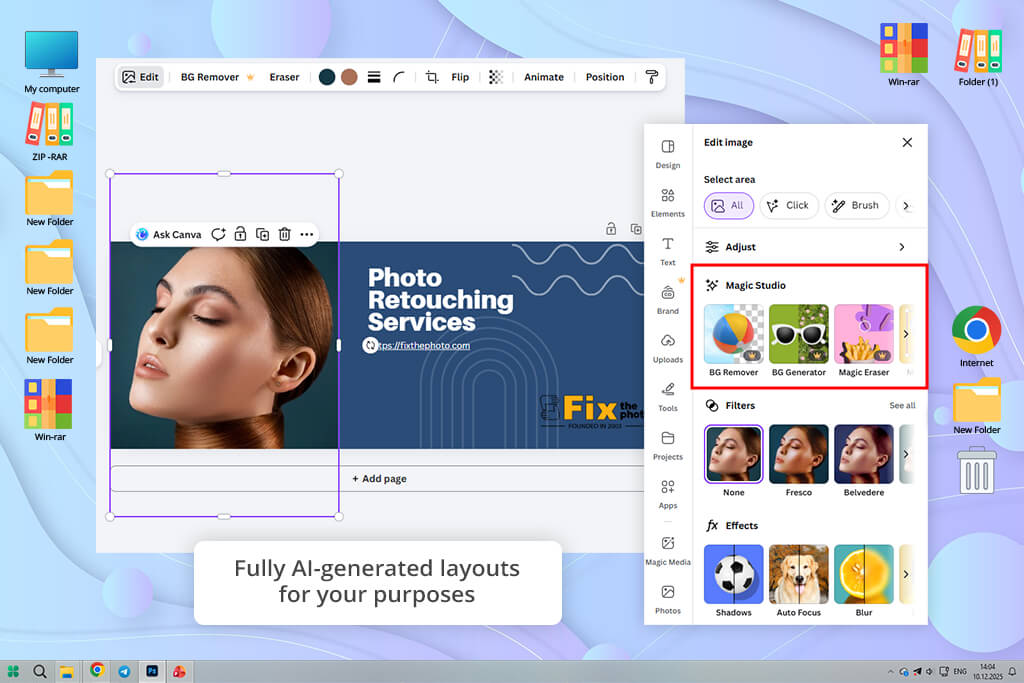
I then used Magic Design, which automatically created complete layouts by blending the AI images with text, fonts, and spacing. This was extremely fast for making Instagram posts and email headers. I could also use Magic Resize to instantly adjust the same design to fit different formats.
Canva’s tools like Background Remover, Brand Kit, and one-click animations let me create professional-looking graphics without manually editing layers. For quickly building mockups and showing ideas to the client, this speed was a major benefit.

When I moved to Adobe Firefly, the approach changed from simply creating and placing an image to generating and then carefully shaping it.
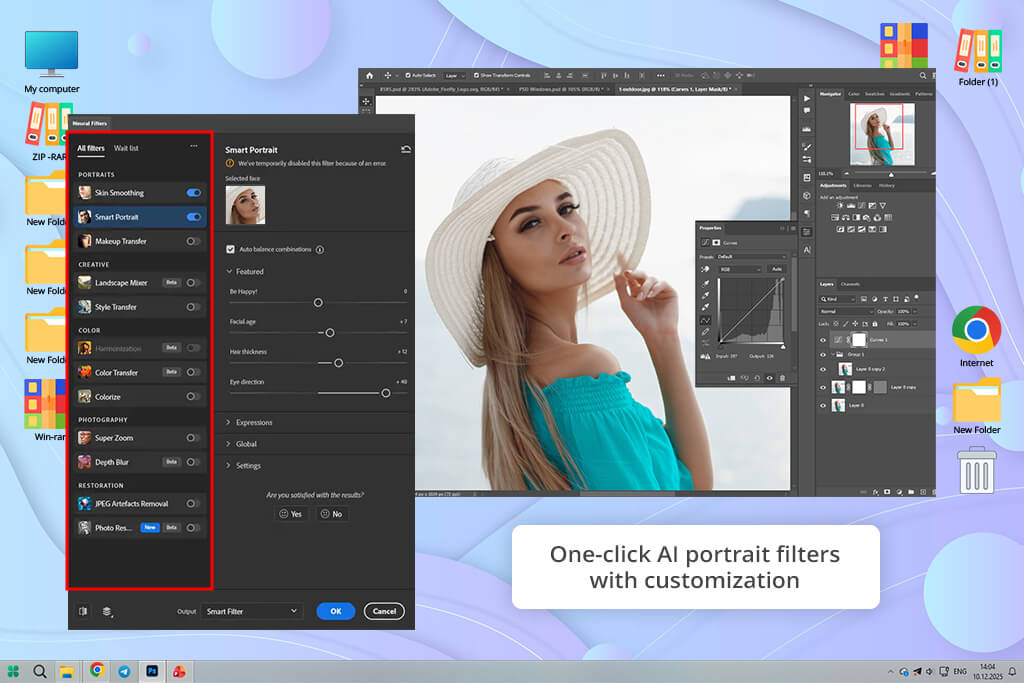
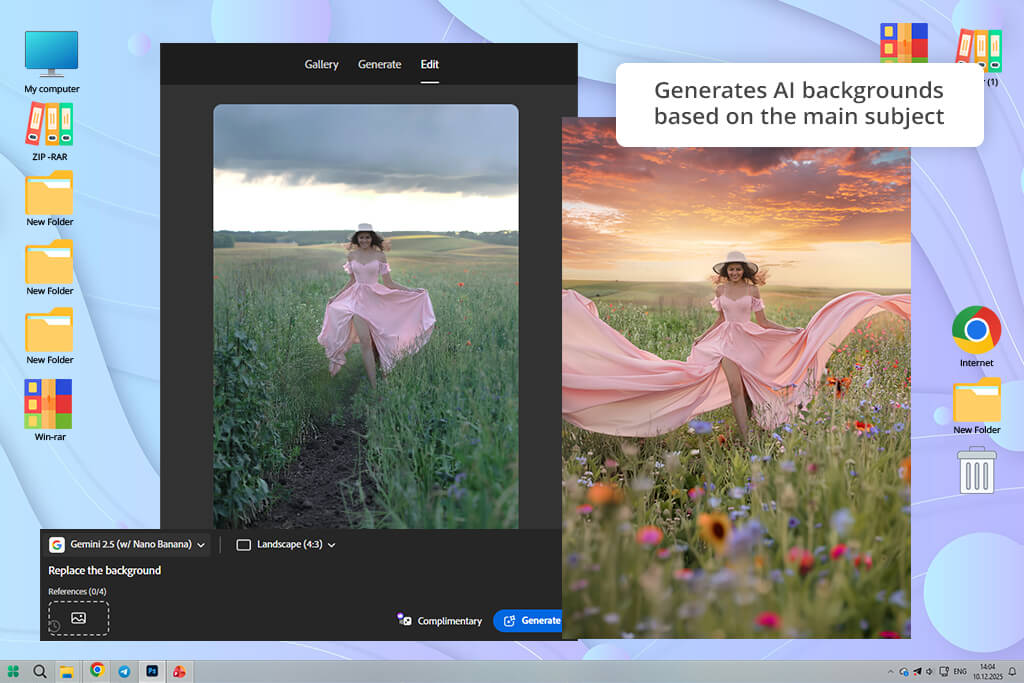
With Firefly’s Text-to-Image feature in Photoshop, I generated concept images that behaved like regular editable files. Right away, I applied Generative Fill to swap backgrounds, used Generative Expand to resize scenes for multiple formats, and relied on the Remove Tool to fix AI-related flaws.
Rather than recreating full images, I focused on improving specific sections. For instance, I swapped out just the main subject while preserving the original lighting and shadows. I also fine-tuned colors with Neural Filters and kept a consistent look across visuals using Photoshop’s AI Color Harmonization.
Firefly didn’t take over my creative choices - it simply made them faster, especially through its Generative AI tools.
| Feature | Adobe Firefly | Canva |
|---|---|---|
|
AI image generation
|
✔️
|
✔️
|
|
Editable AI results
|
✔️
|
❌
|
|
Generative fill/expand
|
✔️
|
❌
|
|
Layer & mask editing
|
✔️
|
❌
|
|
Reference-based AI
|
✔️
|
❌
|
|
Brand consistency control
|
✔️
|
✔️
|
|
Template-based designs
|
❌
|
✔️
|
|
AI layout suggestions
|
✔️
|
✔️
|
|
Print-ready export
|
✔️
|
❌
|
|
Video AI generation
|
✔️
|
❌
|
|
Social media animations
|
Limited
|
✔️
|
|
Team collaboration
|
✔️
|
✔️
|
|
Works offline
|
✔️
|
❌
|
|
Beginner-friendly
|
❌
|
✔️
|
|
Publishing & scheduling
|
❌
|
✔️
|
Adobe Firefly’s AI is built to do more than just create images; it’s meant to improve the workflow across Adobe’s professional creative software. It is integrated into key free Adobe apps (Photoshop, Illustrator, InDesign, Premiere Pro, and Adobe Express), letting you go from the initial idea to the finished product without switching to a different platform.
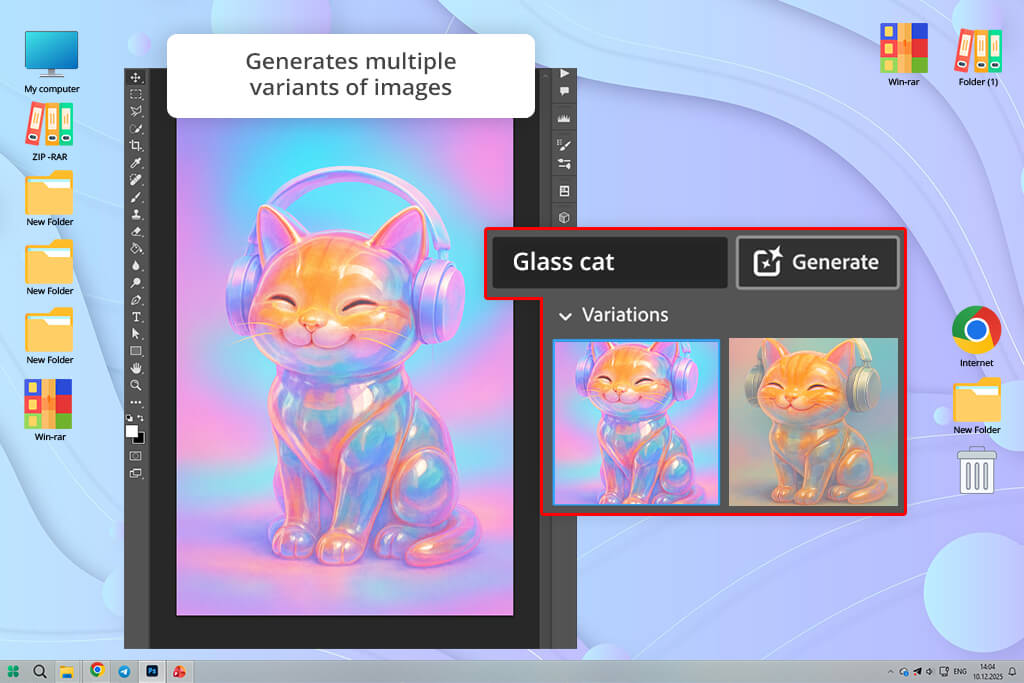
Text‑to‑image & reference‑guided generation. Firefly creates high-quality, logically consistent images from written descriptions, but it offers more than most tools. You can upload example images to guide the style, color, or layout, which helps keep a uniform look across all your materials.
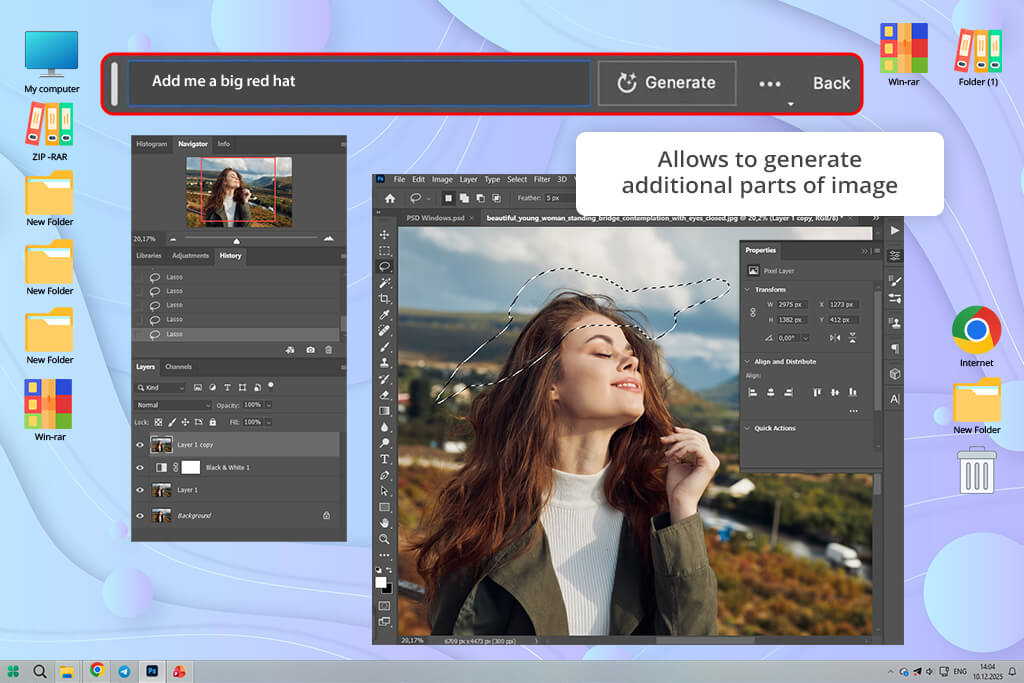
Generative Fill and Expand. A major advantage of Firefly is Generative Fill, which uses AI to realistically add, remove, or change objects in a photo, keeping the original lighting and texture intact.
Similarly, Generative Expand intelligently enlarges an image’s canvas, filling the new area in a believable way. This significantly boosts productivity by letting you easily adapt a single visual for multiple formats without starting over.
Intelligent editing in context. Firefly doesn’t work alone; it improves existing editing software. Tools like object removal, intelligent color changes, and neural filters operate directly within Photoshop and Lightroom, making difficult edits quick and seamless.
For instance, you can change a sky, correct a reflection, or make colors match across several product photos with just a few smart commands.
Multi‑modal & model flexibility. Firefly allows users to try out several different AI models, providing a variety of creative styles and capabilities. This makes it simpler to customize results for photos, drawings, or abstract art, all from a single platform.
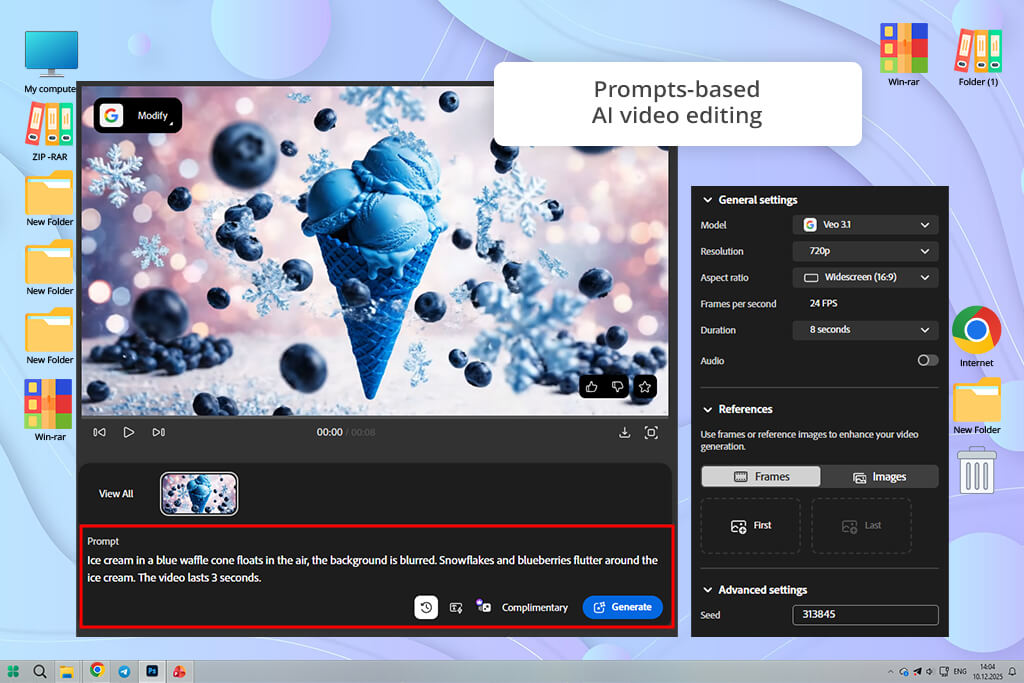
AI for video & motion. Beyond static images, Firefly also offers AI video generator, where you can edit, enable motion variations, background synthesis, and visual refinement in short clips.
Collaboration & ideation tools. Firefly Boards and shared libraries allow teams to collaborate, mix styles, and give feedback on visuals together. Adobe’s AI suggestions are built into the team’s workflow, making brainstorming and revisions a natural part of the creative process.
Comparing Canva vs Adobe Firefly, it became clear that the first option is made for speed, ease of use, and for everyone. Instead of complex professional tools, Canva helps people without design experience make good-looking graphics quickly, with AI assistance built into everyday tasks.
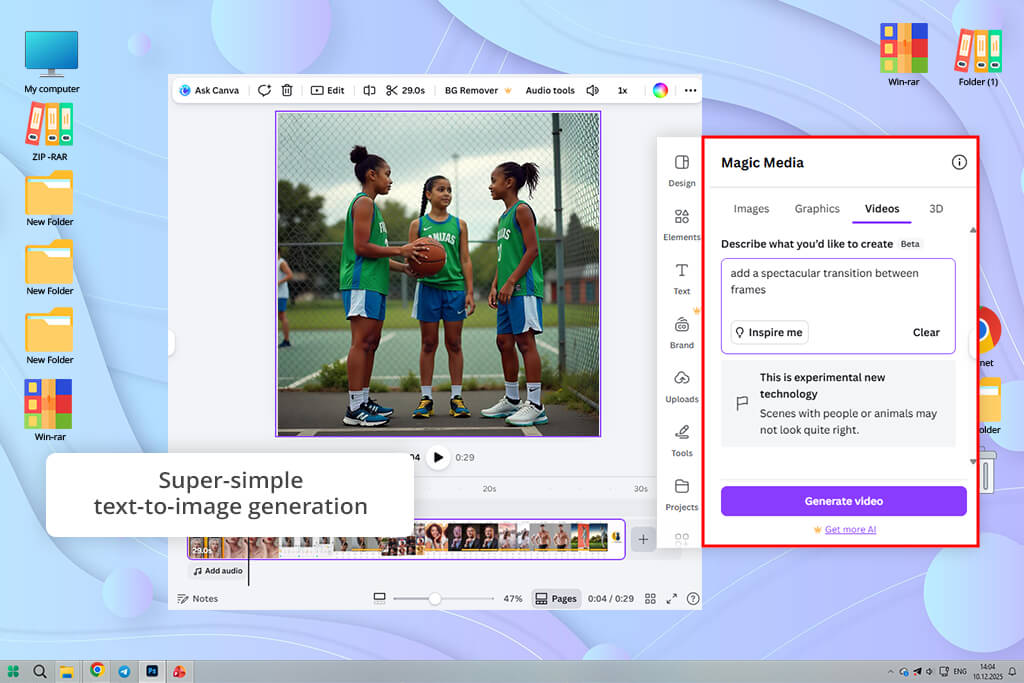
Text‑to‑image generation. Canva has built-in AI that creates images from your text descriptions. While the results are usually less detailed than Firefly’s, they are quick to generate and fit the clean, modern look common on social media.
Magic design & layout suggestions. One of Canva’s key AI tools is Magic Design. You can give it your starting content, such as text, pictures, and your brand’s colors, and it will produce many different design options almost instantly. The results usually feature professional-looking layouts, well-matched fonts, and visual styles that go beyond simple, standard templates.
Magic resize & format adaptation. Canva’s AI makes it very easy to reuse a design. With Magic Resize, one layout can be automatically adjusted to fit many different formats like stories, posts, banners, and email headers without you having to rearrange anything. This saves a massive amount of time for managing social media content.
Background remover & basic enhancements. AI background remover and tools for cleaning up images and making simple improvements are available with one click. They’re great for preparing photos for casual use, though they don’t have the fine control of professional editors.
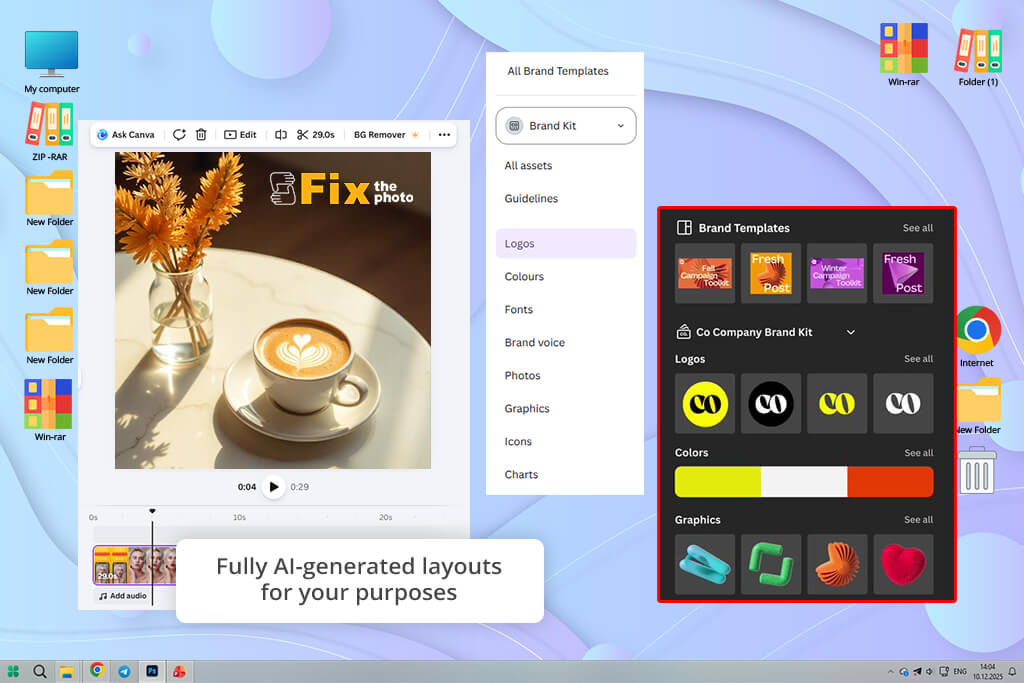
Brand kit & style suggestions. Canva’s Brand Kit stores your brand’s colors, fonts, logos, and templates. The AI will then recommend design elements that fit your brand style. This isn’t a complex editing feature, but it helps keep all your designs looking consistent, which is very useful for people without being a specialist in design.
Text & content generation.
Canva also has AI tools to help write text like captions and headlines. This adds a language component to the creative tools, helping make the words match the look of your design.
When I began experimenting with AI image creation for my project, the contrast between the Firely AI vs Canva was clear right away. Adobe Firefly let me do more than just make an image and be done with it. I used the AI-generated pictures as a beginning and then refined them into final designs.
For the main website images, I started with text descriptions and then kept editing those same pictures instead of making new ones from scratch. This changed how I work, because nothing felt permanently finished - every result could still be easily changed and improved.
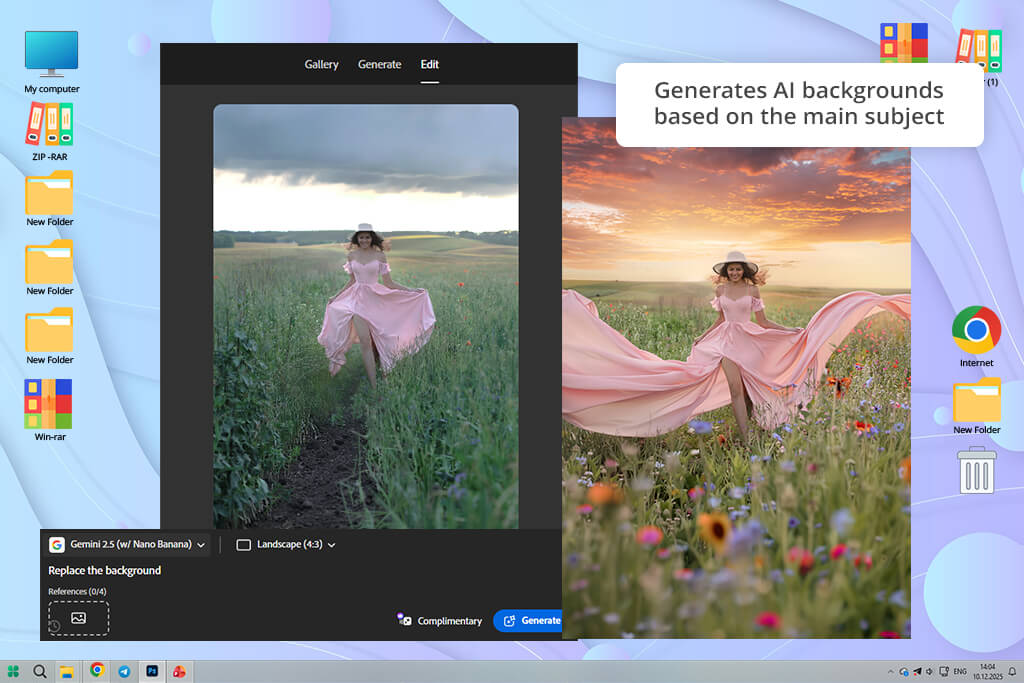
One of the most useful aspects was how the AI image generator performed non-destructive edits. I could extend backgrounds to create wide website banners without distorting or ruining the original image. The AI successfully matched the textures, lighting, and perspective in the new areas.
During the testing, if something in the picture looked wrong, I could replace just that object. The AI kept the original shadows and reflections, so it still looked real. I also fixed small mistakes on AI-generated people, like awkward hands or uneven eyes, by combining AI tools with my own manual tweaks.
Strengths:
Weaknesses:
“I used it to create visuals for a campaign, and the results looked impressively polished. The ability to adjust the prompt, redo only certain areas, and move directly into editing

Canva is clearly focused on being fast and easy, which was clear from the first images it made. I mostly used it to create decorative backgrounds, abstract patterns, and simple graphics for social media. The results were neat, looked good, and were ready in seconds, which made it simple to try out different ideas quickly.
For early ideas and quick previews for the client, this speed was a real advantage. I could create several different versions, place them into pre-made designs, and see how they would appear in actual Instagram or email formats in just minutes.
When the aim was to show a general feel or direction, rather than a finished product, this free graphic design software performed that task effectively. It made the initial brainstorming phase much smoother.
Strengths:
Weaknesses:
“I tested it for creating images for social media, and the process was quick and enjoyable. However, if an image had small issues, there wasn’t much room to adjust it - I had to start over.”

Adobe’s suite of programs gave me complete control. I started by using Firefly AI to create rough concept images. Then, I polished the details in Photoshop, converted complex graphics into clean, scalable vectors in Illustrator, and built adaptable layouts for the web and social media.
A major benefit was using Creative Cloud Libraries. I could sync brand colors, logos, and AI-made graphics across all my Adobe apps. This kept everything looking the same and made updates simple. For instance, when the client changed a brand color halfway through the project, I updated it in the library once, and it automatically changed in all my designs.
I also used Adobe Express to quickly turn my main images and ads into different formats for social media. Using AI to generate ideas, professional software to edit, and a quick tool to adapt layouts meant I could try many creative approaches without starting over each time.
Strengths:
Weaknesses:
“Designing layouts felt both open and strong. I could start with a generated layout and then freely adjust spacing, alignment, and type without restrictions.”

Canva stood out for its speed and automated features. With Magic Layout, I created many different design options in just minutes, which was ideal for presenting various creative ideas to the client. For someone without design experience or who is working against a tight deadline, Canva allows you to create professional-looking visuals almost immediately.
However, the template-based system had its limits. When I needed very specific spacing or layout control, I had to make some sacrifices. Some AI-generated parts also felt fixed in place, limiting my creative options. Despite this, for quick ads and email graphics, Canva was extremely fast and produced clean, professional results.
Strengths:
Weaknesses:
“This one was incredibly fast. I chose a template, added my content, and had a neat layout within minutes. However, as soon as I tried to go beyond the template’s limits, things became restrictive very quickly.”

In Canva, I made simple edits first. Adjusting brightness, contrast, color, and lighting was straightforward, and applying basic filters to many pictures at once was almost immediate. I also tried the background remover on product photos; it worked well enough for simple backgrounds, saving time when making graphics for social media and websites.
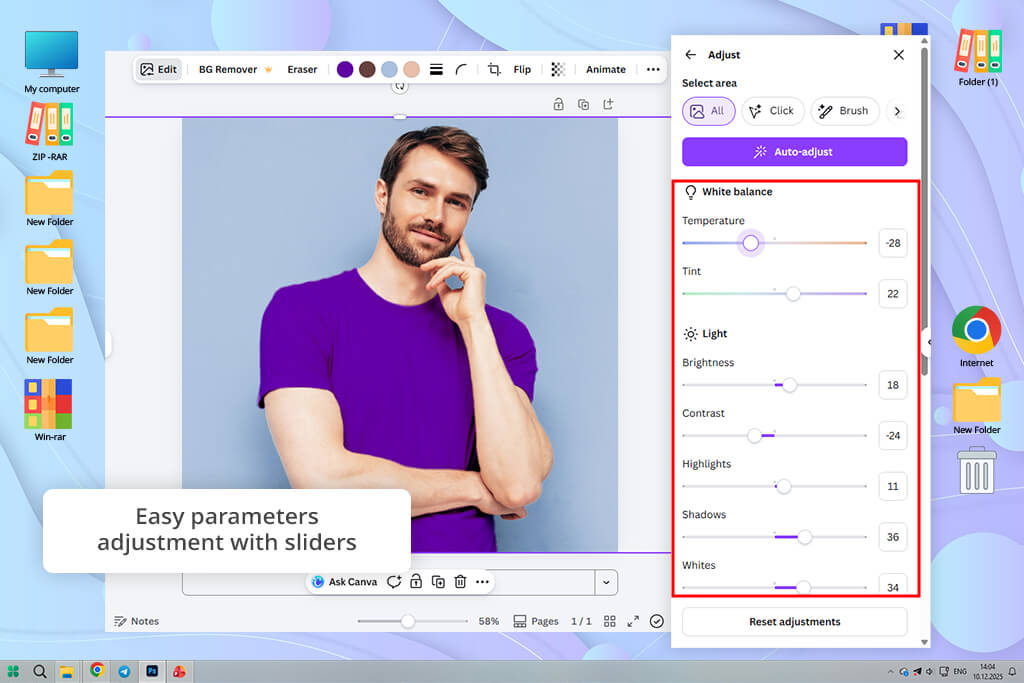
For rapid mockups and simple social posts, it worked fine. However, when I needed to solve more specific issues like removing small objects from a background or fixing uneven lighting on a product, Canva can’t compete with photo editing software for PC. I either had to make a whole new image or scale back my idea.
If you don’t want to choose between simplicity, speed, and quality when editing photos, the Fix The Photo Body Editor&Tune app will be very helpful. It offers many professional options for quick photo corrections, including face and body retouching without needing complex editing techniques.


Strengths:
Weaknesses:
“Filters, brightness adjustments, and background removal all worked well for social media use. But I couldn’t perform detailed retouching or solve complex lighting problems.”

I appreciated that I can use Adobe Firefly into Photoshop or Lightroom, which provided a completely different experience.
I tried Generative Fill, which let me remove objects perfectly while preserving the original shadows and textures. I could also make the background larger with Generative Expand, and the AI automatically adjusted the lighting and perspective to make the result look authentic.
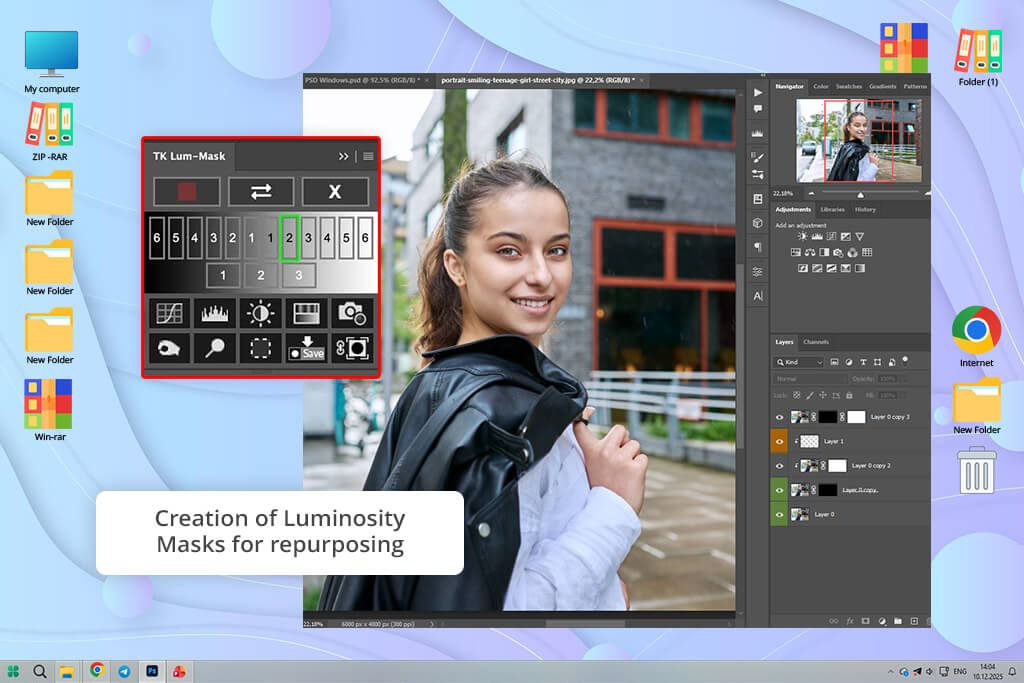
With Luminosity Masks and AI color tools, I adjusted just the lights, midtones, and shadows in specific areas. This created a professional depth in my key images that Canva can’t achieve. I also used intelligent retouching to clean up surfaces and skin, fix small flaws, and ensure colors stayed consistent across all photos for a unified brand appearance.
“This is where it truly excelled for me. I was able to remove objects, extend backgrounds, and correct lighting - all while maintaining a natural, professional look for print and advertising.”

Strengths:
Weaknesses:

When I began making social media content, the Canva vs Adobe Firefly difference was very clear. With Canva, I concentrated on making Instagram posts, Facebook banners, and ad graphics for my campaign, and everything moved very quickly.
The AI created several versions of the same idea in minutes, and the platform automatically recommended the right size for each social network.
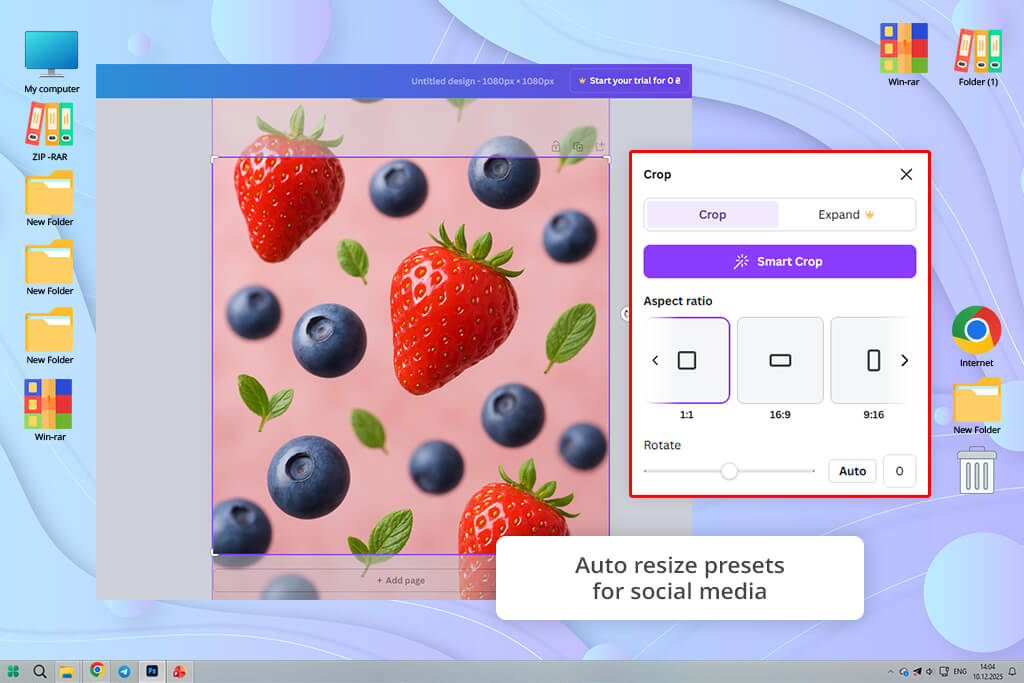
I tried the magic resize tool, which allowed me to reuse one design for stories, regular posts, and banner ads without having to manually change each part. It worked perfectly for straightforward layouts.
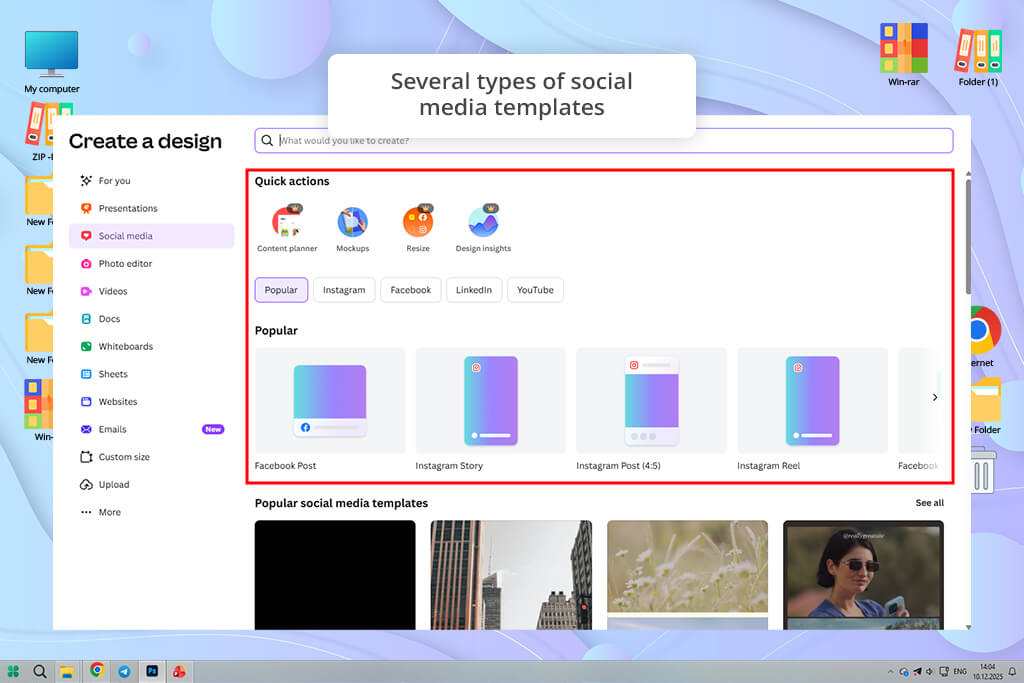
The free social media scheduling tool also let me line up posts for several days in advance, making it easy to plan a whole week’s content in one go - a real time-saver during busy periods.
Strengths:
Weaknesses:
“This was, without question, the quickest way to create social media content. The designs looked polished immediately. However, when I needed precise brand alignment or to make minor visual adjustments, the process became much more difficult.”

In contrast, Adobe Firefly, when used with Photoshop or Express, provided a much more detailed workflow for creating social content. I could use the AI to generate several layout ideas and then edit each part directly in Photoshop. This allowed me to adjust layers, masks, lighting, and shadows to keep a perfectly consistent look for the brand.
In contrast, Adobe Firefly, when used with Photoshop or Express, provided a much more detailed workflow for creating social content. I could use the AI to generate several layout ideas and then edit each part directly in Photoshop. This allowed me to adjust layers, masks, lighting, and shadows to keep a perfectly consistent look for the brand.
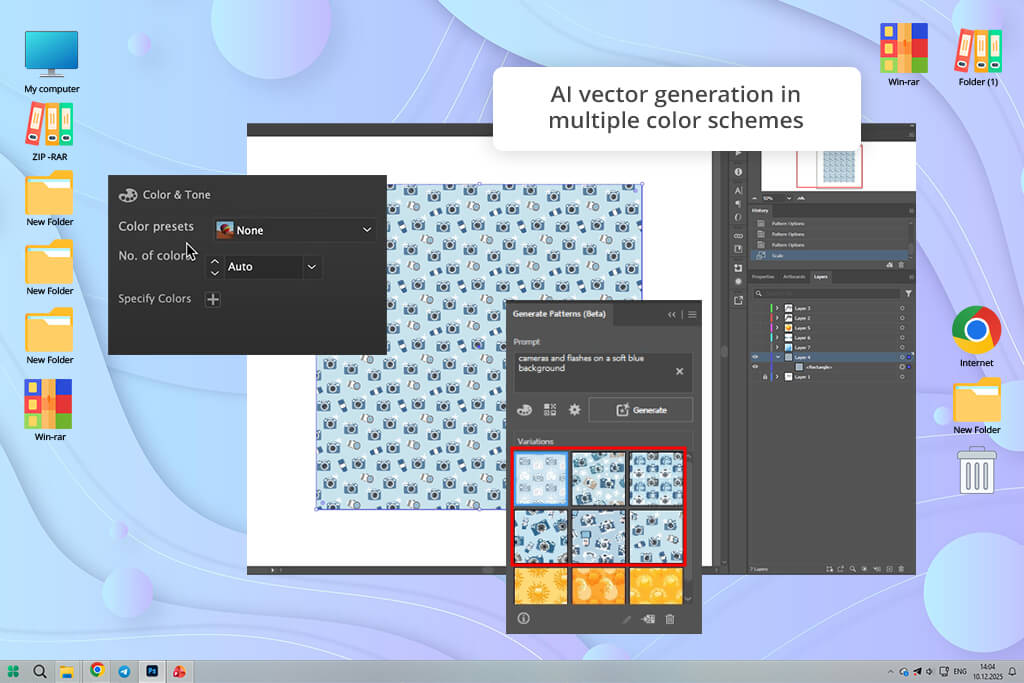
I also tried using AI to create different stylistic versions across many posts, from main images to carousel slides, and could adjust each one separately while keeping a unified look. The AI even proposed different layout ideas for formats like Instagram stories and feeds, allowing me to try new creative designs without beginning with a blank page.
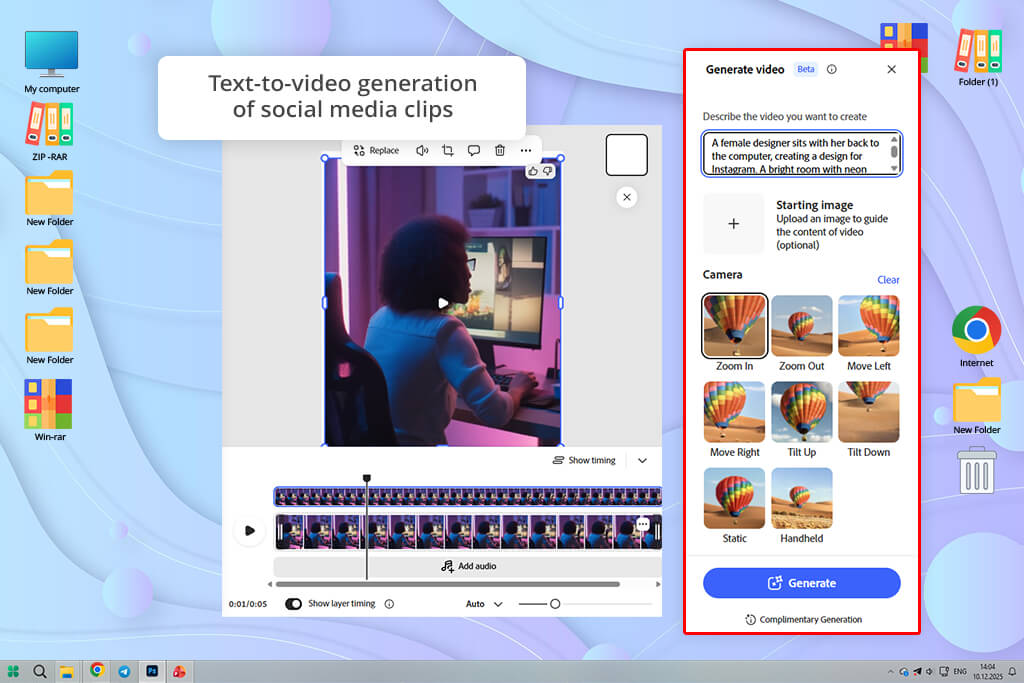
Besides, I explored Adobe Firefly’s text-to-video feature. It let me turn social media graphics and written ideas into short animated clips. I could create moving sequences that fit my design style, try out different transitions, and make draft videos for Instagram and Facebook, all from the same platform.
Strengths:
Weaknesses:
“I used AI prompts to create images and short videos, and it felt like an all-in-one production tool. I could generate content, tweak details, and keep everything aligned with the brand.”

Using Adobe Firefly in my project quickly showed the strength of having tools that work together. Firefly is built directly into programs like Photoshop, Illustrator, InDesign, Premiere Pro, and Adobe Express. This meant I could create an image or asset with AI once and then use it across all these different apps without needing to save or change the file format.
For example, I made a main image and background using Firefly in Photoshop. I could then take that same file directly into Illustrator to add clean, scalable graphics. Everything stayed editable. I also moved those assets into InDesign free version to create a brochure layout. All the original layers, masks, and styles were preserved, making the whole process very smooth.
Even when creating short promotional videos with Firefly video model, I could directly use graphics and images from Photoshop, Illustrator, and Lightroom without needing to manually change their format. This deep connection between the programs saved me many hours of repetitive work and guaranteed that everything looked consistent across all types of media.
Strengths:
Weaknesses:
I tested this new connection by taking several social media posts I made in Canva and sending them directly into Affinity’s professional software. This integration allows users to export a Canva design into tools like Affinity Designer, Affinity Photo, or Publisher for much more detailed and advanced editing.
I would start by making the initial images and layouts in Canva. Then, I would open those files in Affinity to work on the layers more carefully, clean up the graphics, and edit the photos with precision. This helped me get around some of Canva’s limits for detailed work and let me use powerful features like editing individual pixels, precise masking, and advanced text design.
However, comparing Firely AI vs Canva, it became clear that the process isn’t as smooth as with Adobe’s tools. Every time I move a design from Canva to Affinity, I have to manually save and import it, which breaks my rhythm when creating several versions.
I also found that some AI-made parts from Canva, especially backgrounds and patterns, sometimes lost their layers in Affinity. They became a single, flat image, which made them harder to edit.
Strengths:
Weaknesses:
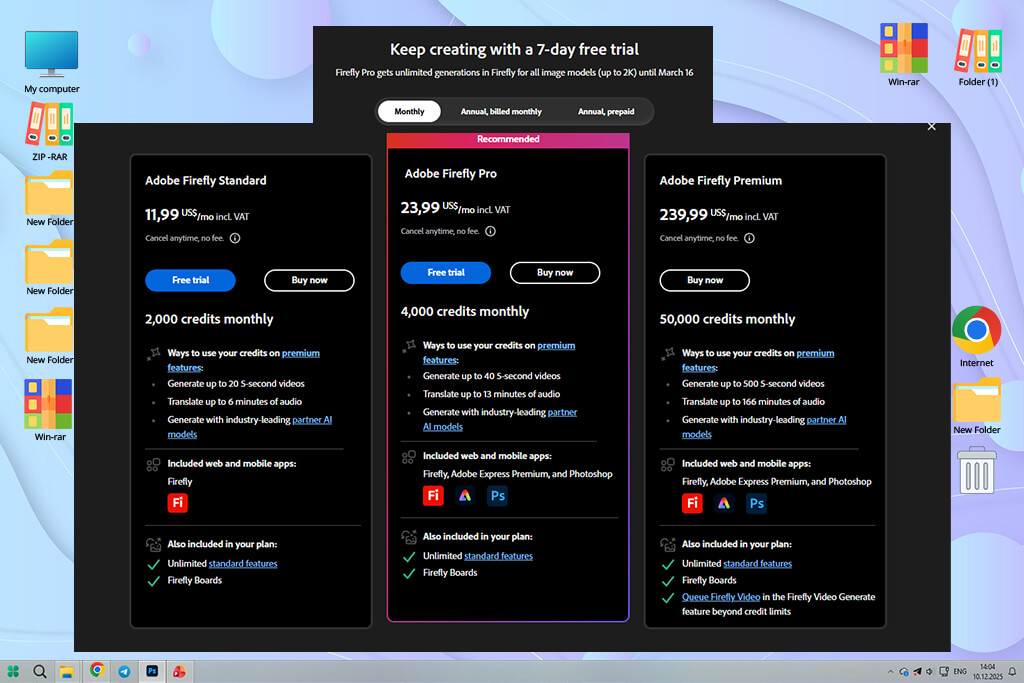
When comparing Adobe Firefly vs Canva for my project, the cost and included features were major factors. Adobe Firefly requires Adobe Creative Cloud free trial and subsequent subscription. The price is high, but for my professional project with graphics, video, and AI work, it was worth it.
The current promotion (until January 14, 2026) also gives you unlimited AI generation in Firefly for Photoshop, Illustrator, and Express, so I didn’t need extra AI tools.
| Plan | Monthly cost | Annual/equivalent | What’s included |
|---|---|---|---|
|
Individual (annual contract, month-to-month billing)
|
$69.99/mo
|
$779.99/year
|
Full access to 20+ Adobe apps, Firefly AI, cloud storage, regular updates
|
|
Month-to-month (no contract)
|
$104.99/mo
|
|
Same as above, flexible cancellation
|
|
Student/teacher (first year)
|
$24.99/mo
|
~$299.88/year
|
Full apps, AI tools, cloud storage
|
|
Student/teacher (renewal)
|
$39.99/mo
|
~$479.88/year
|
Full apps, AI tools, cloud storage
|
|
Promotional offer (Black Friday/seasonal)
|
$34.99-41.99/mo
|
~$420–504/year
|
Unlimited Firefly generation, partner AI models, cloud sync
|
Bonuses:
Verdict: For professional use, the subscription is worth the cost because it replaces several different tools, and the extra AI features greatly speed up the overall workflow.
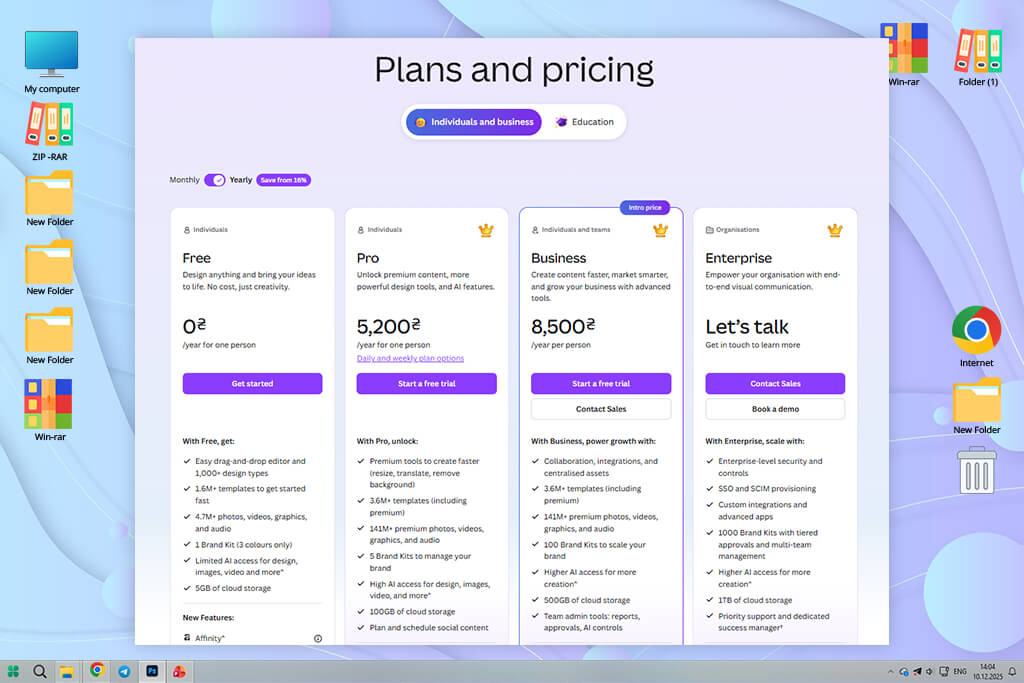
Canva’s pricing is easier to understand, and the new Affinity integration gives a bit more freedom for editing. There is a free plan that includes basic AI tools for designers, but for professional work like mine, Canva Pro is usually needed. The paid plan unlocks advanced AI tools and better export options that the free version doesn’t offer.
| Plan | Monthly cost | Annual/equivalent | What’s included |
|---|---|---|---|
|
Free
|
$0
|
$0
|
Access to simple AI image creation, ready-made templates, social media layouts, free stock images, basic text tools, and cloud-based collaboration
|
|
Canva Pro
|
$14.99/mo
|
$119.99/year (~$9.99/mo)
|
Complete AI features like image generation, background removal, and Magic Design, plus unlimited templates, brand kits, multi-format exports, and team collaboration
|
|
Affinity desktop apps
|
~$50-70 per app (one-time)
|
|
Advanced tools for vector editing, photo retouching, and layouts, but files must be manually imported and exported from Canva
|
Bonuses:
Verdict: Canva is more affordable and easier to use for small teams or social media work, though some AI features are locked behind the Pro plan. For professional campaigns, the free version works well for early drafts, but paid plans are usually required to achieve final, high-quality results.
Adobe Firefly is a more optimal solution when you need:
Canva is a better solution when you need:




![7 Best AI Wallpaper Generator Tools in {{%year}} [Reviewed & Tested]](http://fixthephoto.com/blog/images/gallery/news_main__preview_28192.jpg)
![9 Best Online PDF Translators in {{%year}} [Reviewed & Tested]](http://fixthephoto.com/blog/images/gallery/news_main__preview_28499.jpg)


![7 Best JFIF to JPG Converters in {{%year}} [Fast & Free]](http://fixthephoto.com/blog/images/gallery/news_main__preview_28570.jpg)

![7 Best ODT to PDF Converters [{{%year}} FixThePhoto Choice]](http://fixthephoto.com/blog/images/gallery/news_main__preview_28601.jpg)

















