At FixThePhoto, I handle PDFs every day from clients and partners in many languages. Using online PDF translators changed everything. I could get quick, clean results without messing up the layout or converting anything. It made working together so much easier and saved me hours on real-world tasks.
However, not every tool worked well. Some made translation errors, others ruined the formatting, and a few required payment for basic features. To find the best one, I tested 30+ online PDF translators, evaluating their accuracy, speed, and ease of use with real documents.
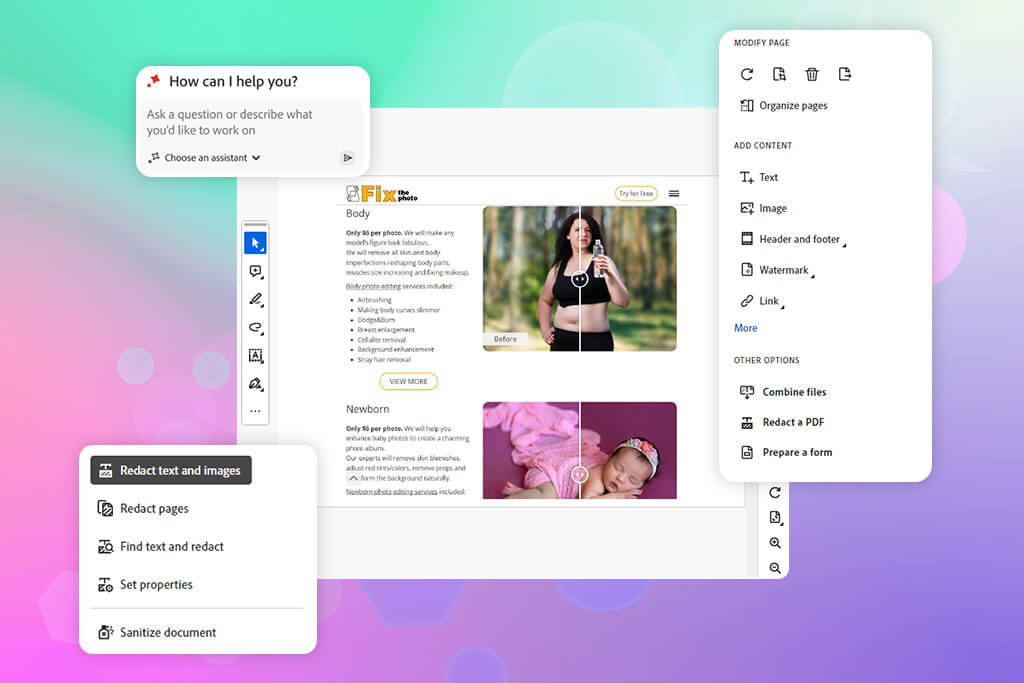
I tested many online PDF translators with real files, and I learned one thing: good results aren’t just about the tool - they’re also about how you use it. These steps always helped me get the best translation:
Price: 7-day free trial or from $24.99/mo
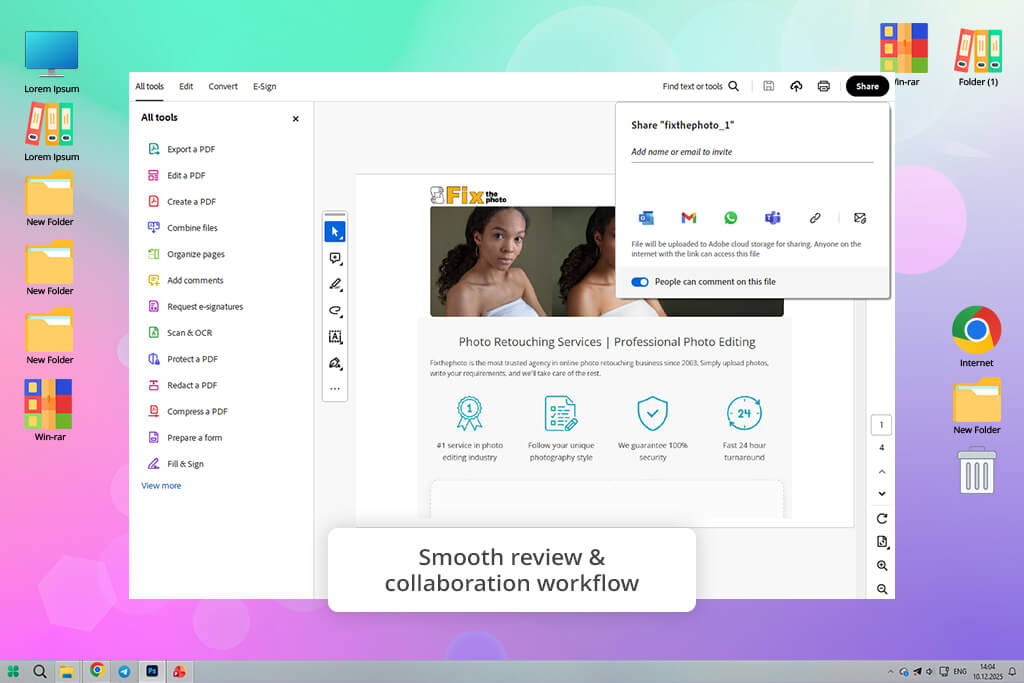
While handling multilingual projects at FixThePhoto, I relied on Adobe Acrobat with AI Assistant to translate client contracts, photography instructions, and technical PDFs with images, tables, and complex layouts. Over time, it consistently delivered dependable results, making it a strong choice for professional PDF translation where both accuracy and layout preservation are essential.
Unlike many online PDF translators, Adobe Acrobat Pro DC allows translations to be done directly inside the PDF, without converting the file to another format. I simply opened the document, launched the AI Assistant, and entered a prompt like “Translate this document into German.” After reviewing the output, I saved the translated file.
Smaller PDFs with 5-10 pages were completed in under a minute, while larger, image-heavy files of 30-50 pages took about 2-4 minutes, including review time.
The AI Assistant handles context effectively, which is especially clear in long documents, professional terminology, and well-structured text. In my tests, translations into Spanish, German, French, and Italian were precise and needed very little manual editing. Acrobat supports 46 languages and usually identifies the original language automatically.
“I had no issues translating small PDFs or files over 100 MB - there were no upload restrictions or layout problems. Even documents with images processed at a steady speed.”

Price: Free or from $8.74/mo
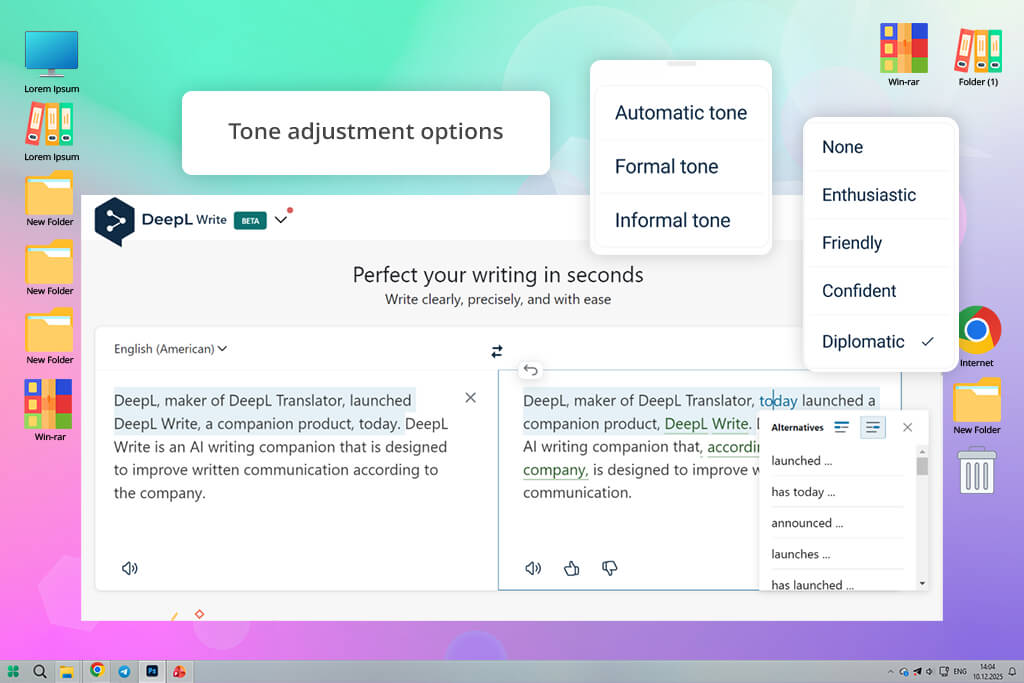
DeepL is known for having one of the top translation engines, and its PDF translator puts that power to work on documents. I tried it out on different files, like client notes, technical guides, and even scanned pages. Using it was easy: I just uploaded my PDF file, picked the language I wanted, and waited.
A standard 10-page document took between two and four minutes. Shorter files were naturally faster, and OCR did a good job reading text from scanned images.
The results were top-notch. The translations read smoothly and felt natural, capturing the right context. This was especially true for marketing copy and longer sections of text. Often, I hardly had to edit the translation at all.
DeepL translator PDF lets you control the tone (formal or casual) in your PDFs mainly through its Formality setting. However, keeping the original formatting was just okay. Simple documents kept their basic structure, but files with complex designs, like those using tables, multiple columns, or special fonts, usually needed some manual fixing after the translation was done.
DeepL works with about 31 languages, mainly covering European ones along with a few widely used Asian languages. This was enough for my work, but the overall selection is smaller than what pro-level PDF translators usually offer. The free plan is quite limited, with a 5 MB file cap and restricted usage, so translating large files or many documents requires a paid subscription.
Price: Free or from $15/mo
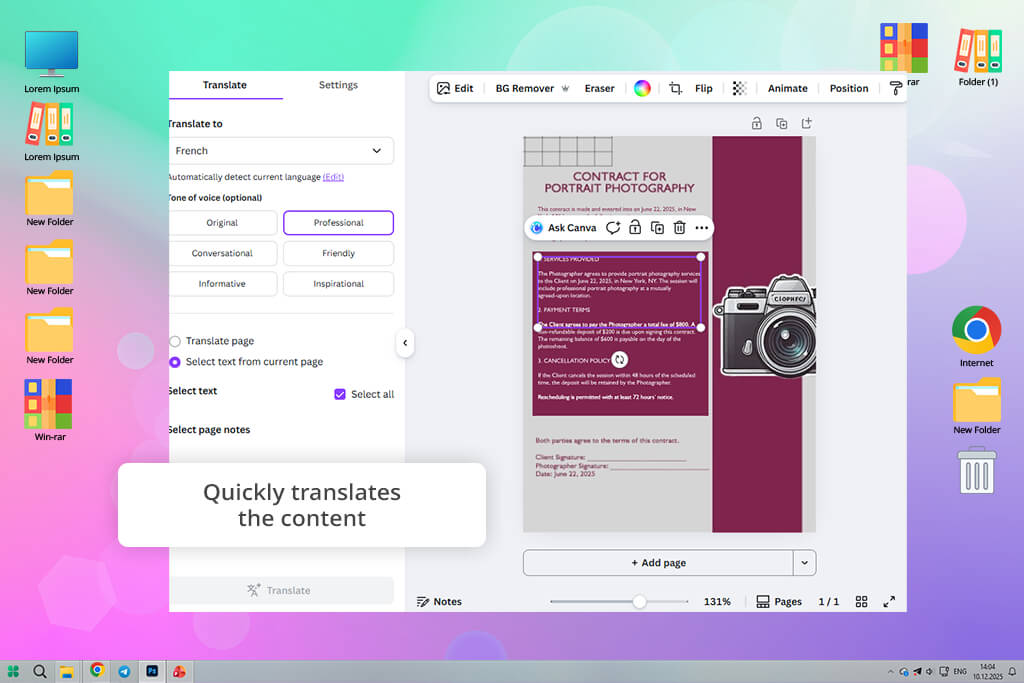
I tried Canva’s PDF translator for multilingual brochures, proposals, and newsletters. The process was straightforward. I uploaded a PDF, opened the Translate app, and chose from over 100 target languages. A standard 10-page file translates in roughly 2-3 minutes. Afterward, I could review, edit, and refine the translated pages right inside Canva photo editor.
This PDF language translator creates a copy of the page with the translated text, making it easy to compare it with the original design. I was able to change fonts, adjust formatting, and add new graphics for a different audience. With Canva Pro, sharing the file and working with teammates in real time was straightforward before downloading the final translated PDF.
For basic PDFs, Canva performs well, especially with text-only files, short newsletters, and simple layouts. Problems appear when dealing with more complex designs. Longer translations, custom fonts, and multi-column formats sometimes caused layout issues. While the translations were acceptable for simple content, they weren’t as accurate as those from dedicated PDF translators.
“Canva works well for simple PDFs and marketing materials. Translations were quick, but image-heavy pages needed some layout fixes.”

Price: Free
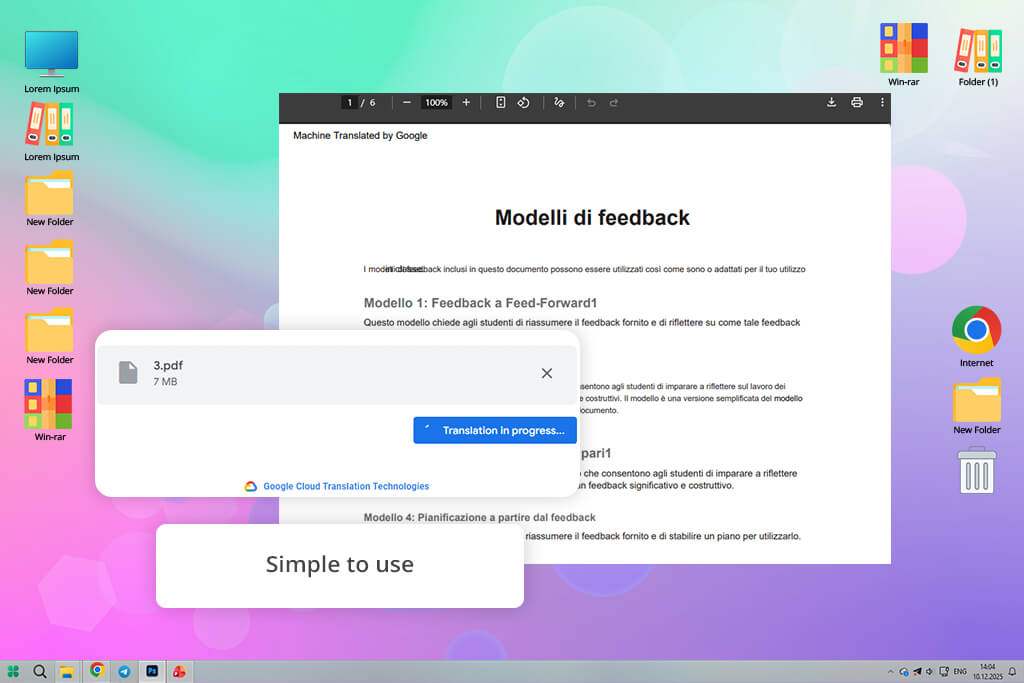
I used Google Translate for some multilingual work, translating several articles from a photography blog. As a free and easy-to-use PDF translator, it works fast for standard text files up to 10 MB or 300 pages, but it can’t handle scanned documents. It doesn’t always keep the original layout, and using it on a phone has its restrictions.
I uploaded the PDF, picked the language, and let it process. I ran tests translating from English into both German and Spanish. For standard articles of 5 to 10 pages, the whole process finished in under two minutes. Once done, I could review the text right away in Google Docs or download it as a new PDF. The translations were good enough, though I often had to tweak the formatting and layout.
Google Translate is a very handy online PDF translator, thanks mainly to its support for more than 130 languages. Although it doesn’t have advanced tools like custom dictionaries, pro-level editing, or collaboration features, it turned out to be a fast, free, and straightforward option for basic PDFs and documents where the text is the main focus.
Price: Free (with daily download limit, watermark) or from $9/mo
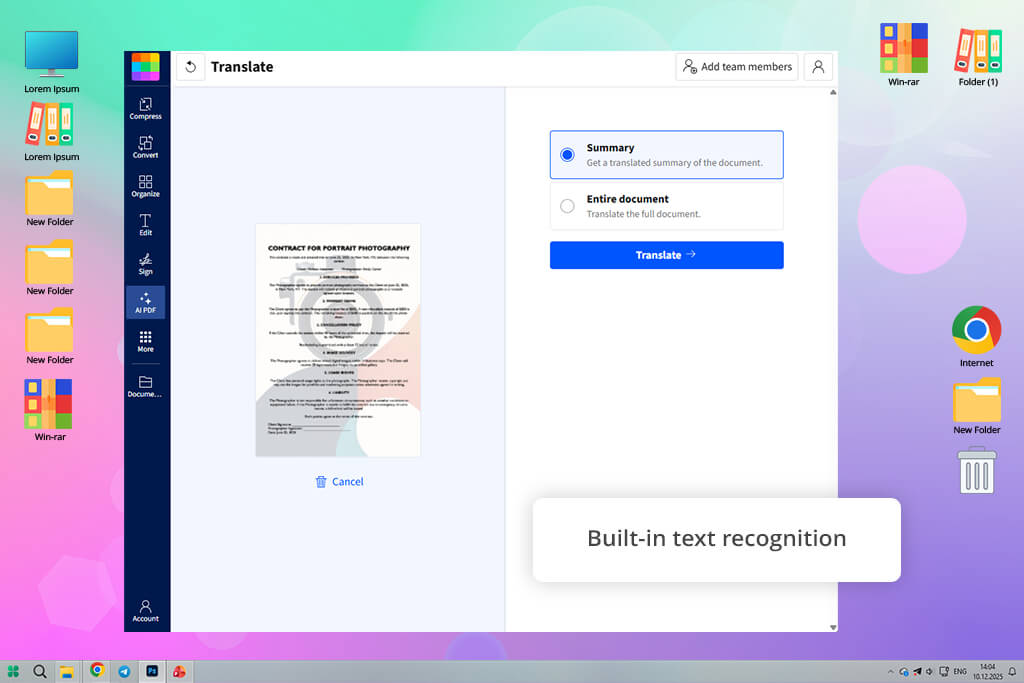
Smallpdf provides a quick and easy way to translate PDFs online without installing any software. I tested it on different photography guides, tutorials, and client files to check how well it handled full documents and scanned PDFs. Smallpdf handles the process step by step: I uploaded the PDF, selected the target language, and chose whether I wanted a full translation or an AI summary.
For regular documents with 5-10 pages, the process took about 3 minutes. Larger files or scanned PDFs needed a little longer. I tried translations in Spanish, German, French, and Chinese, and the results were clear enough for general reading. Overall, the tool supports 25 core languages.
Smallpdf includes more than just translation tools, such as a PDF compressor, merger, editor, and converter. Its OCR worked well with scanned PDFs, but documents with complex layouts, images, or special fonts sometimes needed manual fixes. Free translations add watermarks, and frequent use or bulk processing requires a paid plan.
“I tested Smallpdf on client tutorials and found it fast and dependable. However, free translations come with watermarks.”

Price: Free
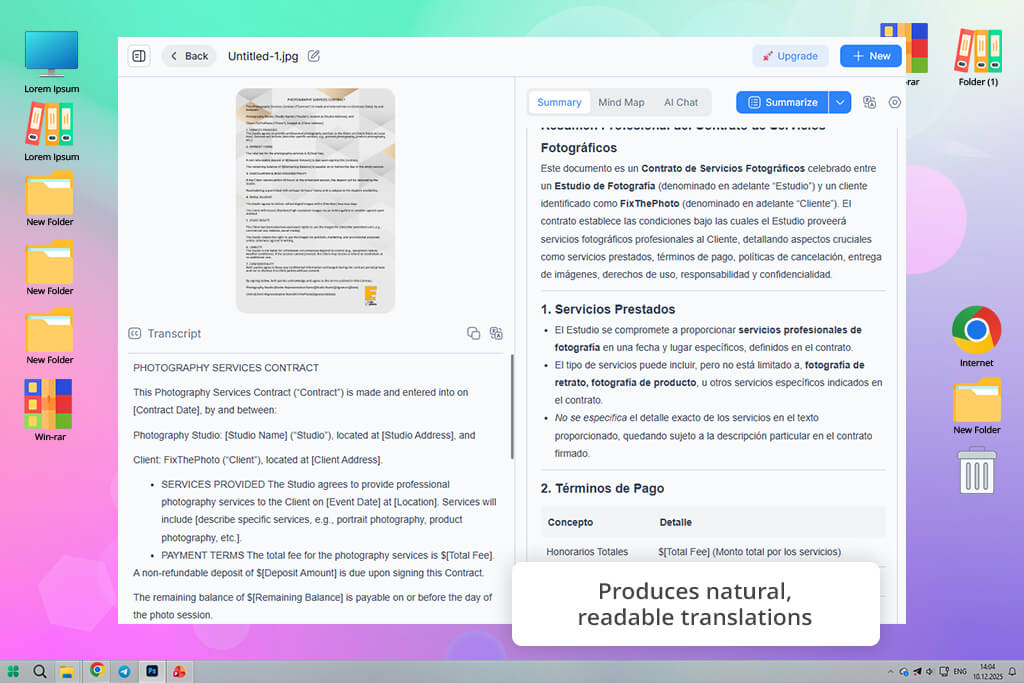
I chose NoteGPT to translate PDF online, including research papers and long PDF guides, quickly. It handled the files accurately and kept the original layout intact, including tables, charts, formulas, and notes, without damaging the overall document structure.
I uploaded PDFs (up to 50 MB), chose the target language from over 100 languages, and let NoteGPT handle the translation. A 10-15 page file was ready in less than 2 minutes, and larger docs only took a few minutes to process. I tested it by translating it into English, Spanish, and French. The results read smoothly, using clear and professional wording that needed very little editing.
NoteGPT also includes a helpful side-by-side view, letting me check the original text against the translation line by line. It managed even dense academic papers, contracts, and reports without a hitch. One thing I noticed, though, is that the AI can sometimes miss subtle details or struggle with technical jargon or docs that mix languages heavily. For those, a closer review is still necessary.
Price: Free or from $7/mo
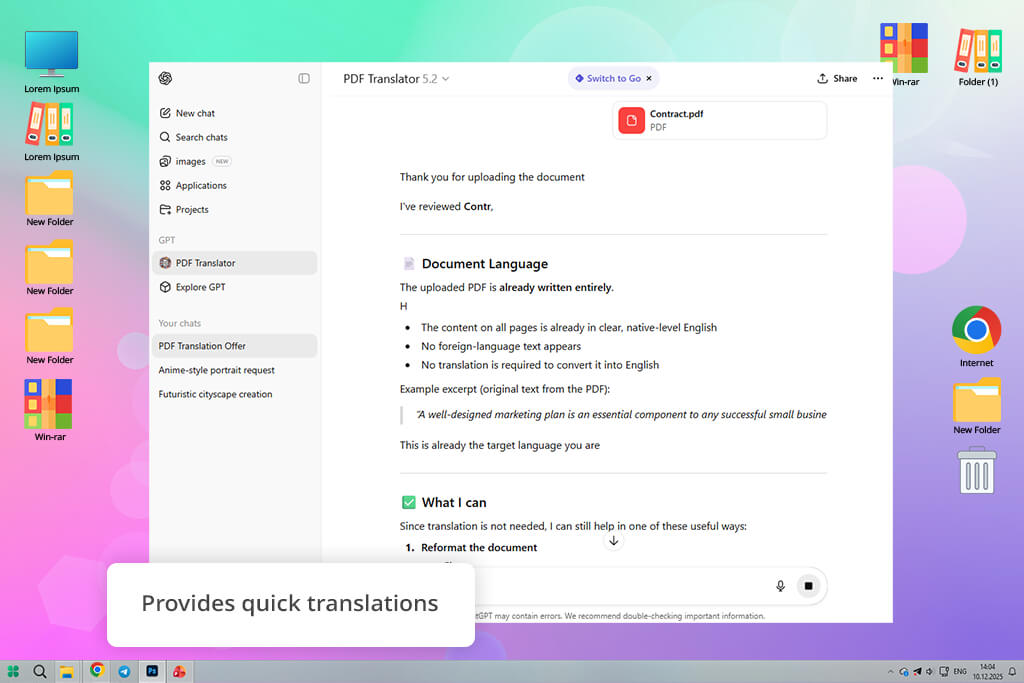
I tested ChatGPT as an online PDF translator by converting a photography tutorial PDF from English into German. Because it can’t work with PDFs directly, I pasted the text into the tool to check how well it handled detailed photography instructions.
I worked by copying parts of the PDF, asking ChatGPT to translate them, and then putting the text back together. Translating a 12-page tutorial took about 4 minutes. The result was clear and easy to read, and the AI handled step-by-step instructions, captions, and technical terms like lighting and camera settings well.
My colleague at FixThePhoto, Kate, pointed out that ChatGPT has trouble keeping the original layout and handling non-text elements like images, tables, and charts. While it can explain these elements in text, it doesn’t recreate the visual design, so manual editing is needed to produce a finished document.
“ChatGPT delivers clear translations and understands context well. I used it for photography guides, but docs with complex layouts or images required manual editing.”
Price: 14-day free trial or form $1,200/year
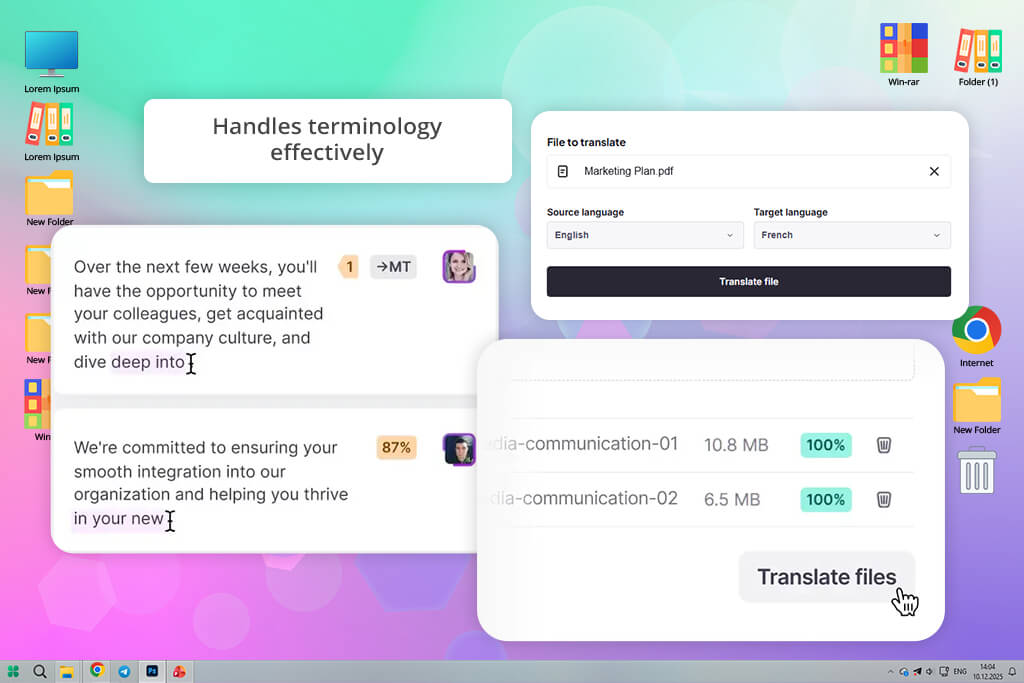
Smartcat uses AI to translate PDFs while keeping the original layout, formatting, and content intact. It can also process scanned files with OCR. It supports over 280 languages, lets you translate into multiple languages at once, and uses custom glossaries to improve quality.
To test Smartcat, I uploaded photography guides, tutorials, and client contracts and translated them into Spanish and French. After choosing the target languages, the AI completed the translation automatically. A 15-page guide was finished in about 5 minutes, and I then reviewed and fine-tuned the content using Smartcat’s built-in free PDF editor.
You can hire professional linguists through Smartcat Marketplace to review and refine translations. Using custom glossaries helped keep photography terms and camera settings consistent across documents. That said, Smartcat comes at a high cost, and some complex layouts or embedded content still need small manual adjustments.
Price: Free or from $20/mo
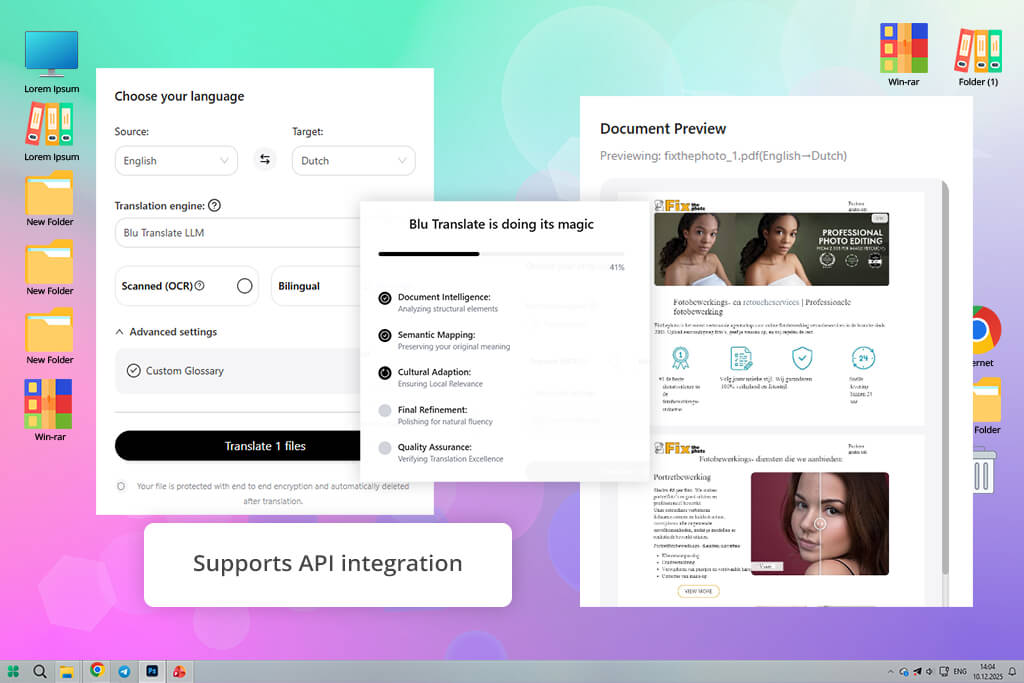
I tested Blu Translate by using it to convert several client files and tutorials into different languages. I was particularly impressed with how well it kept the original formatting, layout, and overall style intact, even for documents with complex designs.
My test involved translating a 12-page document into Spanish and French. The process was simple: upload, select, and translate. It took roughly 2 minutes to deliver correct, readable results. Beyond speed, Blu Translate supports over 120 languages and handles files up to 100 MB in formats like PDF, DOCX, and PPTX.
I also valued its strong security, including end-to-end encryption and automatic file deletion after processing. The translation itself was notably fast - much quicker than many other PDF translators. Once the translation was done, I gave the text a final polish using a grammar checker to ensure it was perfectly ready for professional use.
“Blu Translate was fast, supported 120+ languages, and preserved layouts perfectly - saving me hours on complex files.”

The best PDF translator for professional use is one that keeps the original layout, understands context, and handles large files well. Tools like Adobe Acrobat stand out because they preserve formatting, translate technical terms accurately, and offer stronger privacy and security features.
Only PDF translators with OCR (optical character recognition) can work with scanned files. Tools like Smartcat, DeepL, Smallpdf, and NoteGPT support OCR, while basic translators usually handle only text-based PDFs.
It depends on the tool. Google Translate supports over 130 languages, Smartcat more than 280, and tools like Canva and NoteGPT support over 100. However, a larger language list doesn’t always mean better translation quality.
That depends on the platform. Some services, such as Blu Translate and Smartcat, protect files with encryption and remove them automatically after processing. Others may keep documents on their servers. Before uploading sensitive PDFs, it’s important to check the tool’s privacy and data-handling policies.
In most cases, online PDF translators finish standard documents within seconds or a few minutes. Larger files or PDFs with many images may take longer, especially if OCR or AI processing is required.
AI translators work well for everyday language, but they can miss details in technical, legal, or creative texts. For specialized documents, better results usually come from tools that offer custom glossaries or the option to involve a human reviewer.
Yes. Even high-quality PDF translators can miss small errors. A quick final review helps catch grammar issues, check terminology, and ensure the document looks professional and consistent.
My team at FixThePhoto and I tested many online PDF translators to find the most dependable ones for actual work. Because we often handle contracts, photo guides, technical manuals, and client documents, we paid close attention to both the accuracy of the translations and how well the tools fit into a real workflow.
During testing, we also checked other tools like Systran, Bureau Works, DeftPDF, Microsoft Translator, SDL Trados Studio, and Reverso. They were not included in our final list, as they are often better suited for large-scale business use, require complex setup, struggle with PDF formatting, or are simply too costly or complicated for most individual users’ needs.
Here’s how we tested:
Real documents, not samples. We tested the tools using real work files such as articles, tutorials, contracts, and PDFs with many images to see how they perform in everyday use rather than ideal demo conditions.
Multiple language pairs. I translated content from English into Spanish, German, French, Italian, Portuguese, and several other languages to check how consistently the tools handled meaning and context across different languages.
Formatting & layout checks. Each tool was evaluated based on how well it kept fonts, images, tables, captions, and the overall structure of the document intact.
Processing speed & file limits. Kate and Nataly tracked how long translations took for both small and large PDFs, while also noting any upload limits or performance slowdowns.
Accuracy & readability. I checked the translations for correct terminology, smooth language flow, and any mistakes that needed manual fixing.
Ease of use & workflow integration. We also looked at how easy each tool was to use, whether it allowed direct PDF editing, and how simple it was to share or revise the translated files.
Privacy & security. Tani reviewed security features such as encryption, data storage rules, and whether files were automatically removed after processing.
To highlight how the solutions differ, I put together a side-by-side chart that evaluated translation quality, available languages, performance time, and data protection features across all reviewed platforms.
| Tool | Accuracy | Languages | Speed | Privacy |
|---|---|---|---|---|
|
Adobe Acrobat
|
★★★★★ (9.5/10)
|
46+
|
Fast
|
★★★★★ (5/5)
|
|
DeepL
|
★★★★☆ (9/10)
|
31
|
Fast
|
★★★★☆ (4/5)
|
|
Canva
|
★★★☆☆ (6.5/10)
|
100+
|
Fast
|
★★★★☆ (4/5)
|
|
Google Translate
|
★★★☆☆ (7/10)
|
130+
|
Moderate
|
★★★☆☆ (3/5)
|
|
Smallpdf
|
★★★☆☆ (7.5/10)
|
50+
|
Fast
|
★★★★☆ (4/5)
|
|
NoteGPT
|
★★★★☆ (8.5/10)
|
100+
|
Fast
|
★★★★☆ (4/5)
|
|
ChatGPT
|
★★★☆☆ (7.5/10)
|
100+
|
Moderate
|
★★★☆☆ (3/5)
|
|
Smartcat
|
★★★★☆ (9/10)
|
280+
|
Fast
|
★★★★☆ (4/5)
|
|
Blu Translate
|
★★★★☆ (9/10)
|
120+
|
Very fast
|
★★★★★ (5/5)
|
By comparing these areas, we were able to find the online PDF translators that offer the best balance of accuracy, formatting, speed, and ease of use.




![10 Best Video Delivery Platforms [Simple & Free]](http://fixthephoto.com/blog/images/gallery/news_main__preview_28433.jpg)
![Remove Logo From Clothes AI App [FREE]](http://fixthephoto.com/blog/images/gallery/news_main__preview_27732.png)


![7 Best TXT to PDF Converters [Free Desktop, Online & for Mobile]](http://fixthephoto.com/blog/images/gallery/news_main__preview_28480.jpg)



















