Recently, a client sent project documents to me in ODT format. I regularly get creative briefs, contracts, and outlines, but these files included interactive parts, inserted images, and formatted text. Opening them, I saw that while ODT works in programs like LibreOffice, it can create issues when sharing with team members on other platforms.
That's why I decided to change the ODT files into PDFs. PDFs are much more reliable - they appear identical on every device and are simpler to mark up or send to clients for final review. Because I wanted to keep all the pictures, links, and design elements intact, I needed a converter that could manage detailed formatting without ruining the document's layout. So, I set out to try to compare the top ODT to PDF converters, both online and for download.
To ensure the results were unbiased, I worked with the FixThePhoto team on this review. We tested various tools, focusing on how accurately they kept the original formatting, their speed, and their security when processing private client files. But before looking at each tool, it helps to know exactly what an ODT to PDF converter does.
These converters change your editable ODT file into a fixed, secure PDF. They keep all the original fonts, formatting, tables, and images. In short, they make sharing simpler, improve teamwork, and give your final documents a polished look.
When I first opened the ODT files, I saw right away how unstable they can be on other systems. A few pictures moved out of place, and some clickable elements didn't function properly. That's when I remembered why my team and I rely on PDFs - they lock everything in place. Whether you open the file on a PC, Mac, or phone, the layout looks exactly the same. There are no unexpected changes or formatting issues.
Another key reason to convert files to PDF is excellent presentation quality. PDFs look cleaner and more professional when sharing proposals, reports, or design briefs with clients. In my case, one ODT file included a detailed client workflow. After converting it to PDF, I was able to add notes and highlights directly to the document without changing the original text - something that isn’t reliable with ODT files.
Then there's the issue of compatibility. Most of our collaborators don't use LibreOffice or OpenOffice; they typically open documents with Adobe Acrobat or a standard browser. PDFs open quickly on almost any device, without concerns about missing fonts or unsupported elements. When I shared the converted PDFs with my team, everyone was able to open and review them effortlessly.
Finally, security is essential. At FixThePhoto, we regularly handle sensitive client plans and private information, so safeguarding files is a priority. PDFs support features like passwords, watermarks, and digital signatures - each adding security and a professional touch. ODT files lack these built-in protective measures. This single benefit makes converting to PDF a valuable step.
| ODT | ||
|---|---|---|
|
Cross-Platform Compatibility
|
|
|
|
Formatting Stability
|
|
|
|
Editing Tools
|
|
|
|
Security Options
|
|
|
|
File Size Efficiency
|
|
|
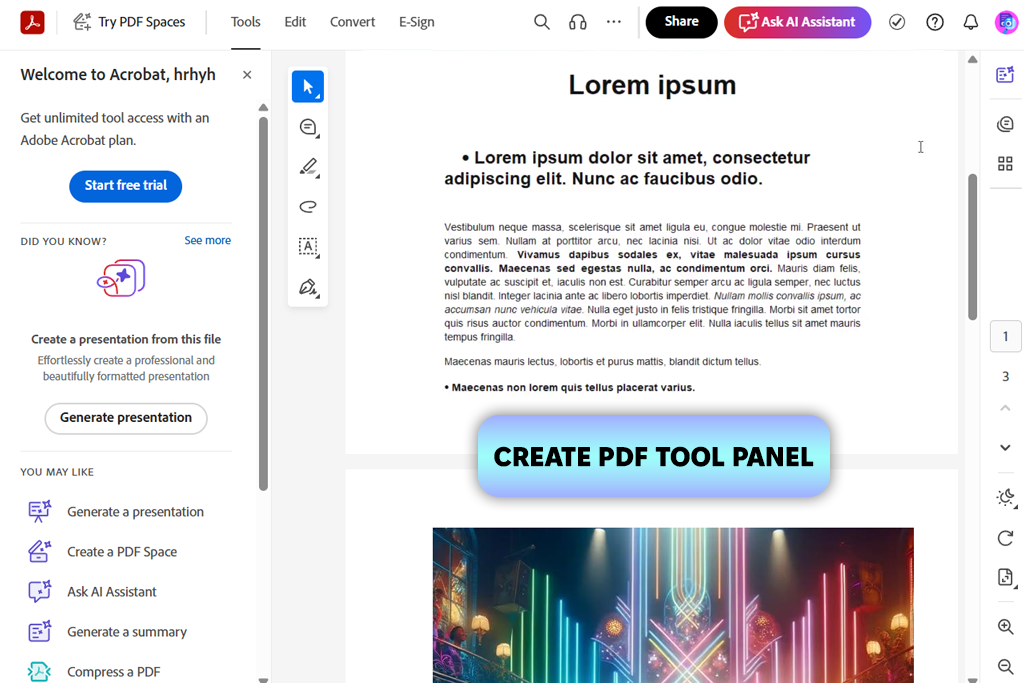
Adobe Acrobat has been my primary PDF software for years, so when I needed to convert ODT to PDF files, I didn't doubt its ability - I just wondered how well it would perform. I opened Acrobat out of habit, clicked the Tools menu, and selected Create PDF. The steps felt familiar and reliable, especially since I use this program every day for checking contracts and design docs.
My favorite part was how effortless the conversion felt - and I mean that as a compliment. I chose the ODT file, clicked Create, and in moments, I had a PDF that matched the original perfectly. Headings, images, and interactive parts all stayed put and looked right. I didn't adjust any settings or repeat the process. After saving, I sent the PDF to a colleague, and it opened perfectly on a completely different computer - no formatting problems, no font errors.
Another major advantage is what you can do next. Once it's a PDF, you can instantly add comments, secure it with a password, and get it ready to send to a client. That said, while using Adobe Acrobat, I did wonder if it was more tool than needed for such a straightforward job. I didn't mind because I use Acrobat every day, but for someone who only converts a file occasionally, it might feel like using industrial equipment for a small task.
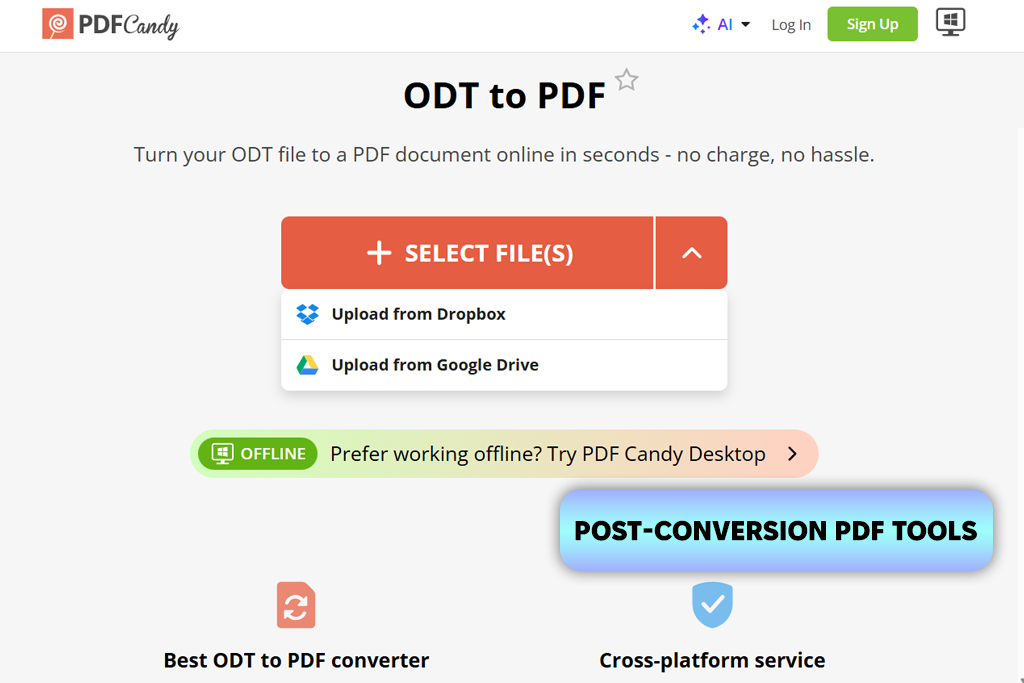
What first caught my eye about PDF Candy was its bonus tools, like a free PDF editor. When I went to the site to convert my ODT to PDF online, I already knew I might want to compress the PDF or combine it with another one later - and this software conveniently provides all those options in one spot. This adaptability is really helpful in my daily work, where one job often leads to the next.
The conversion itself was very easy. I uploaded the ODT file from my Windows or Mac device, clicked Convert to PDF, and everything else happened automatically online. There were no extra settings or pop-ups to deal with while it processed. The finished PDF kept the original layout intact - spacing looked right, headings stayed in place, and images appeared exactly where they should. I also appreciated being able to download the file right away without registration.
After downloading the PDF, I tried a few extra tools to see how smooth the process was. Compressing the file was quick and made it easier to share with the team. The only minor downside is that everything works online, so a stable internet connection is important - especially when handling larger files.
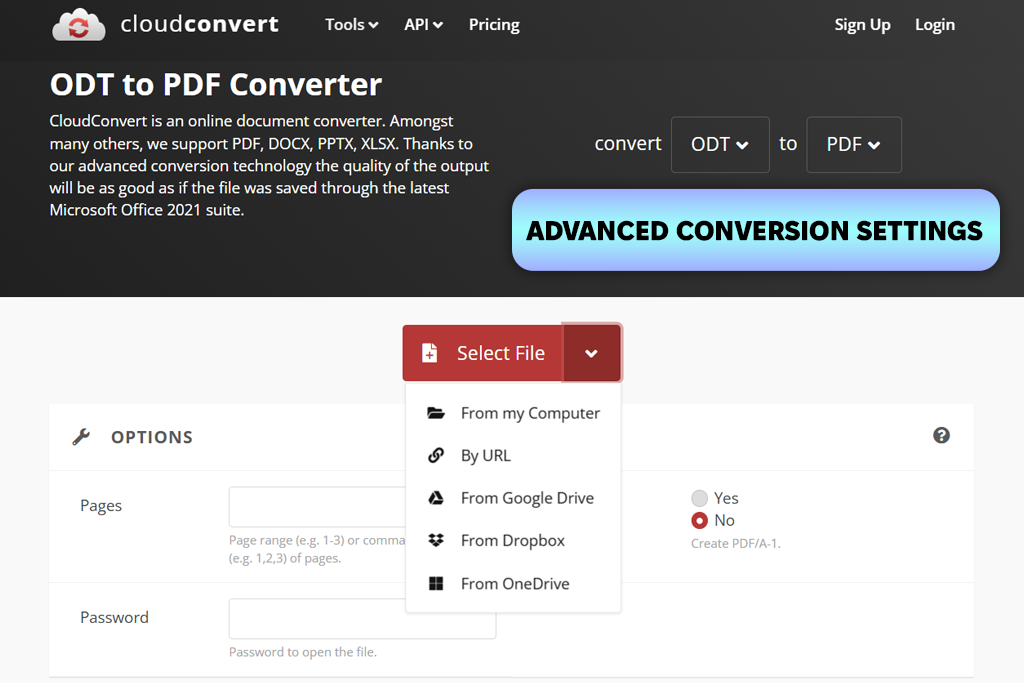
My colleague Julia was the one who first mentioned CloudConvert, and she specifically highlighted its strong data protection. That immediately got my attention, since we frequently work with files that contain private information. Learning that CloudConvert meets the ISO 27001 security standard gave me more peace of mind about uploading client ODT documents for conversion.
“It's comforting to know your files are handled according to clear security rules, especially with client work. I also like that the tool keeps its interface clean - it simply does what it says, without added clutter.”

I tested this ODT to PDF software myself by dragging an ODT file directly into my browser. The interface was clean and easy to use, without any distractions. I connected my Google Drive to try the integration, and the file loaded immediately. The conversion was quick, and what stood out was the control I had - I could change the output settings rather than accepting a generic result. The final PDF looked crisp, with even spacing and all elements intact.
Over extended testing, the file converter proved to be consistently reliable. However, when working with a larger document, I found that the free plan has usage restrictions that could become a slowdown for regular conversions. Even so, for occasional or mid-sized tasks, CloudConvert stands out as a dependable and highly functional choice.
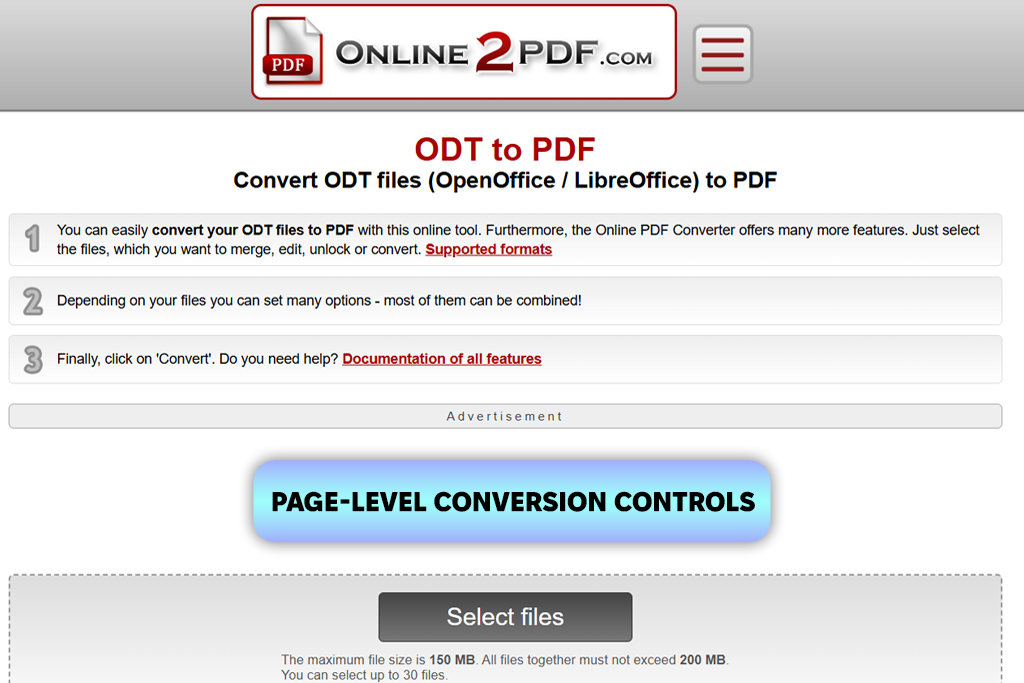
Online2PDF is an ODT to PDF converter I’ve relied on for a long time, long before today’s simple, modern interfaces were the norm. Coming back to it for this review felt like opening a trusty, familiar tool - it may not look stylish, but it’s full of useful options. Right from the start, it’s clear this converter is designed for people who like to adjust settings themselves rather than rely on a fully automatic process.
I didn’t just upload and convert. I took time to explore the settings. I picked certain pages, changed their order, adjusted the layout, and even tweaked the file size before converting. What stood out was how many of these choices I could use together, giving me a lot of flexibility. I also tried batch processing, uploading multiple files, and combining them into one PDF. Everything ran smoothly, without any issues.
Once the PDF was created, I saw that Online2PDF automatically unlocks certain restrictions, like printing or copying, which is useful when editing shared documents. You can also set a new password if needed, which is helpful for client files. The only real limitation is the file size - I had to split a larger document before uploading it.
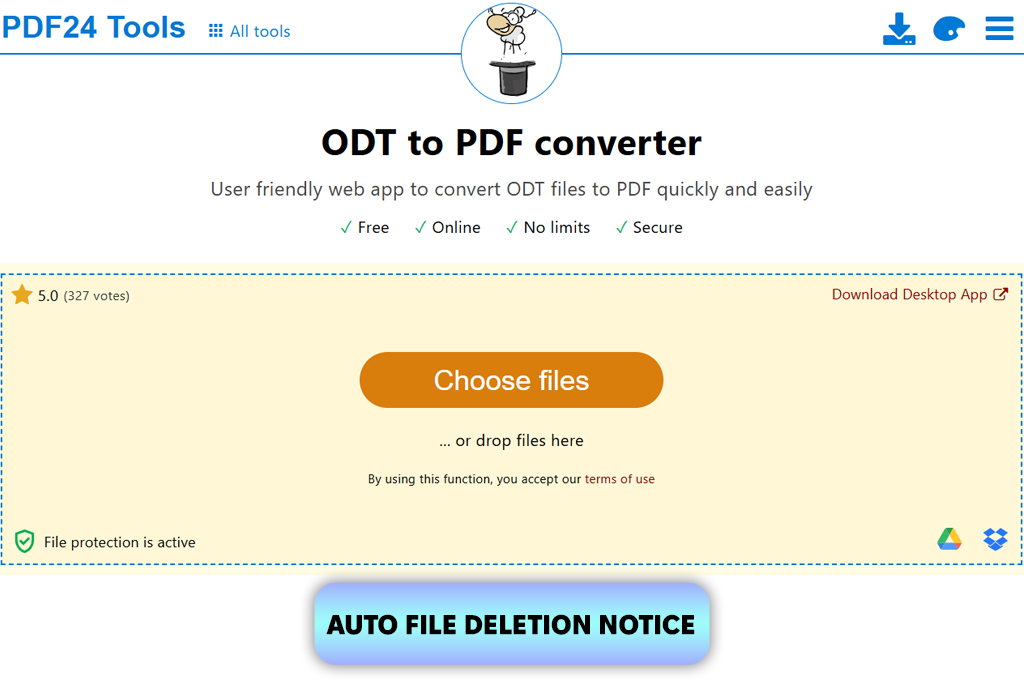
I genuinely think PDF24 Tools is a strong alternative to Adobe Acrobat, particularly when I don't want a full desktop program. Testing it for ODT to PDF conversion felt refreshingly simple. I picked my ODT file in the upload area, clicked Convert, and in seconds, the PDF was ready. No pop-ups, no sign-up prompts, and no extra steps.
What made me feel good about using PDF24 Tools was its security. The fact that converted files are deleted from their servers shortly after processing is a relief, especially when handling our own FixThePhoto files or early client versions. I also watched the formatting closely, and the outcome was solid. Fonts, spacing, and images moved over cleanly to the PDF, with no noticeable drop in quality or misplaced parts.
Even though PDF24 Tools performed well, I did notice one limitation during testing: it doesn't process files in batches. Each document must be uploaded and converted individually. While this isn't a major concern for occasional conversions, it can become time-consuming when dealing with multiple files at once. Still, for a free, secure, browser-based solution, this ODT to PDF tool delivers a consistently professional result.
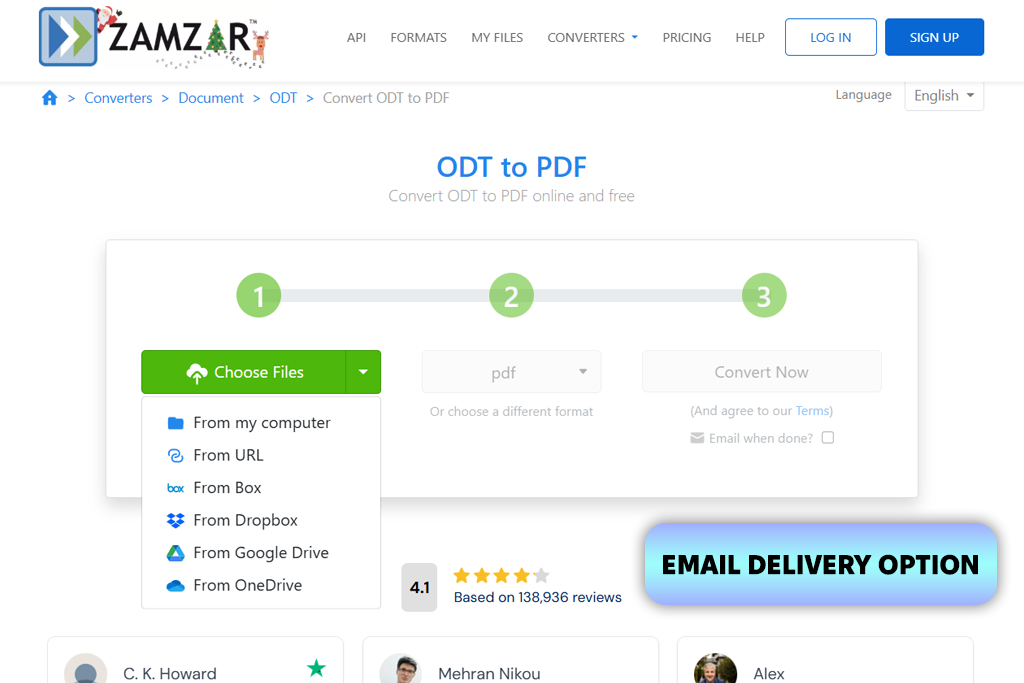
I’ve mainly used Zamzar as an image converter when I needed to quickly switch file formats without extra software. I likely wouldn't have considered it for converting ODT to PDF if my coworker Eva hadn’t mentioned she’d used it for just that purpose. Her suggestion made me curious enough to test it thoroughly.
“I turned to Zamzar for an ODT to PDF conversion when I needed a quick, no-install solution. The steps were simple, and the resulting PDF kept all its original formatting. While not the fastest option, it's a reliable choice when you need broad format compatibility.”

The process began with me uploading the ODT file and selecting PDF as the output. The interface stayed clean and intuitive, even though the platform handles many file formats. A feature I came to value was the email delivery - I let the conversion run in the background, and by the time I checked my inbox, the finished PDF was there.
The final PDF looked sharp and readable, without formatting loss, which is great for sharing or feedback. During testing, I did note that the conversion wasn't immediate - it took a little longer than some other tools, probably because of server demand. Even so, given Zamzar's reliability, strong reputation, and broad format support, it remains a solid choice when you need to work with many different file types.
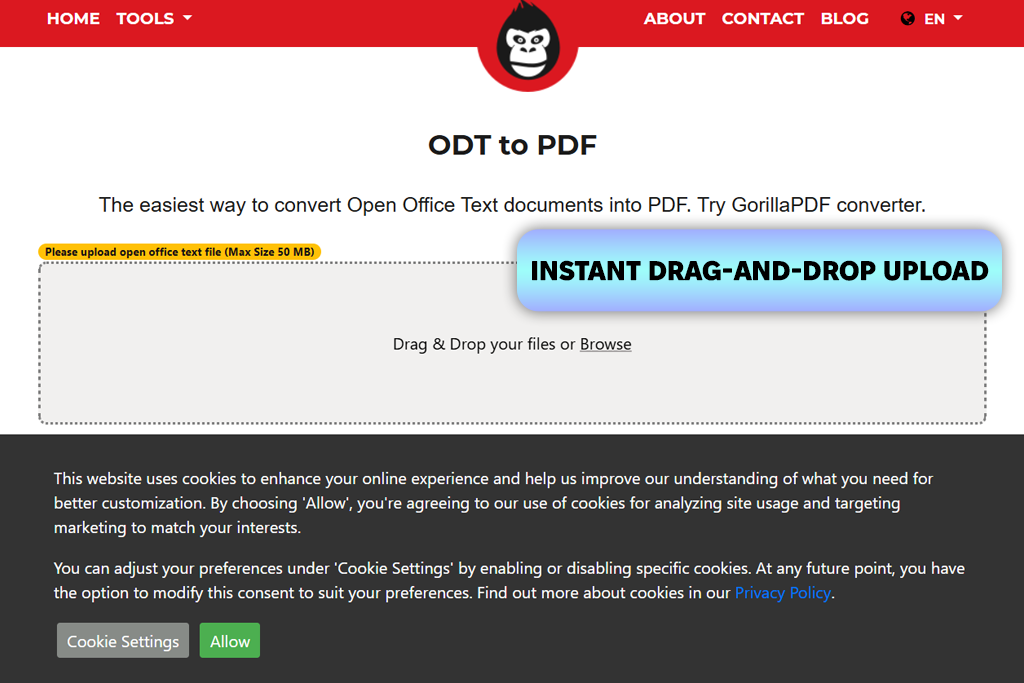
I came across GorillaPDF by chance while browsing Google for less popular free ODT to PDF converters. Since I enjoy trying alternatives to the big platforms, I decided to test it. The site opened fast, and the first thing I noticed was a clean drag-and-drop area - no clutter and no distracting ads.
I uploaded my ODT file, and the conversion began right away. There were no extra settings to configure, keeping the process simple. Just a few seconds later, the PDF was available to download. I opened it, expecting small formatting errors, but was pleasantly surprised - the fonts were correct, the links were active, and the overall document was polished enough to send directly to a client.
The tool clearly states it will delete your file right after converting it. This small promise makes you feel much safer about using this secure ODT to PDF converter. On the other hand, the entire process is automatic, so you can't make adjustments if you need a specific result.
To make our testing realistic, we used actual ODT documents from our work - like client briefs, team guides, and project drafts. These weren’t simple demo files; they had custom headings, inserted pictures, working links, tables, and page breaks. Our aim was to see how each tool handled real, messy work documents, not just perfect samples.
I tested each tool by following its native conversion flow exactly as an average user would. If the website let me drag and drop a file, I did that. If it required me to click a button to upload, I followed that method. I avoided any complicated, hidden settings unless they were a normal part of the process. This approach helped me understand the true experience without spending extra time learning the tool's intricacies.
After every conversion, Julia checked the new PDF against the original ODT file. She looked to see if the fonts matched, the spacing was correct, and the pictures were still clear and in the right place. She also tested every link to make sure they worked in the PDF. She even checked small details like list formatting and table lines, because those are often the first things to go wrong.
Eva evaluated the final stage of the process. She noted if the download was instant or if it involved delays, queues, or email delivery. She also briefly tested available security features, such as automatic file deletion and password protection, since these details are crucial in real-world workflows, particularly when sharing sensitive documents with clients.
Finally, I looked at how each tool would work for a team. Some converters were good for single, quick jobs, while others were better for regular use or group projects. Combining this with my colleagues' feedback helped me assess not just the conversion quality, but also how well each tool fits into a real work environment.





 Only for office suites
 Versatile – launches on any device
![9 Best Online PDF Translators in {{%year}} [Reviewed & Tested]](http://fixthephoto.com/blog/images/gallery/news_main__preview_28499.jpg)

![7 Best Mocha Pro Alternatives [{{%year}} FixThePhoto Choice]](http://fixthephoto.com/blog/images/gallery/news_main__preview_28055.jpg)
![7 Best TXT to PDF Converters [Free Desktop, Online & for Mobile]](http://fixthephoto.com/blog/images/gallery/news_main__preview_28480.jpg)

![AI Bratz Doll Filter Online [FREE]](http://fixthephoto.com/blog/images/gallery/news_main__preview_28411.png)
![7 Best HEIC to PDF Converters in {{%year}} [Windows, Mac & Online]](http://fixthephoto.com/blog/images/gallery/news_main__preview_28447.jpg)


















