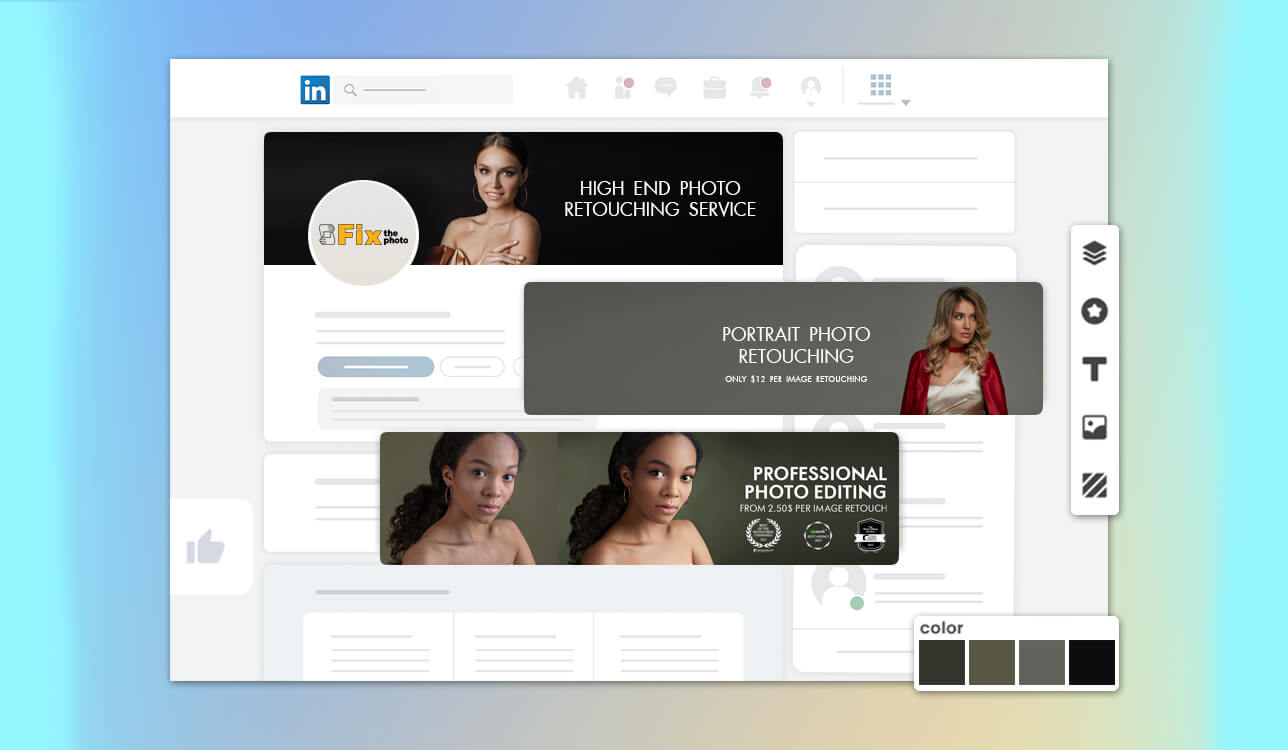
Updating our LinkedIn banner at FixThePhoto initially seemed like a quick task, but it turned out to be more challenging than expected. My colleagues and I wanted something modern, clear, and reflective of our work, yet many tools either felt too restrictive or unnecessarily complex. Some platforms offered limited customization, others made basic edits frustrating, and a few even produced banners that looked generic or unpolished.
Wanting to identify the best LinkedIn banner maker, I tested over 25 tools, I looked at everything from simple drag-and-drop editors to platforms with AI assistance. During testing, I paid attention to elements such as template quality, flexibility with fonts and colors, image positioning, and the final export quality. My goal was to see which tools actually made the process easy while producing a banner strong enough to represent our brand.
By the end of the review, I clearly understood which platforms deliver reliable results and which ones are best avoided if you want a refined LinkedIn profile.
A great banner won’t make an impact if it isn’t uploaded - and fortunately, updating it takes less than a minute. Here’s how to change your LinkedIn banner:
LinkedIn typically rewards regularly maintained profiles. Changing the banner every 3-6 months to reflect new campaigns or achievements helps keep the profile current and engaging.
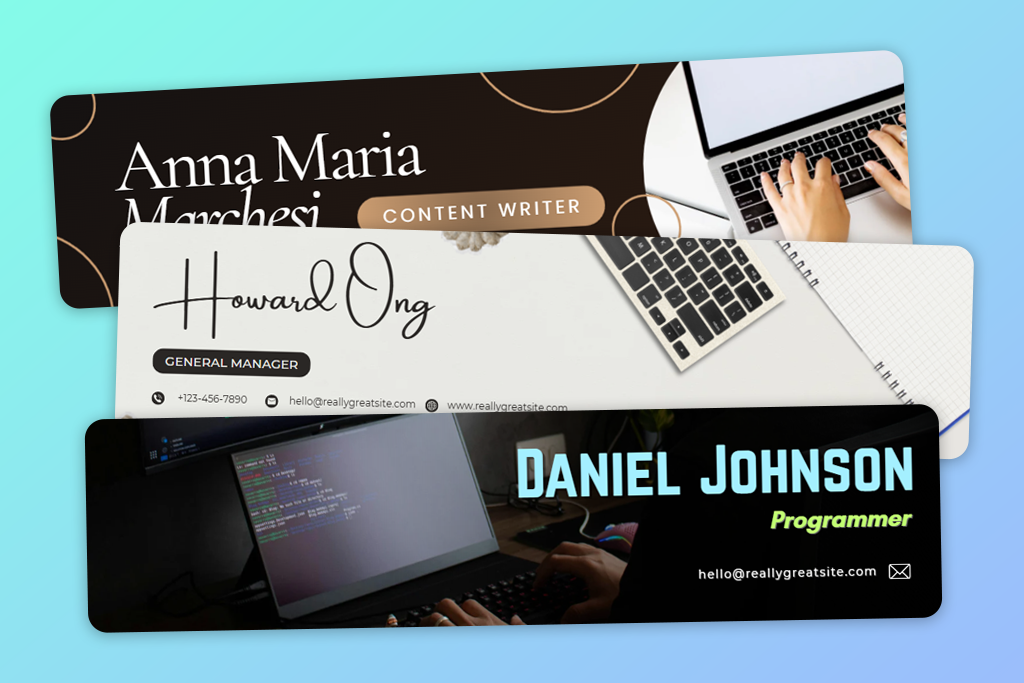
I used to not pay much attention to my LinkedIn banner - just a plain background with no message or personality. It felt like wasted space. But then I started noticing profiles that really stood out, and the difference was clear. A banner isn’t just decoration - it’s part of your personal brand. When I updated my banner and helped some colleagues do the same, our profiles immediately looked more polished and purposeful. Here’s what usually makes a banner look boring, and what I do instead.
After these updates, the banners began to feel like a real part of the brand rather than just background filler. And people do notice - profiles appear more active and polished.
Price: Free or from $9.99/mo.
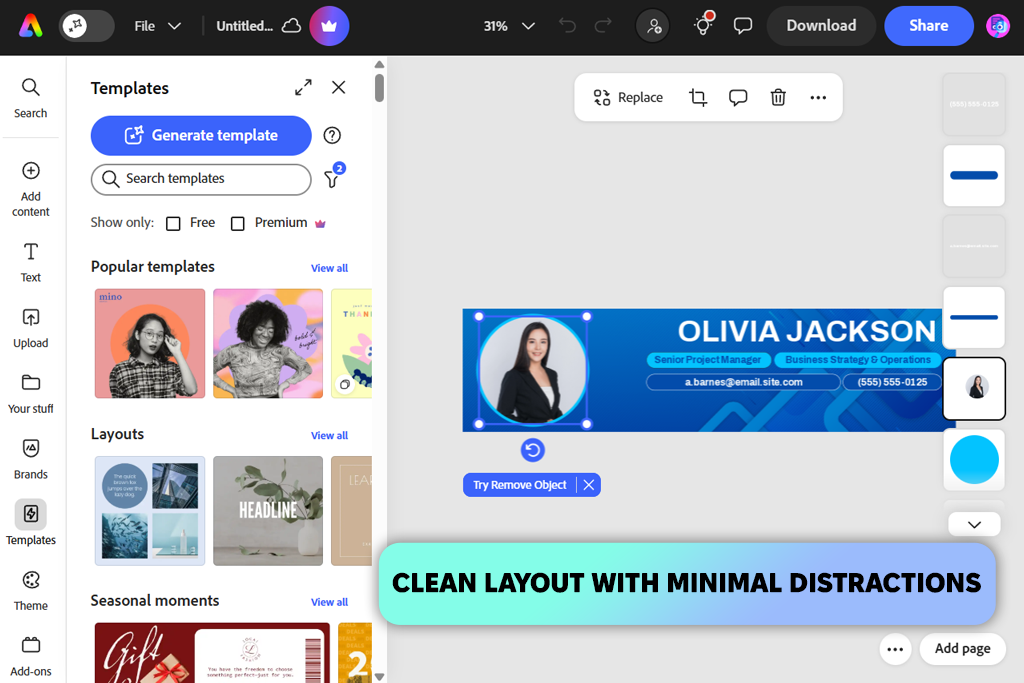
I used Adobe Express to create a custom LinkedIn banner for FixThePhoto. The web version was fast, easy to use, and gave me a clean result. It includes everything you need - templates, fonts, colors, stock photos, and simple design tools - but keeps things simple. I began with a ready-made template, added our branding, adjusted the text, and refined the layout until it looked just right.
The design is simple, so it never feels complicated. Making small changes, like lining up text or adjusting the background, happens in seconds, which saves time when testing several platforms. Adobe Express stayed dependable throughout. Every banner came out clear, with no cropping issues or blur. I also explored different approaches - clean and simple designs, image-heavy layouts, and text-focused versions - and the tool managed each one smoothly.
One major plus is the built-in AI. It lets you create images, erase backgrounds, and make quick adjustments without leaving the platform. That said, these tools aren’t all included in the free version - some require a paid plan.
I also found the resize feature really useful. Once the LinkedIn banner was done, I tested the same design on other platforms, and the layout scaled smoothly without breaking. What stood out most was that even the free option didn’t feel limiting or cookie-cutter. I was able to build a consistent look using our own images, logo, icons, and fonts. The result felt original and closely tied to our brand - not just another template.
Price: Free or from $15/mo.
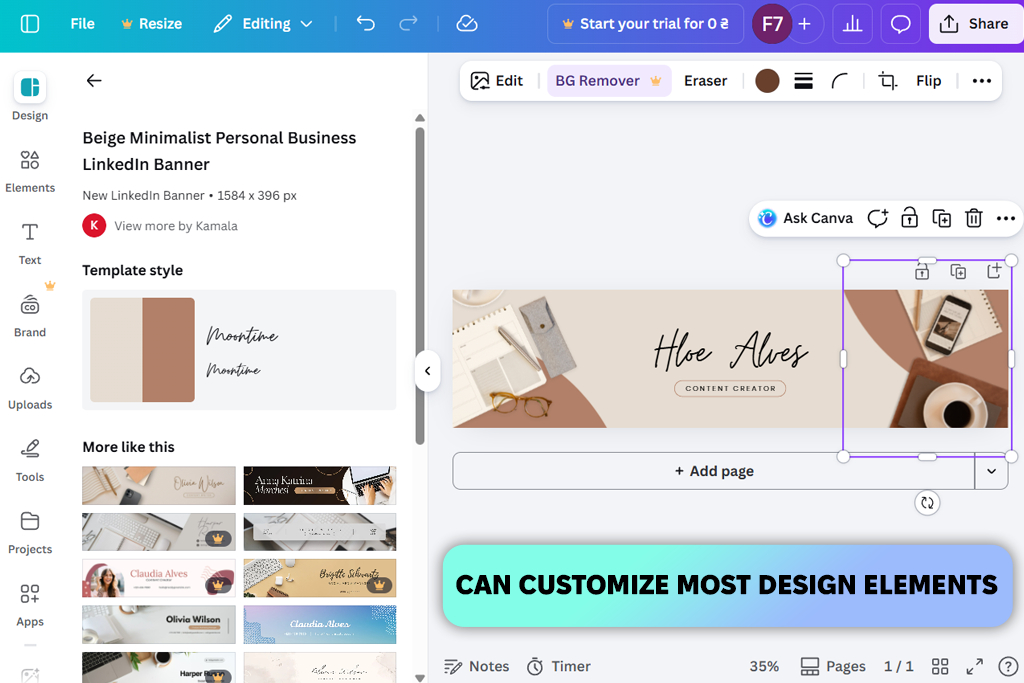
When I tried Canva for making a LinkedIn banner, what stood out most was how fast it was. I could pick a template, add our visuals, tweak the colors, and have a finished banner ready in under ten minutes - that was quicker than with most other tools. Another big plus is that it works on desktop, iPhone, and Android, so I could keep editing on my phone without losing any changes.
Canva has a wide variety of LinkedIn banner templates, covering everything from clean corporate looks to creative and personal styles. The editor is easy to use - you can drag items, resize text, and adjust spacing without any hassle. Even when beginning with a template, I had plenty of freedom to swap backgrounds, pick new fonts, and reshape the layout to fit my needs.
During my tests, I explored three different styles: banners with strong text, those built around images, and ones packed with branding elements. Canva managed all of them without issue. With millions of stock photos and graphics available, it was simple to create a full, balanced design.
The final images came out crisp and perfectly formatted - no cropping mistakes or blurriness. The Magic Studio AI tools came in handy for fast touch-ups and generating new ideas, especially when I needed to clean up a background. That said, many of the best templates and premium images are only available with a paid plan.
“I recently made a banner for a photography workshop I was promoting. The drag-and-drop editor and ready-made templates helped me create something professional without any design stress.”

Price: Free or from $9.99/mo.
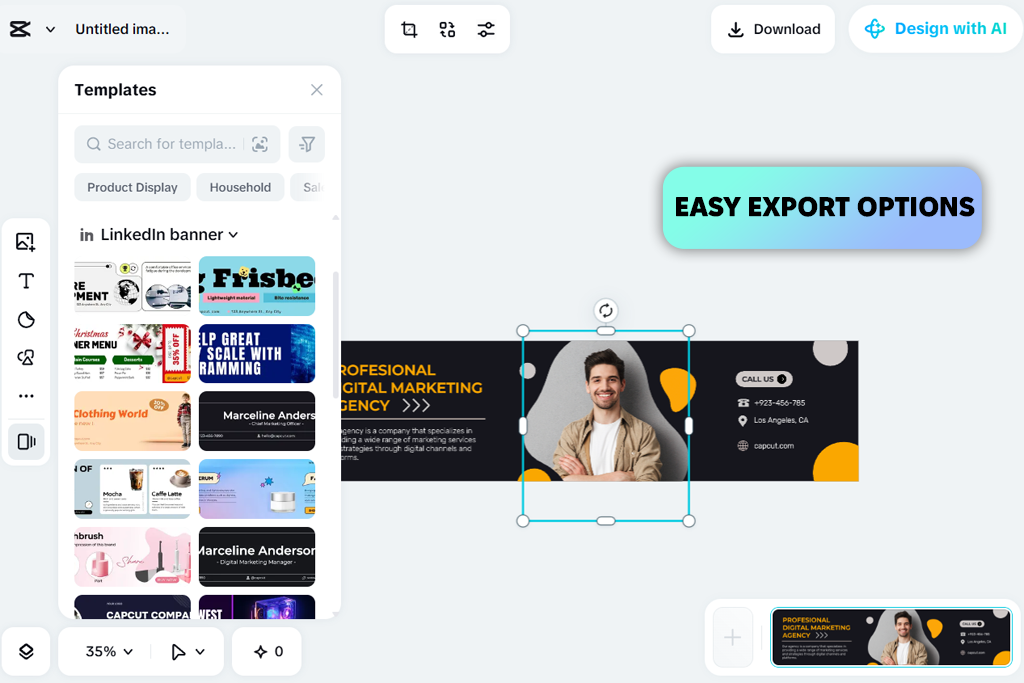
CapCut is best known as a top free video editing app, especially for creating short videos for TikTok and Reels. However, you can also use it as a tool to make LinkedIn banner covers. It offers many features useful for design, including templates, fonts, color controls, overlays, gradients, shadows, filters, and image effects. The interface has a modern, creative feel but is more focused on media editing than traditional graphic design tools.
I began with a LinkedIn banner template, swapped in our own text and brand images, fine-tuned the layout, and applied light effects to draw attention to certain areas. The cropping and resizing tools made it easy to match LinkedIn’s exact dimensions. While testing this LinkedIn banner creator, I created a few different styles - one highlighting achievements with gentle shadows, another using filtered photos, and a simple, professional layout with very few effects.
The AI image upscaler and quality enhancement tools were useful for keeping visuals sharp, which is key for a professional LinkedIn banner. When used thoughtfully, effects can add depth without making the design feel cluttered. I stuck with the web version most of the time - it was faster for quick edits. That said, a lot of the advanced tools and high-res exports are locked behind a paid plan. The desktop app also tended to lag or freeze when working on bigger projects.
Price: Free (12 credits per month) or from $16/mo.
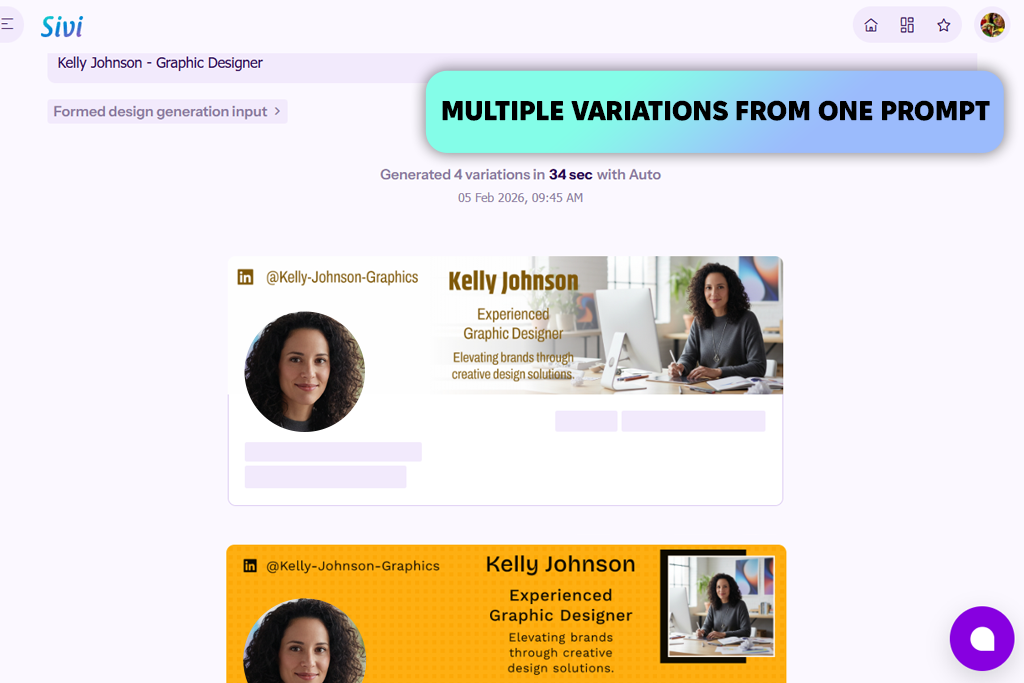
I moved away from templates and tried Sivi AI to see how well it could create LinkedIn banners from scratch. You simply describe your idea, set the size, and add brand materials like your logo, colors, and images. The AI then produces several design options. I appreciated getting multiple variations instead of just one - it made exploring different styles much easier. The interface is clean and straightforward, with no extra clutter.
I gave this LinkedIn banner generator a try with a few different banner styles - one for personal branding, another with a corporate feel, and a third aimed at promotion. The brand kit made it easy to keep the look consistent across all of them. The layouts came out clean and intentional, not like something randomly generated. I also appreciated the preview option, which let me see how the banner would actually look before exporting, which saved me from extra tweaks later. On top of that, the platform supports design in over 72 languages.
Another advantage is the variety of export options. I was able to save banners as high-quality PNG or JPG files that fit LinkedIn perfectly, without adjusting the size. This is especially useful when updating profile headers frequently to keep the page looking fresh. Still, AI-generated visuals are not always flawless. A few designs required small edits after downloading, and it gives users less flexibility than classic free graphic design software.
“While updating my banner for a new project, I wanted to avoid using a standard template. Sivi AI generated options that felt fully personalized - I only needed to add my logo to finish the banner.”

Price: Free or from $5/mo.
When I tried Designs.ai, the process started with a simple keyword. After entering a business-related phrase, the platform quickly generated several LinkedIn banner concepts with camera-themed visuals, portfolio-style arrangements, and clean professional headers. From there, I selected one option and moved to the editor.
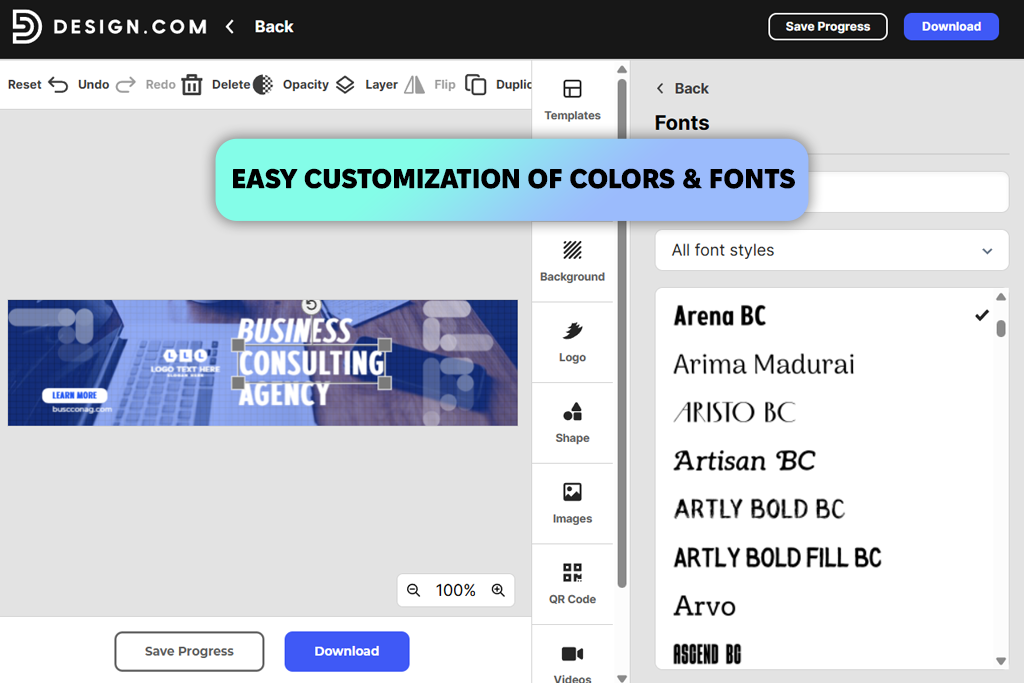
The customization tools allowed me to adjust fonts, colors, layout elements, shapes, and gradients. I also tested applying brand colors and refining the typography. Even after multiple edits, the editor kept the composition organized, so the banner remained balanced and visually consistent.
During testing, I tried three banner styles: a minimal corporate header, a modern gradient design, and a more visual layout built with shapes. This free LinkedIn banner tool handled each option smoothly. One highlight was the export flexibility. Banners can be downloaded as high-resolution PNG or JPG files, as well as vector formats like SVG, EPS, and PDF - something uncommon for LinkedIn header tools.
This makes the designs useful for other branding materials beyond LinkedIn. Customization is fairly flexible, though it still relies on preset layouts. Colors and fonts can be changed freely, but the overall structure follows the original template rather than allowing completely freeform editing.
The free version of this LinkedIn cover photo maker includes a few basic options, but the most refined and professional templates are usually available only with a paid subscription. It also provides less design flexibility than full-featured editing software. Designs.ai offers more than banner creation. The platform also includes an AI logo generator and tools for producing social media graphics, business cards, brand identity assets, and other marketing materials.
Price: Free (watermark) or from $8.99/mo.
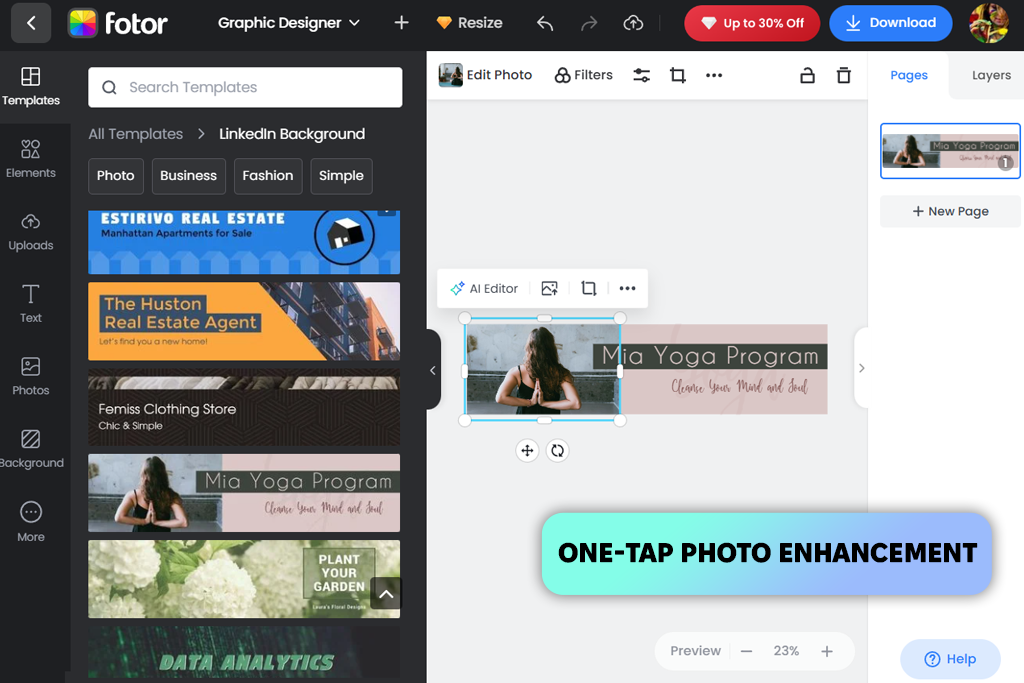
I found Fotor to be a simple online LinkedIn profile banner maker without needing any serious design background. The templates are already set to LinkedIn's size, and the left-side menu makes it easy to add text, logos, overlays, and adjust colors. Since it works on Windows, Mac, iOS, and Android, I could edit from anywhere.
I tried three banner styles: a business header with strong typography, a version featuring a photography-themed backdrop, and a personal branding layout that included a portrait. Fotor’s AI background generator and its AI LinkedIn photo tool helped produce professional-looking visuals quickly.
The platform also includes a library of fonts, icons, stickers, and backgrounds, which makes it easy to complete the composition. Exported files matched LinkedIn’s required dimensions without extra adjustments. However, some AI-generated results looked somewhat generic, the layout choices are not very extensive, and premium templates require a paid plan.
“With Fotor, I can mix stock visuals with my own images. For one LinkedIn banner, I selected a city skyline from the built-in library and layered my portrait on top. The final result looked polished while still feeling personal rather than generic.”

Price: Free or from $6/mo.
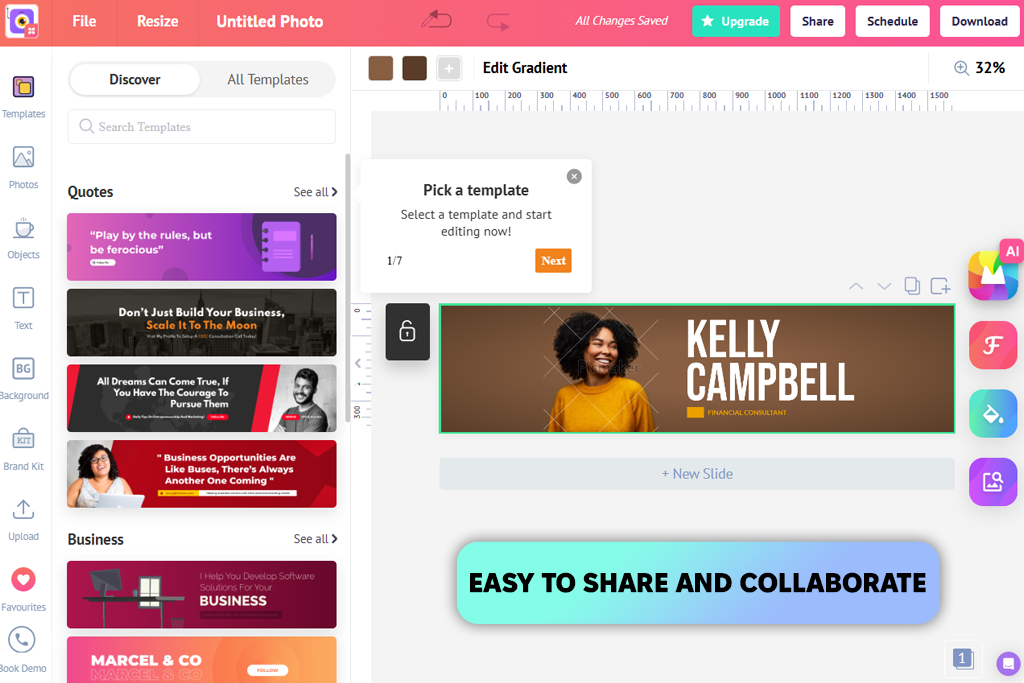
Picmaker is a flexible LinkedIn banner design tool that impressed me with how quickly it helped produce clean, professional headers. The platform includes a broad range of templates across different industries and visual styles, making it easy to get started - even when looking for free LinkedIn banner options.
Working with the editor felt straightforward and visual. Instead of navigating through complex menus, I could simply click on text, colors, shapes, or images directly on the canvas and adjust them instantly. While testing, I experimented with gradients, typography, logos, and different layout variations, and the process didn’t feel limited by strict templates. The platform also includes a built-in image library and AI features such as background removal, which made adding portraits and other visuals easy without switching to another app.
During testing, I produced three banner styles: one centered on bold typography, a minimal design with a single photo, and a branding-focused header featuring logos. The exported files were sharp, matched LinkedIn’s dimensions, and were ready to upload in formats like PNG and JPEG. Overall performance was smooth, although larger files sometimes caused slight delays, and a few of the more advanced features took some time to figure out.
Price: Free (100 AI credits) or from $15/mo.
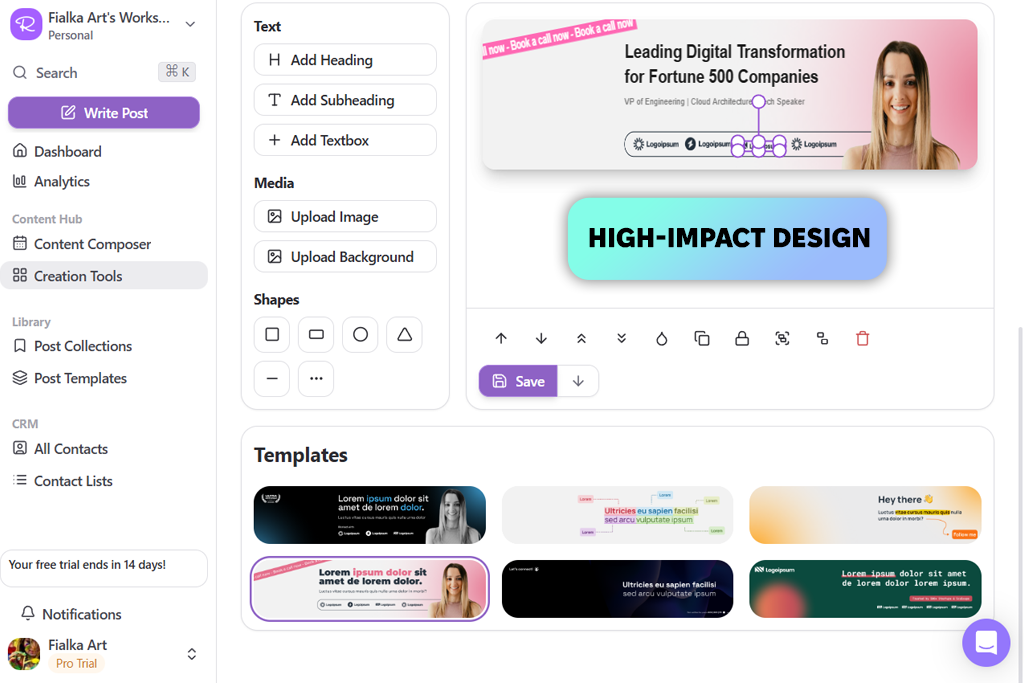
Reepl is primarily a LinkedIn automation tool that also includes tools for visual content. In addition to helping with cover photo creation, it supports post generation, growth gamification, and automated lead research.
After I entered my profile link, the AI reviewed my experience, suggested banner templates, and even generated text that I could refine. From there, I was able to tweak colors, typography, and layout elements to match either a personal style or a company brand.
The preview option allowed me to see exactly how each banner would appear on LinkedIn. I tested several styles: a corporate-style header, a more visual design built around imagery, and another highlighting key achievements. The AI suggestions were surprisingly helpful and sped up the process. Exported files were high quality and ready to upload. However, some templates started to feel repetitive, and there isn’t much control over manually adjusting the layout.
“Within about 15 minutes, I produced a header, fine-tuned the typeface and color palette to match my brand, and published it on LinkedIn.”

Price: Free or from $10/mo.
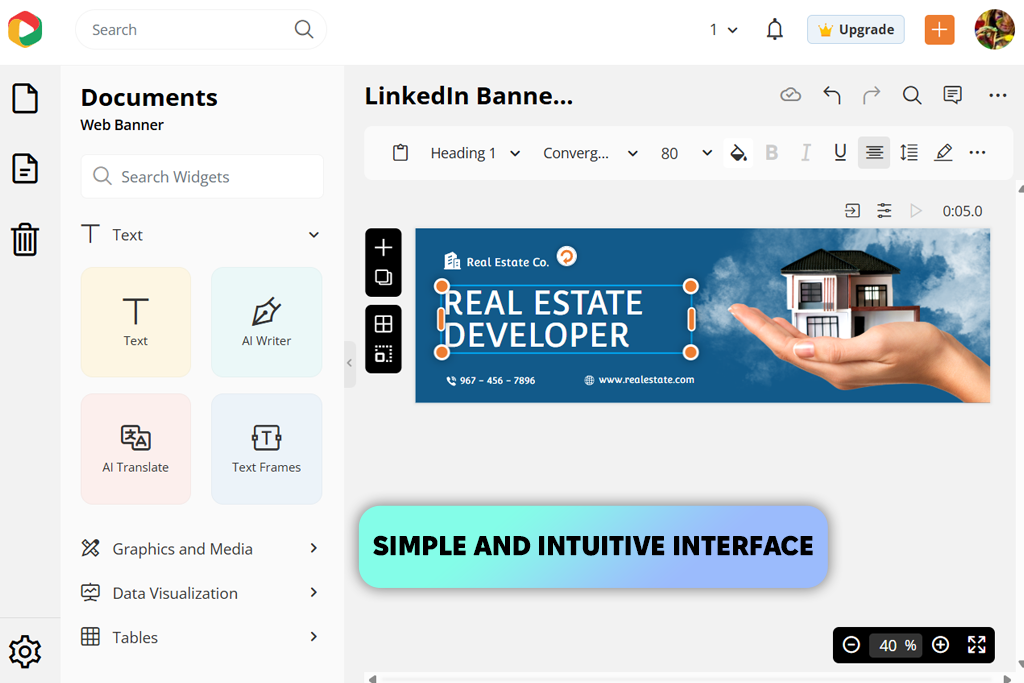
DocHipo stood out as a LinkedIn header banner maker thanks to its wide range of ready-to-use templates, covering everything from corporate and minimal styles to more creative, attention-grabbing layouts. The drag-and-drop editor made it simple to adjust text, colors, shapes, and images without much effort. During testing, I created a business-style header, a photography-focused layout, and a personal branding banner. The built-in collection of photos, icons, stickers, and animation features made it easy to enhance each design and give it a more polished look.
The background removal and photo-editing tools were particularly useful when working with portraits and product images. Exporting was smooth, and banners could be downloaded or shared right away. However, some layouts started to feel repetitive, and deeper customization options are somewhat limited. DocHipo also maintains a helpful blog with resources such as LinkedIn background photo ideas, which can provide extra inspiration when planning a profile header.
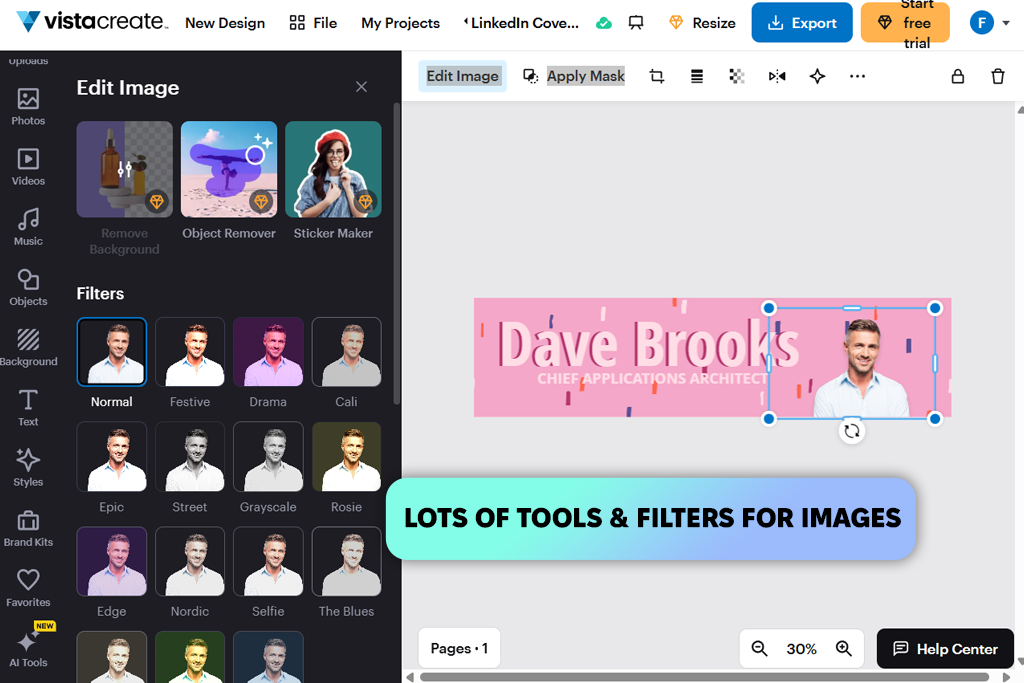
Price: Free or from $13/mo.
VistaCreate provides a large collection of ready-made LinkedIn layouts, and the interface is very beginner-friendly. I produced three banners during testing: a corporate-style header, a personal branding design, and a more abstract creative layout. Changing fonts, colors, and visual elements was quick, and uploading images worked without issues. The final results looked clean and professional, especially when working on designs with a tight turnaround.
What impressed me most was how well it maintains visual harmony for LinkedIn headers. The layouts already match LinkedIn dimensions, so there’s no need to worry about trimming the image. Built-in adjustments such as brightness, contrast, filters, and masking helped refine visuals easily, while the collection of shapes, icons, and stickers added subtle decorative details. As an extra benefit, VistaCreate also works well as a free infographic maker. However, the most polished resources and AI-powered capabilities are accessible only with a paid subscription.
“The layouts feel modern, and I enjoy adding my own images and incorporating custom shapes to reflect my personal style.”

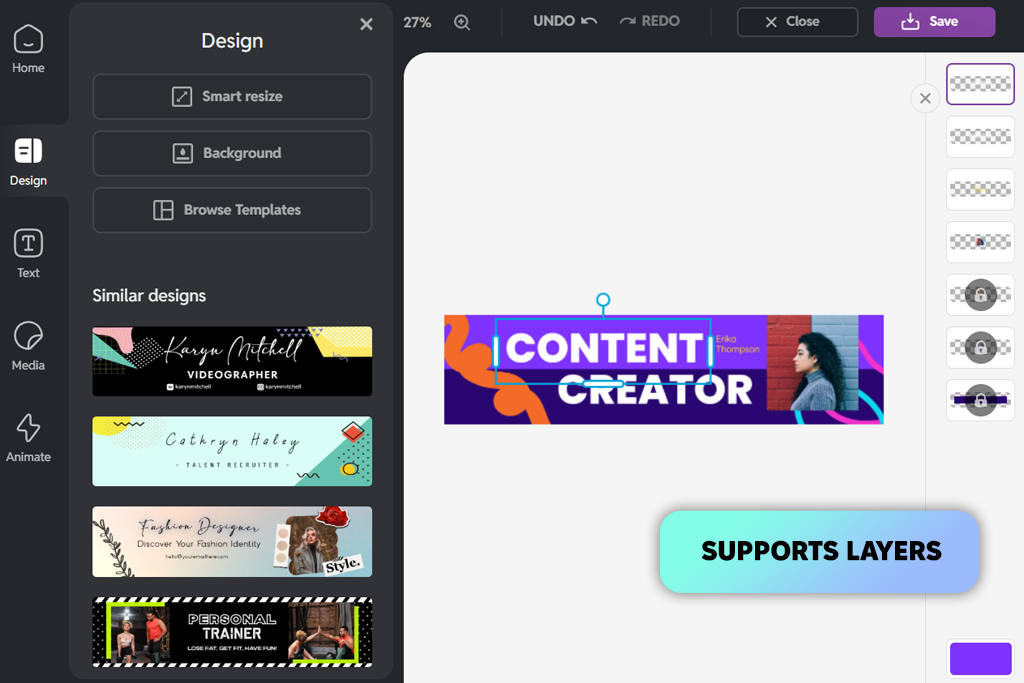
Price: Free or from $2.49/mo.
Pixlr runs directly in the browser, which made quick LinkedIn banner edits very convenient, though desktop and mobile apps are also available. Pre-sized LinkedIn templates helped avoid guessing dimensions. I tested both “LinkedIn Personal” and “Company” layouts, and also created one banner from scratch.
What stood out was that the interface feels closer to full graphic software than a typical template-based editor. With layers, detailed text settings, and blending modes, I had much more freedom while working. I created one banner focused on bold typography and another branding-style header with logos. AI features like Super Sharp, background adjustments, and the AI Image Generator also helped speed up the workflow. Some advanced tools are restricted in the free version, and the interface can seem a bit crowded at first. Still, the final banners looked sharper and more tailored than what you usually get from template-heavy platforms.
For personal profiles, the optimal size is 1584 × 396 px (4:1 aspect ratio). Company pages use 1128 × 191 px. Save the image as PNG or JPG under 8MB to maintain clarity and avoid compression artifacts. Tools like Adobe Express, Fotor, and Canva automatically apply the correct sizing, helping ensure the banner fits the profile layout properly.
Yes. It’s one of the first elements people notice on your profile. A well-designed banner highlights professionalism, expertise, and personality, while an empty or unrelated image can make the profile appear incomplete.
A professional LinkedIn banner usually features a clean layout, clear typography, brand-consistent colors, and high-quality visuals. Avoid clutter, excessive font styles, or distorted images. Many LinkedIn banner tools also help maintain proper alignment and balanced spacing.
Treat it like a small billboard rather than a résumé. Useful elements include your specialty (e.g., “Product Photographer”), visual examples of your work, brand colors, a logo, or a short positioning line. Keep text minimal - the banner should complement your profile, not replace it.
It depends on your profession. Designers, photographers, and other creatives often benefit from visual elements. Consultants or coaches may prefer a text-focused banner with a clear positioning line. In many cases, the most effective approach combines subtle visuals with a short message.
Updating it every few months is a good practice, or whenever you change roles, services, branding, or launch something new. A refreshed banner signals activity and progress on your profile.
Yes. Modern LinkedIn banner tools such as Adobe Express, Canva, and CapCut offer drag-and-drop editors, ready-made layouts, and AI suggestions. In most cases, you simply adjust existing elements rather than starting from scratch.
While searching for the best LinkedIn banner makers, I went beyond a few well-known tools and evaluated a wide range of platforms. Along with the services included in my reviews, I also tested Kittl, PicMonkey, Visme, Piktochart, Easil, Snappa, BrandCrowd, PosterMyWall, Hotpot, Designs.ai, and Phygital+. Some of these tools performed well, but they didn’t make the final list. In most cases, the reason was limited support for LinkedIn-specific sizing, restricted customization, lower export quality, or a less intuitive user experience.
To make the evaluation more balanced, I involved colleagues from FixThePhoto in the process. They reviewed the tools from both a designer’s and a non-designer’s perspective, which helped give a more realistic understanding of how these platforms perform for users with different skill levels.
We tested each LinkedIn banner creator the way real users would, following the approach described in the FixThePhoto testing guidelines. For every platform, we created several banners - both from scratch and using ready-made templates. We focused on how quickly a banner could be produced and how simple it was to modify layouts, replace images, adjust fonts, and apply brand colors.
Our team specifically looked at:
To make the evaluation more realistic, we recreated common banner types such as text-driven headers, photo-based layouts, logo-centered brand visuals, and clean minimal styles. This approach helped us determine which LinkedIn cover photo tools actually produce banners that look polished on a live LinkedIn profile, not just inside the editor preview.




![Best Leonardo AI Alternatives [FixThePhoto Choice]](http://fixthephoto.com/blog/images/gallery/news_main__preview_28887.jpg)


![5 Best Real Estate Datasets for Machine Learning [{{%year}} FixThePhoto Choice]](http://fixthephoto.com/blog/images/gallery/news_main__preview_28903.jpg)



















