I was stuck on a creative problem for a new website. The website is for a startup that helps small businesses run their online shops. We wanted a modern and clean look with unique backgrounds, not boring, common photos. The challenge was that we needed special, custom backgrounds for several parts of the site like the main banner, the sections showing product details, and the pricing page.
We didn't have much money to spend, so we couldn't afford to pay a designer to make them for us. That's when I decided it was worth trying an AI background generator.
At first, I looked for pictures on stock photo sites. But all the images I saw were too common or didn't match our company's style. So, I decided to try AI background generators instead. It was my first time using one, and I didn't know how they worked. I soon found there were many different tools to choose from, and I realized it would be hard to pick the best one.
To make my choice easier, I made a list of what was important. My top priority was quality. The backgrounds needed to look clear, professional, and good on both computer and phone screens. Next was customization. I wanted to change the look for different pages - simple and clean for some, bright and energetic for others. Finally, the tool had to be fast and easy to use.
With a tight deadline, I needed a straightforward tool that wouldn't require a steep learning curve or extensive customization. It was also essential that the tool offer flexible export options, allowing me to download backgrounds in various formats and resolutions effortlessly.
During my search, I also recognized the critical need for branding consistency. We needed more than just a collection of nice-looking backgrounds. We needed a set that felt like it all belonged together. For that to happen, the AI tool had to let us plug in our brand's color palette directly, or at the very least, be smart enough to easily understand and match our existing visual style.
The project had a simple goal: we needed sleek, modern backgrounds that improved the design without taking attention away from the words and pictures. For the top of the page (the hero section), I wanted a bold and abstract background to make a strong first impression.
For the section showing the product's features, the background had to be very plain and clean so people could focus on the details. And for the pricing page, the background needed to be light and simple to keep all the focus on the different payment options.
I tried out several AI background image generators at the same time, giving them the same prompts to compare results. It was fun but sometimes frustrating. Some tools made beautiful images but didn’t let me change much, while others gave a lot of control but were complicated and slow. In the end, I wanted a tool that was creative, accurate, and fast - one that could quickly make backgrounds for each part of the site without lowering quality.
Since all my deadlines were burning and I didn't have much time to select and test background generators, I asked my colleagues from the FixThePhoto team to help me with this. Together, we compiled a list of platforms and started generating various backgrounds and testing prompts.
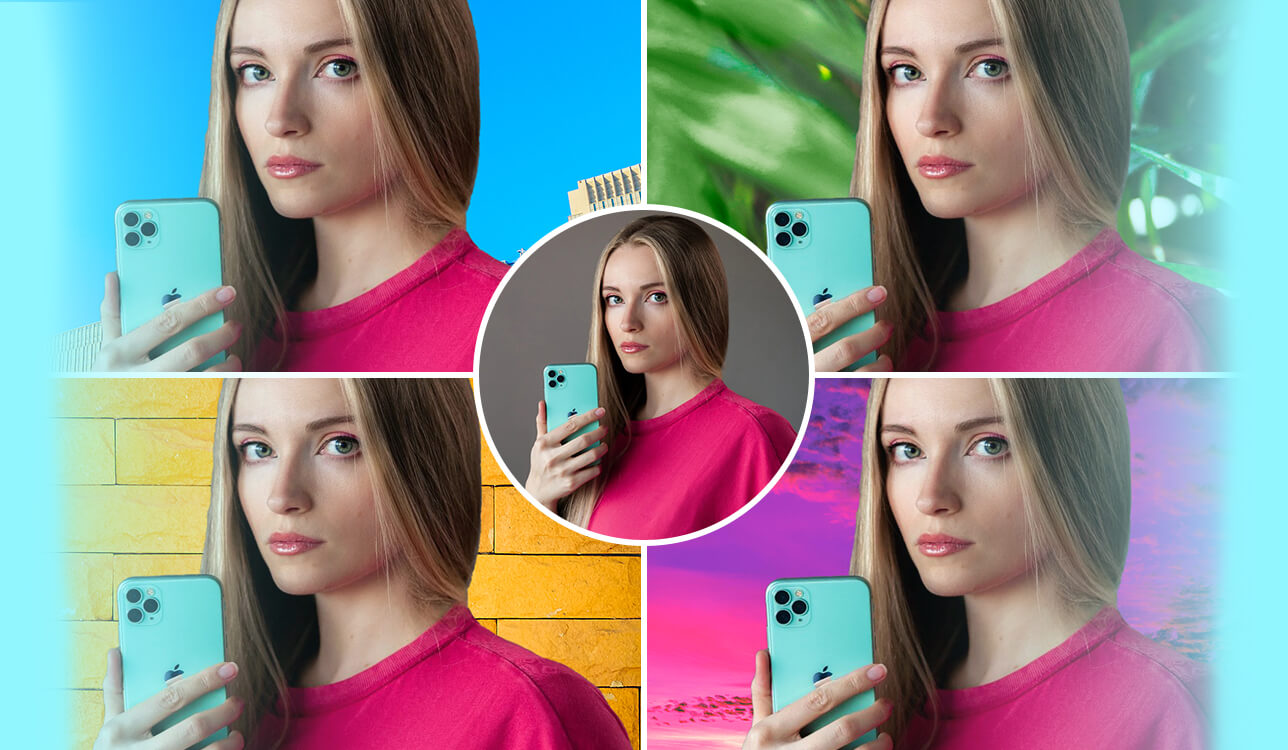
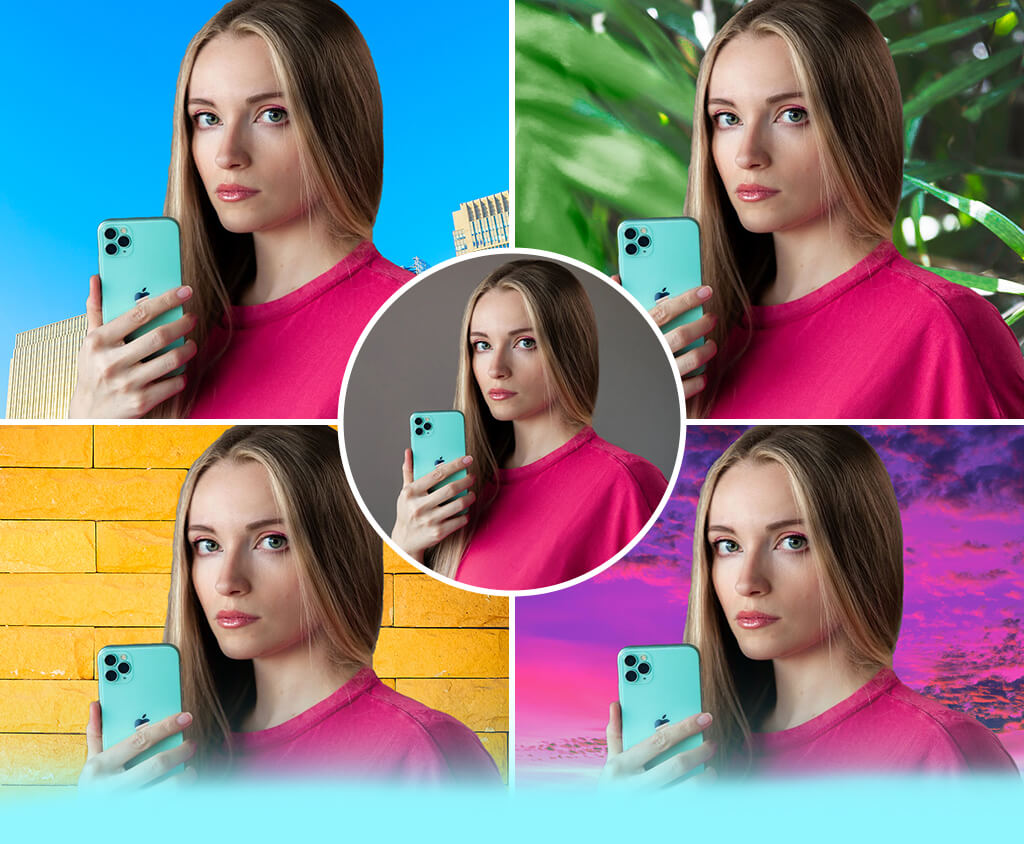
AI creates a suitable background for a picture by first looking at the main subject and the scene to understand its style, lighting, and feeling. Then, it generates a new background that fits all of those elements seamlessly.
First, the AI finds the most important thing in the picture, like a person or an object, and separates it from the background. Then, it looks at the colors, lighting, and angles to create a new background that looks natural with the subject.
Next, the AI uses its creative engine to build a brand new background from scratch. It follows your instructions or the overall image context - so if you ask for a "modern office," it will create realistic-looking desks, laptops, and lighting that fit the subject's angle and shadows. If you don't give specific directions, the AI simply uses its best judgment to generate a background that looks natural and visually appealing.
Finally, the AI carefully combines the main subject with the new background. It adjusts the colors and softens the edges so that everything blends smoothly, with no visible cut lines or weird lighting. The final image looks natural, as if the subject and background were always together.
This method is useful for many types of pictures because the AI doesn't just paste a random background. Instead, it smartly designs one that fits the scene perfectly.
Product Photography Backgrounds:
Portrait or People Photography Backgrounds:
Abstract or Digital Backgrounds:
Themed or Seasonal Backgrounds:
Website or App Design Backgrounds:
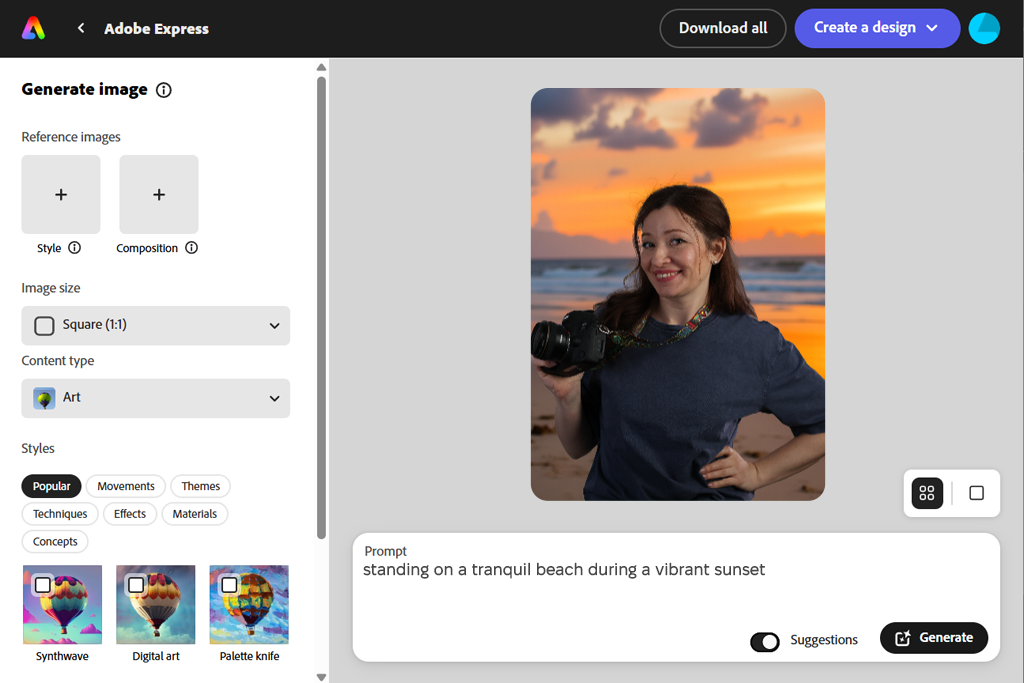
When I began searching for the best AI background tool, I strongly considered Adobe Express. I've always trusted Adobe for professional design work. To start, I prepared a list of clear instructions. Some were very simple, like asking for a "clean, modern background with a soft mix of blue and white, perfect for the top of a website."
Other instructions were more about a feeling or idea, like "a calm, professional design inspired by nature, using simple shapes and green colors." My goal was to test if the program could understand both simple commands and creative ideas. Once my list was ready, I started creating the backgrounds and writing down exactly what I did at each step.
“This tool is great for creating professional backgrounds quickly. The AI is excellent at getting colors and blends just right, and it's very simple to use. Just remember to give clear instructions, or the backgrounds might look a bit plain.”

Adobe Express has a clean and simple layout that's easy for anyone to use. Unlike many other free Adobe software, it's built for speed, helping you create a finished background from a simple idea in no time. The AI was great at understanding what I asked for, creating backgrounds that looked professional and ready to use immediately.
I was most impressed by how the tool mixed colors and textures in a natural way. This made each background feel special, not like a copy of a basic template. Even when I asked for creative, abstract designs, the results still looked well-balanced and put-together. Another big plus was the control this background creator gave me.
After the AI created a background, I could easily make small changes right inside the tool. I could adjust the colors to fit our brand, change the lighting to alter the mood, or add faint patterns to make the design more unified.
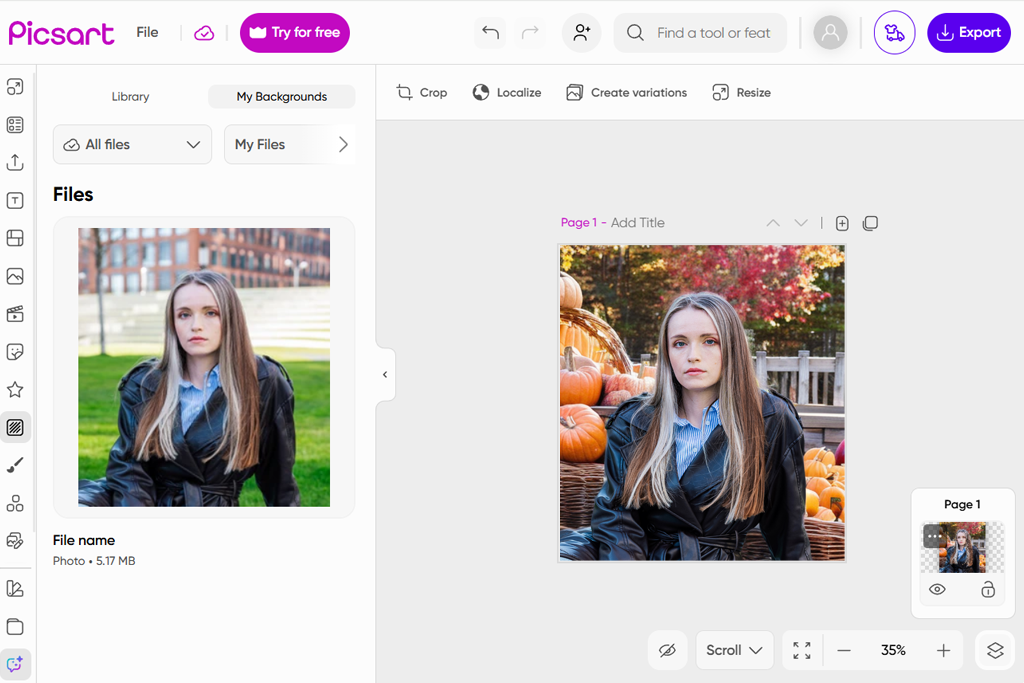
PicsArt is designed to be easy for everyone, whether you're on a computer or a phone. I created my first backgrounds in just a few minutes, without having to search through complex menus. The results were impressively good, especially given how fast and simple the process was with this AI image generator.
The AI clearly understood my ideas and created bright, clean backgrounds that were ready to use on a website right away. For a person who isn't a designer, this is a huge help. It makes creating visuals feel easy and less intimidating.
“This tool is really fun and works quickly, especially on a phone. I enjoy adjusting the look and feel of the backgrounds right after the AI creates them. It might not be detailed enough for very formal projects, but it's ideal for social media posts or quick, simple designs.”

My favorite feature was being able to edit the background right away. After the AI created it, I didn't need to use a different program to make changes. I could instantly adjust the colors, add textures, use filters, or even mix it with other AI-generated pictures.
This feature gave me great flexibility and made the whole process very smooth. It was especially useful when I needed to quickly adjust a background to fit the startup's brand colors. PicsArt also offers a huge collection of extra design items, like stickers, textures, and ready-made graphics. This gave me even more creative choices to work with.
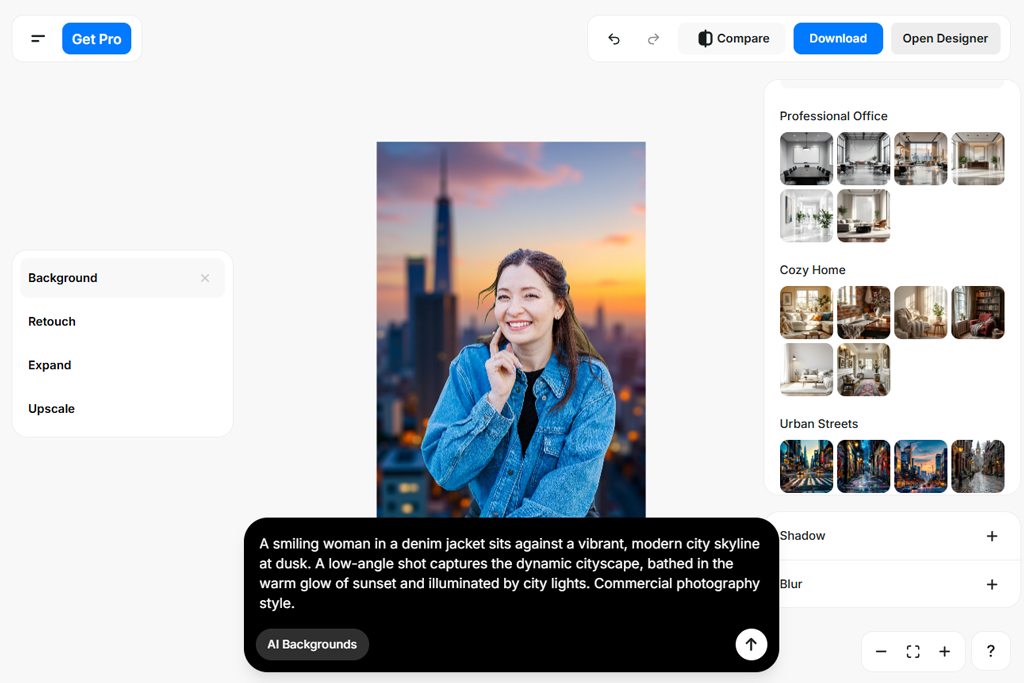
A great feature of Pixelcut is how it automatically adapts to your photo. When I created backgrounds for pictures with a clear subject, the AI seemed to understand how the main subject and the background should fit together. This made the final image look much more natural, as if the subject truly belonged in the scene, instead of just being stuck on top of a random background.
I also liked that I could easily change the background after it was made. Right in the same tool, I could adjust the colors, blends, and patterns. This made it simple to match our company's colors and design style.
“This tool is surprisingly smart. It automatically adjusts the background to fit the main subject, which saved me a lot of time. It's quick and the results look neat, but you can't edit small details like you can in more advanced design software.”

While testing, I checked how the backgrounds looked in real-life use by adding them to sample website layouts. They adjusted smoothly to both desktop and mobile screens, staying crisp even when enlarged. Exporting with this background maker was easy thanks to the variety of available file types, which made the process faster and eliminated the need for extra design software.
Still, I noticed a few drawbacks. Although this AI art generator delivers quick, attractive results, it lacks the advanced vector editing options found in professional tools like Illustrator. Some prompts needed multiple attempts to achieve the right style, and unclear descriptions often led to fairly generic images.
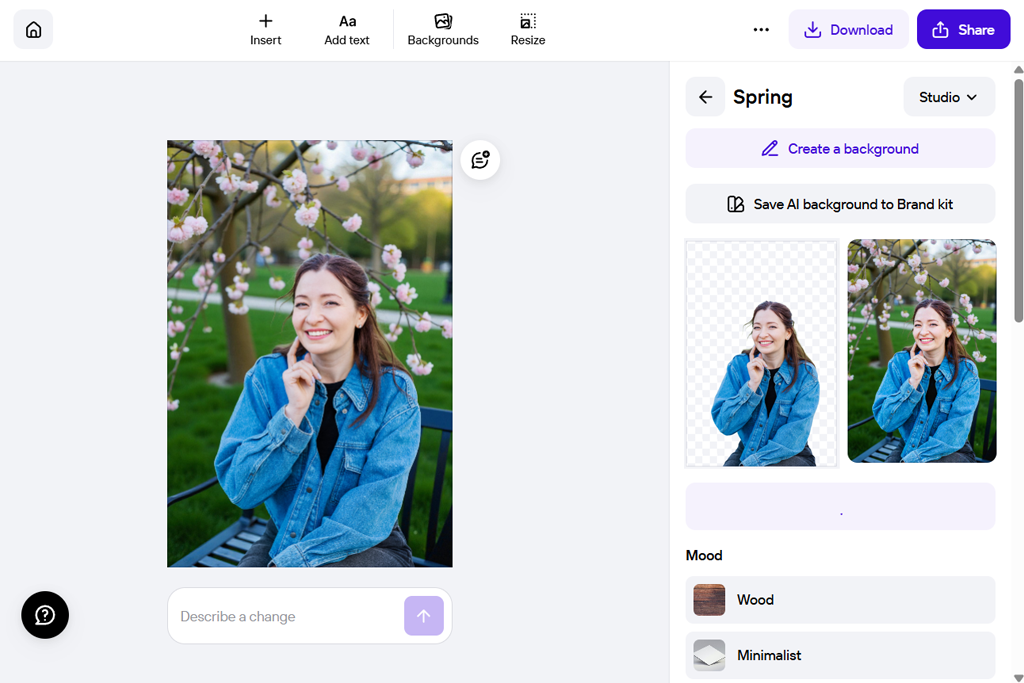
Photoroom’s AI produced ready-to-use backgrounds featuring neat layouts, smooth color transitions, and a polished, professional look. I was especially impressed by its ability to maintain consistent color tones and lighting - even abstract or creative prompts turned out visually unified and perfectly matched the style I had in mind for the landing page.
One thing that really impressed me was how Photoroom could automatically detect the main subject and adjust the background to fit - similar to the smart recognition tools featured in a top-notch image recognition software.
When I used images featuring products or people, the AI automatically adapted the background so everything looked seamless - no harsh edges or uneven lighting. The integrated editing tools were another highlight. They let me adjust colors, create gradients, add soft effects, and enhance textures all within the same workspace. This made the process much smoother, since I didn’t need to switch to another app for finishing touches.
“Photoroom makes designing backgrounds effortless. The AI naturally merges subjects with new settings, creating smooth, realistic results. I also appreciated being able to adjust colors and textures on the spot. While it doesn’t offer Photoshop-level precision, it’s much faster when you need polished visuals in a short time.”

I tested the backgrounds by using them in actual website designs. They looked good on both computer and phone screens, and stayed clear even when enlarged. Downloading them was easy, with different file types and sizes to choose from, so I could use them in my project right away.
However, there were some drawbacks. While Photoroom is very fast and easy, it doesn't let you control every tiny detail like more advanced tools can. Sometimes I had to generate a background a few times to get it just right. If my instructions were unclear, the results could look a bit plain. For very complicated backgrounds, it's not as powerful as professional AI bg generator.
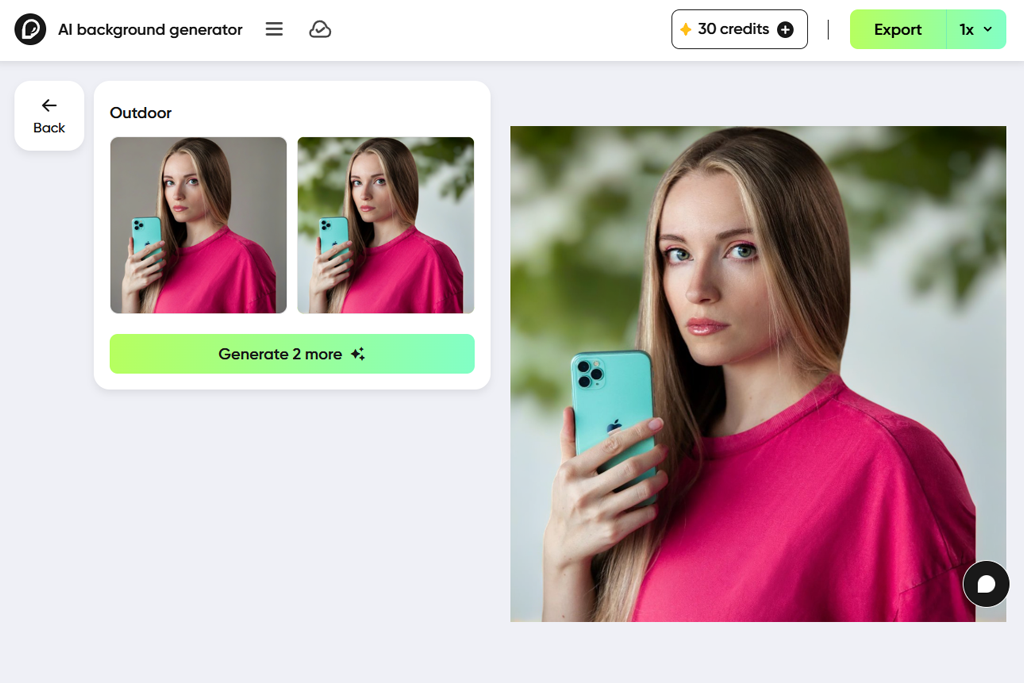
What I liked most about Pacdora was its smart adaptation. Unlike other generative AI tools, it seemed to "know" what kind of background would fit my subject and layout. For instance, when I used a product photo, it suggested simple patterns that added depth without taking attention away from the product itself.
The tool also lets you edit using layers right where you generate the image. This was a huge advantage. I could change color blends, add textures, and adjust shadows without having to switch to another program.
“This software is straightforward and works very well. It creates professional-looking backgrounds that automatically fit the main subject. While you need to give clear instructions to avoid generic results, it overall saved me a great deal of time.”

It works very fast. I could create many different backgrounds in just a few minutes and then choose my favorites. I also liked that it suggested colors that look good together. This was helpful and stopped me from worrying about my own color choices.
However, Pacdora isn't the best for very detailed backgrounds. If you need complex, artistic effects, you might find it a bit limited. Sometimes I had to try a few different instructions to get the result I wanted. But for creating modern, matching backgrounds quickly, it works very well.
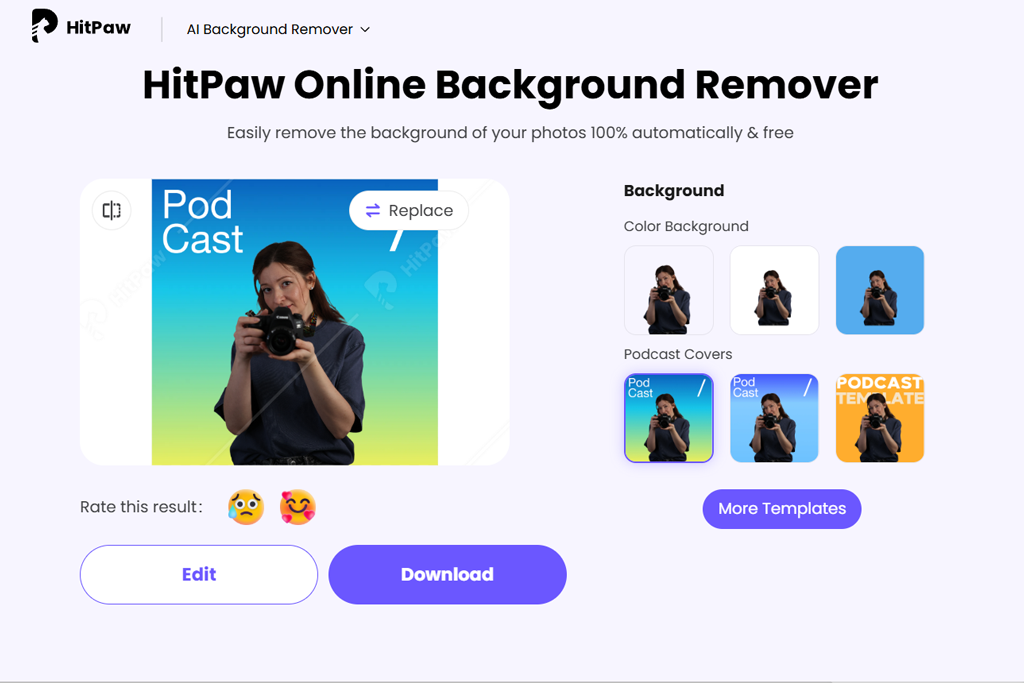
I first noticed that HitPaw’s is very focused on the main subject of your photo. When I uploaded pictures of people or products, the tool automatically adjusted the background to match them in terms of lighting, angle, and shadows. This made the final image look very natural. Another great feature lets you create different styles with one click. For a single instruction, the AI can quickly make several versions, which helps you explore different ideas in no time.
This AI background generator also lets you make small adjustments after the background is created. You can change how bright it is, how strong the color blends are, or add textures. This mix of AI power and manual control works very well. The AI does the hard work of building the background, and then you can easily add your own creative touch.
“This tool is quick and easy to use, and I was impressed with how well it managed foreground subjects. The generated backgrounds looked clean and ready to go right away. It may not offer the fine detail needed for complex designs, but it’s excellent for producing sharp, professional visuals in no time.”

Naturally, it can’t fully take the place of professional tools like Illustrator or Photoshop. It struggles with very detailed, layered, or complex projects. Some prompts needed a few adjustments to get the desired result, and highly abstract ideas didn’t always come out as intended.
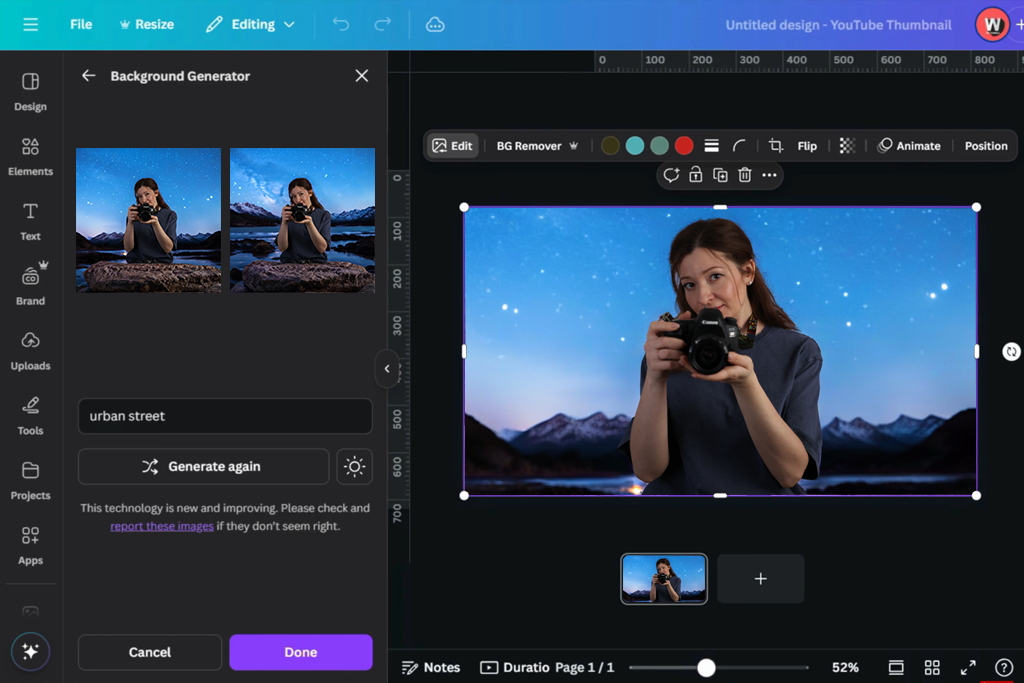
Canva’s biggest advantage is its huge built-in design platform. The AI doesn’t just make a background - it instantly pairs it with patterns, overlays, and icons from Canva’s own library, making the whole design process smooth and connected.
For example, I built a hero section using an abstract gradient, then added soft shapes and textures recommended by the AI, giving it a distinctive look with almost no effort. I also appreciated the smart style suggestions - the AI offered new color schemes and layout ideas based on my initial input, making it easy to experiment with different styles and moods.
“Canva is very easy to use, even for beginners. Its AI creates attractive backgrounds that you can edit immediately. It's a great tool for social media graphics and website pages, but it's not the best choice for very complicated or highly detailed designs.”

The interface is super straightforward. You don't need any design experience to produce numerous versions, modify them on the spot, and download them in web-ready or social-media-friendly formats. The backgrounds integrated flawlessly into my design prototypes, and the entire process was smooth and self-contained, eliminating the need for multiple applications.
I worked with my colleagues Tata Rossi, Eva Williams, and Kate Gross. Together, we planned a realistic test for the AI tools. Our goal was to check if they could create good backgrounds for a startup website. The site had different parts: a strong main banner, a clean area for product details, and a simple pricing section.
We began by gathering a variety of prompts tailored to each tool. Some offered highly detailed direction, specifying precise hues, gradients, and atmospheres, such as “a sleek, minimalist gradient in soft blue and white tones, ideal for a website hero area.”
Others took a looser, more conceptual approach - for instance, “a nature-inspired geometric background featuring organic textures with a calm, professional feel.” The goal was to explore how well the AI followed strict creative briefs versus how imaginatively it responded to broader, more interpretive prompts.
Our first task was to create a set of guidelines for each AI background software. Some were highly specific, describing exact colors and the mood we wanted the background to convey, while others were more open-ended, focusing on general themes or feelings.
This approach helped us evaluate two things: how well the AI could follow precise instructions and how effectively it could interpret and expand on broader creative concepts.
We started by creating a set of different task descriptions for each tool. Some were very detailed, giving exact colors, gradients, and overall looks to follow. Others were more open-ended, focusing on general themes or ideas to test how creatively the AI could respond. This helped us see how well it followed clear instructions and how imaginatively it handled broader, less specific prompts.
Our team worked in rotation, using identical instructions to generate backgrounds on each platform. Tata's primary responsibility was to verify the precision of the AI's output, ensuring the colors, layout, and aesthetic faithfully represented the requests. Simultaneously, Eva dedicated her efforts to assessing the user experience, scrutinizing the entire process from entering instructions and adjusting outcomes to finally exporting the images.
Kate took care of the hands-on work, adding the AI-made backgrounds to website samples to check how they looked on both computers and phones and if the images stayed clear. I managed the overall process, keeping track of what happened, pointing out interesting details, and spotting any problems or odd behaviors in the AI tools.
After creating the backgrounds, we tested the editing features in each tool. We tried changing colors, blends, and textures, and sometimes added extra layers. We also compared how fast and easy each tool was to use. A key test was seeing how well the AI could fit a background around a main subject, like a person or product. This showed us which tools were smart enough to do this automatically and which ones needed us to fix things by hand.
In the end, we reviewed all the results as a team. We talked about which tools created the most professional and polished backgrounds, and which ones had drawbacks that could make the work slower or require more tries. By testing in this organized, team-based way, using clear instructions, real-world examples, and direct editing, we got a full understanding of what each AI background generator could and couldn't do.




![7 Best Fotor Alternatives in {{%year}} [Free & Cheap]](http://fixthephoto.com/blog/images/gallery/news_main__preview_27745.png)
![7 Best Design Wizard Alternatives [{{%year}} FixThePhoto Choice]](http://fixthephoto.com/blog/images/gallery/news_main__preview_27934.jpg)
![Best Image to Prompt Generators [Free & Cheap Tools]](http://fixthephoto.com/blog/images/gallery/news_main__preview_27350.png)
![7 Best AI Font Generators for Creatives [+Test Results]](http://fixthephoto.com/blog/images/gallery/news_main__preview_27830.jpg)



















