Today I decided to write about the best AI font generators because I’ve seen how useful they are for designers, marketers, and photographers like me. Fonts aren’t just letters. They can show the mood of a project, help define a brand’s personality, and turn a plain design into something that stands out.
To make this article trustworthy and helpful, I personally tested over 15 AI font generators. I used them on several projects to see how they performed. Some AI font generation tools impressed me with their range of styles and how well they matched different design themes. Others had problems like poor readability or designs that looked too basic. Also, some fonts looked great in previews but didn’t export correctly for use in design programs.
Even with these small issues, it’s clear that AI font generators can be very helpful. Instead of spending hours searching for the perfect font or paying a professional typographer, AI can create custom fonts in just seconds. If you work with visuals all the time, like we do at FixThePhoto, these tools will make your work faster, give you more creative freedom, and help you create designs that match any project style.
When choosing an AI font creator, I considered:
Some tools looked promising but failed in practice. One program created fonts that appeared fine in previews but were exported as unusable vector shapes. Another AI font maker had a sleek design, but all the offered features were paid. This is why I think my findings will be valuable to those who are looking for a good AI font generator but just don't want to waste time testing every option themselves.
AI fonts are changing the way we design, offering endless creative options. But licensing them for commercial use isn’t always clear-cut. To make sure you’re protected and work according to the current legal regulations, here are the key points you should understand:
Review the platform’s terms of use carefully. Different tools handle ownership differently. Some font generator AI programs keep rights to the output, while others allow full use. Pay attention to these details:
The best font generator clearly states something like: “You retain full commercial rights to all fonts created using our service.”
However, not all providers work this way. Some SaaS tools claim shared ownership of generated content, while others classify outputs as user-generated content (UGC). Therefore, you get certain rights but only within their licensing framework.
If a platform says it can “own” or reuse anything you create, you’d better skip it.
Different subscription levels often come with different licensing terms. For example:
Don’t think that a free plan covers commercial use. Always double-check what your specific plan allows.
Modifying AI fonts can be useful. You may want to:
Not every platform allows this. Check the license to confirm you have permission to make changes.
Here’s what you typically cannot do, even if you have commercial rights:
If you plan to use a font commercially, it’s important to keep records. Be sure to:
Price: Free (5GB storage, limited assets) or $9.99/per month
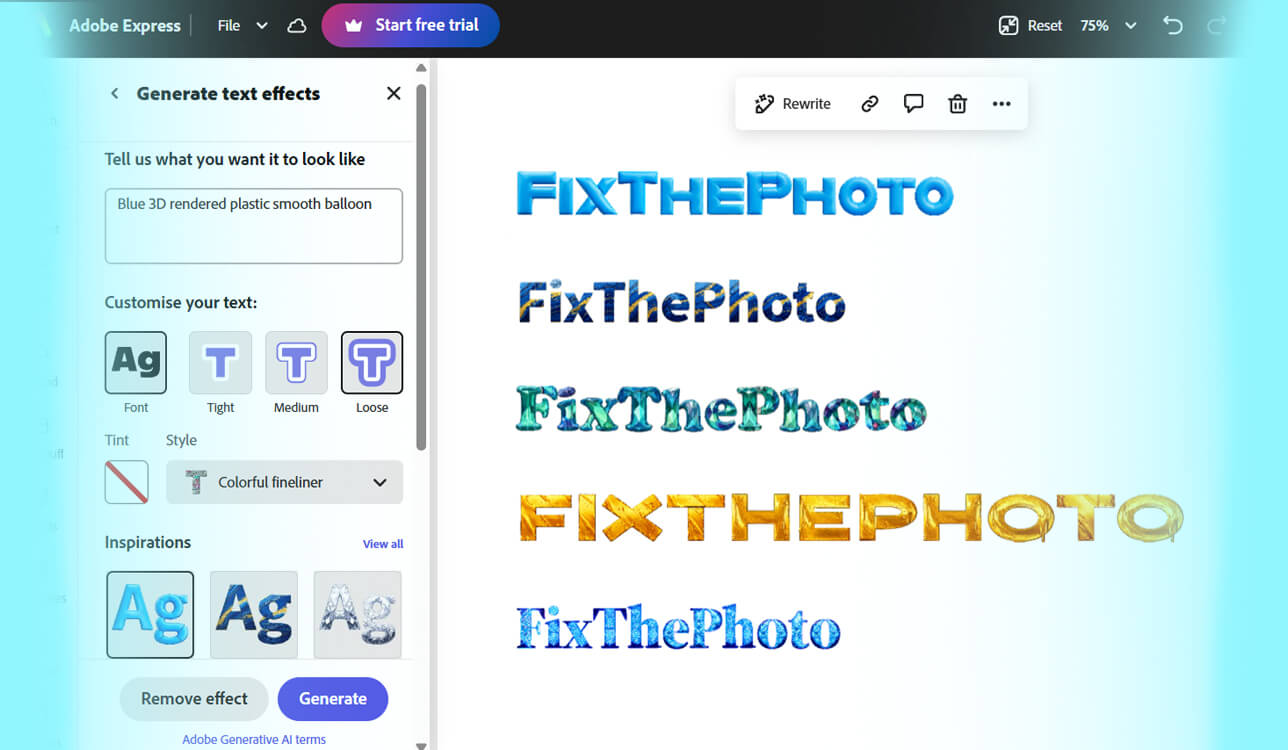
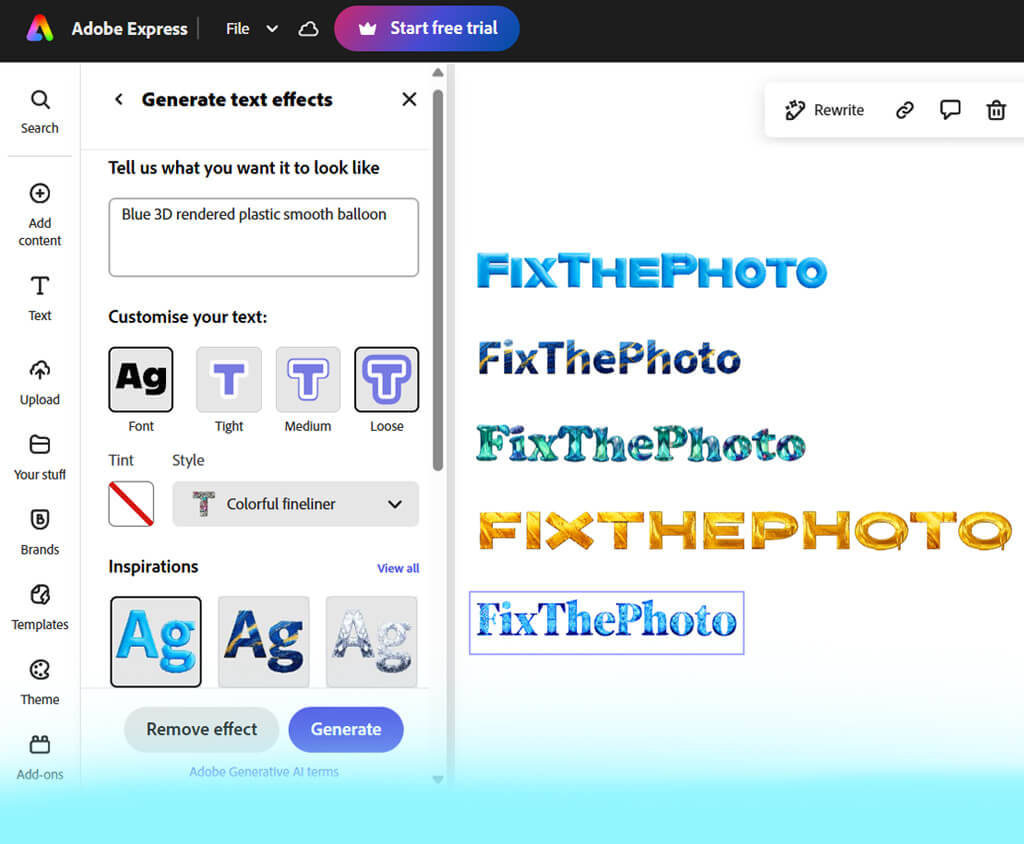
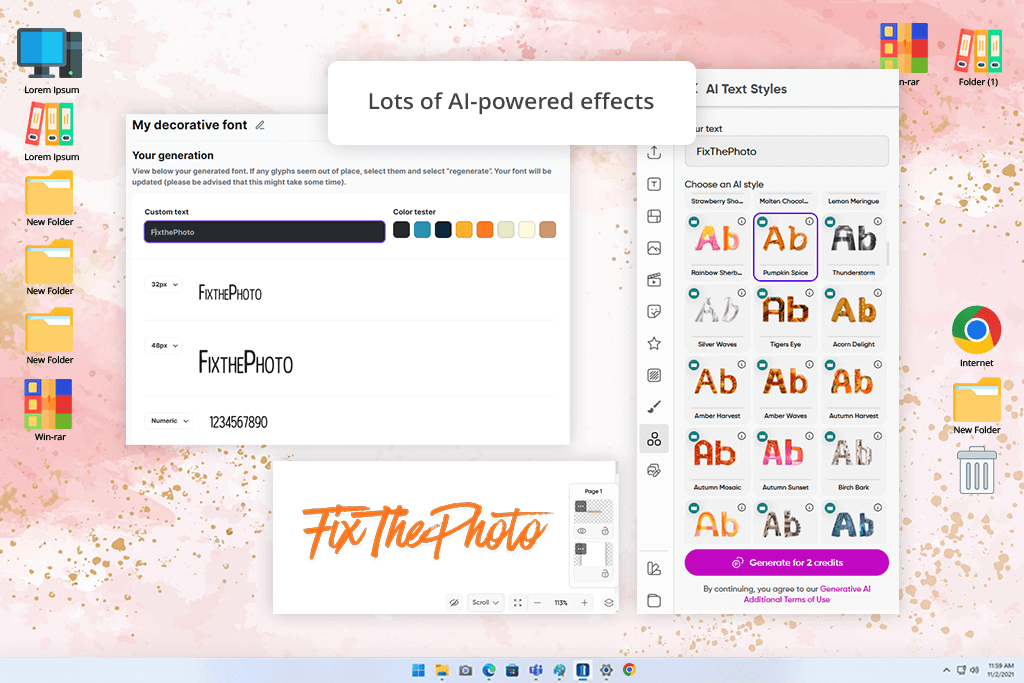
I often use Adobe Express in my daily work, and I wanted to explore how well it works as an AI font generator. The main feature I tested was the AI text effect generator. All you need to do is type a short description, click Generate, and it instantly gives you four text style options. I tried different prompts: “chunky neon colored building blocks” for bold titles, “gold glitter script font” for luxurious branding, and fun ones like “pizza-styled lettering” for social media posts.
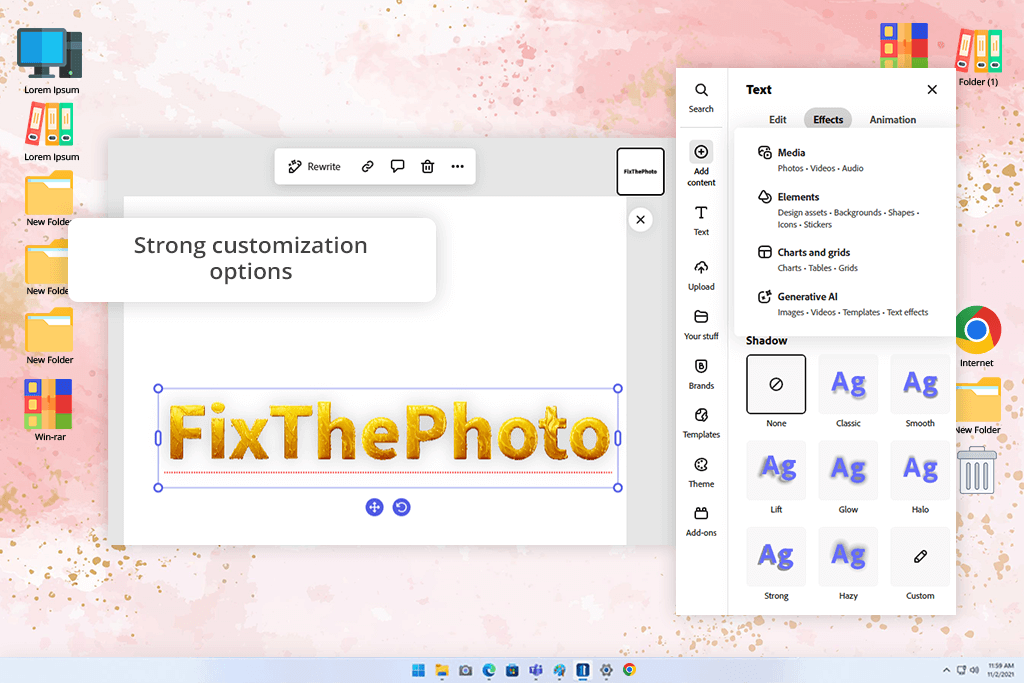
Most of the results looked sharp and engaging, but I noticed that very detailed prompts sometimes made the text less readable when scaled down. After generating the fonts, I could still edit the colors, add shadows, change backgrounds, or even animate the text. These tools made it easy to adjust everything, so the final result matched my project’s style instead of looking like it was created using a basic prompt in a bad AI font generator.
I also experimented with Adobe Express by starting with a ready-made template instead of typing my own text prompt. I chose a social media post template, replaced the text, and then used the AI typography generator on it. This process made content creation faster since I didn’t have to fix spacing, layout, or backgrounds manually.
The newest version of Adobe Express has improved in terms of speed and usability. Generating and editing fonts now feels more seamless, and I especially like that you can save your text with a transparent background. This makes it easy to move custom text designs into other Adobe tools like Photoshop or Premiere Pro, which I often use for thumbnails and video titles.
“It’s perfect for creating quick text designs that stand out, and the wide choice of effects keeps every project fresh and interesting.”

Price: Free
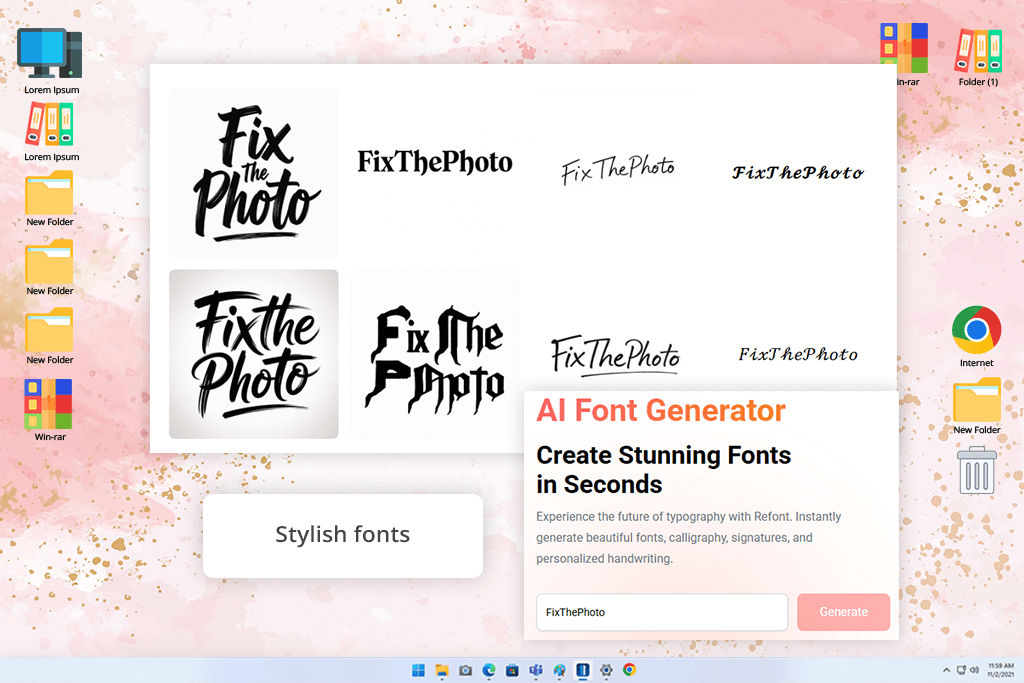
I like trying out new creative tools, so I decided to test Refont to see how good it is at creating fonts with AI. The UI is clean and simple, so it’s easy to understand. I started by typing in some words, names, and short phrases into the font generator. Right away, I got several previews for each one: some looked like elegant handwriting, others like trendy fonts or modern signatures. I tested different options like the AI Calligraphy Generator, AI Signature Generator, and Fancy Fonts Generator, using both cursive and brand-style lettering.
One thing I liked most was how customizable it was. After creating the font, I could adjust the style, change spacing, pick new colors, and create more versions until the text looked just the way I wanted. For example, I edited a cursive calligraphy font by changing the thickness of the lines, the color shades, and the alignment so it fit better in a social media post. Previewing several versions at once helped me quickly choose the best one. Refont also supports different languages, and it makes fonts that match cultural and stylistic preferences.
Downloading the fonts was easy. I could save any design in high resolution, ready to use for both digital and printed projects. A small downside was that some detailed calligraphy or signature fonts looked a bit odd at first but generating them a second time usually helped fix that. Another thing is that deep editing options are limited compared to full and even free graphic design software.
Price: Free (10 downloads) or from $3.99/month
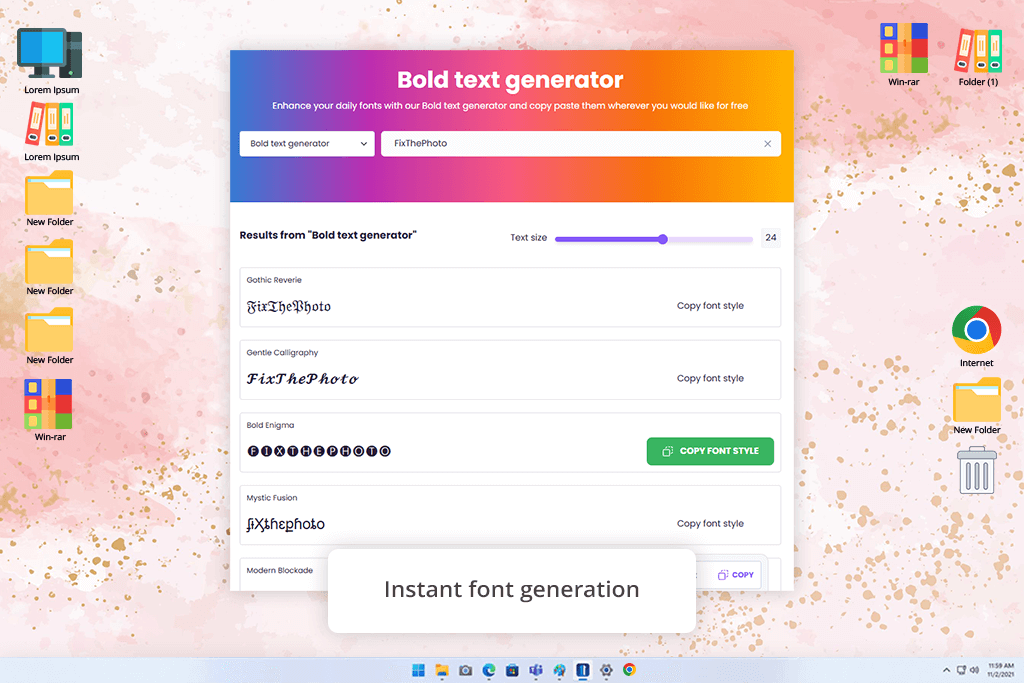
When I want stylish fonts fast, I also use Creative Fabrica’s AI font generator. It’s clean, simple to use, and gives instant results. I usually start by typing short phrases and words into the Fancy Font Generator, and it shows me many versions using Unicode symbols. This helped me see how my text would look in different styles. I tried fun and decorative fonts for social media and simpler ones for blog titles and headers.
The live preview tool made it easy to compare different styles and pick the one I liked best. Although the customization options in this free AI text effect generator are basic, they're quite useful: I could make new versions, select my favorite, and adjust my text until it matched my design idea. I also visited the free fonts section to download high-resolution font files, which worked smoothly in Photoshop, Illustrator, and other design programs.
However, I noticed that detailed calligraphic fonts look best when used in short titles or accent words because they become hard to read in long texts. Also, if you need flawless fonts for branding, this tool offers fewer editing features than professional design software.
Price: Free (500MB of storage) or from $29/month.
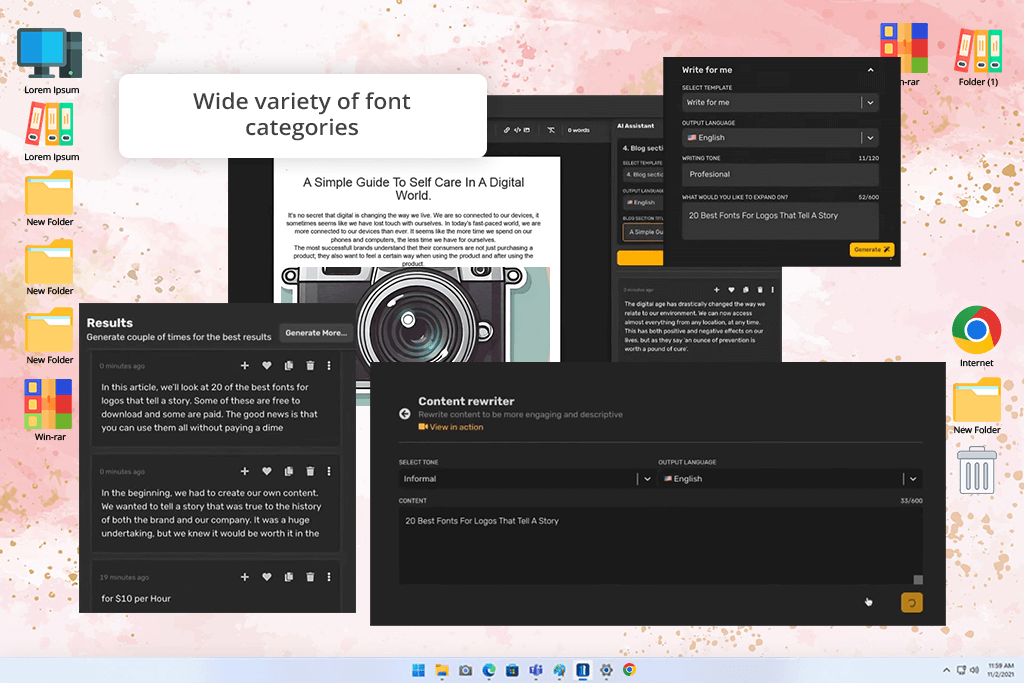
Simplified stands out from other typography AI generators because of its user-friendly and professional design. The interface is clean and intuitive, so you can start creating custom fonts almost instantly. I began by typing short text samples and tried different categories: elegant calligraphy for wedding themes, thick block letters for posters, and fun fonts for social media posts.
The best part about this font generator is how much you can adjust to match your style. You can change the size, spacing, alignment, and color of the font directly in the editor, instead of using only preset options. For instance, I made a bold headline for a mock social post and then switched to a soft decorative style for a digital flyer, all in just a few minutes.
The real-time preview is very helpful as well: I didn't have to wait or download anything to see my new font AI style. Simplified also lets you save your fonts in different formats, so you can easily import them into Photoshop or Canva. Nevertheless, some templates and features can feel limiting if you’re working on a detailed design, since they don’t allow heavy editing. Also, when I used large, high-quality images, the platform sometimes became slow.
“Simplified makes it fast and easy to create your own fonts, but it can feel a bit limited when working on complex or detailed projects.”

Price: Free or from $19/month.
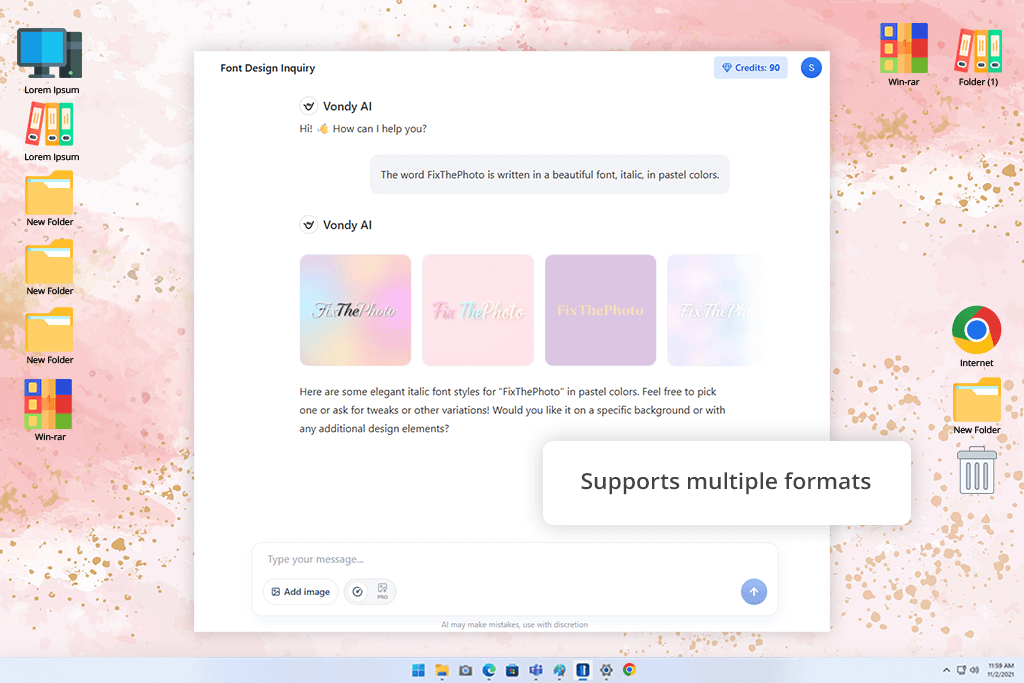
Instead of downloading free Photoshop fonts online, I used Vondy to get an AI generated font. The process was simple. I typed my text into the box, picked a style from the available options, and clicked “Generate.” In just a few seconds, the tool showed me several different versions of the font, and I could see the previews right away.
What I liked most was how fast it worked and that I could make endless changes. For example, I tried a modern 3D text effect for a sample YouTube thumbnail and then switched to a softer, handwritten look for a social media quote post. Both results downloaded quickly and looked clear and high-quality.
The customization options were good, though not as detailed as some other tools. I could change styles and add effects, but I couldn’t adjust things like spacing or text alignment. Another small issue was that some fonts looked great on screen but didn’t fit perfectly when used in design software, especially for larger projects. Still, for quick and simple font creation, Vondy is a solid AI font generator.
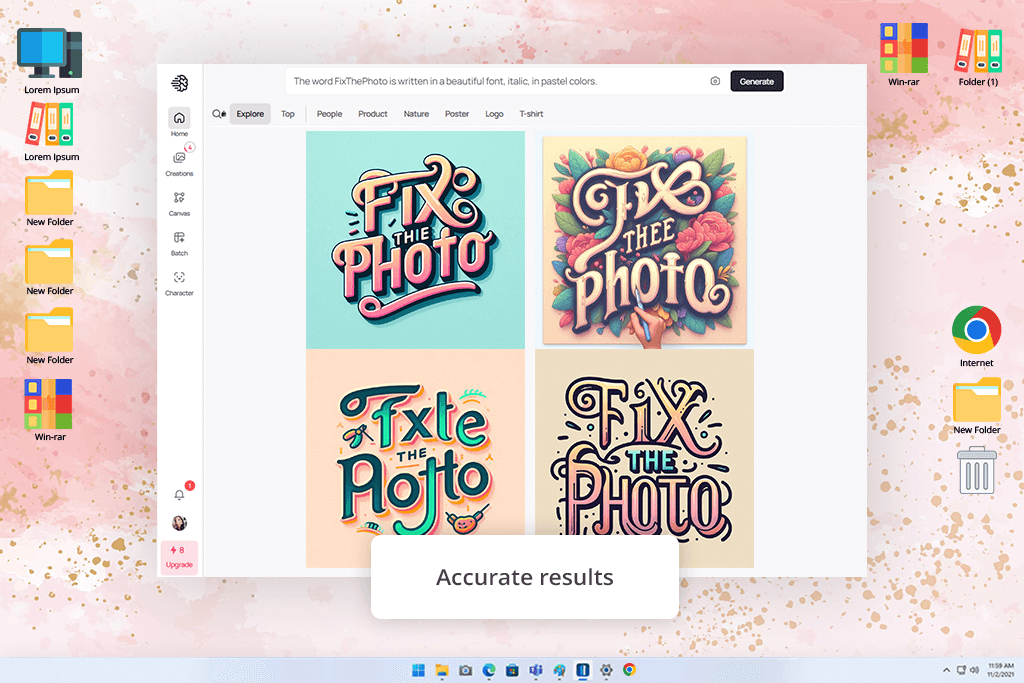
Price: Free (limited slow credits) or from $7/month.
I was looking for a specific font for a video game. I needed something that looked like old, mystical runes with a glowing effect. This AI software created some breathtaking visuals with a proper vibe. However, these weren't actual AI-generated fonts you could download and use for typing. Instead, they were simple pictures. Still, I found a way to use them. I simply included them in my project presentations to help everyone on the team see and feel the game's unique atmosphere.
“Ideogram can generate creative and interesting font styles that are great for concept designs, though some of them aren’t very useful for everyday branding.”

The fonts I made looked sharp and downloading them was fast. I liked that each time I used the AI typography generator, it gave me several unique designs so that no two results looked the same. However, while the designs were beautiful, the editing tools felt limited: I couldn’t adjust small details like spacing, font weight, or letter distance easily. My colleagues from FixThePhoto also noticed that some fonts looked artistic but weren’t very readable in smaller text sizes, so they worked better for creative projects than for real marketing tasks.
Price: Free (5 credits per week) or from $13/month.
When I tested the Picsart, I created two types of fonts: a clean one for a pretend logo and a colorful one for a social media post. Both turned out sharp, and I could quickly export them in PNG and PDF formats. The integration with its own library of templates and design tools made it faster to build complete designs.
“It’s a good tool for experimenting. I got some great-looking fonts from it, but it doesn’t offer enough control for professional branding work.”

My team and I at FixThePhoto tested many AI font generators to see how easy, creative, and useful they were for real design projects. Some tools we tried (like Fontjoy, Calligraphr, Font Maker, FontSpace, and LogoAI) didn’t make it into the main list. The main reasons were that their AI font generation tool was weak compared to other available apps, they offered little customization or focused more on browsing existing fonts instead of generating new ones.
We began exploring the best AI font generators. Initially, it was a casual test, but it quickly became a full-on creative research. Kate Gross coordinated the project. She made sure we followed our testing plan and captured all the results along the way.
Tati Tailor took charge of the visual testing. She used creative prompts to see what each AI lettering generator could do. At the same time, Eva Williams handled the technical checks, reviewing font appearance, file formats, kerning, and licensing information.
We tested each typography app in real-world and creative scenarios. For example, we created professional branding fonts and experimented with daring, artistic styles for online content.
When testing, I focused on a few main things:
Our testing took place in realistic design settings, not just in theory. We checked if each AI font was stylish and easy to use for everyday tasks. By the end, we had a clear view of the strengths and weaknesses of each tool and whether they are capable of handling professional tasks.
We also identified what each font generator is best suited for, so users can easily choose the option that fully aligns with their needs.
| Tool | Best For | Produces Font File? | Branding-Focused? |
|---|---|---|---|
|
Adobe Express
|
Trendy text effects & fast content
|
❌
|
Strong
|
|
Refont
|
Calligraphy, signatures, handwriting
|
✔️
|
Moderate
|
|
Creative Fabrica
|
POD, decorative branding
|
✔️
|
Moderate
|
|
Simplified
|
Quick custom branding & design
|
✔️
|
Strong
|
|
Vondy
|
Corporate branding
|
✔️
|
Strong
|
|
Ideogram
|
Concept art & moodboards
|
❌
|
Creative only
|
|
Picsart
|
Social content visuals
|
❌
|
❌
|



![How to Remove Emoji from Photo for Free [9 Apps Tested]](http://fixthephoto.com/blog/images/gallery/news_main__preview_27775.png)
![How to Install Adobe Digital Editions [PC, Mac, iPad, Android]](http://fixthephoto.com/blog/images/gallery/news_main__preview_27261.png)


![Long Hair Filter For Guys Online [FREE]](http://fixthephoto.com/blog/images/gallery/news_main__preview_26023.png)



















