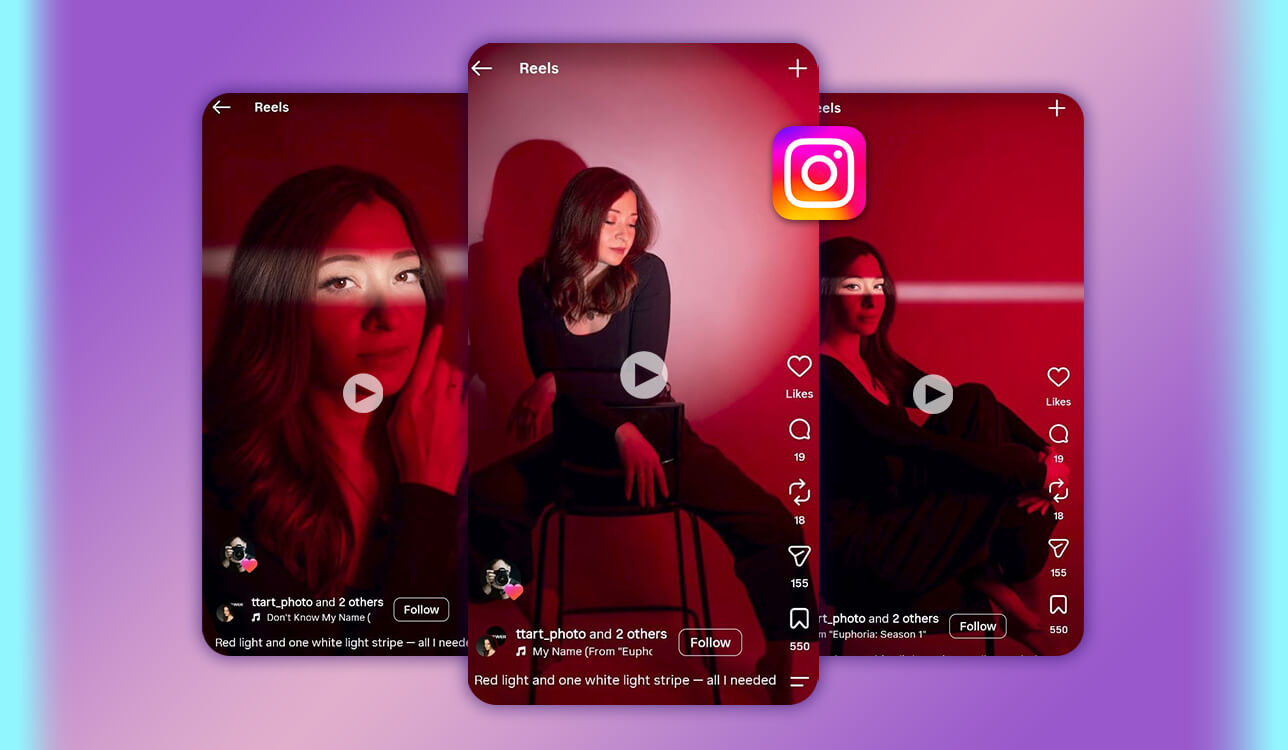
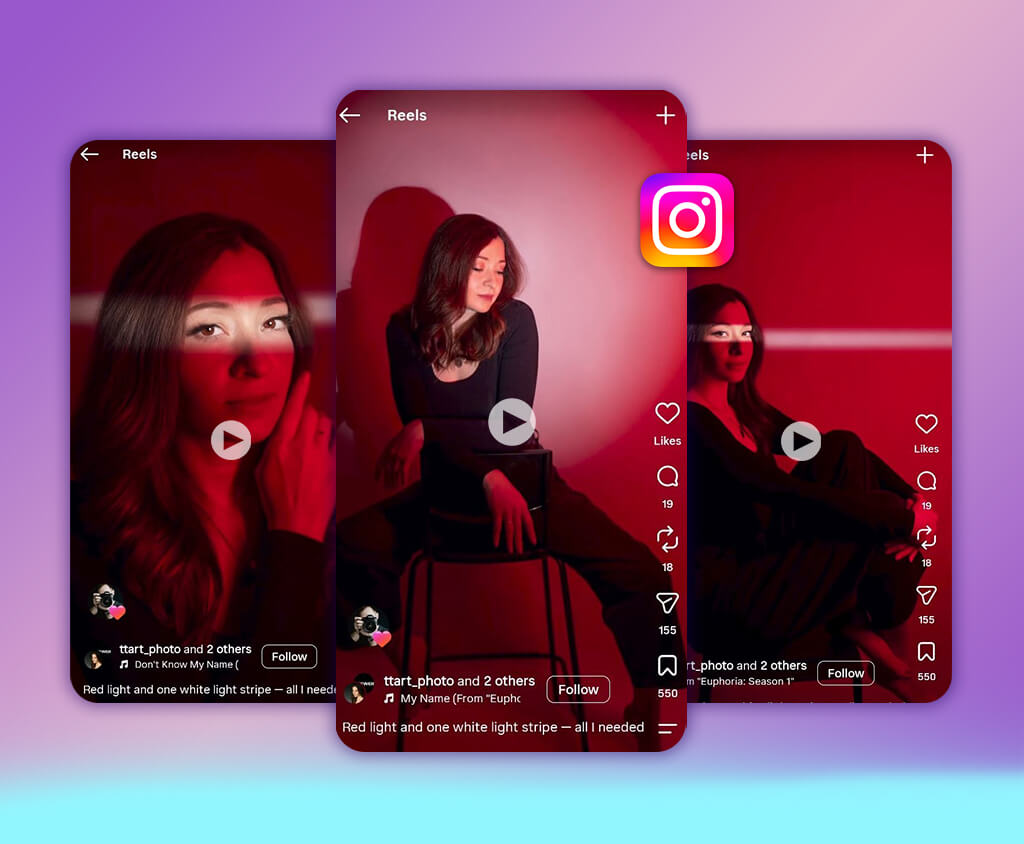
Along with my FixThePhoto colleagues, we regularly work on videos for our Instagram profile. We use it to post image editing tricks, before-and-after showcases, retouching samples, and inspiring visuals that highlight what professional editing can achieve. Moreover, Instagram is helpful for engaging with photographers, content creators, and potential customers, and a consistent stream of Reels is very useful for that purpose. That said, creating them can be rather time-consuming, particularly once you take cutting, captioning, music selection, and polishing into account.
I began searching for the best AI Instagram video editor that would streamline my workflow without making the Reels feel generic. My goal was to produce videos about image retouching, skin and color adjustments, background transformations, and before-and-after editing examples. The perfect tool would turn screen recordings and raw footage into clear, captivating clips that showcased our services and kept the viewers engaged.
When trying to find the best AI Instagram video editor for Reels, I prioritized evaluating tools for creating automatic captions, smart trimming, noise removal, scene detection, music syncing, transitions, and premade templates. Reels were our main focus, which is why vertical 9:16 outputs and high video quality were crucial. Additionally, I appreciated the ability to feature our logo, branding elements, and consistent text styles.
User-friendliness is also essential. We produced different types of videos, from quick editing showcases to promotional clips, so I needed sufficient freedom to adjust footage, subtitles, and effects myself. Moreover, I looked into the offered free plans, export restrictions, watermarks, processing speed, and commercial-use conditions.
My mission was to select solutions that would enable us to post Reels more consistently while preserving the overall FixThePhoto style. I wanted to become more efficient when handling repetitive tasks and increase my video output.
Along with the FixThePhoto team, I evaluated the AI functionality, visual quality, customization, Instagram-oriented formats, user-friendliness, and overall value to determine the best options for our workflow.
| Editor | Best for | AI features | Mobile functionality | Price |
|---|---|---|---|---|

Adobe Premiere Pro |
Professional, high-quality Reels and advanced editing |
Generative Extend, AI speech enhancement, automatic reframing, object masking, AI audio tools |
✔️
|
From $22.99/mo
|

Submagic |
Viral Reels, talking-head videos and caption-heavy content |
Animated captions, AI B-roll, auto-zoom, silence removal, filler-word removal, AI audio cleanup |
❌
|
From $19/mo |

Descript |
Podcasts, interviews and talking-head Reels |
Text-based editing, filler-word removal, Studio Sound, AI transcription, eye-contact correction |
❌
|
Free plan; paid from $16/mo
|

Vizard |
Repurposing long videos into multiple Instagram Reels |
AI clip detection, automatic captions, smart reframing, highlight selection, translation |
❌
|
Free plan; paid from ~$16/mo
|

OpusClip |
Turning long-form videos into short viral clips
|
AI clip selection, Virality Score, auto captions, AI reframing, speaker detection |
✔️
|
Free plan; paid from $15/mo
|

Canva |
Branded Instagram content, promotional videos and templates |
AI video generation, Magic Media, automatic captions, AI editing, background removal |
✔️
|
Free plan; Pro from $15/mo
|

HeyGen |
AI avatar videos, product promotions and spokesperson content |
AI avatars, text-to-video, voice cloning, lip-sync, video translation and dubbing |
✔️
|
Free plan; paid from $24/mo
|

CapCut |
Trend-based Reels, transitions and everyday Instagram editing
|
Auto captions, AI effects, background removal, text-to-speech, AI templates, smart editing |
✔️
|
Free plan; Pro from ~$19.99/mo
|

VEED
|
Quick online editing, subtitles and social media videos
|
AI subtitles, eye-contact correction, background removal, AI avatars, text-to-video, noise removal
|
✔️
|
Free plan; paid from ~$9/mo
|
Vertical format (9:16). Reels need to fit a 1080 × 1920 px resolution to fill a mobile screen without black bars or unwanted cropping.
High video quality. We examined whether editors managed to maintain detail, natural skin tones, and clear footage upon export. This was particularly relevant for FixThePhoto's retouching demonstrations.
Engaging opening. The initial few seconds need to grab attention with a before-and-after result, a captivating detail, or a clear question.
Readable captions and text. Subtitles have to be precise, properly timed, easy to read on a smaller screen, and placed in a position where Instagram's UI won't cover them.
Clear audio. Speech, background music, and sound effects have to be balanced. AI noise reduction and voice enhancement are great for tutorial clips.
Smooth editing. Cuts, transitions, zooms, and music syncing should improve the flow of the footage without distracting from the main message.
Consistent branding. We tried finding AI tools for content creation that could be used for adding the FixThePhoto logo, brand colors, fonts, and reusable templates to ensure our Reels had a similar style.
Mobile-friendly pacing. Videos have to convey the main concept fast, avoid unwanted pauses, and keep the viewer engaged without feeling rushed.
Export options. We checked for high-resolution MP4 exports, appropriate aspect ratios, and control over file quality. Additionally, we inspected if the tool added watermarks or imposed export restrictions on free plans.
Instagram compatibility. Videos had to match Instagram's relevant upload requirements and display correctly in Reels, Stories, and feed placements.
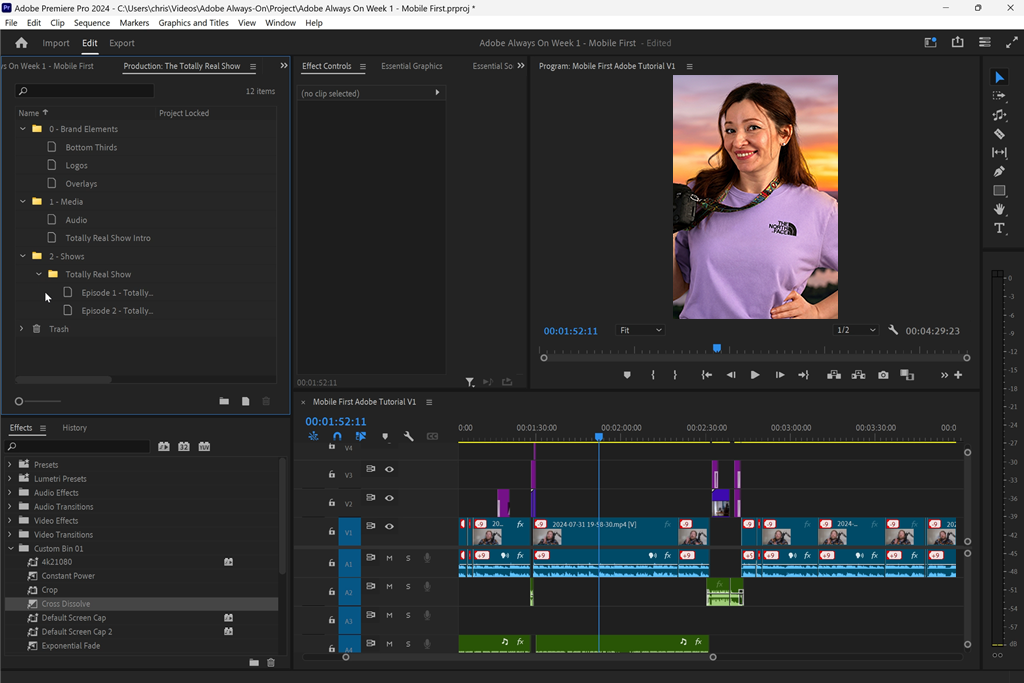
I began with Adobe Premiere Pro since I wanted to learn if this industry-leading solution could contend for the title of the best AI Instagram video editor. I imported a portrait retouching video and utilized the provided AI features to extend footage, tweak the framing, and prepare clips for Reels.
Generative Extend was especially useful since it produced additional frames for the beginning and end of the clip, as my original video felt too short. This helped me create the necessary breathing room without having to rerecord the clip.
Additionally, I checked Premiere's Generative Media features, which include AI-generated footage, pictures, and audio. Such functionality helped me produce supporting content for our Reels instead of having to use generic stock videos.
For instance, I examined how generated clips could complement a clip dedicated to a background replacement service. Premiere Pro made it extremely convenient to add the generated content to the timeline and edit it along with our original recordings.
“I rely on Premiere Pro to transform product videos into professional-looking Reels. Auto Reframe lets me avoid wasting time on converting horizontal clips to vertical, and I can customize the captions, colors, and sound separately. It's perfect for intricate work, but basic projects can take more time to edit than expected.”

Auto Reframe was a handy tool for preparing Instagram content. It automatically turned horizontal footage vertical and tracked the primary subject, which saved time when creating multiple versions of the same clip. Additionally, I used the Speech to Text and Enhance Speech features to generate captions and enhance voice recordings. These tools were particularly useful for tutorials where the screen capture and spoken explanation had to work together.
This Adobe video editor provided the most robust AI-assisted editing environment in my review. I enjoyed the provided generative features, automatic reframing, and precise timeline control, even if there's an initial learning curve that you need to overcome.
For FixThePhoto, I think Premiere Pro is especially helpful when handling more complex Reels, including generated visuals, and enhancing existing clips. It isn't a single-click solution, and instead relies on leveraging AI to streamline professional editing.
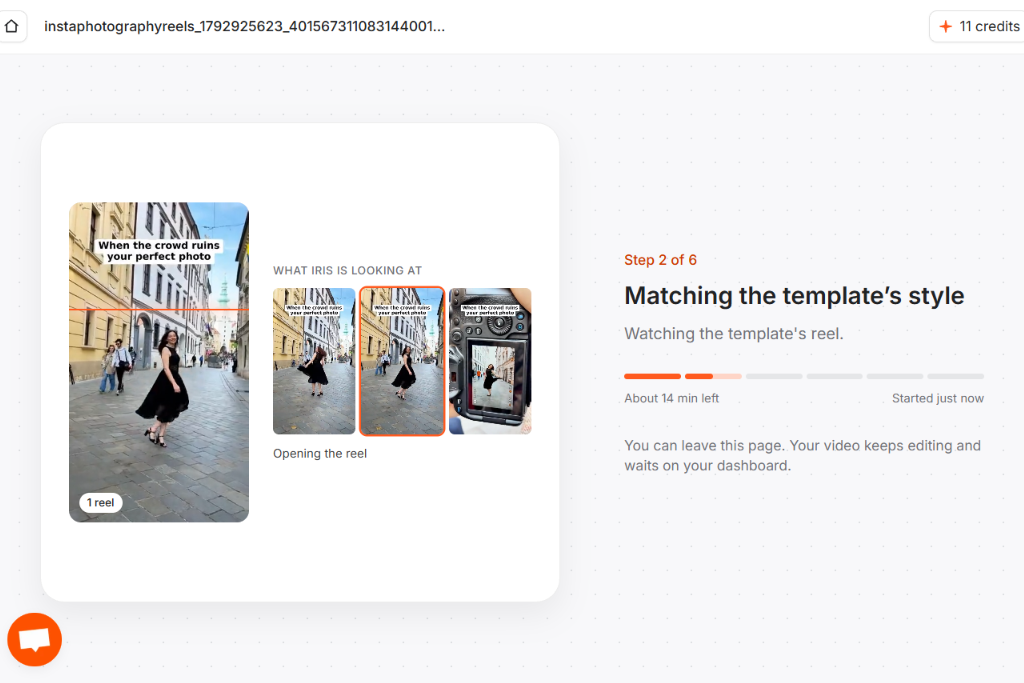
Submagic is arguably the best AI Instagram video editor with auto captions, as it does a great job automating the part of editing that is typically the most time-consuming. I imported a FixThePhoto tutorial and checked out its AI tools, which produced animated captions, highlighted key words, and created fitting visuals for the video.
The automatic caption styling of this AI caption generator made a basic talking-head video a lot more appealing. I particularly enjoyed how keywords were emphasized, making it easier to understand how skin retouching or color correction works.
Next, I looked into its AI-based B-roll and editing tools. Submagic recommended supporting visuals and VFX that ensured a talking-focused video felt more engaging. For instance, when editing a video about background removal, I generated videos that visualized the speaker's explanation. I still examined the recommended footage since automated B-roll didn't always fit the specific editing technique being talked about perfectly.
Another tool I used was Magic Clips, which is meant to transform longer recordings into shorter clips. It was very useful for repurposing FixThePhoto tutorials without having to manually find all interesting moments.
Additionally, Submagic provided automatic editing elements like transitions, zoom effects, and music-related adjustments. I enjoyed being able to tackle a variety of repetitive tasks in a single workflow, but I still had to ensure the final clips matched the rest of our content.
Submagic did a great job making clips more engaging with minimal manual effort. Its AI functionality excels at handling captions, visual enhancements, and transforming longer footage into social-ready videos. It's not suitable for generating long clips, but it's a fantastic option for applying finishing touches to our Reels. For FixThePhoto, it provided the most impressive results when I already had footage and needed the AI to convert it into a polished short clip.
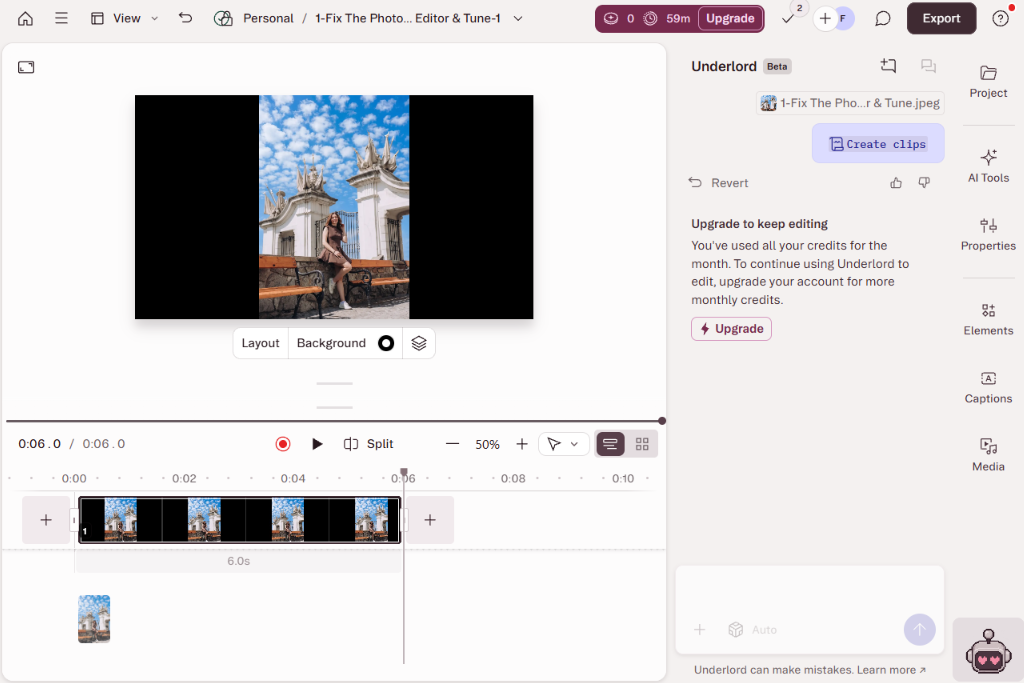
The text-based workflow of Descript enabled me to get rid of unnecessary sentences and automatically cut the corresponding video parts. This helped me shorten a longer tutorial into a more engaging Instagram post.
Additionally, I tried using Underlord, Descript's AI video editor assistant, which allowed me to tackle tasks like deleting filler phrases, identifying important moments, and preparing a cleaner first cut.
The original footage featured repetitive explanations and pauses, so such functionality was extremely helpful for tidying up the video. I leveraged the AI to perform the initial editing pass and then inspected the output manually. Such an approach helped me save a lot of time while still leaving me in control of the process.
"Descript helped me cut a 20-minute interview into brief Instagram clips. Editing the transcript instead of manually going through the timeline allowed me to conveniently delete pauses and repeated phrases a lot quicker. It's particularly helpful for podcasts, but I recommend examining the cuts to ensure the narration still sounds natural."

Descript's AI audio and video tools also deserve your attention. Studio Sound enhanced the voice recording, while Eye Contact made the speaker's gaze fit talking-head footage. Additionally, I checked how this AI Instagram video editor could help me generate clips that would back up the material discussed in the video.
Descript is at its best when the clip features a lot of speech. Its AI doesn't just generate effects. It also allowed me to restructure the footage and get rid of parts that didn't add meaningful value. It's not designed for generating completely new footage like some other platforms, but it's an impressive AI editing co-editor for tutorials, interviews, and short service explanations.

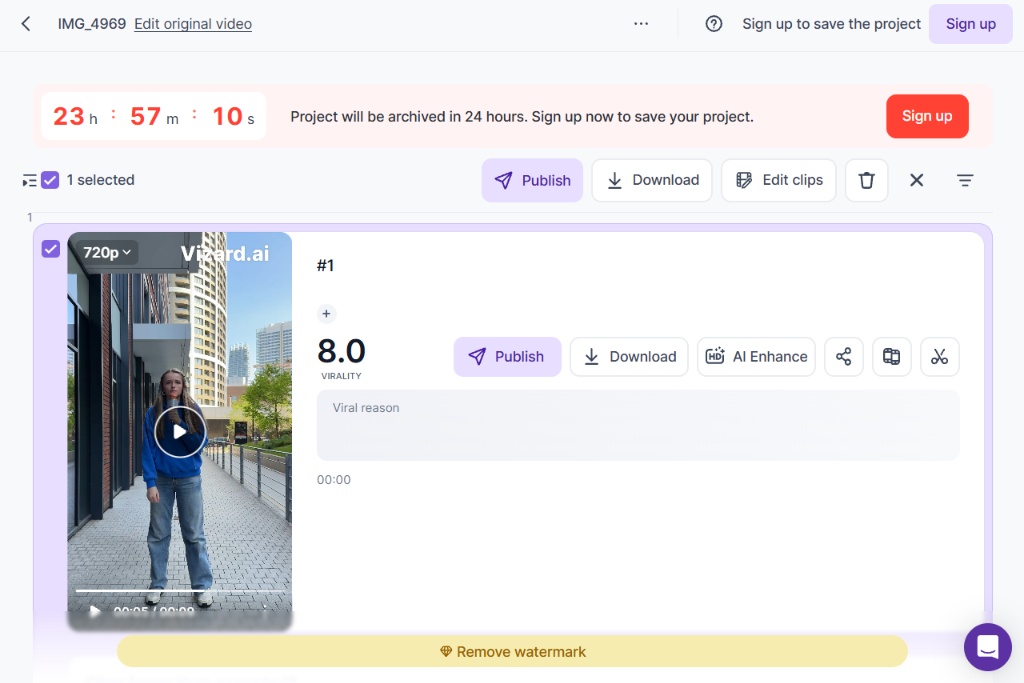
I used Vizard AI for a very common goal: transforming a long FixThePhoto video into multiple short Instagram Reels. I imported a guide on portrait retouching and checked how its AI examined the footage and suggested potentially interesting segments.
Rather than having to watch the entire original video myself, I was instantly provided with multiple relevant suggested clips. That helped me save a lot of time on finding the most suitable material.
The AI clipping feature was the biggest selling point of this vertical video editor. It found interesting segments based on the included content and transformed them into briefer, standalone clips. Moreover, I examined its automated caption generation and keyword highlighting, which made the content easier to understand for users who browse Instagram without sound.
For instance, a brief section about getting rid of skin flaws became a separate, more focused video instead of being a small section of a much longer guide.
Additionally, I used its AI reframing to check if it could adapt horizontal footage to Instagram's vertical format. This AI Instagram video editor customized the composition while preserving the visibility of the main subject, which is essential for videos that feature a presenter.
I focused on screen recordings since the essential editing details wouldn't always be located in the center of the shot. That's why I inspected the crop and made adjustments whenever the automated framing cut out an important detail.
Vizard AI was especially helpful for repurposing existing footage. I enjoyed how little time it took to transform lengthier tutorials into shorter videos and the ability to finish multiple editing tasks automatically.
It can't generate an entire fashion or image retouching video from scratch, but that wasn't the goal of my test anyway. For FixThePhoto, Vizard AI is a handy solution for producing more Reels based on existing recordings.
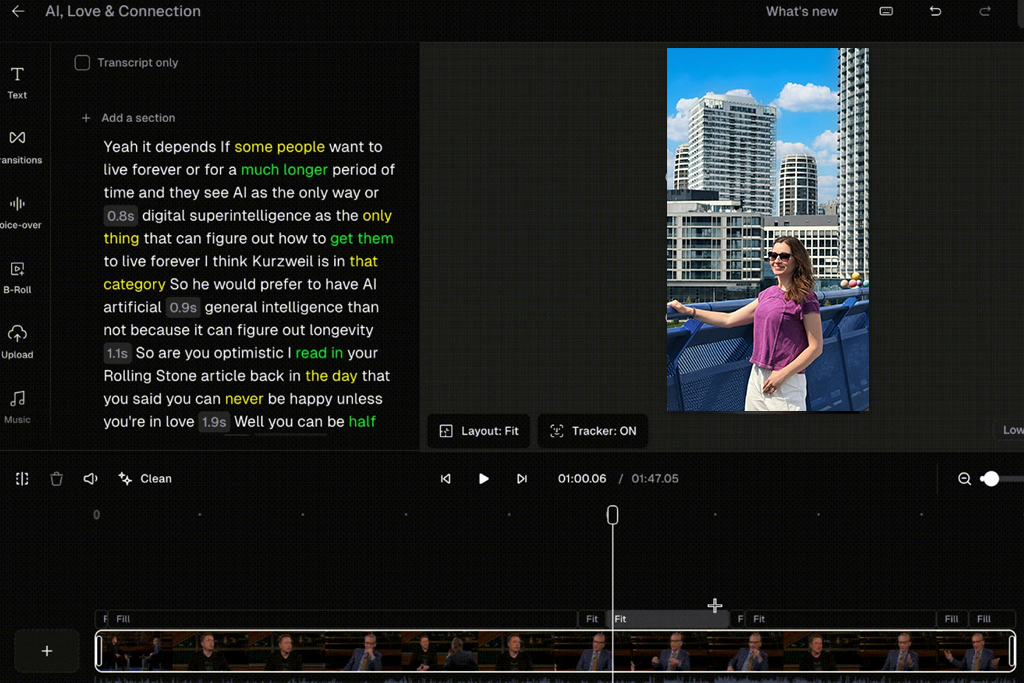
OpusClip is one of the best AI Instagram video editors online when it comes to identifying potentially viral content. My goal was to compare this AI clip maker with Vizard. I imported a long FixThePhoto tutorial on multiple retouching techniques and inspected the short clips recommended by this platform.
Its ClipAnything feature was particularly promising since it examined the visual and audio data to identify essential moments. This was helpful when an important demonstration was shown on screen even though the speaker wasn't narrating it in detail.
The Virality Score is another useful inclusion. The platform calculated scores for the generated clips, sorting the recommendations and letting me know which of them deserved my attention the most.
Such scores aren't a guarantee that the Reels would be a success, but they still made it easier for me to figure out which clips to use. Additionally, I used OpusClip to create automatic captions and animated text, which are both great for short-form content.
"I enjoyed using this platform to generate a set of Reels based on a single podcast. It finds interesting moments, generates captions, and ensures the speaker stays in the frame. It's a great foundation for repurposing longer content, but I don't recommend posting all recommended clips without first inspecting if they are interesting on their own."

AI Reframe simplified the task of making our horizontal footage vertical. I examined how well it managed to follow the speaker and fine-tune the composition if the video featured more than one visual focus.
Moreover, I checked the provided AI B-roll and brand templates to find out if they could help me achieve a more consistent visual style across multiple Reels. The automated edits delivered a helpful foundation, but I still inspected the selected footage and supporting visuals to ensure they were a good fit for the topic.
OpusClip receives a lot of praise for finding and polishing interesting video segments using AI. I could receive multiple potential clips from a single video in a matter of minutes.
Its AI selection and engagement scoring were helpful, but I still recommend choosing the final Reels based on how relevant they are to the topic you're covering. For FixThePhoto, OpusClip is particularly useful for repurposing interviews, tutorials, and long educational recordings.
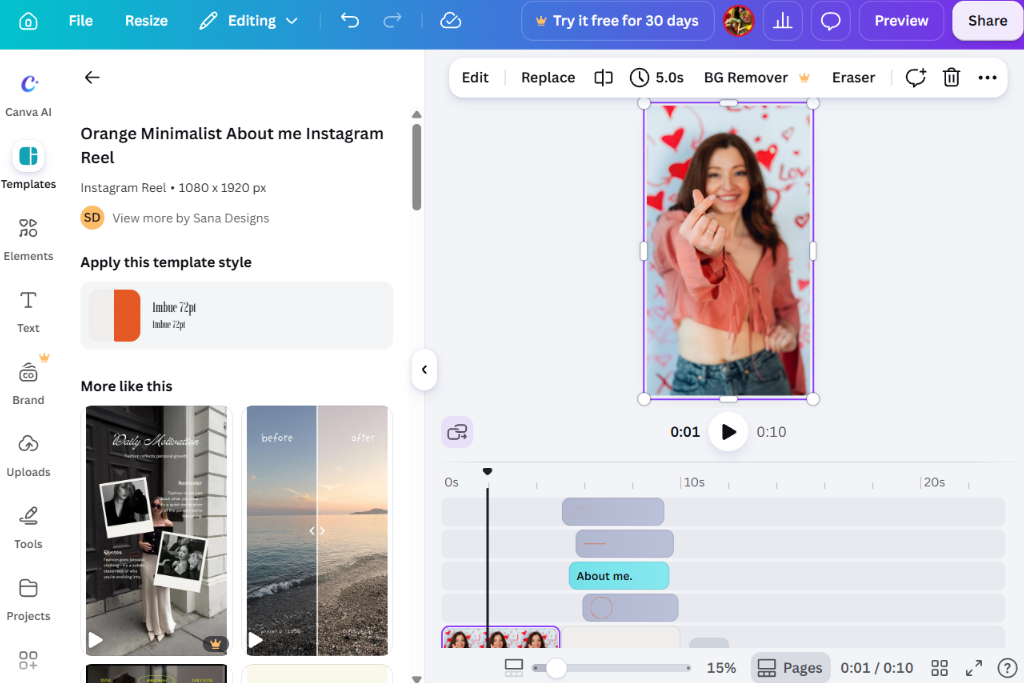
Canva was already a part of our workflow for social media content, so I was interested in checking if it could also be called the best AI Instagram video editor for beginners. I tested its Magic Video by mixing several retouching clips, before-and-after images, and promotional footage.
It allowed me to put together the uploaded files into a single video with a visual style, transitions, and music of my choice. Moreover, Canva lets you create a customizable draft instead of presenting a finished project that can't be changed.
Additionally, I examined the platform's AI video generation functionality. Its text-to-video features offer a convenient method for producing short clips based on written prompts, which was great in scenarios when I wanted extra footage to convey a promotional concept.
I thought about how the generated content would fit our original footage, particularly in Reels focused on various image editing services. I still inspected the generated clips carefully to ensure they didn't feel out-of-place compared to the usual FixThePhoto style.
Canva stands out from most alternatives thanks to its unique combination of AI functionality and existing design tools. I leveraged its automated captions, background deletion, animations, and beat syncing to make our Reels more captivating.
Brand Kit allowed me to preserve our company colors, fonts, and logos, while the templates provided a convenient foundation for various Reel formats. Such a mix was particularly useful when a project required both AI-generated content and branded design elements.
I got the most mileage out of Canva when preparing Reels that included generated visuals with original videos. Its AI features were helpful for tackling the initial creation and editing, while the design tools ensured I could add a consistent look to all my videos.
It didn't provide the same degree of control as an advanced video editor, but it can satisfy most everyday content needs. For FixThePhoto, it's a great choice for promotional Reels, short visual tutorials, and branded video posts.
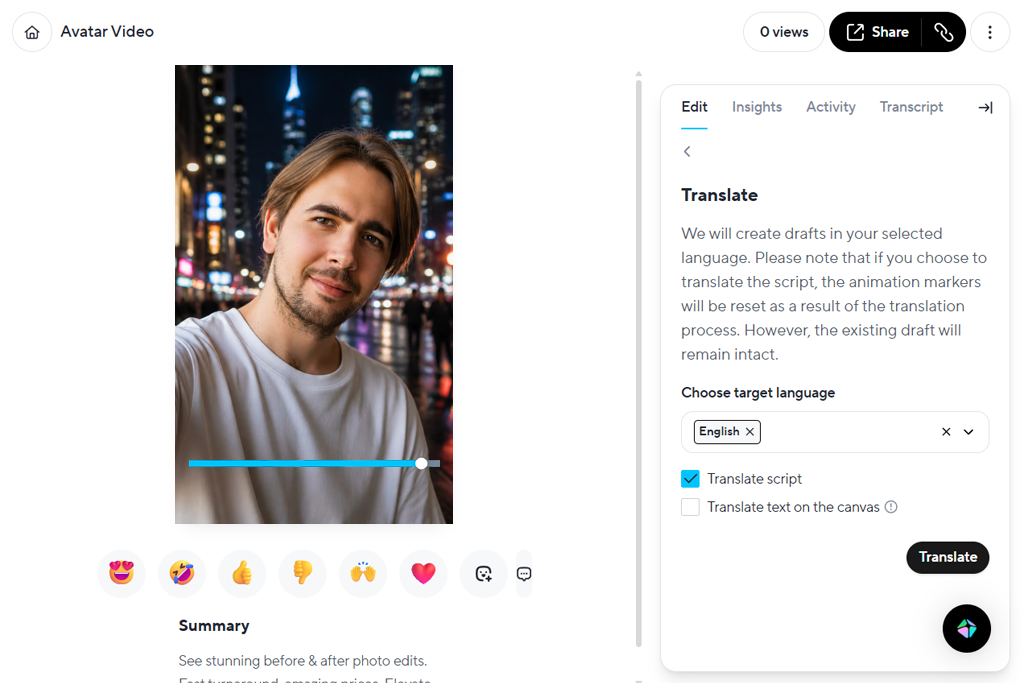
HeyGen is among the most unique options featured here since its AI content generation is dedicated to virtual presenters. I started by writing a script about FixThePhoto's portrait retouching service and transformed it into a clip with an AI avatar.
I chose a presenter and checked how this AI video generator converted the script into spoken content with synced facial motion. I was able to produce a tutorial video without having to record an actual person.
I dedicated most of my time with this AI Instagram video editor to experimenting with avatars and voice options. HeyGen provided a wide range of presenters and voice styles, so I examined how they changed the vibe of a brief service tutorial. Additionally, I checked its avatar customization functionality. I enjoyed preparing a single personalized presenter that I would use for a series of educational or promotional Reels.
“I used it for generating product guides without filming myself. I wrote a script, picked a presenter, and produced a video in a different language. It's helpful for quick marketing videos, but I suggest sticking to short scripts and inspecting the pronunciation and lip motion before finalizing the project.”

Video translation was also very helpful. The platform's AI translation and lip-sync functionality allowed me to adapt a clip to different languages while preserving the same presenter. For FixThePhoto, this allowed me to promote our services to customers from other countries. I also enjoyed how this method made multilingual video production less dependent on filming and editing a separate version for each language.
HeyGen is primarily dedicated to producing presenter-led content rather than editing existing footage. It helped me prepare service introductions, brief explainers, and promotional Reels where a person had to talk directly to the viewer. It isn't a great pick for fast-paced before-and-after videos focused on screen recordings and image transformations. For FixThePhoto, its main strength lies in delivering AI-presented content and multilingual videos.
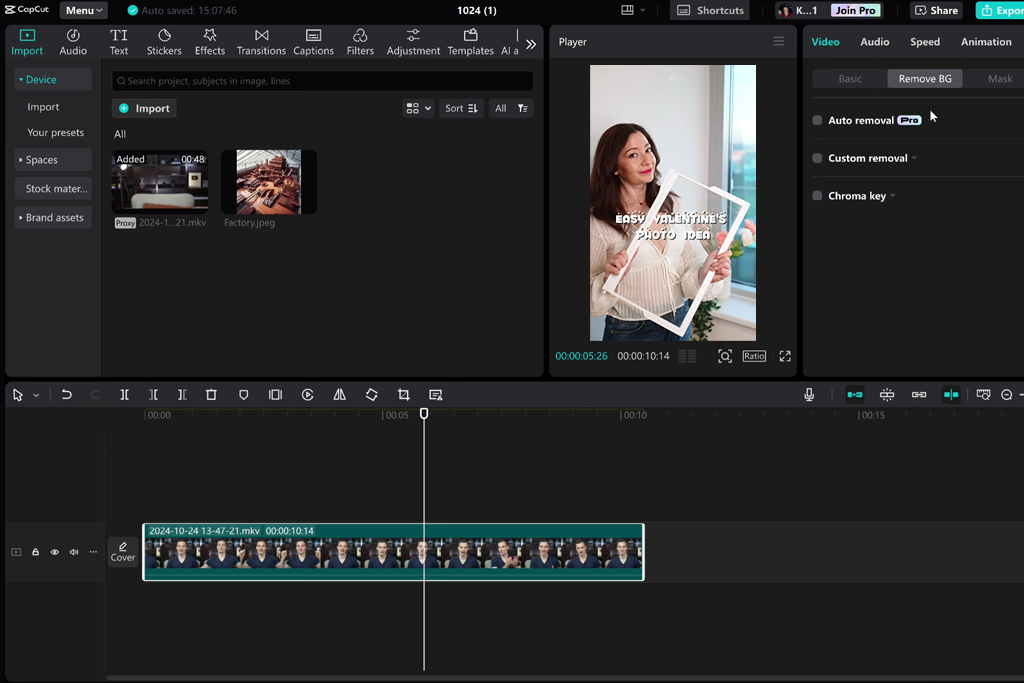
CapCut is among the first options I tried since I wanted to check if its AI tools in filmmaking were as robust as its everyday Instagram video production functionality. I opened a screen capture of a portrait retouching process and used CapCut's automated editing features to enhance it.
Auto Cut allowed me to arrange the footage into a more compact package, while Script to Video provided a convenient method for transforming a written idea into a visual draft. I enjoyed using these features alongside the classic timeline since I could leverage AI to prepare the initial version and then enhance the result manually.
Auto Captions and AI reframing are two of the main reasons why I think CapCut is possibly the best AI Instagram video editor app. They generated subtitles for my clips and ensured the narration was easier to follow. Meanwhile, Auto Reframe adapted horizontal footage to a vertical Instagram format, while background removal made it easy to produce cleaner visuals. Such functionality allows saving a lot of time, particularly in cases where you want to prepare multiple versions of the same video.
Additionally, I checked out CapCut's AI video generation and AI-assisted effects. Its text-to-video and image-to-video tools helped me produce extra visual assets based on prompts and existing images, depending on the available tools in the version I tested.
I evaluated whether an animated photo of a retouched portrait could be used as a brief transition between the original and edited versions. The output requires close inspection, but CapCut offers all the tools you need to fine-tune the result beyond basic trimming and transitions.
This solution is a fantastic, versatile option for short-form videos. I enjoyed the combination of AI generation, automated editing, captions, and classic timeline controls in a single place.
The availability of some tools is determined by which version you're using (mobile, desktop, or web), so make sure the platform of your choice has the necessary features. For FixThePhoto, CapCut has proven to be very helpful when producing dynamic Reels with a combination of original visuals, AI effects, and generated footage.
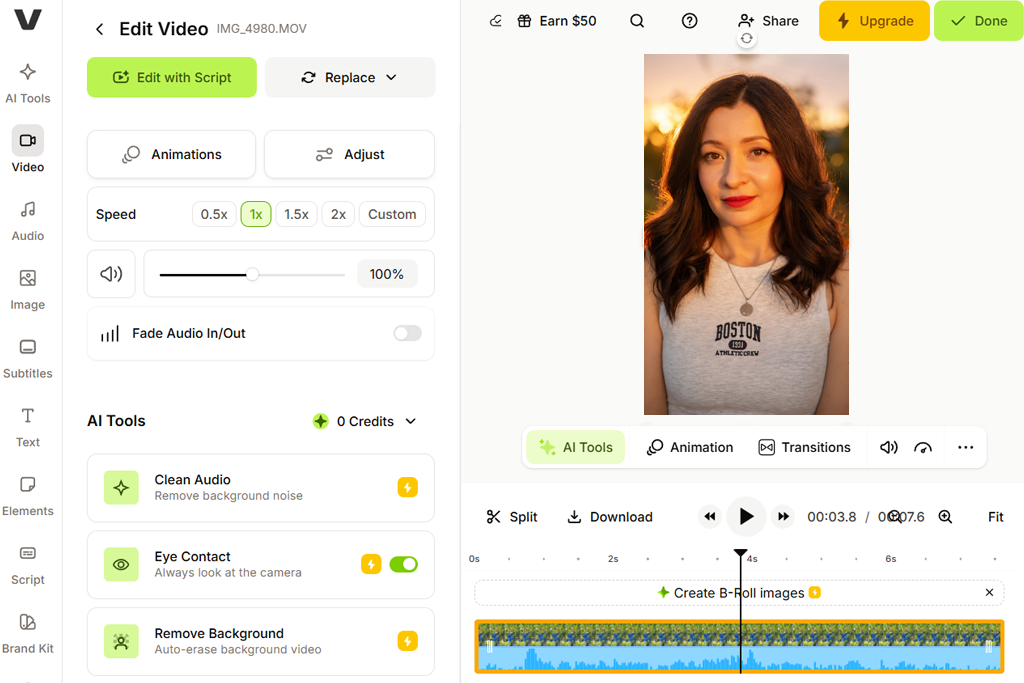
I checked VEED to learn if I could get satisfying results within the comfort of my browser. I began by exploring the available AI-assisted editing and generation tools.
VEED provides tools for producing videos from prompts, generating supporting clips, and transforming existing footage into shorter content. I enjoyed having access to such a wide range ot features in a single place.
AI Clips is a terrific addition for users interested in repurposing longer videos. It's great at locating the most interesting shorter parts from a source video, while automated subtitles ensured the extracted clips were simple to follow.
Additionally, I checked out its AI video generation functionality and evaluated how text prompts could deliver new visuals for a promotional Reel. For instance, I used generated supporting clips for a video dedicated to our background replacement service, alongside the actual before-and-after photos.
“VEED helped me create Reels for an international audience. It generated subtitles, translated them, and made it easy to resize the videos for Instagram. The browser-based workflow makes this platform very convenient and allowed me to avoid installing software on my device, but importing bigger videos can take a long while.”

VEED also offers AI features for enhancing existing footage. I used Eye Contact Correction for talking-head clips and leveraged audio cleanup for a Reel with distracting background noise. Its AI avatars and voice tools offered another method for producing presenter-focused clips without filming new footage. Such functionality has proven to be extremely useful when working on concise service explanations and tutorial posts.
What makes VEED arguably the best AI Instagram video editor for Stories is the wide range of AI video tasks it can handle. It can handle text-to-video generation, AI clipping, avatars, subtitles, and video enhancement without ever making you use a different application.
It's a great choice for regular FixThePhoto content, even if more challenging projects require a specialized professional editor. Overall, VEED impressed me with its expansive selection of AI features for producing, adapting, and improving Instagram videos.
To find the best AI Instagram video editors, we tested each option with the FixThePhoto team, including Nataly Omelchenko, Kate Debela, and Eva Williams. We prioritized handling practical tasks from our daily Instagram workflow: producing Reels about image retouching, showcasing before-and-after results, creating editing tutorials, and delivering short promotional clips.
Rather than blindly trusting feature lists, we used the same types of source materials for all tested solutions, including portrait retouching screen recordings, talking-head videos, raw footage, and before-and-after images. This allowed us to examine how every option performed with actual content and not just polished demo footage.
We began by inspecting the AI features designed for streamlining the editing process. We imported longer retouching tutorials and tested automatic clip selection, smart trimming, noise removal, and scene detection.
"I used OpusClip and Vizard AI for a FixThePhoto skin-retouching guide to check how efficiently they selected interesting moments for Instagram Reels. Both allowed me to transform longer recordings into shorter clips, but I still examined the result to ensure the editing steps made sense. Additionally, I leveraged Submagic to get automatic captions, and I enjoyed its animated keyword highlights, though I needed to adjust the timing of a few subtitle lines and deal with punctuation issues."
Additionally, we inspected the provided automatic captions and speech recognition features, focusing on subtitle precision, punctuation, timing, and keyword highlighting. The output varied: some solutions delivered usable clips and captions nearly instantly, while others required more manual edits to ensure the explanations were clear.
Next, we tested AI generation and enhancement tools. We transformed text prompts and existing photos into supporting visuals, got rid of or replaced backgrounds, turned horizontal videos into vertical 9:16 Reels, and applied AI effects to make before-and-after comparisons more appealing.
A prominent example was a clip dedicated to portrait background replacements: we inspected whether we could produce relevant supporting visuals in an Instagram-friendly format. Additionally, we checked out the provided AI voice features, presenter avatars, and audio enhancement where possible. This helped us understand that some options were a better fit for preparing presenter-led videos, while others were the superior choice when it comes to repurposing existing content.
Lastly, we checked how the finished videos look and examined how much editing each clip still required. We evaluated the visual quality, caption legibility, transitions, music syncing, rendering speed, output resolution, and the ability to include FixThePhoto branding elements like logos, colors, and consistent text styles.
We also examined the imposed free-plan restrictions, watermarks, export limits, and how simple it was to make edits once the AI had done its job. Our tests demonstrated that no single solution can tackle all tasks equally efficiently: some excel at automatic clipping and captions, others at AI-generated footage or professional editing control. We used these results to evaluate which options were legit time-savers while allowing us to produce refined, engaging Instagram content.