_dt.jpg)
_m1788158067.jpg)
I began searching for the best AI image-to-video tool while helping create a promotional video for a small brand. The company already had high-quality product photos, but they did not have enough money for another professional video shoot.
The idea was to upload a product photo, add smooth camera movement, and create short videos for Instagram. But many of the tools I tested had a major problem: as soon as the image started moving, the AI would change the product’s shape, remove details, alter the logo, or even generate a completely different object.
To compare the tools fairly, I used the same set of reference images for every test:
The goal was not only to see whether a tool could animate a photo. I wanted to find out if it could stay accurate to the original image without changing the person, product, environment, or artistic style.
After testing many AI reference-to-video generators with my team, I found that, of course, no single tool is perfect for every situation. Some people only want to add movement to one image, while others need the same character to appear consistently in several scenes, combine multiple references, or build a complete video with a cinematic look.
Because of this, it is important to choose a tool based on your specific project. Instead of focusing only on which platform is most popular, think about the type of references you have, how much consistency you need, and how complex the final video will be.
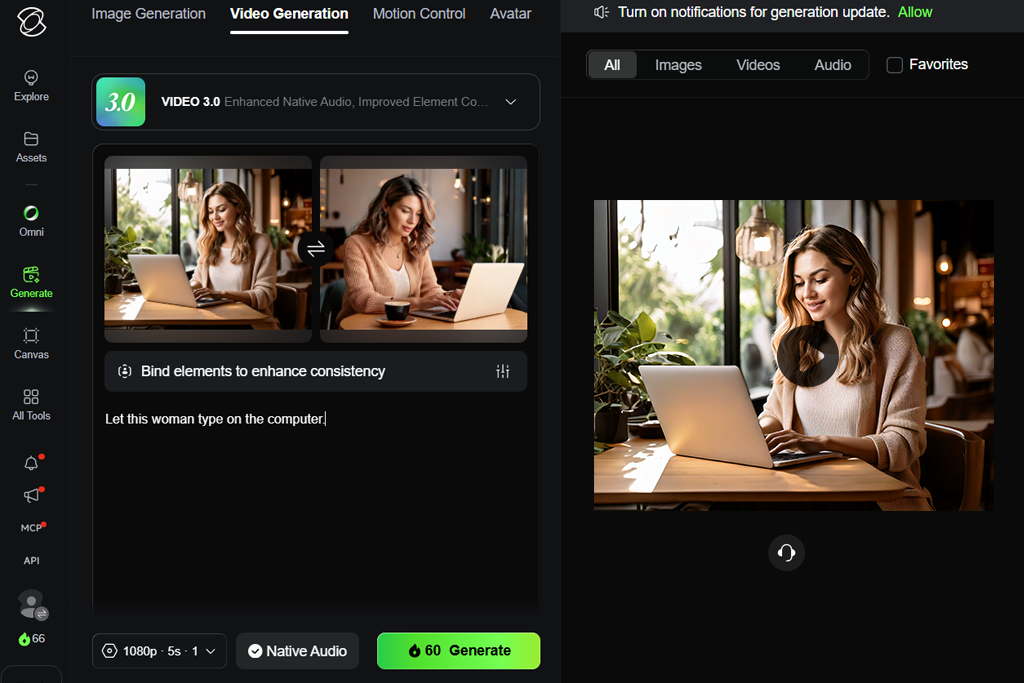
Single-image animation tools. These platforms use one uploaded image as the starting point and create movement from it. They can add camera motion, environmental effects, or simple actions. They work best when the original image already closely resembles the final result and only needs animation.
Multi-reference video generators. These generators let you upload several images and use each one as a separate reference. For example, you can provide images of a person, clothing, a product, and a location, then explain how they should appear together in the final scene.
Character consistency tools. These tools are designed to keep the same person or character looking consistent across different clips. They are useful when you need a recurring character throughout a project.
AI filmmaking platforms. These are more advanced tools that combine reference-based video generation with editing features, camera controls, and scene planning. Unlike basic tools from the best artificial intelligence software list, they are built for larger video projects from start to finish.
My advice after testing:
Platform compatibility: works in a browser
Pricing: free plan with limited daily generations. Firefly Standard costs $9.99/month and includes 2,000 generative credits. Firefly Pro starts at $19.99/month with 4,000 credits.
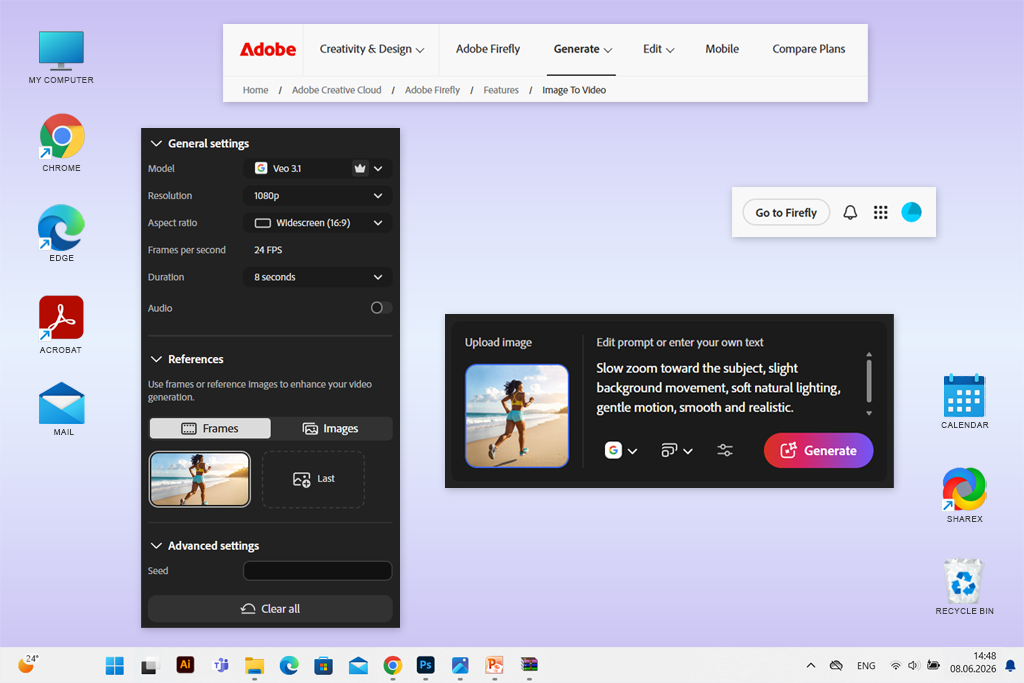
I decided to test Adobe Firefly first because I already use other Adobe programs for creating visual content, and I wanted to see if its AI video tool could fit into my usual editing process. My goal was to animate a product photo while keeping its shape, logo, and small design details the same. I quickly found out that this is much more difficult than simply making a still image move.
Firefly is not an advanced filmmaking platform with lots of complicated settings that are hard to understand. Its Generate Video feature lets you upload one or more reference images, write a text prompt, and turn photos or illustrations into short videos. For my test, I uploaded a clean photo of a cosmetic bottle, selected the Firefly Video model, and asked for a slow camera zoom with a gentle light reflection moving across the bottle.
The feature I appreciated the most was how much control this AI reference-to-video generator gave me without making the process feel difficult. That is one of the reasons it stands out among the best AI tools for designers. Inside the generator, I could change the camera angle, the direction of movement, the shot size, the aspect ratio, and the visual style. Because of these options, I was able to create several versions of the same image without writing a brand-new prompt every time.
“It is a practical choice for photographers, designers, small businesses, and content creators who want to animate an existing image instead of creating a whole new scene from scratch.”

Another thing I liked was how well Firefly fits into the Adobe ecosystem. Once the AI created the first version of the video, I could open it in Premiere Pro or After Effects to improve the timing, fix the logo, adjust the colors, or make changes to the composition instead of depending only on the AI output. Firefly also includes image, video, and audio generation in one creative workspace, making it easier to manage different parts of a project.
The free version is good if you only want to explore the interface and make a few test videos. However, creating videos uses more credits than generating images, so it is a good idea to look at the current Adobe Firefly deals before choosing between the Standard and Pro subscriptions.
If you create content for social media on a regular basis, work with clients, or produce videos for advertising campaigns, a paid plan is the better option. It gives you more video generations and access to extra creative features.
Platform compatibility: works in a browser and is available on mobile devices
Pricing: free access with limited credits. Paid plans start from $6.99/month and provide more credits, faster generation, and access to advanced video models.
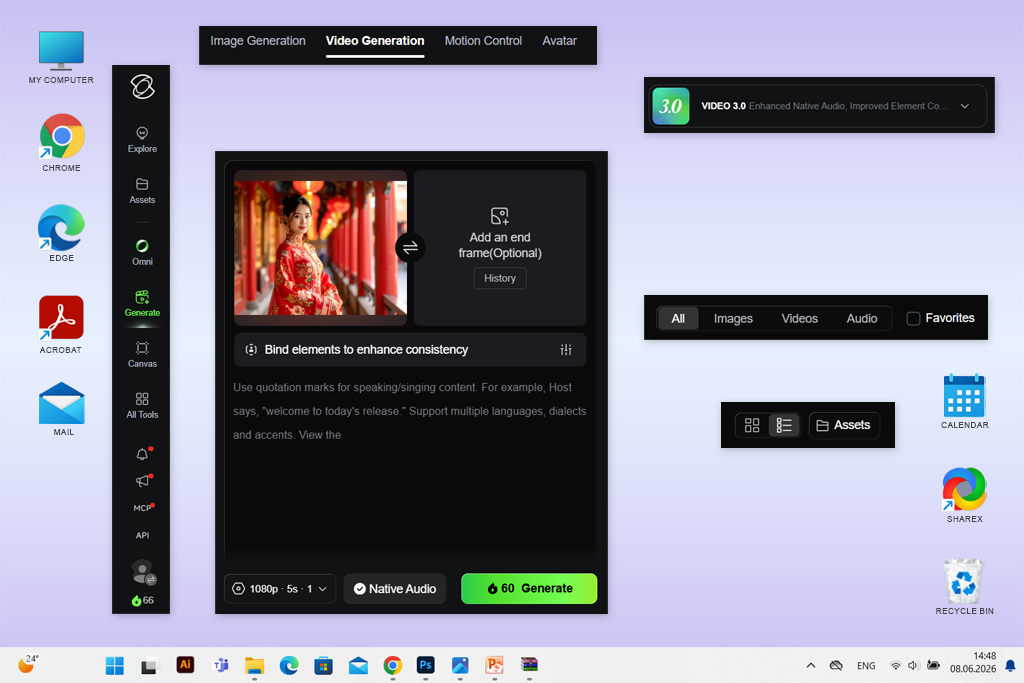
I decided to test Kling AI after seeing many people recommend it for creating realistic videos with consistent characters. One of my colleagues suggested using several reference photos of the same person instead of only one portrait. That small change improved my results, especially when the character needed to turn, walk, or appear in multiple scenes.
Unlike basic image animation tools, Kling is made for more advanced projects that depend on reference images. Its latest video features support image-to-video generation, start and end frames, element references, multi-shot sequences, built-in audio, and multiple recurring characters in the same project.
After creating the videos, I found that it was easier to make final improvements in video editing software for Mac. Editing programs give you more control over timing, transitions, color correction, and fixing small visual errors. The newest Kling VIDEO 3.0 models can also combine a starting frame with reference elements while keeping three or more characters consistent throughout one story.
“If you want more consistent results, use two or three clear reference images taken with the same lighting, hairstyle, and clothing.”
The free version is useful for learning how the platform works and creating a few short test videos. However, if you plan to make longer videos, create commercial projects, or work with characters often, you will probably need a paid subscription. High-quality models, longer clips, built-in audio, and repeated generations use credits quickly, especially when your scenes include several people or detailed movements.
Platform compatibility: works in a browser through supported platforms, including Dreamina and Higgsfield
Pricing: depends on the platform used to access the model. Some services offer limited free generations, while paid access is based on subscription plans or credits.
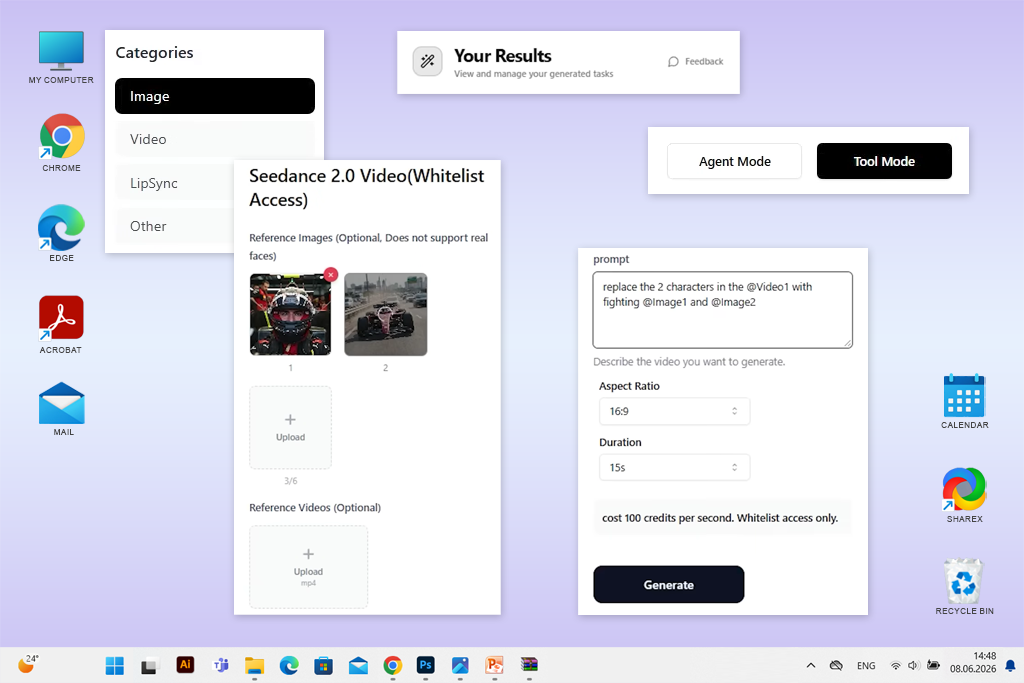
I decided to include Seedance in my testing after seeing many people recommend it for creating cinematic AI videos and smooth multi-scene stories. Many AI reference-to-video generators can make one image move, but Seedance is built for larger projects where the same people, places, objects, and visual style need to stay consistent from one scene to another.
Seedance is a multimodal video model, which means it can use different types of input, including text prompts, photos, video clips, and audio references. At the moment, Seedance 2.0 supports up to nine images, three video clips, and three audio clips in a single generation. This allows you to upload separate references for a character, clothing, a location, a product, movement ideas, and even background sound.
For my main test, I created a simple café scene. I uploaded a portrait of the character, a photo of the outfit, an interior image, a picture of a book, and a cup. Then I asked Seedance to generate an opening wide shot followed by a closer shot of the woman sitting by the window. The final result kept the warm lighting, vintage colors, hairstyle, clothes, and overall mood much better than AI tools that only animate a single starting image.
“Use the same character, clothing, and location references throughout the project so Seedance does not mix visual details between different scenes.”

During my testing, I noticed that Seedance performed better when I treated the reference images like a simple storyboard. When I added two different room interiors with different lighting and several versions of the same outfit, the AI reference image to video generator started combining details from each image. Using a smaller group of matching references gave me much cleaner and more natural-looking videos.

Platform compatibility: works in a browser
Pricing: free plan with 125 one-time credits and access to Gen-4 Turbo Image to Video. Paid plans start from $12/month with annual billing.
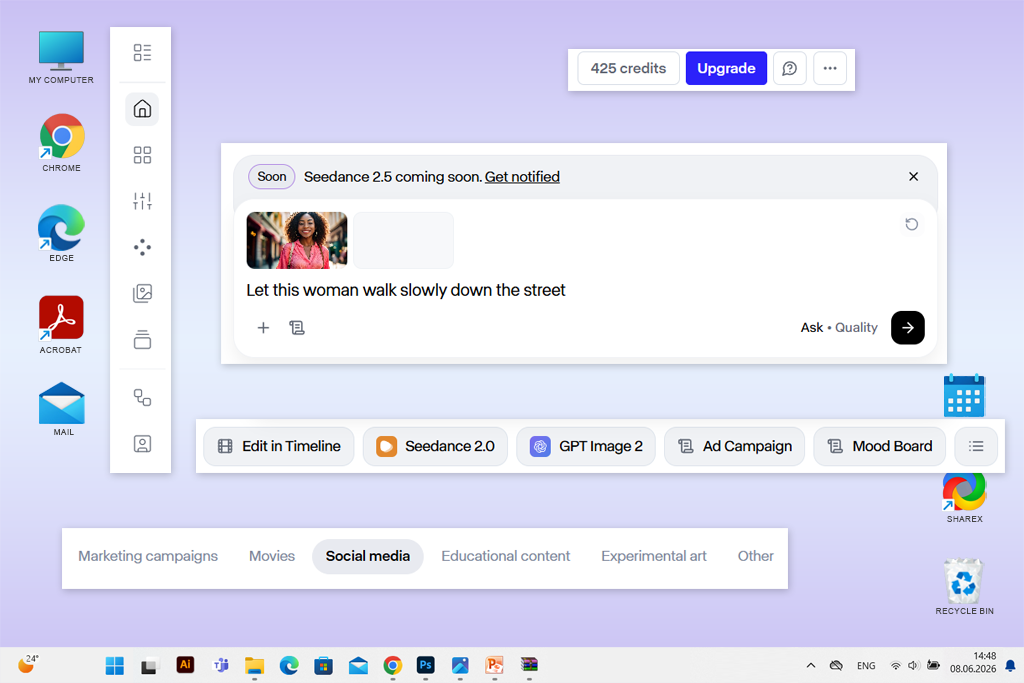
I chose Runway for a more advanced test because it offers much more than simple image animation. The platform lets you first create a still image with the correct character, location, and visual style. Once you are happy with that image, you can use it as the starting point for the animation.
The Gen-4 References feature can work with one or several images to keep characters, products, backgrounds, and visual styles consistent. For my test, I uploaded a portrait together with an interior reference. After creating a new image that matched both references, I used that approved frame to generate a short video.
One of Runway's biggest strengths is that it is built for complete video production: you can prepare reference images, test different scene layouts, animate still pictures, edit the generated videos, and connect several scenes without leaving the platform. Because of this workflow, it is a stronger choice for advertisements, short films, music videos, and visual effects work than for making one fast social media clip. If you want something simpler or less expensive, there are also some Runway alternatives worth exploring.
“Create and approve your reference image before generating the video. This helps you avoid wasting credits on scenes that do not look the way you wanted.”

The free version is useful if you only want to explore the platform and test its main features. However, the included 125 credits can disappear quickly if you generate many videos while experimenting with different ideas. A paid plan is a better choice for creators who need several versions of the same video, higher-quality results, or a complete production workflow instead of just one test clip.
Platform compatibility: works in a browser
Pricing: free plan with 40 monthly credits. Paid plans start from $8/month with annual billing and provide more credits, 1080p generation, faster processing, and commercial usage options.
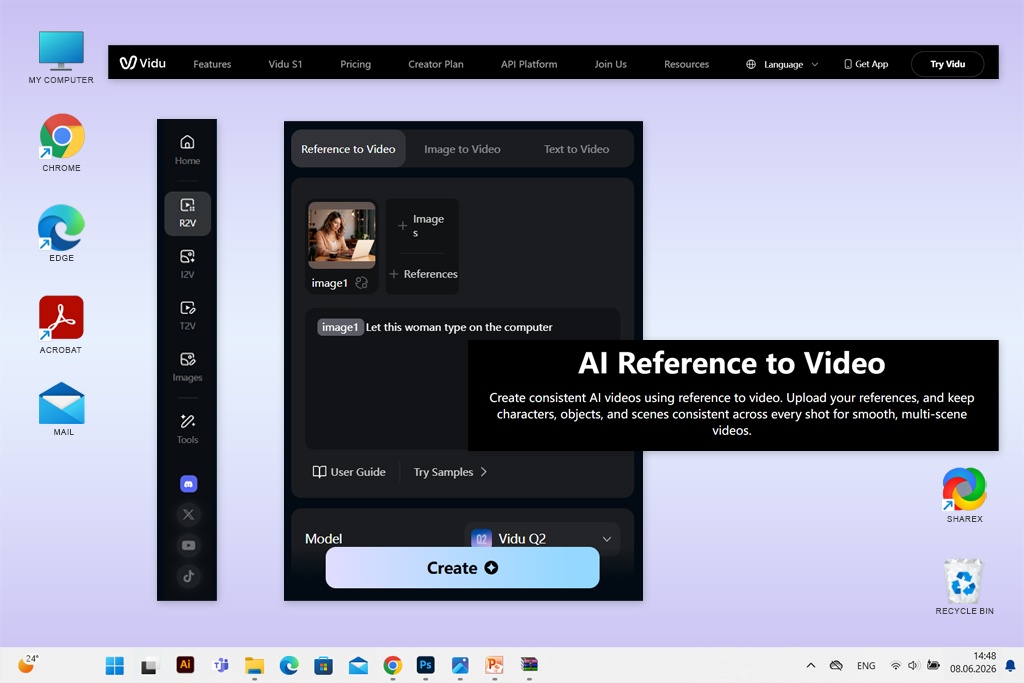
I tested Vidu with a more challenging project, where I worked with two characters, a backpack, and an outdoor background. I uploaded a separate reference image for each item and explained how they should appear and interact in the final video.
Vidu's Reference to Video feature is made for this type of workflow. It lets you combine different references for people, objects, and locations while using a text prompt to describe the action and how the scene should play out. Because of this, it works better for brand campaigns, product promotions, and videos with several characters than AI tools that simply animate one starting image.
The biggest strength of Vidu is how well it keeps everything organized. Each reference can have its own role, so there is no need to write a long prompt explaining every face, outfit, object, or location. The platform also supports up to seven reference images, which is useful if you want to show the same product or character from different angles.
“Clearly explain which reference belongs to each character, product, or location so Vidu can use them correctly.”

Vidu is a good option for creating product advertisements, illustrated stories, AI influencers, and videos with several repeating characters or objects. The free credits are enough to learn how the platform works, but if you plan to create videos often, you will probably need a paid plan. This is especially true if you want to test different scene ideas or export videos without limits.
Platform compatibility: works in a browser
Pricing: free access with limited credits. Paid plans start from approximately $9/month, while plans with broader model access and more credits start from around $29/month.
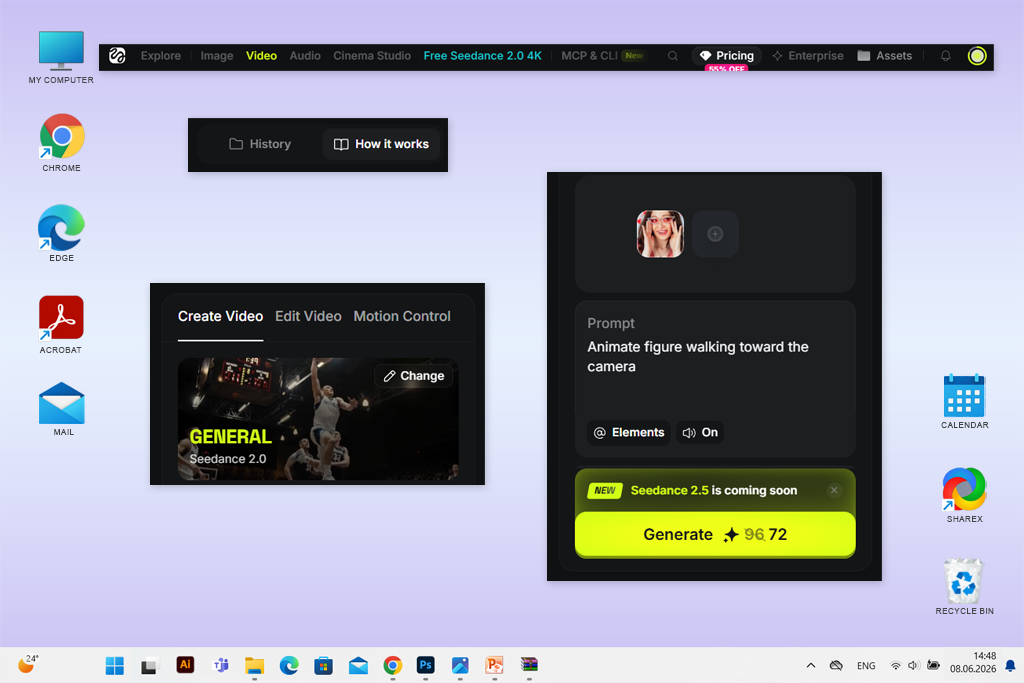
I decided to include Higgsfield because it offers something different from most of the other platforms I tested: rather than using one AI video model, it brings together several popular generators in one place. These include models from Kling, Seedance, Veo, Sora, and other available options.
I uploaded the same product image and used the same prompt with several AI models to compare how each one handled the product's shape, camera movement, lighting, texture, and background. After generating the videos, I could also improve the results with popular apps to remove the background from the video if extra cleanup was needed.
After the testing, I noticed that each model had its own strengths. One created smoother and more natural movement, while another produced a stronger advertising style. This allowed me to compare the results first and then decide which version matched the project instead of depending on only one AI generator.
“Run the same prompt and reference images through different models before using your credits on the final video.”
Higgsfield is especially useful for creative studios, marketing teams, AI filmmakers, and content creators who need several versions of the same campaign. If you only want to animate one image, the large number of models and settings may feel unnecessary. However, if you work on commercial projects or videos with recurring characters, the platform can replace several separate AI subscriptions.
Platform compatibility: works in a browser
Pricing: free access is available with a Google Account and limited credits. Additional generations and advanced models are included with supported Google AI subscriptions.
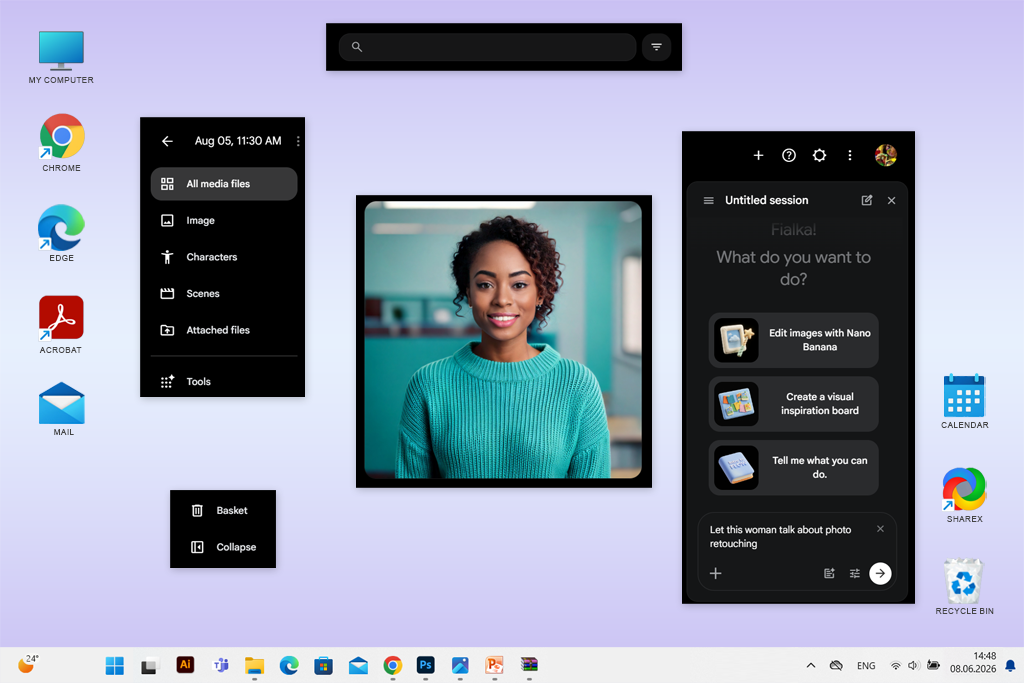
I tested Google Flow differently from the other AI reference photo-to-video generators. Instead of starting with one finished image, I created separate references for the character, the café interior, a cup, and the overall visual style. Flow treated these images as ingredients that could be reused while creating several connected scenes.
The platform combines Veo, Imagen, and Gemini inside one filmmaking workspace. It can generate videos from text prompts, still images, video frames, reference ingredients, and existing clips. It also includes project management tools that help organize characters, objects, locations, and prompts. This made it much easier to keep the same style and look throughout the whole video.
For my test, I first created a wide shot of a woman walking into a café. Then I generated a closer shot where she placed a cup on the table. Flow kept the character, the object, and the location consistent, so the two scenes looked like parts of one story.
After creating the clips, I could improve them further with the best vlog editing software by adjusting the timing, adding smooth transitions, correcting the colors, and combining all the scenes into one finished video.
The Ingredients to Video feature was one of the most useful parts of the platform. Veo can use reference images of people, objects, and locations to guide the video generation process. Newer versions of Flow also support frame-based video creation, connected scenes, built-in audio, and vertical video formats.
“Keep using the same saved ingredients in every scene, so your characters stay consistent.”
Google Flow is a strong choice for storyboards, advertising projects, concept films, and videos made up of several connected scenes. It takes more planning than a basic image animation tool, but the project-based workflow makes it much easier to build a longer video with a consistent visual style.
Platform compatibility: works in a browser
Pricing: free plan with 80 monthly video credits and access to image-to-video tools. Paid plans start from $8/month with annual billing and include commercial use, watermark-free downloads, and additional creative features.
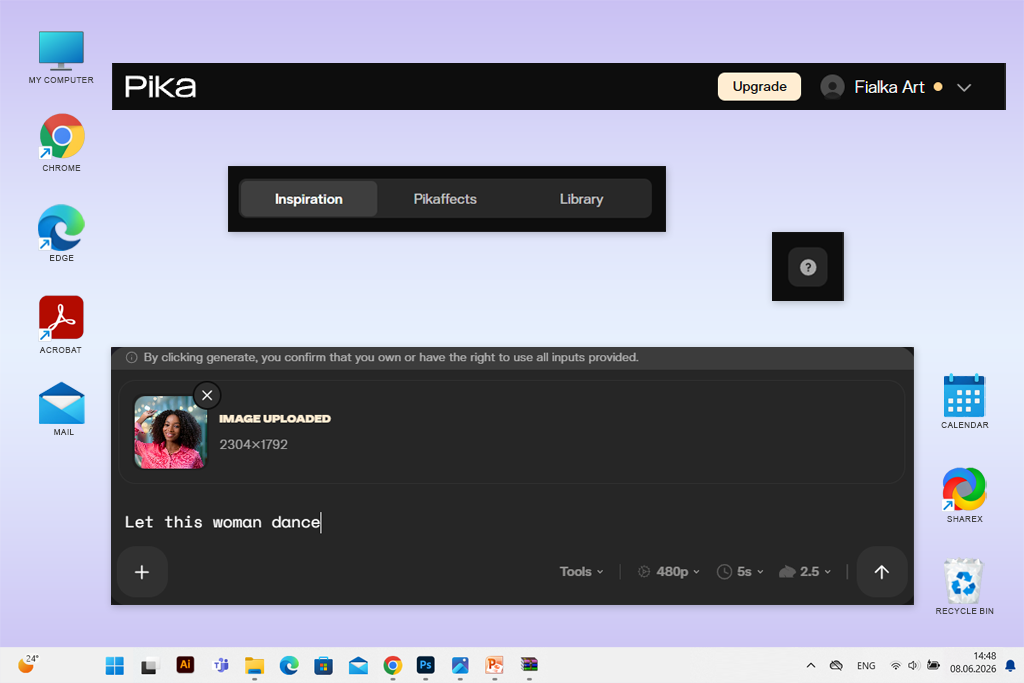
I included Pika in this list because it makes creating videos from reference images fast and enjoyable. During my testing, I uploaded a portrait, a pair of glasses, and several product photos. Then I tried both simple animations and more dramatic visual effects. Setting up an account and starting a project only took a few minutes, so I was able to turn a still image into a finished vertical video much faster than with many professional AI reference to video platforms.
Pika is especially good at creating fun and creative effects. It can add new objects, replace existing ones, combine a reference image with a video, and turn normal photos into eye-catching animated scenes. Some of its built-in effects can make an object melt, stretch, inflate, shrink, or completely change its style. Because of these features, Pika works well for short ads, memes, and social media videos that need to grab people's attention.
I enjoyed using Pika because it encourages users to experiment with different ideas. Pikascenes, Pikadditions, Pikaswaps, Pikatwists, and Pikaffects all provide different ways to reuse the same reference image. Instead of only turning one picture into a moving video, you can test many creative versions without learning complicated filmmaking tools.
“If you need the product to stay the same, use gentle movement.”
Pika is a strong choice for creating TikToks, Instagram Reels, short promotional clips, creative transitions, and fun visual experiments. The free credits are enough to explore several features and test different ideas. If you create content often or work on commercial projects, a paid plan gives you more flexibility.
Platform compatibility: works in a browser and on iOS
Pricing: free access with limited generations. Lite starts at $9.99/month, while Plus costs from $29.99/month. Credit usage depends on the selected model, resolution, and video duration.
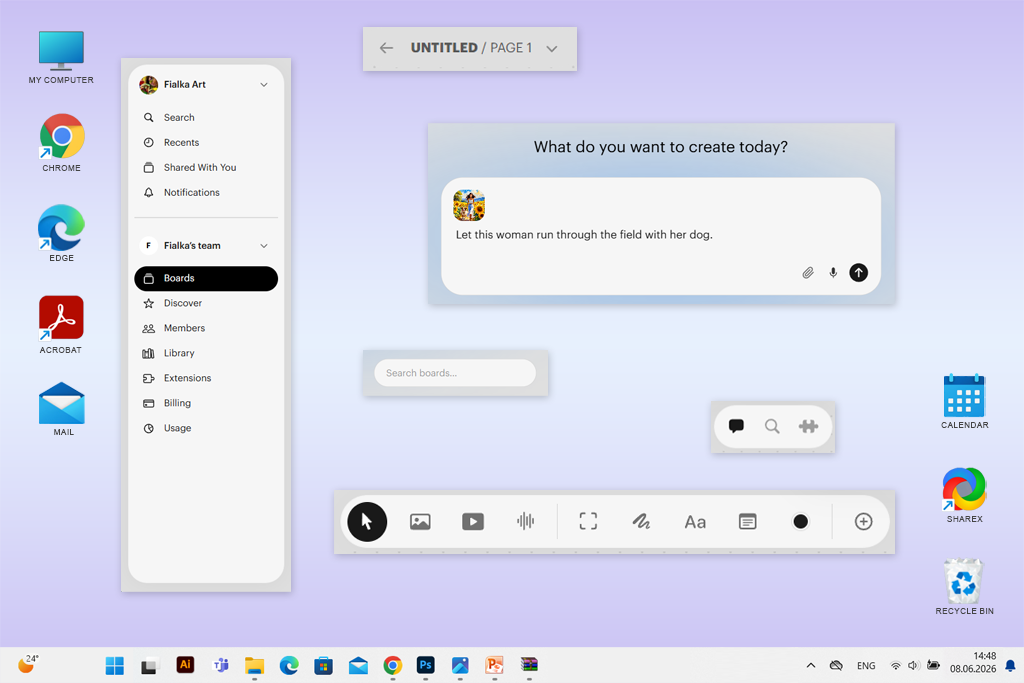
Most AI reference-to-video tools on this list create movement from a single still image, but Luma Dream Machine impressed me most when I used an existing video instead. I recorded a short clip where a person slowly turned their body, then uploaded another image to replace the person's appearance while keeping the original movement and timing.
The Ray3 Modify feature can change the character, clothing, background, or overall style without creating the entire action from the beginning. During my test, the body movement and camera motion looked natural because they came from a real video, not generated by AI.
If your original video has a lot of camera shake, it can help to stabilize the footage using the best online video stabilizer before uploading it. A smoother video gives Luma a better chance of understanding the movement correctly and usually produces cleaner results.
“Film the movement first, then let Luma change the appearance instead of asking the AI to create difficult actions from one image.”
The platform also supports keyframes and reference images, giving you more control over how the character and background should look at different moments in the video. However, I found that the final quality depended a lot on the original footage: motion blur, hidden hands, or a person moving outside the frame often caused more noticeable mistakes in the generated video.
Testing AI reference image-to-video generators became a much bigger project than I expected at the beginning.
I started by making a list of more than 25 AI platforms. I found them through Google searches in the US, official websites and documentation, Reddit discussions, YouTube reviews, AI filmmaking communities, and recommendations from creators who regularly use these tools.
Working together with the FixThePhoto team, we organized our testing into four main categories.
Every AI video generator was tested using the same checklist so the results stayed fair and consistent.
Reference Accuracy. I compared every generated video with the original reference image. Even if a video looked impressive, it received a lower score if the AI changed the person's face or redesigned the product.
Motion Quality. We watched how people, clothing, hair, products, backgrounds, and camera movements behaved during the animation.
Character Consistency. We generated several videos using the same reference images and compared how well each platform kept the same person across different camera angles, actions, and lighting conditions.
Multi-Reference Support. I tested whether each tool could correctly understand and separate multiple reference images.
Prompt Accuracy. We compared our written instructions with the final result to see if the AI followed the prompts well.
Ease of Use. The best platforms made it easy to upload references, choose the AI model, change settings, and write prompts.
Value for the Cost. We compared how many good-quality videos we received for the number of credits used. A cheaper generation was not considered a good value if it took many attempts before producing one usable clip.
Export and Editing. Finally, we checked export options such as aspect ratios, video resolution, watermarks, download settings, and whether the generated clips could be edited easily in other video editing software.
Not every popular AI video generator made it onto the final list. I removed several platforms because they were good at creating videos from text but struggled to follow reference images. Some gave users very little control, while others produced results that changed characters and products too much to be useful.
Adobe Firefly became our top overall choice because it offers a good balance between ease of use, strong image-to-video features, careful product animation, and smooth integration with professional Adobe editing software.
Kling AI gave some of the best results for realistic people and natural body movement. Seedance became my favorite for cinematic videos with several connected scenes. Vidu stood out as the strongest platform for projects that use multiple reference images, while Higgsfield was useful because it allowed me to compare several leading AI models without changing my workflow.
The best AI reference image to video tool depends on the type of project you are creating. If I needed to animate a polished product photo, Adobe Firefly would be my first choice. For a realistic character that appears in several scenes, I would choose Kling AI or Higgsfield. If I needed to work with multiple people and objects, I would use Vidu. For longer cinematic stories, I would compare Seedance, Runway, and Google Flow before making a final decision.
Adobe Firefly is the best all-around option for beginners, designers, photographers, and small businesses. It has a simple image-to-video workflow, useful camera controls, and works well with Adobe editing software. If your main goal is realistic human characters, Kling AI is a better choice. For connected cinematic scenes, Seedance performs better.
Kling AI, Seedance, Runway, Vidu, and Higgsfield all offer useful features for keeping the same character across different scenes. If you need one person to appear repeatedly, identity systems like Higgsfield Soul ID can give more consistent results than uploading a single portrait every time.
Vidu includes a workflow designed specifically for using several reference images in one project. Kling AI also supports multiple references for characters, products, clothing, and locations.
Product photos work well for slow camera movement, reveal shots, environmental animation, and short promotional videos. Before publishing the final result, always check small details such as logos, printed text, packaging edges, handles, and other important design features.
Many platforms, including Adobe Firefly, Kling AI, Vidu, Pika, and Runway, offer free credits or trial generations for new users. These are usually enough to test the platform, but creating high-resolution videos regularly normally requires a paid subscription or extra credits.
Use high-quality reference images with clear lighting and good resolution. Upload photos from different angles whenever possible, avoid extreme camera movements, keep your clips short, and use the same approved set of reference images throughout the entire project.
The rules are different for every platform, subscription plan, AI model, and reference image. Always read the latest licensing terms before using AI-generated videos for advertising, business projects, or client work. You should also make sure you have permission to use any real person, copyrighted character, logo, artwork, or branded product that appears in your reference images.



![7 Best Free Online Video Prompter [{{%year}} FixThePhoto Choice]](http://fixthephoto.com/blog/images/gallery/news_main__preview_29369.jpg)
![7 Best AI Accent Generators [{{%year}} FixThePhoto Choice]](http://fixthephoto.com/blog/images/gallery/news_main__preview_29428.jpg)
![9 Best AI Picasso Generators [{{%year}} FixThePhoto Choice]](http://fixthephoto.com/blog/images/gallery/news_main__preview_29366.jpg)

![7 Best AI Video Highlight Generators [100% FREE]](http://fixthephoto.com/blog/images/gallery/news_main__preview_29348.jpg)
![7 Best Fantasy Portrait Generators [Free & Cheap]](http://fixthephoto.com/blog/images/gallery/news_main__preview_29406.jpg)


















