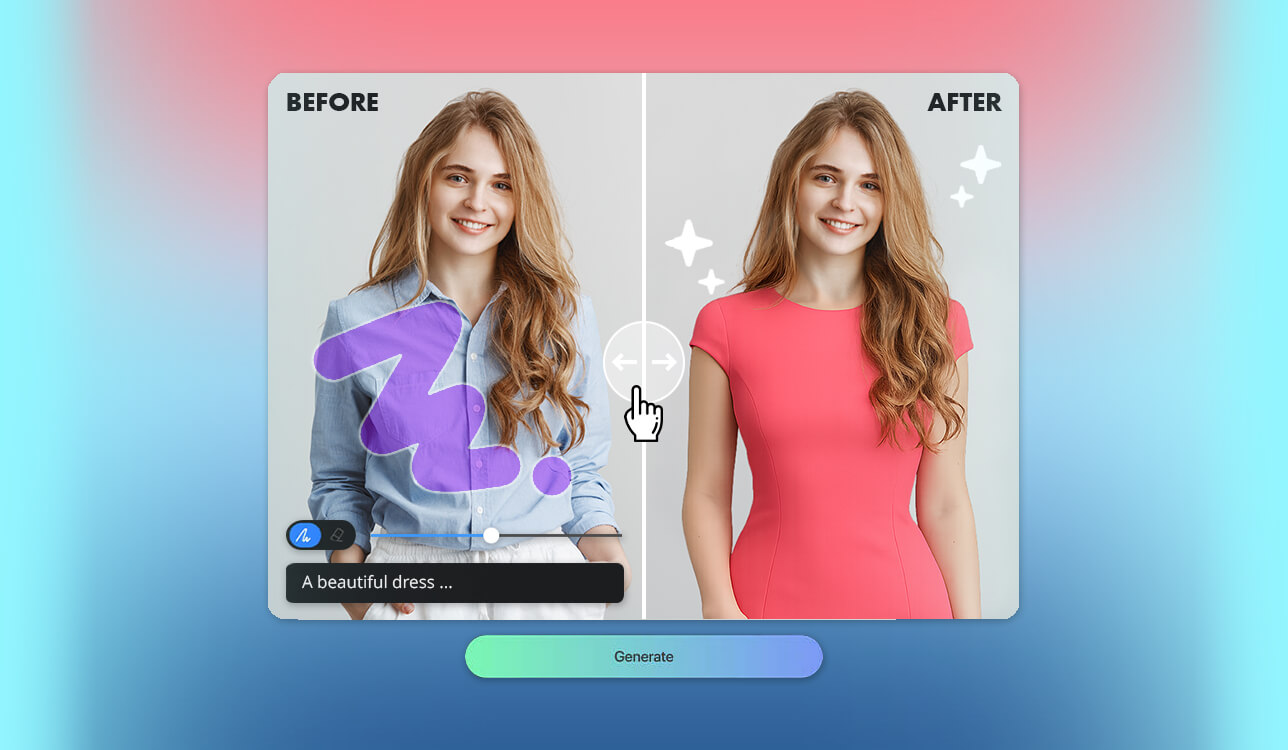
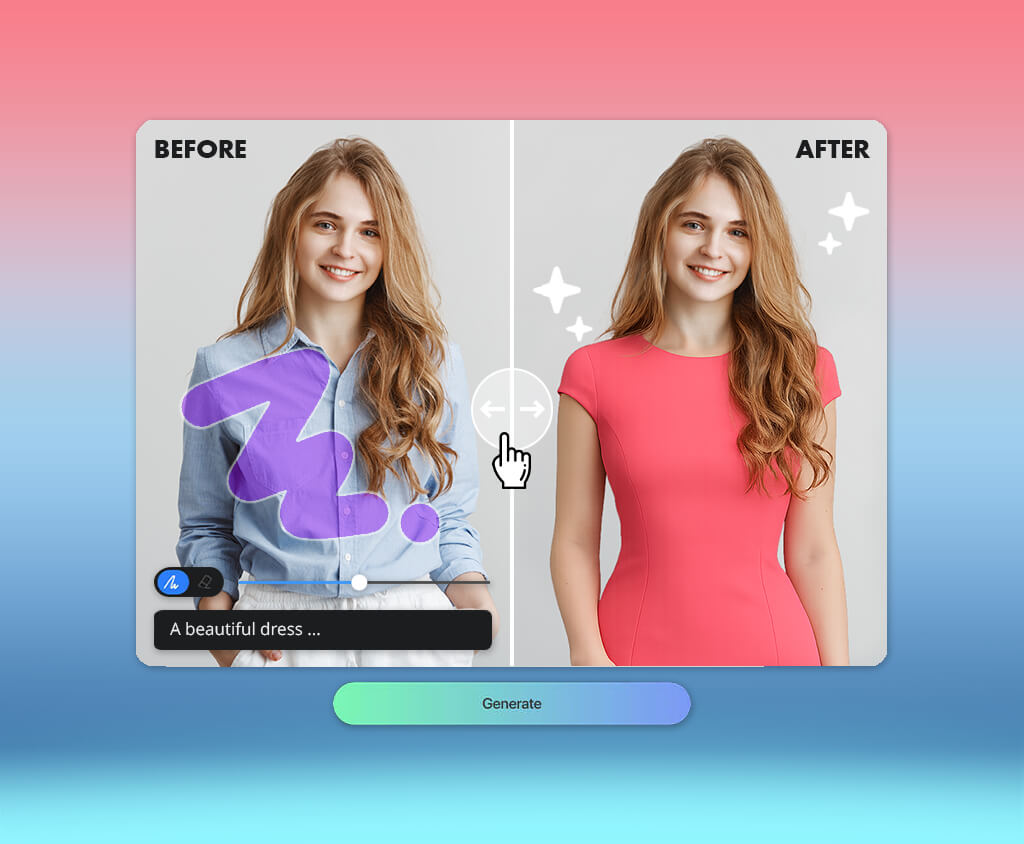
As a photographer and retoucher at FixThePhoto, I usually rely on Photoshop for detailed image restoration. However, today's online AI image inpainting tools make it much easier for anyone to perform common edits without advanced skills.
To see how practical they really are, I tested whether an average user could remove unwanted people, restore damaged photos, or clean up product backgrounds with minimal effort. Working alongside the FixThePhoto team, I tested over 40 tools suggested on Reddit, YouTube, TikTok, and photography communities.
For every tool, I looked for:
An edit may look realistic at first glance but reveal obvious flaws when you zoom in, print the image, or examine it more closely. After evaluating dozens of AI image inpainting tools with the FixThePhoto team, I developed a simple checklist that quickly reveals issues the initial preview can easily hide.
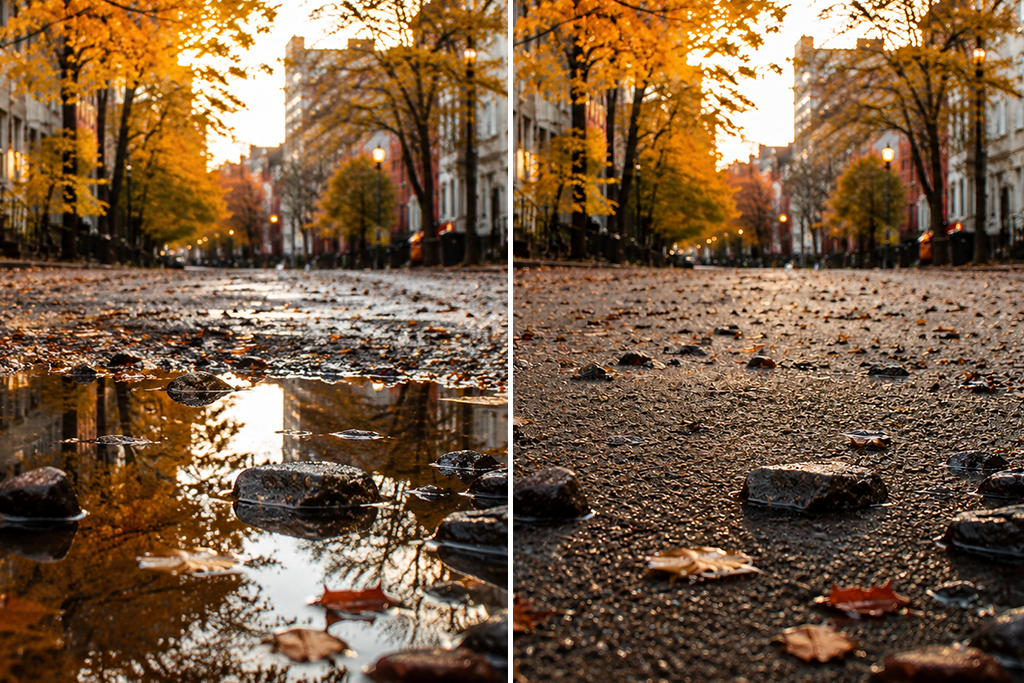
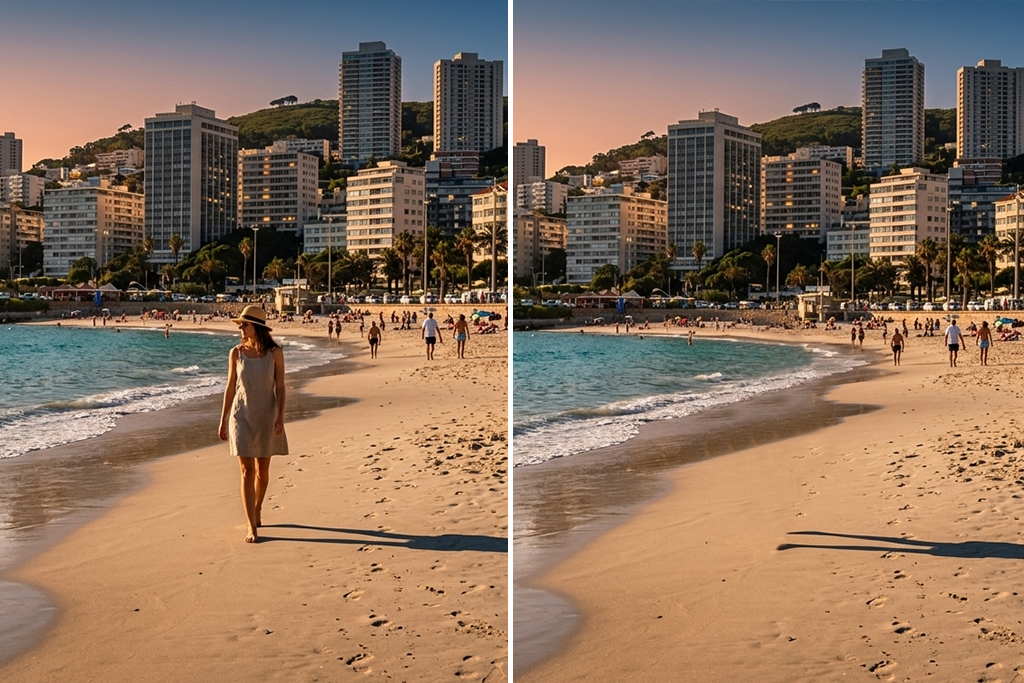
My final pre-publish test. Before considering an edit finished, I check the image in three different views:
Platform compatibility: Web, Windows, macOS, iOS, Android
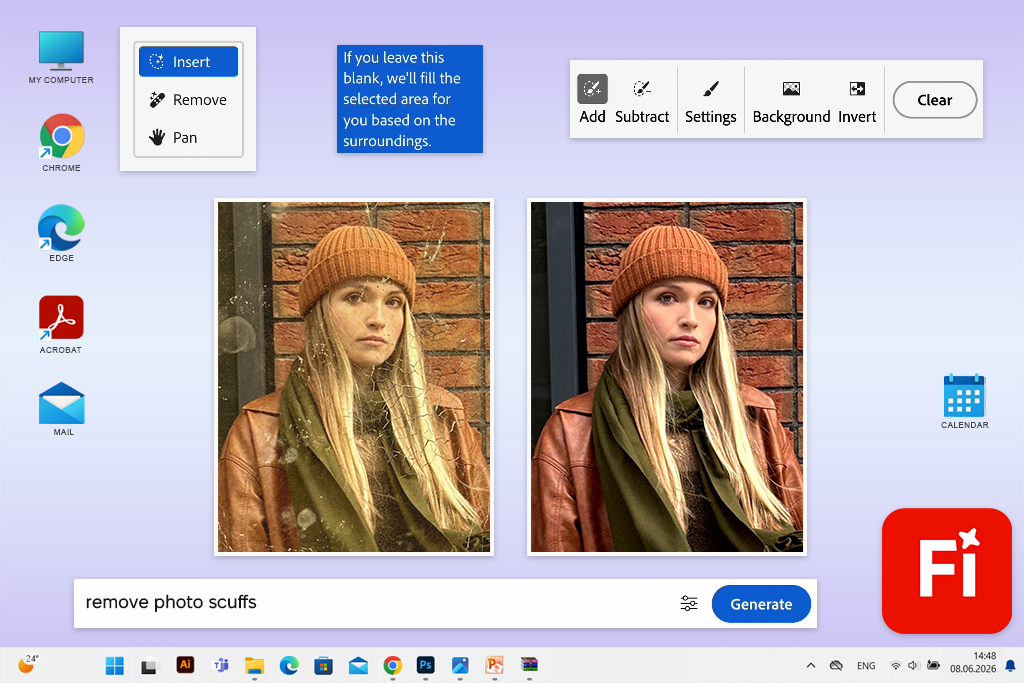
Since I already work within the Adobe ecosystem, I was familiar with the Firefly AI art generator before starting this test, so Adobe Firefly was one of the first online image inpainting tools I evaluated.
The workflow was simple: I uploaded a photo, opened Generative Fill, brushed over the area I wanted to replace, and either entered a prompt or left it blank to let Firefly reconstruct the background automatically.
Compared to most one-click tools, Firefly gave me greater precision when defining the area to edit. I could easily adjust the brush settings, refine the selected region with Select More and Select Less, and use reference images to steer the AI toward a more consistent visual style.
What impressed me most was how well Firefly understood the surrounding image. Instead of generating a patch that looked out of place, it usually matched the existing lighting, perspective, depth of field, and textures.
For more challenging projects, I could continue the edit in Photoshop, where Generative Fill works alongside layers, masks, selections, and other advanced editing tools for greater control.
“Firefly remains my first choice for removing distractions, expanding images, trying different product backgrounds, and creating quick client previews because it delivered the most reliable results.”

My main issue is that small details like jewelry, patterned fabric, text, and thin lines can sometimes look distorted.
My tip is to select slightly more than the object, including any shadow or reflection, but not too much of the surrounding area. For removals, I usually leave the prompt empty. For replacements, I use a short description of the object, its material, angle, and lighting.
Pricing: You can use Firefly for free with a limited number of daily generations, including access to Generative Fill. Paid plans start at $9.99/month (about $119.88/year) and include unlimited standard image generations plus 2,000 monthly generative credits.
Platform compatibility: Web on desktop and mobile browsers
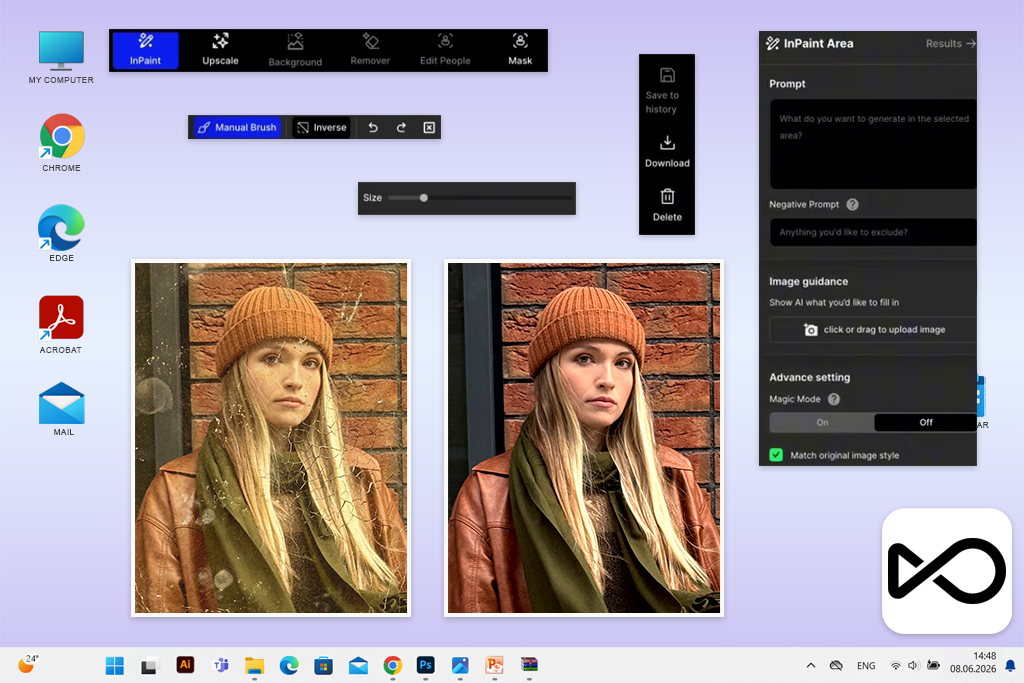
I came across OpenArt while looking for popular AI image inpainting tools, and it immediately stood out for its flexibility. Unlike simpler editors, it let me choose between different AI models, mark the area with either a brush or Smart Select, adjust the generation settings, and compare multiple results. In my tests, each edit was ready within a few seconds.
The wide choice of AI models was OpenArt's biggest advantage. Compared to Firefly, it was less consistent but gave me much more freedom to experiment. I also liked that this AI image generator supports object removal, photo restoration, panorama expansion, and creative image editing in one place.
“I see OpenArt as a great choice for AI artists, content creators, concept designers, and photographers who prefer comparing different AI models instead of relying on a single automatic result.”
My advice is to try different AI models before changing the prompt multiple times. I also got smoother results by extending the selection slightly beyond the damaged area. For the most realistic output, OpenArt recommends using its higher-quality models with short, clear prompts.
The free plan is fine for trying OpenArt, but it's not ideal for regular use. New users receive a limited number of starter credits; each edit uses a different number of credits depending on the model, and unused credits don't carry over to the next month.
Pricing: OpenArt offers a free plan with limited starter credits, and each AI edit uses a different number of credits depending on the selected model. Paid plans start at $14/month (about $151.20/year) for the Essential plan, which includes 4,000 monthly credits.
Platform compatibility: Web browsers on desktop and mobile
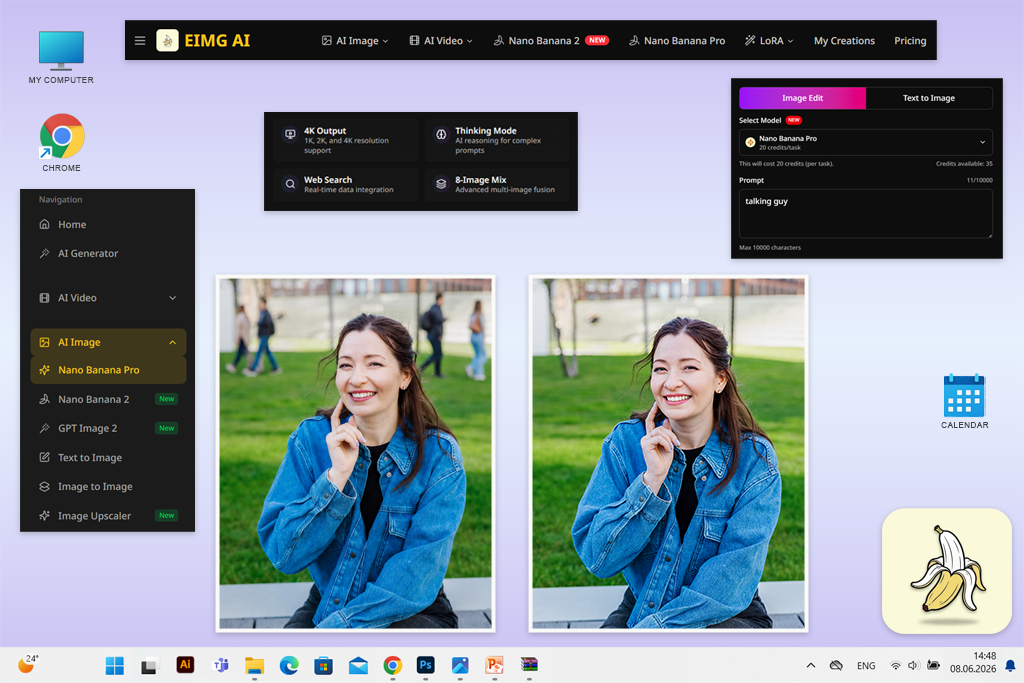
I came across Nano Banana after seeing it recommended in Reddit discussions about AI image editing. What immediately stood out was its ability to understand natural language. Instead of relying on precise masking like most AI image inpainting tools, I could simply upload a photo and describe the changes I wanted in plain English.
Nano Banana supports object removal, object replacement, background changes, photo restoration, image expansion, and style transfer. I also liked the annotation tool, which let me mark the exact area to edit. It accepts multiple reference images and can export JPEG or PNG files at up to 4K resolution, depending on the selected model and plan.
Its biggest drawback is the limited control over specific areas. Compared to a dedicated mask-based editor, this AI photo editor can sometimes make extra changes or alter details I wanted to keep.
My advice is to treat prompts like clear editing requests. For example: "Remove the power line, rebuild the sky, and keep the buildings and lighting unchanged." I also recommend changing only one thing at a time and clearly specifying what should remain untouched.
“I now use this online editor mainly for quick concept edits, social media images, and product mockups, while leaving detailed client retouching to more precise editing software.”

You can try this AI inpainting tool for free, but regular editing requires credits. At the moment, Nano Banana Pro uses 20 credits per edit. It's also worth noting that Nano Banana is an independent platform and isn't affiliated with Google, so I'd think twice before uploading sensitive client photos.
Pricing: Free plan with limited generations and model access, including AI image editing. Paid plans start at $14.99/month, or $125.92/year when billed annually (about $10.49/month).

Platform compatibility: Web Playground, API, Windows, macOS, Linux
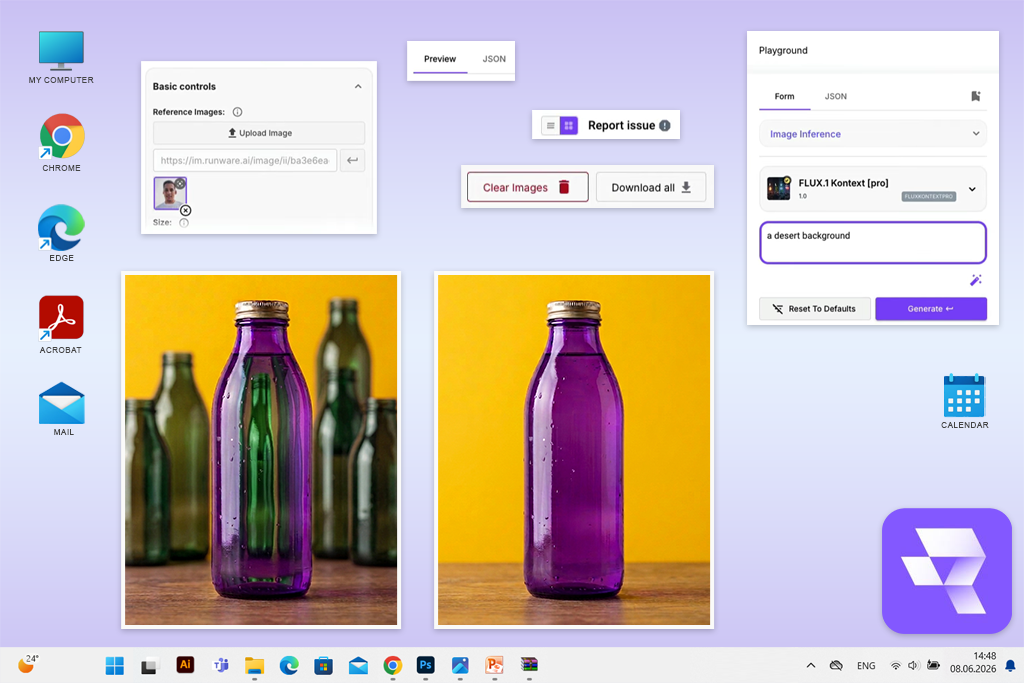
A colleague suggested Runware after I mentioned that most online AI image inpainting tools offered only a single model with limited control. Runware stood out because it's designed as an AI platform with a web Playground and API access to a wide range of models, rather than a simple photo editor aimed at casual users.
Runware offers a wide selection of inpainting models, including FLUX.2 Pro, FLUX.1 Fill Pro, Ideogram, Qwen, GPT Image, Bria, and models designed specifically for object removal. Depending on the model, I could upload an image, add a mask and prompt, then choose one optimized for realistic edits, preserving fine details, handling text, or making more creative changes.
Editing was fast, though the results depended on the model and output size. The interface takes more time to learn than Firefly or Fotor. New users may find the options and credit system overwhelming, while developers, AI studios, and content teams will benefit from the flexibility of this AI tool for content creation.
“I would choose Runware when I need to compare different inpainting models or build an automated editing workflow, but for everyday client retouching, I prefer a simpler editor.”

My tip is to start with the curated inpainting models, compare two using the same image, mask, and prompt, and change only one setting at a time to see what actually improves the result.
Runware doesn't offer a traditional free plan. New users receive $2 in trial credits, and each generation is charged separately based on the model used. The platform also states that uploaded custom models and content remain private and aren't used for AI training.
Pricing: Runware offers a $2 free trial instead of a traditional free plan. There are no monthly or yearly subscriptions - pricing is pay-as-you-go, with image generation typically costing about $0.0006 to $0.24 per image, depending on the model, resolution, and settings.
Platform compatibility: Web, Windows, macOS, iOS, Android
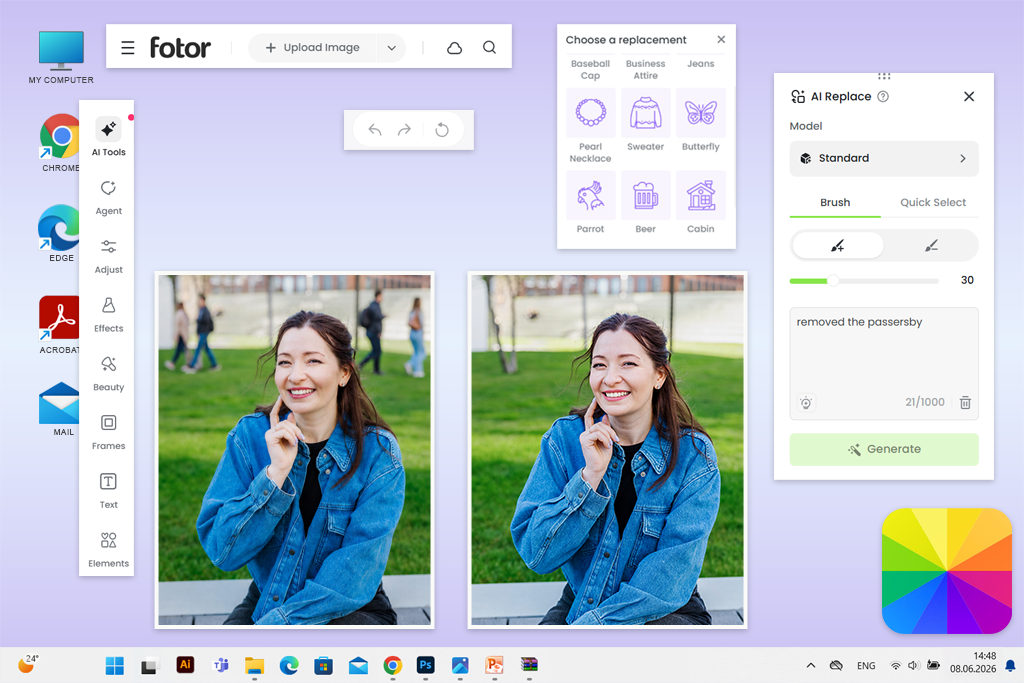
I first came across Fotor after seeing it recommended in TikTok videos as an easy alternative to more advanced desktop editors. Its image inpainting tool was simple to use: I uploaded a photo, brushed over the area I wanted to change, entered a short prompt, and received several edited versions in just a few seconds.
Besides AI image inpainting, Fotor also includes object and people removal, object replacement, image expansion, background editing, photo enhancement, and portrait retouching, all within the same editor.
What I liked most about Fotor was how easy it was to use. It's a good choice for beginners, bloggers, online sellers, and social media creators who want to remove distractions, improve a photo, crop, resize, or retouch it in one place. I still use it for quick personal edits and previews, but for product photos that require precise shapes and details, I prefer more advanced software.
My tip is to edit complex objects in several small sections instead of selecting everything at once. I also got better results by describing the surrounding area, for example, "continue the gray stone pavement," instead of simply writing "remove person."
Fotor offers a free plan with limited credits and basic exports. Advanced AI features and high-resolution, watermark-free downloads require additional credits or a Pro subscription.
Pricing: Free plan with limited AI credits, standard-resolution exports, and some watermarked content. Fotor Pro starts at about $8.99/month or $39.99/year, depending on your region and current pricing.
Platform compatibility: Web browsers on desktop and mobile
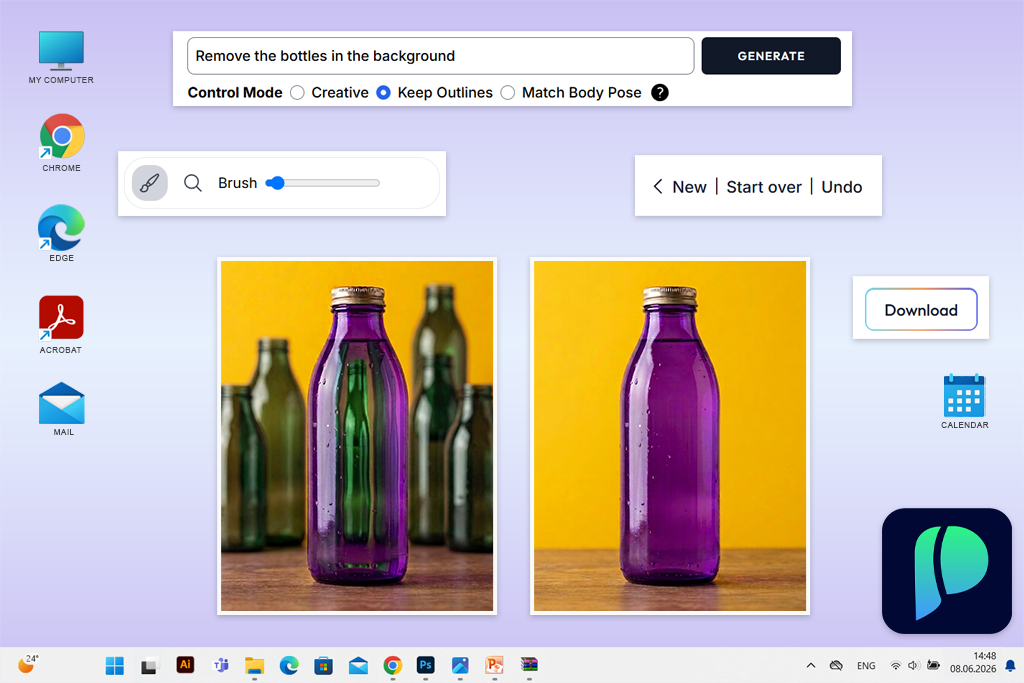
I first discovered Pincel through a YouTube review, and its clean, focused interface immediately stood out. Editing was simple: I uploaded a photo, brushed over the area I wanted to remove, and let the tool rebuild it automatically. The whole process took just a few clicks and didn't require any photo editing experience.
Pincel is part of a browser-based collection of AI tools for designers that also includes object removal, generative fill, photo restoration, image enhancement, background editing, product photo tools, and prompt-based image editing.
What I liked most about Pincel was its simplicity. It's a good fit for creators, online sellers, and small businesses that need clean product images without learning advanced editing software. I still use it for quick product photo cleanup, but I rely on manual retouching for high-resolution client work.
My tip is to include the object and its shadow in the selection, but avoid masking too much of the surrounding area. For product photos, edit reflections and background flaws separately to help preserve the object's original shape.
The free plan is enough to try the AI inpainting tool but not for regular editing. Each account includes 20 free credits, and credits from paid plans roll over as long as your subscription stays active.
Pricing: Free plan with 20 one-time credits and access to AI inpainting tools. Paid plans start at $19/month for 1,000 credits. There is currently no annual subscription, and extra credits are available from $19 per 1,000 credits.
Platform compatibility: Web browsers on desktop and mobile
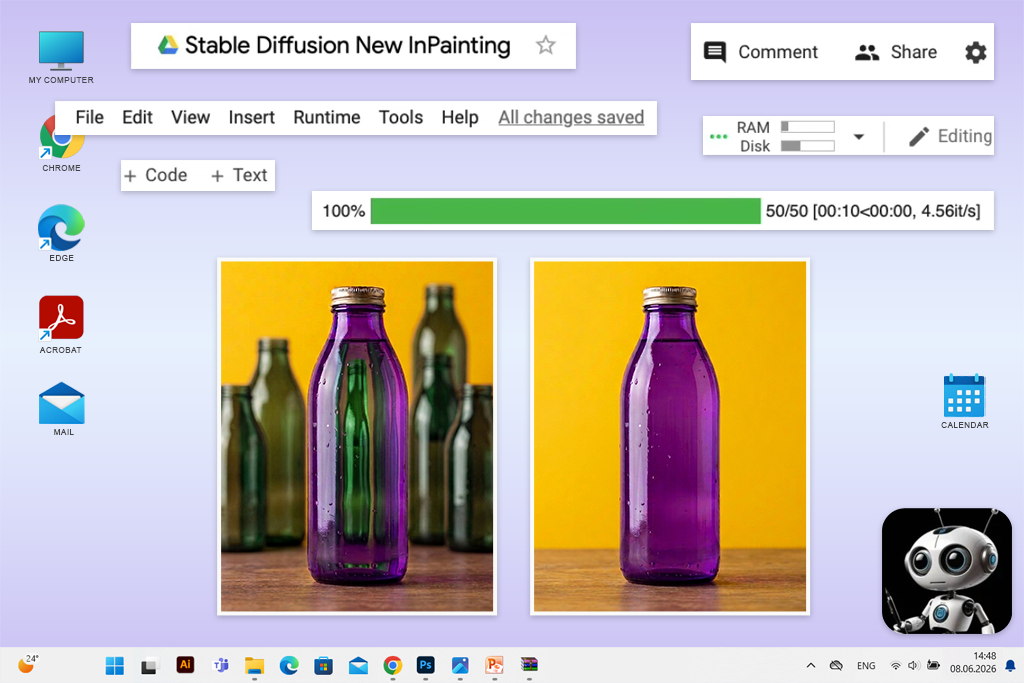
A colleague suggested Stable Diffusion because it lets me test AI inpainting almost instantly. I opened the website, added my image, marked the area to change, typed a short prompt, and generated a new version of that section. I didn't need to sign up or choose a paid plan, and the project is supported by voluntary donations.
The biggest strength of this AI art generator is the freedom to experiment with different ideas rather than getting the most consistent results. It was the easiest free AI inpainting tool I tested, although it offers fewer editing controls and guidance than more polished commercial platforms.
My best results came from selecting only the damaged area instead of a large section of the image. I also got better results by describing the surface I wanted to restore, such as "aged photo paper with subtle grain," rather than using a simple prompt like "remove scratch."
“It is a good choice for students, casual users, and anyone learning how mask-and-prompt inpainting works before paying for a more advanced service. I would also use it for quick mockups, but not for sensitive client photos or commercial product images.”

I also recommend saving good results as soon as they're generated because the interface doesn't include project management features or layer-based editing like Firefly.
Pricing: Completely free to use, with no account, generation credits, monthly subscription, or annual plan required. The project is supported through optional PayPal donations.
Testing online AI image inpainting tools wasn't something I finished in one evening. I evaluated them together with my FixThePhoto team, focusing on how well they handled real editing challenges instead of carefully prepared demo images.
I began by reviewing more than 40 options recommended on Reddit, YouTube, TikTok, Google, and photography forums. Together with my team, I focused on browser-based services that could remove, replace, or rebuild selected parts of an image without requiring advanced photo editing skills.
Every tool was tested using the same three images: my travel photo with tourists and power lines, a product shot with reflections and background flaws, and an old family photo with scratches and missing sections.
Some tools didn't make my final list:
I also looked at how easy each AI image inpainting tool was to use by timing how long it took to upload a photo, select the area to edit, generate the result, and export the image. Options with too many steps or confusing menus scored lower.
Image quality was my top priority. I checked whether the edited areas matched the original lighting, perspective, texture, color, and noise. My team also zoomed in to inspect the edges for halos, repeated textures, broken lines, and unrealistic details.
I repeated the same edits several times to check how consistent the results were. I also compared small and large selections, simple and detailed prompts, and free versus paid results when both were available.
Finally, I considered image resolution, watermarks, credit limits, privacy, processing speed, and overall value. The tools that made my top seven consistently saved time and produced results that needed little or no extra editing. If a tool created more work than it solved, it didn't make the list.







![7 Best AI Article to Video Generators [100% FREE & ONLINE]](http://fixthephoto.com/blog/images/gallery/news_main__preview_29363.jpg)


![7 Best AI PDF Translators in {{%year}} [100% FREE]](http://fixthephoto.com/blog/images/gallery/news_main__preview_29342.jpg)


















