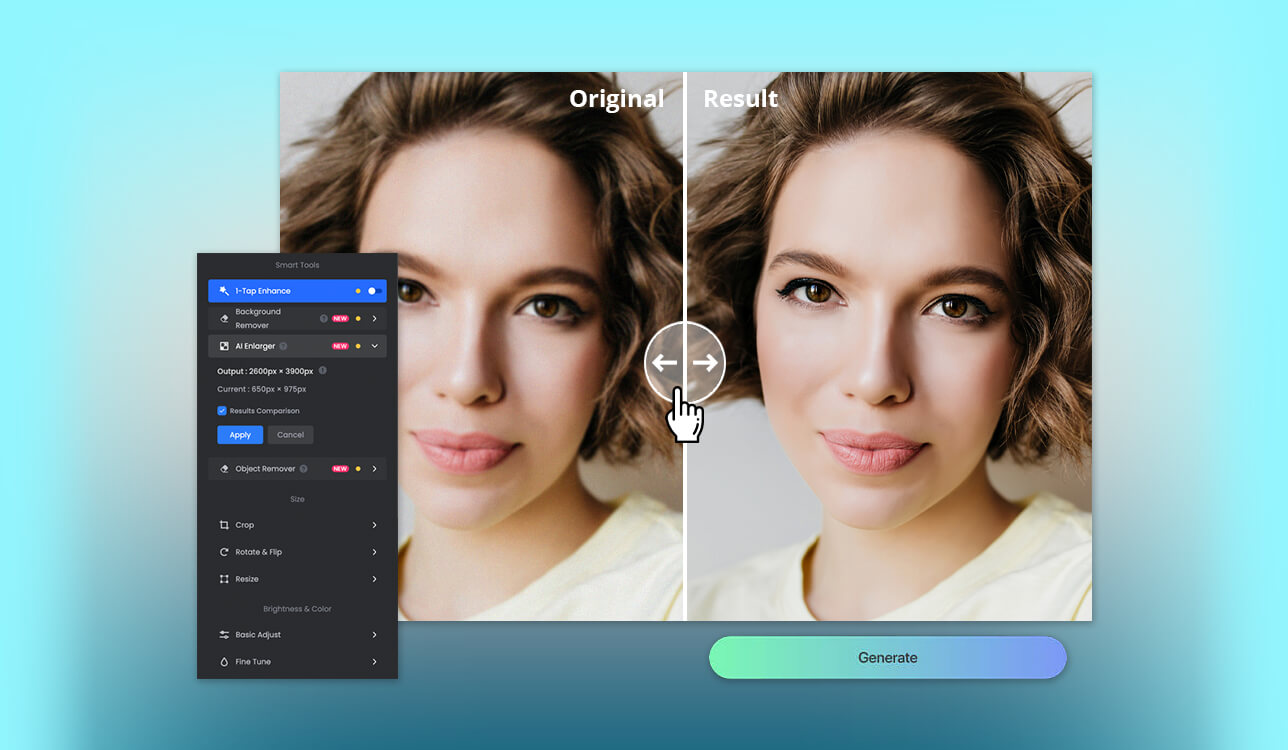
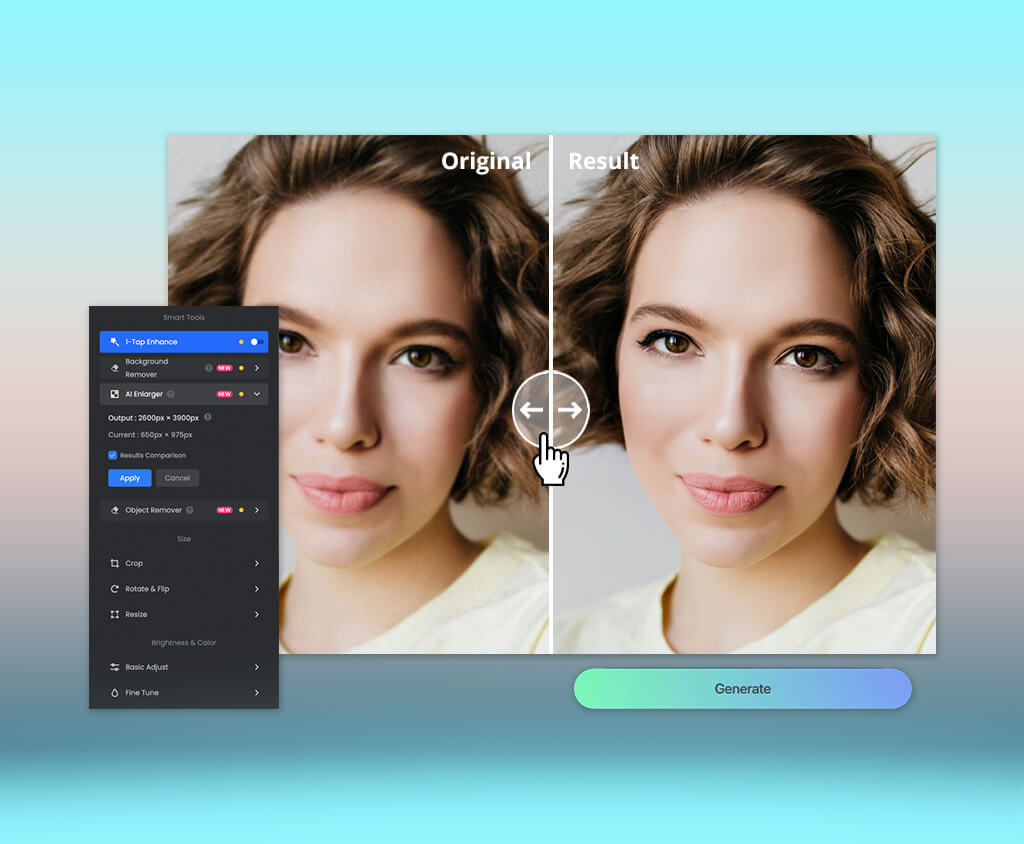
Even the best AI image sharpener tool can’t match the level of control you receive from Photoshop or Lightroom, but it can significantly streamline your daily image editing workflow. As a long-term photographer and retoucher at FixThePhoto, I wanted to learn how modern sharpening software handles images and whether it can deliver realistic results without losing detail or creating artifacts.
For this overview, my coworkers and I tested more than 40 tools suggested on Reddit, YouTube, TikTok, photography forums, and editing communities. My goal was to determine the best AI image sharpener for beginners and experienced professionals alike.
While I still use manual tools when handling projects for clients, multiple solutions I’ve tried are perfectly usable for quick social media posts, mobile edits, and images that aren’t important enough to require premium desktop software. The perfect sharpener should offer:
Even the best AI image sharpener tool for high-resolution images can only provide impressive results if it has the necessary visual data to work with. It can add clarity to weak edges, get rid of slight softness, minimize pixelation, and possibly recover missing detail. However, it can’t restore data that was never captured by the camera.
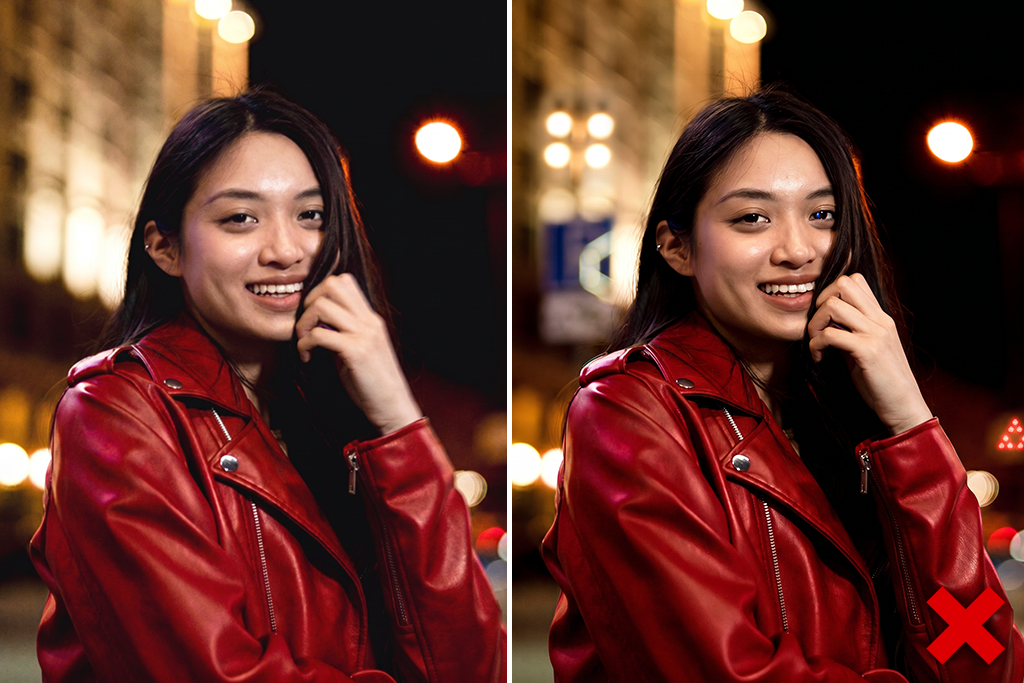
My test showed that the best results aren’t necessarily the most precise ones. Some solutions created crisp eyelashes, cake crumbs, or printed letters that seemed realistic, but weren’t a part of the original photo. That’s why it’s essential to compare the output with the source at 100% zoom before downloading it.
Platform compatibility: Web, iOS, Android
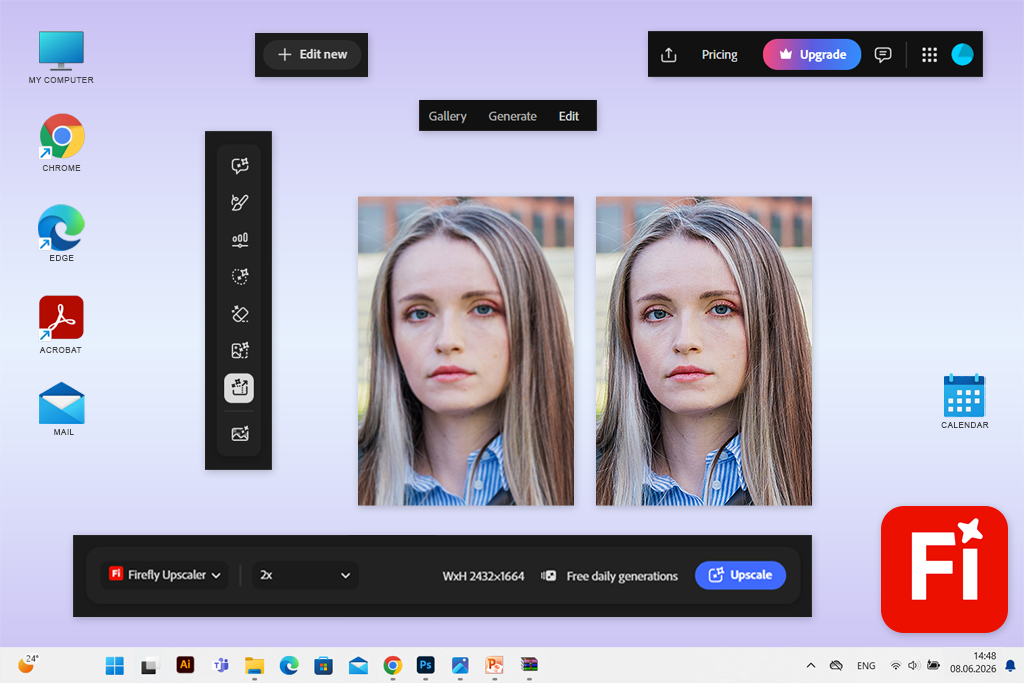
Firefly is the best online AI image sharpener tool for anyone who’s already used to the Adobe ecosystem. Using it is easy: I simply imported a photo, opened the AI image upscaler, and chose the enhancement tool.
Firefly can enhance the resolution, clarity, and perceived sharpness in tandem instead of acting like a regular sharpness slider. It offers 2x and 4x upscaling, allowing me to enlarge a photo while also restoring lost detail.
The main feature that sets Firefly apart is workflow continuity. I can use it to sharpen a photo for social media in the browser or the Firefly mobile app, then continue working on it in other Adobe software. Photoshop now has Generative Upscale, while Lightroom comes with AI-assisted enhancement, denoising, and masking for cases that require an extra level of control over an image.
“The free plan limits generations, but it’s perfect for occasional sharpening. I recommend its premium plan to active users, since the subscription offers far more than just a sharpening tool.”

Having concluded my test, I added Firefly to my workflow and use it for fast social media images, previews, and low-resolution pictures that don’t demand intricate manual retouching.
My advice is to try 2x before 4x and examine the hair, eyes, text, and repeated patterns at 100%. More aggressive upscaling might look impressive, but it also tends to add a lot of elements that weren't originally there.
Pricing: Free with limited generations; from $9.99/mo or approximately $119.88/annually
Platform compatibility: Web, Windows, macOS
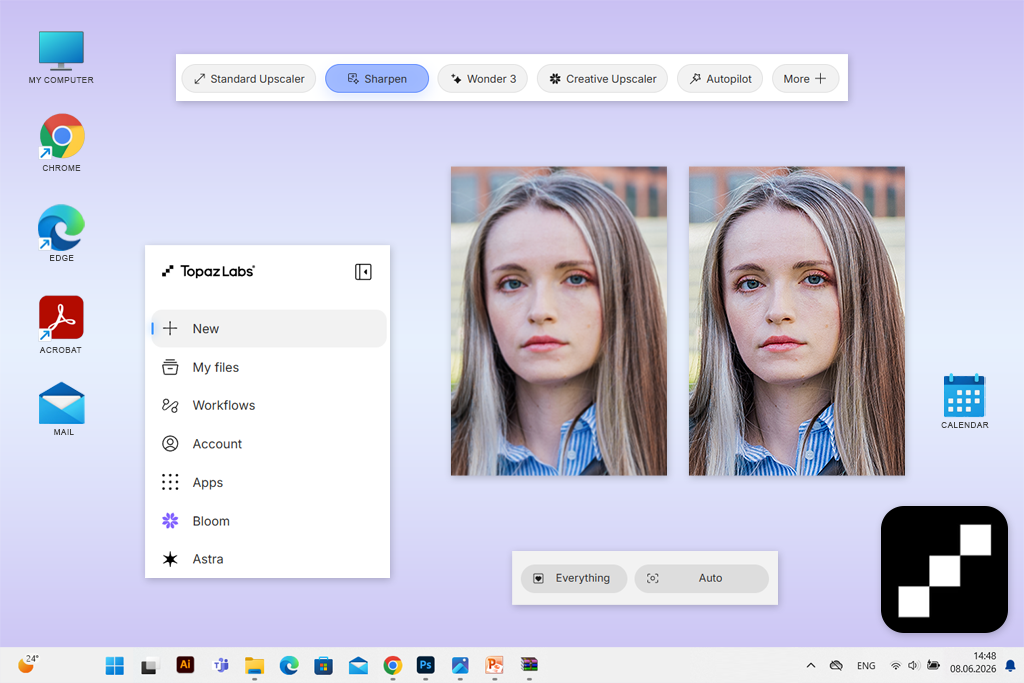
Topaz was recommended to me on Reddit as the premium AI image sharpener tool for blurry photos. In contrast to more straightforward solutions that simply boost contrast, Topaz was developed to correct specific issues, including softness, poor focus, visual noise, missing facial detail, and insufficient resolution.
I started by using its browser-based platform since that's the most intuitive option for regular people. I imported the same three photos. Topaz lets you process images in JPEG and PNG formats that are up to 4096 x 4096 in size, while applying automated sharpening and letting you save the results within a couple of minutes. If you sign into your account, you can download the photos without a watermark.
I think Topaz is a good choice for old pictures, wildlife photography, slightly poor focus, product images, and client-facing content that require a proper rescue attempt. However, you should always check if the result is accurate to the original when dealing with identification documents or significantly distorted faces.
Topaz Photo also comes with special Topaz Sharpen AI, Denoise, Recover Faces, Super Focus, Preserve Text, and Upscale features, which is why it’s a better fit for high-resolution images than single-click social media editing apps.
“I regularly use it for challenging images, but I think it’s too expensive for beginners who only need to sharpen a couple of photos a month for their social media.”

My main recommendation is to use the automatic analysis as a foundation, and then tone down the effect around the skin and smooth backgrounds. Topaz provides the most impressive results when recovering existing detail rather than being forced to generate new elements.
Pricing: Free online trial/testing with export limits based on the current offer; Topaz Photo from $25/mo with a 1-year commitment, about $300/annually. A flexible monthly plan begins at $39/mo.
Platform compatibility: Web, Windows, macOS, iOS, Android
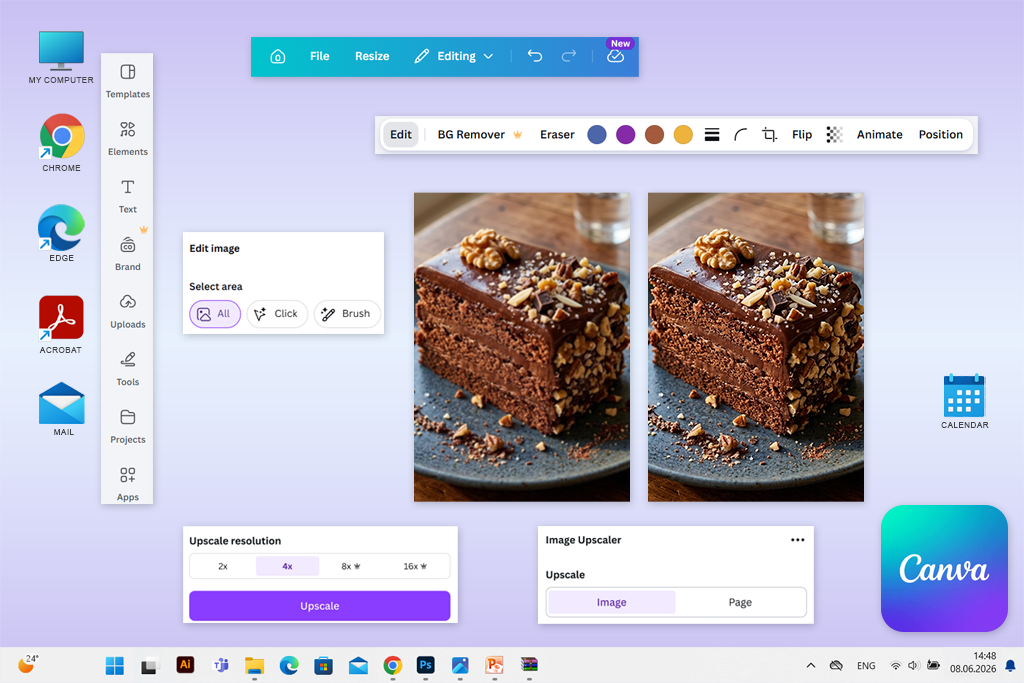
One of my coworkers who dislikes using specialized photo editors recommended Canva to me as a versatile graphic design platform that can also be used as an AI image sharpener tool for beginners. While rather straightforward, the simplicity of this option is its main appeal.
I imported my blurry portrait and applied Canva’s single-click Upscale feature. Canva uses AI sharpening to minimize visible blur and pixelation, while preserving the original dimensions for cases where you need increased clarity, not resolution. I got the result within a matter of seconds without having to mess around with technical settings.
What sets the Canva photo blur remover apart is what you can do after sharpening. It lets you instantly add the enhanced image to a post, presentation, flyer, or product layout instead of having to edit it in a different solution. Its mobile version has the same functionality, allowing me to make simple edits when I can’t access my PC.
My advice is to sharpen before adding text, crop the image to its final look first, and evaluate the result at its intended display size. Canva's primary purpose is to handle finished content, not intricate pixel recovery.
Pricing: Free sharpening and regular editing features; Canva Pro from $15/mo or $120/annually, with premium AI features, assets, and increased usage limits.

Platform compatibility: Web, iOS, Android
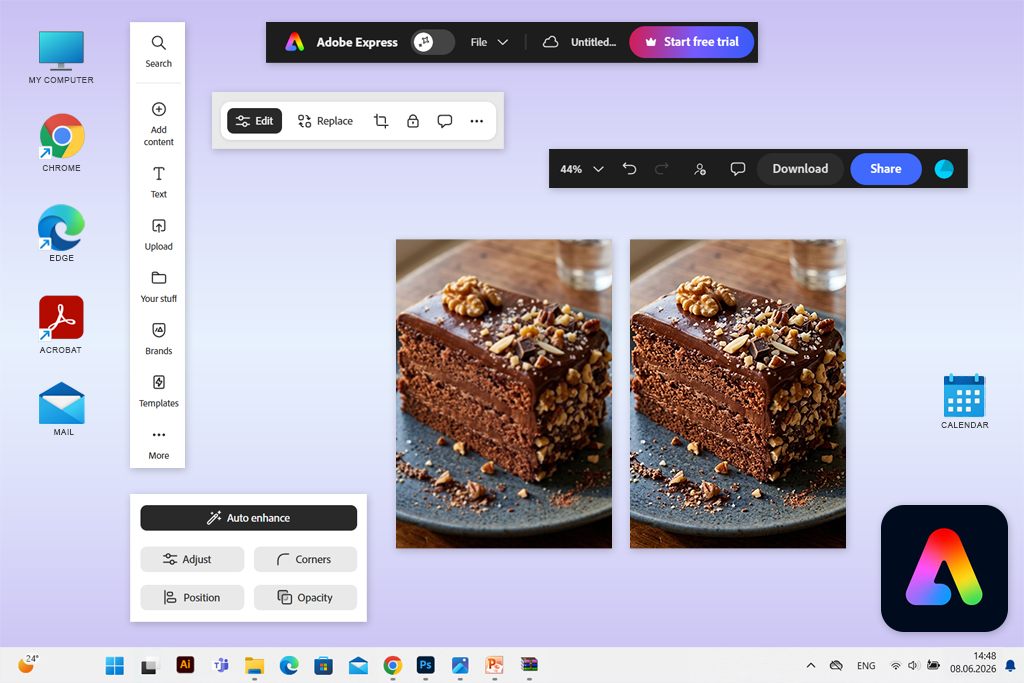
My sibling suggested I try Adobe Express since they believe it’s the best free AI image sharpener tool for users interested in a more intuitive solution than Photoshop. After unblurring images in Adobe Express myself, I got why people like it, as you get to enjoy a streamlined workflow that doesn’t force you to deal with complex menus.
I imported all the test photos, selected one of them, clicked on Adjustments, and tweaked the Sharpen slider. Express also allows you to type in a numerical value, which can feel more useful to some. Additionally, it helped apply the same edit to multiple images instead of having to recreate the same steps each time. The sharpening is applied to the entire photo rather than a specific area.
In contrast to Firefly, Express doesn’t perform significant generative reconstruction or substantial resolution restoration. However, it also works to its benefit since the output is usually easier to predict since you get to determine how much sharpening to apply. It’s perfect for moderate softness, not dramatically blurry images.
“The free mobile app is very useful. It allows me to sharpen a phone picture, adjust it for specific social media, add branding, and save it without having to use multiple apps.”

My advice is to mix light sharpening with subtle contrast and clarity tweaks instead of applying a single aggressive slider. Additionally, be sure to examine the text and facial edges before saving the result.
Pricing: Free plan offers sharpening, basic image tools, limited assets, and 5GB of storage; Premium from approximately $9.99/mo or $99.99/annually, with extra assets, tools, storage, and AI allowances.
Platform compatibility: Web, Windows, macOS, iOS, Android
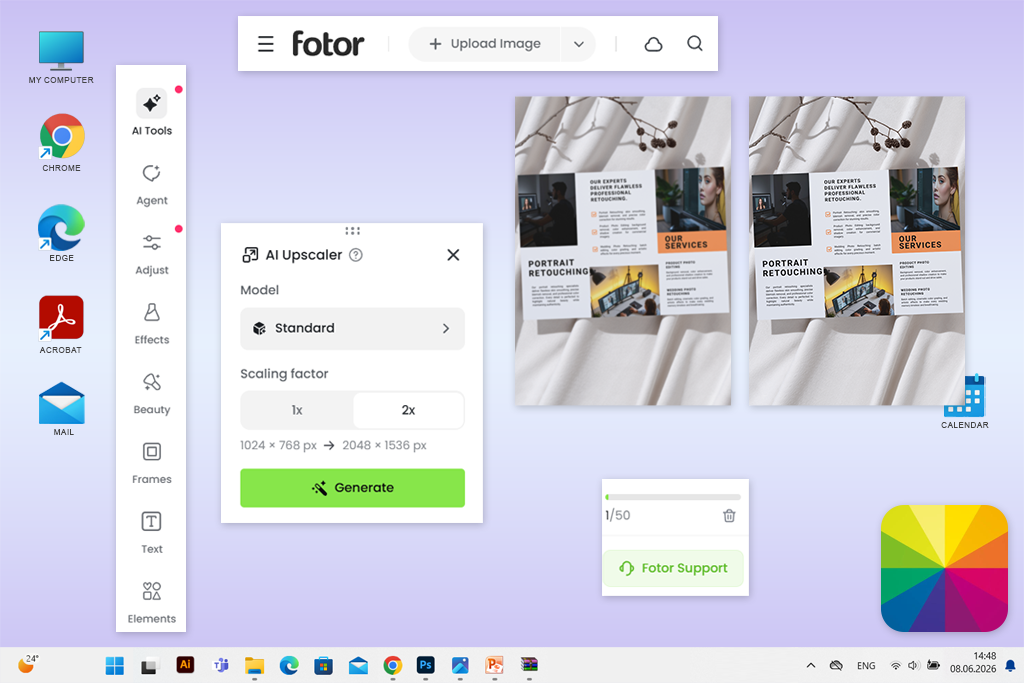
I stumbled upon Fotor when browsing through TikTok, as it caught my attention with several dramatic before-and-after examples. During my test, this AI image sharpener tool for product photos has proven to be very easy to use. I imported my photos, picked the desired enhancement model, and received a sharpened result within seconds.
Fotor lets you import images in most popular formats like JPEG, PNG, HEIC, and WebP, while also allowing you to upscale photos and batch edit up to 50 files.
I particularly appreciate the offered surrounding product-editing workflow. After sharpening, Fotor allowed me to delete the background, get rid of distractions, and prepare my photos for marketing campaigns without ever switching out of this blurred photo app.
“While alternative solutions might provide more consistent masking, AI denoising, and selective detail control, Fotor is more efficient when handling casual mobile and online work.”

My recommendation is to avoid using the most aggressive enhancement model on skin and text. For food or products, preserve some natural softness of the cream, fabric, and reflective surfaces instead of applying the same sharpening severity to all textures.
Pricing: Free Basic plan with limited AI credits, standard-resolution exports, and watermarks added to some downloads; Pro from around $12.99/mo or $107.88/annually.
Platform compatibility: Web, Windows, iOS, Android
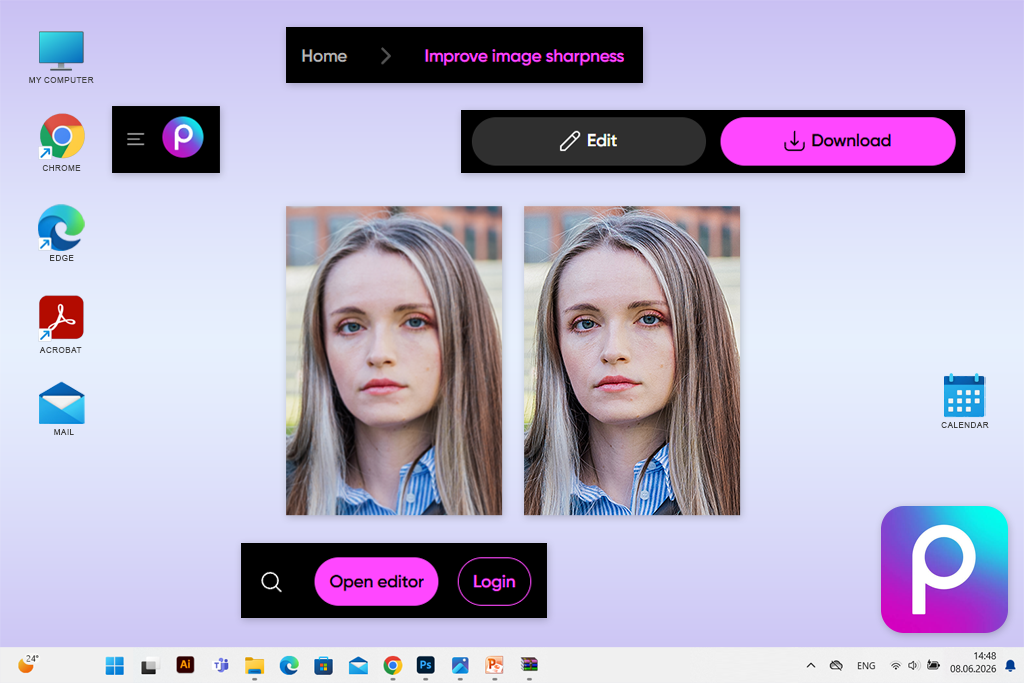
Picsart is consistently featured among the top-ranked AI image sharpener tools for mobile on Google, so I wanted to check what it brings to the table. The sharpening feature is packaged into AI Enhance, which enhances clarity and resolution simultaneously rather than providing a separate sharpening panel.
Using this solution is fast and convenient. I imported all three test photos, applied AI Enhance, examined the preview, and continued working on my images without switching to other solutions. Additionally, Picsart supports manual adjustments, background removal, object cleanup, retouching, effects, templates, and batch processing, which is why it can act as a content studio rather than narrowly focused photo enlargement software.
Picsart’s biggest benefit is speed rather than sharpening proficiency. I can use it to enhance images, delete backgrounds, add text, and upload a finished design straight from my smartphone. Picsart has become a trusty assistant for my casual social content, but I don’t use it for professional retouching.
My tip is to apply AI Enhance before using any filters. Otherwise, the photo might end up suffering from aggressive grain, contrast, and artificial textures that were added by the effect.
Pricing: Free plan with basic editing and limited access to AI features; Pro from around $15/mo or $126/year when billed annually. The paid version offers single-tap enhancements, premium editing features, batch processing, and extra storage.
Platform compatibility: Web, Windows, macOS, iOS, Android
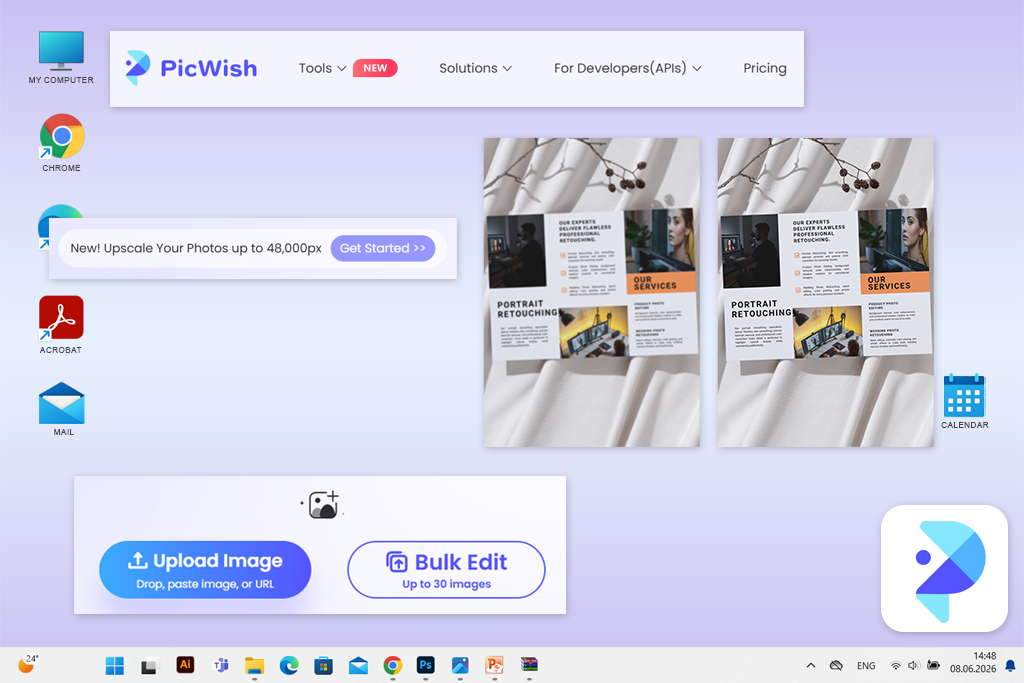
PicWish photo sharpening software was the most popular option on the Instagram poll I made when preparing for this review. Its key selling point is single-click sharpening, but I was also impressed by the automated face enhancement, which helps recover detail lost by poor focus, camera shake, or insufficient lighting.
PicWish is arguably the best AI image sharpener tool for portraits, especially if you’re on your phone. I frequently use it for personal photos and older pictures, but not client-facing professional work.
“PicWish is a particularly great choice for selfies, profile pictures, old family photographs, smaller product shots, and beginners who don’t want to mess around with a bunch of sliders.”

My main recommendation is to evaluate how the eyes, teeth, jewelry, and hairline look compared to the original. If the face looks too polished and perfect, it’s likely the AI added some details. I also suggest against processing the same photo two times since the result often ends up looking artificial.
Pricing: Free plan with previews and a restricted number of non-HD downloads; Pro from around $9.99/mo or $59.99/annually, offering daily HD downloads and up to 450 monthly credits.
For portraits ➔ PicWish for its automated face enhancement; Firefly if you need more freedom when handling upscaling and face recovery.
For e-commerce ➔ Fotor or Picsart for quick product-ready enhancements; Picsart also offers batch processing.
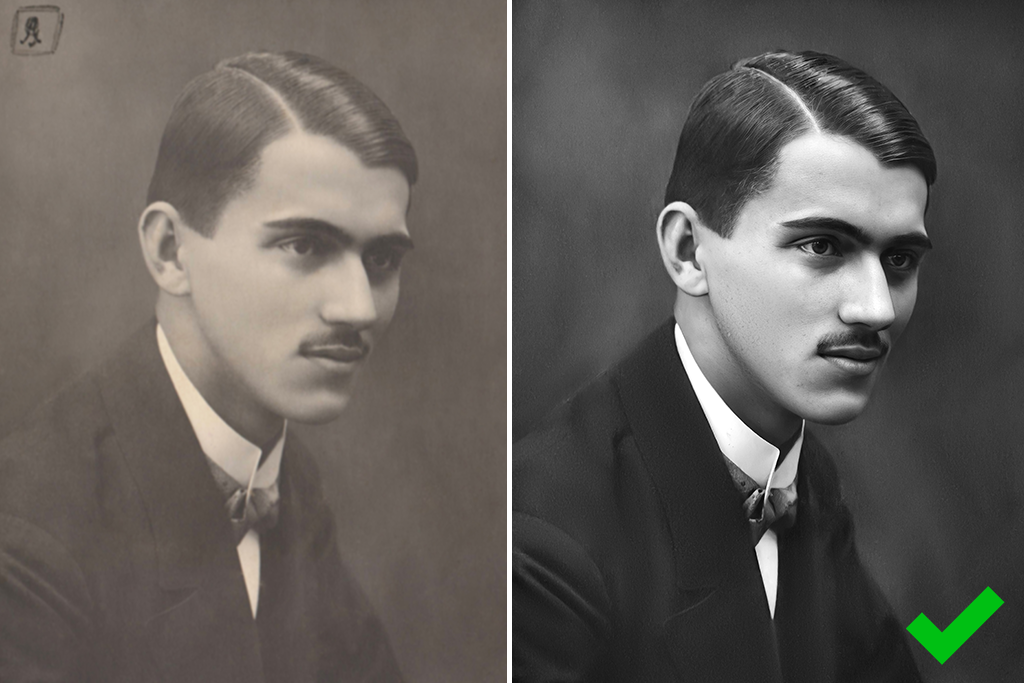
For old photos ➔ Picsart or PicWish for straightforward restoration and facial clarification.
For social media ➔ Canva, Adobe Express, or Picsart since sharpening is offered alongside design and publishing features. Canva sharpens the entire image automatically, while allowing you to make manual clarity and sharpness tweaks.
For a difficult blurry photo ➔ Topaz is my go-to option since it prioritizes dealing with blur, softness, refocusing, and fine-detail recovery.
For a quick browser fix ➔ Adobe Express is the most intuitive choice when I just want to import, enhance, and download the result.
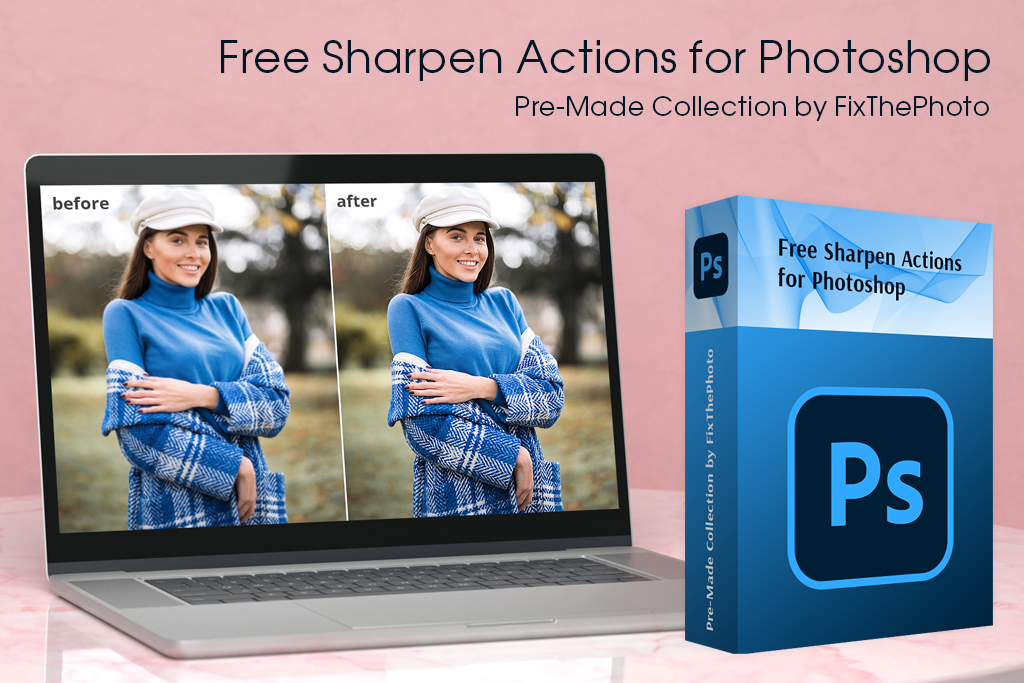
If the AI image sharpener you chose produced a result that looks artificial, you can try these free Photoshop actions to have more control over the outcome. FixThePhoto provides a wide range of sharpening actions for portraits, landscapes, wedding pictures, urban photography, product photos, etc.
I prefer to rely on actions if I need to receive results quicker than doing manual sharpening, but want more creative freedom than what I get from single-click free online AI image sharpening tools. They allow me to enhance the clarity, contrast, lighting, color, and detail while allowing you to make any other edits you want in Photoshop.
You can use these actions with RAW and JPEG images, while selecting between a variety of looks, ranging from soft portrait enhancement to stronger contrast, HDR, color, and landscape effects. All actions can be customized once applied, helping you prevent issues with crunchy hair, rough halos, oversharpened skin, and artificial-looking textures.
These Photoshop actions are a particularly nice fit for soft pictures that already contain a lot of detail. You can use them for social media posts, selfies, travel photos, and product photography, but they aren’t advanced enough to deal with significant motion blur or completely unfocused images.
Finding the best AI image sharpener tool was a long-term project. I collaborated with members from my FixThePhoto team, since we all frequently deal with portraits, product photos, marketing materials, and pictures that require careful recovery.
I began by putting together a list of over 40 options that I found on Reddit, TikTok, YouTube, Google, and specialized photography forums, as well as several solutions recommended by my colleagues. I reviewed both dedicated tools and more comprehensive platforms with AI functionality but only kept options that regular people could use online or on their phones.
I’ve imported the same three photos into all solutions:
Multiple popular platforms failed to make the final list:
We tested every AI image sharpener tool by judging a specific set of criteria:
User-friendliness. I evaluated how much time it took to import, sharpen, review, and download an image. Convoluted account creation systems, weird credit systems, or an abundance of unnecessary menus lowered the final rating.
Sharpness and realism. I examined whether the tool managed to increase clarity without creating halos, brittle hair, plastic skin, exaggerated crumbs, or invented text.
Accuracy across different image types. A solution needed to provide great results for more than just one picture. My coworkers examined the performance of each tool when applied to faces, product pictures, and printed materials.
Speed and consistency. I conducted multiple tests to check if the delivered results remained stable and whether the saved images matched the previews.
Free access and value. I looked into the inclusion of watermarks, resolution limits, AI credits, mobile support, and subscription costs. A popular AI image sharpener tool wouldn’t make my list just by providing an impressive demo.
The tools that made the shortlist offer the most satisfying combination of speed, realism, accessibility, and result consistency.




![9 Best AI Car Video Generators [{{%year}} FixThePhoto Choice]](http://fixthephoto.com/blog/images/gallery/news_main__preview_29281.jpg)


![9 Best Higgsfield Alternatives [{{%year}} FixThePhoto Choice]](http://fixthephoto.com/blog/images/gallery/news_main__preview_29303.jpg)

![7 Best AI Video Highlight Generators [100% FREE]](http://fixthephoto.com/blog/images/gallery/news_main__preview_29348.jpg)
![9 Best ImagineArt Alternatives [Better AI Art Apps]](http://fixthephoto.com/blog/images/gallery/news_main__preview_29310.jpg)

















