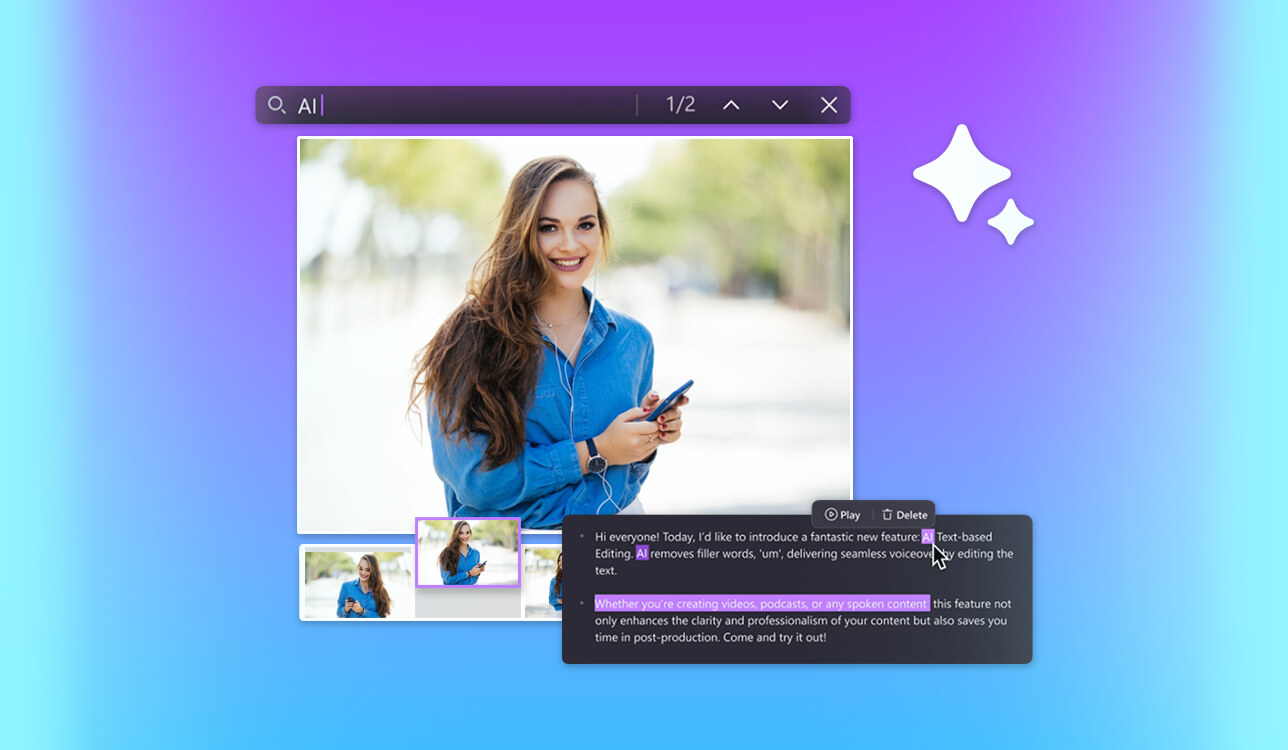
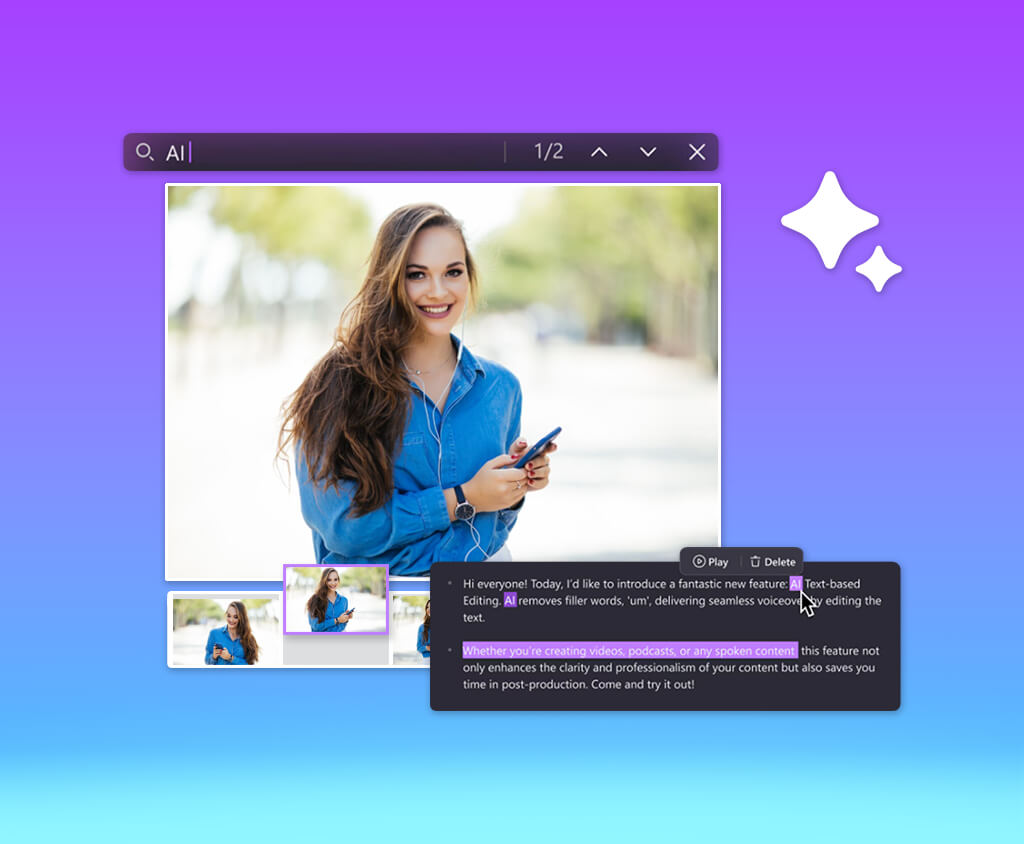
The text-based video editor saves me hours of work, especially when I’m editing conversational videos, screen recordings, tool reviews, or long tutorials for my YouTube channel.
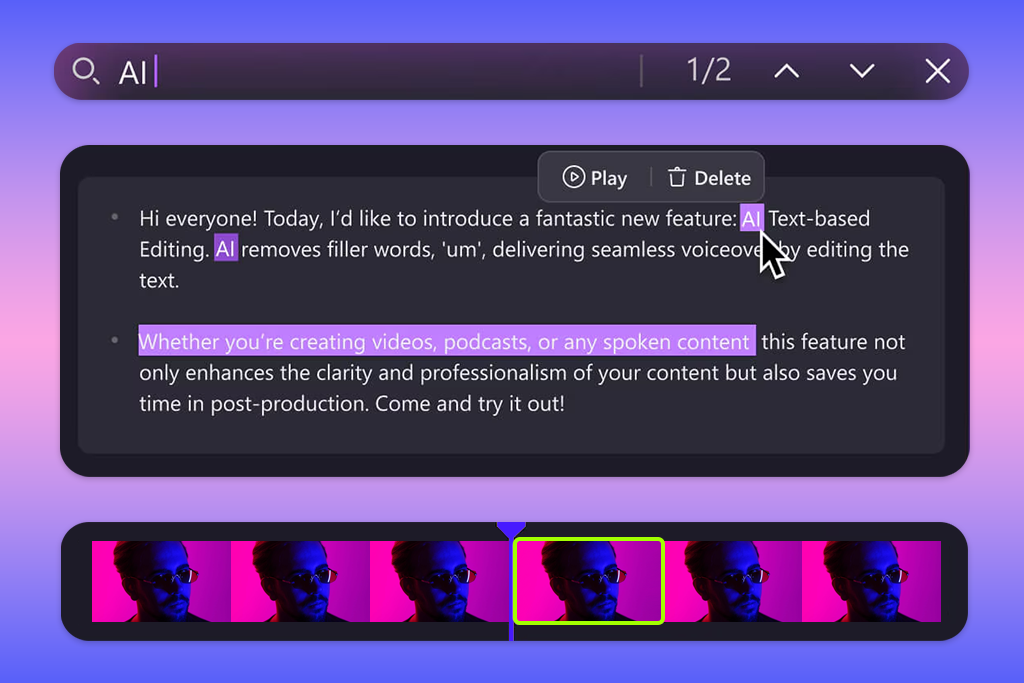
Instead of moving tiny fragments along the timeline and listening to one phrase ten times, I work with the transcript almost like a regular document. You can delete a bad sentence, cut out a long pause, remove a repeated take, or instantly find the place where I talked about masks, color correction, or export settings.
I regularly record lessons on photo processing and video editing, so I constantly face the same problems. Sometimes I start a sentence again, use filler words, go silent for a long time while looking for the right tool, or explain a simple thing in too much detail. When editing, all this has to be shortened so that the idea is not lost.
That’s why, together with the FixThePhoto team, I tested 25+ text based video editors. For the tests, we used real training videos, not short demo clips, to understand which programs are really suitable for regular work. Here are the main criteria by which I chose the best text-based video editor:
I don’t recommend choosing an editor just because it has AI or text-based editing. First, you need to understand what content you record most often. The tools on this list are designed for different tasks, and the right program can really save you several hours each week.
YouTube tutorials and instructional videos. If you record instructions for Photoshop, Lightroom, Premiere Pro, or do any step-by-step tutorials, you will need not only accurate transcription but also sufficiently flexible editing.
Best for: creating AI-powered YouTube tutorials, how-to videos, B-roll, and working within the Adobe ecosystem
Platforms: web version, browser on a computer
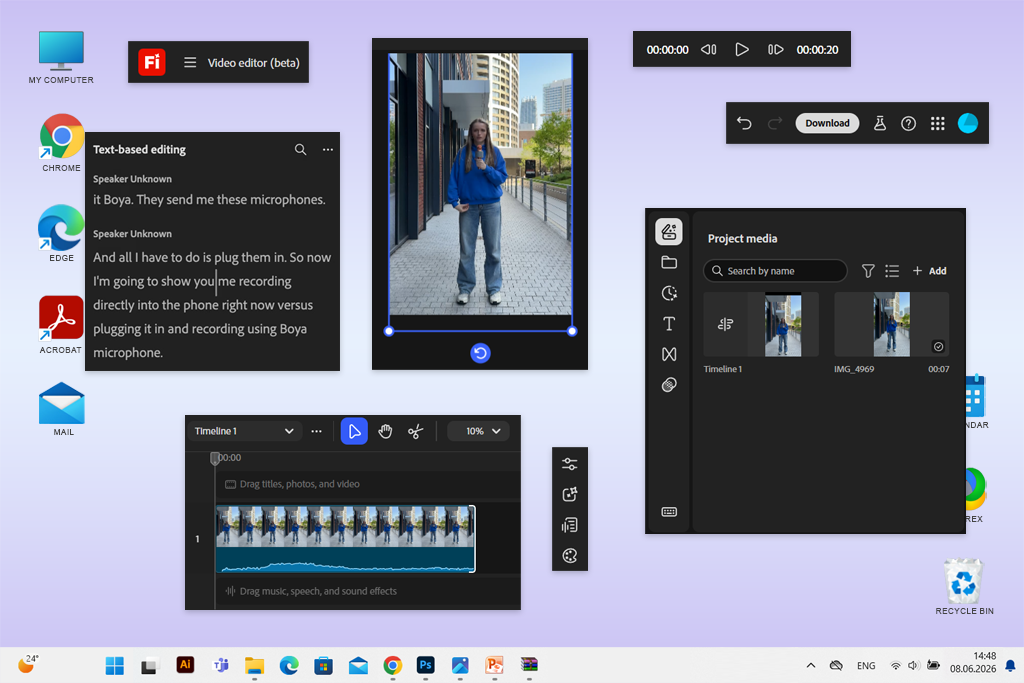
The Adobe Firefly video model became my top choice because it’s not just an editor where you can cut out phrases from text. Firefly feels more like a full-fledged creative space for text-based video editing with AI.
In my tutorial videos, it’s rarely enough to simply remove filler words and long pauses. Often, I need to shorten a lengthy explanation, insert a short opening, add B-roll, improve the sound, or close gaps in the visuals.
Firefly’s text-based video editing is especially convenient for videos with a lot of speech. Instead of manually searching for the right moment on the timeline, I can work directly with the transcript. It automatically converts speech to text, links lines to timecodes, and allows you to create a rough cut by simply selecting, deleting, or rearranging parts of the transcript.
“I once recorded a Lightroom tutorial but forgot to shoot a transition frame. Instead of reopening the entire project and reshooting the scene, I created a suitable insert using AI in Firefly.”

During testing, Firefly stood out precisely for its combination of text editing and generative functions. I could upload my own recordings, trim and rearrange scenes, create additional video clips for the story, add text templates, and then process the sound and color – all in one editor.
Firefly’s text-based video editor supports the user’s own materials, generated scenes, Adobe Stock content, text, voiceover, music, and sound effects. All of this can be placed on a multi-track timeline. For a YouTube creator, such features is more useful than simple editing through text. Firefly helps solve a common problem when there is not enough suitable visual content for a video.
I wouldn’t call Firefly the easiest option for someone opening a video editor for the first time. It gives a lot of creative freedom, but the interface and the logic of work feel like Adobe. If you previously only used mobile apps, you’ll have to get used to it a bit. But for those who already work in Photoshop, Lightroom, Premiere Pro, or Adobe Express, Firefly will be understandable.
Main features:
Pricing: Several free generations are available per day. Firefly paid plans start at $9.99 per month for the Standard plan. More expensive plans include more generative credits and advanced video features.

Best for: YouTube tutorials, podcasts, talking-head videos, and quick rough cuts
Platforms: web version, macOS, Windows
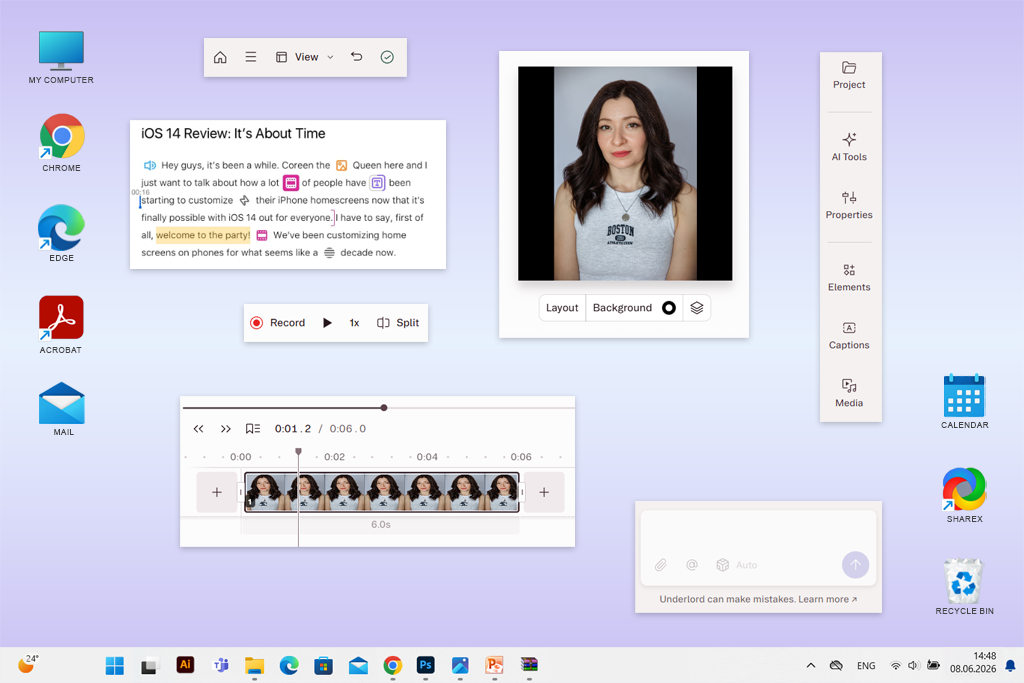
I recommend Descript to authors who want to edit a video almost like a regular text document. When I uploaded a tutorial video where I repeated the same explanations several times, it was very easy to clean up the recording. I read the transcript, deleted the bad phrases, shortened the lengthy parts, and removed the parts that didn’t add any value to the lesson.
“Working in Descript is almost as easy as typing text. The editor automatically converts speech to text, and when I delete or change words in the transcript, the changes immediately appear in the video.”

In my work, this text-based video editing software has proven to be particularly effective when editing long lessons, where verbal explanations take up most of the time.
For example, during the recording, I say: “Now go to the adjustment layer… although wait, you need to make a copy of the layer first.” In a regular editor, I would have to search for this moment using the sound wave. In Descript, it’s enough to find the phrase in the text and delete the extra part.
The program also features automatic removal of filler words, the Studio Sound feature, AI subtitle creation, and collaboration tools. The latter are especially useful when I send a draft to someone on the FixThePhoto team and ask them to check the pace of the video before publishing.
What I liked most was how quickly you can turn a raw recording into a neat rough cut. This YouTube transcript generator is not trying to replace a full-fledged professional editor for cinematic editing. Descript works best with content built around speech: instructional videos, commentaries, online courses, interviews, podcasts, and short clips made from longer episodes.
At the same time, it is more convenient to perform complex visual processing in another program. If I need detailed color correction or motion graphics, I finish the project in a more traditional video editor. But in order to quickly organize the speech and build a clear lesson structure, Descript turned out to be one of the most convenient tools among all the options I tested.
Main features:
Pricing: There is a free plan. Paid plans start at $16 per month per user when paid annually.
Best for: interviews, podcasts, webinars, and multi-participant instructional videos
Platforms: web version
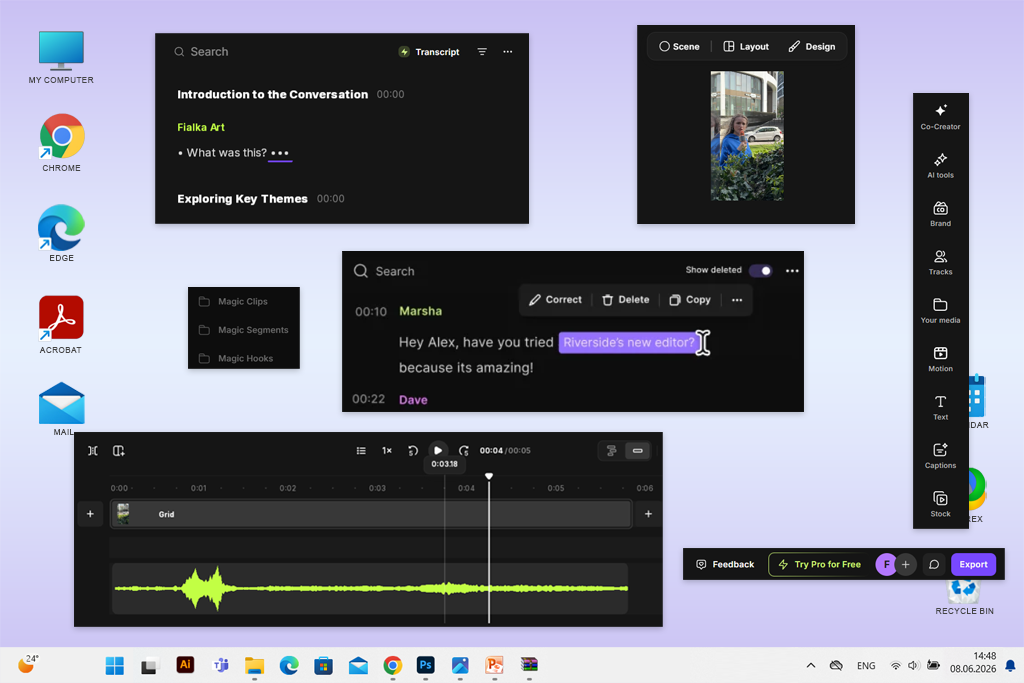
Riverside impressed me the most when I tested recordings with multiple participants. Sometimes I shoot conversational tutorials with another editor or retoucher, and organizing such material is more difficult. Participants can interrupt each other, one mic sounds louder than the other, and the most useful answer is sometimes in the middle of an hour-long conversation.
In this text-based video editor, you can work with the video through transcription: delete words and phrases, correct the text, and immediately cut out the corresponding parts of the recording. A separate track is created for each participant, so it’s easier to control the sound and the lines of different speakers.
Riverside also has multi-track and classic timeline editing, editing via AI chat, automatic transcription in over 100 languages, sound enhancement, removal of filler words and silence, subtitles, graphic overlays, B-roll, music, and tools for designing the video in a corporate style.
“It is the separation of participants into individual tracks that distinguishes Riverside from many other editors. Thanks to this, it has become one of the best options for educational videos and podcasts.”

To test it, I uploaded a sample interview about common retouching mistakes. Through the transcript, I removed repetitive answers, shortened overly long explanations, and found a suitable fragment from which I then made a short video for social media. For individual Photoshop tutorials, I still prefer Firefly or Descript. They are better for my work on the structure of a tutorial video.
But Riverside is worth considering for those who produce interviews, expert talks, consultation recordings, podcasts, customer reviews, or webinars. This free AI video transcriber is especially convenient when several people are involved in the recording.
The interface is intuitive even for beginners, but Riverside is most beneficial when you record and edit live conversations in one system. For simply trimming a short screen recording, its capabilities may even be too much.
Main features:
Pricing: There is a free plan. The Pro plan starts at $24 per month when paid annually. The price is $29 when paying monthly.
Best for: short videos for social media, subtitles, reworking long videos, and quick online editing
Platforms: web version
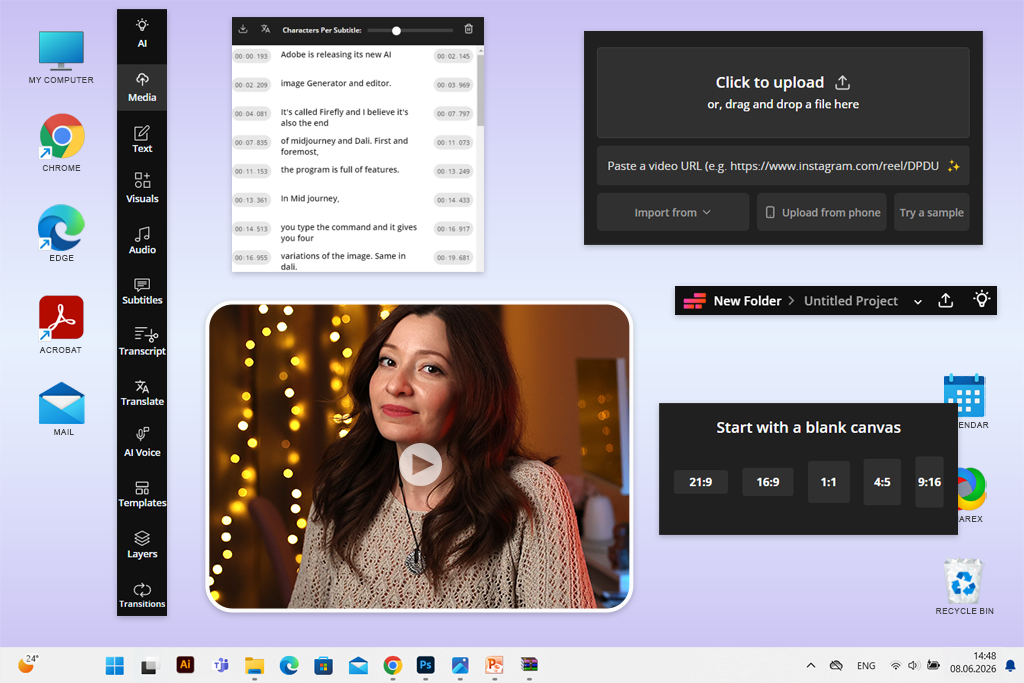
I liked Kapwing the most as a simple obline text-based video editor for those times when you don’t want to install another program. For large and well-structured YouTube tutorials, I would choose a different tool, but it is very convenient for quickly processing finished material.
The Kapwing text editor works according to a simple scheme. First, you need to upload the video and create a transcript, and then remove unnecessary phrases from the text. The corresponding parts of the video will automatically disappear along with them.
In addition to text editing, Kapwing offers collaboration tools, automatic subtitles, Smart Cut, frame resizing, background removal, audio cleaning, and more than 50 other online video features. With it, you can take one long tutorial and create several short videos from it for Instagram, TikTok, YouTube Shorts, Pinterest, or to insert into a blog post.

I tested this video editor for Instagram on a short introduction to a lesson. In it, I explained the same Photoshop technique three times, but each time in a slightly different way. Through transcription, I quickly deleted the weakest version and left the shortest and most expressive explanation. After that, I changed the frame format, added subtitles, and prepared a vertical version.
It is for such tasks that Kapwing is especially useful. It is not designed for complex post-processing, but it helps you quickly adapt finished material for different platforms.
Main features:
Pricing: A free plan is available, but the exported video has a watermark and a number of limitations. The Pro plan starts at $16 per month per member when paid annually.
Best for: corporate tutorials, training videos, educational content, and AI-assisted content repurposing
Platforms: web version
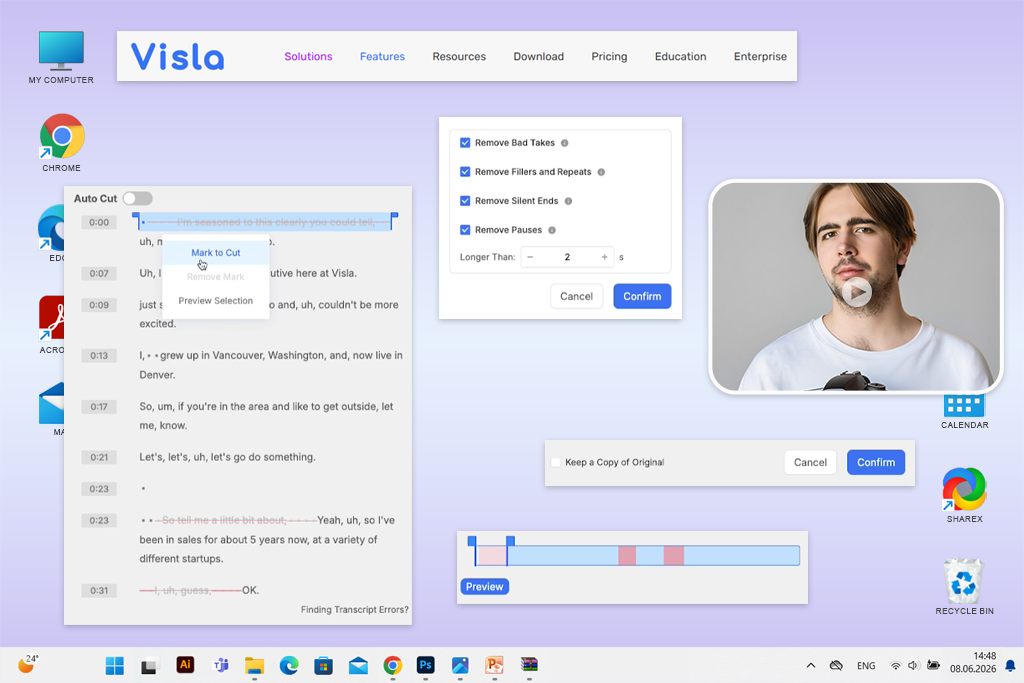
Visla seemed to me to be a good text-based video editor for those who produce business and educational videos, rather than building all the content around the author’s personality. I tested it on a corporate training script and a separate clip from a recorded lesson. I liked that the service itself pushes you towards a clearer structure and a neat presentation.
The platform uses AI to convert audio into text, after which the video can be edited directly through the transcription. Visla can automatically find and cut out unsuccessful takes, remove filler words and repetitions, reduce silence, smooth out excessively long pauses, and also suggest suitable B-roll and background music.
“Visla can create videos from text, scripts, web pages, PDF files, presentations, audio, and conversational recordings. It is interesting for teams that often turn ready-made written materials into video content.”

This approach is convenient when I need to turn a regular draft recording into a full-fledged training material. For example, I can record a lesson on “How to prepare real estate photos for editing,” and this free video editor for YouTube will help me remove unnecessary content, structure the material more clearly, and reduce the number of manual actions.
The main drawback of Visla is that the service feels more corporate than personal. When I edit a personal YouTube tutorial and want to fine-tune the intonation, rhythm, and presentation style, Descript gives me more freedom. But for corporate training, product presentations, internal instructions, and marketing educational videos, Visla is a very good fit.
Main features:
Pricing: There is a free plan. Paid plans are available in Pro, Business, and Enterprise versions. A credit system is used to create and edit videos with AI.
Best for: beginners who need text-based editing with AI and a familiar desktop video editor
Platforms: Windows, macOS, mobile devices
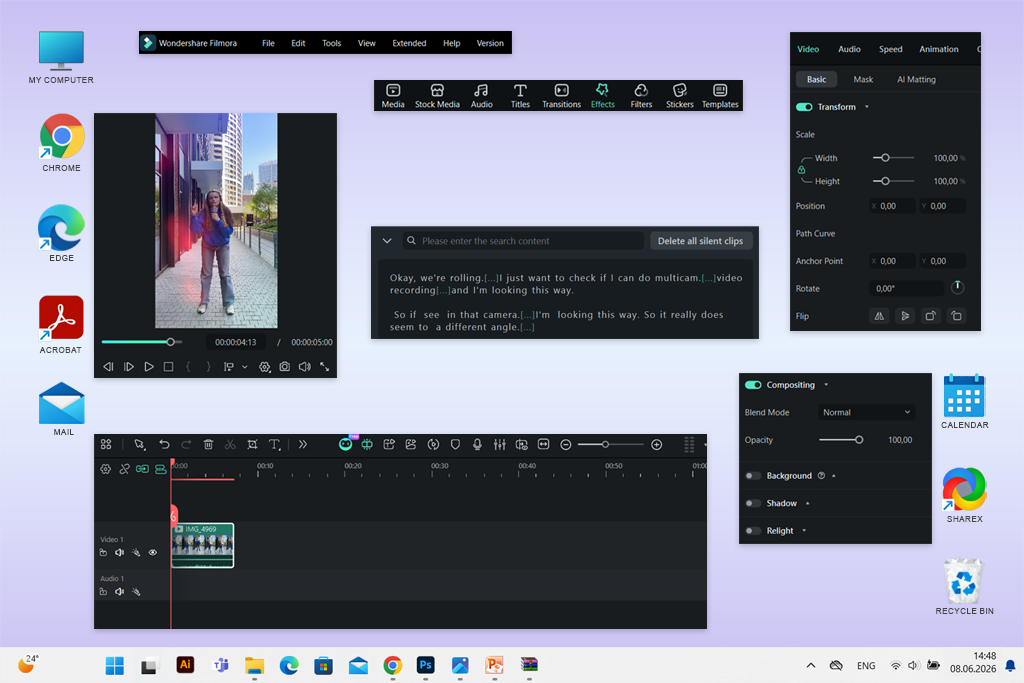
Filmora is not the most advanced AI text-based video editor on this list. However, for beginners, this is one of the most intuitive options, especially if they want to work with a regular timeline.
I included Filmora in the testing because not all beginner YouTube creators like a fully browser-based format. Many people need a single desktop program where they can trim a video, add transitions and effects, export the video in 4K, and try out AI features without having to figure out a complex professional interface.
The AI Text-Based Editor function automatically recognizes voice and converts speech from video into editable text. You just need to add a video and start transcription, and then the program will create a text layer synchronized with the necessary moments of the recording.
“Filmora is suitable for creators of YouTube tutorials who, in addition to text editing, need animated titles, enlargement of individual parts of the screen, stickers, music, and transitions.”
To test it, I used a simple tutorial video for beginners, in which I often repeated the phrase “Now I’ll show you.” This iPad video editing app recognized the speech accurately enough for me to remove the main repetitions. After text cleaning, I continued working in the familiar interface with a timeline.
The main drawback is that the text editing here feels less well thought out than in Descript or Firefly. The feature is useful, but I wouldn’t choose Filmora just for it. In addition, free use is limited by the terms of the trial version, and exported videos may contain a watermark.
Main features:
Pricing: A free or trial version is available. The Advanced plan costs $59.99 per year and includes AI credits as well as watermark-free export.
Best for: Teams that need to edit, store, publish, and analyze videos on a single platform
Platforms: web version, iOS, Android
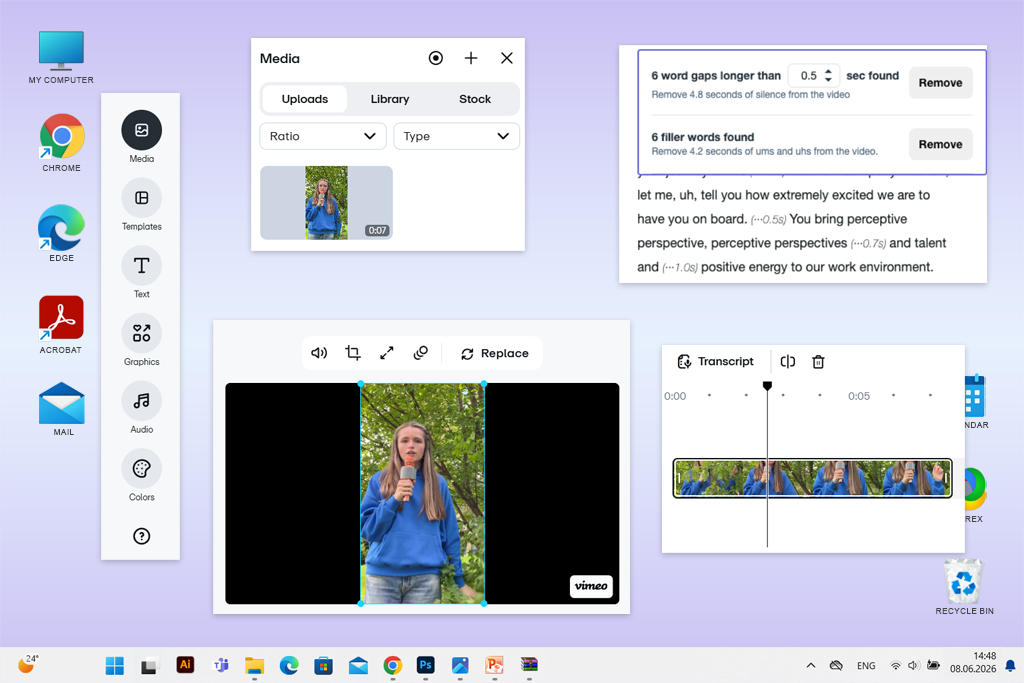
Vimeo differs from the other text-based video editors because it’s not just an editor. The platform is also designed for hosting, publishing, collaboration, and viewing statistics. Vimeo’s text editor creates a transcript using AI. After that, I can highlight an unnecessary word or an entire phrase and delete the corresponding part of the video without manually cutting it on the timeline.
“I wouldn’t choose Vimeo as the main editor for YouTube tutorials, but it is convenient for teams that publish educational videos on websites, client portals, or internal training platforms.”

During testing, Vimeo seemed to me to be a tool more for quick cleaning and subsequent publishing than for creating a video from scratch. I uploaded a short introduction to the lesson, received an automatic transcription, and removed a few filler words and one awkward pause. After that, I immediately checked how the finished video looked in the Vimeo library.
What I liked most was that small changes can be made directly to already uploaded videos. For example, if a training video for a client or a private FixThePhoto lesson is already stored in this free video editing app, I don’t have to download the file, open it in a separate program, re-export it, and upload it again.
For a team, this feature really saves time. However, for YouTube creators, Vimeo still cannot be called the most powerful text-based video editor. I wouldn’t put together a dynamic lesson with a lot of B-roll, screen zooms, fast subtitles, AI-generated scenes, and multiple creative versions of one video in it.
Main features:
Pricing: Free plan and Starter plan are available. Text-based video editing is available starting with the Standard plan. The Vimeo Help Center also lists Advanced and Enterprise among the main paid plans.
It took me more than one evening to test text-based video editors. I conducted the testing together with the FixThePhoto team, as we regularly edit tutorial videos, screen recordings, interviews, product reviews, and other educational content.
It was important for me to understand not how impressive the program looks in an advertising demonstration, but whether it really helps creators prepare and publish videos faster. In total, we tested more than 25 tools. The final selection includes only those editors where editing through transcription or AI-based features plays a significant role, rather than being added just for the sake of it.
I used the same set of materials for each program:
First, I checked the accuracy of the transcription. It was important to understand whether the text-based video editor recognized typical words from photo and video editing lessons: “masking”, “preset”, “timeline”, “keyframe”, and “background layer”. In an instructional video, even one incorrectly recognized word can completely change the meaning and confuse the viewer.
The next step was to check the quality of the splices. I removed repetitive phrases, filler words, long pauses, and poor explanations through the text, and then completely reviewed the result. Some programs recognized speech quite accurately, but after removing the text, they left abrupt transitions. Because of this, the voice sounded unnatural, and the video itself became jerky.
I also evaluated the speed of work separately. For each editor, I timed how long it took to go from a raw recording to a neat rough cut. I took into account the speed of uploading the file and creating the transcription, the ease of searching by keywords, the removal of pauses and filler words, and the ability to quickly undo an unsuccessful action.
The last part of the test concerned the entire author’s workflow. I checked not only the editing through text, but also additional features:
This way, I was able to separate simple programs for cropping video by transcription from full-fledged text-based video editors that are suitable for regular work on YouTube content. Several tools that I tested were not included in the final list:
I consider Adobe Firefly to be the best all-round option. It combines editing through transcription, generation of new video scenes, work with uploaded materials, sound tools, text templates, and a sufficiently flexible space for creativity. When I just need to quickly tidy up a YouTube tutorial, podcast, or other video with a lot of speech, I tend to choose Descript.
With text editing, the user edits not the fragments on the timeline themselves, but the transcription of the speech. I can delete unnecessary words, rearrange a sentence, or remove an entire paragraph, and then the program will automatically change the corresponding part of the video. This process is more like editing a document than the usual work with video tracks.
Yes. Adobe Firefly, Descript, Riverside, Kapwing, Visla, and Filmora offer free access. However, most free plans have limitations. This could be a watermark, a short export duration, reduced resolution, a limited number of AI credits, or a limit on the minutes of video that can be processed.
Yes, especially if the video has a lot of verbal explanations. I use these editors to remove awkward beginnings of phrases, repetitive steps, filler words, awkward pauses, and overly long explanations. This is especially convenient for tutorials on Photoshop, Lightroom, Premiere Pro, and other screen recordings where you need to quickly find a specific phrase or the desired stage of work.
Not yet. It’s great for rough editing, cleaning up transcripts, working with podcasts, interviews, webinars, and the pace of instructional videos. But for precise color correction, motion graphics, complex sound design, enlarging screen areas, transitions, and detailed placement of B-roll, I still use traditional editing tools.
For conversational videos, the simplest option would be Descript. Its logic is understandable even to a person with no editing experience, since the process resembles editing ordinary text. Filmora is more suitable for those who want to use transcription within a familiar desktop editor with a timeline, transitions, effects, and ready-made templates.



![7 Best Free Pokémon AI Generators [{{%year}} FixThePhoto Choice]](http://fixthephoto.com/blog/images/gallery/news_main__preview_29022.jpg)


![11 Best AI Virtual Assistants in {{%year}} [Reviewed & Ranked]](http://fixthephoto.com/blog/images/gallery/news_main__preview_29081.jpg)
![Photoshop App on Android [NEW Release] {{%year}} Update](http://fixthephoto.com/blog/images/gallery/news_main__preview_29048.jpg)
![7 Best iPhone Mockup Generators [{{%year}} FixThePhoto Choice]](http://fixthephoto.com/blog/images/gallery/news_main__preview_29335.jpg)


















