Working as an editor, I often need to retouch images quickly, perform color correction, and make other adjustments on the go. Many clients ask me to send files for preview to them while I am not at the office. This is why I use mobile editing apps daily. I normally use Adobe Photoshop when working on my projects.
This is why I decided to install the Photoshop app on my Samsung Galaxy S23. I had been hoping that Photoshop would release an Android version with extensive functionality for some time. I had been impressed with the performance of the iOS version when my colleague showed it to me, so I set my expectations high.
The app has been significantly upgraded recently. Now, it has powerful AI tools, delivers fast performance, and supports advanced layer-based editing. I decided to test this app on actual tasks I have to deal with daily and write a detailed review of the Photoshop app on Android that would be based on an unbiased assessment. I asked my colleagues from the FixThePhoto team to test the app as well and provide their honest evaluation.
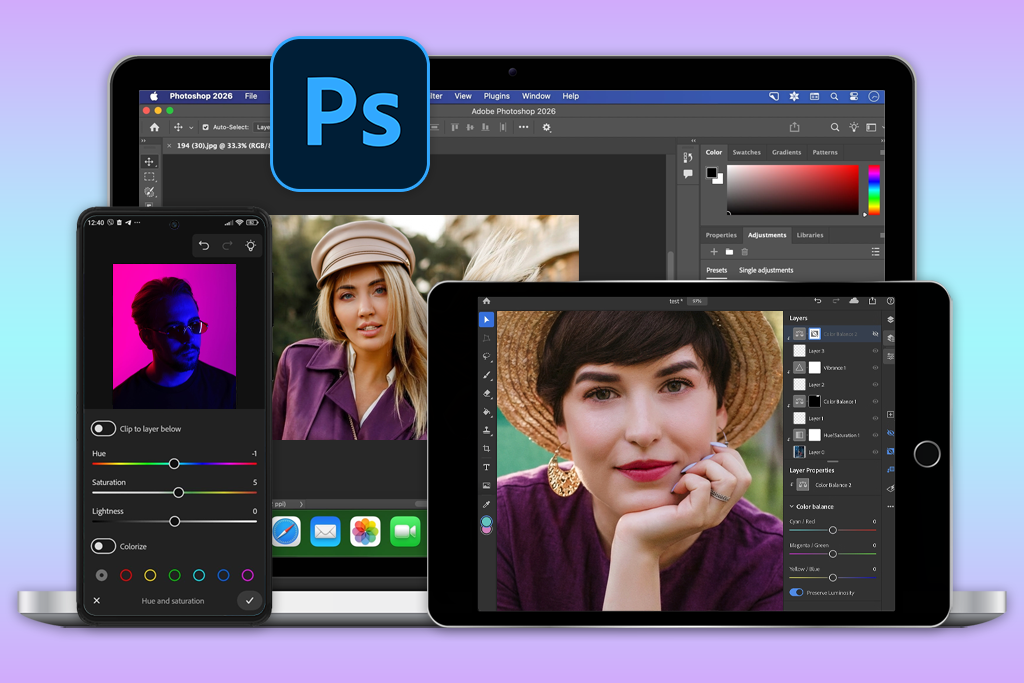
After using Adobe Photoshop on desktop, iOS, and Android devices, I was pleased to discover that its Android version has something unique. It’s not just a copy of the Photoshop for iPhone. What sets them apart is that it is optimized to be accessible from all types of Android devices.
It can be run on phones with different screen sizes, aspect ratios, chipsets, and RAM. Its layout is fully responsive, while its performance adapts depending on the capabilities of a phone. It runs seamlessly on flagship models and delivers decent performance on mid-range phones. However, you may notice some delay when using AI tools on less powerful models.
Another feature that makes the Android version unique is its touch workflow design. You can navigate through the UI using one hand. The app has floating tool panels, making it even more convenient to use on tall displays. Adobe focused on vertical usability, as most Android users edit their images on large phones or foldables. In contrast, the iPad version has a UI that closely resembles the desktop version. The Android version was built for mobile-first workflows, making it perfect for quick edits.
“I had to change my workflow a bit because the app was designed for vertical use. It was difficult at first to get used to this format as I had been working on a desktop computer for years. However, after some time, I discovered the advantages of the bottom toolbar. It makes it easier to edit my images quickly when I’m holding my phone with one hand.”

I noticed that this app handles files differently as well. Android makes it easier to access local storage, downloads folders, SD cards on connected devices, and files imported from other apps. When I work on my projects, I can import client files more quickly than on IOS devices. I can share screenshots, RAW files, logos, and reference images between different apps with ease. If you often work with third-party files, it might be more convenient for you to use the app for Android.
I was surprised to discover that the rollout timing for different tools and upgrades changes depending on the platform. Adobe released the new mobile version of Photoshop on the iPhone first. A beta version for Android was released later. Due to this delay, Android updates are typically released after updates, optimizations, or UI improvements on iOS. Be sure to keep this in mind if you want to access the most recent versions of your favorite tools quickly.
Finally, you need to consider hardware flexibility to understand how to use this photo editing app for Android. When using a mobile version of Photoshop, you will notice that your experience will be different when you use a device with a stylus, high-refresh-rate displays, or a foldable screen. I used Photoshop on several mobile devices to perform all sorts of tasks, from simple retouching to more advanced layer-based editing. It makes this app an excellent option for advanced users.
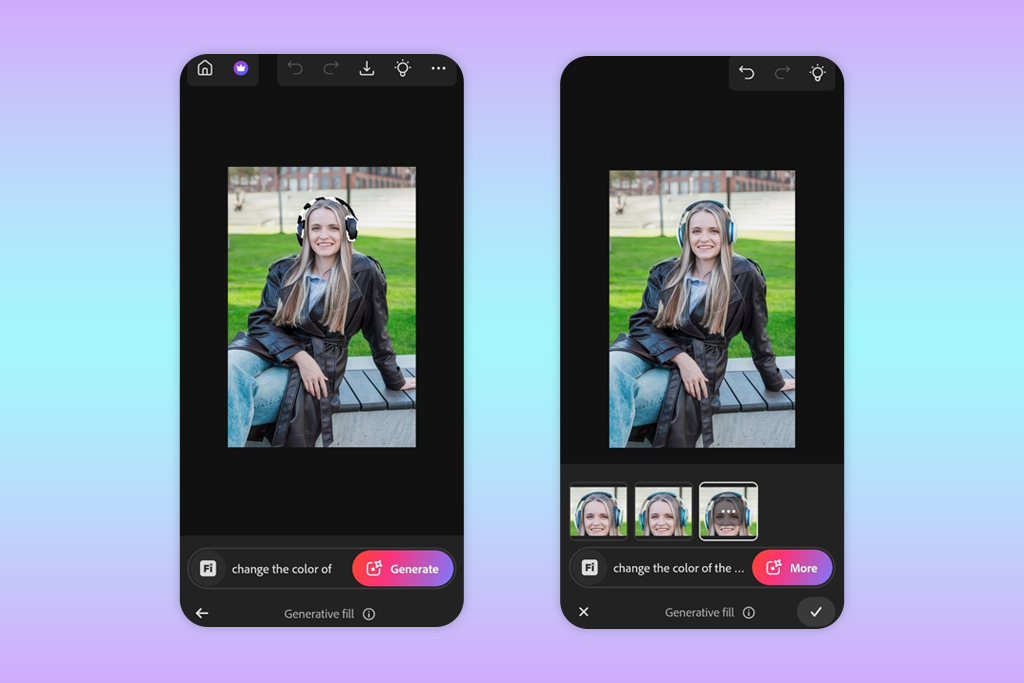
Adobe decided to release a new version of Photoshop for mobile devices to integrate AI tools. They help Android users significantly expedite their workflows and save a lot of time. The app comes with a set of AI tools based on Adobe’s Firefly technology. It allows users to access such features as Generative Fill.
While many other similar apps have only basic AI filters, this tool is similar to the feature I can access in Adobe Firefly in Photoshop on desktop. It was just optimized for mobile users who run the app on their phones.
I use Generative Fill more often than other tools, as it enables me to delete or extend some areas of my photos and fill the empty space with AI-generated textures. It makes it easier for me to remove unwanted details, expand the background, or improve composition before publishing my images in the formats supported by different social media platforms.
For instance, I sometimes use Generative Fill to extend the scene when I need to save a horizontal image in a vertical format suitable for mobile devices. However, the quality of outputs depends on the source image.
“I used the Generative Fill feature to extend backgrounds and delete unwanted objects. It delivers excellent performance when one uses it with simple images. However, in some cases, you will need to use it several times to achieve the desired result.”

Before using these AI tools in Photoshop, be sure to check whether you have a stable Internet connection. Their performance is impacted by the connection speed. If your network is stable, you will be able to see the results of your edits faster. However, there might be a delay on slow networks. Besides, you will need to use a powerful smartphone with a lot of RAM. Unlike lightweight mobile editors, this app relies heavily on Adobe’s backend.
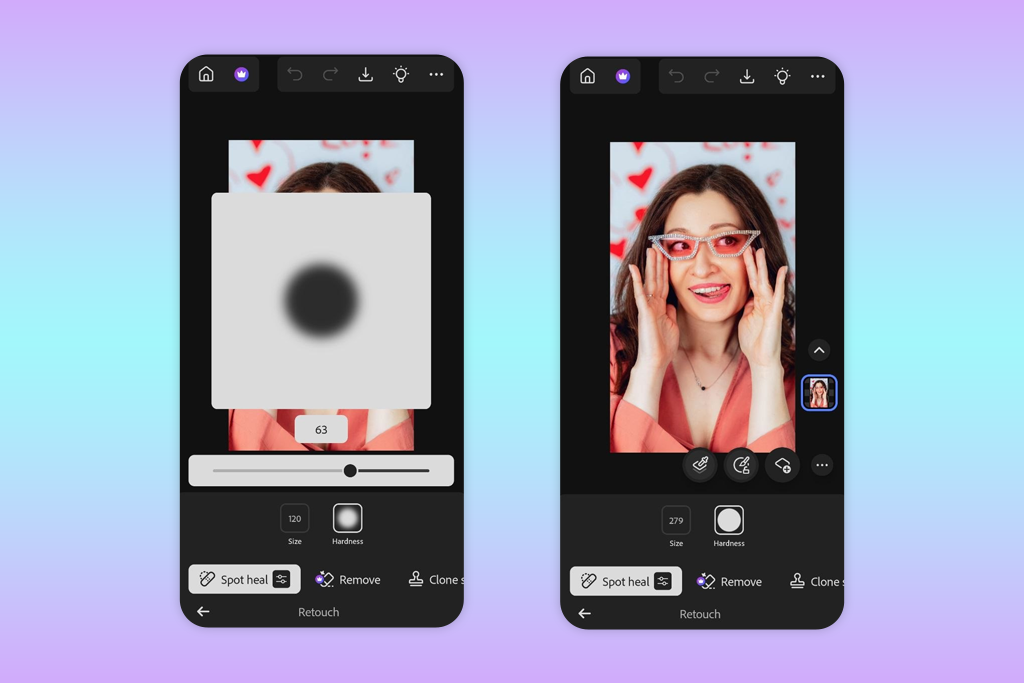
If you want to use the Adobe Photoshop Android app for daily editing tasks, be sure to take a closer look at its retouching tools. The mobile version allows you to access such features as Spot Heal, Remove, Clone Stamp, Lighten, and Darken. Even though they are hardly suitable for advanced editing, they will help you perform quick local adjustments.
When I work on my daily tasks I use Spot Heal whenever I need to remove small distracting elements, including dust, skin imperfections, or background details. This Photoshop tool delivers better results when the surrounding texture is simple. I use it when I need to delete a small spot on a wall or delete a blemish before sending a file to a client for a preview. Spot Heal handles such tasks quickly, so I do not even need to use the desktop version on my laptop.
“I often use Spot Heal when I need to make subtle skin texture adjustments or remove specks of dust. It delivers quick performance and allows me to make accurate edits, especially if the surrounding area is clean enough. However, it might make complex textures a bit blurry, so you should focus on accuracy. It’s mostly suitable for quick retouching of client previews.”

The Remove Tool is more powerful, making it suitable for complex tasks. You can use it to delete larger elements, including a wire or other unwanted objects in any part of the frame. I often use it when I need to improve my drafts or quickly enhance my photos in Photoshop for Android free of charge before uploading them to social media.
Despite the impressive functionality of this feature, I still use its desktop version when I need to perform an accurate image cleanup. The desktop tool is a better choice for editing complex textures, including hair, fabric, grass, or backgrounds with patterns.
The Clone Stamp is the best tool for professional-level editing, as it allows me to maintain full manual control. Instead of relying on the automated suggestions, I sample a clean area and paint it over the section of an image I want to fix. This feature will come in handy for situations when AI-based tools leave blurry patches or repeated textures. However, it could be challenging to use Clone Stamp on a small phone screen. The Photoshop mobile app for Android is suitable for minor adjustments on a phone, but I still use my tablet or a desktop computer when I need to perform beauty retouching or professional product cleanup.
“Clone Stamp is the best tool to use in situations when automatic features fail to produce the desired result. I prefer to use it to clean up backgrounds if I cannot achieve the result I need with the help of the Remove tool. Even though it might be difficult to use this feature on a smartphone, it is still suitable for editing small areas.”
I also liked the fact that there are Lighten and Darken features that can be used for performing tonal adjustments. Even though these tools do not produce such noticeable results as AI features, they are important for every image editing workflow.
Using them, you can soften shadows, make highlights more balanced, or make certain areas less eye-catching. They will give your image a more polished look without making it look overly edited.
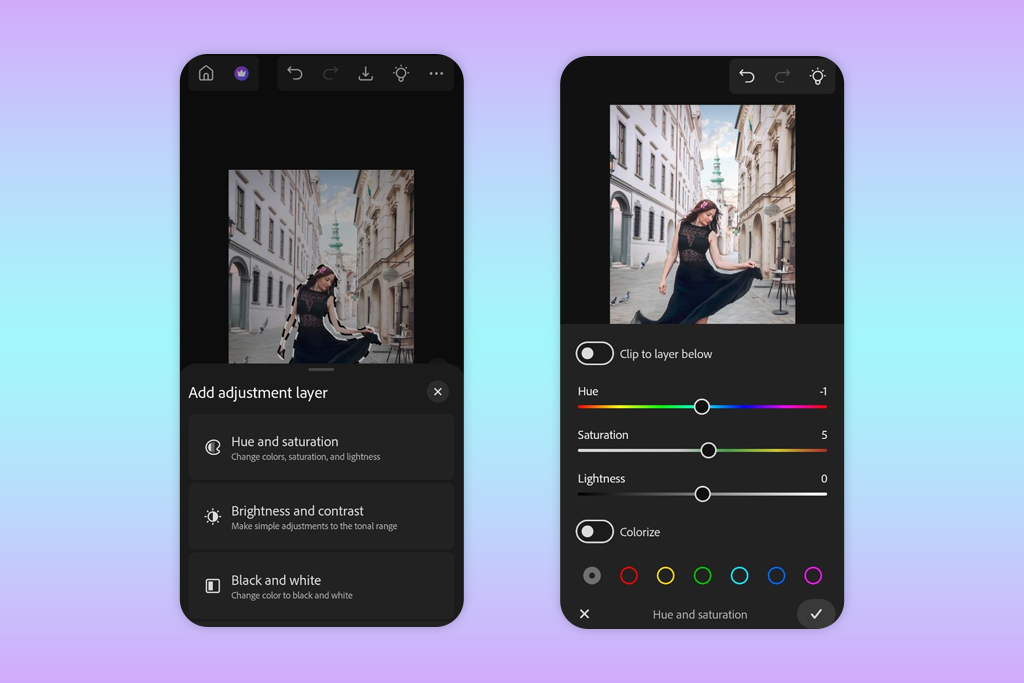
What strikes me most about the Photoshop app on Android is that it supports actual layer-based editing workflows. I can adjust settings for objects in different layers, preview my edits, and cancel specific adjustments at any point later without affecting the original image.
It’s especially useful when I need to create a client preview quickly on the go and have only my phone at hand. In this case, I can create a brightness or color adjustment layer, lower the opacity, and make any edits without changing the source image.
Photoshop app for Android allows me to work with adjustment layers, perform layer stacking, and use blending modes. It makes my mobile Photoshop workflow quite similar to a desktop one. I can combine layers with exposure adjustments, color corrections, and retouching edits without merging them fully.
The modes for blending layers in Photoshop are easy to use, especially if you have some prior experience. If you know how to use Multiply, Screen, or Overlay tools in the desktop version, you will easily figure out how to use these features on your phone.
“I was pleased to discover that this app supports layer editing. I often need to use adjustment layers and save minor retouching edits in separate layers to ensure that the source image will remain intact. It’s quite convenient that his app saves layers instead of merging them. It makes it easier for me to continue working on my project when I reopen the file.”
This app also supports masking, which allows me to control the output with better precision. I do not need to apply my edits to the whole image, as I can adjust settings for specific areas. When using the app on a smartphone, the results of such edits are less precise than when you use a tablet or a desktop computer.
However, I can still perform general edits. I can make the sky darker without impacting the subject or tweak skin tones without distorting background colors. I did not expect such a high level of control when using a phone.
Another reason to download Photoshop for Android is to perform layer editing. This app keeps layers separate between sessions. When I stop editing my image, close the app, and open the same file later, I see that my edits were saved perfectly in different layers. It helped me optimize my mobile editing workflow. I can pause my project whenever I need it and then continue editing it later, either on my smartphone or in the desktop version.
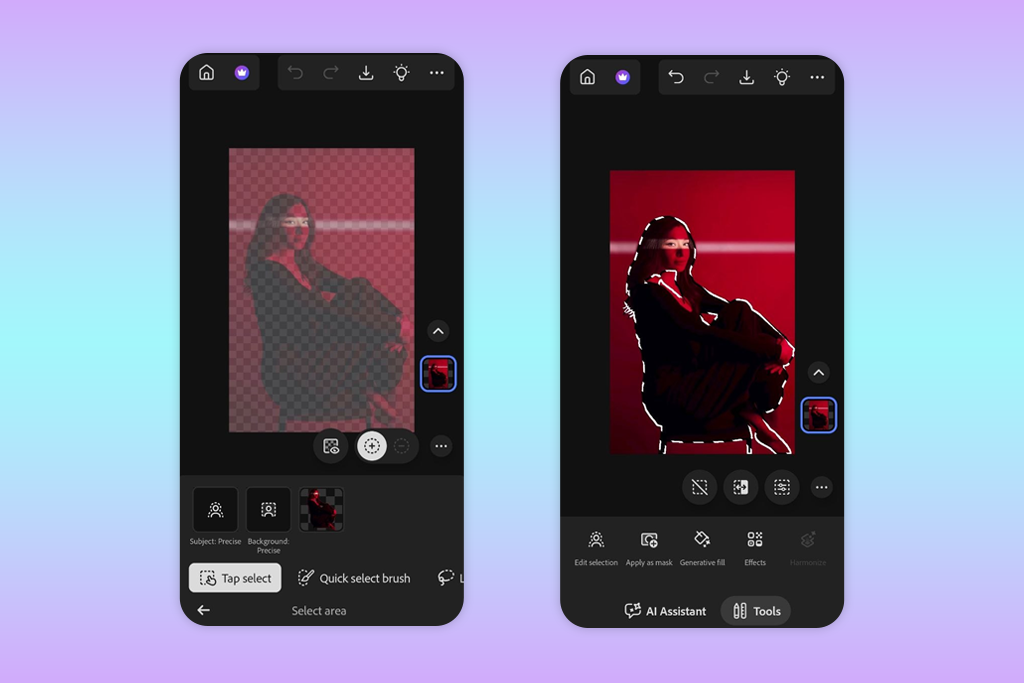
After downloading Photoshop app apk for Android, I discovered that the app has helpful selection tools. When editing images on mobile devices, the most difficult task is to select objects with high precision. This is why I wanted to test this Photoshop editor on Android to see whether it could handle such a task.
I was pleased to discover that it has an extensive toolset that includes both well-known tools and new features optimized for touchscreens. Even though it does not support the same level of accuracy as Adobe Photoshop, it might be suitable for those who want to select objects quickly and do not care about high accuracy.
I discovered that the Magic Wand and Object Select features are quite similar to their desktop versions. Magic Wand is suitable for selecting objects shot against basic backgrounds with clear contrast. Object Select facilitates detecting subjects within a scene. I use these tools to quickly isolate a product from the background or separate a subject to perform simple color adjustments. I can still use them in the mobile version, but the results depend on the quality and contrast of an image.
“Magic Wand functions in the same way as in the desktop version. It delivers better performance when an image has good contrast, so I mostly use it on photos of a subject shot against a simple background. However, I consider it a starting point in my editing workflow.”
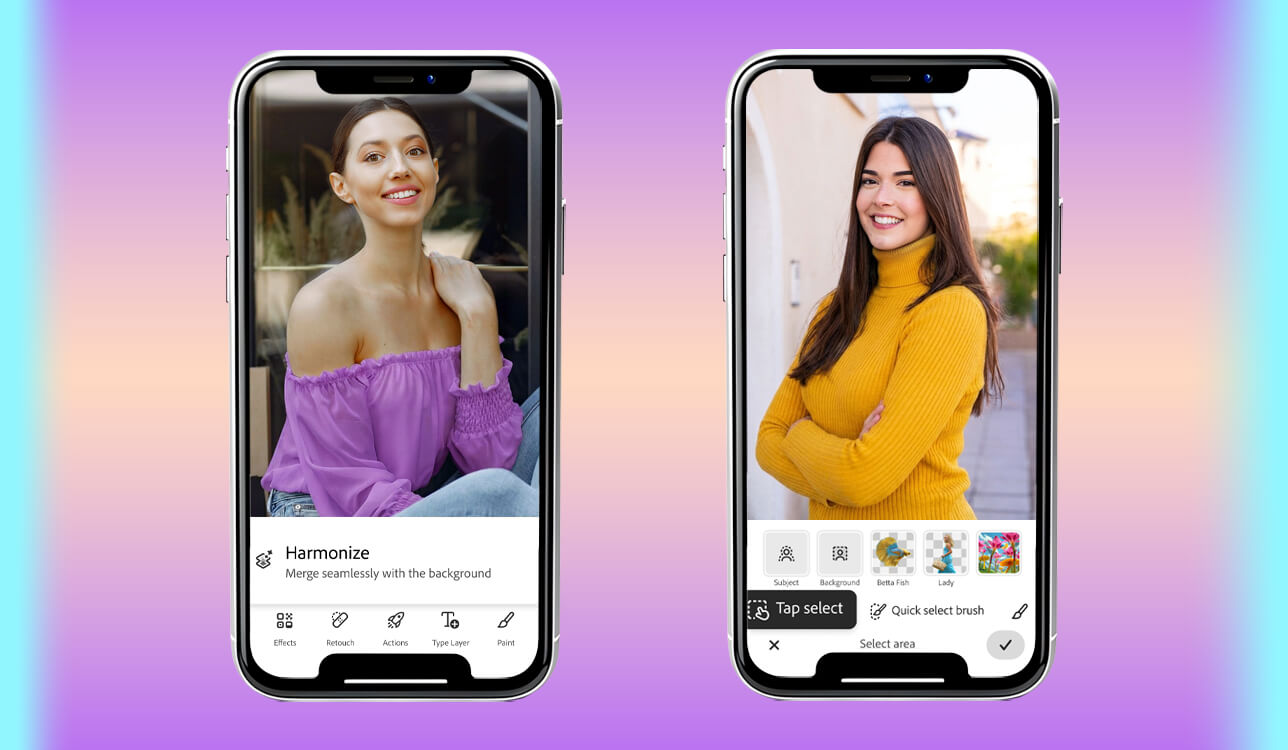
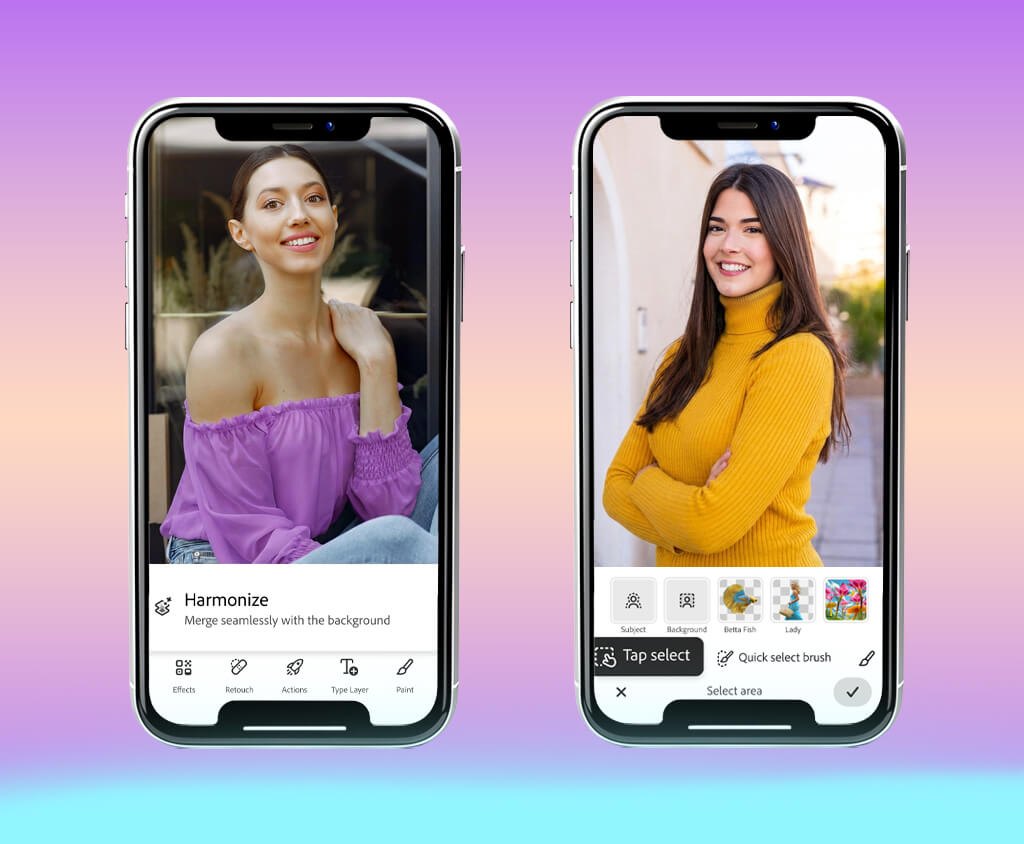
The Tap Select feature was created specifically for mobile devices. The app analyzes an image and suggests objects that can be selected. You can edit each object separately. This feature was built for workflow optimization. However, it is suitable only for editing clean images with good contrast. It’s hardly the best choice for editing pictures with complex compositions.
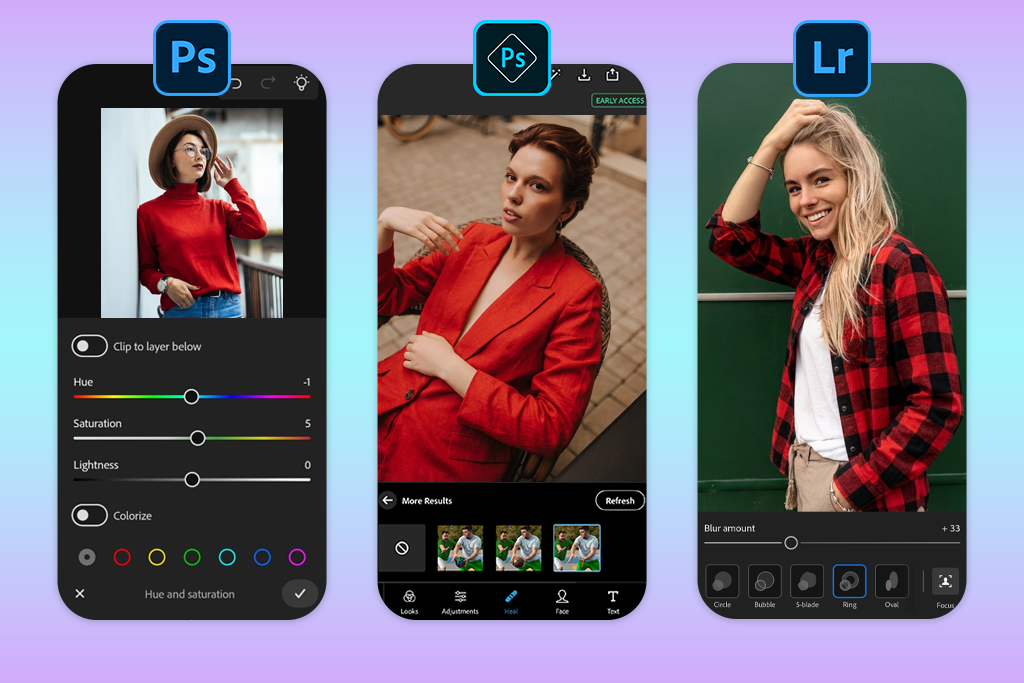
Adobe has several mobile apps for editing photos, which might make it a bit difficult to choose the most suitable option. As I prefer to edit my photos on the go using Android devices, I believe that one should learn more about the functionality of Photoshop Express, Lightroom Mobile, and the recently released Photoshop app to make the right choice. Even though they were released by the same company, they were created for different photo editing workflows.
The new Photoshop app is different from the rest, as it supports layer editing on mobile devices. It makes it similar to the desktop version of Photoshop in terms of functionality. This app allows me to work with masks, layers, and blending modes to perform complex tasks like compositing and precise adjustments. It was impossible to achieve similar results using the other apps.
Adobe Photoshop Express for Android is the most intuitive option among the three. It was built specifically for quick edits. With it, you can crop your images, apply filters, and perform minor retouching tasks. Even though it handles basic tasks perfectly, it does not support more advanced editing.
You can’t work with layers. Besides, it has a limited choice of pro-grade tools and does not support in-depth control over edits. I use it only when I need to edit my images quickly before publishing them on social media, and do not care much about high accuracy.
Adobe Lightroom Mobile was created for different types of tasks. If you are looking for a photo editing app like Photoshop for Android, take a closer look at this solution. It is suitable to performing color correction, adjusting exposure, and editing RAW files. I often use it when I need to tweak tones, apply presets, or edit multiple images. However, unlike the desktop version, it does not have advanced retouching features like Clone Stamp or a pro-grade object removal tool. Besides, it is not suitable for compositing and layer editing.
No, this Photoshop alternative for Android is different from the desktop version in terms of functionality and cannot replace it fully. Even though it allows users to work with layers, use masks, and access AI tools, it was built specifically for mobile use. It means that you won’t achieve the same level of accuracy here. Besides, it lacks some pro-grade tools and delivers less powerful performance. However, its workflow is somewhat similar to the desktop version.
You can find Photoshop Android free download file and use this app without paying anything, but some of its advanced tools are paid. It’s possible to perform simple editing tasks, work with layers, and select objects without paying for a subscription, making it suitable for many tasks you may have to deal with daily.
When I decided to test this app, I discovered that it has high requirements. You need to use an Android device with at least 6GB of RAM (8GB is recommended). The app’s performance will depend on your processor and the quality of your connection. Generative Fill and other AI-based tools rely on cloud processing, which means that their performance will be worse on weak devices or due to an unstable connection.
Yes, the app allows users to open and edit PSD files with layers. It makes it more convenient to use than other apps like Adobe Photoshop Express. The only issue may occur with large files with many layers or high resolution.
You can use it for editing your files on the go, creating quick client previews, and performing basic tasks. I often use this app to perform small retouching tasks and minor adjustments when I don’t have access to my computer. However, I prefer to use the desktop version of Photoshop when I need to perform detailed editing, as it allows me to control the output with higher precision.
When we decided to assess the performance of the Photoshop app on Android, we examined how well it could handle actual tasks we had to deal with when working on our projects. We did not want to evaluate the features available in the demo version. As we often need to meet tight deadlines, we wanted to understand whether it would be possible for us to use this app on the go and work on our projects without impacting their quality.
First, I tested the main editing tools available in this app. I checked whether it would be convenient to use masks and layers, use retouching features, and select objects with high precision. I did not just check the availability of specific tools in the mobile version. I wanted to see whether it would be convenient to use them on my mobile device.
I tested selection accuracy and layer management tools. Besides, I considered whether it would be possible to edit images without degrading their quality. This approach helped me understand whether this app could be used for actual editing tasks.
Nataly was mostly interested in assessing the performance of this app and wanted to see whether it would remain stable. She tried working with high-resolution images, switching between different layers, and using AI-driven tools like Generative Fill. Nataly wanted to assess processing speed, responsiveness, and performance under heavy load. Knowing that the performance of every mobile app depends on the device, she also asked our colleagues for feedback.
Another thing we were interested in was the availability of AI tools and cloud integration. Many professional solutions depend on Adobe’s backend. This is why Ann wanted to understand whether the performance of Photoshop depends on the connection and see whether it would be possible to produce consistent outputs using the Photoshop Android version. She checked whether the AI outputs required a lot of editing and were suitable for practical use. We often need to meet tight deadlines, so Ann’s concerns were relevant.
Finally, I analyzed the overall experience of using this app. I wanted to see whether it would be easy to install it, edit photos, and export outputs. I tested compatibility with PSD formats, checked whether it would be convenient to work with files, and assessed the integration of this app into Adobe-based workflows. My main goal was not only to test the functionality of this app, but also to understand whether I would be able to use it to work on professional tasks on my Android device.



![7 Best HeyGen Alternatives [{{%year}} FixThePhoto Choice]](http://fixthephoto.com/blog/images/gallery/news_main__preview_28944.jpg)
![7 Best Cricket Logo Makers [{{%year}} FixThePhoto Choice]](http://fixthephoto.com/blog/images/gallery/news_main__preview_28973.jpg)


![7 Minecraft Banner Makers [Design Examples]](http://fixthephoto.com/blog/images/gallery/news_main__preview_28947.jpg)


![7 Best Badge Makers [Create Designs That Sell]](http://fixthephoto.com/blog/images/gallery/news_main__preview_28983.jpg)

















