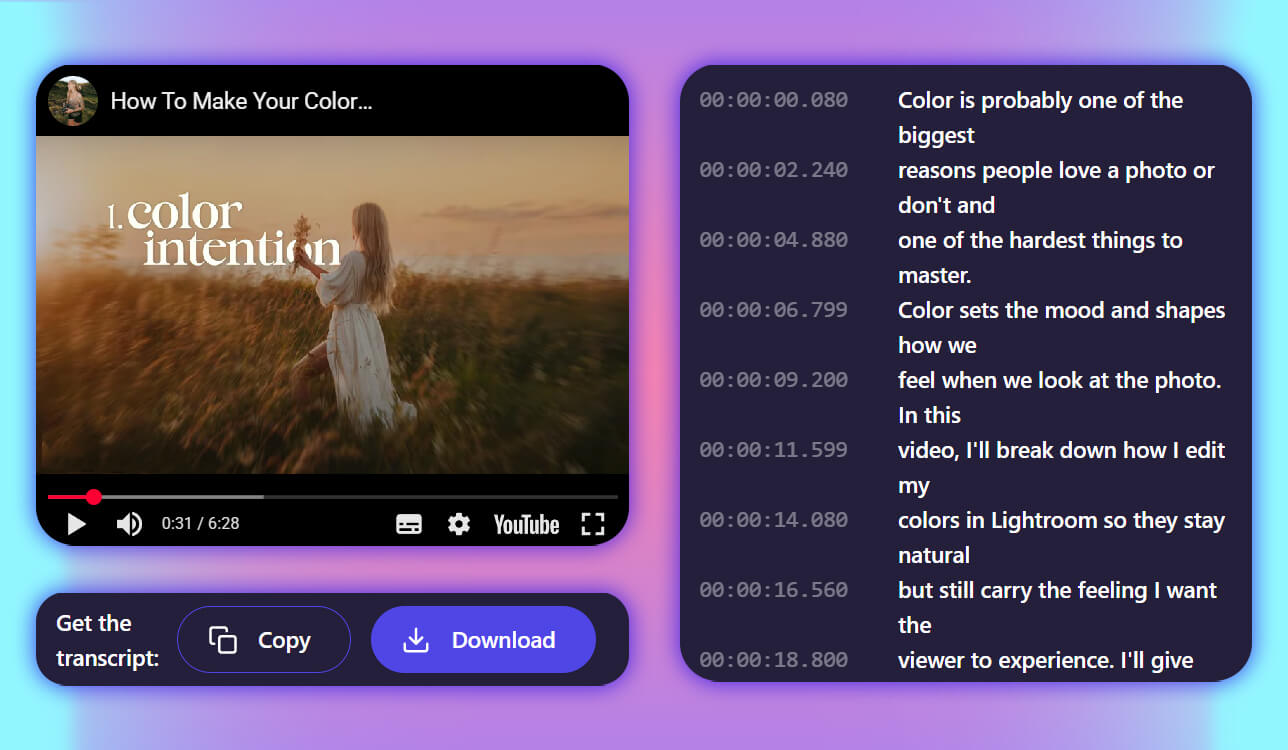
A YouTube transcript generator became essential for me when I started editing YouTube videos for our blog. Good captions helped me improve timing, make the videos more accessible, and reuse the content for short clips and blog posts - but doing all of this by hand took too much time.
Once the new videos were published, subscribers began asking me the same thing over and over: Which YouTube transcript tool are you using? That moment made it clear I needed a reliable answer based on real testing.
Rather than pointing to a random tool, I set out to test 50+ YouTube transcript generators side by side and identify which ones truly save time. To ensure balanced results, I involved several members of my team, who tested the tools on different types of content, including interviews, tutorials, voiceovers, and noisy outdoor recordings.
When I first made YouTube videos, I realized how much a transcript helps with editing. Instead of trying to guess where to cut or re-record unclear parts, I could look at the text. It instantly showed me filler words, pauses, or where my point wasn’t clear. A transcript acts like a map - it reveals where the story works and where it needs to be tighter.
Transcripts also make your content more accessible. Many people watch videos without sound - maybe they’re at work, commuting, or just prefer to read. With accurate captions, these viewers watch longer, interact more, and are more likely to come back. It’s one of the simplest and most professional ways to improve viewer retention, without spending money on ads or special tools.
Beyond making videos easier to follow and edit, transcripts are a great tool for promotion. Having the text ready lets me quickly pull out key quotes, timestamps for video chapters, or turn a long video into a blog post, Instagram slides, or a TikTok script. One 10-minute recording can be repurposed into content for many different platforms, not just one upload.
And finally, transcripts are a powerful marketing tool. The words you speak naturally contain key search terms. A good transcript tool helps you find and refine those keywords so you can use them again. This improves your search ranking on YouTube, brings in more organic viewers, and gives more visibility to niche videos that often get missed.
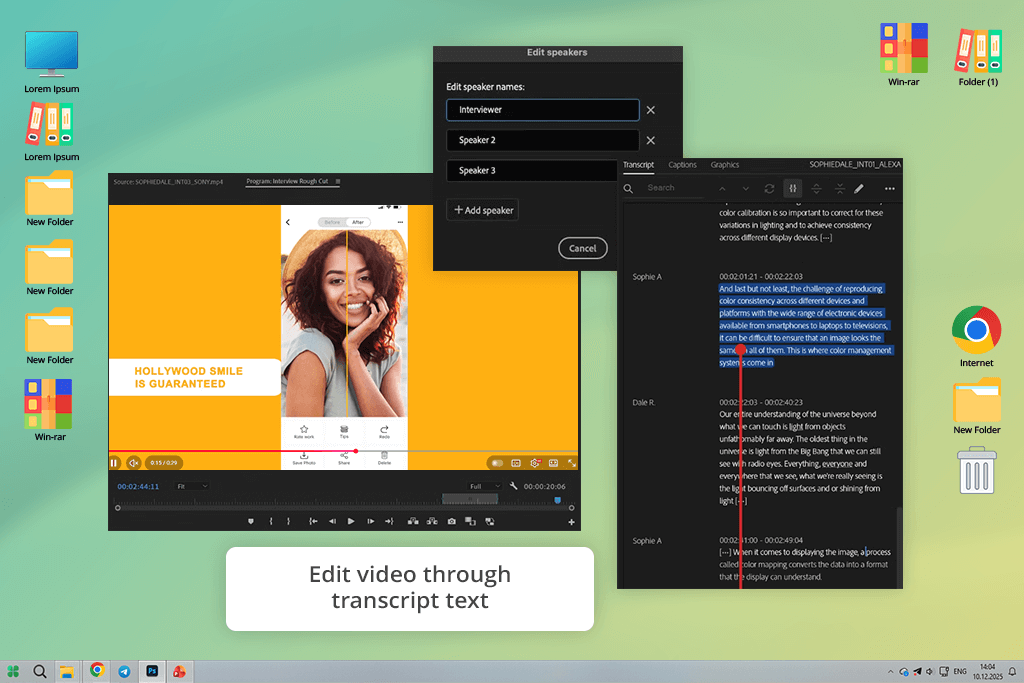
I’ve always used Adobe tools, so when I needed transcripts for YouTube, I checked if Premiere Pro could do it. I opened my timeline, went to the Text panel, and clicked Transcribe Sequence. Seeing the script appear so quickly changed my editing - instead of searching through audio, I could just scroll through the text like a document.
What made me decide was using transcript-based editing for a tutorial voiceover. I simply selected filler phrases like “uh” and “so yeah” in the transcript, deleted them, and Premiere automatically removed those moments from the timeline. No manual cuts, no zooming in frame by frame - just editing text and watching the video clean itself up.
After that, I generated captions, translated them for a Ukrainian-speaking audience, and customized the look: larger text, positioned in the lower third, with a warm-toned outline. I saved the style as a template and reused it later, making the next video almost effortless.
It’s not a simple, one-click tool, and it does have a learning curve. Premiere Pro is a deep and powerful program. You can use this YouTube transcript software for everything from subtitling and styling to rough editing, AI-powered pause removal, and translating captions into 27 languages.
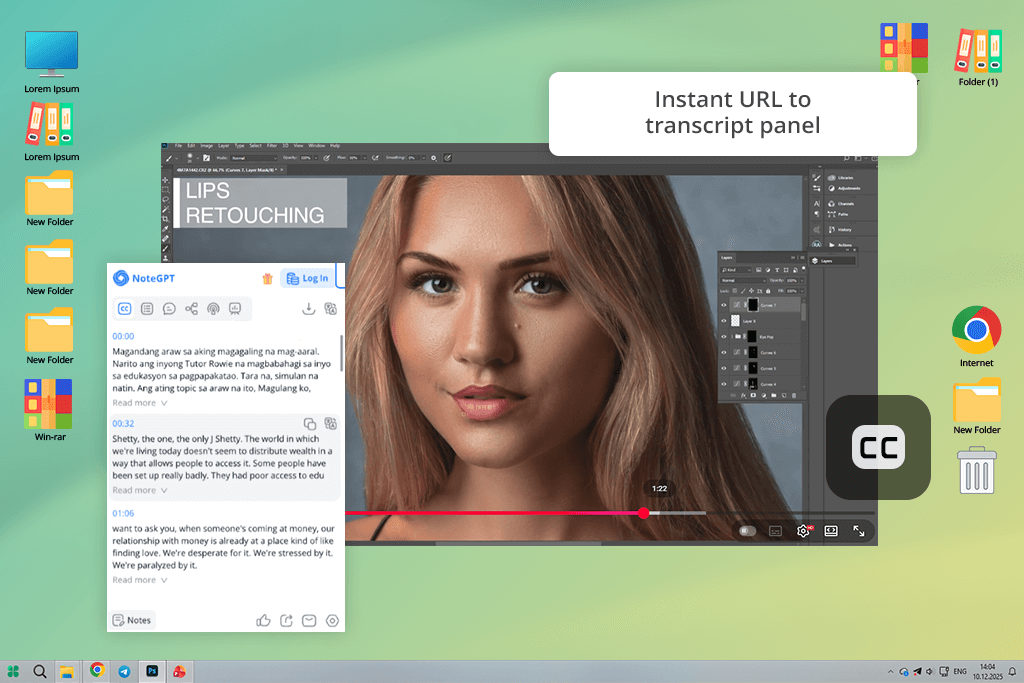
People kept recommending NoteGPT to me in comments, so, I finally tried it. I pasted a YouTube URL into the site, clicked extract, and within seconds had a clean, time-stamped transcript. There was nothing to install, no need to log in, and no confusing settings to adjust. I began picking out important lines from the text before my main editing program, Premiere Pro, was fully open.
What impressed me the most was its ability with long videos. I tested it on a 50-minute photography analysis. Instead of getting lost in pages of text, I clicked the AI Summary button and received a clear, organized overview of the key topics. While not flawless, it absolutely saved me the time of rewatching the whole video just to gather notes for a blog post.
This tool isn’t filled with advanced features - you won’t get the detailed formatting or timeline editing of professional software. However, when I need to pull text from a video quickly without launching a heavy editor, transcription app is the one I turn to.
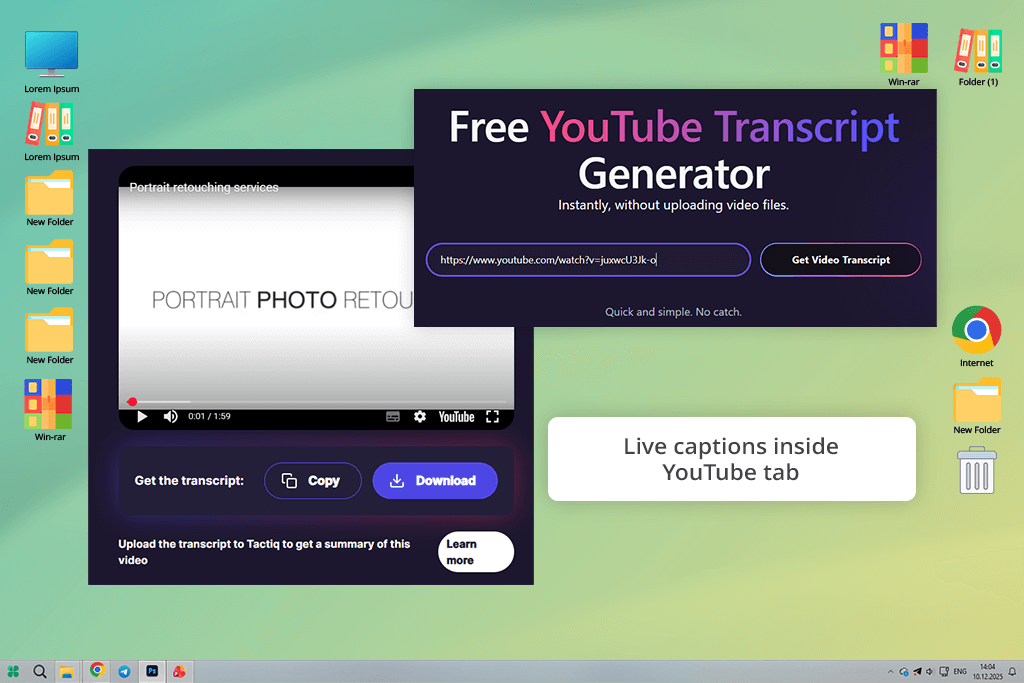
Tactiq was a YouTube transcript tool I stumbled on by chance, not from any list or recommendation. I installed the Chrome extension, opened a YouTube video, and a small window immediately showed the transcript of what I was watching. I didn’t have to switch tools or copy links. Everything worked right inside the browser, which felt very natural, especially when doing several things at once.
I truly saw the value of Tactiq during a live workshop stream. Rather than trying to write everything down, I let the extension record the speech and created a summary afterward. The transcript wasn’t perfectly exact, which is normal for speech recognition, but it was clear enough to find timestamps, key lessons, and useful quotes for the description.
Tactiq is not meant for detailed transcript editing or advanced formatting. Instead, it works best for quickly capturing text and understanding context, especially when switching between meetings, live streams, and YouTube research. If, like me, you often watch tutorials while working, tools like this YouTube to text converter help turn simple viewing into something actually useful.
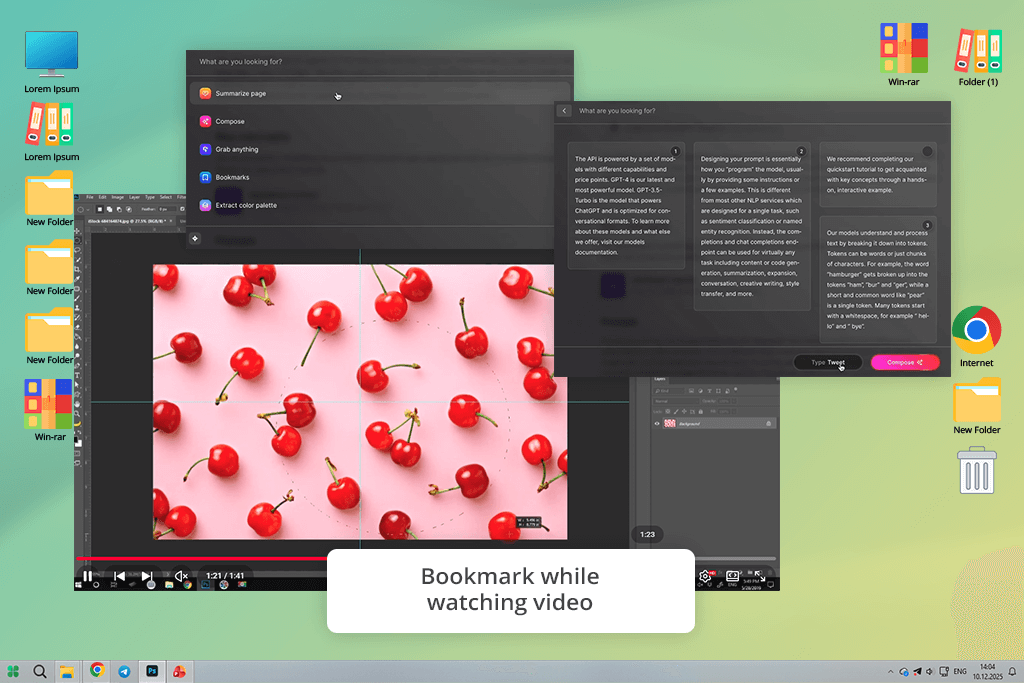
My colleague Tata encouraged me to try Kome AI. I expected it to be just another YouTube transcription tool, but I quickly understood why she recommended it. I didn’t even need to paste a link - I opened a YouTube video, launched the extension, and right away saw the transcript, timestamps, and a summary panel next to the video.
What impressed me most was not even the fast transcript but how easy it was to save moments, add short notes, and come back to them later. I tried it on a long color-grading tutorial and marked parts like “good LUT workflow” and “skin tone fix at 14:22.” When I opened it the next day, everything was saved, and an AI summary gave me the main points in just one short paragraph.
There is one downside: the free version includes only a small number of AI summaries, so if you use summaries often, you will reach the limit quickly. Therefore, for daily tasks like transcripts, saved highlights, and support for multiple languages, this video caption app works smoothly inside the browser.
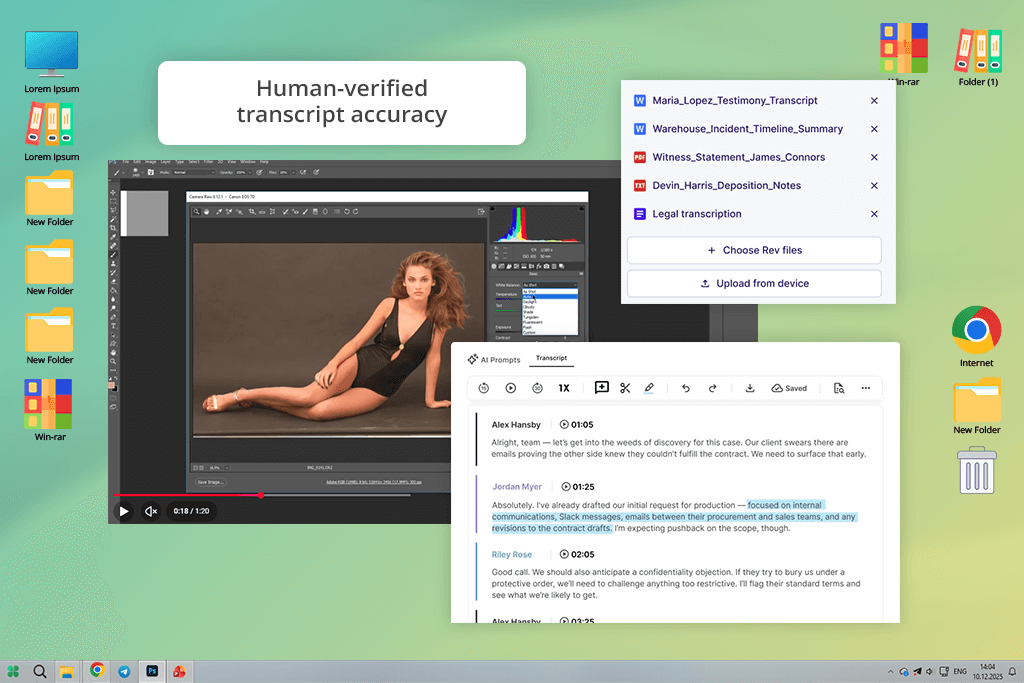
What first drew me to Rev was its human-reviewed transcription option. While most tools use AI, they can miss the subtleties of real conversation. To test it, I uploaded a short interview where two photographers talked over each other. The difference was clear: the Rev transcript returned perfectly clean, with each speaker correctly identified, filler words removed, and the meaning preserved.
I tried the AI-only transcription for comparison. It was much faster, but the tone and flow weren’t as polished. It’s useful for brainstorming or making a rough cut, but I only trusted the human-reviewed version to publish. I downloaded captions in SRT, TXT, and VTT formats, then imported them into Premiere. Everything synced correctly without needing to adjust the timestamps.
Rev is expensive, and choosing human review means you have to wait, as quality takes time. But when I’m creating content for clients, or working on videos where a single misunderstood word could change the meaning, this YouTube caption generator feels like the right choice.
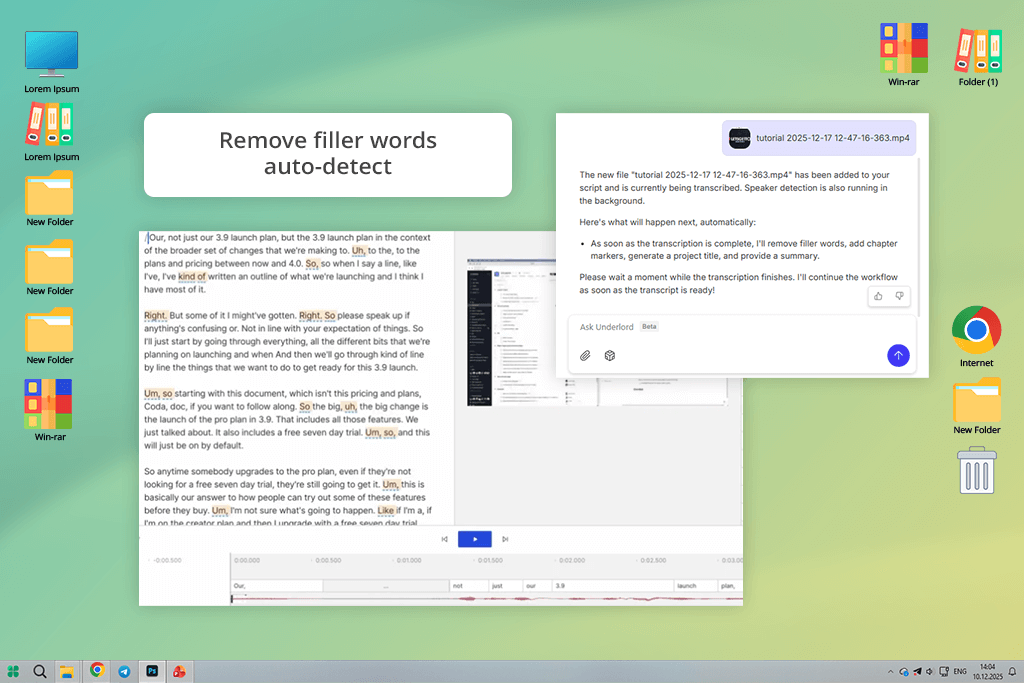
Even though Descript looks very simple at first, its subtitle editor is surprisingly powerful. I dropped a video into the workspace, let it generate a transcript, and soon I was editing the text just like in a document. The most impressive was deleting a sentence and seeing the video cut itself automatically, without using the timeline at all.
Using this YouTube transcript tool, I quickly corrected punctuation and removed filler words like “uh” with one click, and the subtitles updated instantly. Instead of adjusting tiny timeline clips, I worked directly with the text. This let me fix mistakes ten times faster than in a traditional video editor. I even tested it by re-recording a mispronounced word, and it synced perfectly into the video.
Descript has limits - the free plan includes just one hour of transcription, and many of its best features require a paid subscription. However, for videos that rely on a script, like interviews, podcasts, or any project, where editing the text and captions together is essential, it’s a very effective and popular tool.
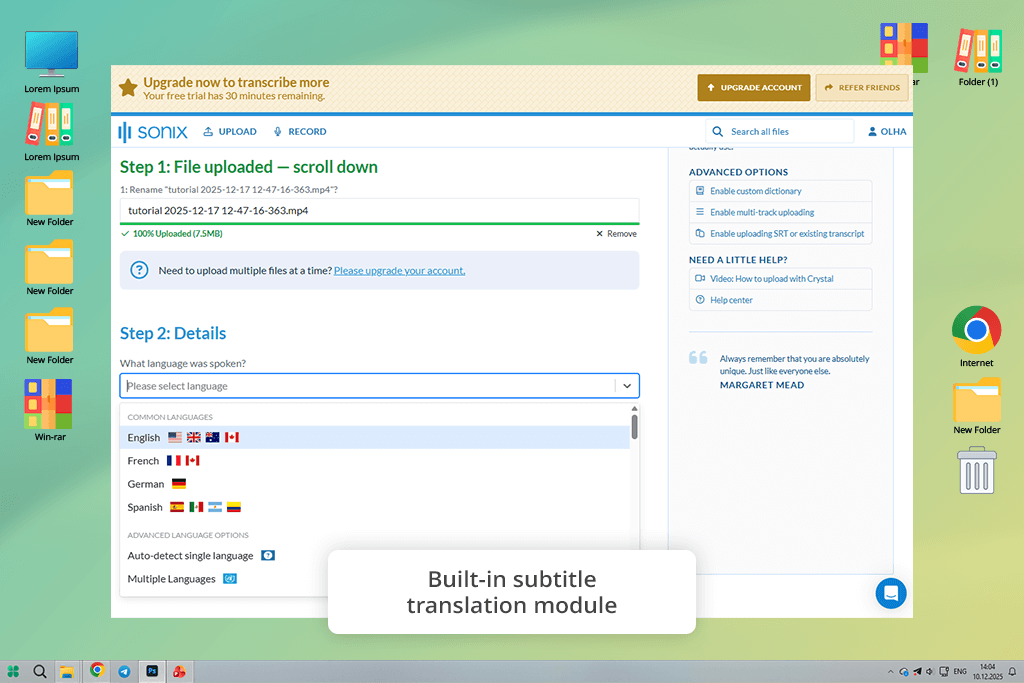
Sonix caught my attention with its built-in subtitle translator. I tested it with a 12-minute YouTube review. The AI transcribed the English accurately and aligned the timing well. Out of curiosity, I switched to translation mode to generate Ukrainian subtitles. The translation kept the original structure and meaning clear, needing only minor adjustments afterward.
To test the collaborative features, I invited a teammate to leave notes directly in the transcript. We highlighted unclear phrases and added comments with timestamps. Once we finished, we exported the final subtitles as an SRT file for use in Premiere. The workflow was very and every edit we made was instantly reflected and synchronized in the video timeline.
Sonix does take some time to learn, especially its editing and project management tools. This YouTube to text generator is clearly designed for handling a large volume of work like big archives, multiple projects, and team collaboration. For a single, quick transcript, it might feel like too much.
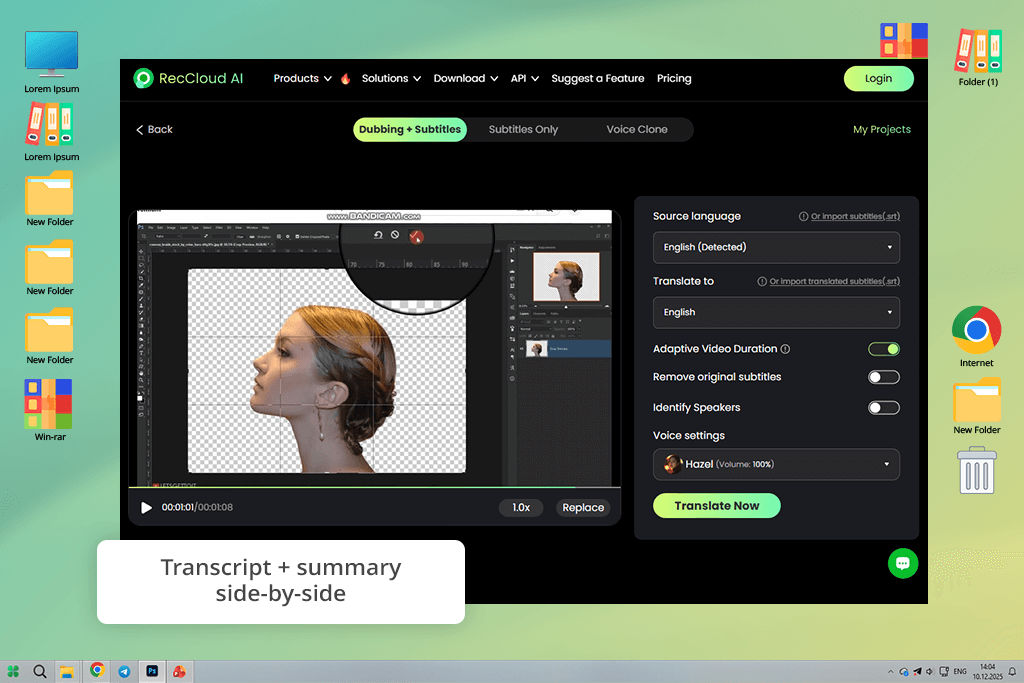
I first heard about RecCloud on Reddit, where it was recommended as a “quick transcript tool for YouTubers.” My curiosity led me to try it. I uploaded one of my shorter videos, mainly to see how fast it was. In about a minute, I had a complete transcript ready to download. The interface was simple, with no complicated menus, setup, or unnecessary features.
I also used it to repurpose content. I took the transcript, followed RecCloud’s built-in summary tool, and quickly pulled out ideas for social media captions and blog highlights. If your main goal is to quickly extract the text from a video so you can reuse it somewhere else, RecCloud does exactly that without any extra complexity.
It’s clearly not the most advanced tool available. There’s no detailed editing interface, no complex export options, and the pricing isn’t immediately clear unless you search for it.
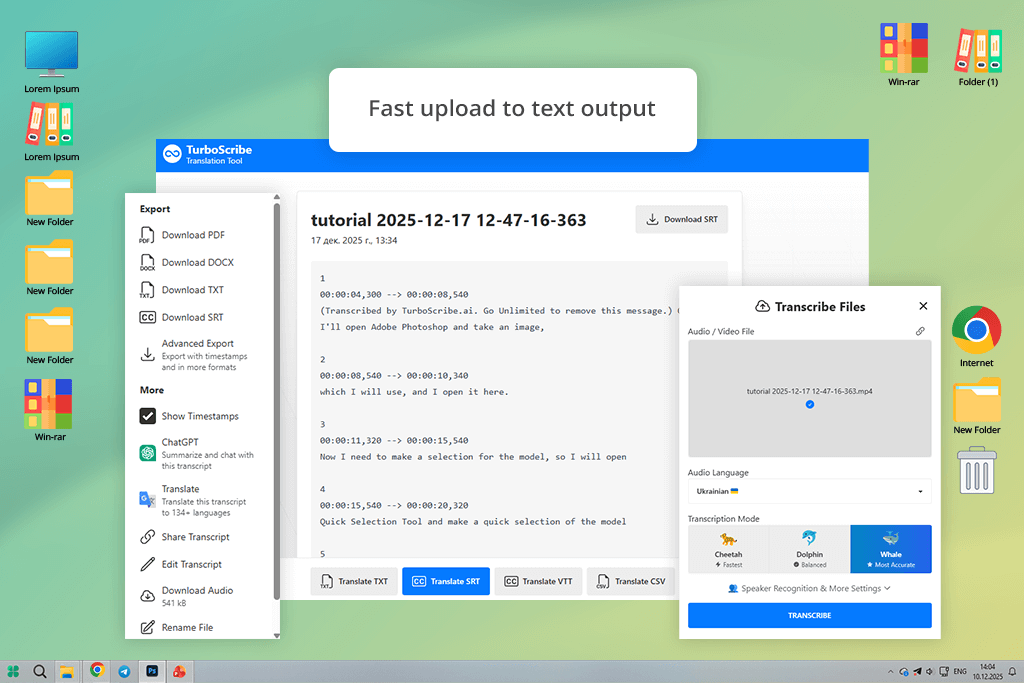
A blogger friend suggested I try TurboScribe. I expected a very simple tool, but the speed from upload to transcript was better than I thought. I tested it with a 4K YouTube export and an older video with a lot of background noise, and both transcripts were clear enough to use - especially for such an affordable option.
TurboScrib fits perfectly into my daily work. I used YouTube to text generator to pull quotes for video thumbnails, outline podcast episodes, and create captions for student tutorials. It isn’t designed as a full editing suite - it’s more like a quick service where you drop a file, get your text, and go. For anyone who prioritizes speed over detailed formatting, this straightforward process works very well.
You’ll find limits if you need advanced formatting or more control over accuracy, and some features are only in the paid version. But as an affordable tool that handles transcripts in multiple languages and delivers results quickly, I finally see why so many creators recommend it.
To make this review practical rather than theoretical, the FixThePhoto team and I tested every tool using our real YouTube workflow. We worked with raw footage, finished videos, noisy outdoor clips, tutorial-style narration, and a two-speaker interview.
The goal was not only to see whether each tool could transcribe audio, but also whether the transcripts were usable without hours of cleanup. This required looking beyond accuracy alone and evaluating how easy it was to edit, export, translate, caption, and reuse the text across different content formats.
Another thing we tested was the speed from start to result. Tata measured how long it took from opening a tool to seeing a readable transcript on screen. Premiere worked best when she needed the text directly inside the editing timeline, while NoteGPT was the fastest option for instant transcripts with no setup.
She tested each tool several times using videos of different lengths to check whether longer files caused slowdowns and whether the timestamps stayed accurate across platforms.
Robin evaluated each YouTube transcript converter as someone who is actively editing, not just watching. In Descript, she deleted filler words from the transcript and then checked whether the video cuts felt natural.
With Kome AI and Tactiq, she created bookmarks and summaries while watching videos, then came back to them the next day to see how useful they really were. If a feature sounded good but didn’t help in real use, she did not consider it a success.
Finally, we checked how well the transcripts worked in our real workflow. Some tools exported SRT files that lined up perfectly right away, while others needed manual timing fixes.
I also looked at whether punctuation had to be corrected to make subtitles easy to read, and how much manual cleanup was needed before publishing. A transcription tool isn’t useful if it still takes hours of extra work - the apps that made my shortlist were the ones that helped me finish faster, not just create text.




![Wes Anderson Photo Filter Online [FREE]](http://fixthephoto.com/blog/images/gallery/news_main__preview_28397.jpg)



















