I often use free AI video transcribers when working at FixThePhoto. Whenever I am tasked with creating photo retouching and editing content, testing visual software, or working with educational videos for photographers, I need to use accurate transcription to make it easier for viewers to search through my editing walkthroughs.
When I started to use such tools more often, I discovered that many free AI transcribers failed to produce accurate outputs. Some of them had issues with terminology or accents. Besides, their choice of free features was limited.
I decided to discover the most practical solutions and tested 25+ free AI video transcribers. I assessed their accuracy, speed, export options, and the functionality of their free versions.
| Tool | Accuracy | Languages | Free plan/trial |
|---|---|---|---|

|
95–98%
|
28+
|
✔️
|

|
90–95%
|
100+
|
✔️
|

|
85–90%
|
3
|
✔️
|

|
90–95%
|
120+
|
✔️
|

|
88–92%
|
30 languages
|
✔️
|

|
90–95%
|
25
|
✔️
|

|
88–93%
|
98+
|
✔️
|

|
95.2%
|
100+ |
✔️
|
When I use free AI video transcribers, I want to achieve higher accuracy. After testing many tools, I discovered that it’s important to prepare a file and take other steps that can have a strong impact on the result. Here are my tips for increasing the accuracy of transcripts:
Use clean audio. I upload only videos with clear sound. When recording tutorials, I use the external mic and minimize background sounds to avoid misheard words.
Minimize background noise before transcribing. If a recording has some issues, I clean it up first. When I need to process screen recordings or interviews, I use the noise reduction tool available in my video editor. When a recording is clean, the AI recognizes speech better.
Speak clearly and maintain a steady pace. I try not to explain something too quickly. When creating step-by-step portrait tutorials, I pause a bit to ensure the AI will recognize instructions and tool names.
Select the right language and accent. Before transcribing a recording, I check language settings. It’s important to choose the right languages when processing content in different languages. When you choose the right language, it allows you to reduce the number of incorrect words and avoid unnatural phrasing.
Ensure that speakers do not talk over each other. I structure my recordings to ensure that only one individual speaks at a time. When recording interviews or discussions, I get a cleaner output. It allows the AI to transcribe dialogue with better accuracy.
Review technical terms first. After transcribing my file, I searched for terminology. I sometimes need to change words that describe the editing process, such as layer modes or masking tools. It makes subtitles more comprehensive.
Turn on speaker identification whenever it’s possible. If a service supports speaker labels, I use this option. It’s perfect for Q&A videos, as it facilitates marking dialogue. Besides, I can edit my output faster and adjust subtitle timing with ease.
Export subtitles in the right format. I prefer to use formats that are supported by the platform I want to use. SRT is perfect for YouTube uploads, while VTT is supported by many web players.
I ensure high audio clarity, control my speech, and perform post-processing to improve the accuracy of my output. Using free AI video transcribers, I can create subtitles more quickly.
Price: 7-day free trial, then $22.99/mo
Compatibility: Windows, MacOS, iOS
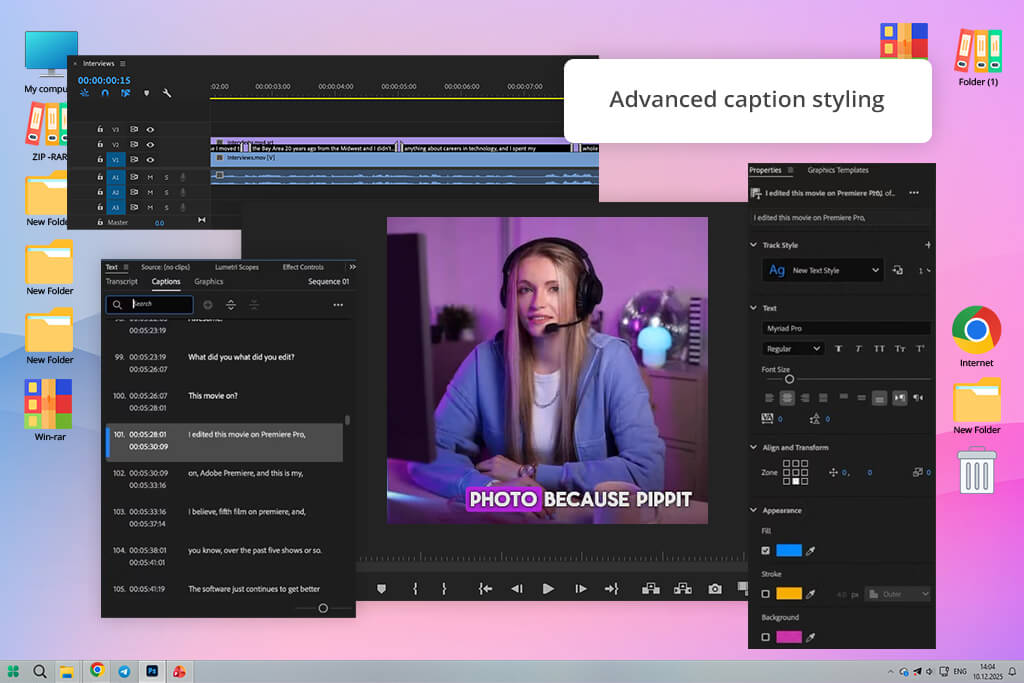
I decided to test Adobe Premiere Pro to see whether it could be used as a free AI video transcriber. I uploaded editing tutorials, explanations with voice-overs, and long screen recordings to assess their accuracy.
Using Premiere, I was able to quickly transcribe video to text with the help of the Speech to Text feature. It helped me use the timeline tools to produce an editable transcript. This saved me a lot of time when I was working on rough cuts. Using it, I can search for keywords, find the video segments I am interested in, and edit my video without rewatching the whole footage.
I was interested in the transcription-based editing feature, so I copied and pasted text blocks to change the order of clips, delete pauses, and create rough cuts based on the transcript. This free video to text converter produces accurate transcripts, especially when the source file has clear narration. As a result, captions were synchronized perfectly, and speech pacing remained natural.
This Adobe video editor generates captions automatically, supports translation into multiple languages, and enables users to choose custom styling options, including fonts, colors, placement, and templates. I was impressed by the ability of the AI to understand cadence and timing.
“I was pleased to discover that the AI transcriber in Premiere recognizes dialogues accurately and allows one to edit captions without switching to another app.”

Price: Free (up to 720p, watermark) or from $24/mo
Compatibility: Web
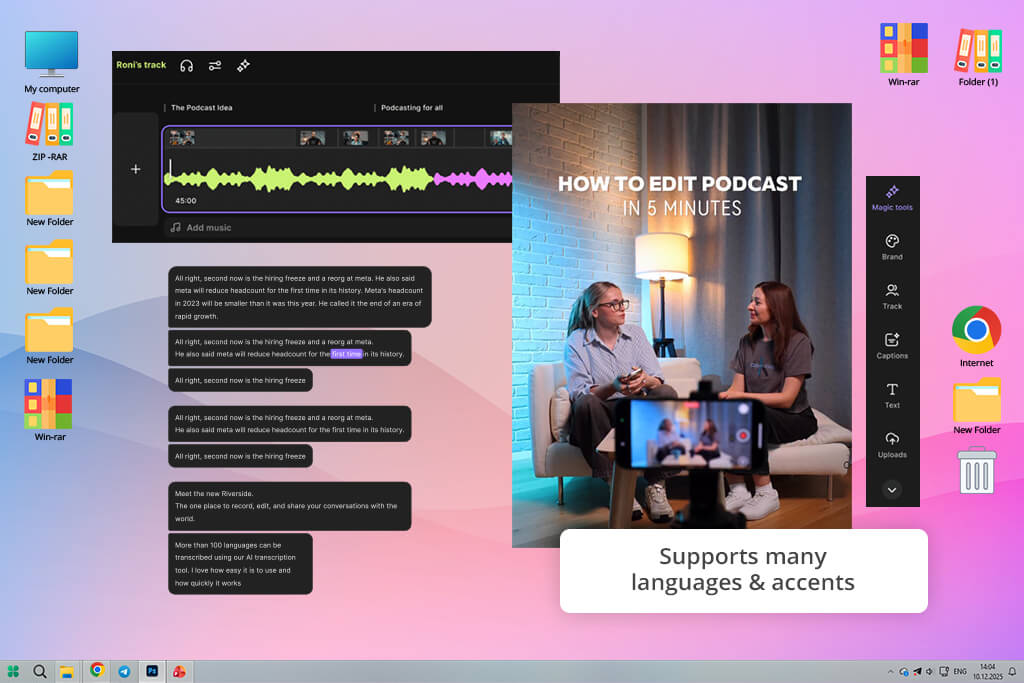
I used Riverside free screen recording software for capturing tutorials and remote interviews at FixThePhoto. Then, I discovered that it’s also a free video transcription tool. When I upload a video or complete a recording, Riverside automatically converts it to text. It allows me to review such content quickly, without watching the whole clip.
When I started to test its online AI video transcriber, I uploaded recordings with multiple speakers, unusual accents, and long explanations. It detects speakers perfectly and produces transcripts quickly. I was able to edit the text, remove errors in one click, and use keyword search to find the right video segment. However, it may slow down when you upload longer recordings.
I achieved the best outputs when I started to use transcripts for rough cuts and captions. In addition, Riverside supports high-quality recording of up to 4K, generates automatic captions, and makes it easy to create clips for social media. However, Eva, my colleague from FixThePhoto, did not like that high-resolution outputs and extra storage required a premium subscription.
Price: Free (3 file imports) or from $16.99/mo
Compatibility: Web, iOS, Android
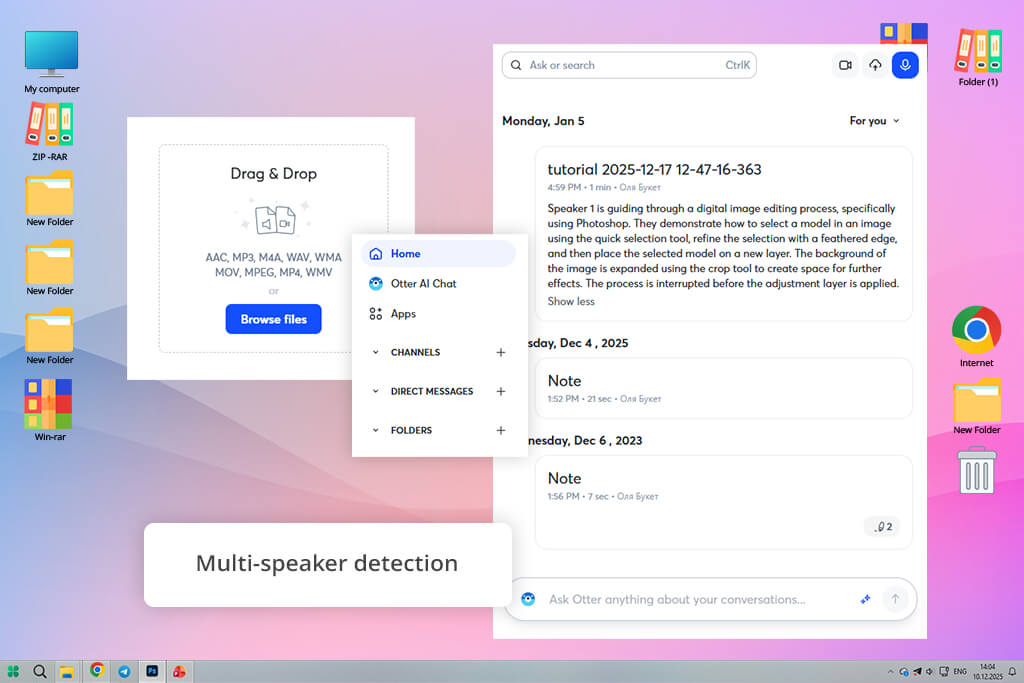
I decided to give Otter a try when I needed to convert recordings from tutorials into comprehensive text. This free automatic video transcription tool exceeded my expectations, as it can process MP4 and MOV files quickly. After uploading a video, I waited for a few seconds until this service automatically transcribed it and added speaker labels and timestamps.
I liked the interface, as it did not have any unnecessary features and was easy to navigate. You can edit transcripts and see the results of your edits in real time. The speech to text software excel when it comes to transcribing English, Spanish, and French recordings. This free video transcription software is an excellent choice for quick transcription tasks.
Otter delivers perfect performance when generating subtitles in SRT format, creating searchable transcripts, and producing summaries via Otter AI Chat. It can be especially useful when working with long videos. You can edit transcripts and share them in DOCX, TXT, and PDF formats.
The only shortcomings are that the free version allows users to transcribe only 300 minutes per month and it makes occasional mistakes with speaker labels. Besides, you may need to correct technical terms manually in some cases.
“I was impressed with how quickly Otter generates transcripts and identifies multiple speakers automatically.”

Price: Free (10-minute, watermark) or from $17/mo
Compatibility: Web
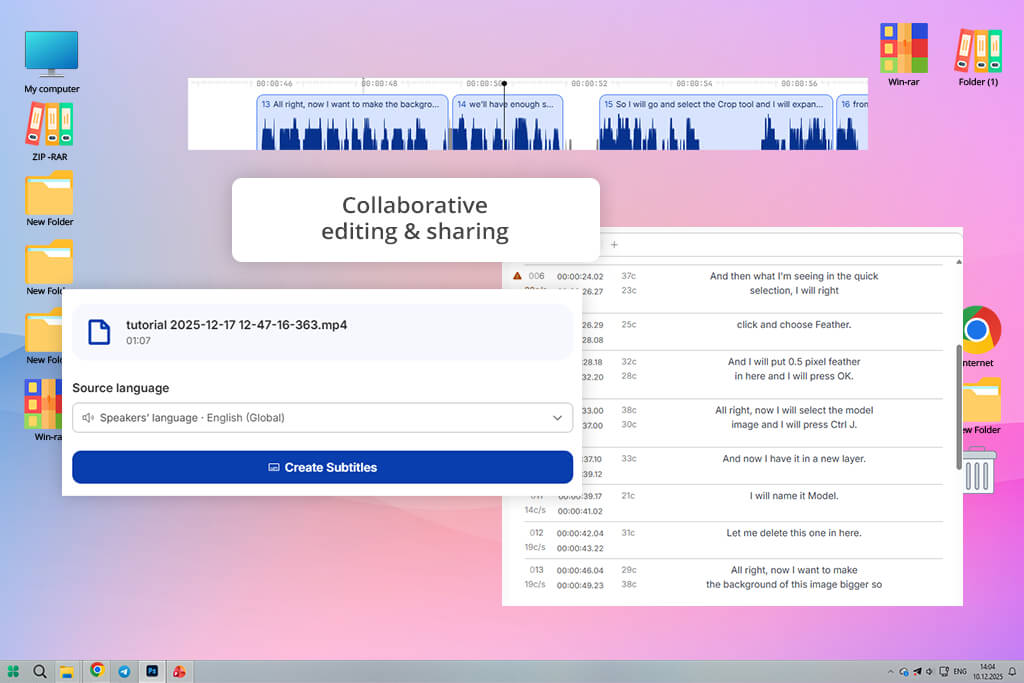
Happy Scribe allows users to turn videos into text quickly. It’s a powerful and free AI video transcription tool. When you upload MP4 files or play videos, it instantly transcribes them and adds speaker labels and timestamps.
When using this interactive editor, I was able to highlight key moments, correct errors, and navigate long recordings. It also has a subtitle translator and supports subtitle export. If you are interested in high accuracy, you ask professional linguists to review your outputs.
Besides transcription tools, this AI video caption generator has handy features that support collaboration. Using the Ask AI summarization feature, I was able to extract quotes and produce action points. However, I noticed that the editor slowed down when processing long recordings. In addition, I had to adjust some speaker labels manually.
Price: Free (60 credits/month, 720p) or from $29/mo
Compatibility: Web
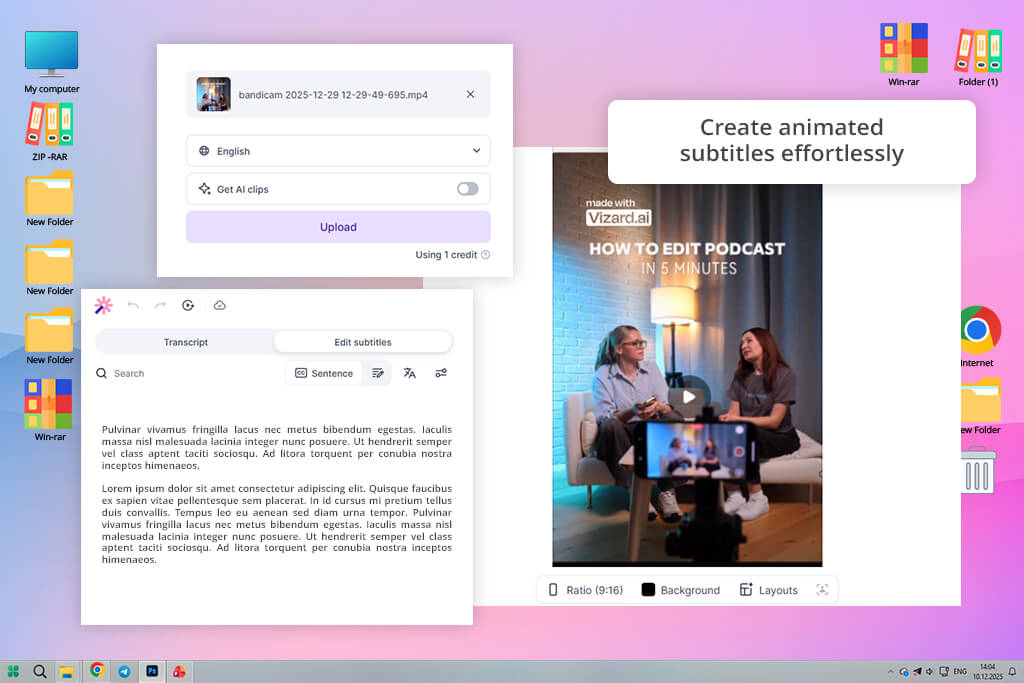
When I started to use Vizard, this free AI video transcriber exceeded my expectations. I wanted to transcribe segments where I explained editing techniques and use them to create dynamic clips for social media. After uploading a video, I selected the right language and waited until the AI produced a transcript.
The interface is easy to navigate. The AI transcribed videos with multiple speakers and recognized technical terms accurately. I was able to edit outputs with ease and use them to produce engaging blogs or informative social media snippets.
Vizard can also be used as a free AI subtitle generator. It allows one to generate animated captions with customizable fonts, sizes, and colors. After transcribing my videos, I was able to download subtitles in SRT or TXT format or share the video using a link. Even though this transcription app delivers a fast performance, I noticed some delays when processing extremely long videos.
“Vizard has the AI transcription feature that instantly converts video audio into text and adjusts timing automatically for subtitles.”

Price: Free (60 minutes/month, watermark) or from $24/mo
Compatibility: Web
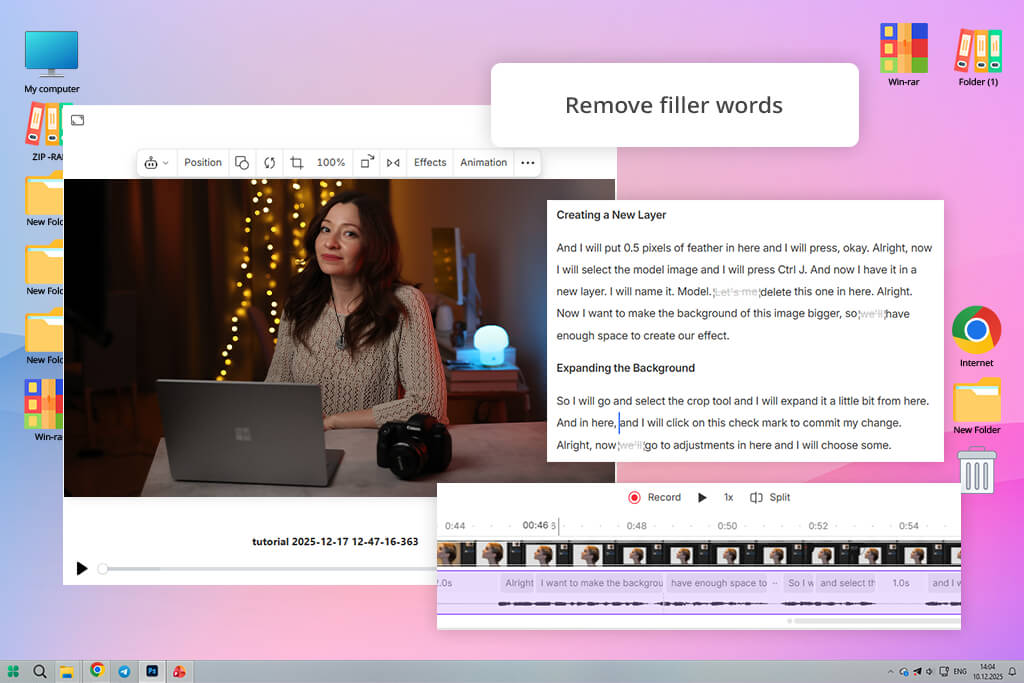
Descript is a powerful audio and video editing software for Windows and MacOS. It has extensive functionality and can be used as a free AI video transcriber. It allows one to create editable text based on recordings.
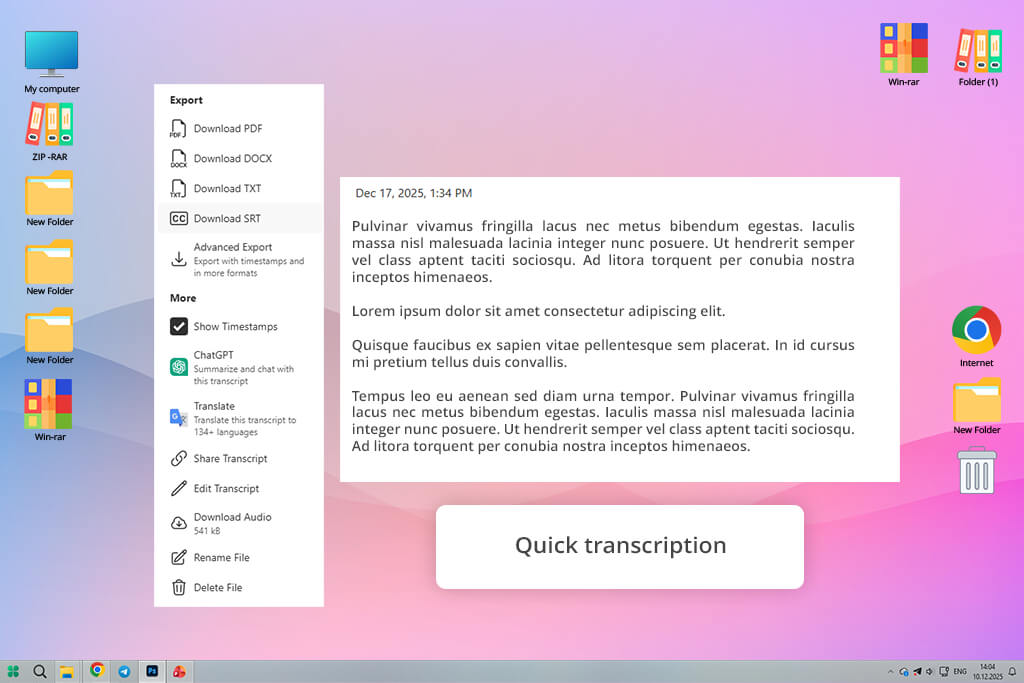
After uploading a video, I wait until the AI generates a transcript, and then highlight the most important sections and fix minor errors using the text-based editor. You can generate an AI video transcription online free of charge.
The transcription process is fast and accurate. This AI voice cloning software recognizes filler words, handles recordings with multiple speakers, and detects technical terms. The output does not require extensive manual editing.
Besides transcription, one can use Descript to convert video to text with the help of AI and use a variety of editing and content-repurposing features. With it, I can add captions quickly and translate transcribed content into 30+ languages. However, it took me a while to process extremely long files. Besides, you may need to make some edits after transcribing a nuanced dialogue.
Price: Free (3 transcripts daily) or from $20/mo
Compatibility: Web
TurboScribe is a free AI video transcriber that delivers high accuracy when converting audio and video into editable text. I used this video to text converter when processing long video tutorials and webinars. The interface is quite streamlined. It allows one to choose the most suitable processing speed (Cheetah, Dolphin, Whale) when creating quick drafts.
Many transcripts support high accuracy. However, when one tries to process a recording with thick accents or specialized jargon, the output may require minor editing. This solution supports bulk uploads up to 10 hours per file. Another advantage is that it has a free speech to text video AI tool. It supports several export options (DOCX, PDF, and TXT), and subtitle formats (SRT and VTT).
I tried translating the output, knowing that it supports 98+ languages. It helped me repurpose content for social media and reach out to my target audience living abroad. The only shortcoming is that long files cause lags. Besides, the customer support team was slow to respond when I asked a question.
“TurboScribe has a handy AI transcription tool, helping users to process short and long videos with high accuracy even if the input has multiple speakers.”
Price: Free tier, paid plan available
Compatibility: Web
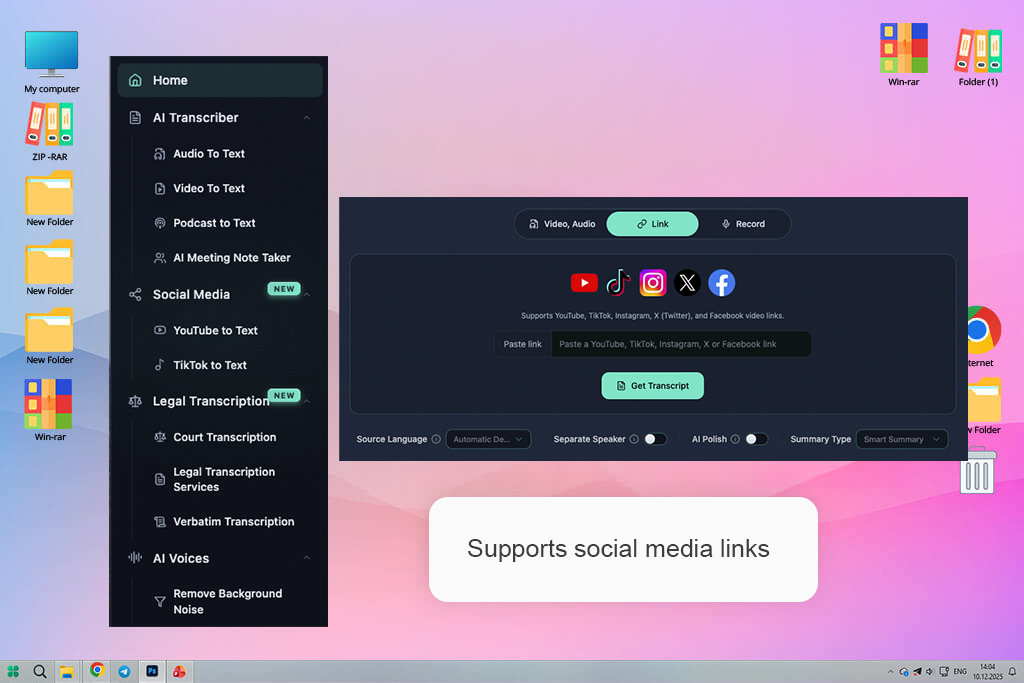
I used social media videos, interviews, and editing instructions to test DeVoice. In addition to pasting links from YouTube and TikTok, I uploaded local audio and video files. The program produced an editable transcript with speaker labels and timestamps in each instance.
I enjoyed being able to click on a line of text to get straight to that point in the recording, and the transcription process was speedy. I was able to find quotes more easily, fix errors, and work with lengthy movies without having to start over.
Additionally, DeVoice has searchable transcription history, AI summaries, and built-in noise reduction. After polishing the text in the editor, I exported the subtitles in SRT and VTT formats. When I needed to convert a recording into an essay or organized notes, DOCX and CSV outputs came in handy.
A free AI video transcriber is a dedicated software or service designed to convert audio and video files into text with the help of artificial intelligence technology. They allow users to produce searchable transcripts, subtitles, or scripts for editing. Such tools as Adobe Premiere allow users to generate captions based on their videos. Descript supports text-based editing and transcription.
They are not the same, but similar. An AI video transcriber is designed to produce a text transcript of spoken words, while an AI video subtitle generator uses the available transcript and saves it as time‑coded subtitles (in SRT, VTT, or other formats). All subtitle generators use transcription. However, only some transcribers automatically generate subtitles.
Yes. Many solutions double as AI video subtitle generators, allowing users to create perfectly synced captions ready for YouTube, social media, or presentations. For instance, you can use Riverside as closed captioning software. It automatically adds captions to video interviews. Similarly, Vizard allows users to produce animated subtitles with customizable fonts and styles.
It largely depends on the quality of the audio input. Accuracy may be lower if there is background noise in recordings or if the speaker is insufficiently clear. Most solutions like Adobe Premiere, TurboScribe, Descript, and Happy Scribe support 85–95% accuracy. However, users can typically improve outputs.
Yes. Most services like Adobe Premiere, Vizard, and Otter allow you to make simple edits. You can highlight certain moments and export transcripts in formats like TXT, SRT, or DOCX.
Yes. Free versions often allow users to transcribe only a limited number of minutes per month. Besides, they may limit file size or access to advanced features, such as speaker detection and automatic translation tools.
Together with my FixThePhoto colleagues, I tested a variety of free AI video transcribers. It helped me find intuitive tools with many features that supported high-accuracy video transcription.
Even though our main focus was on the services mentioned in this review, we also tested other popular services that did not make it into the final version of our list, such as UniScribe, Jamie AI, oTranscribe, MeetGeek, Sonix, Rev, Reduct Video, Whisper, PlainScribe, InqScribe, Transkriptor, Amberscrip, Buzz, Subtitle Edit, and Speech Translate.
Some of these AI transcribers were pretty decent. However, they allowed users to use a limited number of free minutes, had a slow processing speed, or had a limited choice of editing tools. This is why we decided against recommending them.
Here is how we tested for every solution:
As a result, we selected the best free AI video transcribers suitable for different situations. Some of them are the best fit for generating captions for social media content quickly, while others facilitate creating detailed, multi-speaker transcripts for complex projects. This approach helped us understand what services work best for specific scenarios.



![7 Best Mocha Pro Alternatives [{{%year}} FixThePhoto Choice]](http://fixthephoto.com/blog/images/gallery/news_main__preview_28055.jpg)

![7 Best Websites for Painters in {{%year}} [Portfolios & Sales]](http://fixthephoto.com/blog/images/gallery/news_main__preview_28423.jpg)

![10 Best Video Delivery Platforms [Simple & Free]](http://fixthephoto.com/blog/images/gallery/news_main__preview_28433.jpg)

![Remove Logo From Clothes AI App [FREE]](http://fixthephoto.com/blog/images/gallery/news_main__preview_27732.png)
![7 Best AI Background Generators [Real Tests]](http://fixthephoto.com/blog/images/gallery/news_main__preview_28187.jpg)

















