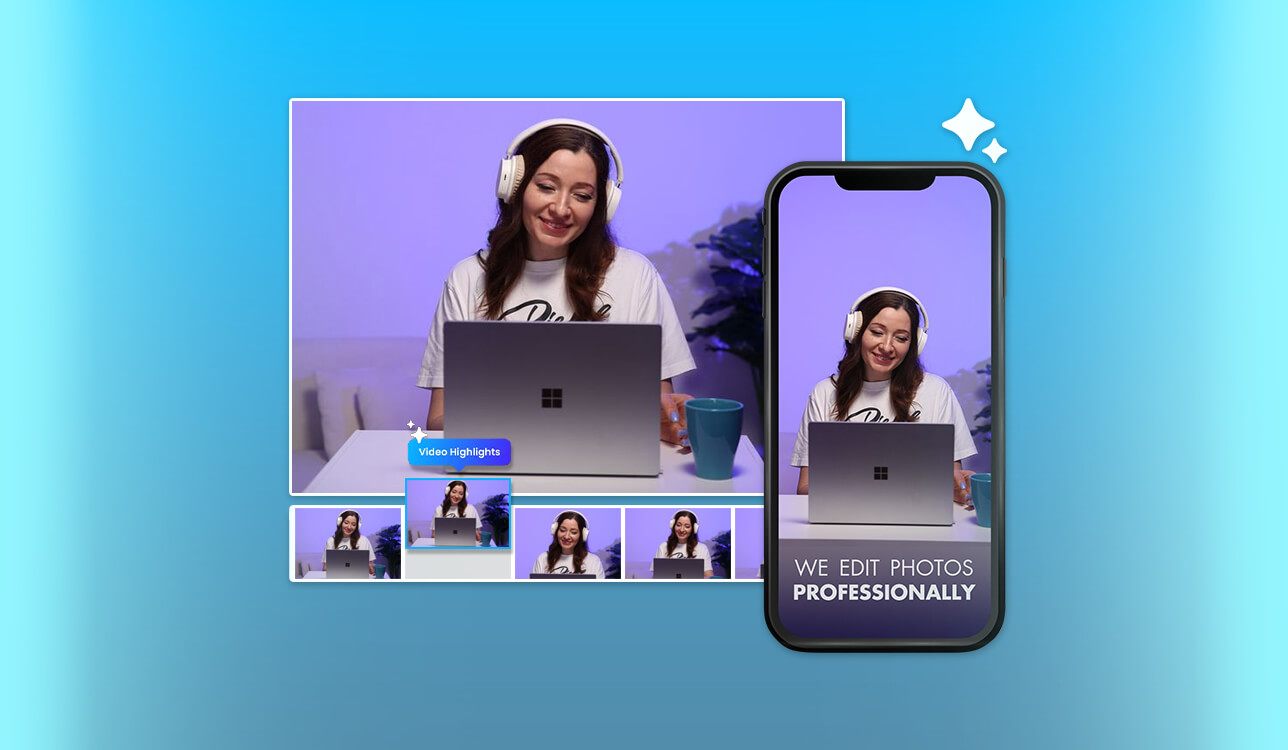
Editing lengthy podcasts and tutorials into short social media clips used to require hours. Fortunately, AI video highlight generators now accelerate this tedious process by detecting key moments. These tools instantly create ready-to-share vertical videos for TikTok and Instagram Reels. They automatically apply accurate captions and optimize the final framing for mobile viewers.
However, many basic platforms still struggle to identify the most engaging video scenes. They frequently generate incorrect subtitles or limit your creative control during final editing. Some tools even force large watermarks onto your exported high-definition files.
To find the best AI video highlight software, I personally tested over 15 tools. I focused on caption accuracy, feature depth, export quality, and user experience. Furthermore, I collaborated with the expert FixThePhoto team to verify my initial findings. Together, we selected the absolute top tools that consistently deliver professional results.
When testing different programs, my main focus was checking how accurately each program spots the funniest or most exciting moments. I also looked closely at caption styles, rendering speeds, and how well they reframe vertical clips. Finally, I compared the pricing plans and made sure the software was easy to use. The programs described in this overview give you awesome automation without restricting your creative freedom.
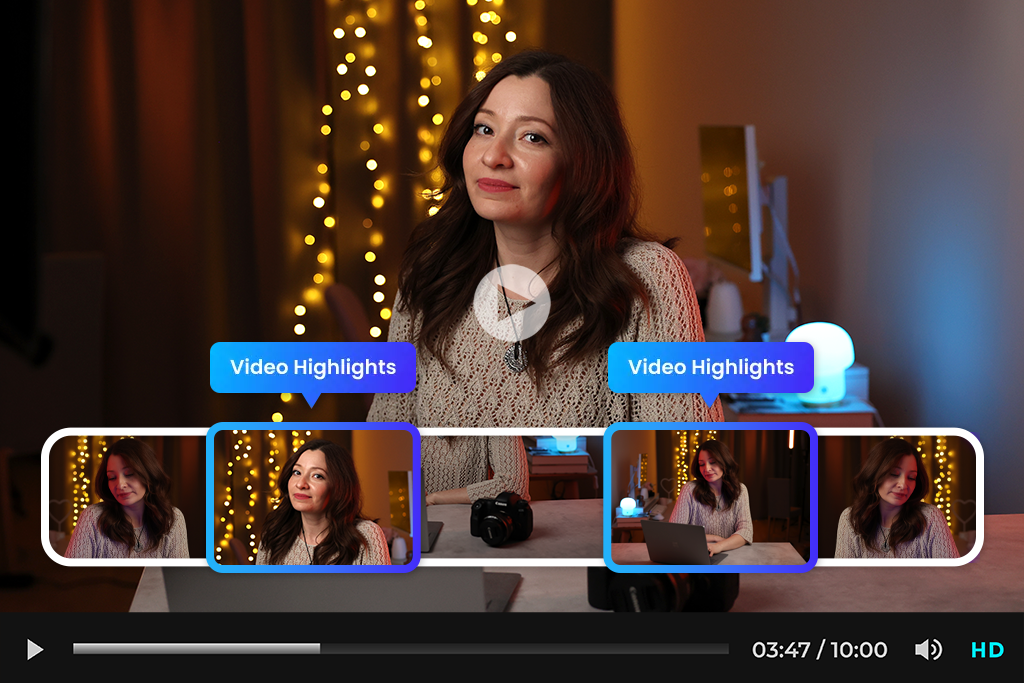
I have tested lots of AI video tools over the past few years. A few easy tweaks will completely change your social media feed. Here is how you can make a viral video with less manual editing.
Price: Free (limited daily generations) or from $9.99/mo.
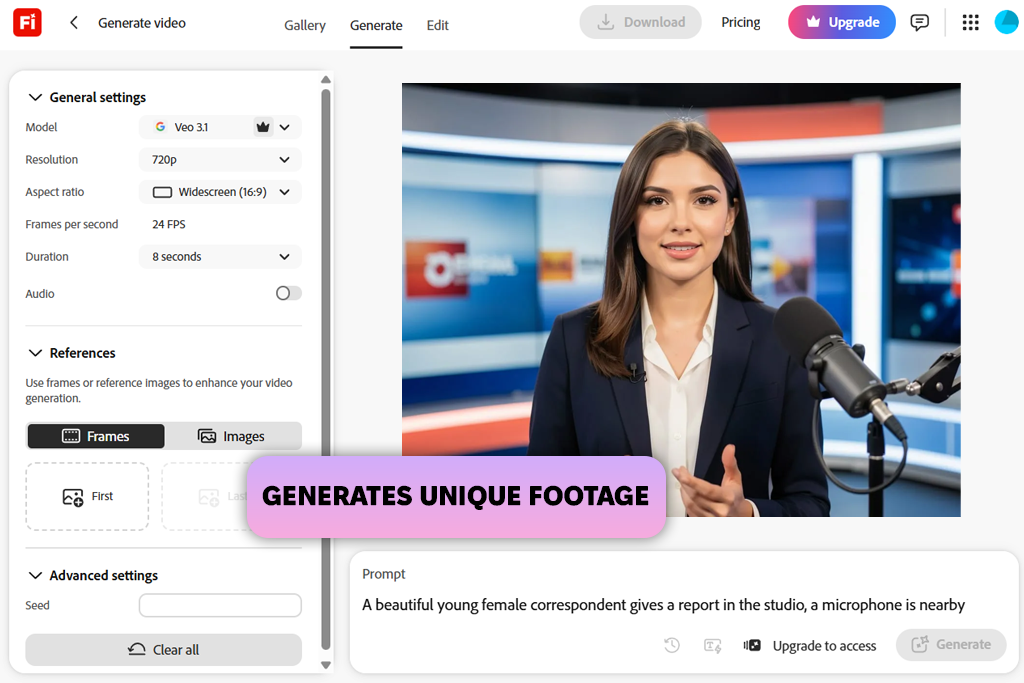
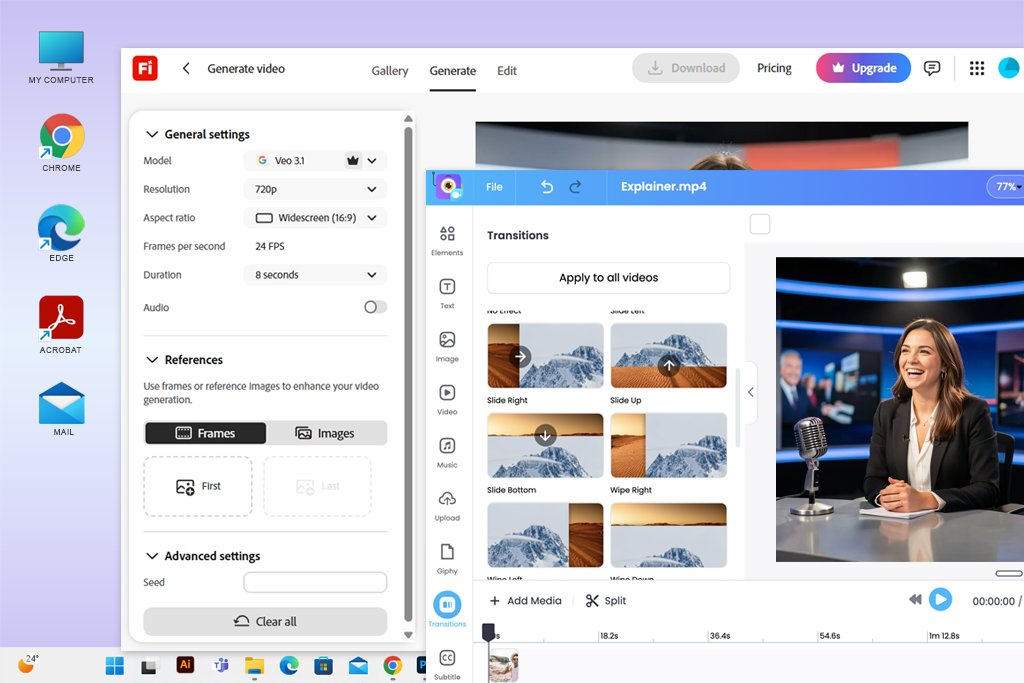
If you need quick, custom B-roll to spice up your video highlights, Adobe Firefly video editing tool is worth checking out. Instead of wasting hours hunting down generic stock footage for my podcasts and tutorials, I just typed in what I wanted, and this program assembled original clips instantly. It is incredibly fun to play around with different camera angles and lighting styles until you get the perfect look.
The interface is so clean and understandable that you will feel like a pro right away. Just keep in mind that this AI B-roll generator won't automatically watch your long-form video and pluck out the best highlights for you. You still have to do the editing and choose those moments yourself. But for creating the exact visuals you need to bridge those key moments together quickly, this can be the best AI video highlight generator.
“Firefly leveled up my shorts by generating awesome AI visuals that fit the vibe of my content perfectly.”

Price: Free (3 uploads/mo.) or from $24/mo.
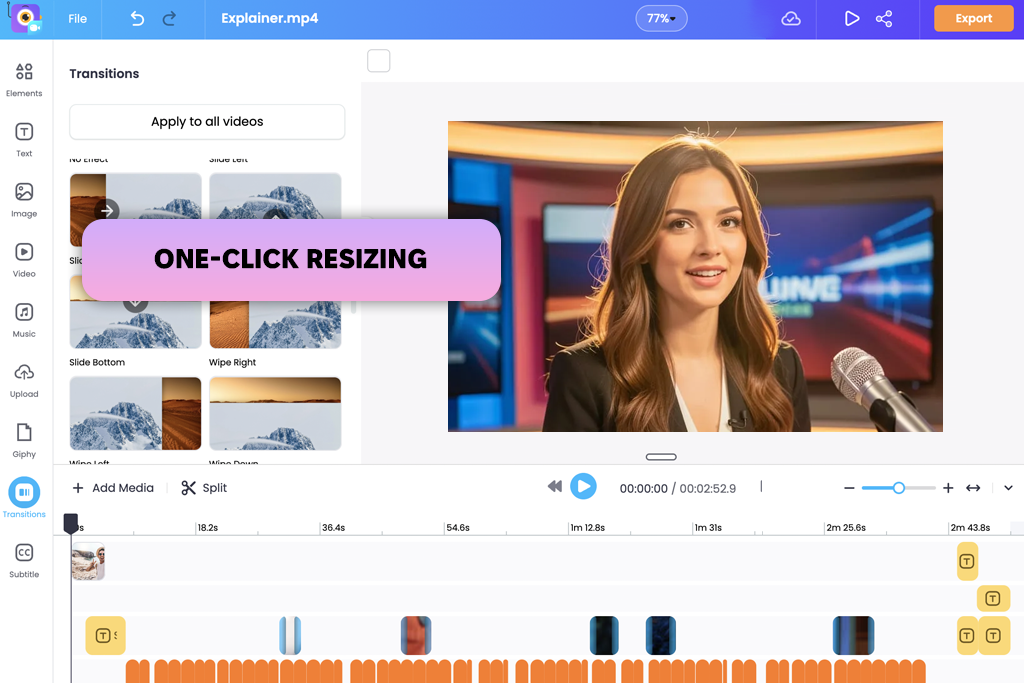
Vmaker is a fantastic AI video highlight generator if you want to turn long videos into bite-sized clips for social media without spending much time. You can just drop in a file or paste a YouTube link, tell the AI what keywords to look for, like "tips" or "takeaway", and let it do the most tedious job. I used it on podcasts and tutorials, and it was great at chopping them down into 30 to 60-second chunks.
You can easily dress up your clips with auto-subtitles, AI B-roll, music, and transitions, and even reframe them for vertical formats like Shorts or Reels with a single click. It's also great for teamwork if you're collaborating. While the AI is smart, it isn't perfect. I found that during slower, quieter conversations, I still needed to jump in and clean up the cuts manually to get them just right.
Price: Free (with watermark) or from $15/mo.
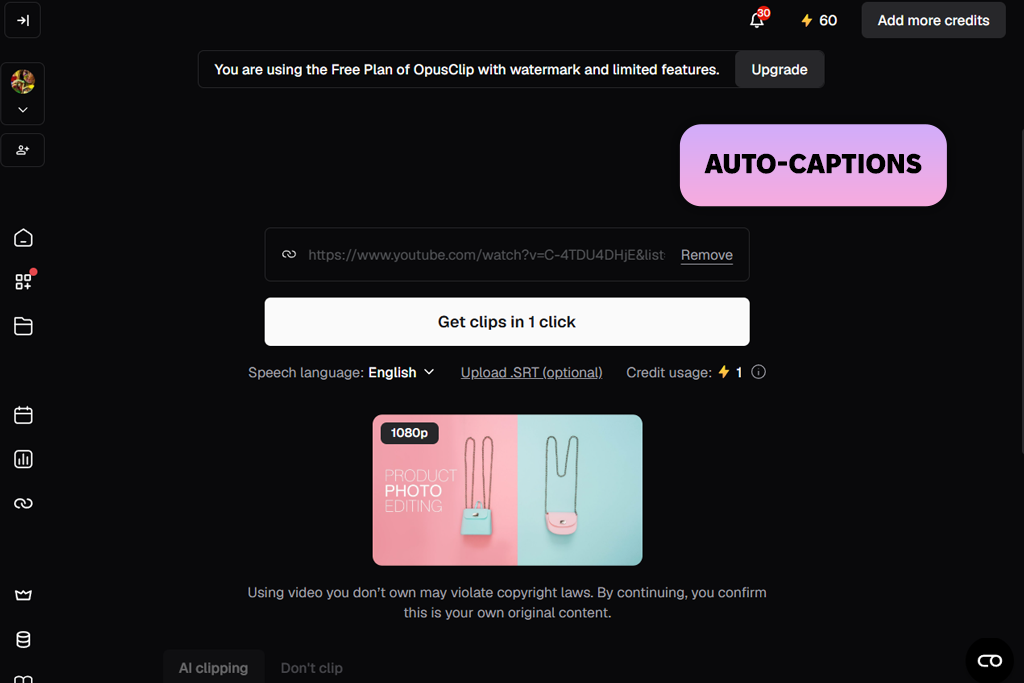
If you want to turn long podcasts, interviews, or tutorials into short social media clips with almost zero effort, OpusClip is a powerful AI highlight video maker you should consider. You just upload your video, and the AI automatically scans the footage to find the most interesting, shareable moments, serving up several ready-to-go options in just a few minutes.
This AI clip maker handles the tedious stuff for you by automatically tracking speakers to keep them centered and adding trendy, animated captions. I tested it by pushing clips straight to Reels and Shorts after making a few quick text edits and adjusting the framing. It makes your final videos look incredibly polished right out of the gate. The only real drag is that analyzing and rendering longer videos can sometimes test your patience, but the time saved on editing makes it well worth the wait.
“OpusClip makes repurposing easy by spinning one video into multiple highlights, though the free tier is a bit too restrictive.”

Price: Free (3 videos per month) or from $29/mo.
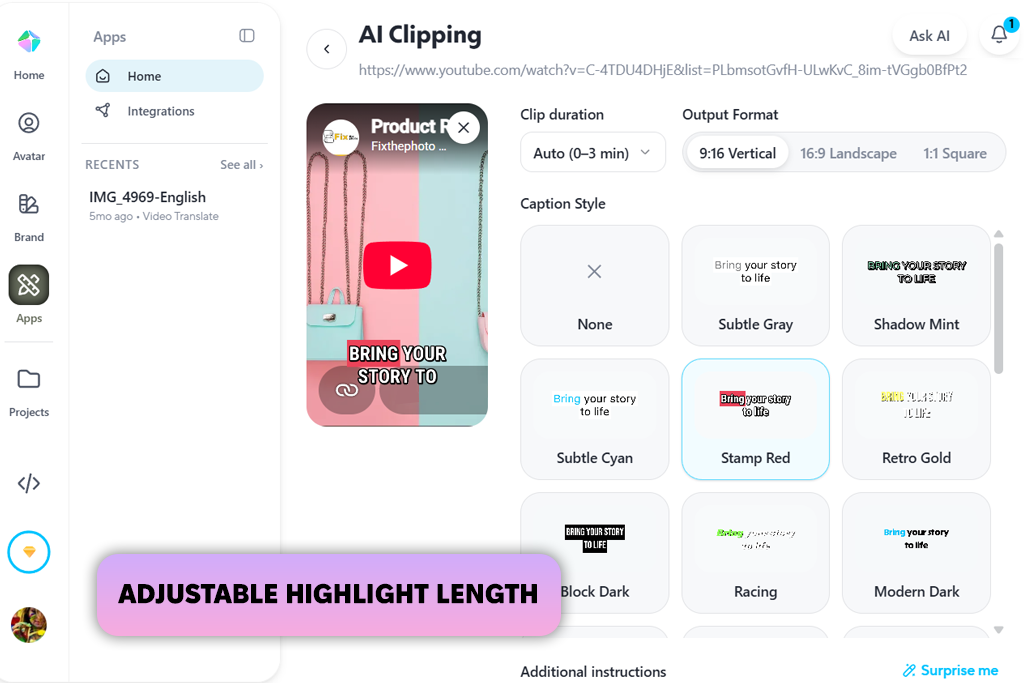
When it comes to turning long webinars, podcasts, or product demos into bite-sized social media clips, HeyGen is one of the top video highlight generators. You don’t need to spend hours editing a 40-minute video yourself. You just upload it to the program and let the AI pick out the best highlights for you, complete with stylish, animated captions. The built-in editor lets you quickly resize everything for Shorts or Reels, throw on a logo, and add background music.
The coolest feature by far is the built-in translator, which easily dubs your videos into Spanish, French, German, and other languages. Still, this AI dubbing software doesn’t always pick the most thrilling moments, so you'll want to review its choices before exporting. Also, processing those long videos can chew through your credits surprisingly fast.

Price: Free or from $24.99/mo.
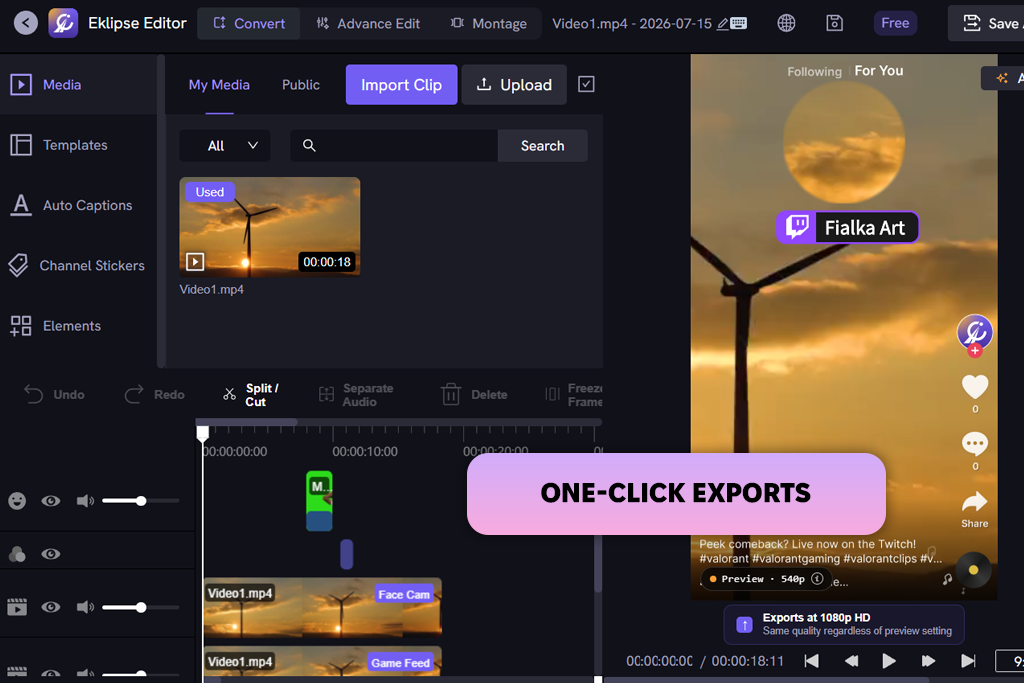
If you are a streamer looking to turn hours of Twitch, Kick, or YouTube footage into quick, shareable clips, Eklipse is built just for you. I tested it out by pasting a few stream links and letting the AI do the rest. Instead of making me dig through hours of video, this AI video generator handed over a neat package of high-energy moments like match victories and multi-kills within a few minutes.
Once this highlight video maker pulled the most attention-grabbing parts, I just added some text overlays and flipped the layout into a vertical format for shorts. The dashboard is incredibly user-friendly. The coolest part is that the AI tracks actual in-game actions rather than just listening for loud talking, making it remarkably accurate for fast-paced shooters like Fortnite or Valorant.
On the flip side, it definitely falters if your stream is slow-paced or conversational. The built-in editing features are also pretty bare-bones, meaning you will likely still need a secondary app for precise, fine-tuned adjustments.
“This tool was surprisingly sharp at spotting multi-kills and major milestones on its own. However, the built-in editing features are pretty bare-bones if you want total creative control over the final cut.”

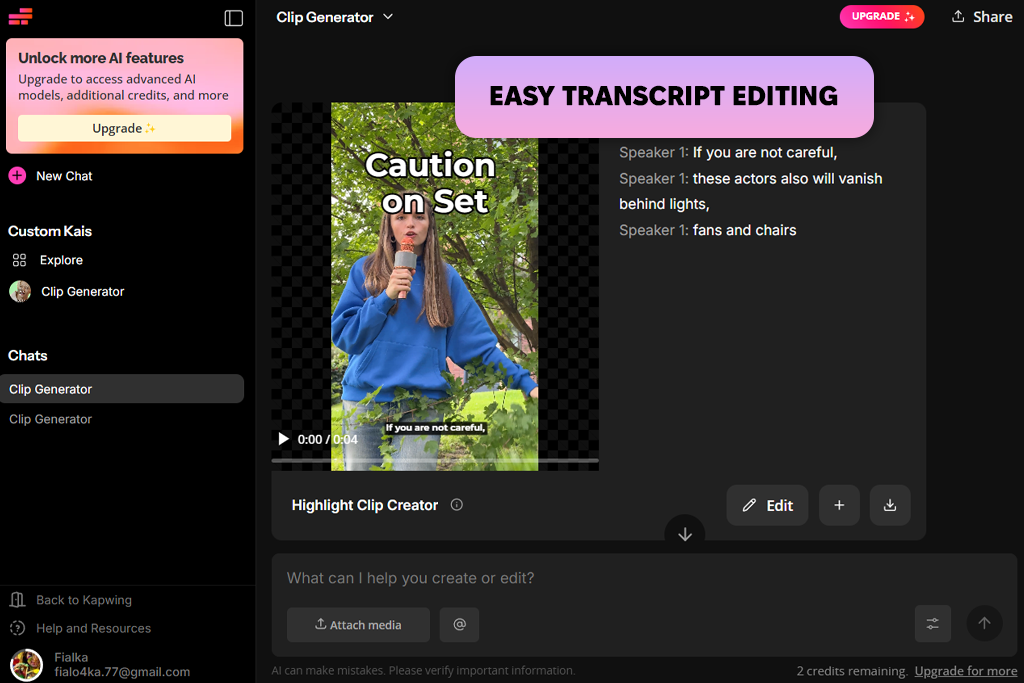
Price: Free (with watermark) or from $16/mo.
Kapwing is an all-in-one automatic video highlight generator that blends an AI clip finder with a fully loaded video editor, meaning you won't need to jump between different software to finish your project. I tried it by uploading my footage, typing in a description of the exact moments I wanted, and choosing my frame size. The AI made several solid highlights right away, complete with accurate subtitles and smart framing that keeps the speaker centered. From there, I adjusted the text, trimmed the edges, and layered in an AI voiceover before exporting the final vertical video.
I also experimented with an AI video translator to spin up localized versions of my clips, which worked surprisingly well. The browser dashboard is understandable, and the shared workspace is helpful if you need to brainstorm, organize projects, or leave live feedback for teammates.
Just keep in mind that while the AI cuts down on the grunt work, you will still want to manually tweak the pacing for a perfect finish. Plus, hitting the higher quality export options means you'll have to pull out your wallet.
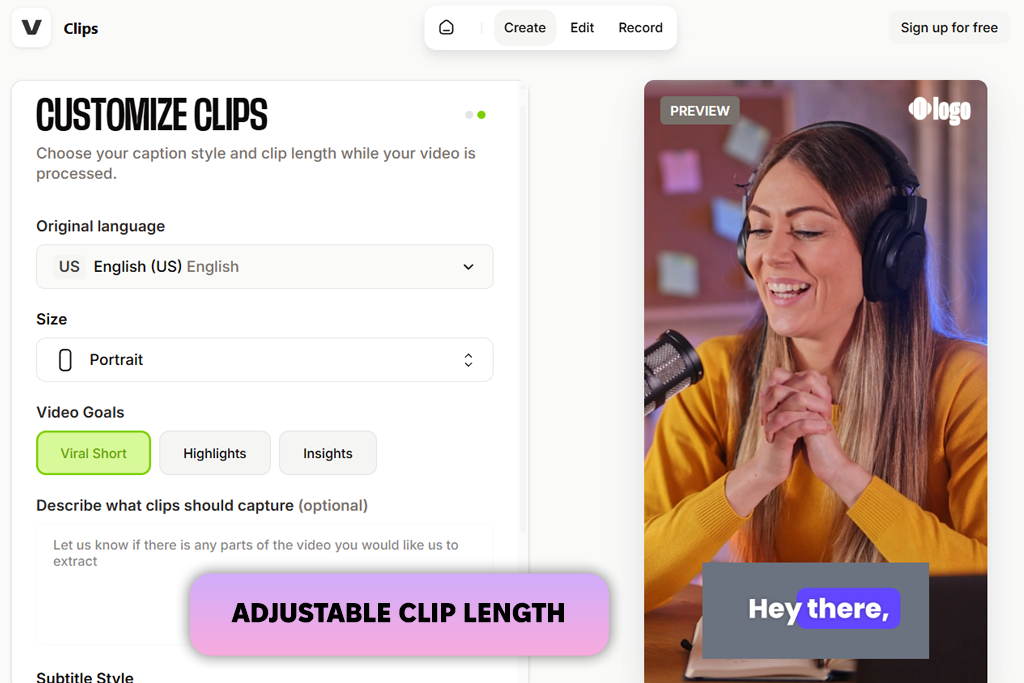
Price: Free or from $20/mo.
VEED is a handy tool for slicing long-form content into bite-sized videos for TikTok or Reels. I tested it by uploading a few 20-to-40-minute interviews and tutorials, setting my target length, and letting the AI scan for the most engaging hooks.
Once it served up the best moments, I improved them by cutting out dead air with the "Magic Cut" tool and using the built-in AI caption generator to stamp on readable captions. The dashboard is beautifully organized and perfect for beginners, giving you instant access to AI clipping, background tracks, and editing tools right inside your browser window. It does a fantastic job of generating great highlights, but be prepared for a bit of a slowdown and longer export wait times if you import large video files.
“The Magic Cut tool was a real time-saver for me, wiping out all those awkward pauses on its own. Just keep in mind that if you upload big video files, the web-based setup can start to chug a bit.”
It y comes down to how you like to work. If you want a tool that automatically hunts down the best moments for you, OpusClip and HeyGen are fantastic choices. If you prefer a platform where you can both clip and heavily edit your footage in one place, Kapwing and VEED are your best bets. And if you are looking to spice things up with custom AI-generated B-roll or slick visual effects, Adobe Firefly is the way to go.
Absolutely. Today’s AI highlight generators, including platforms like OpusClip, HeyGen, Kapwing are incredibly smart at scanning long-form talk content. Whether it is an interview, a webinar, a tutorial, or a corporate presentation, the AI can listen to the audio, pinpoint the most engaging takeaways, add accurate subtitles, and package them into ready-to-post clips for social media.
The tools have become incredibly smart, particularly when it comes to interviews, podcasts, and talking-head content, but they aren’t flawless. I always recommend doing a quick manual review of the clips it hands you. Every now and then, the AI may cut off a crucial piece of context or accidentally include a dull moment that you'd rather leave out.
Yes, they do it easily. Most top-tier platforms like Adobe Firefly, VEED, and HeyGen will automatically transcribe your audio and generate subtitles in seconds. The best part is that you aren't stuck with a default look. You can easily tweak the fonts, change the colors, add animations, and fix the timing to match your style before saving the video.
Surely. Most of the top AI platforms, like Eklipse and Vmaker, are built specifically for this. They will take your traditional horizontal footage and automatically flip it into a vertical or square layout. Plus, they use smart auto-framing to ensure the speaker stays perfectly centered, making the clips instantly ready for your favorite social feeds.
It hinges on where you are posting. For TikTok, quick 15-to-30-second bursts perform best. If you are aiming for Instagram Reels, the sweet spot is usually around 30 to 60 seconds. For YouTube Shorts, you can push it up to 90 seconds, which gives you a bit more breathing room if the topic requires extra context.
Podcasts, interviews, webinars, tutorials, and gaming streams yield the highest-quality clips. Essentially, any video that features clear, crisp speech or follows a distinct, structured topic makes it much easier for the AI to understand the context and accurately pull out the absolute best moments.
To track down the absolute best AI video highlight generators on the market, I spent a lot of time personally testing various platforms. I also teamed up with my colleagues from the FixThePhoto team so we could compare notes and weigh our findings together. To make sure the playing field was completely level, we ran the exact same batch of content through every single tool, including a mix of podcasts, webinars, tutorials, product demos, interviews, and gaming footage.
While some tools were promising, they didn't become my final recommendations. Such platforms as Riverside, Vizard, Descript, Snipin.ai, Viggle, VEED, Choppity, Restream, Klap, Chopcast, Wisecut, and Pippit were left off the list. For the most part, they were dropped because their AI missed too many key moments, lacked advanced features, offered underwhelming editing setups, took too long to process files, or simply didn't deliver enough value for the price.
Here is how we broke down our testing process:
In the end, I preferred platforms that could handle highlight detection on the first try without forcing me to do manual cleanup afterward. My top recommendations give you the ultimate mix of smart AI automation, solid editing freedom, and great bang for your buck if you are looking to regularly turn long videos into viral social content.



![9 Best AI Audio Silence Removers [{{%year}} FixThePhoto Choice]](http://fixthephoto.com/blog/images/gallery/news_main__preview_29189.jpg)
![7 Best TIFF to PDF Converters [{{%year}} FixThePhoto Choice]](http://fixthephoto.com/blog/images/gallery/news_main__preview_29305.jpg)


![9 Best AI Virtual Try On Outfits Tools in {{%year}} [100% FREE]](http://fixthephoto.com/blog/images/gallery/news_main__preview_29082.jpg)



















