I decided to start searching for an AI B-roll generator once I noticed that some of my content looked too static. At FixThePhoto, I’m dealing with product showcases, app tutorials, gear reviews, and brief social media clips. A talking-head video or screen recording is enough to break down the main idea, but if it’s not supported by extra visuals, the viewer can get bored fast.
The issue is that recording B-roll can be quite time-consuming. You either have to record extra footage, browse stock platforms, match the videos to the script, or add transitions that feel like they belong. For simple projects, such a task can require more time than the main editing process.
That’s why I chose to test 30+ free AI B-roll generators to determine which options would allow me to produce and automatically receive relevant videos for my projects, including product close-ups, lifestyle shots, moody scenes, software interface cutaways, abstract visuals, and brief cinematic clips. During my test, I prioritized paying attention to:
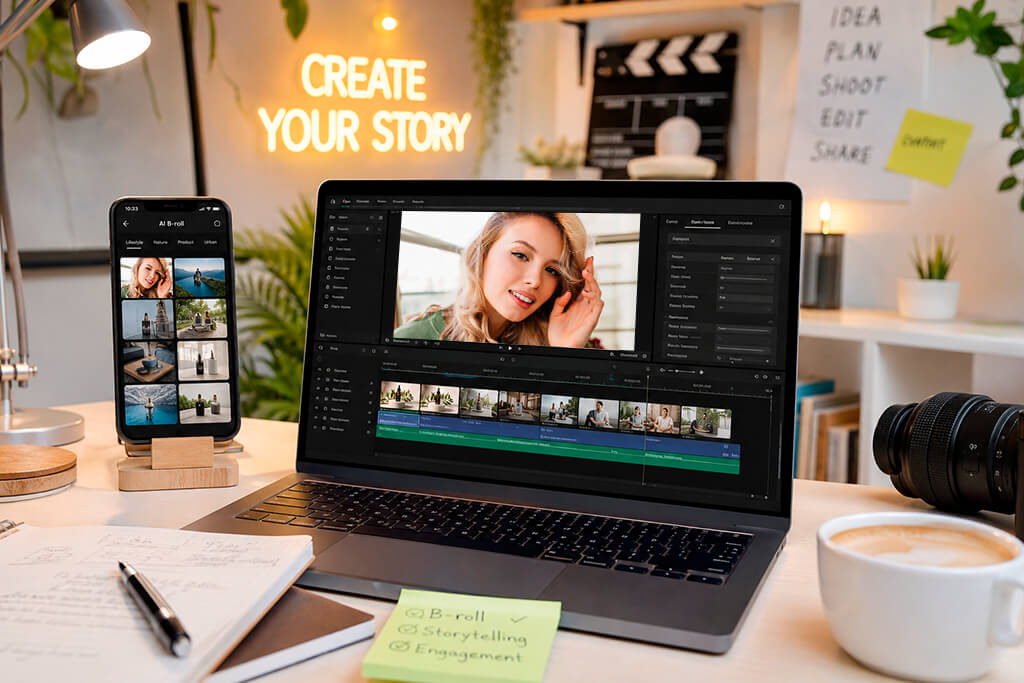
B-roll is additional footage used to ensure the main video is livelier, more captivating, and professional. While the main video can feature a person presenting a product, the B-roll can show close-ups, the packaging, the product in use, the final result, different lifestyle scenes, or other clips that help get the main idea across.
It’s particularly relevant for short-form content. On Instagram Reels, TikTok, and YouTube Shorts, viewers take less than a second to choose if they’ll continue watching a video. A bland talking-head clip feels bland, even if the information is helpful and interesting.
However, if you manage to catch the viewer’s attention with relevant B-roll, there’s a much higher chance they’ll stick with your content.
B-roll video generators can come in handy if you want to receive relevant visuals without organizing an additional recording session. A video dedicated to image editing software can be enhanced with clips of a laptop screen, a creator workspace, product images, and before-and-after result showcases.
Rather than wasting hours on browsing through stock libraries, you can conveniently generate footage that is a perfect fit for the atmosphere and message of your project.
You can add B-roll with AI for YouTube tutorials, Reels, Shorts, product videos, software guides, ads, educational clips, and talking-head videos.
Moreover, it can be paired with AI reel generator platforms, since Reels frequently rely on rapidly changing scenes, close-ups, lifestyle footage, and brief clips that keep viewers engaged.
It’s important to remember that AI-generated B-roll should be used as supporting tissue, not the main skeleton of your video. If you include AI clips with intention, they’ll guide the viewer, make the footage more dynamic, and ensure your content is more interesting to watch without overwhelming your audience.
Best for: Branded videos, product content, cinematic prompts
Ease of use: 5/5
B-roll automation: High
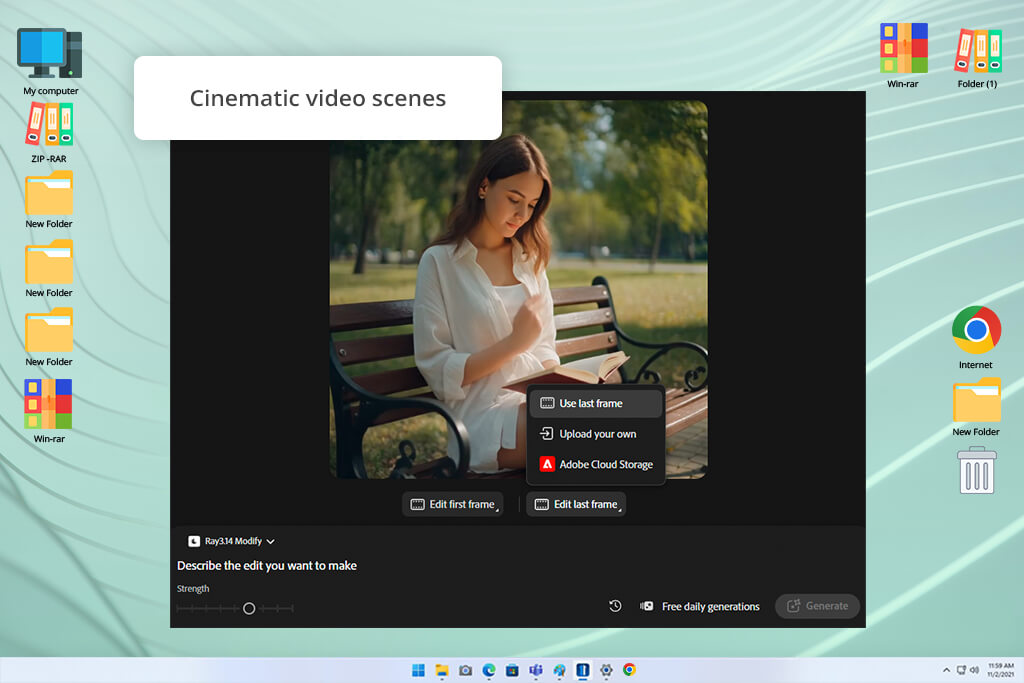
Adobe Firefly was the first option on my list since I’m already an active user of many other Adobe solutions. I wanted an AI B-roll video generator that would help me receive professional footage that didn’t look generic or artificial.
Using this solution is pleasantly easy. I wrote prompts for various B-roll scenarios: product close-ups, creator desk shots, lifestyle scenes, abstract backgrounds, and cinematic transitions. Firefly produced short clips, which I could add to my social media content, software reviews, and product showcases.
I greatly appreciated the ability to curate the output delivered by Adobe Firefly. I could specify the exact type of footage I needed while receiving professional results. I simply had to ensure my prompt mentions the atmosphere, camera movement, lighting, and scene details.
I also used Adobe Firefly for some product videos. For instance, I had projects that included a basic product image or a script about a photo editing app. Firefly produced relevant visual scenes that ensured the final videos looked more professional and engaging.
"Begin with describing a specific visual concept since vague requests tend to deliver generic B-roll that won’t fit the rest of your video"

My advice: write prompts as if you were giving instructions to a cameraman. Rather than “coffee video,” type in “cinematic close-up of coffee being poured into a white ceramic cup, soft morning light, shallow depth of field.”
Pricing: Free limited access; paid plans from $9.99/mo.
Best for: Adding B-roll to existing videos
Ease of use: 5/5
B-roll automation: High
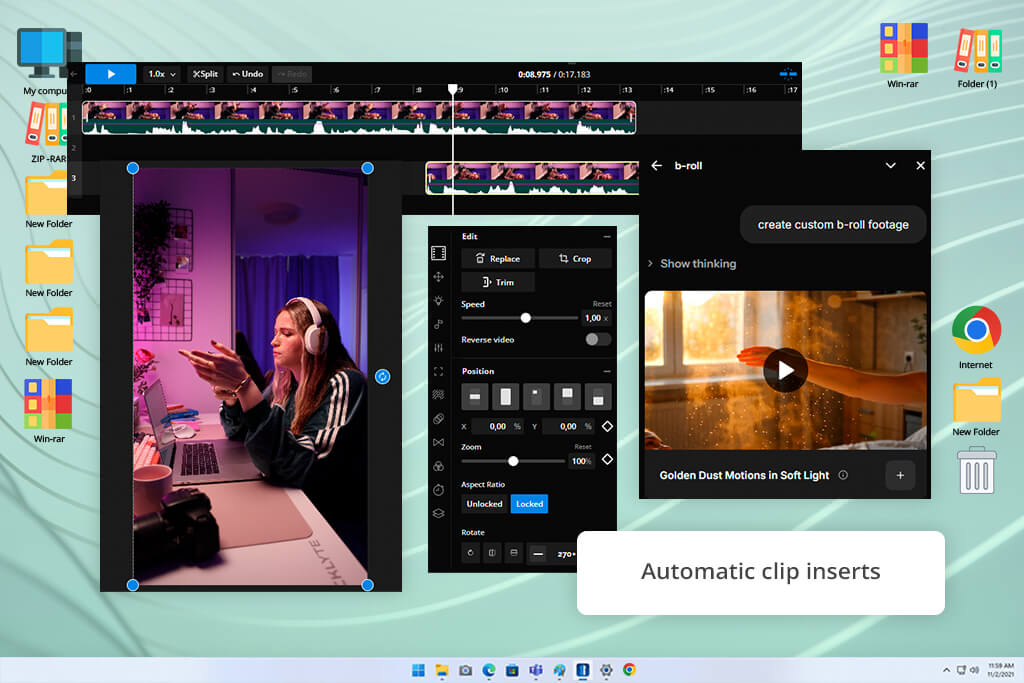
Kapwing is a user-friendly automatic B-roll generator that is perfect for users who already have footage but want to expand it with AI B-roll without having to record everything manually. I used it for talking head videos, tutorials, and social media shorts that lacked visual variety.
This online platform examines the video and recommends B-roll that can fit the main message. This is useful for YouTube Shorts, Reels, and educational clips since it makes static footage more dynamic while streamlining the editing process.
I appreciated Kapwing’s ability to both generate B-roll footage and offer basic video editing tools. It allowed me to trim and resize clips while also generating captions before exporting the result.
My advice: Don’t blindly use every recommended clip. Handpick B-roll that is a natural fit for your video and get rid of all variations that look overly generic.
Pricing: Free plan available; paid plans from $16/mo.
Best for: AI for talking-head videos
Ease of use: 4.5/5
B-roll automation: 5/5
Opus is a great option if you need to get AI B-roll for talking head videos, podcasts, interviews, and other similar types of content. I used it primarily for talking-head projects, where b-roll is used to preserve viewer engagement.
This solution examines the footage and automatically generates suitable visuals. This is extremely time-efficient since it allows me to avoid recording everything manually while also having to choose where each clip should go.
Opus can also be used for longer videos that have to be adapted to fit Shorts, Reels, or TikToks. It knows how to properly pace content and add B-roll during moments that could benefit from more movement.
It can’t replace proper professional video editors for Mac, but it’s a fantastic AI assistant that lets you quickly produce social media-ready versions of longer projects.
"For product videos, I prefer to specify the desired lighting, camera angle, and atmosphere in the prompt to ensure the output matches my vision closely."

My advice: Employ Opus to create the initial draft, but remember to review the final edit manually. Generated B-roll looks best if you apply some manual polish to it.
Pricing: Free tools available; paid plans from $15/mo.

Best for: Artistic B-roll, ads, visual experiments
Ease of use: 4/5
B-roll automation: 4/5
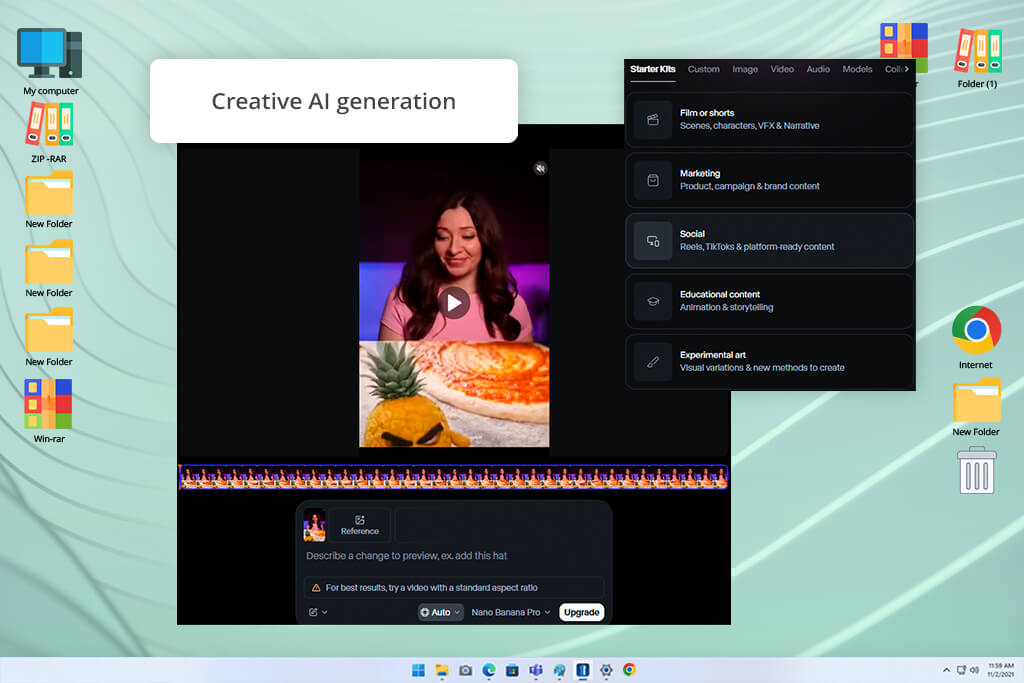
Runway is one of my go-to solutions whenever I need AI-generated B-roll since it doesn’t force me to settle for basic stock clips. It helped me receive creative B-roll for product showcases, app promotional videos, ad concepts, and social media posts that needed to look more impressive than a simple slideshow.
Runway lets you enjoy a lot more control over the output compared to most alternatives. It allows you to adjust the movement, lighting, composition, and atmosphere, ensuring you can generate B-roll for pro campaigns. It helped me receive cinematic product close-ups, abstract tech backgrounds, and smooth transitions that were a natural fit for the main footage.
The image-to-video feature felt very impressive as well. It lets me import a product photo, a mockup, or a visual concept and convert it into a video. Such functionality is particularly relevant when handling product photography, thumbnails, app previews, or brand visuals that require a brief animated version for Reels, Shorts, or ads.
"When preparing talking-head videos, I include b-roll during moments that can benefit from providing the viewer with proof, context, or a visual break."

After saving the result, I typically suggest testing it on one of the best free video hosting platforms first, particularly if you plan to feature the B-roll in a portfolio, client preview, or landing page. This will allow you to examine how the movement, quality, and loading speed look online before including the footage in the full campaign.
My advice: Pick Runway if you’d like B-roll that offers a more defined artistic approach. Provide detailed scene descriptions, specify the camera movement, lighting, and atmosphere, and generate multiple versions before picking the best one.
Pricing: Free limited plan; paid plans from $12/mo.
Best for: Realistic motion, cinematic scenes, product atmosphere
Ease of use: 4.5/5
B-roll automation: 4/5
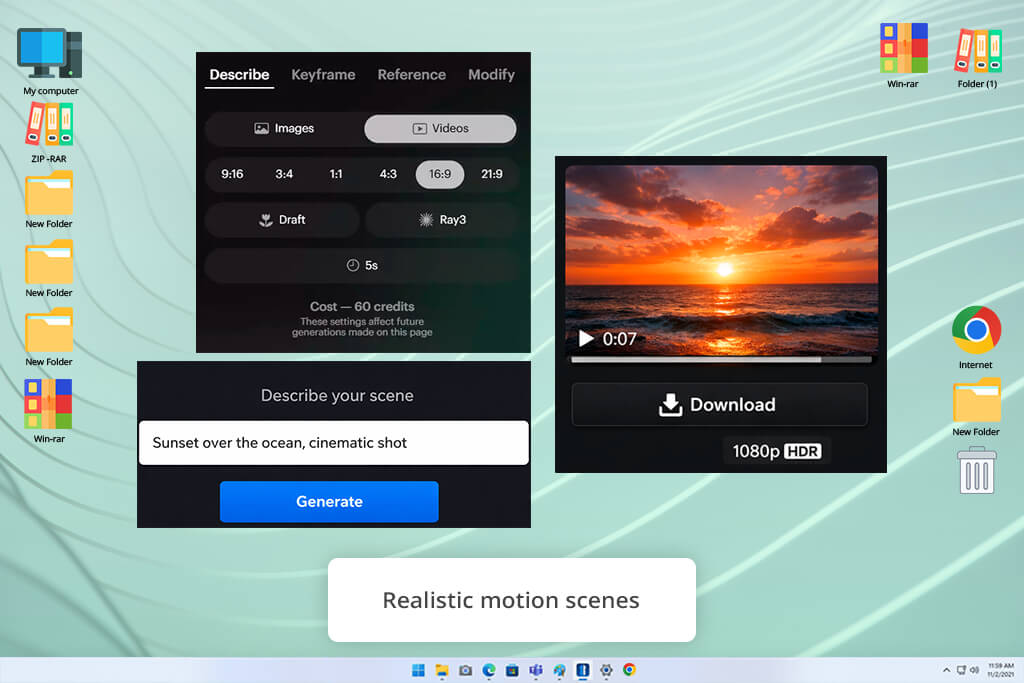
Luma AI is my go-to solution whenever I want to generate AI B-roll for YouTube or Instagram that looks realistic. It helped me produce lifestyle clips, product showcase clips, interior footage, and guided camera movements. Unlike solutions that are focused on flashy visuals and chaotic movement, Luma AI is great at generating videos with a natural camera feel.
The realistic movement is its main selling point. As long as you attentively describe the scene, the generated B-roll will look like it was recorded with an actual camera. This is particularly relevant for product showcases, real estate-style presentations, travel-inspired footage, and social media marketing clips that can benefit from smooth motion and natural lighting.
This AI video B-roll generator is fantastic when it comes to product atmosphere shots. If I were working with a product image or a script, I could produce relevant B-roll with soft lighting, a gradual push-in, or cinematic panning. The generated inserts ensured the final output looked more professional and polished, allowing me to avoid the “static talking-head” feel.
That said, Luma AI is extremely prompt-sensitive. If the prompt lacks specific details, the output can look generic or slightly unappealing. You can get the best results by describing the subject, environment, lighting, camera movement, and mood all in a single prompt.
My advice: Remember to include the desired camera movement in the prompt. Instructions like “slow push-in,” “smooth pan,” “handheld close-up,” or “soft cinematic motion” ensure Luma AI delivers more natural B-roll.
Pricing: Free access available; paid plans from $29.99/mo.
Best for: Short clips, Reels, quick ideas
Ease of use: 4.5/5
B-roll automation: 4/5
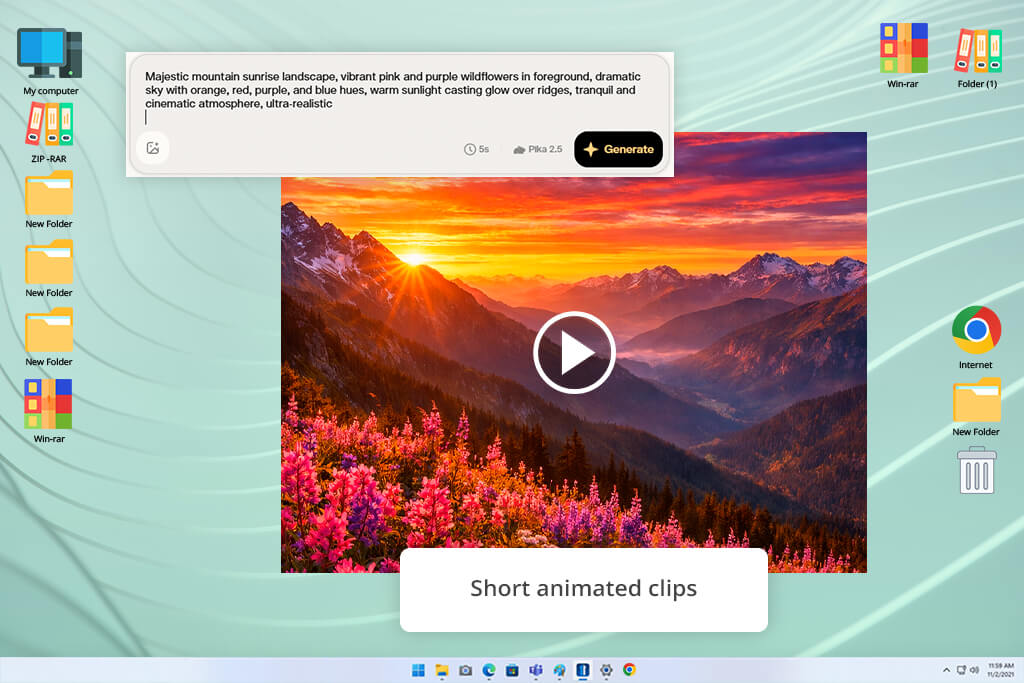
Pika is great if you need to generate a lot of AI B-roll for Reels quickly. Additionally, I used it for making visual inserts, YouTube Shorts, TikToks, and experimenting with various ideas on the fly. It lacks the complexity of more advanced solutions, but it’s extremely convenient if you just want to generate multiple short videos fast before picking the most suitable option.
The UI is easy to navigate, meaning you can try out various ideas without wasting any time. Unlike generative AI tools with steeper learning curves, Pika is more lightweight and quicker at delivering B-roll social media content, including product details, lifestyle scenes, abstract motion clips, and tasteful visual transitions.
Pika is the best B-roll generator if your priority is short B-roll clips for social media. If you’re working on a talking head video or a product showcase, Pika can help you improve the visual rhythm of your video without having to worry about setting up another recording session.
"I rely on Pika when implementing different short-form ideas, but I prefer generating multiple variations since its AI model doesn’t always deliver the expected result on the first try."

The results can feel inconsistent, which is why you should generate multiple versions, particularly if your B-roll involves complex scenes or detailed motion. Pika is great for casual social media content, and it can still be used for professional projects as long as you’re willing to do more selective editing.
My advice: Create 3-5 versions of the same prompt. Pika provides the best results if you have multiple outputs to pick from instead of betting everything on the initial generation.
Pricing: Free limited access; paid plans from $10/mo.
Best for: Marketing videos, explainers, YouTube drafts
Ease of use: 5/5
B-roll automation: 4.5/5
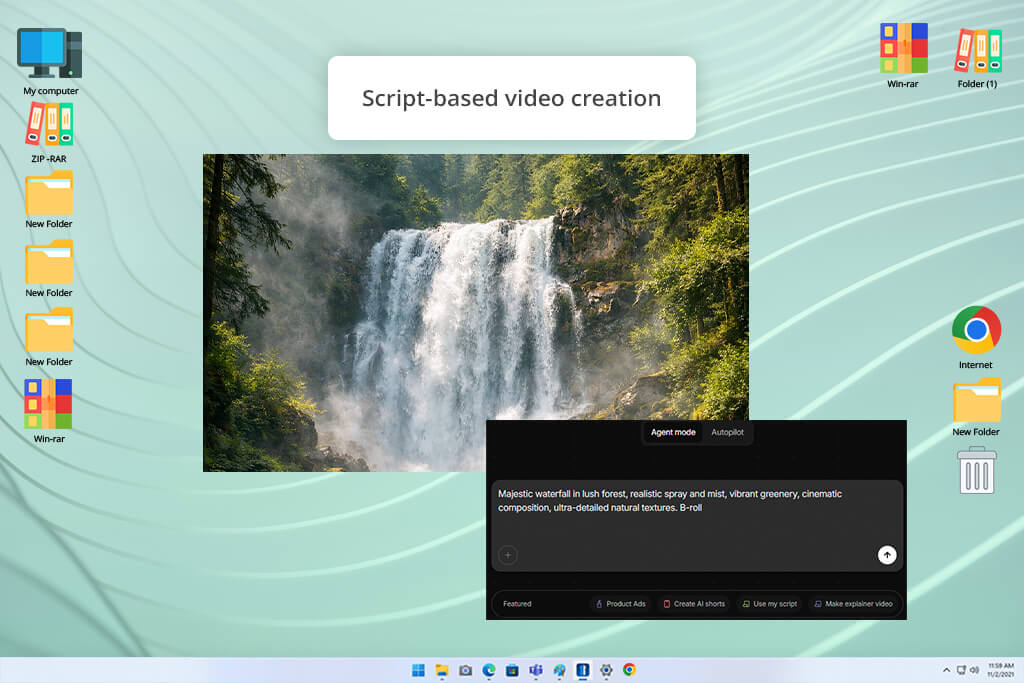
InVideo is a solid AI B-roll maker to use if you already have a script but haven’t prepared the initial video yet. It helped me create tutorials, product showcases, YouTube guides, list-style videos, and basic marketing ads. Rather than generating a single B-roll clip, it delivers an entire properly-structured video with visuals, text, and supporting footage.
Using InVideo is pleasantly intuitive. I simply needed to import a prompt or script, and the platform generated a draft project with logically structured scenes, stock-style B-roll, captions, and transitions. Such a solution can be of interest to marketers, small businesses, and creators who aren’t interested in making each new video entirely from scratch.
I think InVideo is best suited for educational and marketing projects. If I wanted to present a software tool, showcase a product, or quickly prepare a YouTube draft, this platform allowed me to progress from concept to initial version within minutes. Additionally, it let me conveniently adjust the pacing, replace clips, and prepare the project for different formats.
The biggest drawback of this option is that its outputs can often feel template-based. The B-roll can look good, but it might require personalization if you need to ensure your video looks unique. I tend to swap out a couple of clips, tweak the text, and fine-tune the pacing before downloading the result.
My advice: You can rely on InVideo to make the initial draft, not the final result. While it excels at structuring videos, I highly recommend swapping out the generic footage with more relevant B-roll.
Pricing: Free limited plan; paid plans from $28/mo.
Best for: Reels, Shorts, browser-based editing
Ease of use: 5/5
B-roll automation: 3.5/5
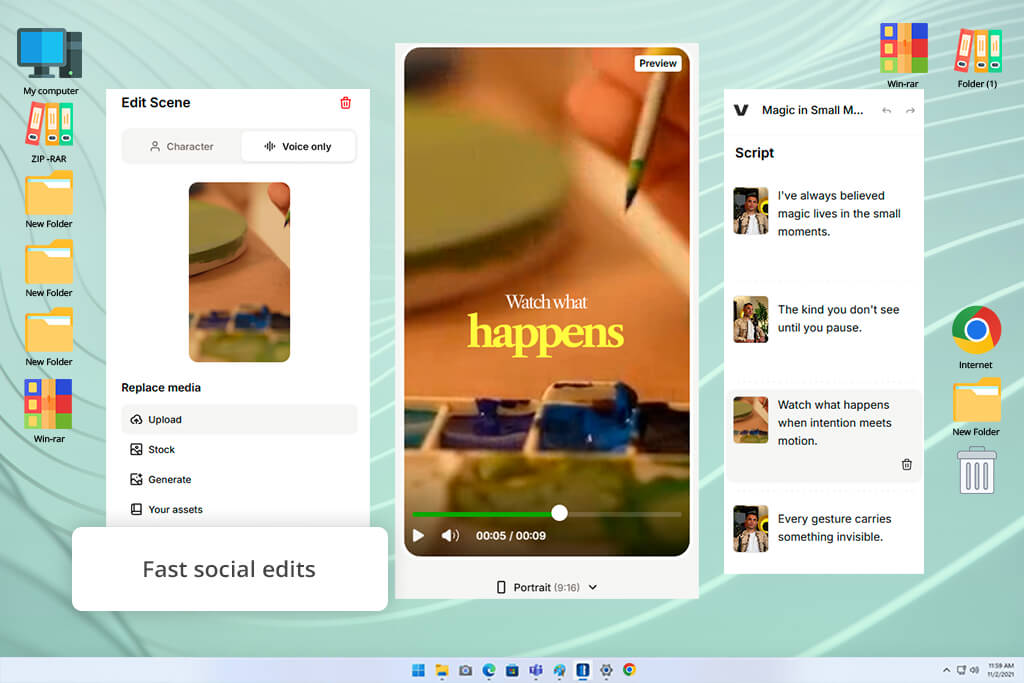
VEED is a handy solution for users who prefer to edit their videos online. I used it for Reels, Shorts, tutorials, product showcases, and basic promotional videos. In addition to providing B-roll footage, VEED offers a variety of tools for polishing your footage, adding captions, applying visual effects, resizing, and quickly exporting your projects.
I particularly enjoyed how streamlined the workflow here is. I could import videos, add inserts, adjust the timeline, generate captions, and resize the project to ensure it fits different platforms without having to use multiple apps. That’s why VEED is a great option for users who want to make fast edits without messing around with premium video editing software.
That said, it isn’t competing for the title of the best free AI B-roll generator since it’s better for enhancing existing clips rather than producing new B-roll from zero. If your project already includes raw footage, screen recordings, or talking-head segments, VEED can help bring all those elements together with additional visual layers and appropriate edits.
This is great for social media, since this platform lets you easily improve the look of your Reels, Shorts, and TikToks with captions, B-roll inserts, cuts, and platform-optimized formatting. VEED is particularly great at preparing videos that have to be published fast.
"With VEED, I usually enhance existing footage rather than generating B-roll from scratch, since its biggest strengths are editing features, captions, resizing, and quick social exports."
My advice: Choose VEED if you’ve already recorded the necessary footage and now want to make it more engaging using B-roll, captions, and basic edits. If you need more AI assistance, consider using it alongside Firefly or Runway.
Pricing: Free plan available; paid plans from $12/mo.
Best for: YouTube videos, podcasts, tutorials, marketing content
Ease of use: 4.5/5
B-roll automation: High
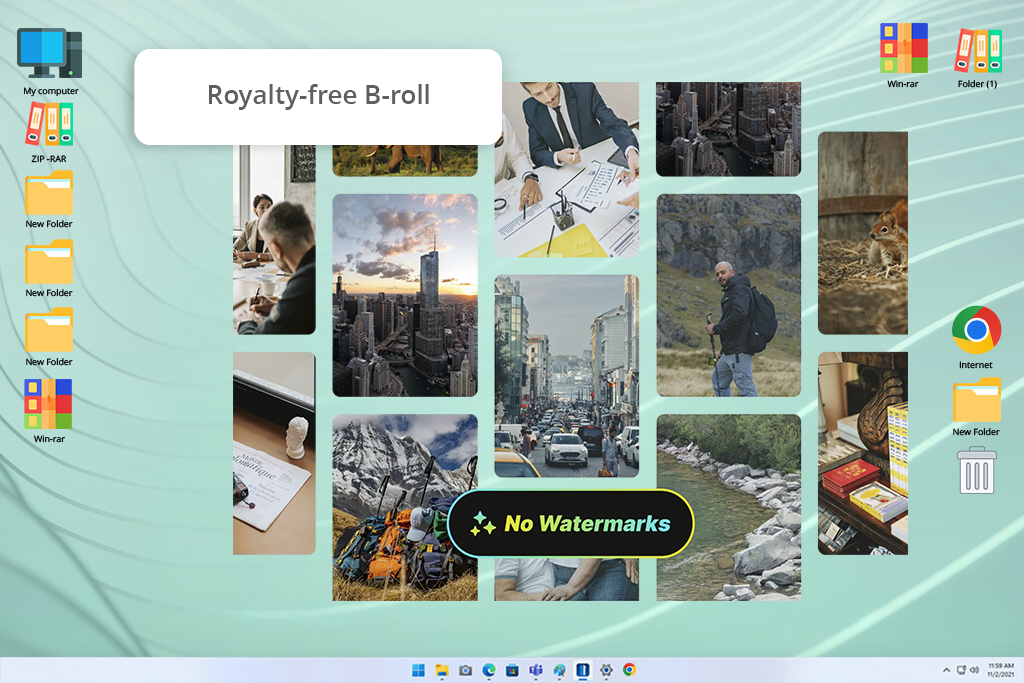
I was able to add accompanying images to talking-head videos much more quickly thanks to WayinVideo. As an AI B-roll generator, it examined my uploaded movie, identified the key themes, and automatically added pertinent B-roll clips without forcing me to manually go through stock footage.
When I tested it using a lesson video, I was amazed at how fast it recognized instances that required visual assistance. Additionally, I could use text prompts to create bespoke AI B-roll, swap out clips if necessary, and export the finished film with all of the modifications already applied to the timeline. Compared to creating B-roll sequences by hand, the process seemed significantly quicker.
All things considered, I believe WayinVideo is an excellent option for producers that frequently release instructional videos, product demos, podcasts, or promotional content. It is an effective tool for creating more captivating films with less editing work since it combines AI scene analysis, automatic placement, and watermark-free exporting.
My advice: use specific prompts that mention the subject, setting, camera angle, lighting, and style. Instead of “modern office,” write “slow cinematic pan across a bright modern office, natural daylight, employees working in the background.”
Pricing: Starts with 200 free credits; paid plans are available.
Best for: Quick automated b-roll, beginner edits
Ease of use: 5/5
B-roll automation: 5/5
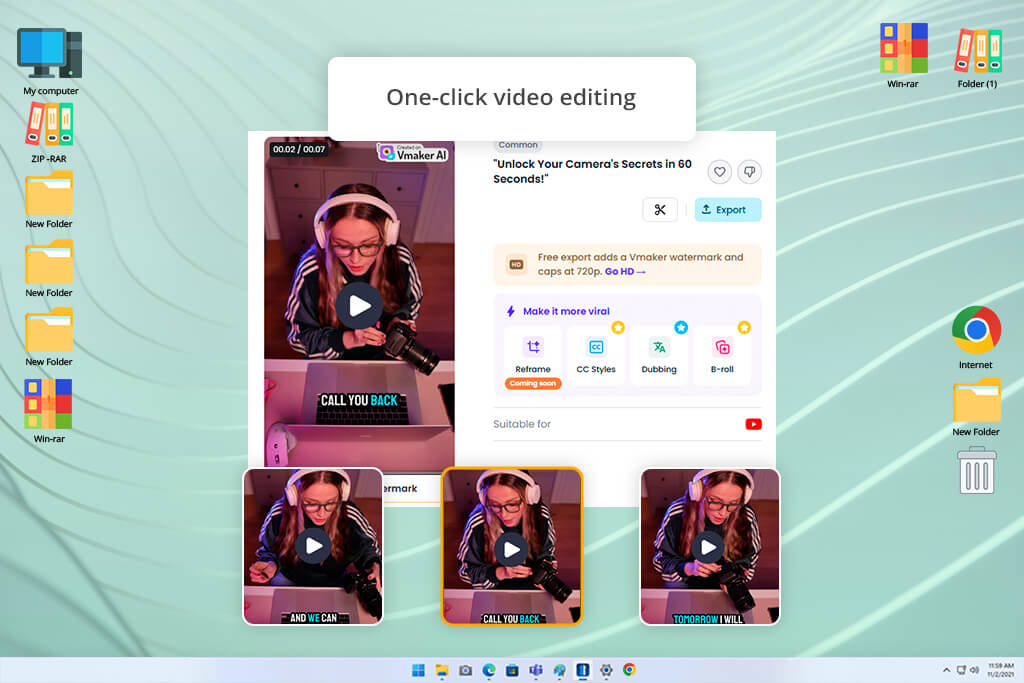
Vmaker is an easy, automatic B-roll generator to recommend to anyone interested in a user-friendly solution that doesn’t have a steep learning curve. I used it for my talking-head Reels, educational videos, brief tutorials, and regular clips that needed to feel more dynamic.
Rather than being forced to manually find stock B-roll footage, determine placements, and edit each addition, this AI video generator ensures you can generate relevant visuals without any friction. This is why it’s great for YouTubers, coaches, educators, marketers, and small business owners interested in producing more engaging videos, even if they don’t have advanced editing skills.
I enjoyed using Vmaker for fast content upgrades. Whenever one of my projects contained interesting information but lacked a visual punch, I added some relevant automatic B-roll to make the footage more engaging. It doesn’t offer as much creative freedom as some alternatives, but it’s extremely time-efficient, prioritizing speed over artistic control.
The main drawback of this option is that it requires manual review. While the generated B-roll is usually relevant, it isn’t always perfect. If the insert clashes with the tone, message, or timing, you should delete or swap it out.
My advice: Pick Vmaker for quick drafts and easy-to-make edits, but examine each addition before finalizing the video. Automatic B-roll needs to support the main video, not distract from it.
Pricing: Free plan available; paid plans from $24/mo.
When trying out different AI tools for B-roll generation, I wanted to check more than just how stunning the delivered footage looked. Just because the B-roll looks great, that doesn’t mean that a platform can be properly integrated into an actual editing workflow.
My goal was to learn whether each option could be time-efficient, help enhance pacing, and generate B-roll that facilitates the main message of the video rather than distract from it.
Along with my colleagues from the FixThePhoto team, I tested these solutions on the types of videos we usually work on: product showcases, software reviews, application tutorials, talking-head clips, YouTube guides, Reels, Shorts, and ads.
I focused on the following areas:
Consistency was also very important for me. If a platform generated one nice-looking clip but couldn’t provide the same level of quality in the subsequent attempts, it received a lower ranking. For product showcases and branded videos, consistency is essential since the B-roll has to match the atmosphere and mood of the rest of the project.
Additionally, I verified whether the generated B-roll looked realistic enough to be added to client projects. Some platforms produced clips that looked stunning, but the movement felt unnatural, or the scene was a poor fit for the prompt I entered. In such situations, the results are suitable for drafts and casual social media use, but not professional projects.
It is a platform for creating and integrating supporting footage for the main video of a project. It can generate short scenes based on prompts, animate photos, or recommend fitting inserts for talking-head videos, product showcases, tutorials, and social media content.
B-roll can make your video more eye-catching or help convey its main message. You can use them to highlight product details, demonstrate a process, hide cuts, set the mood, or provide the viewers with a convenient visual break from a static scene.
AI B-roll for shorts can be good enough to replace some basic supporting clips, particularly if you’re after atmosphere, background visuals, or fitting social media inserts. That said, real filming is still superior when it comes to showcasing specific products, real locations, actual people, and behind-the-scenes content.
B-roll is useful for YouTube explainers, Reels, Shorts, product videos, software tutorials, ads, educational clips, and talking-head content. It can also be recommended to users who rely on vlog editing software, since lifestyle videos tend to heavily feature cutaways, detail shots, travel inserts, and handy visual breaks to keep the viewer engaged.
Write detailed prompts rather than short, vague ones. Describe the subject, camera motion, lighting, atmosphere, and format. For instance, “slow cinematic close-up of a product on a desk, soft window light, shallow depth of field” will deliver a significantly more impressive result than “product video.”
Yes, a lot of solutions provide free versions or limited trials. Free plans allow you to experiment with basic workflows, but premium subscriptions tend to deliver superior quality, more generations, higher resolutions, and fewer limitations.
Kapwing, Opus, and Vmaker can help you generate suitable inserts to talking-head videos automatically. For more cinematic results, Adobe Firefly, Runway, and Luma AI should be on top of your list.





![9 Best AI Label Generators [{{%year}} FixThePhoto Choice]](http://fixthephoto.com/blog/images/gallery/news_main__preview_28972.jpg)


![11 Best AI Tools for Content Creation [Free & Simple]](http://fixthephoto.com/blog/images/gallery/news_main__preview_28962.png)

![9 Best AI PDF Editors in {{%year}} [Expert Tested Guide]](http://fixthephoto.com/blog/images/gallery/news_main__preview_29012.jpg)

















