

A photographer's day-to-day life runs on paperwork just as much as it runs on images. Client briefs, contracts, mood boards, invoices, and retouching briefs land in your inbox as PDFs, and managing them without the right tools quickly eats into your creative time. That's exactly where AI PDF editors stepped in for me, making light work of summaries, translations, OCR, text extraction, quick edits, and even holding a conversation with a document.
However, most tools looked better in demos than they did in real use. They struggled with scanned files, formatting, and good final quality, which was a must for client-facing work. That is why I decided to test 9 popular programs myself with additional input from the team at FixThePhoto. Below, you can find a detailed review pf the tools that held up under real working conditions and handled the task in a quick way.
| Tool | AI Features | Best Use Case | Free Plan/Trial |
|---|---|---|---|

|
AI summaries, citations, rewriting, OCR
|
Professional workflows
|
✔️
|

|
AI chat, translation, smart search
|
Everyday editing
|
✔️
|

|
OCR, AI extraction, smart forms
|
Business documents
|
✔️
|

|
AI summaries, AI MindMap, translation
|
Online PDF tasks
|
✔️
|

|
OCR, AI explain, summaries
|
Quick edits
|
✔️
|

|
AI rewrite, proofreading, OCR tools
|
Advanced editing
|
✔️
|

|
AI chat, summaries, compression
|
Quick browser edits
|
✔️
|

|
AI forms, OCR, eSign, AI chat
|
Teams and contracts
|
✔️
|

|
AI Assistant, contextual search, bookmarks
|
Large document management
|
✔️
|
Picking the best AI PDF editor meant looking past flashy features and focusing on functionalities that can speed up and simplify my work. With each platform, I tested OCR accuracy, AI summaries, PDF chat, translations, and editing tools. Besides, I analyzed how well they handled large, image-heavy files and tricky scanned documents.
Beyond raw features, I looked at how easy the interface was to navigate, how reliably the software held up during longer sessions, and whether the AI truly cut down on time or just added extra steps. Cross-platform compatibility, privacy standards, workflow structure, and pricing were factored in, too, since plenty of tools came loaded with AI capabilities but still were sluggish and restrictive for serious professional use.
While comparing PDF AI editors, I understood that the biggest win isn't speed. It is more important to eliminate dull, repetitive work that quietly drains your day. Searching through pages, rewriting sections, pulling out data, and reorganizing files by hand takes longer than it should. AI handles most of that now right in the PDF file.
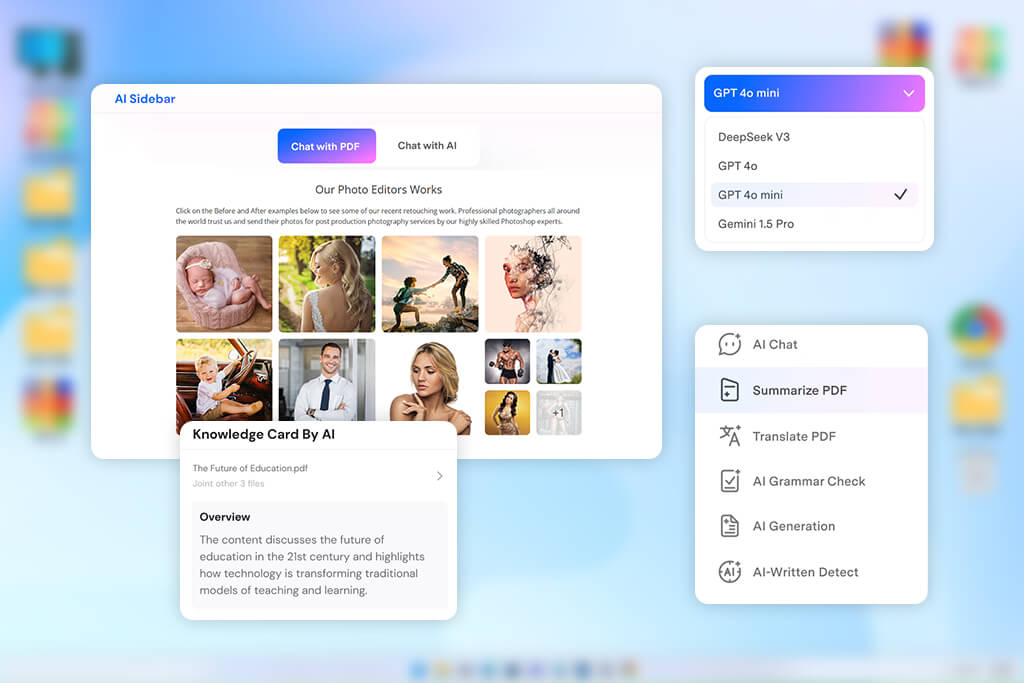
Here's why I like using AI PDF editors:
AI PDF editors are perfect for managing a steady flow of client documents every day. They expedite repetitive tasks and keep your whole workflow moving forward.
Price: 14-day free trial or from $24.99/mo.
Compatibility: Windows, macOS
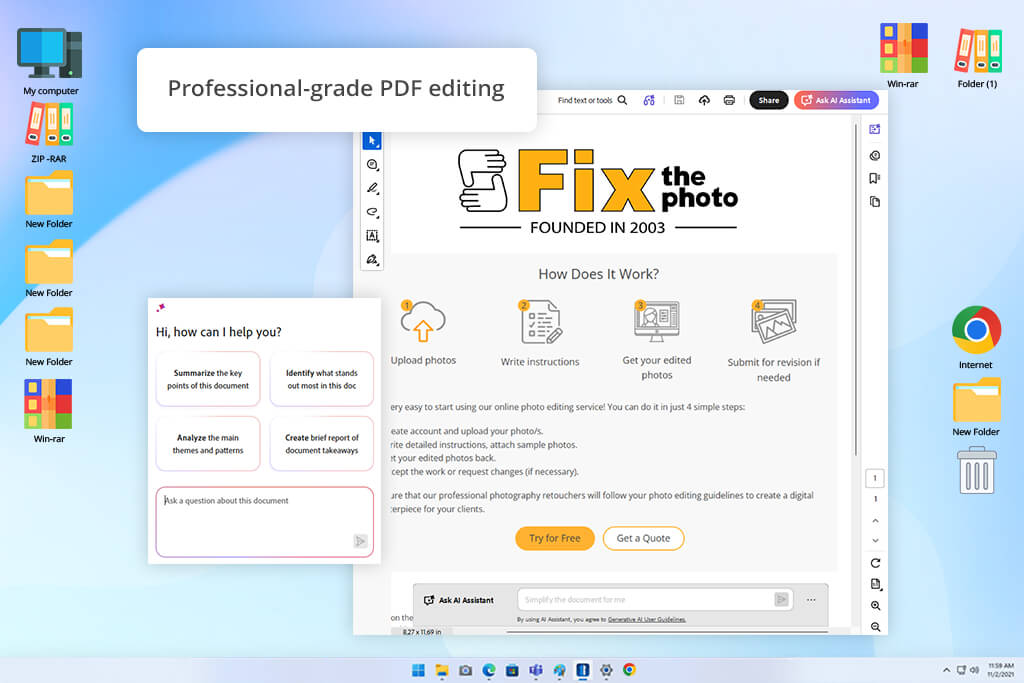
Adobe Acrobat comes with a genuinely capable AI PDF editor. There is also an AI Assistant that summarizes content, fields your questions, rewrites text, and processes quick edits through simple chat commands. Contracts, client briefs, and sprawling photography project files became much easier to manage, especially when tracking down specific information manually would have eaten up valuable time.
Most of all, I liked the Generative Summary feature and the clickable citations that took me directly to the source inside the document. Adobe Acrobat Pro also handled text rewrites, page reorganization, file conversion, and find-and-replace tasks cleanly, without sending me on a hunt through cluttered menus or separate tools.
Adobe's enterprise-level security and privacy controls gave me peace of mind when working with sensitive client material. This clearly isn't a tool built for casual use. Converting Word documents and images worked consistently and without fuss. You can also use Adobe Acrobat as a PPT to PDF converter tool. Stack the AI capabilities on top of the classic PDF toolkit, and you get a platform that takes the weight off large, detail-heavy client projects.
“Whenever I get a big client contract, Adobe Acrobat is the first tool I open. The AI summaries and document insights make the whole review process so much quicker.”

Price: Free (with watermark) or from $49.99/mo.
Compatibility: Windows, Mac, iOS, Android
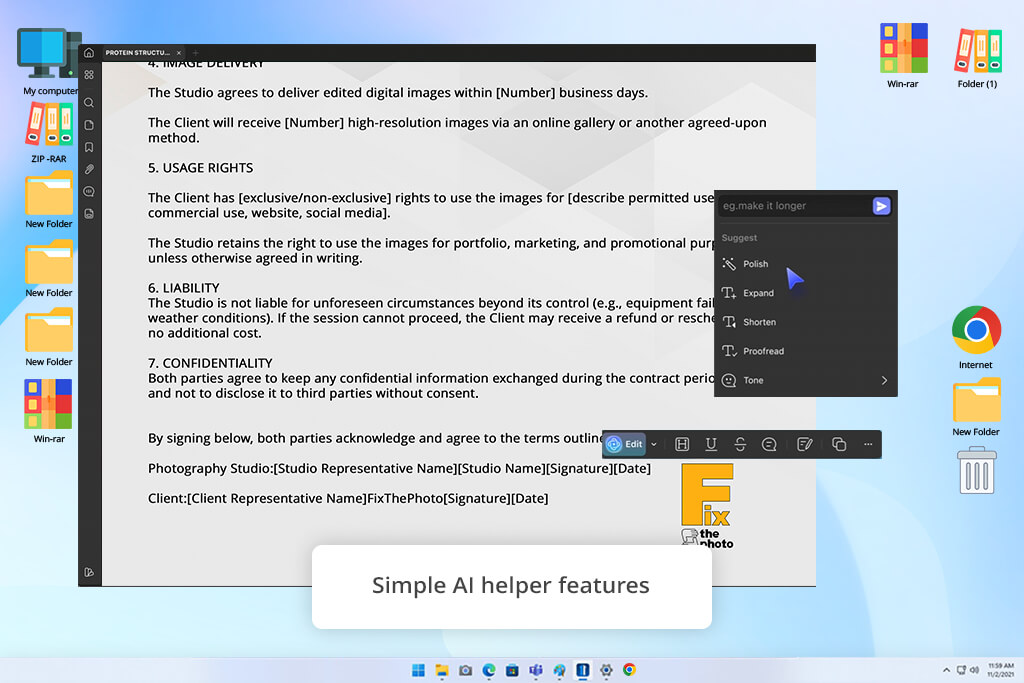
Working with PDF tools daily, I always look for something fast and simple. UPDF meets my requirements perfectly. Unlike bulkier platforms, it is lightweight and easy to navigate from the start. I tested this AI PDF editor while working on photography briefs, translating client notes, and summarizing lengthy documents. The AI assistant handled all of it, explaining text, rewriting sections, and simplifying complex information without ever leaving the file or switching apps.
10+ AI agents are the highlight of UPDF. They automate semantic search, auto-bookmarking, and smart data extraction. The tool condenses large reports into short summaries, translates documents into multiple languages, and builds mind maps from complex content while keeping the original formatting intact. However, graphic-heavy PDFs do cause noticeable lag. Besides, this program lacks the advanced collaboration and enterprise tools that are typically available in pro-grade alternatives.
Price: 14-day free trial or from $15/mo.
Compatibility: Windows, Mac, and iOS
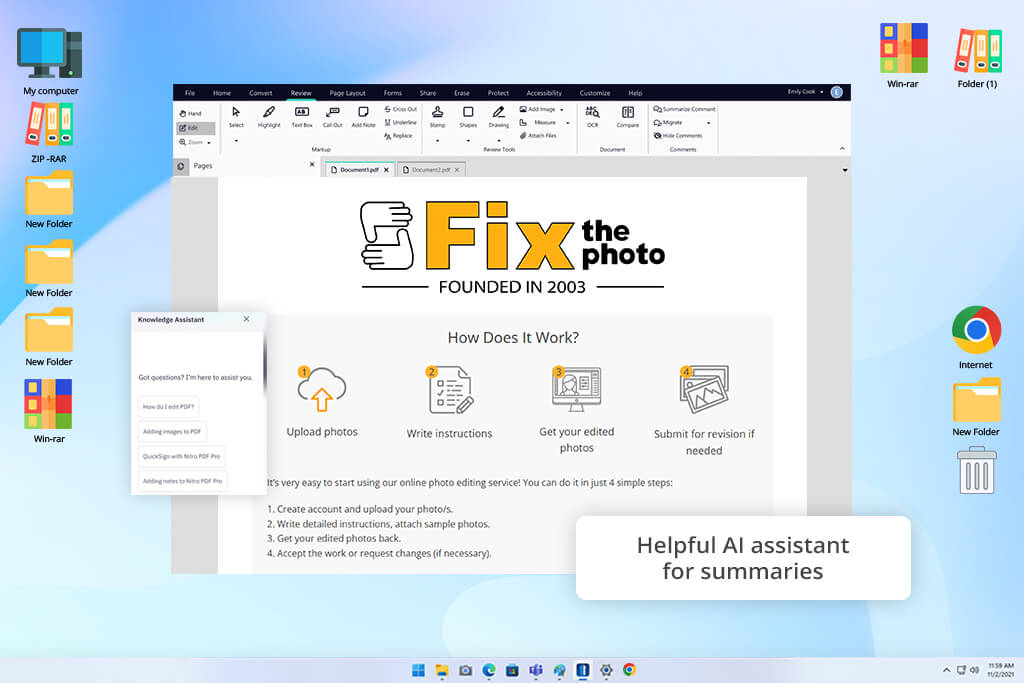
Nitro PDF goes well beyond what a basic free PDF editor can do. It targets professionals who need real document automation. To understand its capabilities, I ran this AI PDF editing software through long client contracts, scanned photography files, and fillable forms. The built-in AI assistant surprised me by delivering clean summaries, accurate translations, and sharp data extraction across all three. The chat-with-PDF feature stood out the most. It lets users ask direct questions and get instant answers, cutting out the need to scroll through dozens of pages.
On the automation side, Nitro's AI-driven form and table tools impressed me a lot. The tool detects fields on its own, pushes extracted data straight into Excel, and applies smart redaction to protect sensitive client details. OCR performance on scanned documents under pressure was also great. Still, the deeper menu layers can feel overcrowded and hard to navigate. Freelancers and small creative teams should also weigh the cost carefully, as the pricing leans toward larger budgets.
“It pulls data from forms really well, but big files can slow things down.”

Price: Free (web only, 1 file/day) or from $19.99/mo.
Compatibility: Web, Windows, Mac, iOS, Android
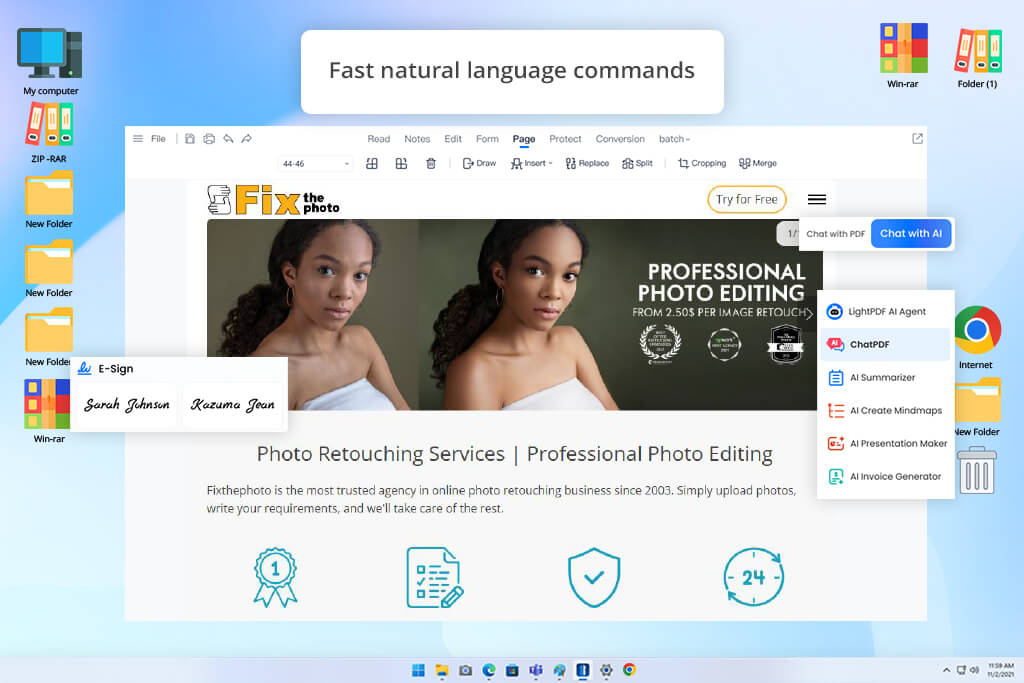
LightPDF packs AI-driven automation, smart document analysis, and quick editing into one platform. I used this open-source PDF editor for summarizing photography briefs, translating client files, chatting with PDFs, and turning lengthy documents into AI-generated mind maps. The natural language command feature changed the experience completely. Instead of clicking through menus manually, I simply typed what I needed, and the AI executed it right away.
This AI tool for PDF also handles file management with ease. Users can combine multiple files, shrink large PDFs, remove watermarks, and create clean documents from plain text in minutes. Translations kept the original layout fully intact, which matters a lot when clients work across different languages. The weak spots are clear. Some advanced tools still need more work, and heavy graphic files tend to make the web version of this AI-powered PDF editor run more slowly.
Price: Free trial (20 credits) or from $29.99/year.
Compatibility: Windows, Mac, iOS
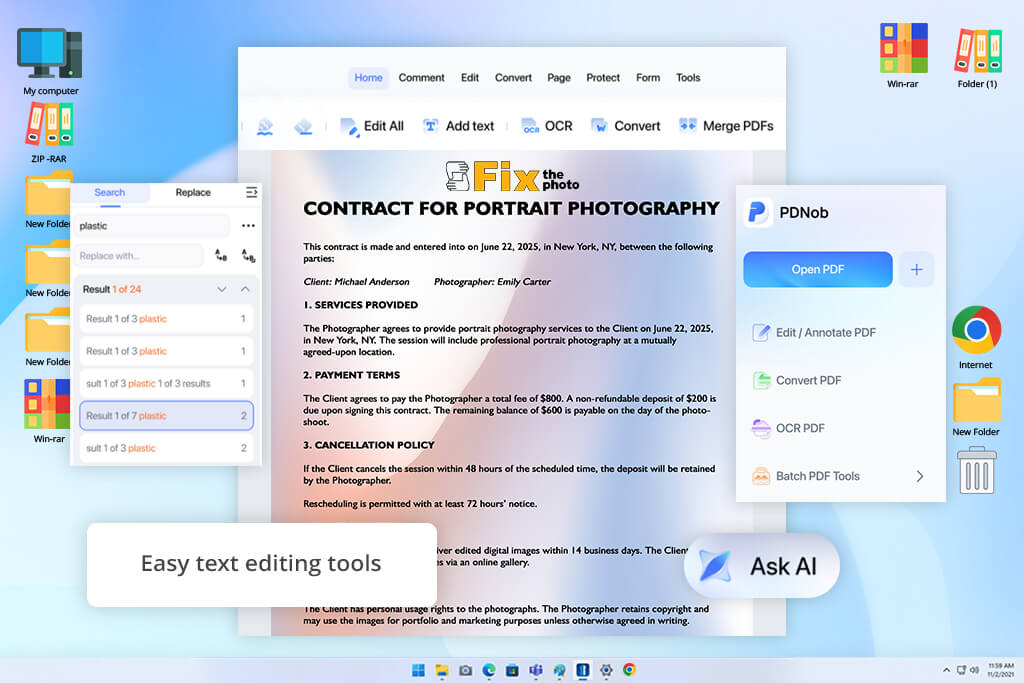
PDNob takes a different approach to PDF editing, offering a handy combination of a lightweight PDF AI editor and document management software. It strips away the features most users never touch and focus on getting everyday tasks done quickly. The AI chat tool lets you query any document directly and surface answers in a clean, readable format rather than scrolling endlessly through pages. For anyone looking for an affordable Adobe Acrobat alternative, PDNob makes a compelling case.
Navigating this PDF editor with AI is easy from day one. Annotations, text edits, OCR, and translations work consistently whether you sit at a desktop or reach for your phone. The AI summarization feature earns its keep, too, turning dense reports and project briefs into tight overviews that speed up your editing process. Standard documents run through it without a hitch, though heavily formatted files and large-scale conversions do expose some performance ceilings. Team-based workflows also require improvement. The collaboration suite lacks features that shared creative projects typically demand.
“Great for quick, individual tasks. But it may disappoint teams needing robust collaboration tools.”
Price: 14-day free trial (with watermark) or from $79.99/year
Compatibility: Web, Windows, Mac, iOS, Android
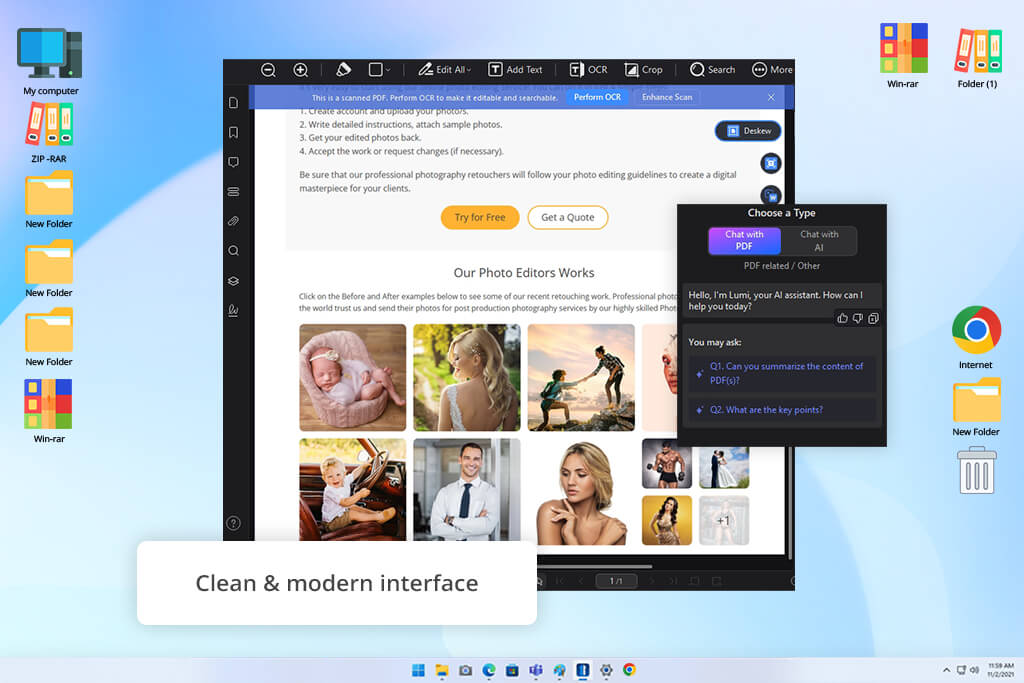
Most PDF editors make you choose between solid editing features and smart AI tools. PDFelement skips that trade-off entirely. The platform handles everything from rewriting paragraphs and proofreading copy to spotting AI-generated content and breaking down complex sections within the same document window. Rather than reading through a 50-page report line by line, you simply ask the AI to pull out what matters and move on. If speed matters to you, this can be one of the best AI PDF editors to try.
The process rarely takes more than a few steps. Open your file, run it through the AI, and walk away with a polished export or a clean summary. Users who spend time in Microsoft Office will barely need an adjustment period. The layout speaks the same visual language. Scanned documents are easy to work with, with OCR producing reliable results across different file types. However, PDFelement shows its limits with bulky, image-heavy files that slow the software down. Plus, a toolbar packed with options that can confuse anyone approaching PDF editing for the first time.
Price: Free (daily download limit) or from $9.99/mo.
Compatibility: Web, Windows, Mac, iOS, Android
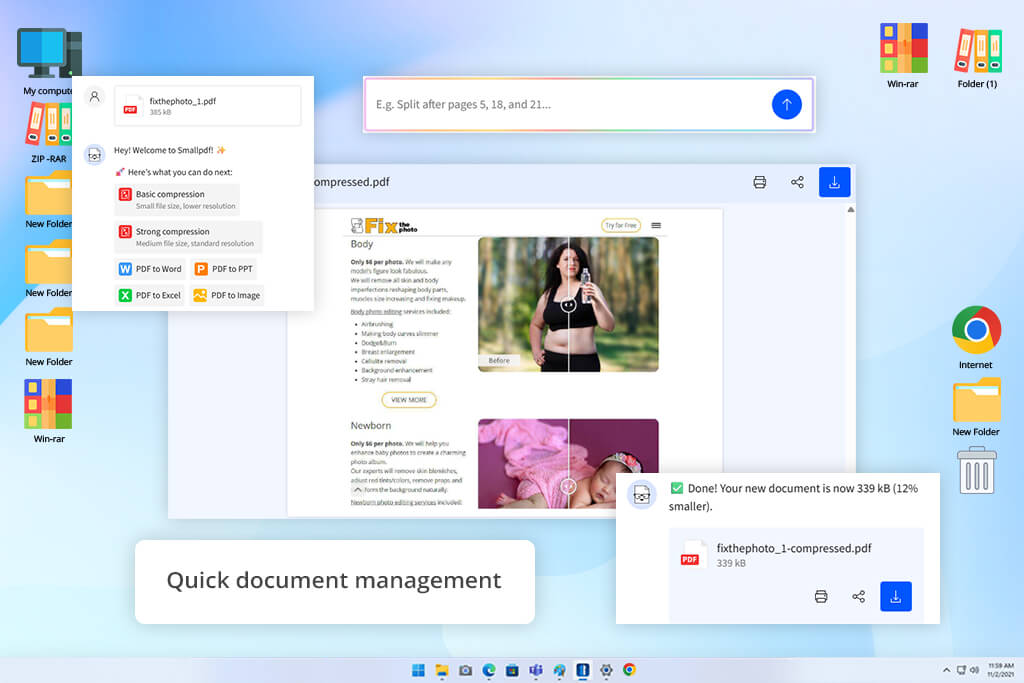
Smallpdf earns its reputation by making document handling fast and easy. Upload a file, and within moments, you can summarize it, translate sections, strip out pages, compress it, or pull specific information without touching a single setting. The built-in AI tool to chat with PDF surfaces answers quickly in large files, so you never have to dig through pages manually. The platform runs across devices, though the web version is most popular among users.
Everything about the interface signals ease. You will enjoy a clean layout and useful AI tools that deliver on everyday tasks. Summaries, translations, auto-generated questions, and chat responses work perfectly across lengthy reports and creative documents. Smallpdf also takes data security seriously, backing its platform with TLS encryption and full GDPR compliance. So, no wonder many users call it the best PDF editor AI in terms of safety. However, the trade-off is depth. Anyone needing serious formatting control or advanced editing capabilities will quickly face restrictions that browser-based tools simply cannot clear.
“Speed and simplicity are its strengths. But don't expect it to handle complex professional document work.”
Price: Free trial or from $8/mo.
Compatibility: Web
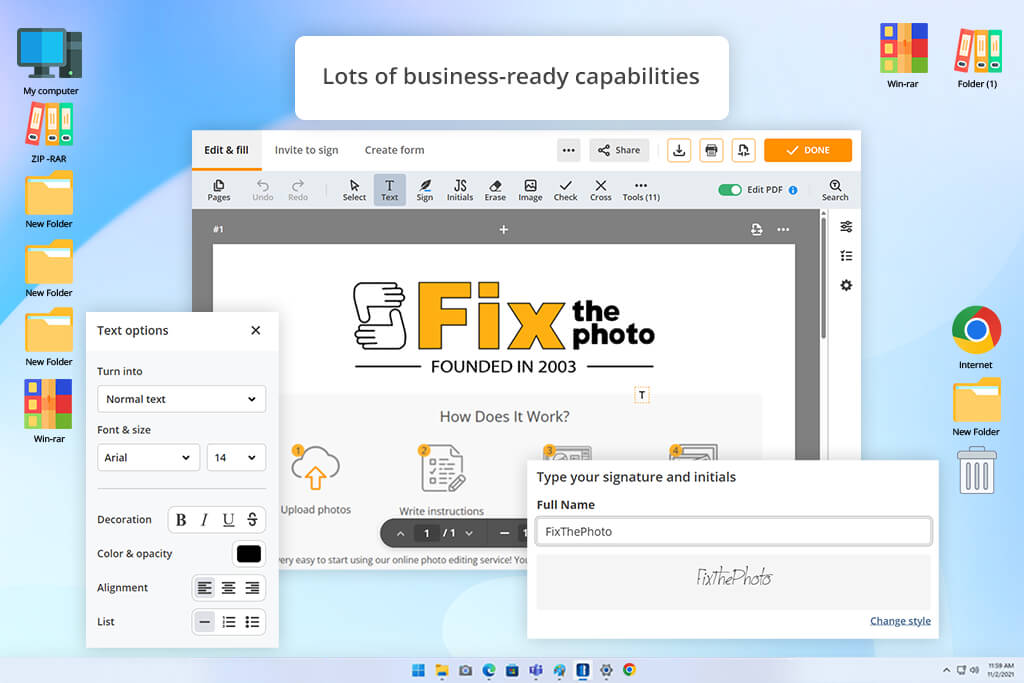
pdfFiller is a powerful tool that generates contracts and forms from plain prompts, detects fillable fields automatically, improves scan quality, translates documents, and summarizes content without breaking a sweat. The AI chat assistant proved particularly useful for cutting through dense files quickly, clarifying information on the spot and preparing documents for signing without manually working through every section. The overall process flows naturally. You bring in a file, let the AI handle the analysis or edits, then push it out for export, sharing, or eSignature.
pdfFiller is a whole system. OCR performed reliably on scanned paperwork, and contextual search, document generation, merging, conversion, and online PDF compressor give it the weight of a proper document management platform rather than a simple editor. That ambition does come with minor issues. The web interface struggled to stay responsive with very large or complex files. Besides, custom template creation takes time to master, so if you want 100% beginner-friendly AI PDF editor, this one can seem too advanced.
Price: Free trial (20 free AI credits) or from $5.99/mo.
Compatibility: Web
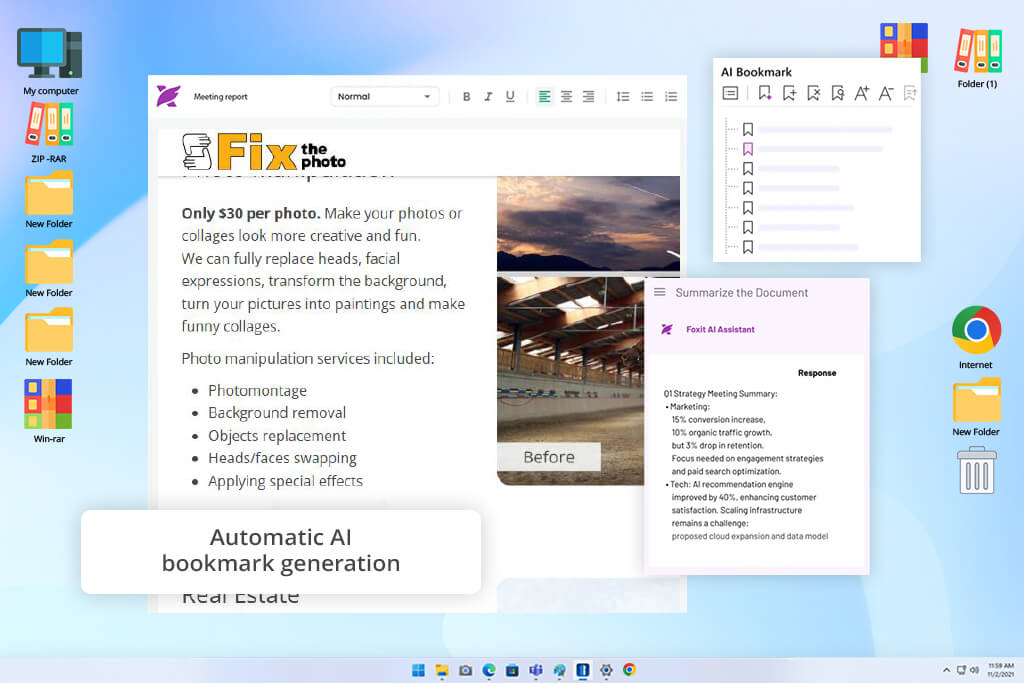
Foxit PDF handles documents, namely, long contracts, dense reports, and multi-page creative files, that most editors stumble over. Its AI goes further than basic keyword matching, running contextual searches that interpret meaning and pulling critical insights to the surface without requiring a full manual read-through. Summaries, translations, and key information extraction are available within the same environment.
The platform also doubles as a capable PDF organizer. AI-generated bookmarks appear automatically, while page management stays intuitive. There is also smart automation that handles repetitive workflow steps without much setup. The voice narration feature in this PDF AI editor impressed me a lot. Listening through lengthy documents while managing other tasks turned out to be genuinely practical rather than just a novelty. Text refinement tools are also useful, catching clarity and grammar issues directly inside the PDF.
The downsides are hard to ignore. The interface carries a lot of tabs and tools. Such a variety can divert from the work at hand. Heavy AI usage also burns through credit, so you need to spend more than a regular subscription covers.
“Breaking down complex reports is easy with the AI. Large files may cause problems and require manual input.”

The moment you drop a file in, the tool starts scanning your content, recognizing patterns, and understanding context through machine learning. From there, you can ask it to break down a dense clause, fish out a specific figure, or rewrite a section, and it responds in an understandable way.
Yes, they are perfect for such tasks. Instead of skimming through 80-page reports or dense legal contracts yourself, you can use Adobe Acrobat, UPDF, and Nitro PDF for distilling everything down to the core ideas and delivering them in a format you can act on immediately.
Thanks to OCR technology built into Adobe Acrobat, LightPDF, PDFelement, and other tools, the moment you upload a scanned image or photographed document, OCR kicks in, converts the static text into live, editable content, and opens it up to everything the AI can do.
The best PDF editors with AI tools let you type questions, and the AI pulls relevant answers directly from your file. You don’t need to hunt through pages on your own to get particular data.
The established ones take it very seriously, building in end-to-end encryption, GDPR compliance, and enterprise security frameworks. But "established" is the key word. Newer or lesser-known tools may cut corners, so check out their privacy policies before you upload anything confidential.
That reason is shrinking fast. AI PDF editors now cover everything conventional tools offer, then go further, automating summaries, recognizing scanned text, generating documents, and surfacing information instantly. For most workflows, the old way simply can't compete.
I and my colleagues from FixThePhoto didn't just browse feature lists or rely on vendor claims. We sat down with these tools and used them for work. Our testing covered different files that creative professionals and business teams deal with daily. There were photography contracts, client-facing invoices, scanned paperwork, mood boards, dense project briefs, and PDFs packed with high-resolution images. Every tool faced the same demands, and we tracked where each one delivered and where it cracked.
Several platforms didn't appear in the final list. DocuSign, Tungsten Automation, Canva, iLovePDF, Sejda PDF, LibreOffice, SwifDoo PDF, and PDFgear all went through our process, but each showed serious limitations – AI depth, poor handling of oversized files, unreliable OCR, or too basic editing functionality.
Here's the full breakdown of how we tested every tool:
Beyond the technical checklist, we paid attention to whether the AI made the work easier. Some tools marketed themselves aggressively but slowed to a crawl when the tasks got serious. A few others surprised us, automating repetitive steps.





![7 Best YouTube Shorts to MP4 Converters [Fast & Free]](http://fixthephoto.com/blog/images/gallery/news_main__preview_28927.jpg)


![7 Best Cricket Logo Makers [{{%year}} FixThePhoto Choice]](http://fixthephoto.com/blog/images/gallery/news_main__preview_28973.jpg)
![9 Best Wan AI Alternatives [{{%year}} FixThePhoto Choice]](http://fixthephoto.com/blog/images/gallery/news_main__preview_28961.jpg)


















