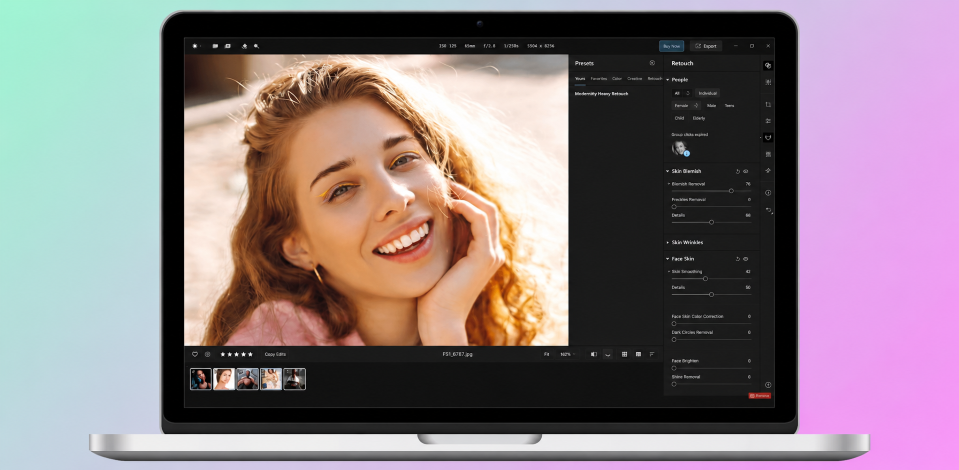
Fast portrait retouching without killing the natural look is the challenge every photographer faces. Editing a full outdoor shoot in natural light pushed me to find a smarter solution. I stumbled across Aperty. The tool promised exactly what speed, simplicity, and clean results. I tested it directly inside a live project. The results of my Aperty review spoke for themselves.

If you’ve ever spent hours fixing skin tones or chasing blemishes in post-processing, this Aperty review may stop you in your tracks. Aperty is built specifically for portrait photographers, and it shows.
Skylum’s software maps up to 4,000 dots across a face mesh and identifies 30 distinct face and body parts, which sounds technical until you see what it does for your editing workflow.
Several tools stand out immediately.
The Blemish Removal feature clears imperfections without flattening skin texture. Freckles can be kept or removed, your call.
The Face/Body Skin Color Correction slider tackles the two most common culprits: redness and that unflattering green cast that creeps in under bad lighting.
Makeup option lets you add blush, contour, and highlights without it looking overdone.
The Masking tool is quietly brilliant. AI picks out people or backgrounds in seconds, but brushes, gradients, and luminosity options give you full manual control when needed.
Presets and LUTs make color grading fast, with adjustable intensity so you can get truly bespoke results.
Skin Smoothing is ideal for wedding or fashion shoots where textures are important.
Studio Light lets you place up to five custom light sources anywhere in your image. For a portrait tool, that’s a remarkable level of creative control.
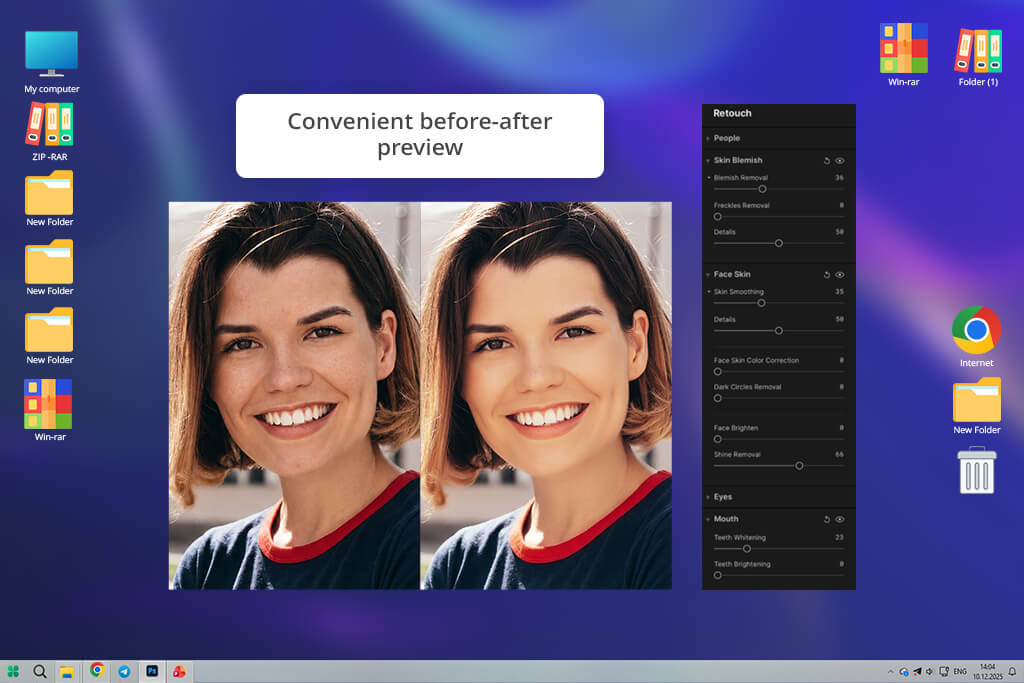
Aperty surprised me from the very first minute. I opened the app, created a project, dragged in my Sony RAW files, and started editing immediately. Right away, the RAW rendering caught my attention. Aperty handled highlight detail impressively well, even outperforming some of the Lightroom profiles I’ve relied on for years.
Navigating the interface was easy. I appreciated that double-clicking a slider snaps it back to default, Undo stays permanently visible, and the before/after toggle lets you compare edits instantly. That comparison tool alone saved me from over-editing multiple times.
I ran Aperty both as a standalone application and as a plugin alongside Adobe Photoshop and Lightroom Classic. The integration worked each time amazingly. You keep your existing workflow intact and simply add a powerful new tool to it.
I used a complicated photo to test this editor. It was a portrait with patchy skin, a handful of blemishes, and harsh sunlight carving shadows across the face. Normally, fixing that eats up serious time with multiple tools and careful manual work.
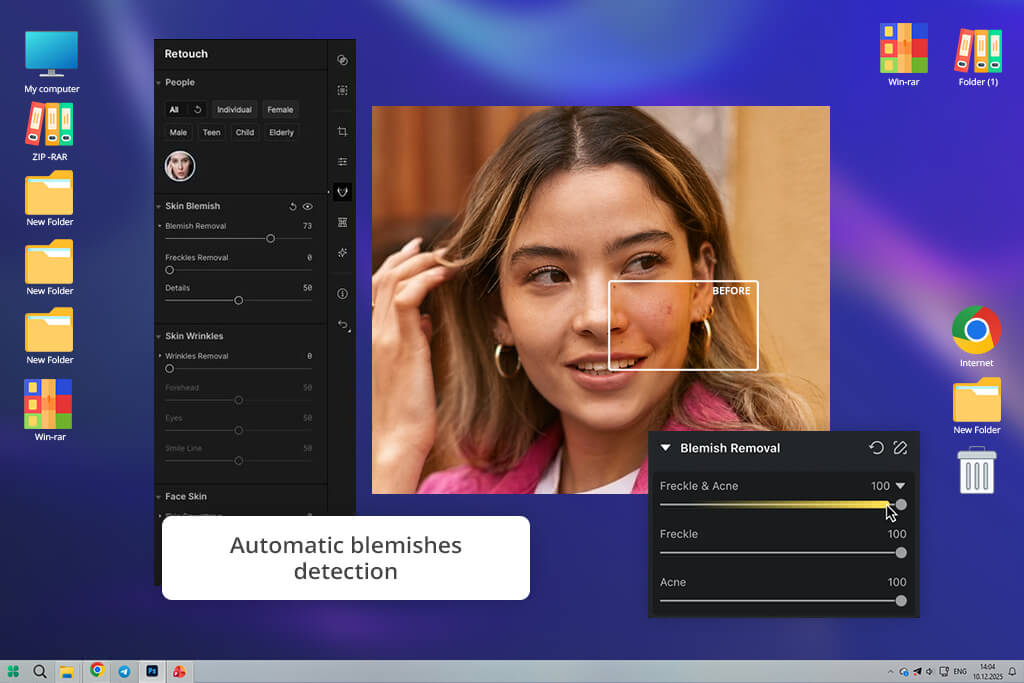
Blemish Removal and Skin Smoothing appeared to be very helpful. They let me skip elaborate workflow and layered techniques. Those two simple tools delivered a genuinely clean, natural-looking result faster than I expected. The app coped with the task well.
| Feature | Function | Result | Performance |
|---|---|---|---|
|
Blemish removal
|
Removes spots and imperfections
|
Clean skin, natural texture
|
★★★★★
|
|
Skin smoothing
|
Evens skin tone without blur
|
Realistic, soft look
|
★★★★★
|
|
Face mesh
|
Precise facial mapping
|
Accurate, controlled edits
|
★★★★★
|
|
Skin color correction
|
Fixes red/green tones
|
Balanced skin color
|
★★★★☆
|
|
Under-eye correction
|
Reduces dark circles
|
Fresher appearance
|
★★★★☆
|
|
Makeup tools
|
Adds blush, contour, highlights
|
Natural depth and tone
|
★★★★☆
|
|
Face reshape
|
Adjusts facial features
|
Subtle, realistic changes
|
★★★★☆
|
|
Body smoothing
|
Smooths neck/body areas
|
Consistent retouch
|
★★★★☆
|
|
AI masking
|
Isolates subject automatically
|
Clean, targeted edits
|
★★★★☆
|
Many blemish remover apps treat your skin like a blank canvas, erasing everything in sight. Blemish Removal in Aperty takes a smarter approach. It targets only what shouldn’t be there. Temporary breakouts and spots disappear, while moles, natural texture, and defining features stay exactly where they belong.
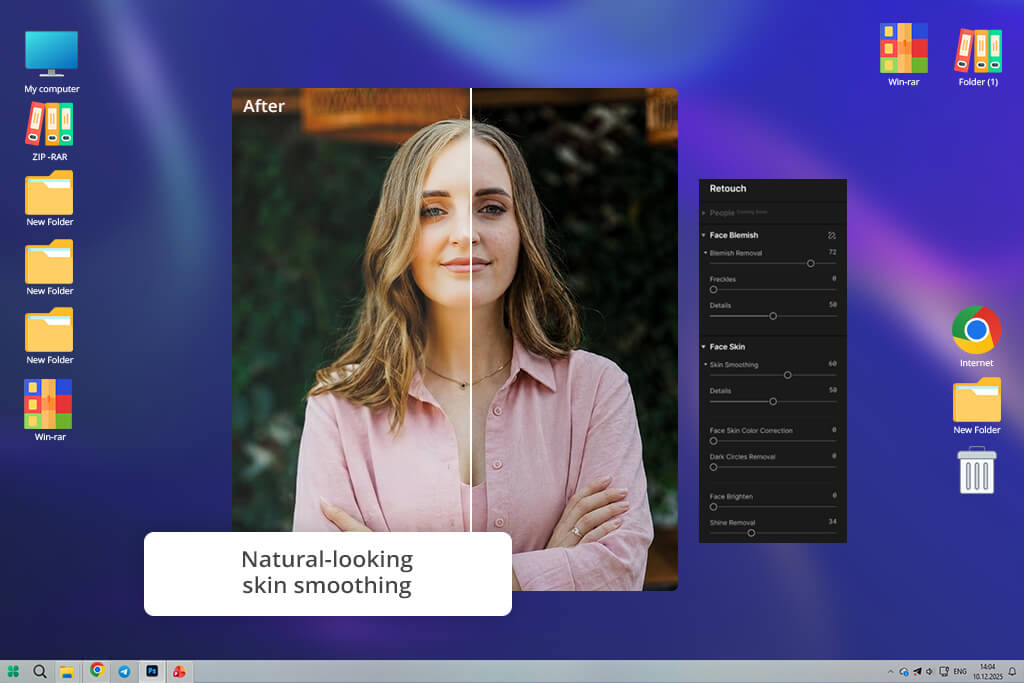
Skin Smoothing surprised me even more. Instead of the heavy blur you’ve seen in other skin smoothing apps, this one works by softening harsh tone transitions. The skin looks refined, not painted. Real texture stays intact, whether you’re editing a high-resolution studio portrait or a casual outdoor shot. Consistency is preserved across both.
I even stress-tested it, cranking sliders past what I’d normally use, fully expecting that dreaded plastic-skin look. It didn’t happen, and I want to emphasize it in this Aperty app review. It held up far longer than anything else I’ve tested before finally reaching its limit.
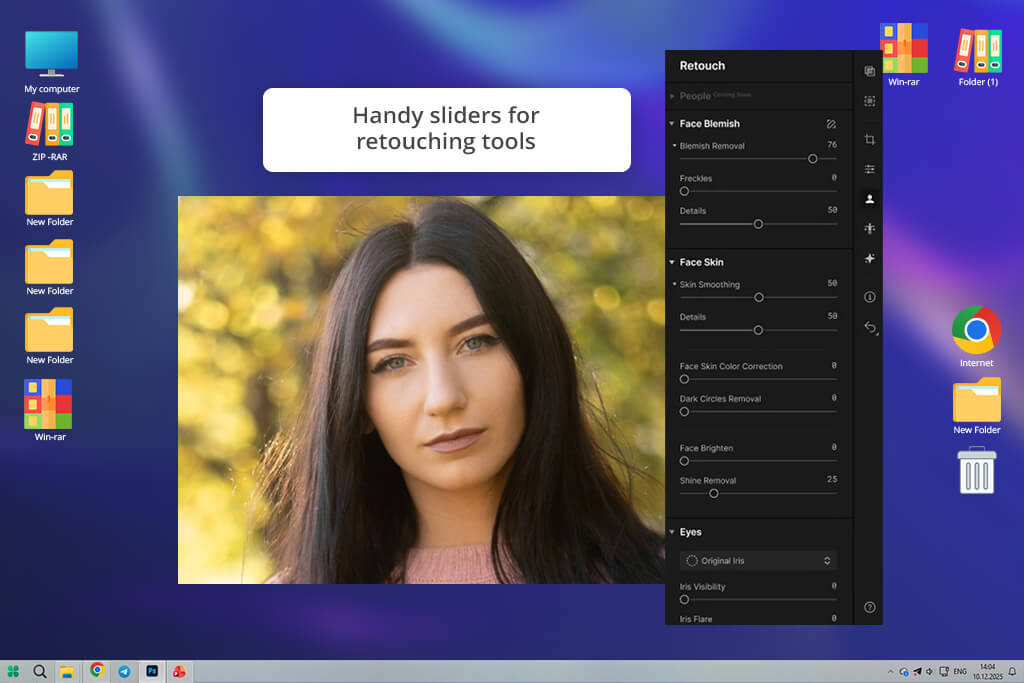
The app runs on advanced face mesh technology, mapping thousands of precise reference points across facial and body regions. When smoothing skin, it stays on the skin. When it comes to adjusting facial tones, the surrounding colors remain untouched.
There are no messy bleed-over or accidental edits bleeding into hair or backgrounds. Such accuracy typically demands hours of manual masking. Here it happens automatically.
Even when dealing with intricate group portrait ideas, Apery showed remarkable results. Each face is edited independently, with zero interference between subjects. It sounds like a small win, but for anyone working on real projects, it’s genuinely an important point.
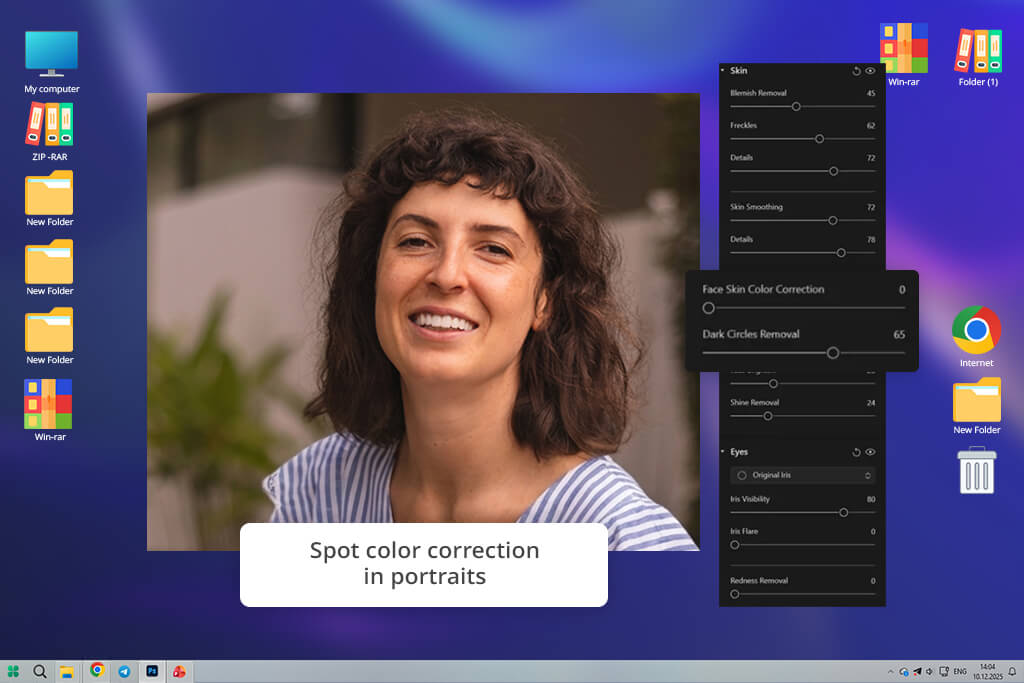
Face/Body Skin Color Correction surprised me a lot. I used a pretty challenging portrait for the task. Bad lighting made the skin look reddish in some spots and weirdly greenish in others from reflected light. Such a mess usually means spending ages on masks and color adjustments in traditional editing software.
But in Aperty, I just had to move a couple of sliders. The skin tones settled into place. Nothing looked overdone or artificial, which is usually the risk when correcting color heavily. I also tested it on a backlit shot where the subject looked pale and washed out. The result was equally professional.
In terms of skin color & lighting correction, Aperty earns its stripes. Basic photo editing software for PC makes you work through corrections one tedious layer at a time. Aperty just gets it done fast, and the results are on point.

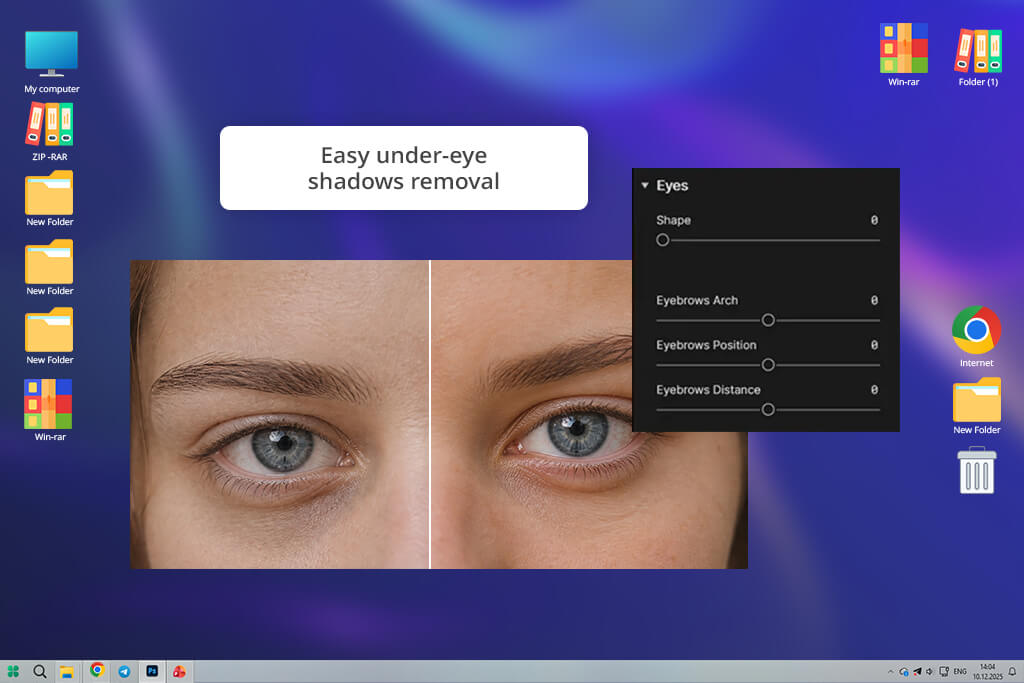
Digging into Aperty’s detailed retouching tools was also a pleasant surprise. The built-in tools handled under-eye shadows and subtle facial corrections easily, lifting darker areas and smoothing contrast, which usually takes me ages to do manually.
I didn’t expect the results to be so understated. Aperty didn’t slap obvious edits onto the image. It made the skin look like perfect lighting had done all the work. Even when I zoomed in, I saw smooth transitions.
This Skylum AI photo editor doesn’t chase dramatic transformations. Instead, it targets portraits that are almost there and gives them a quiet, confident nudge in the right direction. It is simple and surprisingly effective.
I didn’t think I’d use the Makeup tools much, but they pleased me. I tested blush, contour, and highlights on a neutral portrait with flat lighting, and the results exceeded my expectations.
It is worth noting in this Aperty photo editor review that the app reads the face’s natural structure. Instead of just painting color over the image, it places highlights where light naturally falls and adds contour where shadows belong. It just makes the photo look better.
I also tried the tools on bare-faced portraits. Even the lightest touch added dimension and life to the photo without making anyone look overdone. It’s not a tool I’d reach for every time, but for social media content or polished client work, it is a solid choice.
Harsh midday sunlight is a nightmare for most editing apps, so that’s exactly what I challenged Aperty with next. The test photo had blown highlights across the face and heavy shadows hiding detail under the chin and around the eyes. Such an image breaks free photo editing apps fast.
I started with the basic exposure controls, then pushed into highlights and shadows. Aperty turned out to be full of surprises. Pulling back the highlights didn’t flatten the skin into a washed-out mess. It gradually brought texture and tone back in a natural way.
Lifting the shadows told a similar story. Most mobile editors introduce noise or weird color shifts the moment you push them. Aperty held up surprisingly well, keeping the image clean and consistent throughout.
I also wanted to see how far Aperty’s curves tool could take me. Instead of making broad global adjustments, curves let me target specific tonal ranges. I pulled the brightest areas down slightly, lifted the midtones, and kept the face balanced without touching the rest of the image.
Then I moved on to white balance and HSL, and tested both on a tricky mixed-lighting portrait. Part natural daylight, part green reflected tones from nearby objects were not an easy fix. A few targeted tweaks to white balance neutralized the color cast, and the HSL panel let me dial in the skin tones specifically without throwing off everything else in the frame.
The app covers all the essentials that you typically come across in photo editing apps. There is white balance, exposure, curves, HSL, sharpening, detail, and noise reduction. Structurally, it reminds me of Lightroom, but without the overwhelming interface. You get serious editing power without drowning in options.
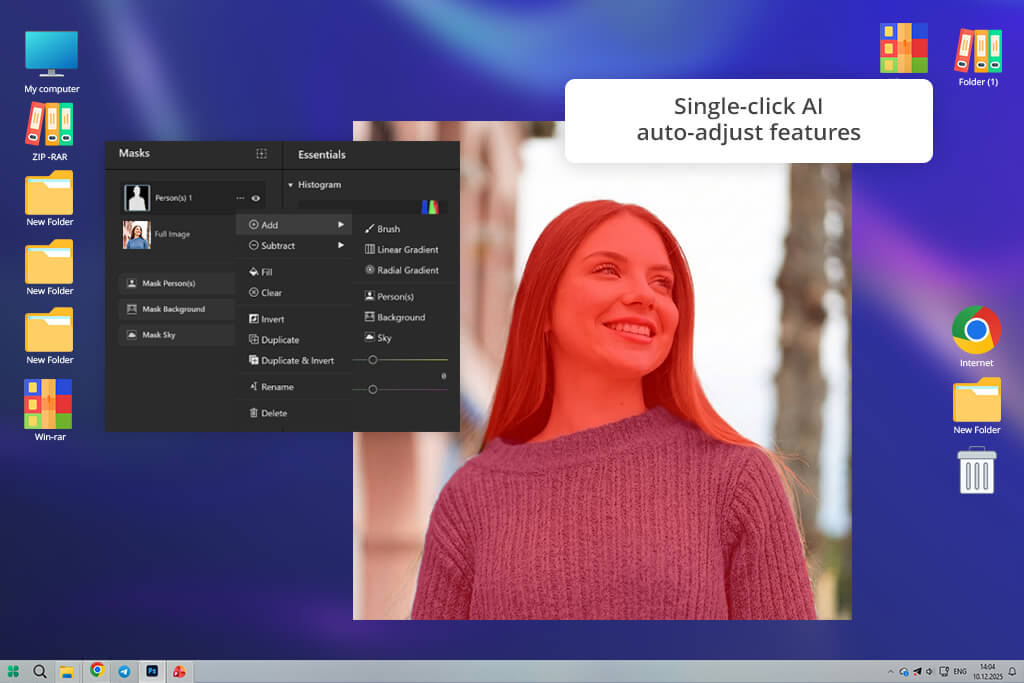
One gap I did notice is the lack of an AI auto-adjust feature. If you’re processing large batches, that missing starting point slows things down a little. You build every correction manually from scratch. Just keep this in mind.
Aperty brags about responsiveness. I didn’t spend ages chasing the right value with tiny slider nudges. A few intentional adjustments, and the image landed somewhere balanced and natural. It never felt like I was rebuilding a broken photo. I was just helping it look the way it should have looked straight out of the camera.
Low-light photos pose difficulties for every second automatic photo editor, so I made sure to test Aperty in this regard, too. I pushed the exposure up on several darker shots to see what noise reduction could handle.
The results were solid. Aperty cleaned up the grain without wiping out the fine detail underneath, which is exactly the balance you want. It’s not the most sophisticated noise reduction I’ve ever used, but it handles real-world situations confidently and doesn’t leave your photo looking smeared or over-processed.
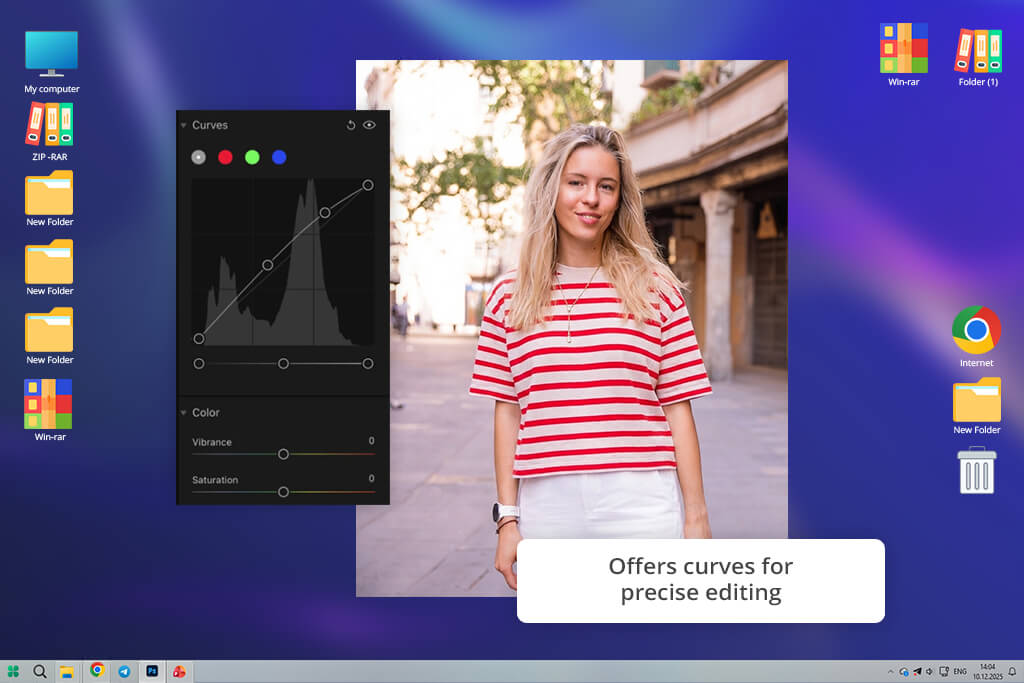
Aperty gives you enough control to tackle genuinely tricky pictures with mixed lighting, blown highlights, heavy shadows, and color casts, without turning the process into a chore. You make your adjustments, the app responds quickly, and you move on. For anyone who wants serious editing capability without hours of mastering the program, Aperty is a worthy solution.
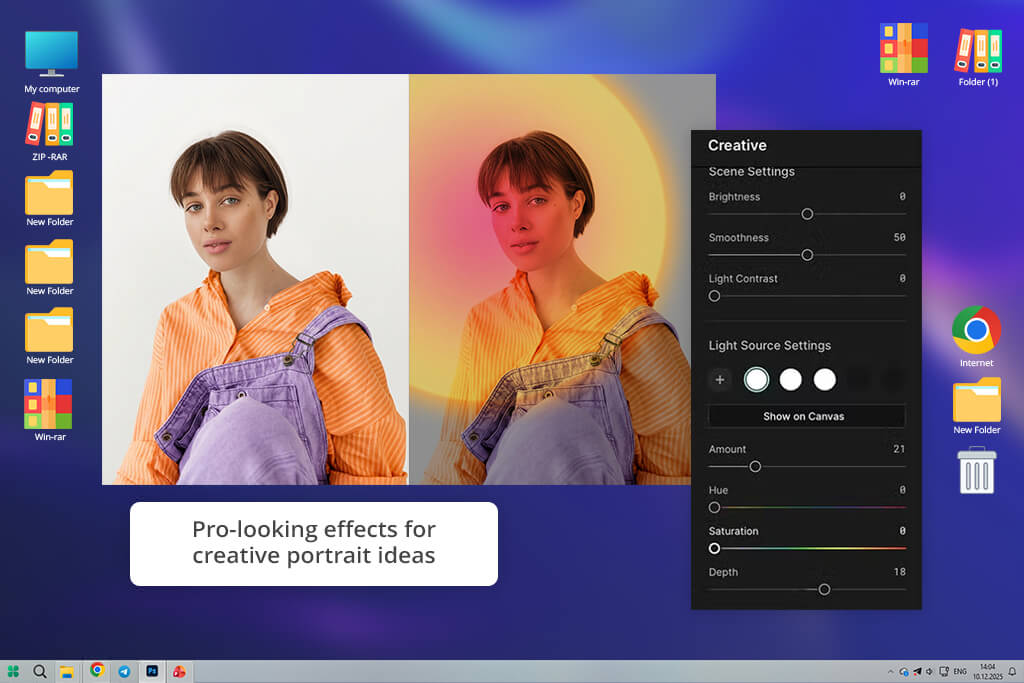
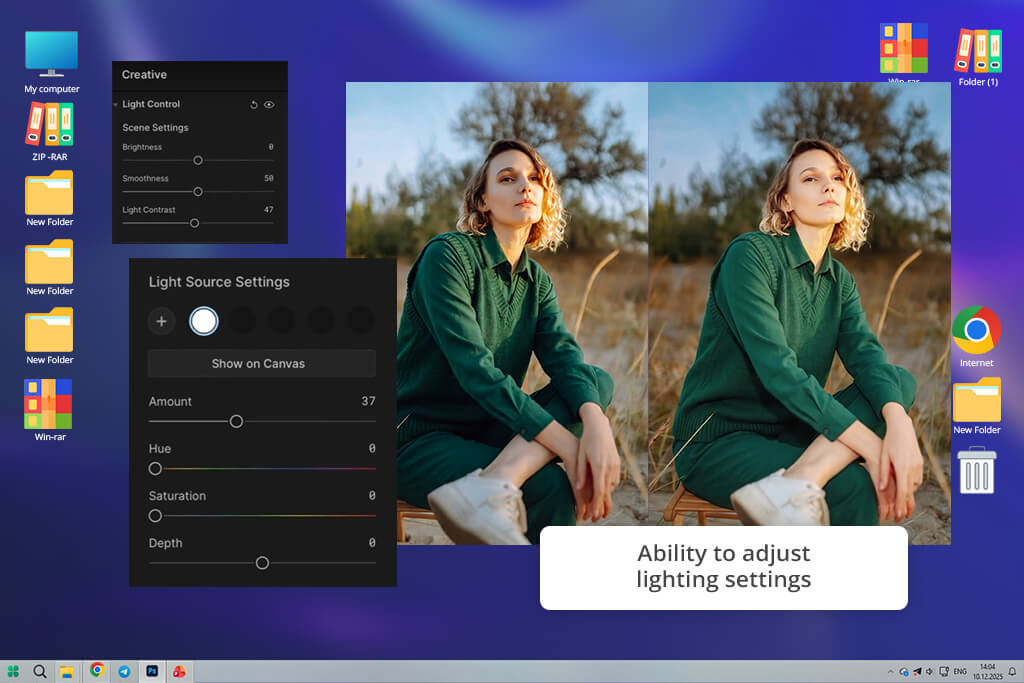
Bad lighting can ruin a great portrait. Aperty knows this, and its Studio Light feature does something about it. I grabbed a cloudy-day shot where the light looked flat and uninspiring. Most editing filter apps, would hand me a filter. Aperty took a completely different approach. It let me build the lighting from scratch, directly inside the photo.
I dragged in a soft side light, positioned it where the sun should have been, and tweaked the intensity. It physically reshaped the shadows across the subject’s face, adding depth that simply wasn’t there before. That’s very cool. You’re not correcting a photo anymore. You’re reshooting the lighting entirely, just without the studio, the equipment, or the second attempt.
Playing with multiple light sources in Aperty is genuinely fun. I added a subtle backlight to pull the subject away from the background, then layered in a soft fill light to smooth out the shadows. The portrait instantly looked more dimensional without an over-edited, artificial feel. This works especially well when your original shot had poor lighting.
The light texture feature also caught my attention, so I want to highlight it in my Aperty software review. The app lets you throw window shadows or soft reflections onto a neutral portrait, and when you keep the settings subtle, it adds real atmosphere. It is possible to go overboard, but a light touch makes the image alive and cinematic. It is definitely worth experimenting with.
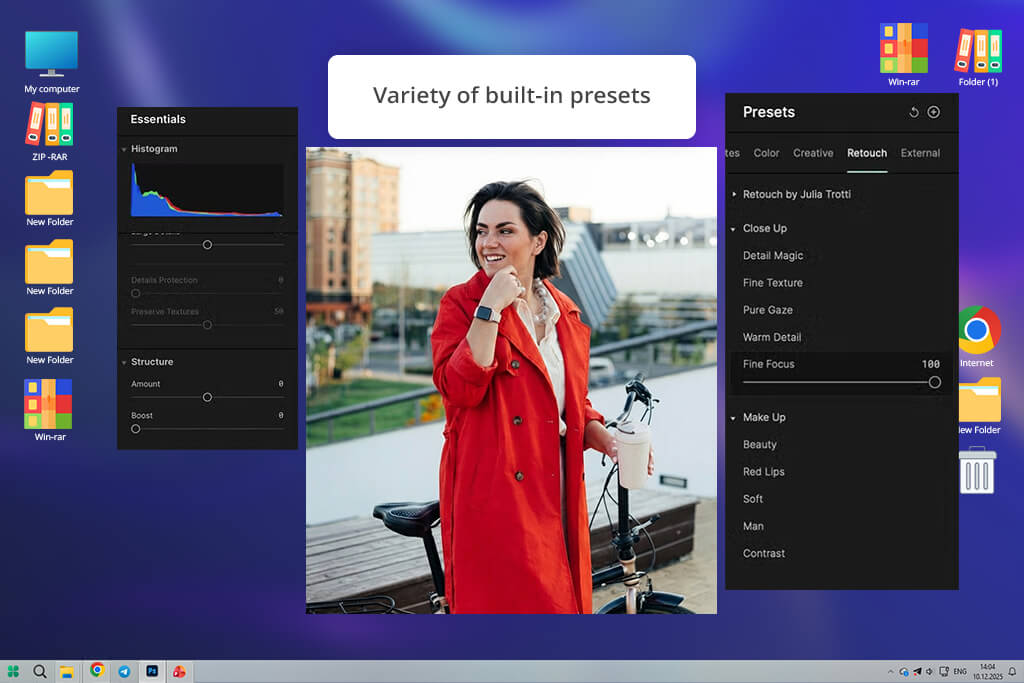
I also explored ready-made Luminar presets, particularly the ones created with photographer Julia Trotti. These aren’t your average filters. Each preset actively adjusts lighting, contrast, and skin tones at once, giving your photo a cohesive look instantly. These presets surpass typical filters by:
I tested several presets across different portrait types, including studio shots, outdoor photos, and casual snaps. Most of them gave me a solid base to work from, and I only needed small adjustments to get things right. Higher-resolution files took a few extra seconds to render, but the output looked more professional than what a one-tap filter delivers.
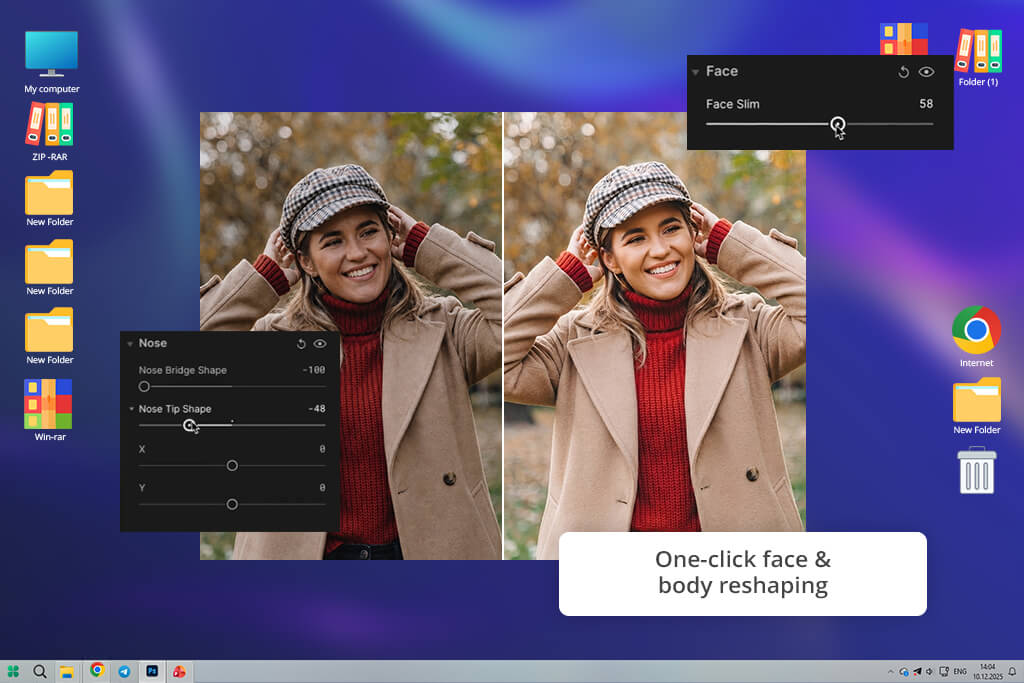
I like how well these tools work alongside manual editing. I’d pick a preset, tweak the lighting with Studio Light, then dial in the colors. The process is simple and completely flexible.
But the biggest shift is mental. Aperty changes how you think during an edit. Instead of spotting problems and fixing them one by one, you focus on the feeling of the image, adjusting the overall mood. It turns editing into something closer to creative work.
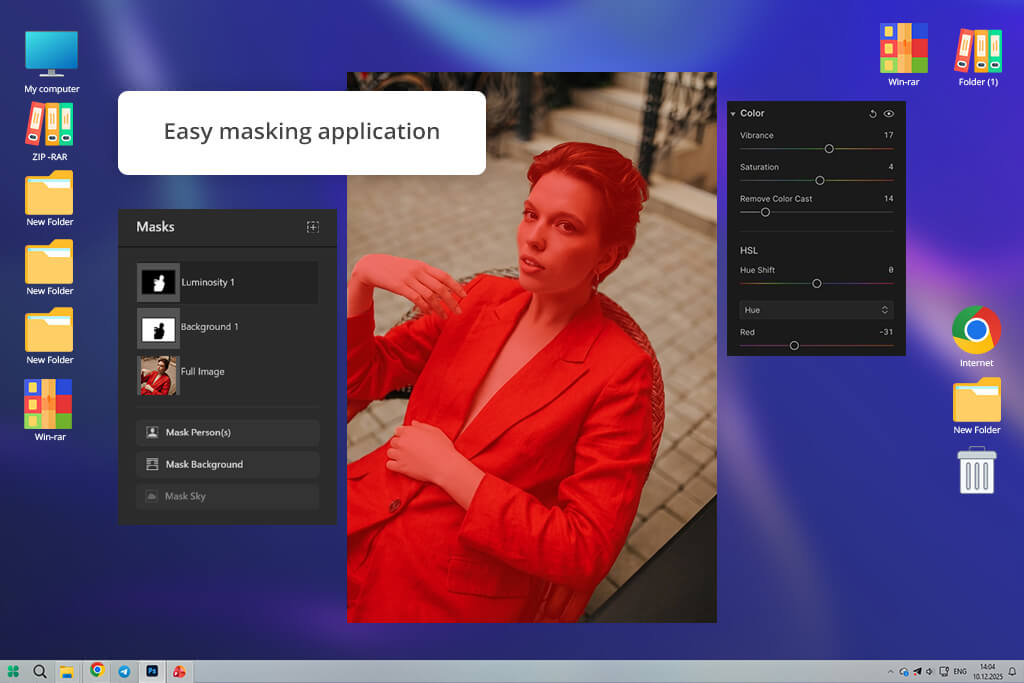
Masking in this photo editing software for beginners fit naturally into the editing process. I used it on several portraits with messy backgrounds and uneven lighting. The automatic subject selection picked up the person quickly and built a workable mask without much effort on my part. Most of the time, the selection was accurate enough to jump straight into editing.
Hair edges, usually the hardest part, came out reasonably well. They weren’t flawless, but solid enough that I only needed minor brush corrections to tighten things up. And even that was straightforward, not like some deep technical operation.
I appreciate that masking didn’t disrupt my flow. I didn’t switch modes, wrestle with layers, or stop to think too hard. I applied the mask, fixed a couple of edges, and kept moving. The whole procedure was fast and focused. Compared to more complex editing tools, Aperty keeps masking simple without stripping away control. That balance is harder to get right than it sounds.
I analyzed masking through two real edits – brightening a face while darkening the background, and removing a green tint from the background without touching skin tones. Both took little time and did not require a complicated setup. Aperty covers most everyday masking needs with four options:
Most tools reveal their weaknesses during a full shoot edit – not when you’re casually adjusting one photo, but when you’re pushing through an entire session with repeated adjustments across dozens of similar images. So that’s exactly what I did.
The navigation impressed me straight away. Jumping between photos was snappy and clean, even as the edits piled up. I worked through skin tones, lighting corrections, and facial detail on one image, then moved to the next without hitting any slowdowns or frustrating resets. The app just kept pace.
Such reliability makes you feel comfortable during a long editing session. When the tool stays consistent, you stop thinking about the software and start focusing entirely on the photos, which is exactly where your attention should be.
No app processes complex AI adjustments instantly. Facial structure analysis and detailed skin refinement take a few seconds, and Aperty is no different. But the wait is never frustrating. The app clearly signals that it’s working, and once you understand that rhythm, those short pauses become a normal part of the process rather than an annoyance.
Stability was another advantage. Long editing sessions usually expose an app’s weak points, e.g., random freezes, memory issues, and slowdowns after the fifth or sixth image. None of that happened in this batch photo editor. Aperty stayed consistent from the first edit to the last, which isn’t something you can take for granted.
The flexibility is also amazing. This isn’t software that demands a dedicated two-hour block. I opened it between other tasks, quickly retouched a few portraits, exported the results, and moved on. The whole thing took minutes.
That “pick it up, put it down” quality matters more than most Aperty reviews acknowledge. Photographers working on client previews or small retouch batches don’t always have time for long sessions. Aperty fits those gaps comfortably, and does it without cutting corners on the results.
Aperty doesn’t try to replace your current editing software. It slots into your existing workflow and handles the portrait work that other tools don’t do as well.
The tightest integration is with Luminar Neo. In practice, the two apps work together like a team. You start in Luminar Neo, handling exposure, color grading, and composition. Once that foundation is solid, you send the image over to Aperty for the detailed portrait work, namely, skin smoothing, blemish removal, and subtle facial refinements that benefit from dedicated AI tools.
When you finish in Aperty, the image goes back to Luminar cleanly. Everything stays non-destructive. Your original file remains untouched, and all your previous adjustments stay exactly where you left them. Nothing gets flattened or lost in the process.
Aperty connects just as smoothly with Adobe Photoshop. You send the image from free Adobe software directly into Aperty, let the AI handle the portrait retouching, and bring it back into Photoshop as an updated or layered file. The whole process moves faster than doing it manually, which makes it a practical choice for anyone who needs clean beauty retouching without the extra steps.
Most photographers use Lightroom to handle the groundwork first. They handle color correction, tonal adjustments, and overall balance. Once that’s done, they pass the image to Aperty for the facial detail work. After retouching, the updated file goes straight back into the LR catalog. You keep your usual LR workflow exactly as it is and simply devote more time to meticulous portrait editing.
Aperty also works perfectly fine on its own. you import your portraits, apply the AI enhancements, and output the result. It’s the fastest route for quick retouching jobs. Just keep in mind that you won’t get the broader color grading tools or catalog management that full editing suites offer. For focused portrait work, though, it gets the job done properly.
Is Aperty worth it? Generally, it is. At its core, Aperty fills a specific role. It doesn’t compete with Luminar Neo, Photoshop or Lightroom. It works alongside them.
Each of those tools handles general editing, color grading, and file organization. Aperty steps in for detailed, AI-powered portrait retouching. That focused approach makes it very useful. It sharpens your existing workflow without disrupting it.

Skylum Aperty gives you a few different ways to pay, so you can pick whatever works best for how you edit. Right now, three options are on the table:
Every plan comes with a 14-day money-back guarantee, so you can test Aperty properly before committing to anything long-term. Regardless of which plan you pick, you get the same full set of tools. Here’s what that includes:
Subscription vs lifetime license. The only real difference between plans comes down to how updates work.
One license covers two devices at the same time, which makes Aperty practical if you regularly move between a desktop and a laptop. Plus, since it works as both a standalone app and a plugin, dropping it into your current setup takes almost no effort.
If you go with the lifetime license but still want regular updates, there’s a middle-ground option – an auto-renewal update plan at around $99 per year. You keep permanent ownership of the software and still stay current without committing to a full subscription.
The whole pricing model is easy to follow. Pay on a schedule and always run the latest version. Or pay once, use it as long as you want, and decide separately whether future updates are worth it. Either way, the editing tools stay identical across all plans. The decision really isn’t about features. It’s purely about how you prefer to handle updates.






![Remove Date Stamp from Photo Online [FREE]](http://fixthephoto.com/blog/images/gallery/news_main__preview_27825.png)
![Barbie Filter App Online [First Photo FREE]](http://fixthephoto.com/blog/images/gallery/news_main__preview_27852.png)


![Asymmetrical Balance in Photography [Examples & Tips]](http://fixthephoto.com/blog/images/gallery/news_main__preview_27891.jpg)
![DnD Character Art Creator Online [FREE]](http://fixthephoto.com/blog/images/gallery/news_main__preview_25928.png)
















