I need to use an AI caption generator daily, as it has become an integral part of my workflow. Working as a video editor at FixThePhoto, I often need to create podcasts, webinars, and long-form tutorials. This is why I often need to add captions to my content to make it more accessible to a wider audience and ensure that it stands out in a feed.
As I mostly work with short-form content, I wanted to add captions to my videos to ensure that they will be easy to understand even if one watches them in silent autoplay mode. Many people prefer to watch videos without sound, especially on Instagram, TikTok, and YouTube Shorts.
I realized that it would take me many hours per week to type and edit captions manually. This is why I quickly switched to AI tools. Over the last few months, I tested 30+ AI caption generators that were highly recommended on Reddit, YouTube, and creator forums.
I was interested in both basic browser-based services and advanced editors with timelines, speaker detection features, and animated text. When looking for an AI caption generator for professional projects, I focused on the following things:
After creating hundreds of podcast episodes, tutorials, webinars, and short social media clips, I am convinced that captions are necessary for improving accessibility and expanding outreach. I tried posting videos with and without captions on social media, where people often use the autoplay option. Here is what I have discovered.
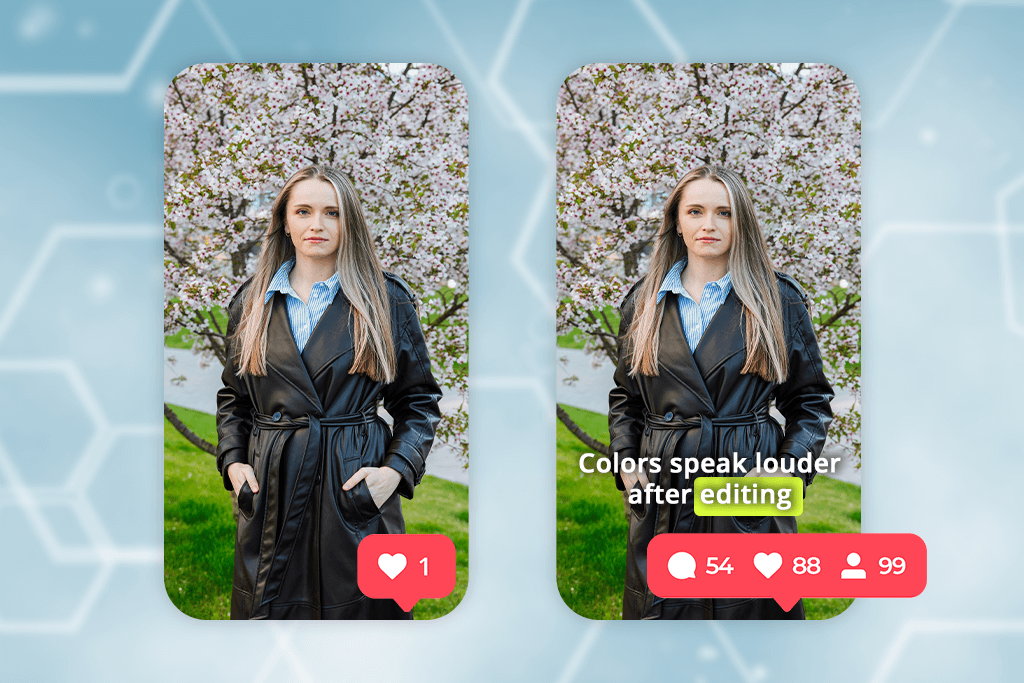
First, after adding captions, I noticed a dramatic increase in viewer retention. When a person scrolls through Instagram Reels, TikTok, or Shorts, they make a decision about watching a certain video in the first 1-3 seconds. If they do not see any on-screen text, most of them keep scrolling.
However, when a person sees concise captions right from the start, they understand what the main message of the video is, even without sound.
Second, the average watch time for captioned content is higher. Platforms have algorithms that promote content that keeps viewers engaged. People often watch captioned videos repeatedly to grasp the nuances of meaning they failed to recognize the first time. Even if they watch a video for a few seconds longer, it’s more likely to be recommended to other people by algorithms.
Third, captions make videos accessible to people who speak other languages. We have a lot of followers who are not native English speakers. They need to read captions to understand recordings with fast speech, accents, or background noise better. Adding captions to podcasts and technical tutorials is especially important, as it allows one to understand terminology better.
Fourth, by adding AI generated captions, we can make our content more inclusive and accessible. Viewers with listening disabilities or people who watch videos in noisy environments consider captions quite useful. I often watch videos without sound at coffee shops, in the office, or during the commute. This is why I understand why online platforms promote accessible content.
Finally, captions make it more likely that your content will be reused. You can cut a captioned video into multiple shorts, use quotes when creating thumbnails, and save your video in different formats. When working on podcasts, I can find the most interesting moments and create several social media clips based on a single one-hour recording.
Captions accuracy: 94–96%
Best for: Adobe users, tutorials, branded videos
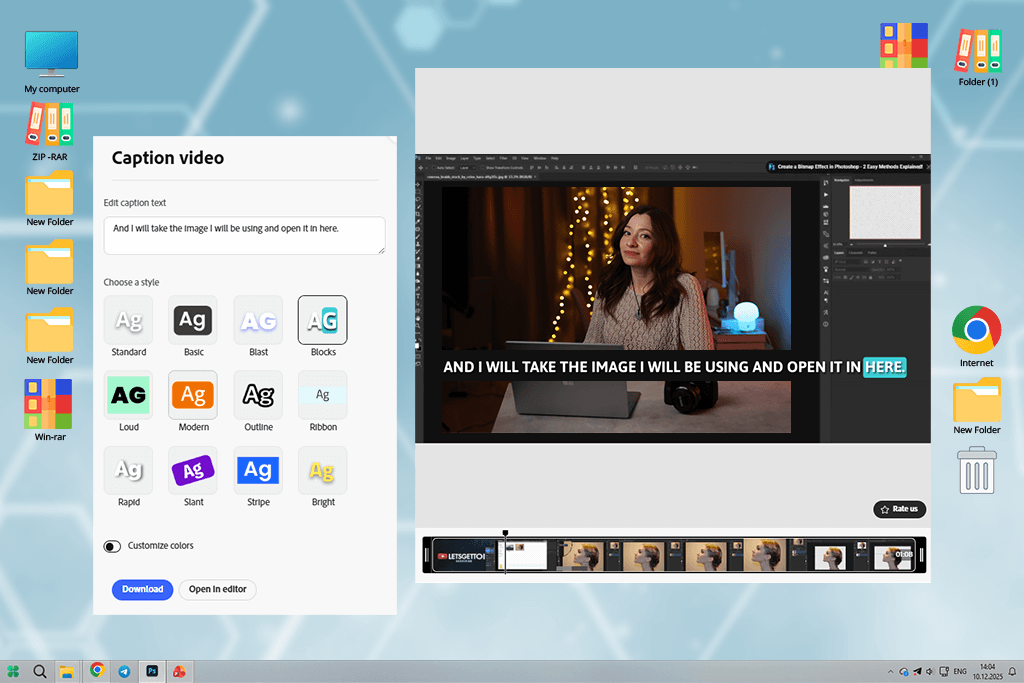
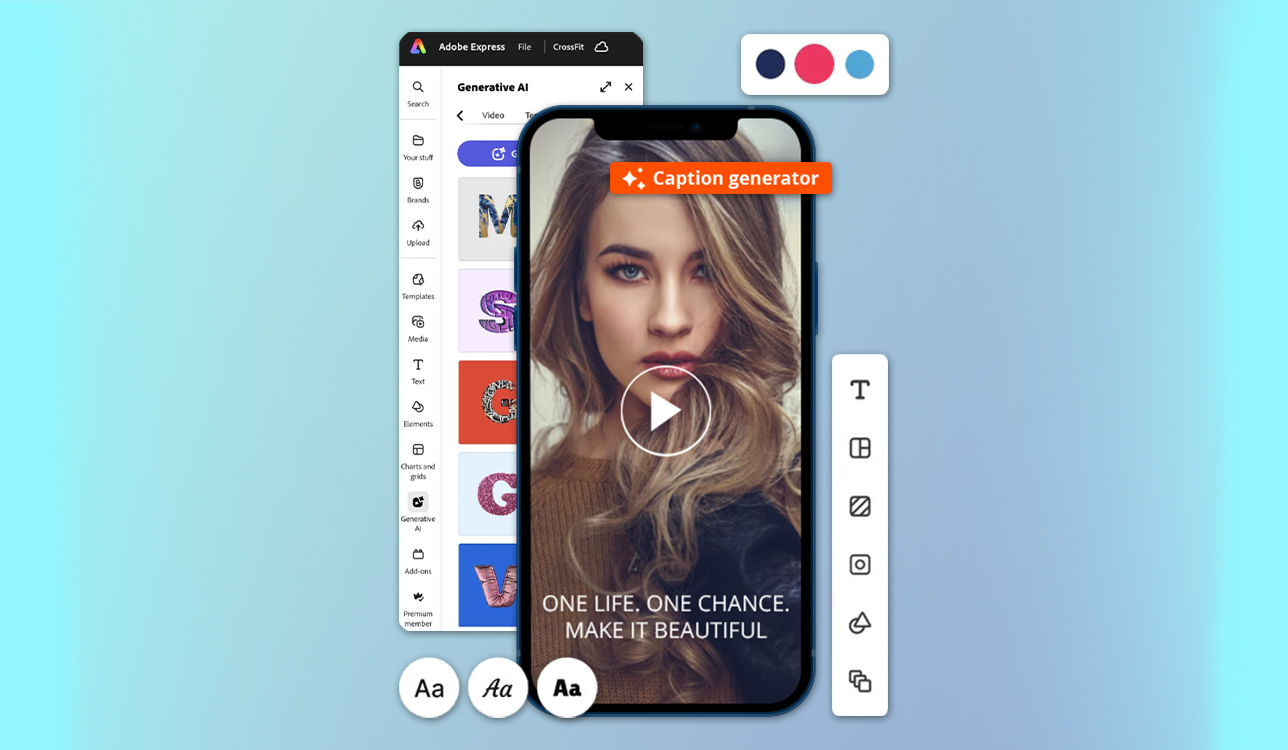
I edit most of my clips in Premiere Pro or Premiere on iPhone. This is why I decided to test an Adobe service first. Adobe Express is different from other solutions because it does not just automatically generate captions. It delivers fast performance and allows one to use AI to generate captions without disrupting their editing workflow.
I tested this caption maker AI service when creating captions for podcast clips, tutorials, and talking-head videos for social media. This service is editor-friendly and allows one to achieve high accuracy, especially when input files are clean.
“There are no excessive viral effects or distracting animations. The captions look clean and professional, making it perfect for the projects I work on.”

Unlike other services that are too focused on trends, Express maintains consistent pacing and does not make captions sound unnatural. It’s the best AI caption generator for creators who are interested in clarity and consistency.
I decided to put it in the first place, as it became an integral part of my workflow. I often use Adobe Express to create captions and then continue editing them in Premiere. While it does not support advanced timeline control, it saves me a lot of time due to its integration with other Adobe software.
It’s the best option for those who need to create captions for tutorials, webinars, and branded content, as it supports high speed and allows one to achieve professional results with ease.
Pricing: Adobe Express free plan; From $9.99/month
Captions accuracy: 92–94%
Best for: Short-form creators, Reels, TikTok
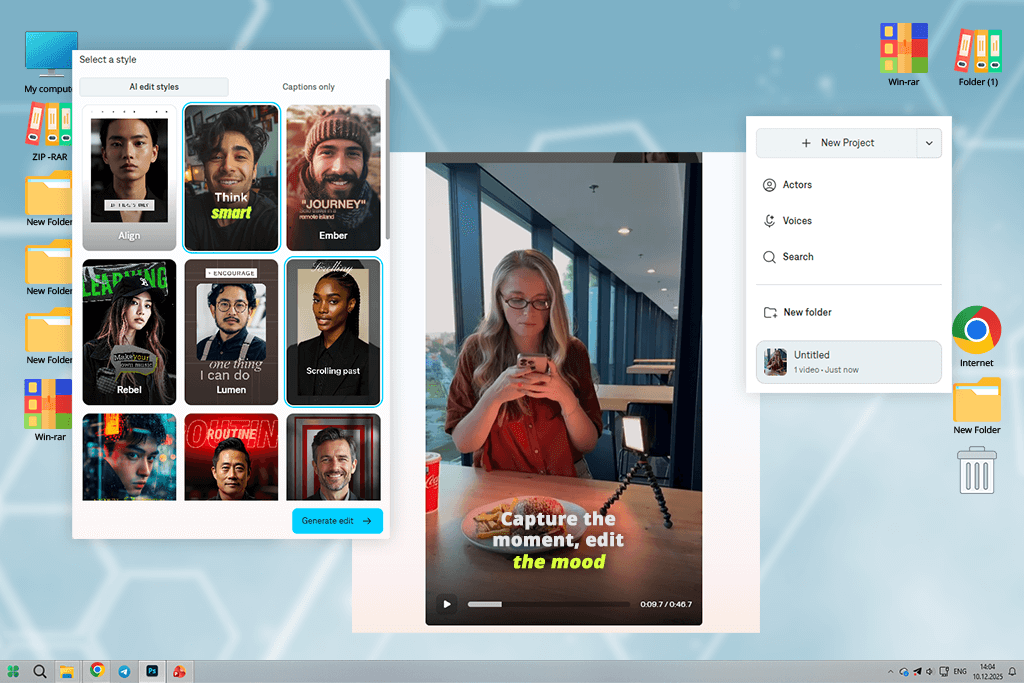
Many Reddit users recommended Captions AI when discussing the best tool for captioning viral talking-head videos. This is why I decided to add it to my list. Captions AI stands out among other similar services for its focus on pacing and emphasis. This app for video captions was created for those who want to improve their retention rate.
When testing this service, I created captions for Reels, TikToks, and Shorts using podcasts and behind-the-scenes vlogs. The captions are dynamic, and the keywords are highlighted, which makes them more attention-grabbing. This caption generator AI tool understands how people read captions.
“I think it supports lower accuracy than more advanced services, but it maintains the right rhythm. It makes it perfect for short clips.”

Accuracy was pretty decent, especially when I used this tool to create captions for single-speaker videos. It’s one of the top options on my list because it helped me significantly improve the retention rate for my short clips. I use it to create dynamic captions without spending a lot of time on manual styling.
The pricing makes it suitable for those who need to create captions regularly. However, it might be too expensive for those who generate captions occasionally.
My advice: make your sentences shorter and delete filler words before exporting your file.
Pricing: Free: watermarks, limits; From $9.99/month
Captions accuracy: 96–98%
Best for: Podcasts, webinars, tutorials
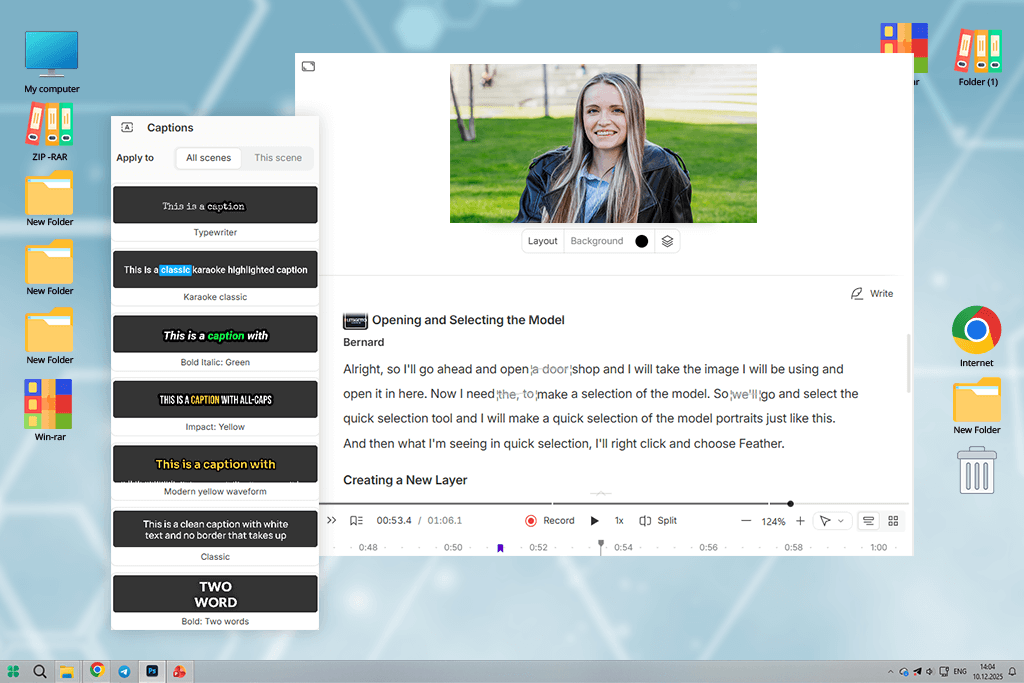
The first time I heard something about Descript many years ago was when I was watching reviews on YouTube. Descript is a text-based AI audio tool with a convenient timeline. I used it when working on podcasts, webinars, and long tutorials for FixThePhoto. You just need to edit the text, and it will adjust the video automatically. It’s perfect for those who need to create captions.
This service is one of the most accurate tools I have tested, especially when I need to caption footage with multiple speakers. It stands out among other services for its speaker detection capabilities and clear paragraph structure and punctuation in outputs.
“It’s one of the best solutions for generating AI captions for podcasts. The outputs do not require expensive editing and can be published quickly.”

I decided to include it in my top list because no other social media caption generator saves me so much time when I need to work with long recordings. I prefer to use Descript when I need to quickly create captions for podcasts, webinars, and educational YouTube videos.
If you need to caption long-form content regularly, this service is worth every dime. While it might be too expensive for casual users, it has great value for the money for professionals.
My main tip: Be sure to clean your audio before importing it and name speakers manually. It will help you improve the quality of captions. The only shortcoming is that it might be too difficult to use for short social clips.
Pricing: Free: export limits; From $12/month

Captions accuracy: 93–95%
Best for: Mixed formats, quick edits
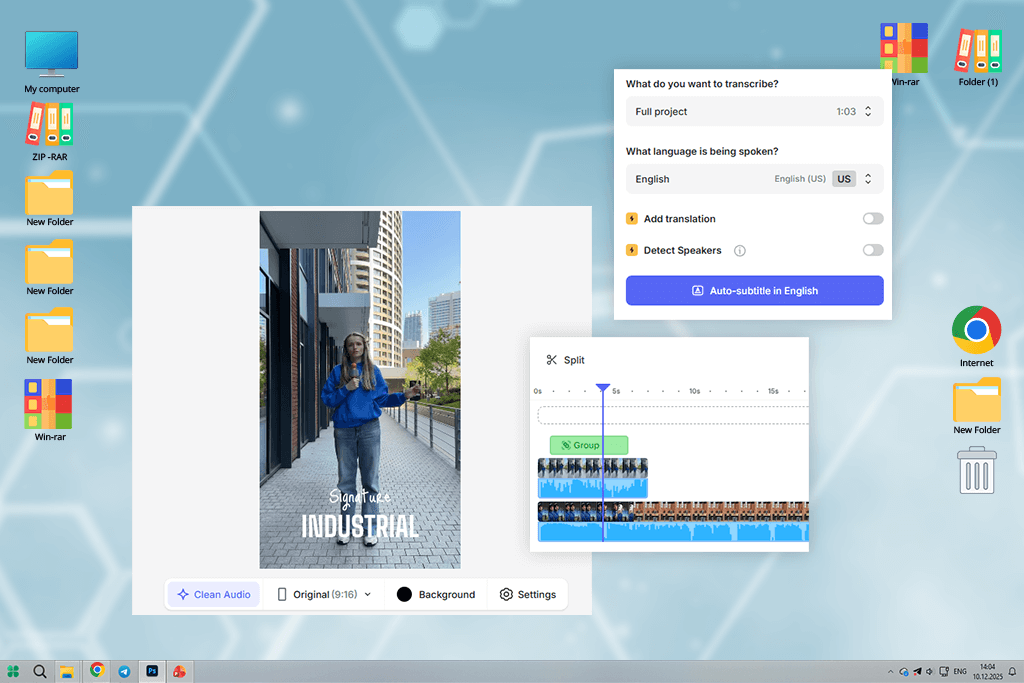
Our subscribers recommended taking a closer look at VEED. After testing this AI clip maker, I was impressed by its flexibility. It’s suitable for working with different types of content. I tested it on podcast clips, YouTube tutorials, vertical Reels, and webinar snippets.
I was able to generate captions quickly and adjust timing, line breaks, and placement. It makes it more convenient to use than most social-first solutions. This AI caption generator allows users to make adjustments without making videos look like generic viral content.
When I used clean audio, I was able to achieve decent results with high consistency. While it’s not the best solution for content with complex speech, it’s suitable for most other cases, especially if you review the output.
“I often use VEED when I need to create AI-generated captions and access basic editing tools to trim, resize, and export videos to multiple platforms.”

I included this service in my list, as it’s suitable for those who are looking for professional-level editors and solutions for creating social media content. It’s not too expensive, making it a great choice for those who are looking for a browser-based service with an extensive choice of tools and multi-format support.
My advice: After generating captions automatically, use the manual tools available in VEED to adjust line breaks.
Pricing: Free: watermark, limits; From $12/month
Captions accuracy: 91–93%
Best for: Reels, TikTok, Shorts
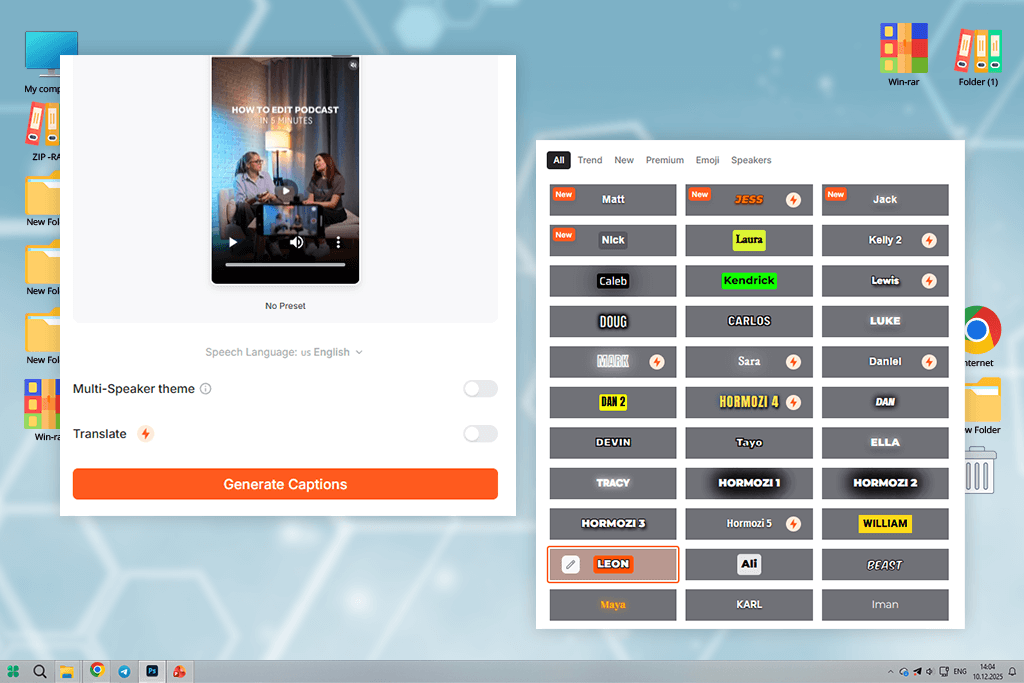
I discovered Submagic when reading reviews on Reddit threads. Many people recommended it for short-form content. This is why I decided to test it as an AI subtitle synchronizer to produce dynamic, engaging content.
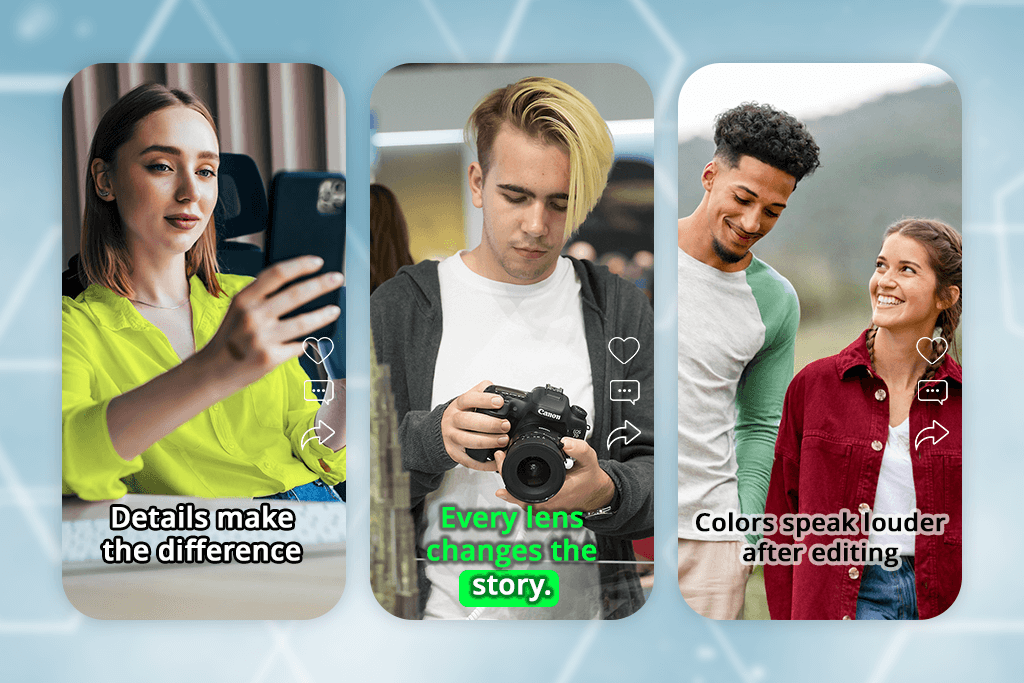
Submagic is mostly suitable for short videos. The captions look bold, perfectly animated, and engaging. I used this service when creating captions for TikToks, Reels, and Shorts based on podcasts and vlog footage. This social media caption generator has a great understanding of rhythm and adds captions exactly when they are needed.
“If you need to post shorts regularly, it might be a good idea to pay for the subscription. While it’s hardly the best for occasional use, it will help you to publish social content fast.”

This service supports decent accuracy when one uses it to generate captions for short videos with one speaker. It’s not suitable for long-form content or videos with technical dialogue. This solution works best with captioning videos with quick statements and punchlines.
My tip: Make your sentences shorter before uploading files to achieve high-accuracy outputs. The only shortcoming of Submagic is that it’s hardly suitable for longer content.
Pricing: Free: export limits; From $16/month
Captions accuracy: 90–92%
Best for: Beginners, quick edits
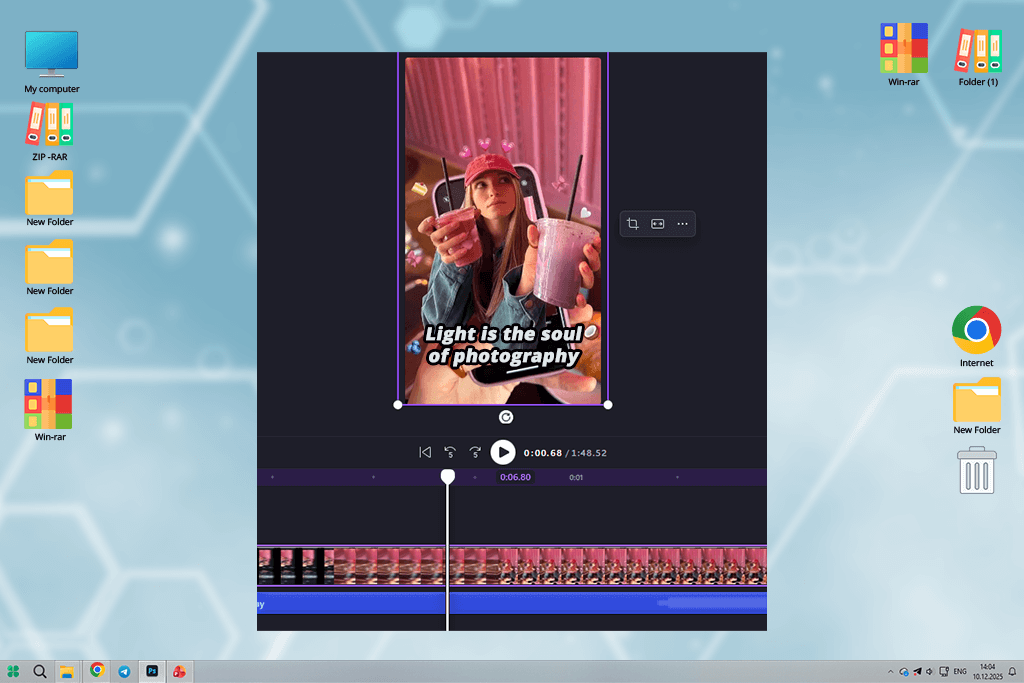
I decided to test Clipchamp after watching videos on YouTube, in which content creators said that this online service is lightweight and suitable for novices. I tested it when creating captions for simple talking-head videos and internal FixThePhoto clips. The subtitle editor is easy to use. You just need to upload a file, generate captions, edit the text, and export the output.
“The AI-generated captions are easy to read, making this solution perfect for those who are interested in creating captions without any distracting elements.”

Clipchamp stands out for its intuitive functionality, making it suitable even for non-editors. It can hardly be considered an advanced AI caption generator. However, it’s a great choice for simple tasks. When the quality of input audio is good, it supports decent accuracy, especially when one uses it for short videos. It’s also suitable for creating internal or educational content.
The free version is suitable for testing. However, it supports limited exports. The paid version is the best choice if you create content regularly. However, the premium tools may be too basic for professional use.
My advice: Be sure to review punctuation and line breaks manually to achieve better results.
Pricing: Free: export limits; From $11.99/month
Captions accuracy: 93–95%
Best for: TikTok, Reels, Shorts
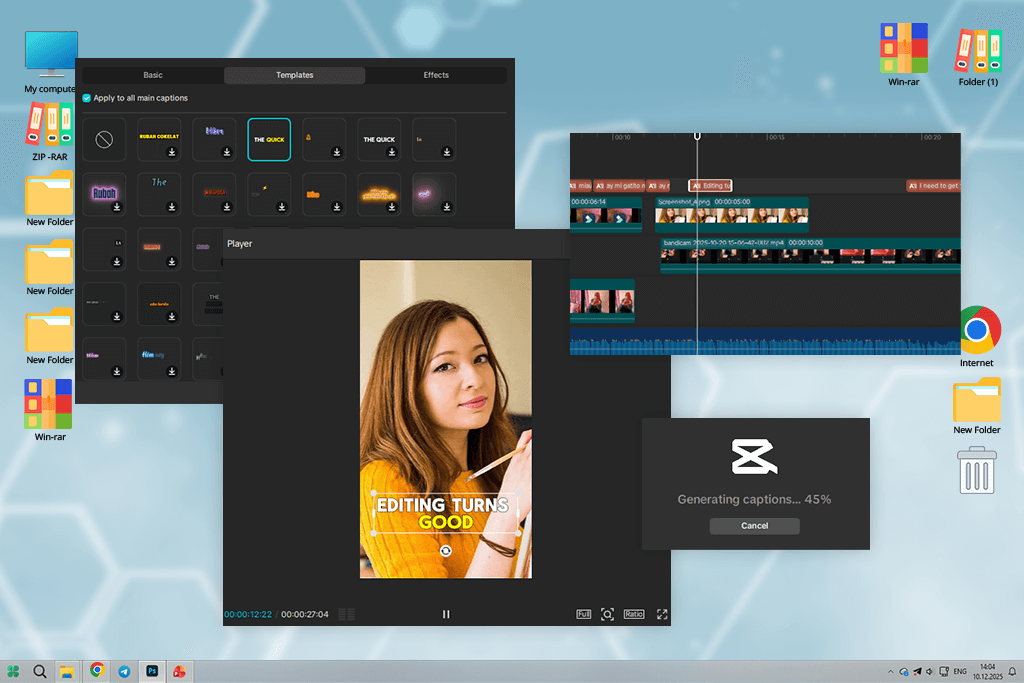
I’d been using CapCut before captions became available only in the paid version. Back then, I would often use it to enhance my social media content. However, when the AI caption generator became available only for premium subscribers, I decided to test it to see whether it was worth it.
CapCut was created for those who need to make their content more engaging before publishing it on social media. Using it, I tried creating captions for TikToks, Reels, Shorts, and behind-the-scenes vlog clips. It generates captions quickly, supports decent synchronization with speech, and adjusts its format for vertical video.
This service supports great accuracy for short, single-speaker videos. However, it’s not the best choice for podcasts or long tutorials. I liked using it for fast-paced clips, as its performance remains consistent.
“What makes this service stand out among other tools is that it allows one to apply effects to captions with ease, insert transitions, and trim videos without using third-party tools.”

I decided to add CapCut to my list, as this solution is highly practical. Whenever I want to generate captions for TikTok videos without spending a lot of time on manual editing, I use this solution. If you need to create social media content regularly, it might be a smart idea to pay for the premium version. However, it might be too expensive for occasional use.
My tip: It’s better to remove filler words before generating captions, as CapCut delivers better results when the input text is concise.
Pricing: Free: captions limited; From $7.99/month
Captions accuracy: 89–91%
Best for: Marketers, beginners
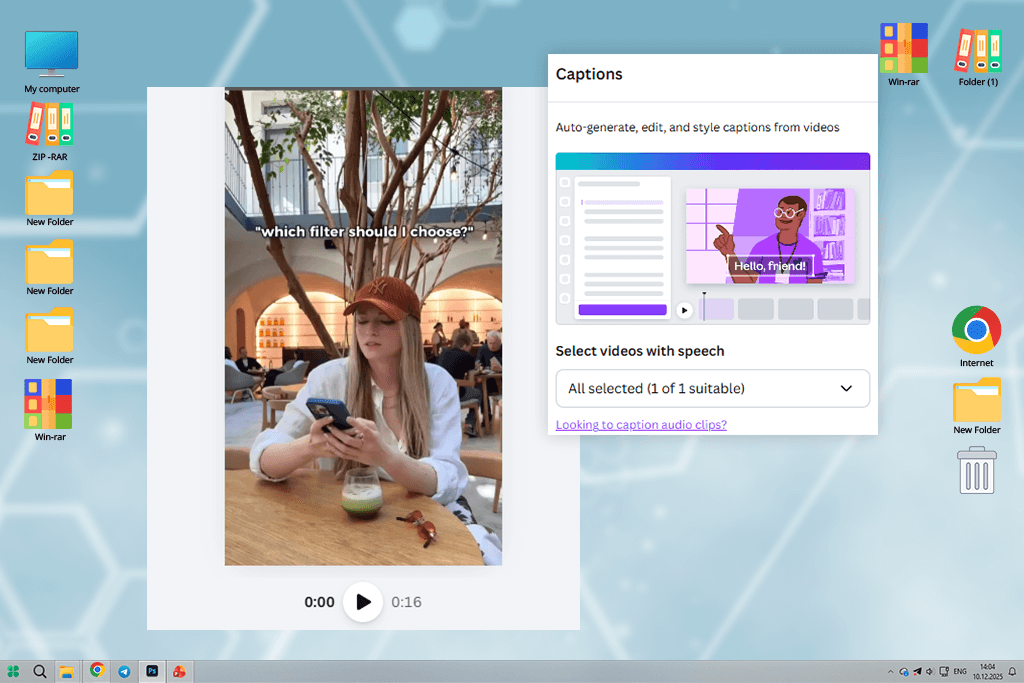
I discovered Canva’s auto-caption tool when googling for lightweight caption services for people with limited editing experience. I used it to add captions to short educational clips, Instagram videos, and marketing explainers. The process is quite intuitive. I had to upload a video, use AI tools to generate captions, adjust text style, and export the output.
I was pleased by the accuracy of captions when I used clean audio. While this service’s performance is hardly immaculate, it’s suitable for creating captions based on short recordings with clear speech. Canva is one of my favorite solutions because I often use it when I need to collaborate with marketers or clients who don’t have any experience in video editing.
“It’s the only service in my top list that does not simply add text over video but makes captions a part of a layout. It’s especially suitable for creating brand-driven content.”
This social media caption generator will come in handy for those who value speed and consistency over advanced control. The free version has plenty of useful tools. However, if you already use Canva for creating content, it might be a better choice to pay for the Pro version.
My advice: Use short sentences and fix punctuation manually to create concise captions using Canva.
Pricing: Free: export limits; From $12.99/month
Captions accuracy: 94–96%
Best for: Podcasters, repurposing
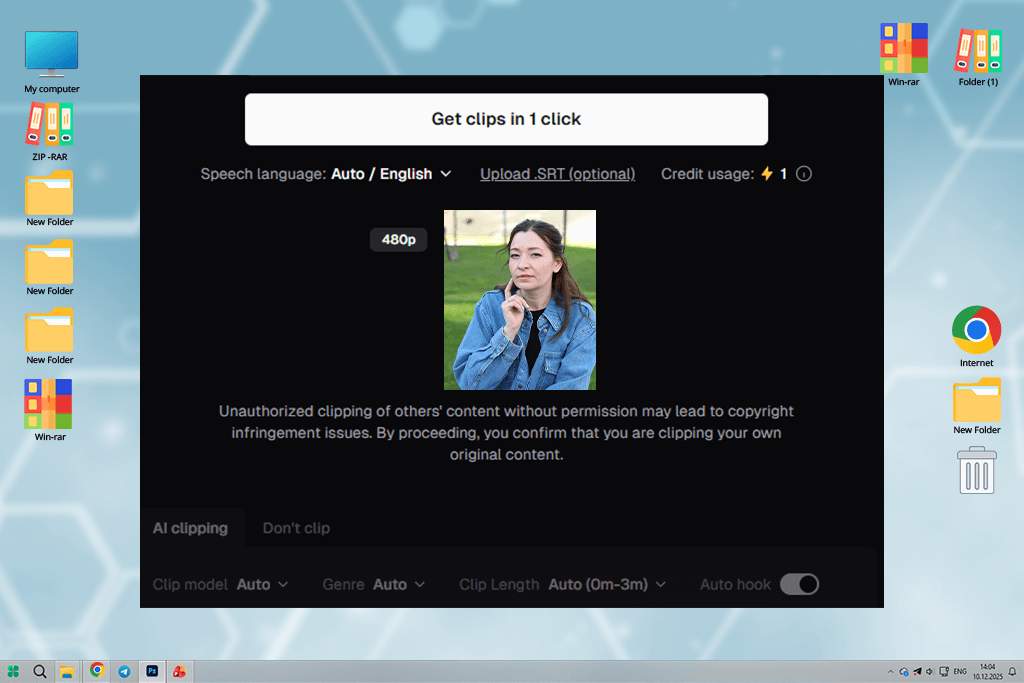
I discovered Opus Clip after watching YouTube reviews and reading threads on Reddit. Many creators consider this “content multiplier” especially suitable for repurposing content for social media. I decided to test it as an AI caption generator and create short clips based on my long videos.
Opus Clip is suitable not only for generating captions. It analyzes long-form videos, detects the best moments, cuts them to create shorts, and adds AI-generated captions automatically. I used this service when working on podcasts, webinars, and long tutorials. It helped me save a lot of time.
Opus Clip stands out among the rest for its context awareness. It creates highly accurate captions and chooses the best placement for them. Due to this, captions look intentional and appear at the right moment. You can use this advanced caption generator AI for repurposing.
“Captions are impressively accurate, especially when you work with single-speaker content. The outputs are quite decent even without manual editing.”
I decided to include this option in my list, as I often need it when I need to process a lot of footage. With it, I can easily create more than 10 clips using one long recording. If you often need to repurpose long videos, this solution is worth every dime you pay for it. However, it might be overkill for occasional use.
My tip: Review the final text to fix wording issues.
Pricing: Free: limited clips; From $19/month
When testing AI caption generators, I decided to spend more than one week using them to understand whether their functionality was suitable for my needs. Together with the FixThePhoto team, we followed a well-structured process.
As we often create podcasts, video tutorials, webinars, and social media content, we wanted to discover the solutions suitable for our daily production workflows instead of focusing on the tools that looked impressive only in marketing materials but failed in practice.
The first thing I did was start looking for recommendations on Reddit threads, on YouTube reviews, and in creator Discord channels. Besides, I paid attention to the comments left by my subscribers. It helped me create a long list of 30+ AI caption generators. Next, I thoroughly tested each of them when working on my projects.
We tested these tools for real recordings: podcast episodes with mic issues, Zoom interviews with problems caused by compression, talking-head videos captured on iPhone, webinars with screen sharing, and short, dynamic social media videos. Using each solution, I generated captions, edited them, exported the output, and checked whether any cleanup was necessary before publishing.
We decided against including some tools in the final version of the list, despite the fact that many people use them. For instance, Rev, Happy Scribe, Sonix, Kapwing, and Zubtitle supported limited control over styling, delivered unimpressive performance with short-form videos, slowed down a workflow, or offered low value for the money.
We tested each AI caption generator using the same criteria. We followed our standard FixThePhoto testing approach:
First, I checked whether the setup and onboarding processes were easy. I wanted to see whether I would be able to upload videos and generate captions quickly. I ranked the solutions lower if they had too complex settings and were difficult to learn without reading long tutorials.
Next, we focused on caption accuracy and timing. I wanted to understand whether these services were able to recognize fast speech, accents, filler words, and line breaks. As we often need to create social media content, we decided to see whether there were any timing issues, as they are known to hurt retention. My colleagues used different tools on the same videos to analyze consistency.
In addition, we tested workflow integration. We wanted to know whether it was possible to use these tools together with Premiere Pro, access them from mobile devices, or use them with podcast platforms. Our task was to check whether there were any unnecessary steps needed. This is why we focused on speed, reliability, and format support.
Finally, we decided to consider pricing and real value. While I am ready to pay more for professional services that save me a lot of time, I do not want to use overpriced solutions that slow down my workflow or require heavy manual editing.
As a result, we included in the final list only the time-saving solutions that helped us generate clean captions and meet tight deadlines.




![7 Best ODT to PDF Converters [{{%year}} FixThePhoto Choice]](http://fixthephoto.com/blog/images/gallery/news_main__preview_28601.jpg)
![Best Leonardo AI Alternatives [FixThePhoto Choice]](http://fixthephoto.com/blog/images/gallery/news_main__preview_28887.jpg)


![7 Best CDA to MP3 Converters in {{%year}} [100% FREE]](http://fixthephoto.com/blog/images/gallery/news_main__preview_28878.jpg)
![9 REVE Alternatives with Better Results [Free & Paid]](http://fixthephoto.com/blog/images/gallery/news_main__preview_28905.jpg)


















