I was inspired to look for the best CDA to MP3 converters after struggling to convert a CDA file while working on a project here at FixThePhoto. When I had to get some older reference tracks from a CD, it turned out that CDA files can’t be opened or converted by most regular software.
Certain tools couldn’t find the disc at all, while others felt painfully slow, and a couple of them significantly lowered the audio quality or were littered with ads. To ensure my toolset includes more reliable options, I tested 20+ CDA to MP3 converters on different platforms (Windows, MacOS, and online tools).
I often have to deal with clients who have no idea how to convert a CDA file to MP3, simply copying the files from CDs without bringing the actual discs with them. Only after I explain the properties of this format do they know how to handle this process properly. There are several benefits to keeping your CD audio in MP3 format, including:

After converting and saving hundreds of different CDs, I’ve figured out that the output quality is often determined by the chosen parameters rather than which free CDA to MP3 converter you pick. I suggest doing the following:
| Converter | Speed | Quality | Ease of use | Features | Free plan |
|---|---|---|---|---|---|

|
Fast
|
Excellent
|
Intuitive
|
Batch conversion, metadata editing
|
✔️
|

|
Moderate
|
Good
|
Medium
|
Multi-format playback & conversion
|
✔️
|

|
Moderate
|
Good
|
Easy
|
Simple ripping
|
✔️
|

|
Moderate
|
Excellent
|
Intuitive
|
Metadata, Apple ecosystem
|
✔️
|

|
Fast
|
Excellent
|
Easy
|
Batch, editing, compression
|
✔️
|

|
Fast
|
Excellent
|
Medium
|
Effects, metadata editing
|
✔️
|

|
Fast
|
Very Good
|
Medium
|
Metadata, simple CD ripper
|
✔️
|
Price: Free or $30 for a single-time purchase
Availability: Windows, macOS, Android
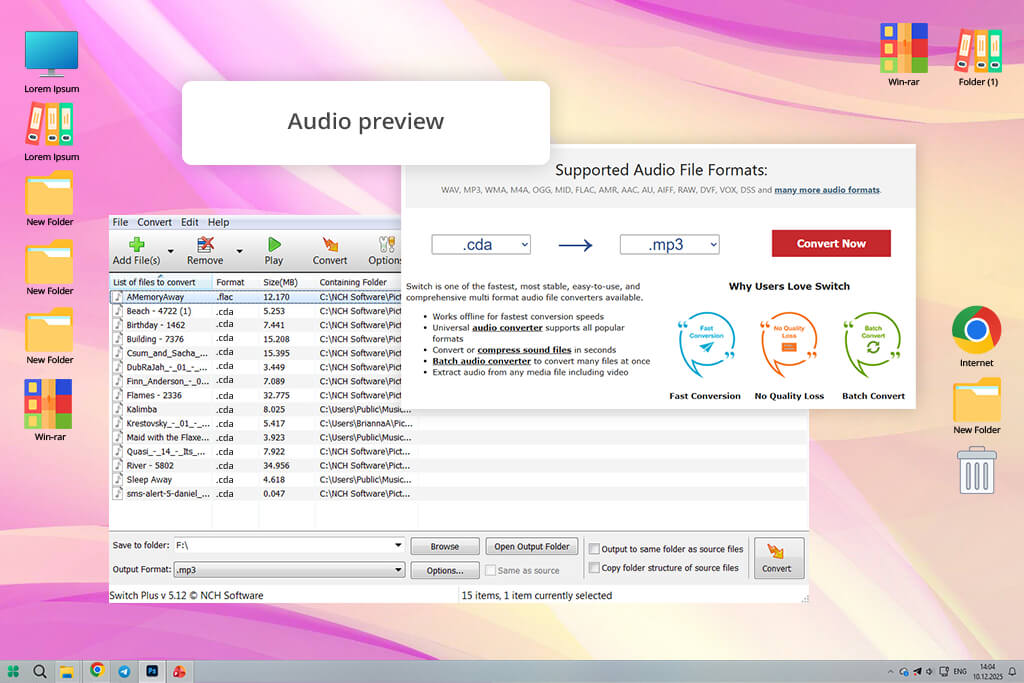
I used Switch to prepare audio for tutorials at FixThePhoto, as some of our projects require polished MP3 files extracted from old CDs. When testing this solution, I imported several discs, one of which was a bit scratched, to check how it could tackle extraction, conversion, and quality preservation.
This CDA to MP3 conversion software offers an intuitive UI, enabling you to drag and drop your CDA files, pick MP3 as an export format, and press Convert. That said, it might feel a bit dated compared to contemporary solutions.
Switch did a great job normalizing audio levels, allowing me to preview the files before saving them, and letting me choose from more than 75 export formats. It also provides audio effects for minimizing noise, performing sound equalization, and boosting volume.
Switch did a great job recognizing all my CDA files and converting them to MP3, even when I was processing them in batches. The exported files offered clean audio and were prepared for use in your free audio editing software. The high batch conversion speeds were particularly satisfying, as I often need to extract dozens of CDA files at the same time while dealing with a tight deadline.
Price: Free
Availability: Windows, MacOS, Linux, iOS, Android
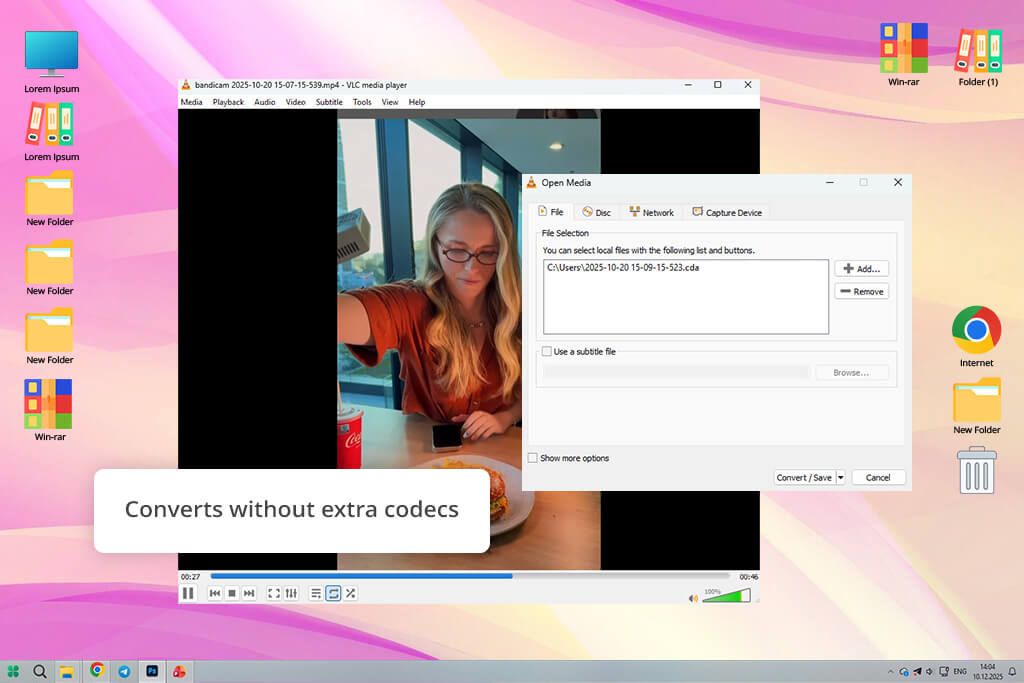
VLC Media Player is a versatile player, and you can use this CDA to MP3 converter for free without any codecs. I used it with multiple CDs by clicking on Media → Convert/Save, picking the Disc tab, clicking on Audio CD, and choosing MP3 as the export format. VLC found all the CDA tracks and transformed them to MP3 quickly and without any issues.
The UI is easy to navigate when it comes to playback, but a bit more convoluted if you’re trying to convert files. It forces you to go through multiple menus, and it’s easy to get lost if you’ve never used VLC before.
My test showed high conversion speeds as long as the CD isn’t badly damaged. The produced MP3 files offered high quality, but the lack of normalization, metadata editing, and batch optimization features makes them less suitable for professional use.
“I like VLC since it’s free, reliable, and available on most devices. But the fact that you need the physical CD in your device to do the conversion is quite limiting.”

Price: Free
Availability: Windows
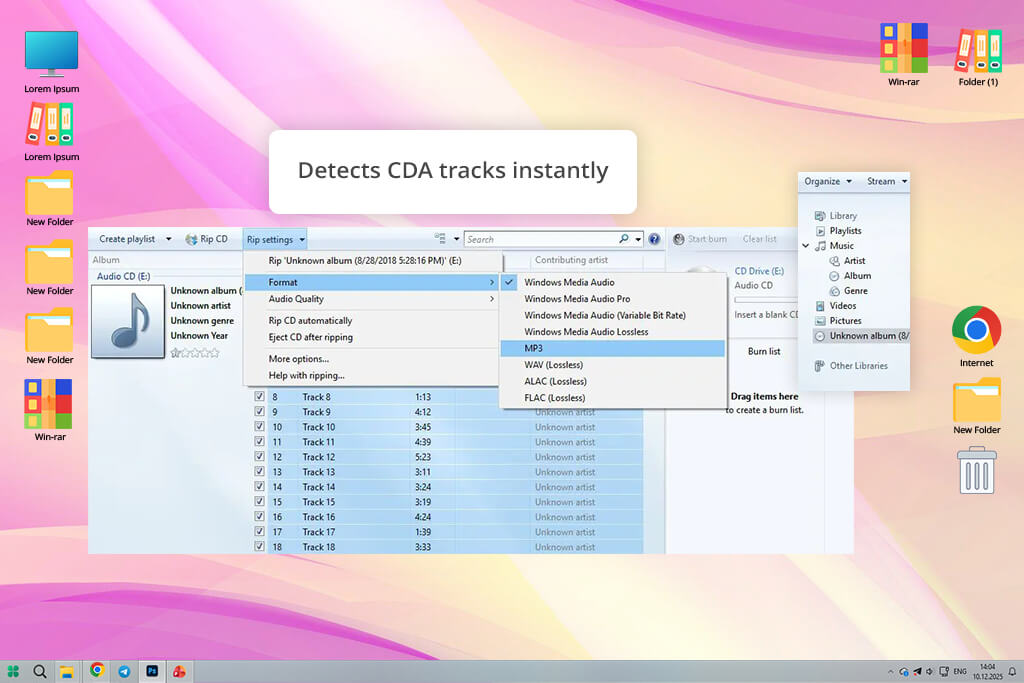
Windows Media Player lets you convert CDA to MP3 on Windows 10 by default. I tested it with multiple CDs by clicking on Organize → Options → Rip Music, setting the format to MP3, and pressing “Rip CD.” It found all CDA tracks instantly and converted them without any issues.
The UI of this media player for Windows 10 is minimalist and easy to navigate, and after you choose the MP3 format as the default, the entire ripping process can be completed in a single click.
Conversion speeds are solid, and the output quality is high enough for everyday projects. One of the best parts about Windows Media Player is that it can’t be used offline without asking you to download any codecs or plugins.
That said, the sound quality can’t reach the level of pro software since it doesn’t offer features like normalization, metadata editing, or flexible bitrate control. It requires you to manually adjust the Rip parameters every time you’re dealing with a different format, and the lack of batch conversion, outside of ripping the entire CD, is also disappointing.
Price: Free
Availability: MacOS, Windows
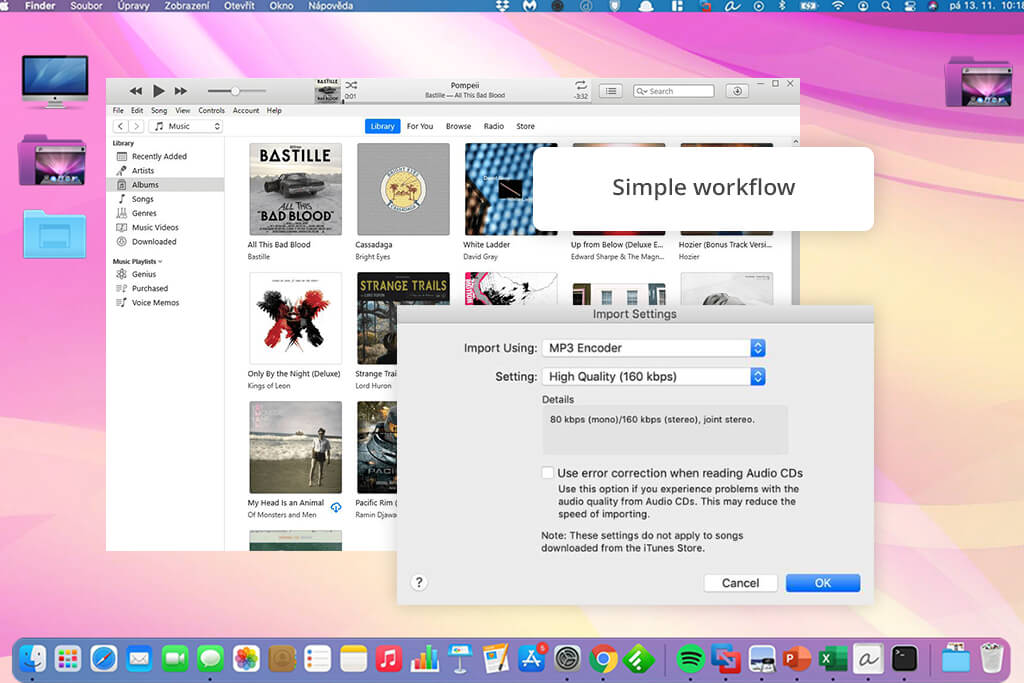
iTunes is a popular music player and file manager that can also let you convert CDA to MP3 for free. I used it on my Mac to extract audio files from several CDs.
I chose MP3 as the import preference, slid the CD in, and iTunes found all tracks immediately. I chose the desired files, clicked on “Import CD,” and everything was done within minutes.
The audio quality was preserved perfectly, and all the files were automatically sorted in the library, while being suitable for editing, playback, and synchronization.
The UI is minimalistic and easy to navigate. Previewing the tracks was also pleasantly simple, and I could conveniently sync my iTunes library across my Mac and iPhone. The biggest drawback is the lack of features like batch metadata editing or audio effects.
“iTunes streamlines the CDA to MP3 conversion with automated metadata extraction; perfect choice for Apple users.”

Price: Free (with watermark) or from $9.99/month
Availability: Windows
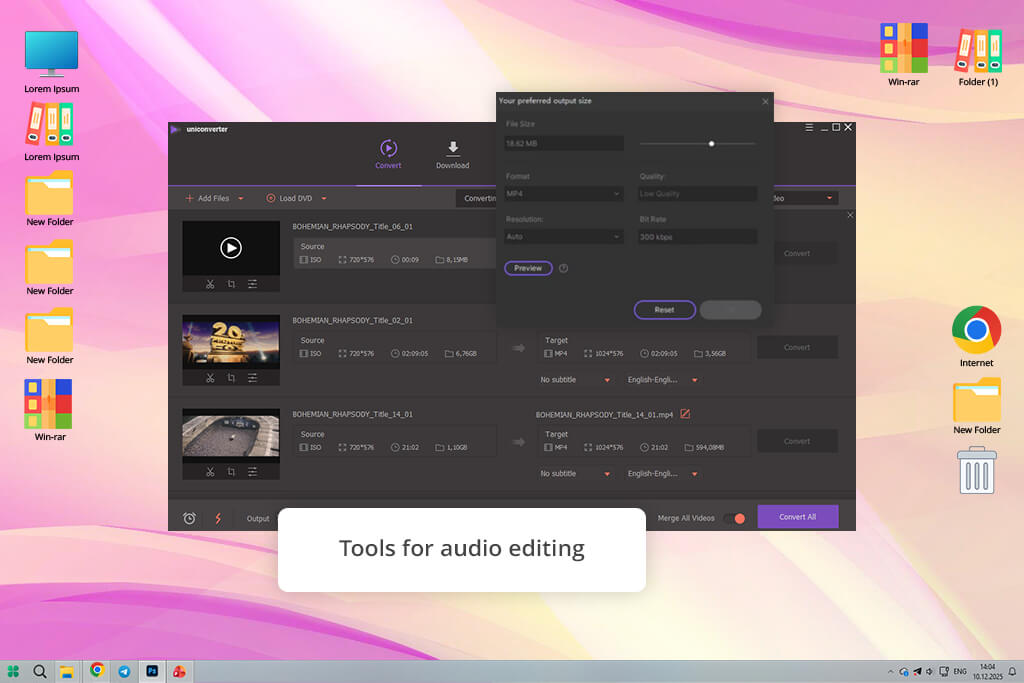
Wondershare UniConverter is a great option if you want to convert CDA to MP3 on Windows 10 while retaining unrestricted control over the process. I used it with several CDs, including a scratched one, by leveraging the “CD Converter” feature.
It found all CDA files within seconds, allowing me to preview them, pick the desired conversion format, tweak the sample rate, bit rate, and channels, and pick the destination folder before launching the ripping process. The conversion was super quick, I didn’t experience any lag, and the delivered MP3s maintained their original quality.
UniConverter provides batch conversion without compromising on quality. Finding any feature you need is intuitive, and you can even adjust metadata and manage your audio library here.
This file converter software is resource-demanding, so it requires a powerful PC or laptop, and currently it’s only supported on Windows.
Price: Free
Availability: Windows
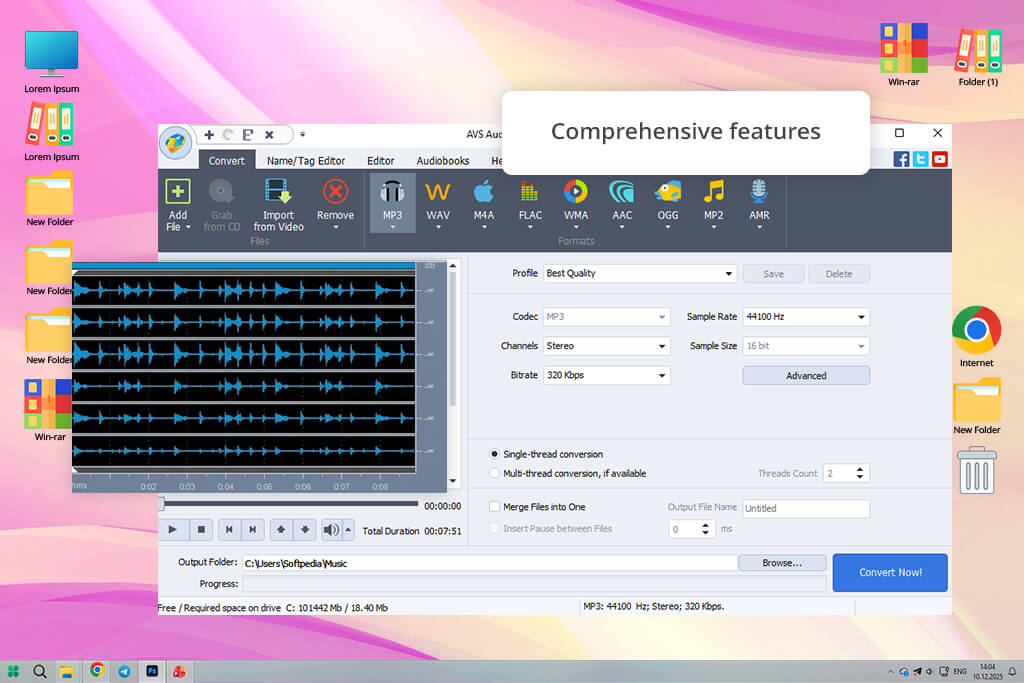
I used AVS Audio Converter to transform a large collection of CDA files to MP3, while handling multiple older CDs. In addition to setting the bitrate and sample rate, it offers a clean UI that makes it easy to preview tracks, edit metadata, and perform the conversion. The exported MP3s offer crisp audio and can be conveniently edited as you see fit.
For my test, I used tools like trimming, merging, adding fade-in/out effects, and normalization. Moreover, I tried the batch conversion when handling multiple discs and didn’t experience any issues. I particularly like how versatile AVS is, being suitable for everything from CDA to MP3 conversions to making audiobooks, ringtones, and extracting audio from videos.
However, this free audio converter is more resource-demanding than other options, so keep the specifications of your device in mind when making a choice.
“AVS offers speed and advanced tools, allowing me to convert several CDA tracks to MP3 while controlling all relevant settings.”

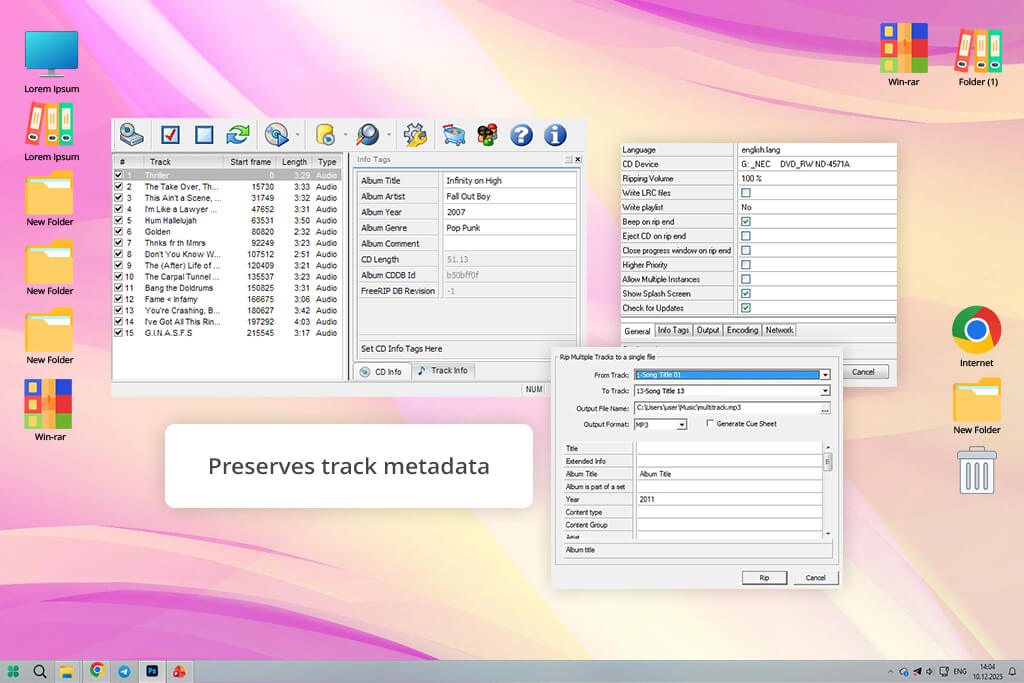
Price: Free or $49.99
Availability: Web
FreeRIP is a specialized free CD ripper, which supports formats like WAV, WMA, FLAC, or OGG. I started with FreeRIP to extract the tracks. Then, I opened the CD Ripper mode by clicking on View → Ripper, allowing the disc to spin up, and refreshing the CD view.
Afterward, I picked the tracks I needed by clicking on Rip → Rip Selected Tracks to MP3. This helped me convert CDA shortcuts into actual MP3 files. The audio output is clean and detailed. FreeRIP also preserves metadata and doesn’t have issues extracting data from older CDs. Sadly, it doesn’t have any audio editing features, which is its main drawback.
Windows Media Player and VLC are attractive free options. However, if you’re interested in deeper customization or batch conversions, Wondershare UniConverter, AVS Audio Converter, or Switch Audio Converter are a much better fit.
Not directly. Online platforms can’t recognize CDA files since they don’t contain actual sound data. First, you have to rip the CD and then use the extracted data to receive the MP3 files.
Switch Audio Converter and AVS Audio Converter offer batch conversion, which is extremely useful if you’re dealing with an expansive content library.
Yes! Many tools automatically copy the track names, album, artist, and even cover art. I ensure the metadata is preserved after the conversion to streamline the audio library management process.
No. CDA files don’t have any sound data, so MP3 players can’t open them. You have to convert CDA to MP3 first, and only then can you listen to your files.
You can’t copy CDA files directly since they’re just shortcuts without any data. That’s why you have to use one of the featured solutions to retrieve the audio from the CD and save it as MP3, WAV, or any other audio format on your device.
In most cases, it’s completely legal to perform such a conversion for personal use if the CD is yours. However, extracting and spreading copyrighted content without permission is against the law.
Most solutions are compatible with WAV, WMA, FLAC, OGG, and AAC. I tend to pick FLAC for lossless backups or WAV for editing in professional solutions before saving the final result in MP3.
My colleagues from FixThePhoto and I tried out a huge variety of CDA to MP3 converters, including Audacity, Convertio, FreeConvert, Freemake, and HandBrake. Many of them failed to meet our requirements, suffering from low conversion speeds, constant errors, or disappointing sound quality, which is why we picked seven options that showed the most promise.
Here’s my testing process:
After going through all these steps, my coworkers and I made a shortlist of tools that can reliably and efficiently convert CDA files to MP3. These solutions offer terrific speed, sound quality, and usability. That’s why you can pick any of the featured converters and know that you’ll receive consistent, pro-quality results for daily use.



![9 Best DALL-E Alternatives in {{%year}} [100% FREE]](http://fixthephoto.com/blog/images/gallery/news_main__preview_28491.jpg)


![Fish Eye Filter Online [FREE]](http://fixthephoto.com/blog/images/gallery/news_main__preview_28873.png)


![9 Best Ghibli AI Generators in {{%year}} [100% FREE]](http://fixthephoto.com/blog/images/gallery/news_main__preview_28431.jpg)
![7 Best JFIF to JPG Converters in {{%year}} [Fast & Free]](http://fixthephoto.com/blog/images/gallery/news_main__preview_28570.jpg)

















