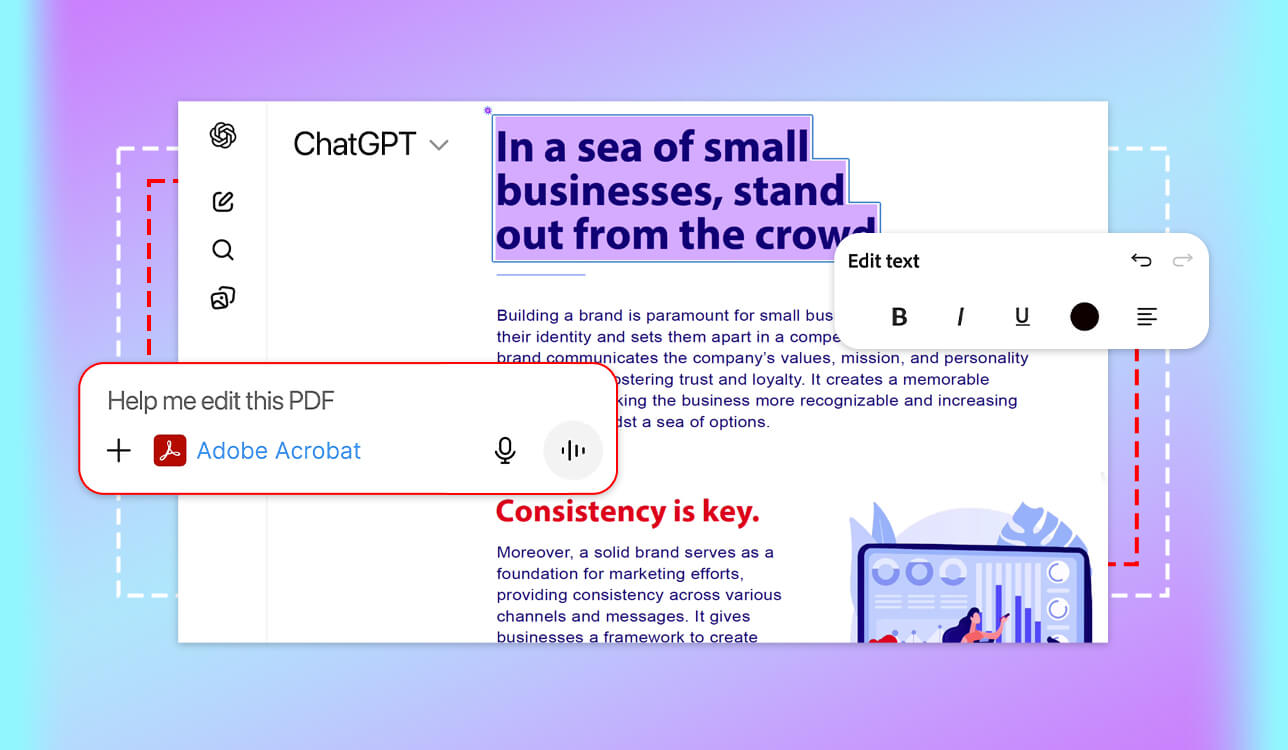
PDFs are “stubborn” files. They resist editing, hide information in walls of text, and multiply across your desktop faster than you can name them. So, when Adobe quietly dropped Acrobat into ChatGPT, I paid attention. I’ve spent years testing Adobe tools and AI integrations, and I wanted to know whether such a decision could improve how document work feels day-to-day, or if it’s just a shiny button that doesn’t do much.
Based on what I learned, it changes more than you’d expect. Upload a PDF, type what you need, and ChatGPT handles it, summarizing data, finding that clause, pulling the numbers, and comparing these 2 files. Toolbar hunting and manual scrolling are in the past. To see how well it holds up across different situations, I brought in our FixThePhoto team. Together, we tested Adobe Acrobat in ChatGPT across different industries and document types.
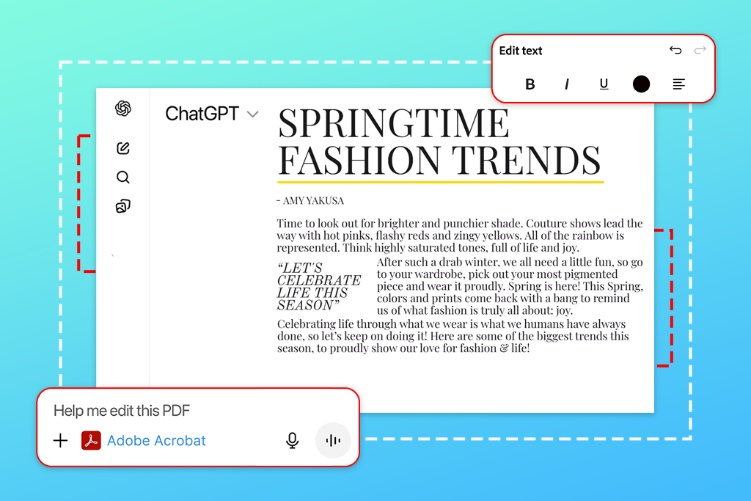
Would you like to have an assistant sitting next to you who can quickly read every page of your document and answer questions about it instantly? That’s essentially how the Adobe Acrobat ChatGPT combo works.
After linking your Adobe account, you upload PDFs directly into the ChatGPT window or pull them from files already saved in Adobe Acrobat and interact with them using natural language prompts. Then you just ask the tool to summarize your report, specify the payment terms in section 4, or pull every deadline mentioned in this document. It handles the reading so you don’t have to.
It is amazing how two capabilities work together. ChatGPT’s AI tools to chat with PDF meet Acrobat’s document engine. The result is that you don’t need a lengthy PDF, but can something interrogate it. This shifts the whole experience from passive reading to active querying. Instead of ctrl+F-ing your way through 80 pages, you ask a question and get a direct answer. The aim isn’t to gut Acrobat’s editing suite, as all that power is still there. The main idea is to make getting information out of documents as easy as sending a message.
| PDF Workflow | Example Prompt | Next Step |
|---|---|---|
|
Edit a PDF
|
@Adobe Acrobat, edit this PDF
|
Click into the editing workspace, make your changes, then check the result.
|
|
Create or Convert Files to PDF
|
@Adobe Acrobat, convert this file into a PDF
|
Verify the layout looks right and save the PDF.
|
|
Export a PDF to an Editable Format
|
@Adobe Acrobat, convert this PDF into an editable Word file
|
Open the converted file and clean up any formatting that shifted in translation.
|
|
Create a PDF From Images
|
@Adobe Acrobat, convert these images into a PDF
|
Check the page order and image placement, then download or keep going.
|
|
Organize Document Pages
|
@Adobe Acrobat, combine these PDFs, remove extra pages, and reorder sections
|
Tweak the page sequence if anything’s off, then confirm the final order.
|
|
Optimize or Protect a File
|
@Adobe Acrobat, compress this PDF and redact sensitive details
|
Confirm the file got smaller and double-check what’s been redacted before sending.
|
|
Extract Information From a PDF
|
@Adobe Acrobat, extract deadlines, pricing details, and action items from this document
|
Review what came out and sharpen the prompt if you need tighter results.
|
Getting the ChatGPT Adobe Acrobat pair running takes about two minutes. Here’s how:
“Before you jump in, you need to link the two tools. Head to Adobe Acrobat for ChatGPT, click Connect, sign in with your Adobe ID, then hit Continue. You’re in. If the link doesn’t work, open ChatGPT, go to Apps, and search for Adobe Acrobat manually.”

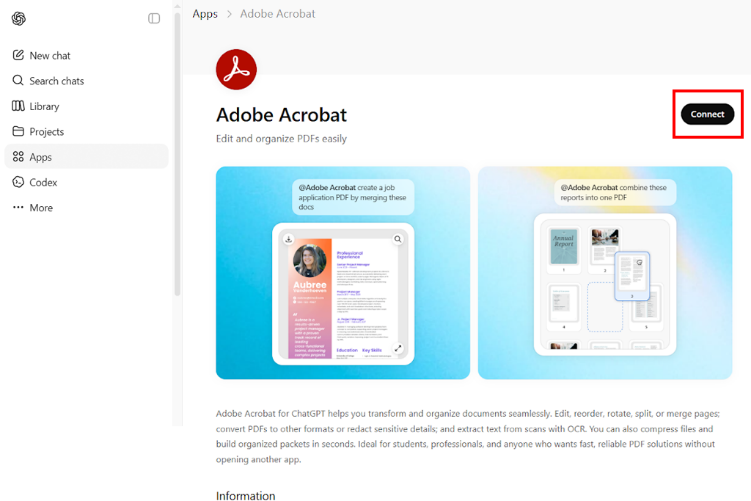
1. Run ChatGPT, open the More menu and use the search bar to find Adobe Acrobat.
2. Type “Adobe Acrobat” at the start of your message, then describe what you need done.
3. Upload your PDFs through the Asset upload interface and select “Continue”.
4. The widget appears – use it to finish the job:
5. Look over the output, confirm it’s what you wanted, then click “Save”.
6. Select “Download”.
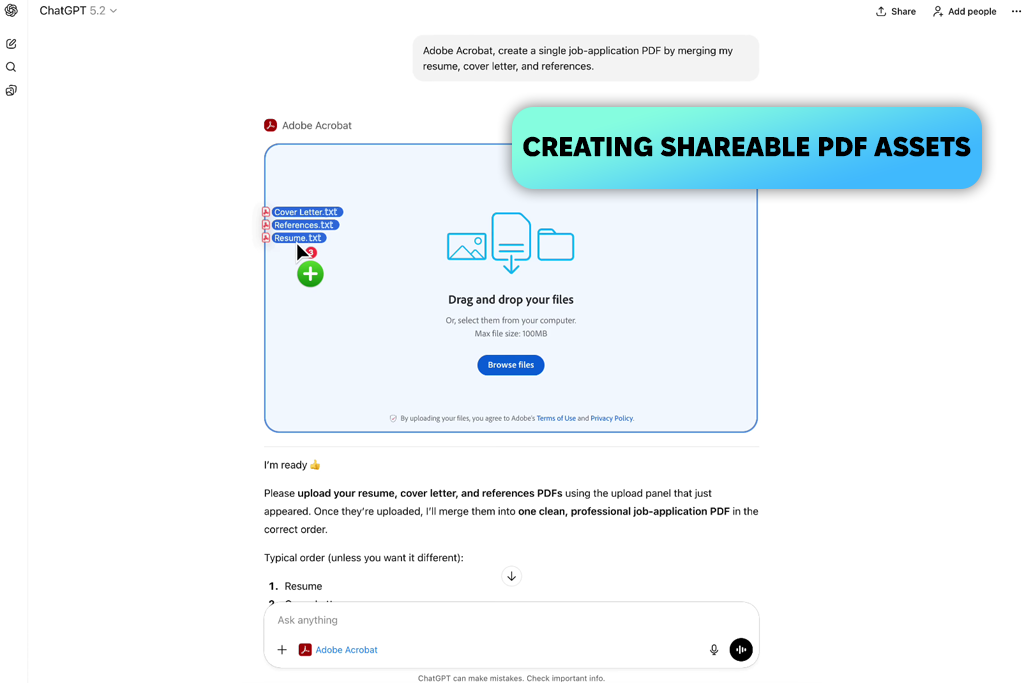
One of the more immediately useful things Adobe Acrobat inside ChatGPT can do is build PDFs directly from images or other files. It turns out to be genuinely handy when materials are scattered across different locations. While working on a recent project, our design team shared a batch of screenshots and visual assets that I needed to bundle into a single review-ready file. Doing that manually, or rebuilding the layout inside Acrobat from scratch, would have taken noticeably longer.
I received a clean, properly assembled PDF that consisted of the uploaded files. I didn’t have to switch apps, export one image at a time, or fiddle with page settings. For routine document prep, it was meaningfully faster than the traditional route.
“My team uses this constantly for pre-meeting prep. When assets are spread across messages, folders, and export folders, consolidating them into one PDF before a review session cuts so much confusion. The prompt literally takes ten seconds. The payoff is the twenty minutes of context-switching it saves everyone.”

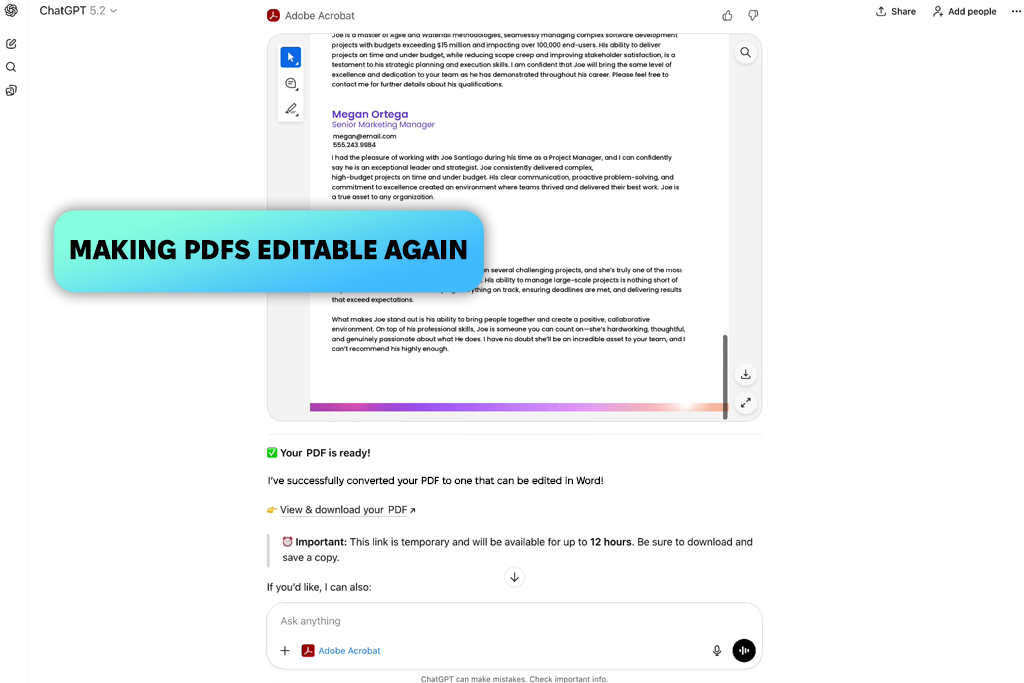
Every writer and editor probably knows the situation when a document is published as a PDF, everyone calls it final, and then someone wants changes. The source file is nowhere. You’re staring at a locked PDF that needs new copy, updated formatting, and a tighter deadline. I tested this scenario with Adobe Acrobat ChatGPT integration, picking a completed guide that existed only as a PDF to see whether the conversion actually held up.
The Word file that came back was genuinely usable. Structure was intact, and content was in the right places. Generally, it was ready to edit. I did a quick scan of the headings and spacing afterward. Complex PDFs sometimes pick up small quirks on conversion, but there was nothing that needed more than a minute to fix. Compare that to retyping an entire document, and you’ll see how time-saving this option is.
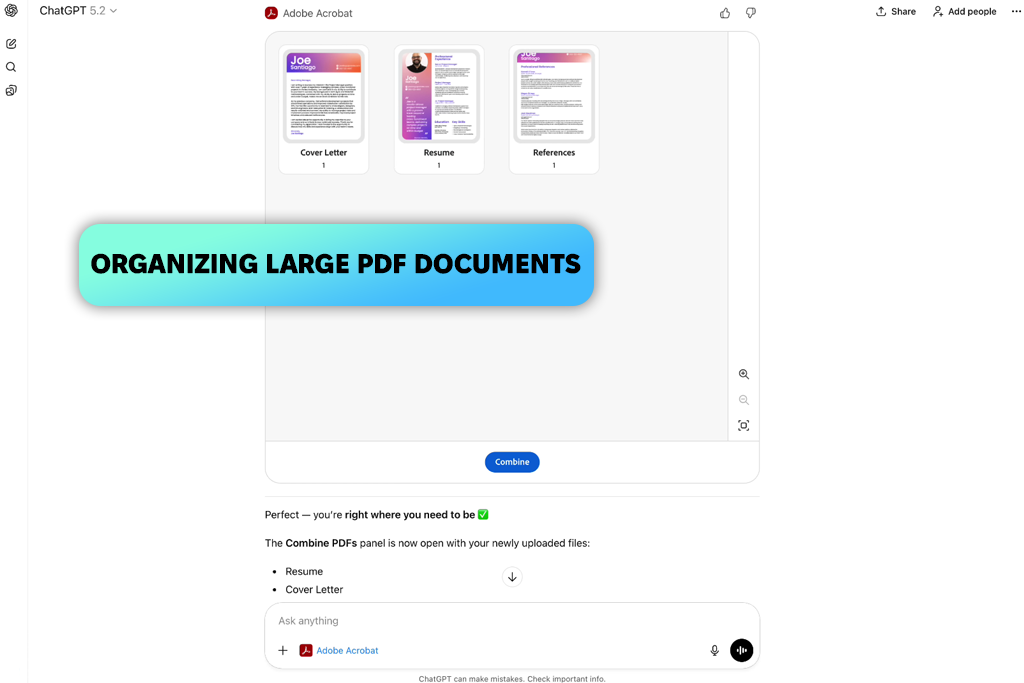
Multi-document projects get chaotic fast. You end up with three versions of the same file, pages in the wrong order, and content that crept in from a draft that should have been deleted. I started a deliberately messy test case for the Acrobat ChatGPT duo. I used several PDFs from different stages of a project, stitched together with duplicates, misplaced sections, and filler that didn’t belong in the final package.
I received a document that needed almost none of the manual tidying I’d expect from the standard approach using PDF organizers. One prompt led to one result. I checked the final order, and it was right. I didn’t have to open individual files or drag pages around one by one. For anyone who regularly assembles document packages before sending them to clients or for sign-off, the Adobe Acrobat AI ChatGPT combination is a true helper.
“One thing I learned while working with content – sort the document structure before you start editing anything. I wasted time polishing a section that got cut in the reorganization step. Get the pages in the right order and the redundant content removed first. Then, go back and work on the actual copy.”
Two of the most annoying pre-send problems with PDF are: the file is too big to email, and there’s something in it that shouldn’t be seen by the recipient. I had both at the same time. There was a document packed with embedded graphics, sized beyond what any inbox would comfortably accept, with personal contact details still sitting in the header from an earlier draft.
One prompt handled both. File size down, sensitive content gone, and the document was ready to send. When you use Adobe Acrobat in ChatGPT, this isn’t two separate tasks anymore. Compression and redaction happen in the same pass, which is exactly how it should work when you’re moving fast.
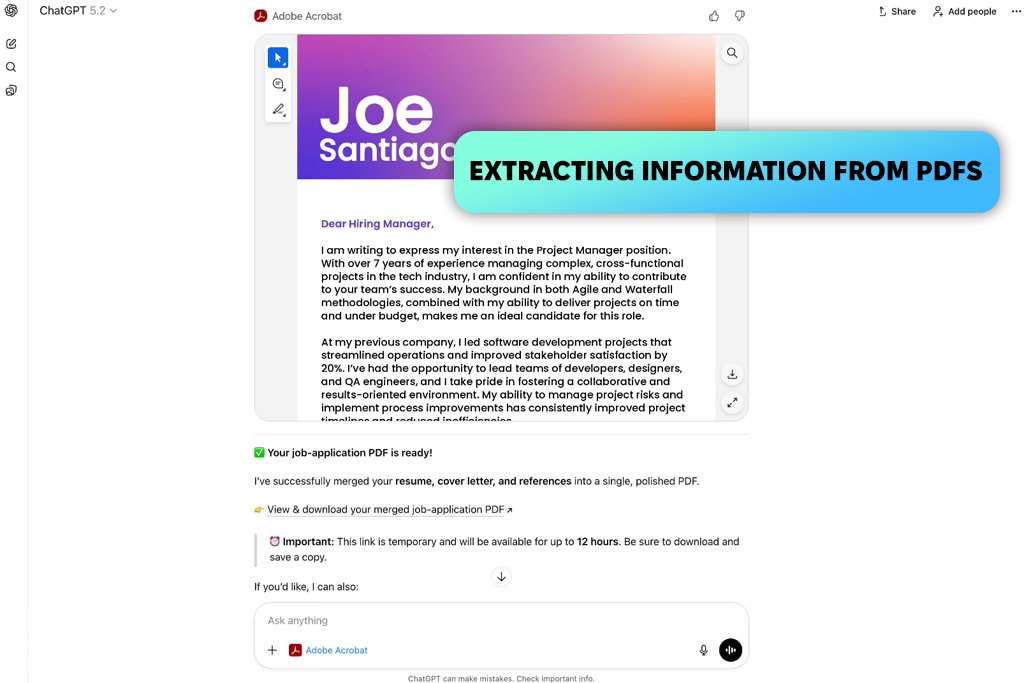
At this point, I clearly understood that ChatGPT Acrobat integration offers you more possibilities than even a top-notch reader. Most people read documents linearly because that’s the only option. With extraction prompts, you skip straight to what matters. I tested this with an AI tool for summarizing PDF using a dense brief where deadlines, pricing, and deliverables were scattered across a dozen different sections with no summary page.
Every item I asked for came back accurately, pulled from wherever it happened to live in the document. I didn’t have to read the whole document myself. The insight here isn’t just that it’s faster. It is that you don’t need to hold the whole document in your head just to find three specific facts.
“The prompt precision matters more than people expect. Vague requests get vague answers. If you ask for “important information,” you’ll get a summary. If you ask for “all delivery deadlines and associated costs,” you’ll get exactly that, pulled clean from wherever they appear. Treat it like a search query. The more specific, the more useful.”

After thoroughly testing Adobe Acrobat inside ChatGPT, I can say this isn’t Acrobat’s PDF editor with a chatbot slapped on top. It’s something more useful than that. You get a faster path through the tasks you do most often. Creating PDFs, reorganizing messy document packages, pulling files back into editable formats, and extracting specific data become quicker when you can describe what you need instead of navigating menus to find the right function.
The people who will get the most out of this are the ones who live in documents. Content teams preparing review packages, researchers pulling data from reports, project managers cleaning up files before they go to clients, and actually anyone who regularly handles PDFs and has ever thought “there has to be a faster way to do this”. ChatGPT Acrobat integration is that faster way.
The one honest caveat is that some outputs are worth a quick eyeball check, especially converted files and reorganized documents with complex formatting. It’s a minor thing, and it didn’t get in the way of real work. But treat outputs as drafts to verify, not finals to trust blindly. With that in mind, this duo earns its place not by replacing Acrobat, but by making you reach for it a lot less often.
For most things, you can. I received good results with standard conversions, organization, and PDF creation. If your document is heavy on design elements or has a very precise layout, review the output before treating it as final.
Yes, and it’s one of the stronger use cases. Combining documents, clearing out duplicate pages, and reordering content across multiple files in one prompt is faster than managing each document on its own.
It is really quicker for repetitive tasks. The fewer steps between you and the result, the better. The speed advantage grows when you’re handling multiple documents or converting between formats, while the traditional approach requires several separate operations for each file.
Absolutely. When a team is dealing with documents across different formats and versions, it is great to have one place to handle conversions, cleanup, and packaging. Such an approach is much better than having everyone do their own manual prep every time files need to go out.




![Photoshop App on Android [NEW Release] {{%year}} Update](http://fixthephoto.com/blog/images/gallery/news_main__preview_29048.jpg)

![9 Best AI PDF Editors in {{%year}} [Expert Tested Guide]](http://fixthephoto.com/blog/images/gallery/news_main__preview_29012.jpg)


![9 Best AI Virtual Try On Outfits Tools in {{%year}} [100% FREE]](http://fixthephoto.com/blog/images/gallery/news_main__preview_29082.jpg)

















