I started taking PDF flattening tools seriously when our document work at FixThePhoto became much heavier. As an HR manager, I regularly prepare contracts, NDAs, onboarding forms, internal rules, employee documents, and files that need to be sent, signed, printed, or stored without accidental changes.
At the beginning, I used the basic methods most people try first. Sometimes I printed the file through Microsoft Print to PDF. Other times, I used the browser option to save a document as a PDF again. For simple files, that was enough. But once I had to process more documents every day, the problems became obvious.
Some layouts shifted. Certain form fields stayed editable. Fonts disappeared or changed. A few files looked fine on my screen, but opened differently for another person. The most worrying part was that some sensitive information could still be edited after sending the document.
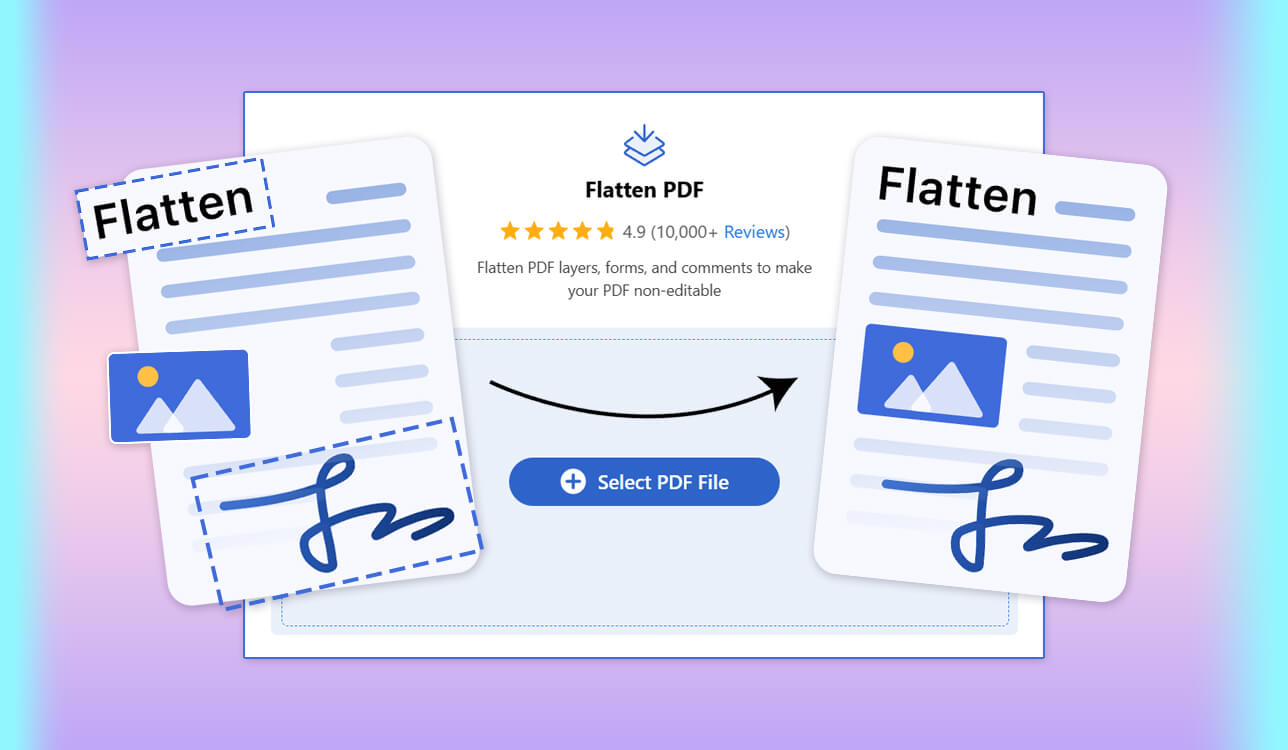
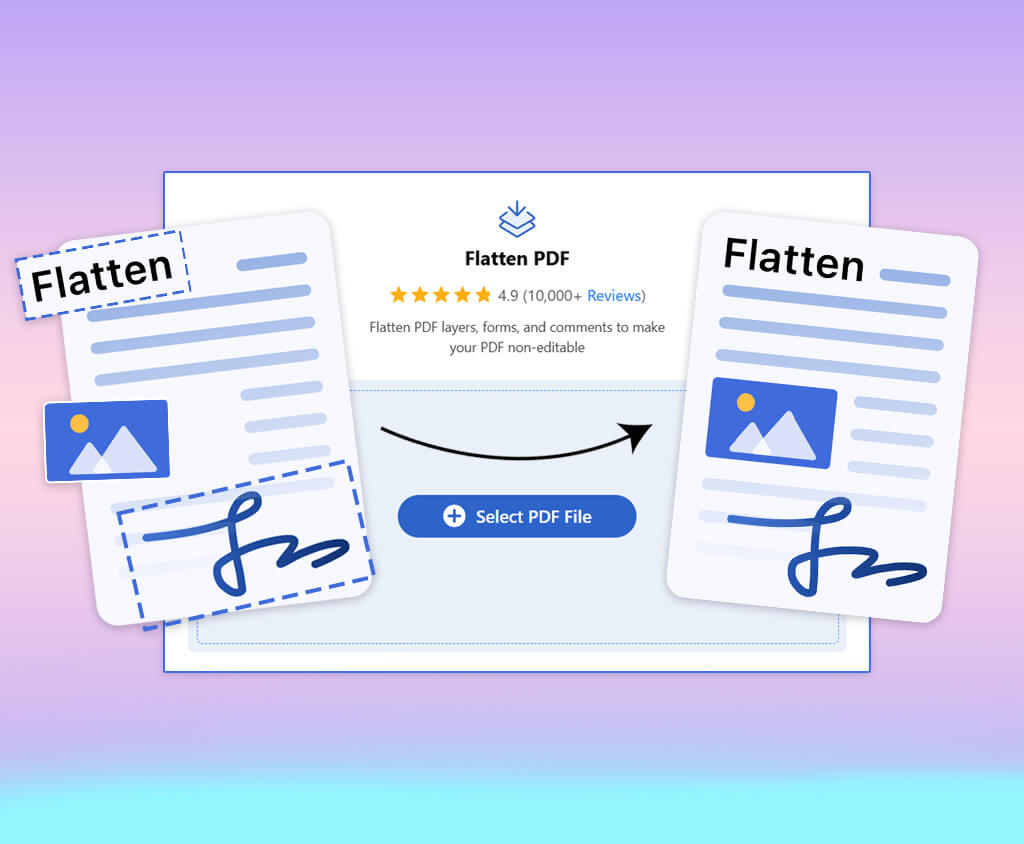
That was the moment when the meaning of flattening a PDF became very clear to me. It is not just another way to save a file. It is a way to lock the visible content, combine layers, remove active fields, and make sure the final PDF looks the same for everyone who opens it.
So I followed the same process we usually use at FixThePhoto. I asked my team to help me test different tools instead of relying only on marketing pages. Together, we tested 30+ PDF flattening tools that came up in Reddit discussions, YouTube reviews, software lists, and niche forums. Here is what I looked for in every PDF flattening tool:
If you have ever wondered what does flattening a PDF mean, or you have dealt with files that changed after sending, this list should make the process much easier. I tested these tools the same way I use them in my daily HR workflow: with real documents, tight deadlines, and no room for formatting mistakes.
I also wanted feedback from people with different levels of document experience. Designers paid attention to layout accuracy. Retouchers noticed small visual shifts. Office and HR team members focused on speed, clarity, and whether the tool was easy enough to use without instructions. That helped me see which tools were actually practical, not just feature-rich.
Before I started testing these tools, I didn’t think much about PDF flattening. To me, it sounded like one of those technical settings you only use when something goes wrong with a file. I thought it was basically another export option.
But after I began working with dozens of contracts, forms, and signed documents every day, my opinion changed fast. I realized that flattening a PDF is not just about saving a file in a cleaner way. It is about keeping control over the final version.
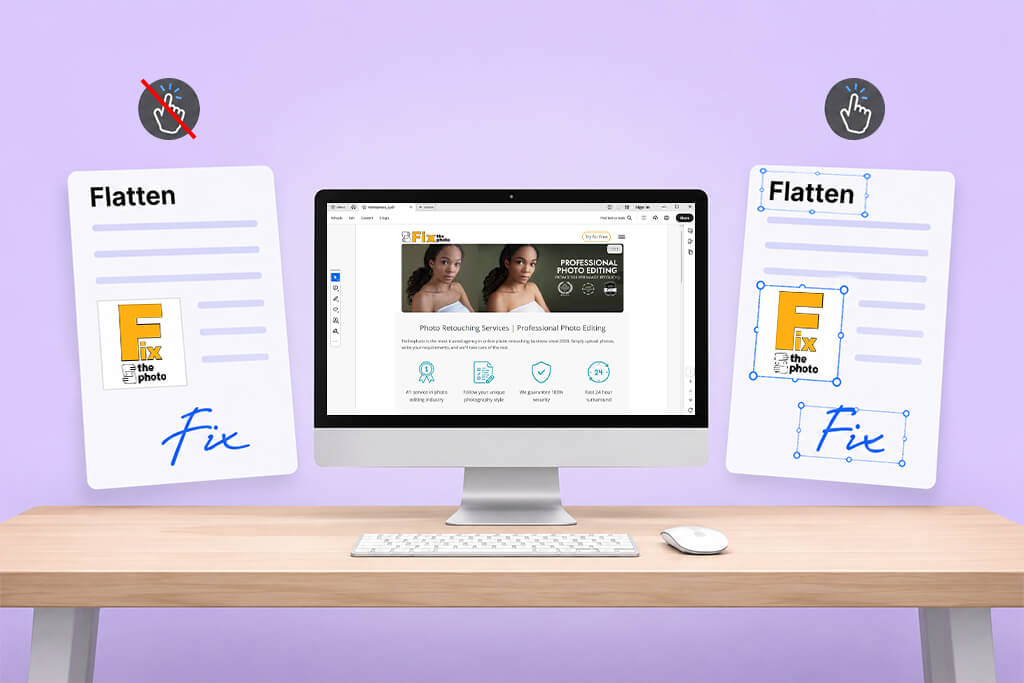
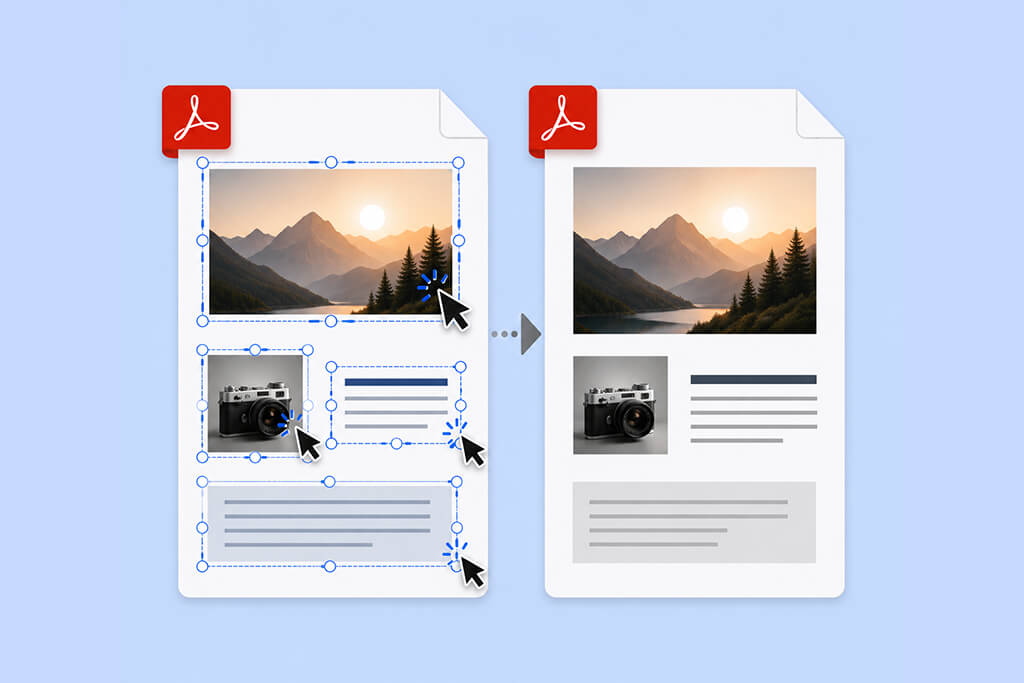
In simple words, flattening turns a PDF into a fixed document. It takes all the separate parts inside the file, such as text, comments, stamps, signatures, form fields, and layers, and combines them into one locked layer. After that, the file is much harder to edit by accident. There are no active fields left, no hidden elements that may appear differently, and no strange surprises when someone opens or prints it.
One case made this very clear to me. We once sent a group of onboarding documents to a partner agency. On our side, everything looked finished and ready. But when one of their managers opened the PDF, they clicked inside a field that we thought was already locked. By accident, they deleted part of a signed section.
Nobody did anything wrong on purpose. It was just a normal click in the wrong place. But we still had to prepare the documents again and resend the whole batch. After that, I stopped trusting quick export tricks and started using proper PDF flattening tools. Now I see PDF flattening as a simple way to avoid problems before they happen. And it matters for different people on the team:
For HR, legal, and admin work:
For designers and print tasks:
For finance and compliance:
For freelancers and creatives:
For security-focused workflows:
It is also worth knowing what can happen if you skip PDF flattening:
One small but very useful result from our new workflow was that we stopped getting those “Can you resend the PDF?” messages. It may sound like a tiny thing, but when you work with many documents every day, it saves a lot of time and nerves.
My advice is simple: don’t wait for a document mistake to happen. If you are sending a final PDF, especially one with approvals, signatures, forms, or client-facing information, flatten it before sharing. I now treat this as the final step, just like checking the file name or making sure the right person is in the email.
Best for: HR, legal, enterprise workflows
Platform compatibility: Windows, macOS, iOS, Android, Web
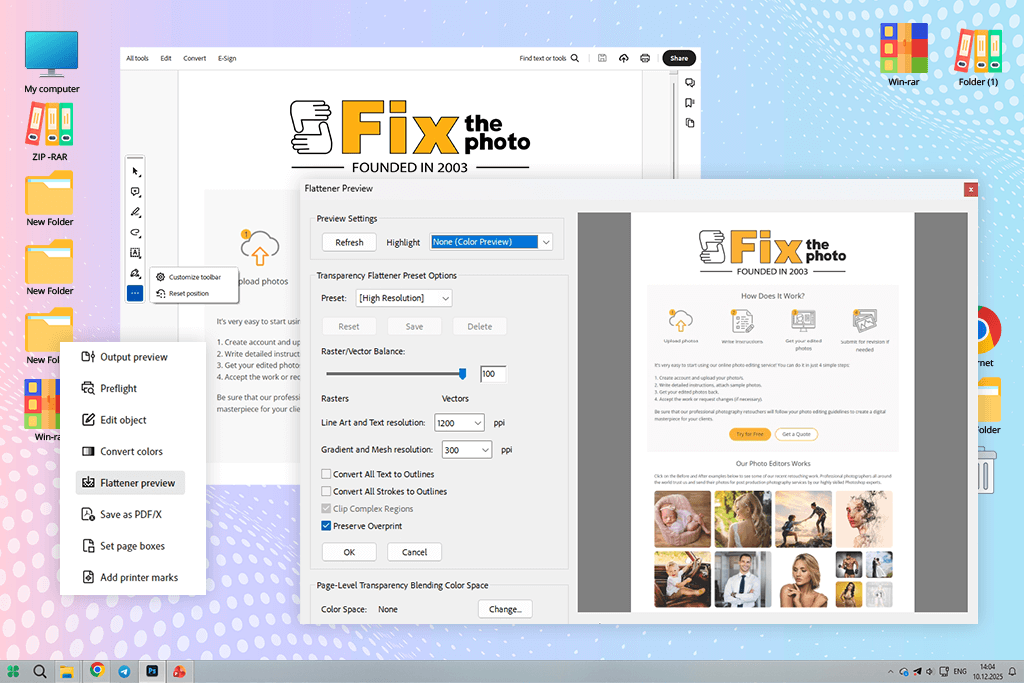
I started with Adobe Acrobat because a few people from our retouching team said the same thing: if a PDF acts weird, Acrobat is usually the tool that fixes it. Since we already use Adobe apps at FixThePhoto almost every day, it made sense to test Acrobat first.
What I liked right away is that Acrobat doesn’t treat flattening like some quick trick. It gives you proper control over the file. You can flatten a PDF through Print Production → Flatten Preview, or you can do it while printing the file to PDF with the right settings. At first, these options are not super obvious. But once I understood where everything was, the process became much easier.
During my test, Acrobat gave me the most stable results. I tried it with contracts, signed forms, stamps, comments, and documents with several layers. After flattening, everything stayed where it should. No shifted text, no missing fonts, no strange transparent blocks, and no broken signatures. This was especially important for HR documents. I need the file to stay finished after I send it.
“With Acrobat, I could flatten the PDF and then add extra protection, like password settings, permissions, and redaction when needed. That made it much for contracts, NDAs, and docs that should not be edited after approval.”

I also ended up using the Acrobat AI assistant more than I expected. Before flattening long agreements, I used it to skim the document, summarize key parts, and check whether I missed anything important. It didn’t replace my own review, of course, but it helped me move faster when I had several files to prepare.
The only real downside is that Acrobat is not the easiest tool for beginners. If you only need to flatten one simple PDF, an online PDF flatteners may feel quicker. Acrobat has more menus, more settings, and some features are hidden deeper than I’d like.
But for serious documents, I would still pick it first. If you work with HR papers, legal files, client approvals, signed forms, or anything you cannot afford to mess up, Acrobat is worth learning.
I still use it after testing, mostly for final files that really matter. The Acrobat PDF free plan is okay for basic PDF work, but the full toolset is much stronger with a subscription. For me, it saves enough time and prevents enough mistakes to justify the cost.
My advice: use Flatten Preview when you need full control, and don’t stop at flattening. Add security settings too, especially for signed or client-facing documents.
Pricing: free, from $12.99/mo, from $155.88/year
Best for: quick tasks, beginners
Platform compatibility: Web, iOS, Android
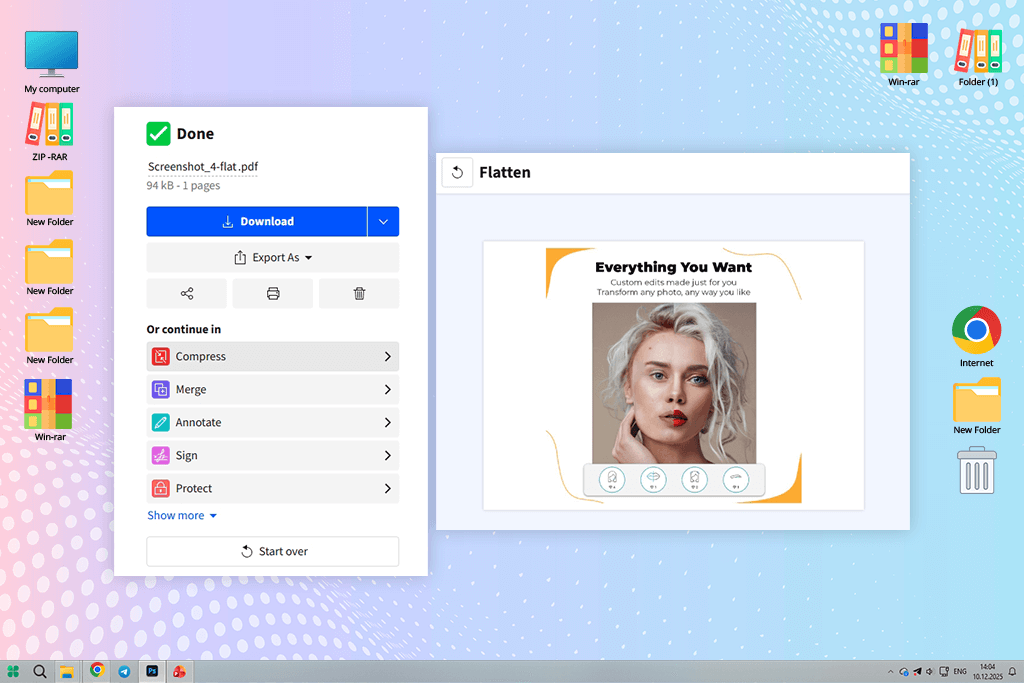
I found Smallpdf when I needed to flatten a PDF quickly and didn’t have time to open a bigger program. At that moment, I didn’t want advanced settings. I just needed to prepare a file between meetings and send it without worrying that someone would click into a form field or change something by mistake.
That is exactly where this free PDF reader works best. It is very simple. You open the flatten PDF page, upload your file, wait a little, and download the finished version. That’s it. No hidden menus. No technical words. No need to understand every detail of what PDF flattening means before using it.
For beginners, I think this is one of the easiest tools on the list. Even someone who rarely works with PDFs can understand it in a minute. The quality was better than I expected. I tested Smallpdf with a few simple internal documents. After flattening, the fields were no longer editable, and the layout stayed normal. I didn’t notice broken text, missing marks, or strange shifts in the file.
“Compared to Acrobat, you mostly upload the file to Smallpdf and trust the tool to handle everything. For simple documents, that usually works fine.”

What I liked most is that Smallpdf is not just a one-feature tool. I often used it as a small PDF helper during the day. For example, I could flatten a file, compress it before sending by email, and then add password protection if needed. Everything is quick and easy, which helps when I have several small tasks in a row.
I still use it, but not for every document. For low-risk files, drafts, simple forms, and everyday PDFs, it is very convenient. For contracts, signed agreements, legal documents, or anything sensitive, I still prefer to flatten PDF in Acrobat or another tool with more control.
The free version can flatten PDFs, but there are usage limits. If you only need it from time to time, that may be enough. If you work with PDFs every day, the paid plan makes sense mostly because it saves time.
My tip: after flattening a PDF in Smallpdf, use its compression tool too, especially if you need to send the file by email.
Pricing: free (daily limits), from $12/mo, from $108/year
Best for: flexible workflows, semi-pro users
Platform compatibility: Web, Windows, macOS, Linux
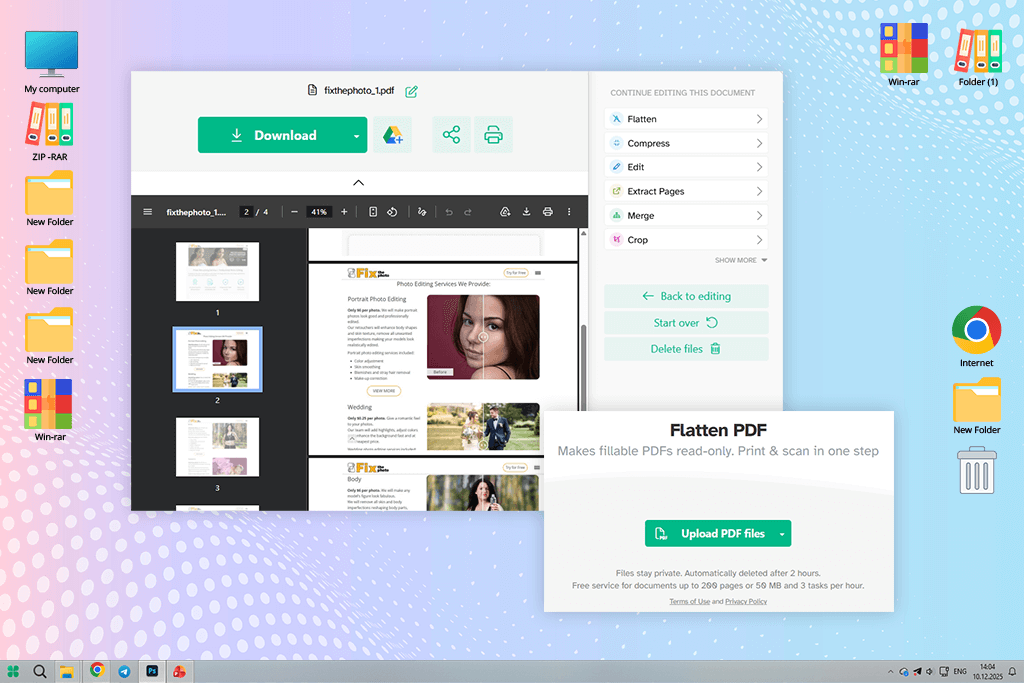
I kept seeing Sejda in YouTube videos and articles about free PDF editors, so I added it to my test list. For me, it sits right in the middle. It is easier than Adobe Acrobat, but it gives more control than most simple online PDF tools. That is exactly why I liked it.
When I opened the PDF flattening tool, I noticed that Sejda actually lets you choose what you want to flatten. You can flatten form fields, annotations, or the whole document. This may sound like a small thing, but it is very useful when you work with documents that have comments, highlights, signatures, or fillable sections. Most online tools don’t ask you what you want.
I tested it on real HR files. One of the documents was a contract with comments, highlighted parts, and a digital signature. With Sejda, I could flatten only the parts I needed instead of turning the entire file into one locked layer right away. The quality was good. I didn’t see strange spacing, broken text, or moved signatures. Even with more layered files, Sejda kept everything in the right place.
“For me, a strong point is that Sejda has both a web and a desktop version. For a basic internal form, the web version is fine. But for something more private, the desktop app is safer.”

I also found the interface easy to understand. It is not as polished as Smallpdf, but it is clear. The buttons are where you expect them to be, and the settings don’t feel overwhelming.
I still use Sejda after testing more often than I thought I would. I use it when Smallpdf feels too simple, but Acrobat feels like too much for the task. The free plan is useful, but it does have limits. You may run into restrictions on file size, number of pages, or daily tasks. For occasional PDF work, that is usually fine. If you handle PDFs every day, the paid plan makes more sense.
My tip: use Sejda when you need selective flattening. It is especially helpful for documents with comments, highlights, form fields, or signatures where you don’t want to flatten everything blindly.
Pricing: free (limits: size/tasks), from $7.50/mo, from $63/year
Best for: freelancers, small teams
Platform compatibility: Windows, macOS, iOS
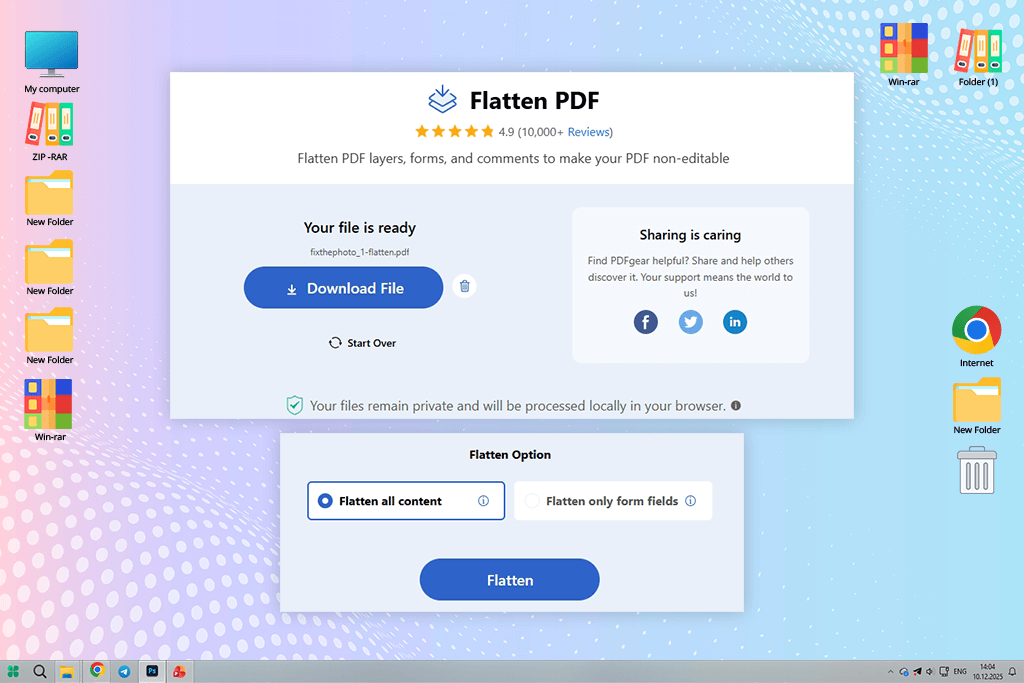
I found PDFgear in Reddit threads where people were comparing free and paid PDF tools. Several people mentioned it as a strong free PDF flattening tool, so I decided to add it to my test list.
What I liked right away is that PDFgear is not one of those “free” apps where every useful button leads to a payment page. It works as a full desktop PDF editor, and the flattening option is included in the normal editing process. You open the document, check the pages, and flatten annotations or form fields from the tools menu.
The process is clear enough even if you don’t work with PDFs every day. It gives you some control, but it doesn’t overload you with settings. For me, that was a good balance, especially when I needed to prepare files quickly.
“Its AI tool for PDF helped me summarize longer PDFs and jump to important sections before I flattened the final version. I would not rely on it instead of checking the file myself, but it saved time.”

For testing, I used a batch of onboarding forms with signatures, checkboxes, and interactive fields. After flattening, the files looked the same, but the editable parts were locked. I didn’t see shifted text, broken layout, missing signatures, or visible quality loss.
The main advantage of PDFgear is simple: it is free and does not add watermarks after flattening. I also didn’t get constant upgrade pop-ups during the process. That makes it a good choice for freelancers, students, and small teams that need a practical PDF tool without another subscription.
I now use PDFgear mostly for internal documents and quick everyday PDF tasks. For sensitive contracts or legal files, I still flatten a PDF in Adobe Acrobat. But for regular forms, drafts, and office PDFs, PDFgear does the job well.
My tip: use the desktop version. It is faster and also better for documents you don’t want to upload online.
Pricing: free
Best for: teams, business workflows
Platform compatibility: Windows, macOS, iOS, Android
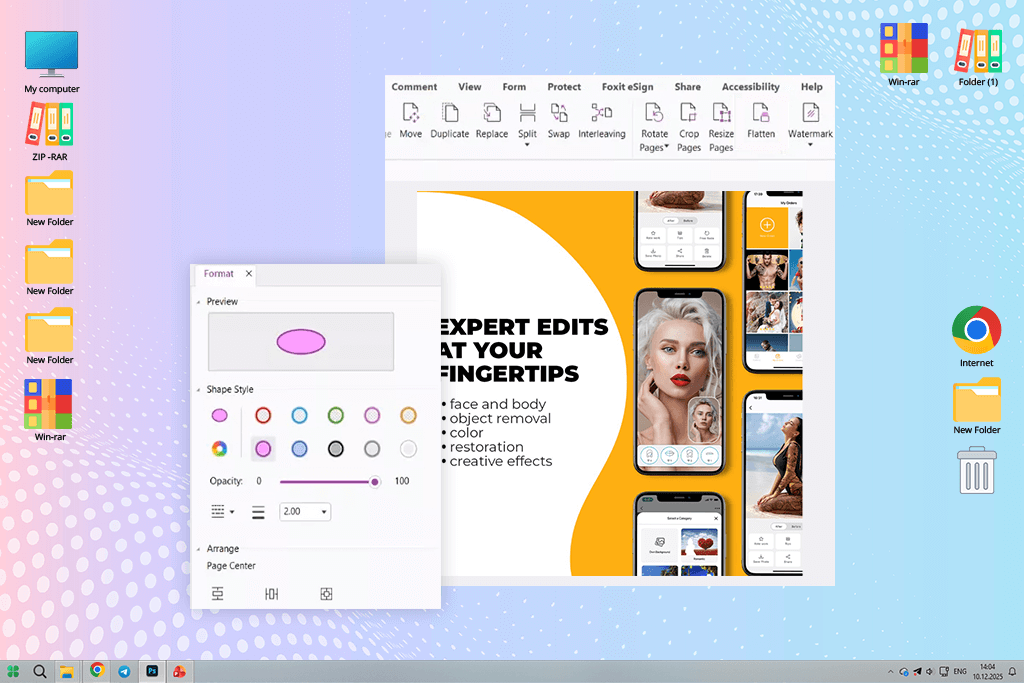
I found Foxit PDF Editor after a colleague from another department told me, “It’s almost like Acrobat, but faster.” That was enough for me to test it, especially because I wanted a professional PDF flattening tool that wouldn’t slow me down during busy document days.
Foxit is clearly made for serious PDF work. You notice it as soon as you open the program. It has many tools, but the flatten PDF option is easier to find than in Acrobat. In most cases, you can work with it through form or annotation settings, so I didn’t have to dig through too many menus.
The results were very stable. I tested Foxit on contracts with layered comments, stamps, signatures, and form fields. After flattening, the files looked the same, but the editable parts were locked. I didn’t see broken formatting, missing notes, or shifted signatures. It gave me almost the same level of trust as Acrobat, which says a lot.
“I liked its security tools. Encryption, permissions, and redaction are easy to use together with flattening. It’s useful when I need to control who can open it, copy from it, or edit it later.”

The biggest advantage for me was speed. Foxit handled large PDFs smoothly and didn’t feel as heavy during daily work. I also used its comments, change tracking, and free PDF merger tool before flattening final versions. That made it useful not only at the last step, but during the whole review process.
I use Foxit from time to time when I need a strong PDF editor but don’t want to open Acrobat. The free version is quite limited, and full PDF flattening features are mostly useful in the paid plan. Still, Foxit is usually a bit more affordable than Acrobat, so it can be a good choice if you need a professional PDF tool but want to spend less.
My tip: use Foxit’s security settings right after flattening, especially for contracts, HR files, and documents you send outside the company.
Pricing: free (limited features), from $11.99/mo, from $143/year
Best for: quick secure tasks, privacy-focused users
Platform compatibility: Web, Windows
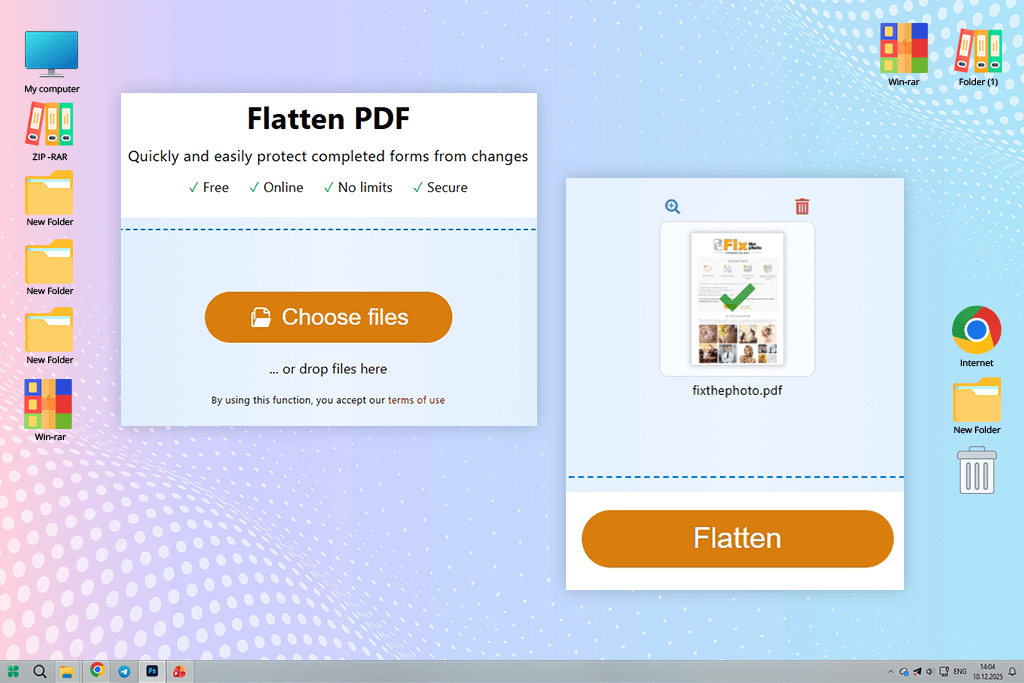
I found PDF24 Tools after seeing it in a Twitter poll where people were sharing their favorite free PDF tools. It didn’t look like the most modern option, but many people voted for it and wrote things like “just works” and “completely free.” That was enough for me to test it properly.
The whole process is very simple. You open the flatten PDF tool, upload the file, start the process, and download the final version. No account, no annoying pop-ups, no pressure to upgrade.
“For someone who just needs to flatten a PDF without learning a new program, this is one of the easiest options.”

I was also surprised by the output quality. I tested PDF24 on HR forms, signed agreements, files with notes, and a few documents with fillable fields. After flattening, the files stayed visually the same, but the editable parts were locked. Nothing shifted, and the signatures and notes stayed in place.
For everyday office tasks, that is usually all I need. I don’t always want advanced settings or a long list of tools. Sometimes I just need a final PDF so no one can delete pages from your PDF.
The best thing about PDF24 is that it also has a desktop version. This is useful when I don’t want to upload a document online. For sensitive files, even simple internal documents, I feel much better processing them locally on my computer.
Of course, PDF24 is not the tool I would choose for complex PDF work. It doesn’t have the same level of control as Acrobat, Foxit, or Sejda. But as a free PDF flattening tool, it does its job very well.
My tip: use the desktop version for private or sensitive documents. It keeps the process simple and lets you flatten PDFs without uploading them to a website.
Pricing: free (no limits), from $0/mo, from $0/year
Best for: creatives, simple visual docs
Platform compatibility: Web, iOS, Android
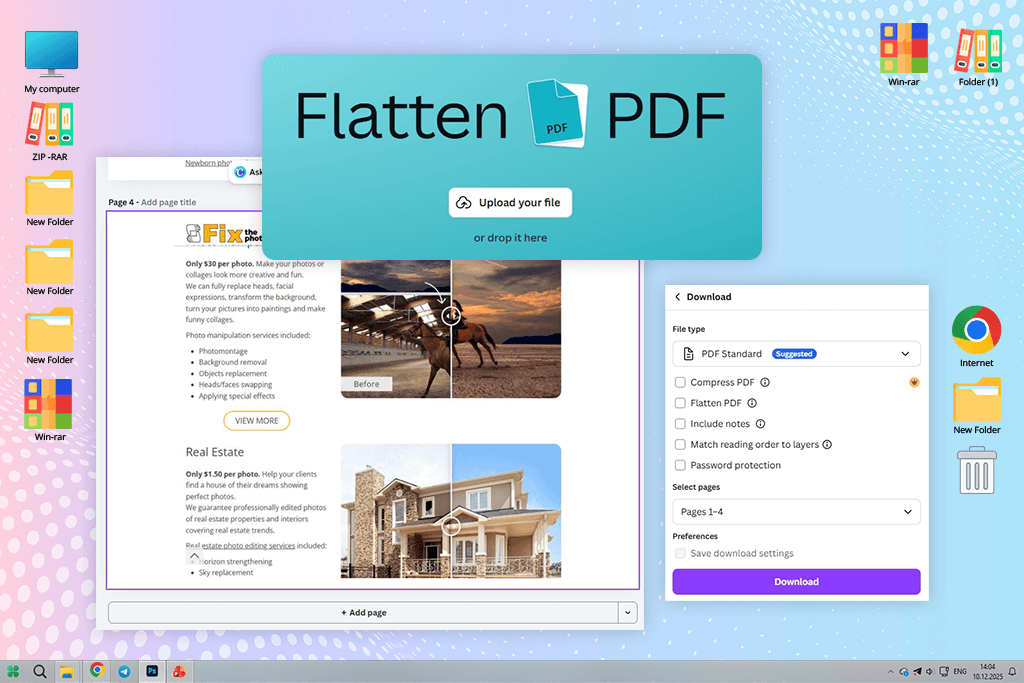
I already used Canva from time to time for quick Instagram collages, so I didn’t expect to use it for PDF flattening too. But it actually can help in a simple way.
The process is a bit different from regular PDF tools. You upload your PDF to Canva, and it turns the file into an editable design. Then you export it again as a PDF. After export, the elements are basically merged into a final file, so the document becomes much harder to edit by accident.
I tested it with a branded onboarding document that had text blocks, icons, and a few notes. After exporting, everything looked clean. The layout stayed in place, and the separate elements were no longer easy to change like before.
“I wouldn’t use Canva for serious or private documents. You don’t get strong security settings, detailed flattening options, or control over exactly which parts of the file should be locked.”

Where Canva is useful is visual editing. If I notice a small layout issue before sending a PDF, I can fix it right there and then export the final version. That is handy for simple branded files, presentations, checklists, or marketing PDFs.
I use Canva only sometimes for this, mostly when the PDF is visual and not sensitive. The free plan can handle this workflow, though some export options may be limited. A paid plan makes more sense if Canva is already part of your daily work.
My tip: use Canva for design-heavy PDFs, but not for contracts, signed documents, or anything confidential.
Pricing: free (export limits), from $12.99/mo, from $119.99/year
This test became a real team task at FixThePhoto, not just something I checked alone between emails. I work with HR documents every day, so I mostly care about contracts, NDAs, onboarding forms, signatures, and safe sharing.
My FixThePhoto teammates looked at the same tools differently. Designers checked layouts, layers, fonts, and transparency. Retouchers noticed small visual changes. Editors paid attention to speed and general usability. That mix helped us judge the tools more fairly.
I first collected over 50 PDF tools. I found them in Reddit discussions, YouTube reviews, Twitter polls, and smaller forums where people share what they actually use at work. Then my team and I narrowed the list to about 30 tools that seemed worth testing properly.
Not every popular tool stayed on the list. I removed iLovePDF, PDF Candy, Soda PDF, Nitro PDF, and DocHub for different reasons. Some were too limited for real PDF flattening. Some gave uneven results. Others placed basic features behind annoying paywalls. A few worked fine with simple files but became unreliable with signatures, forms, or layered PDFs.
For testing, I didn’t use perfect sample files. I used the same types of documents I deal with at work: onboarding forms, signed NDAs, contracts with stamps, and files that had to be sent outside the company. My team also gave me PDFs exported from design tools, with layers, comments, transparency, and annotations. That made the test much closer to real work.
Setup and ease of use. First, I checked how quickly I could start. I wanted to see if the tool made it clear how to flatten a PDF without reading a guide. If the process was confusing or had too many steps, I marked it down.
Flattening quality. This was the most important part. I checked whether form fields were really locked, signatures stayed in place, stamps remained visible, and the layout didn’t move. My team also reviewed the design-heavy files to catch small visual problems I could miss.
Same result every time. One good export was not enough. I tested batches of similar files in each tool. If one file looked fine and the next one had shifted text or broken fields, I didn’t trust the tool.
Speed in daily work. Some tools worked well but were too slow for regular use. I paid attention to how long it took to upload, flatten, download, and move on to the next file. This mattered a lot for days when I had many documents to prepare.
Extra tools around flattening. I also checked what else I could do before or after flattening. Password protection, compression, redaction, file merging, and quick review tools were useful. Tools that helped with the whole document workflow ranked higher.
Price and limits. Finally, I compared free and paid versions. I’m okay with paying for software if it saves time and prevents mistakes. But if a tool locked basic flattening behind a paywall and didn’t offer enough value, I removed it from the final list.
In the end, I kept only the tools that gave stable results, saved time, and worked well with real documents. Popular names didn’t get a free pass. If a tool couldn’t handle everyday PDF flattening without problems, it didn’t make my top list.





![9 Best Play HT Alternatives in {{%year}} [100% FREE]](http://fixthephoto.com/blog/images/gallery/news_main__preview_28920.jpg)
![5 Best SWF Players [{{%year}} FixThePhoto Choice]](http://fixthephoto.com/blog/images/gallery/news_main__preview_28899.jpg)
![7 Best YouTube Banner Generator [Real Channel Tests]](http://fixthephoto.com/blog/images/gallery/news_main__preview_28946.jpg)
![7 Best Speechify Alternatives [{{%year}} FixThePhoto Choice]](http://fixthephoto.com/blog/images/gallery/news_main__preview_28954.jpg)

![7 Best YouTube Shorts to MP4 Converters [Fast & Free]](http://fixthephoto.com/blog/images/gallery/news_main__preview_28927.jpg)

















