Recently, I realized that I needed a reliable SWF player. When I tried revising my old vector graphics, I discovered they were all in SWF format. Nothing on my computer could open them anymore. Since I regularly work with interactive visuals, this was a wake-up call.
So much valuable content is stuck in SWF files. There are demo animations, portfolio work, educational materials, and design experiments. Now, they are basically unusable. Even after Flash’s official “death”, SWF files remain important for certain groups, namely, artists, teachers, archivists, and retro game lovers dealing with legacy content.
That’s why, to get accurate results beyond just my own computer, I reached out to the FixThePhoto team. My colleagues helped test 20+ SWF players across different operating systems, browsers, and hardware setups.
A top-quality SWF player does more than just launch files. Look for smooth playback, sharp vector display, working interactive elements, timeline navigation, plugin-free operation, and offline capability. The best ones also add zoom functionality, debugging tools, easy drag-and-drop, and support for legacy ActionScript.
After Adobe discarded Flash, browsers and operating systems dropped support for SWF files entirely. I tried opening my old animations and hit nothing but security warnings and error messages. That is what everyone faces now.
You can’t just click and watch anymore since native support is gone, and safety issues made platforms ban it altogether. Now, dedicated SWF players are basically your only option to view these files.
Through my testing and research, I found that SWF is far from dead. Creative communities still share retro games, educational tools, motion graphics, and animation portfolios from the 2000s-2010s. Teachers preserve classroom materials, animators archive their early projects, and museums safeguard Flash-based digital art.
Even without mainstream support, the format lives on in archival and reference work. I didn’t expect that SWF files are still good at certain things that even newer formats struggle with. They can scale without losing quality, stay very small in size, include built-in animations, and let you add interactive features through code.
With such characteristics, they were truly impressive back in the day. However, they do have downsides. First of all, not everything can open them anymore, since the technology is old. So, you need a reliable Flash Player alternative to play them.
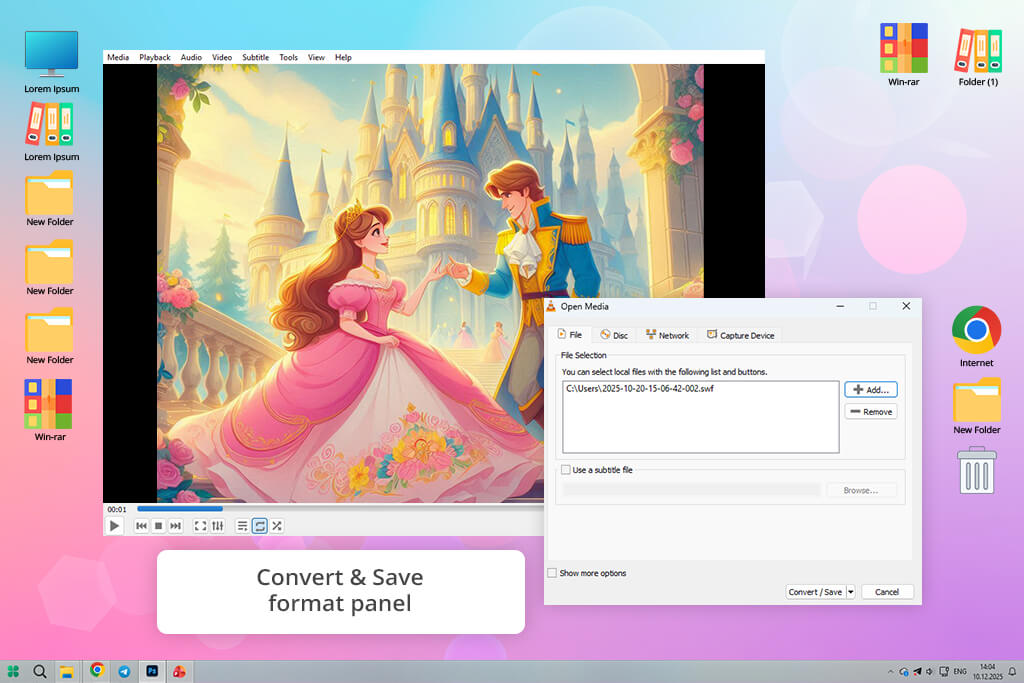
VLC has been my go-to free video player for years, and it’s amazing that it’s still useful today. I was surprised when I tried playing my old SWF animations with it, as I thought they wouldn’t work at all. But VLC actually played them without any issues.
I just went to Media > Open Media, selected the files, and they ran pretty smoothly. The only catch was that none of the clickable or interactive parts worked.
I am pleased with the built-in SWF to MP4 converter. I had one animated file that just wouldn’t play, so I decided to convert it to see if I could at least save the visuals. It worked well.
It is so cool that I can change the sound quality, speed up or slow down playback, and even send files to other devices for testing. This whole experience reminded me why I keep VLC on all my computers. It is simple, doesn’t take up much space, and just gets the job done without any hassle.
Of course, VLC is a great SWF viewer, but it still has some weak points. When I tested it with an old Flash file that had interactive buttons and hover actions, none of those features worked. It made sense, but was worth noting anyway.
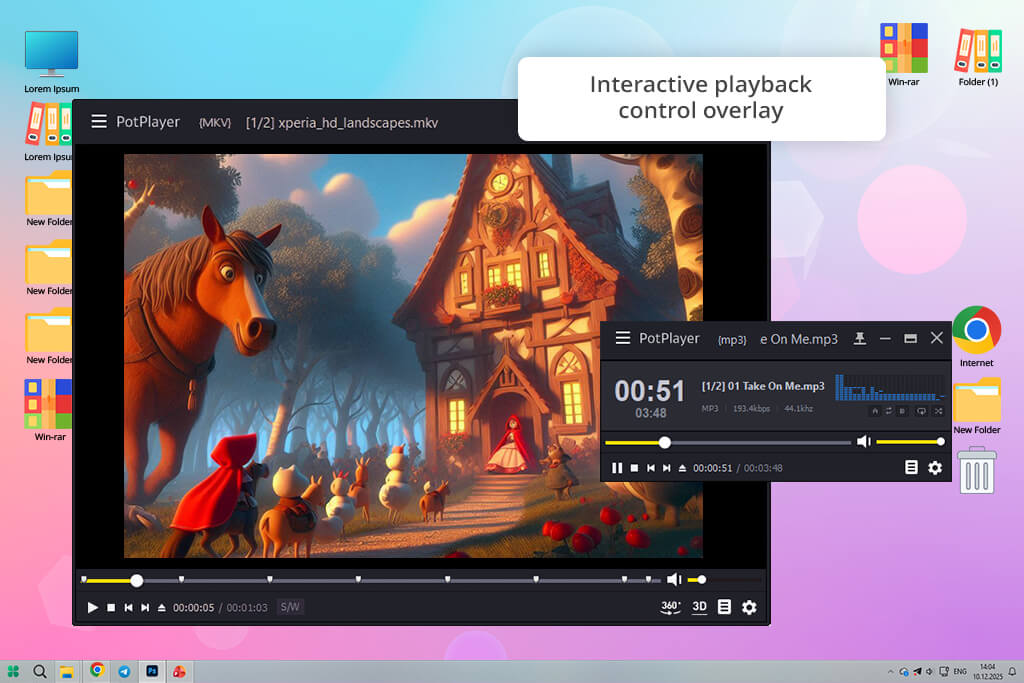
I’ve always been amazed by how many options and features PotPlayer packs in. So, rather than testing it with a basic animation, I opened a mini-game that had menu buttons. Surprisingly, everything worked. I could click the buttons and use my keyboard to play. It ran smoothly right away, and I didn’t need to download anything extra or deal with any settings to get it working.
Next, I tried playing a basic repeating vector animation, and PotPlayer did an even better job with it. The lines looked sharp, loaded quickly, and I was amazed by how fast and smooth everything ran compared to other SWF players I’d tested. I played around with the sound and picture settings to see what would happen, and I was surprised to find they all worked perfectly with the Flash file.
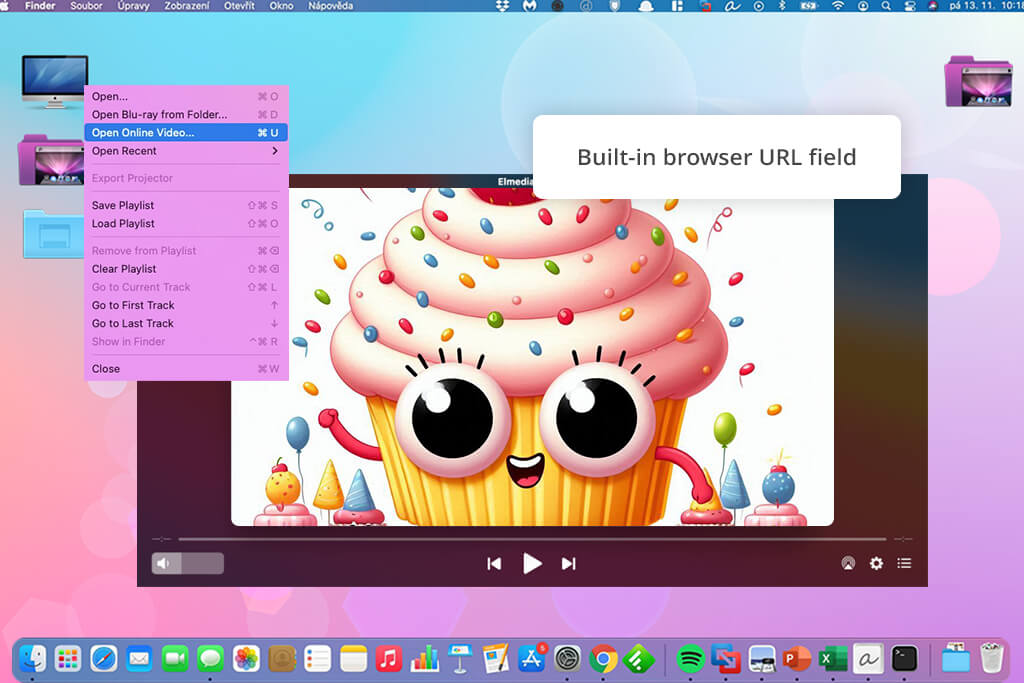
My coworker Robin is a Mac user and mentioned Elmedia Player works really well with SWF files, better than most other Mac video players. So, I decided to check whether it lives up to the claims.
I opened the app’s built-in web browser and dropped in a link to an old SWF animation I had saved from my portfolio website years ago. I was surprised when it just started playing right there in the program without downloading. Even better, I could easily skip around the video using the timeline slider. The playback was remarkably smooth.
I didn’t expect that it would be so easy to send the animation to a larger display. I cast the media to my TV through AirPlay, and it worked perfectly. Therefore, Elmedia Player is not only a decent SWF file player, but also a handy tool for presenting older animation projects to clients or my team members on a big screen.
Another thing I liked was the sound and picture controls. They came in handy when dealing with files that had uneven or poorly mixed audio. Still, I was a bit disappointed when I clicked on extra features and ran into a payment screen. I also found that you can’t customize things as much as you can with Windows media players.
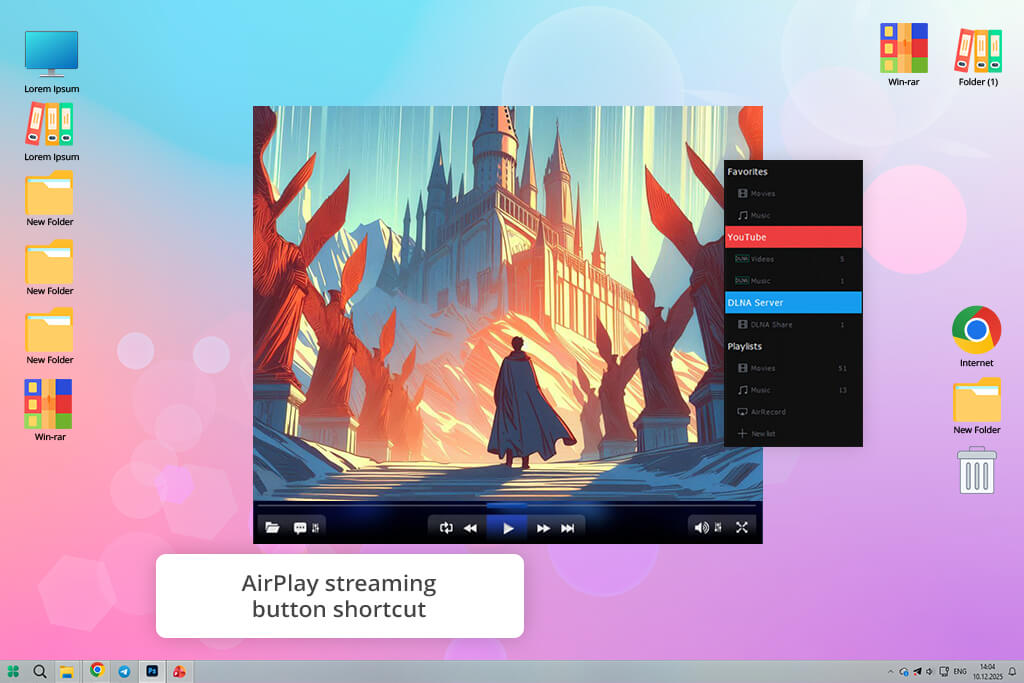
I found 5KPlayer installed on my work computer and wondered if it could play old SWF files. I decided to download file from the internet using the program’s download tool. I found an old Flash animation still available online in its original format. The download finished quickly, and when I played it, the animation looked really good. The lines and shapes were crisp and clear.
After that, I opened a short, repeating Flash file from my collection of old files. The 4K video player handled it like it was a high-quality video. It played properly with vivid, accurate colors.
I also tested sending it wirelessly to another monitor using AirPlay, mostly to see if the program would struggle, but everything worked perfectly without any problems. Another advantage of this SWF file viewer is a straightforward interface. I thought it would look messy and complicated, but it didn’t.
However, the program briefly stopped responding when I switched from one file to another. Moreover, it used so much computer power that my laptop’s cooling fans started running loudly. But overall, I like this tool. It could open SWF file online, download them from the web, and send them to other screens.
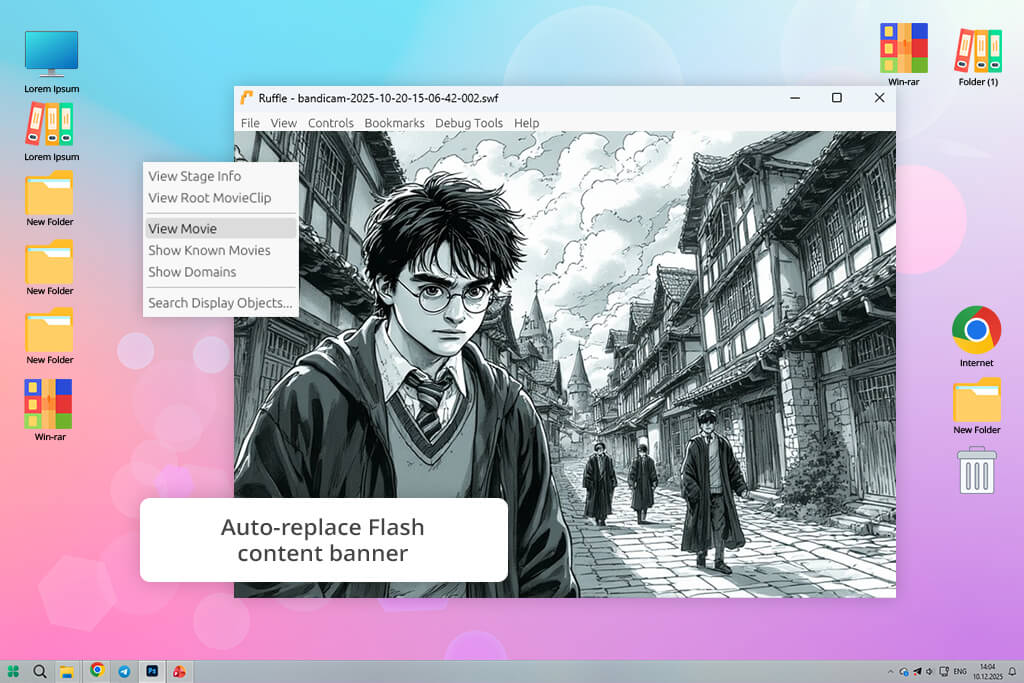
Ruffle doesn’t work like your typical video player. Instead, it recreates how Flash works on your computer. I added it to my web browser and went back to one of my old websites that had a Flash animation in the header.
Without me doing anything, Ruffle spotted the animation and brought it back to life. It was amazing to watch that animation play again in today’s browsers, especially since I am so used to seeing “Flash doesn’t work anymore” error messages.
I had to take some extra steps to run a local SWF file. After I set everything up, the process was smooth. However, when I tried a more complicated SWF file that had interactive features and ActionScript code, this SWF emulator online struggled. Buttons wouldn’t respond when clicked and automatic actions didn’t happen when they should have.
Ruffle is very safe and easy to use. You don’t have to install anything complicated, deal with old software, or worry about security problems on your computer. Still, it is not perfect for every Flash file out there, but if you want to see old Flash websites the way they looked back in the day, it offers an enjoyable experience.
To have a fair and in-depth testing, I used actual SWF files we still had saved. There were looping animations, a short intro with audio, and a basic interactive piece with buttons. I tested each file across all the players, checking load speeds, image clarity at different zoom levels, and smooth playback.
For interactive content, I verified that buttons worked properly, hover effects displayed correctly, and keyboard inputs functioned as intended.
I also tested how each player worked with SWF files from the internet instead of just files saved on the computer. Sometimes I dragged files into a SWF viewer, other times I pasted web links or looked at old archived pages. Thus, I understood which players actually played files smoothly and which ones needed extra adjustments.
If something wouldn’t play, I didn’t give up right away. I tried converting the file, streaming it differently, or changing settings to find out what the real problems were.
Our FixThePhoto team also paid close attention to audio syncing. Since one of my animations has sound, I watched closely to see if the audio fell behind the video, cut out, or stopped working completely.
I also tested if changing the volume, adjusting sound settings, or speeding up playback messed with the sync. Some players just ignored the sound altogether, which meant they weren’t practical for everyday use.
To make sure the results weren’t just tied to my computer, Kate tested some SWF players on both Mac and Windows to see which ones only worked on certain systems and which worked everywhere. We considered security as well, especially with older Flash-like programs. I looked at whether the player needed extra plugins, outdated elements, or risky permissions to open a file.
Lastly, I checked how easy each player was to use. Was it intuitive to skip through the timeline, capture screenshots, change file formats, display it on another screen, or manage multiple files? By performing such detailed testing, I could tell the difference between players that simply opened SWF files and those that let me work with old projects the way I wanted.



![7 Best CDA to MP3 Converters in {{%year}} [100% FREE]](http://fixthephoto.com/blog/images/gallery/news_main__preview_28878.jpg)

![8 Best AI ASMR Video Generators in {{%year}} [100% WORKING]](http://fixthephoto.com/blog/images/gallery/news_main__preview_28804.jpg)
![7 Best HEIC to PDF Converters in {{%year}} [Windows, Mac & Online]](http://fixthephoto.com/blog/images/gallery/news_main__preview_28447.jpg)
![Fish Eye Filter Online [FREE]](http://fixthephoto.com/blog/images/gallery/news_main__preview_28873.png)

![5 Best EML File Converters to PST in {{%year}} [Windows & Mac]](http://fixthephoto.com/blog/images/gallery/news_main__preview_28894.jpg)


















