As someone who regularly creates audio content, I work with a variety of voice editing and audio processing tools. Whether I'm preparing tutorials, social media content, voiceovers, or podcasts, removing unnecessary pauses is often an important part of the editing process. After talking about this topic with my audience, I received several questions about which silence removal tools I use and which ones I would recommend based on my experience.
Although I had a couple of preferred options, I decided to expand the comparison before recommending anything. I worked with the FixThePhoto team to review a variety of AI audio silence removers using different types of audio, including podcasts, voice recordings, interviews, and conversational content. Our goal was to see how these tools handled real-world editing situations instead of judging them by their advertised features alone.
The tools on this shortlist stood out for more than just removing silent parts from audio. The best options were able to reduce unnecessary pauses while keeping conversations and speech sounding natural. They also helped speed up editing through automation, supported batch processing, and provided enough control for manual adjustments when needed. I chose these tools because they delivered consistent results and offered features that are genuinely useful for podcasts, voiceovers, videos, and other real-world content projects.
When choosing the best AI audio silence remover, don't assume every silent moment should be deleted. Natural speech has its own pace and structure. Over-editing can make recordings feel rushed, while a balanced approach keeps them clear, smooth, and easy to listen to.
VEED was one of the few tools that received positive feedback from almost everyone on our team. I tested it on a tutorial voiceover with long gaps between explanations and a podcast recording with natural breaks between speakers.
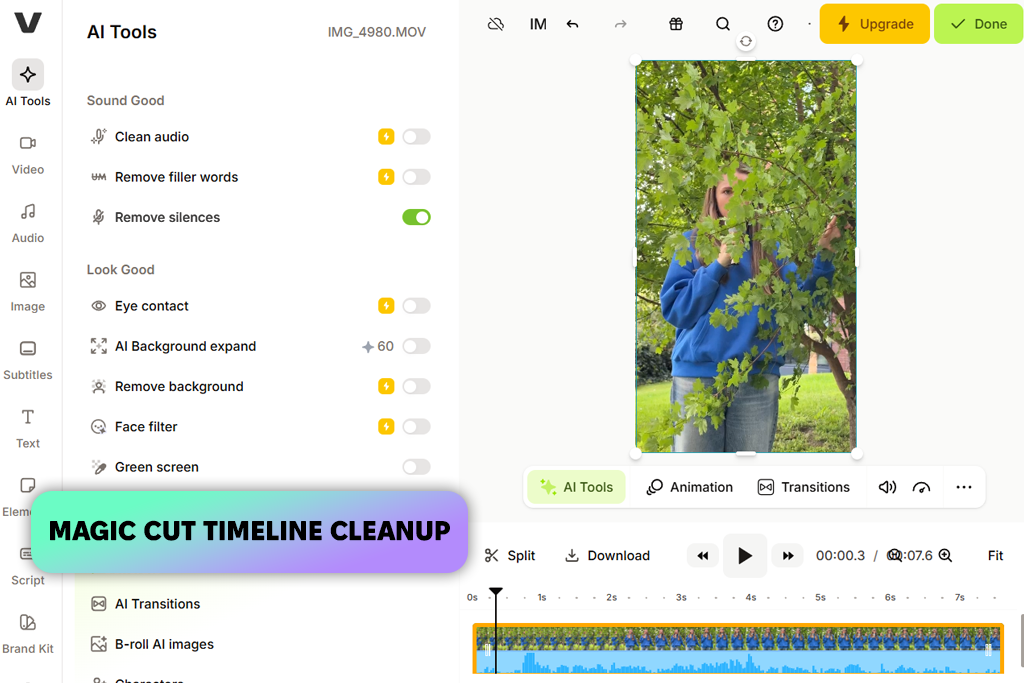
Getting started was simple: I uploaded the audio, selected the clip in the timeline, and used the Remove Silences feature. What stood out was how naturally it handled the edits. It removed unnecessary dead air while keeping the conversation and speech flow sounding smooth and realistic.
“One thing I liked was that I didn't have to switch to a separate audio editor just to remove unwanted gaps. I could clean up the recording, make additional adjustments, and continue editing the video without leaving the same project.”

I ended up using both Remove Silences and Clean Audio together. Tools that remove gaps from audio often work better when they recognize subtle pauses, not just total silence. That turned out to be important. One of my recordings had soft breathing and faint background noise between sentences, and VEED left those parts alone on purpose.
When I ran noise reduction after that, the result sounded much cleaner without me having to clean it up by hand. I also tried Magic Cut on a longer video of someone speaking, just to see how the automation worked outside of audio editing. The whole process felt surprisingly smooth from start to finish.
VEED stayed near the top of my list because it fits so well into the way I already make content. I could trim out silent parts, then cut clips, move sections around, record straight from my browser, and add music or sound effects - all without opening another program.
The only real downside was the lack of fine control. If you like to adjust exactly when silence gets removed, VEED feels too simple and not customizable enough. But for podcasts, tutorials, and quick projects, most of us on the team agreed that was a fair trade-off.
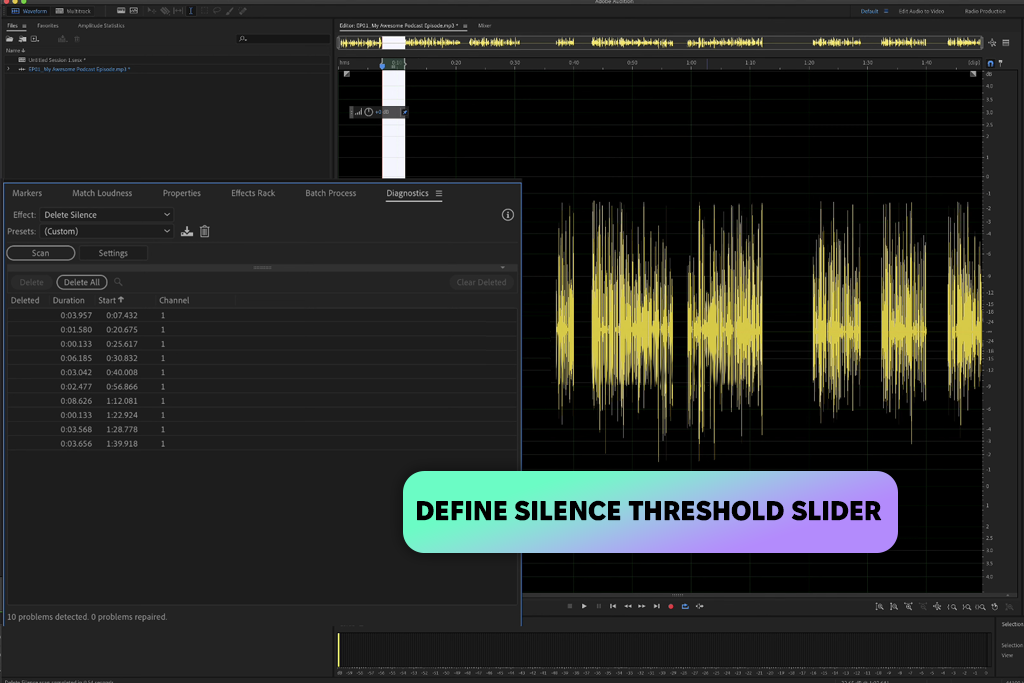
I've been using Adobe Audition for years, so I wanted to see how it compares with newer AI audio silence removers. For podcasts, interviews, and other spoken recordings, I often rely on Strip Silence to clean up unwanted gaps while keeping the conversation natural.
Working in Multitrack mode, I go to Effects → Diagnostics → Deleting Silence and adjust Define Silence As to match the recording rather than using the default values.
“I use Audition when I need more control over the editing process. Setting up the silence detection takes a little extra time, but it pays off when working with interviews, inconsistent audio levels, or recordings that need more careful cleanup.”

With clean recordings, I can use more aggressive dB threshold settings without affecting the speech. For interviews with uneven microphone levels, I have to be more careful because settings that are too aggressive can remove parts of quieter speech. One thing I still like about Audition is the level of control it provides.
The Signal is below and For more than settings may seem technical at first, but they make it much easier to handle real recording issues. For example, I recently used them while editing a remote interview where one speaker had constant keyboard noise between sentences.
Many automated editors struggled with that recording, but Audition gave me enough control to adjust the silence settings and clean up the audio without disrupting track alignment. While it isn't particularly beginner-friendly, the flexibility it offers makes a big difference when working on complex projects or longer recordings.
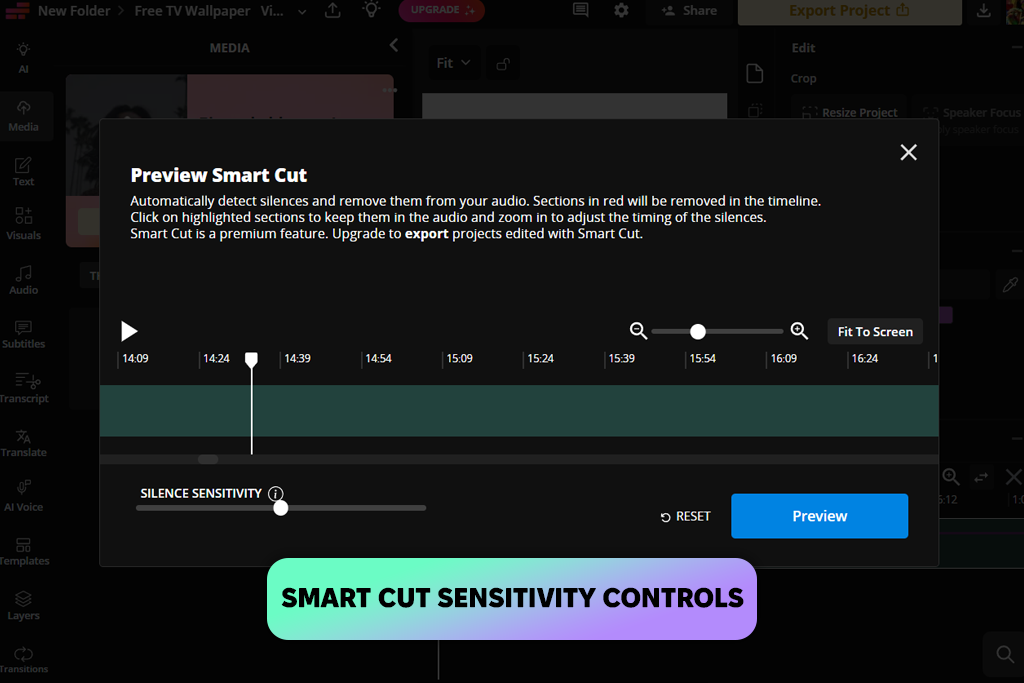
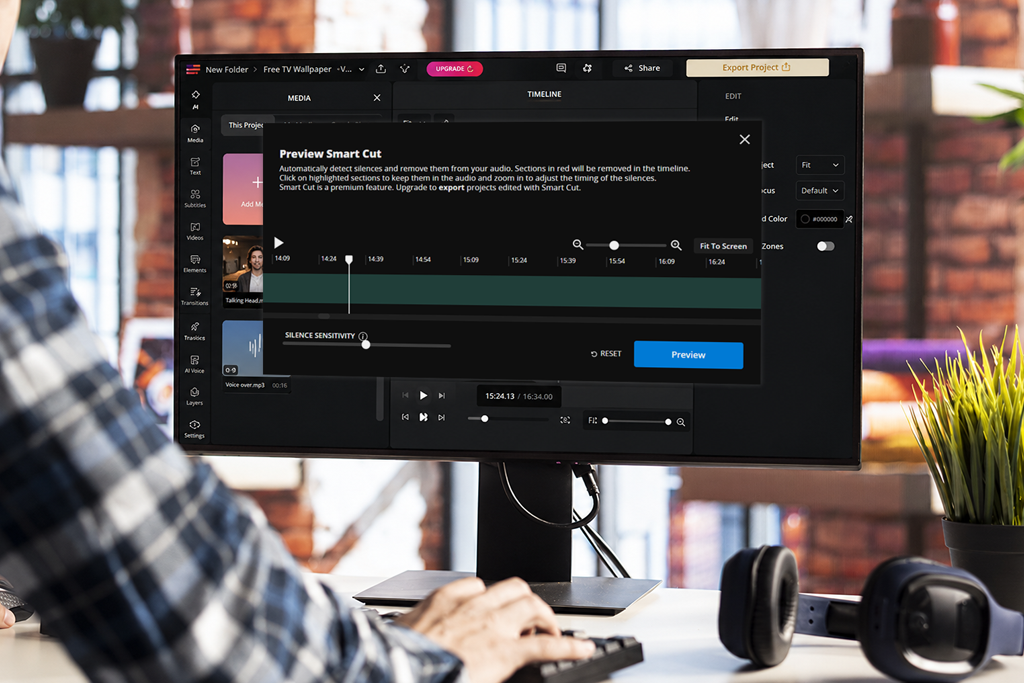
I decided to try Kapwing after my colleague Kate repeatedly recommended it for fast content editing. Rather than using a clean recording, I uploaded a rough voiceover that included long gaps, repeated lines, and several moments where I restarted a sentence.
The Smart Cut feature removed most of the unnecessary dead air with a single click, but I also adjusted the sensitivity settings to preserve a more natural flow. That extra control was useful because overly aggressive automatic edits can make speech sound too fast and unnatural.
“Kapwing worked well for the kind of projects I need to finish quickly. It cleaned up awkward gaps without requiring much manual work, which saved time when editing the timeline. I also liked that everything ran in the browser, so I could process files without installing additional software.”
Unlike a lot of simpler Kapwing alternatives I've tried, I didn't just trim silence from audio. I split audio tracks, removed filler words, exported test copies in WAV and M4A, and even put together a rough video draft around the audio.
The Google integration also made teamwork easier. The interface stays easy to use even though it packs in collaboration tools, editing features, and support for longer files. That said, anyone looking for deep audio engineering control may eventually hit a limit.
Kapwing seems designed for people who care more about keeping things moving than about endlessly fine‑tuning every little setting. While I was testing it, I could go from uploading a file to having a solid edit ready in almost no time. That made it genuinely useful for podcasts, voiceovers, and educational videos.
That same focus on speed shows up in other places, too. When my team ran into a small problem with our account, customer support responded much more slowly than the editing tool itself. That didn't match the rest of the experience, which was otherwise very fast.
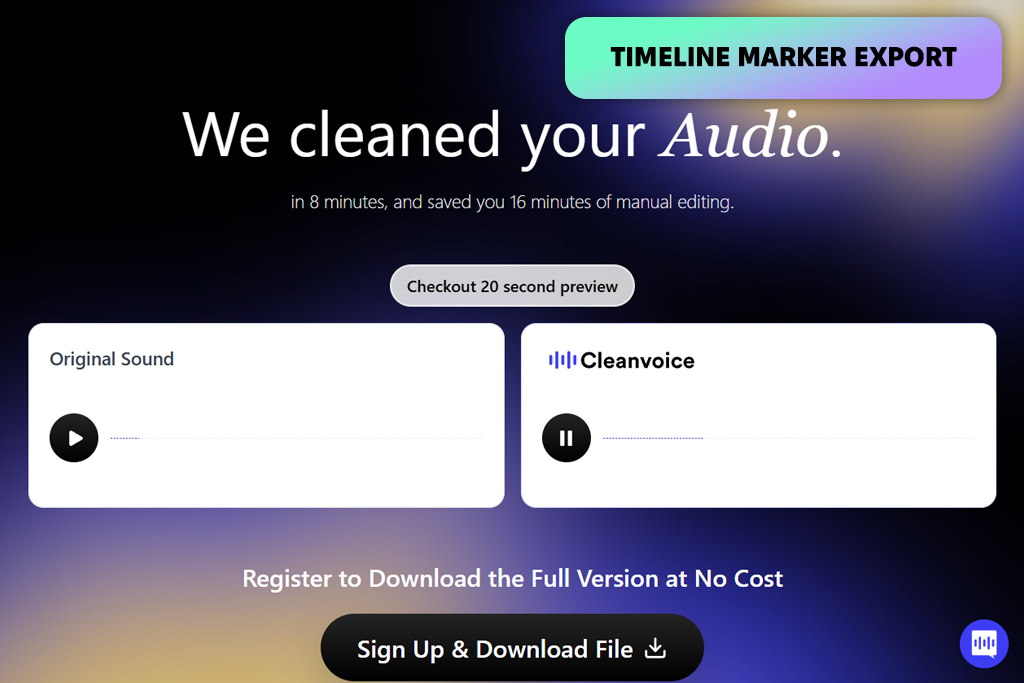
I came across Cleanvoice while searching for an online AI silence remover that could handle more than basic silence cleanup. To test it, I uploaded a raw podcast recording that included filler words, mouth noises, uneven gaps, and some background noise. I wanted to see whether it could improve the recording as a whole rather than simply cut silent sections. The combination of Silence Remover and Filler Words Remover cleaned up the audio surprisingly well and reduced the amount of manual editing I needed afterward.
I also wanted to see how the additional tools worked in a real editing workflow. Using the same recording, I tried AI Transcription, exported markers for later editing, and tested Podcast Mixing on a multi-speaker conversation. What stood out was how the platform handled separate voice tracks individually instead of treating everything as a single recording. This helped keep each speaker clear while reducing unwanted gaps and background distractions.
One thing I liked about Cleanvoice was how quickly it delivered usable results. The workflow stayed simple, although the 400 MB file limit may be an issue for larger projects, and the trial period is fairly short. Despite those restrictions, the platform performed consistently across different recordings, which made it more useful to me than tools packed with extra controls I rarely needed.
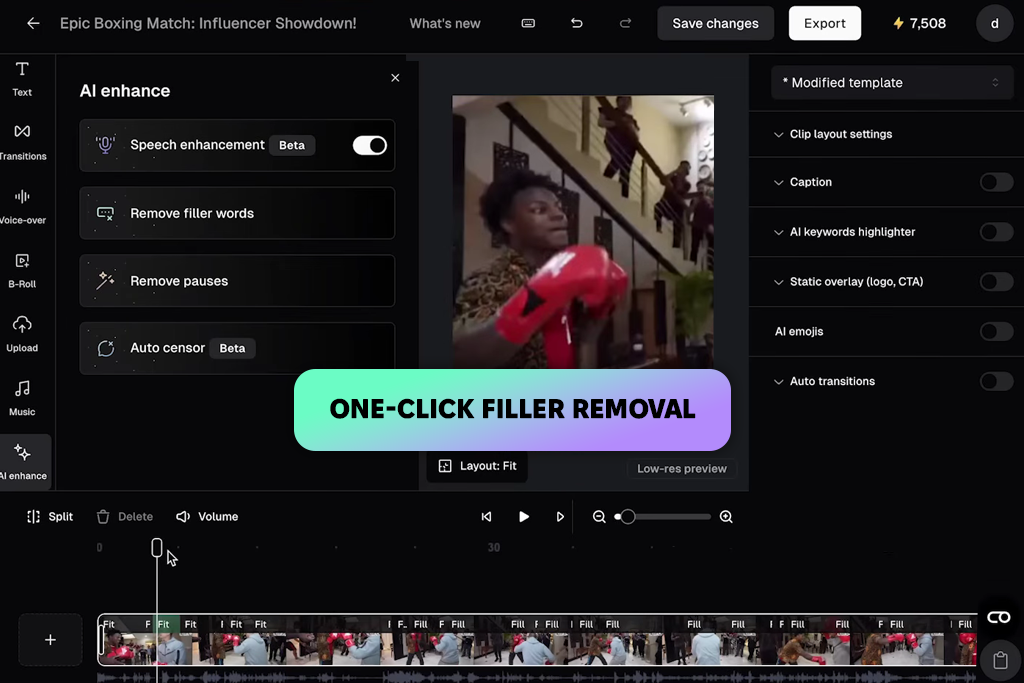
I'd used OpusClip before as an AI video generator, so trying out its Silence Remover felt like adding another step to a familiar process rather than learning something brand new. Rather than testing it on clean studio audio, I used a short talking-head recording that contained filler words, restart pauses, and brief silent gaps.
Those small breaks tend to make social media content feel slower. The AI quickly identified the longer pauses, removed most of the interruptions in one pass, and tightened the pacing without making the speech sound overly edited or artificially chopped up.
“Since I already use the platform for short-form videos, the silence removal feature felt convenient and easy to incorporate into my usual workflow. It helped streamline the editing process without adding extra work.”

Since OpusClip is designed for speed, I wanted to see how much work was still needed after the automatic cleanup. The process was simple: upload the file, let it process, and review the result. I didn't have to spend time searching through the timeline for unwanted gaps, which made the workflow much faster. The tradeoff is that users who prefer detailed control over silence removal may find the editing options somewhat limited, as the platform focuses more on automation than manual adjustments.
What I liked most was how the silence removal and filler word cleanup worked together as part of the same process. I tested it on a video draft that contained several "um" sequences and awkward gaps, and the recording sounded noticeably smoother after a single pass. For creators producing short-form content, this can save a lot of time because the audio feels more polished without requiring extensive manual editing.
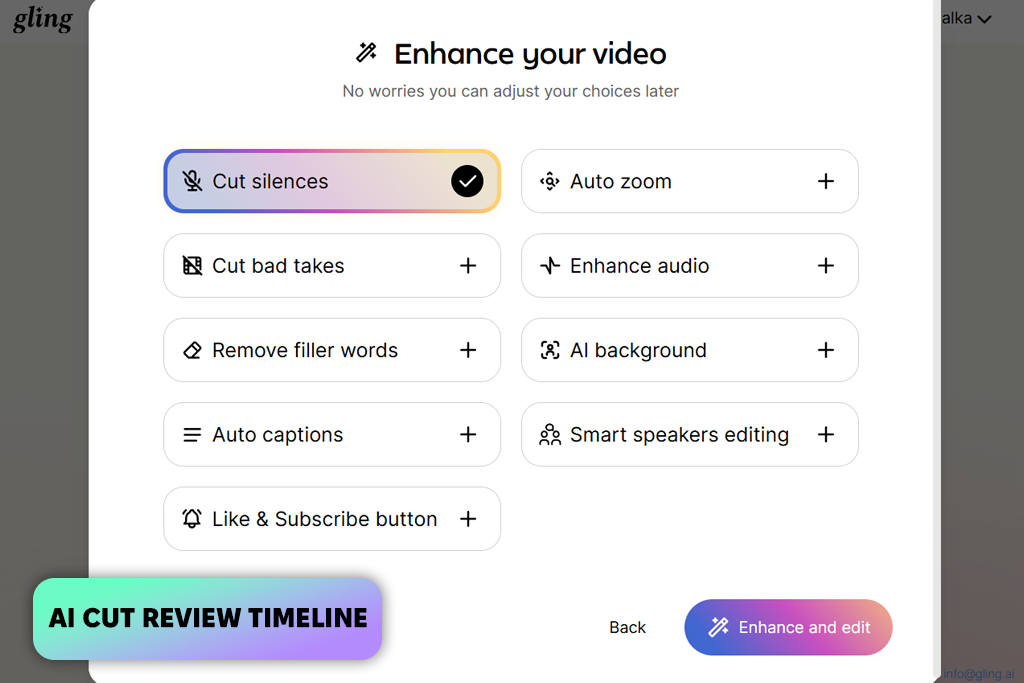
I uploaded a rough recording to Gling to see how it would handle real editing situations. The file included quiet gaps, repeated starts, and several moments where the speaker corrected themselves. My goal was to see how well this AI audio silence remover would handle the cleanup automatically.
After processing, the timeline was already cleaned up and much closer to a finished edit. The silence removal was fast, but what impressed me more was that it respected the rhythm of speech. The tool reduced unnecessary gaps without making the delivery feel rushed.
“What I liked most was how much time it saved. Instead of manually cleaning up the recording, I could quickly review the edits and move on. It's the kind of tool I'd use when I need fast results rather than detailed editing control.”
This photo editing software also lets you use gradients, patterns, custom backgrounds, and basic retouching tools, making it more versatile than a simple background remover. It works well for quick edits, but its edge detection may struggle with complex images. The free version includes ads that can interrupt your work, and it doesn't offer the advanced retouching tools needed for professional-level editing.
That speed-focused approach comes with a tradeoff. If you need advanced audio editing, detailed silence adjustments, or more technical controls, you'll probably want additional software. But for keeping content concise, maintaining a natural flow, and reducing the time spent removing unwanted gaps, Gling offers a simple and efficient workflow.
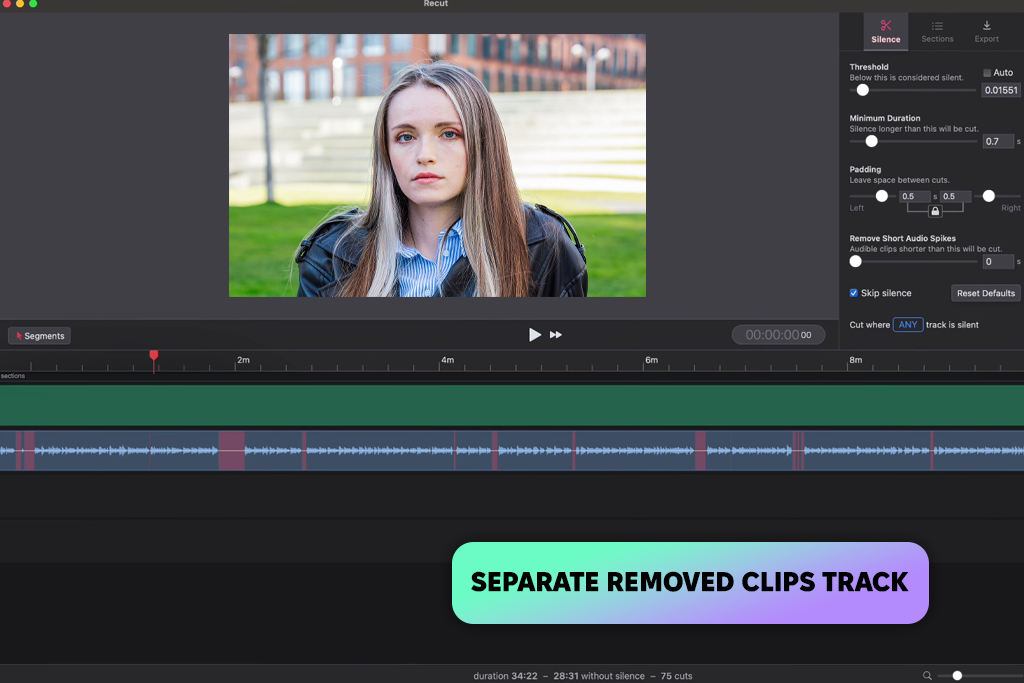
Recut stood out to me because it works as a plugin rather than a separate editor. I tested it inside an existing Premiere Pro project that contained several talking-head videos with long gaps, retakes, and pauses between scripted sections. Instead of exporting files and moving them to another application, I simply let Recut analyze the timeline directly, which made the workflow much faster and more convenient.
“Recut's biggest advantage for me was that I didn't have to leave Premiere Pro. I could clean up long pauses directly in the project, which saved a lot of time compared to manual editing and helped keep the workflow simple.”
Within seconds, Recut detected the silent sections and let me either remove them automatically or move them to a separate track for review. I preferred the review option because it allowed me to see what the AI decided to cut before committing to the changes. I also tested it on a longer set of recordings, and the plugin processed everything surprisingly quickly while continuing to remove silence from audio without making the speech sound unnatural.
Recut is clearly built for this type of editing, and that shows in how naturally the cuts are handled. It's most useful for creators who already work in Premiere Pro, Final Cut Pro, or DaVinci Resolve, since it fits directly into those workflows. If you don't already use professional editing software, the plugin is likely less practical because it depends on an existing editing setup.
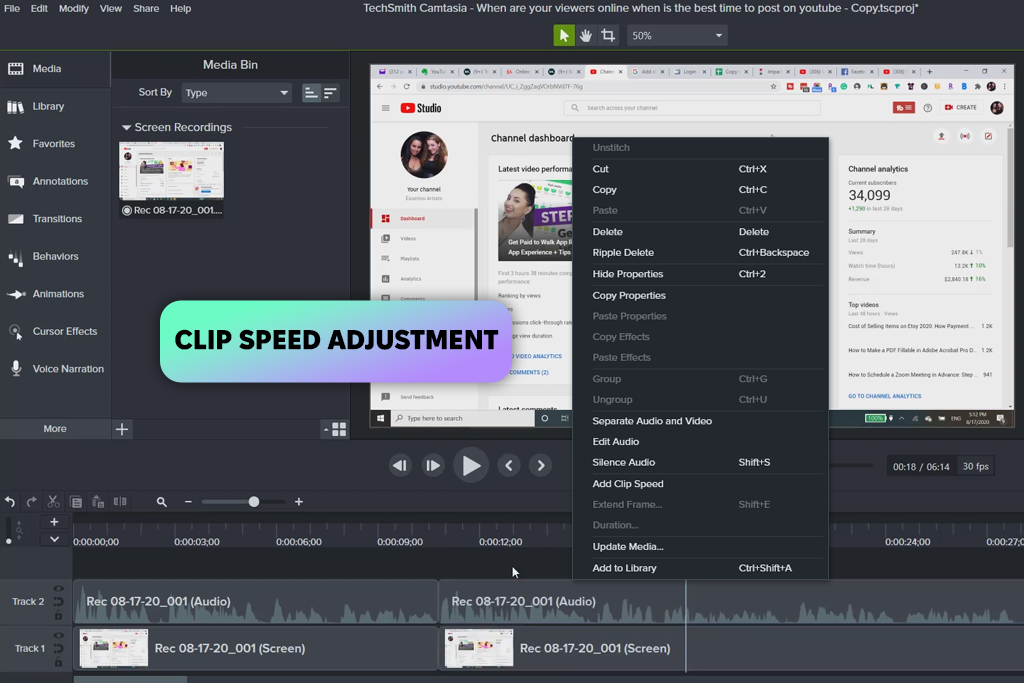
I tested Camtasia on a tutorial recording that included plenty of natural gaps while switching between tasks, checking settings, and preparing the next step. To clean it up, I used the Remove Silence feature in the audio editing panel, adjusted the threshold and minimum silence duration, and let the software process the timeline. The setup was straightforward, and it gave me enough control to remove gaps from audio without affecting the overall flow of the tutorial.
I also spent some time using Clip Speed, since improving pacing without making speech sound unnatural can be tricky. After removing the unnecessary gaps, I slightly increased the speed of the remaining sections to make the tutorial flow better. The result felt smoother and more polished while still sounding natural and easy to follow.
That balance is what makes Camtasia easy to keep using for regular content creation. During my testing, I could handle screen recording cleanup, audio pacing, and timeline edits in one place without switching between different tools. The upfront cost is higher than many browser-based subscriptions, but creators who produce content frequently may appreciate the one-time purchase model.
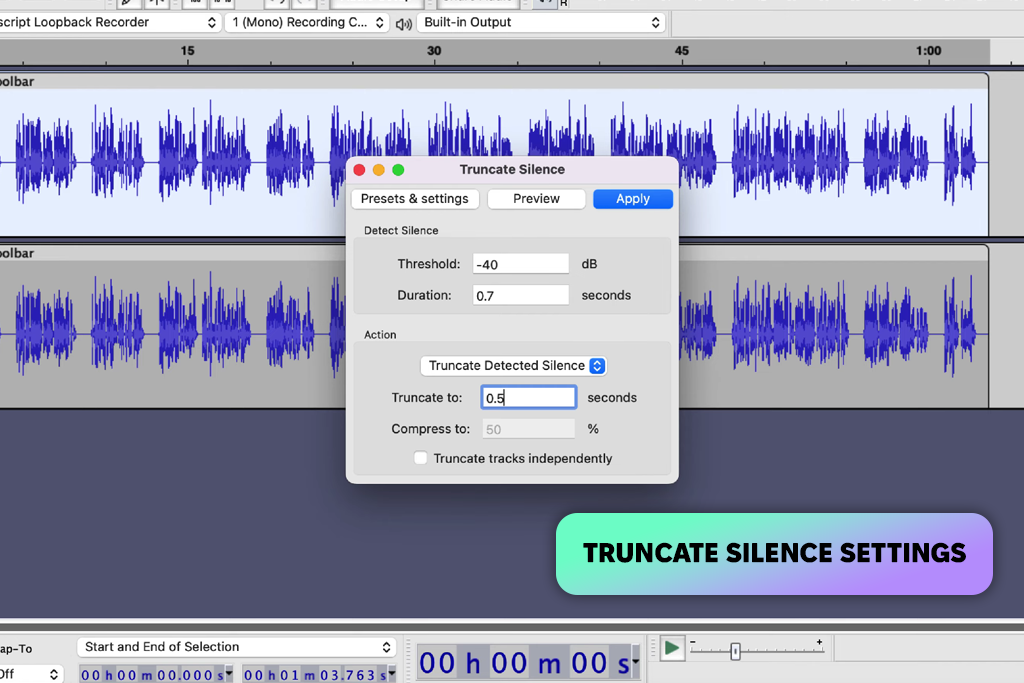
Audacity deserves credit for being completely free, without locking useful features behind a paid plan. I tested Truncate Silence on a long voiceover with uneven gaps between sections. Most of the work involved adjusting the settings rather than running the effect itself. Options like threshold, duration, and compression give you plenty of control over how silence is handled, making it easy to trim silence from audio according to the recording.
I was particularly interested in the macro feature because batch processing can save a lot of time when working with recurring content. After creating a simple macro, I applied the same silence-removal settings to multiple files instead of editing each one separately. The feature worked surprisingly well for a free editor, although Audacity does require some initial setup and a bit of learning before everything runs smoothly.
The audio-only workflow has its advantages and drawbacks. The silence removal worked reliably, and I appreciated being able to control exactly what was treated as silence and how much the gaps were reduced. However, after finishing the audio cleanup, I still had to transfer everything back to a video editor to continue the project.
Rather than relying on clean studio recordings, we worked with the kinds of audio that creators deal with every day. The test files included podcasts, tutorials, interviews, and talking-head videos, along with common issues such as filler words, uneven pacing, background noise, breathing sounds, and natural breaks in speech.
One of the key things I looked at when testing was how each tool handled silence detection. The goal was to see whether it could tell the difference between unnecessary dead air and natural breaks in speech. The best AI audio silence removers shortened recordings without making conversations sound rushed or disrupting the timing between speakers. I also checked how they treated quieter sounds between phrases, such as breathing, room tone, and low-level background noise.
Kate compared how much effort was needed after the automatic edits. She tested tools with simple one-click workflows as well as those offering more detailed controls. By adjusting settings, reviewing changes, and restoring removed sections, she evaluated how much manual editing was still necessary to achieve a clean result.
Because silence removal is only one part of the editing process, Vadym also evaluated the overall workflow. He looked at features such as timeline usability, batch processing, transcription, filler word removal, multi-track support, export options, browser and desktop experiences, collaboration tools, and how easily each platform fits into a larger editing workflow.
I also evaluated how practical each tool was for regular use. Along with processing speed and reliability, I considered the learning curve, pricing, and whether the workflow stayed efficient when handling larger projects or different types of recordings.





![7 Best Free Pokémon AI Generators [{{%year}} FixThePhoto Choice]](http://fixthephoto.com/blog/images/gallery/news_main__preview_29022.jpg)

![7 Best AI Baby Dance Video Generators [For Trendy Moms]](http://fixthephoto.com/blog/images/gallery/news_main__preview_29020.jpg)
![9 RunwayML Alternatives [Better, Faster & Cheaper]](http://fixthephoto.com/blog/images/gallery/news_main__preview_28969.jpg)
![9 Best Descript Alternatives in {{%year}} [Expert Insights]](http://fixthephoto.com/blog/images/gallery/news_main__preview_28971.jpg)

















