Handling image retouching tasks at FixThePhoto means I am constantly wading through multiple creative guidelines, legal agreements, and technical manuals. I understood I needed a reliable AI PDF translator because most software either struggled with phrasing, failed to extract text from locked scans, or completely scrambled the layout.
To find something dependable, my colleagues and I tested over 20 tools, using both text-heavy and image-based PDFs. We focused entirely on language precision, OCR quality, layout integrity, speed, and customization features. Following this exhaustive assessment, I've narrowed down the absolute best options that cope well with translation while respecting your document's original design.
| Tool | Languages | Layout Preservation | Speed | Free plan/Trial |
|---|---|---|---|---|

|
100+ (AI chat supports 7+ major languages)
|
Excellent
|
Very Fast
|
✔️
|

|
141
|
Very Good
|
Very Fast
|
✔️
|

|
50+
|
Good
|
Fast
|
✔️
|

|
30+
|
Very Good
|
Fast
|
✔️
|

|
90+
|
Very Good
|
Fast
|
✔️
|

|
100+
|
Good
|
Fast
|
✔️
|

|
100+
|
Basic (text-focused)
|
Fast
|
✔️
|
To build this list of the best AI PDF translators, I didn't just look at the marketing. I did my best to test how they handle daily tasks. I judged them on accurate wording, reading blurry text, keeping your formatting intact, speed, cost, and data security. My top picks are the ones that didn't choke on large files, kept tables where they belong, and worked well on scanned documents.
Getting the most out of AI document translators isn't just about the software. You need to prepare your files and guide the technology. Through trial and error, I’ve found that a little upfront effort saves time-consuming cleanup later. Here is my blueprint for perfect results:
Adopting this workflow reduces errors and cuts down the time you'd otherwise spend fixing post-translation issues.
Price: 7-day free trial, then $19.99/mo. if billed annually
Availability: Web
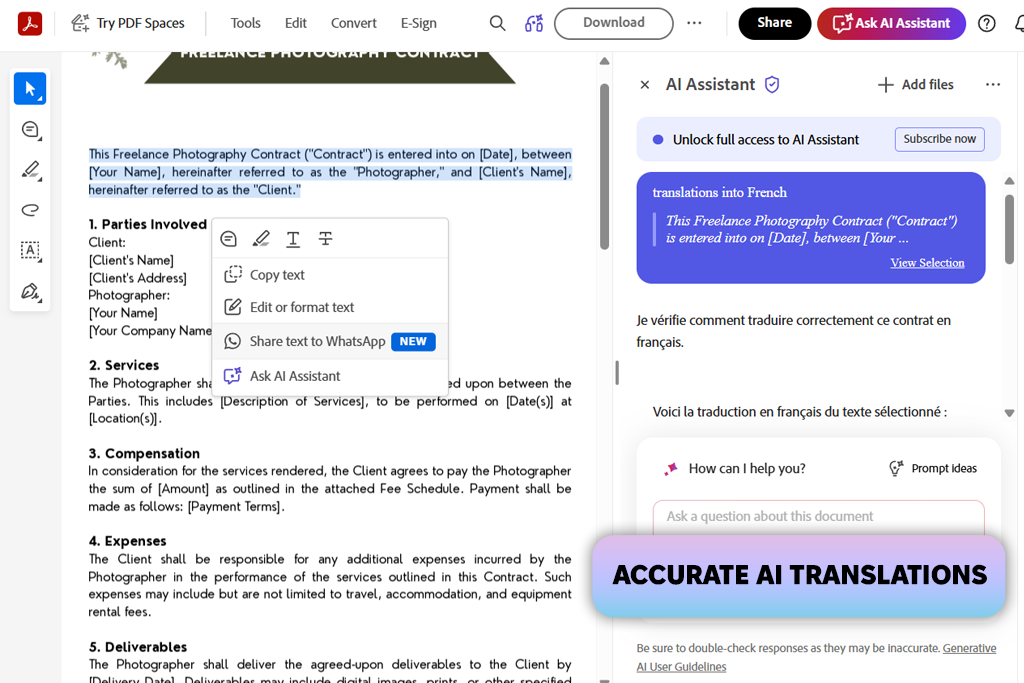
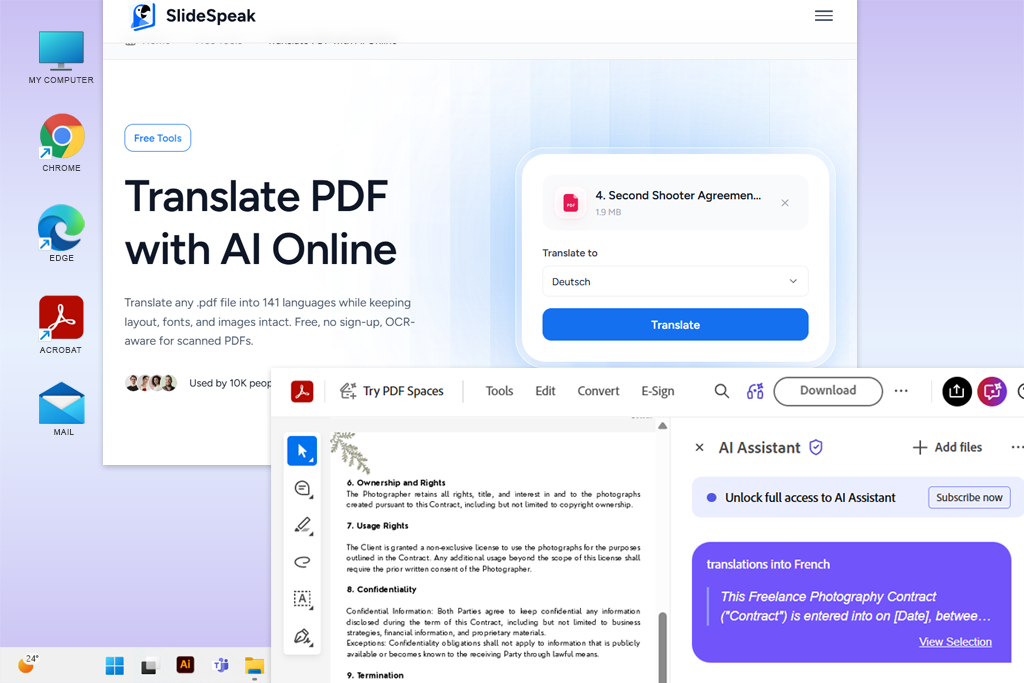
Adobe Acrobat delivers a premier AI-driven ecosystem, blending standard editing and OCR with a highly intuitive AI assistant. Rather than just swapping words from one language to another, this platform analyzes your files, offering summaries, answering deep questions, and clarifying dense passages alongside standard translation.
To test Adobe Acrobat DC, I used legal contracts, blurry scanned receipts, instruction manuals, and multi-language files. I tasked the AI Assistant with translating target pages, drafting summaries, and decoding industry jargon.
I also used its OCR capabilities on image-only files and used its PDF Spaces to track data across multiple documents simultaneously. The chat function handles majors like English, Spanish, French, German, Japanese, and Portuguese, with more options arriving regularly.
Even with so much utility packed into one space, the workspace never felt cluttered. I easily jumped from translation tasks to proofreading and live text editing. Acrobat proved to be the best PDF translator, delivering precise text while keeping complex tables and images exactly where they belonged. Its text-recognition engine is incredibly sharp, letting me search and translate flattened scans without needing a third-party file converter.
“Adobe Acrobat delivered highly accurate translations for my multilingual manuals. The layout stayed almost identical to the original file.”

Price: Free (100 credits) or from $24.65/mo. if billed annually
Availability: Web
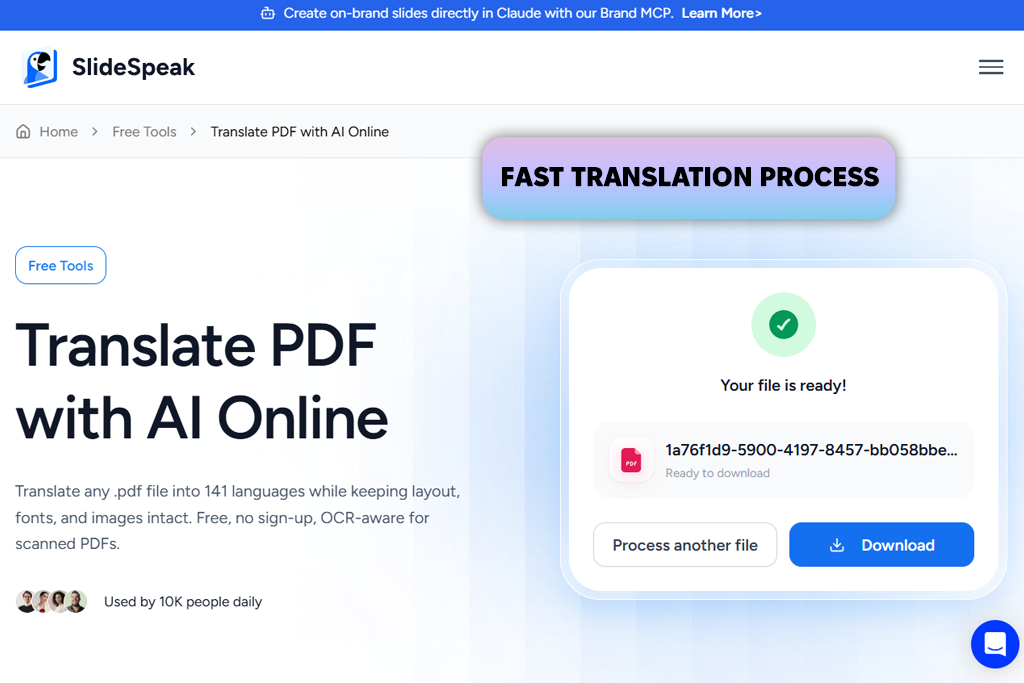
SlideSpeak is an incredibly user-friendly online AI PDF translation tool. It lets you launch AI document translation without forcing you to hand over an email address first. Using GPT models, the platform isolates individual text segments, translates them cleanly, and works hard to drop that text right back into the original formatting, font style, and overall visual blueprint. Currently, it supports 141 languages.
To evaluate this AI tool for PDF, I uploaded multi-language guides, text-heavy contracts, and invoice scans filled with data tables and graphics. The web layout is delightfully uncomplicated. You click your desired language, drag your document into the window, and retrieve a fully translated file a few minutes later. It easily chewed through standard documents up to its 100,000-character ceiling, and its text extraction engine performed reliably on legible scans.
For a completely web-based platform, SlideSpeak turned around surprisingly precise translations on typical corporate paperwork, outperforming a lot of standard free options on the market. From a privacy perspective, I love that it scrubs your data from its system automatically once you're done. Just keep in mind that if your file includes multi-layered charts, side-by-side tables, or complex graphic layouts, you will likely need to do a little manual rearranging after the translation.
Price: 14-day free trial or from $3.99/mo.
Availability: Windows, macOS, iOS, or Android
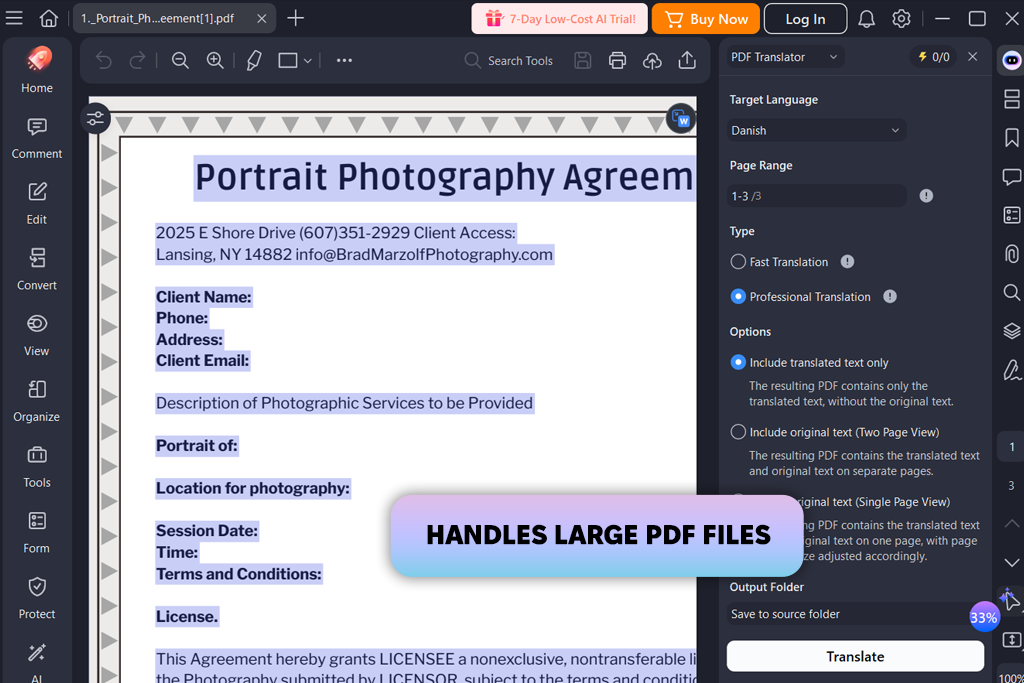
PDFelement is a powerful program with smart document translation, sharp text recognition, and a deep editing suite under one roof. It easily handles over 50 languages and gives you a choice between a quick-fire translation option for basic reading and a high-fidelity engine when accuracy cannot be compromised.
To see what it could do, I fed it multi-language legal agreements, dense academic studies, equipment instructions, and flat image scans across English, French, Spanish, and German. The software design is highly intuitive.
I particularly valued the split-screen view to cross-reference the new translation with the source text in real time. I also pushed it to convert a stack of large files all at once to evaluate its bulk-processing and OCR software capability.
As a dedicated PDF document translator, PDFelement kept the original design layout intact across most file types and offered highly accurate phrasing, particularly on its premium settings. The bulk-processing feature is very helpful if you are drowning in paperwork, and the built-in OCR successfully made dead scans searchable without needing an external app.
On the downside, big files can cause the software to stutter and drain your computer's resources. Plus, highly specialized industry jargon will still need a human eye to double-check the final output.
“Formatting stayed intact, which was great. However, it lags noticeably with larger, hundred-page documents.”

Price: Free or from $10.49/mo.
Availability: Web, Windows, macOS
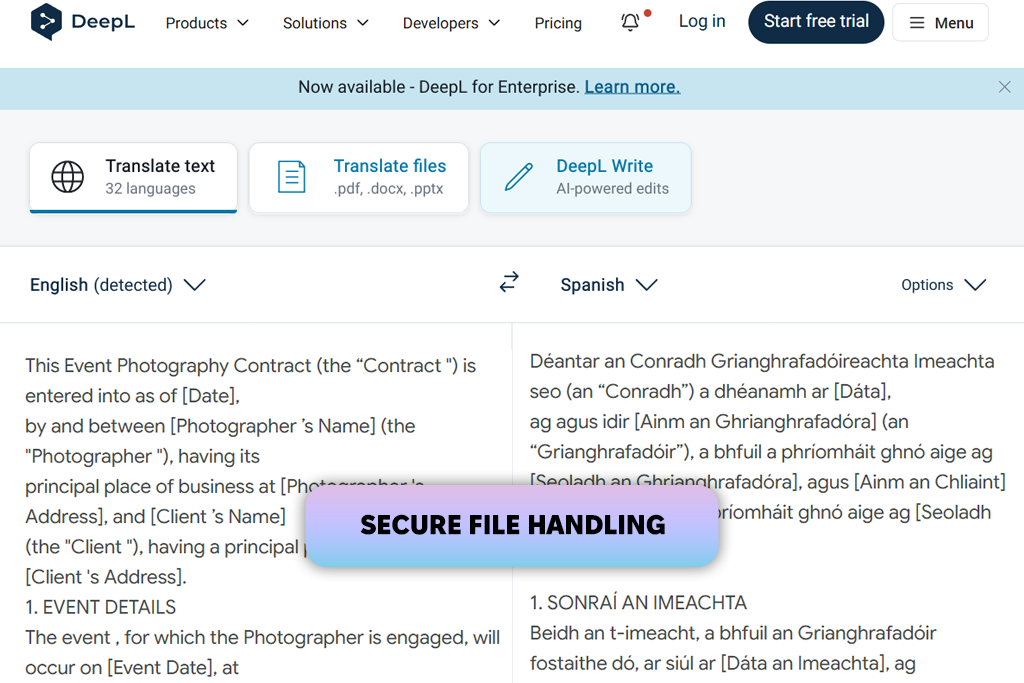
DeepL has earned an exceptional reputation for linguistic accuracy, and my extensive testing confirms it is a premier online PDF translator. The engine protects structural layout elements while outputting phrasing so natural it rarely requires extensive manual rewriting. Its minimalist design makes the process understandable even for complete novices. You simply upload your file, select the target language, and let the software handle the rest.
In side-by-side evaluations against the original texts, this AI PDF translator online proved highly efficient, particularly with corporate documents and European languages like Spanish, French, Italian, and German. Most page formats transferred cleanly without breaking text boundaries. However, accuracy noticeably dipped when processing highly specialized technical terminology or complex Asian language translations. Additionally, strict file-size caps and page constraints on the free tier make it less viable for managing hefty corporate reports.
Price: Free (3 translations/day) or from $7.99/mo.
Availability: Web
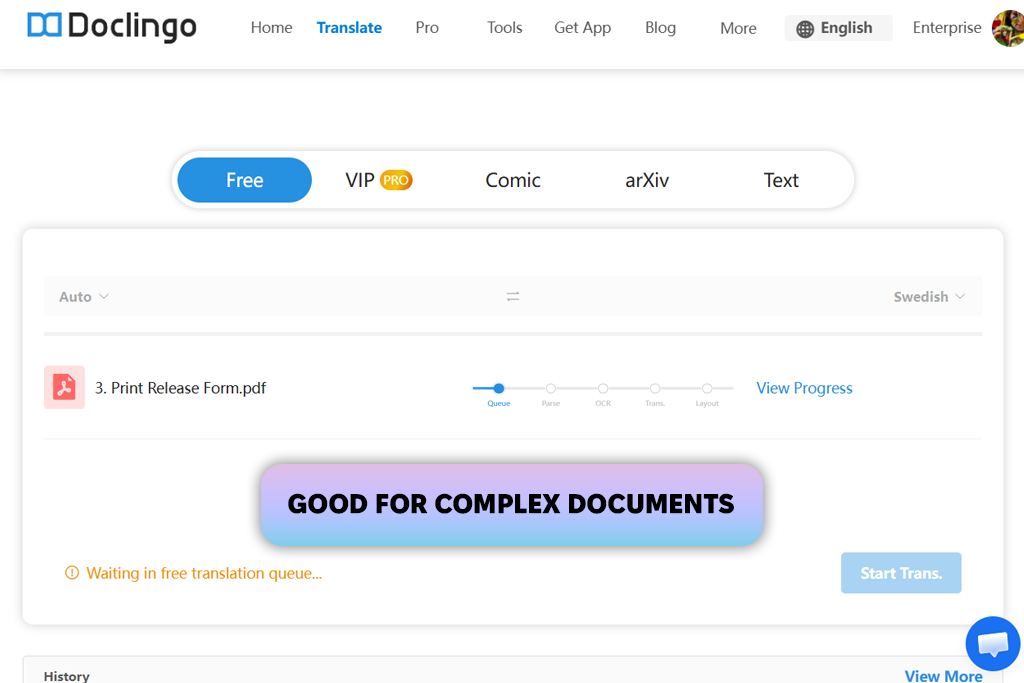
Doclingo treats document translation as a complete workflow rather than a quick text-swap service. It natively processes everything from PDFs and PowerPoint slides to spreadsheet data and raw image files across 90-plus languages, offering built-in text recognition alongside live web-based editing. The navigation is intuitive, allowing you to swap out underlying AI backends on the fly, examine original and translated sentences, and touch up wording directly before export.
This PDF translator AI protects complex page structures, keeping tables, data grids, and overlapping columns perfectly positioned. Its intelligent text extraction easily pulls readable data from unselectable image-based documents. However, the true productivity drivers are available in the paid version. So, the software may be a bit excessive for small, casual translation tasks.
“Surprisingly good with complex multi-column PDFs and tables. The OCR for scanned files worked great, but some advanced features need a Pro version.”

Price: Free or from $5.83/mo.
Availability: Web, Windows, macOS
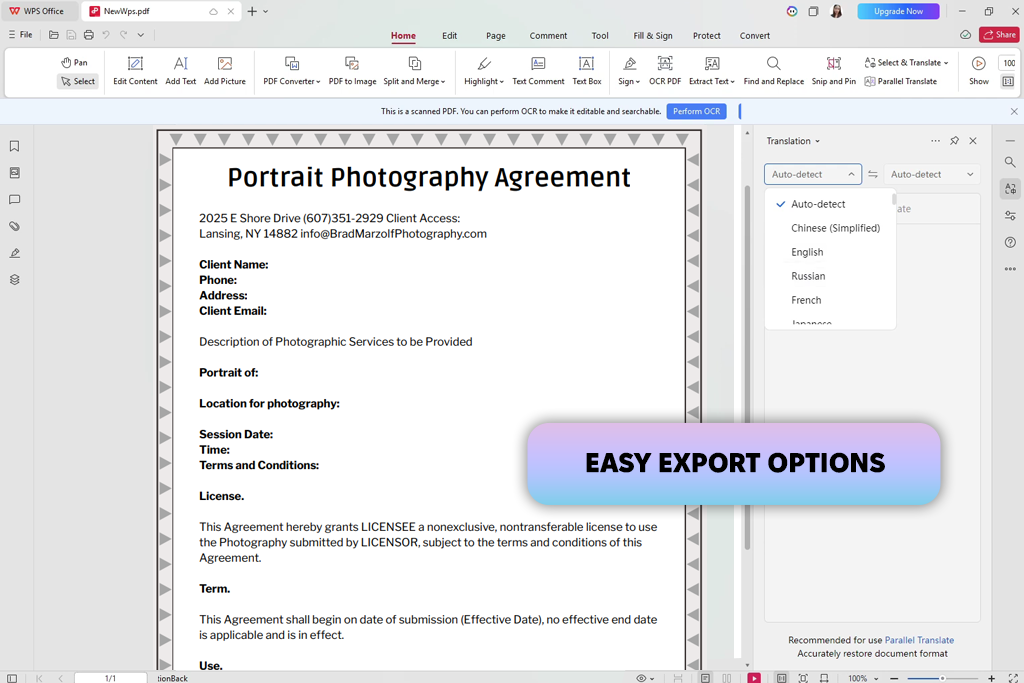
WPS Office offers a mix of a free PDF editor and an incredibly flexible AI translation system. Supporting over 100 languages across 30 distinct file types, it lets you choose from six different foundation backends, including Google Translate and ChatGPT, to find the engine best suited for your specific content.
I processed corporate agreements, slideshow presentations, and scanned PDFs across Spanish, German, French, and Japanese. By using the "Parallel Translate" tool inside WPS AI, I easily evaluated the outputs using the simultaneous split-screen interfaces. This AI document translator did a fantastic job keeping complicated tables, formatting boundaries, and image placements structurally stable. While exporting the final files is a breeze, heavy image-rich documents can cause the system to lag, and the frequent ad pop-ups in the free version definitely test your patience.
Price: Free or from $20/mo.
Availability: Web
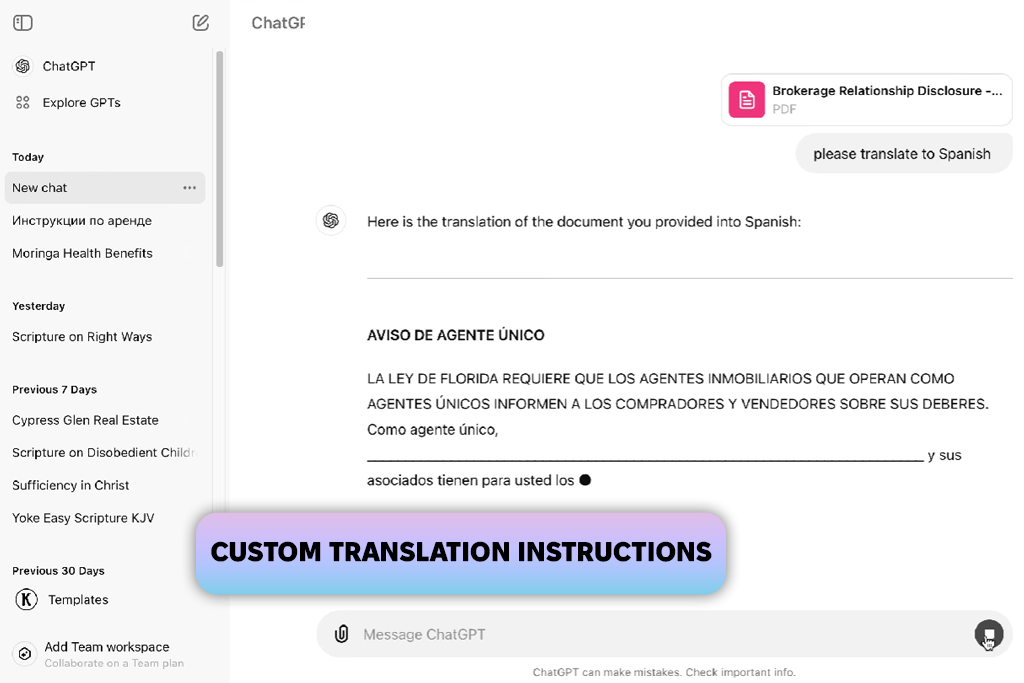
While ChatGPT lacks a native toolset available in purpose-made PDF language translators, ChatGPT is an incredibly versatile option when you need to translate files on the fly. After uploading your document, you aren't forced into a rigid, automated space. Instead, you can have a conversation with your document, asking ChatGPT to translate specific paragraphs, clarify highly technical sentences, or condense a sprawling report into key bullet points.
Everything is very flexible here. During testing, it reliably produced highly readable, human-sounding results for standard business text. However, because this AI tool to chat with PDF processes text raw, it frequently drops multi-column layouts, custom fonts, and charts, meaning you will likely need to reformat the document manually afterward. I would also suggest opting for a premium plan or private environment if you are working with proprietary corporate information.
“Great for translating specific pages, but you have to manually recreate the formatting afterward. It works fine for small tasks.”

Absolutely, but you need an app with OCR (text-recognition). This technology reads flat images or unselectable text fields and converts them into dynamic data that the translation engine can process.
Not necessarily. The best PDF AI translators like Adobe Acrobat or SlideSpeak do an impressive job anchoring your graphics, columns, and custom fonts exactly where they belong. Just be prepared to do a little manual tweaking if your document has intricate charts or atypical visual layouts.
You will generally have access to huge linguistic libraries. Adobe Acrobat, PDFelement, DeepL and other mainstream platforms bridge between 50 and 140 different languages, making it incredibly easy to swap text between English, Spanish, Mandarin, Arabic, and Japanese.
For standard, few-page documents, it is practically instantaneous – usually wrapping up in under sixty seconds. If you use image-heavy corporate reports spanning hundreds of pages, expect the engine to chew on it for a few minutes.
Yes, bulk processing is a standard feature on many desktop suites, including PDFelement and WPS Office. This allows you to queue up an entire folder of documents and translate them in one single sweep to save time.
No. The system automatically clones your document, outputting a completely separate translated version while leaving your master file completely untouched.
Rather than taking corporate marketing at face value, my colleagues from FixThePhoto and I tested lots of AI translation tools using real-world paperwork. Beyond the standout winners featured here, our exhaustive evaluation covered Smartcat, NotebookLM, UPDF, PDFgear, Foxit, and several web-based utilities. Many didn't survive the cut because they struggled with image-heavy documents, scrambled page layouts, or hid basic usability in paid plans.
To ensure a level playing field during testing, we subjected every piece of software to an identical checklist:
Our final testing pool contained real contracts, medical research, localized product manuals, and complex slideshow presentations translated across English, German, French, and Spanish. The top AI PDF translation tools highlighted in this guide are the ones that proved accurate, fast, and secure under pressure.





![9 Best Image Brighteners Online [{{%year}} FixThePhoto Choice]](http://fixthephoto.com/blog/images/gallery/news_main__preview_29194.jpg)
![7 Best TIFF to PDF Converters [{{%year}} FixThePhoto Choice]](http://fixthephoto.com/blog/images/gallery/news_main__preview_29305.jpg)
![7 Best Photo Grid Makers [No Design Skills]](http://fixthephoto.com/blog/images/gallery/news_main__preview_29018.jpg)
![9 Best 2x2 Picture Makers [{{%year}} FixThePhoto Choice]](http://fixthephoto.com/blog/images/gallery/news_main__preview_29017.jpg)


















