A big part of my retouching work involves preparing passport and ID photos that need precise 2×2 formatting, so I regularly work with tools designed for this kind of editing. Because of that, people often ask me which options are actually reliable and easy to use. Recently, a few subscribers specifically wanted to know which 2×2 picture maker I would recommend for creating a proper photo quickly and without unnecessary hassle.
Even though I usually work with advanced professional editing software, I understand that creating a simple 2×2 photo should not require complicated tools or expensive subscriptions. For most people, learning professional editors just to prepare one passport-style image simply isn’t practical. That’s why I decided to personally test a variety of 2×2 picture makers.
To make the review more balanced and objective, I also involved my team, so we could compare results across different devices, image qualities, and real user situations.
I chose the tools in this list because they make the process of creating a proper 2×2 photo much easier for everyday users. Most of them can automatically crop the image to the correct size, adjust alignment, improve lighting, remove or replace the background, and prepare the file for printing or online submission. Some options are best for quick one-time use, while others offer more editing control for users who want to fine-tune the final result.
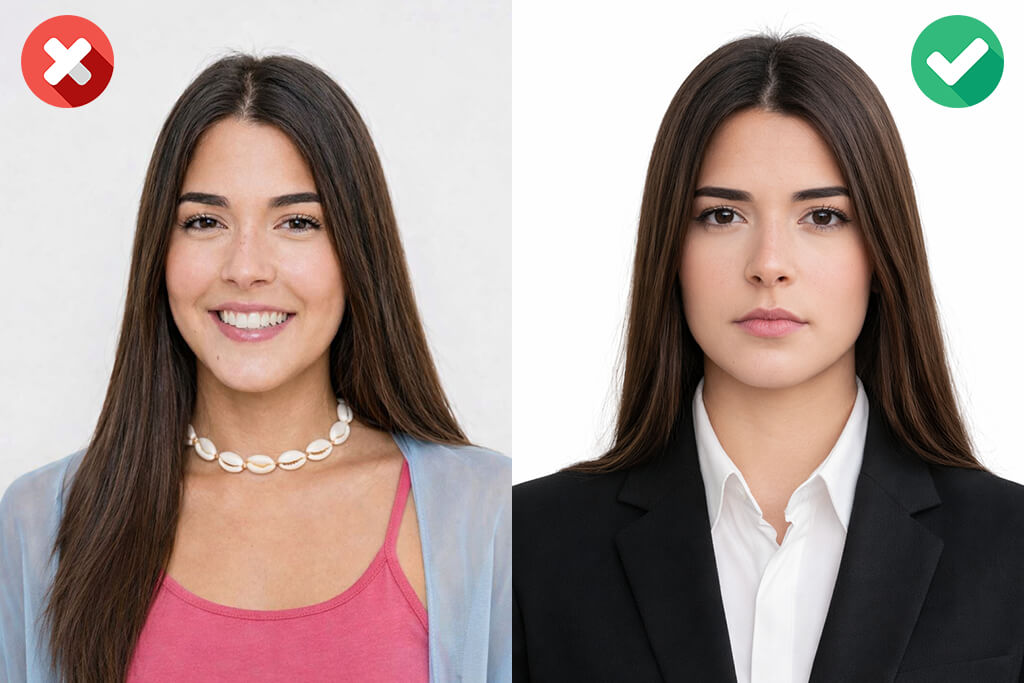
A very common problem is picking an unsuitable photo from the start. People often upload tight selfies, heavily edited pictures, or random images taken from social media profiles. From my experience, even a high-quality 2×2 photo tool cannot completely rescue a weak starting image. For the best result, it’s much better to begin with a sharp and up-to-date picture taken in soft daylight, with a calm expression and a clean overall look.
Face placement is another detail that often causes problems in passport-style photos. The image usually needs balanced spacing around the head, with the face centered properly and part of the shoulders still visible. During testing, I noticed that some automatic cropping tools did not always handle this accurately, occasionally positioning the subject too high or too low inside the frame. That’s why it’s always worth reviewing the preview carefully before downloading the finished photo.
A lot of photo problems also come from the background. Strong shadows, colorful walls, messy interiors, or uneven light can easily make a passport-style image unusable. While some tools can automatically remove or replace the background, the final quality often depends on how clean the original lighting and hair edges are. I got the best results with photos taken against a plain light wall using soft, balanced lighting.
Image quality is another detail many people underestimate. Even if the photo has the correct 2×2 dimensions, it can still become unusable if the image looks blurry, too dark, overly bright, or pixelated. Before uploading any file, I always zoom in and carefully check facial details like the eyes, nose, and jawline. If those features don’t look clear and sharp, I usually take a new photo instead of trying to fix the problem afterward.
Before using any 2×2 photo editor, it’s always a good idea to check the official requirements for the specific country or document you need. Even if the photo has the correct size, some applications also have extra rules for head positioning, background color, or image resolution. My general advice is to start with a clear photo, double-check the framing before exporting, and make sure the final image matches the official guidelines before submitting it.
Before starting with a 2×2 photo creator, it’s worth checking the picture you plan to use. Things like sharpness, lighting, and how the face is positioned can make a big difference and usually lead to a much better final result.
Checkpoints:
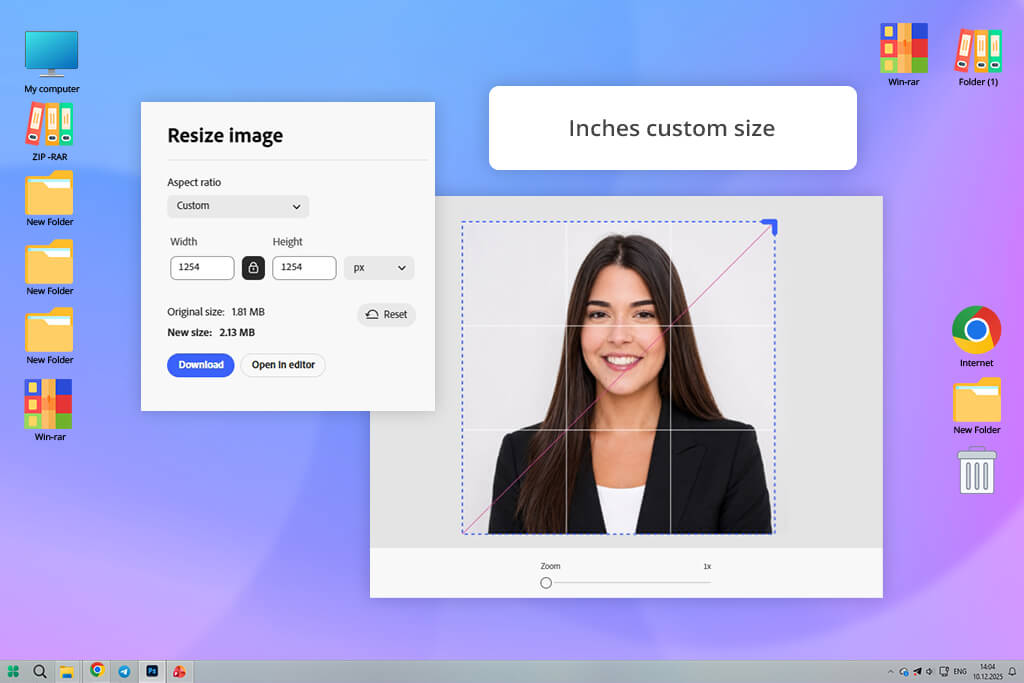
I’ve been using Adobe Express for quick designs for a while. I wanted to see if it could make a simple 2x2 passport photo. I opened the Resize Image tool, uploaded a portrait photo, chose Custom, changed the units to inches, and typed 2 x 2. The picture size changed right away, and the whole setup took less than a minute. What I liked most was being able to move the photo into place myself.
“I could set the exact 2x2 size without looking through hard-to-find menus. The zoom slider worked smoothly, so centering my face took just a few seconds. I just had to double-check the crop myself because the tool doesn't help you get the right head size for a passport photo.”

The zoom slider let me make my face a little larger. Then I pulled the image upward until my eyes and shoulders seemed well-placed inside the square box. Having that kind of control is nice, since many automatic passport photo tools crop way too much. With Adobe Express, I could adjust everything by hand. On the flip side, the app leaves all those decisions up to me. That means it never gives any warnings about passport photo rules - like the right head size, where the eyes should line up, or proper background setup while I'm editing.
I also checked the downloaded file at full resolution to see if the quality dropped after resizing. The result remained sharp, with clean edges and no visible compression issues. Since I already know what passport photos are supposed to look like, the process felt natural: upload, resize, fine-tune, download. If you prefer direct control over automated fixes, this workflow makes a lot of sense.
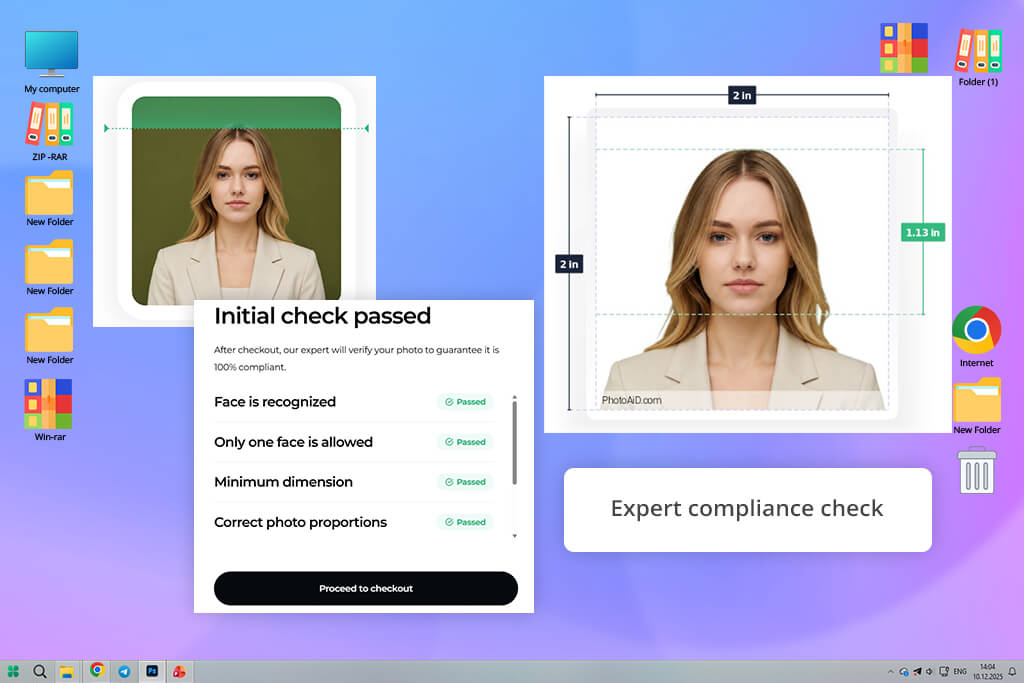
Right away, I liked how clearly PhotoAiD explains everything on its website. A lot of other tools assume you already know the rules for passport photos. But with PhotoAiD, I found helpful passport photo tips on taking a good passport photo before I even uploaded a single picture. They explain things like posture, lighting, facial expression, and framing in plain language. This saves time and helps you avoid mistakes before you start editing.
“This ID photo maker handled most of the work automatically after upload. The background replacement looked cleaner than I expected, especially around the hair. I’d use it again when I need something quick and don’t want to adjust settings manually.”

I tried the tool with a simple phone photo taken indoors. Once the image was uploaded, the platform automatically prepared it in the correct 2×2 format, adjusted the framing, and cleaned up the background without requiring extra input from me. I never had to manually resize the image or fine-tune the crop area myself. The workflow felt more like a step-by-step passport photo assistant than a basic resizing tool. I also appreciated the combination of automated checks and optional human review, since it adds extra confidence when preparing photos for official documents.
The finished photo looked clean, balanced, and much more professional than results from basic crop-only tools. Facial tones stayed realistic, and the background separation handled hair edges surprisingly well. Since the platform is built around official photo requirements, there are fewer options for detailed manual editing if you prefer controlling every small adjustment yourself. For me, that tradeoff was completely reasonable because the main priority was getting a fast and accurate result.
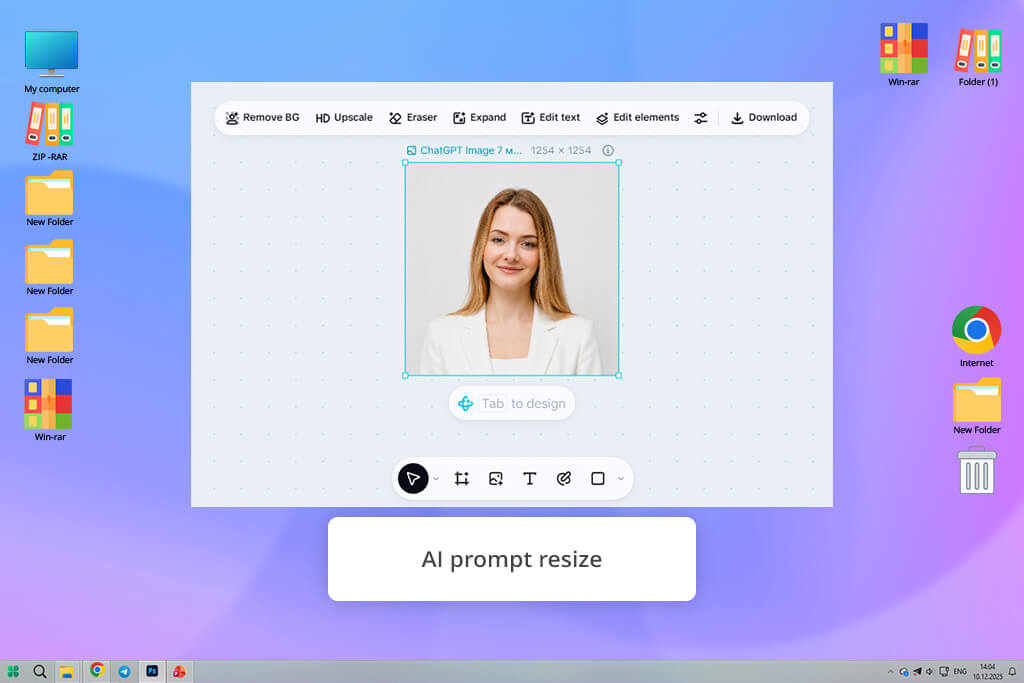
I mostly use CapCut as a video editing app for creating things like short reels and quick clips. So, I got curious when I noticed it also has an option for 2x2 photos.
I logged into the web version, went to AI Tools, then AI Design, and uploaded a portrait picture. After that, I typed a prompt asking for a 2 inch by 2 inch passport photo. The workflow is definitely different from normal passport photo tools. Still, getting everything set up was pretty easy.
“I CapCut felt easy to use right away since I was already familiar with it from video editing. I could quickly improve lighting, fix small imperfections, and prepare the photo before exporting. The AI prompt feature also worked better when I used short and clear instructions.”
This online ID photo generator changed the photo size on its own. After that, I could keep making improvements by typing more requests into the chatbox. I tried easy fixes like making the image brighter and moving the face to the center. Then I compared those results to doing the edits by hand with tools like exposure and color balance. For someone who already knows CapCut, the layout feels pretty familiar. The one downside is that editing by typing prompts isn't always as reliable as typing in exact passport settings yourself.
I liked that during export I could pick the file format, quality, and resolution. A lot of simple tools don't even give you those choices. The final picture came out sharp, and the lighting fixes really helped because the original photo was quite dark. Since CapCut is mainly made for creative video editing, it also comes with stickers, effects, and other design extras. You don't need any of that for an ID photo. So, you have to ignore the flashy stuff and stick with the practical tools.
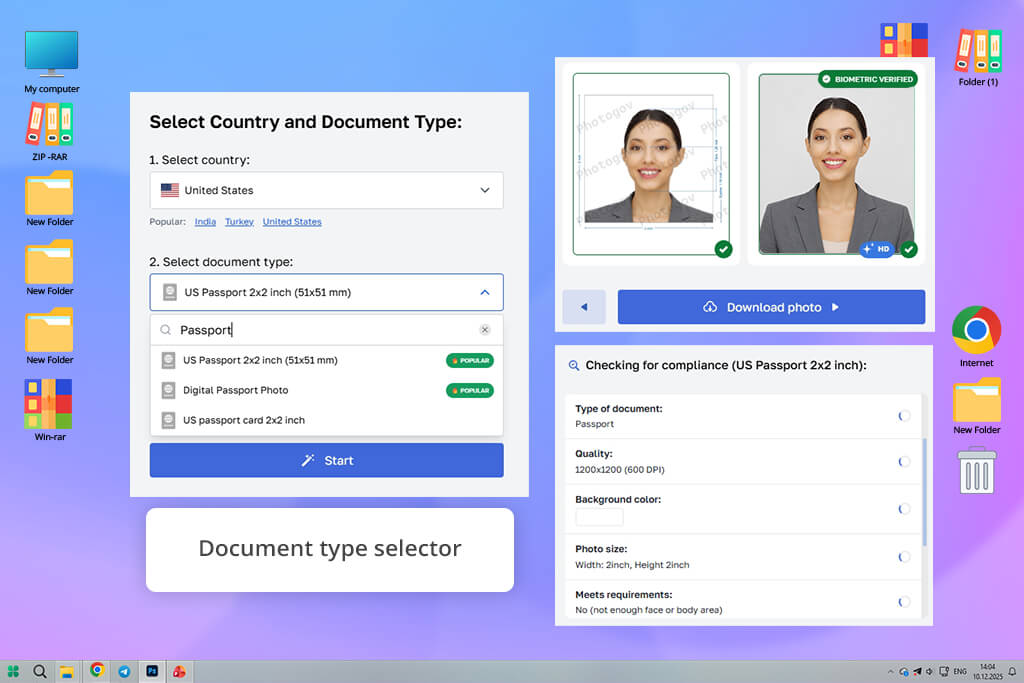
My coworker Julia recently used PhotoGov for her own document photo and liked it, so she told me to try it. I went to the site and picked the 2x2 inch photo option. Then I uploaded a regular portrait from my phone and let the system do the setup. The look of this passport photo app has a design that looks a little outdated, but navigating it was still straightforward. I didn't need to hunt through lots of tabs or tweak tons of preferences just to get going.
“I sent a picture from my phone, and within under a minute, the cropping and background fixing were finished. This is exactly the sort of tool I would turn to when I need an ID photo quickly, without messing around.”

At roughly thirty seconds, the processing felt very quick. PhotoGov took care of three things automatically: wiping out the original background, fixing the head's tilt, and cutting the image down to the exact 51x51 mm size. Because fast tools often cut off part of your hair or shoulders, I made sure to examine the preview carefully. No issues here - the framing stayed well-balanced. Clearly, this 2x2 photo app targets people who want a passport-ready photo without doing any manual work themselves.
Another thing that worked well for me was the final save - a clean JPEG file, ready for uploading online. My original picture looked a bit dark, but the app fixed the lighting without turning my skin color weird. That's a common problem with many AI tools, but not here. Since almost everything runs automatically, you don't get many manual controls if you prefer to tweak every tiny thing yourself. Still, for a fast passport or visa photo, this simple and direct method makes a lot of sense.
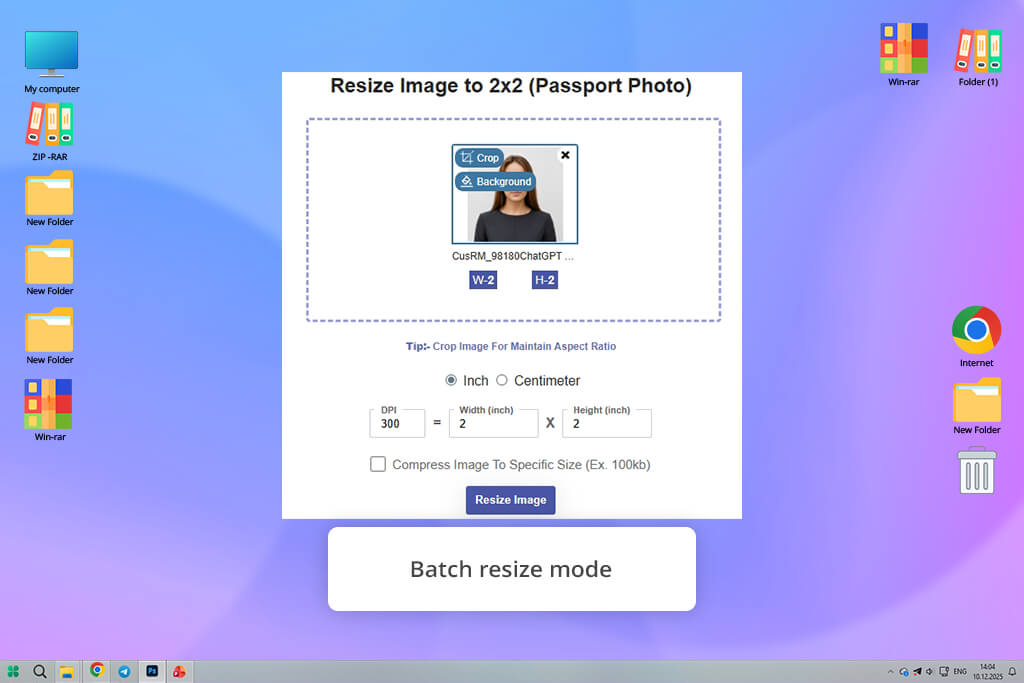
I found Pi7 just by searching Google for an easy way to make 2x2 pictures. Right away, that tells you something - this tool focuses more on getting the job done than on fancy branding. After I uploaded a PNG headshot, the width and height were already showing 2 inches each. So, I didn't have to set anything up before starting my test. For anyone who just needs a quick resize, that little shortcut really saves time.
I made the background off-white instead of white. Then I adjusted the crop to remove extra space near the shoulders. The controls are simple but they work fine for small fixes. I also tried uploading several photos at once to see if batch processing worked. It handled all of them without any problems. That's helpful when you need passport photos for your whole family. The design isn't flashy compared to polished commercial tools. But being plain helps you focus on getting the job done.
Once I saved the final pictures, I looked to see if resizing hurt the quality. They remained clear, and faces didn't look stretched or squished. So the tool kept the proportions right. I also saw a privacy feature I liked - you can delete your files yourself or just let them vanish after 25 minutes. Most free free passport photo generators never even talk about that. This whole service feels like a straight-to-the-point choice for people who care about fast work and good results, not about how pretty the website looks.

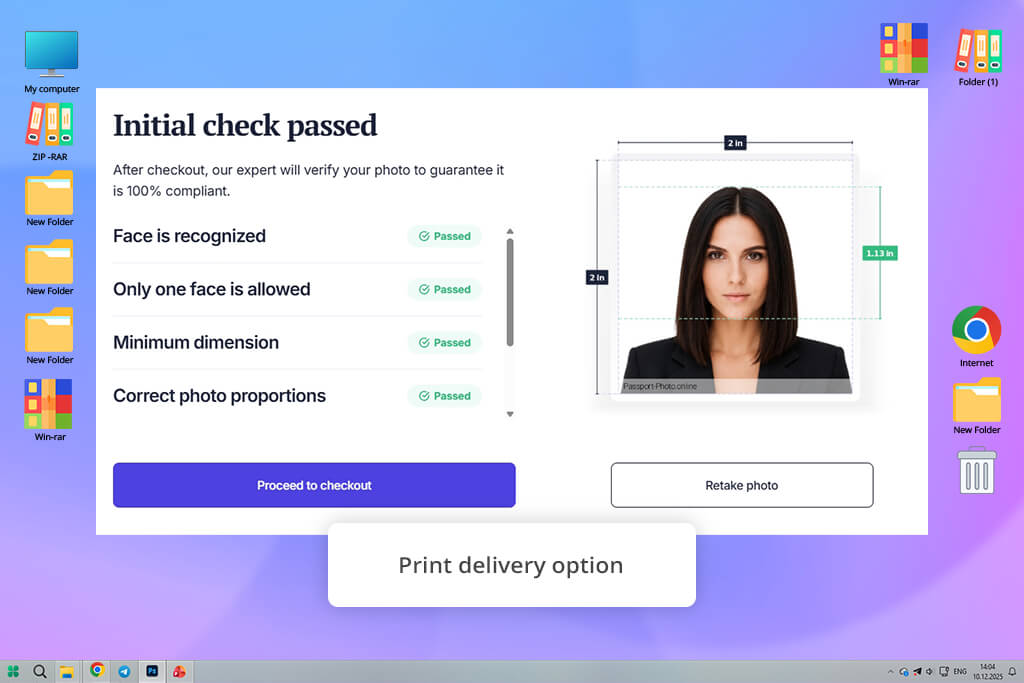
I wanted to test Passport-Photo Online because tools built specifically for document photos usually handle official requirements better than general image editors. After opening the site on desktop and uploading a recent portrait, I immediately noticed how clearly it explained the important 2×2 photo rules, including print size, pixel dimensions, head positioning, background color, and image resolution.
“I liked that the tool explains the photo requirements before the editing process even begins. That made everything feel much easier to follow, especially when it came to head positioning and background rules. I also noticed that the final image looked sharp and clean enough for online applications without needing extra edits.”
After I uploaded my picture, the step-by-step process was easy to follow. The tool automatically cropped it into a square shape and lined up the face to fit passport-style guidelines. I double-checked the space between my chin and the top of my head, since that's where a lot of fast resizers mess up. But this one seemed designed with those specific rules in mind. There are also mobile apps available, which makes sense for people who want to take a new photo right on their phone instead of moving files over to a computer.
First, I tried the downloaded digital file. It looked clear enough to submit online. You can also order printed copies for delivery in the US, which is a helpful bonus - especially if you don't want to mess with printing templates yourself. Because this tool focuses heavily on passport tasks, it feels more useful than fancy. But for this type of job, that's usually the right thing to focus on.
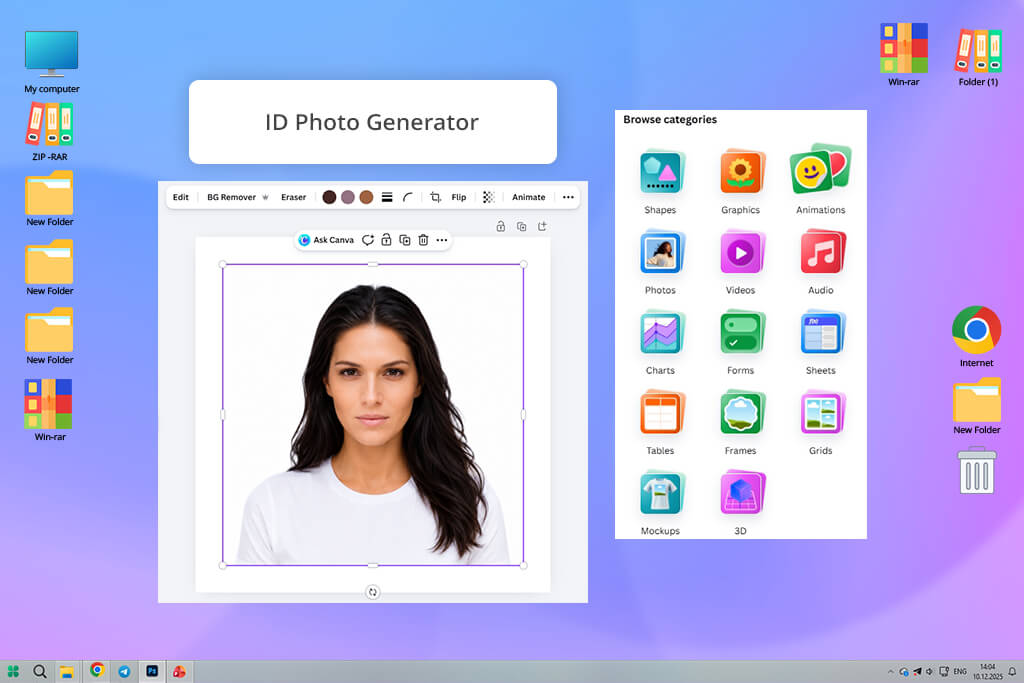
Since the FixThePhoto team already works with Canva almost every day for shared design projects, I wanted to see how well it handled passport-style images too. Rather than setting up the dimensions manually, I tried Canva’s built-in ID photo feature, which felt like a much easier approach for this type of task.
I launched this tool to make 2x2 photo through the Apps section, added a portrait photo, and chose the document photo format I needed. Right away, the process felt faster and more straightforward than creating the layout manually from the beginning.
“Using Canva felt convenient because I already work with it regularly, so there was no learning curve. The ID Photo Generator made the process much faster than setting up the dimensions and layout manually. I still double-checked the face positioning before exporting, but overall, the workflow felt simple and smooth.”
My favorite part was that the app took care of the boring, repetitive steps all by itself. It lined up the face, fixed the cropping, and gave me a plain background option - no need for separate layers or lining things up manually. Compared to Canva's regular editor, this saves a lot of time. In Canva, you'd have to drag the photo in, resize it with your mouse, and run the Background Remover as a separate step. The automation really helps, though I still looked over the face placement on my own.
Then I opened the finished picture in the regular Canva editor. I just wanted to brighten it a tiny bit and save it as a PNG. Because Canva is mostly a general design tool, some of the passport-related options aren't as straightforward as they are in apps built just for ID photos. But if you already use Canva anyway, it's really nice to have everything you need in one single place.
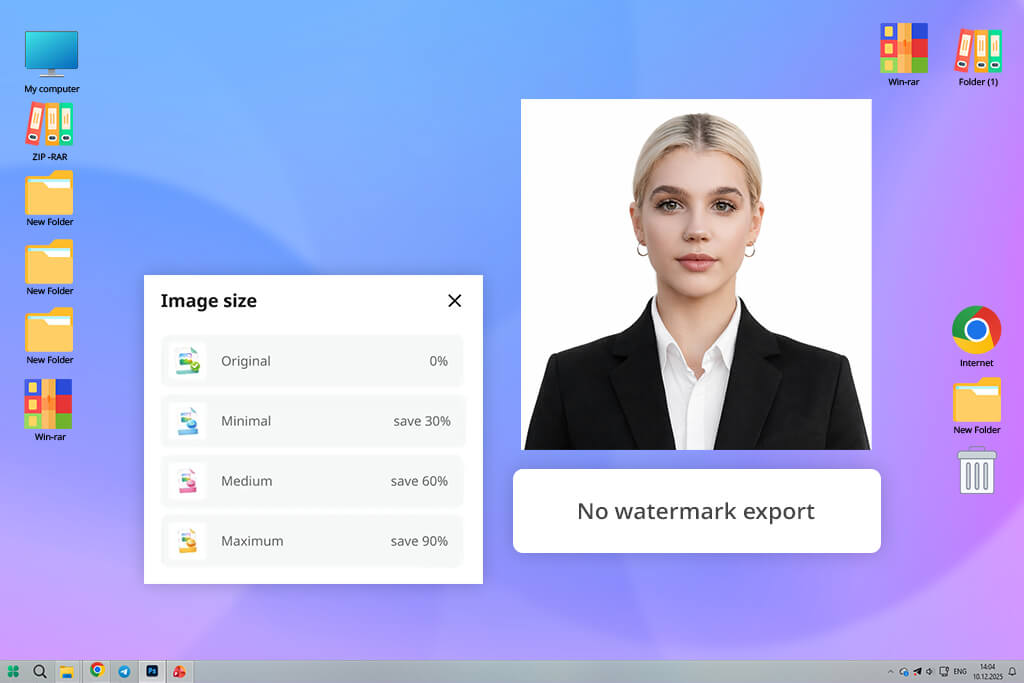
I noticed Liftapp because it had a very high rating in the App Store. That usually tells me people actually keep it on their phones instead of deleting it after one use. So, I installed it, picked a portrait from my photo gallery, and tried out its 2x2 passport tool. The app says it can give you a rule-following photo in just seconds. That made me wonder - would the fast speed mean worse quality?
The AI processing was really fast. It resized the photo, centered my face, and swapped in a white background almost instantly. On my first try, the framing looked good - enough space above my head and my shoulders showed up fine. Then I tested a second photo taken in poor indoor light. That one still looked okay, but I used the app's tools to make it a bit brighter afterward.
I fixed small things without searching through lots of menus. Then I saved the final picture with no watermark on it. The app can also make social media content, so it has some extra tools you don't need for ID photos. But those features don't really get in the way. For someone who wants to work on their phone and get quick AI help, the whole thing felt smooth and well-made.
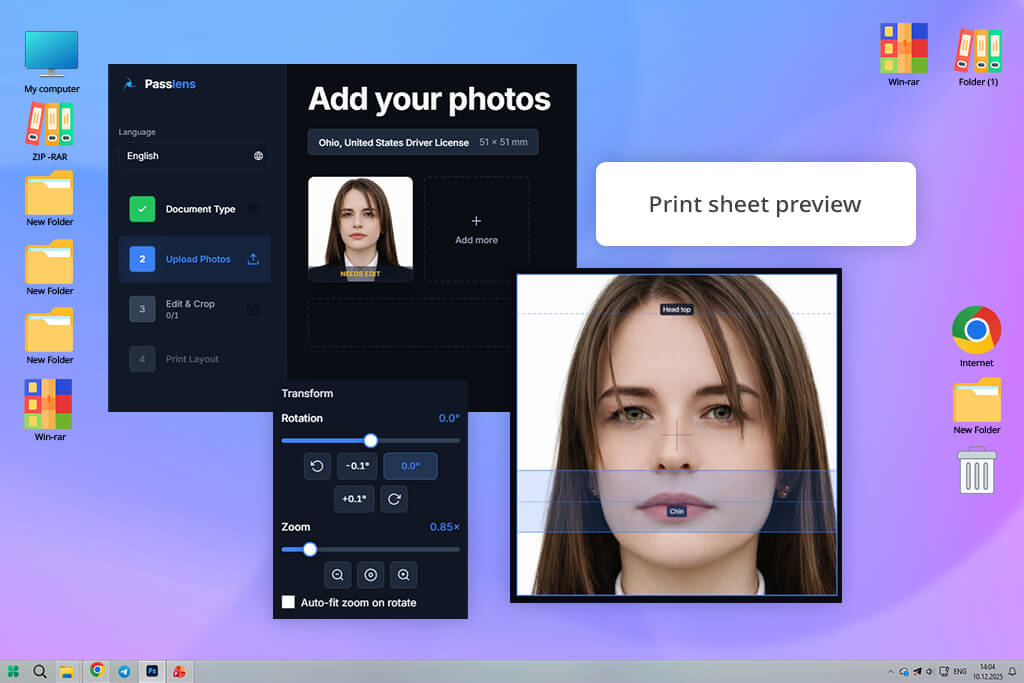
What I liked about Passlens is how fast it works, how accurate it is, and how much attention it gives to privacy. You don't have to create an account or upload your photos to a saved profile - you can just start using it right away. If you don't feel comfortable giving your personal pictures to random websites, that's a really nice touch. I opened the tool in my browser, selected the U.S. 2x2 option, and went straight to testing.
You don't have to guess the right size. This passport size photo maker already has the correct measurements set and shows you where your head should go as you move the image around. I tested a regular portrait and also a selfie that wasn't centered. The Auto Fit feature fixed the framing surprisingly well. That saved me a lot of time. Still, I did adjust one photo by hand because I wanted just a bit more room above my hair.
I also tried out the print layout feature. It puts several copies of your photo on one page with nice, even spacing around each one. That's a smart extra because a lot of tools only give you a single digital file and forget that people need to print. The background removal worked fine when my photo was taken against a plain wall. For trickier edges, I just ran the higher-quality removal mode a second time, and that did the job.
When testing each 2x2 picture maker, I began with what matters most: getting the size right. A tool might look nice, but it's useless if the final picture isn't actually 2x2 inches. I looked at the exported files to see if the dimensions were correct, if the proportions stayed consistent, and if the face still looked properly scaled inside the frame - not stretched or cut off too closely.
How well each platform managed face placement and composition was what Robin tested next. Passport and ID photos typically require the subject to be centered, with even space above the head and shoulders visible below. Robin's test involved uploading photos with varying angles, distances, and framing issues. His goal was to see whether automatic tools could correct these problems, or whether manual controls made the fixing process simpler.
Julia focused on backgrounds next. People often take photos at home, so she tried different setups: plain walls, uneven light, shadows, and cluttered rooms. She paid close attention to how neatly each tool removed or swapped backgrounds. The hardest spots were around hair, ears, and shoulders - that's where bad AI usually leaves ugly marks. Julia also checked if skin colors still looked natural after the automatic fixes.
Then I looked at how easy and fast each tool was to use. Some people just need a proper photo within a few minutes. Others want more hands-on control. So, we timed how long it took from upload to final download. We also paid attention to how clear the design felt for someone using it the first time, and whether the important settings were easy to locate. I also made a note whenever a tool forced you to do extra things you don't really need - like signing up for an account or clicking way too many times.
At the end, we checked two things: how good the exported photos looked and whether the tool was worth using. We looked at sharpness, file size, print quality, and what formats were available for online forms. We also thought about helpful extras - like print layout sheets, privacy settings, phone access, and tips about official photo rules. This helped us see which editors are just easy to use, and which ones you can actually trust for real documents.




![11 Best AI Sticker Generators [Simple for Non-Designers]](http://fixthephoto.com/blog/images/gallery/news_main__preview_28980.jpg)

![9 Best AI PDF Editors in {{%year}} [Expert Tested Guide]](http://fixthephoto.com/blog/images/gallery/news_main__preview_29012.jpg)



















