I began looking for the best PDFgear alternatives after relying on it for all minor PDF-related tasks at FixThePhoto. Initially, I liked using PDFgear since it’s free, user-friendly, and capable of basic editing, converting, e-signing, AI, and PDF chat features. Such functionality is the main reason why many people decide to try PDFgear first.
It is great as a free application, but it’s incapable of providing a complete professional PDF workflow. Whenever I needed to edit a long PDF, juxtapose document versions, create forms, or share PDFs for e-signing, I had to use a different app. That’s why I chose to test 30+ PDFgear alternatives by exploring Google results, software rankings, and PDF editor roundups.
Along with other members of the FixThePhoto team, I evaluated different PDF editors by putting them through real tasks: editing contracts, compressing portfolios, transforming PDF files into Word, e-signing forms, writing comments, applying OCR to scanned files, and examining how each option tackles bigger documents.
From my experience, these are the main factors you have to consider when picking a PDFgear alternative:

PDFgear is a free PDF editor designed for editing, converting, annotating, e-signing, managing, and chatting with PDF documents. It’s among the best free options on the market since it doesn’t require the same financial investment as Adobe Acrobat or Foxit. You can use its online version without creating an account or worrying about watermarks or premium upgrades.
Initially, it looks like the perfect solution, but when it comes to real-world projects, particularly those related to client and internal business documents, many of its flaws become apparent:
Best for: professional PDF editing, forms, OCR & secure documents
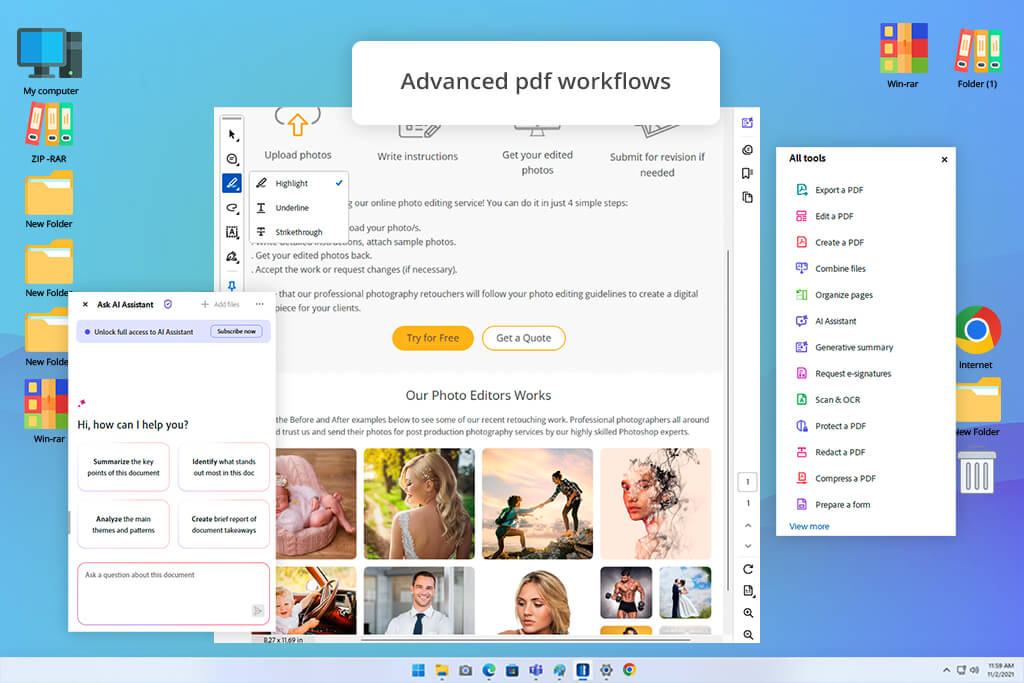
Adobe Acrobat was the first PDFgear competitor I tried once I realized I was unhappy with my current setup. From the first time I used it, this solution instantly felt more complete. It allowed me to edit text, swap pictures, organize pages, create forms, protect files, and process scanned documents with more freedom.
For my FixThePhoto needs, Acrobat did a great job tackling contracts, articles, and PDF files that suffered from poor formatting. PDFgeat let me add annotations or basic e-signatures, but it couldn’t match Acrobat’s ability to prepare a polished, professional-looking PDF document.
My most-used feature ended up being the OCR. Whenever I imported scanned PDFs, Acrobat recognized text with increased precision, ensuring I could conveniently search and edit the text inside them. Additionally, I enjoyed using the PDF comparison tool since it allowed me to examine the differences between versions without having to manually study everything again.
Another reason why Acrobat is among the best PDFgear alternatives is its wider ecosystem. It’s compatible with Adobe software, Microsoft 365, cloud storage, and e-signature workflows. Adobe also offers Acrobat Standard, Acrobat Pro, business plans, and AI Assistant options, ensuring you can customize your workflow and use it either as a personal solution or adapt it to a team workflow.
“Use Adobe Acrobat when you need to send a final PDF to a client, because its OCR, redaction, and form tools make the document feel much more professional.”

My advice: pick Adobe Acrobat if PDFs are a mainstay part of your work, not something you only have to worry about twice a month. It costs more, but is a lot more time-efficient when handling forms, scanned documents, contracts, and final client PDFs.
Best features:
Pricing: free Acrobat Reader, Acrobat Standard from $14.99/month, Acrobat Pro, and business plans available.
Best for: teams, secure editing & document workflows
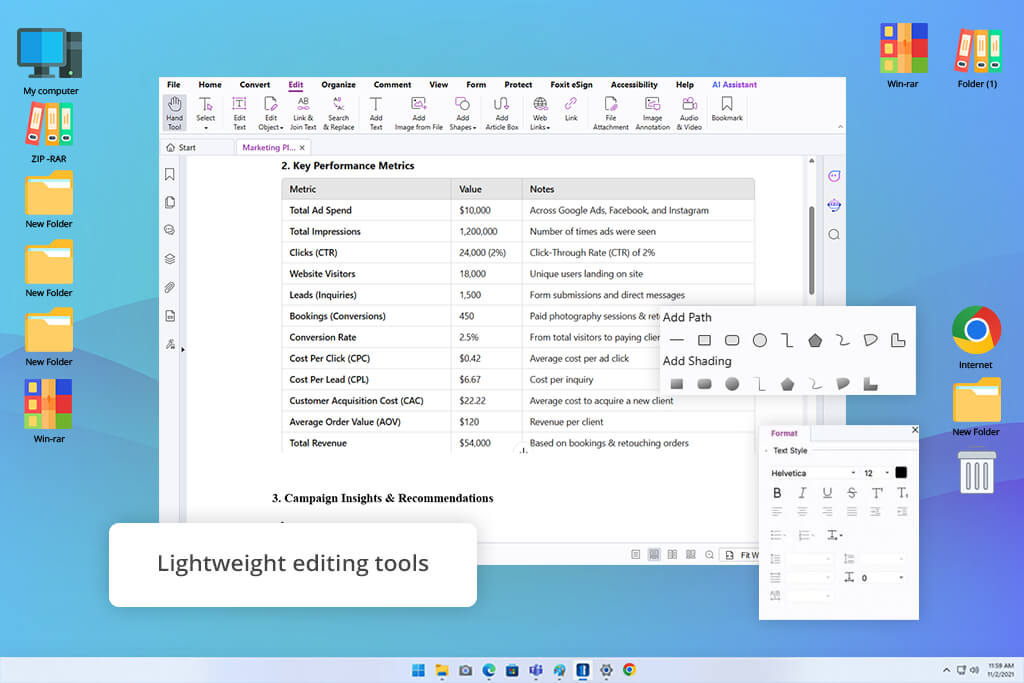
Foxit PDF Editor is among the best PDFgear alternatives for teams that are looking for a professional solution that isn’t part of the Adobe bubble. I used it for bigger PDFs, forms, and documents that required annotations, conversion, and page management.
For more expansive reports, I had to edit down drafts and get rid of unnecessary pages, so learning how to delete pages from PDF was essential for me. This software did a great job tackling all these tasks, and the workflow felt more professional compared to PDFgear.
Foxit stands out because of its business-oriented functionality. It can not only let you edit PDFs with maximum efficiency, but it also allows you to manage and organize your documents while leveraging AI-assisted tools and collaborative functionality, and choosing between a lifetime, yearly, and monthly license.
This solution is very useful for review tasks. It makes it easy to write comments, mark sections, create forms, and prepare PDFs for approval. I also enjoyed its AI tools and eSign feature, which come in handy when you have to tackle summaries, rewriting, document questions, or signatures.
Unlike PDFgear, Foxit provides an increased level of control over professional docs. It’s tailor-made for handling business files, reports, legal documents, or PDFs that can benefit from an extra level of security. The latest Foxit updates also improve the document management, sharing, role-based access, version history, and cloud storage features, making it even more appealing to teams.
My advice: pick Foxit if you need a PDFgear alternative for professional tasks, not just basic editing. It provides a pleasant balance between cutting-edge features and business tools.
Best features:
Pricing: free trial, paid plans vary by product and license type.
Best for: AI summaries, OCR & easy editing
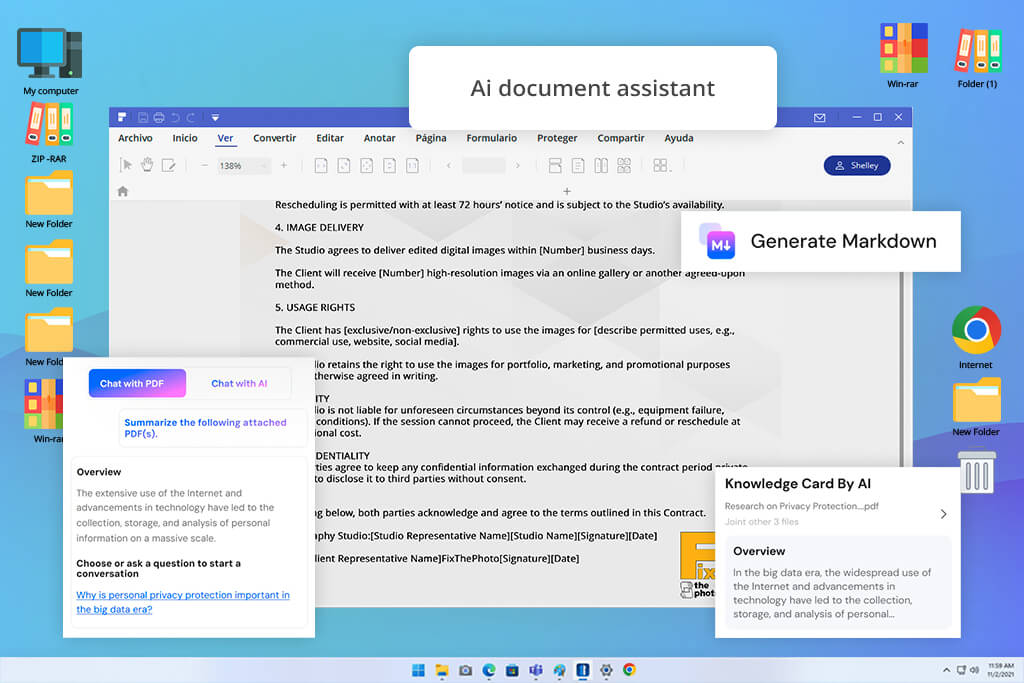
PDFelement is among the most user-friendly programs similar to PDFgear. It offers a familiar UI, so I quickly got used to how everything works. I used this tool for a scanned brief, a PDF contract, and an image-heavy document, and the editing workflow felt pleasantly straightforward.
I particularly enjoyed its AI tools. Wondershare promotes PDFelement as a PDF solution for creating, editing, protecting, and e-signing PDFs on desktop, mobile, and web. Additionally, it supports AI-based reading, editing, signing, and sharing.
“Whenever I’m dealing with bigger PDFs, I tend to click on the AI sidebar first to summarize the docand figure out which parts need to be edited before making any manual changes.”

Personally, I got the most mileage out of the summarizing, rewriting, translating, and OCR features. Whenever I had to process a longer PDF, I could easily learn the main points without having to read through each page. This is why PDFelement is a fantastic find for students, bloggers, researchers, and users who deal with a lot of lengthy text-heavy PDFs.
In contrast to PDFgear, PDFelement feels more suited for everyday editing. It’s not as advanced as Adobe Acrobat, but it provides all the essential features that your average user might need, allowing you to edit text, adjust images, add comments, convert files, protect documents, and apply OCR.
My advice: go with PDFelement if you’re looking for an AI PDF editor like PDFgear that is even easier to use. It’s particularly handy if you want AI assistance with long documents.
Best features:
Pricing: free trial, paid annual, and perpetual plans available. Wondershare mentions that the registered trial may apply a watermark when saving and includes limited AI usage.
Best for: desktop users & business documents
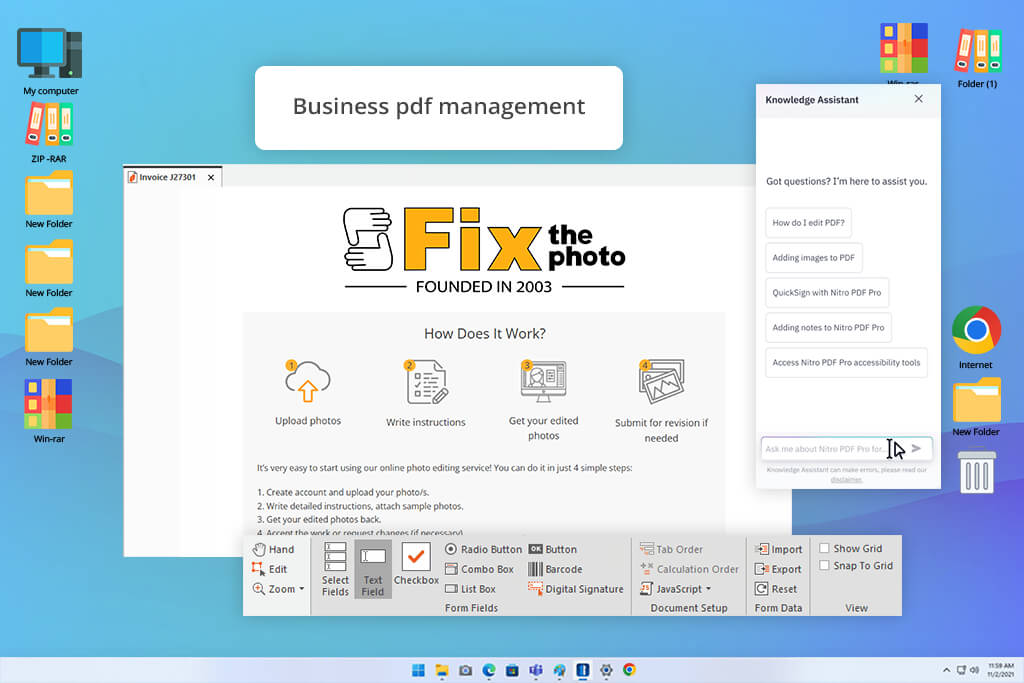
I liked using Nitro PDF since its UI heavily resembles Microsoft Office. As such, I could conveniently find all the editing, conversion, annotation, and organizing features without blindly stumbling through a bunch of menus.
I used Nitro with an array of business PDFs: one invoice, one client agreement, and one article brief saved as a PDF. The conversion quality was high. When I converted a PDF to Word, the exported file managed to preserve its structure perfectly. Unlike PDFgear, Nitro is a better fit for office teams. It provides superior editing, OCR, security, form, and e-signature features.
When compared against other tools, Nitro is typically ranked among the leading Acrobat and PDFgear alternatives for people interested in a more advanced editor. Simultaneously, it’s also a valid consideration if you’re searching for the best free PDF reader with additional business tools since the UI feels familiar and doesn’t overwhelm you from the first moment you open it.
The main drawback is pricing. If you’re just looking for a free PDFgear alternative for fast edits, Nitro might be a bit too much. However, if you’re dealing with PDFs weekly, particularly in a business setting, it can be a terrific time saver.
My advice: choose Nitro if you like using Microsoft-style software and are looking for a PDF editor that feels familiar from the get-go.
Best features:
Pricing: free trial, paid subscription, and license options available.
Best for: Apple users, reading & annotation
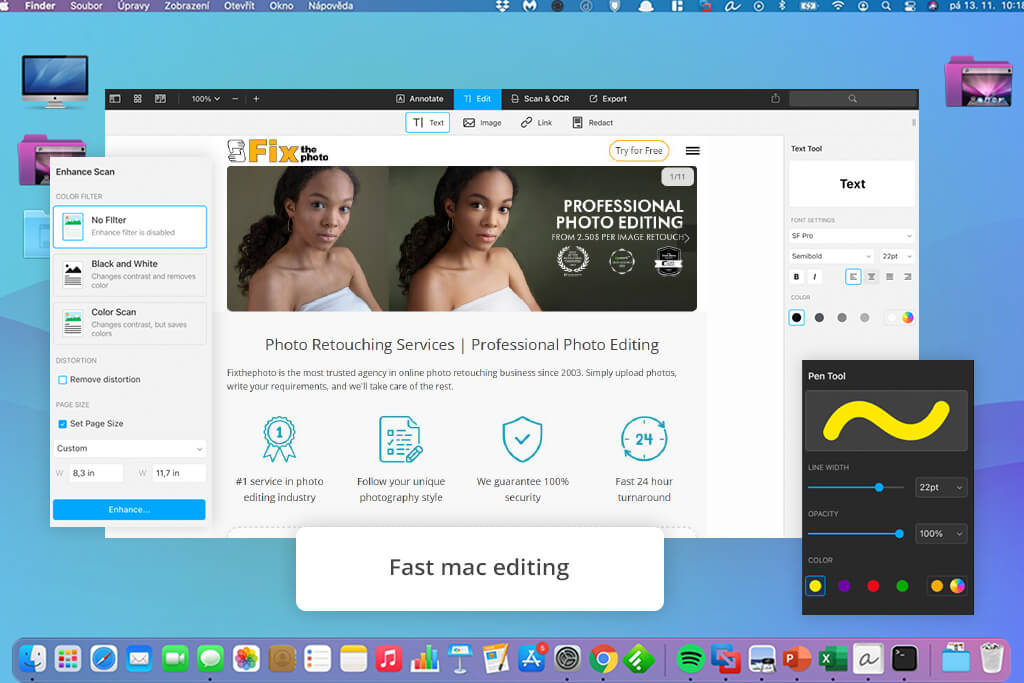
PDF Expert is arguably the best PDFgear alternative for Mac and iPad. It offers a polished UI and a streamlined workflow. I used it on my iPad with Apple Pencil, and I greatly enjoyed highlighting, writing notes, and reviewing pages.
The functionality of this option is leaner compared to more professional solutions. Its biggest advantage is the convenience it offers. If you regularly deal with PDFs, mark up contracts, review moodboards, or annotate documents on an iPad, PDF Expert should be a great fit for you.
For FixThePhoto projects, I preferred using it for visual PDFs: styling guides, client notes, and PDF drafts with picture references. It makes it easy to highlight details, write little comments, and share files.
“On iPad, I prefer to rely on PDF Expert primarily for reading, highlighting, and making handwritten notes, since the Apple Pencil is extremely convenient to use here.”

The biggest drawback of this option is availability. If you’re already using other software on Windows or Android, PDF Expert is likely not for you. It’s an Apple-exclusive solution rather than a multiplatform PDF application.
My advice: pick PDF Expert if you’re already a part of the Apple ecosystem and are looking for a PDF editor that feels lightweight, polished, and efficient.
Best features:
Pricing: free basic version, paid premium, and lifetime options available
Best for: browser-based PDF editing
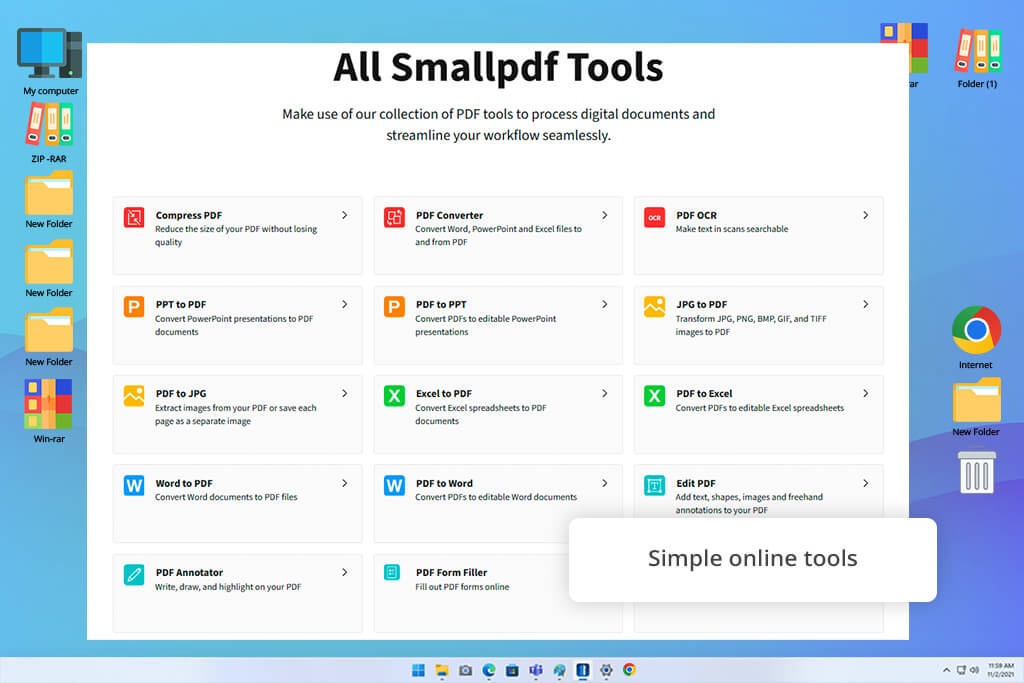
Smallpdf is the go-to PDFgear alternative if you’d like to avoid installing any software. It’s a great option for basic tasks: compressing a PDF, converting it to Word, merging multiple documents, splitting pages, or adding an e-signature.
I used it for a project that required me to prepare a bunch of smaller PDFs for an article. I could conveniently import my documents, compress them, transform one into Word format, and combine two others into a single file, while filling out a short form before adding an e-signature.
In addition to being a convenient browser tool, Smallpdf is arguably the best free PDF filler if you simply want to complete a basic document quickly. The entire process is intuitive and time-efficient.
Unlike PDFgear, Smallpdf prioritizes online convenience. It’s not aimed at advanced PDF editing, but it’s perfectly capable of handling common tasks without installing any software.
My advice: pick Smallpdf if you’re interested in quick conversions, file compressions, and PDF merging. However, if you’re looking for dependable OCR or secure redaction, consider choosing a different alternative.
Best features:
Pricing: free limited version, paid plans available.
Best for: free everyday PDF tasks
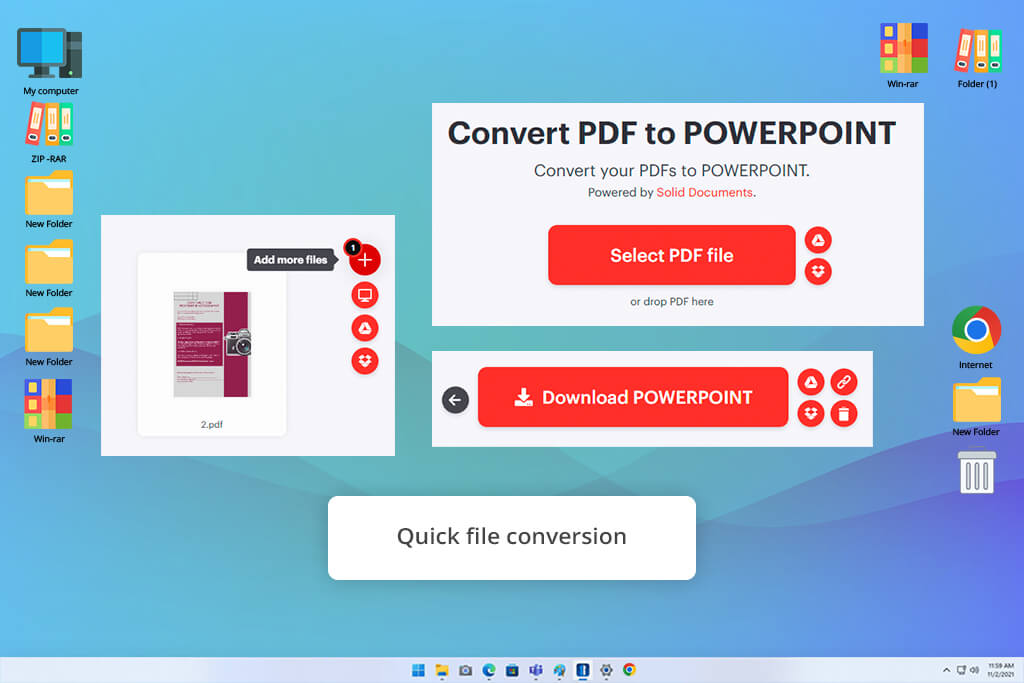
iLovePDF is among the most straightforward apps like PDFgear. I primarily employed it for basic tasks: merging documents, splitting pages, compressing PDFs, converting them to JPG or DOCX, and transforming images into PDFs.
I liked how approachable this solution feels. Each tool is easy to find and use, and even completely inexperienced users can learn how to navigate iLovePDF quickly. If your needs are limited to casual cases, it’s among the best free PDFgear alternatives you can find.
Personally, iLovePDF came in handy when I wanted to quickly prepare PDFs for sharing. For instance, when a PDF portfolio was too big to be shared, I compressed it in just a couple of clicks. I also use it to extract pages from bigger documents.
“This solution is great at quickly performing simple actions, so I rely on it heavily to split, convert, and compress my PDFs while delegating more challenging tasks to other software.”

The main drawback of iLovePDF is that it can’t replace a complete professional editor. It’s well-suited for utility tasks, but if you’re handling confidential contracts, need pro-grade OCR, or advanced editing tools – look elsewhere.
My advice: pick iLovePDF if your needs are limited to an intuitive browser platform for daily PDF fixes. It’s a particularly great fit for users who want to avoid dealing with complex PDF editors.
Best features:
Pricing: Free plan available; Premium plan from about $7/month
Best for: fillable forms, contracts & e-signatures
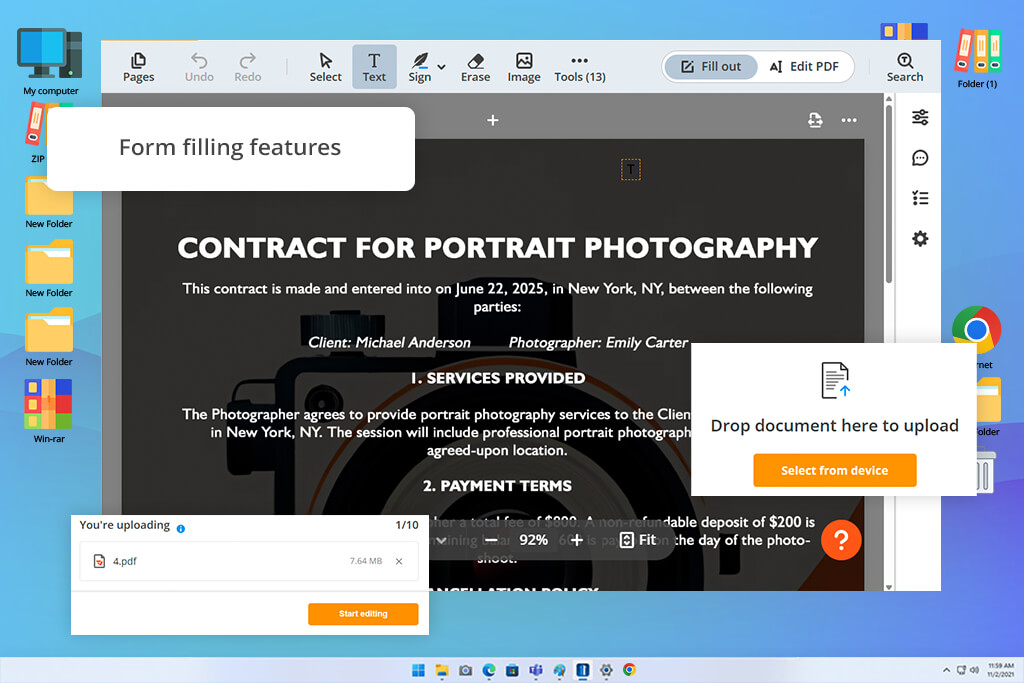
pdfFiller should be near the top of your list of PDFgear alternatives if you’re primarily dealing with forms, e-signatures, and business documents. I used it for a contract and a client form, and I greatly enjoyed filling out the PDFs, adding e-signatures, and preparing the documents for sharing.
This solution offers more control than PDFgear while also having a slightly busier interface. It’s one of the most versatile open-source PDF editors on the market, which is why it appeals to users interested in transparent tools and offline functionality. For casuals, PDFgear is easier to use, but it can’t match the functionality of pdfFiller when it comes to technical tasks.
I appreciated being able to do everything in the browser. I could import a PDF, fill in the empty fields, edit different elements, and add e-signatures without installing anything on my device. This is particularly great for remote teams or freelancers who work from multiple devices.
The biggest downside is the price. pdfFiller is primarily aimed at people who frequently work with forms and e-signatures, not users who only have to merge or compress a document once or twice a month.
My advice: pick pdfFiller if your PDF workflow is based around forms and signatures rather than visual editing or creative PDFs.
Best features:
Pricing: Basic from $20/month or $8/month when billed annually;
Best for: advanced Windows users
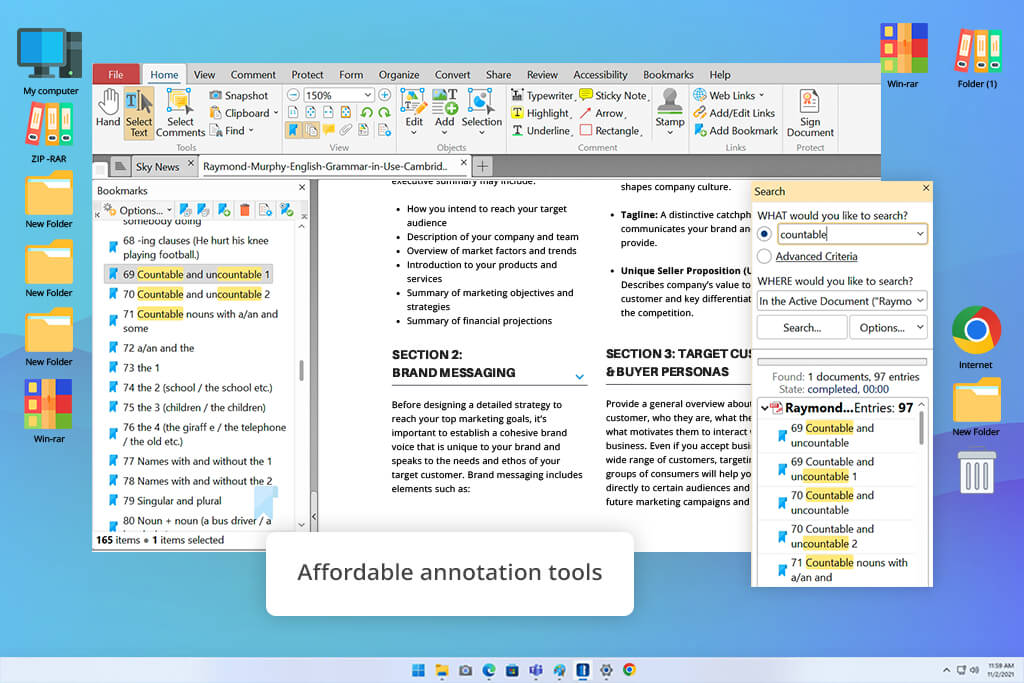
PDF-XChange Editor is a terrific PDFgear alternative for Windows as long as you don’t mind how technical it is.
I used it for scanned files, comments, stamps, and page editing. It did a great job tackling these projects while offering superior performance compared to heavier PDF editing applications. It’s particularly popular among advanced users since it provides a wide range of features without imposing expensive subscription prices as other companies do.
“With PDF-XChange Editor, I recommend gradually learning the ropes and personalizing the UI, as the workflow becomes a lot more convenient once you customize it.”

Compared to PDFgear, PDF-XChange Editor feels significantly more powerful and advanced. While the former is more user-friendly, the latter provides a significantly more diverse and robust toolset once you master the basics.
Its biggest drawback is the UI. The large number of buttons and tools makes the learning curve rather steep. However, if you’re a Windows user who wants a free or budget-friendly PDFgear alternative, then PDF-XChange is worth your attention.
My advice: pick PDF-XChange Editor if you’re looking for more control over your PDFs and are ready to put in some time into learning it.
Best features:
Pricing: Free version available; PDF-XChange Editor from $62 lifetime license
When trying to find the best PDF editor like PDFgear, my FixThePhoto team and I accounted for our own professional needs when preparing the test. We rely on PDF editors for handling contracts, invoices, client briefs, article drafts, portfolios, app review notes, and internal guides. As such, I didn’t want to review all the options based solely on their marketing promises.
I began by compiling a roundup of solutions recommended by Google results, popular review sites, and specialized forums. Next, I eliminated options that came across as too niche, dated, or restrictive for everyday tasks. The list I ultimately arrived at included Adobe Acrobat, Foxit PDF Editor, PDFelement, Nitro PDF, PDF Expert, Smallpdf, iLovePDF, pdfFiller, and PDF-XChange Editor.
During the testing process, I imported the same types of documents into each PDFgear alternative:
Our top priority during the test was evaluating the editing quality. Some software looks great until you begin editing existing text, which leads to ruined formatting, broken spacing, and a clunky structure. Adobe Acrobat, Foxit, PDFelement, and Nitro offered the best results in this regard.
OCR is also very important. I frequently have to deal with scanned documents that need to be converted into searchable and editable PDFs. Adobe Acrobat and PDFelement are the clear winners here, while PDF-XChange Editor is also a great pick for Windows users.
Speed was another crucial consideration. Free browser-based platforms like Smallpdf and iLovePDF are terrific at tackling quick tasks, but they can’t replace a more advanced PDF editor. However, they’re still perfectly capable of compressing, merging, splitting, and converting documents.
For security-related projects, Adobe Acrobat and Foxit are the most dependable options. I would rely on them for legal, financial, or confidential documents since they provide more professional controls compared to basic free PDFgear alternatives.
Lastly, I examined the pricing. PDFgear is popular since it’s free, so potential alternatives need to justify their cost. Some solutions are only worth the money if you’re dealing with PDFs daily. Others are a better fit for users who only rarely need help with their PDF documents.
Having finished our test, Adobe Acrobat stood out as the best option since it offers the most complete PDF feature set. Foxit has the edge when it comes to collaborative functionality, while PDFelement is my go-to when I require AI assistance.



![9 Best Image Brighteners Online [{{%year}} FixThePhoto Choice]](http://fixthephoto.com/blog/images/gallery/news_main__preview_29194.jpg)


![9 Best AI Audio Silence Removers [{{%year}} FixThePhoto Choice]](http://fixthephoto.com/blog/images/gallery/news_main__preview_29189.jpg)
![9 Best AI Virtual Try On Outfits Tools in {{%year}} [100% FREE]](http://fixthephoto.com/blog/images/gallery/news_main__preview_29082.jpg)

![11 Best AI Sticker Generators [Simple for Non-Designers]](http://fixthephoto.com/blog/images/gallery/news_main__preview_28980.jpg)

















