Working as a content creator, I often need to produce tutorials, product walkthroughs, and other educational materials. Recently, I had to record multiple on-camera videos for our platform and realized that it was challenging to memorize long scripts. I decided to use a teleprompter for that project and realized that I did not need to purchase professional software or pay for a costly subscription. I wanted to find a web-based service that did not require any setup.
This is why I thoroughly tested a variety of free online video teleprompters to choose the best options for actual recording sessions. I asked my colleagues from the FixThePhoto team to test these solutions in different setups to check whether they were suitable for webcam recordings and DSLR shoots. Besides, we tested whether it would be possible to perform external monitor configurations.
We compared these solutions in terms of scrolling smoothness, customization options, performance in fullscreen mode, and script management capabilities. It helped us choose the most suitable free online teleprompter for video recording for our workflow and understand whether each of these tools would allow us to maintain natural eye contact with the camera.
I decided to include into this list only the tools that were suitable for different recording tasks. Some of them are more suitable for quick browser-based recordings and automatic scrolling. More advanced tools support mirrored text for beam splitter teleprompters, can be controlled remotely, have a collection of adjustable fonts and layouts, or come with a set of recording features.
I ranked tools higher if they allowed me to perform regular teleprompting tasks for free, were easy to set up and use, did not require software installation, and delivered consistent performance during recording sessions.
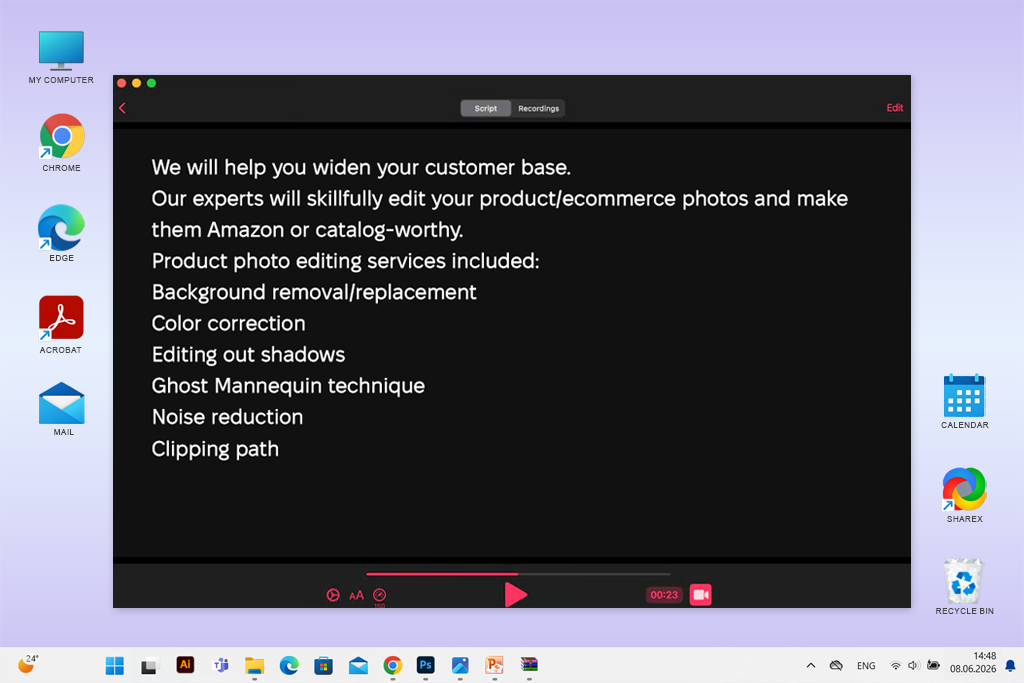
Even if you choose an excellent teleprompter, it won’t make it easier for you to read a poorly written script. Before testing web-based teleprompters, I prefer to spend a couple of minutes improving the script I use. By editing a script, I can improve delivery and minimize the number of retakes.
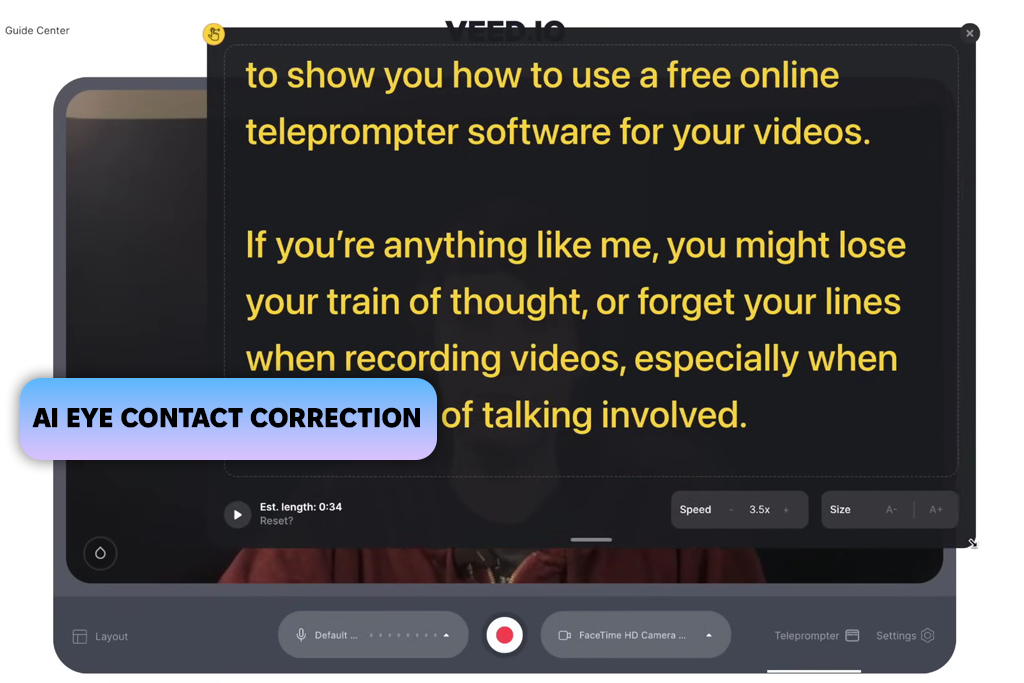
Together with my colleagues, we unanimously agreed that VEED is the best free online video teleprompter available today. We wanted to find an online-based service that would have all the tools we needed. VEED allows us to perform every task quickly without using third-party tools.
While testing it, I pasted my script into the teleprompter, selected the most suitable webcam layout, chose the right scrolling speed, and launched the recording process instantly. I could access every tool from the same browser tab, which helped me streamline my workflow. I did not need to use a separate teleprompter and dedicated recording software.
“I prefer to use VEED because I can paste my script and create a recording without switching to other platforms. After getting a take I am satisfied with, I trim the beginning, add subtitles automatically, and export the output. It allows me to save a lot of time, especially when I need to record multiple short clips during the day.”

I prefer to use VEED because I like the fact that it makes my recording process quite streamlined. While reading the text, I could change its size and adjust scrolling speed without interrupting the whole process. It ensured that the script matched my pace and allowed me to sound more natural.
After stopping recording, I used the built-in editor to trim pauses and generate subtitles automatically. I did not need to export my recording to third-party editing software, which saves me a lot of time when I need to create short videos.
In addition, I like the fact that VEED has other features besides the teleprompter. With it, I can record the screen and webcam together when working on tutorials. Besides, its AI Eye Contact correction was especially useful when I got distracted.
The editor comes with many useful features, which makes its interface a bit too convoluted for those who prefer to use a basic teleprompter for simple text scrolling. However, after using it for several recordings, I realized that I like the fact that I can access so many tools and do not need to switch between different platforms.
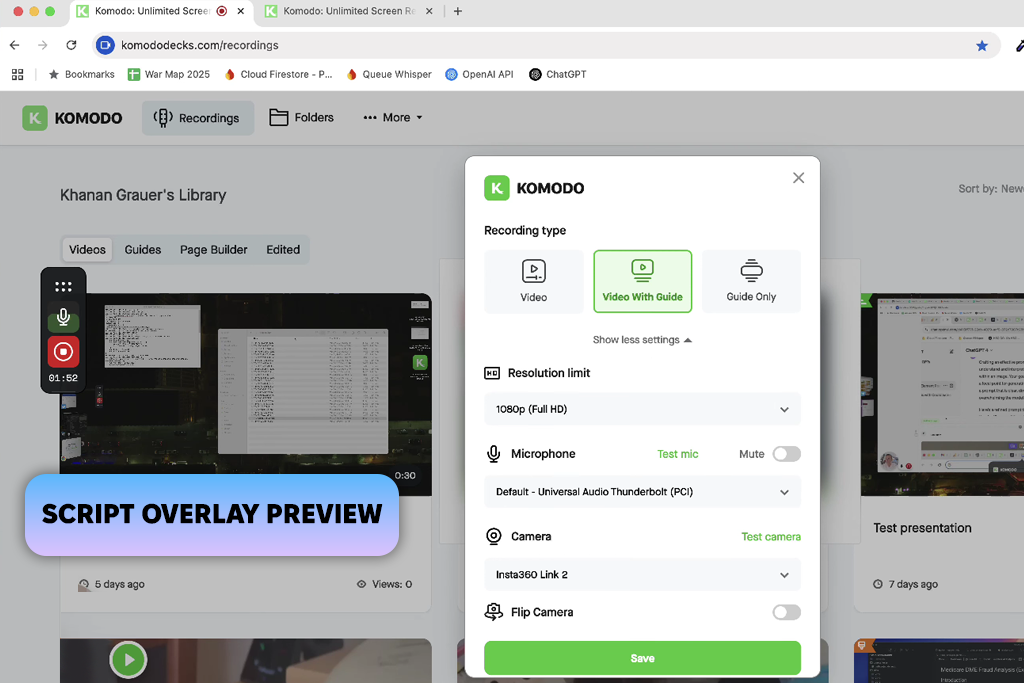
Kommodo is probably the most intuitive teleprompter I tested. Its simplicity is one of its main advantages. I pasted my script quickly, granted access rights to my camera, selected a suitable font size, and started the recording process.
What makes it different from advanced free screenwriting software is that its settings are easy to master, which allows me to pay more attention to my recording. I could see the script displayed over the camera preview, so I did not need to look at different parts of the screen while reading the text.
“It was easy to see the script over the camera preview clearly, which meant that I was looking toward the lens more. I would like it to have a customizable layout so that I could organize the elements in the recording window the way I see fit, but it’s still an excellent choice for quick recordings. While using it, I forget about the limitations of its interface quickly.”

I liked using this free online teleprompter with camera when capturing short talking-head recordings. The automatic scrolling feature was quite accurate and helped me simplify my workflow. When I clicked the Record button, the text started moving quickly. It stopped when I finished the recording, so I did not need to worry about playback synchronization.
I tested various scrolling speeds and decided to choose a slower pace, as it matched the natural rhythm of my speech perfectly. This service does not add the teleprompter text to the outputs, so I could focus on the recording without worrying that the text would be added to the exported file.
I was pleased to discover that Kommodo records in HD format and does not add watermarks even when I use its free version. With it, I could produce clean outputs ready for sharing. Its streamlined interface does not have any distracting elements.
However, this means that it might be more challenging for you to customize the recording layout and choose another position for various elements like the webcam preview. Despite this minor limitation, this software is perfect for situations when I need to record multiple short clips per day.
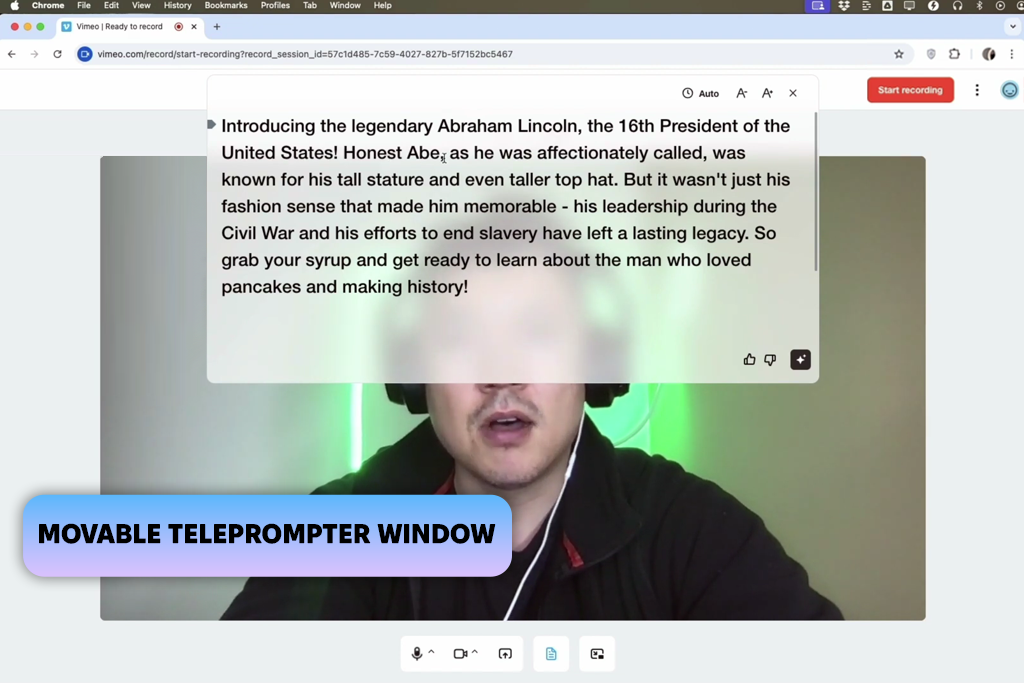
I had some prior experience with using Vimeo as webinar software, so I knew how to navigate its interface when I started testing its teleprompter.
I wanted to check whether this feature could be actually useful for my workflow. I recorded short voiceovers for my tutorial. I could see the script on the screen clearly during the recording and concluded that Vimeo can easily compete with dedicated teleprompters.
What I liked the most about this free online teleprompter for YouTube videos and other content was that I could resize and reposition the teleprompter box with ease. I moved it closer to my webcam, increased the font size, and changed the scrolling speed so that my eye movement would become more natural. When I stumbled, I removed this segment during post-processing using the text-based editor. It helped me trim my videos quickly. I already knew how to use Vimeo to host recordings, so I could perform every task without leaving this platform.
The AI script generation tool was also quite useful for creating drafts. However, I typically write scripts on my own and use such tools only for subtle adjustments. Vimeo delivered a seamless performance when I accessed it from desktop and mobile devices. The only shortcoming that I noticed during the testing is that it was impossible to access the screen-sharing option while using the teleprompter.
I do not consider it the best option for software demonstrations, but it’s perfectly suitable for producing presenter-focused videos. It comes with a set of helpful recording and editing tools, which makes it unnecessary for me to use other apps.
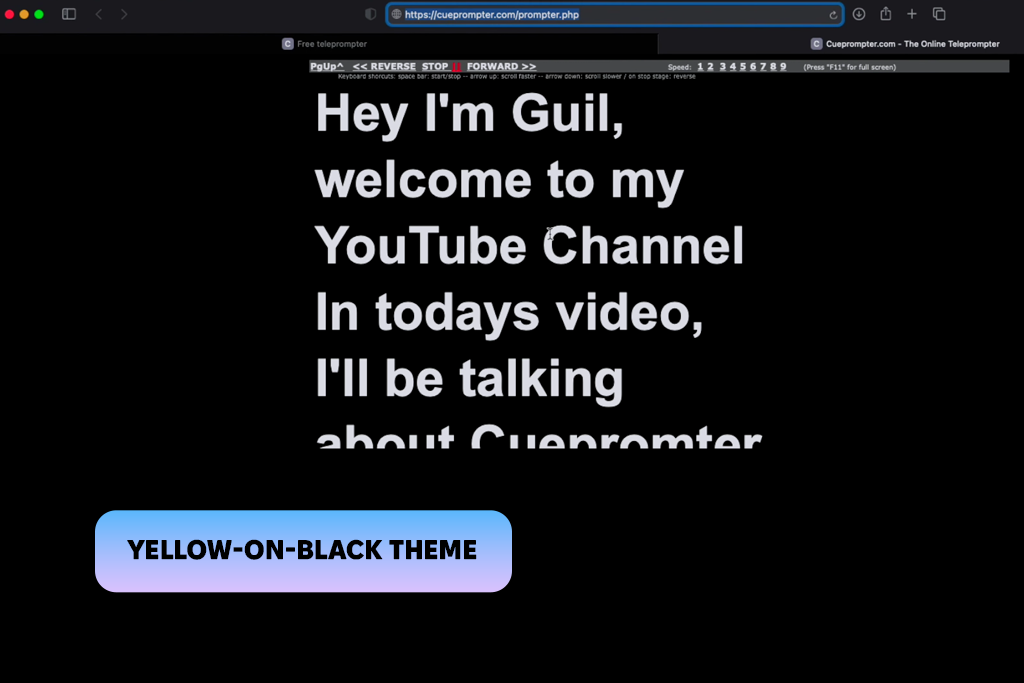
CuePrompter fully met my expectations as it’s perfect for the task it was designed for. Unlike other services that allow users to access recording, editing, and publishing tools, this solution is mostly suitable for displaying a script.
I did not need to sign up or master a complex interface, as its functionality is quite streamlined. After pasting a lost script, I adjusted the scrolling speed to my liking and was able to fully focus on my recording session.
“I use CuePrompter whenever I need to instantly access a web-based teleprompter. I prefer to read script from a separate monitor, which is why I often use the mirror move and color themes to simplify my workflow.”
This strategy helped me enhance my reading experience. I could choose a suitable color theme depending on the lighting in my office and adjust text size. Besides, I tested Mirror Mode when using a teleprompter setup to check whether the script would be displayed without being distorted.
The page stayed responsive all the time because only the teleprompter was running. However, as this service is so basic, you will need to use third-party software to record or edit your videos. CuePrompter was basically built for a single task.
I still use this free online teleprompter for TikTok and other platforms when I need to see a script clearly. It has become an integral part of my workflow, as it delivers a stable performance and does not have any distracting elements. I can access it quickly from my laptop and phone, which allows me to switch between different devices while working on my projects. Besides, I like the fact that I do not need to worry about subscriptions, usage limits, or watermarks.
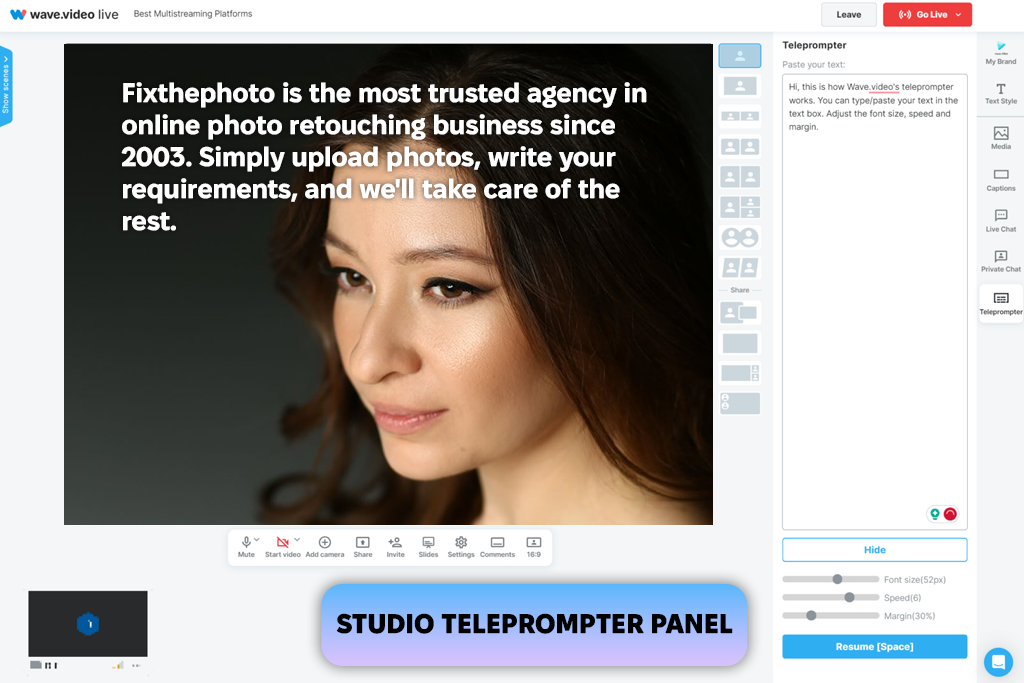
I discovered WaveVideo when I wanted to find reliable teleprompters accessible from a browser. At first, I thought that it was just another simple scrolling streaming video recorder.
However, this platform exceeded my expectations as it has quite extensive functionality. As I wanted to find some services that would allow me to create videos, I decided to test it together with more specialized tools.
“When I discovered how to use its features, I started to use this platform until the video was ready for publication. I did not need to switch between different tabs, because all the tools were available in one place. I prefer to use its web version from my desktop device because the performance feels more seamless.”

Rather than opening the teleprompter immediately, I first created a recording inside the studio, then switched to the Teleprompter panel and pasted my script there. That extra step actually made sense because the script became part of the recording environment instead of a separate window.
I could adjust the scrolling speed, keep reading the text naturally while recording, and publish the output without exporting my files to a third-party app. However, you will need to create an account to access all the features available in this studio.
In addition, I wanted to check whether this free online teleprompter for Reels would be suitable for working with live content. Unlike many web-based services, this teleprompter supports livestreams and regular recordings. It is especially useful for those who need to switch between prerecorded and live presentations. I prefer to access it from my desktop computer, as its online interface feels more responsive. When noticed it from my mobile devices, I noticed some lag.
My colleague Kate was the one who recommended testing Speakflow. She told me that she often used it when working on scripts with other editors. After testing it for some time, I realized why she liked using this service so much. Speakflow is perfect for those who work on scripts together with their colleagues. It allows users to revise scripts, comment on them, and improve wording before starting a recording.
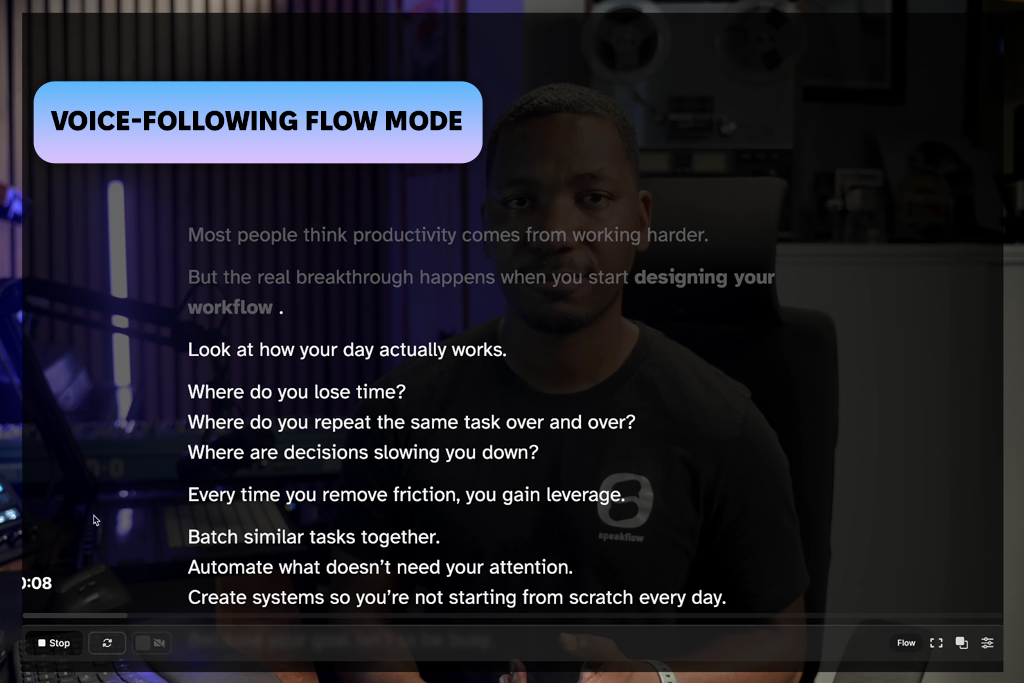
“I prefer to rewrite a script multiple times before starting a recording, which is why I especially liked the fact that this service supports the revision history. In addition, I liked using Flow Mode. It’s more convenient than fixed auto-scrolling because it allows me to pause for a bit and resume the recording quickly.”
I was especially curious about Flow Mode, as in this mode the free online webcam teleprompter follows your mode automatically instead of scrolling text at a specific speed. I could make pauses between paragraphs, repeat some sentences, and change the pace of my speech.
It felt as if someone was controlling the teleprompter manually, which made the recording experience more enjoyable. The voice tracking feature delivered consistent performance, but I noticed some delays when I resumed speaking after a long pause.
I also liked the fact that it was possible to access the revision history because I rarely manage to get the output I need after the first take. I could restore the earlier versions of the scripts, analyze edits, and resume from the point where I stopped without saving every edit manually. I could synchronize my files and access them from different devices. It allowed me to switch between my tablet and laptop with ease. However, one should keep in mind that this service prioritizes recording workflows over live streaming.
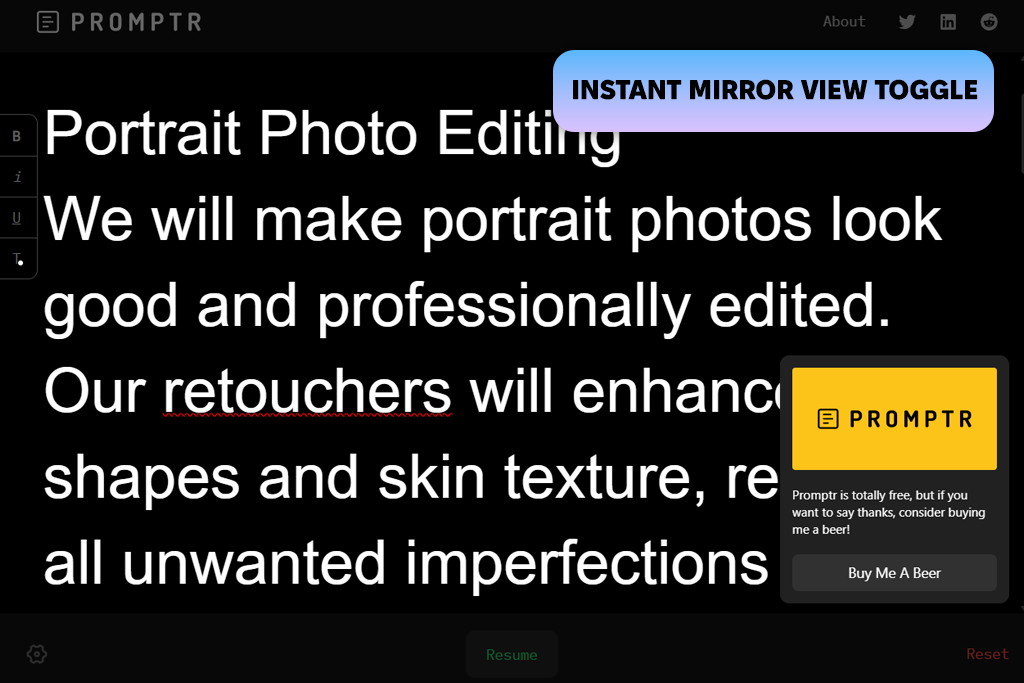
I exported one of my longer scripts into Promptr and changed its formatting a bit before recording. I did not need to take any extra steps. This free online script teleprompter has a stripped-down interface, so nothing distracted me from the text. I adjusted the font size and spacing to make the text easier to read. Then, I switched between the standard and mirrored views.
I was pleased to discover that I could change the way my script looked without using any unnecessary tools. I made subtle typography adjustments, which streamlined long recordings and made it easier for me to read the text while I was standing farther away from the screen. I did not need to download any software or install it on my device, as I could access this service from a browser. I opened my script on different devices to check whether it would be easy to read on each of them.
However, I wish it had a set of built-in recording tools. Promptr was built as a teleprompter. I used it as an overlay that was displayed on top of other apps. If your recording software takes up the whole screen, you will need to change the window size manually to access both tools.
While testing these teleprompters, we wanted to see whether they can be used for production purposes instead of focusing on basic text scrolling. Every solution we tested was assessed during our recording sessions. We used various types of scripts, from short introductions to long tutorials, which helped us understand what services were better suited for longer sessions.
We wanted to know whether it would be possible to maintain natural eye contact with the camera while reading from the screen, knowing that most people use teleprompters exactly for this reason.
I did not want to compare these solutions only in terms of the available features. Instead, I decided to check whether these tools could streamline the recording process. I used them to choose the right scrolling speed, font size, spacing, text positioning, and color themes.
It helped me understand how well suited each service was for creatives with different speaking styles who use various types of recording setups. I also tested the mirror mode when it was available and used a physical teleprompter setup to check whether the reflected text stayed comprehensive.
“The main difference between teleprompters wasn't their number of features. The best options stood out among the rest due to the fact that I could quickly forget about them being there. It helped me focus less on scrolling and try sounding naturally.”
Kate also evaluated how quickly each teleprompter fit into a real workflow. Browser launch time, account requirements, script preparation, project organization, and overall setup time all influenced our assessment. Some tools were designed solely for displaying scripts, while others combined teleprompting with recording, editing, or publishing, so Kate considered whether those additional features genuinely reduced the amount of work required to produce a finished video.
Besides functionality, we were also interested in performance. Tati tested these solutions to see whether scrolling would remain smooth, checked whether browser behavior remained consistent during extended recording sessions, tried using the controls to assess their responsiveness, and analyzed the performance of these tools across different screen sizes.
Besides, she wanted to know whether these services could be accessed from multiple devices. Tati also tested voice-controlled scrolling, AI-assisted editing, and collaboration tools when they were available. It allowed her to understand whether these solutions were suitable for practical recording tasks.
Finally, I tested each free online video teleprompter to understand whether it would be suitable for different recording scenarios. I used these solutions to record talking-head videos, tutorials, presentations, tutorials, and short messages for clients. We did not want to focus only on platforms with many features. Instead, we ranked the tools higher if they supported natural recording, helped us optimize our workflows, and helped us maintain a consistent speaking rhythm without any interruptions.





![7 Best Free Monogram Makers [{{%year}} FixThePhoto Choice]](http://fixthephoto.com/blog/images/gallery/news_main__preview_29343.jpg)



















