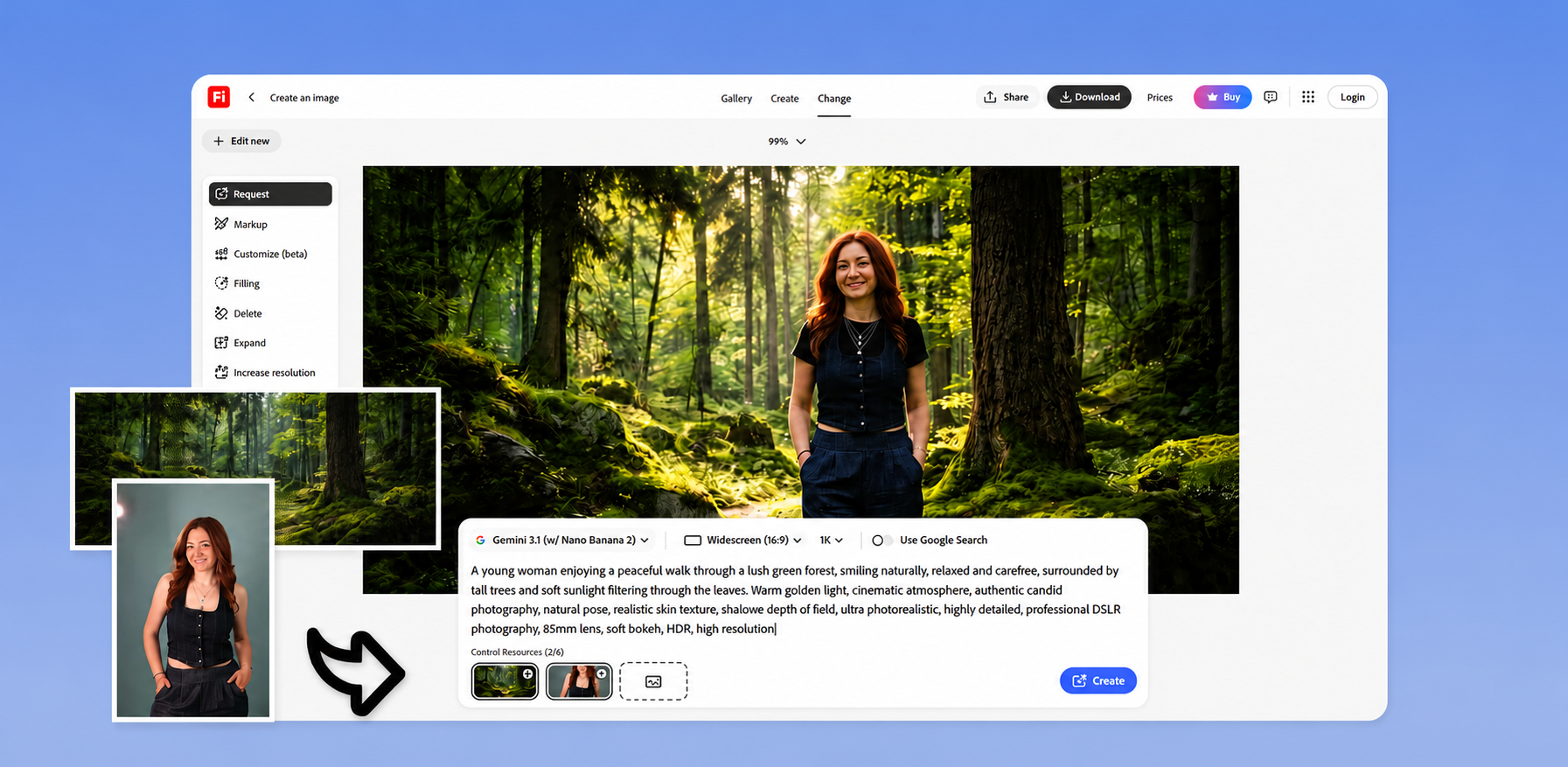
As an AI specialist and content creator, I often rely on Adobe software, which is why I often use Adobe Firefly to generate marketing visuals, produce concept art, and create social media content. Many of our readers ask me how to use this platform. Besides, they want to discover how to generate high-resolution images in Firefly. Many people want to know how to do it to ensure that their outputs have a professional look and are suitable for printing, advertising materials, or commercial projects.
You can choose a suitable strategy depending on your project, the version of Firefly you have access to, and the desired quality. I asked my colleagues from the FixThePhoto team to help me create this detailed guide, knowing that they work on professional photo enhancement and retouching tasks daily. Together, we decided to find the best way to generate, upscale, and firefly Firefly pictures while maintaining high quality and level of detail. Read on to discover which workflow suits your needs best.
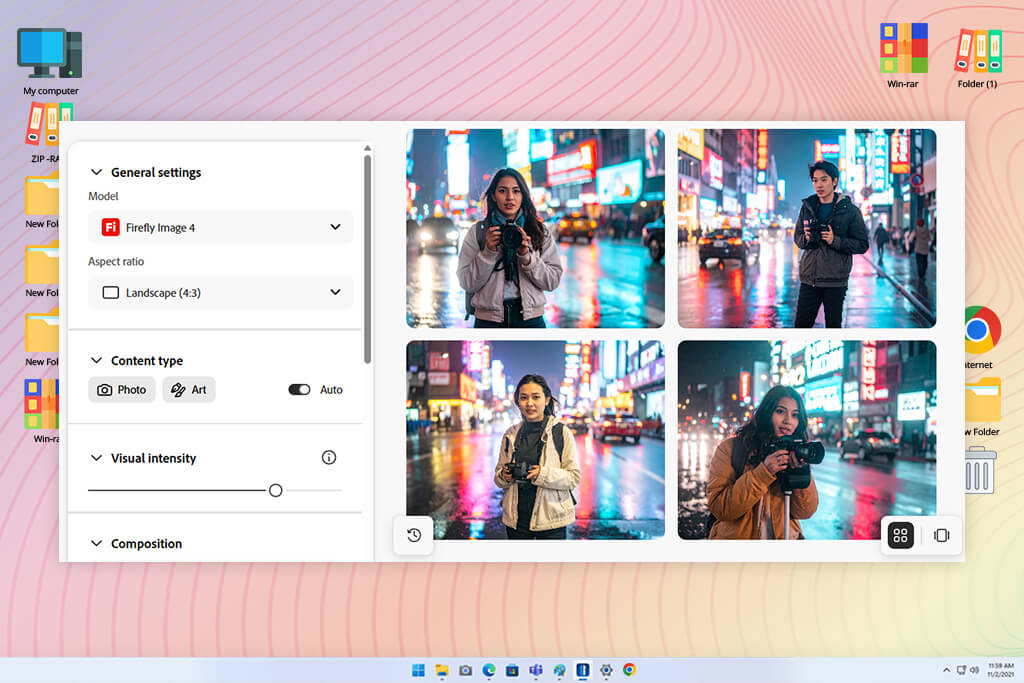
If you want to know how to generate high resolution images in Firefly, consider the quality you need. Next, be sure to learn what resolution Adobe Firefly supports by default. Firefly's Text-to-Image feature allows you to generate images with a resolution of 2000 × 2000 pixels. This resolution is perfect for social media, web graphics, presentations, and digital projects.
However, it might be less suitable for your needs if you are interested in creating posters, large-format prints, billboards, or assets that should be cropped. Firefly does not have a standard workflow that would allow users to generate 4K or 8K images.
The maximum resolution depends on your Firefly workflow. If you use Firefly in Photoshop, you can use Generative Fill and Generative Expand features to produce new visuals in sections of up to 2000 × 2000 pixels.
It will allow you to enlarge the canvas without increasing the native resolution of the details. If you prefer Adobe's Creative Production workflow for enterprise users, you can generate visuals with a longest side of up to 8,190 pixels. This option is perfectly suitable for large-scale commercial production.
Another thing that is important to remember is that one should not confuse resolution and image quality. Even though new Firefly models allow one to achieve clean textures, realistic lighting, and a high level of detail, the pixel dimensions remain the same.
If you upgrade to the most recent Firefly model, it will allow you to enhance image quality without making your files larger. If you want to get a high-resolution image that you can edit at a professional level or prepare for printing, it’s better to use Firefly to upscale your image with the help of the AI.
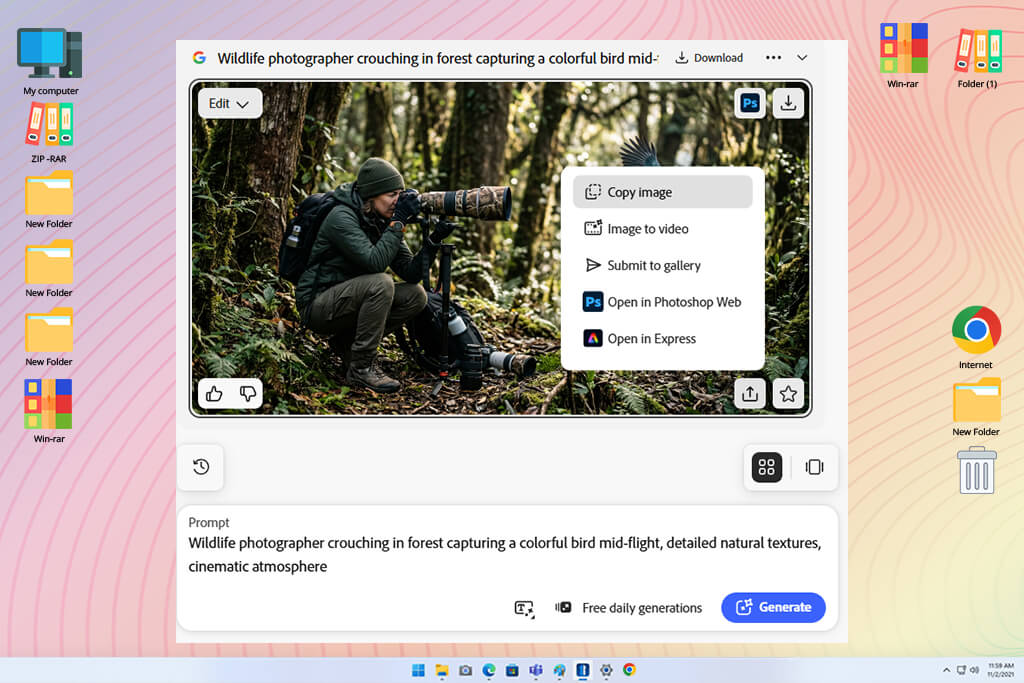
If you want to generate high-resolution images in Adobe Firefly, keep in mind that it’s no longer necessary to use only third-party upscaling tools. Adobe now allows users to access the Generative Upscale feature under the Edit tab. With it, you can increase image resolution while maintaining the original quality and level of detail.
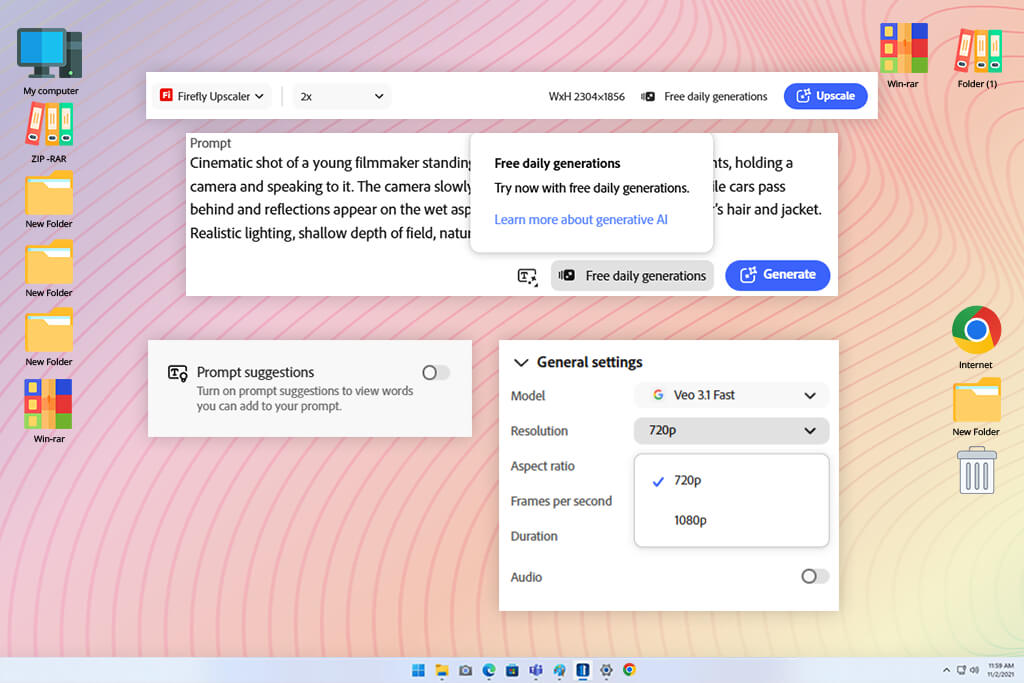
First, generate a picture in Firefly, go to the Edit tab, and find the Generative Upscale option in the left toolbar.
Firefly allows users to choose from three AI models. Each of them is suitable for specific tasks:
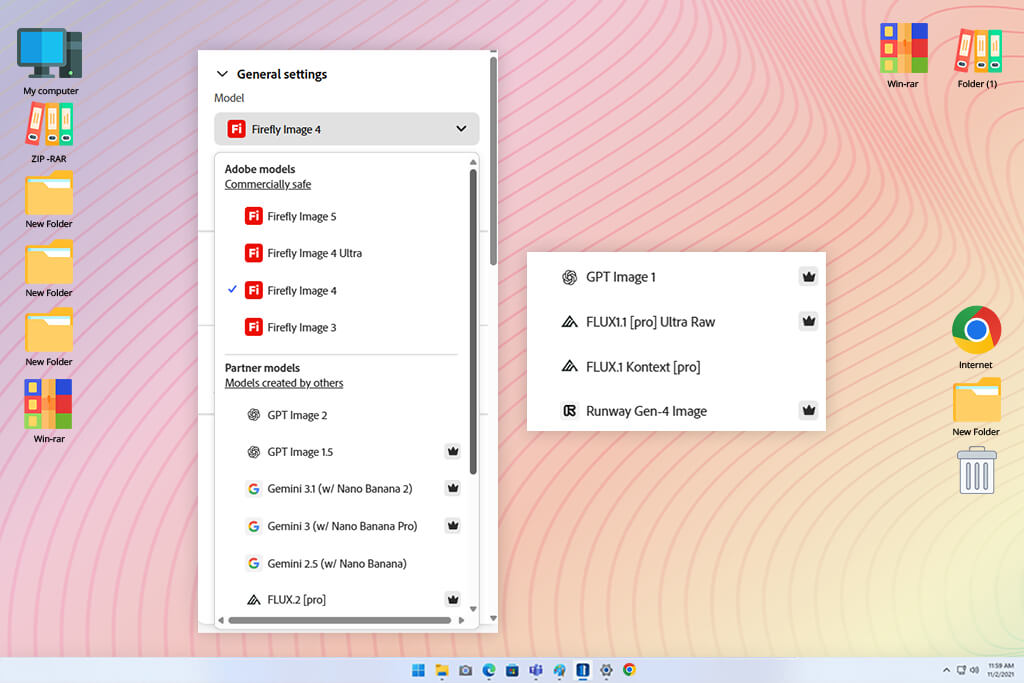
“If you need to maintain the original look of your image, use it with Firefly Upscaler. If you need to upscale professional photos or produce images ready for printing, use Topaz Gigapixel to achieve clean outputs.”

Decide on how much you need to enlarge your picture. Firefly supports such options:
Before processing an image, Firefly allows you to preview the dimensions of the output. This way, you can choose the desired final pixel size before spending credits.
“It’s not always the best solution to upscale an image to a larger size. A 4× upscale allows you to make your image significantly larger, but you will need to wait longer and spend more credits to get it, depending on the model you choose.”

Some models allow you to adjust controls to produce better outputs. For instance, Topaz Bloom has a helpful Creativity slider:
Topaz Gigapixel comes with the Face Recovery option, which allows one to restore facial features, increase sharpness, and keep facial expressions natural when upscaling blurry or low-resolution portrait photos.
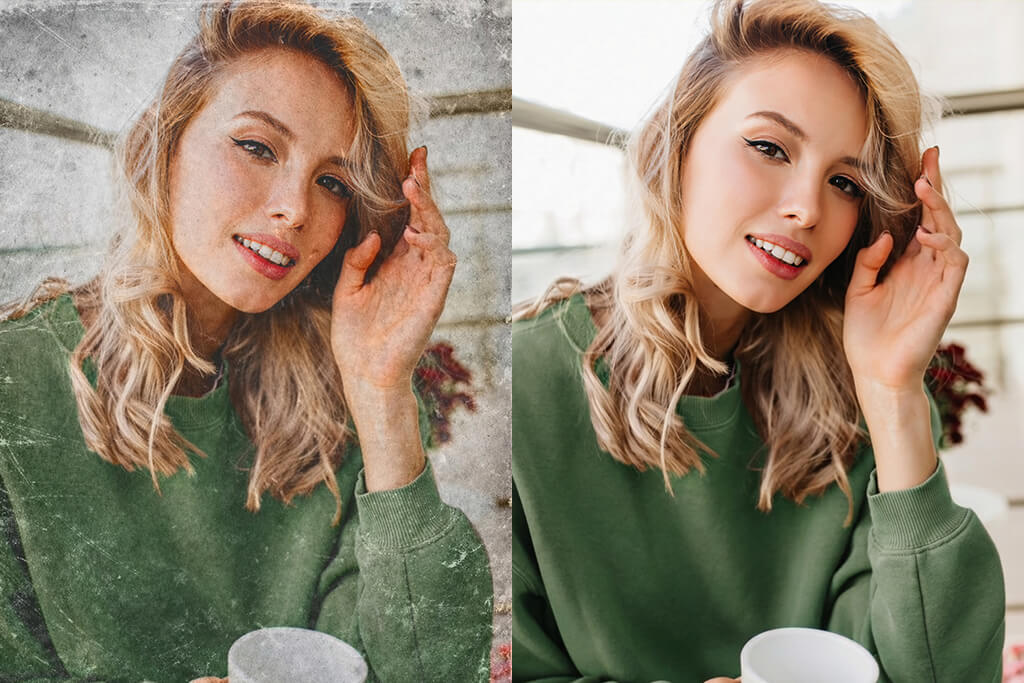
“Activate the Face Recovery option when upscaling pictures that include people. It will allow you to produce outputs with clean eyes, natural skin texture, and realistic facial features without additional retouching.”

After choosing the right settings, click Upscale and wait until Firefly produces the output. If you want to regenerate the image, click the Reset button to produce a new version.
Remember that the number of credits you need to spend depends on the AI model. Before you click the Upscale button, hover the cursor over the indicator next to the button to see how many credits it will cost you to generate Adobe Firefly high-resolution images.
When working on my projects, I prefer to save my pictures in PNG format when I need to keep every detail intact. This format is perfect for lossless compression, as it allows one to keep the edges sufficiently sharp, achieve fine textures, and use gradients without causing artifacts.
In contrast, JPEG is associated with strong compression. It optimizes file size at the cost of image quality. Even though the difference might be barely noticeable after the first export, repeatedly saving a JPEG file might result in significant quality degradation.
Compression is another issue that many people disregard without recognizing its importance. If you save your image as JPEG, do not choose aggressive compression settings to optimize file size. It’s better to choose a quality level of 90–100% to achieve the right balance between file size and quality.
When exporting files in PNG format, there is no need to worry about degrading image quality. However, the outputs will be much larger. When I want to edit my files or increase resolution in Photoshop or third-party software, I create a master copy in PNG format and save the final versions in JPEG.
It’s highly recommended to choose the format based on the way a picture will be used. PNG is typically the best choice for saving AI artwork, working on visuals with text, saving files with transparent backgrounds, performing professional enhancements, and preparing files for printing. JPEG is more suitable for websites, blog posts, emails, and social media.
A small file size allows one to achieve higher page loading speed. If you don’t know what format to choose, export your file in high-quality PNG format first. You can create smaller JPEG copies at later stages. It will be impossible to recover lost details after compression.
If you want to print pictures generated with the help of Adobe Firefly, consider pixel dimensions and the desired print size. If you need to produce high-quality prints, I recommend you choose 300 DPI (dots per inch). This resolution is considered the industry standard for brochures, posters, magazines, and photo prints.
However, print quality depends not only on DPI. Your picture should have enough pixels. For instance, a picture that will be used for an 8 × 10-inch print should be at least 2400 × 3000 pixels at 300 DPI. Firefly produces 2000 × 2000-pixel outputs, which means that you will need to upscale your pictures before printing them.
“I prefer to calculate the pixel dimensions I need before generating or upscaling a picture. When I know the print size I need, it’s easier for me to choose the right upscaling option and ensure that the quality of my image won’t be affected.”
Many people mistakenly believe that they can boost image quality by increasing image resolution from 72 DPI to 300 DPI. However, DPI impacts only pixel density. It does not produce new image data. If the source image does not have enough pixels, you won’t make it sharper if you increase DPI. I prefer to upscale my pictures first with the help of Firefly's Generative Upscale or a third-party AI upscaler, and then choose the suitable DPI in your editing software when preparing them for printing and exporting them.
“Before upscaling a picture, zoom in to 100% and analyze the image. If you discover issues with unnatural hands, facial features, or undesired objects, regenerate your image. It is easier to fix such issues at the early stage instead of trying to enhance a picture after enlarging it four times.”
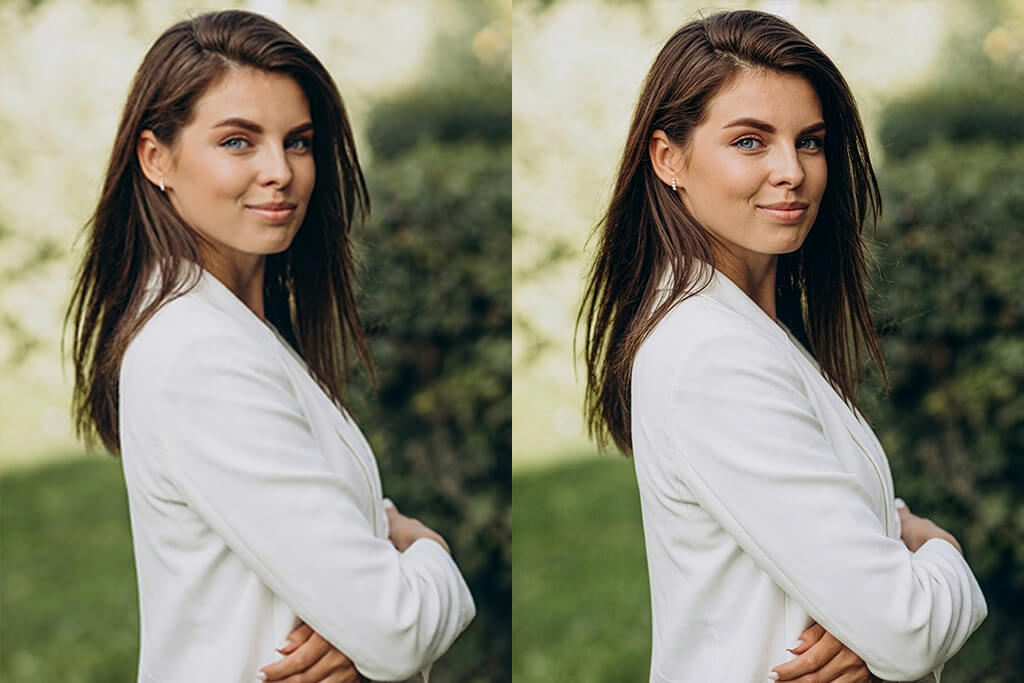
“Consider upscaling the final step instead of trying to use this option to enhance a low-quality image. I prefer to create the cleanest and the most detailed version first, knowing that AI can enhance a source image, but it delivers worse performance when one needs to add missing details.”
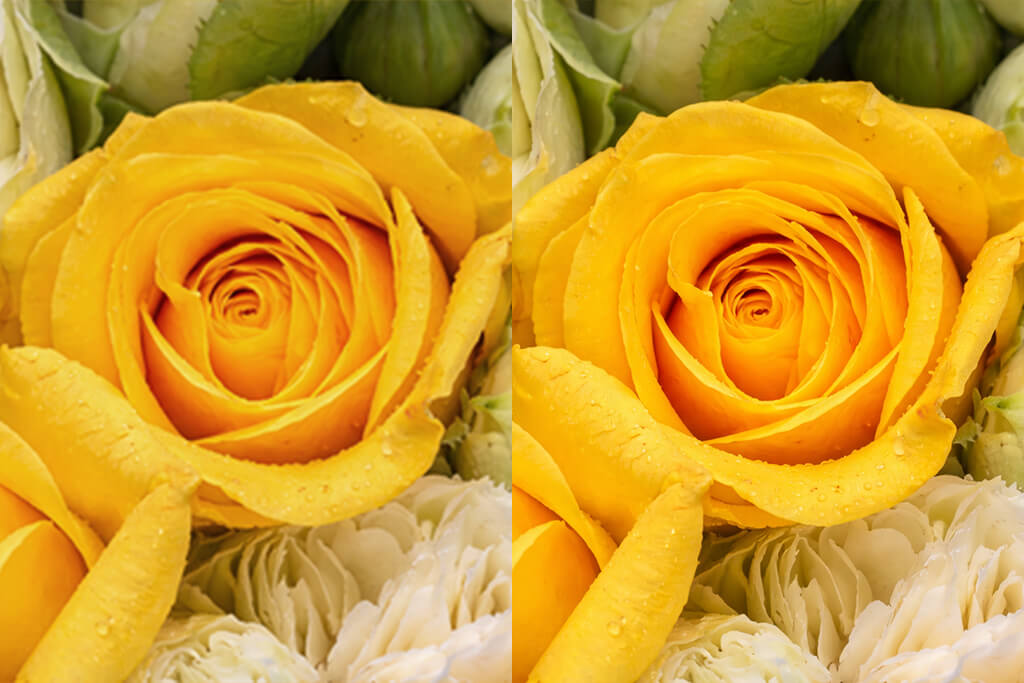
These days, AI upscalers do not focus on stretching pictures. They detect patterns, recognize textures, and define edges to create new pixels that will make a picture more detailed and eliminate blur. Even though they do not add new details, they boost the visual quality of Firefly pictures.
Firefly's Generative Upscale is better suited for improving the quality of the whole image. If you need to upscale a certain area, for instance a face or a particular product, you can achieve better outputs if you edit this area in Photoshop using AI tools or by cropping, upscaling, and blending the segment with the source image.
The output depends on the model you decide to use. Firefly Upscaler preserves the style of the original image, while models like Topaz Bloom might add new textures and creative details. If you want to keep the original style, use the lowest setting values and compare several outputs before exporting your image.
Regenerating a picture is a better choice in most situations. If the picture is blurry, has anatomy issues, or its composition does not look sufficiently balanced, upscaling will make these problems even more noticeable. This is why I prefer to make multiple generation attempts to get an image I am satisfied with. Then, I improve its resolution.
Yes, if the output image has the required resolution for the print size you need and is fully compliant with Adobe's licensing terms. After you use Firefly to upscale images, you can use the outputs to create posters, marketing materials, packaging, and all sorts of commercial projects. Be sure to check the resolution before printing.



![5 Best Podcast Cover Art Creators in {{%year}} [100% FREE]](http://fixthephoto.com/blog/images/gallery/news_main__preview_29304.jpg)

![Photoshop App on Android [NEW Release] {{%year}} Update](http://fixthephoto.com/blog/images/gallery/news_main__preview_29048.jpg)



















