I made finding the best tool to deskew PDFs online my goal after FixThePhoto saw a significant increase in HR work. I have to frequently scan documents, candidate applications, invoices, onboarding papers, and contracts, so being forced to adjust each tilted page manually was incredibly time-consuming.
I needed to find an online platform since I tend to do my work across several devices, including my PC, laptop, and a shared workstation. A browser-based solution lets me handle PDFs without installing any apps or requesting access from the system administrator.
To determine the most promising options, I reached out to my FixThePhoto colleagues to help me test more than 30 tools suggested on Reddit, YouTube, and PDF-oriented communities. Team members who also deal with documentation examined precision and batch performance, while designers, editors, and photographers prioritized the user experience and result quality.
What I want from the best online PDF deskew tool:
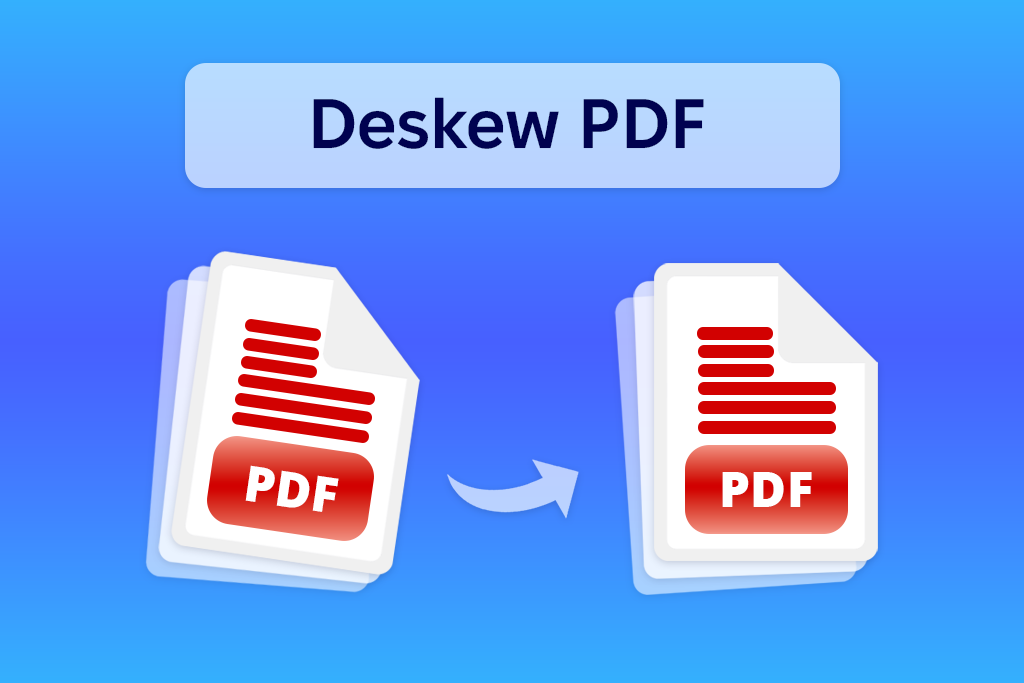
Deskewing realigns pages that were scanned at an angle. It’s not the same as rotating a sideways page by 90 degrees. You use such an online tool to straighten PDF pages by identifying tilted lines, borders, and tables and performing subtle corrections to ensure the text is displayed horizontally.
It might seem like a minor change, but for HR docs, misalignment can lead to multiple serious issues.
Best for: HR teams, contracts, archives
Platform compatibility: Web, Windows, macOS, iOS, Android
Pricing: Free online tools and Reader; Acrobat Pro from $19.99/month or $239.88/annually with a yearly plan billed monthly. A free trial is available.
My coworkers from FixThePhoto recommended I take a better look at Acrobat. They already rely on many other Adobe applications, so they trusted its PDF-oriented solution as well.
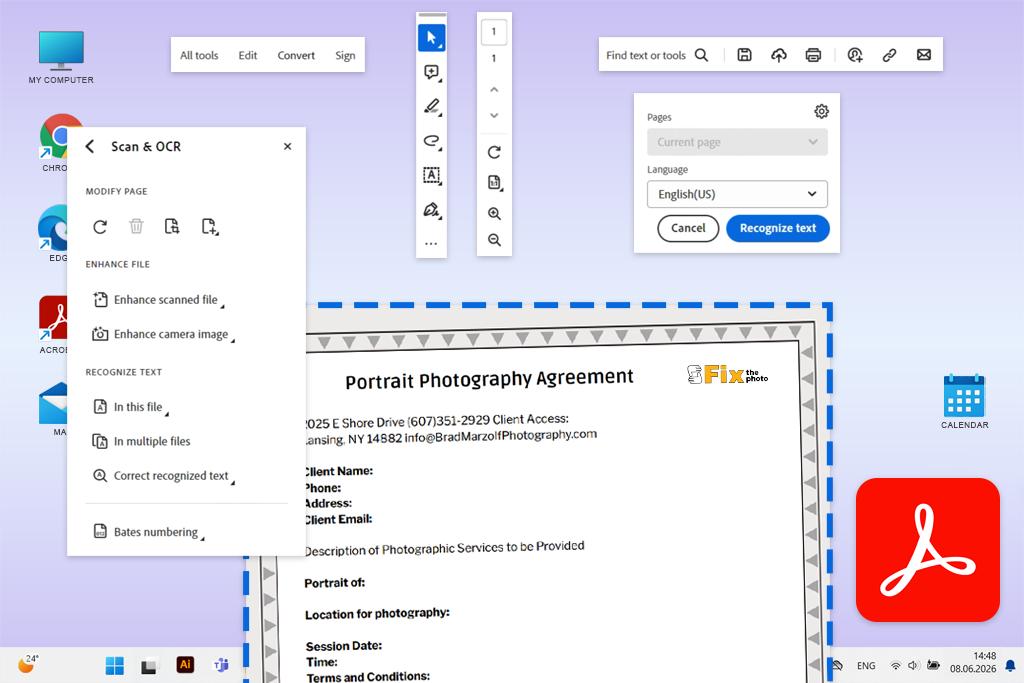
It just might be the best tool to deskew scanned PDFs online due to how simple it was to rotate PDF pages in Acrobat and straighten scanned documents. I imported my PDF, chose the desired enhancement tools, and the platform automatically identified and fixed skewed pages without demanding any complicated steps.
“Acrobat is a great choice for both occasional use and professional needs that prioritize precision and output quality. Remember to preview pages with sensitive margins since automatic correction can impact the edge content.”

I used it for a 46-page hiring archive that featured tilted forms, stamps, handwritten notes, and multiple pages photographed on my smartphone. Acrobat adjusted small angles consistently and ensured the fine print remained clear. The main benefit is that it solves the issue of skewed pages, enhances contrast, and converts scans into searchable PDFs.
OCR was particularly handy whenever I wanted to find a specific employee in a lengthy scanned document. Additionally, I appreciated the inclusion of the redaction, page comparison, compression, and e-signature feature as well as the provided AI-assisted summaries.
I primarily rely on Acrobat for contracts, personnel records, and big mixed-quality archives. I recommend never using maximum compression if the document includes handwriting or small stamps. Additionally, it’s important to preview files with narrow margins to ensure the automated correction doesn’t delete edge content.
Best for: Quick scans and manual angle control
Platform compatibility: Web, Windows, macOS, Linux
Pricing: Free for documents up to 200 pages or 100 MB, with 3 tasks per hour and one file per free task. From $7.50/month for Web or $63/annually for Desktop + Web.
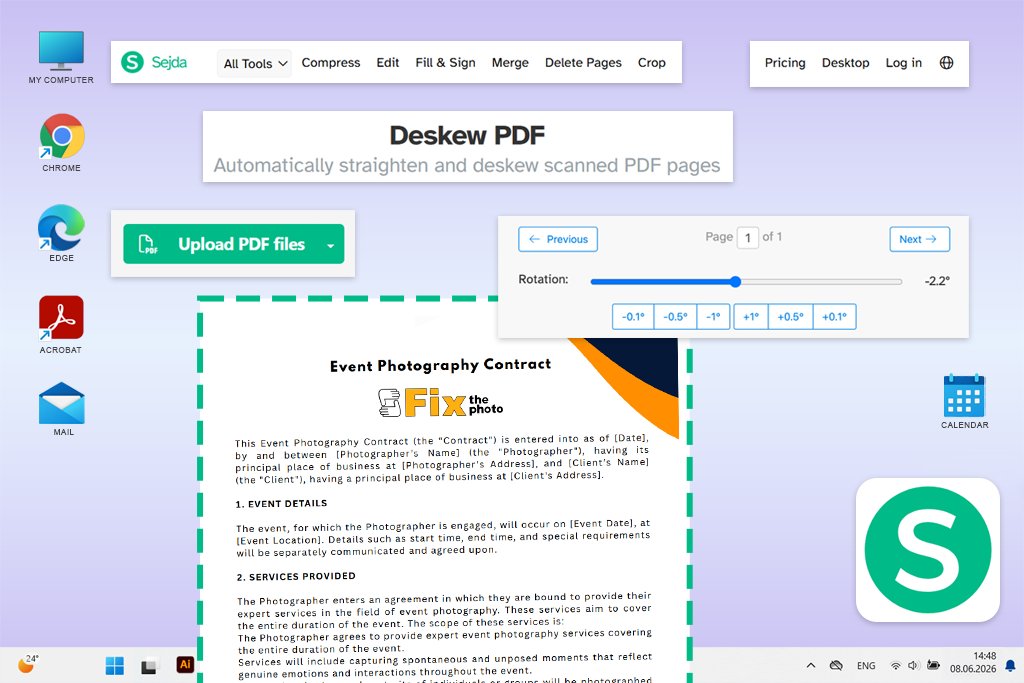
I found Sejda when googling for the best tool to deskew PDF pages online for non-tech-savvy users. You simply have to import your document, pick either Automatic or Manually page by page, and click Deskew PDF.
Automatic mode did a good job tackling regular office scans, while manual mode allowed me to tweak the orientation in increments as small as 0.1, 0.5, and 1 degree. It’s particularly handy if one of the pages has a logo, table border, or handwritten message that can mess with automatic corrections.
I used it for candidate questionnaires scanned via an office multifunction printer. Many pages were slightly skewed, and each page was tilted by a different angle. Sejda straightened the text without applying the same adjustment to the entire document. The output looked polished, and all the text remained legible, although it couldn’t enhance faded pages as prominently as Acrobat could.
Other handy features include OCR, crop, resize, repair, compression, page organization, and tools to delete pages from PDF. Sejda has proven to be very useful for fixing skewed PDFs quickly without having to install any desktop solutions. It’s a great fit for receipts, questionnaires, classroom handouts, and moderate-size scanned documents.
It also offers a worthwhile free plan since you can deskew PDFs without paying for a subscription. That said, the free version only lets you process one document at a time, and the imposed limits make Sejda a poor fit for big HR archives. Premium plans offer multi-file processing, uploads up to 500MB in size, and get rid of page and hourly limits.
Best for: OCR preparation and archived scans
Platform compatibility: Web; Windows, macOS, Linux, mobile browsers
Pricing: Free, with no paid subscription mentioned; files are erased automatically after 30 minutes.
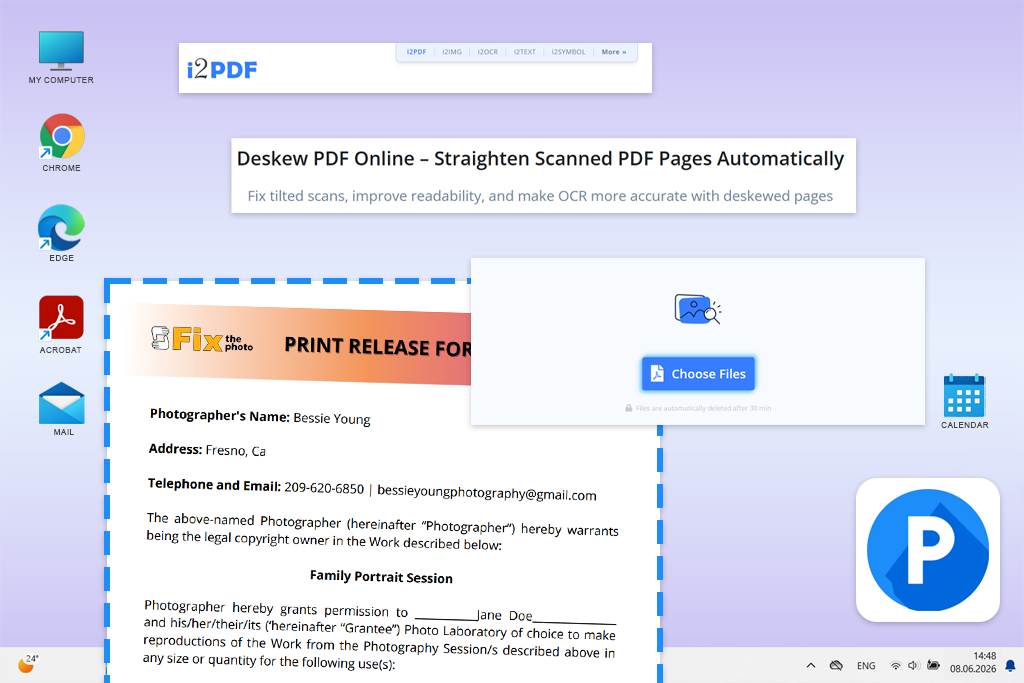
i2PDF is arguably the best tool to deskew PDFs online for free if you’re looking for a more lightweight browser-based solution. It was suggested to me on Reddit, and while its UI feels a bit outdated, the dedicated Deskew PDF page made it very convenient to use.
The process was pleasantly intuitive: I imported a scanned document, chose the export DPI and color profile, launched the deskewing, and saved the enhanced version. i2PDF automatically identifies subtle page tilts instead of asking you to tweak each page manually.
I used this PDF rotator software for an older bundle of onboarding forms that featured grey photocopies, thin table lines, and faded handwritten dates. The tool did a great job realigning the text, and I was particularly impressed by the export parameters. I appreciated the ability to set higher DPI for small print or pick grayscale if I needed a more lightweight file for archiving.
“Unlike most alternatives, i2PDF allows me to adjust skewed PDF pages while setting the resolution and color profile, which is why I value it so highly.”

It deletes imported documents after 30 minutes, which is great since it makes it more appropriate to use with files that have sensitive employee information. The provided Enhance Scanned PDF, Contrast PDF, Rotate PDF, and OCR features ensure i2PDF can be employed as a handy cleanup toolkit.
I primarily employ it for non-confidential scans that require a bit of preparation before OCR, particularly invoices, forms, and older office records. I suggest starting by rotating sideways pages since deskew only fixes slight angles, not 90- or 180-degree orientation problems. Highly misaligned or distorted pages might also demand rescanning first.
The free version is pleasantly appealing since the deskew tool and quality parameters aren’t locked behind a paywall. That said, I don’t recommend using i2PDF for large batches of HR documents since the workflow is still relatively basic.
Best for: Students and basic orientation fixes
Platform compatibility: Web, Windows, macOS, iOS, Android, Linux browsers
Pricing: Free with daily download and tool limits; Pro from about $10/month when billed yearly, with a 7-day free trial.
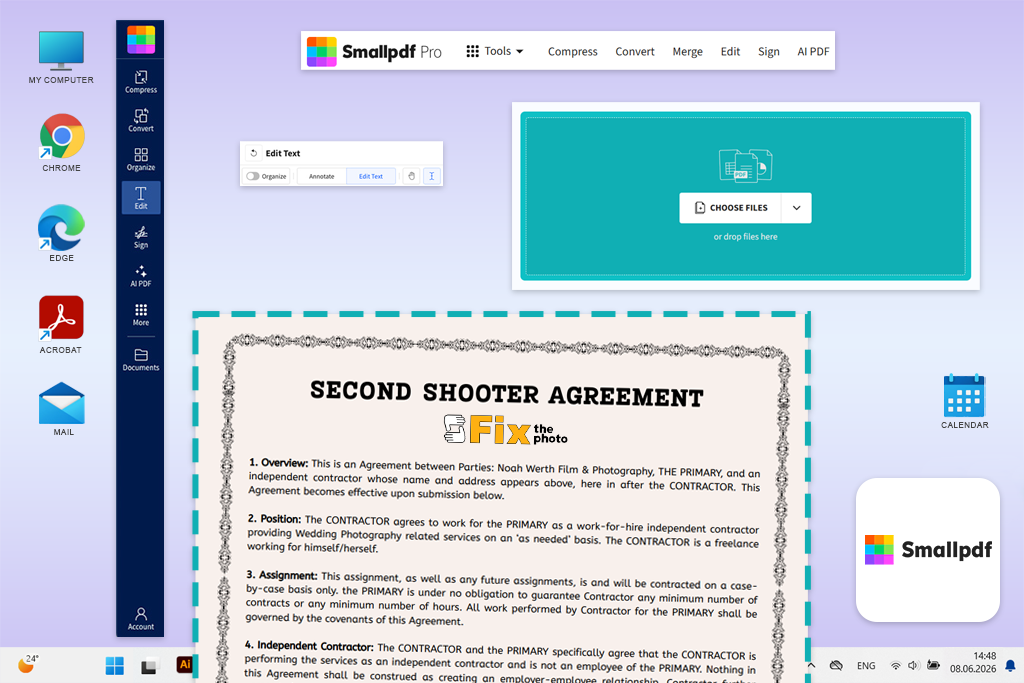
My sibling, who is still a student, suggested I use Smallpdf since they still rely on it for assignments, lecture notes, etc. I opened the Edit PDF section, which allowed me to rotate the pages. While it's suitable for fixing sideways or poorly-oriented pages, it doesn't allow making small-angle adjustments.
I used it for a variety of PDFs with upright forms, sideways pages, and multiple tilted scans. The import process was straightforward, and Smallpdf also lets you upload files from Google Drive, Dropbox, and OneDrive. Sideways pages were fixed easily, and the downloaded PDF preserved all the content and layout.
That said, the mildly skewed pages remained misaligned since the provided rotation settings don’t support precise angle adjustments. While this tool lets you align PDF pages online, I would recommend it to students as a comprehensive office solution. It offers OCR, compression, page organization, cloud integrations, an AI summarizer, Chat with PDF, and an online PDF translator.
I include Smallpdf in my workflow when I’m handling non-sensitive documents or using my phone, but it’s not my go-to solution for deskewing PDFs due to its lack of precision. If you only need subtle adjustments, use i2PDF or Sejda instead.
The free version offers all basic features but imposes limitations on downloads. The premium plan could appeal to students or teams who plan to use everything this suite has to offer, as paying just for deskewing isn’t worth it due to how restrictive this tool is.
Best for: Large batches and duplex scans
Platform compatibility: Web; Windows, macOS, Linux, mobile browsers
Pricing: Free; up to 30 files, 150 MB per file, and 200 MB total. No paid subscription is offered.
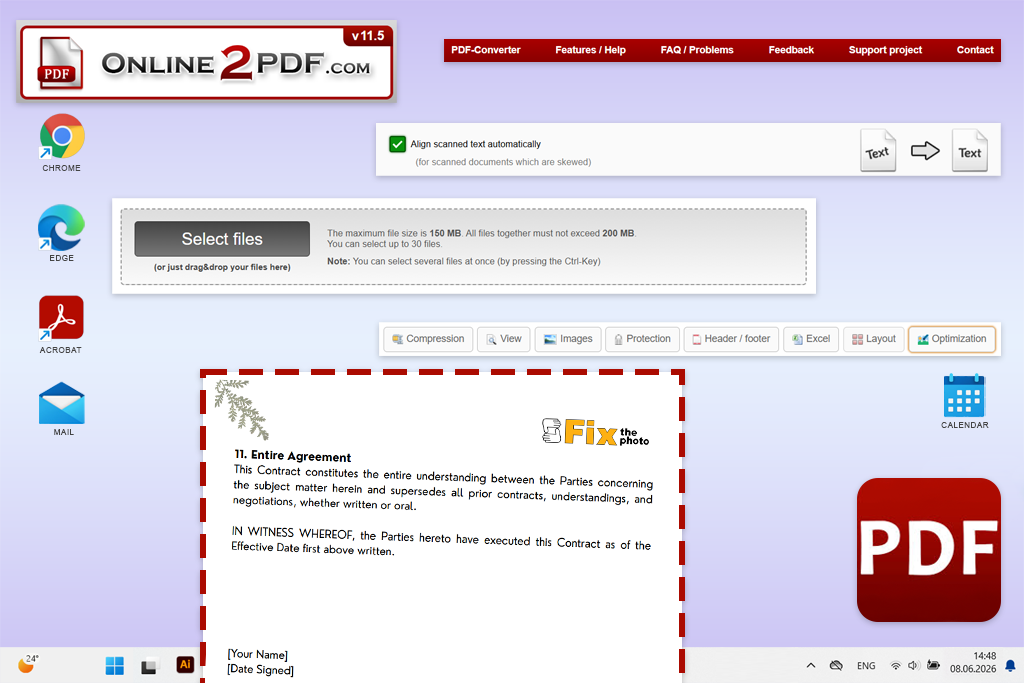
A coworker suggested Online2PDF when they learned I was looking for the best tool to fix skewed PDF pages online. I had to enhance multiple folders of HR documents simultaneously. Its specialized Alignment of Scans page offers deskew among a variety of other options. Having imported my documents, I could separate or merge them, apply OCR, tweak compression, reorder pages, and then press Convert.
“The platform is completely usable for free, offering generous limits without bombarding you with premium upgrade options. That said, some settings can initially overwhelm you, and you can’t set price angle adjustments.”

For my test, I imported 18 scanned candidate applications from two office scanners. The deskewed pages preserved their sharpness, and Online2PDF did a great job dealing with misalignments at slightly different angles. It also has a unique feature that lets you alternate pages from two files. You can use it to reconstruct a double-sided document when the front and back pages have been scanned and saved as two PDFs.
I only turn to this free PDF editor in situations when batch support is more important than a polished UI. It’s a handy tool for handling administrative archives, invoices, questionnaires, and duplex scans. I suggest converting files individually unless it’s your goal to create a single combined PDF and turning on OCR only if you require searchable text for your work.
Best for: Dirty, speckled, archived scans
Platform compatibility: Web; Windows, macOS, Linux, mobile browsers
Pricing: Free with limited daily actions; Premium costs $55/annually.
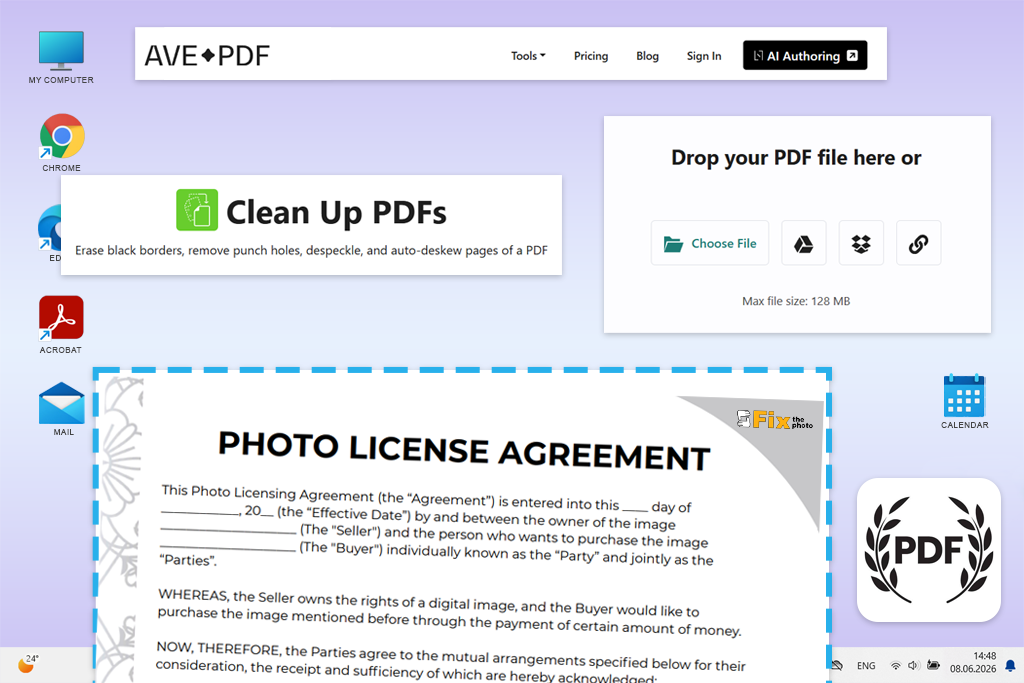
ChatGPT recommended AvePDF when I was looking for a platform that isn’t just a tool to correct tilted PDFs online. It offers a Clean Up PDF feature for deskewing, while also allowing you to get rid of speckles, black borders, blemishes, and punch-hole marks. This is why it’s more versatile than regular alignment tools.
I used it for photocopied employee records with grey backgrounds, dust, dark edges, and skewed text. This tool realigned the pages automatically while also cleaning them up. The exported documents were much better suited for archiving and OCR, even though faint handwritten lines can become a bit lighter if you apply an aggressive cleanup.
I think AvePDF is a great fit for older contracts, faxed forms, photocopies, and low-quality scans. This is the platform I often employ when I’m in need of tools to share PDF online when alignment is only one part of the issue. If I have a clean page with skewed text, I think other alternatives are a better choice.
I recommend preserving the original files and taking a good look at the stamps, signatures, and handwritten notes after enhancing the document. Cleanup filters are prone to deleting elements that resemble noise. The free plan also includes the deskewing feature, but you’re limited in the number of actions you can take. The $55 yearly plan is an attractive offer as long as you plan to use AvePDF often enough.
Best for: Sensitive files and manual adjustments
Platform compatibility: Web; desktop, tablet, and mobile browsers
Pricing: Completely free; unlimited use, no registration, and files up to 100 MB.
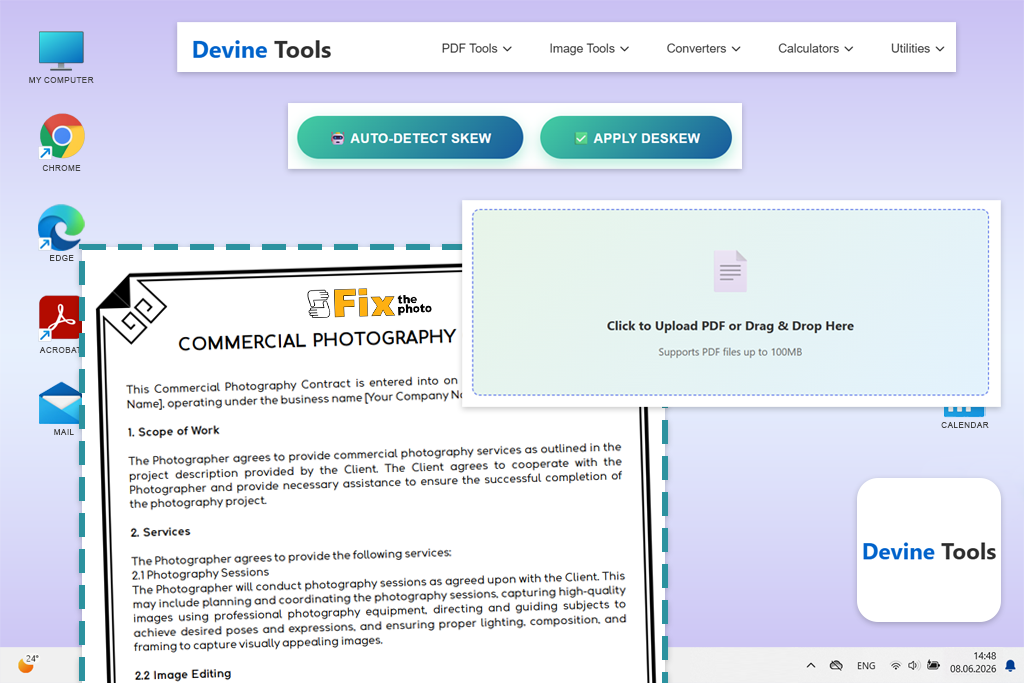
Devine Tools was highlighted in a YouTube video that showcased various browser-based PDF platforms. This tool lets you deskew documents online with the help of its Auto-Detect Skew and manual angle controls, meaning I could automatically adjust PDF pages while also making manual tweaks with 0.1-degree accuracy. A real-time preview helps me gauge the impact of each change.
I used it for scanned interview notes that featured tables, handwritten notes, and differently skewed pages. Automated deskewing provided impressive results on text-heavy pages, while the manual adjustments helped me deal with table borders. The output preserved its sharpness without suffering from visible compression.
I particularly appreciate the local browser processing done by this platform. All your information stays on your device, which is why this is a great solution for handling confidential PDFs compared to the majority of server-based alternatives. Additionally, it offers OCR, crop, rotate, flatten, an online PDF compressor, and metadata tools.
“I choose it for sensitive information that requires delicate page-by-page adjustments. I recommend closing other resource-consuming tabs before uploading a bigger file since otherwise your device can run out of memory.”

The free plan is very appealing: deskew is unlimited, you don’t have to make an account, and it doesn’t ask you to upgrade for money. The only drawback is that batch processing is related to handling multiple pages within a single document rather than handling several PDFs simultaneously.
Trying to find the best tool to deskew PDFs online wasn’t a one-day process. I organized a test environment with my FixThePhoto team, since we frequently deal with contracts, invoices, candidate forms, model releases, and other documents that often look imperfect. Our initial list featured over 30 platforms that we found on Reddit, YouTube, Google results, PDF forums, and office-productivity communities.
My coworkers who often process PDFs examined the offered precision, OCR, and batch functionality. Retouchers and graphic designers focused on ensuring the smaller text, stamps, signatures, and page edges preserved detail, while other colleagues evaluated how user-friendly the overall experience was.
Multiple popular options failed to make my final list:
We tested all platforms by uploading the same collection of documents:
Deskew precision. I imported pages tilted between around 0.5 and 7 degrees, including text-heavy contracts, tables, receipts, and handwritten forms. I evaluated whether the platform fixed each page separately instead of applying the same edit to the entire document.
Result quality. My coworkers enlarged small print, signatures, stamps, and slim table borders to check if the applied changes added blur, compression artifacts, or cropped important elements.
Batch performance. I uploaded both long multi-page PDFs and folders containing separate documents. I evaluated how much time it took to process the entire batch, while also accounting for whether there were any failed exports or disrupted page orders.
User-friendliness. We gave higher scores to solutions that made it easy to figure out how to import, deskew, preview, and save documents without having to watch a tutorial.
Privacy and limits. I checked if the edits were applied locally or using the developers’ servers, how much time the files stayed on the server, and whether I had to deal with page, file-size, or hourly limitations.
All the tools for deskewing PDFs online that made the list provided consistent results and helped streamline my workflow. Any platform that required additional manual work was discarded, regardless of how popular it is.



![9 Best AI Car Video Generators [{{%year}} FixThePhoto Choice]](http://fixthephoto.com/blog/images/gallery/news_main__preview_29281.jpg)



















