I handle a lot of client briefs, invoices, agreements, and work instructions, so I need to keep my files easy to find. This became a real headache when I received a folder with hundreds of PDFs named things like Scan_001.pdf, Document_Final2.pdf, and Untitled_47.pdf.
Every time I needed a particular editing brief, I had to open several files before finding the one I was looking for. I started looking for a way to rename multiple PDFs at once and make the whole folder easier to navigate.
I tried Windows File Explorer first, but it only helped with basic renaming, like adding numbers to file names. It couldn't recognize the contents of a PDF or tell a wedding photography contract from an invoice. Renaming hundreds of files by hand would have taken far too long, especially with several client projects already keeping our team busy.
Another thing worth noting is that bulk PDF renamers don't all work the same way. Some simply change existing filenames, while others can read PDF content and pick out details such as dates, names, and document types. A few AI tools also looked promising but required uploading files, which wasn't ideal for documents containing confidential client information.
Our FixThePhoto team test 30+ bulk PDF renamers from standalone tools and PDF editors to AI-powered solutions. During testing, we paid attention to a few key things:
The goal wasn't to find the fanciest AI tool. What mattered was finding a way to turn a messy client folder into an organized, searchable document library without creating more mistakes along the way. These tools stood out because each one works well for a different type of task:
The real test isn't whether an AI renamer can handle 300 documents. It's how many filenames still need fixing afterward. To compare the tools fairly, I'd split a collection of 300 documents into five groups:
| PDF category | Files | Main risk |
|---|---|---|
|
Client invoices
|
60
|
Wrong invoice date
|
|
Scanned receipts
|
60
|
OCR misreading numbers
|
|
Contracts
|
60
|
Confusing parties
|
|
Academic papers
|
60
|
Incorrect author or year
|
|
Editing briefs
|
60
|
Mixing projects or versions
|
The metric that matters most to me is the human review rate: Files needing correction ÷ total files × 100. For example, if 27 out of 300 filenames need to be corrected, the review rate is 9%. This is just an example to show how the calculation works, not an actual test result.
A fast AI tool that gets many filenames wrong may actually save less time than a slower tool that follows clear naming rules and gets things right.
The 4 AI naming mistakes I’d watch for:
Any filenames containing important financial or legal details should be checked and approved manually, even when the AI seems to get everything right.
Yes, but this is only possible with tools and settings that allow files to be processed locally.
| Method | Cloud upload | Best for |
|---|---|---|
|
Method
|
❌
|
Business and legal documents
|
|
PDF AI Renamer local mode
|
❌
|
Private Mac workflows
|
|
Renamer.ai cloud mode
|
✔️
|
General document automation
|
|
PowerRename
|
❌
|
Filename-based changes
|
For sensitive documents, it's safer to keep the original files on an approved local system. Cloud AI tools may be convenient, but their privacy policies, data retention rules, and processing options should be reviewed before uploading any files.
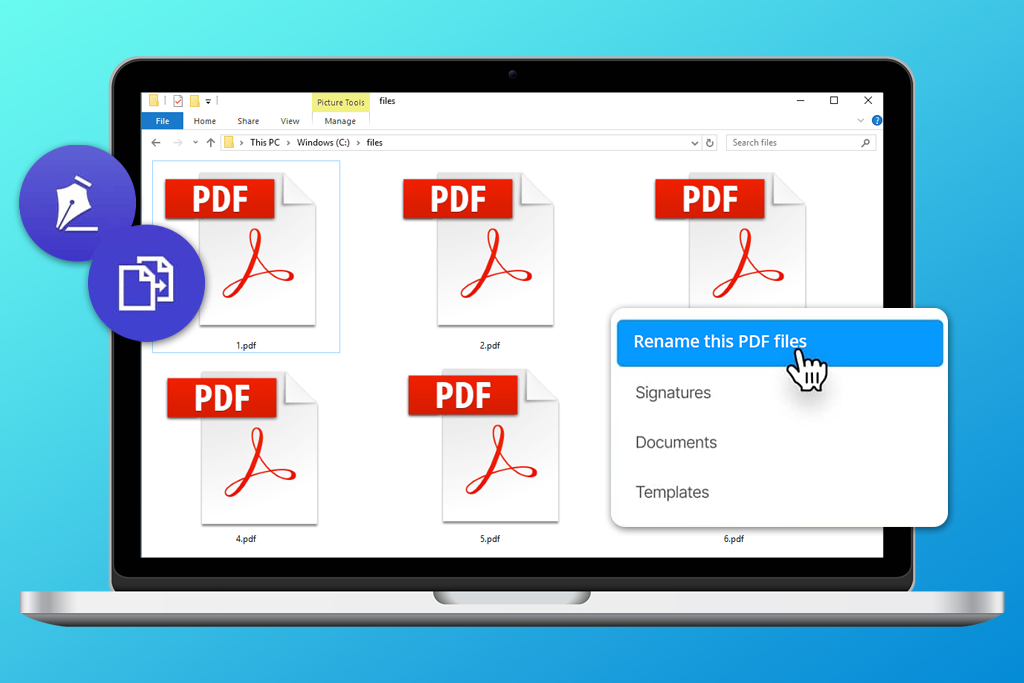
My favorite naming convention is: YYYY-MM-DD_Client_DocumentType_ID.pdf
For example: 2026-10-21_SmithWedding_EditingBrief_014.pdf
This format makes files easier to organize by date, clearly shows which client each document belongs to, and uses a unique ID to avoid duplicate filenames.
Some tools can read the PDF content and pick out the details needed for new filenames. PowerRename and Bulk Rename Utility can follow the same naming format when that information is already in the current filenames or a separate mapping file. You can also prepare a list of new filenames in Excel and use it to rename multiple PDF files at once with a CSV file.
AI PDF editors can help identify what's inside a document, but you'll still need a clear naming system to keep everything organized.
It's always a good idea to test the renaming process on copies before making changes to an actual client archive.
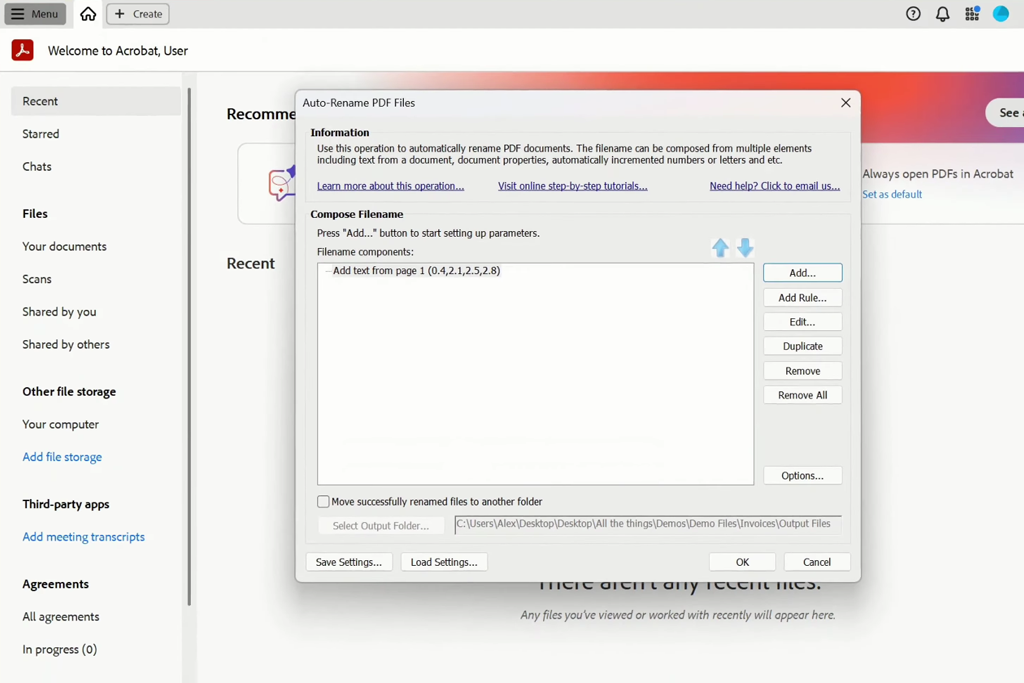
When working with client documents at FixThePhoto, I find Adobe Acrobat and EverMap AutoSplit Pro to be a reliable combination. Acrobat handles PDF editing and OCR, while AutoSplit adds the content-based renaming features needed to organize large batches of files.
The main benefit is that I can decide exactly how each filename is created. The naming rules can use extracted text, metadata, or document identifiers. For example, when processing invoices, I can pull the client name, invoice date, and reference number into each filename instead of ending up with a folder full of files named with random numbers.
“Setting everything up takes more time at first, but being able to reuse the same workflow for future batches makes the extra effort worthwhile.”

Another useful feature of this batch PDF renaming software is that AutoSplit lets me review suggested filenames before applying any changes. This is helpful when working with contracts from different clients that have almost identical layouts. For scanned PDFs, I use Acrobat's OCR to make the text searchable. AutoSplit can then read the recognized text and use those details to create new filenames.
I also find Guided Actions in Acrobat Pro useful. Combined with AutoSplit Pro, they let me turn repetitive PDF tasks into a workflow I can save and reuse instead of setting everything up from scratch each time. This comes in handy when working with a PDF splitter software workflow, especially when large document packages need to be split into smaller files before renaming.
This combination makes the most sense for regular business projects. The cost may be hard to justify for occasional personal use, but when the same workflow needs to process hundreds of documents every week, the investment becomes much more worthwhile.
Pricing: 30-day AutoSplit trial. AutoSplit Standard from $99 one-time; AutoSplit Pro from $149 one-time. Acrobat Pro from $19.99/mo with annual commitment. Each product requires a separate license.
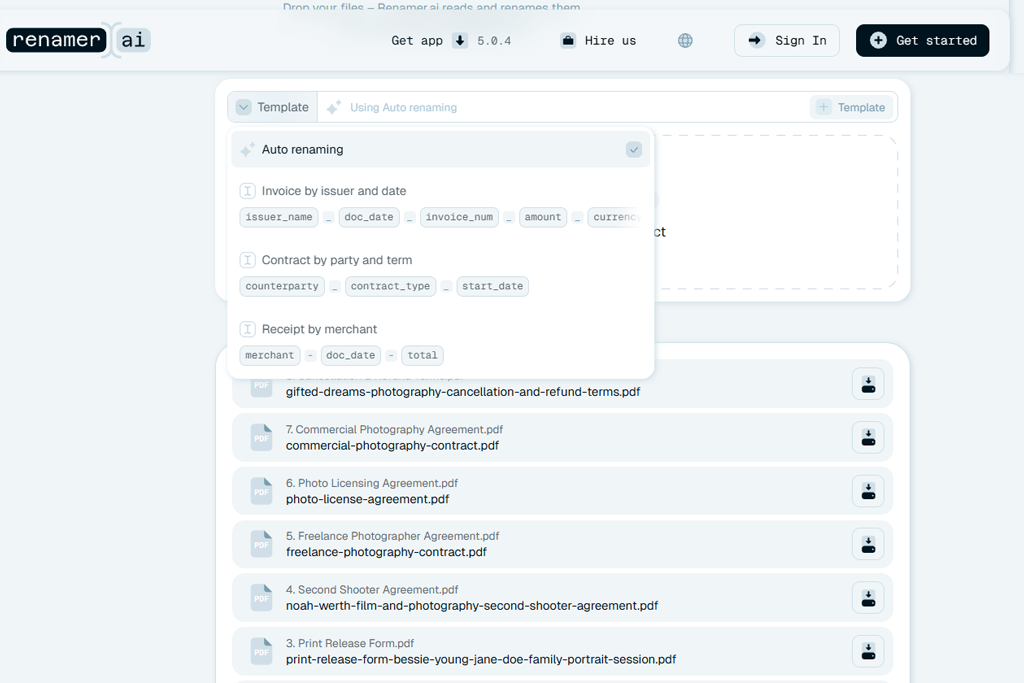
Renamer.ai is useful when a folder contains all kinds of documents, from invoices and contracts to work instructions. Unlike basic batch renaming tools, it doesn't rely on the original filenames. It looks at what's inside each PDF and extracts details like the document type, company name, date, and reference number.
The Template Builder is another handy feature of this bulk PDF renamer. It lets me set up a filename format and choose which details to include using simple instructions. This helps keep filenames consistent, even when documents come from different sources.
Magic Folder is also useful option. Once the source folder, naming template, and destination are set, new files can be renamed automatically using the same rules. This can save time when handling monthly accounting documents or files for new projects.
My main concern is that it might get some details wrong. For example, it could use the payment date instead of the invoice date, so I'd always check the filenames before applying the changes. Privacy matters too. Renamer.ai offers cloud and local processing options, but what's available depends on the plan.
For sensitive documents, an PDF redaction tool online can help remove confidential information from copies before sharing them. Just make sure the service meets your privacy requirements. Renamer.ai is a good option for freelancers, accountants, and businesses that handle lots of documents and need to identify what's inside PDFs rather than just change their names.
Pricing: Free - 25 files/mo. Pro from $9.95/mo for 200 files, Power User from $29.95/mo for 1,000 files, and Ultimate from $99.95/mo for 5,000 files. The prices shown are for annual plans.
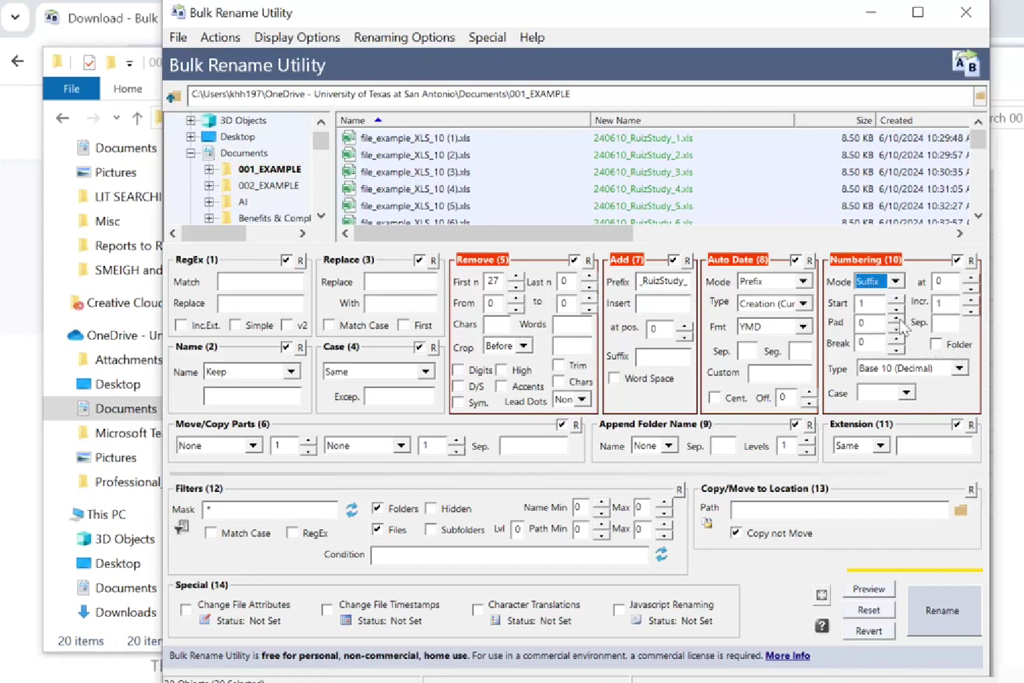
Bulk Rename Utility makes it easy to rename PDF files in bulk once you get used to its many settings. I'd use it when the filenames already contain the information I need. For example, files named ClientA_Invoice_Jan.pdf and ClientB_Invoice_Feb.pdf can be renamed in the same format using search and replace, prefixes, dates, and numbering rules.
It gives me more renaming options than Windows File Explorer. I also like that I can preview the new filenames before applying the changes, which helps me avoid mistakes when using more complex rules.
“After the initial setup, batch renaming becomes much simpler. However, getting familiar with all the options in Bulk Rename Utility takes a little time.”

Regular expressions make it easy to remove inconsistent project codes, while CSV renaming works well when there's already a list of approved filenames. I also like being able to save settings and reuse them. When similar folders come in every month, there's no need to set up the same rules all over again.
One drawback is that Bulk Rename Utility can't read the text inside scanned PDFs. It can use existing filenames and file details, but to rename files based on their contents, you'll need another tool to extract the text first. This is something to consider when choosing file renaming software.
I'd use Bulk Rename Utility for regular Windows tasks and organizing project archives. The license is reasonably priced for frequent business use, but the interface may be more complicated than casual users need.
Pricing: Free for personal, private home use. Home/academic license from $24.95; commercial license from $92.95 per computer, one-time.
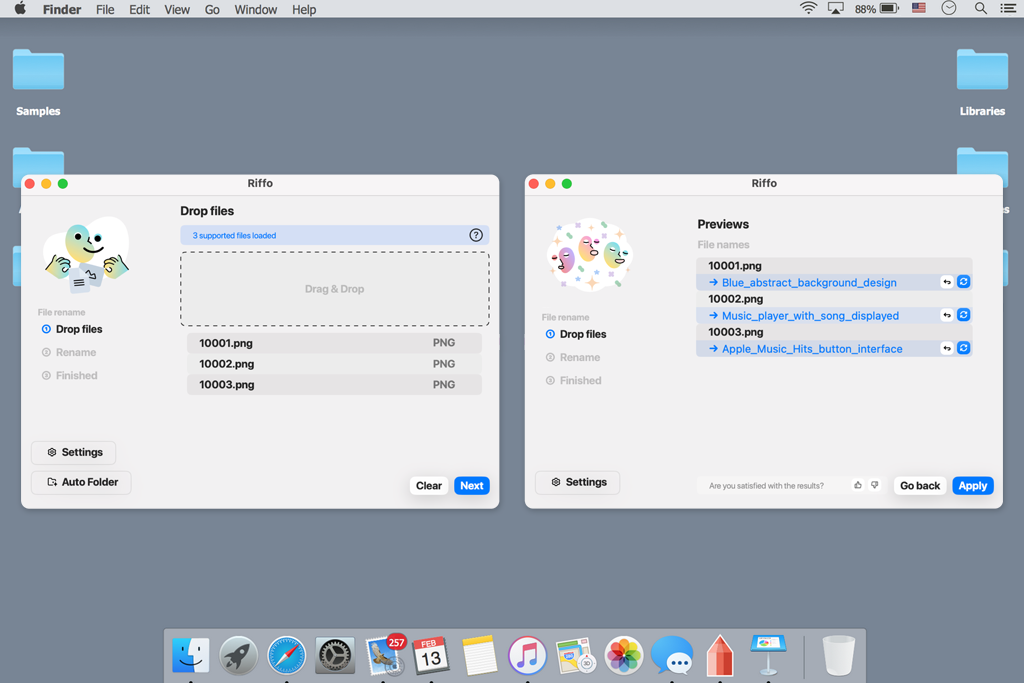
Riffo caught my attention because it can organize different types of files, not just PDFs. This is especially useful at FixThePhoto, where project folders often include contracts, PDF references, screenshots, visual instructions, and exported images. Renaming the PDFs alone wouldn't be enough to keep everything organized.
Riffo supports AI-powered batch renaming and automatic folder sorting. You can simply add your files and let it suggest clearer names, without having to set up complex renaming rules or regular expressions.
For creative work, it's helpful to keep files grouped by client, topic, or purpose. This way, campaign references, photography briefs, and other project materials stay together.
Riffo may not be the best tool to rename PDF files in bulk when I need exact invoice numbers or very specific filename formats. It also doesn't replace tools for editing PDF content. For example, a PDF watermark remover helps remove unwanted marks, while renaming tools keep draft and approved versions properly organized. These are two different tasks.
Since Riffo initially focused on Mac users and its current pricing is unclear, I wouldn't recommend it as the main tool for a Windows-based business. Still, it's worth considering for creators who work with both photos and documents.
Pricing: Listed as free on Product Hunt. I couldn't confirm the current free plan limits or paid prices.
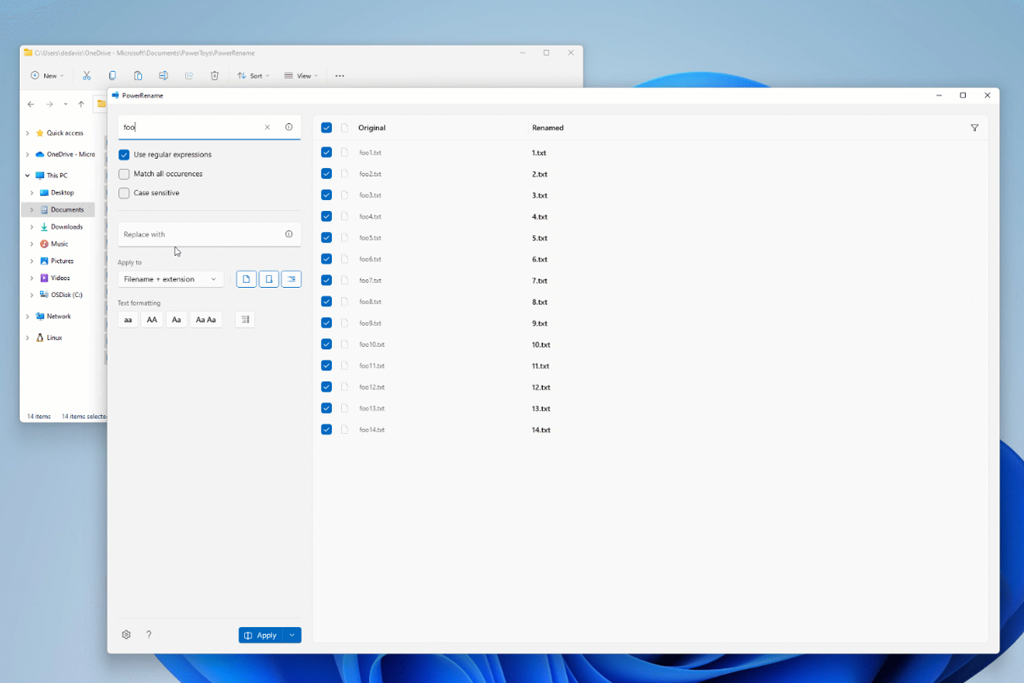
PowerRename is a great free option for renaming PDF files in bulk without investing in expensive software. It's part of Microsoft PowerToys and works directly from Windows File Explorer. I just select the files, right-click, and choose PowerRename to make the changes. There's no need to open another program or import the PDFs.
At FixThePhoto, I find PowerRename useful for tidying up exported files. For example, when a project has files named Final_01, Final_02, and Final_03, I can replace the generic names with the client's name, add project details, or make the numbering consistent.
“PowerRename handles most basic renaming tasks without the need for another paid tool.”

The preview panel is probably my favorite feature. It shows exactly how the filenames will look before I apply the changes, which is handy when working with regular expressions. PowerRename also lets me use file creation dates, change letter case, and set custom numbering. These options are enough for most everyday renaming tasks.
It's also worth remembering that file numbers and PDF page numbers are two different things. A PDF page numbering editor adds numbers to the pages inside a document, while PowerRename changes the names of the PDF files themselves.
I'd continue using PowerRename for everyday file management. It can't read PDF content, but when the filenames already contain the details I need, it gets the job done without paying for extra software.
Pricing: Free with Microsoft PowerToys. No separate subscription or per-file fees.
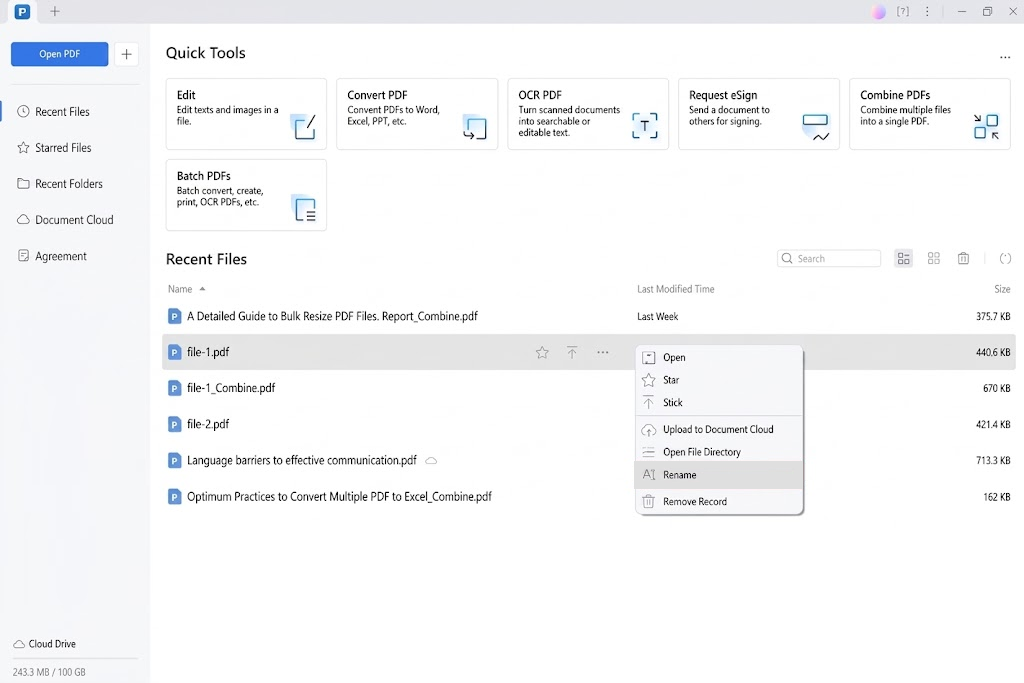
PDFelement is not a dedicated bulk PDF renamer, but it's useful when I need to do more than just change filenames. For example, scanned project instructions may contain outdated pages, comments, or formatting issues that need fixing. With PDFelement, I can handle OCR, editing, conversion, and page organization in one place.
The interface is easier to use than most advanced file management tools. I can open several documents, find them later in Recent Files, and rename individual PDFs without having to switch between different programs.
I find PDFelement especially useful when a document needs a little cleanup before archiving. I can remove pages I don't need, run OCR, and save a clean final version. The tools to delete pages from PDF are handy when incoming documents contain extra pages or attachments that aren't relevant.
I'd keep PDFelement as an extra tool if I already used it for PDF editing, but I wouldn't buy it just to rename multiple files at once.
Pricing: Limited free trial with watermarks on some editing and export features. Promotional annual plans start at $31.99/year, while the regular annual price is $79.99. Perpetual licenses are also available.
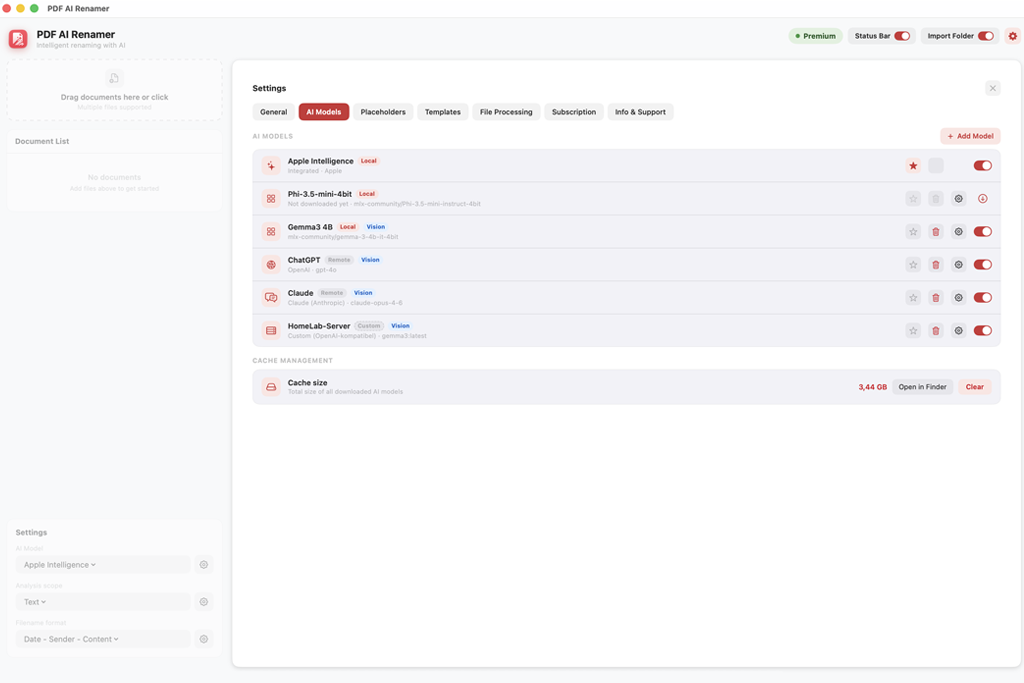
PDF AI Renamer is worth considering if privacy is a priority. It can use AI models that run locally on Apple Silicon Macs to automatically rename PDF files without uploading their contents to a cloud service.
This could be especially useful at FixThePhoto when working with private client agreements, contracts, and internal files. I could let the tool suggest filenames while keeping sensitive documents on my own computer.
“Running AI directly on the device is a big advantage when working with client files that can't be uploaded to online services.”

The program works with both PDFs and images and includes OCR for scanned documents. This is useful because some scanned files don't have searchable text, so the software needs to read the text from the images themselves.
I also like the custom templates. With a premium plan, users can choose how filenames are structured, change placeholders, add other AI models, and set folders to be monitored automatically. Still, I'd check the suggested names before using them. Even when files stay on your computer, the tool can still get dates or reference numbers wrong.
PDF cleanup is a separate task. A PDF annotation remover can help clean up document copies, while PDF AI Renamer focuses on reading and renaming files. I'd recommend it to Mac users who want to rename documents based on their content without uploading them to the cloud. The free version is another nice advantage.
Pricing: Free - basic on-device AI renaming with drag-and-drop. Premium starts at $2.99/month or $14.99/year. A separate premium purchase option is also available for $17.99.
At the FixThePhoto team, we wanted to find tools that save time on document management without creating extra work. We tested more than 30 options, from simple Windows utilities to AI-powered organizers and professional PDF automation tools.
Instead of focusing on how many features each tool offers, we compared them using tasks we regularly deal with in our work:
1. Creating representative document collections. The test plan covered a range of documents, including invoices, editing briefs, contracts, scanned receipts, reference materials, and academic papers.
We tested searchable PDFs alongside scanned files that had no text layer. Some files had clear names, while others had generic export names. This showed us which tools could only change existing filenames and which could actually read the contents of a PDF.
“I like that Renamer.ai lets me reuse naming templates, especially when files come in with completely different names.”

2. Checking naming accuracy. We used the same naming format for every file: date, client, document type, and reference number. When testing AI tools, we paid attention to whether they picked the right details from each document, not just whether the new filenames sounded good.
We also checked how well the tools handled files with several dates, similar client names, or multiple reference numbers.
3. Evaluating batch processing. Testing covered both small batches of 10-20 PDFs and larger folders containing hundreds of files.
We also checked how long each renamer took to set up, whether its settings could be saved for future use, and how much work was left to do afterward. Another important point was whether it could handle folders within folders without changing the original files.
4. Measuring customization. A good bulk PDF renamer should work with the way people already organize their files. We looked at features such as prefixes, date formats, numbering, regular expressions, templates, and the ability to pull details from PDFs. Being able to preview new filenames was also important, since one wrong setting can mess up an entire folder.
“Riffo is a good fit for creative projects where documents, screenshots, and reference images are often kept in the same folder.”

5. Reviewing privacy and security. We also checked whether files are processed on the computer or sent to the cloud. For business use, it's important to know where documents are handled, not just how accurately they're renamed.
We also looked at whether files could be processed locally instead of in the cloud and how clearly each tool explained its processing options.
6. Comparing price and practical value. Free renamers still scored well when they handled renaming reliably. For paid tools, we looked at what the extra cost actually offered, such as automation, document recognition, or more control over the workflow. A higher price didn't necessarily mean a better tool.
“PDFelement works well for editing PDFs, but a dedicated bulk PDF renamer is a better choice when you need to rename large numbers of files regularly.”

PDFelement works well for editing PDFs, but a dedicated tool is a better choice when you need to rename large numbers of files regularly.
The right option depends on the files you need to rename:
What matters most isn't how quickly a tool can rename 1,000 PDFs. It's knowing that those files will still be easy to find and understand six months down the road.
On Windows, you can select several PDFs in File Explorer, press F2, and give them numbered names. For more control over filenames, try PowerRename or Bulk Rename Utility. If you need to rename files based on what's inside the documents, AutoSplit or an AI-powered renamer may be a better fit.
Yes. AutoSplit can pull details from searchable PDFs, while Renamer.ai and PDF AI Renamer use AI to identify information and create filenames. Scanned documents may need OCR first so the tools can read their contents.
PowerRename is my top choice for free PDF renaming on Windows when working with existing filenames. Bulk Rename Utility is another free option for personal use. Mac users with compatible devices can also try PDF AI Renamer, which offers basic on-device AI renaming at no cost.
Normally, changing a filename does not alter the document's pages, text, or images. However, automated workflows may perform additional operations, so keeping an original backup remains important.
Renaming a PDF usually doesn't change its pages, text, or images. However, some automated tools may do more than just rename files, so it's always safer to keep a copy of the originals.