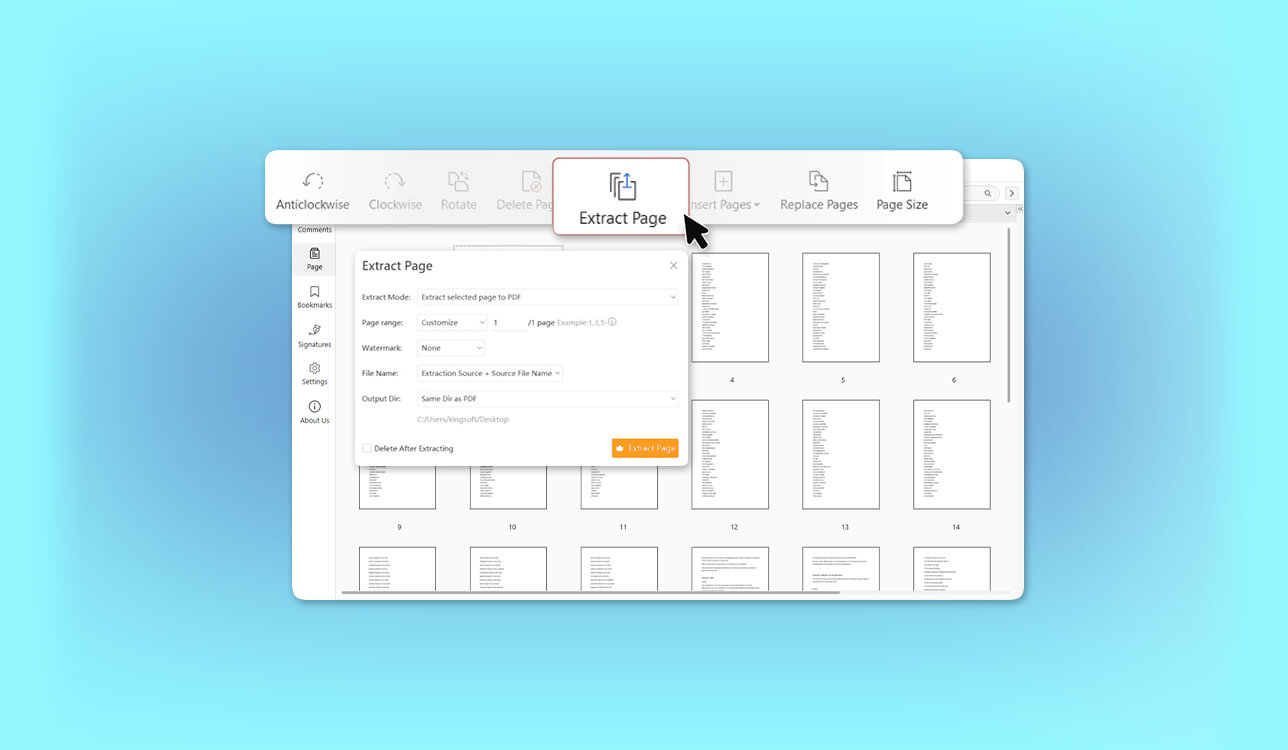
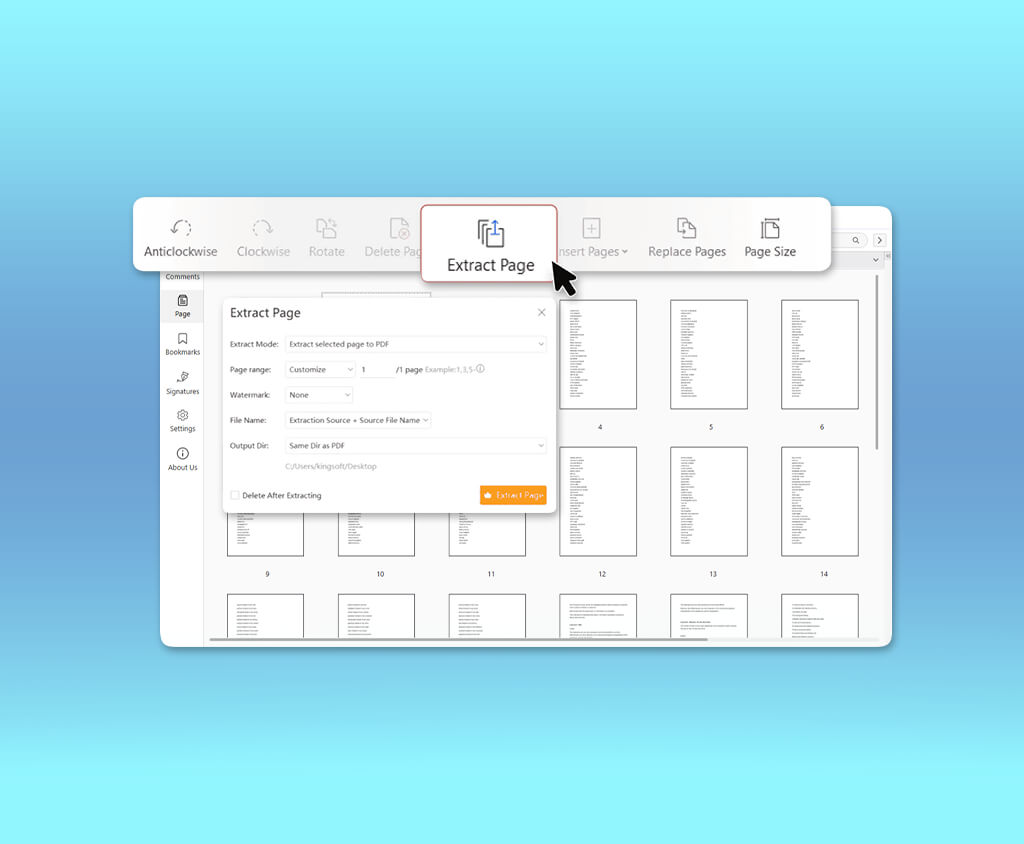
A few months ago, I was putting together a client presentation at FixThePhoto when a photographer asked me to share just three pages from a 74-page PDF portfolio. I needed a reliable online tool to extract them, but the pages were scattered throughout the file. One contained a detailed pricing table, and another had clickable links to before-and-after examples.
Sending the entire portfolio wasn’t ideal, and screenshots would mean losing the clickable links and other interactive elements. Recreating the pages in Photoshop would take much more time than simply extracting them.
As a content creator and photo editor, I deal with PDF portfolios, retouching briefs, invoices, photography guides, and marketing presentations on a regular basis. Sometimes I just need one page from a 100-page file. Other times, I need to pick out several pages from different parts of a document and put them together into a PDF I can send straight to a client.
Finding a good online PDF page extractor wasn’t as easy as I thought. Some tools limit free downloads, others ask you to create an account, and some recreate the pages instead of preserving the original PDF content.
That’s why our FixThePhoto team decided to test 30+ online PDF page extractor tools to find the ones worth recommending (How We Tested Online PDF Page Extractor Tools). Here’s what I focused on:
Adobe Acrobat was still my top choice for professional PDF work, but several free alternatives were worth considering, especially for occasional tasks or when privacy mattered more than advanced editing features.
❓ Can you extract PDF pages without an online tool? Yes, and for simple tasks, built-in tools may be all you need. Windows and macOS both have ways to extract PDF pages, though they offer a different experience from dedicated PDF tools.
❗ Your PDF may be online. Or it may never leave your computer.
“Not every online PDF page extractor uploads your files to a server”. It’s worth checking how a tool handles your documents, especially when you’re working with client materials.
| Privacy level | Processing method | Examples |
|---|---|---|
|
Higher privacy
|
File processed locally in browser
|
PDFgear, Drawboard
|
|
Cloud processing
|
File uploaded and later deleted
|
PDF24, Smallpdf, iLovePDF
|
|
Extra caution
|
Review storage and data-use policies
|
Any unfamiliar service
|
PDF24 and Smallpdf say they automatically delete files after one hour, while iLovePDF says processed files are usually deleted within two hours. PDFgear and Drawboard take a different approach, stating that their standalone extractors process documents locally on your device.
The five-minute PDF quality test. Before sending an extracted page, I check a few things to make sure everything is intact:
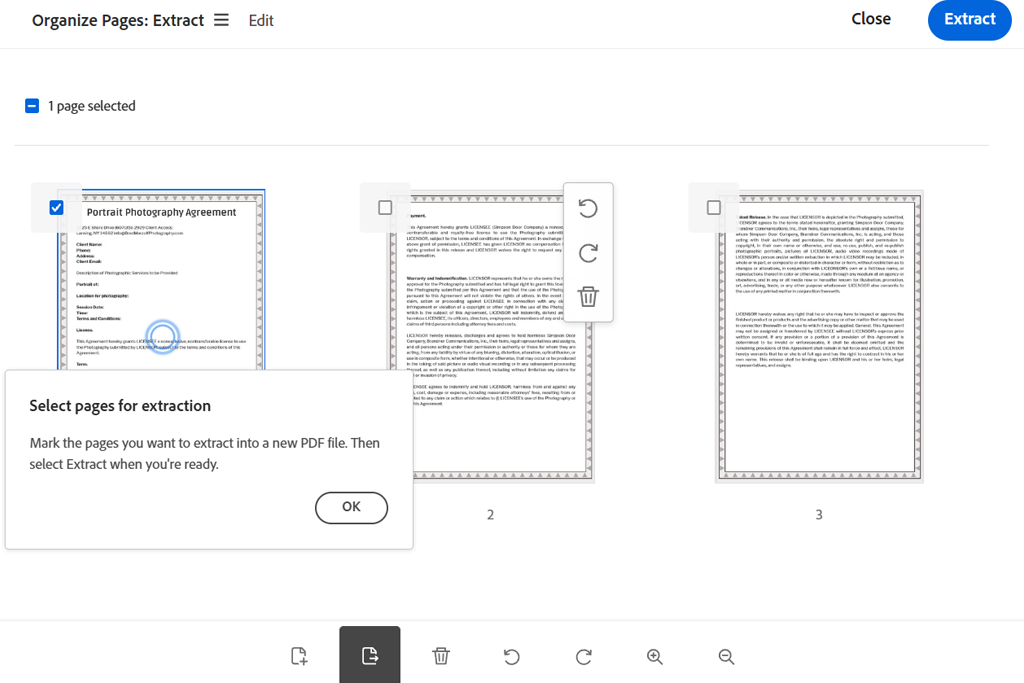
My verdict: For important PDFs that go to clients, I still prefer Adobe Acrobat. If you already use Adobe products for work, extracting pages within the same software is more convenient than relying on a separate tool.
Adobe Acrobat is part of my everyday work at FixThePhoto, so it was the obvious place to start. I use it to review contracts, organize client materials, check PDF proofs, and prepare documents for approval. This time, I wanted to see whether its online extractor could handle quick tasks without having to open the desktop app.
The process is simple: upload the PDF, sign in if prompted, select the pages you need from the thumbnails, and click Extract. Acrobat saves them as a separate PDF without changing the original. You can also select several nonconsecutive pages at once, without splitting the document into separate sections first.
" For client documents, Acrobat is my first choice when formatting, accuracy, and further editing are important."

Acrobat also lets me rotate, reorder, or delete pages. I find this useful when a photographer’s portfolio has pages in different orientations or when I need to remove an old pricing page from a client’s PDF.
Another plus of this free PDF page extractor is that I can stay in Acrobat if the extracted pages need more work. Its editing, commenting, signing, and security features cover most of what I need. I can also add pages to a PDF using Adobe Acrobat if I need to update the document or put together a new file for a client.
The online extractor is free to use, while Acrobat’s other tools include OCR, PDF editing, document comparison, and security features. For occasional page extraction, the free tool may be all you need.
Pricing: Free online extraction requires an Adobe account and is subject to usage limits. PDFs can be up to 100 MB and 500 pages. Acrobat Standard starts at $14.99/month, while Acrobat Pro starts at $19.99/month, with annual plans billed monthly.
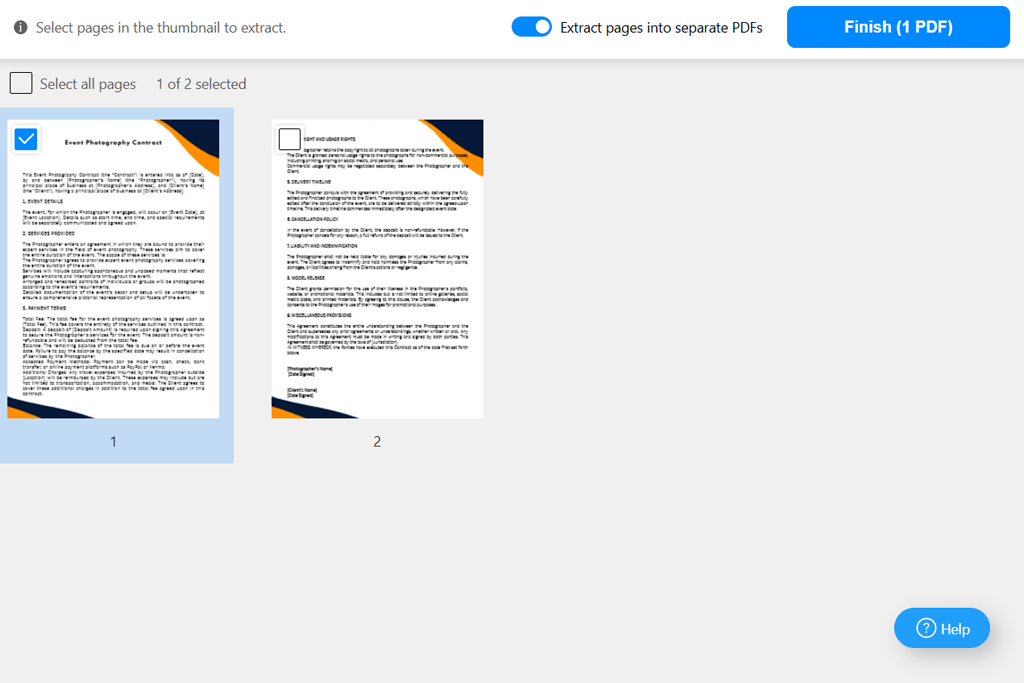
My verdict: For basic PDF page extraction, this is my go-to free alternative to Acrobat, especially when I want to keep files on my device.
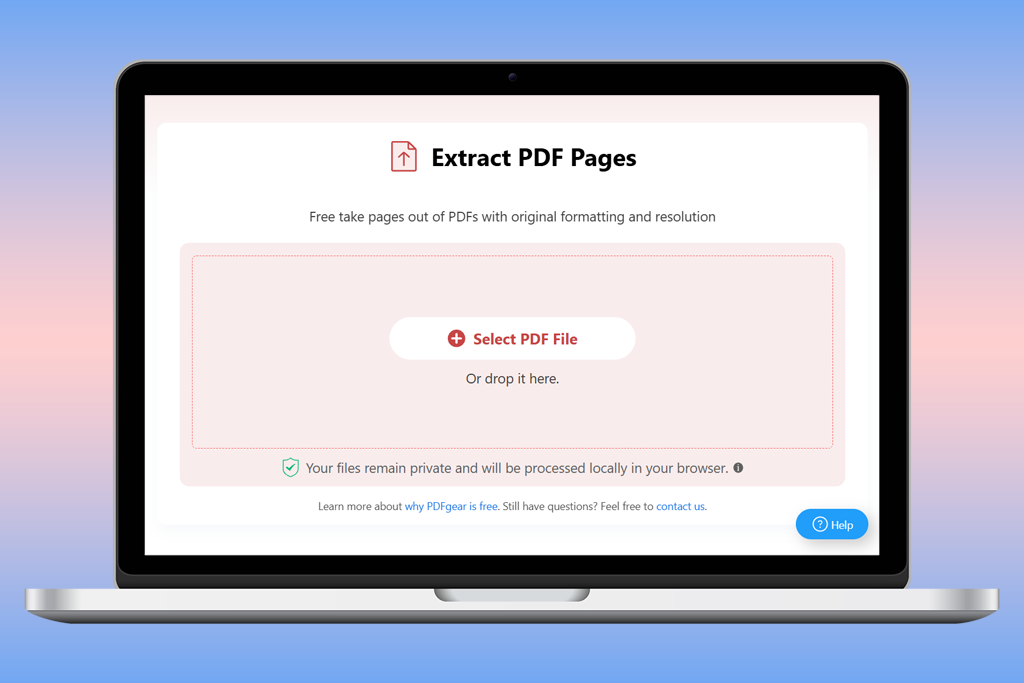
PDFgear caught my attention because it offers two things that are hard to find in a completely free online tool: easy page extraction and local processing. According to its documentation, files stay in your browser instead of being uploaded to PDFgear’s servers.
That matters when I’m working with unpublished photos, private creative briefs, or client presentations. Still, I wouldn’t assume every free online tool handles files just as safely.
PDFgear also aims to preserve the original fonts, colors, and table formatting. Still, I’d check the extracted pages before sharing them, especially if the PDF contains interactive forms, annotations, or complex hyperlinks.
The interface keeps things simple, making page extraction quick and easy. However, if you need more editing options, PDFgear's desktop app may be a better choice. A separate PDF reader can also help you review the finished file, especially if you're looking for the best PDF readers for Windows 11. One of PDFgear's biggest advantages is that you can extract pages from PDF online without paying for a premium plan.
Pricing: Free. No subscription, registration, or stated file-size cap for the online extractor.
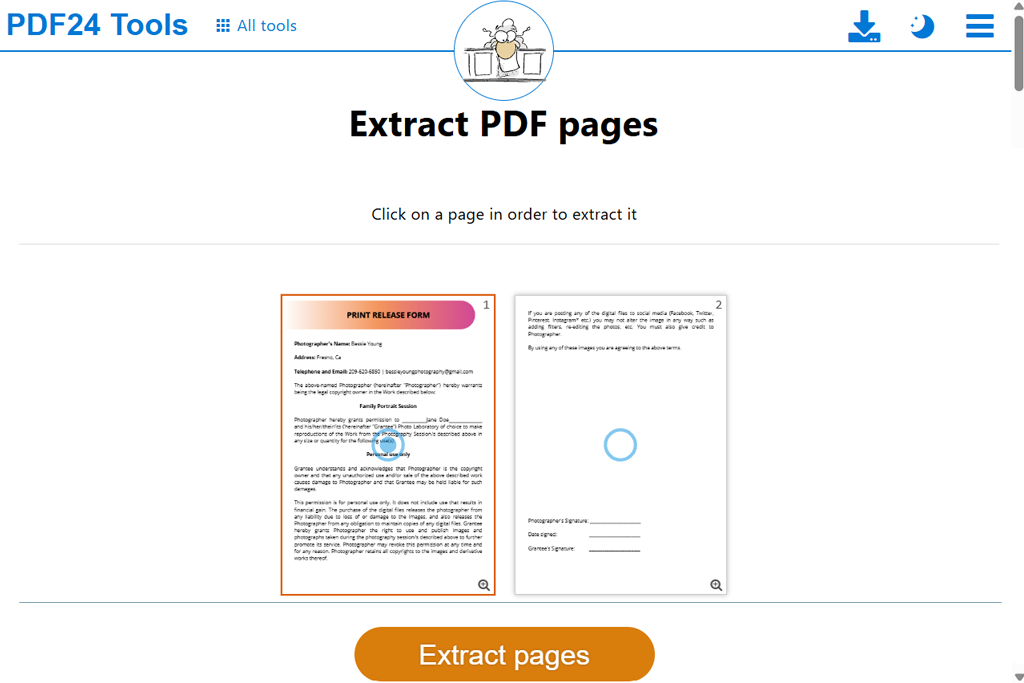
My verdict: PDF24 Tools is a great option for regular PDF extraction, offering useful features without the cost of a subscription.
PDF24 Tools feels more like a handy set of utilities than a full-featured productivity app, but that works in its favor. I don’t always need another account or complicated workspace. Sometimes I just want to extract a few pages from a PDF and get back to work.
PDF24 shows thumbnails of the pages, so it’s easy to pick the ones I need. I also like that I can select all even or odd pages at once. It’s a real time-saver when I’m working with double-sided scans or need to separate alternating pages from a document.
The online PDF page extractor is designed to preserve the original quality of PDF pages, and PDF24 says it doesn’t deliberately reduce their resolution. This matters for photography portfolios, where fine textures, detailed retouching examples, and small text need to stay sharp.
" PDF24 is a good fit for routine PDF cleanup, especially when you need a free tool."

The service also lets you merge, rotate, compress, and rearrange PDFs. These features are useful when tidying up a document. However, tools to delete pages from PDF work differently from extraction tools: extraction creates a new file with the pages you select, while deletion removes unwanted pages from the original document.
PDF24’s interface has ads, so it feels less polished than Acrobat or Smallpdf. Files are also processed on its servers rather than on your device. Still, the lack of regular paywalls is a big plus. You get a generous set of free tools, even if you work with PDFs regularly.
Pricing: Free to use, with no subscription or stated usage limits. Files are processed on servers in Germany and automatically deleted after one hour.
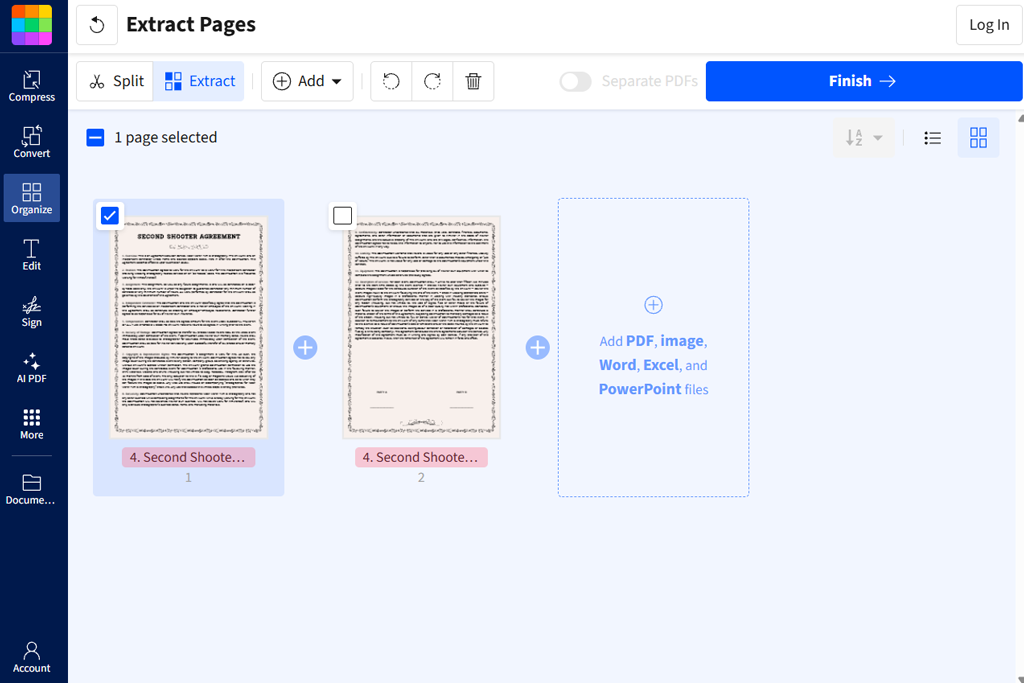
My verdict: Smallpdf is a good choice for occasional PDF tasks. Pro makes more sense if you need its other tools regularly, but paying for it just to extract a few pages each month seems unnecessary.
Smallpdf is handy when you just want to extract individual pages from PDF without figuring out how a new program works. The interface is easy to navigate, the extraction options are easy to find, and everything runs in your browser, so there’s nothing to install.
For a typical client brief, I upload the PDF, pick the pages I need from the thumbnails, and choose whether to combine them into one PDF or save them as separate files. The separate-file option is handy when I need to pull individual reference sheets out of a longer photography presentation.
I also like that Smallpdf has other PDF tools in the same place. If I need to compress or convert a file after extracting pages, I can do it without switching to another service.
Smallpdf is less practical if you need to extract pages regularly without paying. The free plan limits usage and downloads, while Pro gives you unlimited access to its tools. If you mainly need free extraction, PDF24 or PDFgear may be a better fit.
For anyone comparing PDF splitter software, Smallpdf is easy to get started with. Selecting pages feels straightforward, even if you’re not used to working with PDF splitting tools.
Smallpdf states that uploaded files are protected by TLS encryption and deleted after one hour unless saved to an account. That's useful information, although encrypted uploads still mean the document leaves your device.
Smallpdf reports that TLS safeguards transfers and that temporary copies are removed within 60 minutes, unless users retain them in their profiles. Still, your PDF is sent to an external server instead of staying on your computer.
Pricing: Free with usage and download limits. Pro costs $120 per year when billed annually or $15 per month with monthly billing.
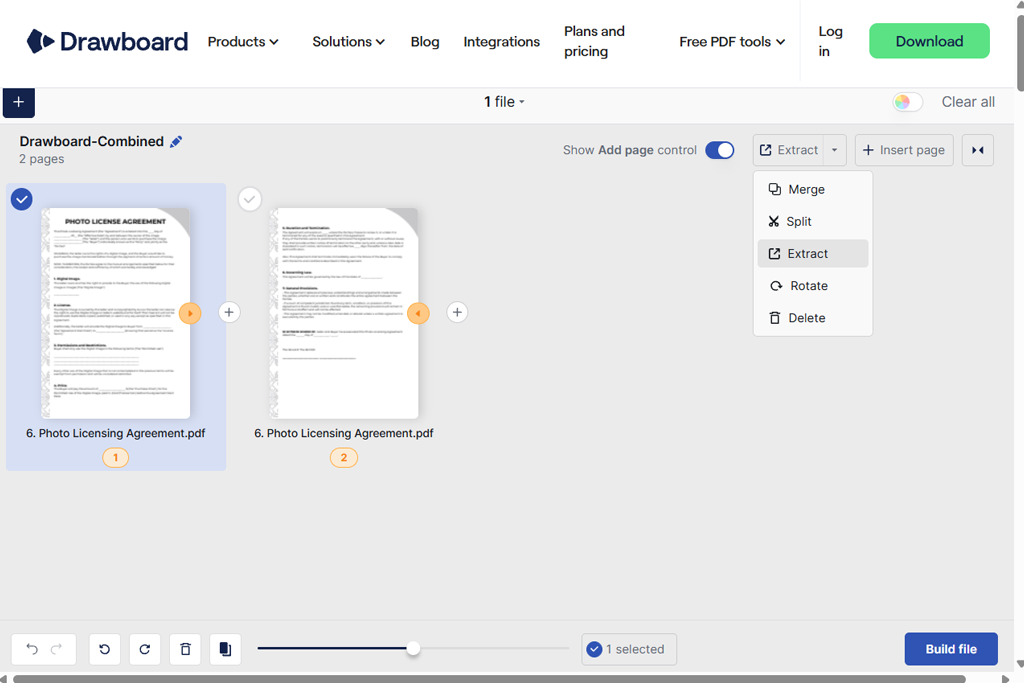
My verdict: Drawboard is a good choice if you want a free, simple online PDF page extractor that keeps your files on your device without extra document-management features.
What stands out about Drawboard is that it handles page extraction right in your browser, without sending files elsewhere. According to the company, documents stay on your device when you use this feature.
This is useful for sensitive files such as project proposals, designs that haven't been released, or internal documents. Once the tool has loaded, you can also use it without an internet connection.
The process is simple: open a PDF, view the page thumbnails, select the pages you need, and save them as a new file. There’s no account to create, no subscription prompt, and no complicated export settings to deal with.
"I like that Drawboard lets me extract pages from a PDF without uploading the original file to a server."

Drawboard may be a good fit for designers who regularly annotate PDFs or mark up documents. Just keep in mind that the free online extractor is separate from Drawboard’s more advanced paid PDF editing tools.
For simple page extraction rather than extensive adjustments, Drawboard works well. If a PDF contains rotated technical drawings, it may be easier to correct their orientation with dedicated PDF rotator software before sharing the finished file.
The main drawback is that processing depends on your device’s memory. Large PDFs may be harder to handle on a low-powered laptop or tablet.
Pricing: Free. Optional Drawboard PDF Pro Plus from $83.92/year and Pro Unlimited from $159.99/year for broader features; neither subscription is required for the standalone extractor.
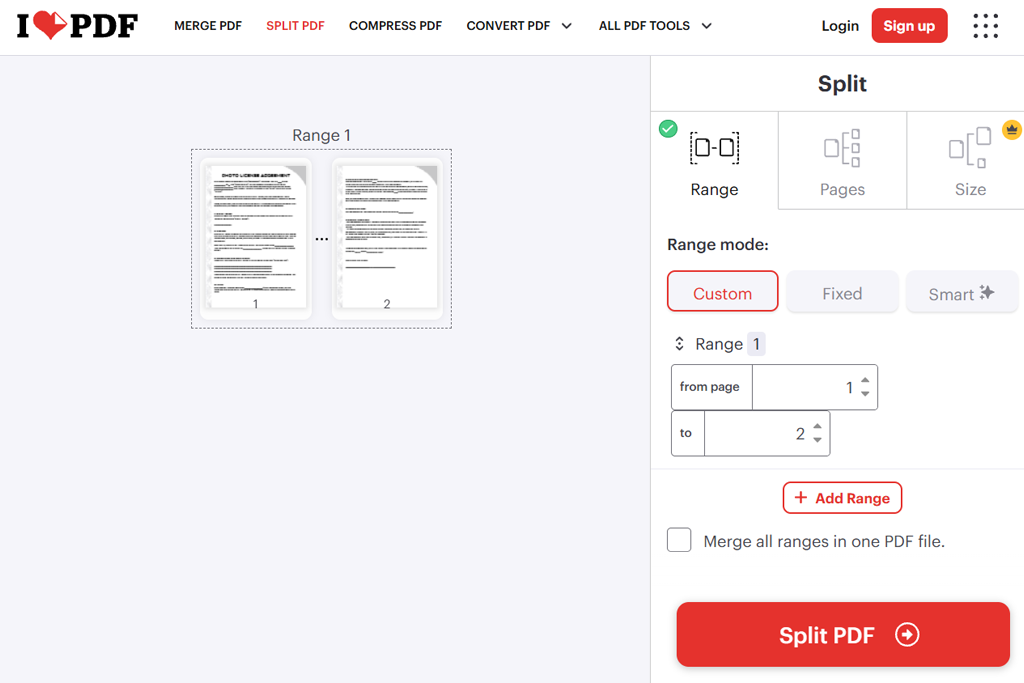
My verdict: I often use iLovePDF to extract selected pages from long documents, especially when I already know which page ranges I need.
When I know which pages I need, iLovePDF saves me from scrolling through a long document and selecting them one by one. I can just enter the page numbers or ranges in the Split PDF tool and get the pages I want.
For example, if a client needs pages 3, 8, and 14-17 of a photography handbook, I can enter those numbers directly instead of saving each page separately.
With iLovePDF, I can save the pages I select as separate PDFs or combine them into one file. The page range options come in handy when I need to split a chapter, prepare documents for different clients, or pull specific sections from training materials.
iLovePDF works with cloud storage services like Google Drive and Dropbox, making it easier to share files with remote teams and access them across devices. It also offers other useful tools, including compression, merging, OCR, e-signing, and PDF protection.
Extracting pages doesn’t protect a PDF on its own. If the document contains sensitive information, I’d use PDF encryption software before sharing the final file.
The free version is enough for simple tasks, but it has some limits. The Premium plan is affordable compared to many other PDF tools, especially if you pay yearly. iLovePDF says it usually deletes uploaded files within two hours, which is good for privacy. However, this is not the same as processing files directly in your browser.
Pricing: Free with limited document processing. Premium costs $9 per month or $60 per year, which works out to $5 per month with annual billing.
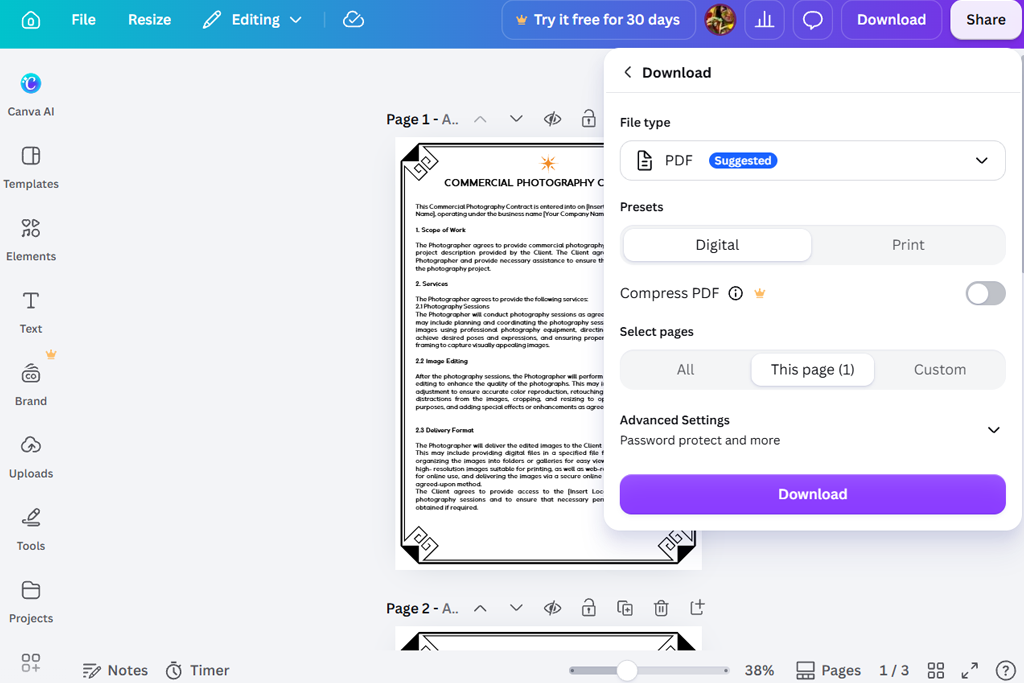
My verdict: Canva isn't the best choice for preserving PDF formatting, but it's great for turning PDF pages into eye-catching marketing materials.
Canva turns PDFs into editable designs, making it easy to customize their content. While the original layout may not always stay the same, it's a great tool for creating something new from existing pages.
For example, if I have a photographer's portfolio in PDF format and want to turn one of its pages into a social media post, Canva makes it easy. I can upload the PDF, choose the page I need, edit the text and graphics, and save the result as a new PDF.
Canva lets you save PDFs as PDF Standard for easy sharing or PDF Print for better print quality. However, these options don't preserve the original PDF structure exactly.
" Canva is a good choice when you want to turn an extracted PDF page into a social media post or promotional design."

Canva converts imported content into customizable elements. Depending on the complexity of the source, this may affect fonts, layouts, or interactive components. I'd avoid using it for legally sensitive documents, complex forms, or files where every element must remain identical.
When you import a PDF into Canva, some fonts, layouts, or interactive elements may not look the same. For this reason, I wouldn't use it for legal documents, complex forms, or files that need to keep their original formatting.
For creative projects, this flexibility is a big plus. Canva's AI PDF editor offers more ways to turn static documents into reusable content. The free version of this PDF page extractor is enough for basic extraction and editing, while Canva Pro is worth considering if you also need premium templates, Brand Kits, resizing tools, and other advanced design features.
Pricing: Free basic extraction and editing, with a limit of 300 pages and 100 MB per PDF. Canva Pro from $18/mo or $144/year in the US.
At the FixThePhoto team, we look at PDF tools differently from general productivity apps. For photography and design projects, keeping the original look matters, but the document also needs to be practical and easy for clients to use.
A PDF can look perfect, but if the text is no longer searchable or the links don't work, it can cause problems later. To test these tools, I created a checklist based on the kinds of files we work with at FixThePhoto.
"PDFgear is a good choice when I need to extract client reference pages without uploading files to the cloud."

These examples help show whether a tool simply saves a page as an image or keeps it fully functional as part of a PDF.
"Smallpdf makes it easy for anyone on the team to handle simple PDF tasks, even without experience in document editing."

"Entering page numbers directly saves time when clients specify which pages they need."

I also tested five other tools as alternatives to the main shortlist:
Adobe Acrobat is my go-to for professional PDF work. PDFgear is a great free alternative, while PDF24 Tools is ideal for extracting pages regularly without paying for a subscription.
Upload your PDF, choose the pages you need, and download the new file. PDFgear, Smallpdf, and iLovePDF also let you save selected pages as separate PDFs.
Yes. PDFgear, PDF24 Tools, and Drawboard let you extract PDF pages for free. Adobe Acrobat and Smallpdf also offer free online extraction, though some features may require an account or have usage limits.
Not always. A good PDF extractor keeps the original page content intact. However, printing to PDF, editing the design, or converting pages to images can affect text, links, and other features.
It depends on the tool. PDFgear and Drawboard say they process files directly in your browser, while other services upload them to their servers. Each service has its own rules for encryption, file storage, and deletion.
Yes, you can extract scanned pages from a PDF. However, the text won't become searchable or editable unless you use OCR to recognize it.