A reliable AI tool for removing background noise has helped me fix more recordings than buying better microphones ever has. Even if I spend time preparing before recording, the audio can still pick up sounds of the air conditioner, cars outside, keyboard typing, room echo, wind, people talking in another room, or a microphone rubbing against clothes.
I often record software guides, voiceovers, product demos, and short clips for social media. Recording everything again is not always possible. Sometimes the video looks perfect, but the audio has problems. In other situations, I only notice unwanted noise after I have already finished editing the video.
In the past, I tried solving these problems by using equalizers, noise gates, and other advanced audio tools. They could improve the sound, but the process took a lot of time and sometimes made my voice sound flat or unnatural. Today's AI noise removal software works much faster because it can tell the difference between speech and background sounds automatically.
Along with the FixThePhoto team, I tested more than 30 AI background noise removers by uploading the same real recordings into every program so the comparison would be fair.
Here are the main things I looked at during testing:
I do not think you should choose an AI noise remover only because its demo sounds perfect. A program that removes constant air conditioner noise well may not perform as well with nearby conversations, loud music, or changing street sounds.
The best tool depends on what you need: you might be cleaning an old recording, improving a live meeting, editing a video, or repairing audio with serious damage. When I choose an app to remove audio from video, I also check if it can open video files directly or if I need to take the audio out first.
VOICEOVERS AND TALKING-HEAD VIDEOS. For this type of content, I want the speaker's voice to sound clear and natural instead of over-edited.
OUTDOOR RECORDINGS WITH TRAFFIC, WIND, OR CROWDS. These recordings are harder to clean because the background noise changes all the time and often overlaps with the speaker's voice.
ZOOM, TEAMS, DISCORD, AND GOOGLE MEET CALLS. For live meetings, fixing the recording later is not enough. The unwanted noise has to be removed while the conversation is happening.
PODCASTS AND INTERVIEWS. Noise reduction is only one part of editing podcasts. I may also need to cut long pauses, remove filler words, reduce mouth sounds, and balance the volume.
AUDIO CONTAINING BACKGROUND MUSIC. Many basic noise reduction programs treat music as part of the recording, so they do not remove it well.
PROFESSIONAL FILM, MUSIC, OR RESTORATION WORK. If the recording has major problems (like clipped audio, electrical hum, or microphone bumps), a simple online tool may not be enough.
Best for: voiceovers, tutorials, interviews, social media videos, and creators already using Adobe software
Platforms: web browser
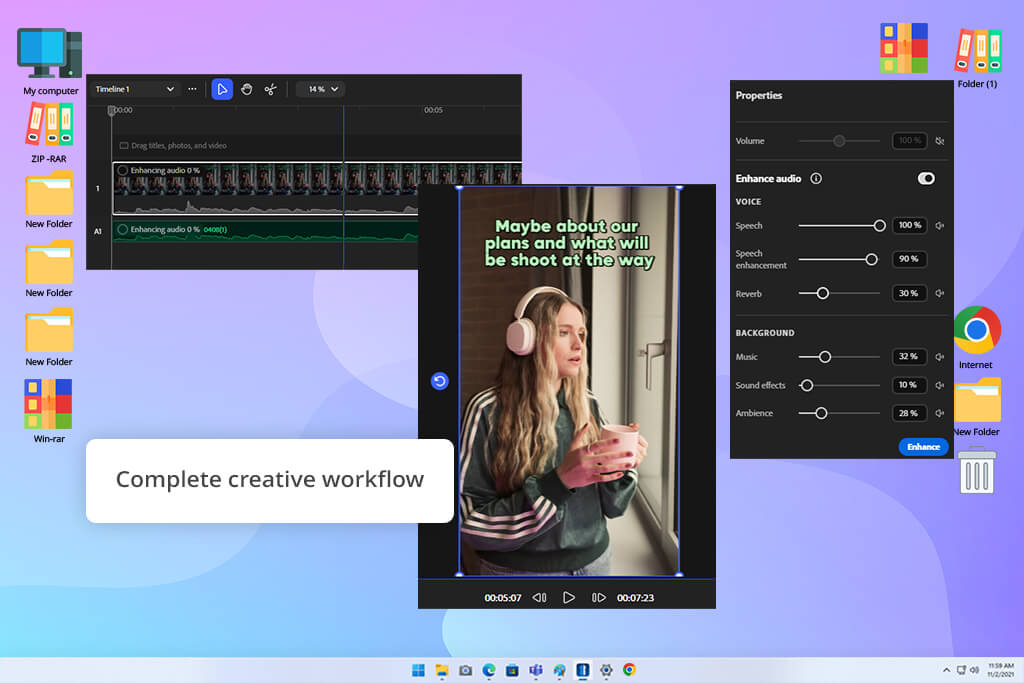
Adobe Firefly became my favorite option because it combines AI noise removal and video editing in one place, which means I don't need to improve the audio in one program, save the file, and then move it into another editor to finish the video. Out of all the free audio enhancers I tried, Firefly had one of the easiest workflows for people who edit both sound and video.
Firefly lets me control speech, background noise, music, and sound effects separately, which is a good thing because removing every bit of background sound does not always give the best result. Sometimes I keep a little room noise, so the voice still feels like it belongs in the video instead of sounding disconnected from its surroundings.
“I usually keep a little natural room ambience, especially in talking-head videos, because the voice sounds more realistic and less artificially processed.”

According to Adobe, Enhance Speech can lower background noise, even out audio levels, and make spoken words easier to hear. The built-in video editor also includes separate controls for balancing speech, music, background sounds, and sound effects.
I also tried Firefly on a short product video that I recorded close to an open window, and the software lowered the traffic noise without making the voice sound overly processed. During the loudest cars passing by, I could still hear a little background sound, but the final audio was good enough for social media without needing any extra editing.
Firefly works especially well for video creators because I can continue editing right after improving the audio. I can trim clips, organize media, add text, and use AI-generated content without switching to another program.
I would not choose Firefly instead of professional audio restoration software when working with badly damaged recordings. However, for tutorials, Reels, ads, reviews, and talking-head videos, it gives me a much quicker editing process than spending time adjusting noise profiles and audio filters myself.
Main features:
Pricing: free access; paid plans provide additional credits
Best for: extracting speech from traffic, wind, crowds, machinery, and other difficult backgrounds
Platforms: web version
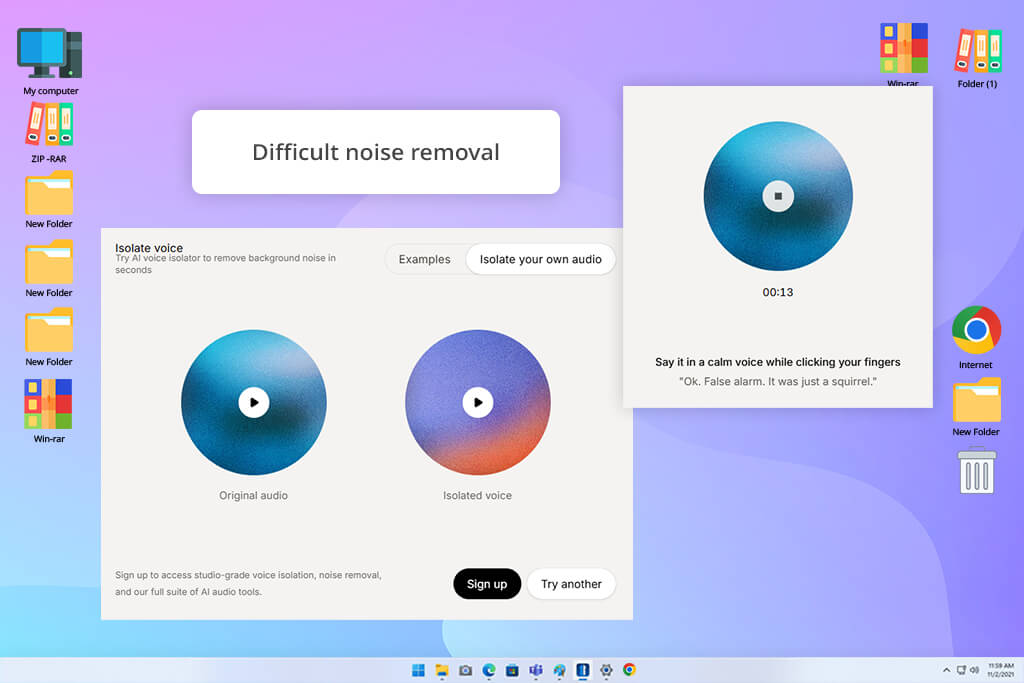
ElevenLabs Voice Isolator gave me the best results when I needed to recover speech from recordings with heavy background noise. Instead of simply lowering unwanted sounds, it focuses on separating the voice from everything happening around the person.
“I got the best results when the background noise was too complicated for normal noise reduction. It focused on the speaker's voice and reduced almost everything else.”

In the recording made near traffic, car sounds and other nearby noise were reduced a lot, while the spoken words stayed clear. Because of this, Voice Isolator is a strong choice for interviews, documentaries, street recordings, event videos, and any content filmed without a professional microphone setup.
Its biggest advantage is also its biggest weakness. If I use the strongest voice isolation on a lifestyle video, the speaker can sound separated from the place where the video was recorded. When that happens, I often add a little room ambience or background sound afterward, so the final result feels more natural.
ElevenLabs says that Voice Isolator can process files up to 500 MB or one hour long. This AI background noise remover is made for editing films, podcasts, and interviews after recording, but it is not designed to separate singing voices from music.
Main features:
Pricing: Voice Isolator consumes 1,000 credits for every minute of audio. Paid subscriptions start with the Starter plan at $6 per month.
Best for: real-time noise cancellation during Zoom, Microsoft Teams, Google Meet, Discord, and online calls
Platforms: Windows, macOS
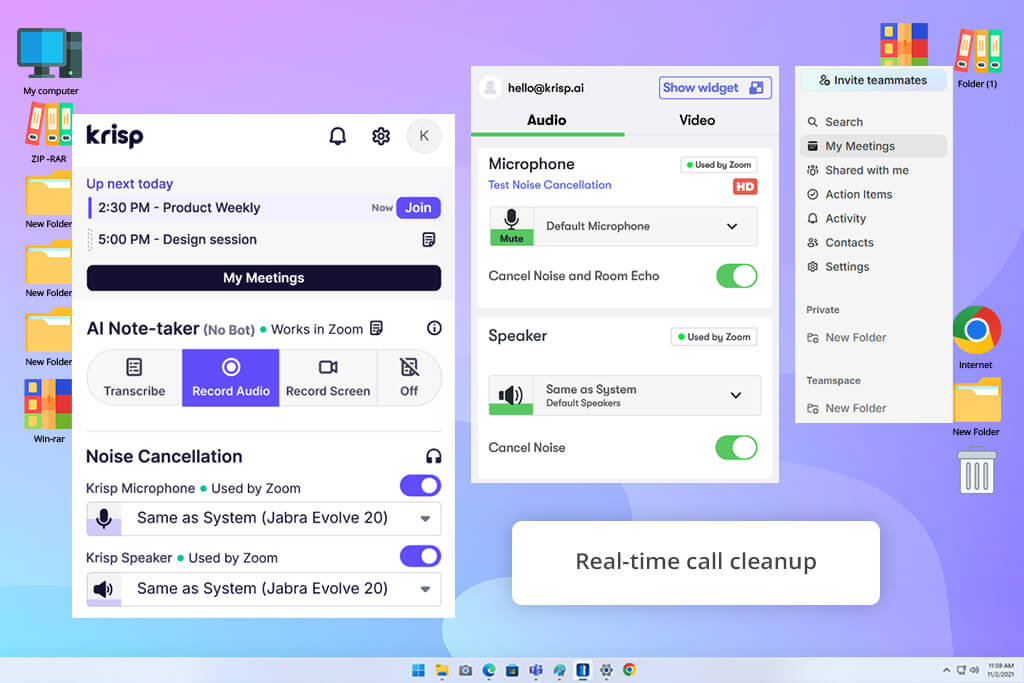
Krisp works differently from most of the other tools on this list because I usually switch it on before I start recording or join an online meeting. It creates a virtual microphone and speaker that I can choose inside Zoom, Microsoft Teams, Google Meet, Discord, or other calling apps.
This makes it a good choice when I cannot control the noise around me. During my tests, I left a fan running, typed on a mechanical keyboard, and played café noise from another device. Without Krisp, all of those noises could be heard clearly.
After turning on its noise cancellation, my voice became much clearer and stood out over the background sounds. If someone is using an AI podcast generator, Krisp can also improve the original recording before it goes through transcription, editing, or automatic podcast creation.
“I use Krisp when I need clean audio while recording, not after the recording is finished.”

Krisp can remove background noise, echo, and extra voices during live conversations. Since it processes both the microphone and the incoming speaker audio, it can also reduce unwanted sounds coming from the people you are talking to.
Getting started is simple. Inside my meeting software or web browser, I choose Krisp Microphone and Krisp Speaker instead of my normal devices. Krisp then cleans the audio as it passes between my hardware and the communication app.
One downside is that it gives me fewer editing options than noise-removing tools like iZotope RX or Adobe Firefly. Krisp is made to keep conversations clear in real time, not to give detailed control over individual sounds during post-production.
For online meetings, virtual classes, customer support calls, livestreams, remote interviews, and recordings made through video call platforms, this live noise removal method is much easier than fixing the audio after everything has already been recorded.
Main features:
Pricing: free or from approximately $10 per agent per month when billed annually
Best for: separating spoken voice from background noise, microphone rumble, plosives, and music
Platforms: web version, Windows, macOS
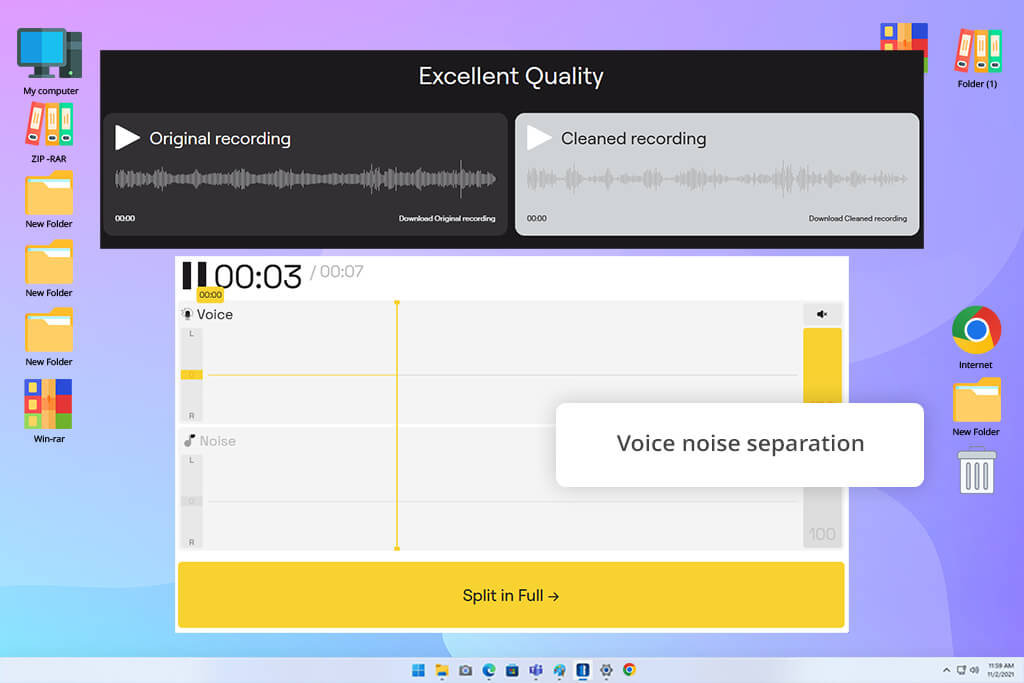
LALAL AI Voice Cleaner worked especially well when the background sounds were more complicated than normal steady noise. I tested it using recordings that included café music, microphone rumble, wind, and several loud popping sounds from speech.
Because of this, the service is useful for event videos, interviews recorded in busy public places, older voice recordings, and videos where people are speaking while music is playing in the background.
“LALAL.AI gave me more freedom than a simple one-click audio enhancer because I could decide how much of the separated background track I wanted to keep after processing.”

LALAL AI can separate many more types of audio than a standard background noise remover. Along with Voice and Noise, it can also split vocals, instrumental music, drums, bass, guitar, piano, synthesizers, string instruments, and wind instruments into their own tracks.
When editing speech, I mostly used the Voice Cleaner and the separate Echo & Reverb Remover. The Echo & Reverb Remover accepts both audio and video files, and it lets me listen to a preview before processing the entire recording.
LALAL AI is not designed to edit complete podcasts from start to finish. It will not automatically organize an episode or remove every filler word. After exporting the cleaned voice, I usually finish the project in Firefly, Premiere, Descript, or another open-source audio editor whenever I need more control over trimming, mixing, and making the final adjustments.
Nevertheless, when the biggest problem is separating someone's voice from a recording with many different background sounds, it produces better results than a standard noise reduction filter.
Main features:
Pricing: The Starter plan is free and includes 10 minutes in the relaxed queue, but it does not include full result downloads. The Lite plan is listed at $9.99 per month or $90 annually
Best for: professional audio restoration, film dialogue, music production, and repairing severely damaged recordings
Platforms: Windows, macOS
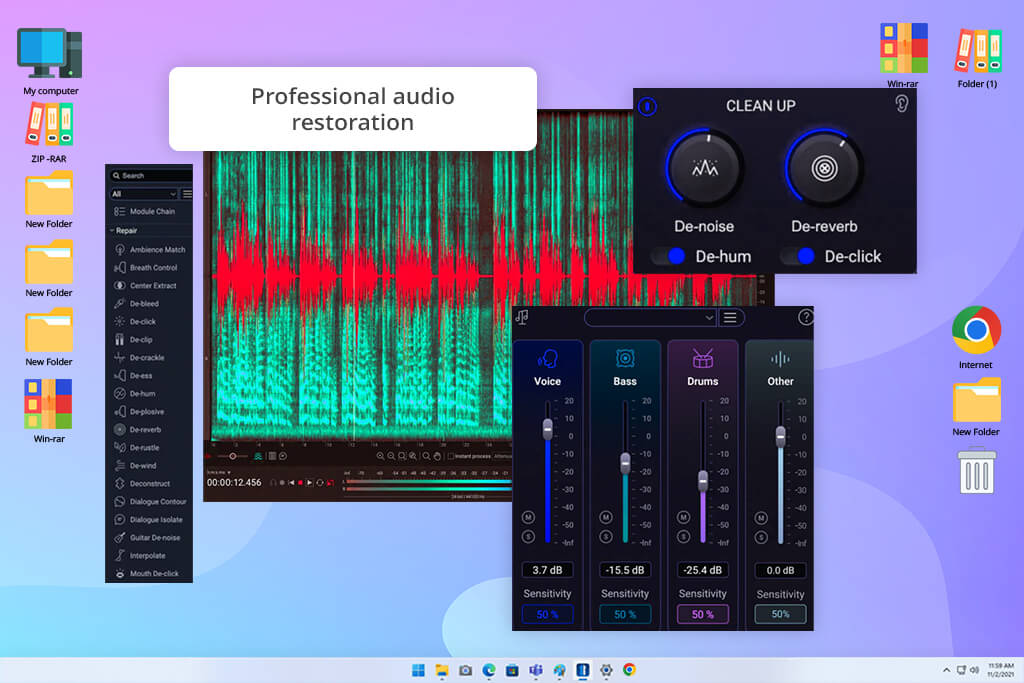
iZotope RX is the most advanced background noise removal tool that I tested, but it is not the software I use for every simple voice recording. I usually open it when an automatic online AI tool cannot tell the difference between the sounds that should stay and the ones that should be removed.
Instead of offering one button that fixes everything, RX includes many separate tools for different audio problems. Depending on the recording, I can use Voice De-noise, Spectral De-noise, Dialogue Isolate, De-hum, De-click, De-plosive, De-rustle, De-reverb, or Spectral Repair to solve specific issues.
“I use iZotope RX when I need to remove one exact sound while leaving everything else untouched.”

The Repair Assistant can scan the recording and suggest the best group of tools to use, making the software easier to understand than older versions. Even so, learning how to read the spectrogram and knowing how much of each effect to apply still makes a big difference in the final result.
RX 12 is available in three versions: Elements, Standard, and Advanced. The Standard edition includes smart restoration tools made for professional audio repair, while the Advanced version offers more than 50 repair features and is built for high-end post-production work.
I would recommend RX to film dialogue editors, professional podcasters, audio engineers, musicians, archivists, and anyone who often works with recordings that cannot be recorded again. If someone only wants to clean up a simple voice recording from their phone, Adobe Firefly or ElevenLabs is a faster and more affordable choice.
Main features:
Pricing: RX 12 Elements costs $99, RX 12 Standard costs $399, and RX 12 Advanced costs $1,399
Best for: podcasts, interviews, talking-head videos, tutorials, and projects edited through transcription
Platforms: web version, Windows, macOS
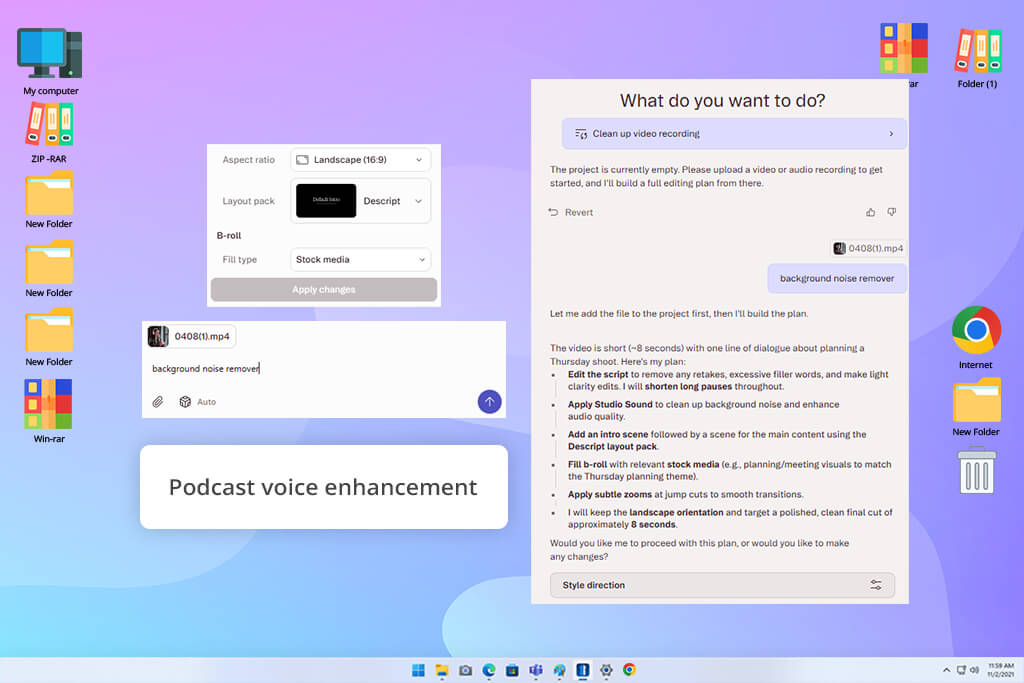
Descript is the AI background noise removal tool that I recommend when the recording also needs a lot of editing. Its Studio Sound feature separates the voice from background noise, lowers room echo, and makes an average microphone recording sound much cleaner.
After cleaning the audio, I continued editing by using the transcript. I removed weak recordings, filler words, and long pauses simply by deleting the matching text. This was much quicker than improving the sound in one program and editing the video in another. After comparing Descript with the best Descript alternative, I would still choose it for projects that focus on speech because editing through the transcript makes both audio cleanup and video editing much faster.
“Start with Studio Sound at a lower setting and slowly increase it because using the highest level can make quiet parts of speech sound artificial.”

Studio Sound is designed to improve speech while lowering background noise and audio distortion. After processing, I can export the finished recording as MP3, WAV, or AAC, or leave it inside the project and continue editing.
I liked that I could adjust how strong the effect was. When I used the highest setting, some quiet words sounded as if they had been rebuilt by AI instead of coming from the original recording. Reducing the effect created a better mix of clear audio and natural voice quality.
Descript is a great option for podcasts, tutorials, interviews, webinars, online courses, and talking-head videos. If I were editing a music performance or a film recording with serious audio damage, I would still choose LALAL.AI or iZotope RX instead.
Main features:
Pricing: free plan or from $16 per person per month
Best for: automatically cleaning podcasts, interviews, voiceovers, and batches of long recordings
Platforms: web version, API
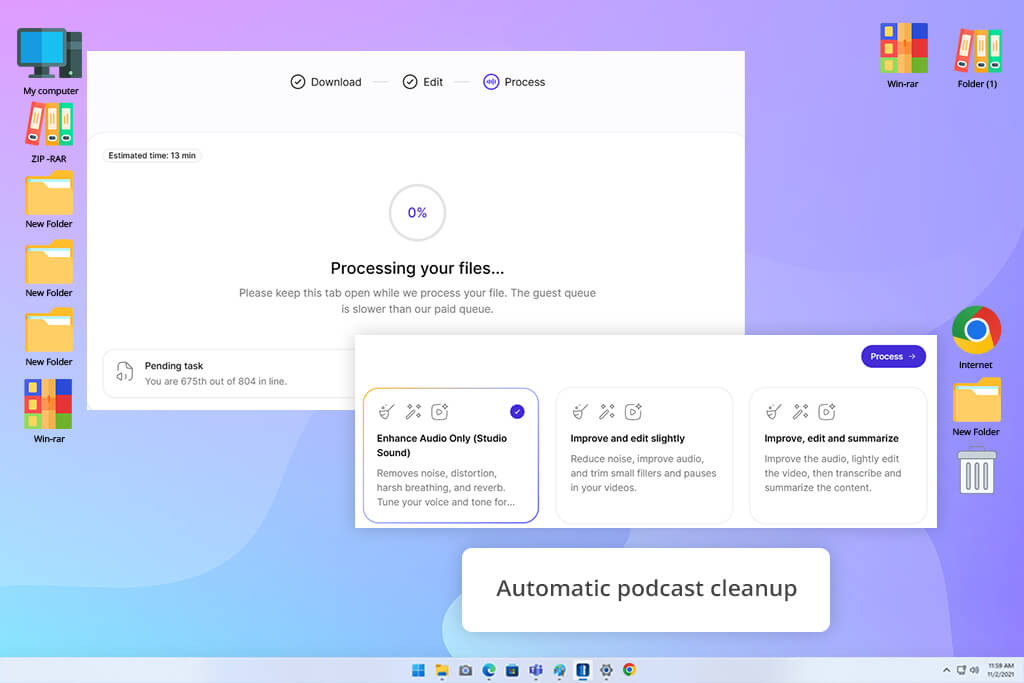
Cleanvoice AI is made for people who want to spend as little time as possible editing podcasts. It does more than remove background noise. It can also delete filler words, breathing sounds, mouth noises, long pauses, and silent sections automatically.
It does not give as much editing freedom as Descript because there are fewer ways to control every part of the process, but it saves time and works well when I need to clean several long recordings.
“I choose Cleanvoice AI when I have a lot of spoken recordings to clean quickly and don't want to remove every pause or filler word by hand.”
Even though it works well for automatic cleanup, I would not use Cleanvoice for projects that need detailed audio restoration. It does not include the advanced sound restoration tools found in iZotope RX or the transcript-based editing system that Descript offers. Its biggest advantage is that it is fast and automatic instead of giving full creative control.
For podcast creators, interview hosts, online course creators, and teams that edit many voice recordings every month, Cleanvoice can save a lot of editing time. I think it works best for creating a clean first version before making final edits in another audio or video editing program.
Main features:
Pricing: free trial or paid options include pay-as-you-go credits and subscription plans
I tested the AI background noise removers together with the FixThePhoto team because we regularly edit voiceovers, interviews, podcasts, software tutorials, product videos, and recordings from online meetings captured in many different environments.
Altogether, we tested more than 25 browser-based services, desktop applications, professional audio editors, and live noise cancellation tools.
To make the comparison fair, I used the same group of test recordings whenever the software supported the required file type:
While testing, I paid close attention to how well each program removed unwanted sounds without making the voice sound unnatural. I listened for metallic audio, unclear consonants, sudden volume changes, missing quiet words, and pauses that sounded artificial. I also compared processing speed, supported file formats, adjustment options, live performance, batch processing, free plan limits, file size restrictions, and export quality.
I tested real-time background noise removers during Zoom and Google Meet calls to see if they could reduce fan noise, keyboard clicks, and nearby conversations without causing delays. I also used professional software on recordings with individual clicks, electrical humming, microphone bumps, and damaged sound frequencies that simple one-click tools could not repair properly.
I also tested Audacity, Adobe Podcast Enhance Speech, VEED, CapCut, Auphonic, Podcastle, Media.io, and MyEdit. However, they did not make my final recommendations because they needed more manual editing, gave less reliable results with difficult background noise, or offered fewer useful features than the tools I selected.
In my opinion, Adobe Firefly is the best overall choice for content creators. It removes unwanted noise, improves voice quality, and lets me continue editing my video in the same online workspace. When I need to clean recordings with heavy outdoor noise, I prefer ElevenLabs Voice Isolator.
Adobe Podcast Enhance Speech is one of the strongest free online tools for improving spoken recordings. The free version supports audio files up to 30 minutes long and allows up to one hour of audio enhancement each day. Video support and extra adjustment options are available with the Premium plan.
Yes. Adobe Firefly, Adobe Podcast Premium, Descript, and LALAL.AI all support video editing. They also work well alongside trusted video editing software for Windows when I need more advanced editing, such as trimming clips, adjusting colors, adding captions, or exporting the finished video.
Yes. Adobe Firefly, Adobe Podcast, ElevenLabs Voice Isolator, LALAL.AI, and Descript work directly in a web browser, making them useful when I want to clean a recording quickly from a different computer without installing anything.
Krisp is my first choice for Zoom, Microsoft Teams, and Google Meet because it removes unwanted sounds from both the microphone and incoming audio while the meeting is happening. NVIDIA Broadcast is also a strong option if you have a compatible RTX graphics card.
In my testing, ElevenLabs Voice Isolator gave the best results on recordings made outside with traffic and wind. However, if strong wind has overloaded the microphone during recording, no AI tool can completely fix that damage.
Yes. LALAL AI Voice Cleaner is the best option I tested for separating a person's voice from music playing in the background. The final quality depends on how much the music overlaps with the same sound frequencies as the speaker's voice.




![7 Best iPhone Mockup Generators [{{%year}} FixThePhoto Choice]](http://fixthephoto.com/blog/images/gallery/news_main__preview_29335.jpg)



















